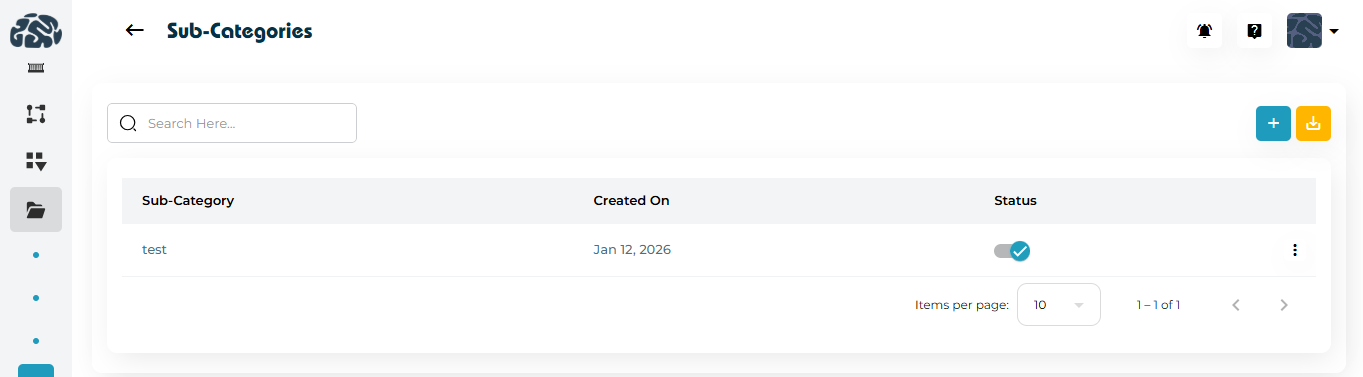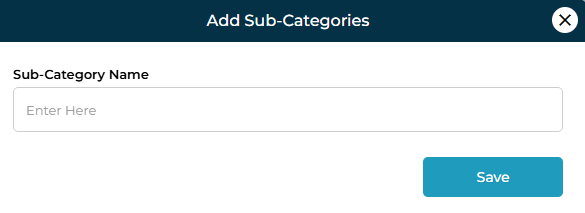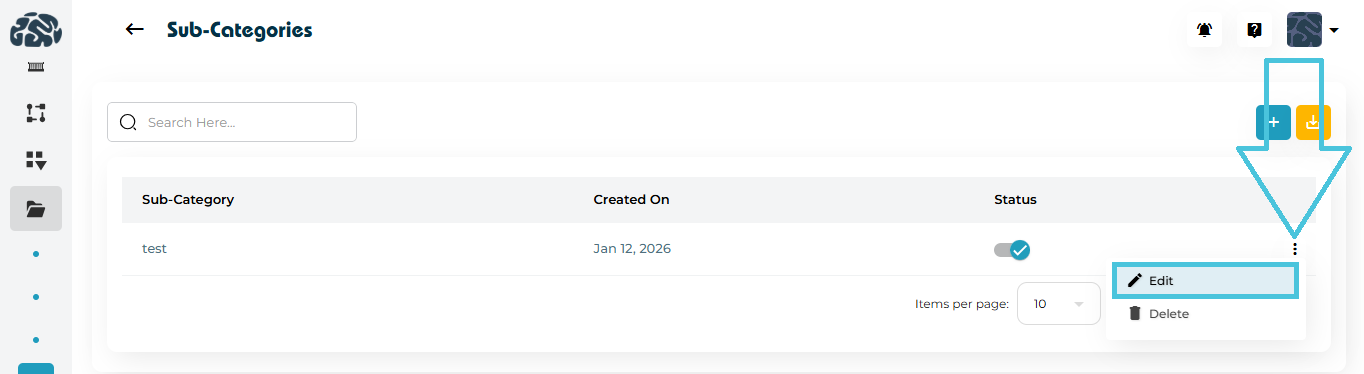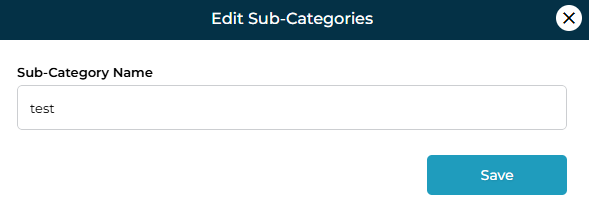
Creating custom analytics reports

Creating Custom Analytics Reports

Creating custom analytics reports in PrepBase allows administrators to design structured, reusable reports that capture exactly the data needed for monitoring progress, performance, and outcomes across workflows. These reports are fully configurable, role-aware, and can be expanded over time without affecting existing data.

1. What Are Custom Analytics Reports?

Custom analytics reports are flexible report templates that define:

  • What information is collected

  • Who can view or fill the report

  • How data is structured using custom fields

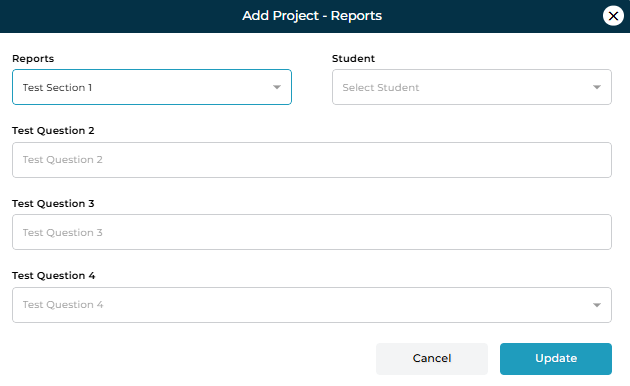
Each report can contain multiple report entries (sections), and each entry can include multiple questions or data fields such as text, dropdowns, dates, or numeric inputs.

2. Accessing the Reports Module

To manage reports:

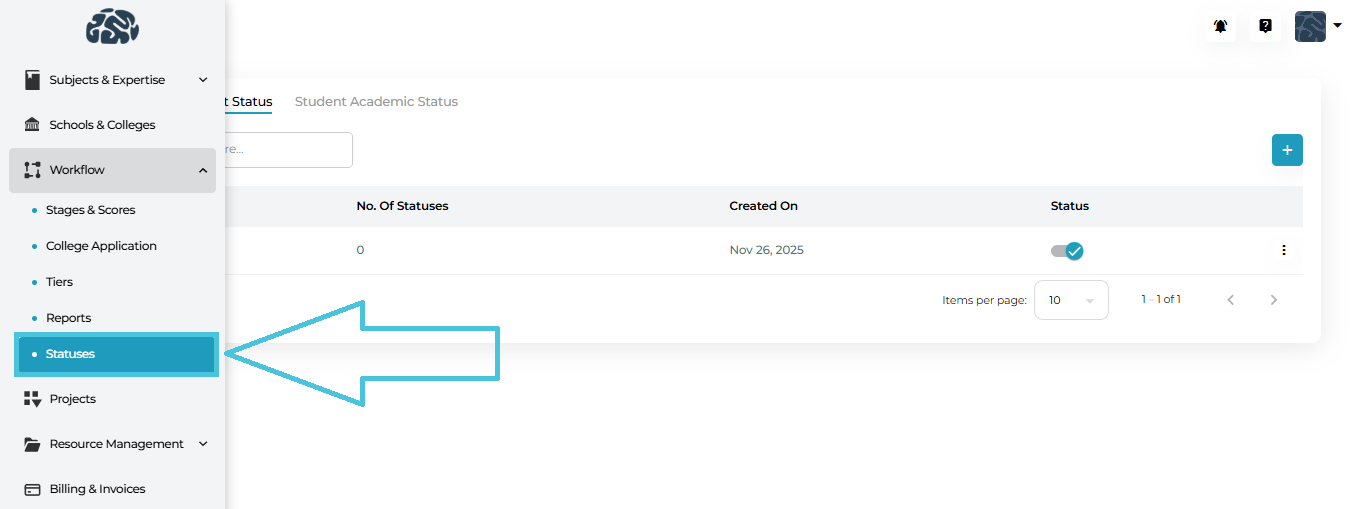
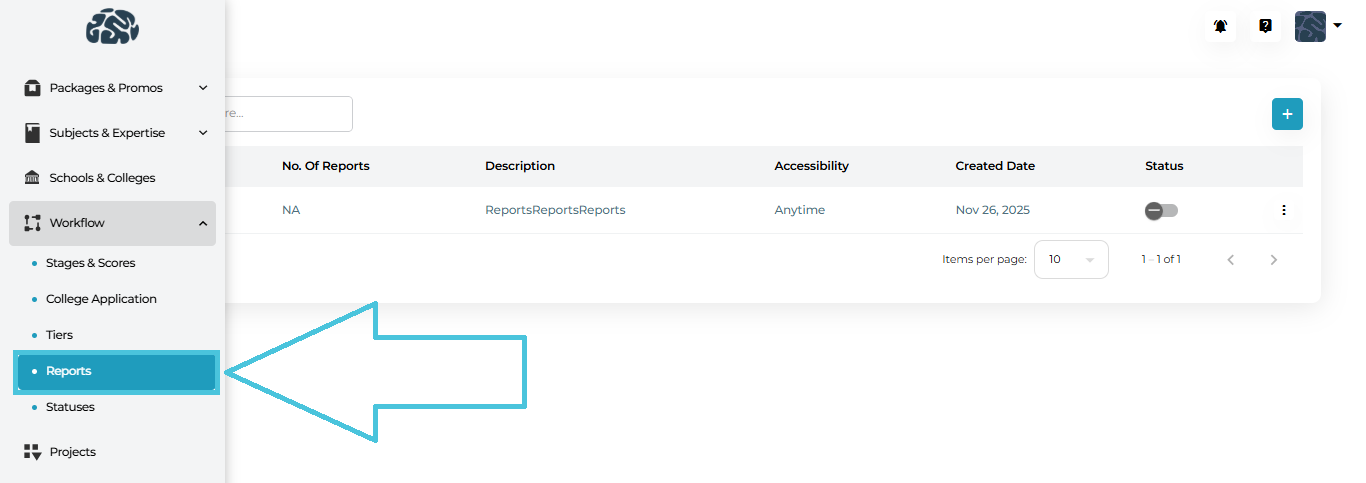
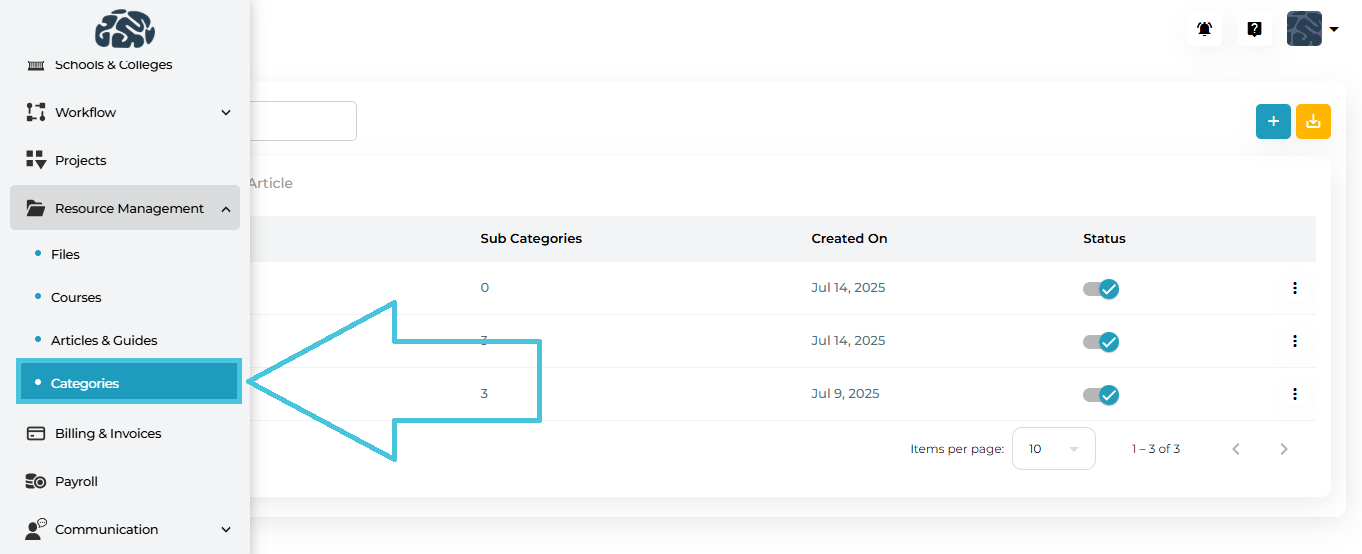
  1. Open the Workflow section from the left navigation.

  2. Click Reports.

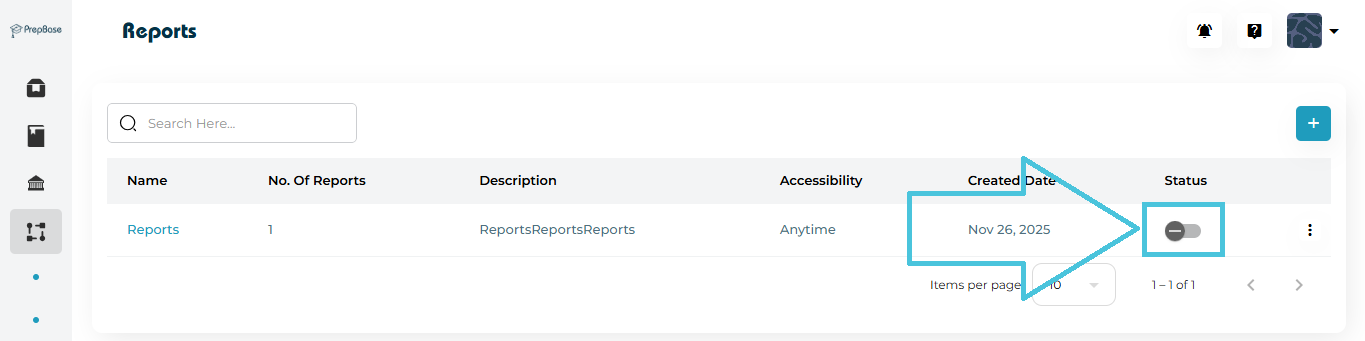
  3. You’ll see a list of all existing reports along with:

    • Number of report entries

    • Accessibility

    • Created date

    • Status (Active / Inactive)

3. Creating a New Report

To create report:

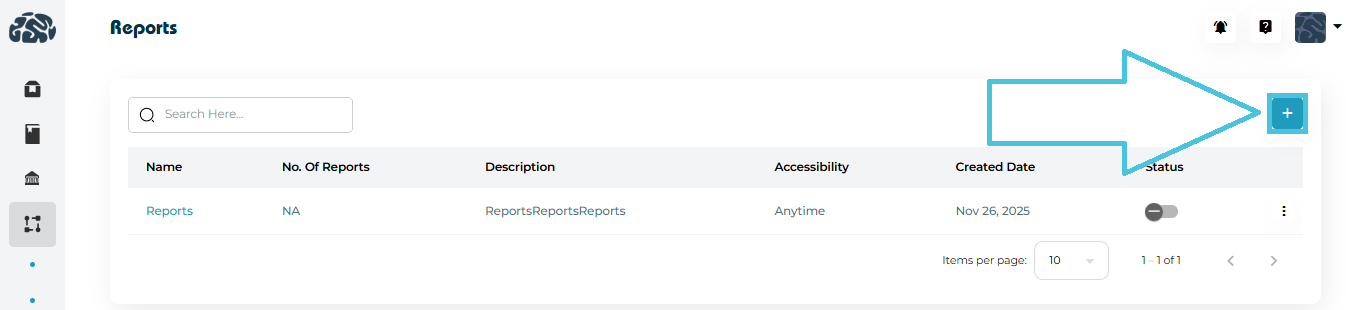
  1. Click ➕ Add New on the Reports page.

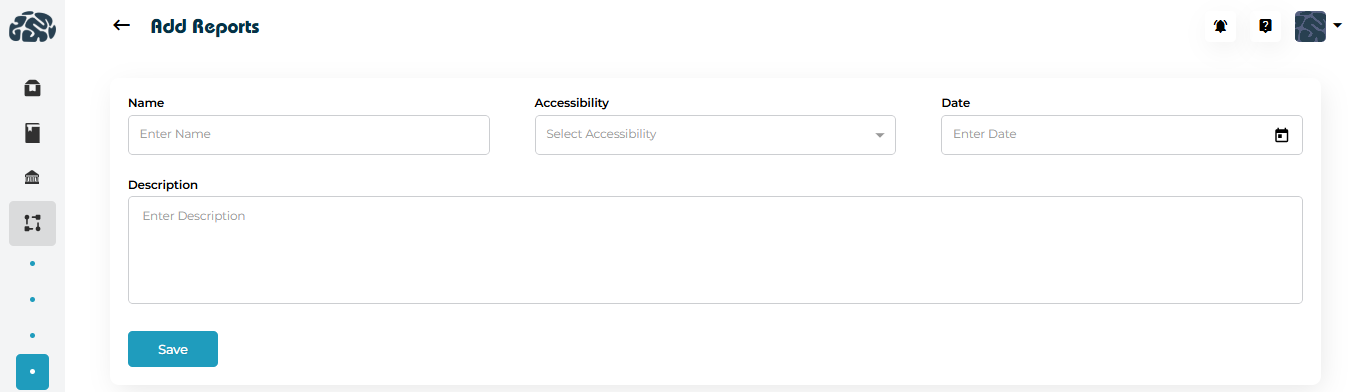
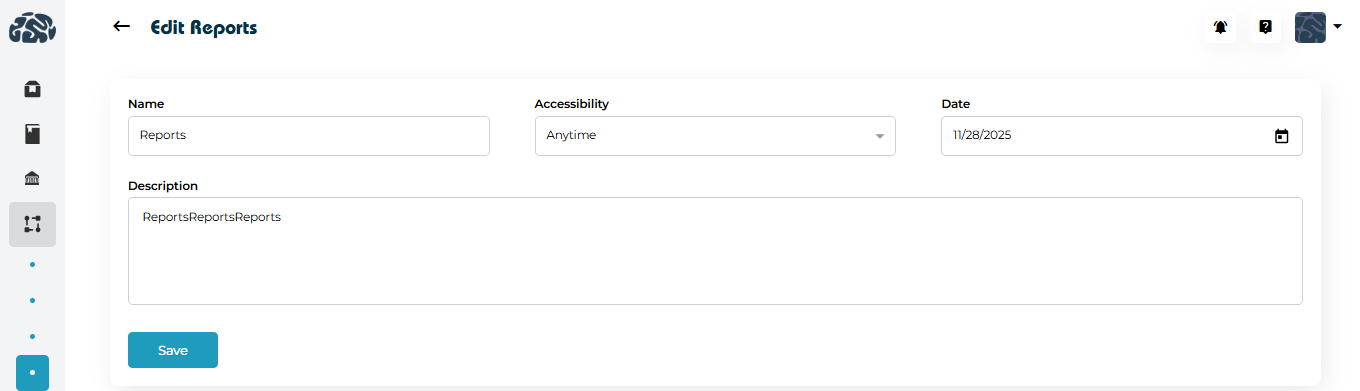
  2. Fill in the core report details:

    • Report Name – A clear, descriptive title (e.g., Student Progress Report).

    • Accessibility – Define when the report can be accessed (e.g., Anytime or date-restricted).

    • Date – Optional availability or reference date.

    • Description – Explain the purpose of the report.

  3. Click Save to create the report container.

At this stage, the report exists but does not yet collect any data until sections and fields are added.

4. Adding Report Sections and Custom Fields

Each report can include multiple report entries (also called report sections).

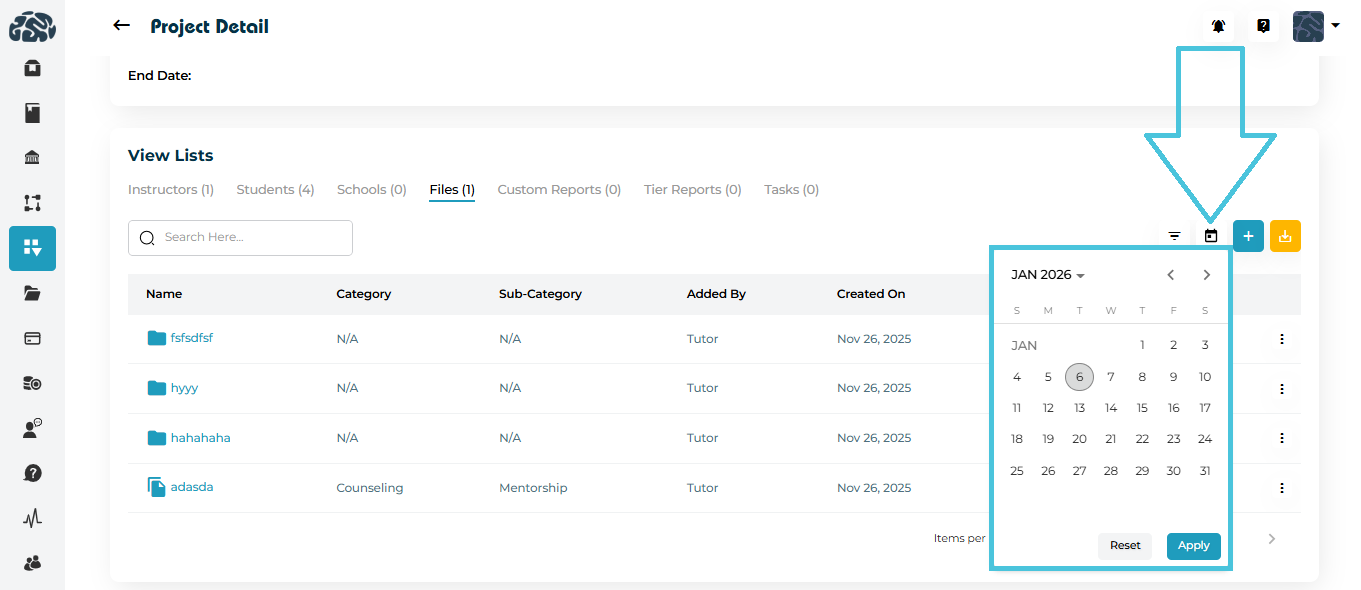
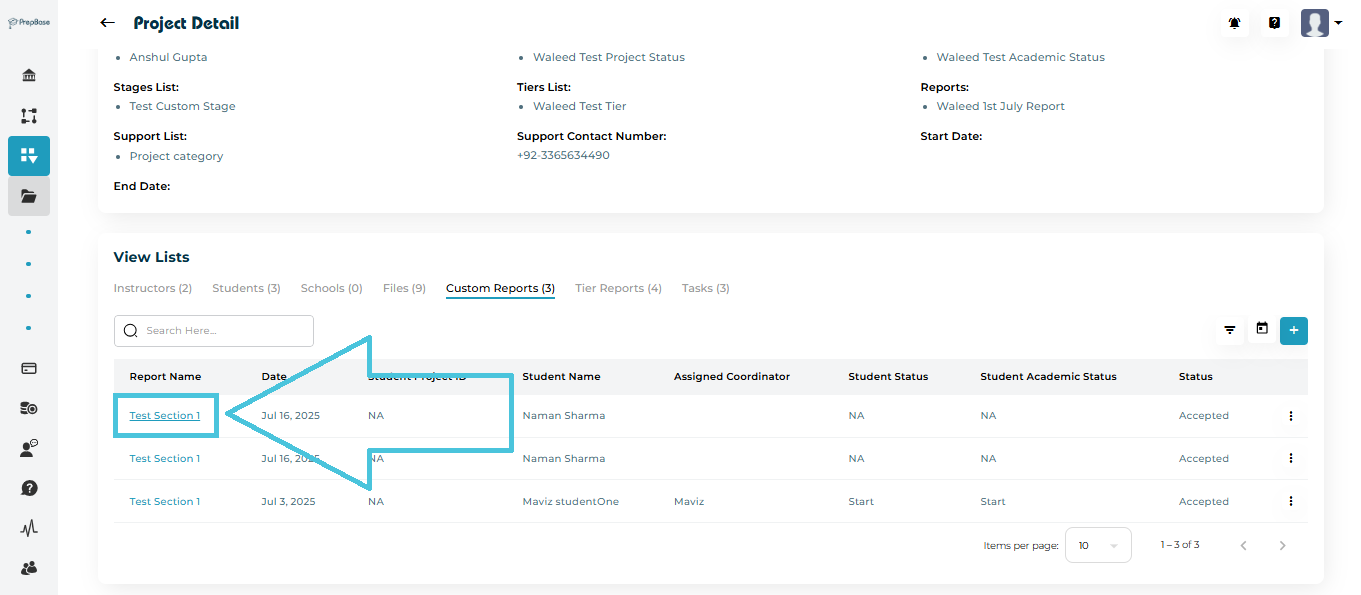
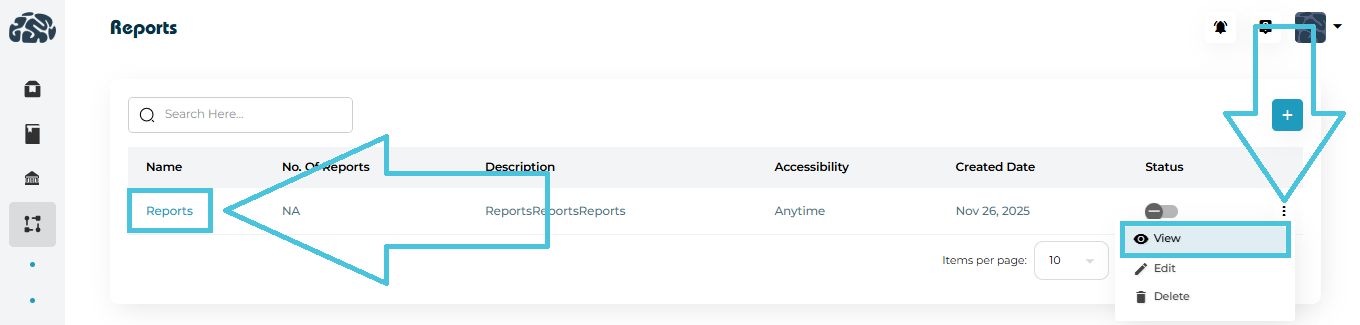
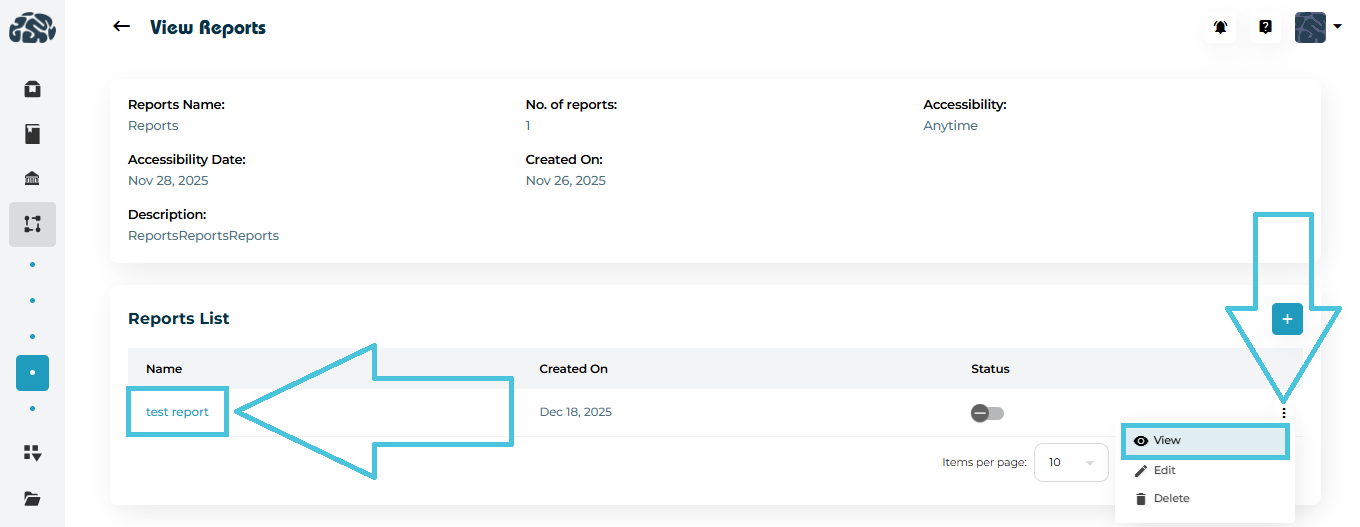
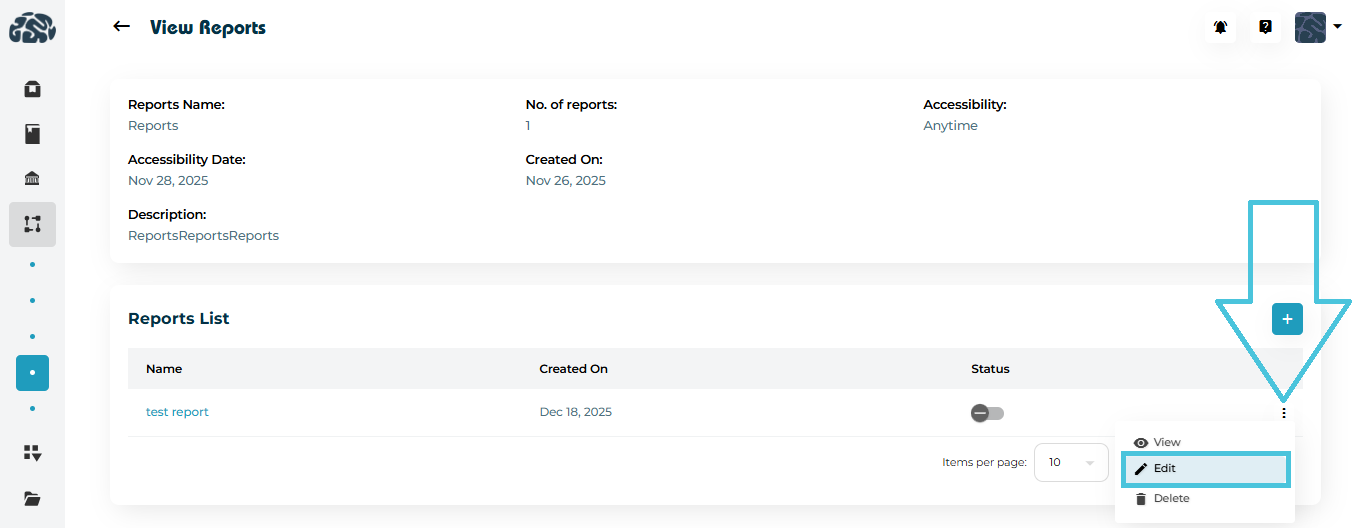
  1. Open a report using either:

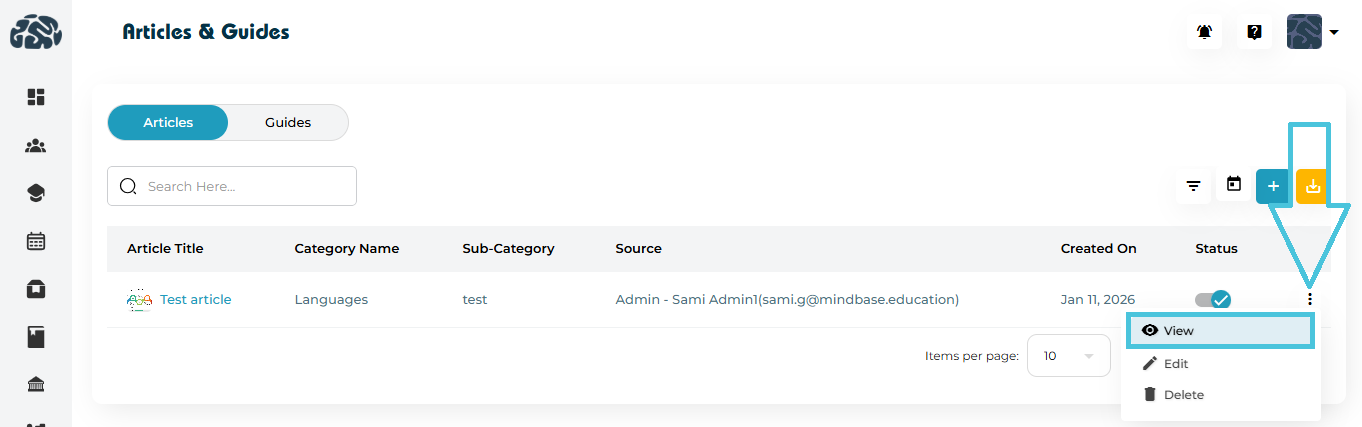
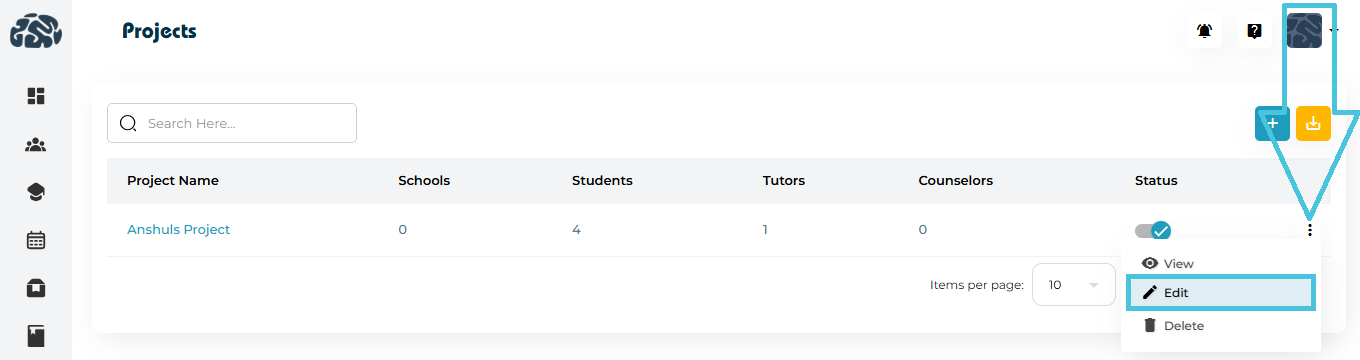
    • The View option from the three-dot menu, or

    • Clicking directly on the Report Name.

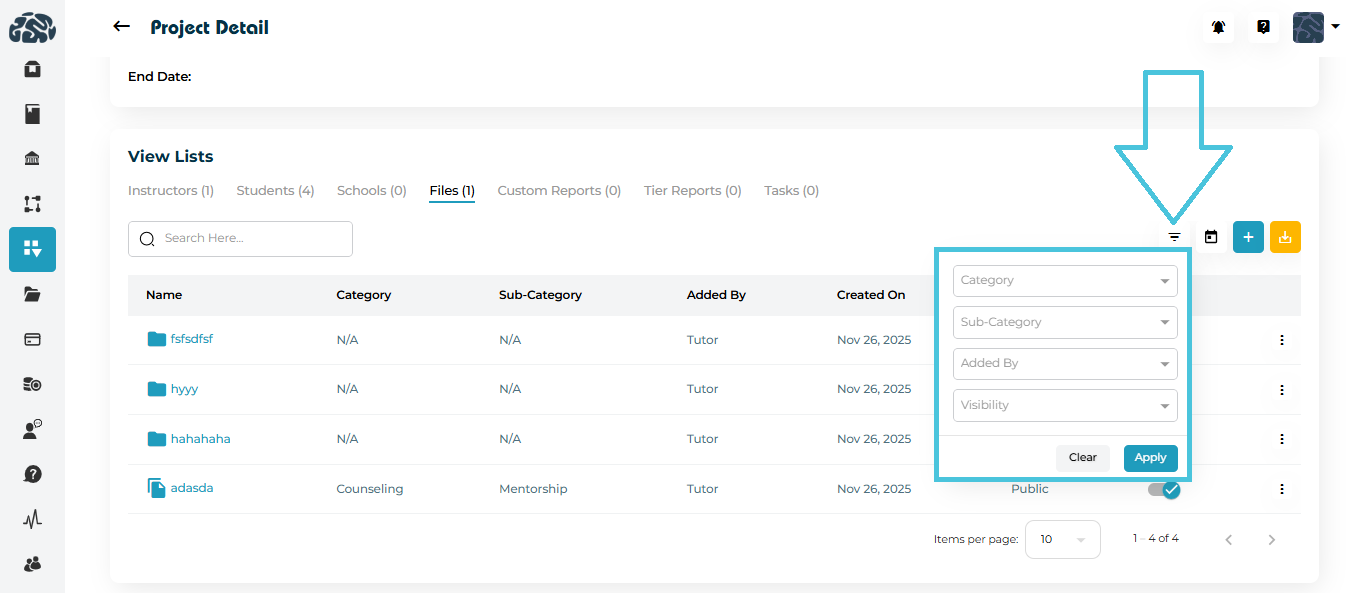
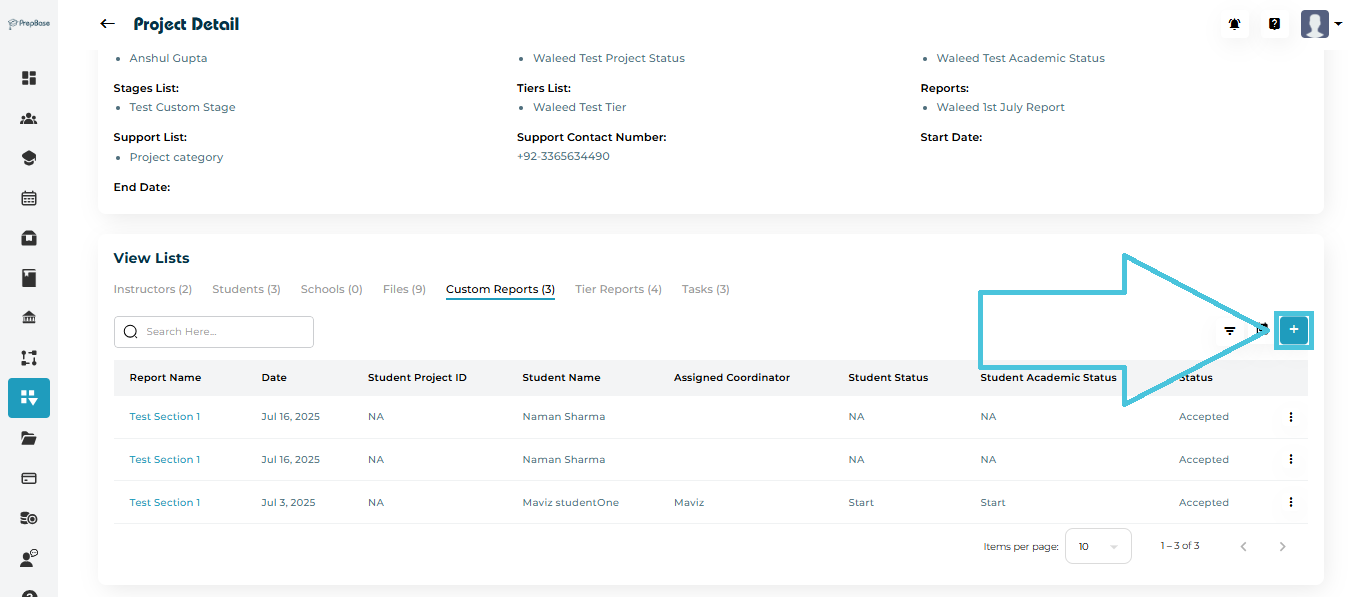
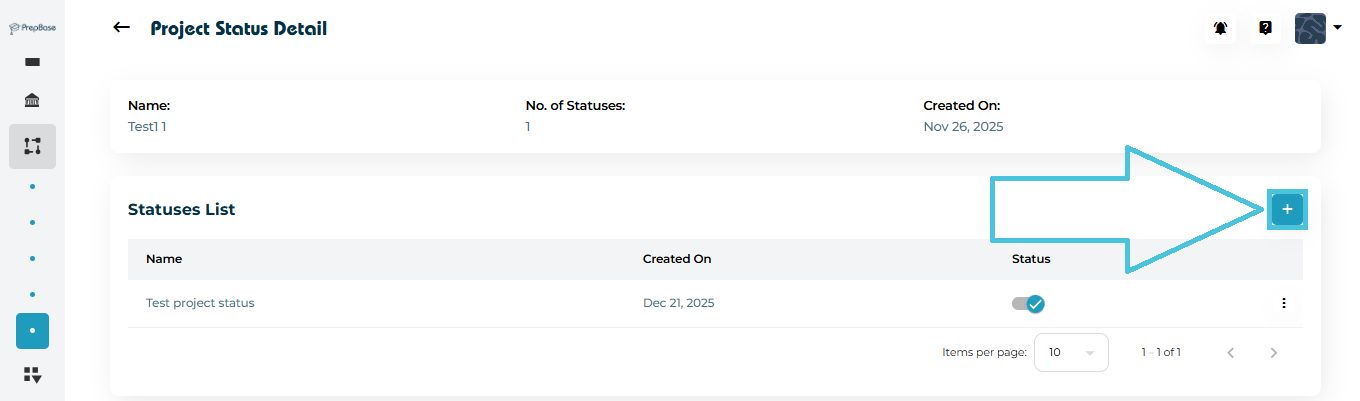
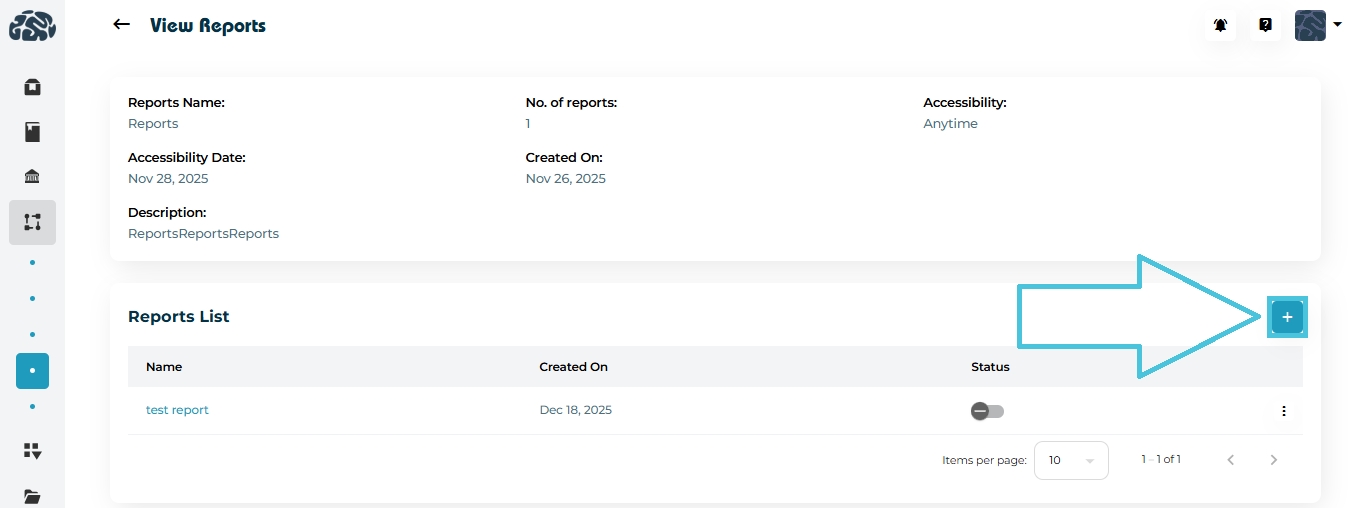
  1. In the Reports List section, click ➕ Add.

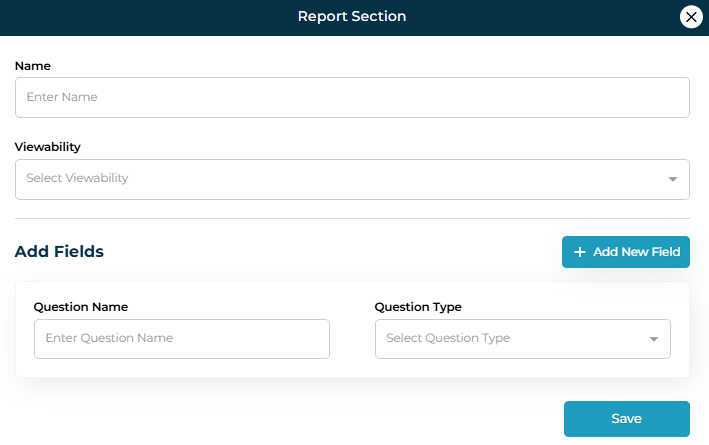
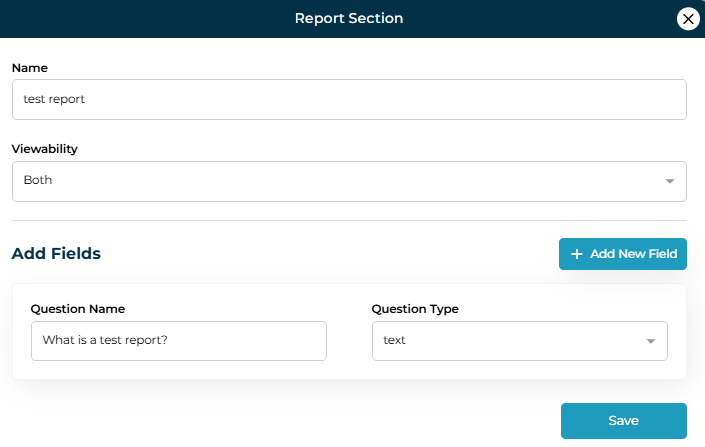
  2. Enter:

    • Section Name (e.g., Academic Evaluation).

    • Viewability – Control who can view or fill this section (students, counselors, or both).

    • Question Name – The prompt shown to users (e.g., What is the student’s current GPA?).

    • Question Type – Choose how data is captured:

      • Text

      • Input
      • Number
      • Textarea
      • Dropdown

      • Multiselect
      • Radio
      • Checkbox
      • Date

  3. Save the field.

This allows a single report to capture different dimensions of analysis in a structured way.

5. Viewing Reports and Report Details

Reports and their sections can be viewed in two ways:

  • Clicking View from the three-dot menu, or

  • Clicking directly on the Report Name or Section Name.

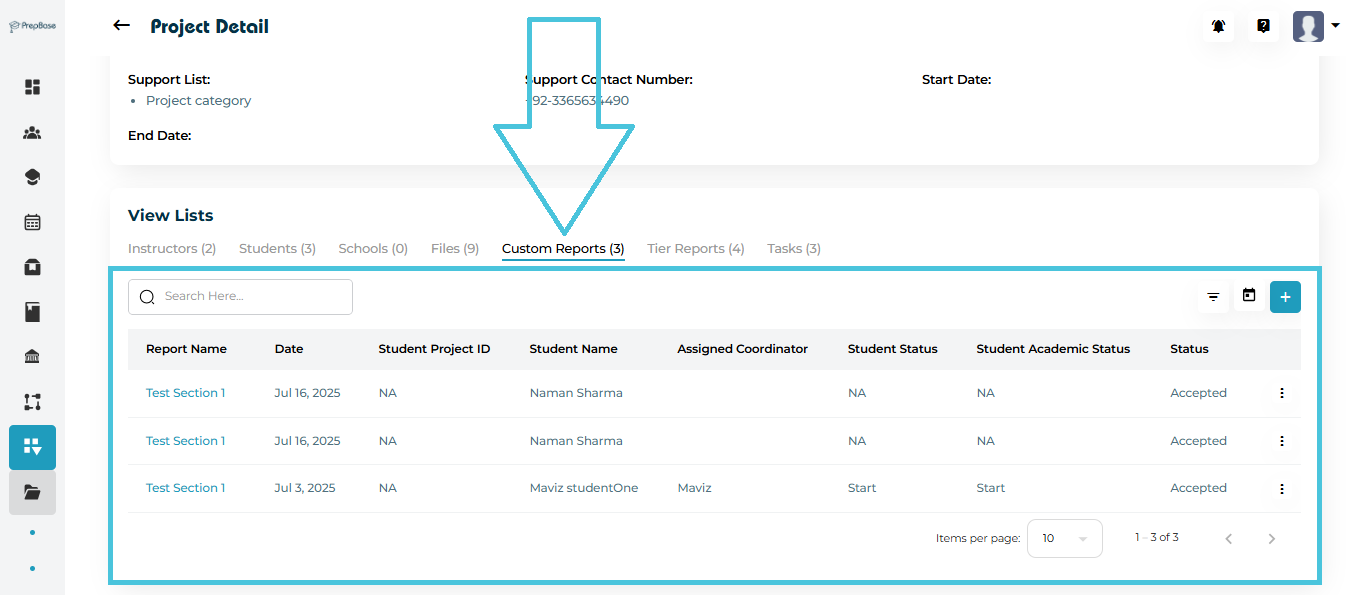
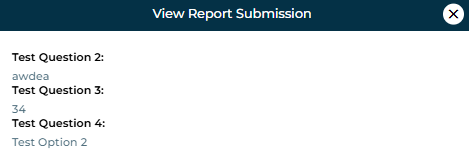
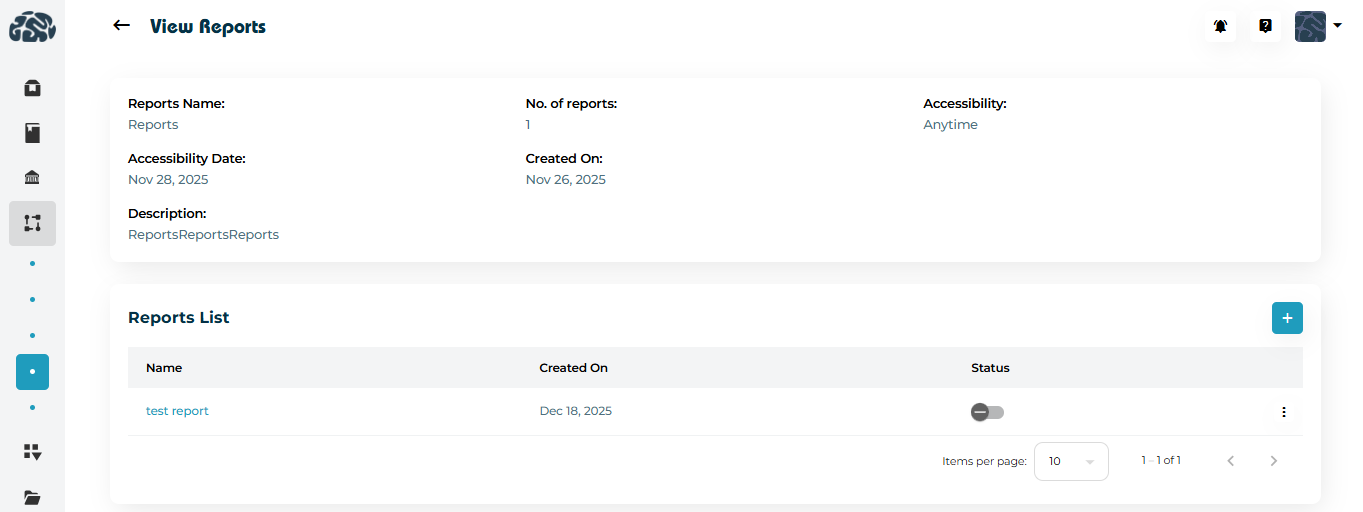
The view screen displays:

  • Report metadata (name, accessibility, created date)

  • List of report sections

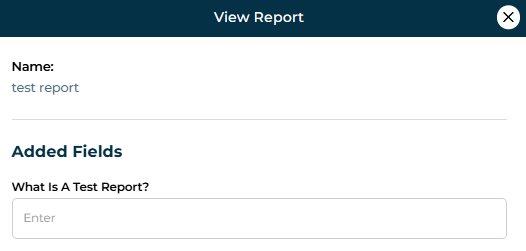
  • Fields configured within each section

This makes it easy to audit report structure without editing.

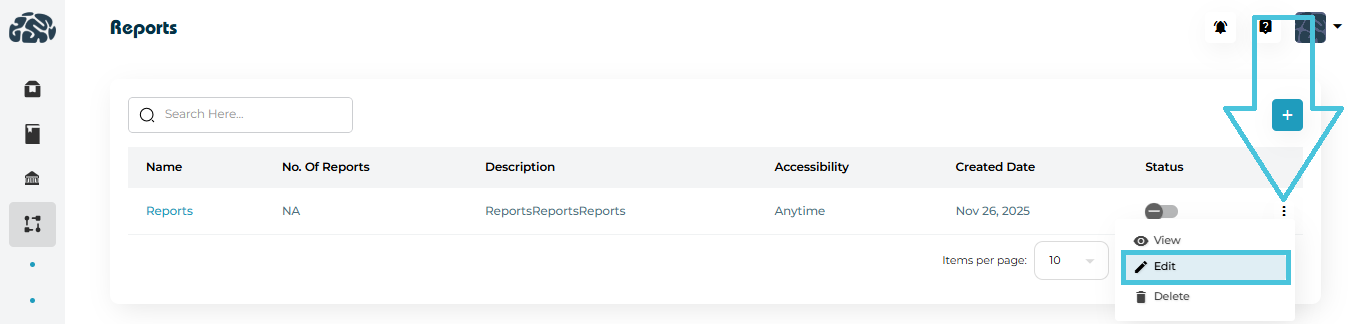
6. Editing Reports and Fields

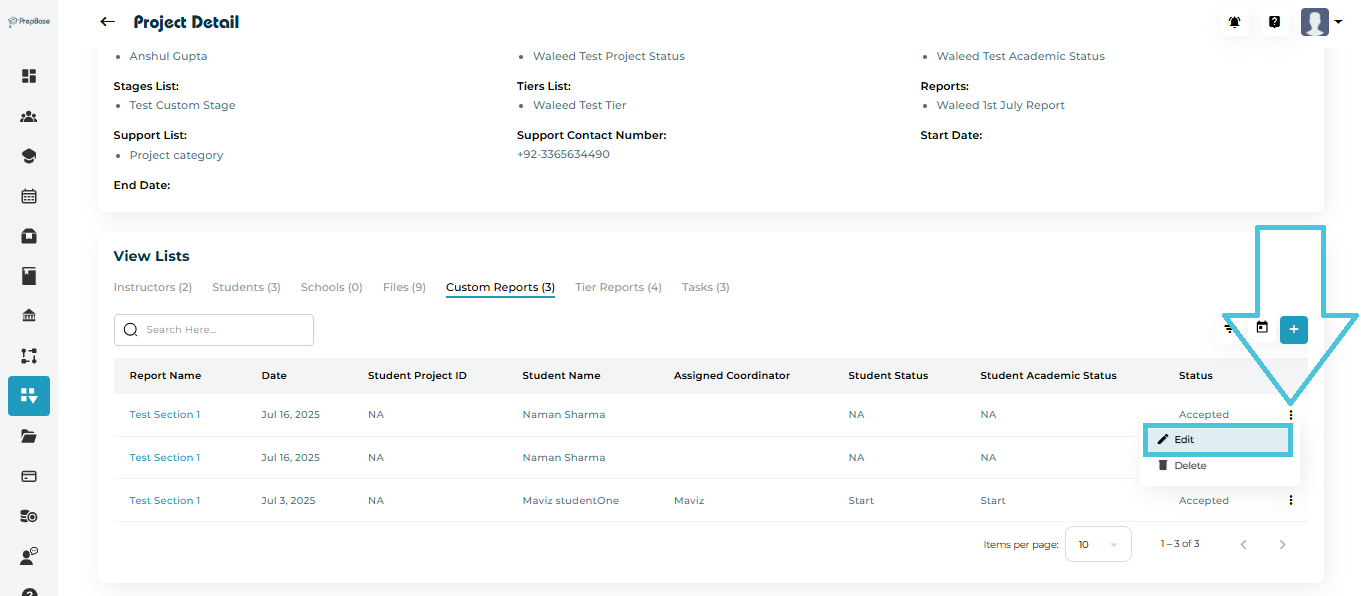
Administrators can update reports at any time:

  • Edit Report – Change name, accessibility, date, or description.

  • Edit Section – Modify section name or viewability.

  • Edit Fields – Update question text or field type.

Edits apply immediately and help evolve reporting needs without recreating reports from scratch.

7. Managing Report Status

Each report and report entry includes a status toggle:

  • Enabled – Report is active and available for use.

  • Disabled – Report is hidden but preserved for future reactivation.

This is useful for seasonal reports, phased workflows, or archived analytics.

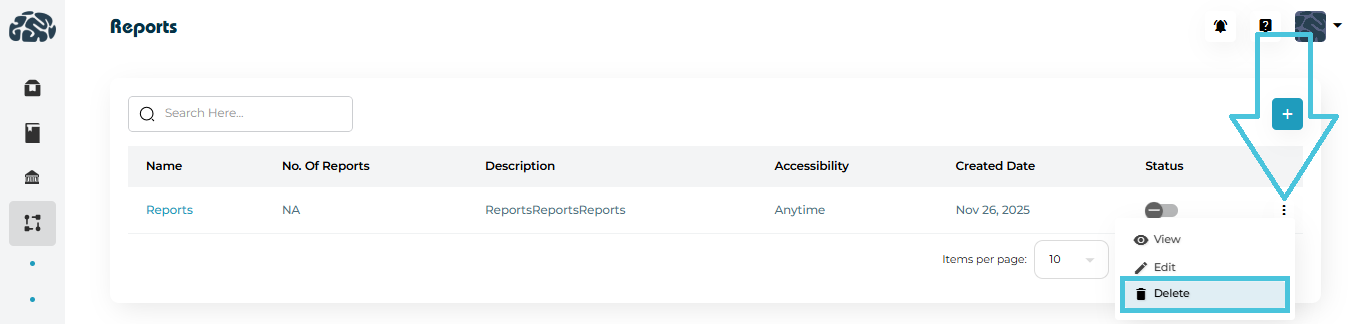
8. Deleting Reports or Sections

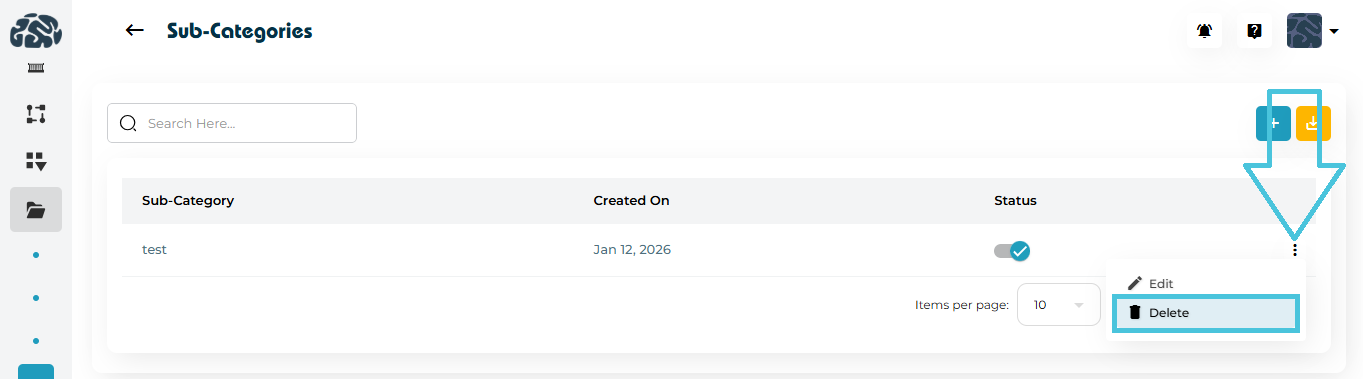
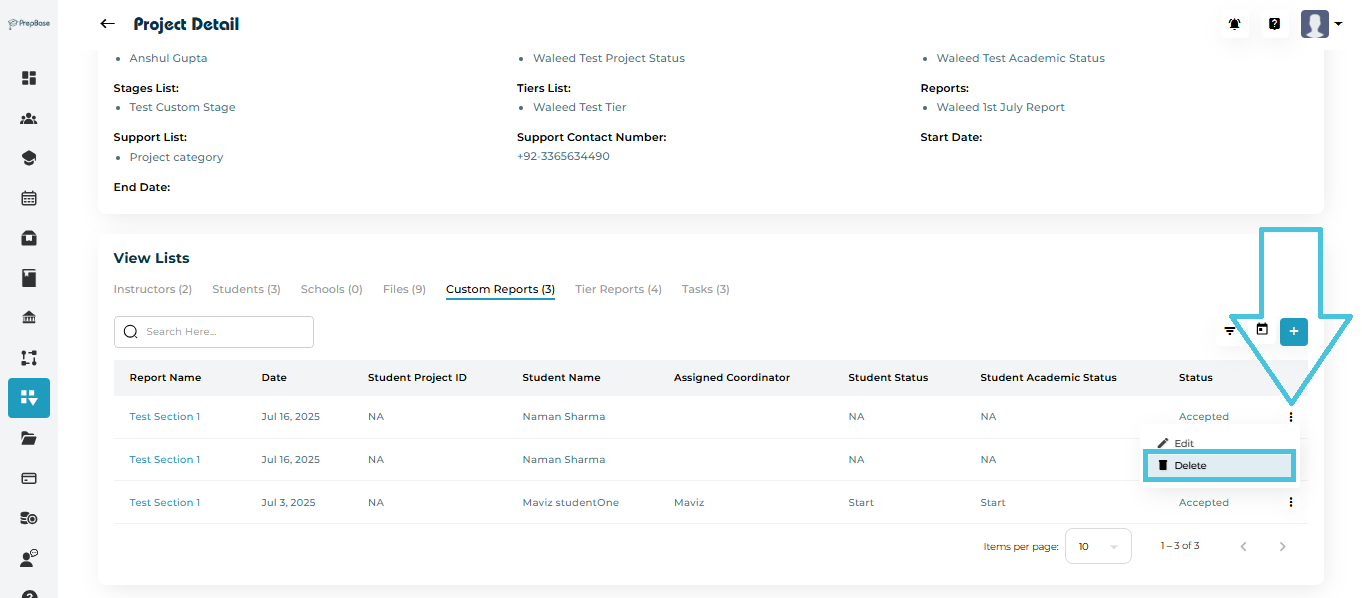
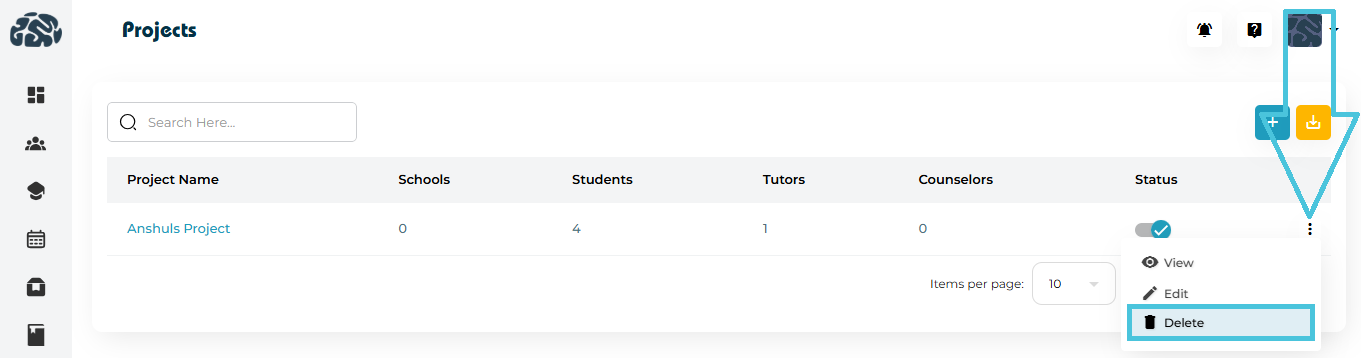
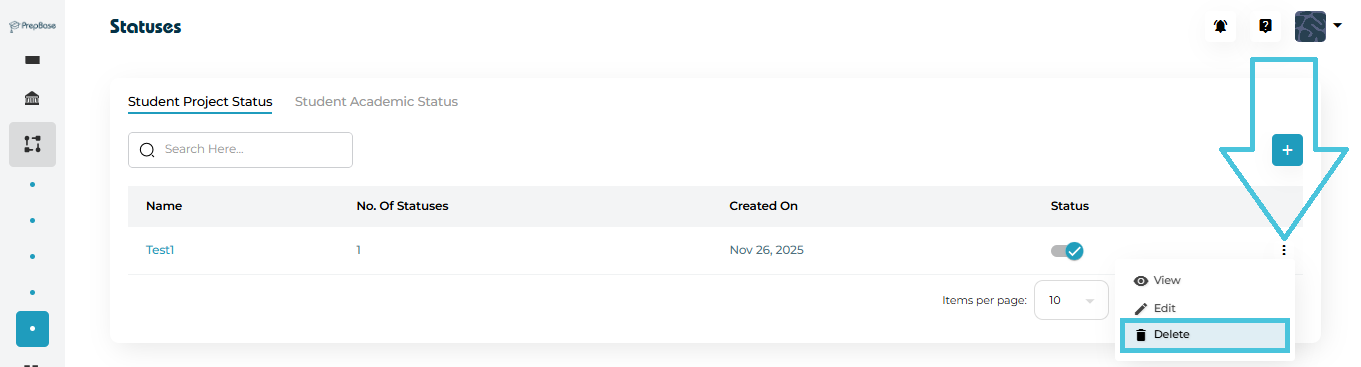
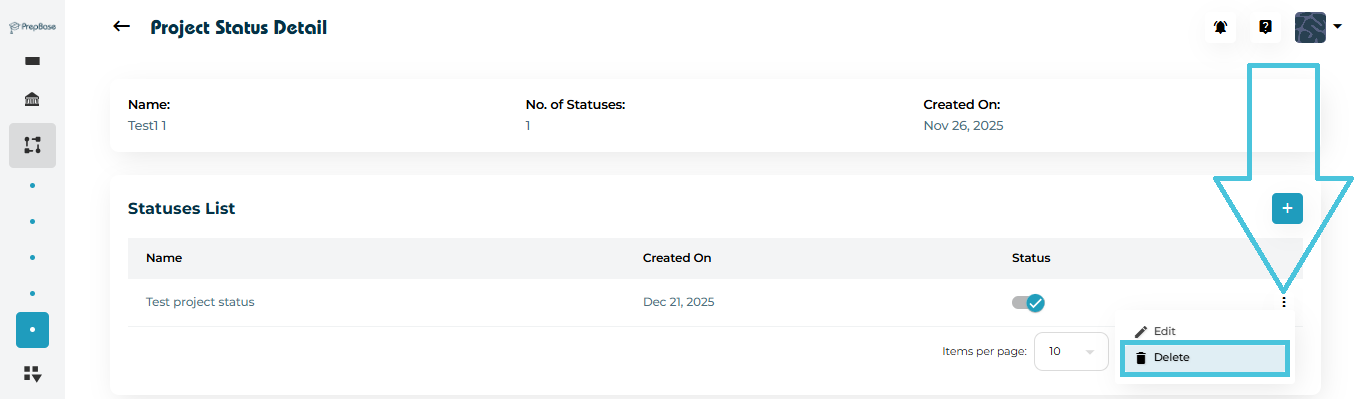
  • Reports or individual sections can be deleted using the Delete option from the three-dot menu.

  • Deletion should be used carefully, as it permanently removes the structure.

For temporary removal, disabling is recommended instead of deletion.

IN THIS ARTICLE

Managing tier-based reports

Managing Tier-Based Reports

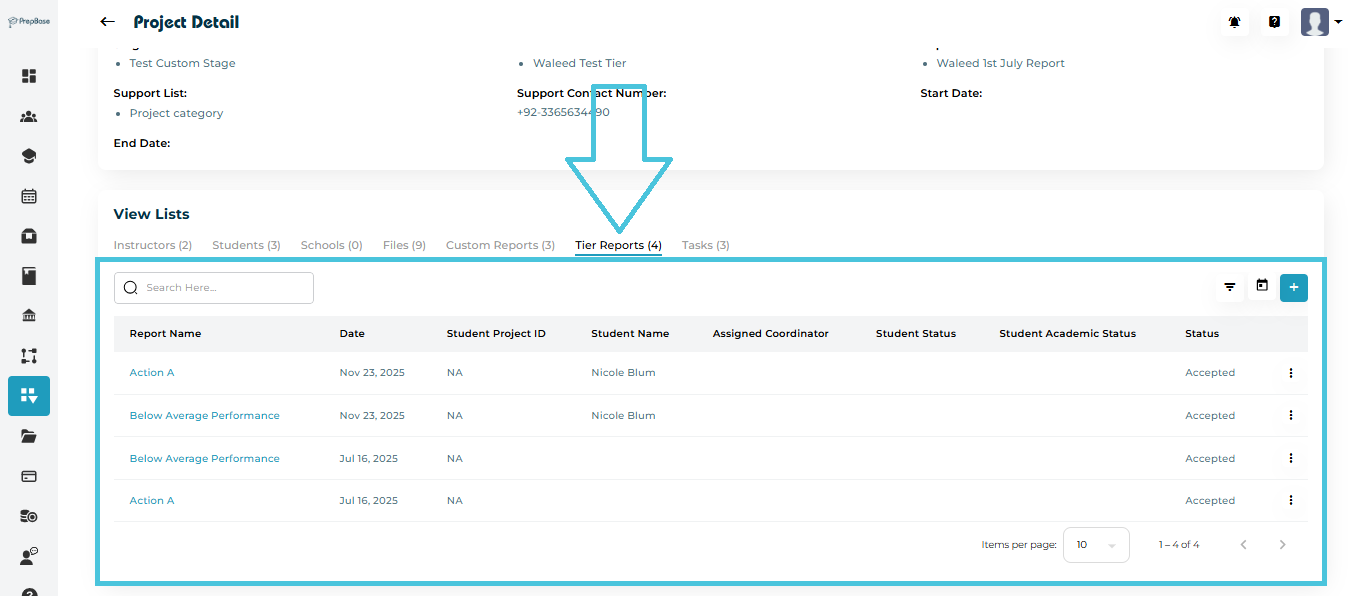
Tier-based reports in PrepBase allow admins to structure workflow reporting into clear, progressive layers (tiers). Each tier can represent a milestone, review level, or reporting checkpoint—making it easier to track progress, actions, and feedback across complex processes such as admissions, counseling, or multi-step projects.

This guide explains how to create, view, edit, and manage tiers, and how tier-based reporting improves visibility and decision-making.

1. What Are Tier-Based Reports?

Tier-based reports organize workflow data into hierarchical tiers, where each tier can include:


  • Statuses (e.g., Pending, Approved, Rejected)

  • Actions (e.g., Review, Escalate, Complete)

  • Optional feedback collection

This structure is ideal for:

  • Admission reviews

  • Multi-stage counseling evaluations

  • Internal quality checks

  • Approval-driven workflows

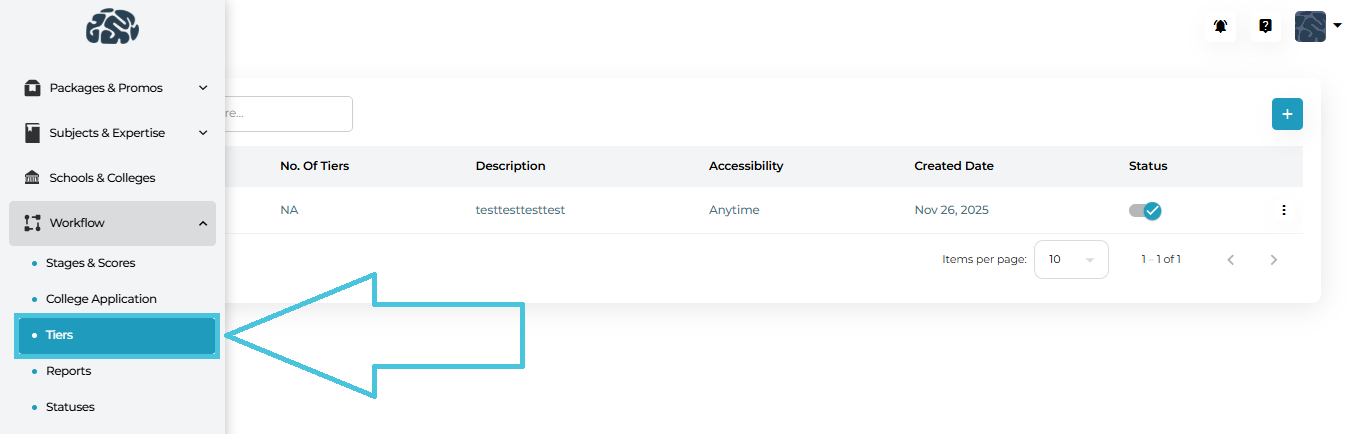
2. Accessing Tiers Management

Navigate to:

Admin Panel → Workflow → Tiers

Here, you’ll see a complete list of existing tiers with:

  • Tier name

  • Number of tiers inside it

  • Description

  • Accessibility (e.g., Anytime or date-based)

  • Created date

  • Status (Active/Inactive)

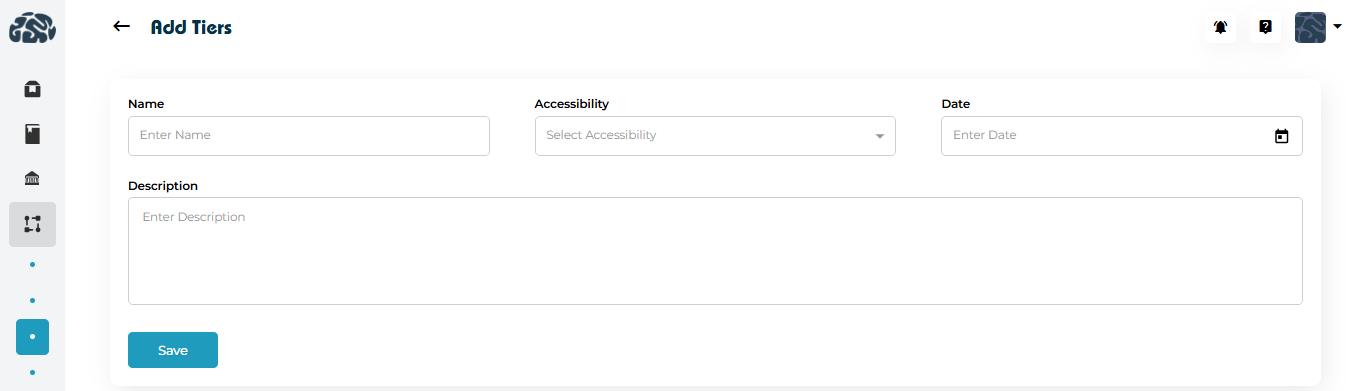
3. Creating a New Tier

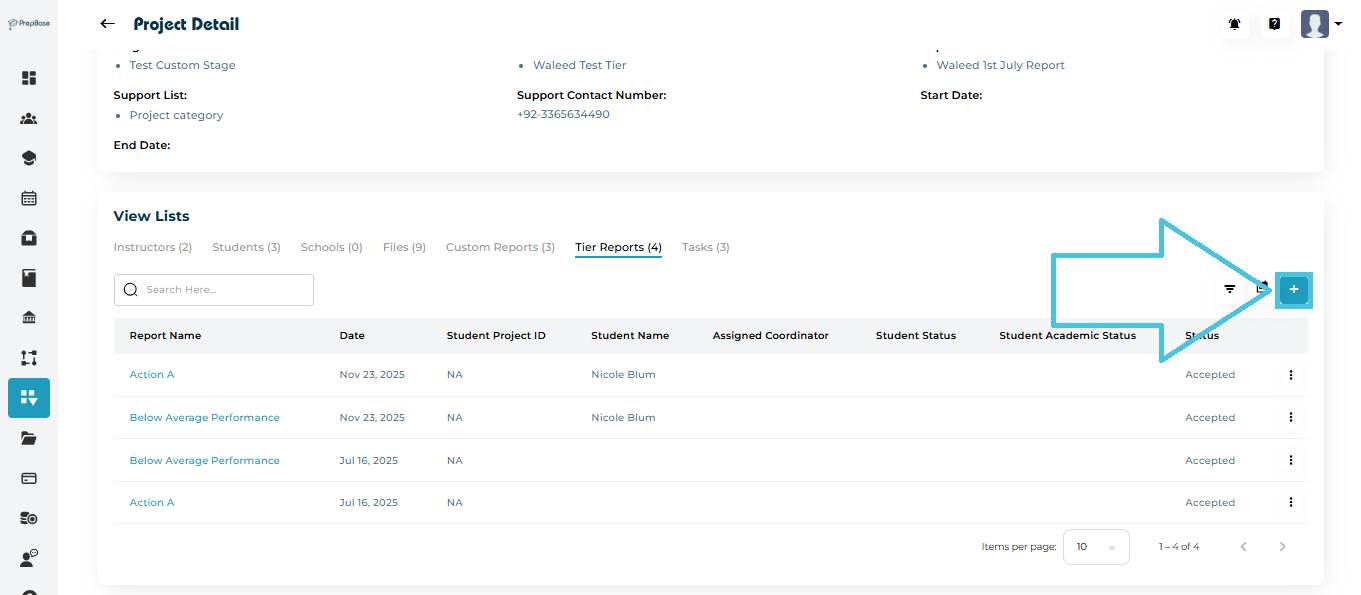
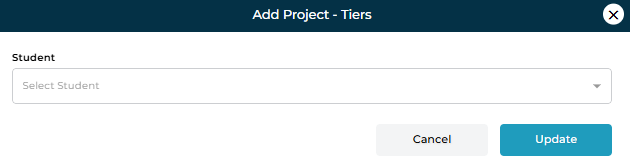
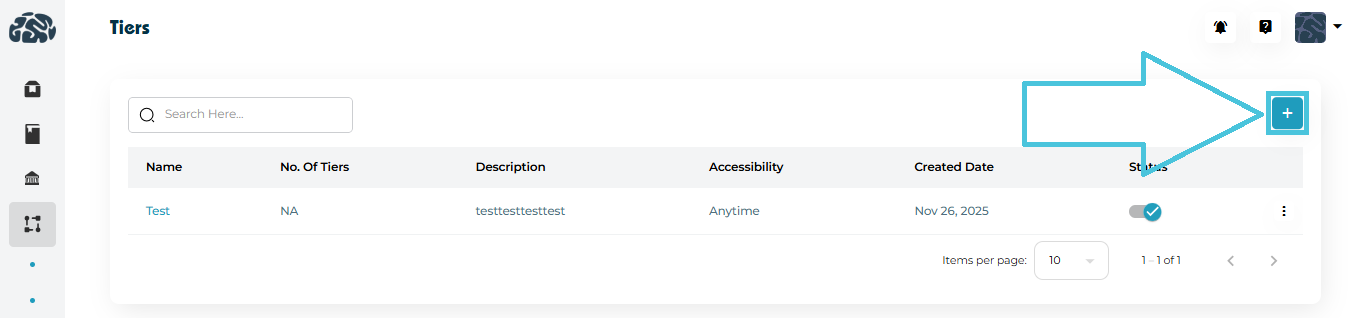
  1. Click ➕ Add on the Tiers page.

  2. Enter the Tier Name (e.g., “Initial Review”).

  3. Select Accessibility:

    • Anytime – always available

    • Once per month – available

    • Twice per month – available
  4. (Optional) Add a Description to clarify the tier’s purpose.

  5. Click Save.

The tier is now available for use in reports and workflows.

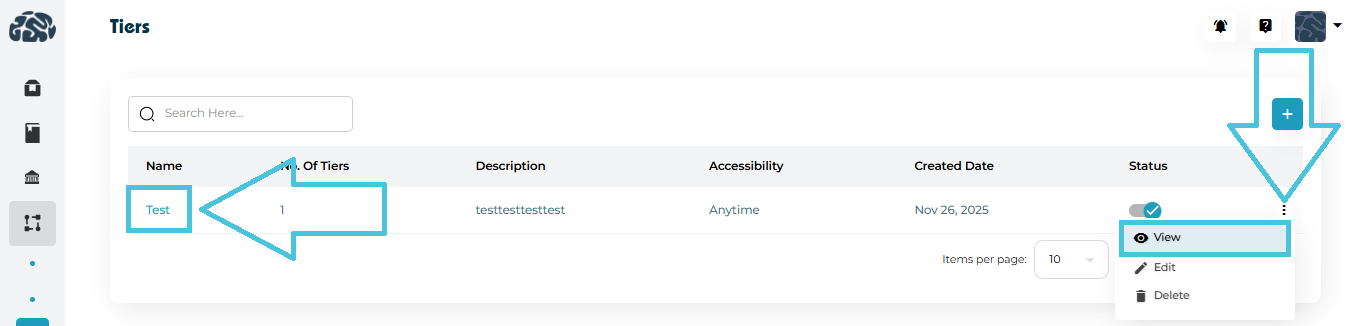
4. Viewing Tier Details

You can open a tier in two ways:

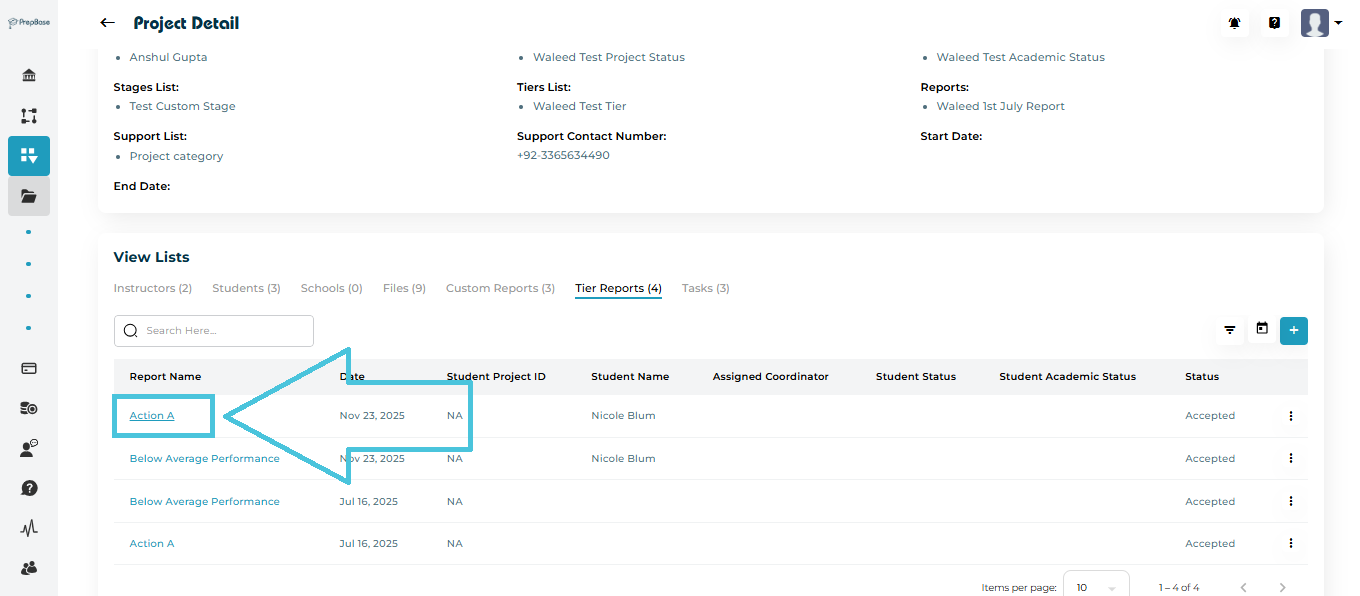
  1. Click the tier name directly.

  2. Use the three-dot menu → View.

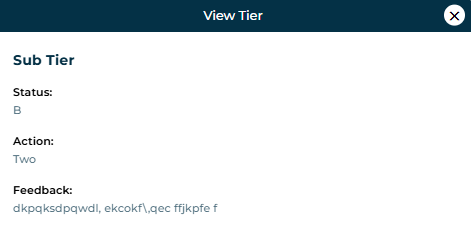
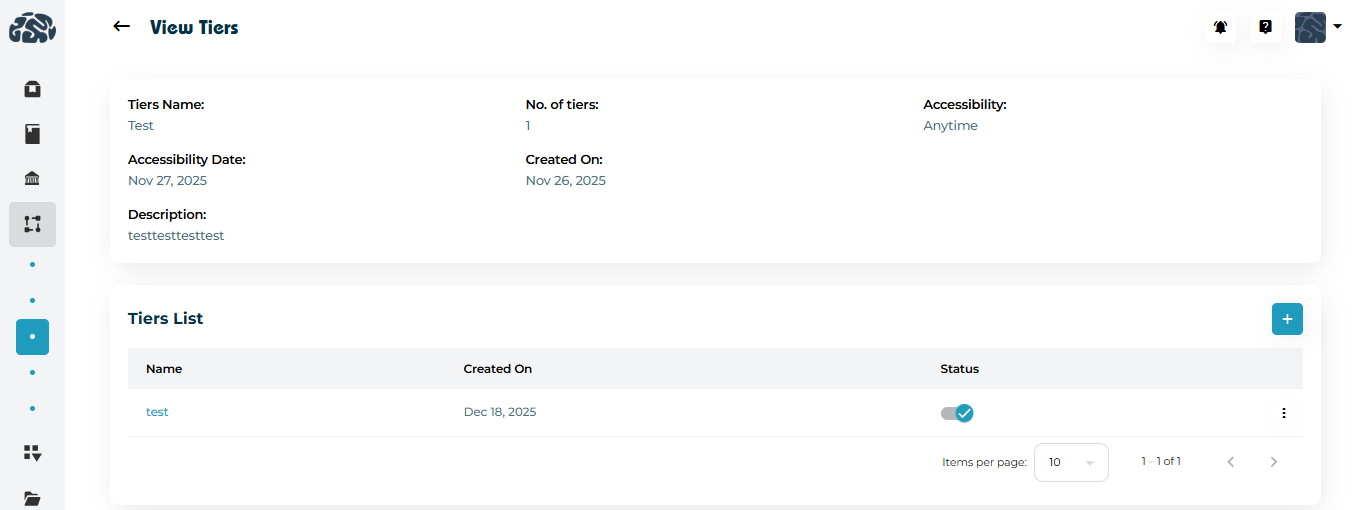
The View Tier page displays:

  • Tier name and description

  • Accessibility settings

  • Created date

  • List of tiers inside it (if applicable)

  • Current status (active/inactive)


5. Managing Tiers Inside a Tier (Nested Tiers)

Some workflows require sub-tiers (e.g., “Document Review” inside “Application Review”).

From the View Tier page:

Adding Statuses and Actions to a Tier

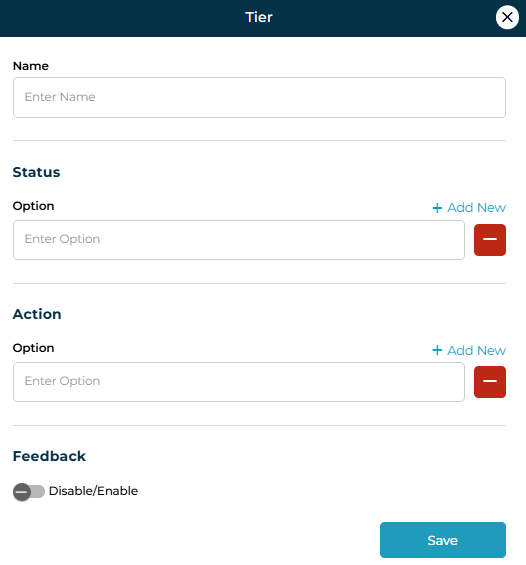
Each tier can define how progress is tracked:

Status Options
  • Add multiple status labels (e.g., Not Started, In Review, Completed).

  • These appear when tracking or reporting progress.

Action Options
  • Define actions users can take (e.g., Request Documents, Approve, Escalate).

  • Actions standardize workflow decisions.

Feedback Toggle
  • Enable Feedback if qualitative input or remarks are required at this tier.

  • Useful for counselor notes or reviewer comments.

Adding a nested tier

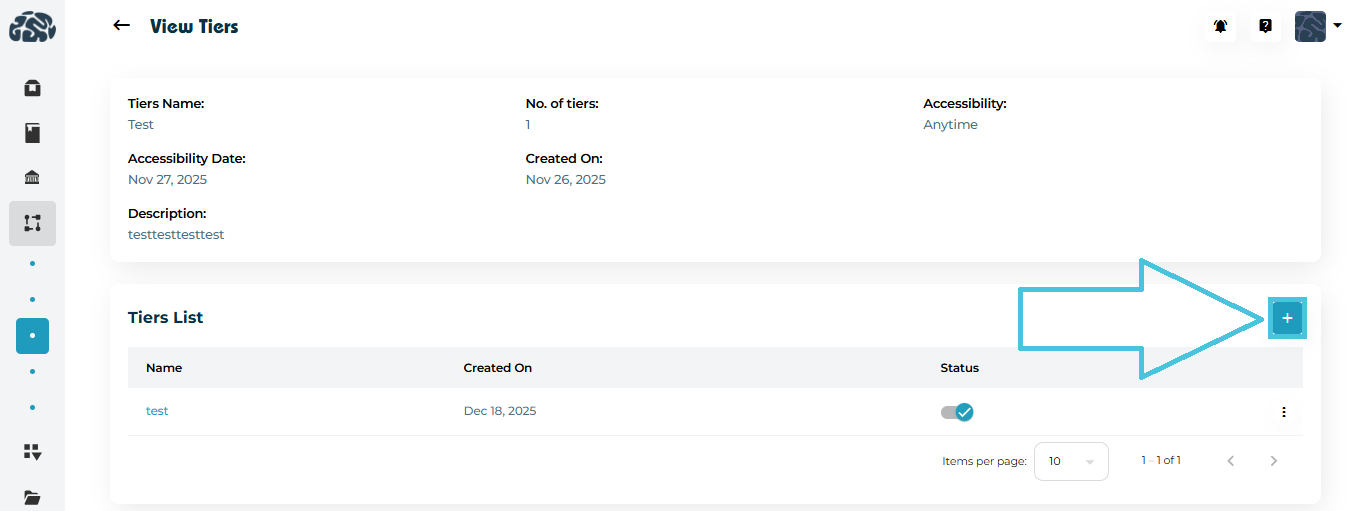
  1. Scroll to Tiers List.

  2. Click ➕ Add to create a tier inside the parent tier.

  3. Define its name, statuses, actions, and feedback settings.

  4. Save to add it to the hierarchy.

This allows granular reporting without cluttering the main workflow.

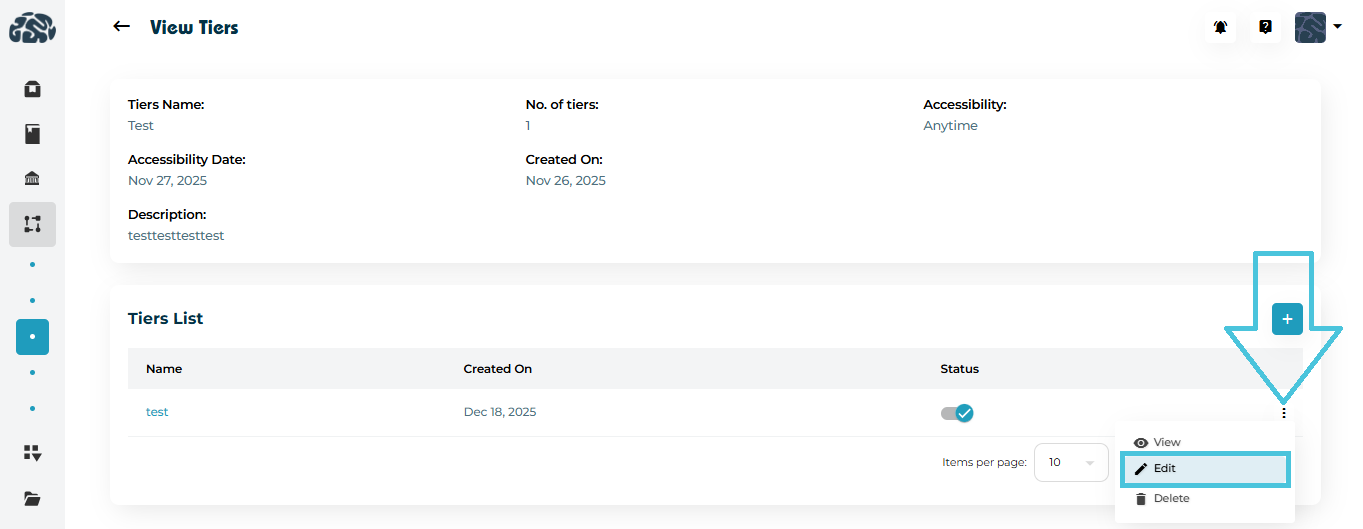
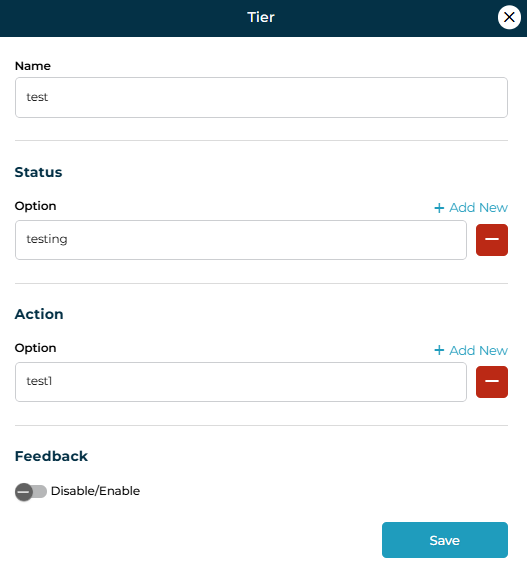
Editing a nested tier

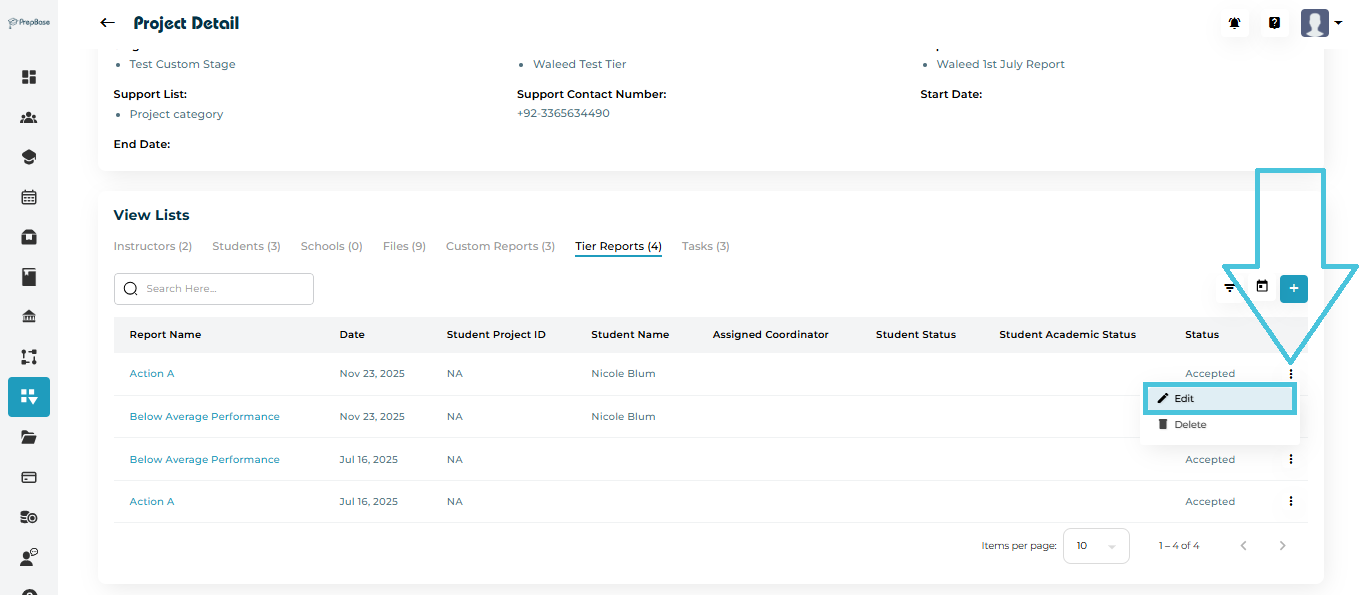
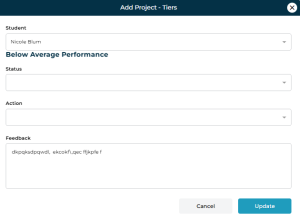
  1. Open the three-dot menu → Edit.

  2. Modify:

    • Name

    • Status

    • Action
    • Feedback

  3. Click Save to apply changes.

Edits take effect immediately across all related reports.

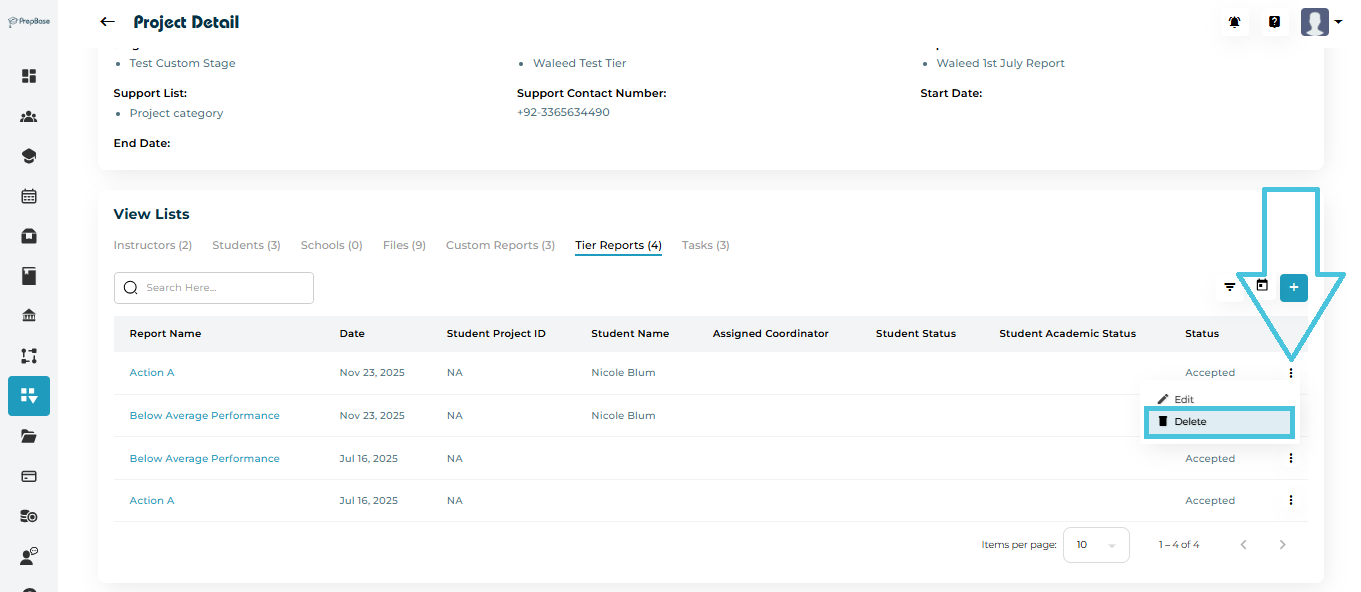
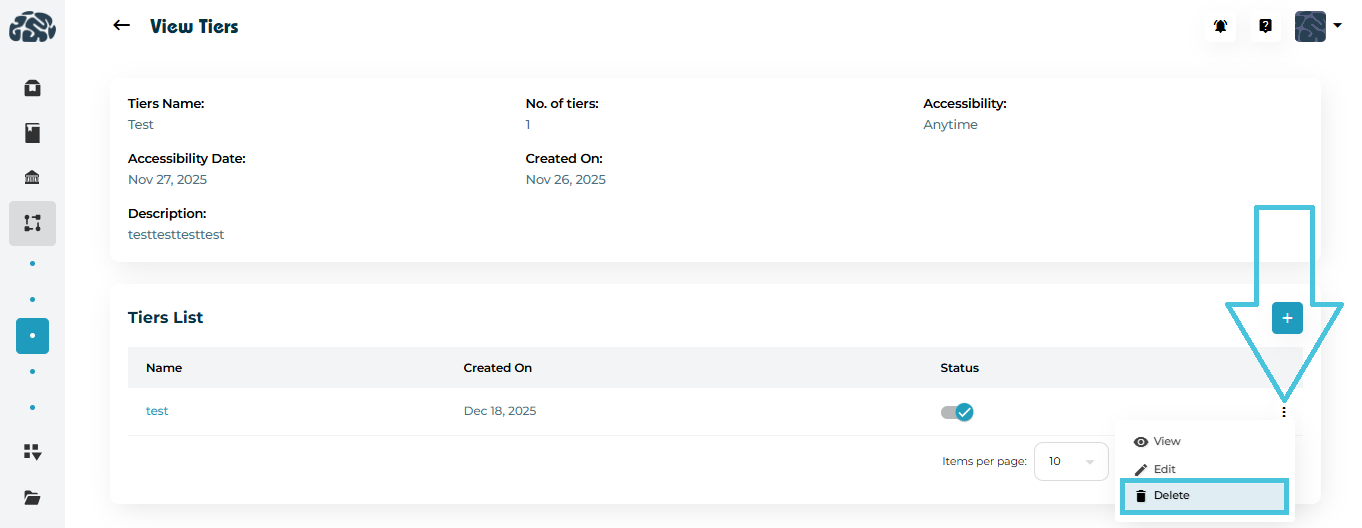
Deleting a nested tier

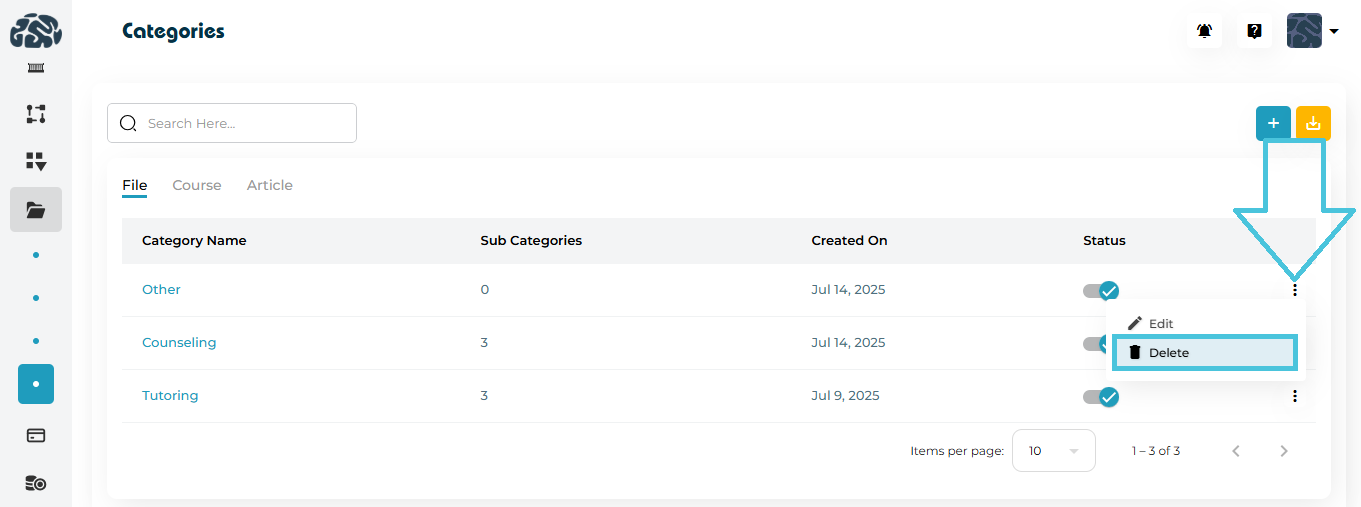
  1. Open the three-dot menu → Delete.

  2. Confirm the action.

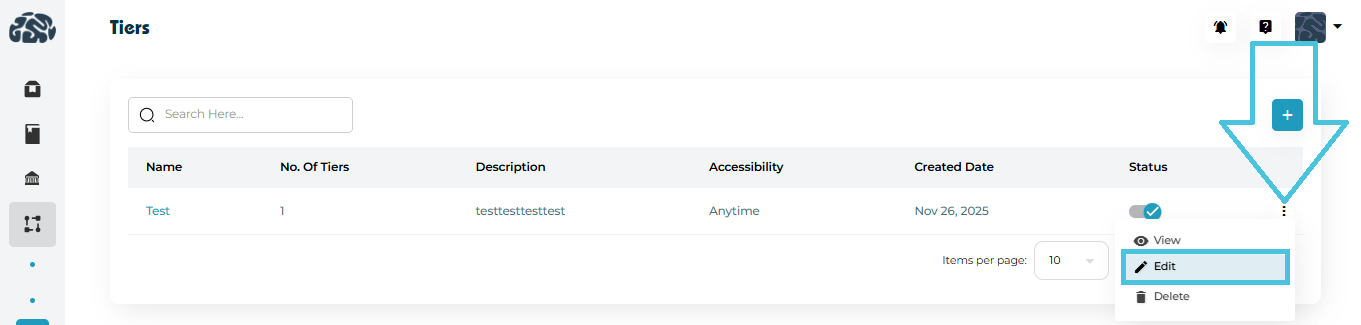
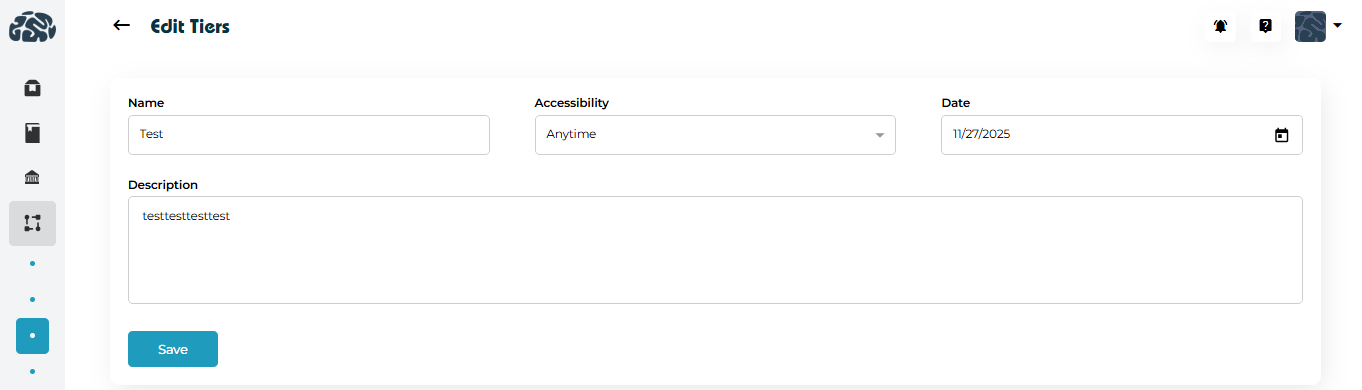
6. Editing an Existing Tier

To update a tier:

  1. Open the three-dot menu → Edit.

  2. Modify:

    • Name

    • Accessibility

    • Date
    • Description

  3. Click Save to apply changes.

Edits take effect immediately across all related reports.

7. Deleting a Tier

To remove a tier:

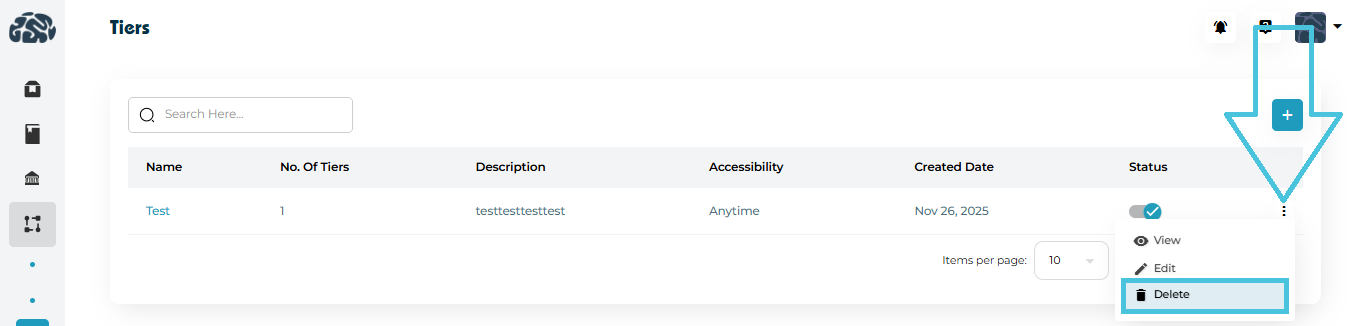
  1. Open the three-dot menu → Delete.

  2. Confirm the action.

⚠️ Best practice:
Only delete tiers that are no longer referenced in active workflows or reports to avoid data inconsistencies.

IN THIS ARTICLE

Configuring application fields

Configuring Application Fields

The College Application module allows admins to design and control the exact fields used to track each student’s college application journey. By configuring application fields, you can standardize data entry, ensure consistency across counselors, and adapt the workflow to different institutions, regions, or admission requirements.

This article explains how to add, edit, manage, and remove application fields, and how these fields support a flexible, scalable admissions workflow.

1. What Are Application Fields?

Application fields define what information is collected for each college application record. These fields appear across student application tracking and are used by counselors, advisors, and admins to record progress and decisions.

Examples of commonly used fields include:

  • First Choice Major

  • Alternate Choice

  • Application Status

  • Admission Decision

  • Deadline Date

  • Submission Date

  • Ranking

Each field can be configured with an appropriate field type (text, dropdown, date, etc.) to match how the data should be captured.
2. Accessing College Application Fields

  1. Open the Admin Portal.

  2. Navigate to Workflow → College Application.

  3. You’ll see the full list of configured application fields displayed in a structured layout.

From here, you can:

  • Add new custom fields

  • Edit existing fields

  • Remove fields that are no longer needed

3. Adding a New Application Field

To create a new field:

  1. Click ➕ Add Field.

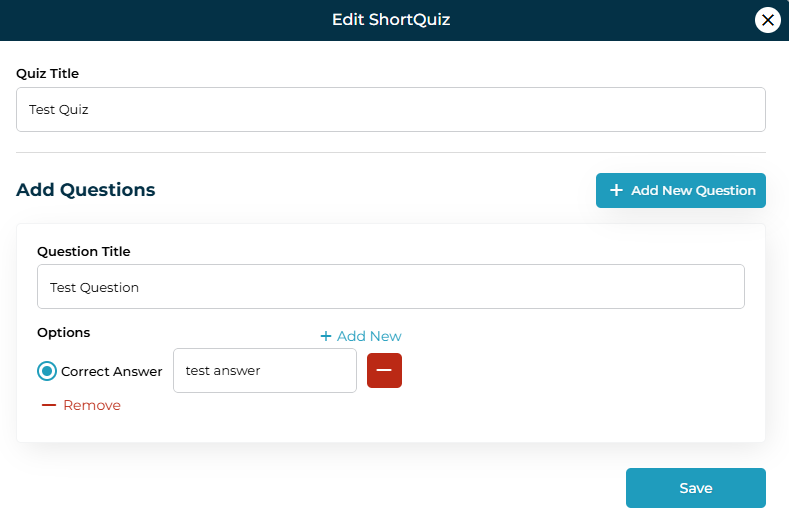
  2. In the Add New Field modal, enter:

    • Field Name
      (Example: Interview Date, Scholarship Status)

    • Field Type
      Choose how the data should be captured:

      • Text

      • Dropdown

      • Date

  3. Click Save.

Once saved, the field becomes immediately available across the College Application workflow.

Best Practices When Adding Fields
  • Use clear, descriptive names so counselors understand the field’s purpose.

  • Select the correct field type to avoid inconsistent data entry.

  • Keep fields minimal and relevant to reduce form clutter.

4. Editing Existing Application Fields

You can update any field at any time:

  1. Open the three-dot menu next to a field.

  2. Click Edit.

  3. Modify the Field Name or Field Type as required.
  4. Click Save to apply changes.

⚠️ Tip: Changing a field type (e.g., from text to dropdown) may affect how previously entered data is interpreted. Review carefully before saving.
5. Removing Application Fields

If a field is no longer required:

  1. Open the three-dot menu for that field.

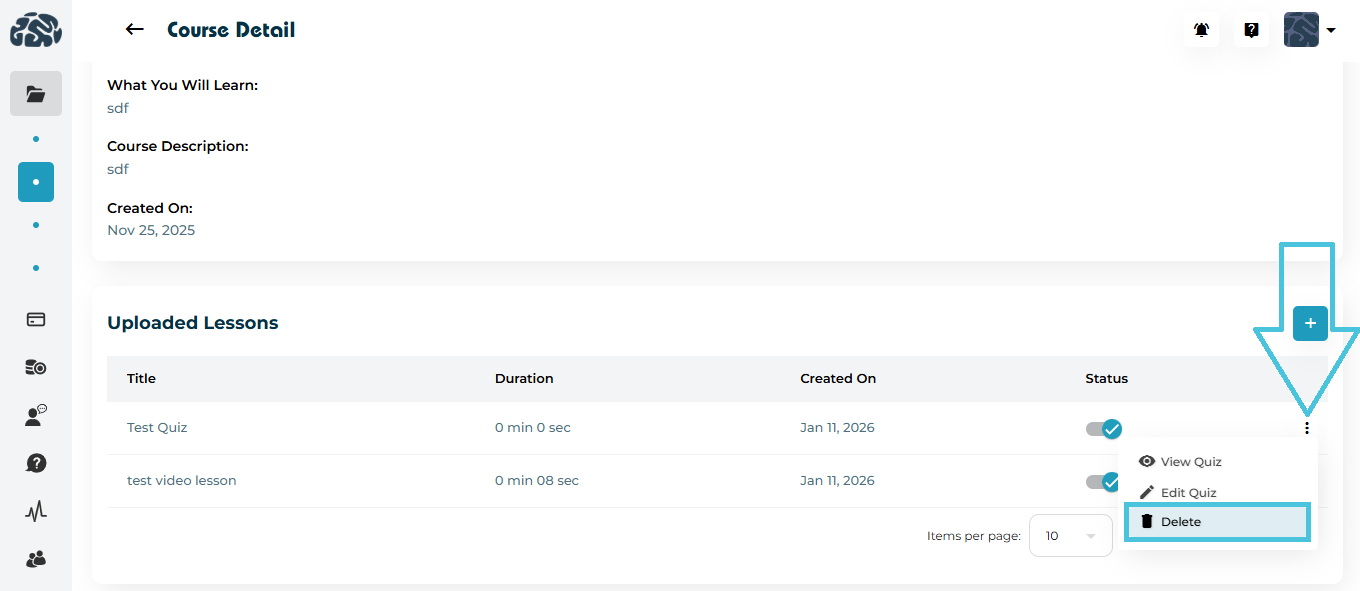
  2. Click Delete.

  3. Confirm the deletion.

Deleting a field removes it from the workflow entirely. This action should be used cautiously, especially if the field has historical data.

IN THIS ARTICLE

Managing admission stages and scores

Managing Admission Stages and Scores

The Stages & Scores module in PrepBase allows administrators to define, customize, and manage structured admission workflows. These workflows help track a student’s progress across different stages of their academic or admissions journey while attaching measurable evaluation scores at relevant points.

This feature is especially useful for admissions counseling, test preparation programs, and multi-step academic processes where visibility, consistency, and progress tracking are essential.

1. What Are Admission Stages and Scores?

Admission Stages

Stages represent the key steps a student goes through during an academic or admissions process. Each stage can include multiple statuses to reflect progress.

Examples:

  • Identify Majors

  • Select Region

  • IELTS Preparation

  • SAT Preparation

  • CV Draft

  • University List

  • Personal Statement & Essays

  • Recommendations

  • Submit Application

Each stage can move through statuses such as:

  • Not Started

  • In Progress

  • Completed

Admission Scores

Scores are measurable academic or assessment indicators used to evaluate student readiness or performance at specific stages.

Examples:

  • CGPA (Max Score: 4)

  • GPA (Max Score: 4)

  • IELTS (Max Score: 9)

  • SAT (Max Score: 1600)

  • ACT (Max Score: 36)

Scores ensure standardized evaluation and can be reused across different workflows.

2. Accessing Stages & Scores

Navigate to:

Admin Panel → Workflow → Stages & Scores

You will see two main views:

  • Default

  • Custom

Default view is further divided into:

  • Stages

  • Scores

3. Understanding Default vs Custom

Default
  • System-defined stages and scores

  • Designed to cover common admissions workflows

  • Can be viewed, edited, or disabled (depending on permissions)

Custom

  • Admin-created stages and workflows

  • Fully customizable to match your organization’s process

  • Ideal for specific programs (e.g., SAT Prep Group Class, Counseling Tracks)

4. Creating a Custom Admission Stages

Step-by-Step
  1. Open Stages & Scores

  2. Switch to the Custom tab

  3. Click ➕ Add Stage

  4. Upload a stage image (optional but recommended)

  5. Enter:

    • Stage Name

    • Description

  6. Add one or more Statuses

    • Example: Not Started, In Progress, Completed

  7. Click Save

Once created, the stage becomes available for use in workflows and projects.

5. Managing Custom Admission Stages

Each stage row provides a three-dot menu with the following options:

View Stage

Opens a detailed view showing:

    • Stage Image

    • Stage Name

    • Creation date

    • Associated statuses

Edit Stage

Update:

    • Stage Name

    • Description

    • Statuses

Delete Stage
  • Permanently removes the stage

  • Recommended only if the stage is not actively used

6. Creating New Default Stages

Adding New default Stage

  1. Go to Stages & Scores → Stages

  2. Click ➕ Add Stage

  3. Upload a stage image (optional)

  4. Enter:

    • Stage Name

    • Status
  5. Click Save

7. Managing Existing Stages

Each stage row provides a three-dot menu with the following options:

View Stage

Opens a detailed view showing:

    • Stage Image

    • Stage Name

    • Creation date

    • Associated statuses

Edit Stage

Update:

    • Stage name

    • Stage image

    • Statuses

Delete Stage
  • Permanently removes the stage

  • Recommended only if the stage is not actively used

8. Creating New Scores

Adding New Score

  1. Go to Stages & Scores → Scores

  2. Click ➕ Add Score

  3. Upload a score icon (optional)

  4. Enter:

    • Score Name (e.g., IELTS)

    • Maximum Score

  5. Click Save

9. Managing Existing Scores

Each score row provides a three-dot menu with the following options:

View Scores

Opens a detailed view showing:

    • Score Icon

    • Score Name

    • Max Score

Edit Score


Update:

    • Score Icon

    • Score Name

    • Max Score

Delete Score

 
  • Permanently removes the score

  • Recommended only if the score is not actively used

10. Enabling or Disabling Stages & Scores

Each stage or score includes a status toggle:

  • Enabled: Available for use in workflows

  • Disabled: Hidden from selection but not deleted

This allows admins to pause usage without losing historical data.

IN THIS ARTICLE

Adding and managing schools and colleges

Adding and Managing Schools & Colleges

The Schools & Colleges module in PrepBase allows administrators to organize, update, and maintain detailed profiles of educational institutions. These entries are used across multiple features—such as sessions, student enrollment, and reporting—making it essential to keep them accurate and up to date.

This guide walks you through everything you can do in this module, including adding new institutions, editing details, applying filters, exporting data, and viewing detailed profiles.

1. Navigating to the Schools & Colleges Section

To begin:

  1. Open the left navigation menu.

  2. Click Schools & Colleges.

  3. You will see two tabs:

    • Schools

    • Colleges

Each tab displays its own list, fields, and management options.

2. Switching Between Schools and Colleges

The module is divided into two tabs:

Schools Tab

Displays all school-level institutions with:

  • Curriculum

  • Study Levels

  • Basic cost & rating

Colleges Tab

Displays higher-education institutions with extra fields:

  • Ranking

  • SAT Scores

  • Multiple study levels

Use the tab selector at the top to switch views.


3. Adding a New School or College

To add a new institution:

  1. Go to Schools & Colleges → Schools or Colleges tab.

  2. Click the + Add New button on the top right.

Add Schools/Colleges Form Fields

The Add page includes the following fields:

Basic Details
  • Upload Image – Add an institution logo or image.

  • Select School/College – Choose whether you are creating a school or a college.

Location Details
  • Location Country – Select the institution’s country.

  • Location City – Select the institution’s city.

Academic & General Details
  • Annual Cost – Enter yearly tuition fee or cost.

  • Rating – Provide a rating (e.g., 1–5).

  • Curriculum – Select the curriculum offered.
  • Study Level – Choose applicable study levels.

  • Admission Criteria – Add eligibility or requirements.

  • Description – Include a descriptive overview of the institution.

Click Save to create the institution profile.

4. Managing the Schools & Colleges List

Both tabs display a list containing:

  • School/College Name

  • Location

  • Curriculum

  • Study Levels

  • Annual Cost

  • Rating

  • Ranking

  • Created On

  • Status

  • Action Menu (⋮)

Status Toggle

You can turn an institution Active/Inactive from the list using the switch in the Status column.

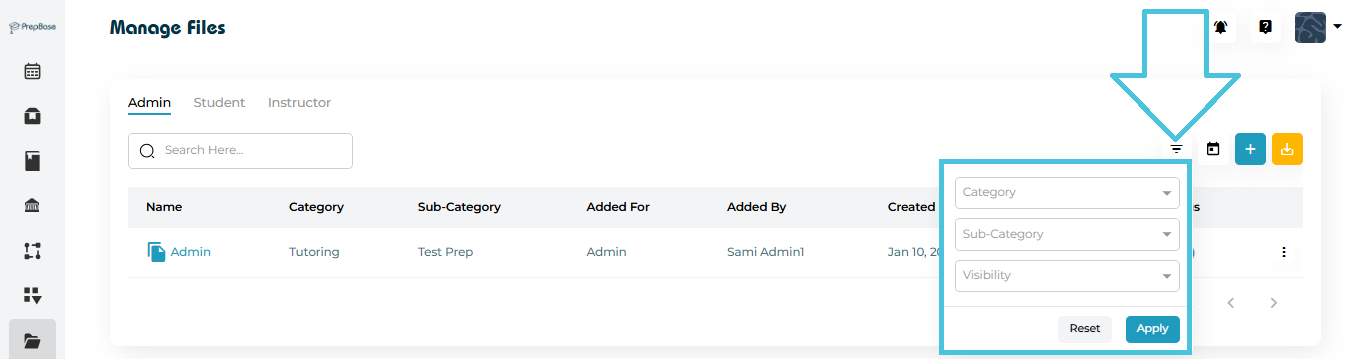
5. Applying Filters

The filter panel helps refine large datasets.

To open filters:

  1. Click the Filter icon beside the Add button.

Available filters include:

  • Country

  • City

  • Curriculum

  • Study Levels

  • Min/Max Annual Cost

  • Rating

Click Apply to filter results or Reset to clear filters.

6. Viewing Institution Details

There are two ways to open a school/college profile:

Method 1: Click the Institution Name

Clicking the institution name (e.g., Asaas National School) opens the full profile.

Method 2: Via Action Menu
  1. Click the three-dot menu (⋮) next to the institution.

  2. Select View.

View Page Includes:
  • Image/Logo

  • School/College Name

  • Location Country & City

  • Annual Cost

  • Rating

  • Curriculum

  • Study Levels

  • Eligibility Criteria

  • Description

  • Associated Students List

If no students are linked, the system shows “No Data Found”.

7. Editing an Institution

To edit:

  1. Click the three-dot menu (⋮) next to the entry.

  2. Select Edit.

The Edit Schools/Colleges form allows updates to:

  • Image

  • School/College selection

  • Name

  • Country & city

  • Rating

  • Annual Cost

  • Curriculum

  • Study Levels

  • Admission Criteria

  • Description

Click Save to update the record.

8. Deleting a School or College

You can remove an institution when necessary:

  1. Open the three-dot menu (⋮) next to the institution.

  2. Click Delete.

  3. Confirm deletion.

Note: Deleted records cannot be recovered.
9. Exporting Schools & Colleges Data

To download the data:

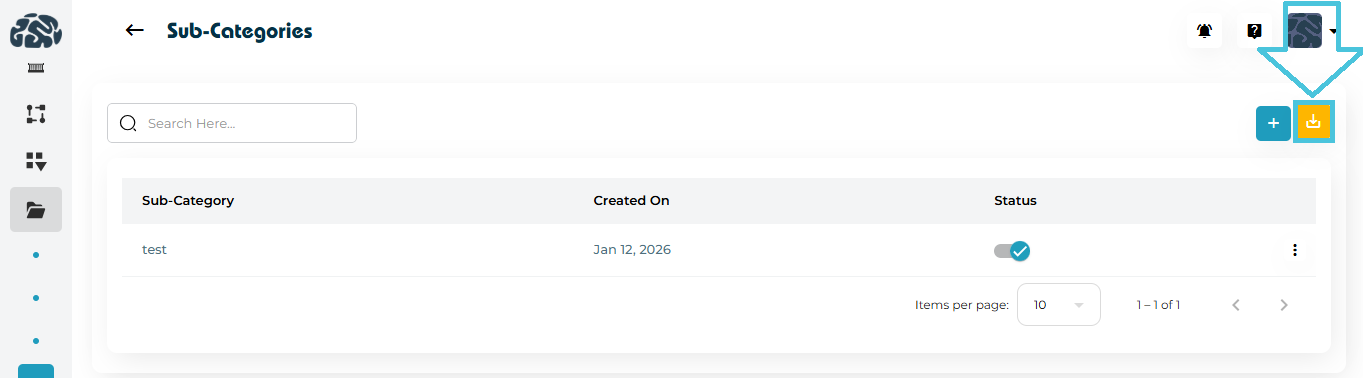
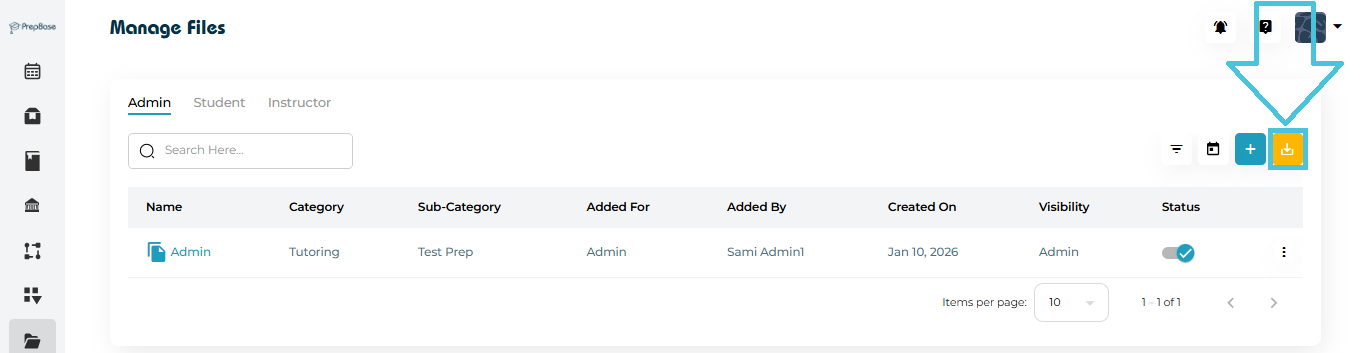
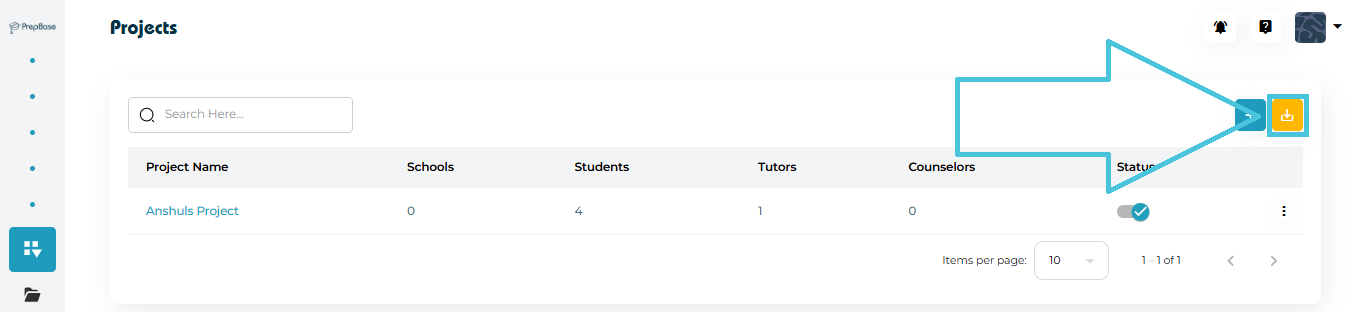
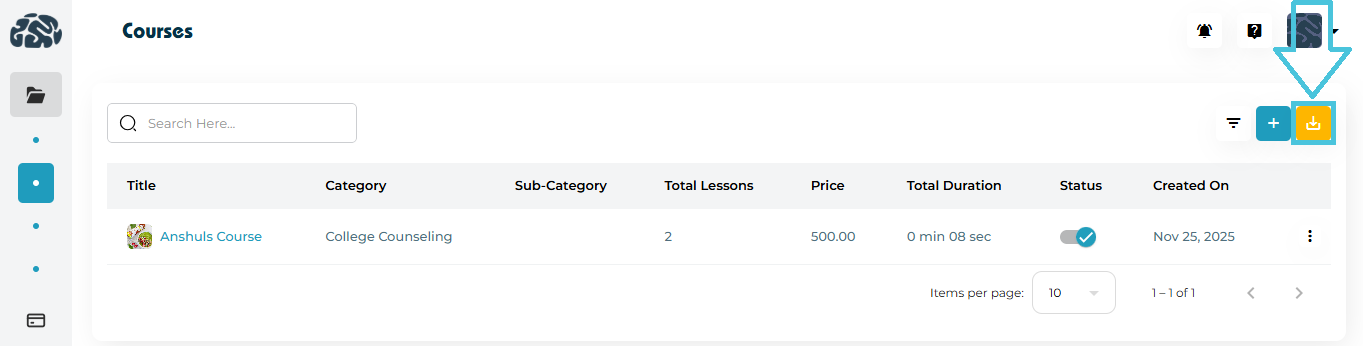
  1. Click the Export icon (yellow download button).

  2. A CSV file containing all visible records will be downloaded.
This is useful for:

  • Reports

  • External analysis

  • Backups

10. Searching for Institutions
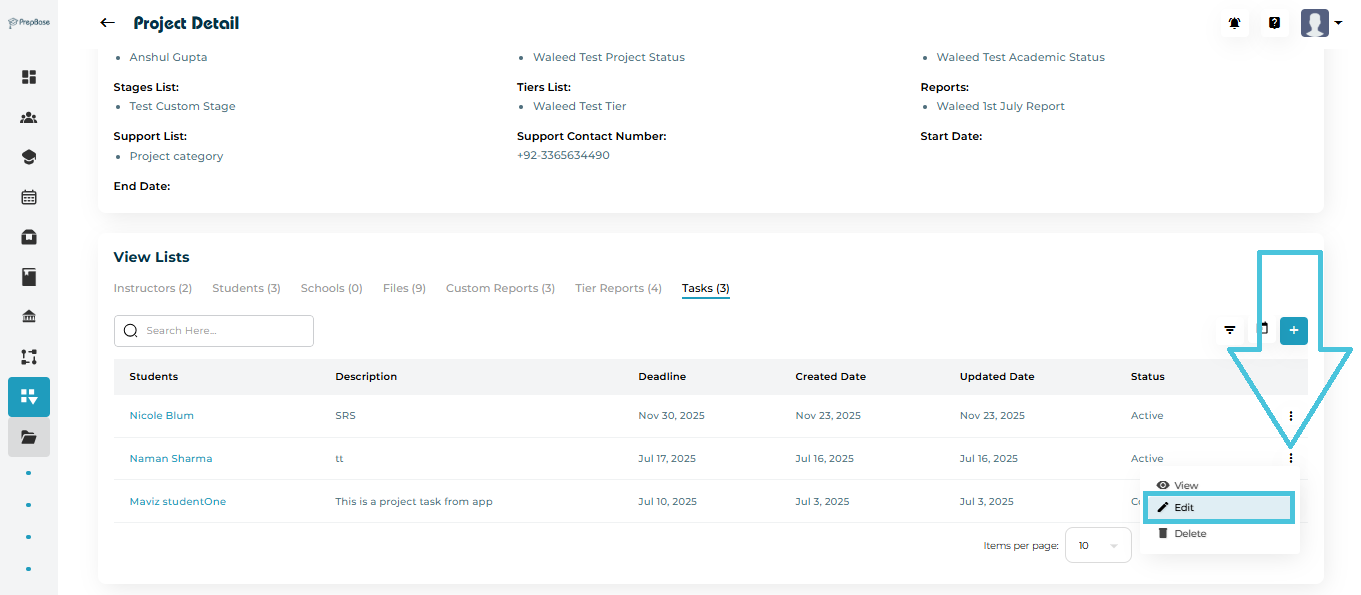
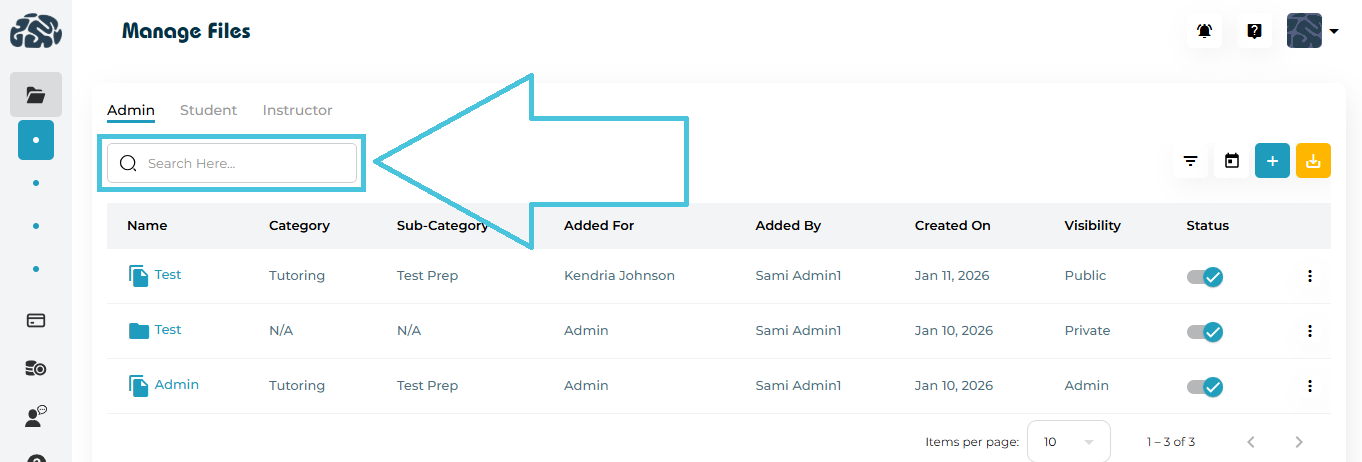
Use the Search Here… bar at the top to find schools or colleges quickly.
You can search by:

  • Name

  • City

  • Curriculum

  • Any keyword associated with the institution

IN THIS ARTICLE

Adding student hobbies and interests

Adding Student Hobbies and Interests

The Hobbies & Interests module allows Admins to define the extracurricular categories that students can select in their profiles. These categories help instructors, counselors, and the system better understand a student’s passions, personality, and non-academic inclinations.

This section lets you add, edit, view, activate/deactivate, and delete hobby categories, ensuring your list remains accurate and relevant.

1. Accessing the Hobbies & Interests Module

Navigate to:

Subjects & Expertise → Hobbies / Interests

Here you will see the complete list of existing hobbies, along with their:

  • Subject Name

  • Created On

  • Status (Active/Inactive)

  • Actions menu (View, Edit, Delete)

2. Adding a New Hobby or Interest

Click + Add New at the top right of the hobbies list.

This opens the Add Hobby form.

Fields Included
FieldDescription
Hobby NameEnter the hobby/interest in English.
Hobby Name in ArabicEnter the Arabic translation of the hobby (optional but recommended for bilingual platforms).

Once completed, click Save to add the hobby to the list.

3. Viewing an Existing Hobby

There are two methods to view hobby details:

Method 1: Click the Hobby Name Directly

Simply click on any hobby listed under Subject Name to open its detailed view.

Method 2: Using the Three-Dot Menu
  1. Locate the hobby row.

  2. Click the three-dot menu on the right side.

  3. Select View.

The View Hobby Form displays:

  • Hobby Name (English)

  • Hobby Name (Arabic)

This method ensures quick access without accidentally editing data.

4. Editing a Hobby

To update an existing hobby:

  1. Open the three-dot menu next to the hobby.

  2. Click Edit.

You can modify:

  • English Name

  • Arabic Name

Click Save to apply changes.

5. Activating or Deactivating Hobbies

Each hobby row includes a status toggle.

  • Blue checkmark → Active

  • Grey toggle → Inactive

Inactive hobbies will not appear in student-facing dropdowns but remain stored in the system.

Use this when a hobby is temporarily irrelevant or no longer offered.

6. Deleting a Hobby or Interest

If a category is no longer needed:

  1. Click the three-dot menu.

  2. Select Delete.

  3. Confirm the deletion.

⚠️ Note: Deleted hobbies cannot be recovered unless re-created manually.

IN THIS ARTICLE

Defining student majors

Defining Student Majors

The Majors module in PrepBase allows administrators to define, organize, and manage all academic majors offered within the platform. These majors are later used across student profiles, college records, course alignment, and reporting — making it essential that this list is well-structured and kept up to date.

This guide explains how to add, edit, delete, activate/deactivate, and view majors, with clear screenshots to help you understand every feature.

1. Accessing the Majors Module

To open the Majors management area:

  1. Go to the left navigation menu.

  2. Open Subjects & Expertise.

  3. Select Majors.

2. Adding a New Major

To create a major:

  1. Click the Add New button at the top right of the Majors page.

  2. A pop-up form will appear (as shown below).

  3. Enter:

    • Major Name (In English)

    • Major Name (In Arabic) — optional but recommended for bilingual environments

  4. Click Save.

After saving, the new major appears instantly in the majors list.

3. Viewing a Major (Two Methods)

Admins can view major details in two different ways, depending on their workflow preference:

1. Click the Major Name Directly
  1. Simply click the Subject Name (major name) in the list.

  2. The same view window will open.

2. From the Three-Dot Menu
  1. Click the three-dot menu next to any major.

  2. Select View.

Both methods open the View Major window where administrators can review:

  • English name

  • Arabic name

(No editing is allowed in viewing mode.)

4. Editing Existing Majors

To modify a major:

  1. Click the three-dot menu beside the major.

  2. Select Edit.

  3. Update the English or Arabic name as needed.

  4. Click Save.

Editing is useful when standardizing naming conventions or correcting mistakes.

5. Activating or Deactivating Majors

Every major has a status toggle that allows admins to activate or deactivate it without deleting.

  • Active (blue checkmark) → Can be assigned across the platform

  • Inactive (grey state) → Hidden from dropdowns but remains in the database

This is especially helpful when temporarily removing discontinued or seasonal majors.

6. Deleting a Major

To remove a major entirely:

  1. Click the three-dot menu on the desired major.

  2. Select Delete.

  3. Confirm the deletion in the prompt that appears.

⚠️ Important:
Deleting a major may affect student profiles or other sections where the major was used. Proceed carefully.

IN THIS ARTICLE

Managing available curriculums

Managing available curriculums

Managing curriculums allows your organization to standardize learning pathways, assign students or instructors to the correct academic framework, and ensure all teaching content aligns with recognized educational standards.
This article provides a complete, guide to adding, editing, viewing, activating/deactivating, and deleting curriculums in the PrepBase Admin Portal.

1. Where to Manage Curriculums

Navigate to:


Subjects & Expertise → Curriculums

Here you’ll find the full list of curriculums your institution supports (e.g., IB, British, American, CBSE, Canadian, Homeschool, etc.).
Each curriculum row displays:

  • Curriculum Name

  • Created On Date

  • Status (Active / Inactive toggle)

  • Action Menu (View / Edit / Delete)

2. Adding a New Curriculum

Click the Add New button on the top-right corner of the page.


A form titled Add Curriculum appears.

Fields Included
FieldDescription
Curriculum NameThe English name of the curriculum. Example: International Baccalaureate (IB)
Curriculum Name (Arabic)Optional Arabic equivalent for bilingual organizations.
Save ButtonStores the new curriculum in your system.

After saving, the curriculum is added to the list and automatically activated.

3. Two Ways to View Curriculum Details

PrepBase provides two convenient methods to open detailed curriculum information:

1. Clicking the Curriculum Name (direct open)

Simply click on the curriculum name (e.g., Canadian Curriculum) to open the View Curriculum form.

2. Using the Three-Dot Menu (⋮) → View

Open the action menu beside the curriculum and select View.

View Form Includes:
  • Curriculum Name (English)

  • Curriculum Name (Arabic)

This screen is read-only and is ideal for quickly reviewing stored details.

4. Editing an Existing Curriculum

To modify curriculum information:

  1. Click ⋮ Three-Dot Menu

  2. Select Edit

The Edit Curriculum form appears, containing:

FieldEditable?Notes
Curriculum Name✔️Update English name anytime
Curriculum Name (Arabic)✔️Optional bilingual support

Click Save to apply changes.
The updates reflect instantly across all modules referencing this curriculum.

5. Activating or Deactivating a Curriculum

Each curriculum has a Status Toggle in the list view.

Active (blue tick)

Curriculum is visible and selectable throughout the system.

Inactive (grey toggle)

Curriculum is hidden from selection menus but remains stored for historical data consistency.

This feature is especially useful when a curriculum becomes obsolete or is temporarily unavailable.

6. Deleting a Curriculum

To remove a curriculum:

  1. Click ⋮ Three-Dot Menu

  2. Select Delete

  3. Confirm the deletion in the prompt

Important Notes
  • Deleted curriculums cannot be assigned further.

  • Existing records linked to deleted curriculums remain intact for reporting and audit purposes.

IN THIS ARTICLE

Configuring different study levels

Configuring Different Study Levels

Study Levels represent the academic stages your institution supports—such as Elementary, Middle School, High School, University Years, or Postgraduate levels. These labels help categorize students accurately and ensure instructors are assigned to the correct academic tiers.

In PrepBase, admins can add, edit, view, activate/deactivate, and delete study levels for both Tutor and Student roles. This article explains how to manage them effectively.

1. Where to Manage Study Levels

Navigate to:

Subjects & Expertise → Study Levels

Here you will see a complete list of study levels along with:

  • Study Level Name

  • Assigned Role (Tutor or Student)

  • Created On date

  • Status Toggle (Active / Inactive)

  • Actions Menu (View, Edit, Delete)

2. Adding a New Study Level

Click the Add New button (top-right corner) to open the form.

Fields Required
FieldDescription
Name of Study Level (In English)Enter the academic level title (e.g., “High School (Grades 10–12)”).
Name of Study Level (In Arabic)Optional — Arabic translation for bilingual environments.
Select RoleChoose whether this level applies to Tutor or Student accounts.

Click Save to add the new study level.

3. Viewing a Study Level

There are two methods to open the details of a study level:

Method 1: Through the Three-Dot Menu
  1. Click the three dots on the right side of any study level.

  2. Select View.

Method 2: By Clicking the Study Level Name

Simply click the name of the study level directly in the table.
This will open the same View screen.

What You Can See
  • English & Arabic names

  • Assigned role

  • Read-only view of all details

This is useful when you need to verify configurations without modifying them.

4. Editing an Existing Study Level

To update a study level:

  1. Click the three-dot menu beside any entry.

  2. Select Edit.

You can modify:

  • English & Arabic names

  • Assigned role

Click Save to apply updates.

5. Activating or Deactivating a Study Level

Use the status toggle to switch a study level ON or OFF.

  • Activated (blue checkmark): The level is available for use.

  • Deactivated (grey): The level is hidden from selection but not deleted.

This is helpful when:

  • A grade level is being phased out

  • Certain academic tiers are seasonal

  • Temporary suspension of a specific level is required

6. Deleting a Study Level

To remove a study level permanently:

  1. Click the three-dot menu beside the level.

  2. Select Delete.

  3. Confirm the action.

IN THIS ARTICLE

Managing counseling expertise categories

Managing Counseling Expertise Categories

The Counseling Expertise module in PrepBase allows admins to organize, expand, and maintain the areas of expertise offered by counselors. Each expertise category can have multiple sub-expertise entries, making it easier to classify counselor skills and match them with student needs.

This guide walks you through:
  • Viewing counseling expertise categories
  • Adding new sub-expertise
  • Editing sub-expertise
  • Deleting sub-expertise
  • Exporting sub-expertise data

1. Navigating to Counseling Expertise

To manage counseling expertise categories:

  1. Go to Subjects & Expertise from the left-side menu.

  2. Click Counseling Expertise.

You will see a list of expertise areas added by your organization such as:

  • Mentorship

  • Counseling

  • University

  • Scholarships

  • Admissions

Each row displays:

  • Expertise Area Name

  • Number of Sub-Expertise Items

  • Created On date

2. Viewing Expertise Entries

To see the detailed sub-expertise under any category:

  1. Click the three-dot menu beside the expertise category.

  2. Select View.

A popup opens displaying:

  • Expertise Name

  • Expertise Name In (Arabic)

  • Show In

3. Viewing Sub-Expertise Entries


To see the detailed sub-expertise under any category:

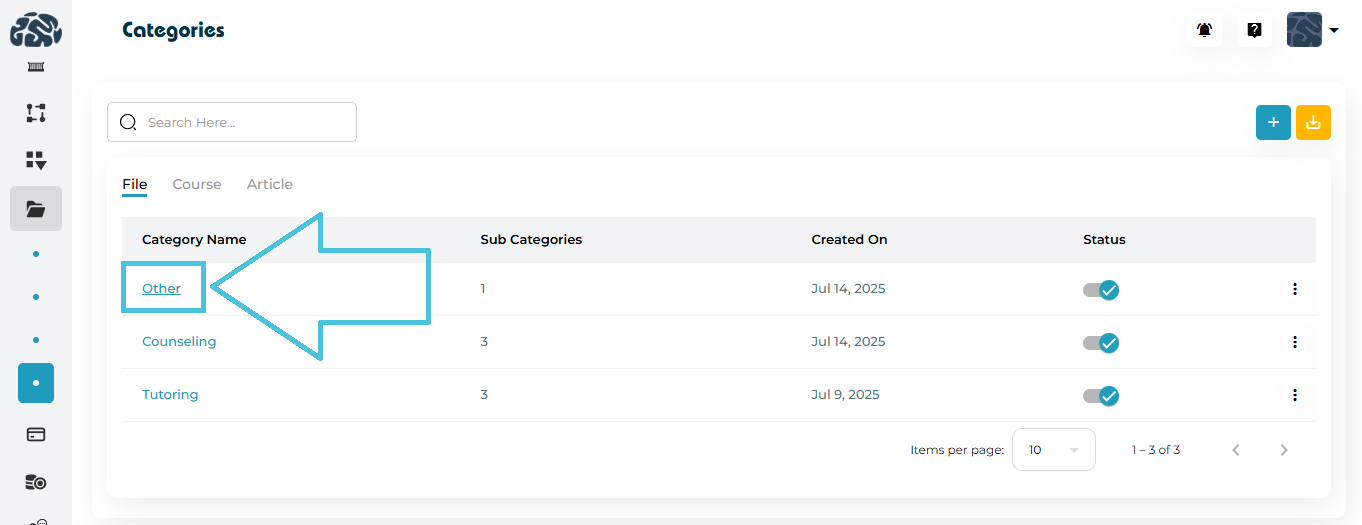
  1. Click the expertise area name.

  2. You will be redirected to sub-expertise detail page.


4. Adding New Sub-Expertise


To introduce a new specialization within a counseling expertise area:

  1. Click the + (Add Sub-Expertise) button on the top-right.

  2. Fill out the form:

    • Sub-Expertise Name (English)

    • Sub-Expertise Name (Arabic)

  3. Click Save.

Typical sub-expertise examples include:

  • Professional Skills

  • Public Speaking

  • CV Building

  • Scholarship Guidance

  • Career Transition Support

This keeps counselor assignments structured and searchable.

5. Editing an Existing Sub-Expertise

If you need to update or correct a sub-expertise name:

  1. Open the three-dot menu beside the sub-expertise entry.

  2. Select Edit.

  3. Modify the English or Arabic name as needed.

  4. Click Save to apply changes.

6. Deleting Sub-Expertise

You can remove outdated or unused sub-expertise entries:

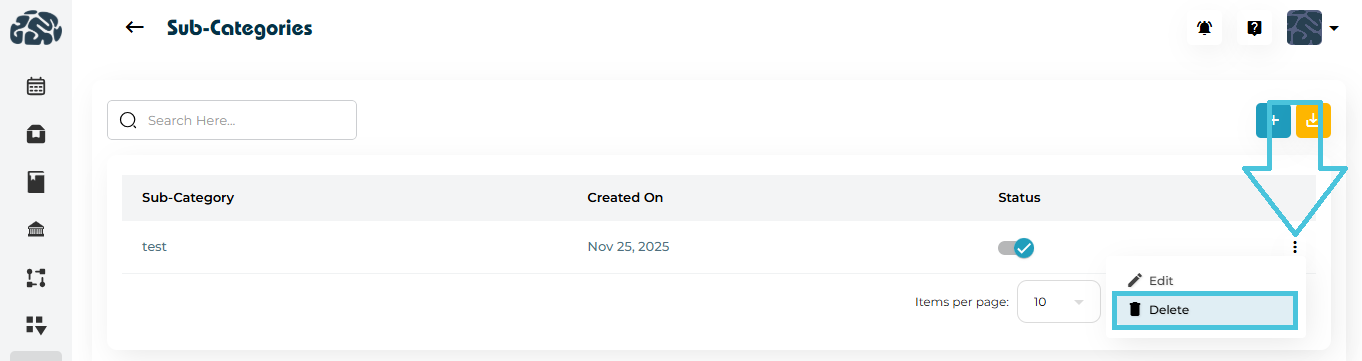
  1. Click the three-dot menu beside the sub-expertise.

  2. Select Delete.

  3. Confirm the action.

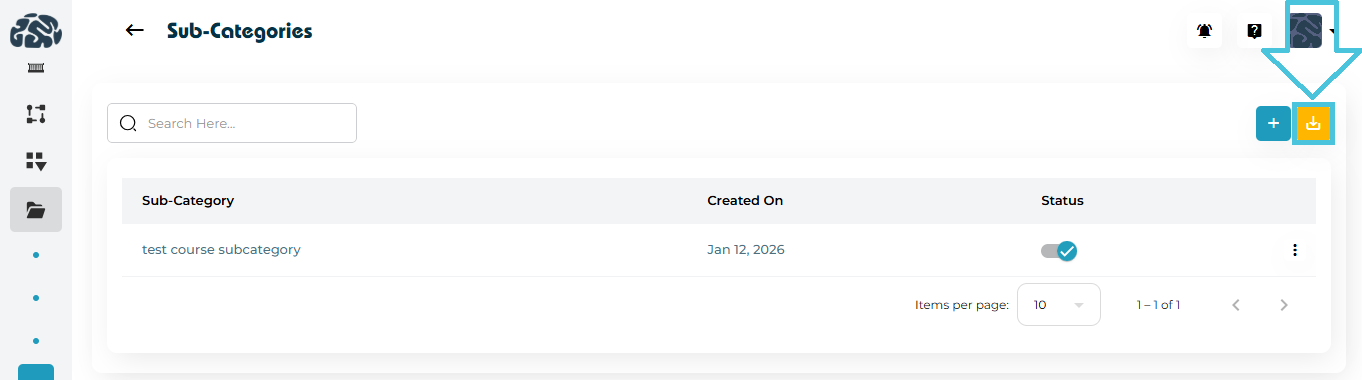
7. Exporting Sub-Expertise Data

Admins can download all sub-expertise into a CSV file for reporting or planning purposes.

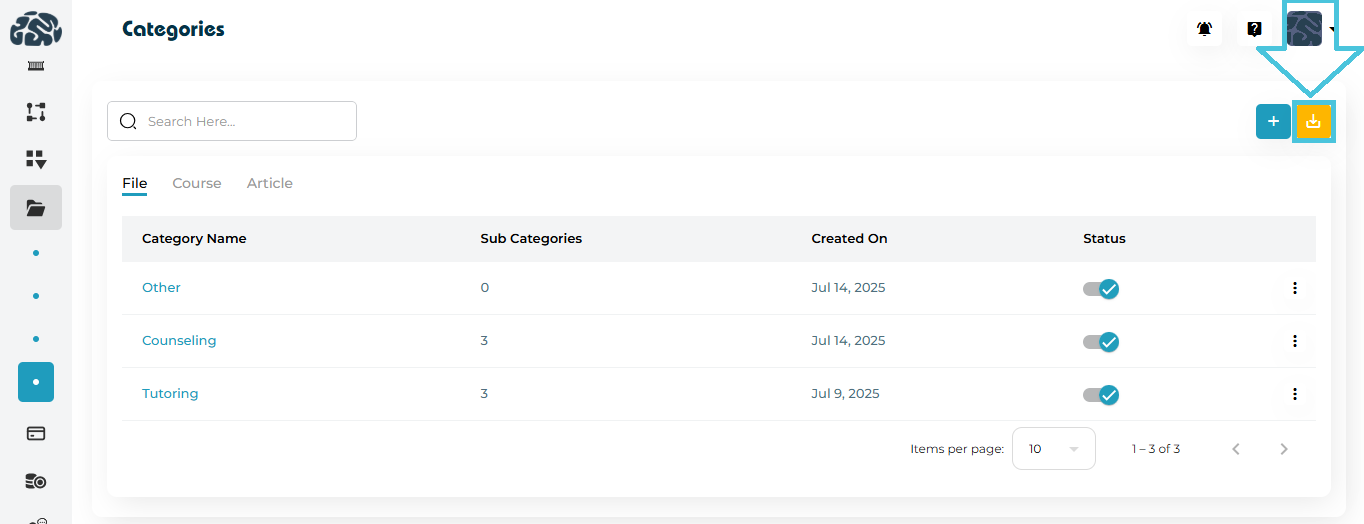
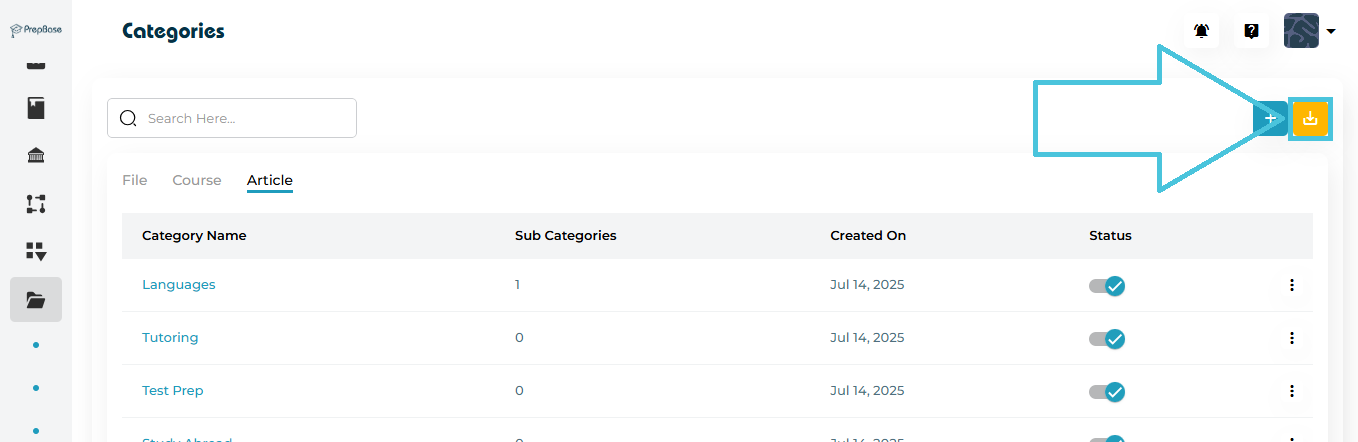
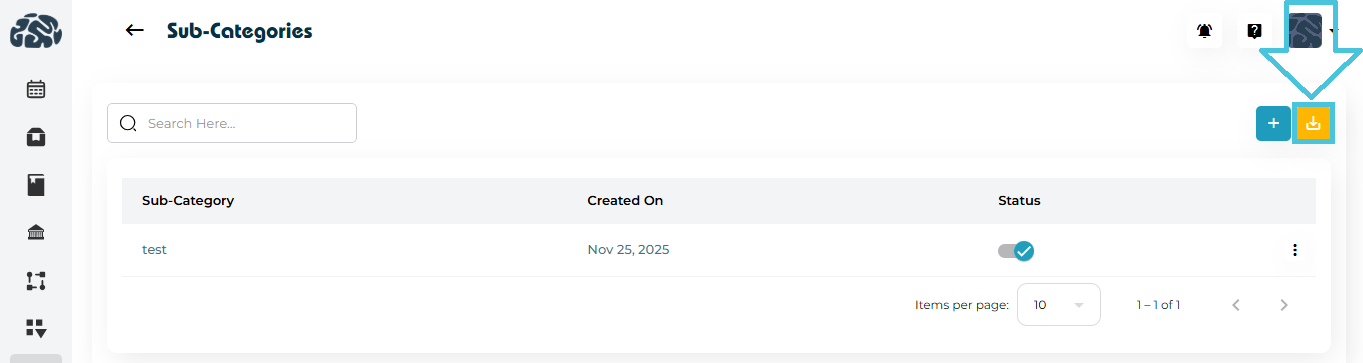
  1. Click the Export (Download CSV) button.

  2. A file containing all sub-expertise details will download to your device.

This is ideal for:

  • Internal audits

  • Counselor performance reviews

  • Training content planning

IN THIS ARTICLE