All file, report, and task management happens inside an individual project.
Navigation path:
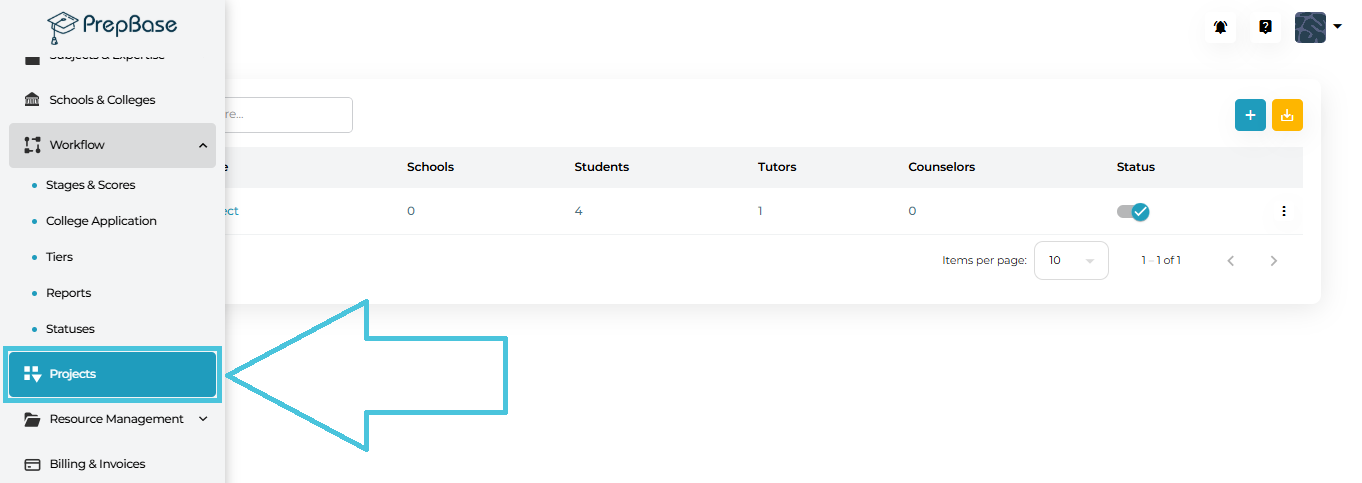
Projects → Select a Project → View Lists
Within View Lists, you will find dedicated tabs for:
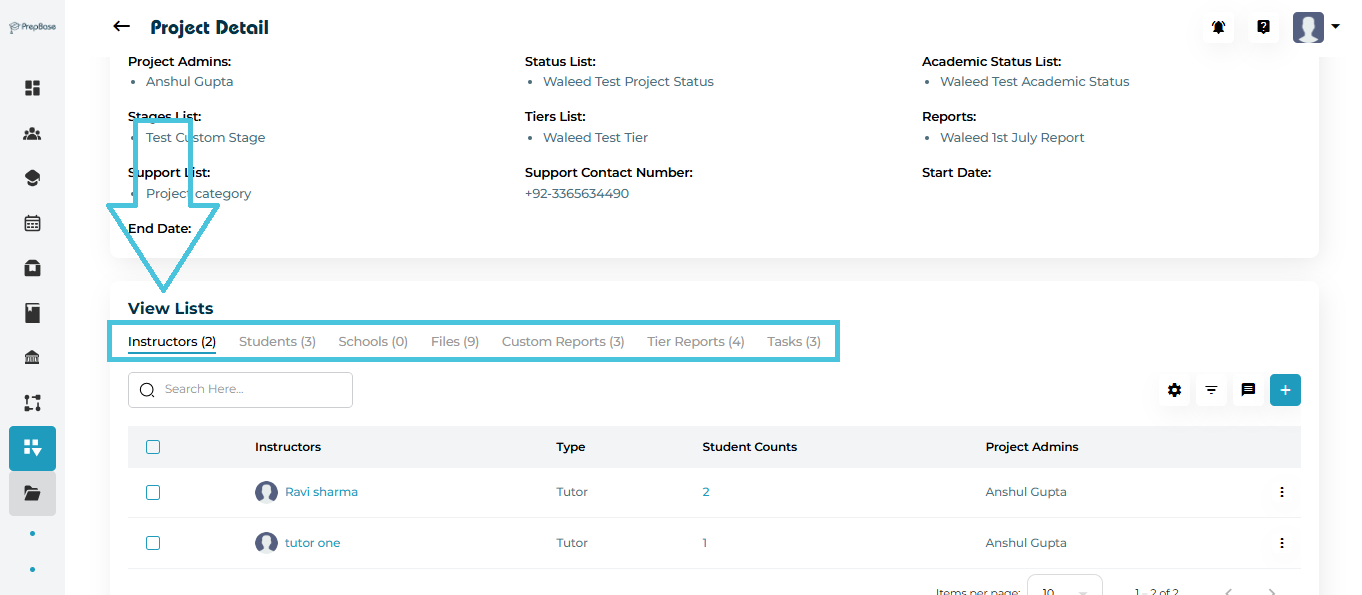
Files
Custom Reports
Tier Reports
Tasks
Each tab has its own add, edit, filter, and action controls.
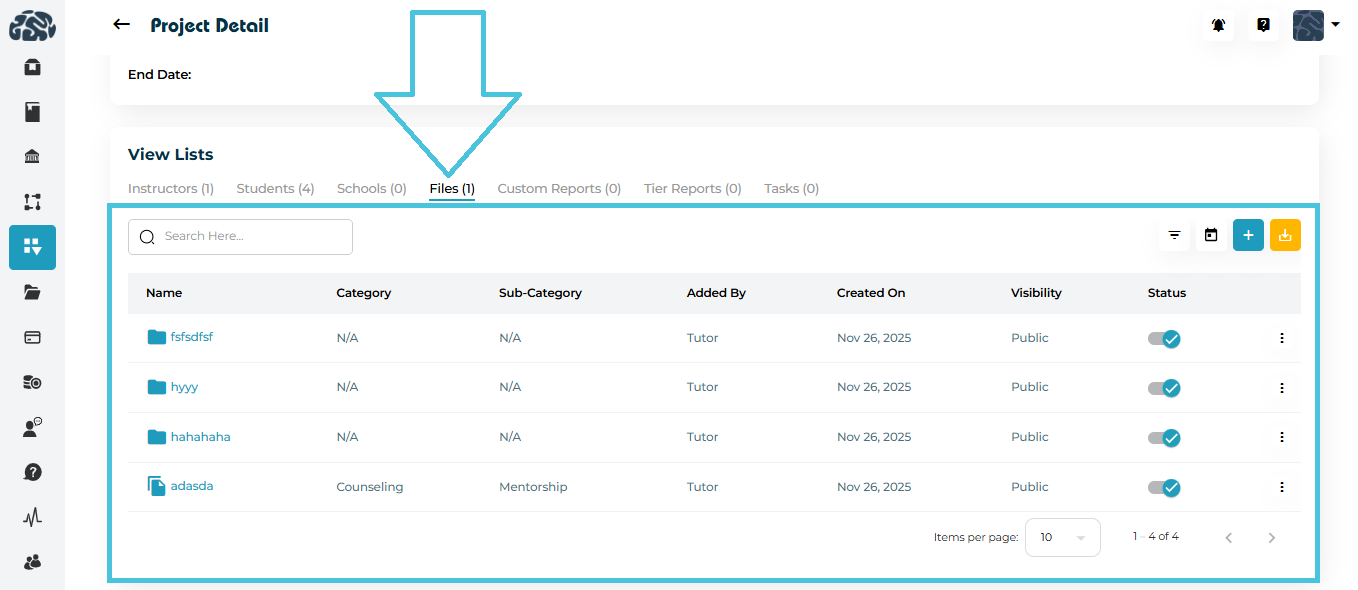
The Files tab is used to store and organize all documents related to a project, such as study material, resources, and reference material.
Adding Files
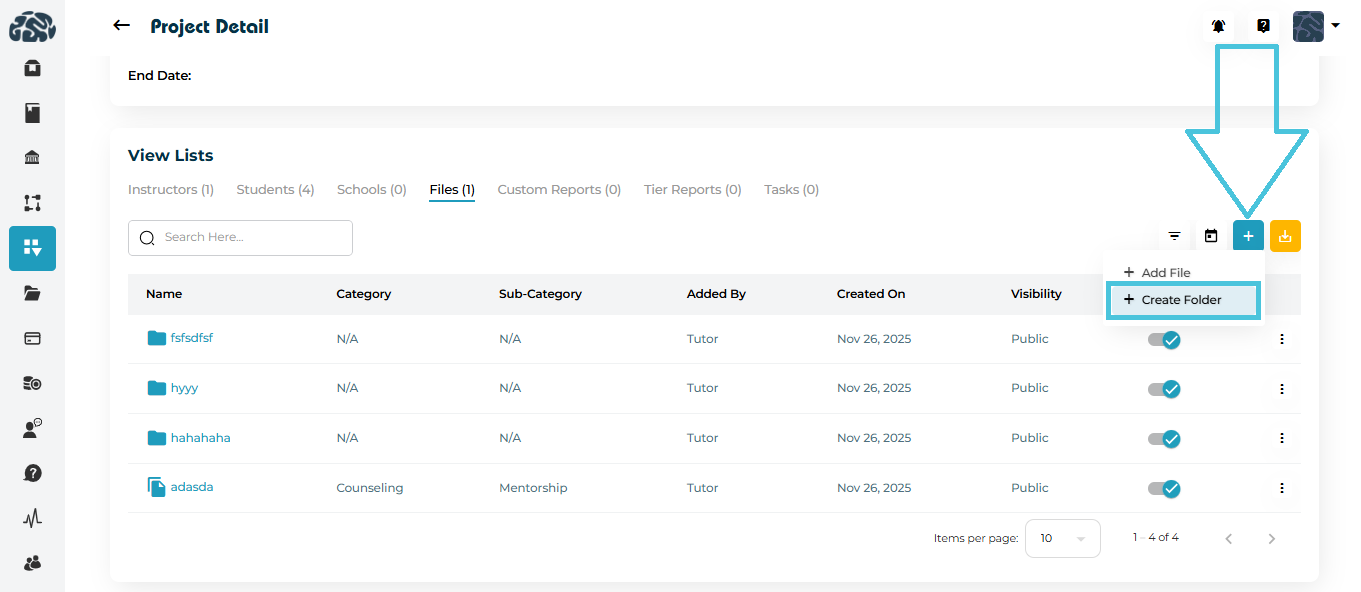
Open the Files tab inside the project.
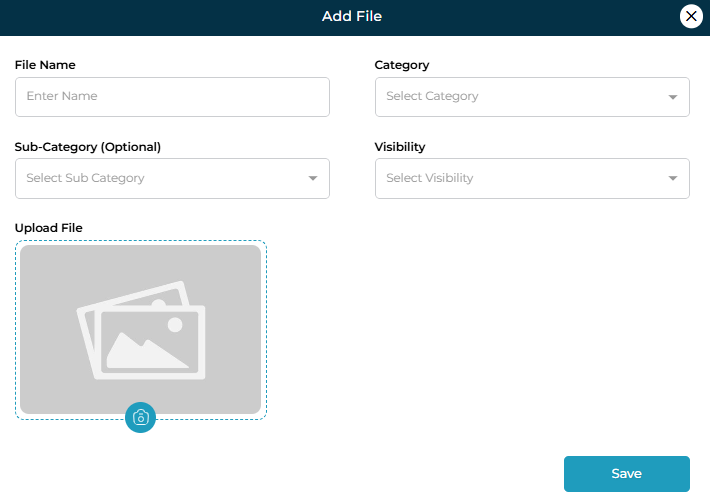
Click ➕ Add File.
Fill in the following fields:
File Name
Category (e.g., Counseling, Tutoring)
Sub-Category (optional)
Visibility (Public, Admin, etc.)
Upload File
Click Save to upload the file.
Creating Folders
Use ➕ Create Folder to group related files.
Click a folder name to open it in a new view and manage files inside it.
Folders help separate documents by topic, phase, or department.
You can also click on the three dots to add files within the folder.
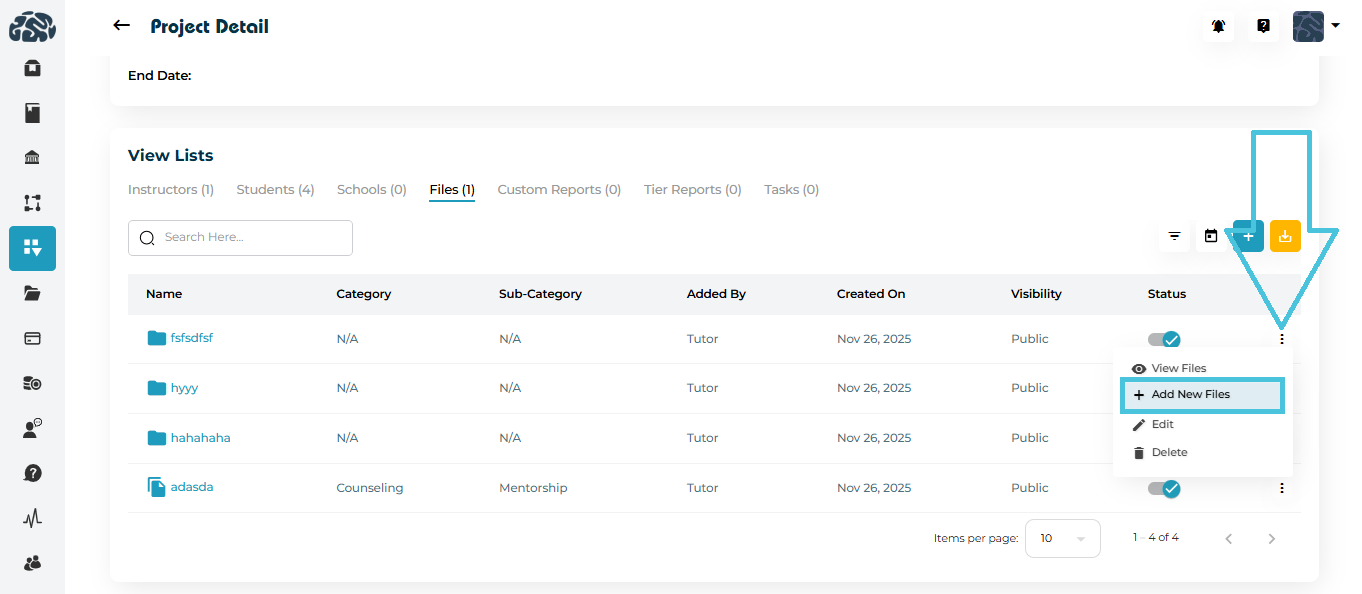
File Actions
Clicking on the name of the file will view in a new tab
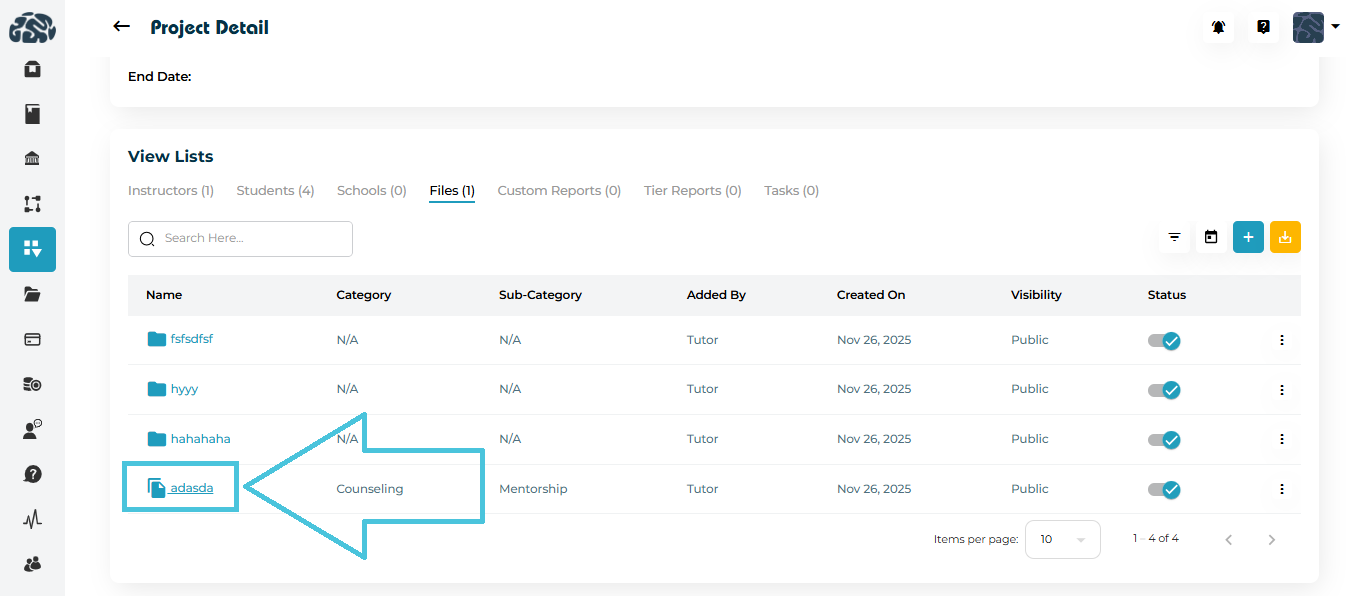
From the three-dot menu beside any file, you can:
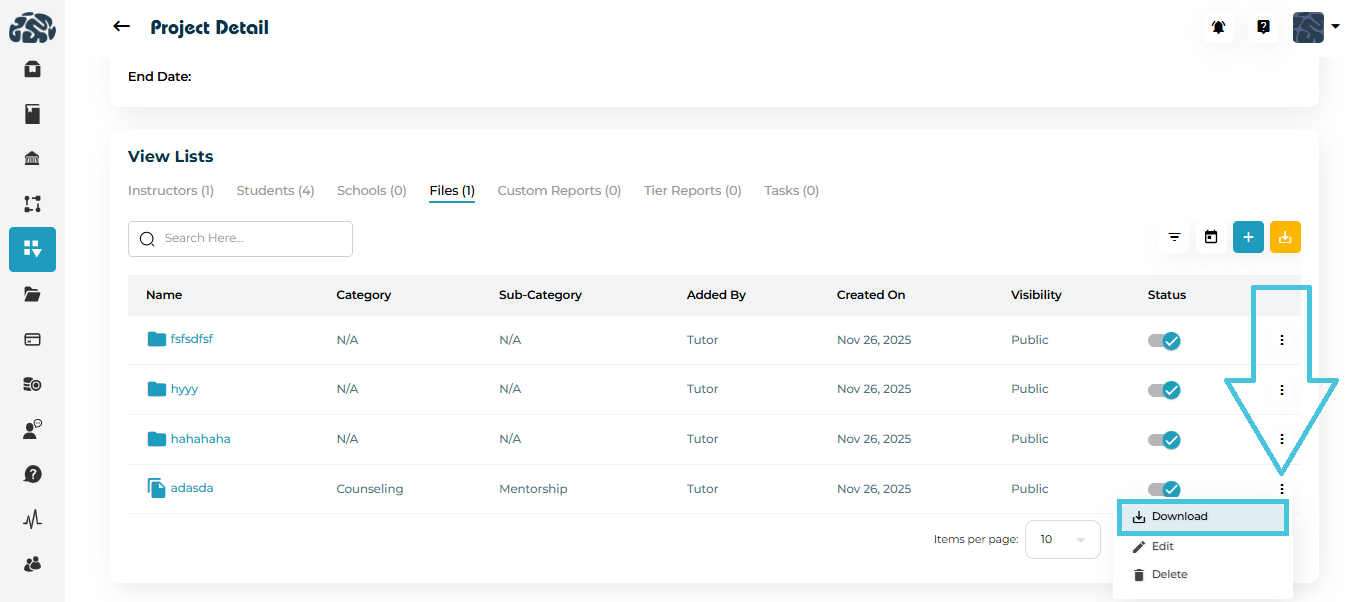
Download the file
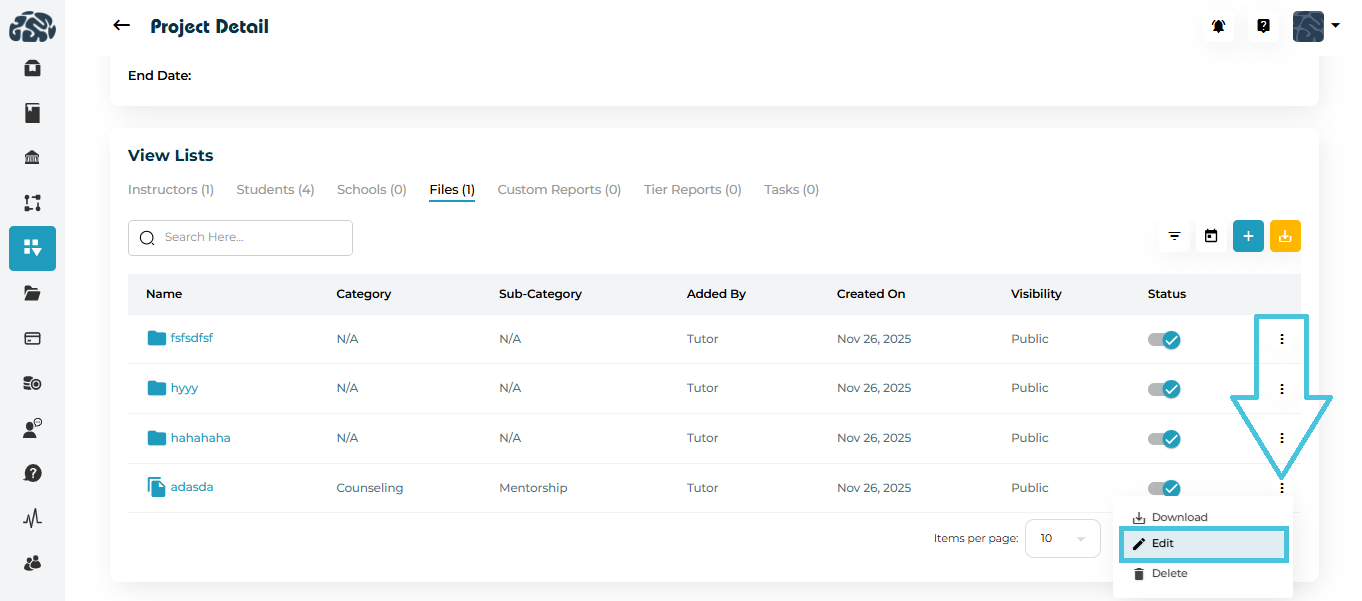
Edit file details (name, category, visibility)
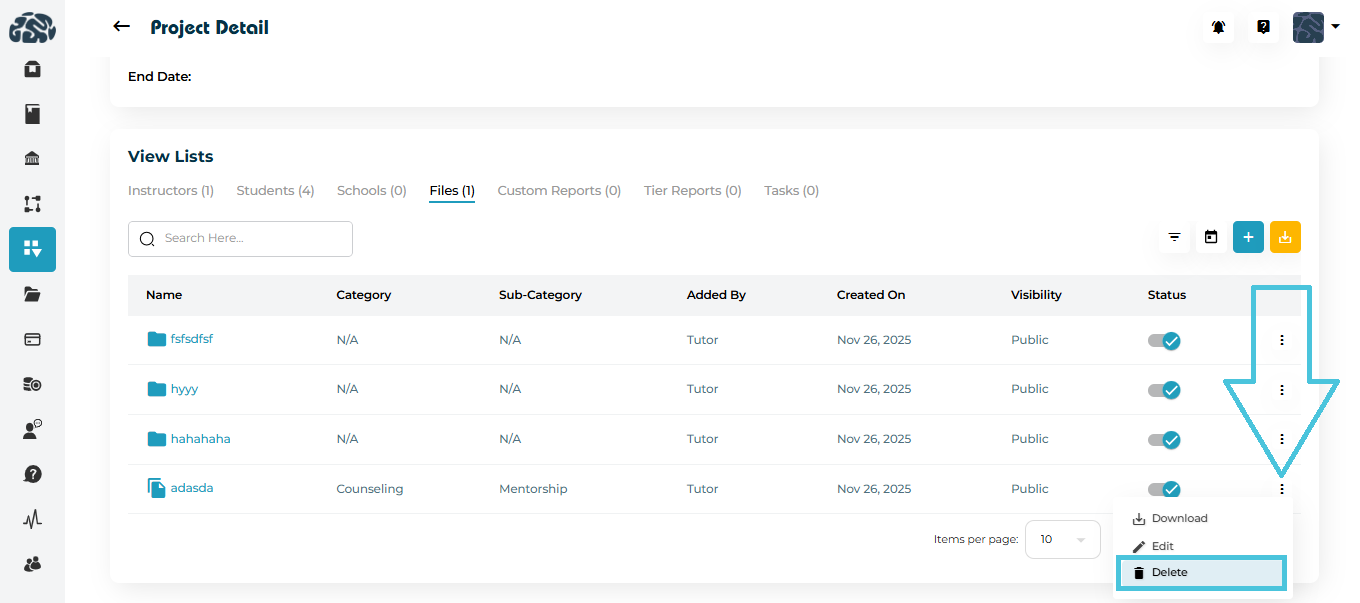
Delete the file
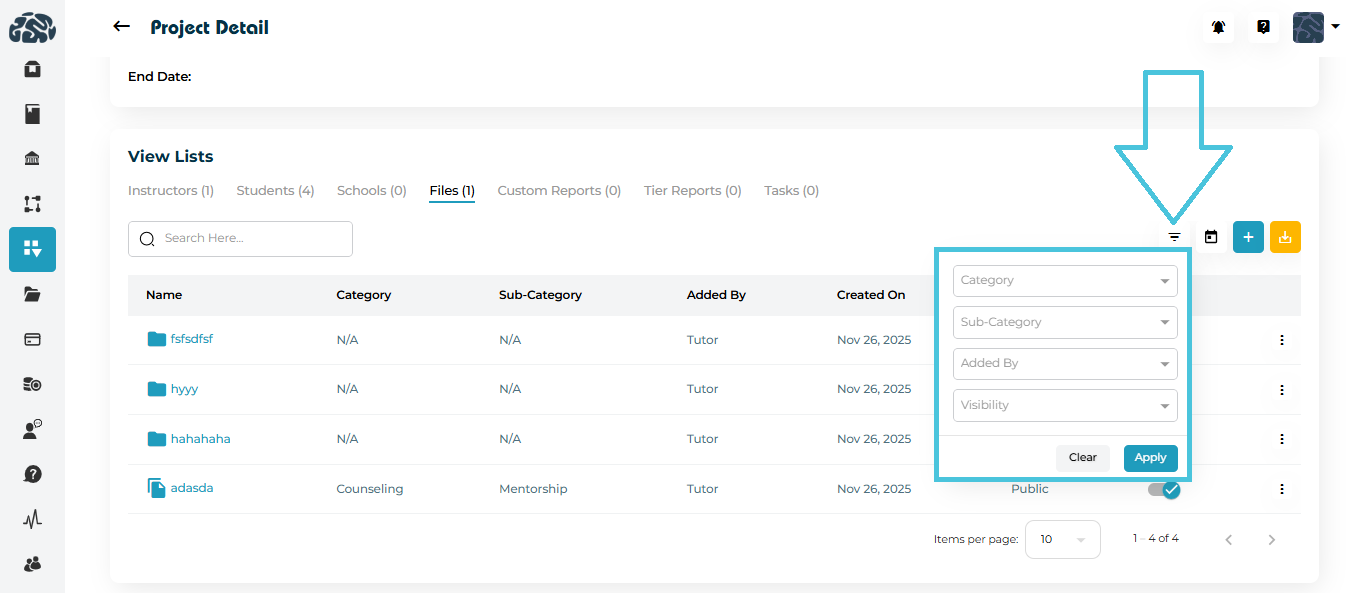
Filtering Files
Use filters to quickly find files by:
Category
Sub-Category
Added By
Visibility
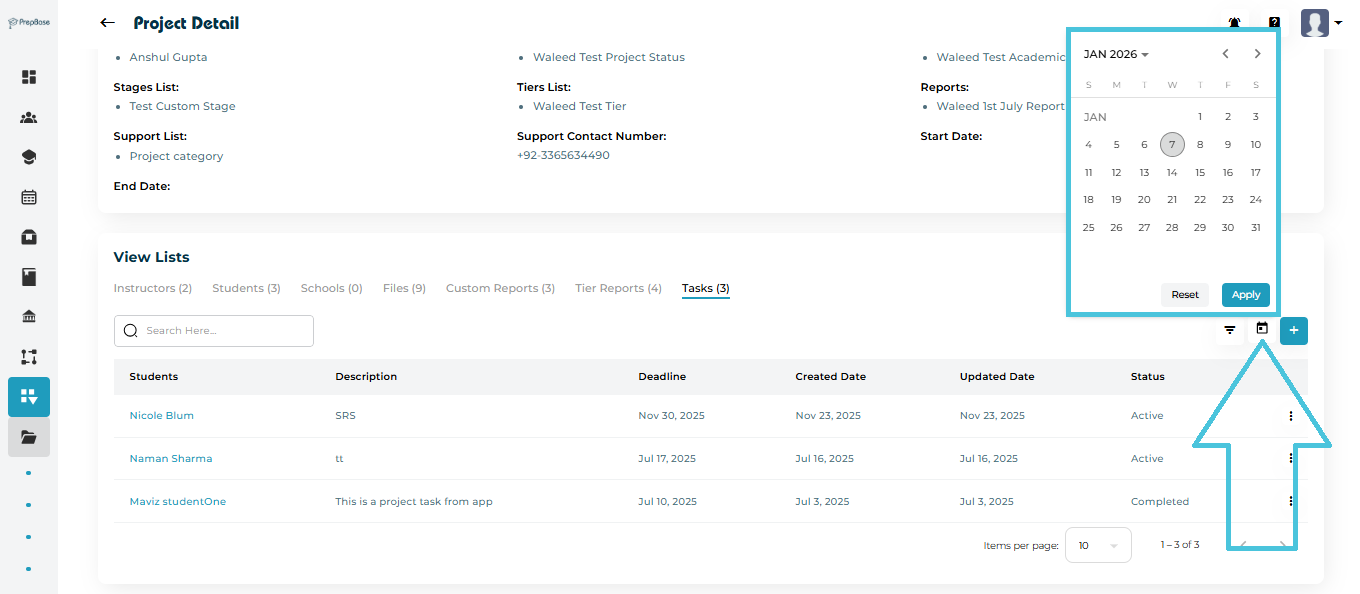
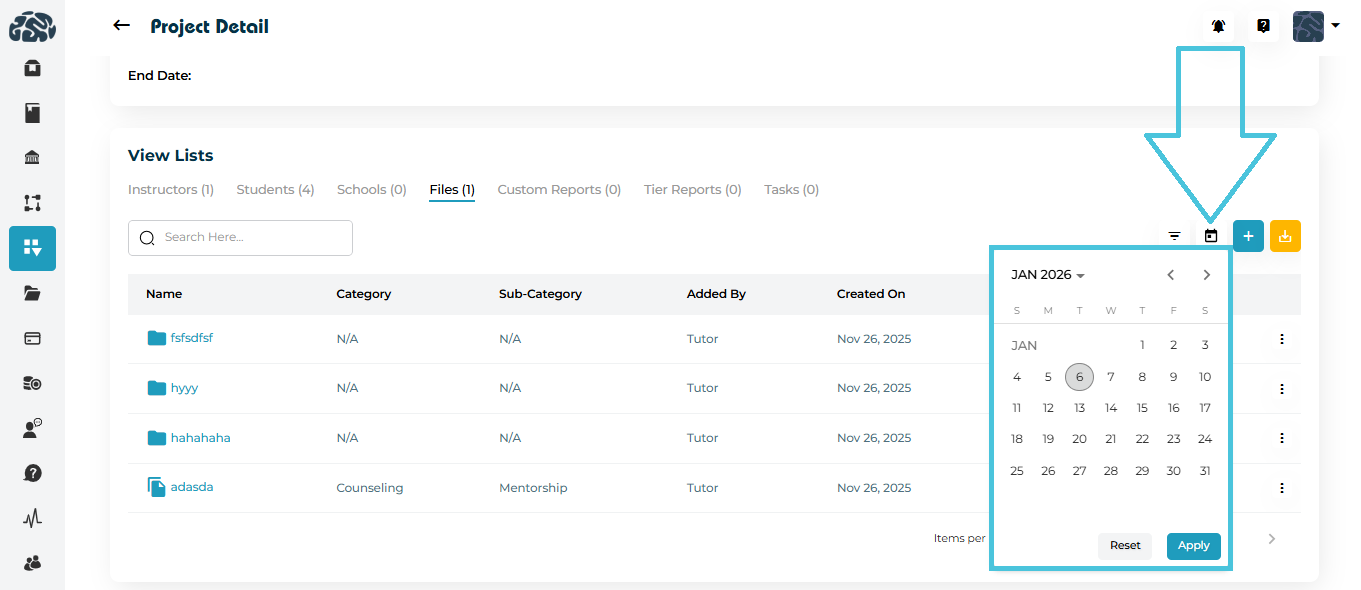
Date (calendar filter)
Custom Reports allow structured data collection for students within a project (for example: assessments, reviews, or evaluations).
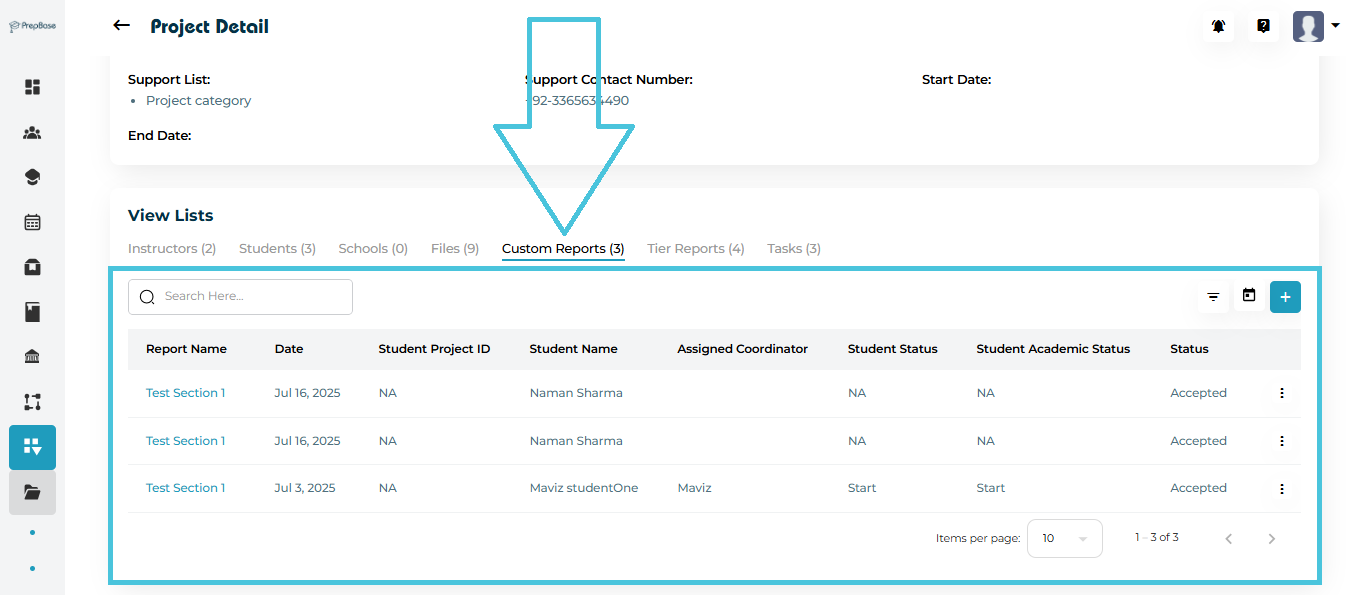
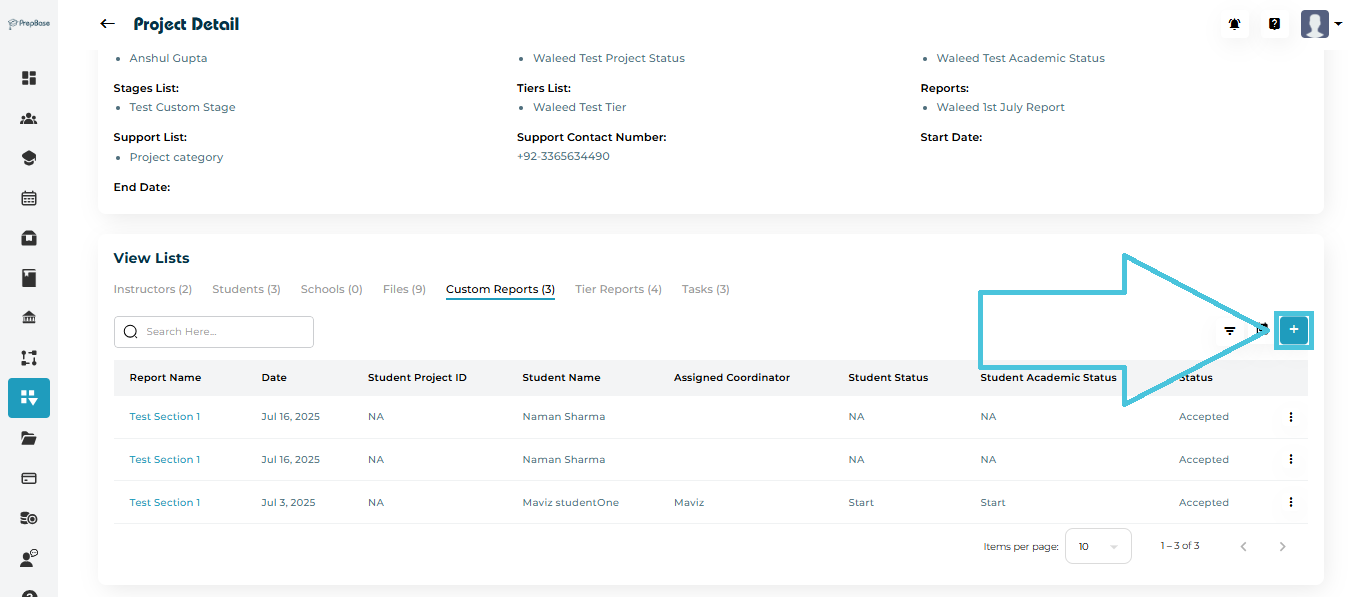
Adding a Custom Report to a Project
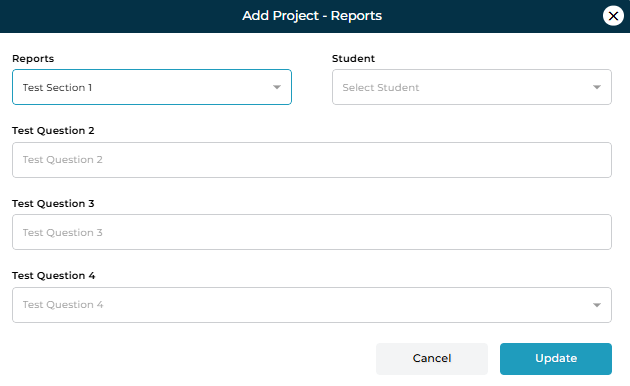
Open the Custom Reports tab.
Click ➕ Add.
Select:
Report Template From the List
Student linked to the Report
Fill in the report questions as configured in the template.
Click Update to save the submission.
Viewing Report Submissions
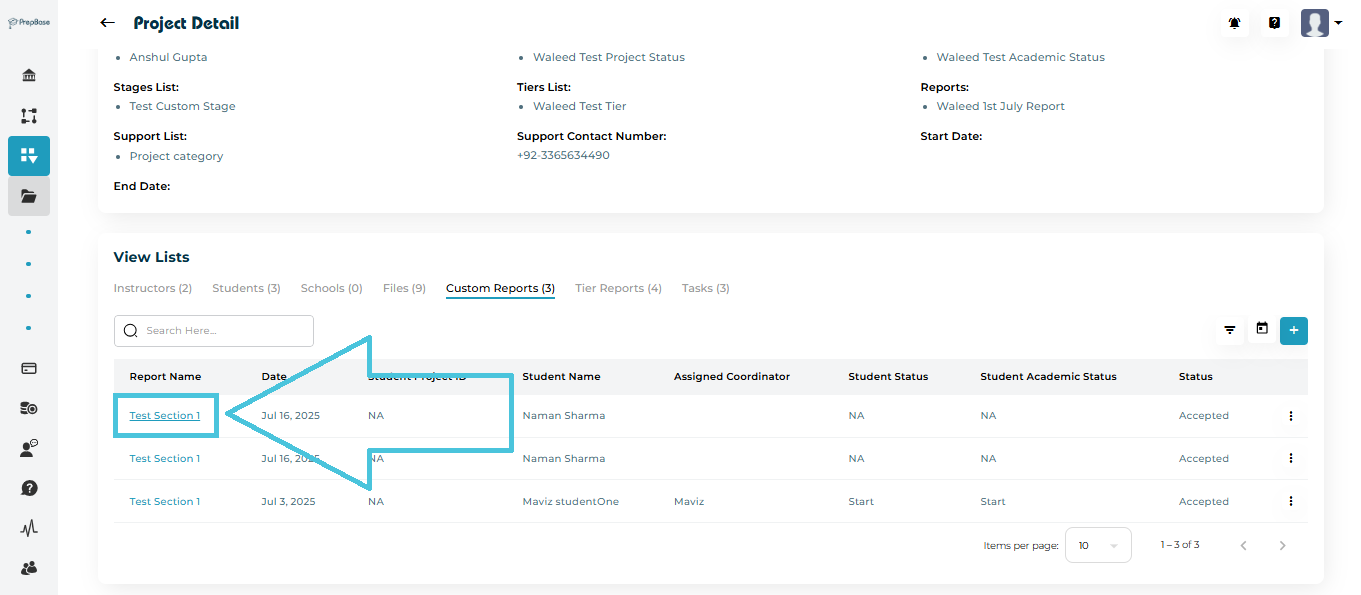
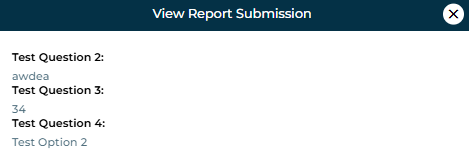
Click the Report Name to open the submitted report.
A modal displays all question responses in a read-only format.
Managing Reports
Clicking on the report name will view it.
From the three-dot menu, you can:
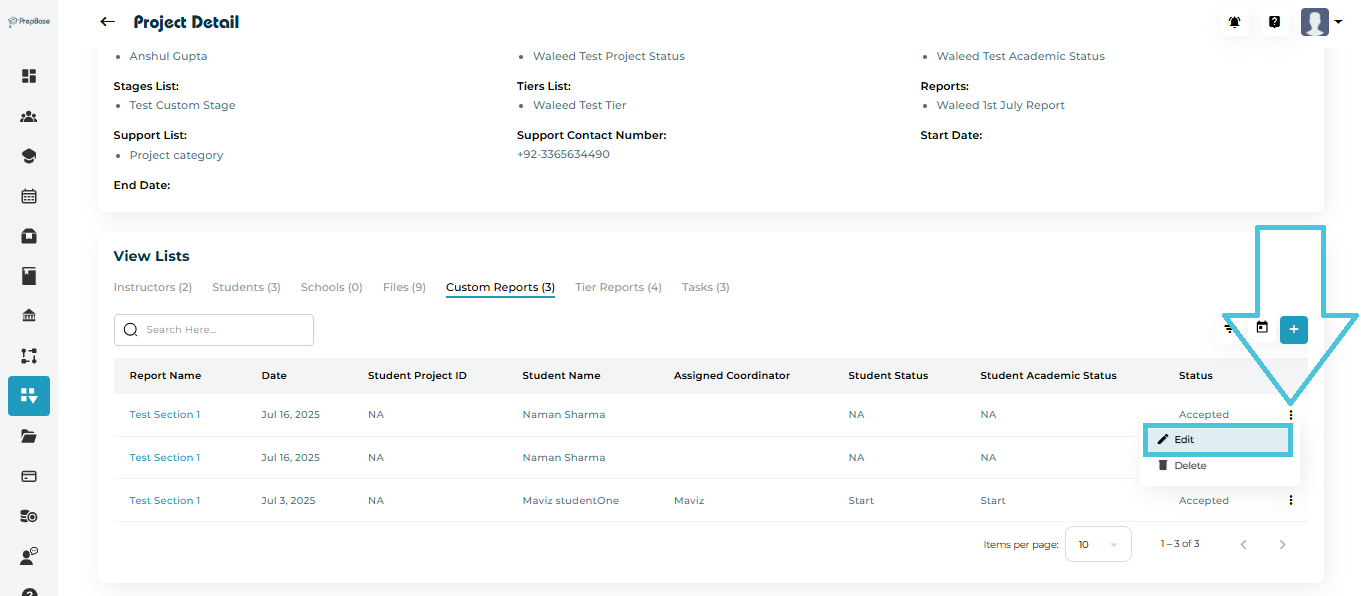
Edit responses
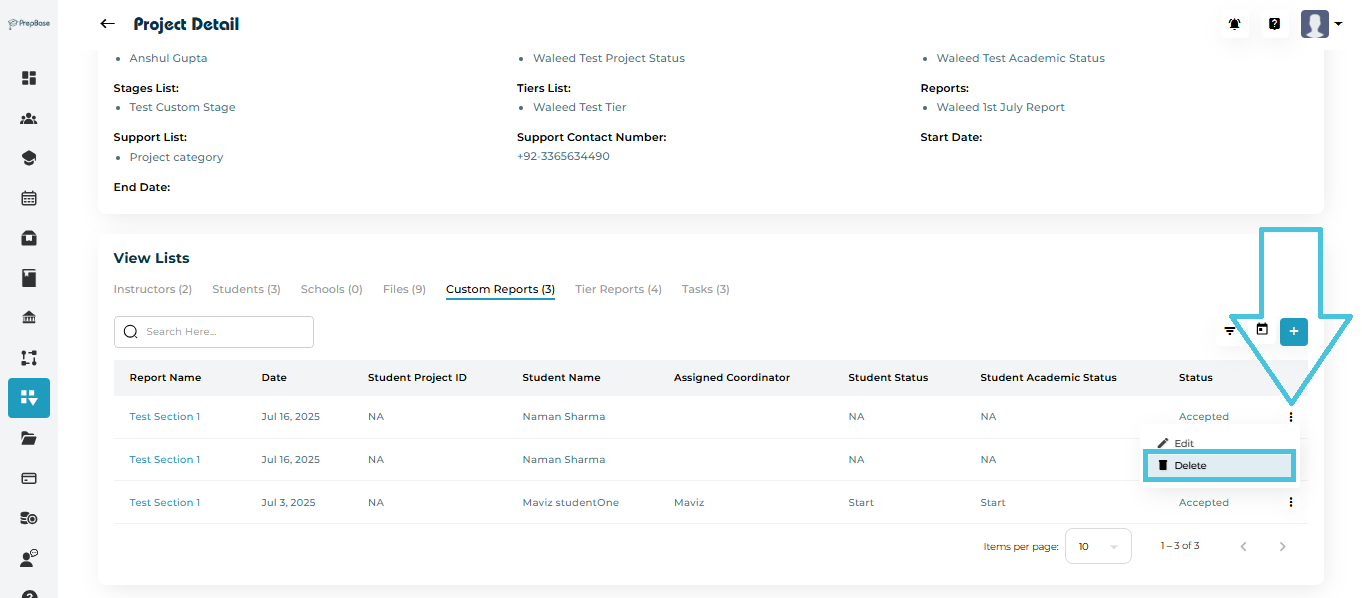
Delete the report entry
Filtering Reports
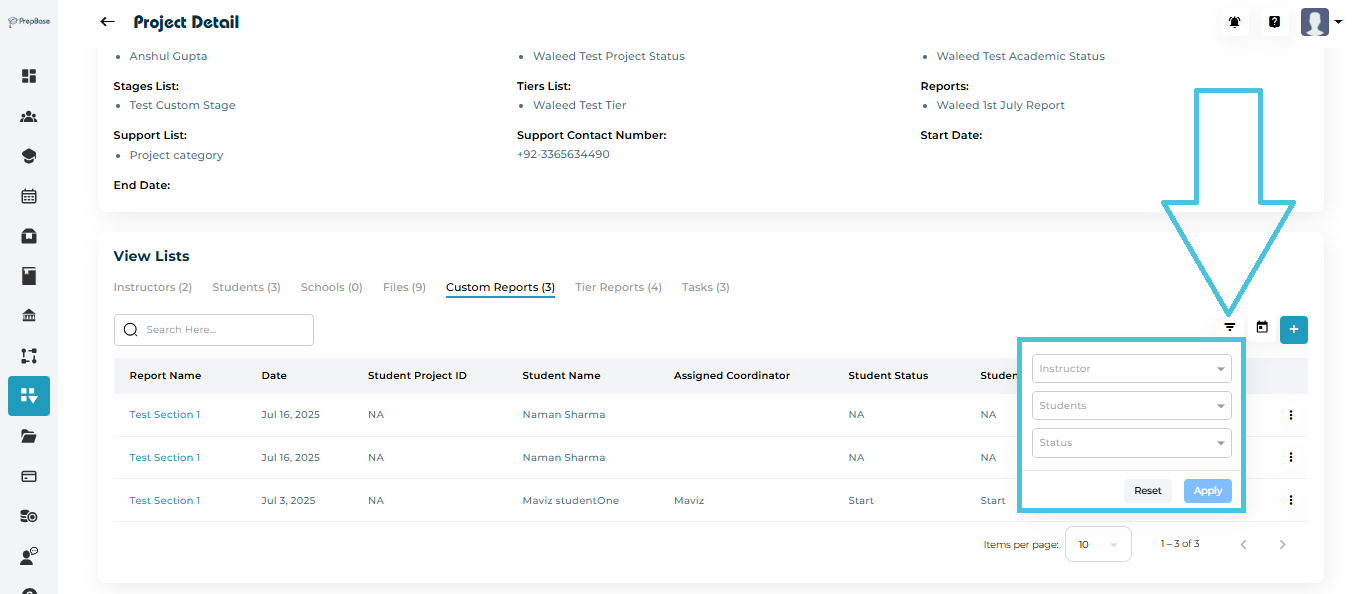
Reports can be filtered by:
Instructor
Student
Status
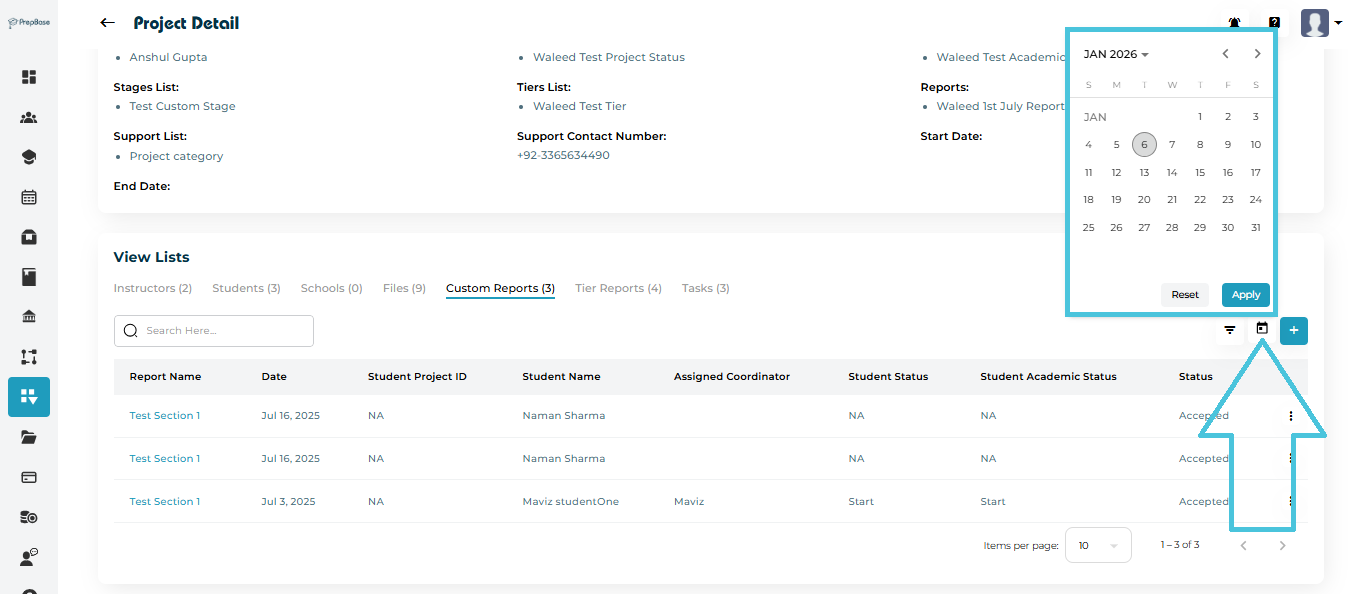
Date range (calendar filter)
Tier Reports are linked to tier-based workflows and help track student actions, status, and feedback for each defined tier.
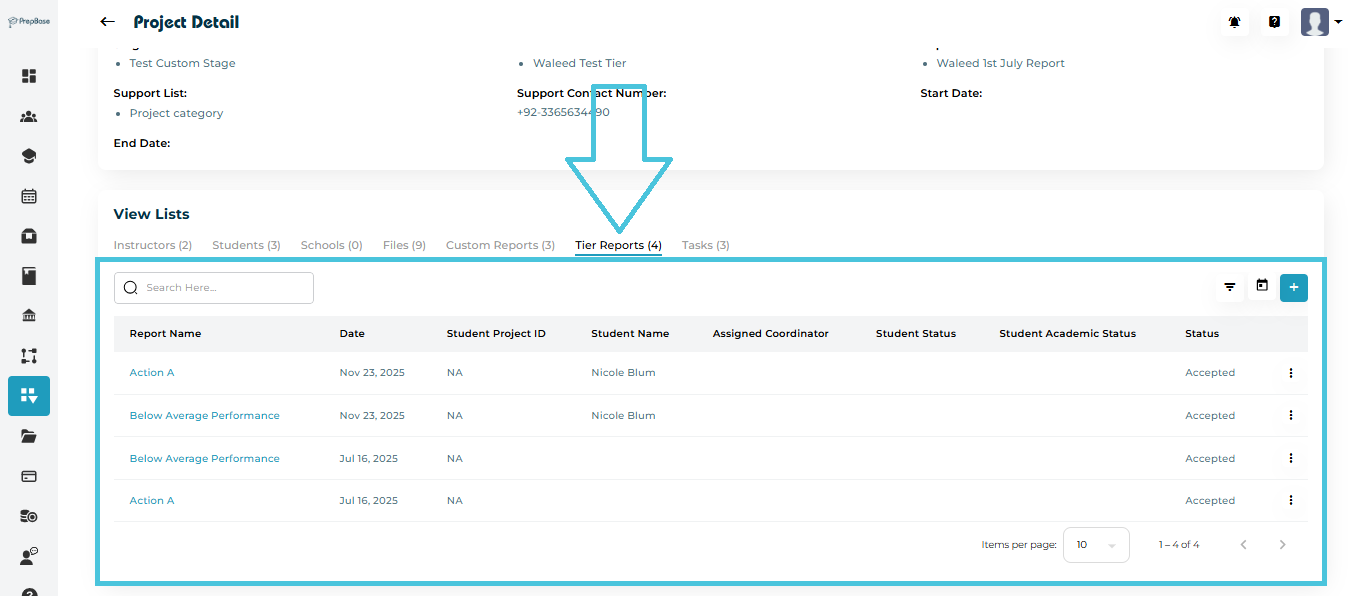
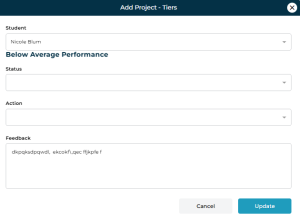
Adding a Tier Report
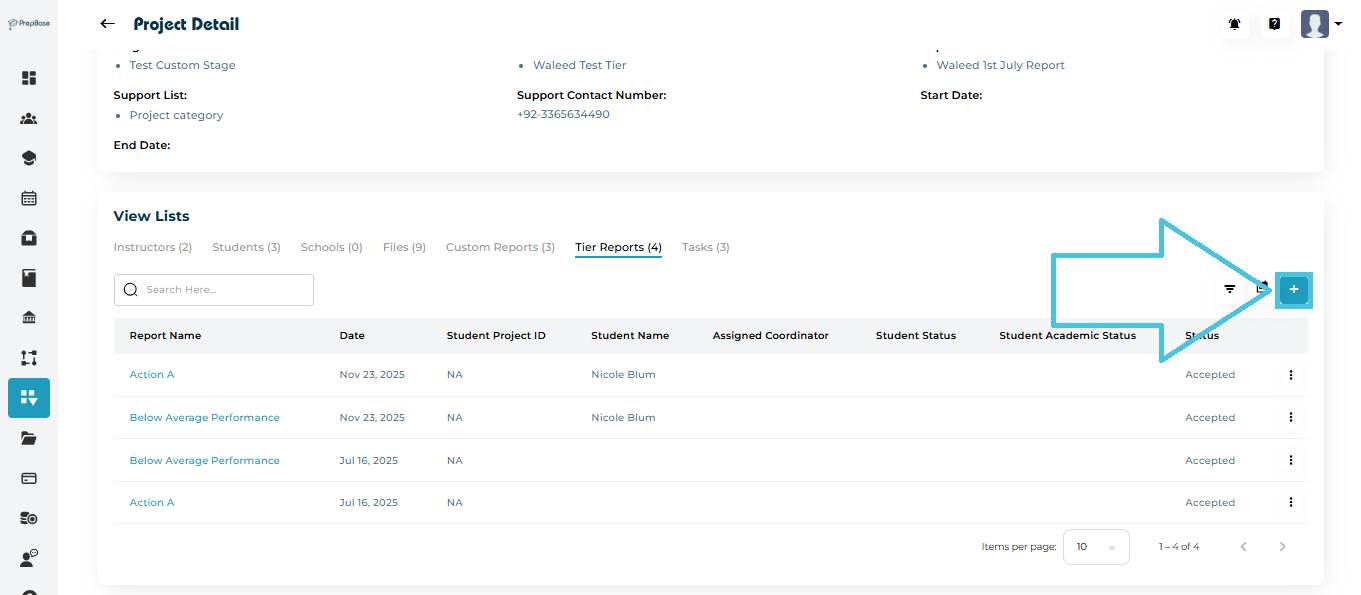
Open the Tier Reports tab.
Click ➕ Add.
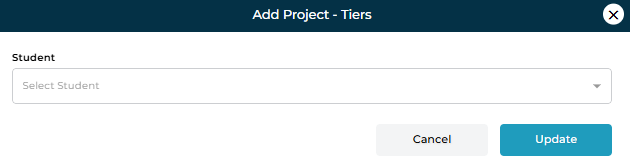
Select the Student.
For each of the tiers fill in:
Status
Action
Feedback (if activated in the template)
Click Update to save.
Viewing Tier Reports
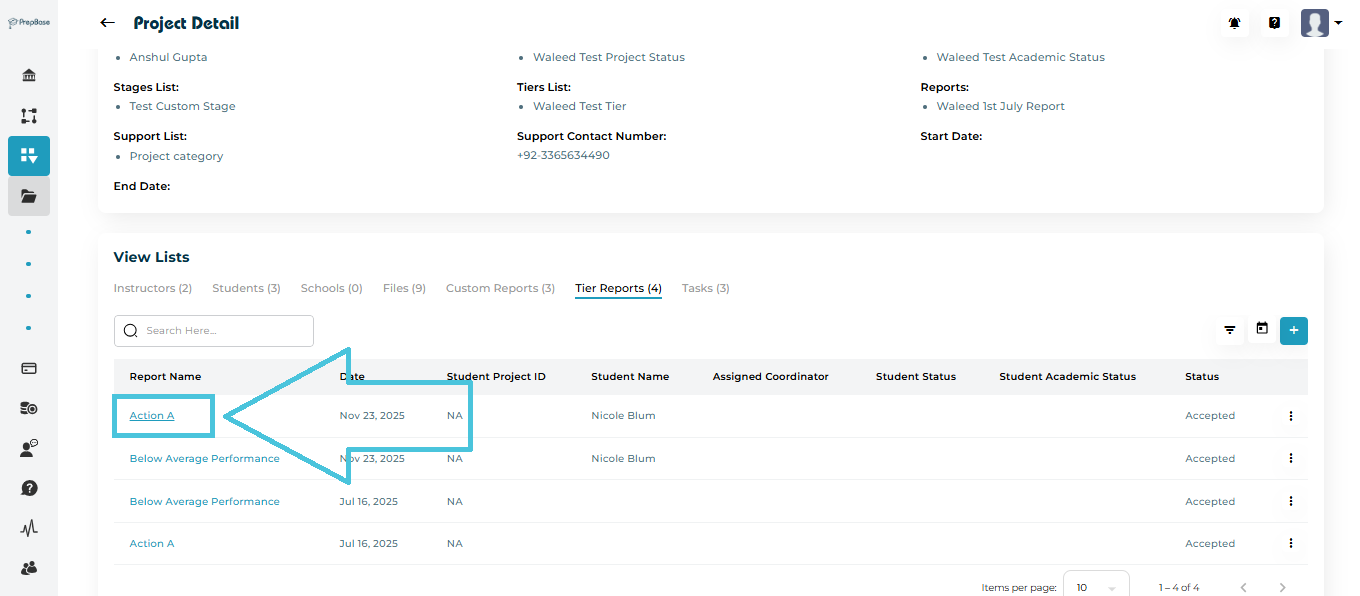
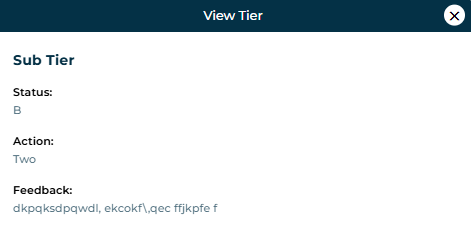
Click the Tier Report Name to view details.
The report shows status, action taken, and feedback text.
Tier Report Actions
Available actions include:
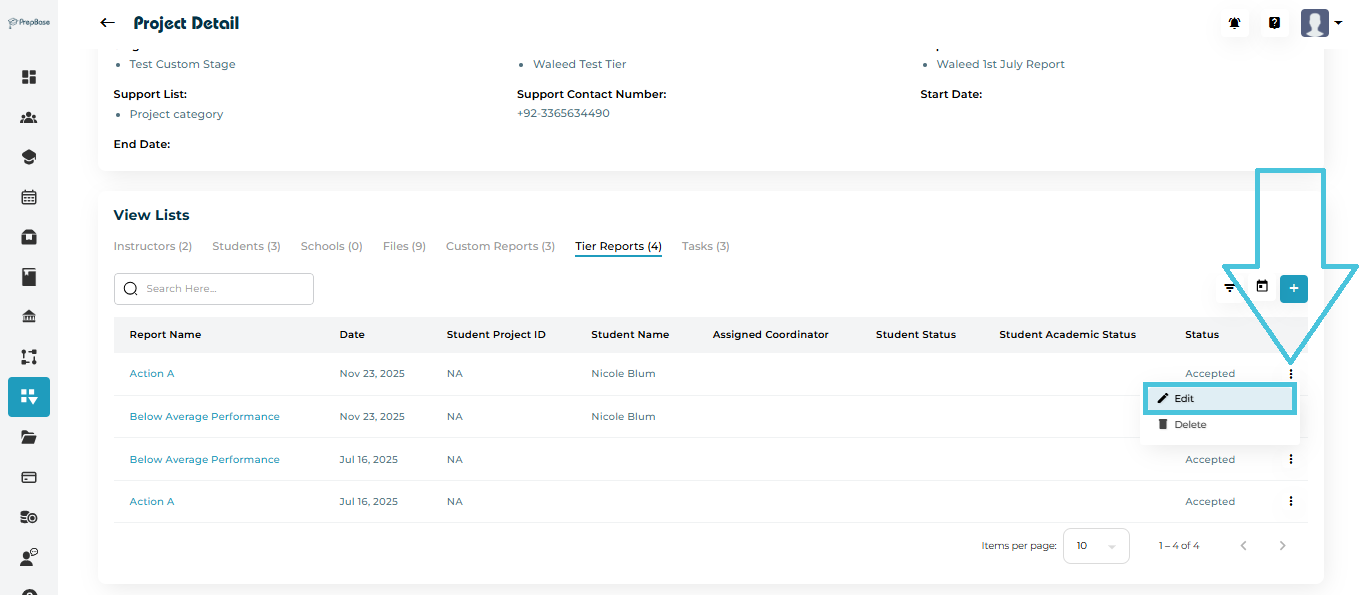
Edit
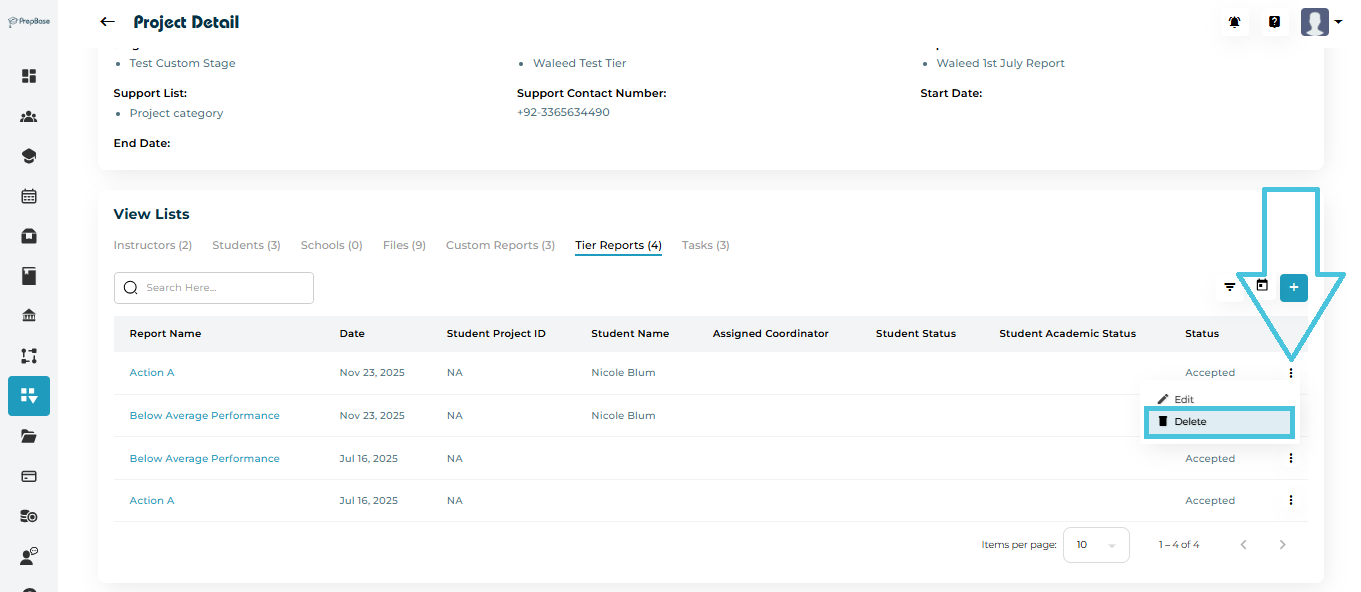
Delete
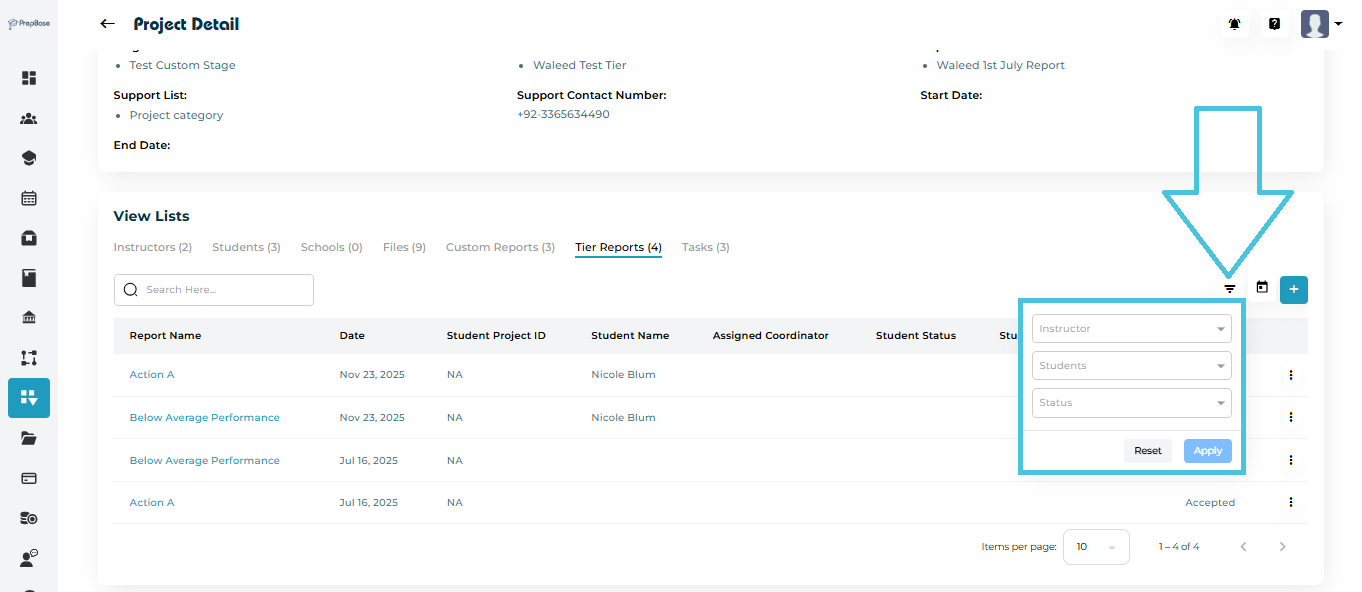
Filtering Tier Reports
Filter by:
Instructor
Student
Status
Date
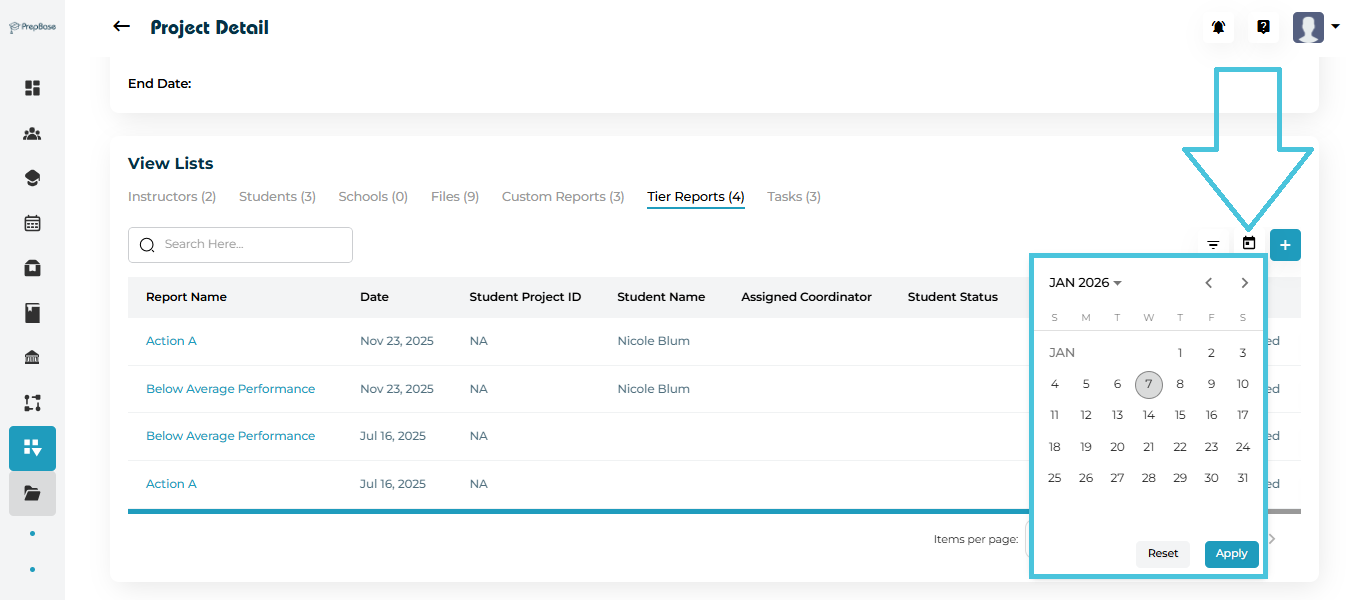
Tasks help track actionable items assigned to students within a project. Admin or Instructors linked to a project can:
1- Assign tasks to students
2- Review and provide feedback on students submissions
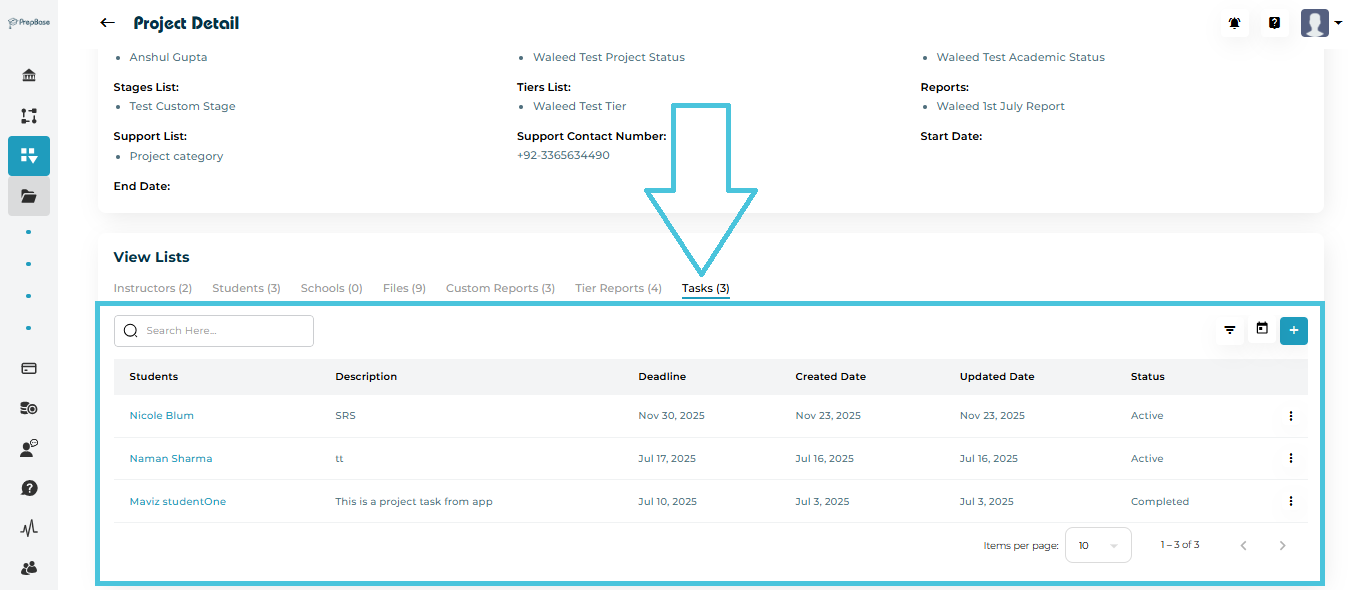
Adding a Task
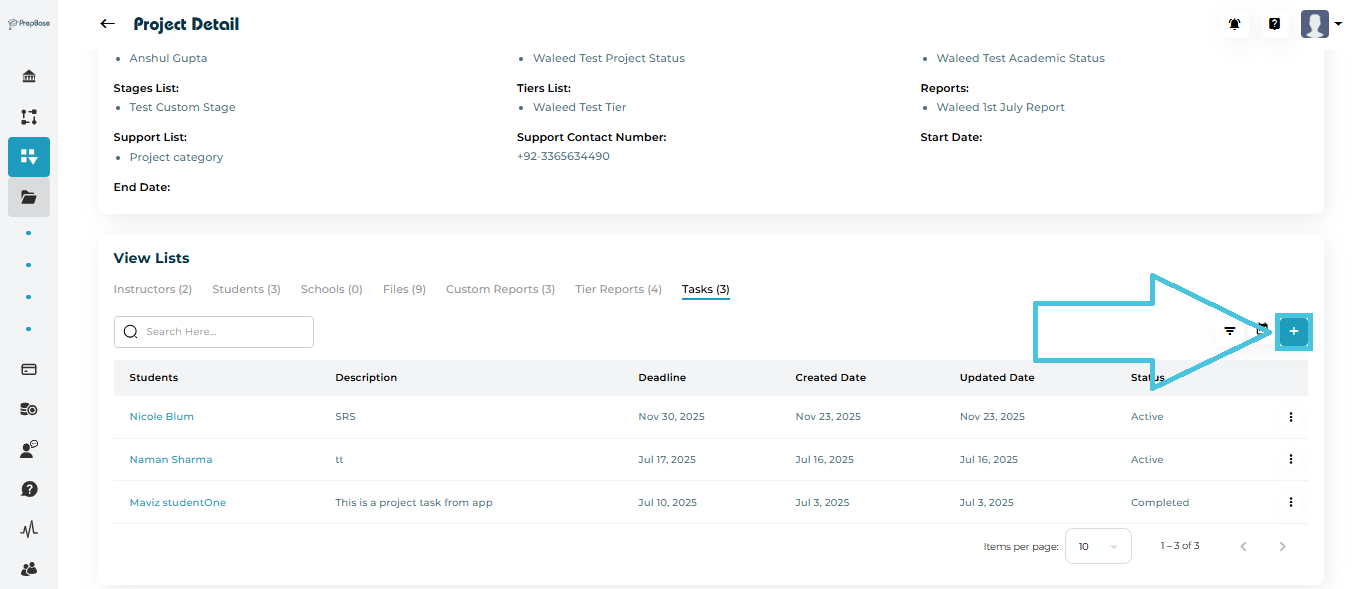
Open the Tasks tab.
Click ➕ Add.
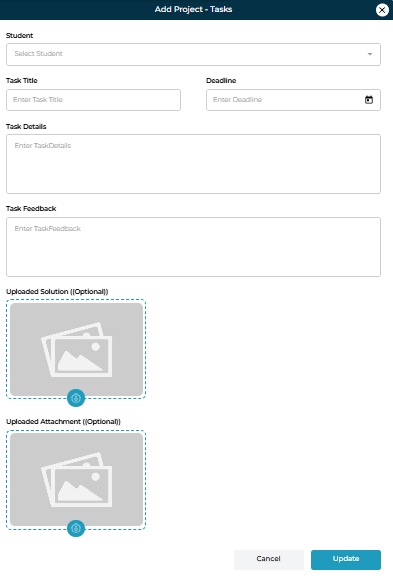
Complete the task form:
Student
Task Title
Task Details
Deadline
Task Feedback (after student submission)
Uploaded Solution / Attachment (to be submitted by student)
Click Update to create the task.
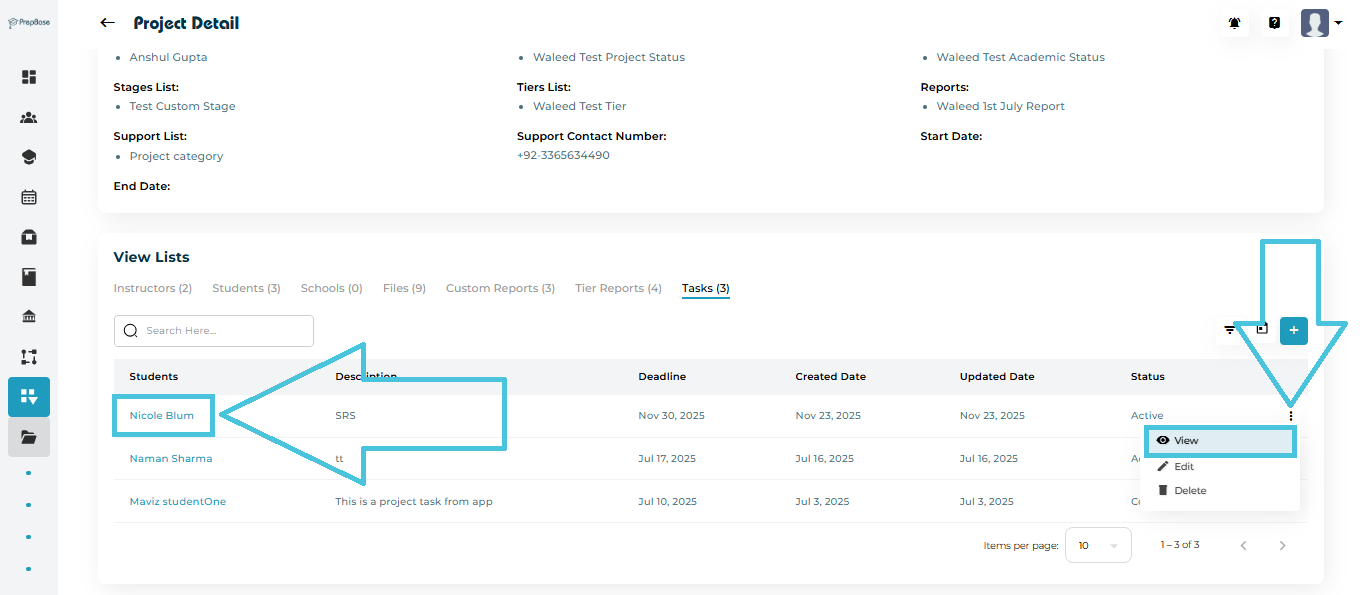
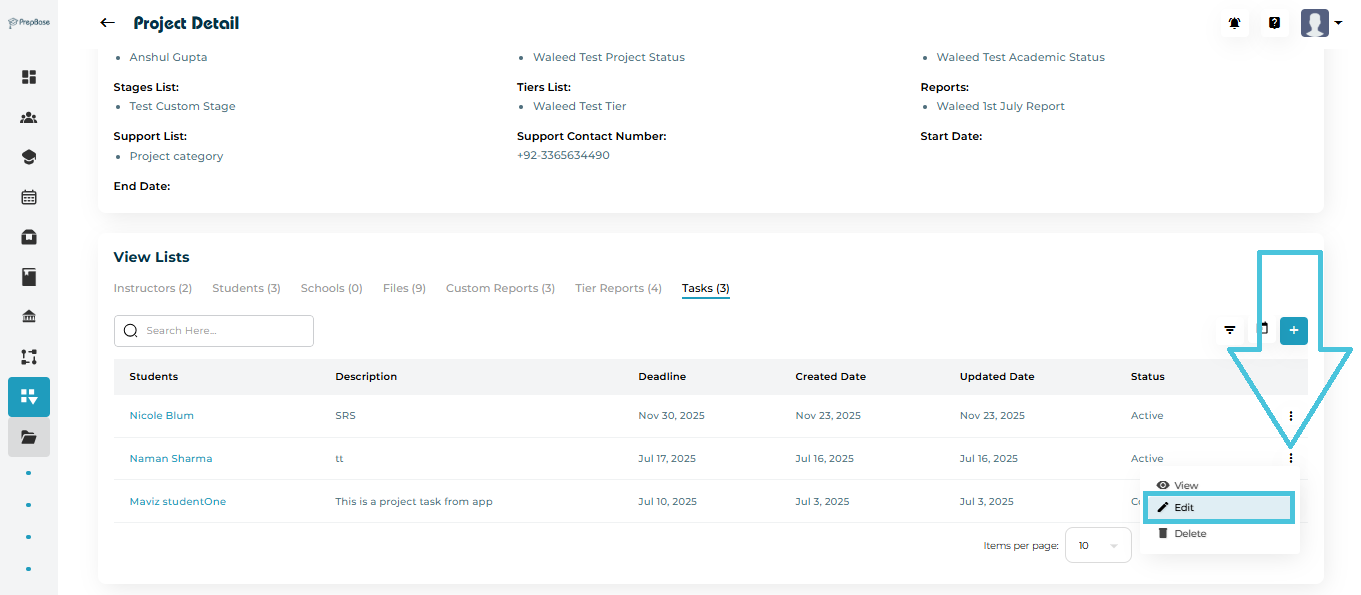
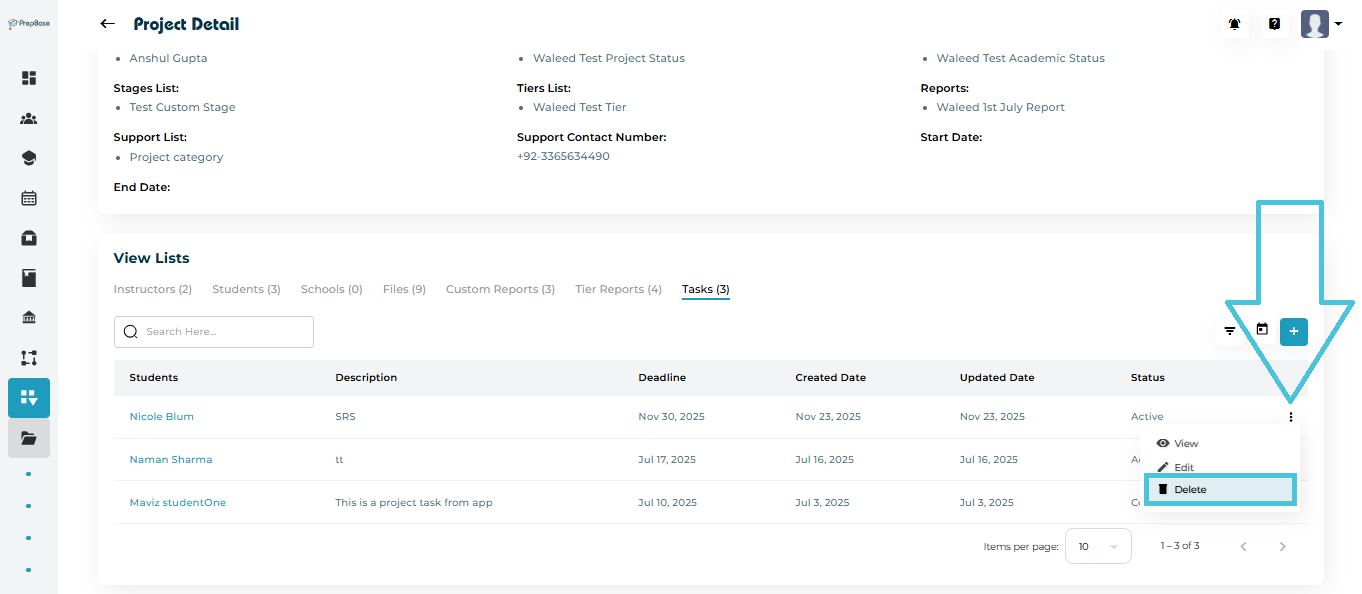
From the task’s three-dot menu you can:
View Tasks
Edit Tasks
Delete Tasks
Task Status Tracking
Each task displays:
Deadline
Created date
Updated date
Current status (Active, Completed)
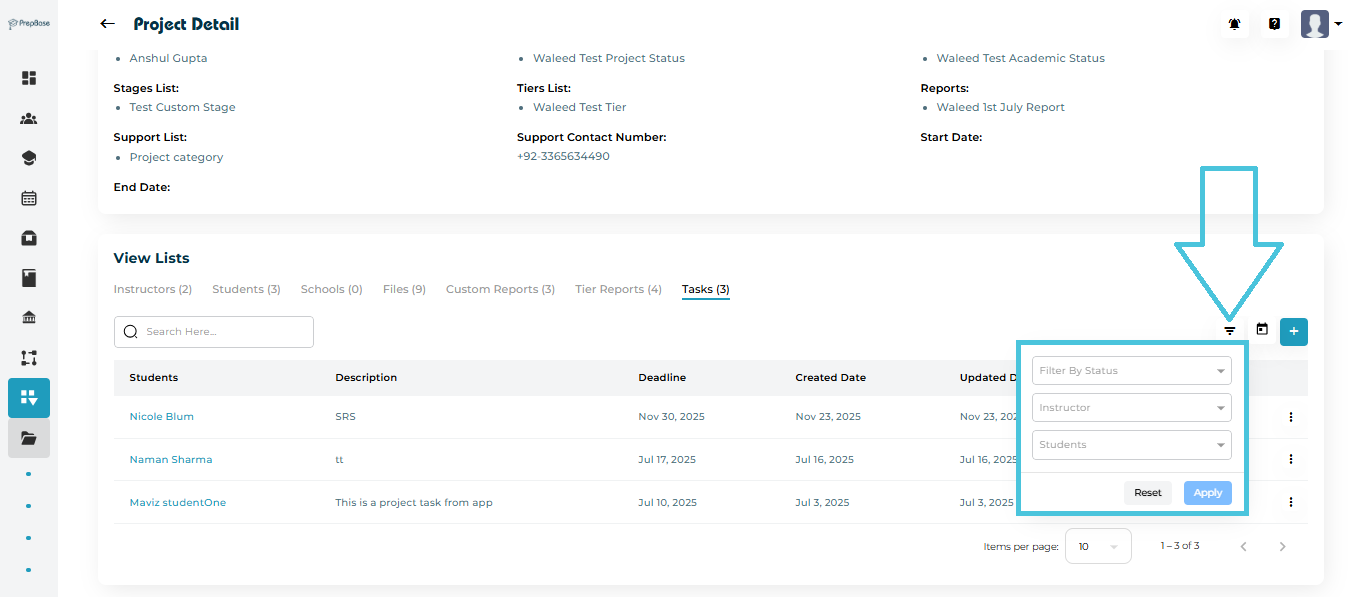
Filtering Tasks
Tasks can be filtered using:
Status
Instructor
Student
Deadline (calendar filter)