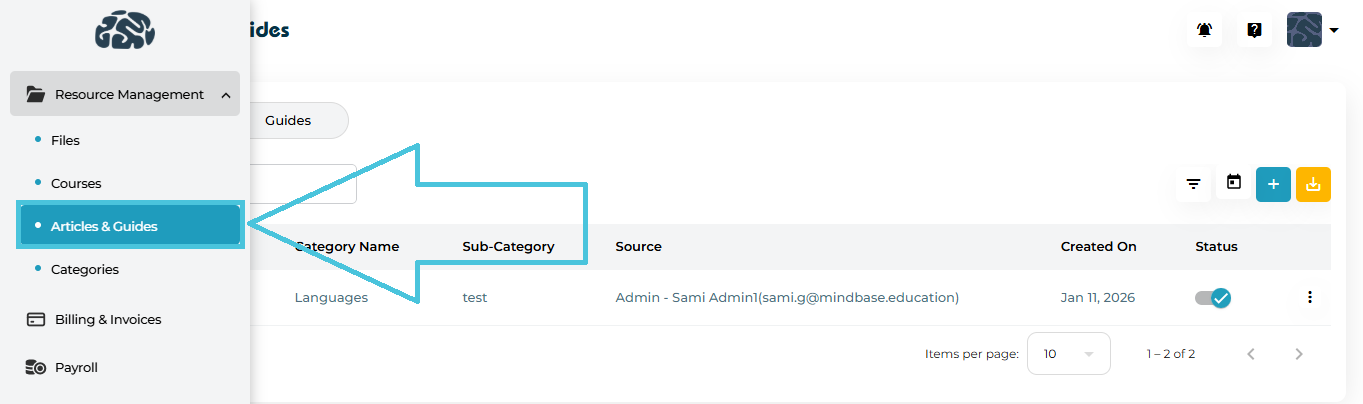
Open the Admin Portal
Navigate to Resource Management
Click Articles & Guides
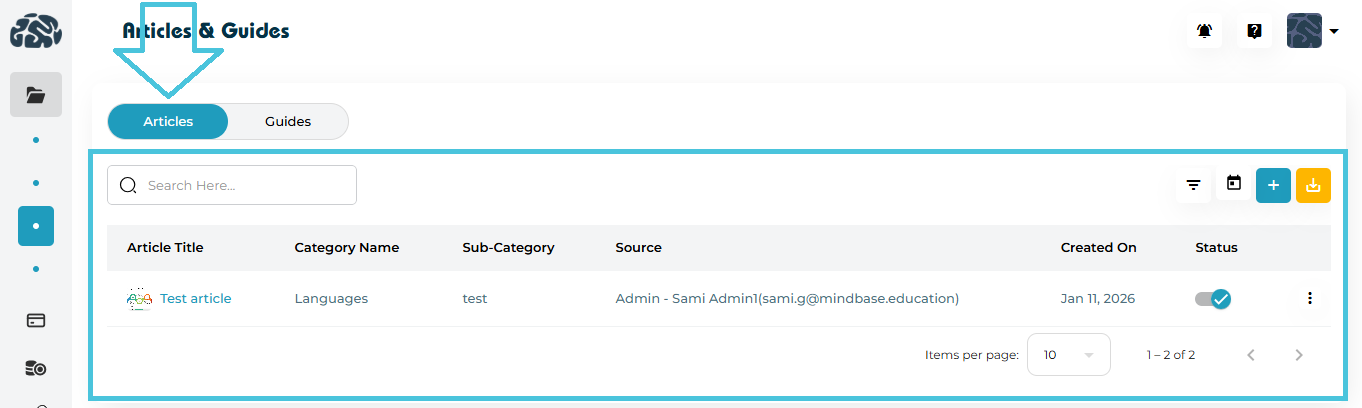
You’ll see two primary sections:
Articles
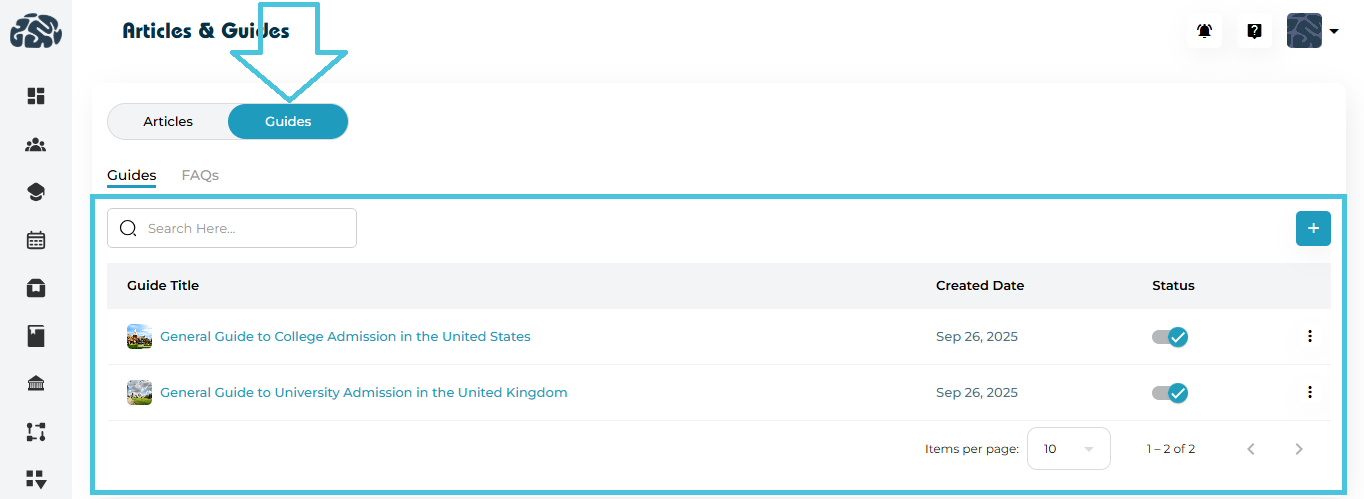
Guides (with a nested FAQs tab)
Articles
Articles are structured educational posts that would show to students and instructors under their Articles subtab within their Resources main tab. Admin can create new articles by adding:
Title
Category & Sub-Category
Featured Image
Rich-text content
Guides
Guides are long-form instructional resources, typically step-by-step or topic-focused that would show to students under their Admissions subtab within the main Counseling tab on their dashboard.
FAQs
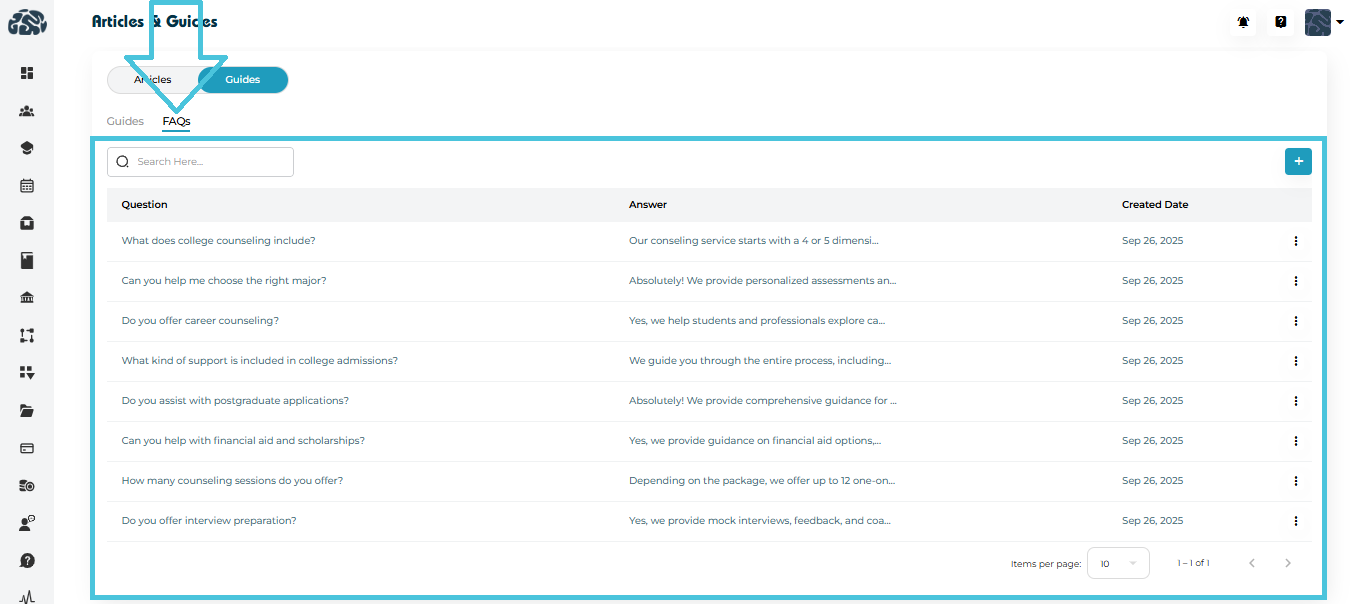
FAQs are short, question-and-answer entries used for quick reference that would also appear to students on the same Admissions subtab after the Guides.
Viewing Articles
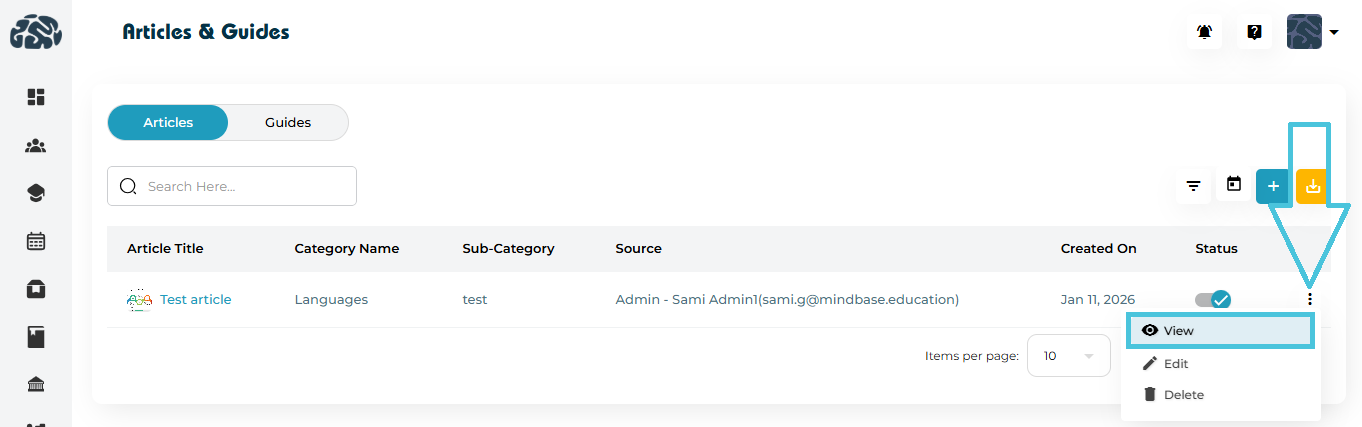
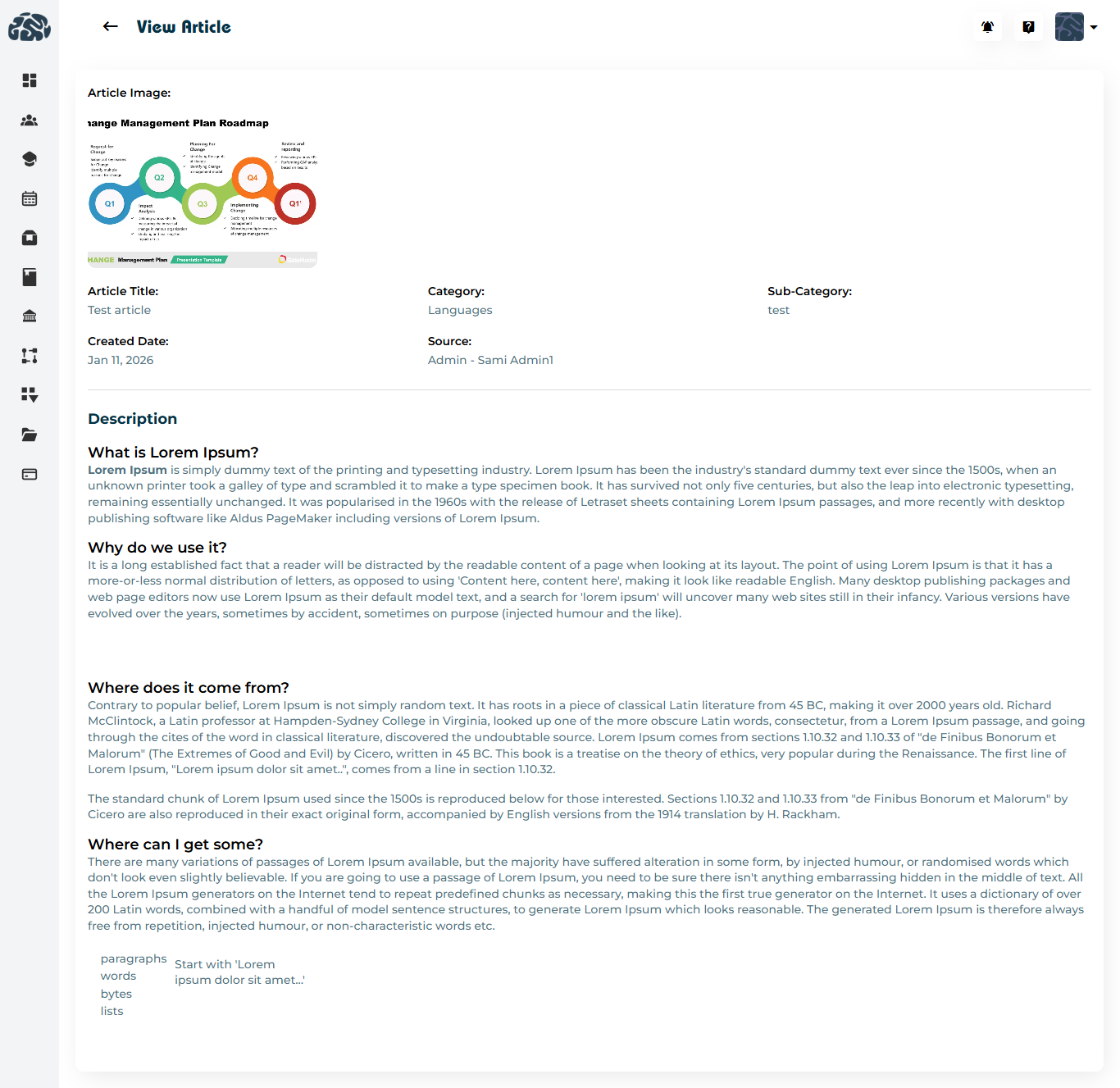
- Click on an Article Title or View under the three dots menu to open the full article view
Adding a New Article
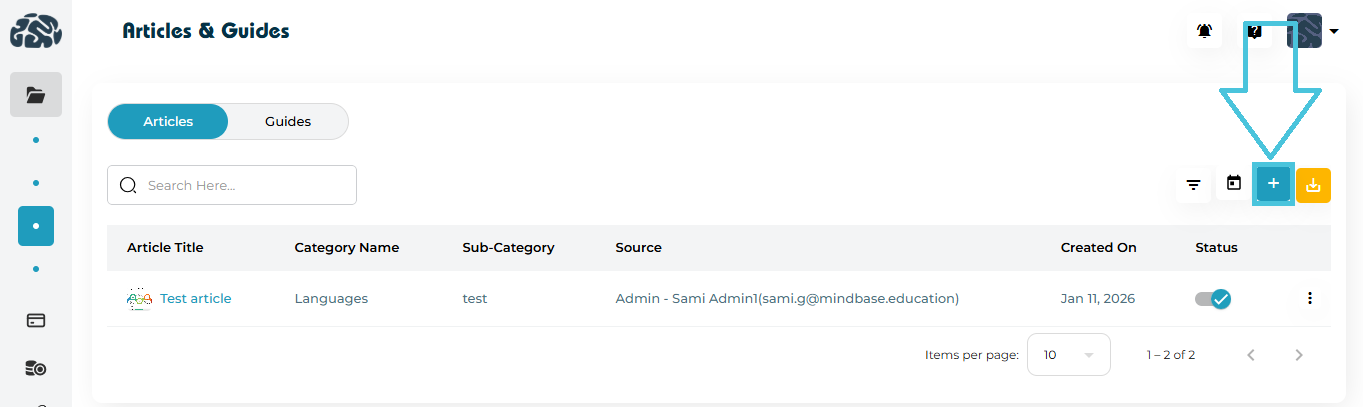
In the Articles tab, click
 Add
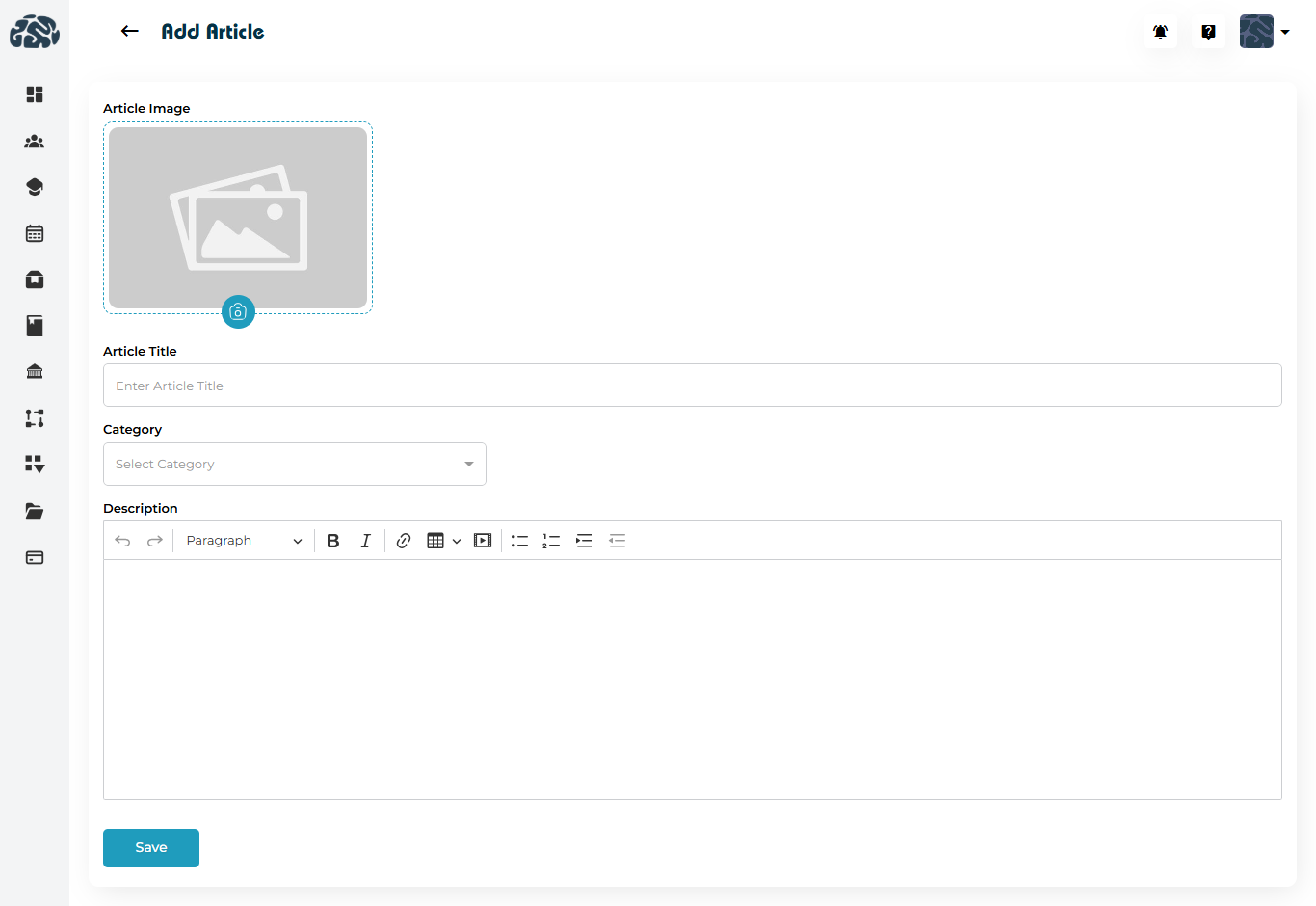
AddFill in the following fields:
Article Image (optional but recommended)
Article Title
Category
Sub-Category
Description (rich-text editor)
Click Save.
Editing an Article
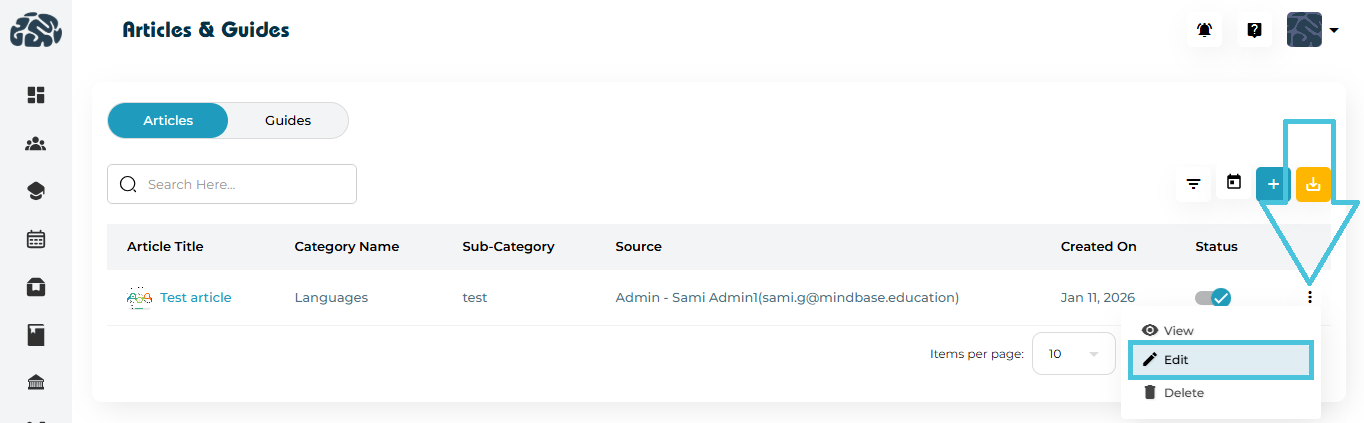
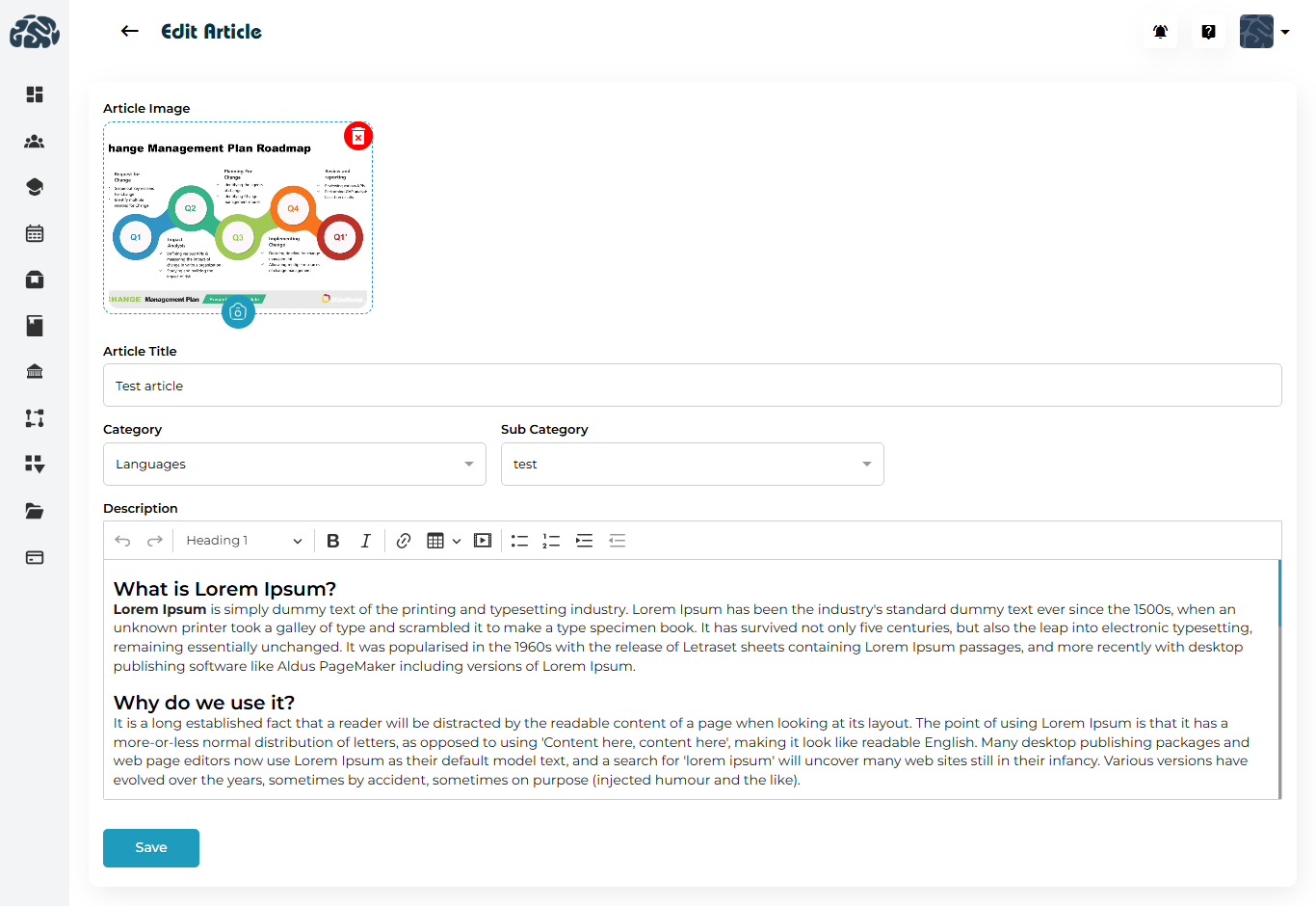
Click the three-dot menu (⋮) next to an article
Select Edit
Update the required fields
Click Save
Deleting an Article
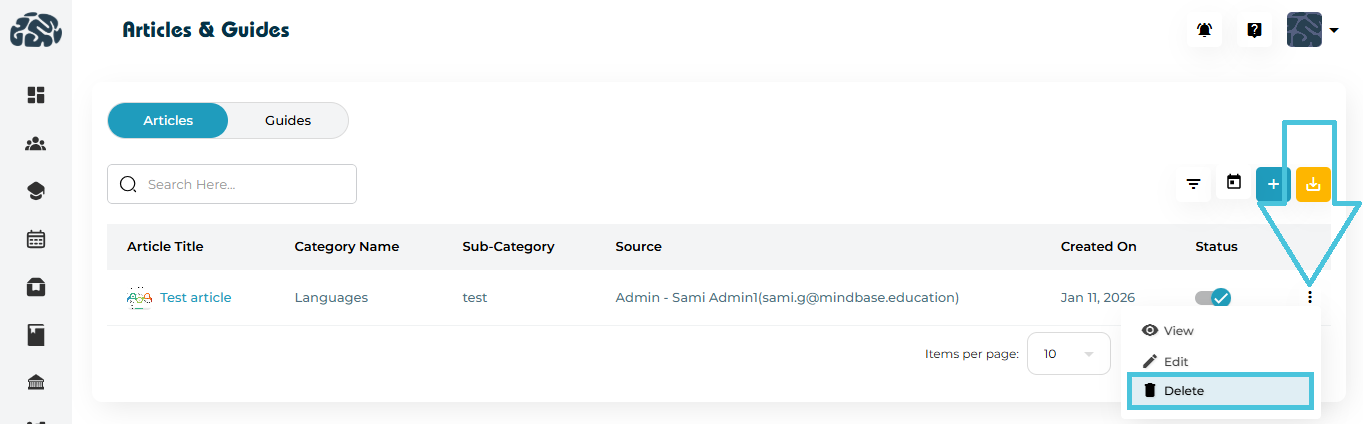
Click the three-dot menu (⋮)
Select Delete
Confirm the action
 Deleted articles are permanently removed and cannot be restored.
Filtering Articles

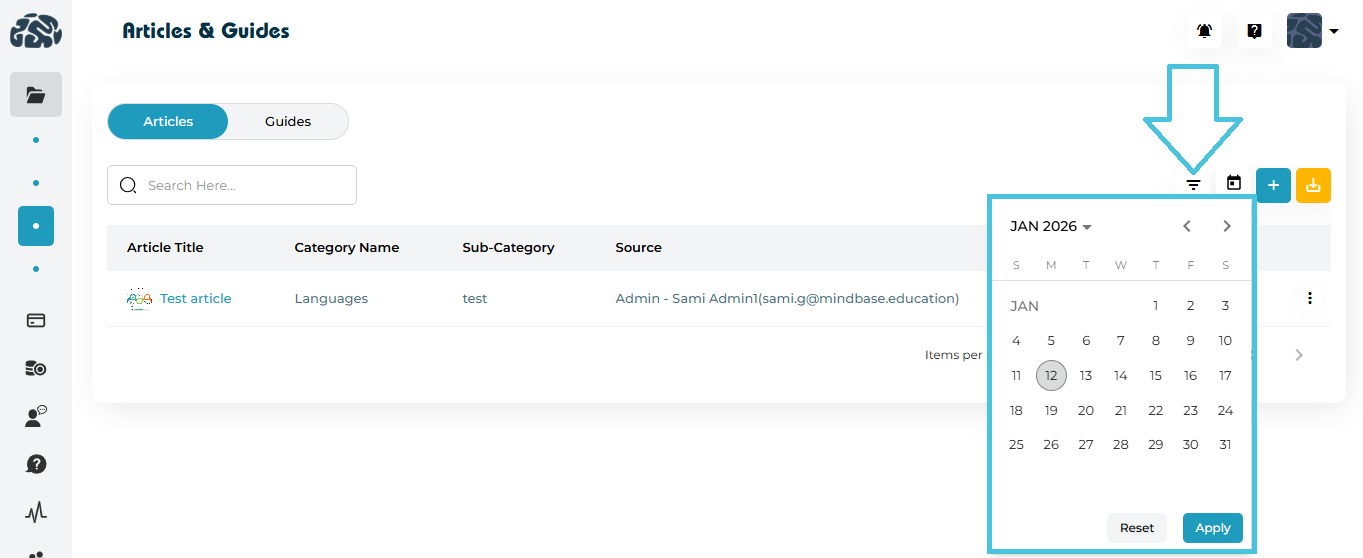
Admins can filter articles using:
Category
Sub-Category
Source
Created Date (calendar filter)
Click Apply to refine results or Reset to clear filters.
Viewing Guides
Switch to the Guides tab
Click on any Guide Title or the View under the Three Dots menu to view its full content
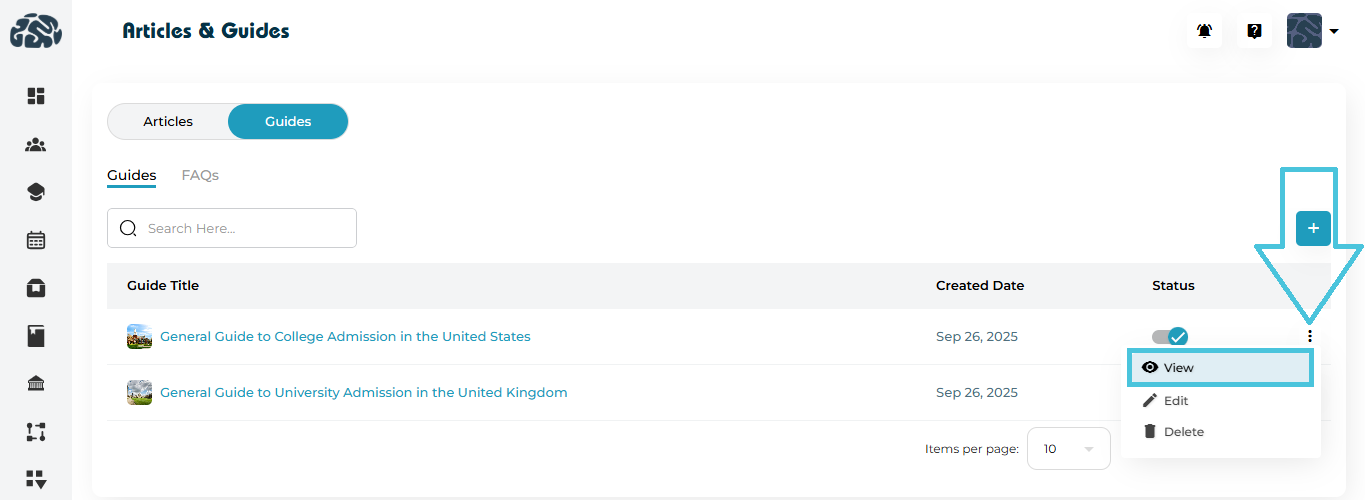
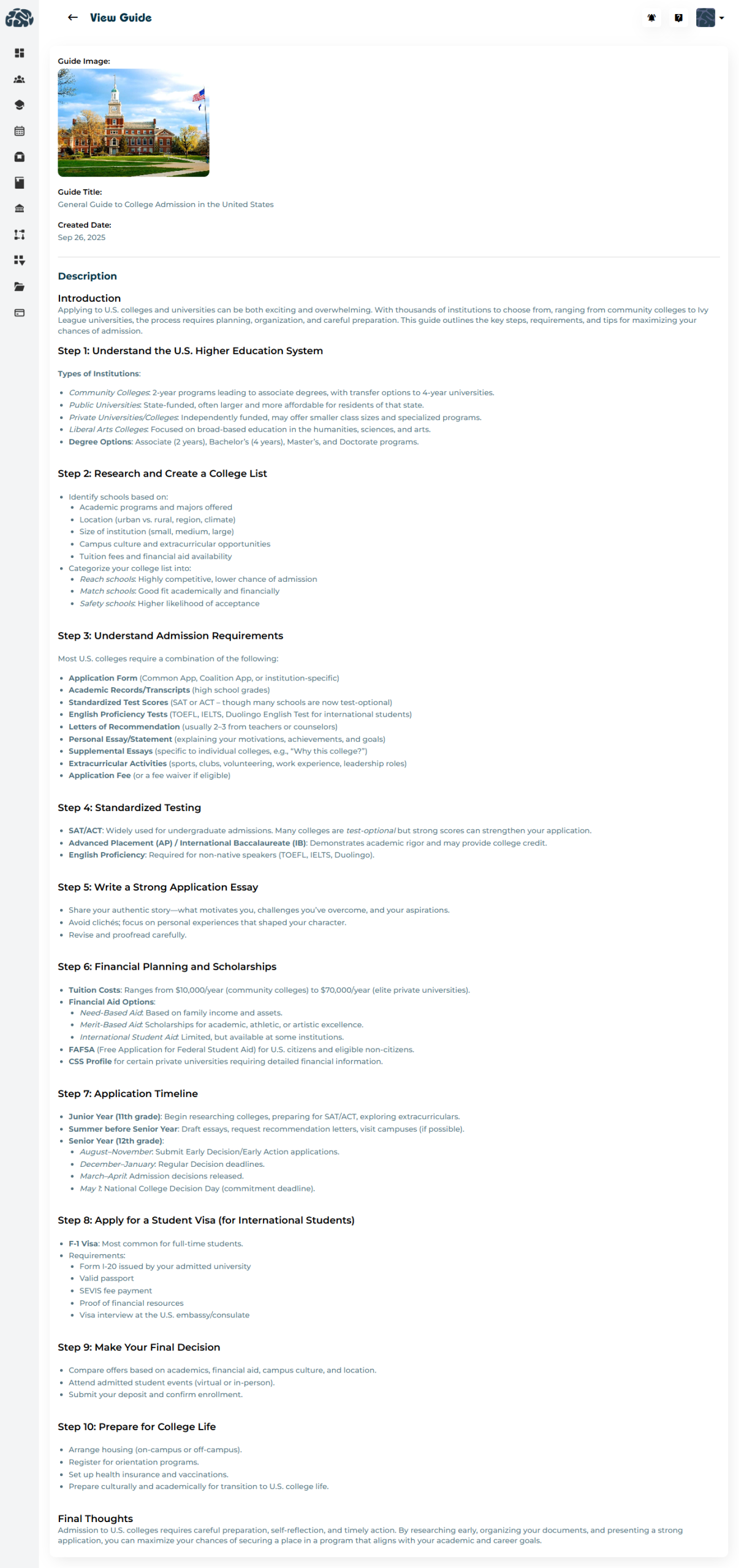
Adding a New Guide
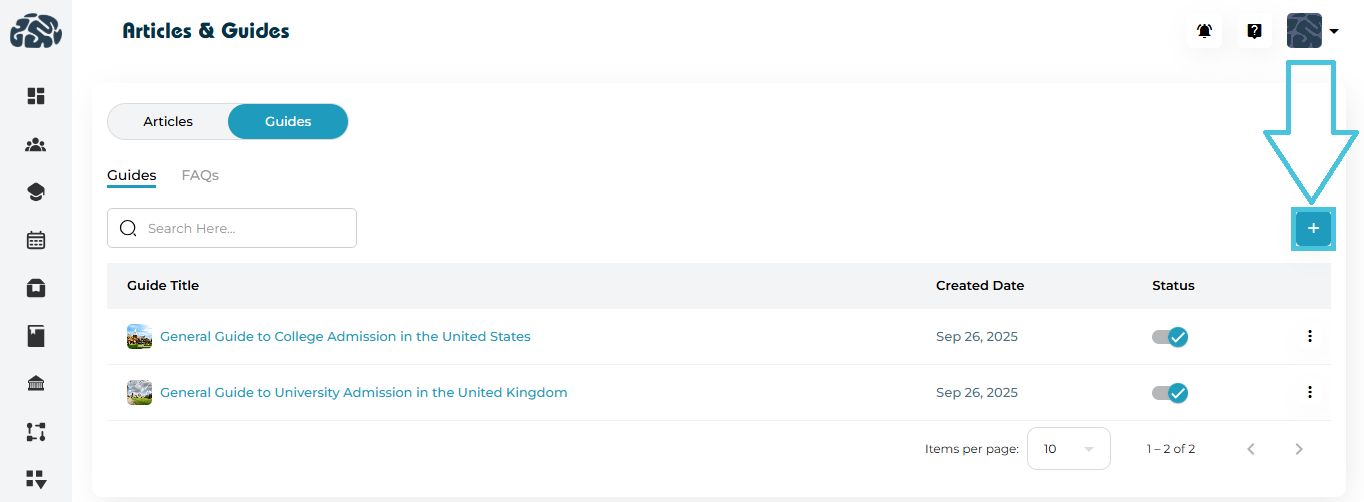

Click ➕ Add in the Guides tab
Provide:
Guide Image
Guide Title
Description (rich-text editor)
Click Save
Editing a Guide
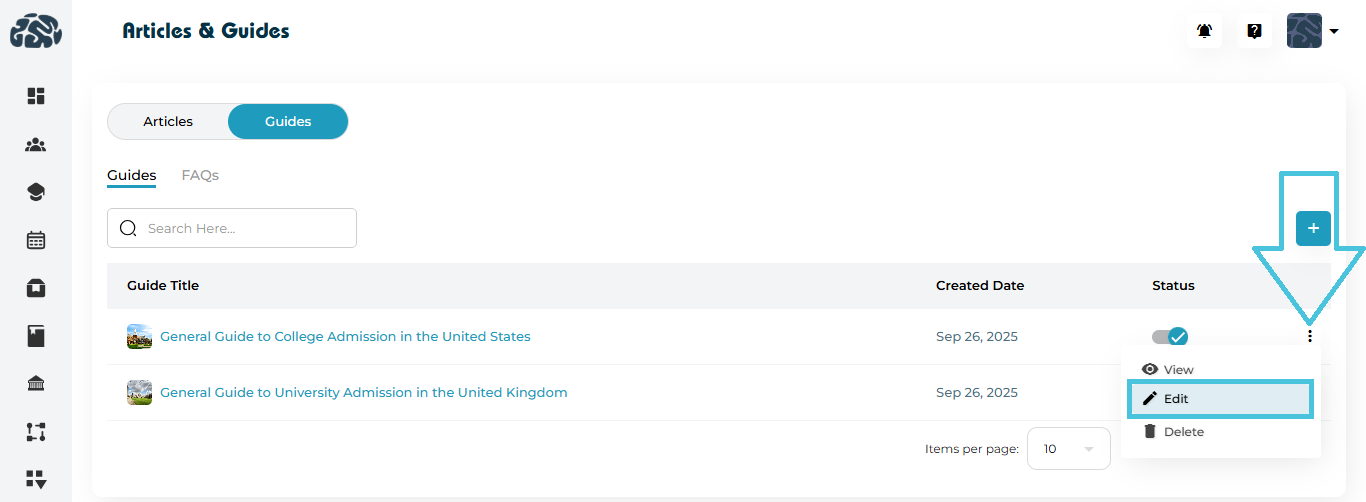
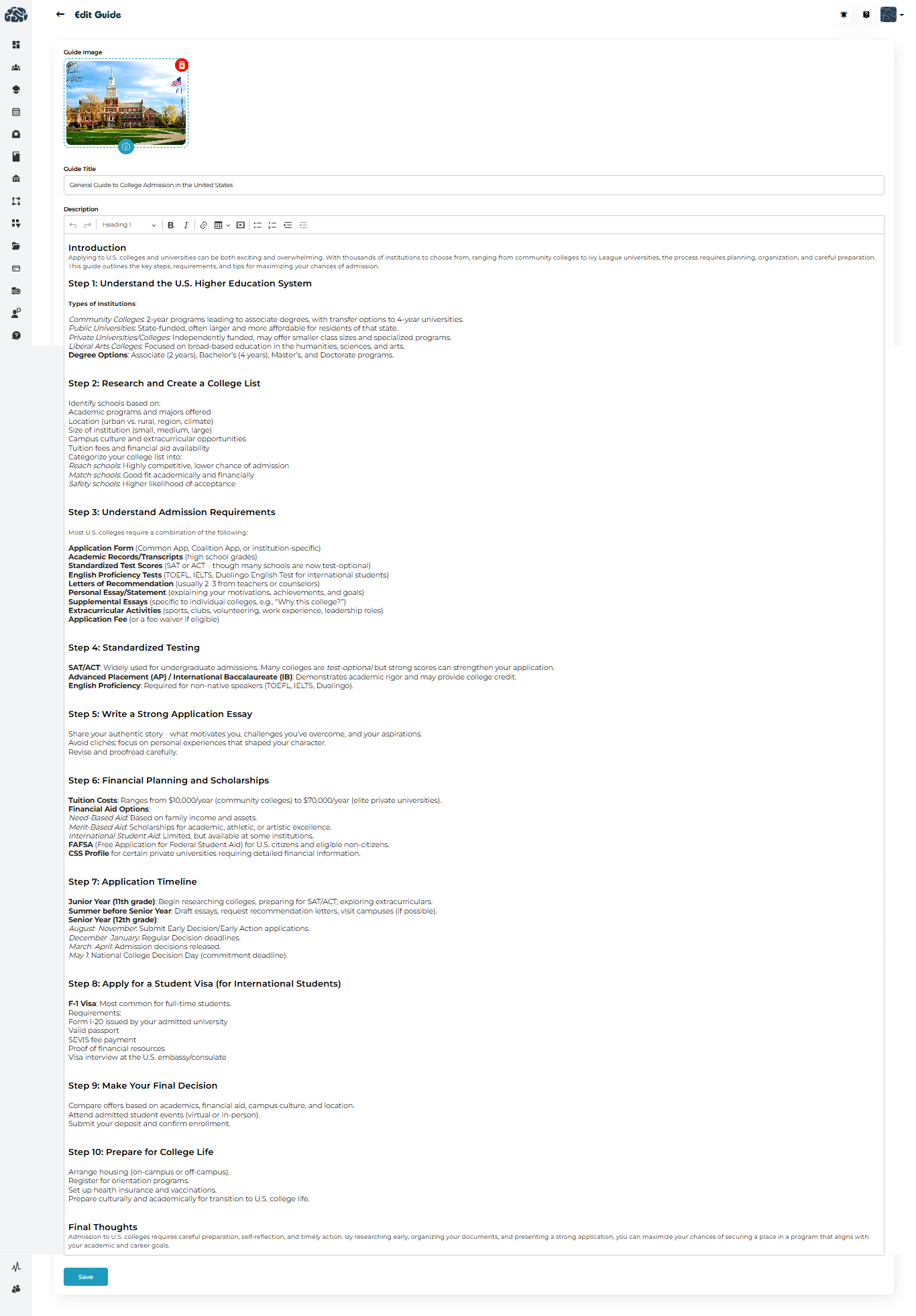
Open the three-dot menu (⋮) next to a guide
Select Edit
Update the content
Click Save
Deleting a Guide
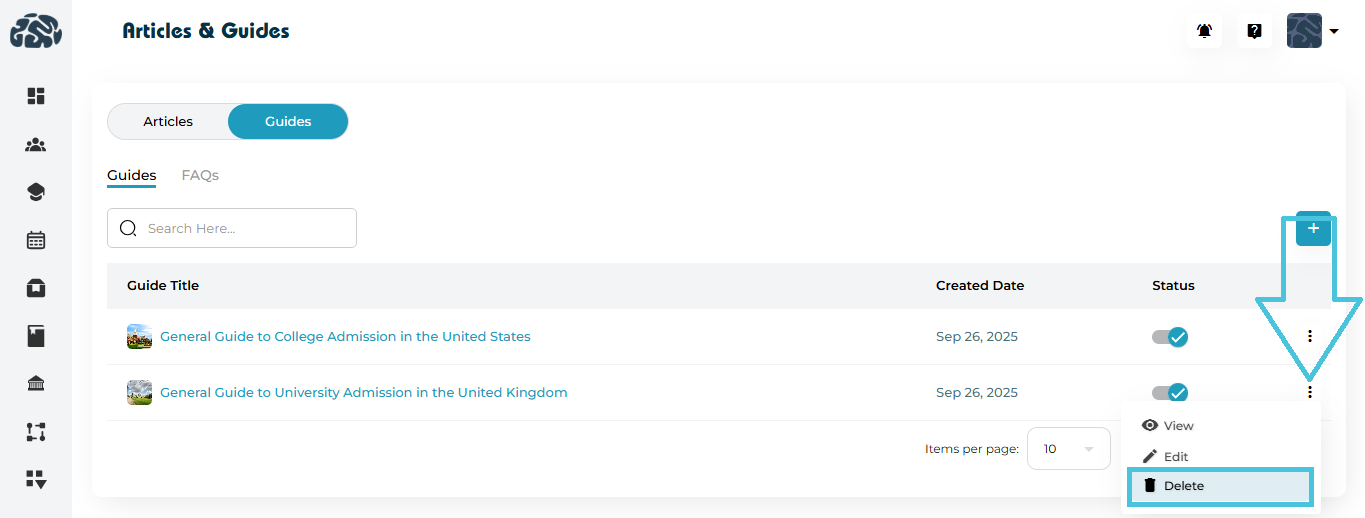
Click ⋮ → Delete
Confirm deletion
Viewing FAQs
Open Guides
Switch to the FAQs tab
Browse questions and answers in a list format
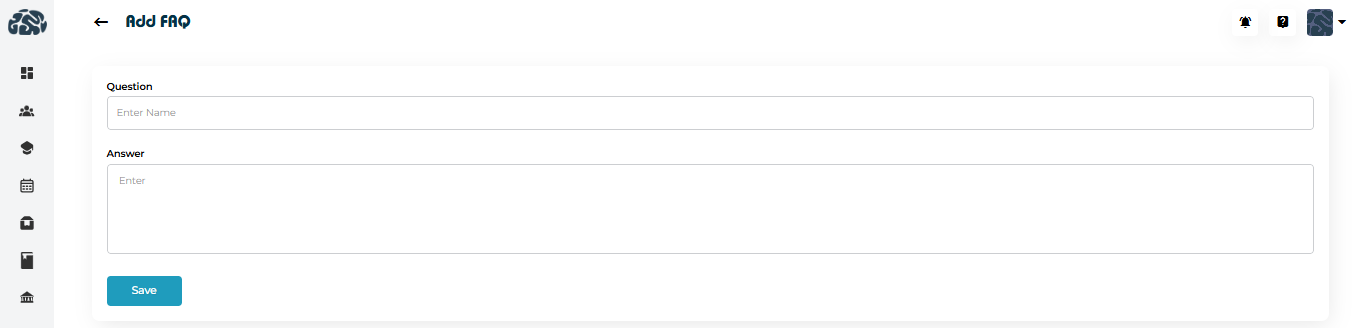
Adding a New FAQ
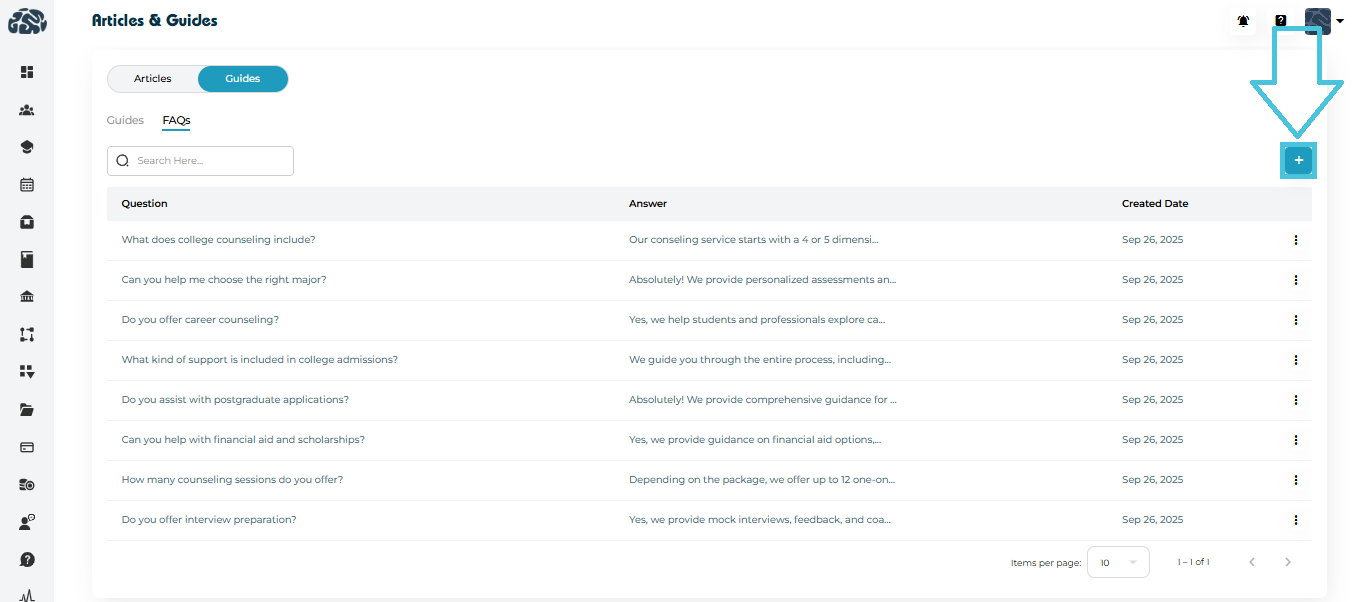
Click ➕ Add in the FAQs tab
Enter:
Question
Answer
Click Save
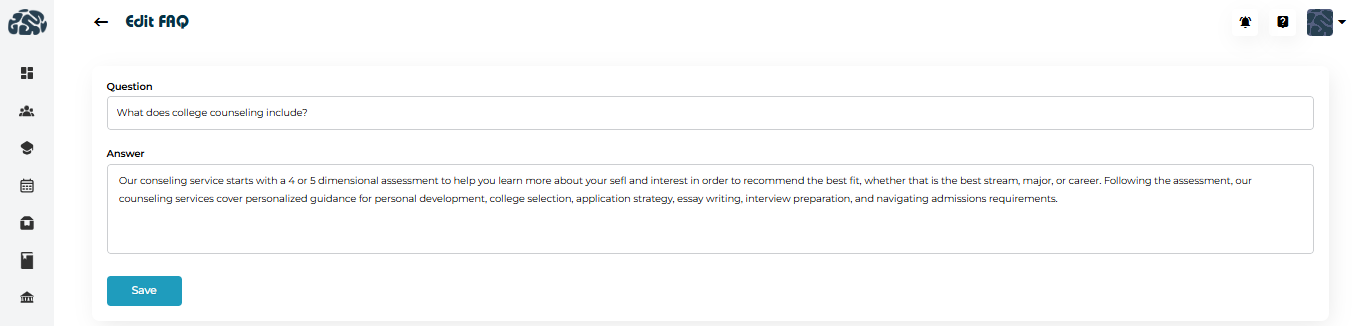
Editing an FAQ
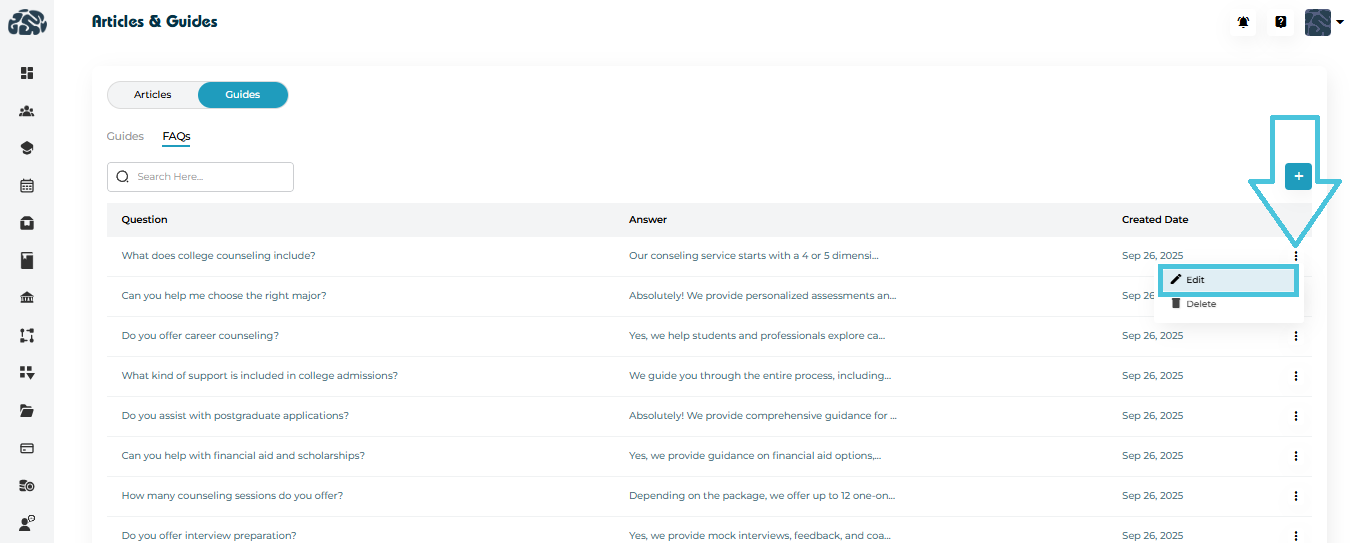
Click the three-dot menu (⋮)
Select Edit
Update the question or answer
Click Save
Deleting an FAQ
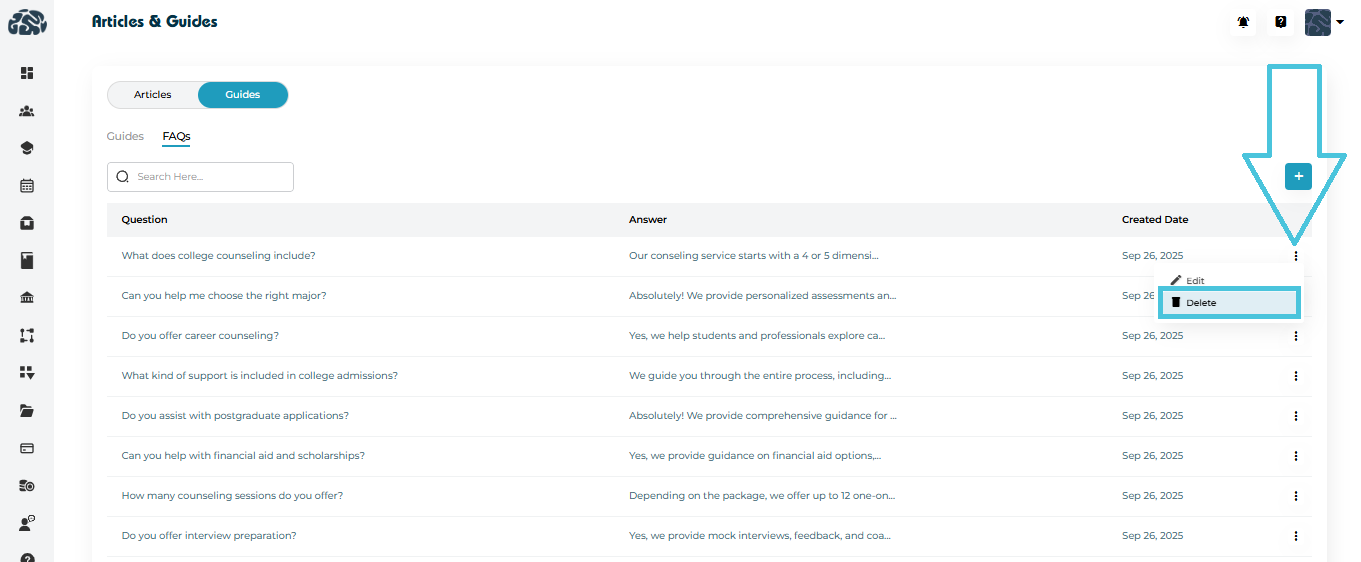
Click ⋮ → Delete
Confirm the action