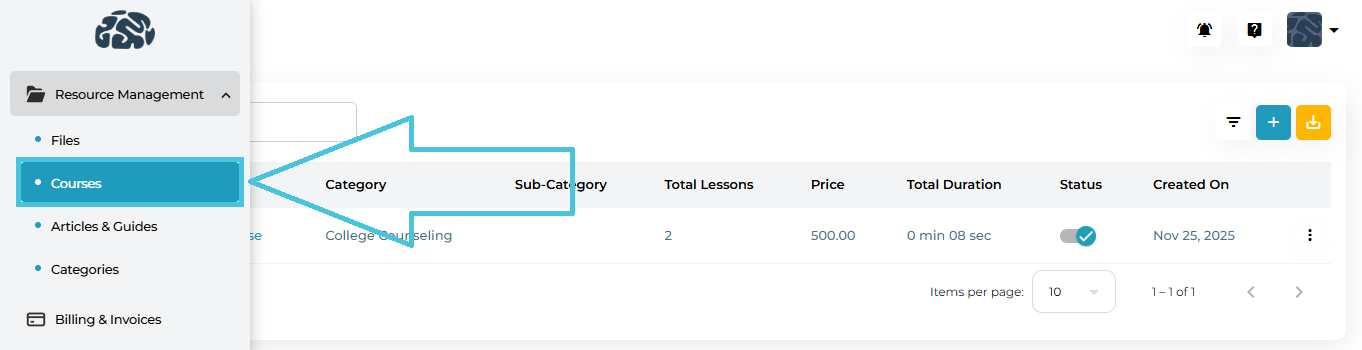
Open the Admin Portal.
Navigate to Resource Management → Courses.
You’ll see a list of all created courses with key details such as category, price, total lessons, duration, and status.
Each course row displays:
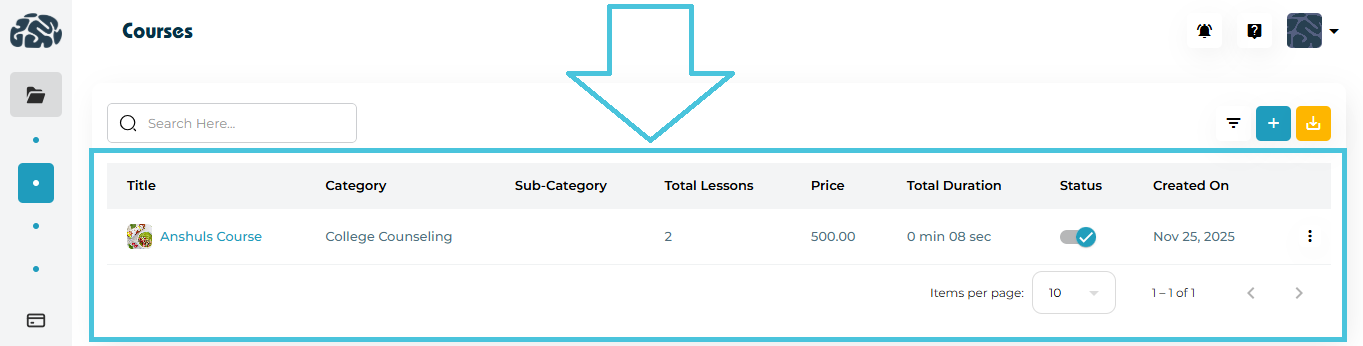
Course Title
Category & Sub-Category
Total Lessons
Price
Total Duration
Status (Active / Inactive)
Created On
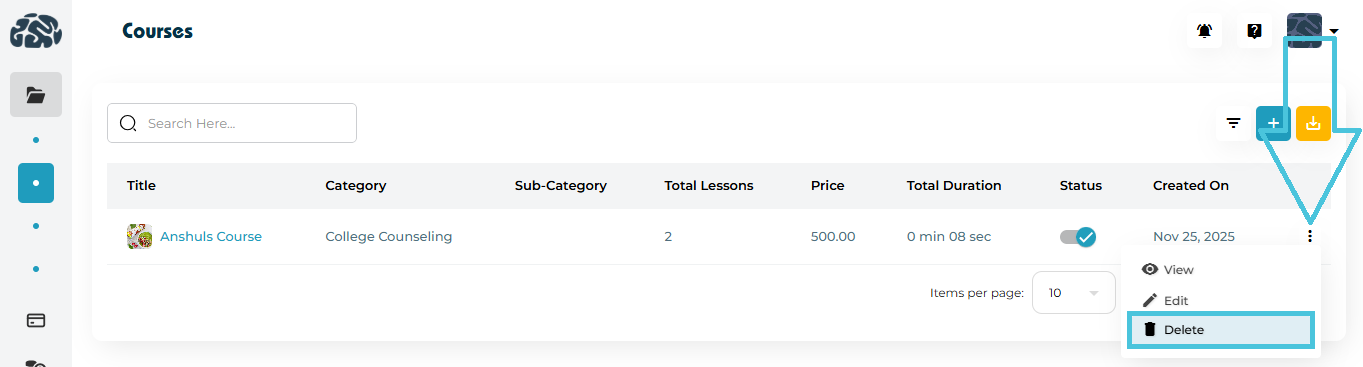
Actions Menu (⋮)
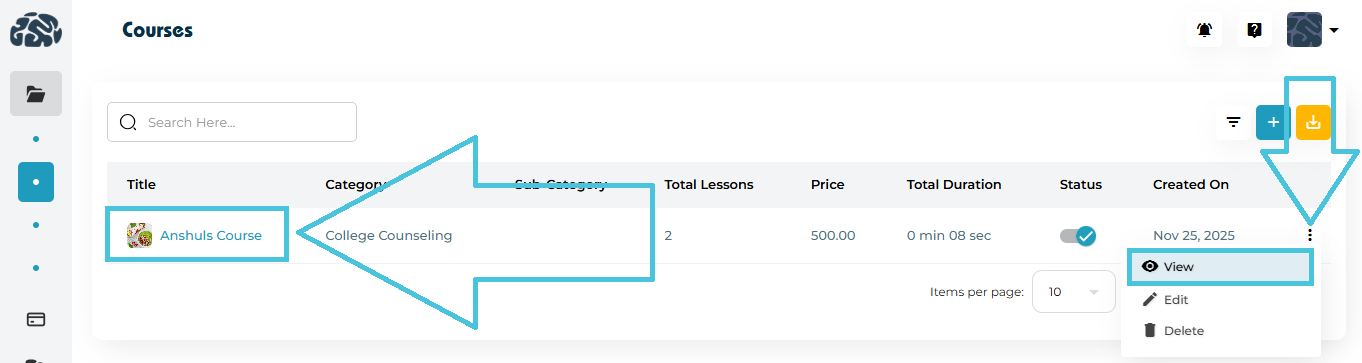
Available Actions
- To View a Course click on the course title or three dot menu’s view button
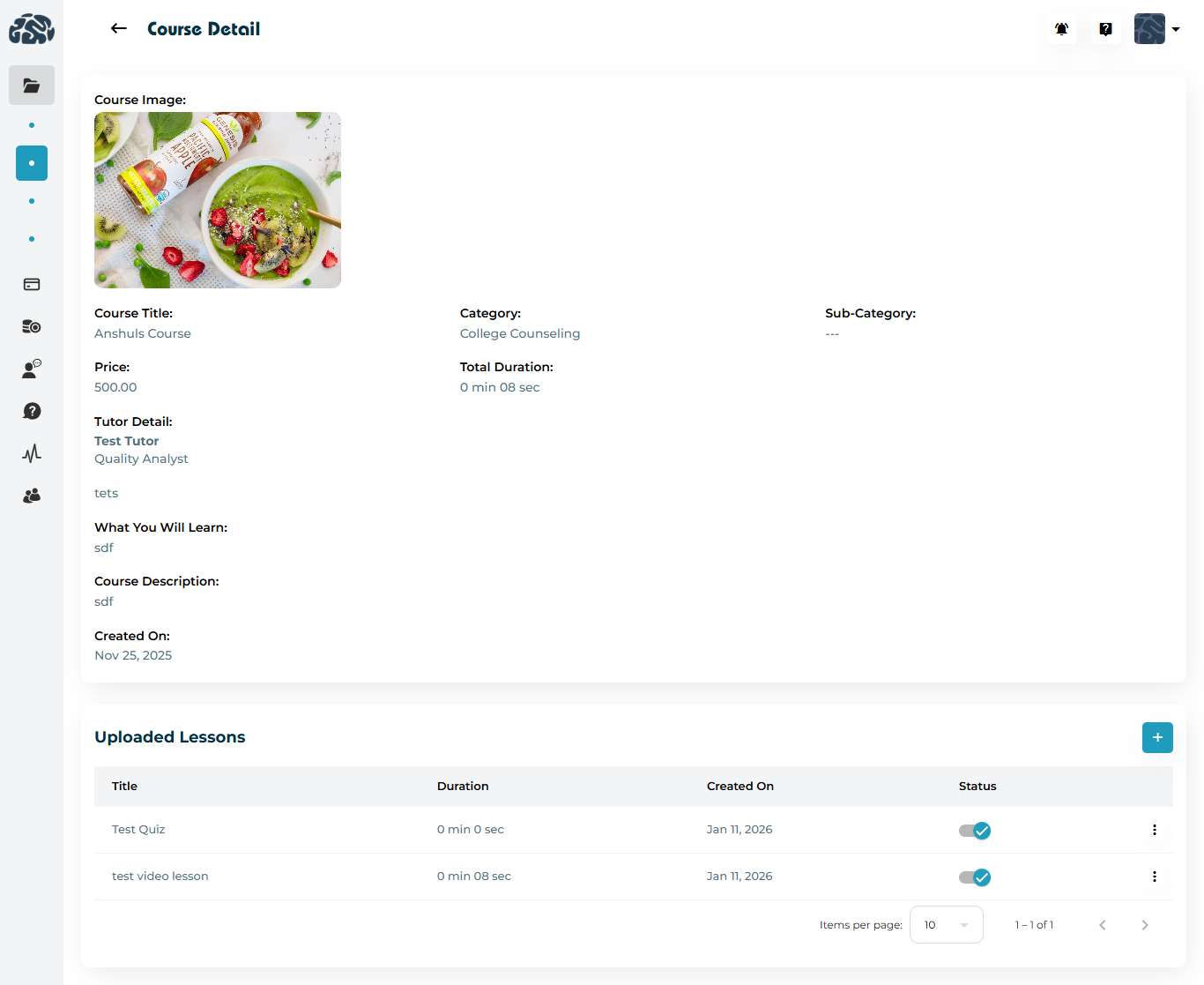
- The View Course page will display the course details and lessons
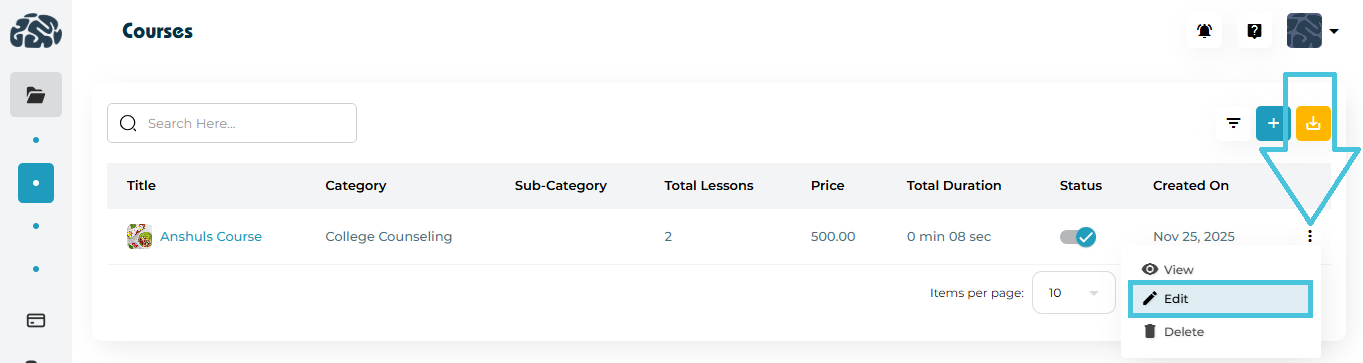
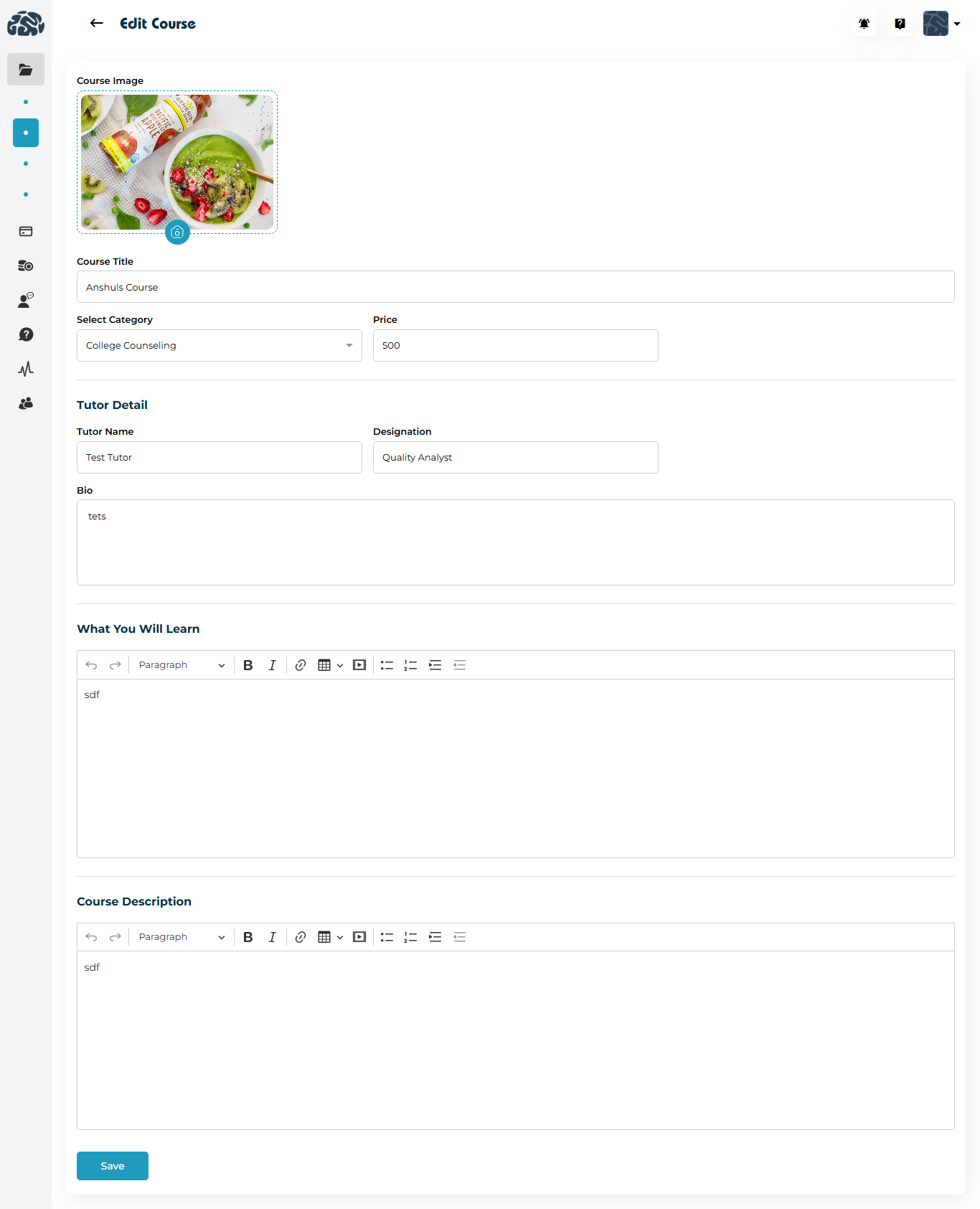
Use Edit to update course information
- Delete will Permanently remove the course
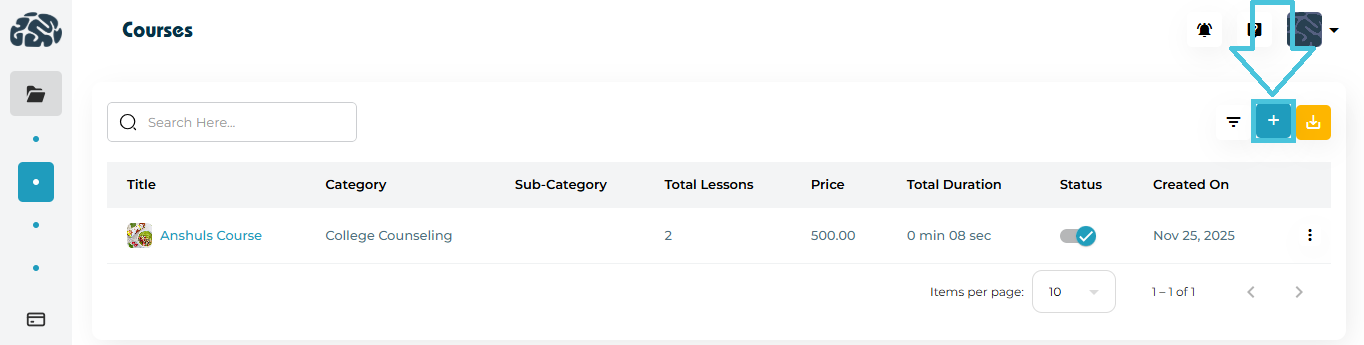
Click the ➕ Add Course button.
Fill in the course details:
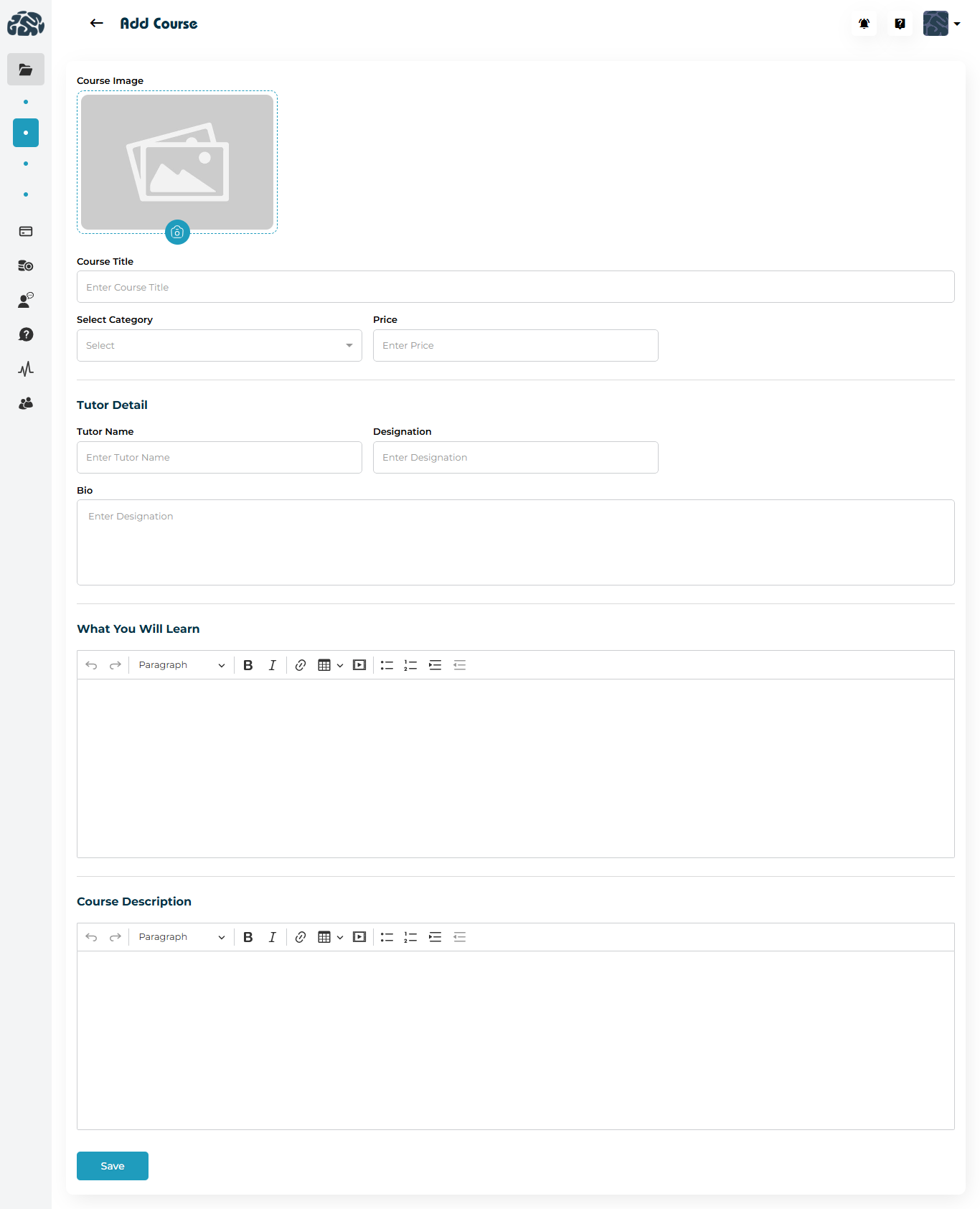
Course Image (thumbnail)
Course Title
Category & Sub-Category
Price
Add Tutor Details:
Tutor Name
Designation
Bio
Enter:
What You Will Learn
Course Description
Click Save to create the course.
📌 Once saved, you can start uploading lessons.
The Course Detail page shows:
Course image and information
Tutor information
Learning outcomes
Description
Creation date
Uploaded Lessons section
Lessons are managed from the Uploaded Lessons area inside a course.
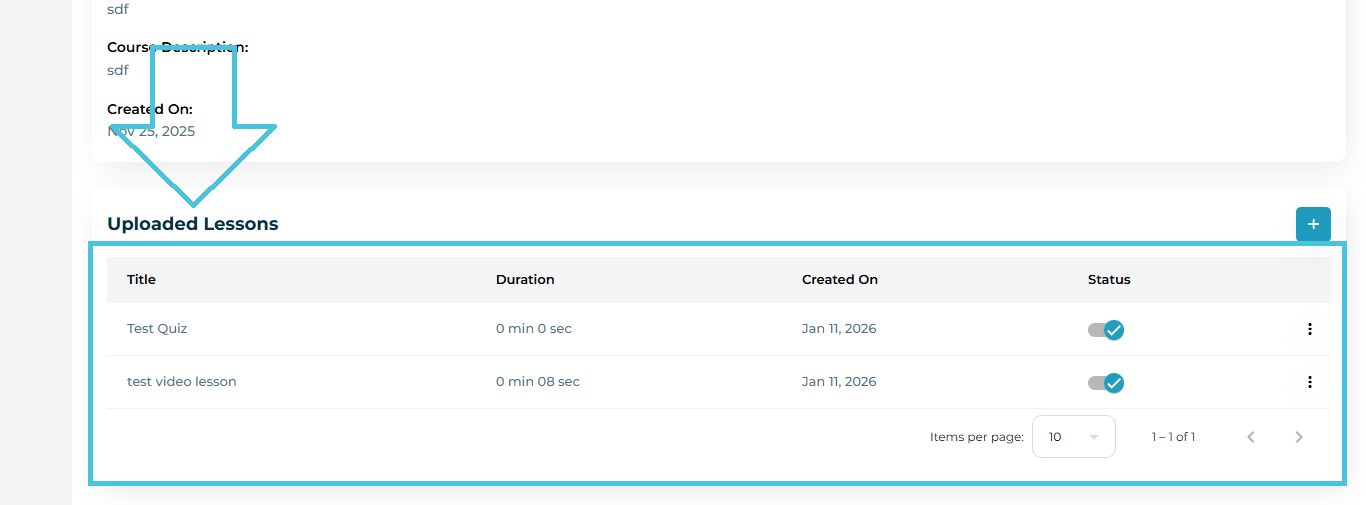
Lesson Types Supported
Video Lessons
Short Quizzes
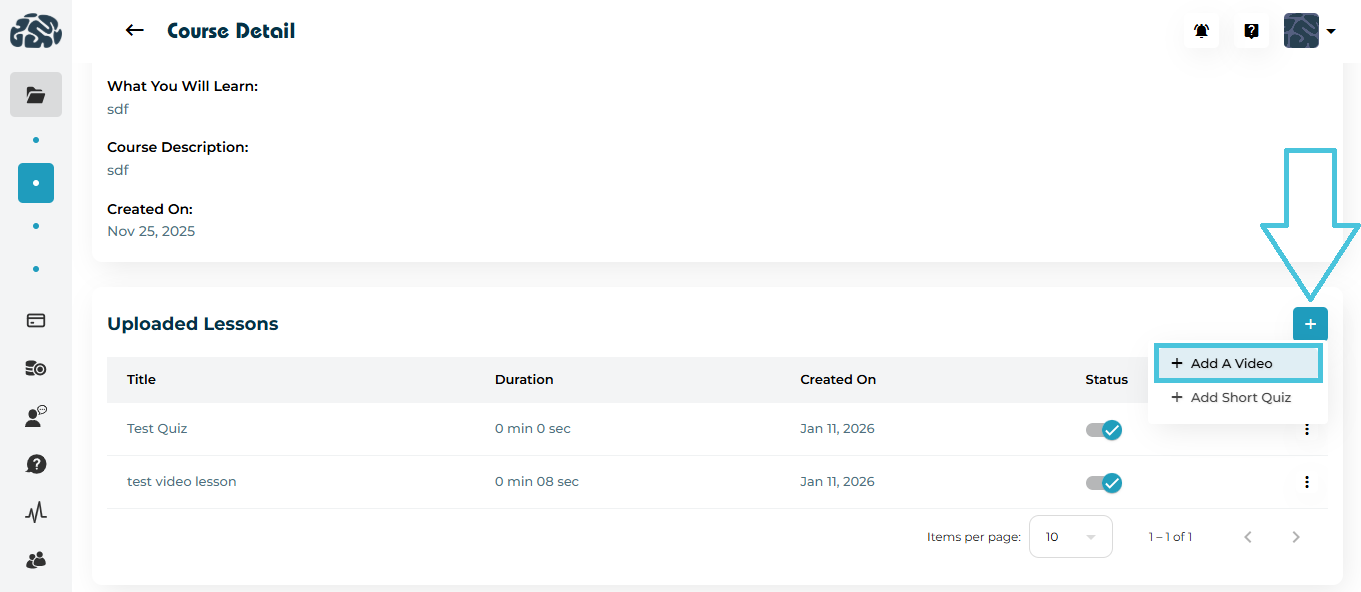
Click ➕ Add → Add a Video.
Upload the video file.
Enter a Video Title.
Click Save.
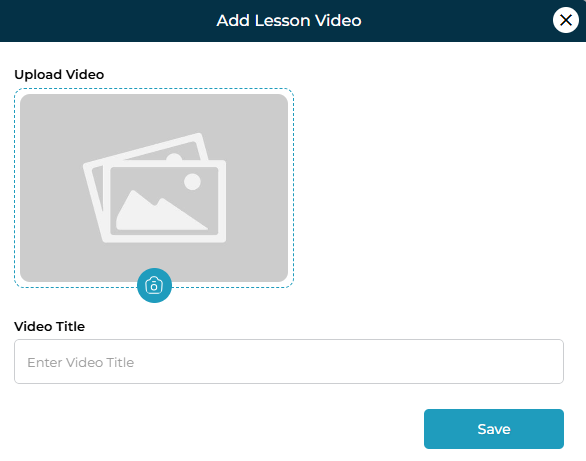
The system automatically calculates and displays the video duration.
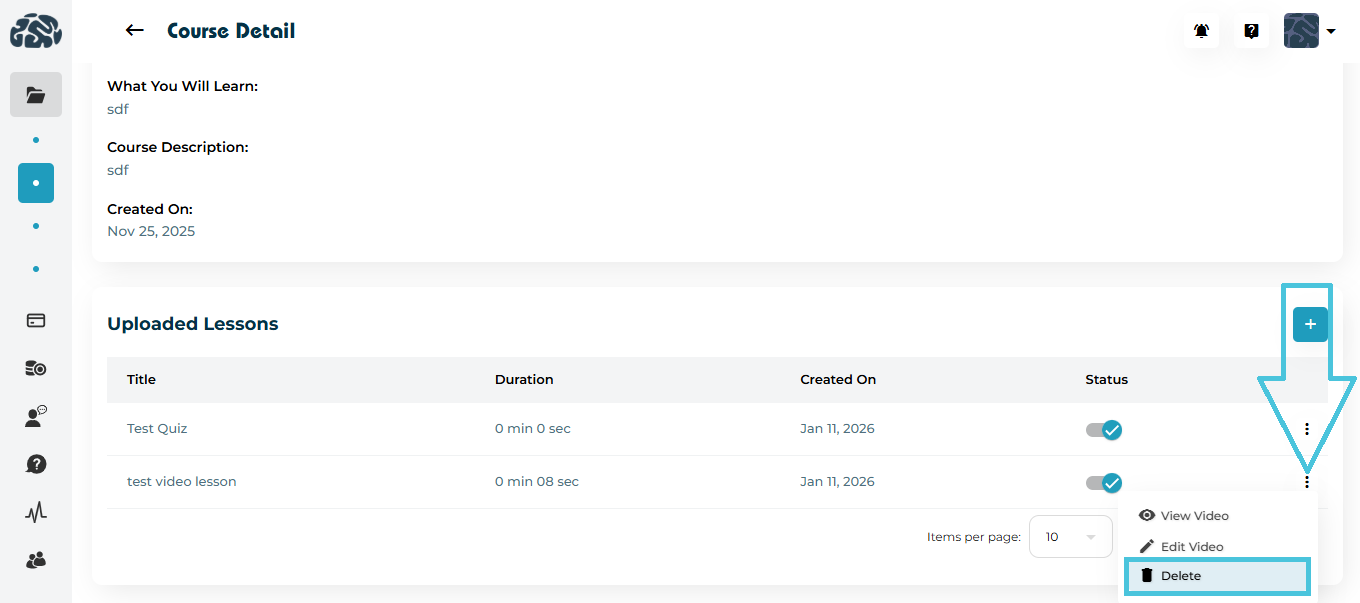
From the ⋮ menu next to a video lesson:
- View Video to opens the video player
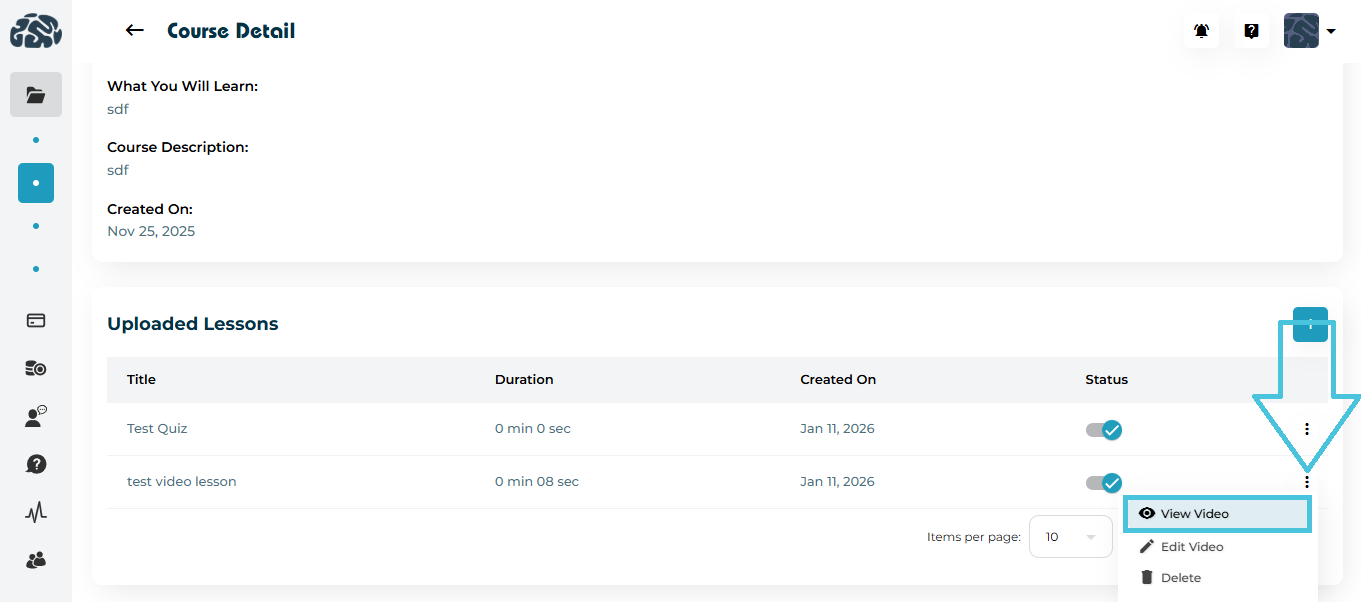
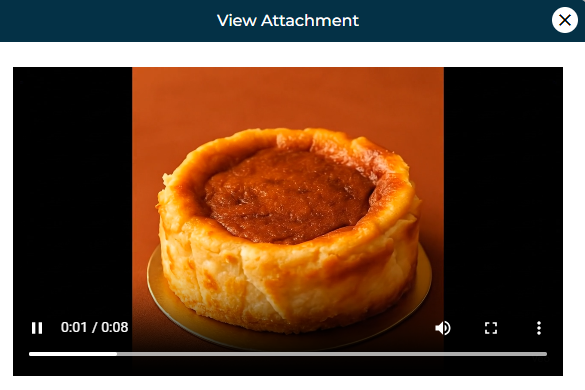
- Edit Video allows you to replace or rename the video
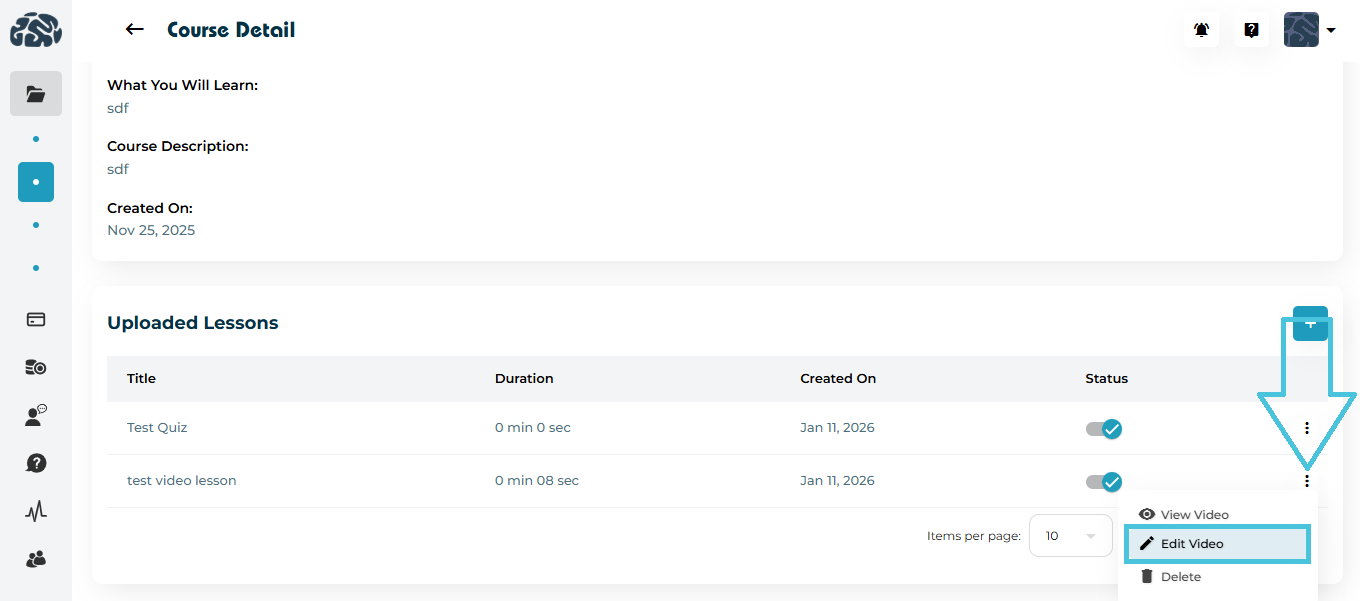
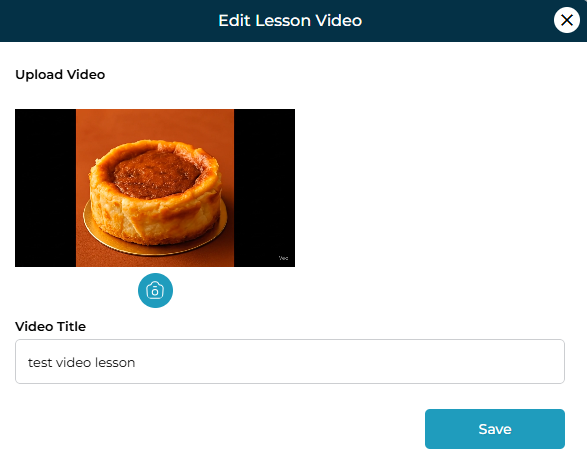
- Delete will remove the video from the course
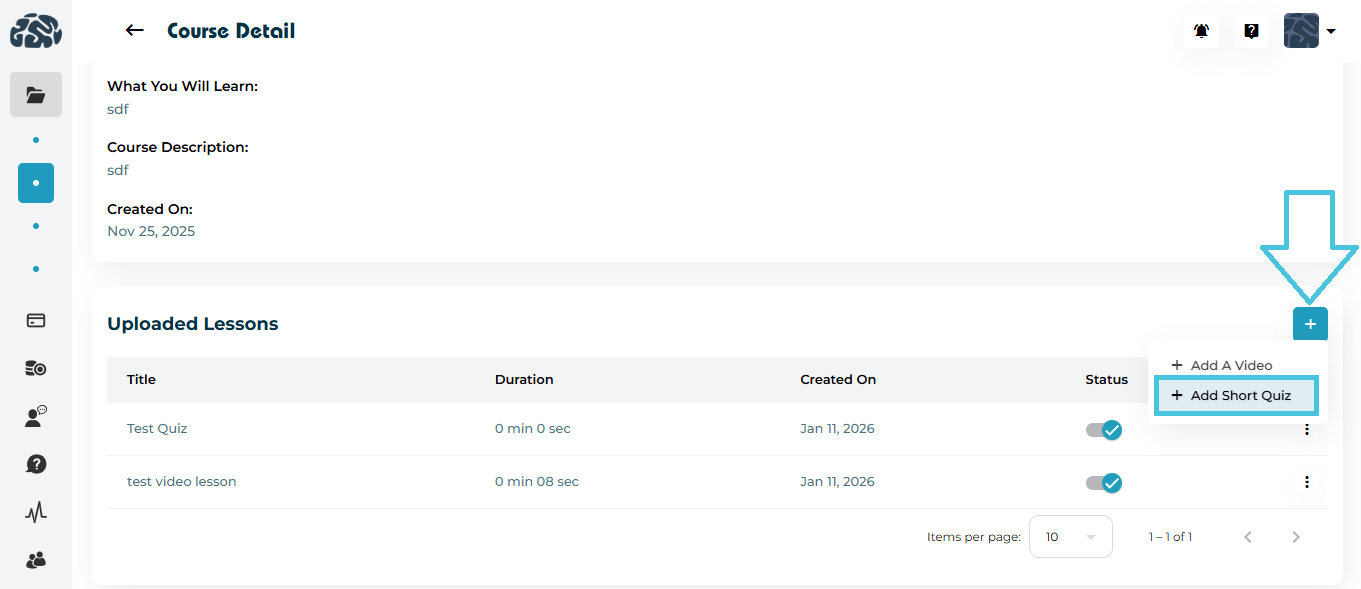
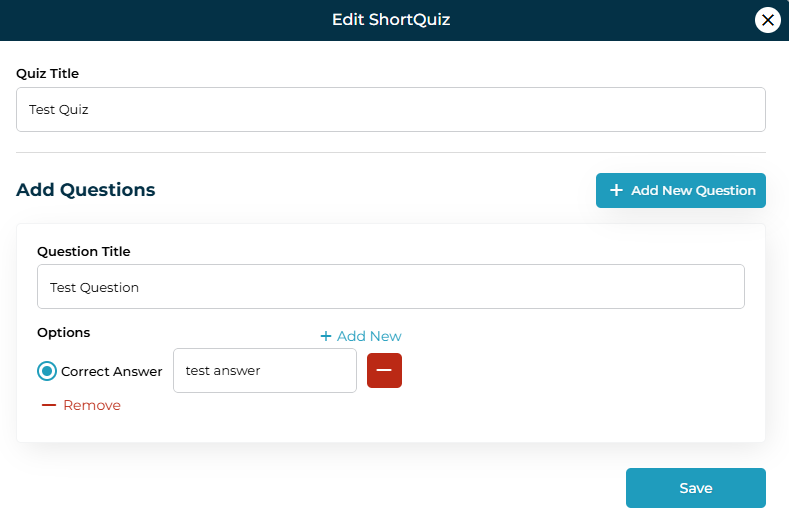
Click ➕ Add → Add Short Quiz.
Enter a Quiz Title.
Add one or more Questions:
Question title
Multiple options
Mark the correct answer
Click Save.
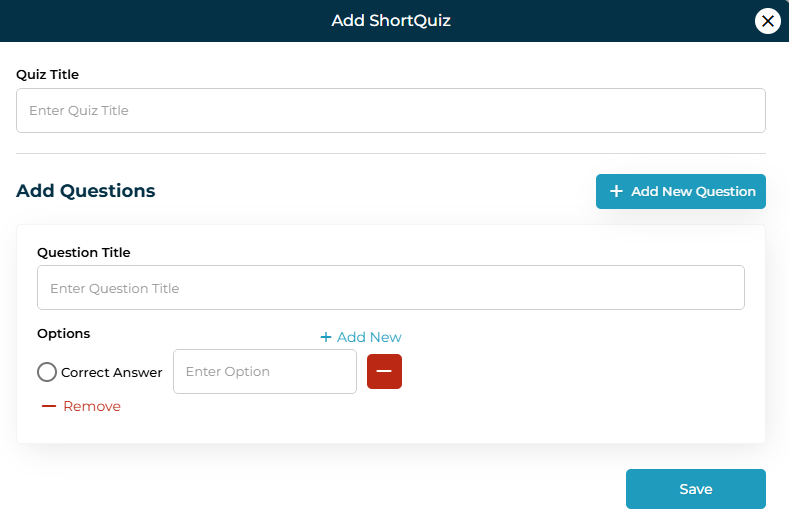
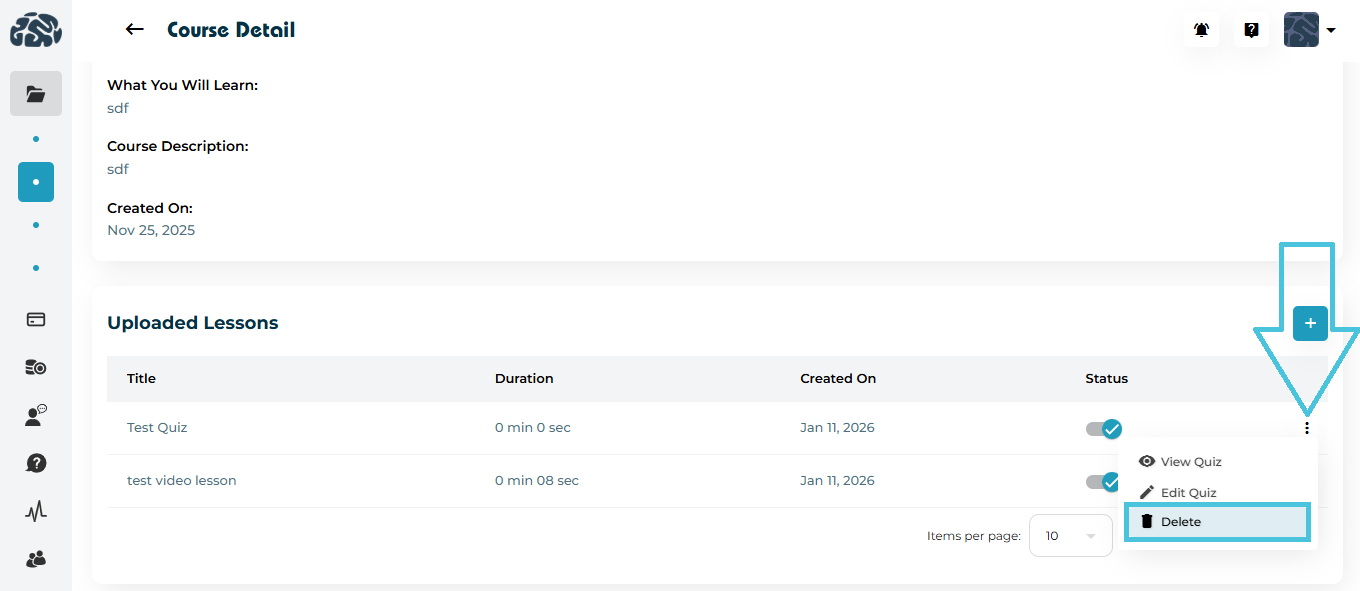
Quiz actions include:
- View Quiz to See questions and correct answers
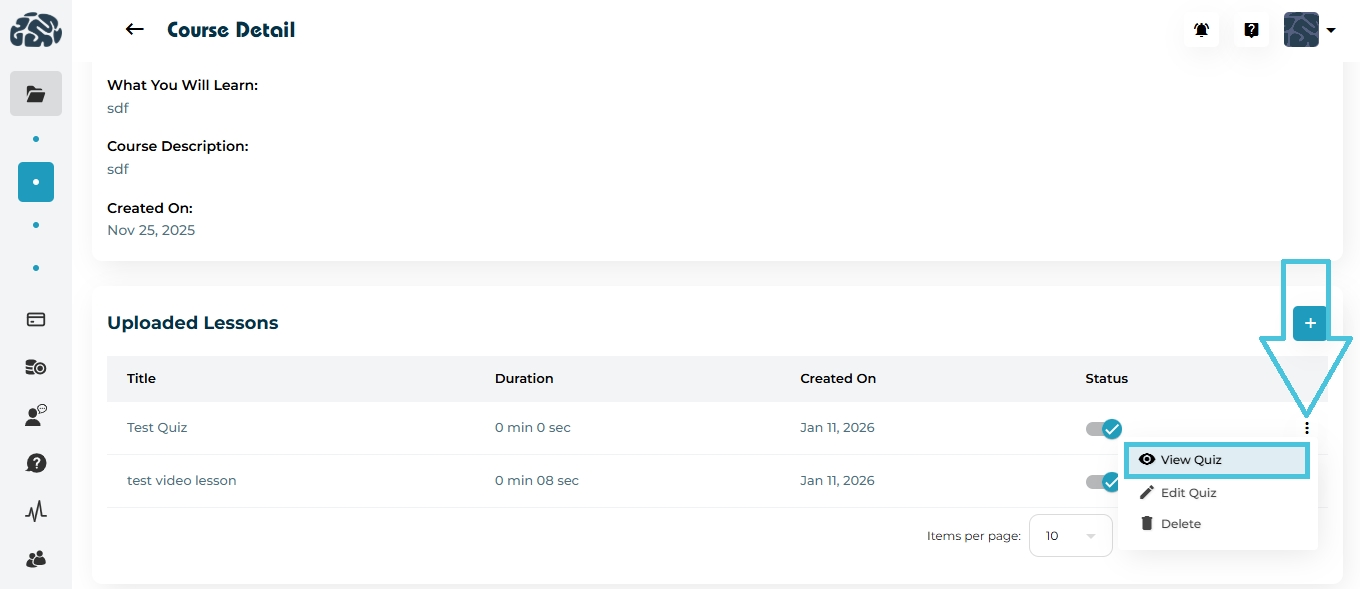

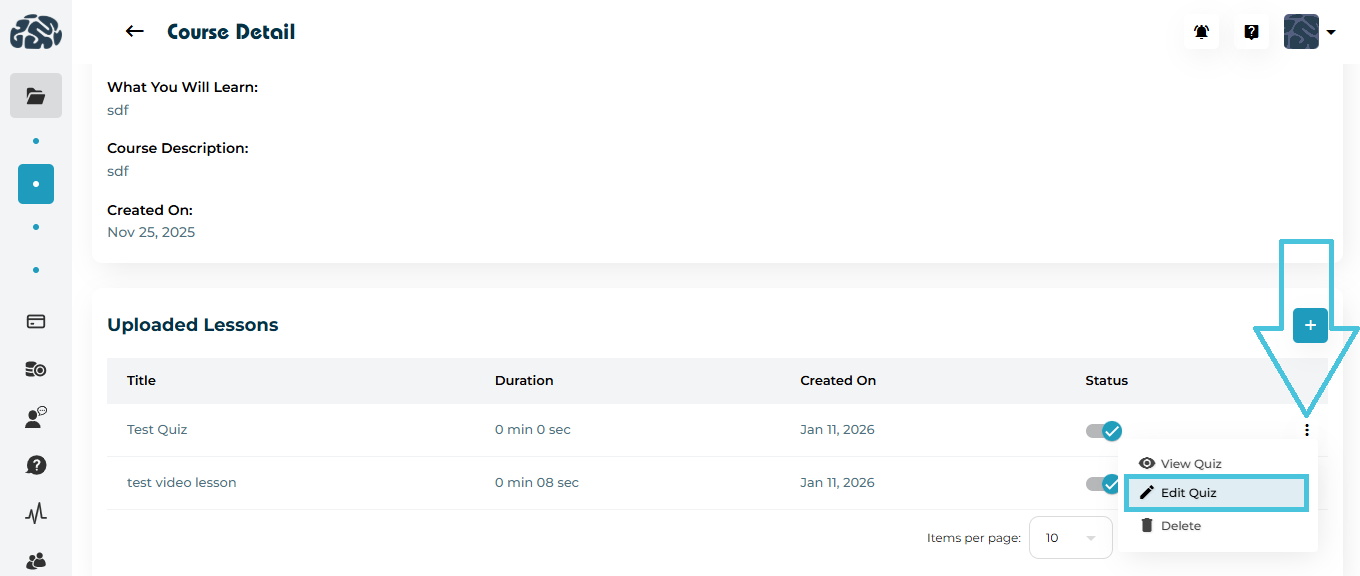
Edit Quiz to modify questions or options
- Delete Quiz permanently removes the quiz

You can filter courses by:
Category
Sub-Category
Price Range
Status
Click Apply to filter or Reset to clear filters.
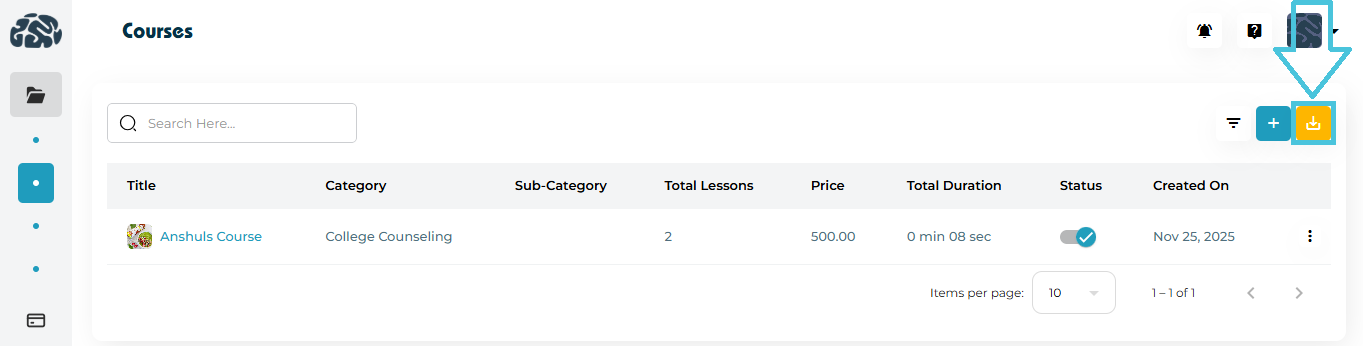
Use the Export (CSV) button to download course data.
Useful for reporting, audits, or offline review.