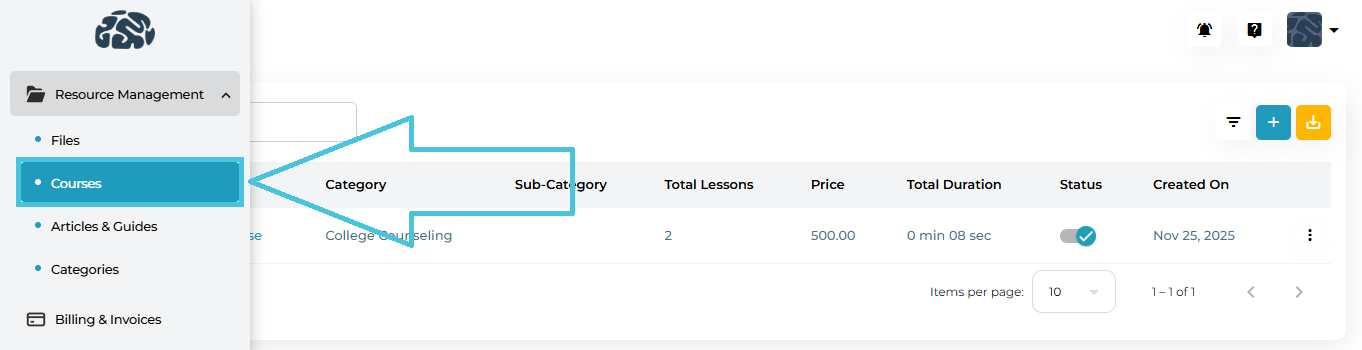
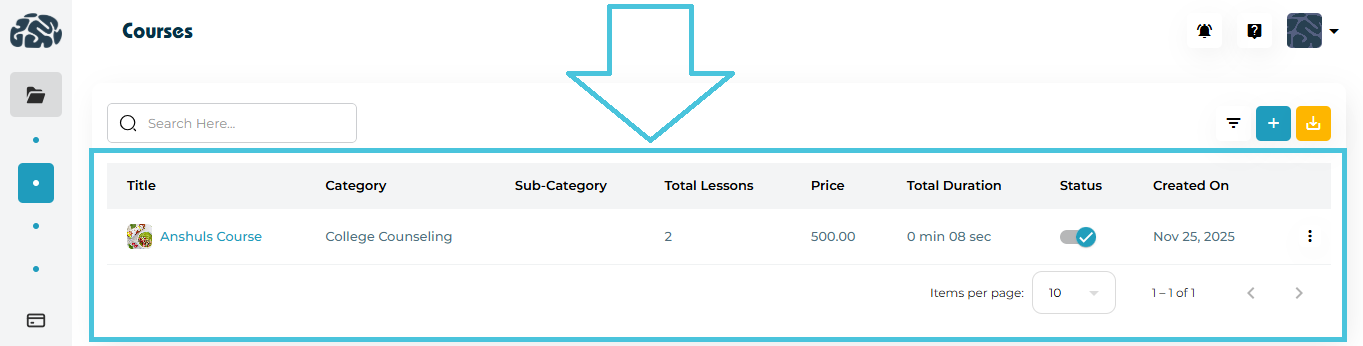
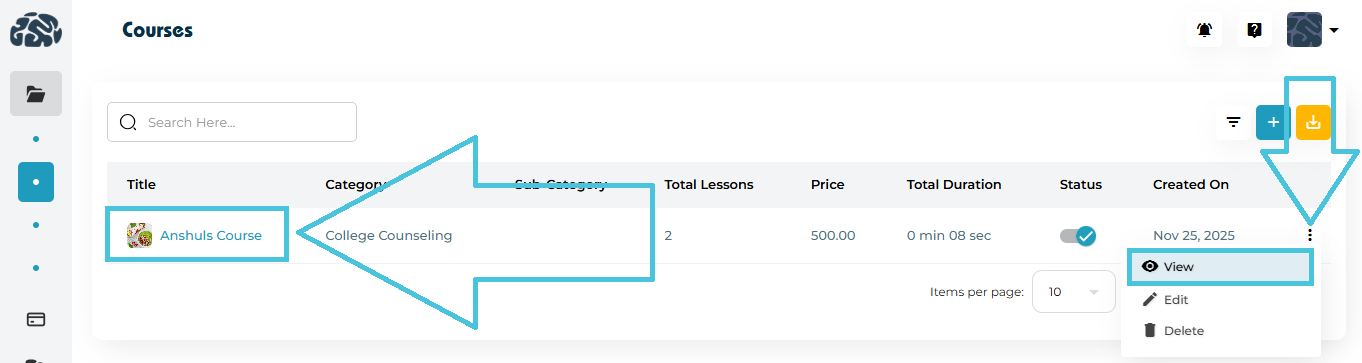
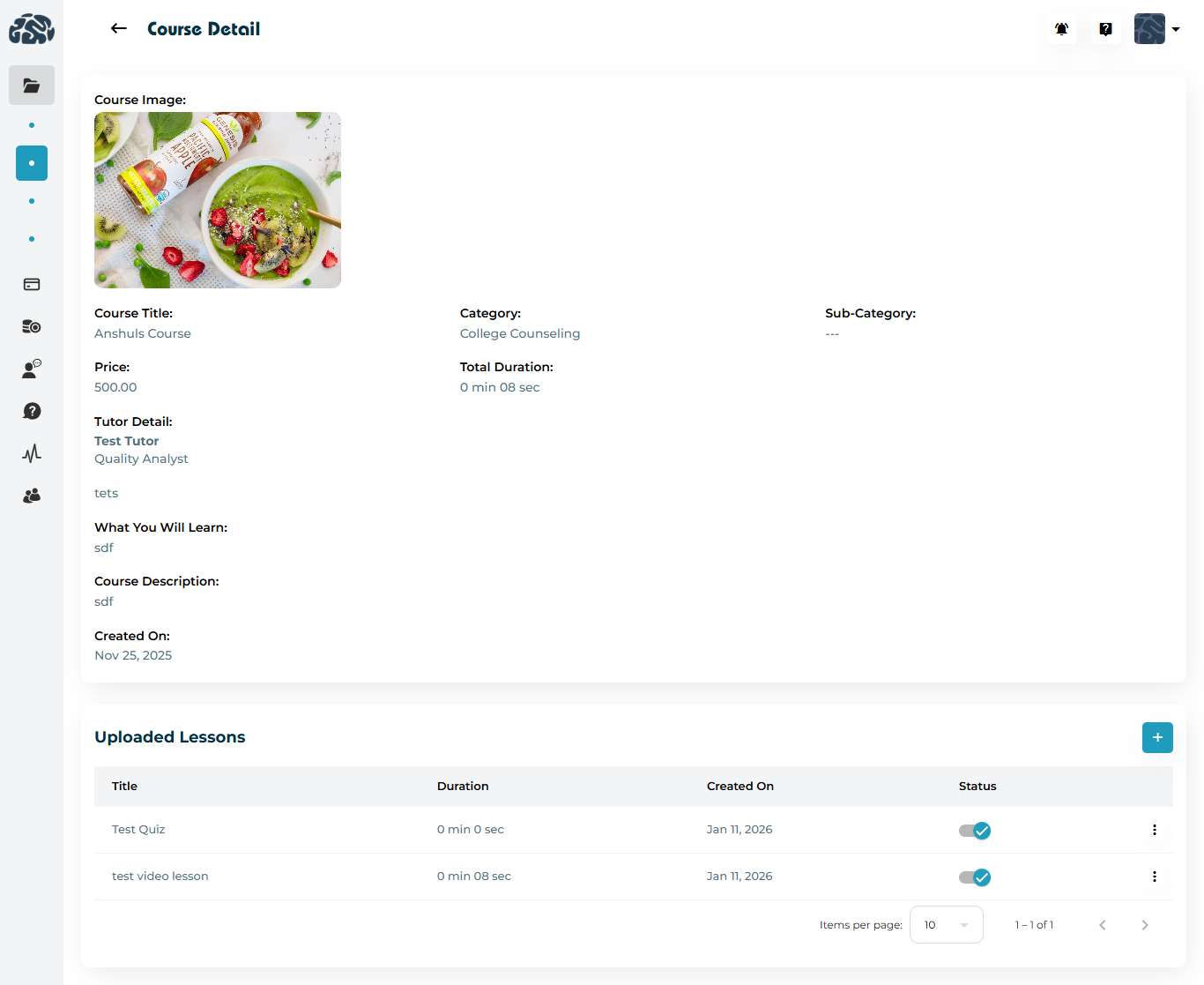
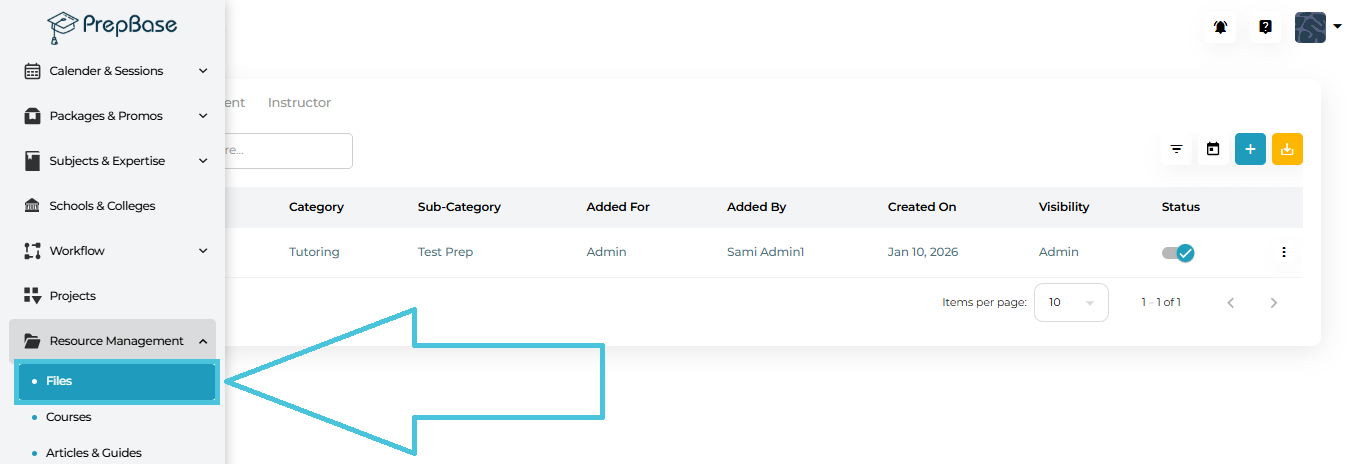
Navigate to:
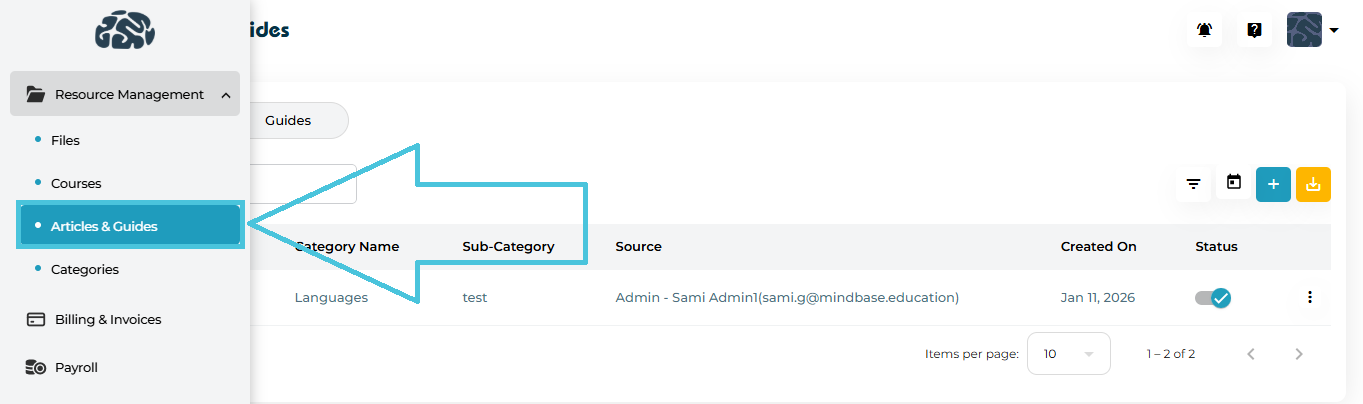
Admin Portal → Resource Management → Categories
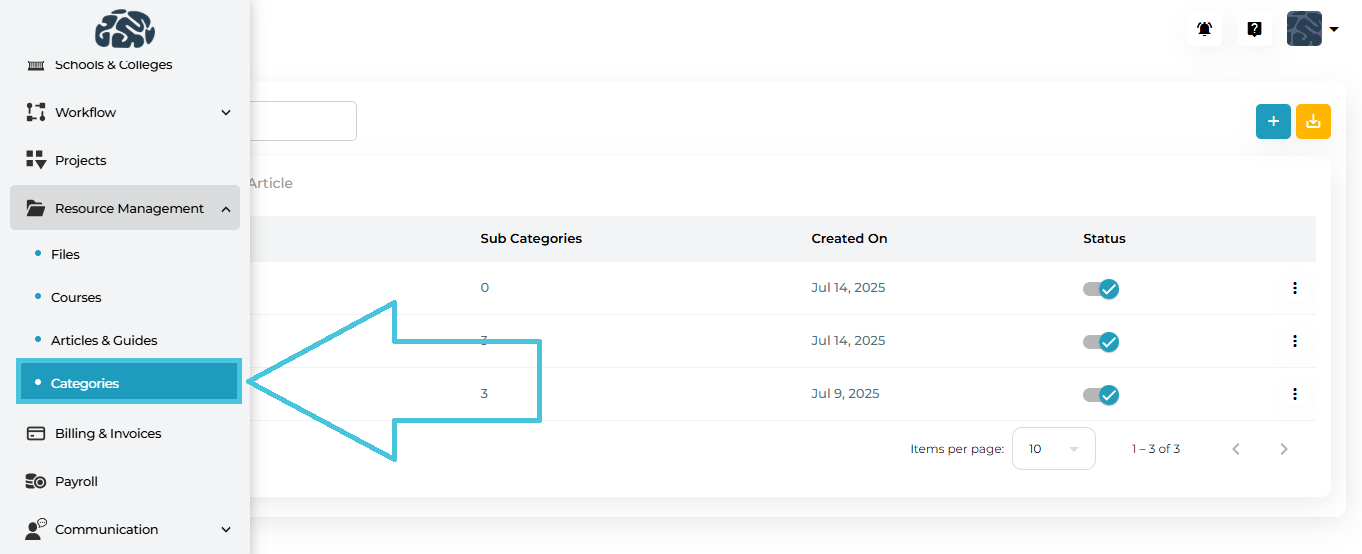
The Categories screen is divided into three tabs, each managing a different resource type:

| Tab | Purpose |
|---|---|
| File | Defines the categories and sub-categories for the Files & Folders |
| Course | Defines the categories and sub-categories for Video Courses |
| Article | Defines the categories and sub-categories for the articles, guides, and FAQs |
Each tab works the same way, but applies to a different resource type.
File categories are used when uploading files in Resource Management → Files and also inside Projects and User Profiles.
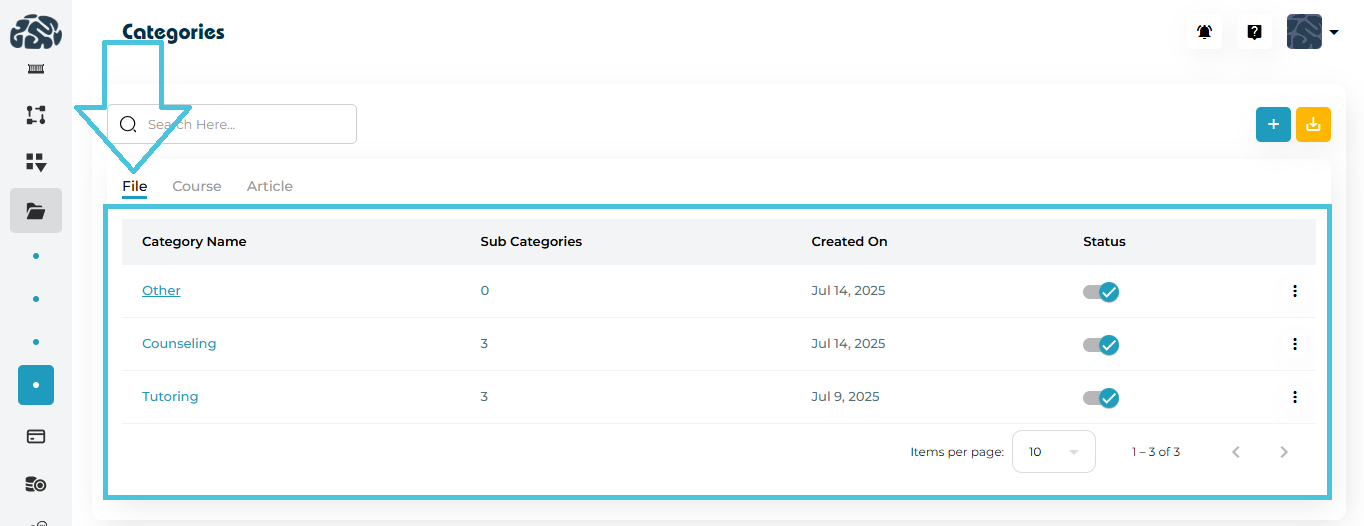
Viewing File Categories
Click the File tab
View category name, number of sub-categories, creation date, and status
Adding a New File Category
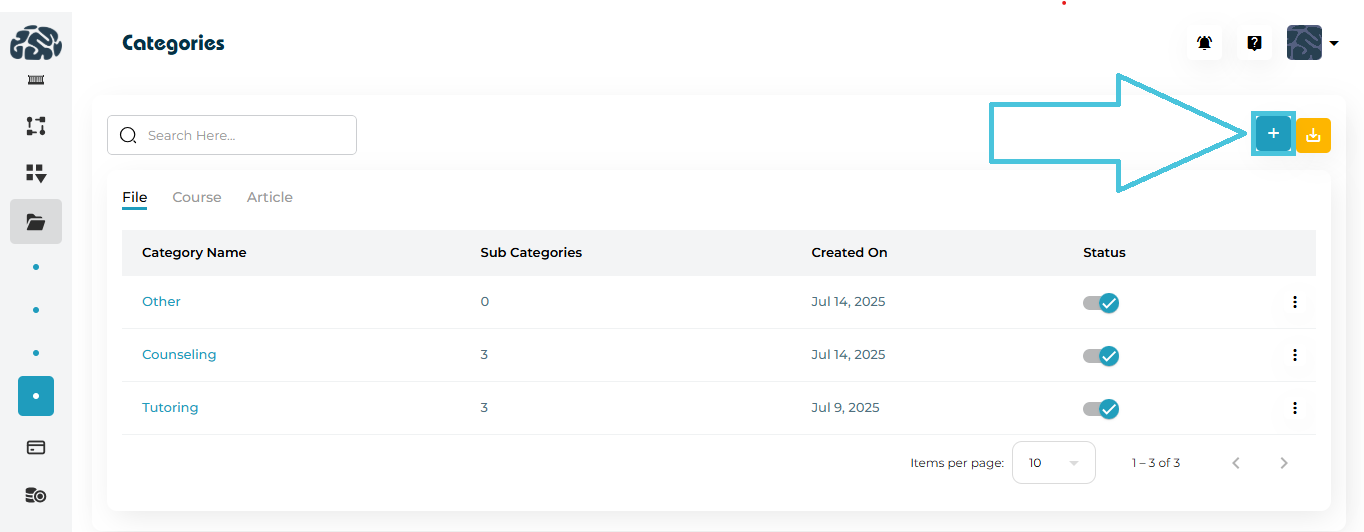
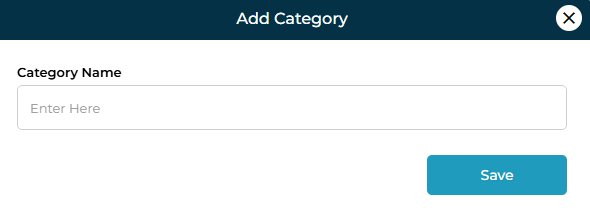
Click the ➕ Add Category button
Enter the Category Name
Click Save
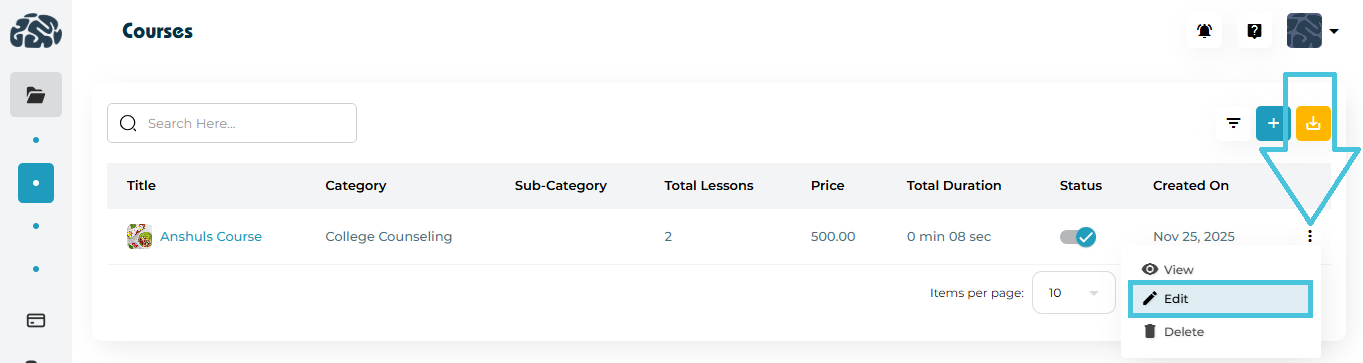
Editing a File Category
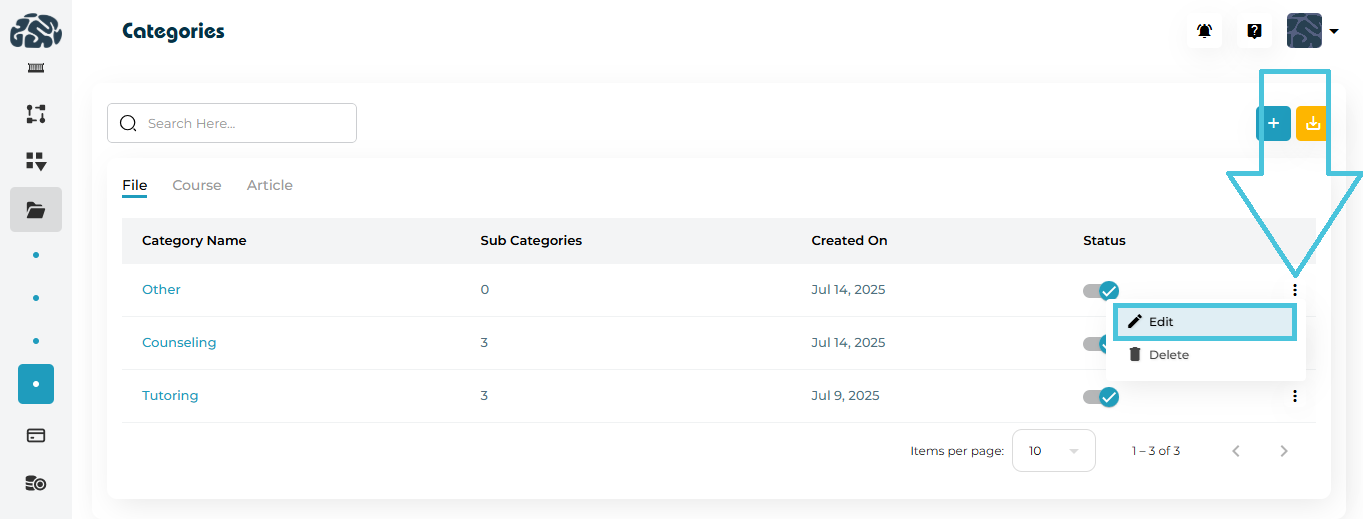
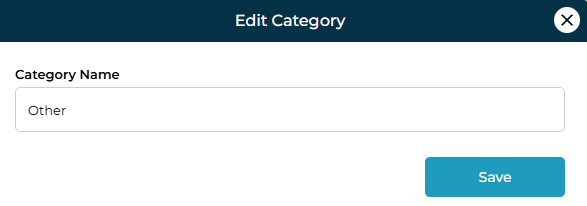
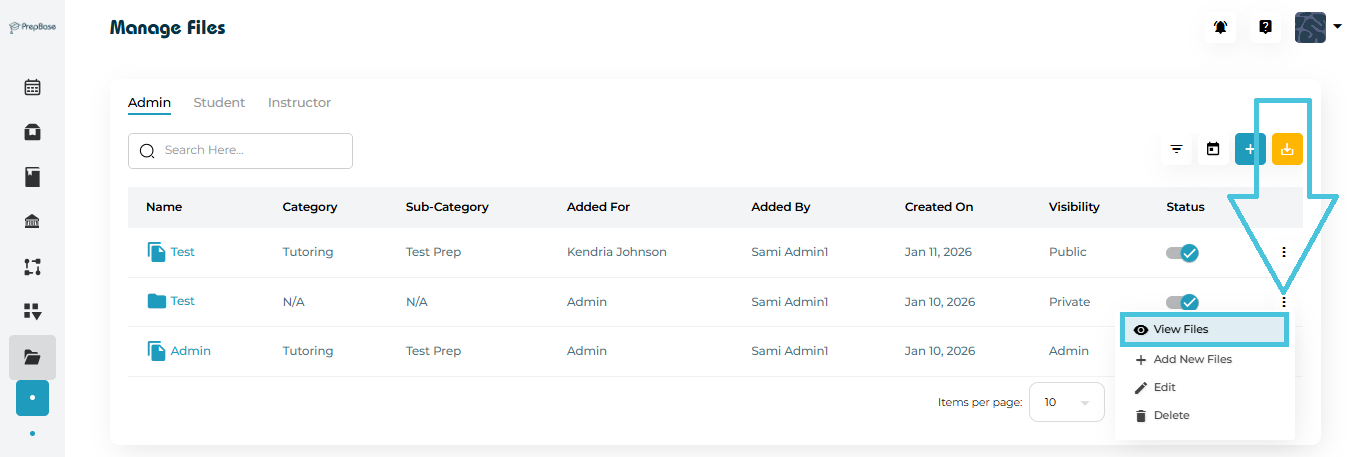
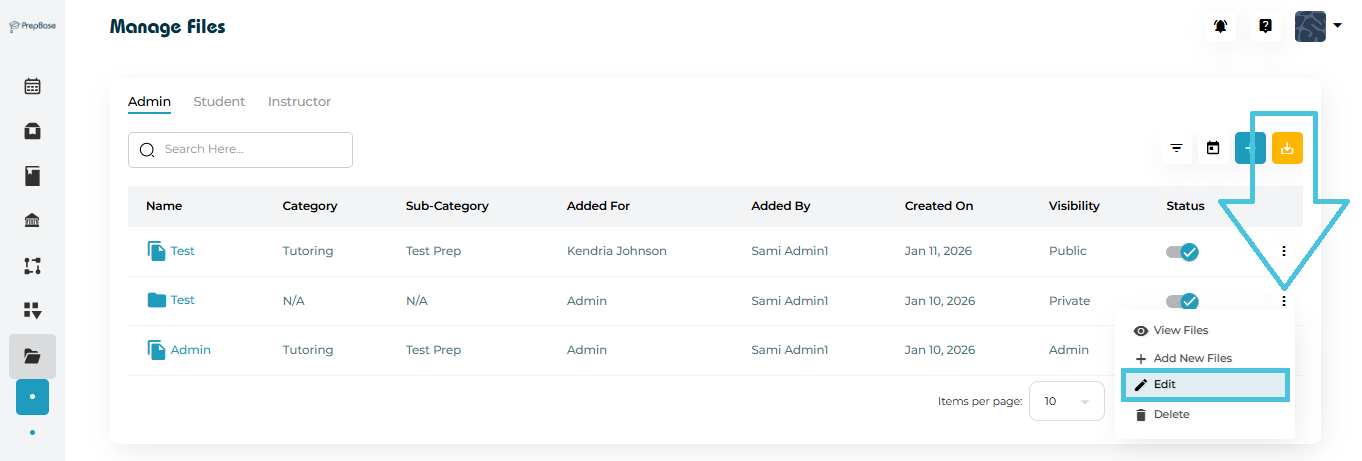
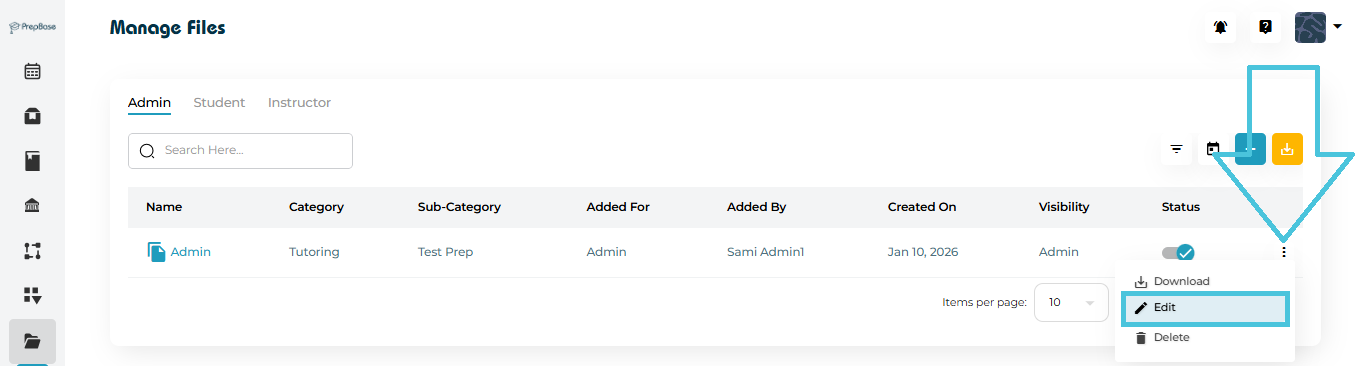
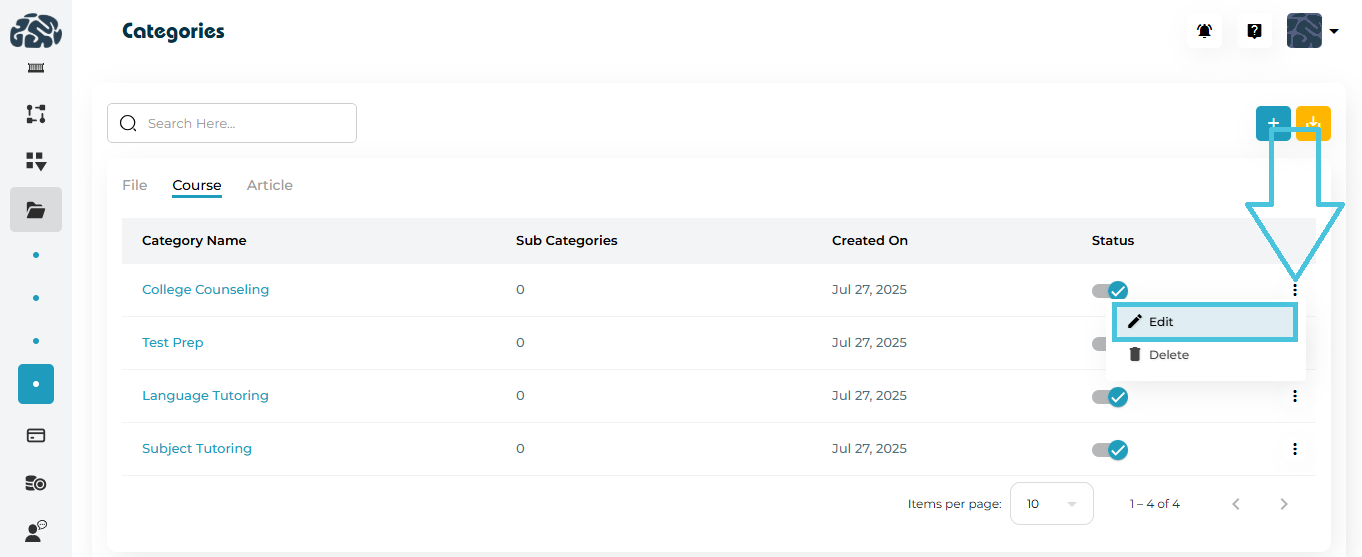
Click the three-dot menu beside a category
Select Edit
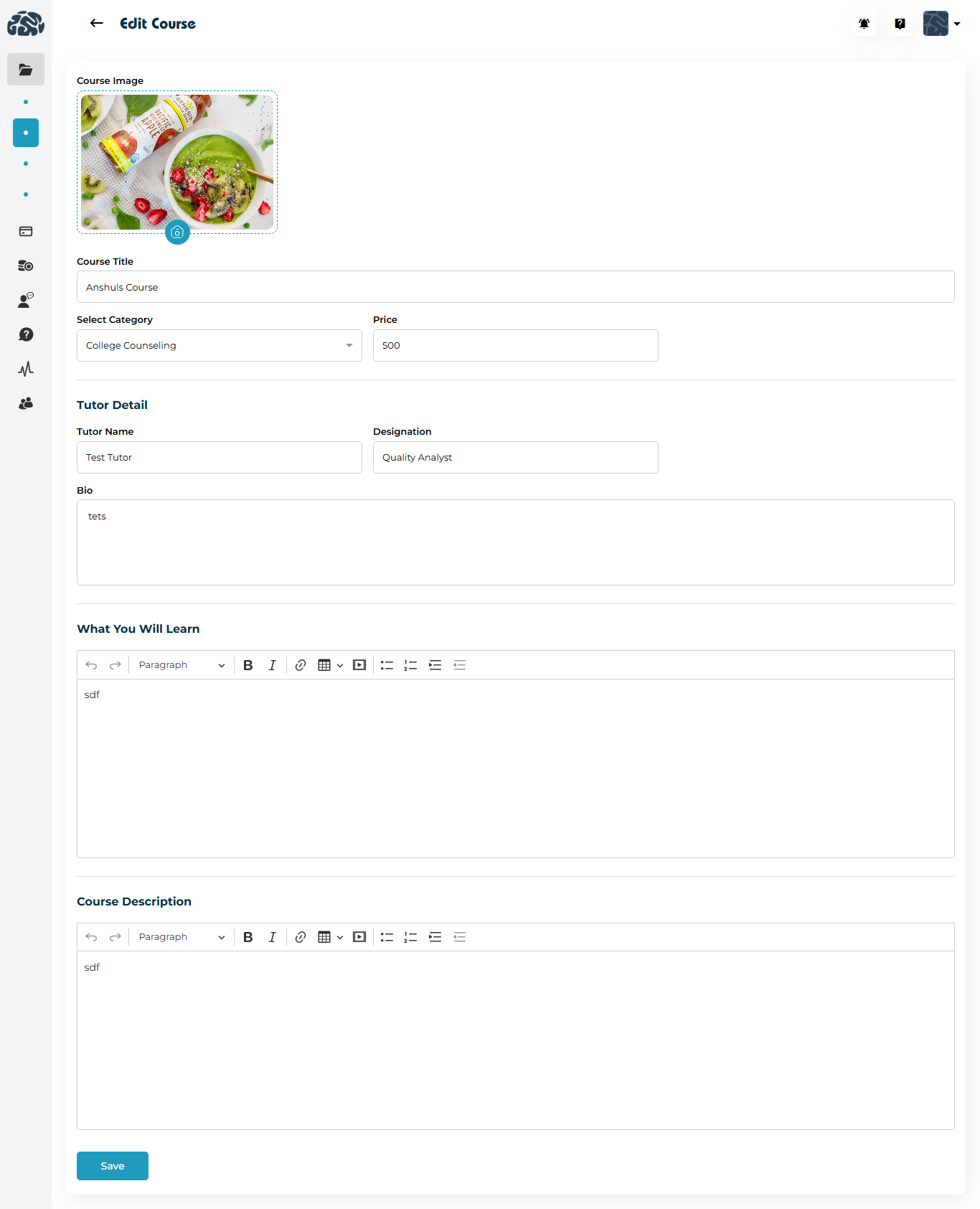
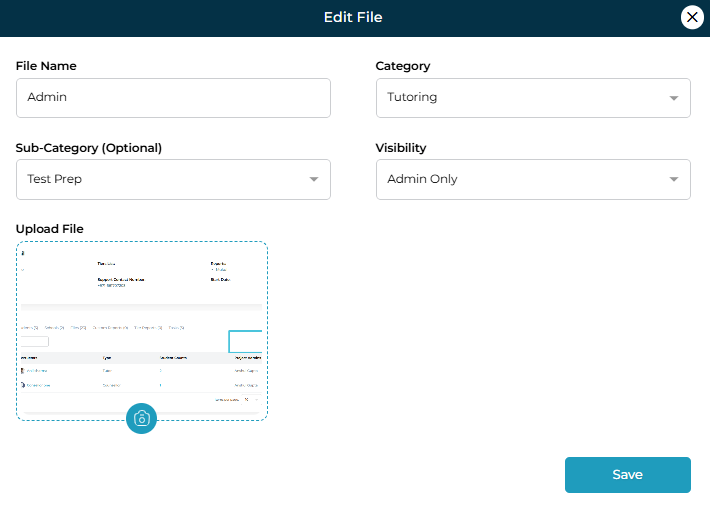
Update the category name
Click Save
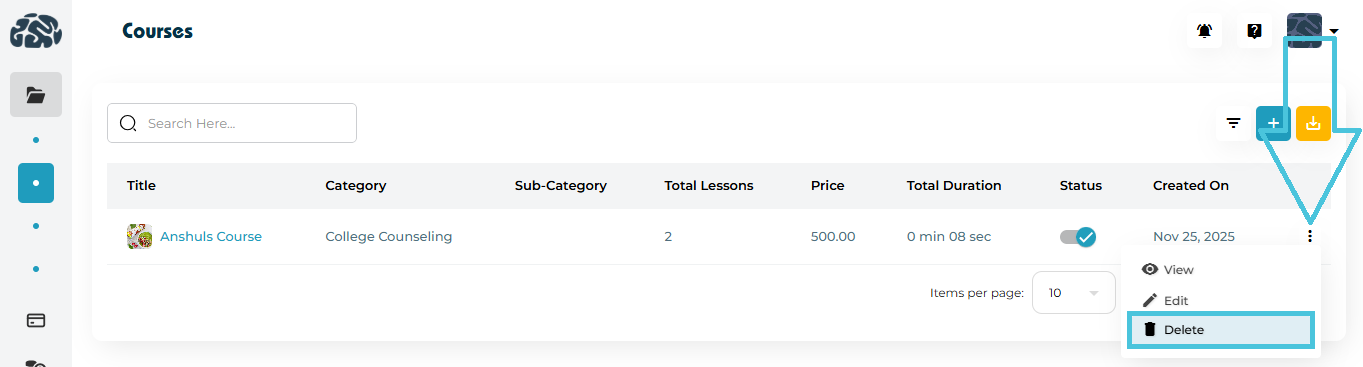
Deleting a File Category
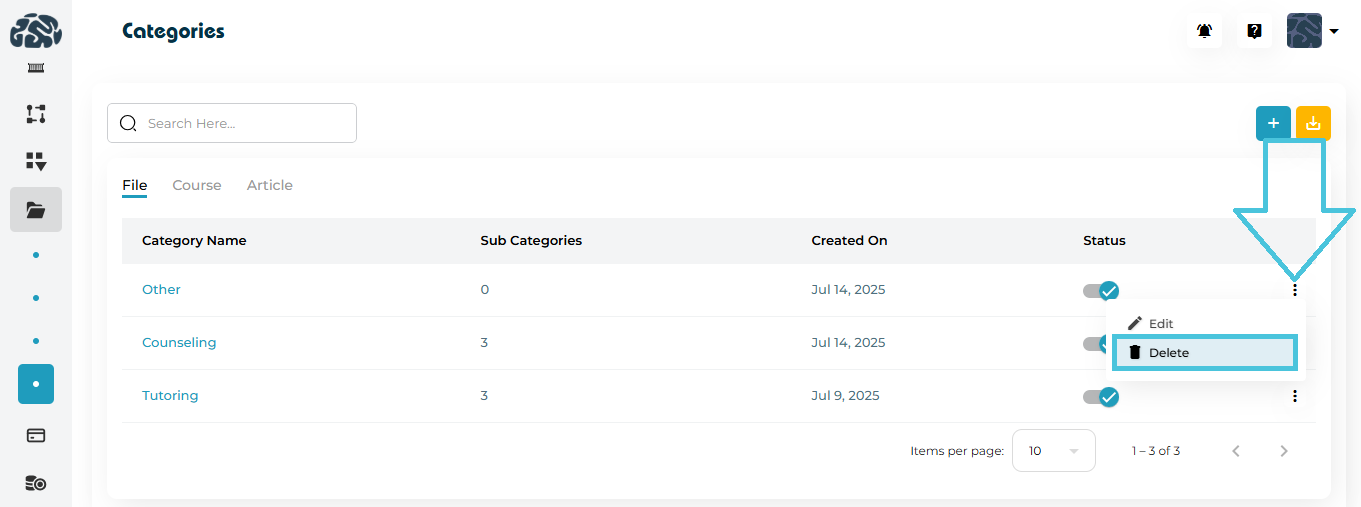
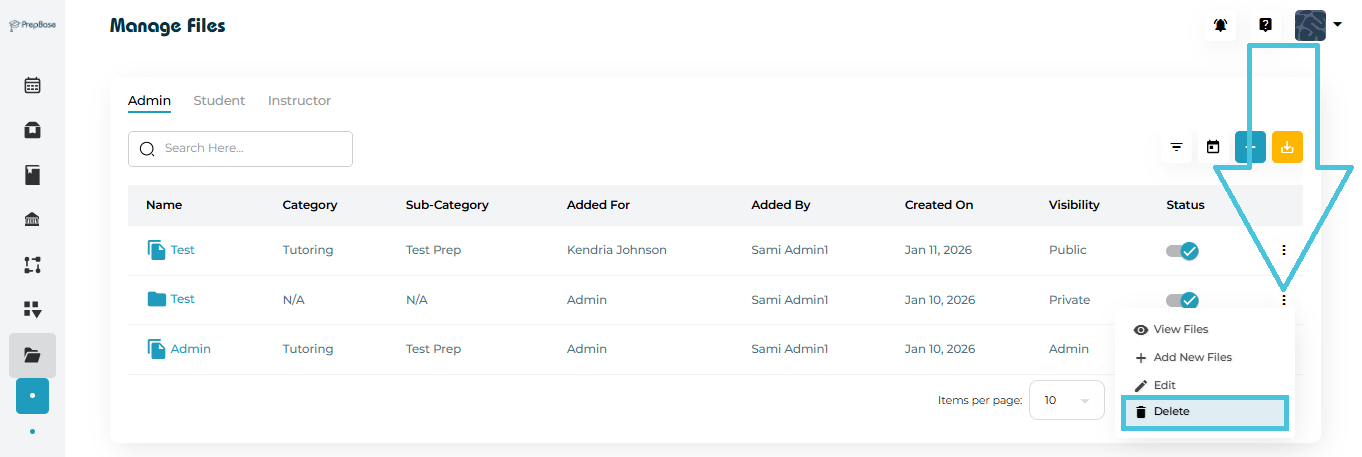
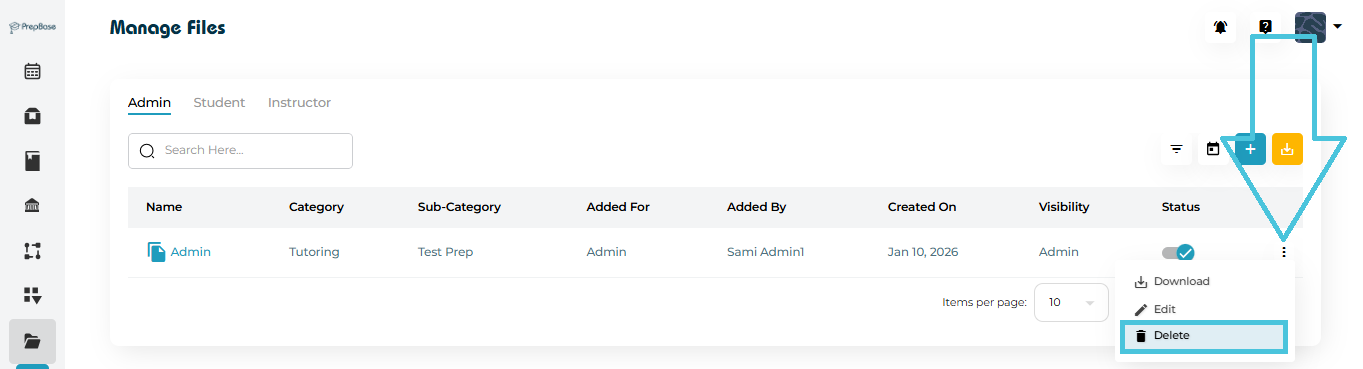
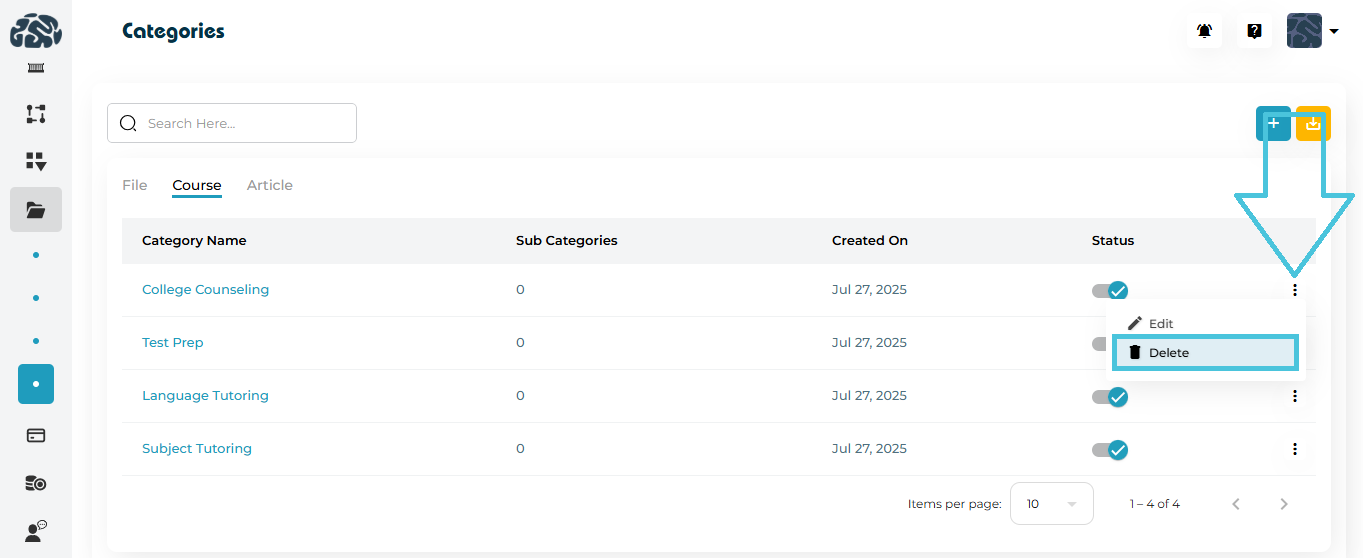
Click the three-dot menu
Select Delete
Confirm the action
⚠️ Note: Deleting a category does not delete files, but may require reassignment.
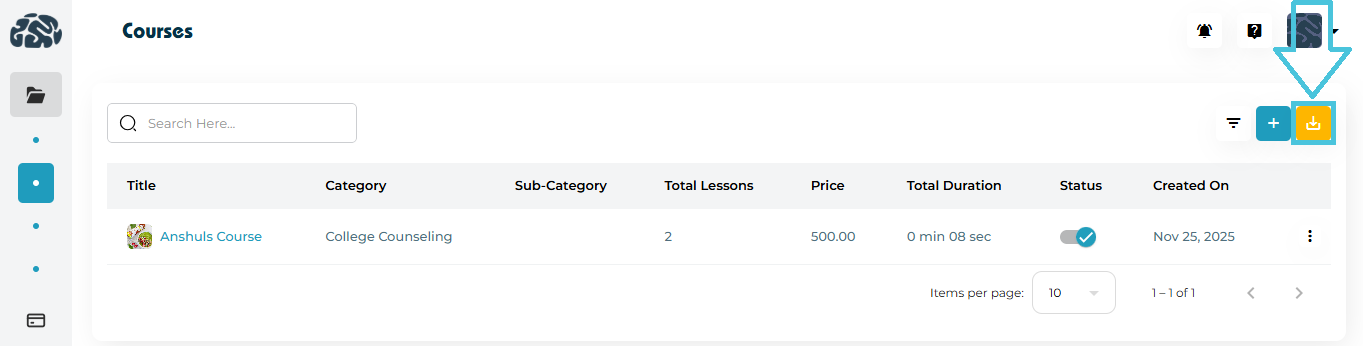
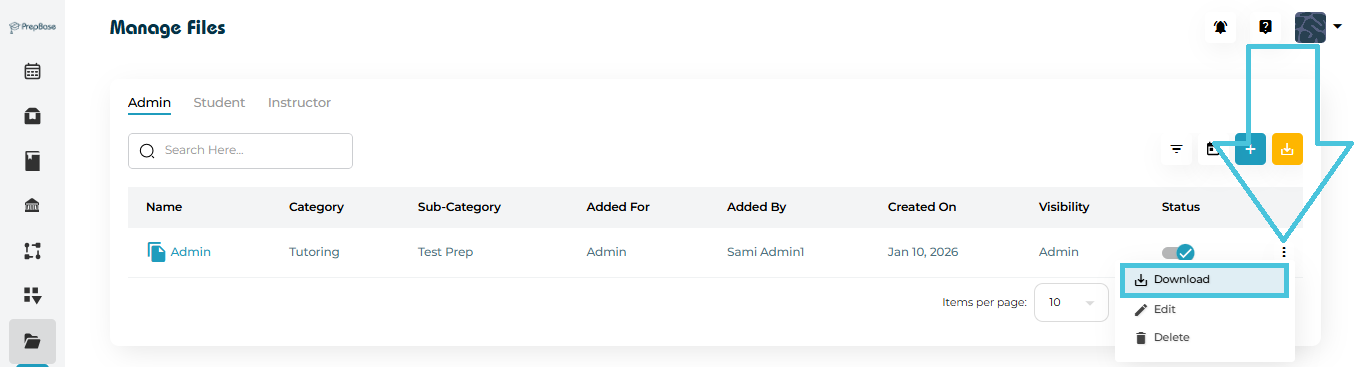
Exporting File Categories
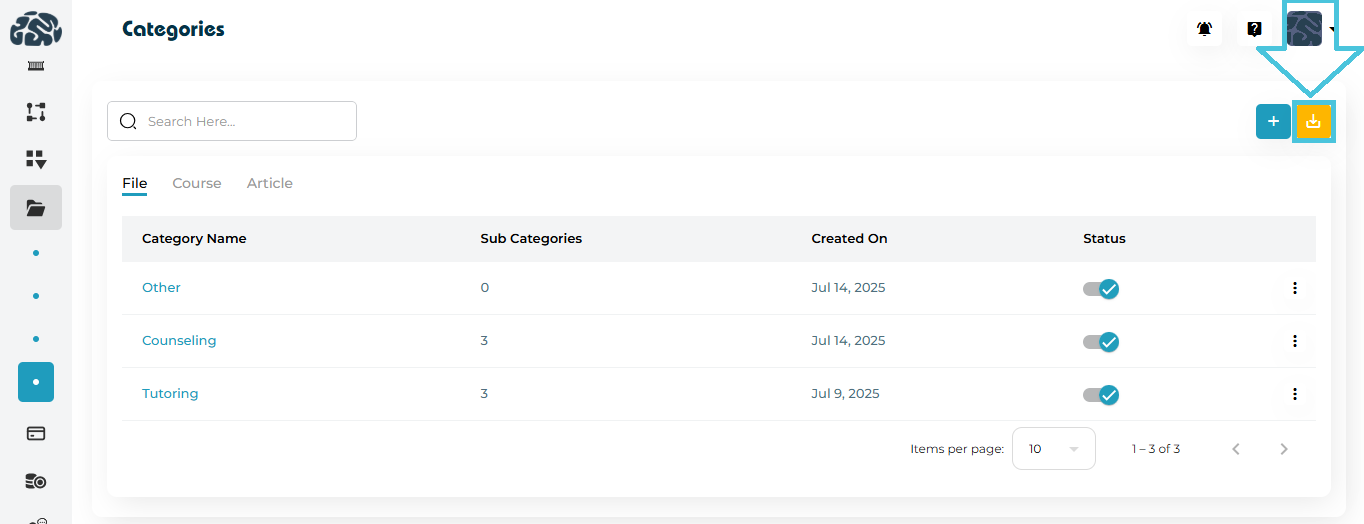
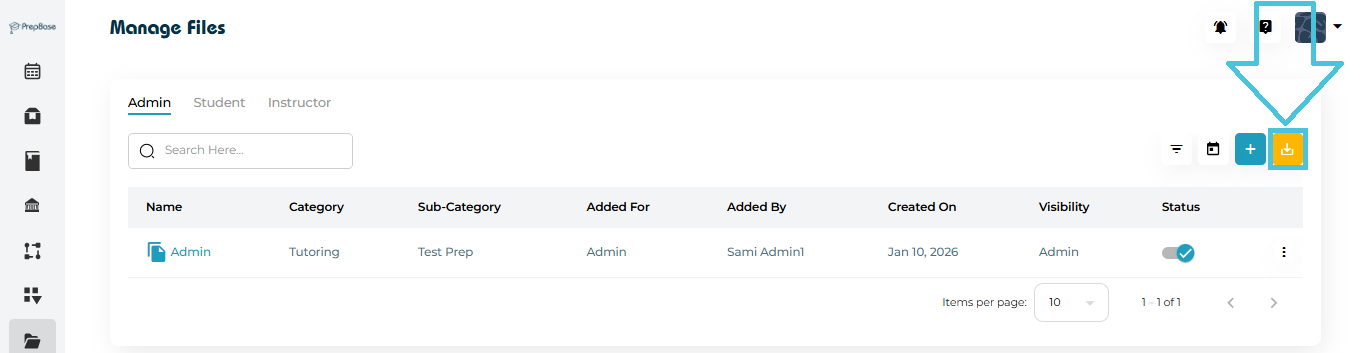
Click the Download (⬇️) icon to export file categories as CSV
Sub-categories provide additional classification under a main category.
Viewing Sub-Categories
- Click a category name
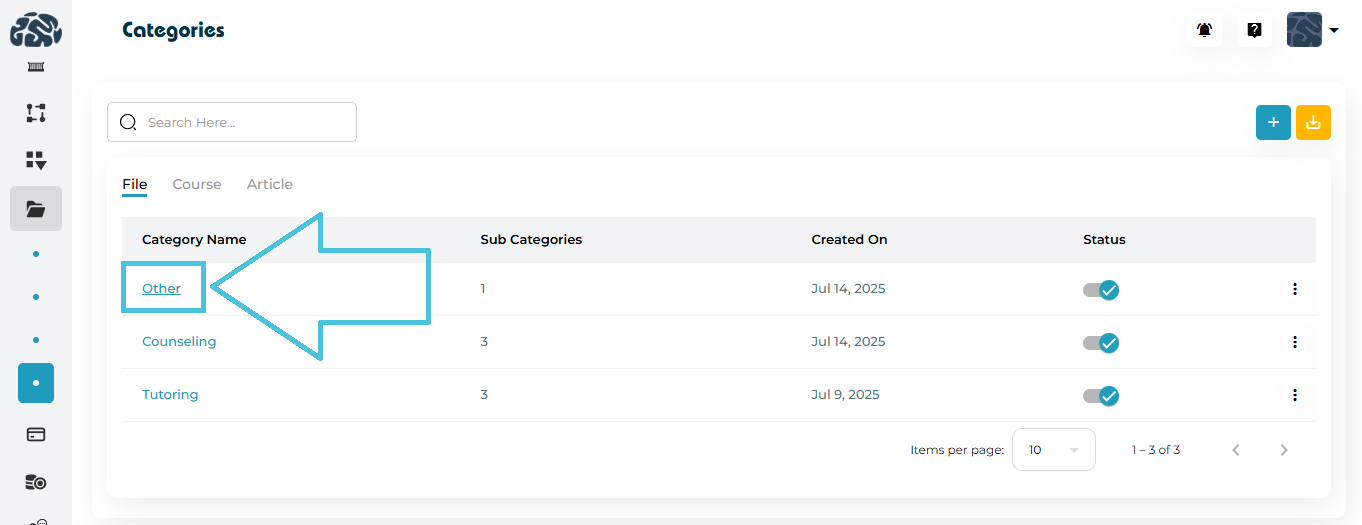
- You’ll be redirected to the Sub-Categories page
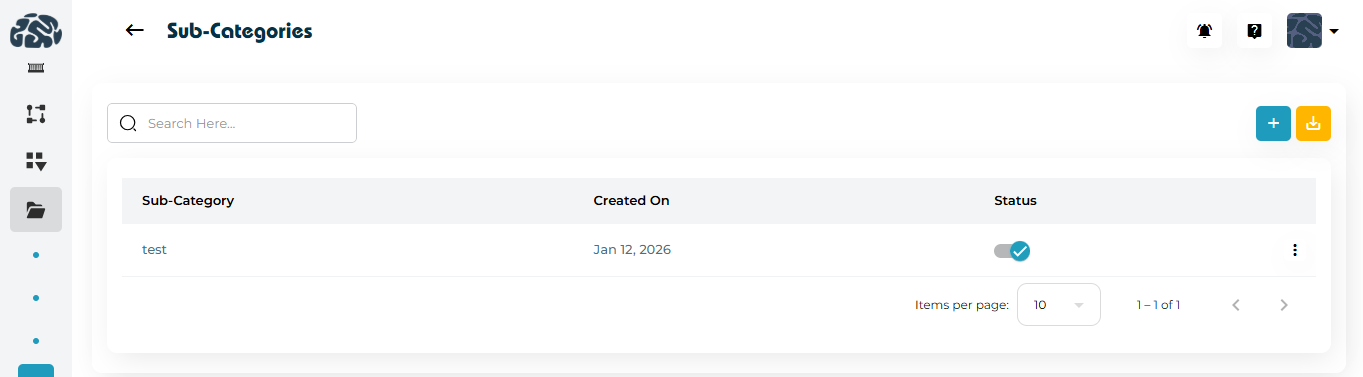
Adding a File Sub-Category
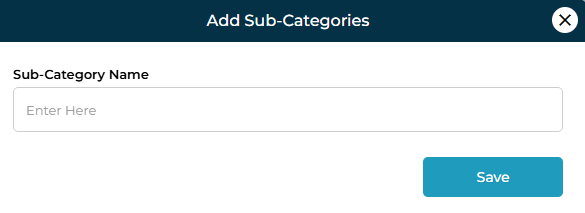
Click ➕ Add Sub-Category
Enter the sub-category name
Click Save
Editing a File Sub-Category
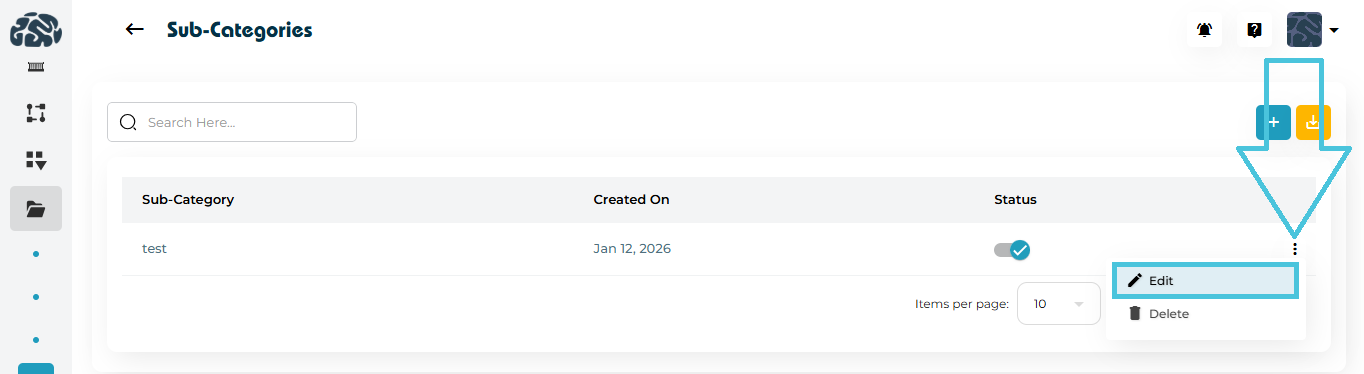
Click the three-dot menu
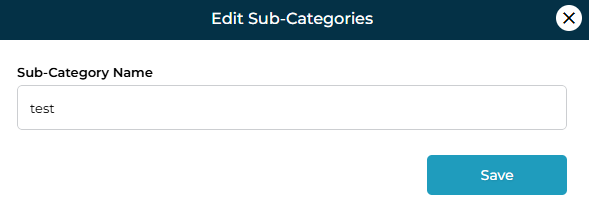
Select Edit
Update the name and save
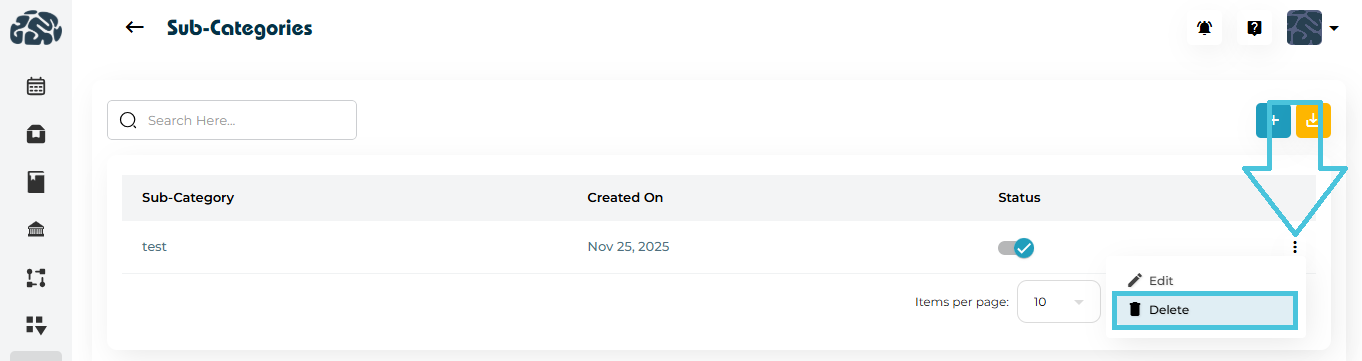
Deleting a File Sub-Category
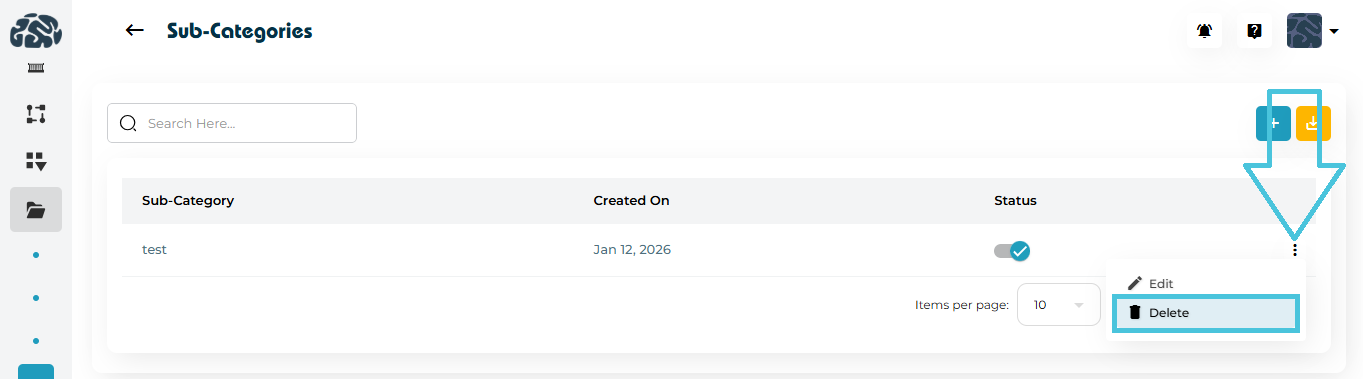
Click the three-dot menu
Select Delete
Confirm deletion
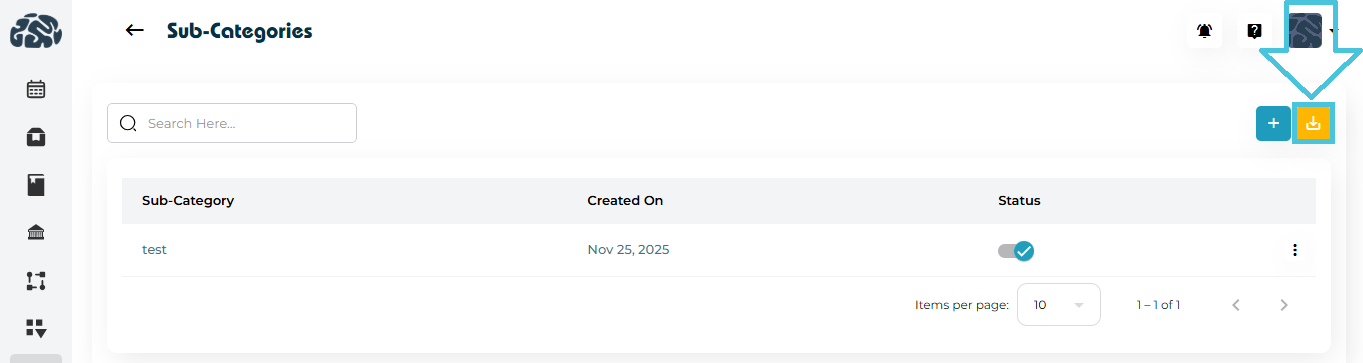
Exporting File Sub-Categories
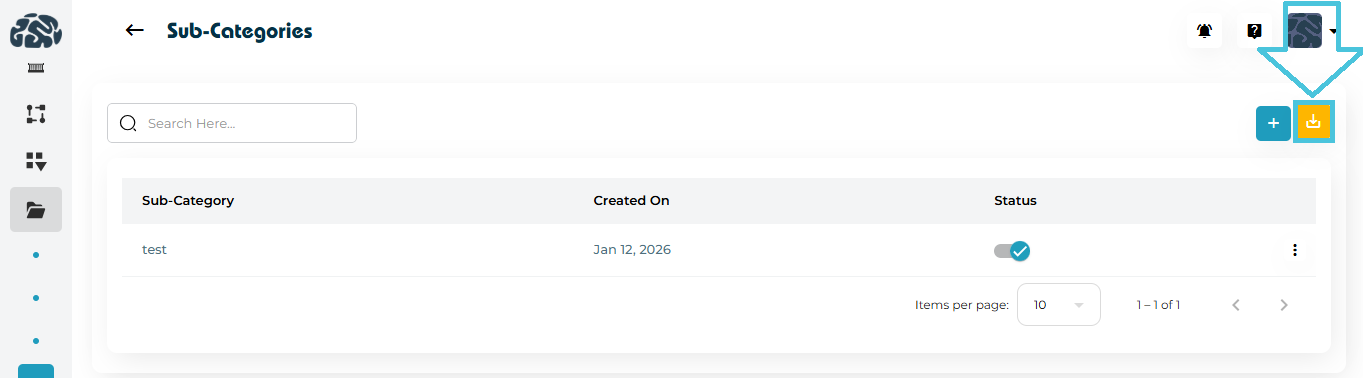
Use the Download (⬇️) icon to export sub-categories as CSV
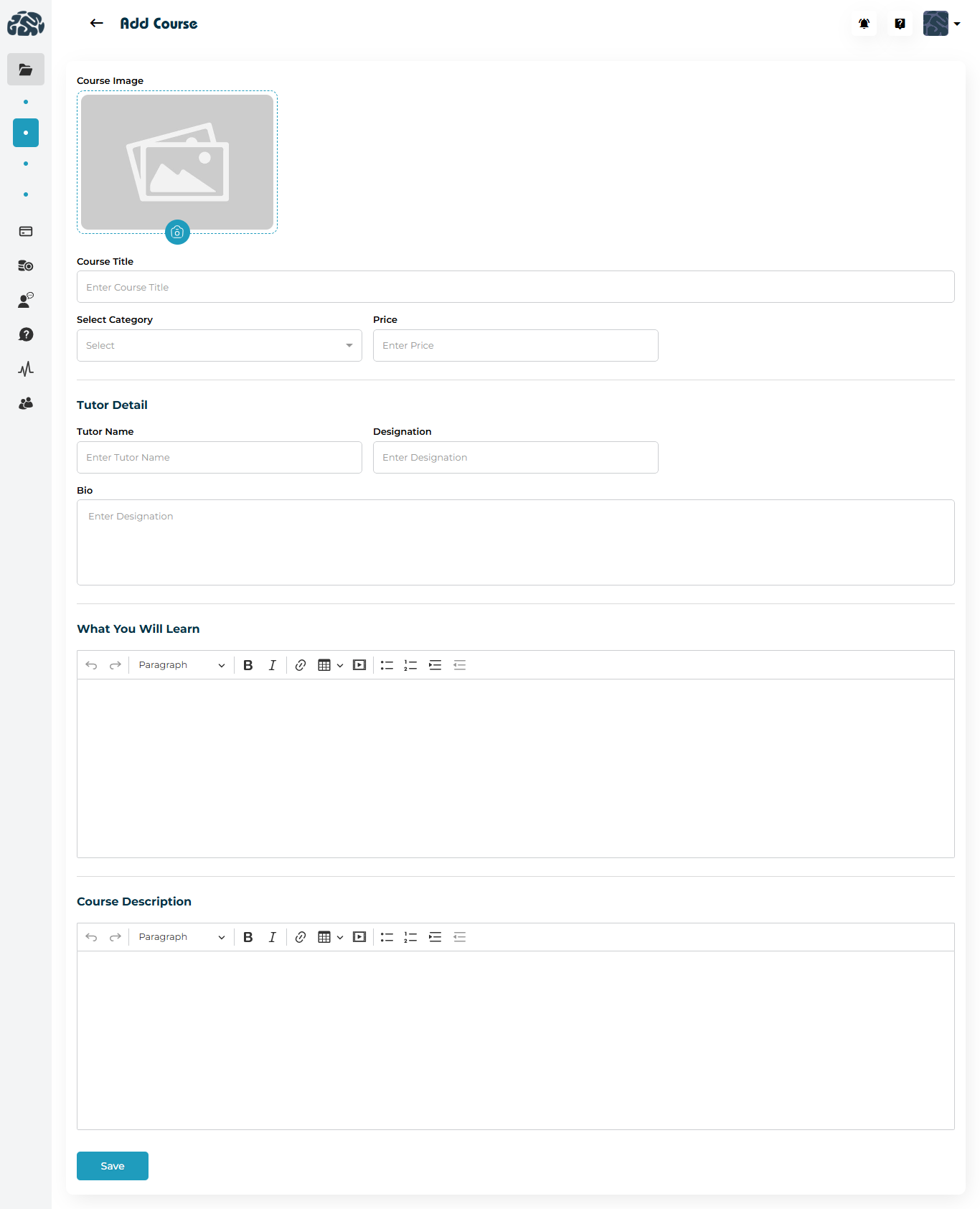
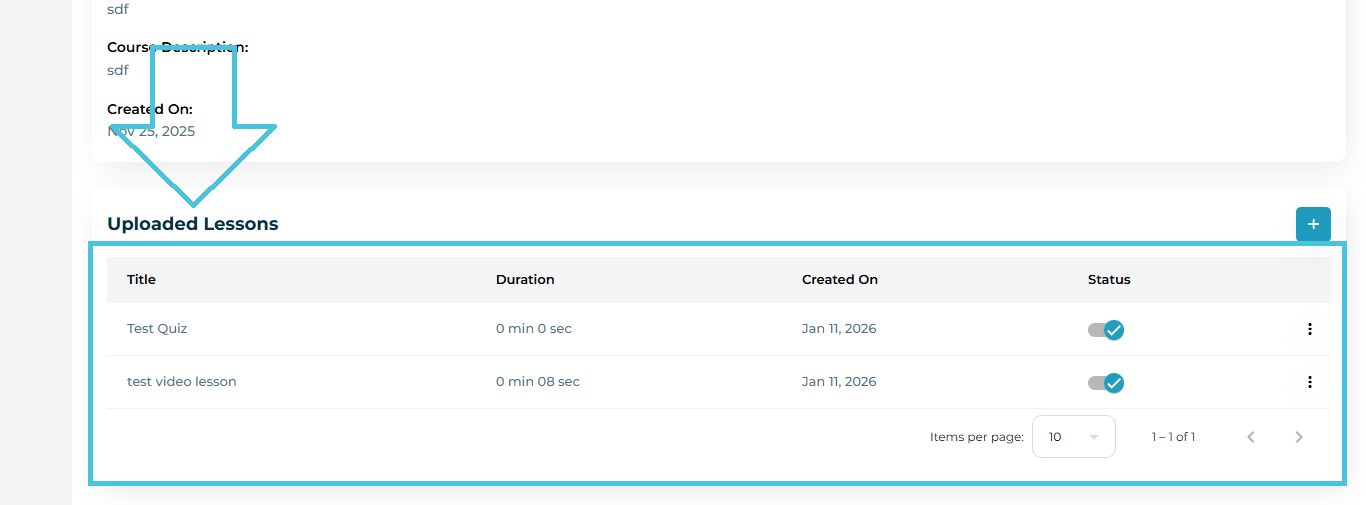
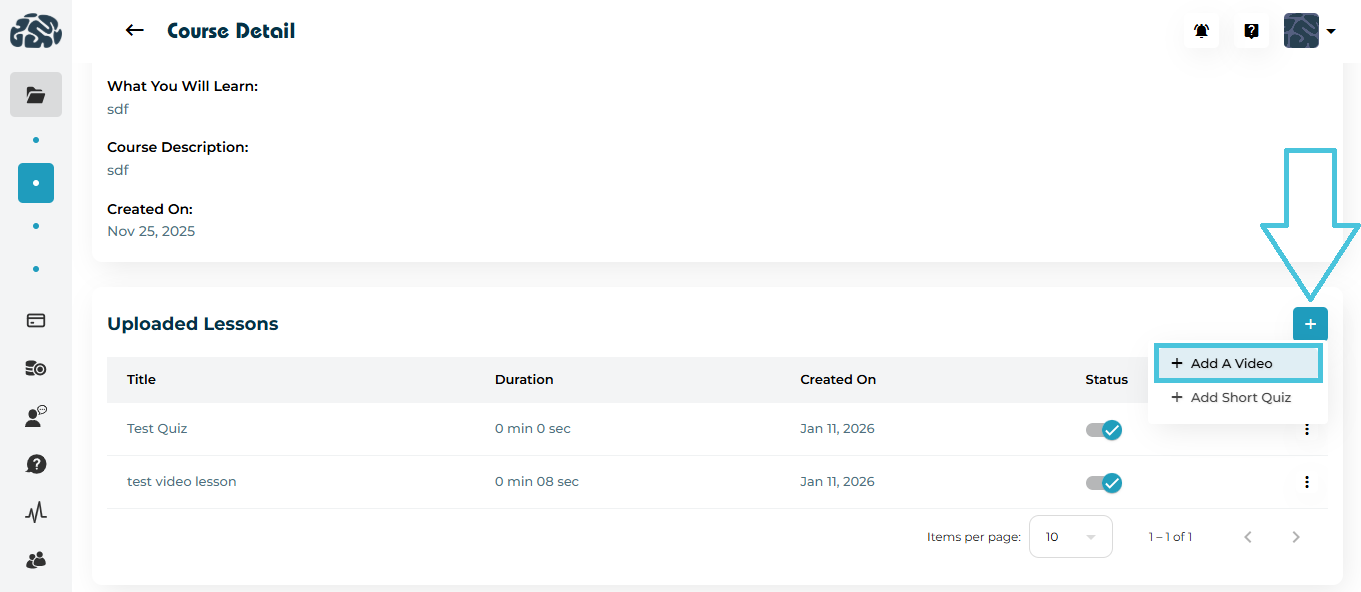
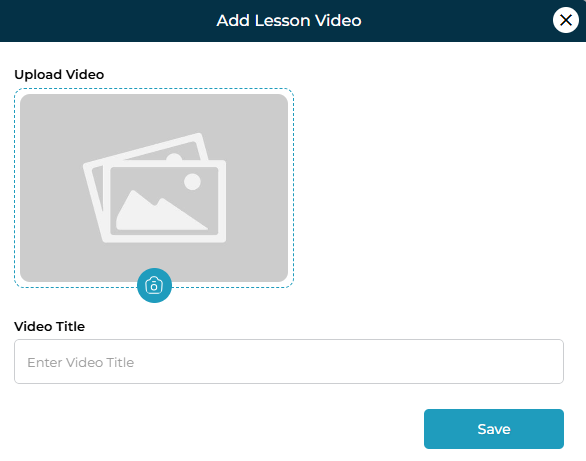
Course categories help organize video courses and learning programs.
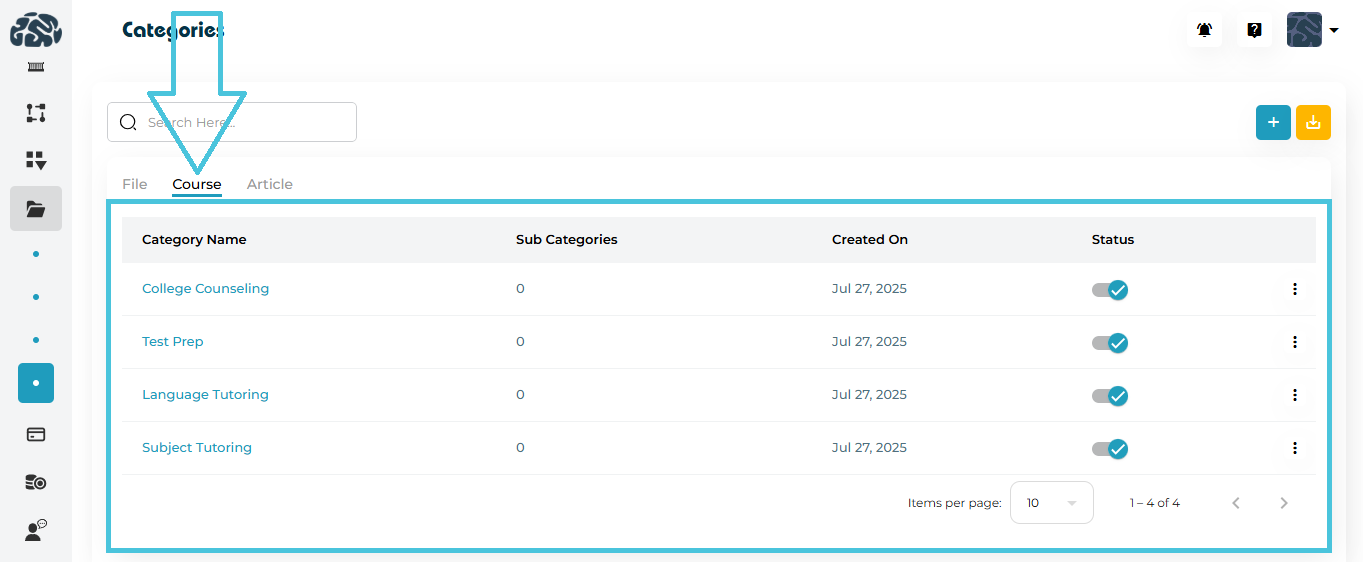
Viewing Course Categories
Switch to the Course tab
View categories and sub-category counts
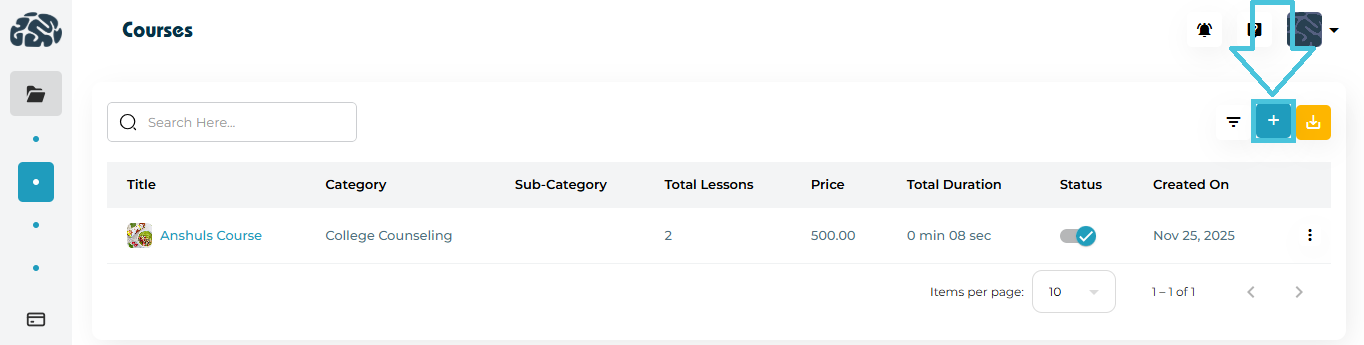
Adding a Course Category

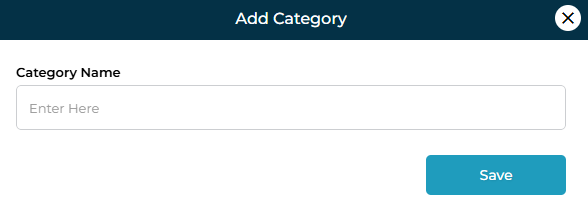
Click ➕ Add Category
Enter category name
Save
Managing Course Sub-Categories
Click a course category name to manage sub-categories
Add, edit, delete, or export sub-categories the same way as files

Editing & Deleting Course Categories
Use the three-dot menu to edit or delete
Changes reflect immediately in course creation and filtering
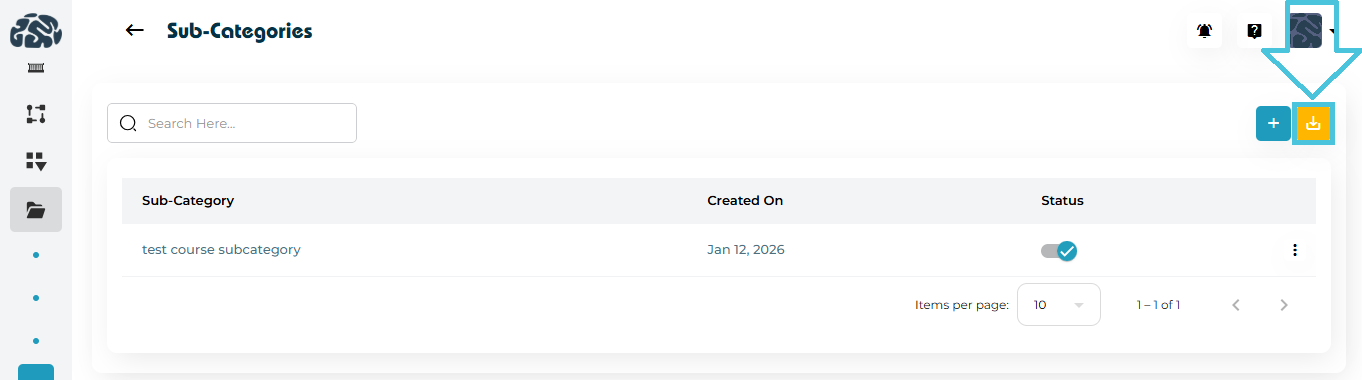
Exporting Course Categories & Sub-Categories

Use the Download (⬇️) icon for CSV export
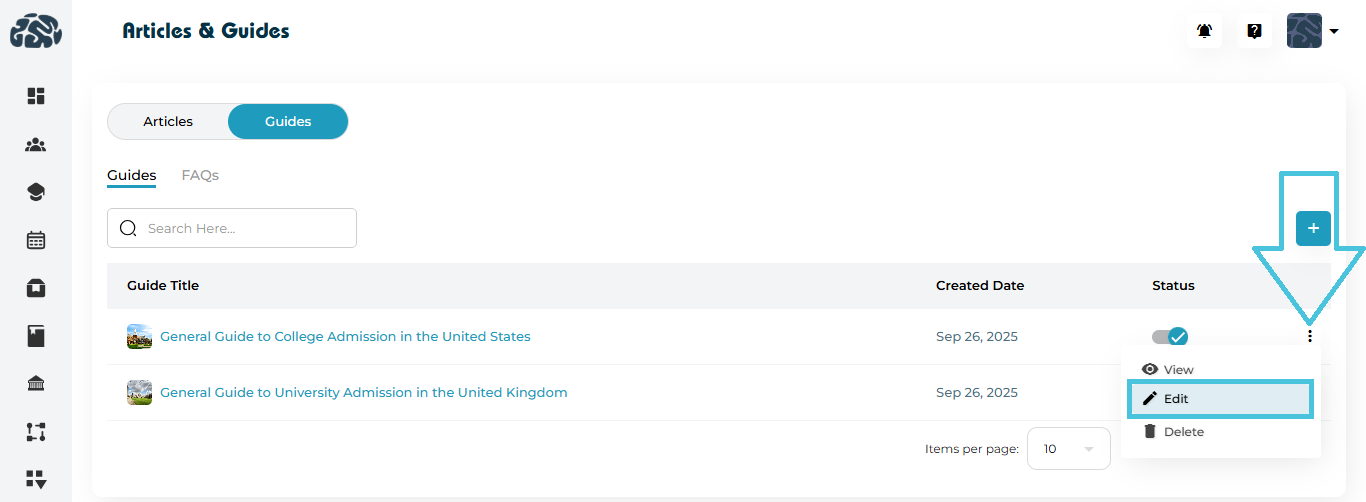
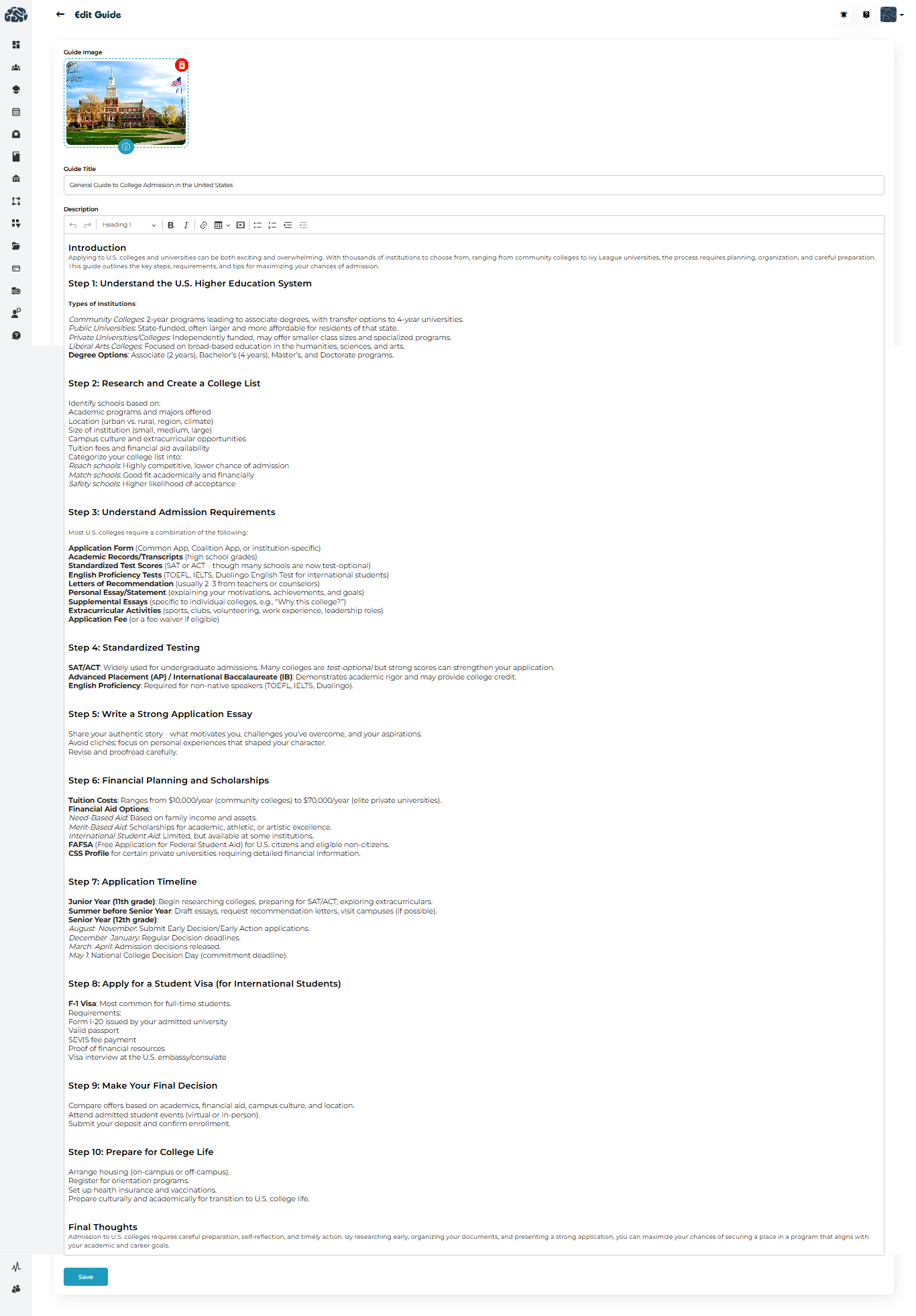
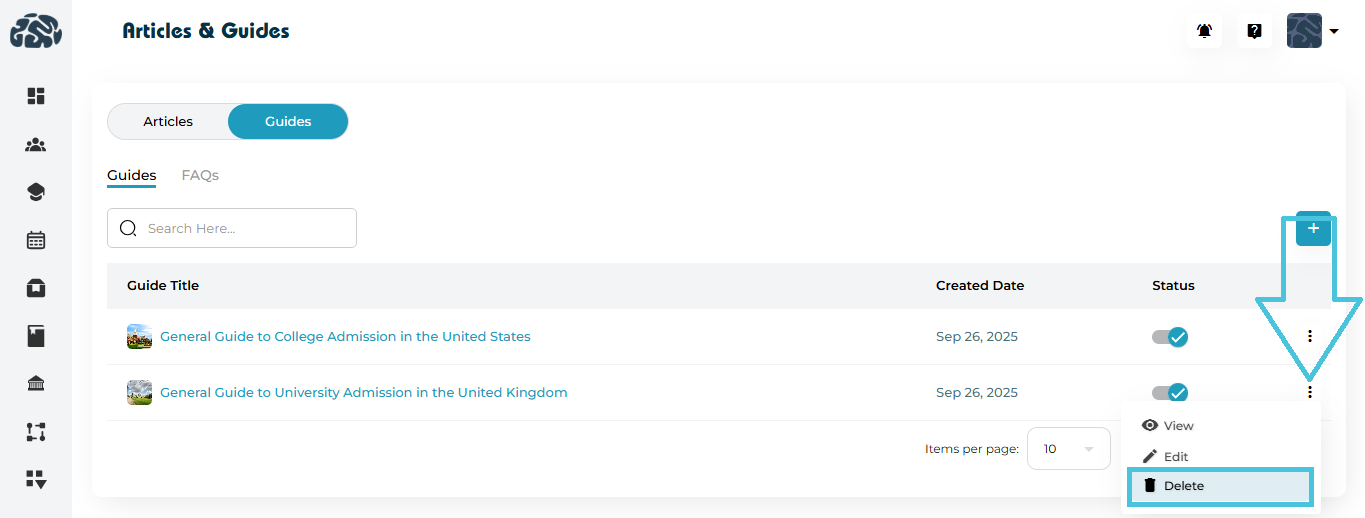
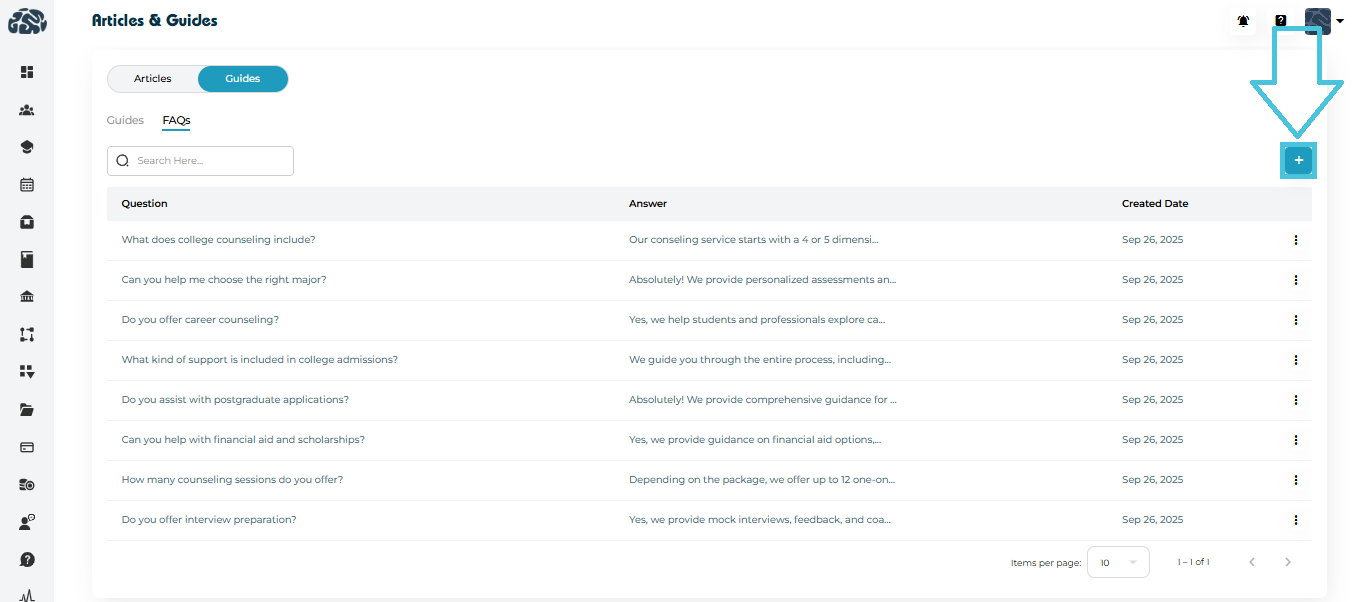
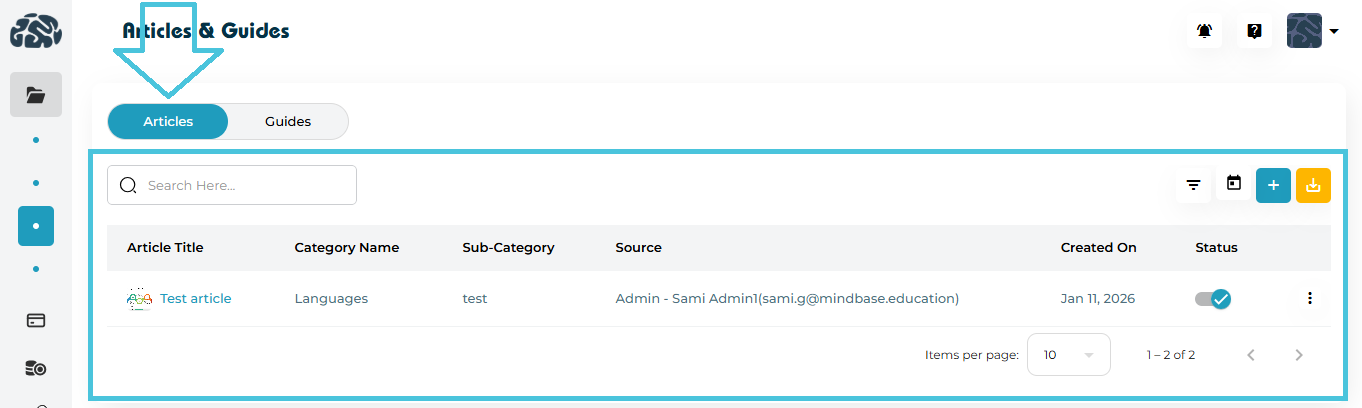
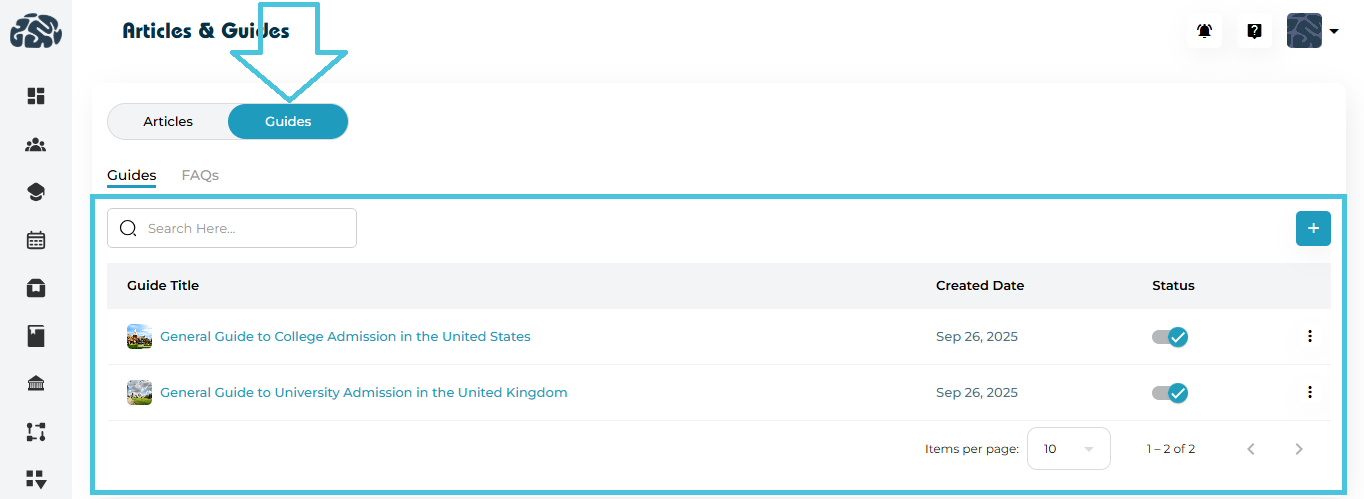
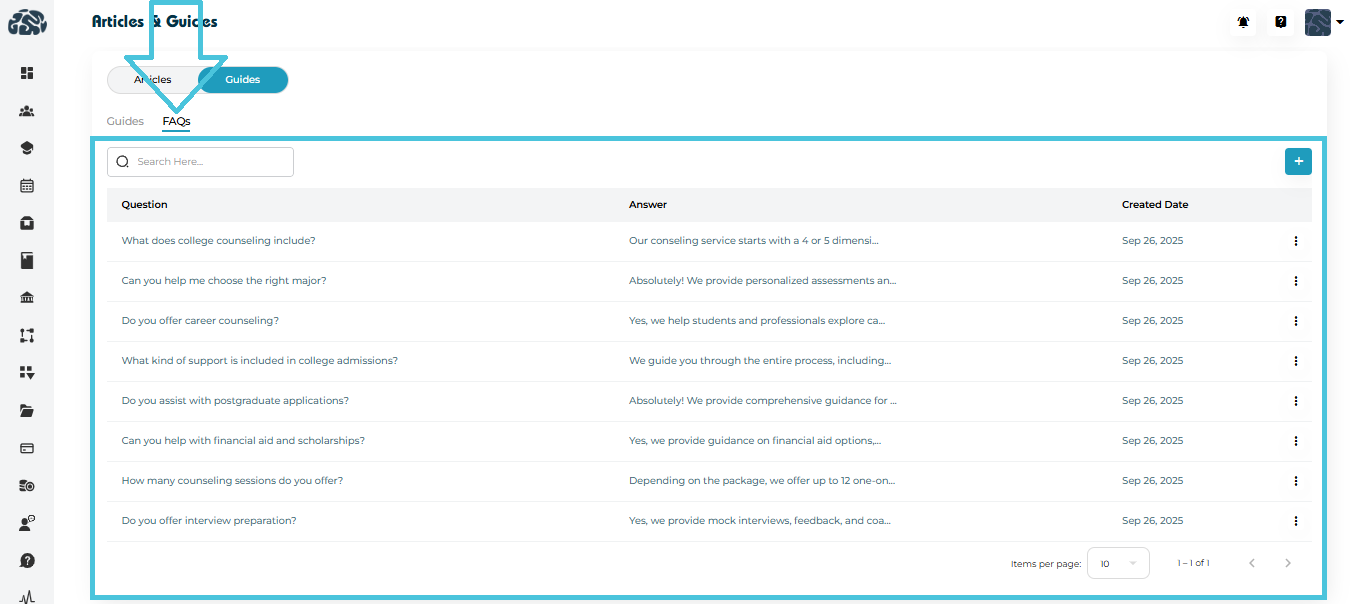
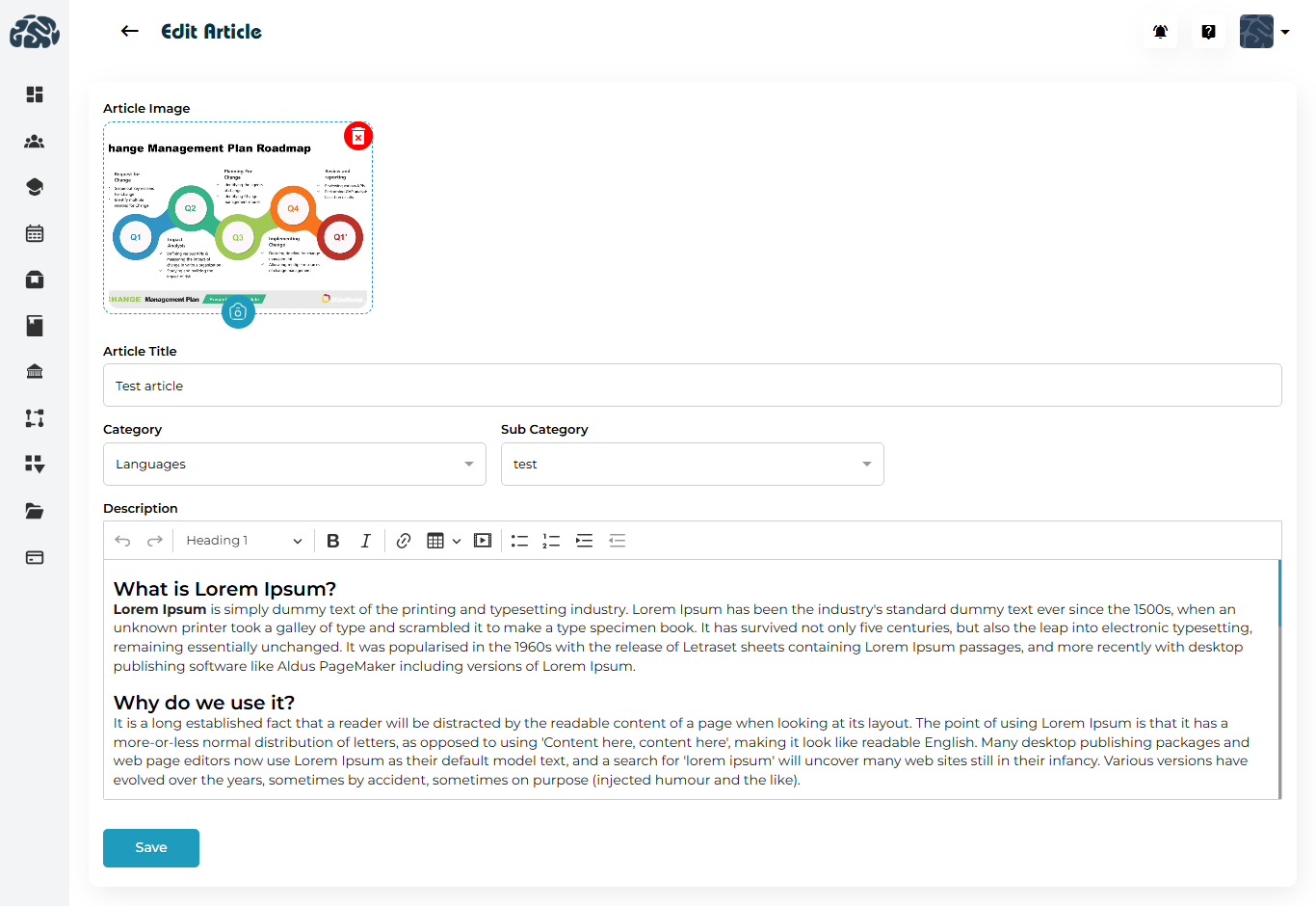
Article categories organize Articles, Guides, and FAQs shown in Articles & Guides.
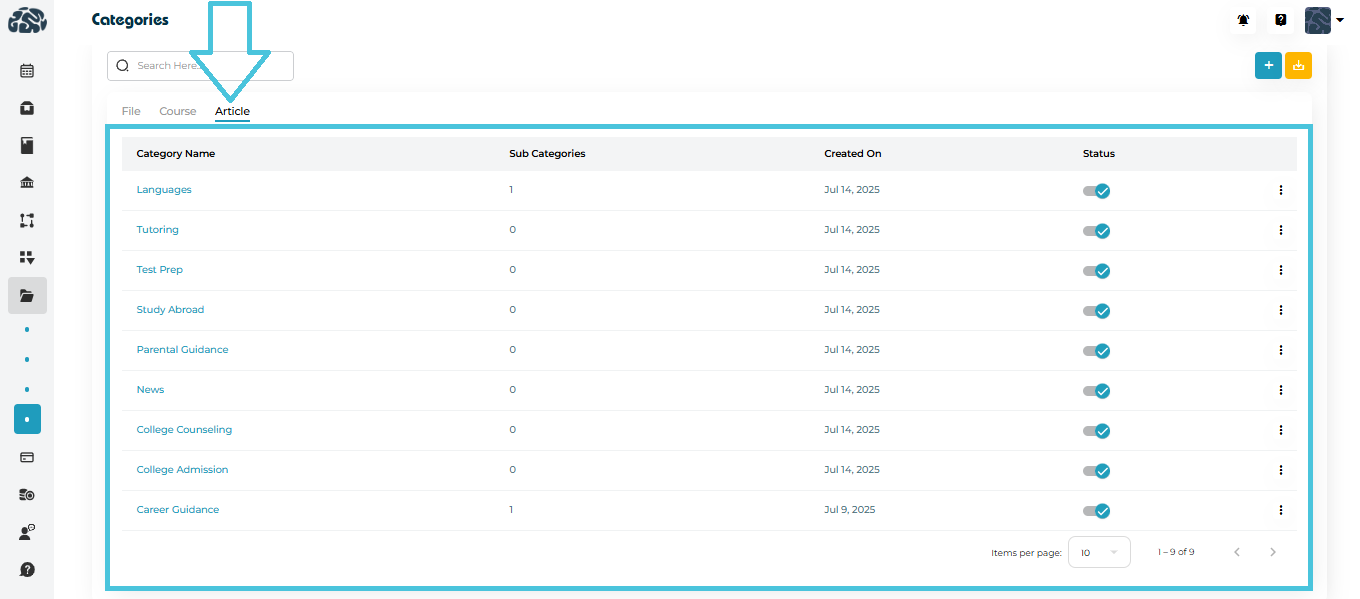
Viewing Article Categories
Switch to the Article tab
See categories used for educational content
Adding an Article Category
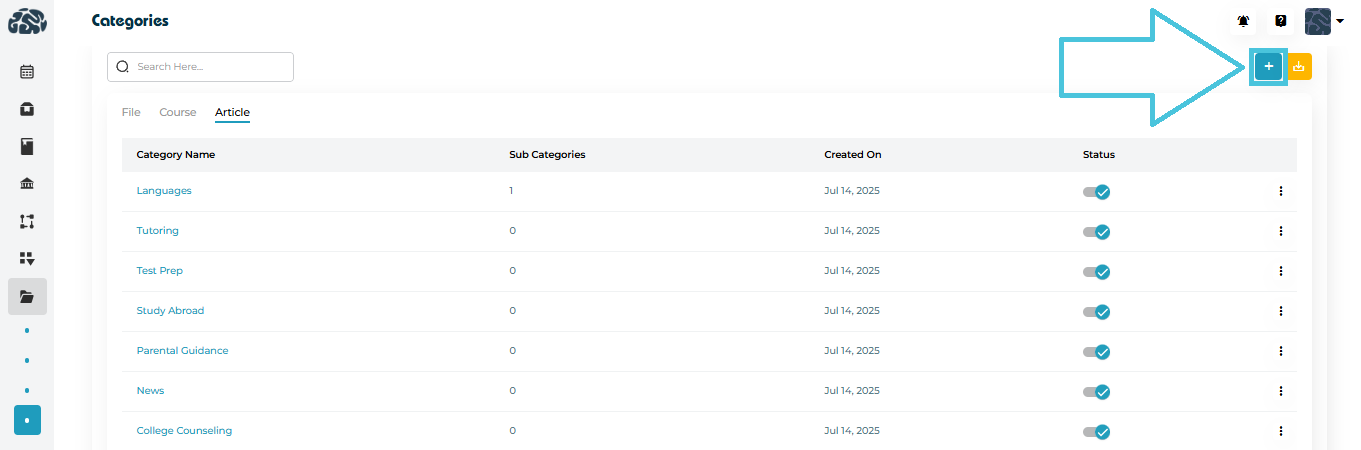
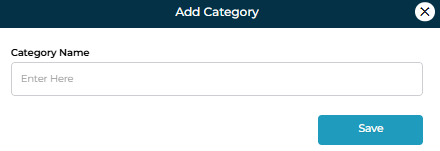
Click ➕ Add Category
Enter category name
Save
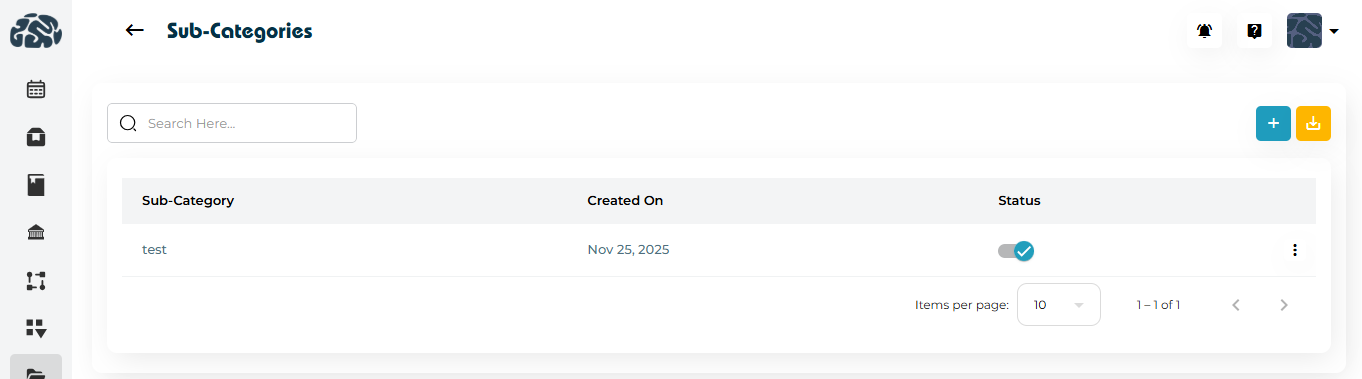
Managing Article Sub-Categories
Click a category name to open sub-categories
Add or manage sub-categories for content grouping
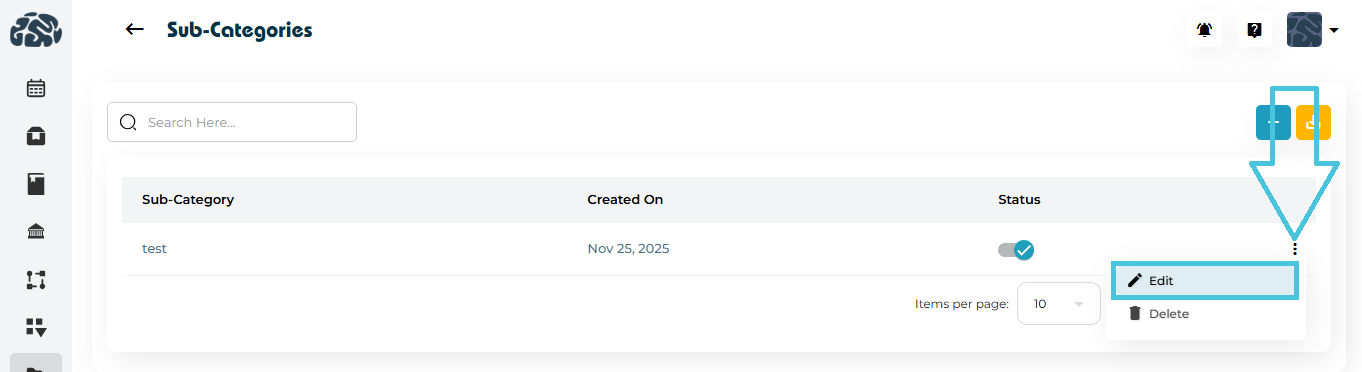
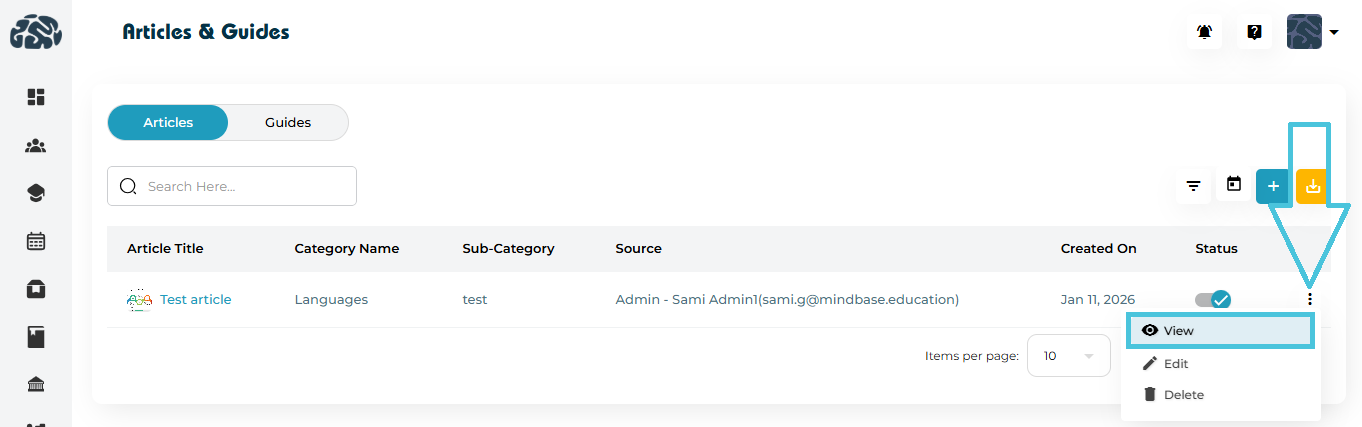
Editing & Deleting Article Categories
Use the three-dot menu
Select Edit or Delete
Exporting Article Categories
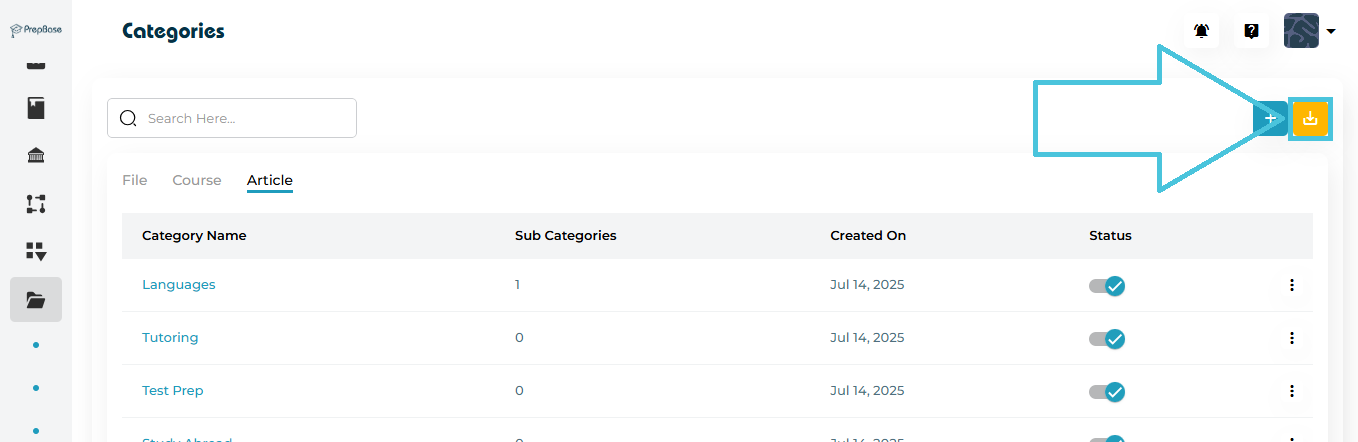
Click Download (⬇️) to export article categories and sub-categories
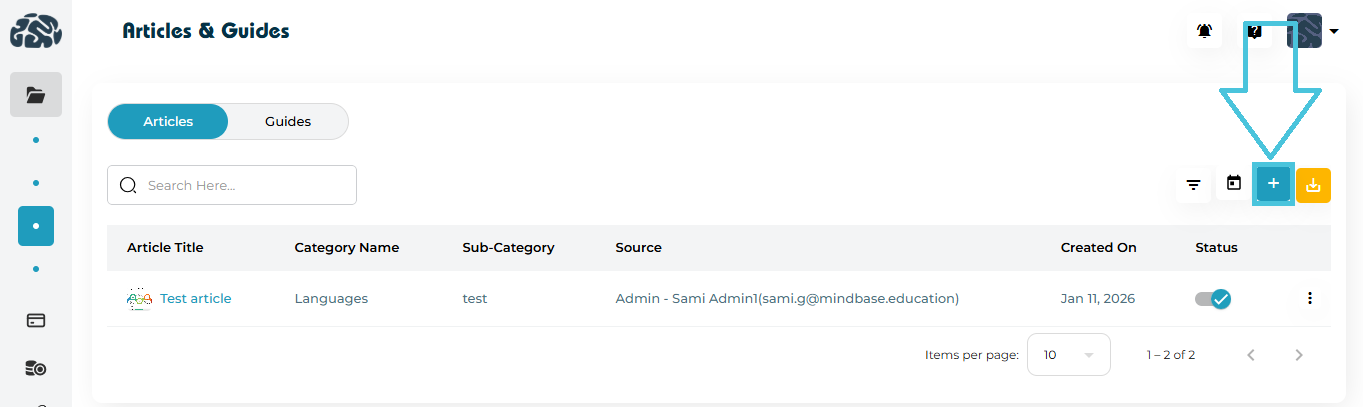
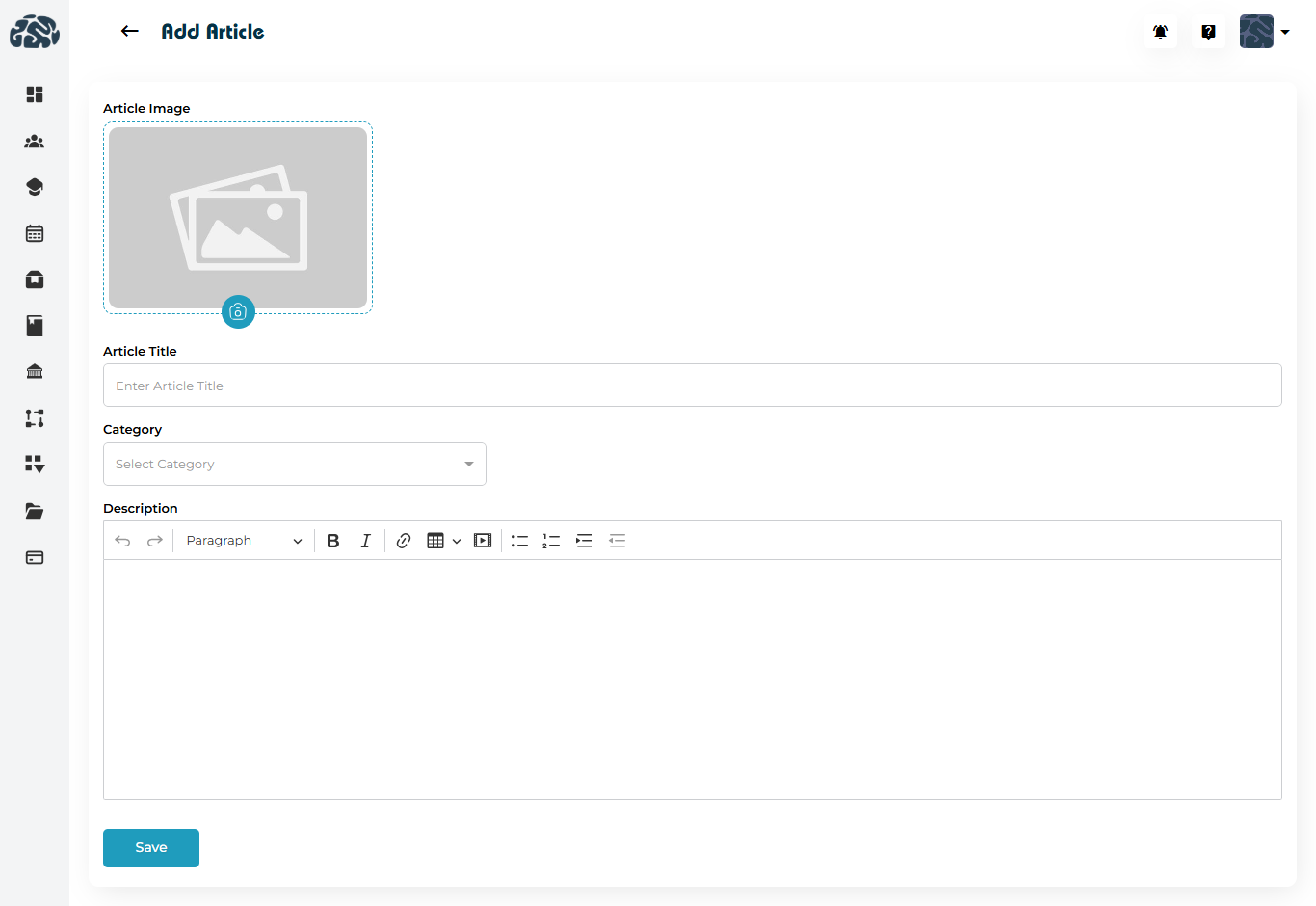
 Add
Add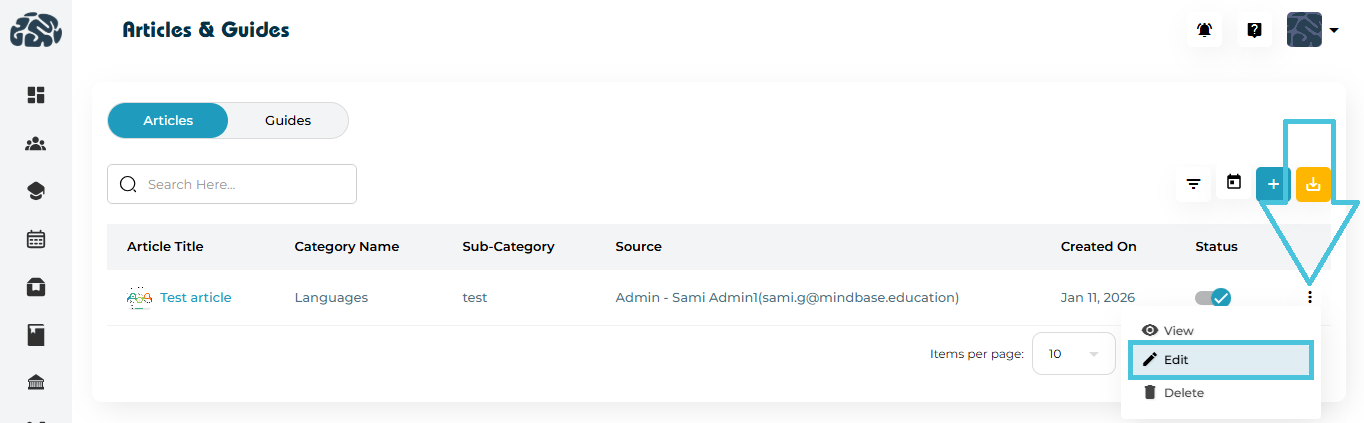
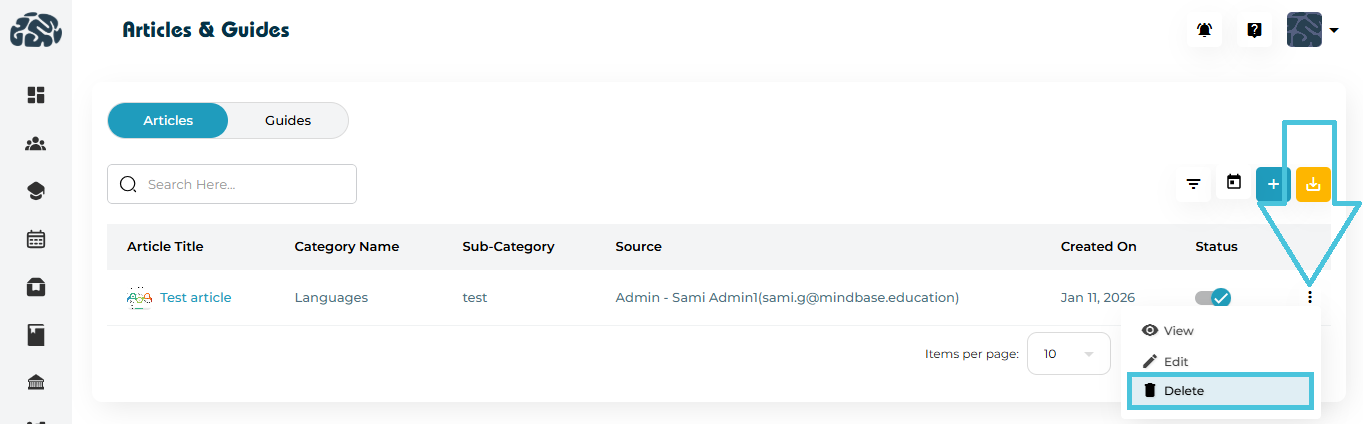
 Deleted articles are permanently removed and cannot be restored.