Defining student and academic statuses

Defining Statuses and Academic Statuses

This guide explains how admins can define, organize, and manage student statuses and academic statuses inside the PrepBase Admin Portal. These statuses act as standardized labels that help track student progress and academic standing within projects lifecycle stages across the platform.

NOTE: The statuses and academic statuses are created as lists that can then be attached to any project when created from the admin panel.

1. Overview: Why Statuses Matter

Statuses provide a structured way to:

  • Track student academic progress

  • Monitor project or application lifecycle stages

  • Maintain consistency across teams

  • Enable clearer reporting and filtering

  • Reduce ambiguity in student and project management


PrepBase separates statuses into two distinct categories to avoid overlap and confusion.

2. Status Categories in PrepBase

1. Student Project Status

Used to track the progress of a student’s project, such as counseling journeys, applications, or structured tasks.
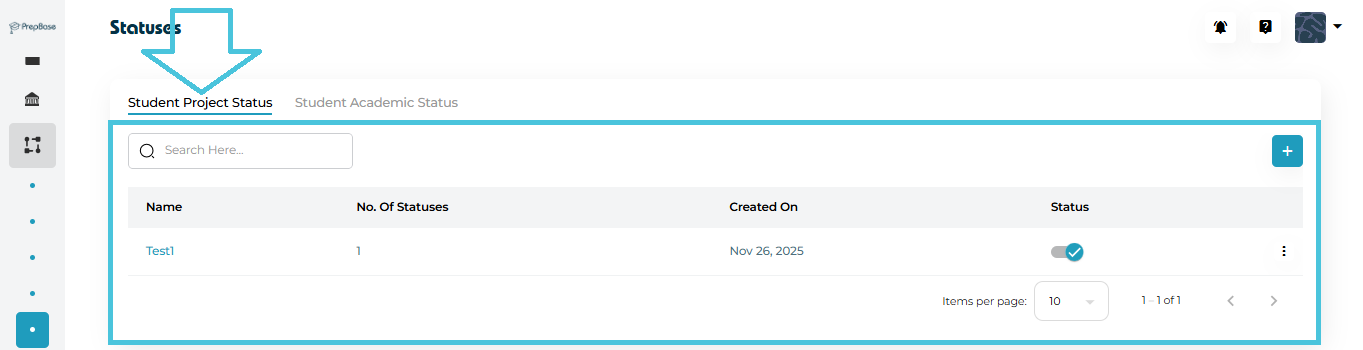


Examples:

  • Not Started

  • In Progress

  • On Hold

  • Completed


These statuses are typically applied to:

  • College application projects

  • Counseling workflows

  • Long-term student initiatives

2. Student Academic Status

Used to describe a student’s academic standing or learning state at a given time.
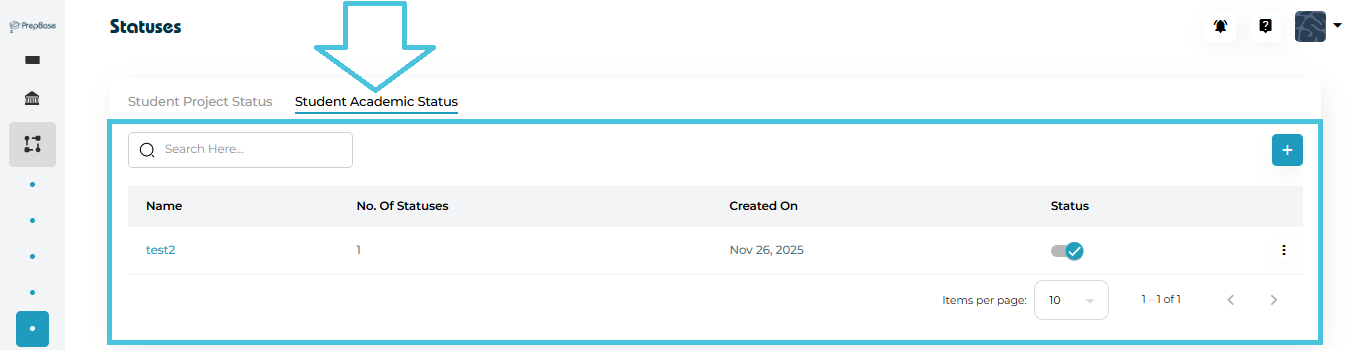
 

Examples:

  • Active

  • Academic Review

  • Probation

  • Completed

  • Withdrawn


These statuses help counselors and admins quickly understand a student’s academic position without reviewing detailed records.

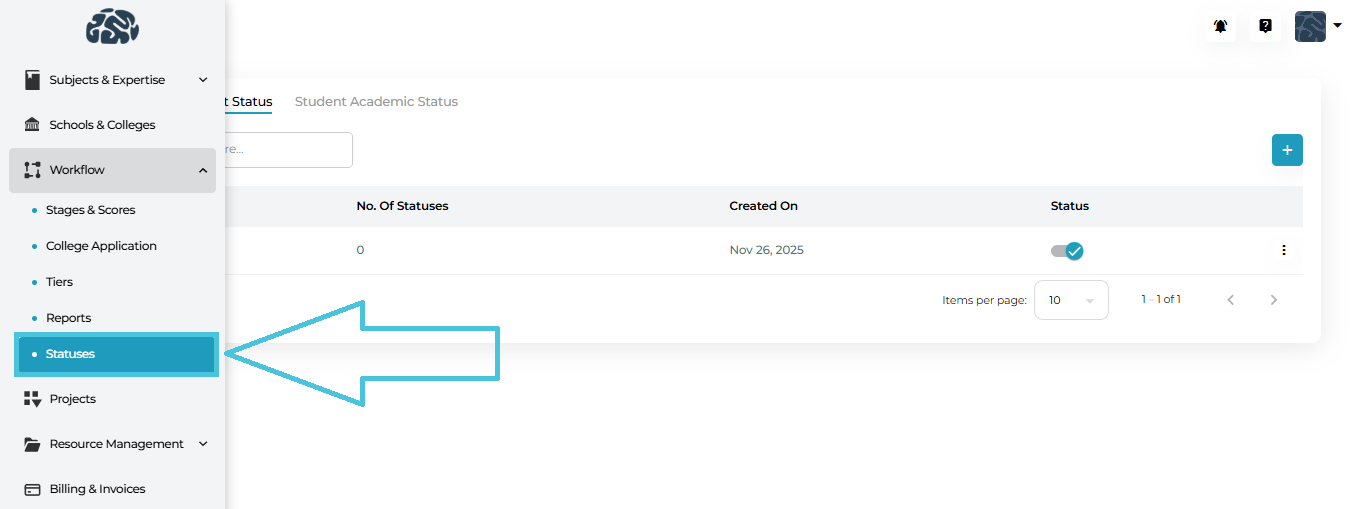
3. Accessing Status Management

Navigate to:


Admin Panel → Workflow → Statuses

You will see two tabs:

  • Student Project Status

  • Student Academic Status

Each tab operates independently but follows the same management logic.

4. Creating a New Status Group

A status group acts as a container for related statuses.
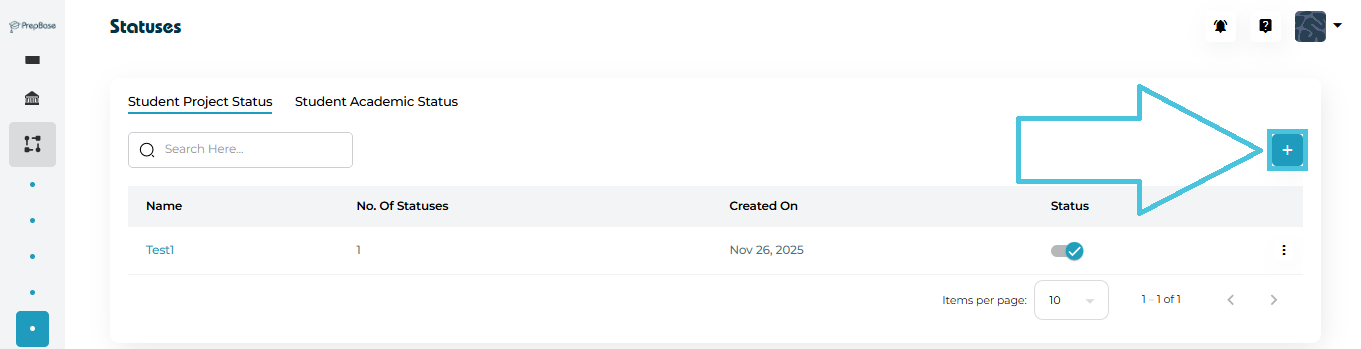
 
Steps:
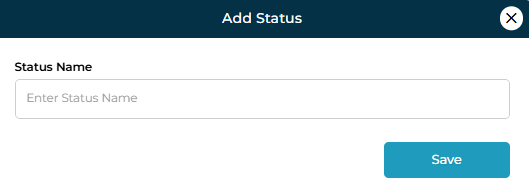
  1. Select either Student Project Status or Student Academic Status

  2. Click ➕ Add New

  3. Enter a Status Group Name

  4. Save the group


Once created, the group will appear in the main list with:

  • Number of statuses inside it

  • Created date

  • Status

5. Adding Statuses Inside a Group

Each status group can contain multiple individual statuses.
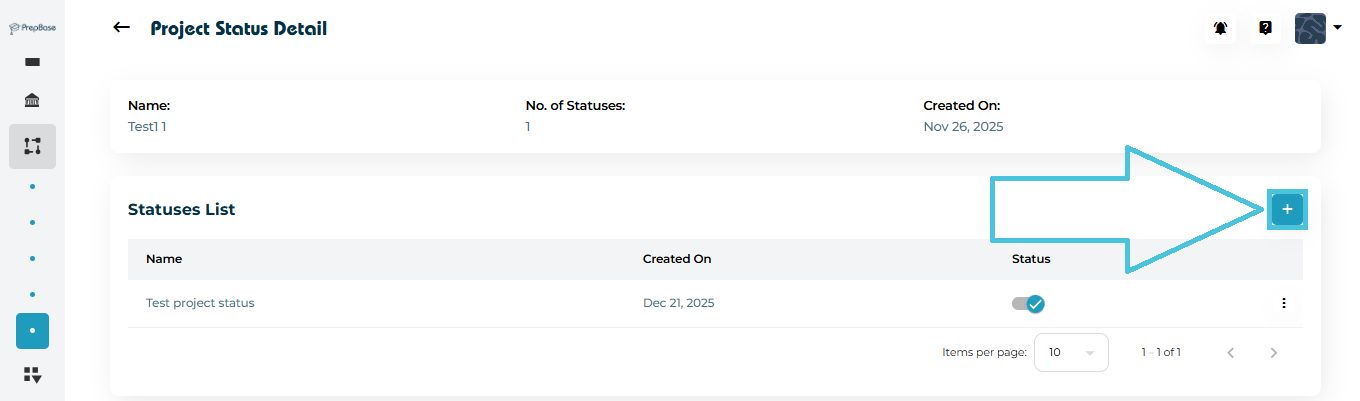
 
Steps:
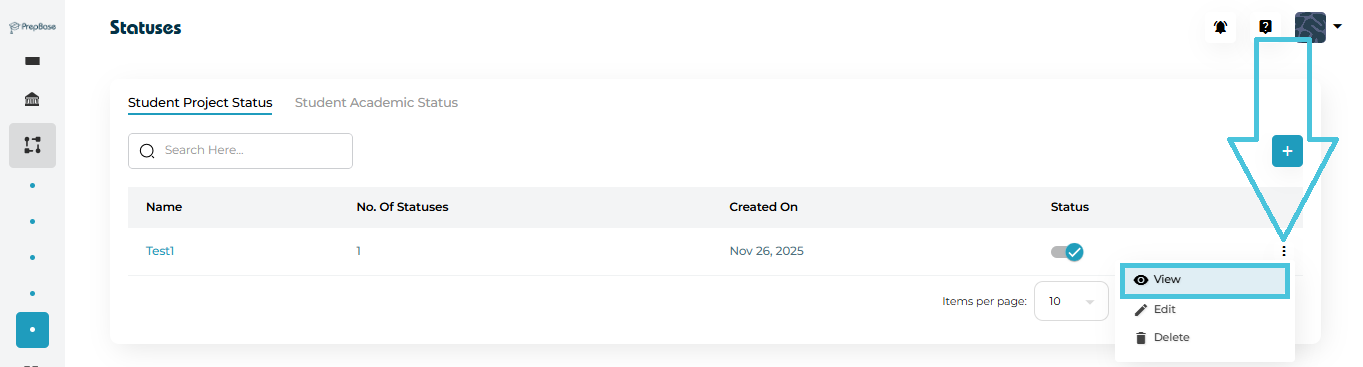
  1. Open a status group using either:

    • View from the three-dot menu

    • Clicking directly on the status group name

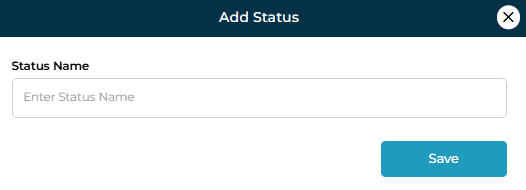
  2. In the Statuses List section, click ➕ Add New

  3. Enter the Status Name

  4. Save


These individual statuses represent the actual labels used across student profiles and projects.

6. Viewing Status Details

You can view details in two ways:


  • Click View from the three-dot menu

  • Click directly on the status group name

The detail view shows:
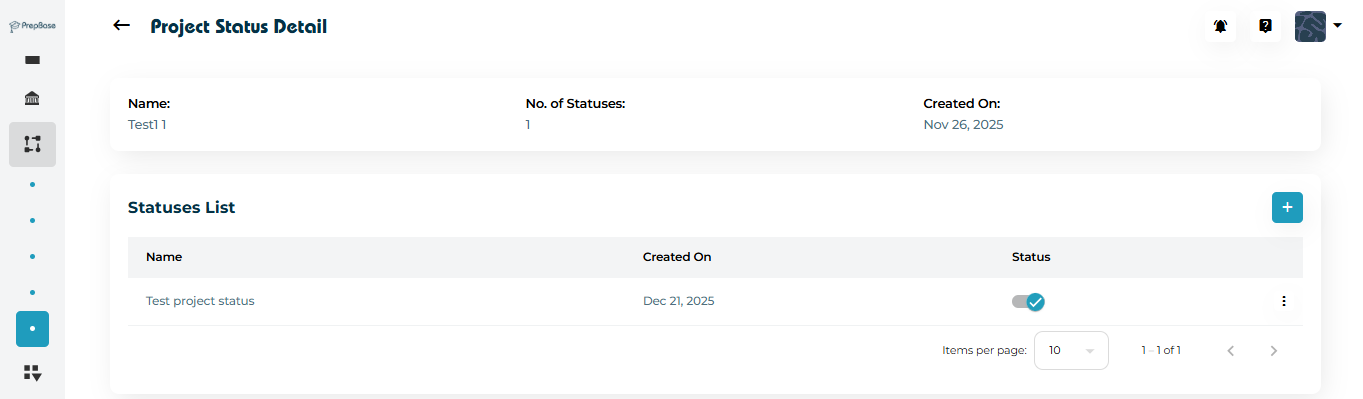
 

  • Status group name

  • Total number of statuses

  • Created date

  • List of all inner statuses with their current state

This makes it easy to audit and review how statuses are structured.

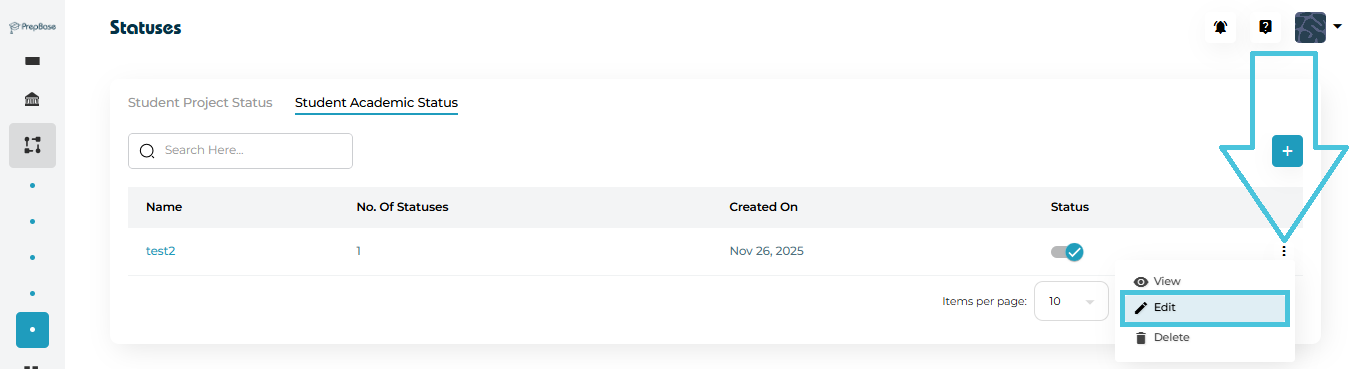
7. Editing Status Groups or Individual Statuses

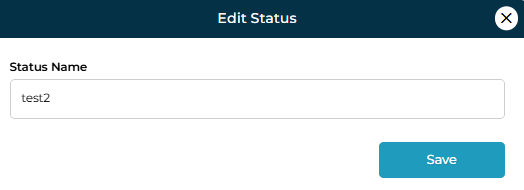
Edit a Status Group:

  • Open the three-dot menu

  • Select Edit

  • Update the name


  • Save changes

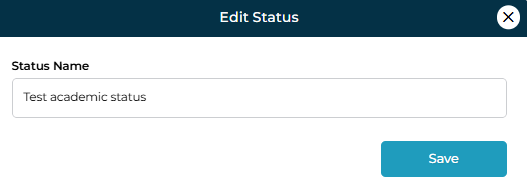
Edit an Individual Status:
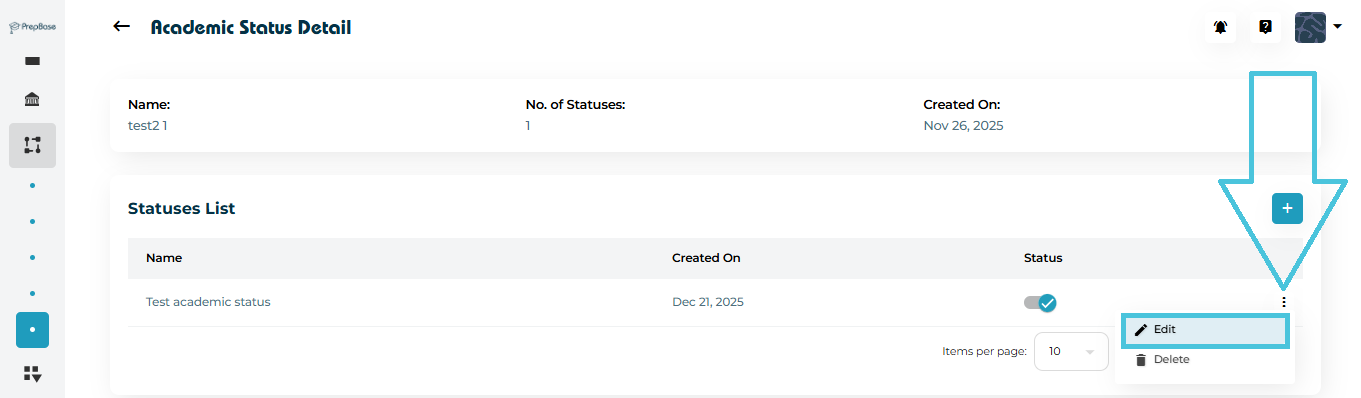
 

  • Open the status group

  • Use the three-dot menu next to the specific status

  • Select Edit

  • Update the name

  • Save

Edits apply immediately across the system wherever the status is used.

8. Enabling or Disabling Statuses

Each status and status group includes a status toggle.
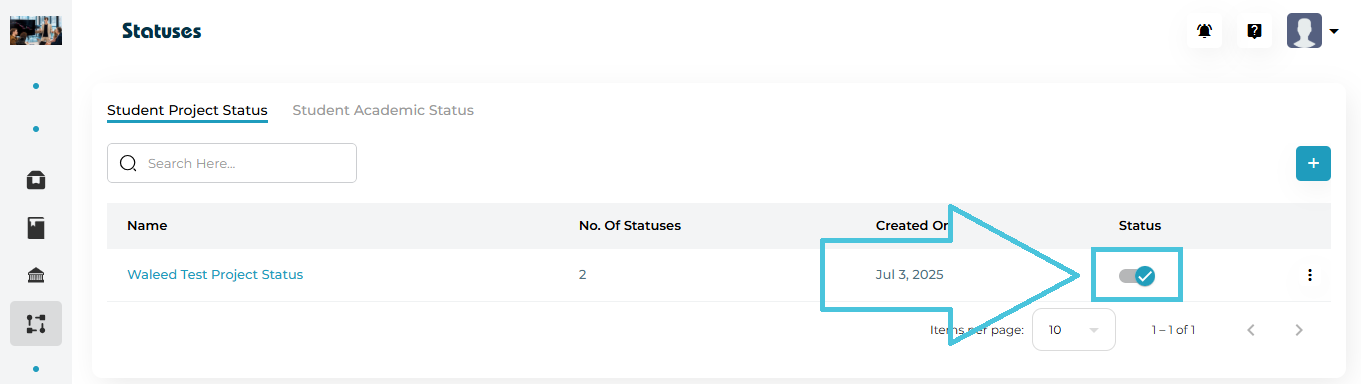
 

  • Enabled: Status is available for selection

  • Disabled: Status is hidden but not deleted

This is useful for:

  • Temporarily retiring old statuses

  • Maintaining historical data

  • Avoiding accidental usage

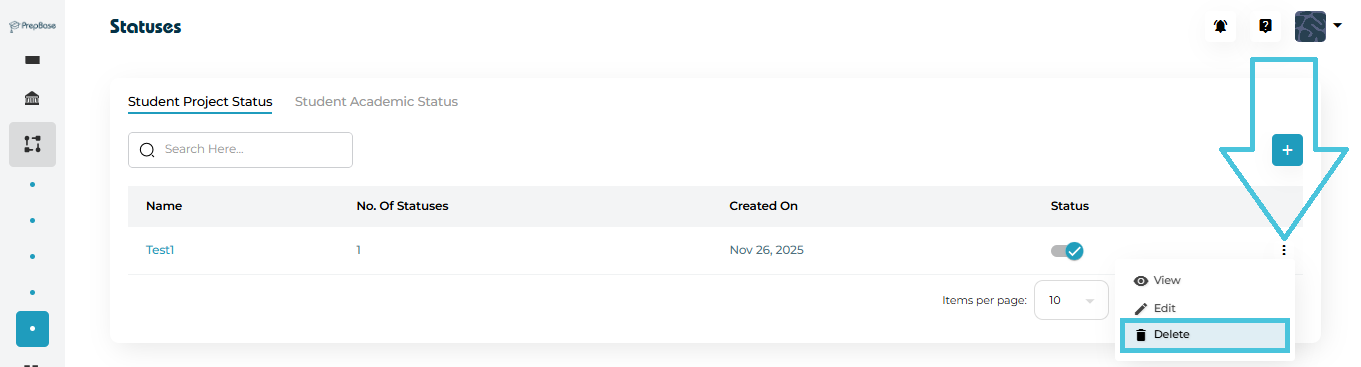
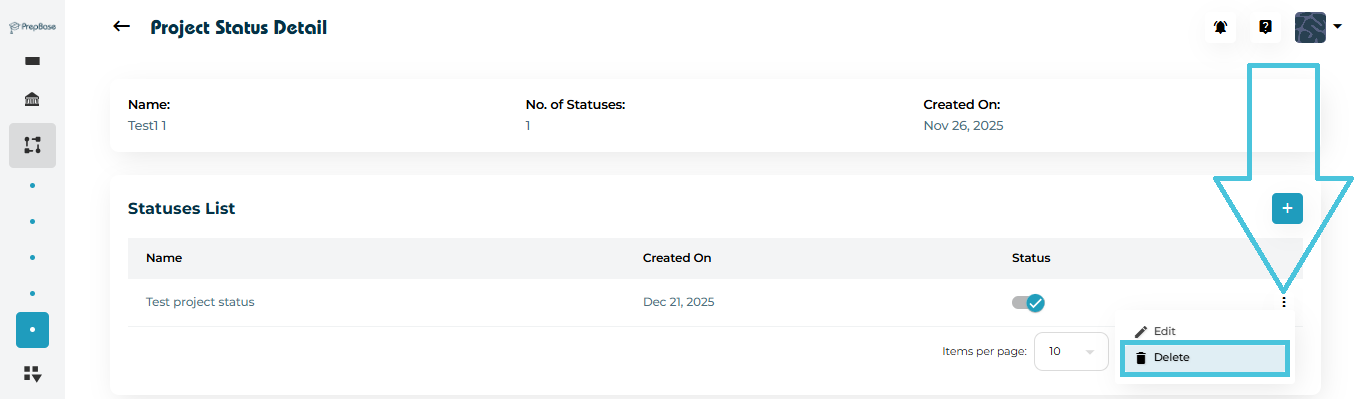
9. Deleting Statuses (With Caution)

Admins can delete:


  • Entire status groups


  • Individual statuses inside a group


⚠️ Best Practice:
Only delete statuses that are no longer in use, as removing active statuses may impact reporting or historical records.
IN THIS ARTICLE

Creating custom analytics reports

Creating Custom Reports

Creating custom reports in PrepBase allows administrators to design structured, reusable reports that capture exactly the data needed for monitoring progress, performance, and outcomes across projects.
These reports are fully configurable, role-aware, and can be expanded over time without affecting existing data.
NOTE: The Custom Reports are only used within projects when created from the admin panel and can be set to be accessed by instructors only or both instructors and students. 

1. What Are Custom Reports?

Custom reports are flexible and configurable report templates that define:

  • What information is collected

  • Who can view or fill the report

  • How data is structured using custom fields

Each report can contain multiple report entries (sections), and each entry can include multiple questions or data fields such as text, dropdowns, dates, or numeric inputs.

2. Accessing the Reports Module

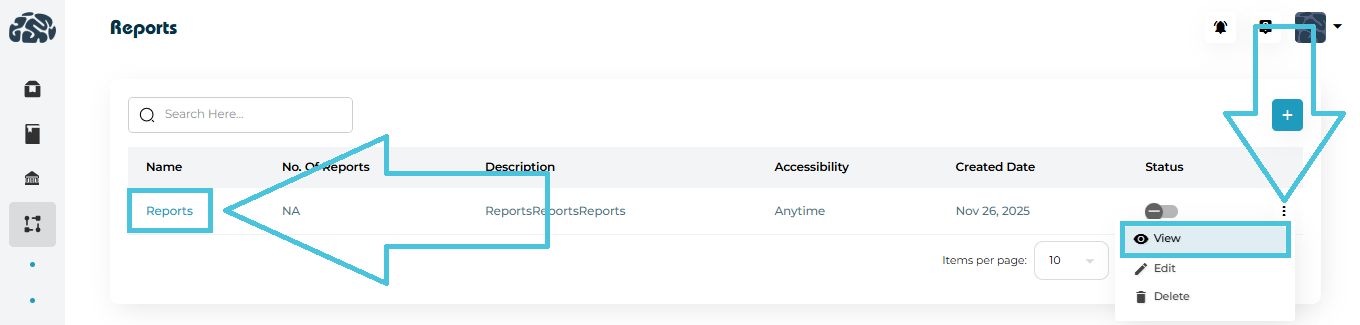
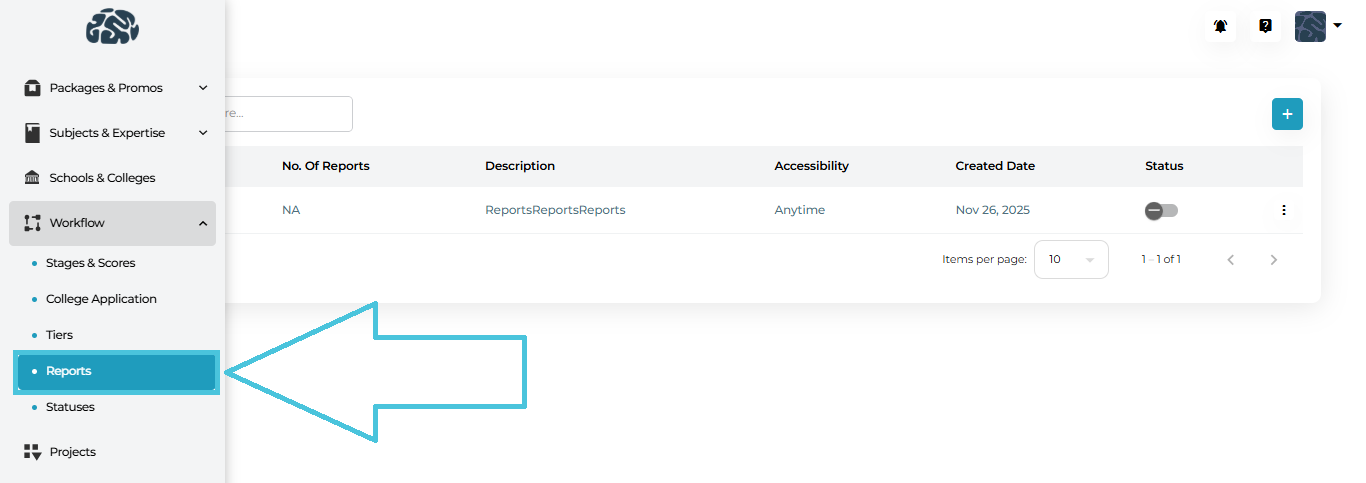
To manage reports:


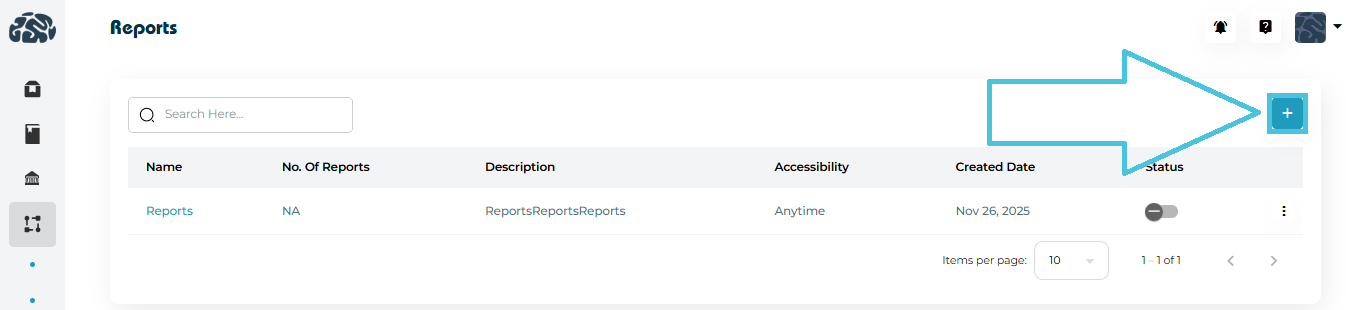
  1. Open the Workflow section from the left navigation.

  2. Click Reports.

  3. You’ll see a list of all existing reports along with:

    • Number of report entries

    • Accessibility

    • Created date

    • Status (Active / Inactive)

3. Creating a New Report


To create a new report:


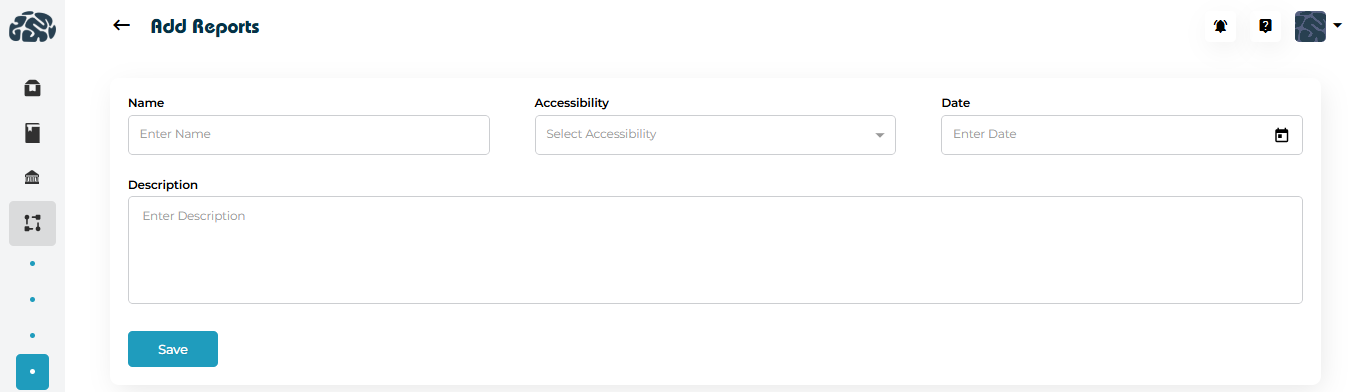
  1. Click ➕ Add New on the Reports page.

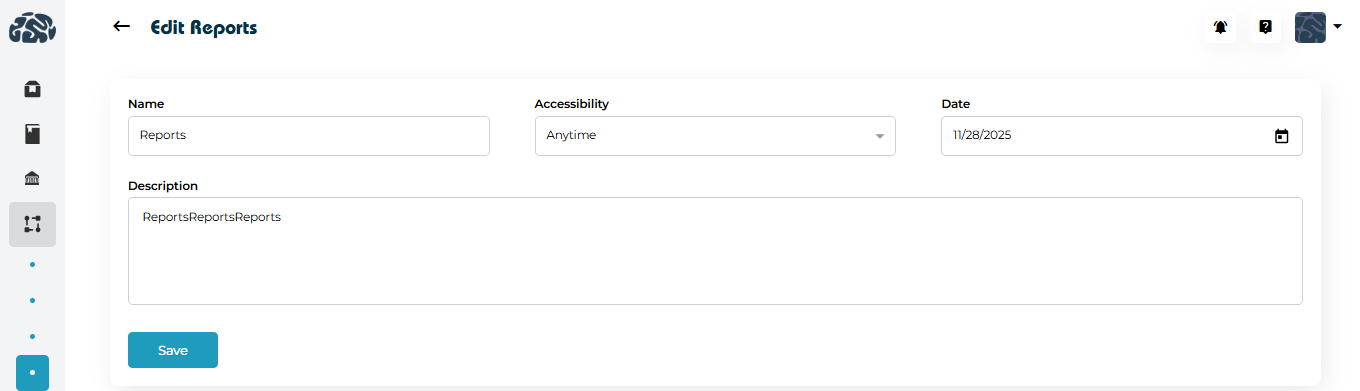
  2. Fill in the core report details:

    • Report Name – A clear, descriptive title (e.g., Student Progress Report).

    • Accessibility – Define when the report can be accessed (e.g., Anytime or date-restricted).

    • Date – Optional availability or reference date.

    • Description – Explain the purpose of the report.

  3. Click Save to create the report container.

At this stage, the report exists but does not yet collect any data until sections and fields are added.

4. Adding Report Sections and Custom Fields

Each report can include multiple report entries (also called report sections).


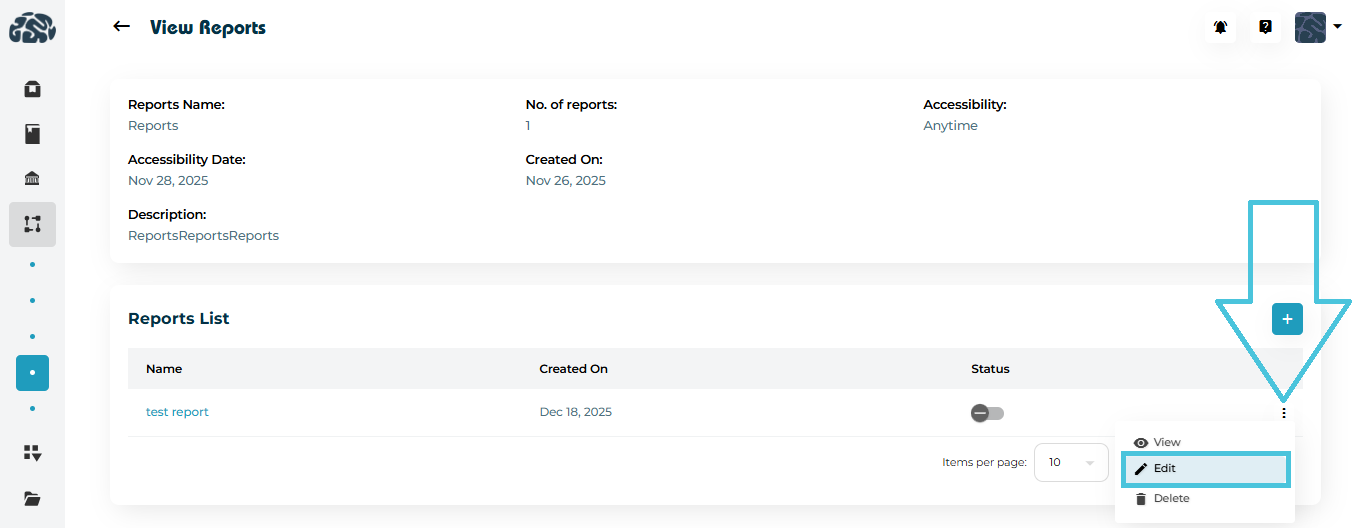
  1. Open a report using either:

    • The View option from the three-dot menu, or

    • Clicking directly on the Report Name.


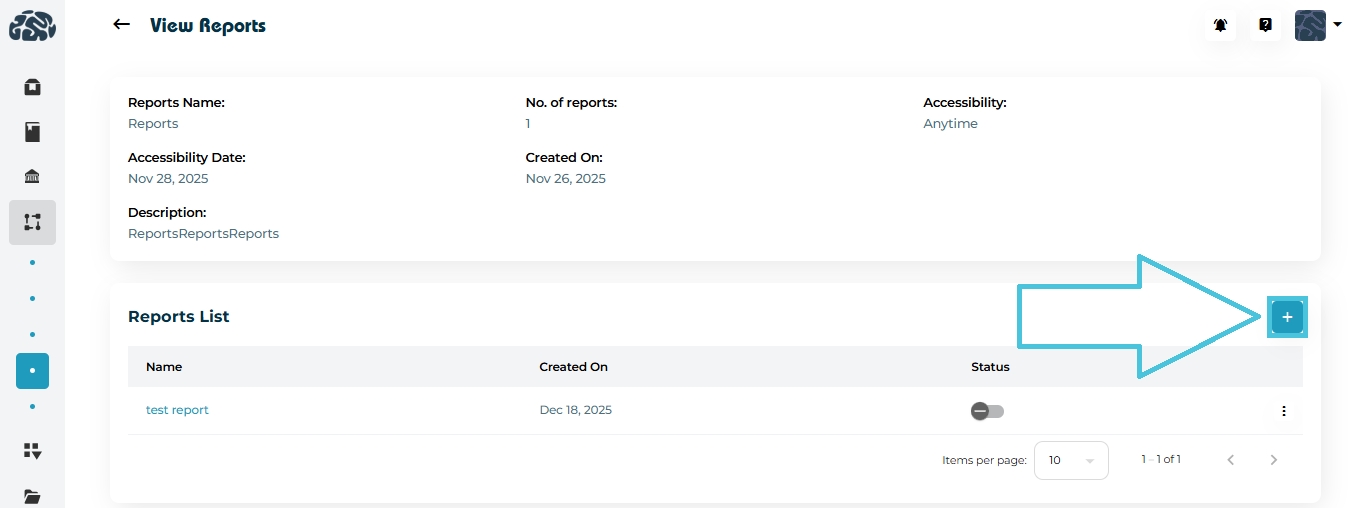
  1. In the Reports List section, click ➕ Add.

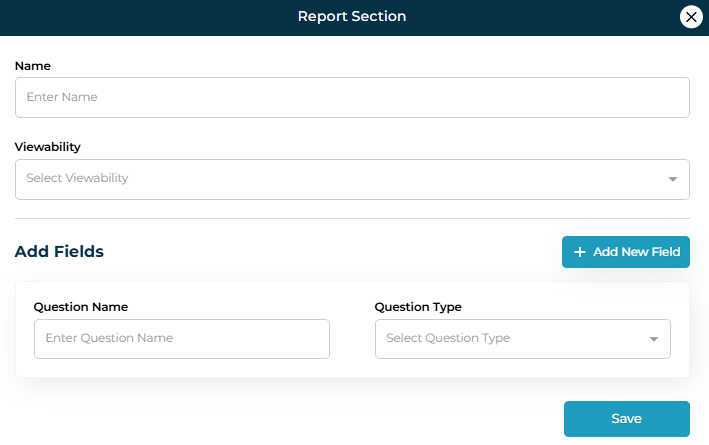
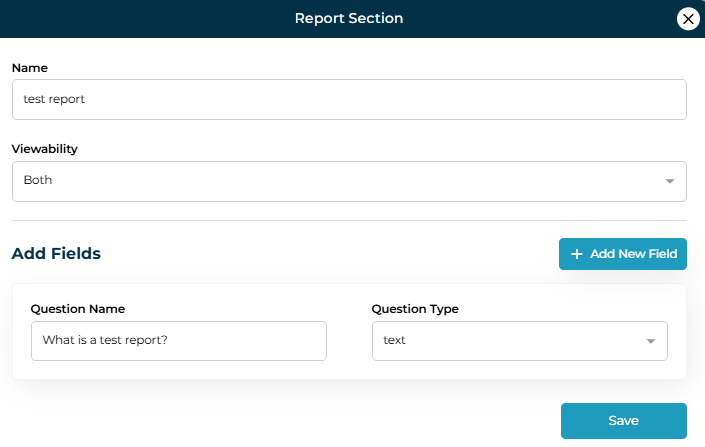
  2. Enter:

    • Section Name (e.g., Academic Evaluation).

    • Viewability – Control who can view or fill this section (students, counselors, or both).

    • Question Name – The prompt shown to users (e.g., What is the student’s current GPA?).

    • Question Type – Choose how data is captured:

      • Text

      • Input
      • Number
      • Textarea
      • Dropdown

      • Multiselect
      • Radio
      • Checkbox
      • Date

  3. Save the field.

This allows a single report to capture different dimensions of analysis in a structured way.

Admin can add as many fields as needed within each report.

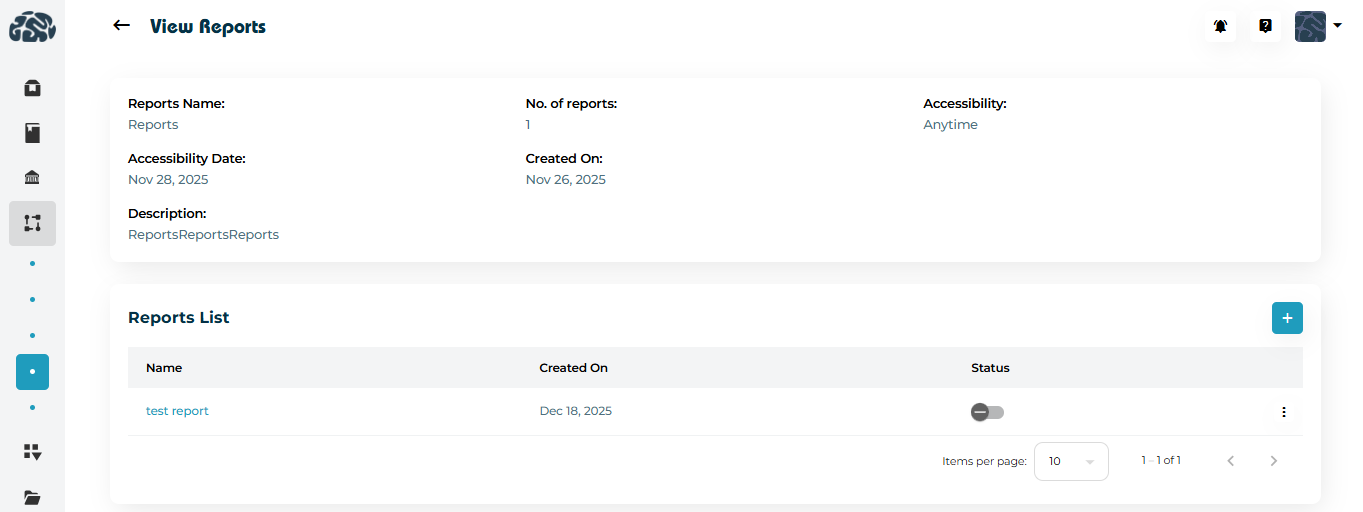
5. Viewing Reports and Report Details


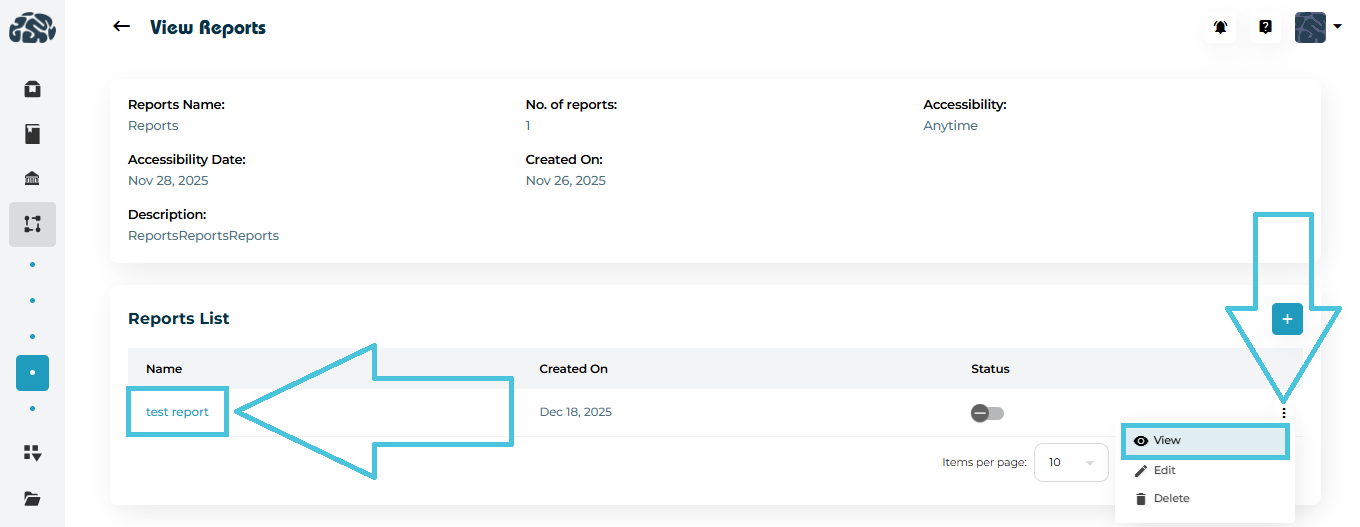
Reports and their sections can be viewed in two ways:


  • Clicking View from the three-dot menu, or

  • Clicking directly on the Report Name or Section Name.

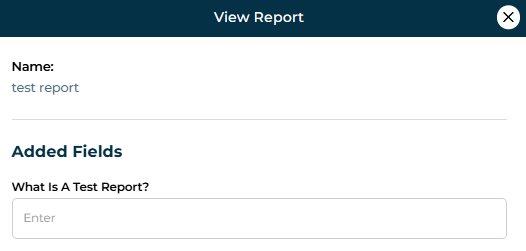
The view screen displays:


  • Report metadata (name, accessibility, created date)

  • List of report sections

  • Fields configured within each section

This makes it easy to audit report structure without editing.

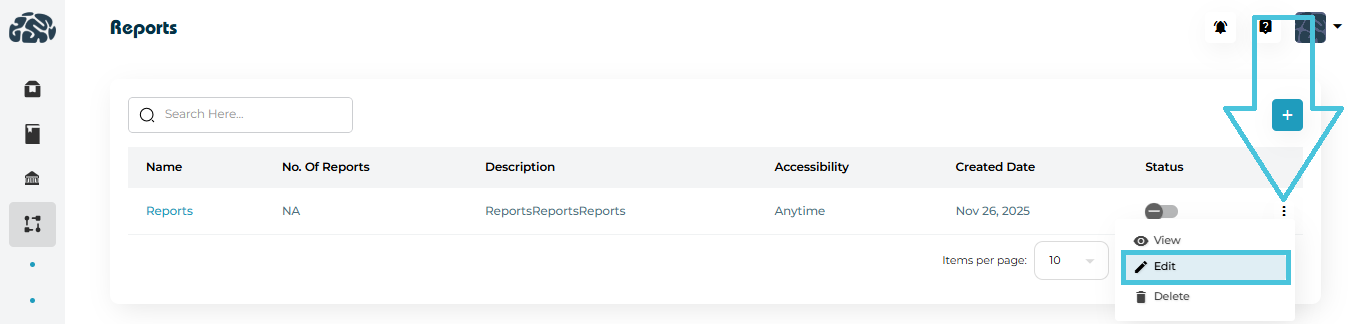
6. Editing Reports and Fields


Administrators can update reports at any time:


  • Edit Report – Change name, accessibility, date, or description.


  • Edit Section – Modify section name or viewability.

  • Edit Fields – Update question text or field type.


Edits apply immediately and help evolve reporting needs without recreating reports from scratch.

7. Managing Report Status

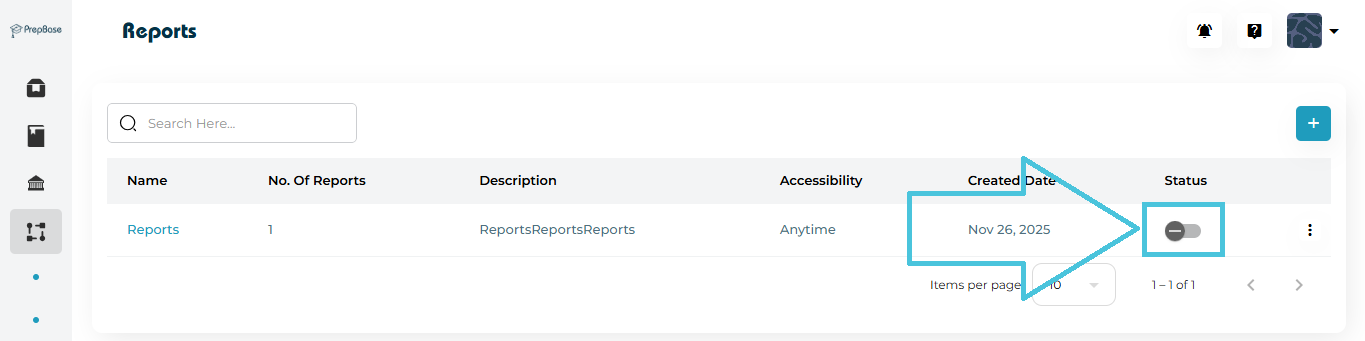
Each report and report entry includes a status toggle:


  • Enabled – Report is active and available for use.

  • Disabled – Report is hidden but preserved for future reactivation.

This is useful for seasonal reports, phased workflows, or archived analytics.

8. Deleting Reports or Sections


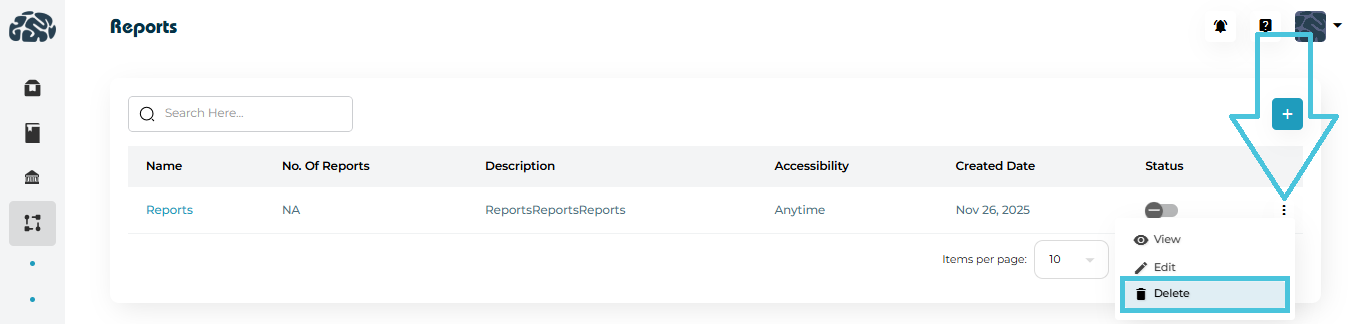
  • Reports or individual sections can be deleted using the Delete option from the three-dot menu.

  • Deletion should be used carefully, as it permanently removes the structure.

For temporary removal, disabling is recommended instead of deletion.

IN THIS ARTICLE

Managing tier-based reports

Managing Tier-Based Reports

Tier-based reports in PrepBase allow admins to structure workflow reporting into clear, progressive layers (tiers). Each tier can represent a milestone, review level, or reporting checkpoint, making it easier to track progress, actions, and feedback across complex processes such as admissions, counseling, or multi-step projects.

This guide explains how to create, view, edit, and manage tiers, and how tier-based reporting improves visibility and decision-making.

NOTE: Tiers reports are only used within projects, and they are optional as a reporting mechanism. These are only accessible to instructors when added to a project.

1. What Are Tier-Based Reports?

Tier-based reports can have multiple tiers within the same report when created to organize reporting data into hierarchical tiers, where each tier can include:

  • Name of the Tier
  • Statuses (e.g., Pending, Approved, Rejected)

  • Actions (e.g., Review, Escalate, Complete)

  • Optional feedback collection


This structure is ideal for:

  • Admission reviews

  • Multi-stage counseling evaluations

  • Internal quality checks

  • Approval-driven workflows

2. Accessing Tiers Management

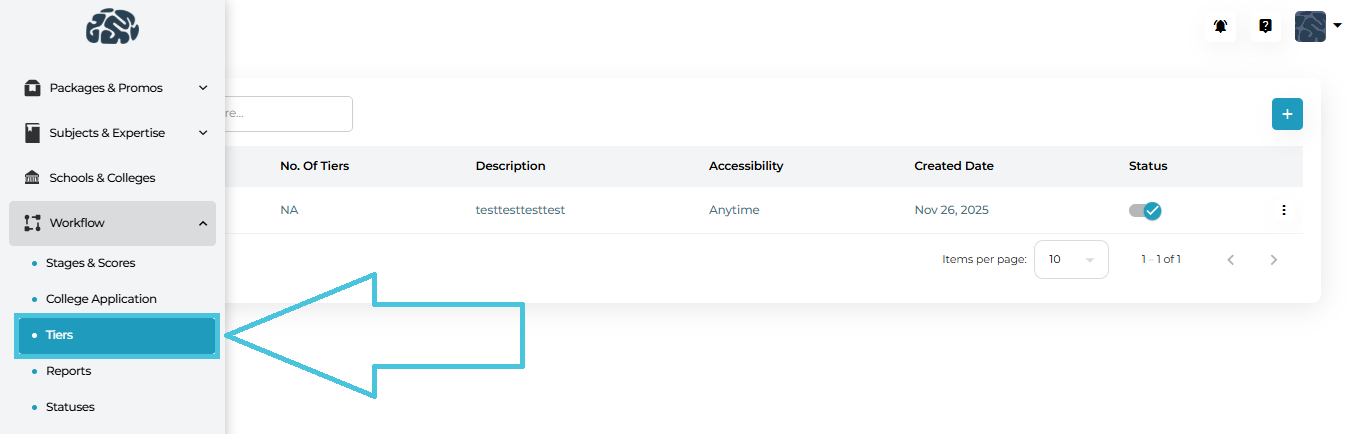
Navigate to:


Admin Panel → Workflow → Tiers

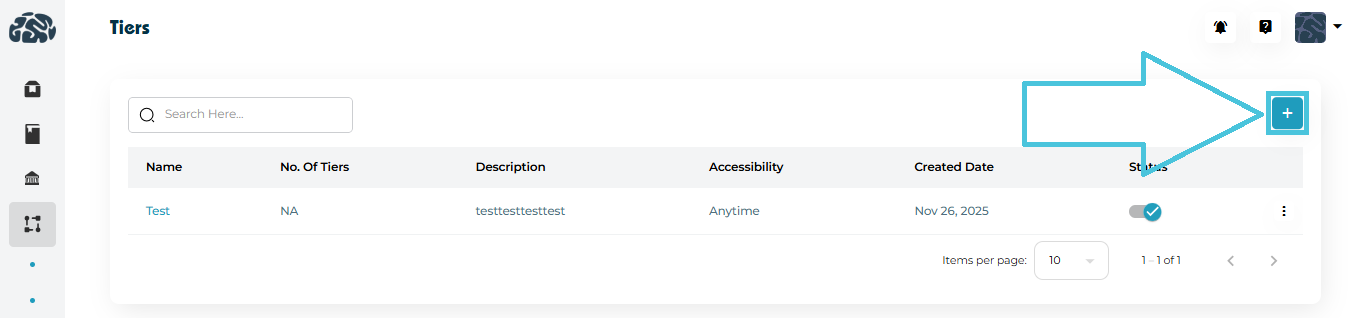
Here, you’ll see a complete list of existing tier reports with:

  • Tier report name

  • Number of tiers inside it

  • Description

  • Accessibility (e.g., Anytime or date-based)

  • Created date

  • Status (Active/Inactive)

3. Creating a New Tier Report


  1. Click ➕ Add on the Tiers page.

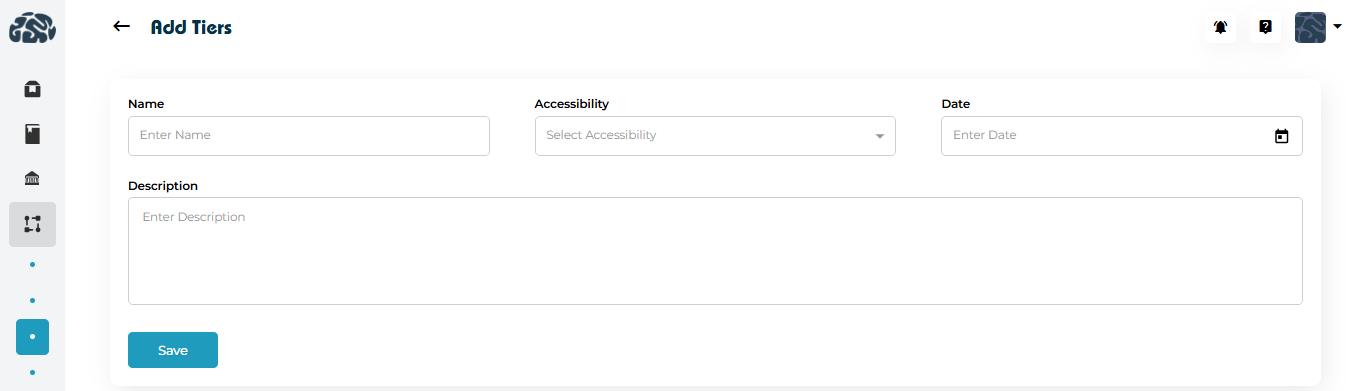
  2. Enter the Tier Report Name (e.g., “Initial Review”).

  3. Select Accessibility:

    • Anytime – always available

    • Once per month – available

    • Twice per month – available
  4. (Optional) Add a Description to clarify the tier report’s purpose.

  5. Click Save.


The tier report is now available for use in projects when created from the admin panel.

4. Viewing Tier Report Details

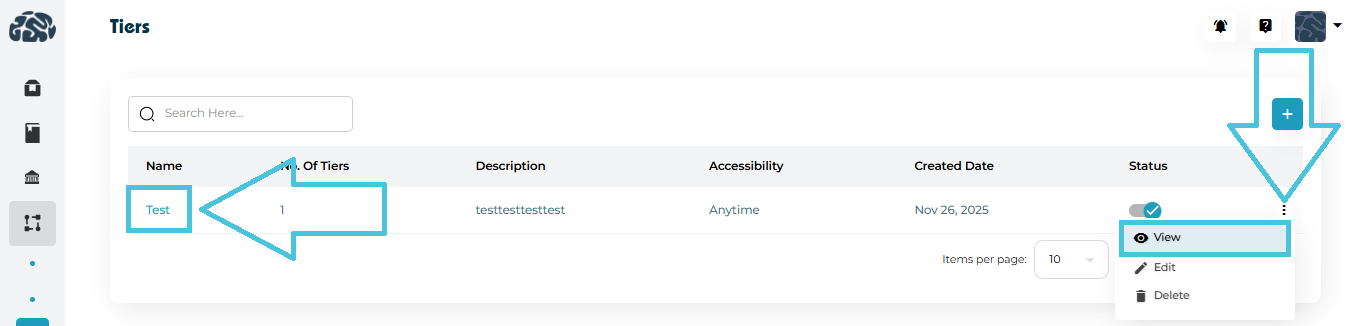
You can open a tier report in two ways:


  1. Click the tier name directly.

  2. Use the three-dot menu → View.


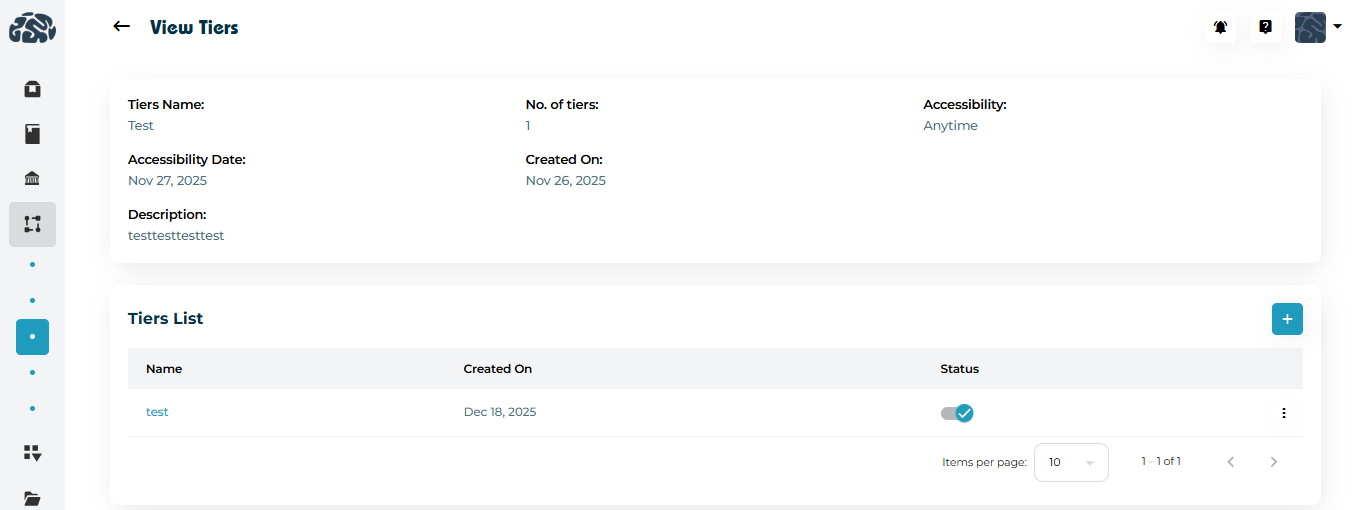
The View Tier page displays:


  • Tier Report name and description

  • Accessibility settings

  • Created date

  • List of tiers inside it (if applicable)

  • Current status (active/inactive)


5. Managing Tiers Inside a Tier Report (Nested Tiers)

Once the Tier Report has been created, tiers can then be added within the report to collect the reporting data.

From the View Tier page

 
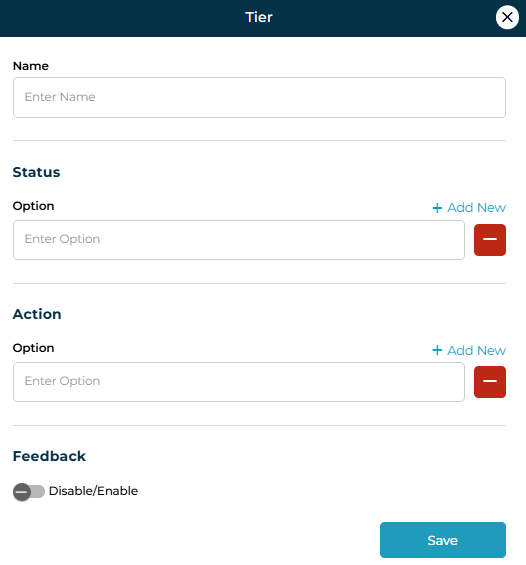
Adding Statuses and Actions to a Tier

Each tier can define how progress is tracked:

Status Options
  • Add multiple status labels (e.g., Not Started, In Review, Completed).

  • These appear when tracking or reporting progress.

Action Options
  • Define actions users can take (e.g., Request Documents, Approve, Escalate).

  • Actions standardize workflow decisions.

Feedback Toggle
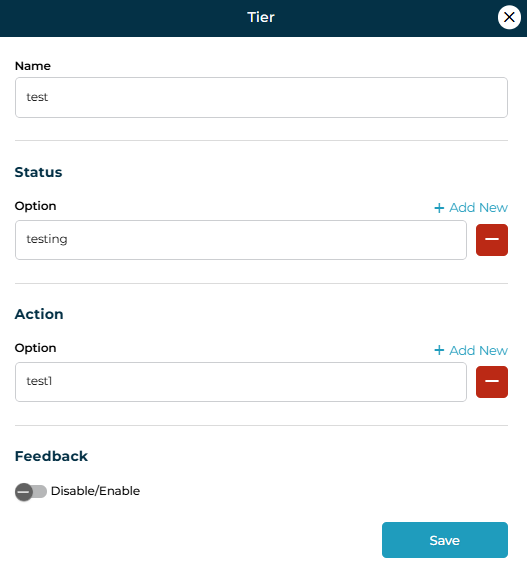
  • Enable Feedback if qualitative input or remarks are required at this tier.

  • Useful for counselor notes or reviewer comments.

 
Adding a tier


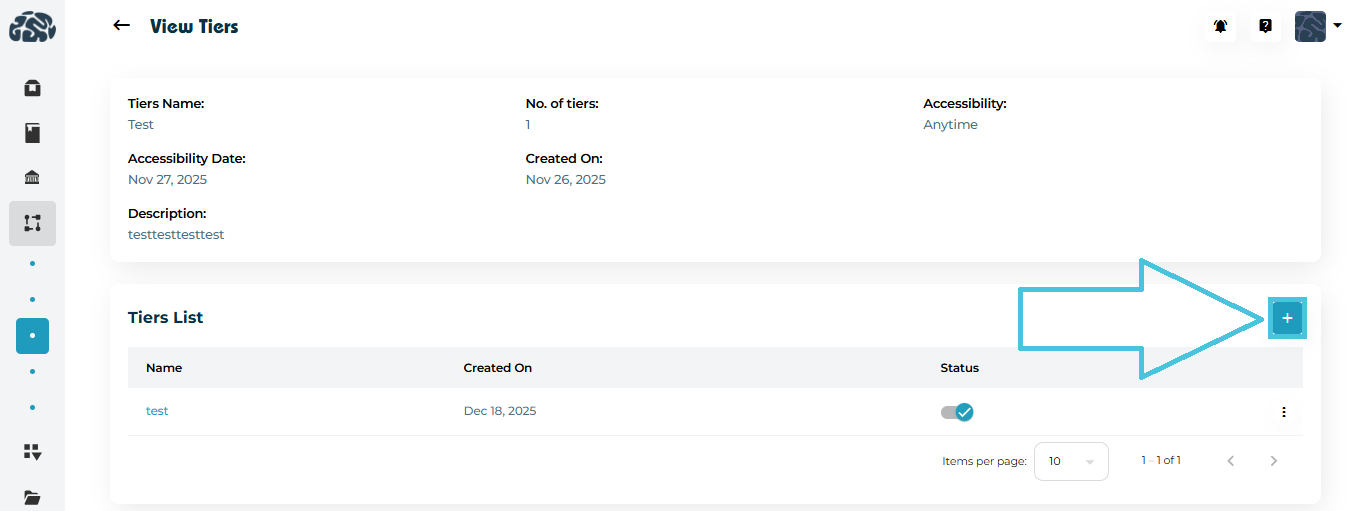
  1. Scroll to Tiers List.

  2. Click ➕ Add to create a tier inside the parent tier report.

  3. Define its name, statuses, actions, and feedback settings.

  4. Save to add it to the hierarchy.

This allows granular reporting without cluttering the main workflow.


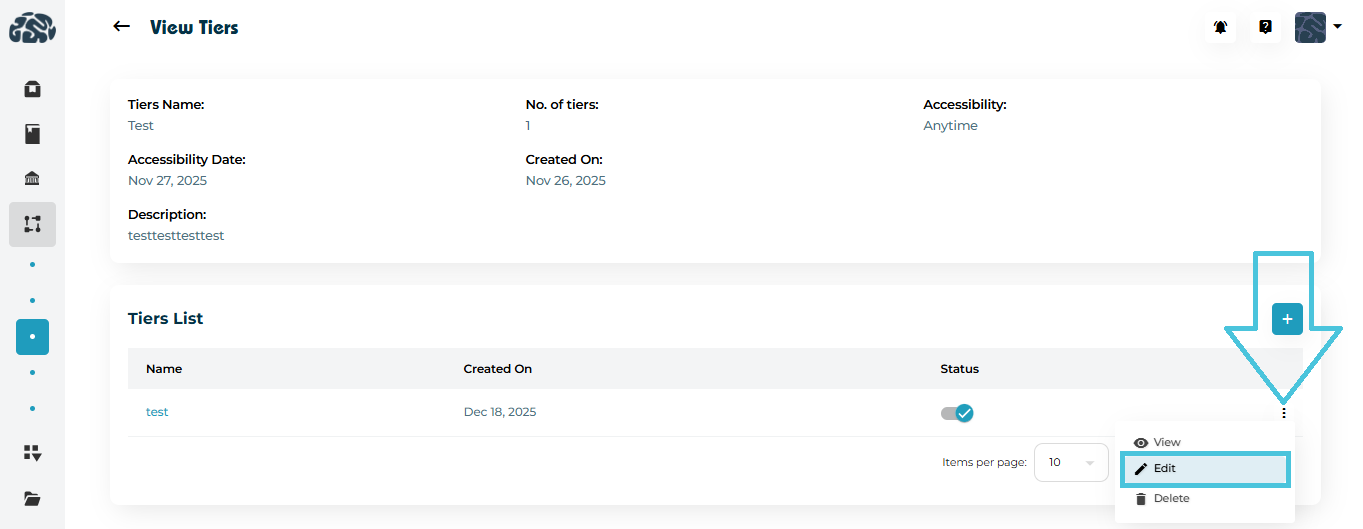
Editing a tier

  1. Open the three-dot menu → Edit.

  2. Modify:

    • Name

    • Status

    • Action
    • Feedback

  3. Click Save to apply changes.

Edits take effect immediately across all related reports.

 
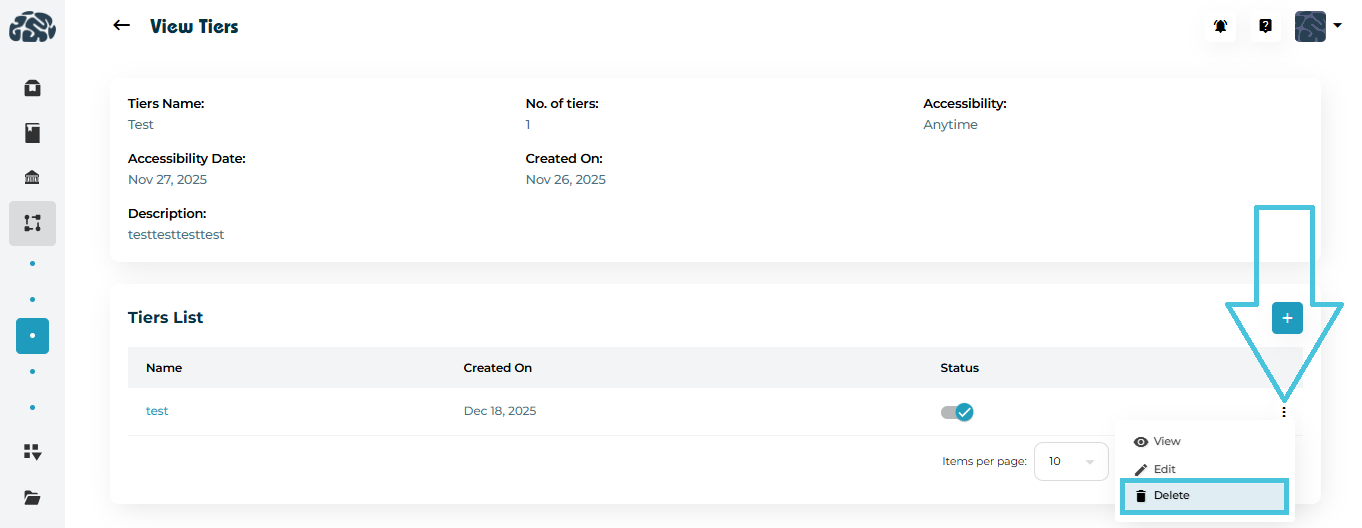
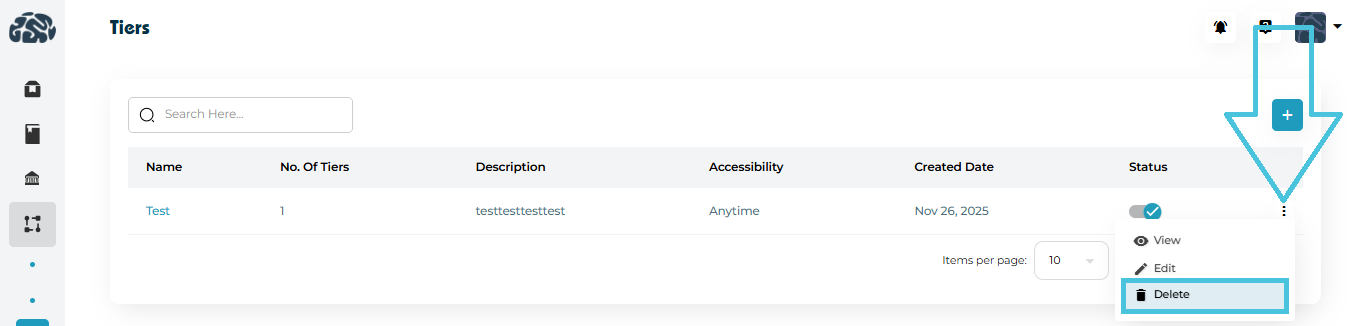
Deleting a tier

  1. Open the three-dot menu → Delete.

  2. Confirm the action.

6. Editing an Existing Tier Report


To update a tier report:


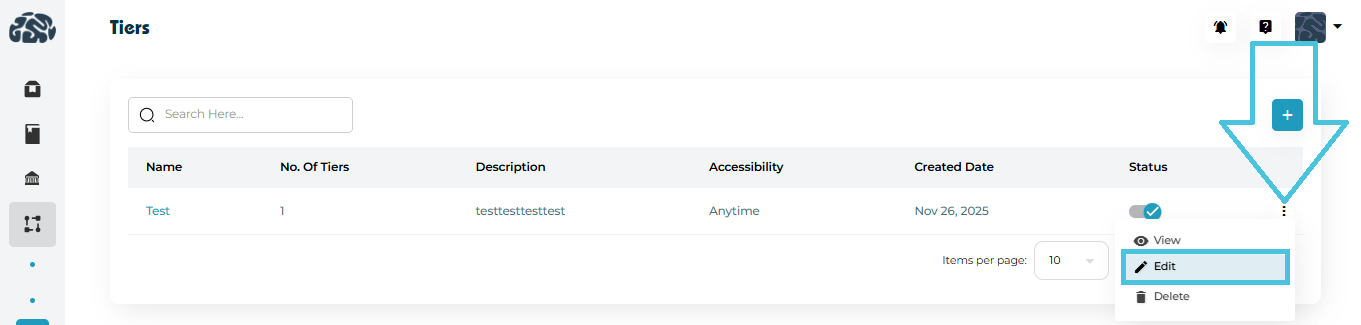
  1. Open the three-dot menu → Edit.

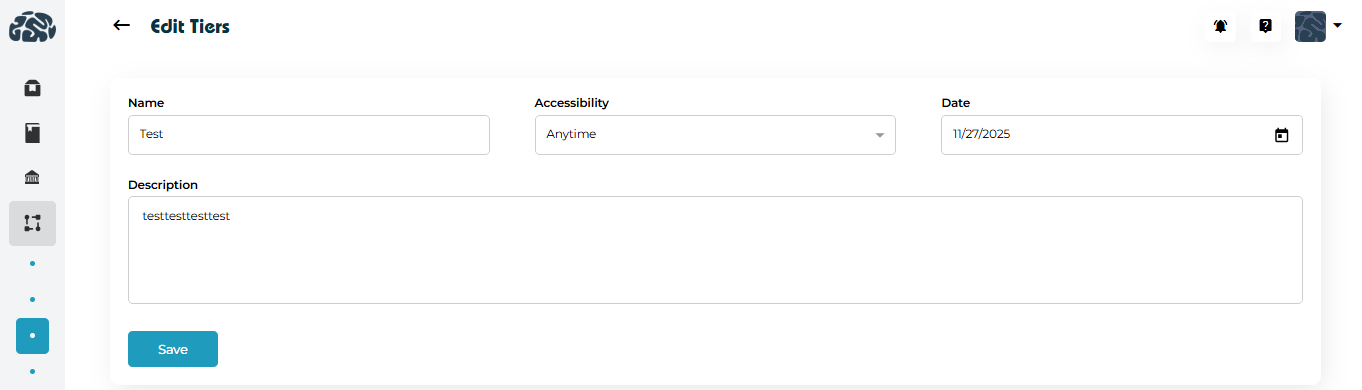
  2. Modify:

    • Name

    • Accessibility

    • Date
    • Description

  3. Click Save to apply changes.


Edits take effect immediately across all related reports.


7. Deleting a Tier

To remove a tier:


  1. Open the three-dot menu → Delete.

  2. Confirm the action.


⚠️ Best practice:
Only delete tiers that are no longer referenced in active workflows or reports to avoid data inconsistencies.

IN THIS ARTICLE

Configuring application fields

Configuring Application Fields

The College Application module allows admins to design and control the exact fields used to track each student’s college application journey. By configuring application fields, you can standardize data entry, ensure consistency across counselors, and adapt the workflow to different institutions, regions, or admission requirements.

This article explains how to add, edit, manage, and remove application fields, and how these fields support a flexible, scalable admissions workflow.

NOTE: The applicatin fields created here will be used on the students college list under the main counseling tab. Once the student adds a college to their list, they can then click on it to access these fields and complete them to keep track of the application.

1. What Are Application Fields?

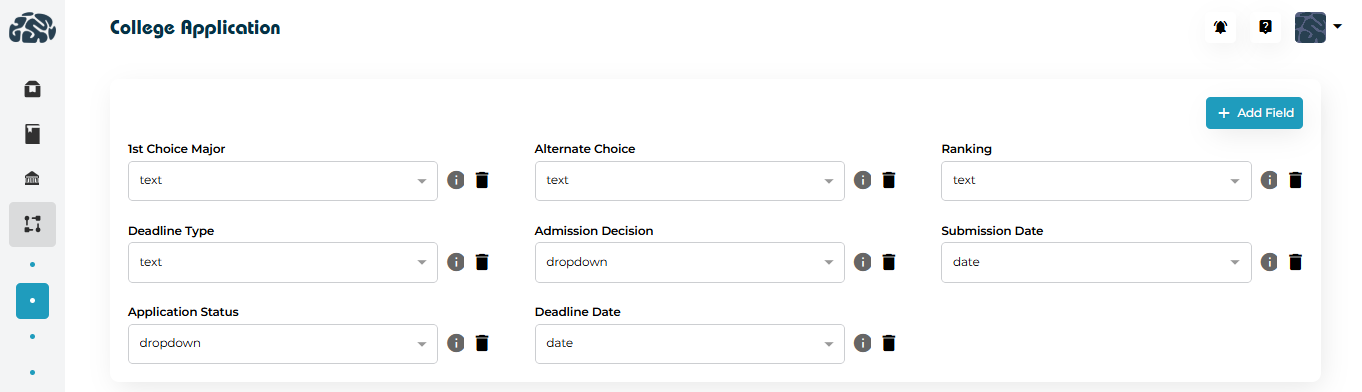
Application fields define what information is collected for each college application record. These fields appear across student application tracking and are used by counselors, advisors, and admins to record progress and decisions.


Examples of commonly used fields include:

  • First Choice Major

  • Alternate Choice

  • Application Status

  • Admission Decision

  • Deadline Date

  • Submission Date

  • Ranking

Each field can be configured with an appropriate field type (text, dropdown, date, etc.) to match how the data should be captured.

2. Accessing College Application Fields


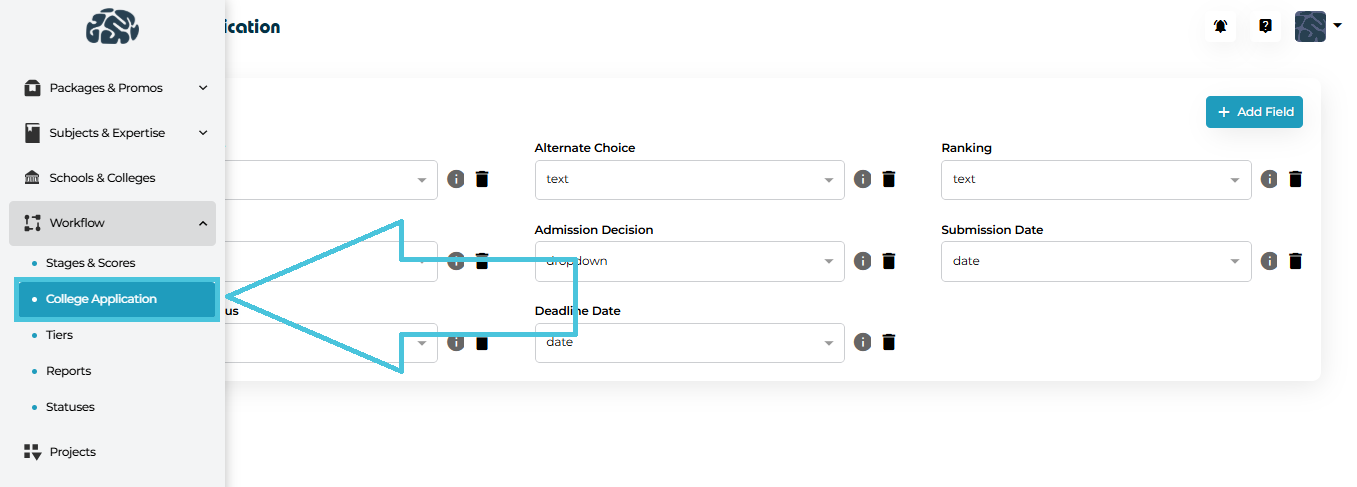
  1. Open the Admin Portal.

  2. Navigate to Workflow → College Application.

  3. You’ll see the full list of configured application fields displayed in a structured layout.


From here, you can:

  • Add new custom fields

  • Edit existing fields

  • Remove fields that are no longer needed

3. Adding a New Application Field


To create a new field:

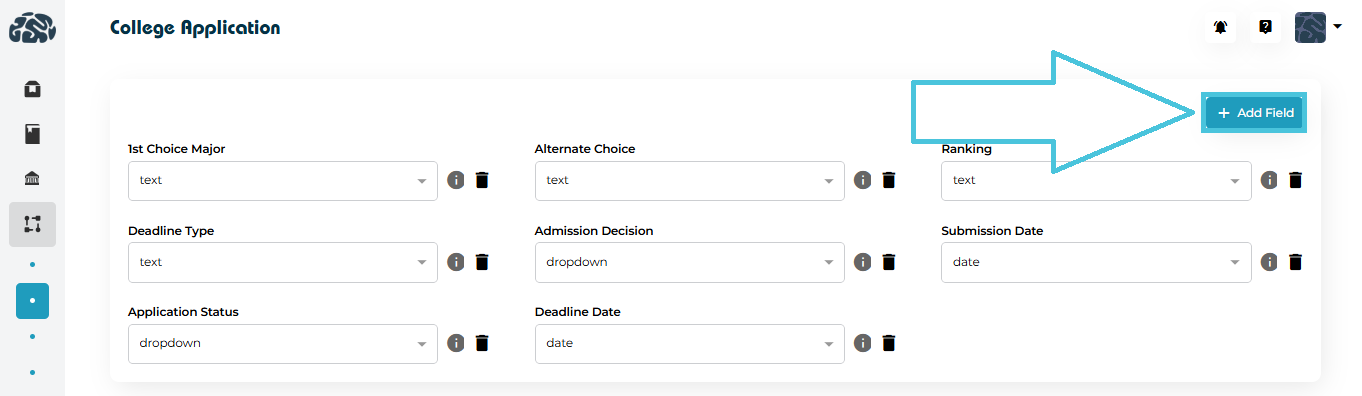
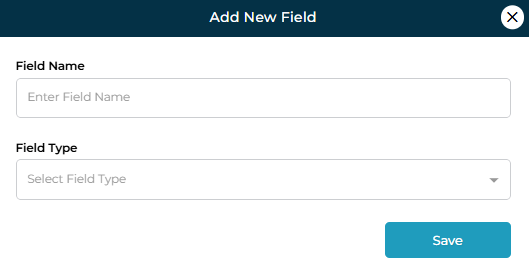
  1. Click ➕ Add Field.

  2. In the Add New Field modal, enter:

    • Field Name
      (Example: Interview Date, Scholarship Status)

    • Field Type
      Choose how the data should be captured:

      • Text

      • Dropdown

      • Date

  3. Click Save.

Once saved, the field becomes immediately available across the College Application workflow.

 
Best Practices When Adding Fields
  • Use clear, descriptive names so counselors understand the field’s purpose.

  • Select the correct field type to avoid inconsistent data entry.

  • Keep fields minimal and relevant to reduce form clutter.

4. Editing Existing Application Fields


You can update any field at any time:

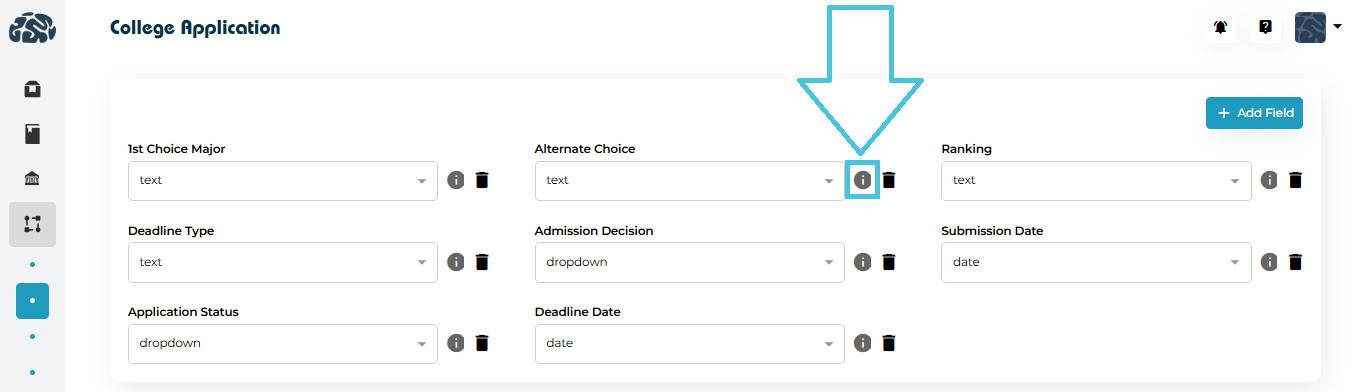
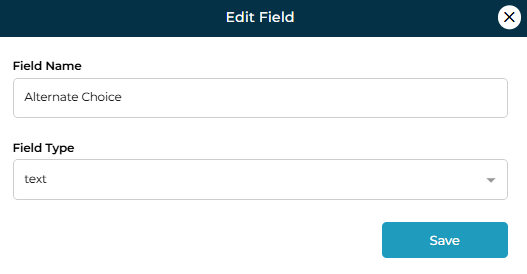
  1. Open the three-dot menu next to a field.

  2. Click Edit.

  3. Modify the Field Name or Field Type as required.

  4. Click Save to apply changes.


⚠️ Tip: Changing a field type (e.g., from text to dropdown) may affect how previously entered data is interpreted. Review carefully before saving.

5. Removing Application Fields

If a field is no longer required:


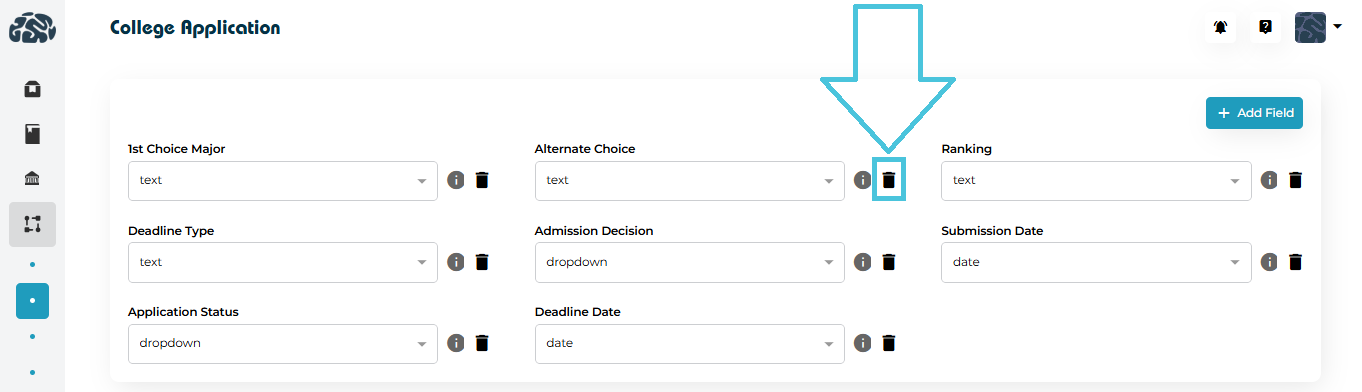
  1. Open the three-dot menu for that field.

  2. Click Delete.

  3. Confirm the deletion.

Deleting a field removes it from the workflow entirely. This action should be used cautiously, especially if the field has historical data.

IN THIS ARTICLE

Managing admission stages and scores

Managing Admission Stages and Scores

The Stages & Scores module in PrepBase allows administrators to define, customize, and manage three main items:

  1. The Main Planner Stages under the Counseling tab for Students
  2. The Custom Scores under the Counseling tab for Students to keep track of.
  3. The Custom Stage Lists & Stages that can be used within the projects created from the admin panel.

These workflows help track a student’s progress across different stages of their academic or admissions journey while attaching measurable evaluation scores at relevant points.

This feature is especially useful for admissions counseling, test preparation programs, and multi-step academic processes where visibility, consistency, and progress tracking are essential.

1. What Are Admission Stages and Scores?

Admission Stages

Stages represent the key steps a student goes through during an academic or admissions process. Each stage can include multiple statuses to reflect progress.

Examples:

  • Identify Majors

  • Select Region

  • IELTS Preparation

  • SAT Preparation

  • CV Draft

  • University List

  • Personal Statement & Essays

  • Recommendations

  • Submit Application

Each stage can move through statuses such as:

  • Not Started

  • In Progress

  • Completed

Admission Scores

Scores are measurable academic or assessment indicators used to evaluate student readiness or performance at specific stages.

Examples:

  • CGPA (Max Score: 4)

  • GPA (Max Score: 4)

  • IELTS (Max Score: 9)

  • SAT (Max Score: 1600)

  • ACT (Max Score: 36)

Scores ensure standardized evaluation and can be reused across different workflows.

2. Accessing Stages & Scores

Navigate to:


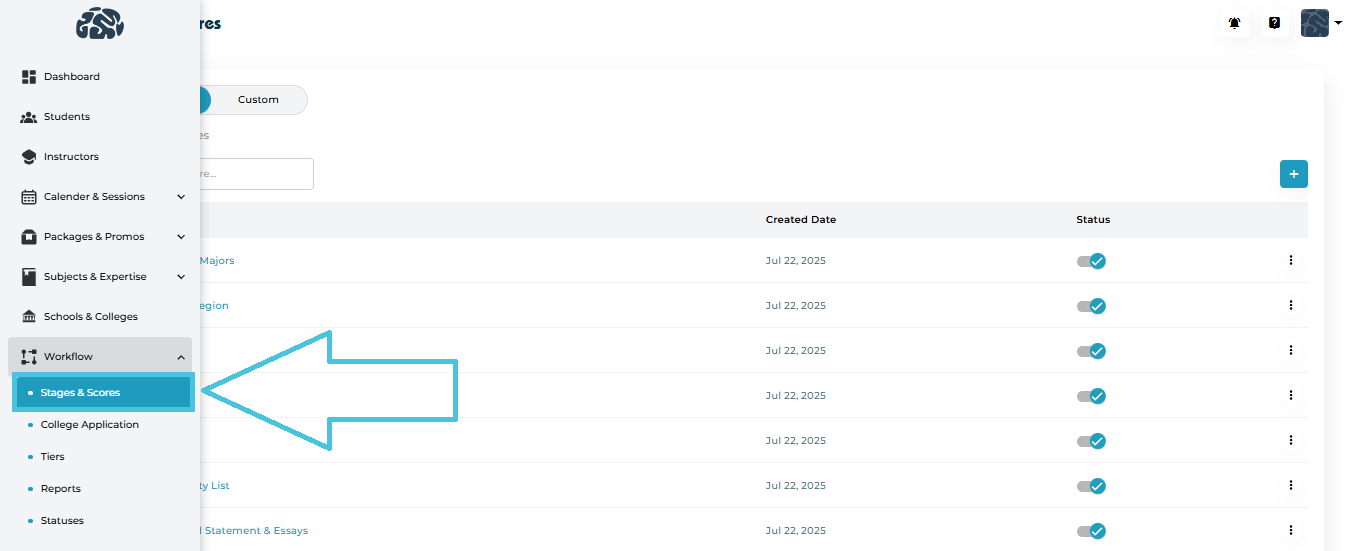
Admin Panel → Workflow → Stages & Scores

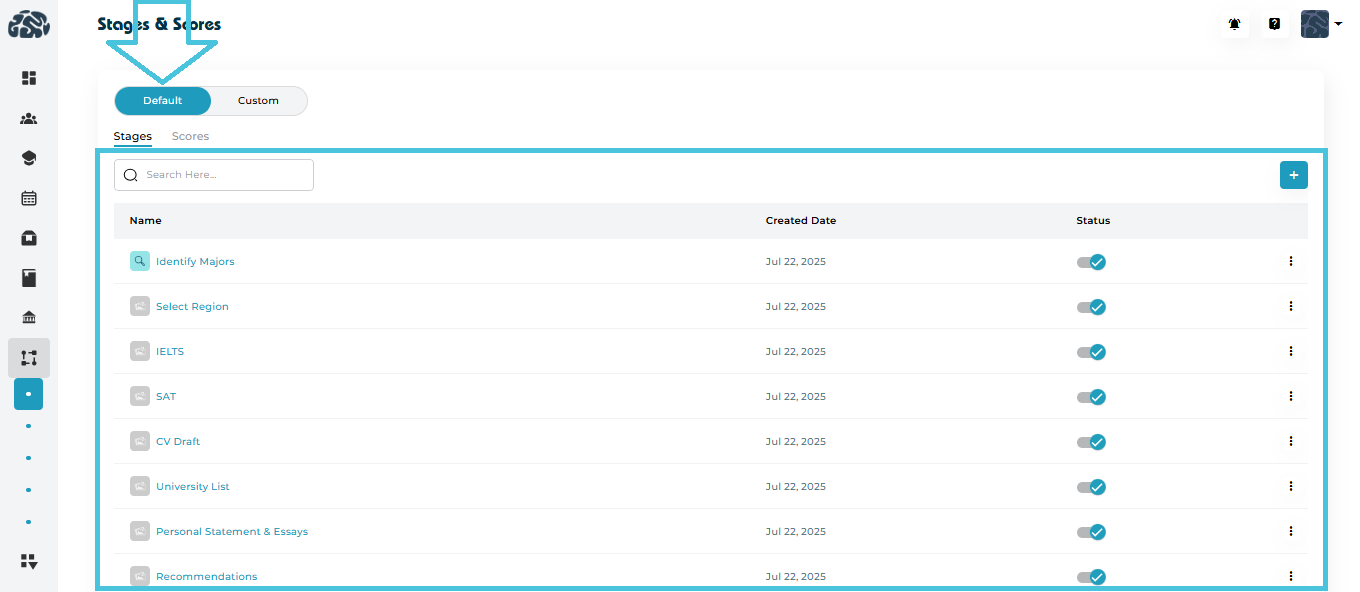
You will see two main views:

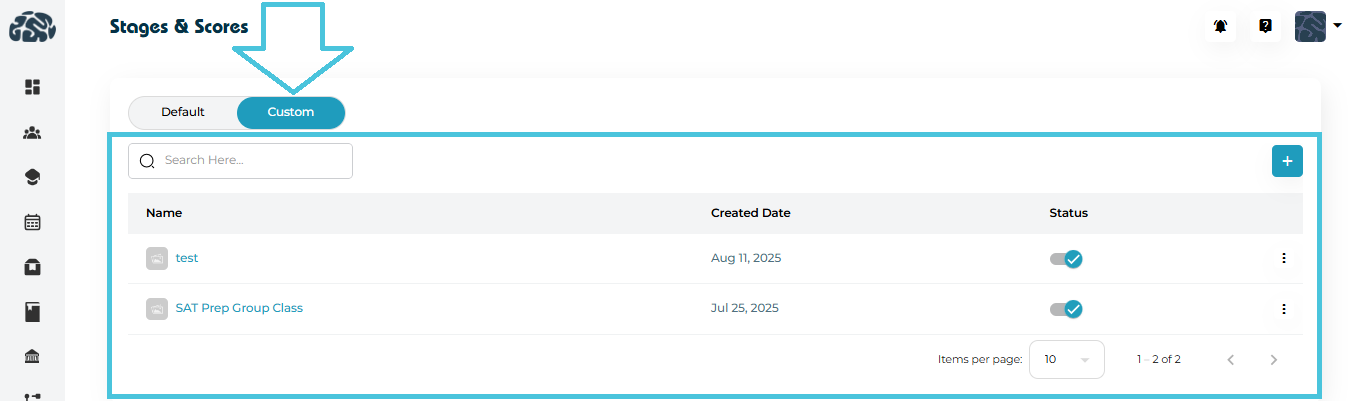
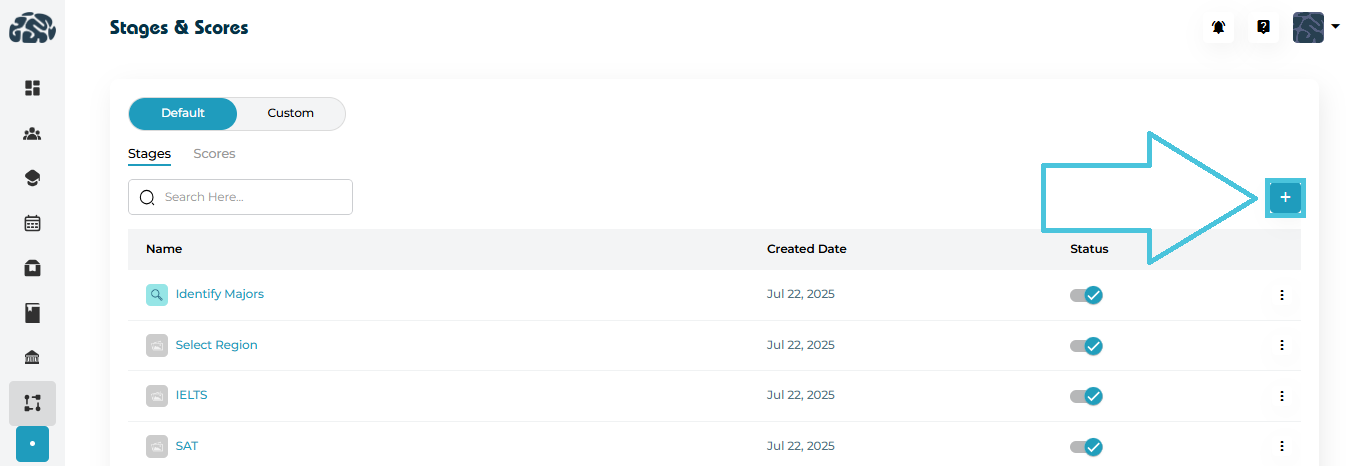
  • Default

  • Custom

Default view is further divided into:

  • Stages

  • Scores

3. Understanding Default vs Custom


Default
  • Defined stages and scores that would appear under the main Counseling tab within the Planner module on the students view

  • Designed to cover common admissions workflows

  • Can be viewed, edited, or disabled (depending on permissions)


Custom


  • Admin-created stage lists that include stages to be used within projects only 

  • Fully customizable to define the stages of a particular project

  • Admin can create a list of stages, then add the statuses for the list, and add the different stages within that list

4. Creating New Default Stages

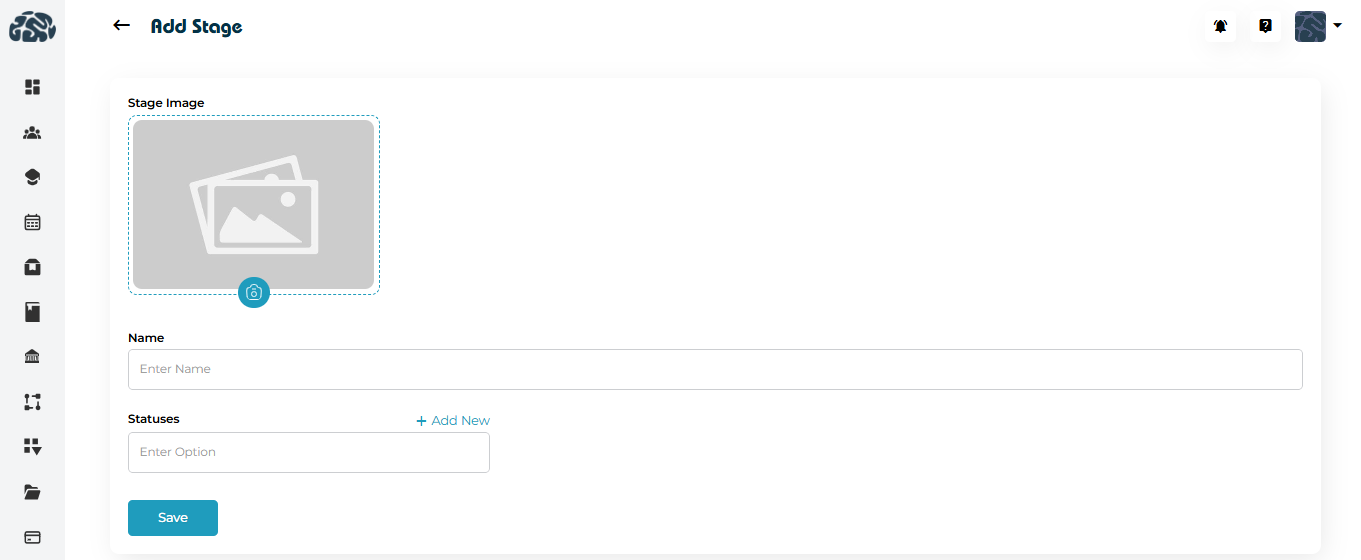
Adding New Default Stage

  1. Go to Stages & Scores → Stages

  2. Click ➕ Add Stage

  3. Upload a stage image (optional)

  4. Enter:

    • Stage Name

    • Status (can add multiple statuses for each stage)
  5. Click Save

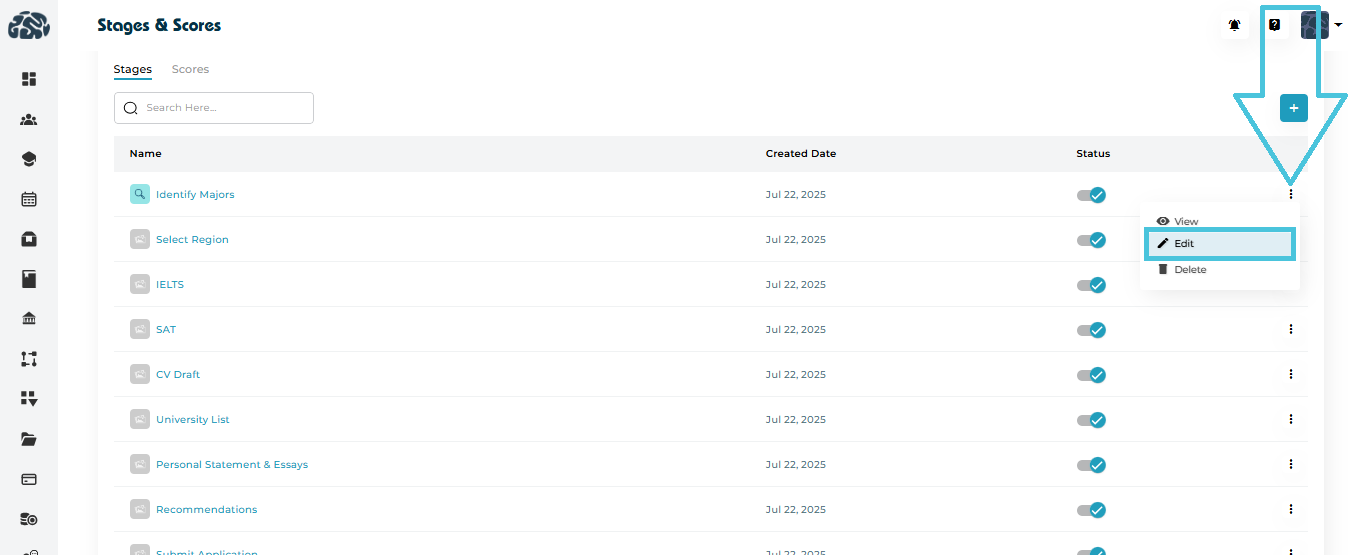
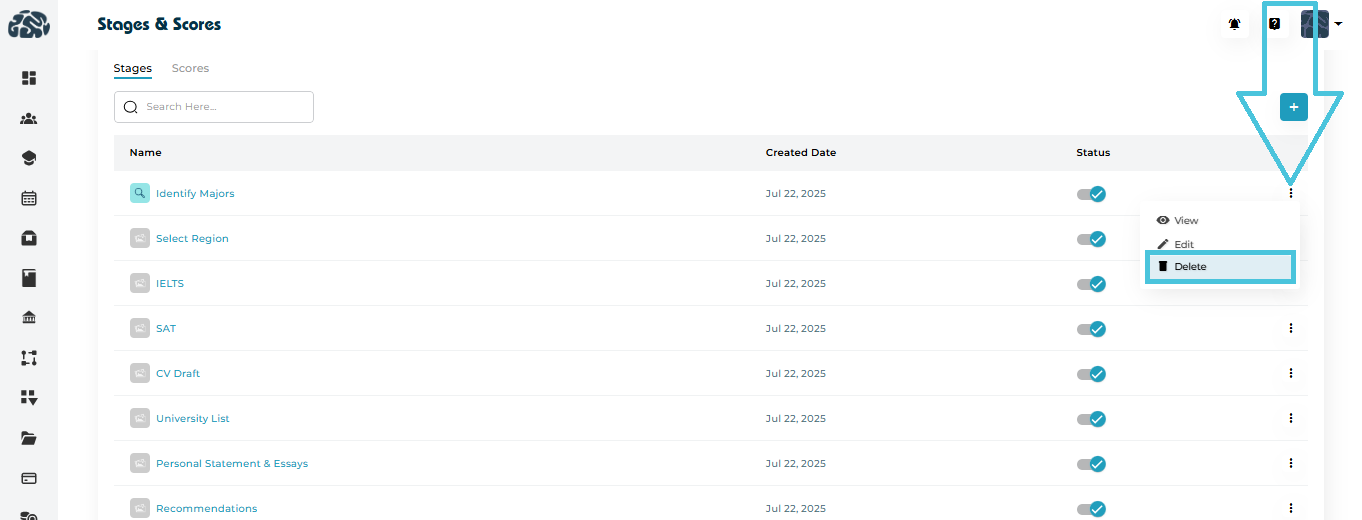
5. Managing Existing Stages

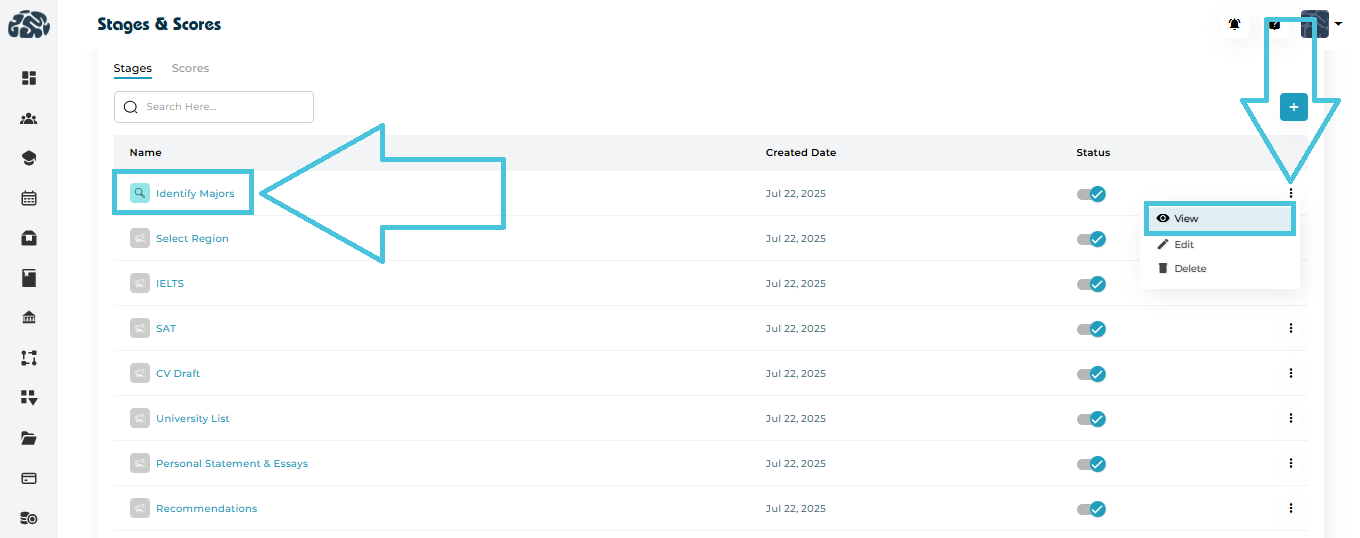
Each stage row provides a three-dot menu with the following options:

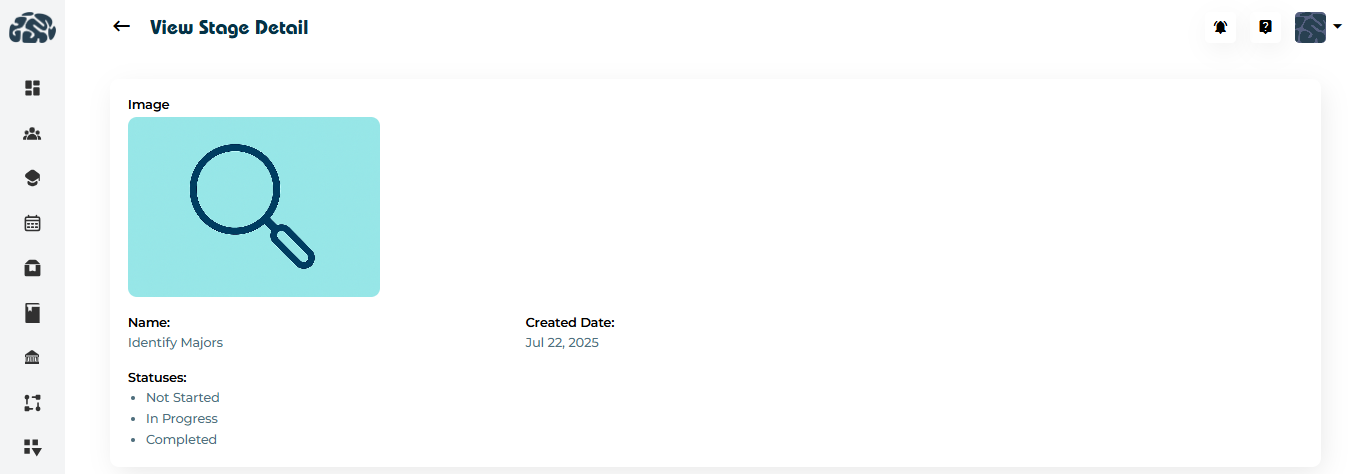
View Stage

Opens a detailed view showing:

    • Stage Image

    • Stage Name

    • Creation date

    • Associated statuses

 
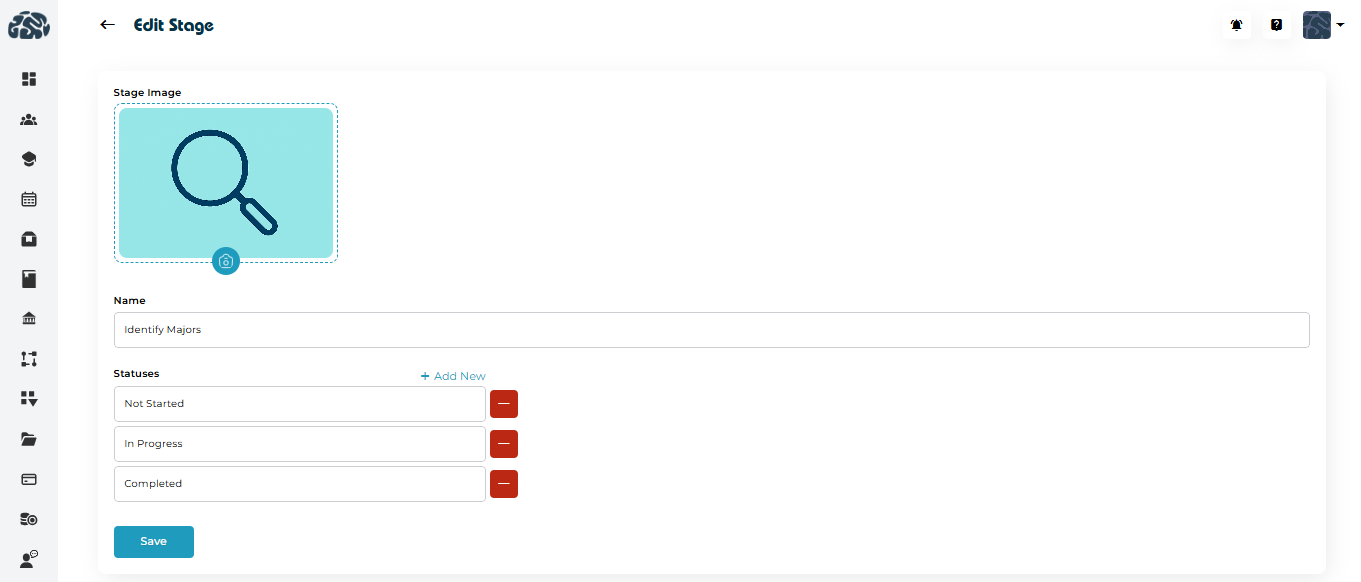
Edit Stage

Update:

    • Stage name

    • Stage image

    • Statuses

 
Delete Stage
  • Permanently removes the stage

  • Recommended only if the stage is not actively used

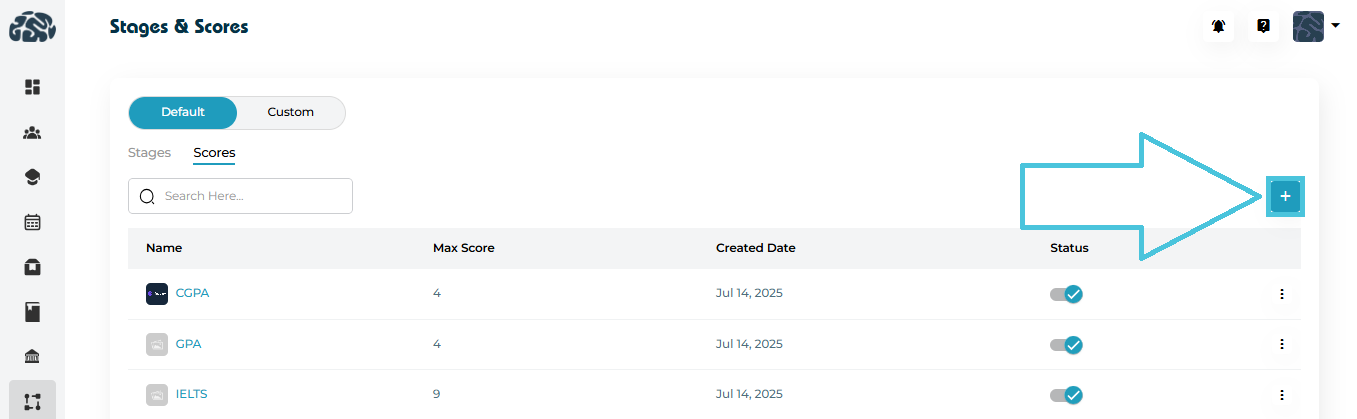
6. Creating New Scores

 
Adding New Score

  1. Go to Stages & Scores → Scores

  2. Click ➕ Add Score

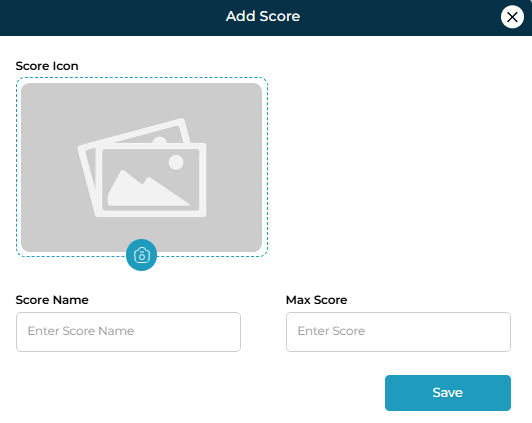
  3. Upload a score icon (optional)

  4. Enter:

    • Score Name (e.g., IELTS)

    • Maximum Score

  5. Click Save

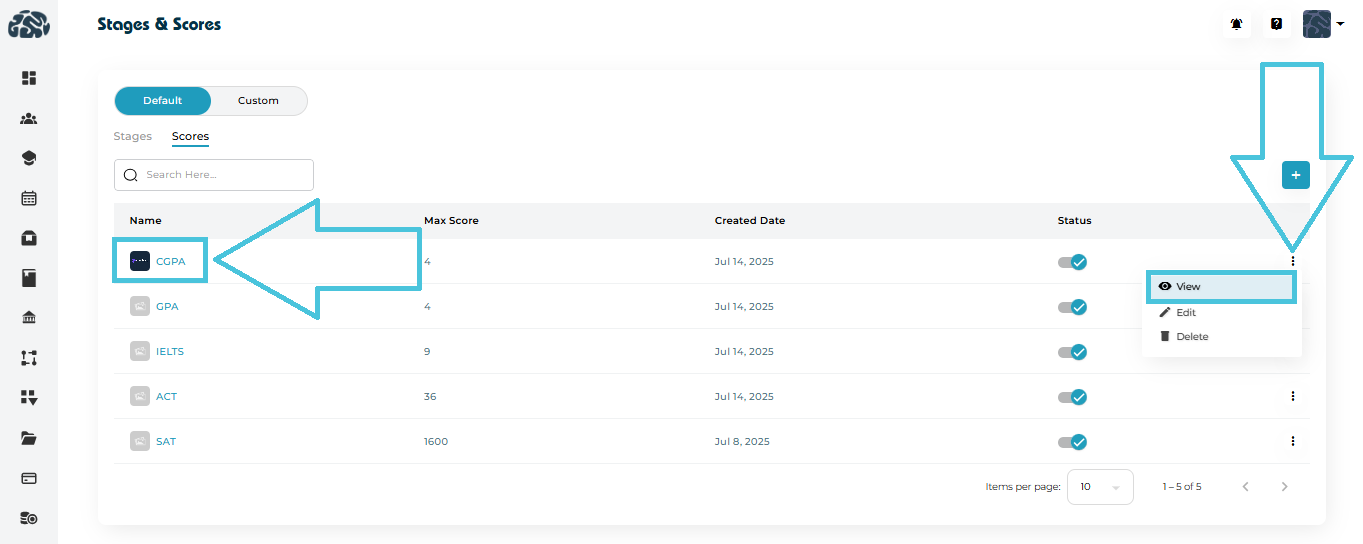
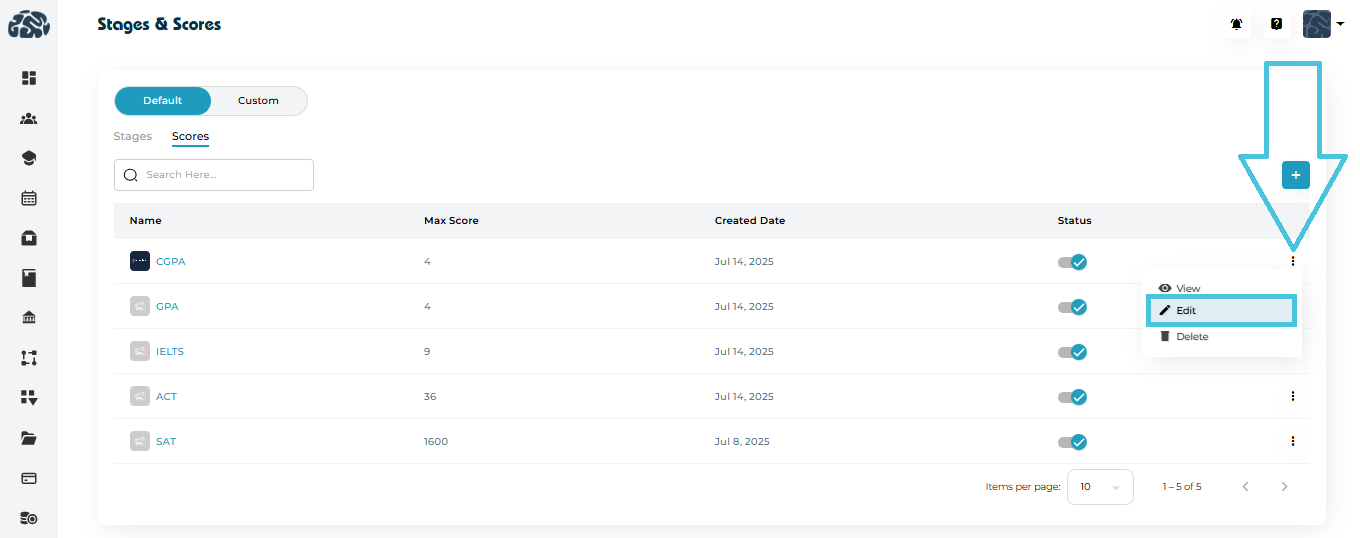
7. Managing Existing Scores

Each score row provides a three-dot menu with the following options:

View Scores

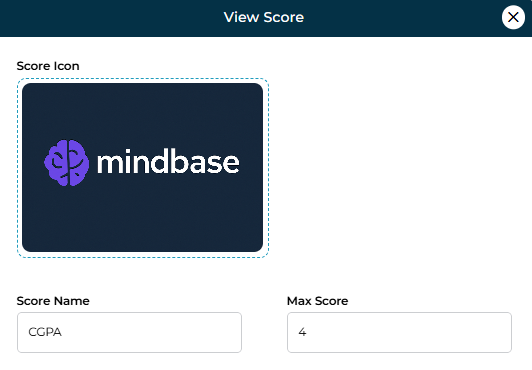
Opens a detailed view showing:

    • Score Icon

    • Score Name

    • Max Score

 
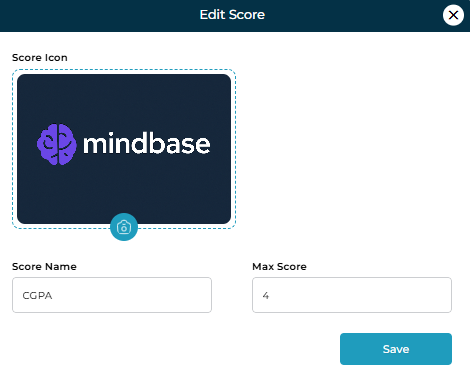
Edit Score


Update:

    • Score Icon

    • Score Name

    • Max Score

 
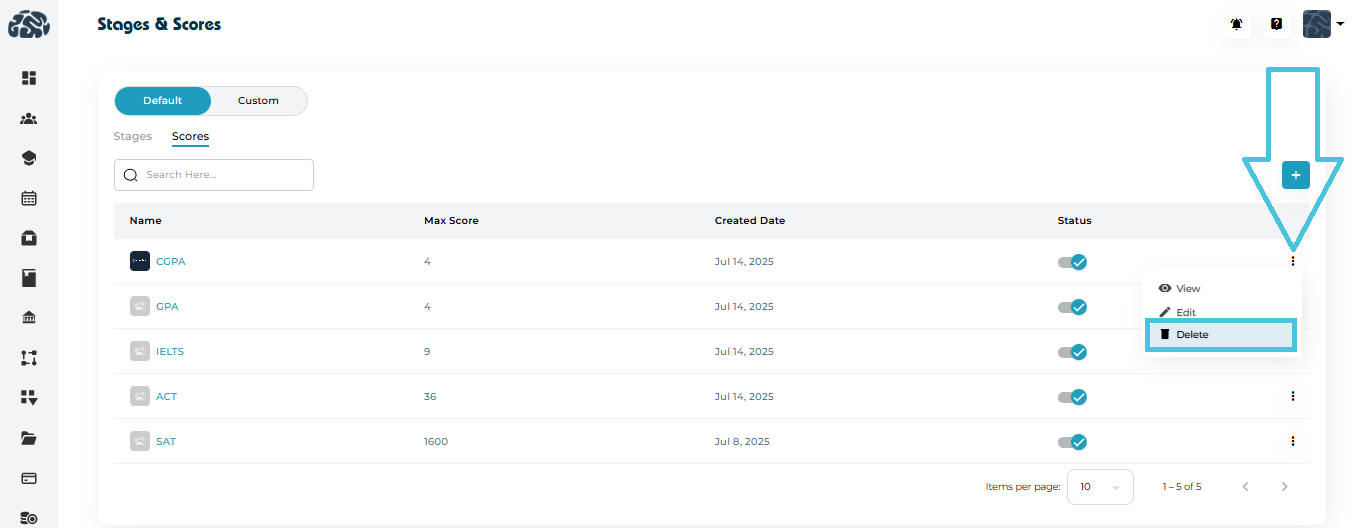
Delete Score

 
  • Permanently removes the score

  • Recommended only if the score is not actively used

8. Creating a Custom Admission Stages

Custom stages in PrepBase are created in two steps:

  1. Create a Stage List (with statuses)
  2. Add actual stages inside that list
 
Step 1: Create a Custom Stage List

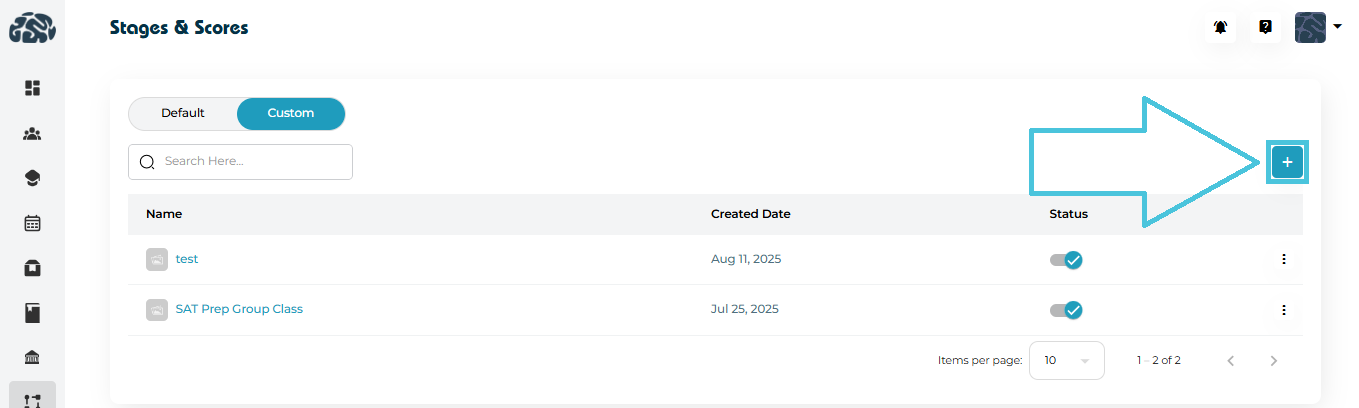
To begin creating custom stages:

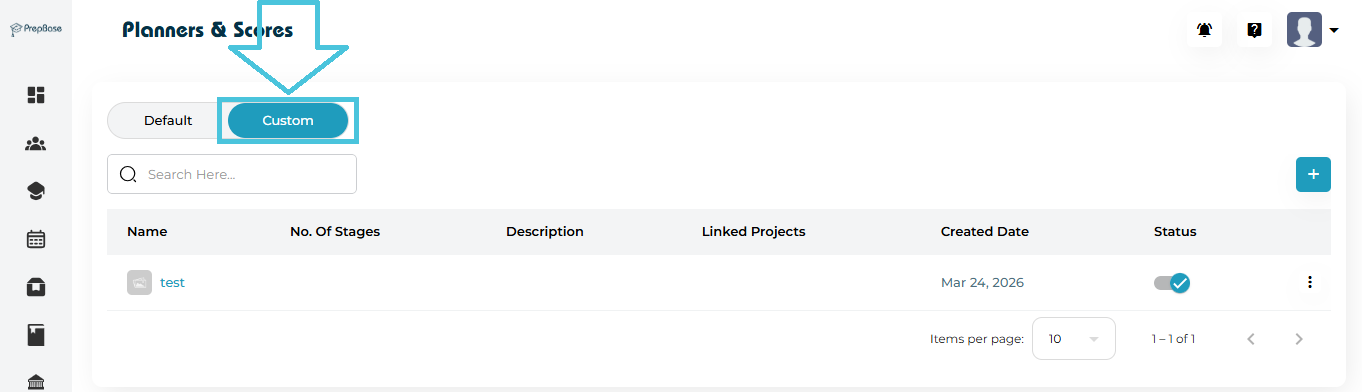
  1. Go to Planners & Scores
  2. Switch to the Custom tab
  3. Click the ➕ (Add) button on the top-right

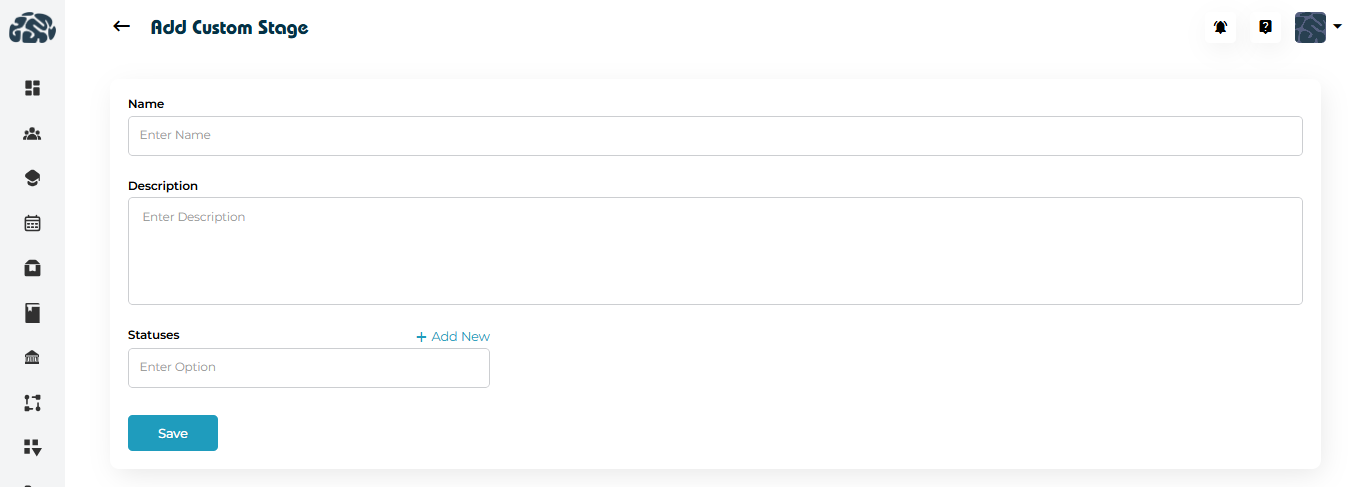
This opens the Add Custom Stage form.

Fill in the required details
FieldDescription
NameEnter a name for the stage list (e.g., Undergraduate Admission Process)
DescriptionAdd a short explanation of the workflow or process
StatusesDefine status labels (e.g., Pending, In Progress, Completed)

Click + Add New to add multiple statuses.

 
Important Note 

At this stage, you are only creating the structure (Stage List + Statuses)
actual stages (steps) are added in the next step.

Save the Stage List

Click Save to create the custom stage list.

Once saved, the list will appear in the Custom tab table.

Step 2: Add Stages Inside the List

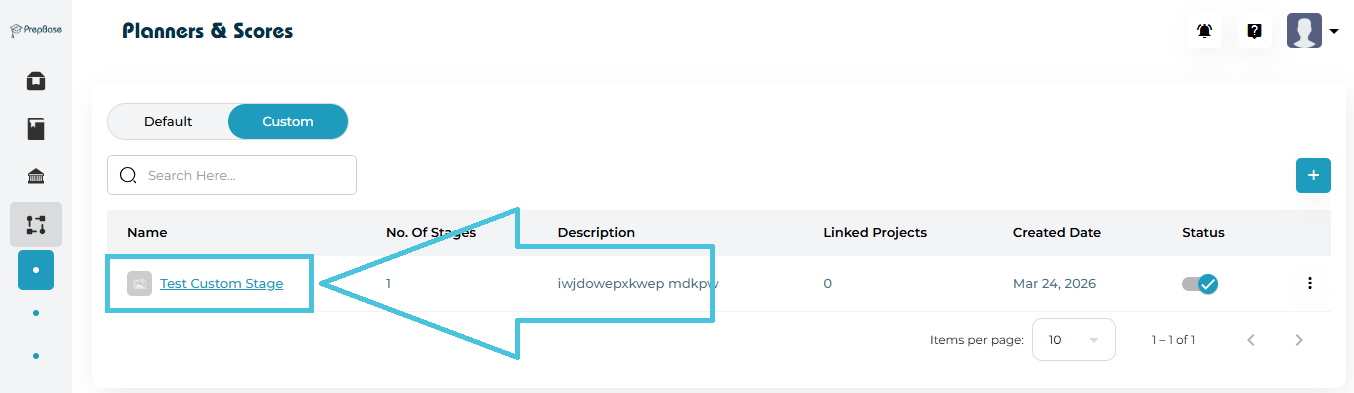
After creating the stage list:

  1. Locate your newly created list in the table
  2. Click on the Stage List Name

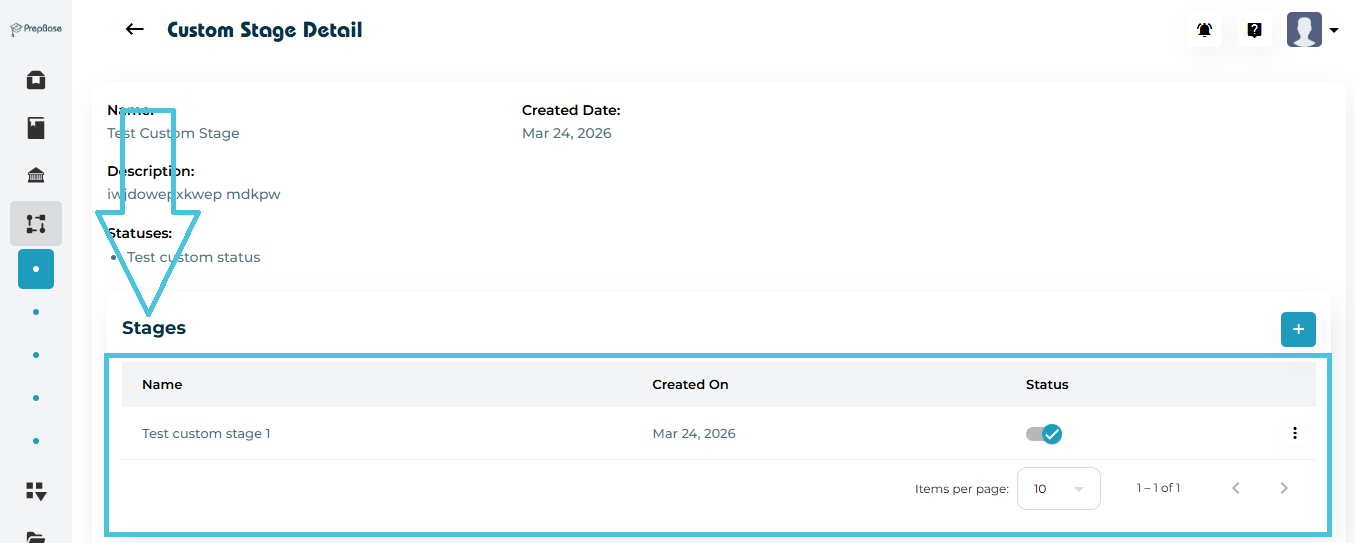
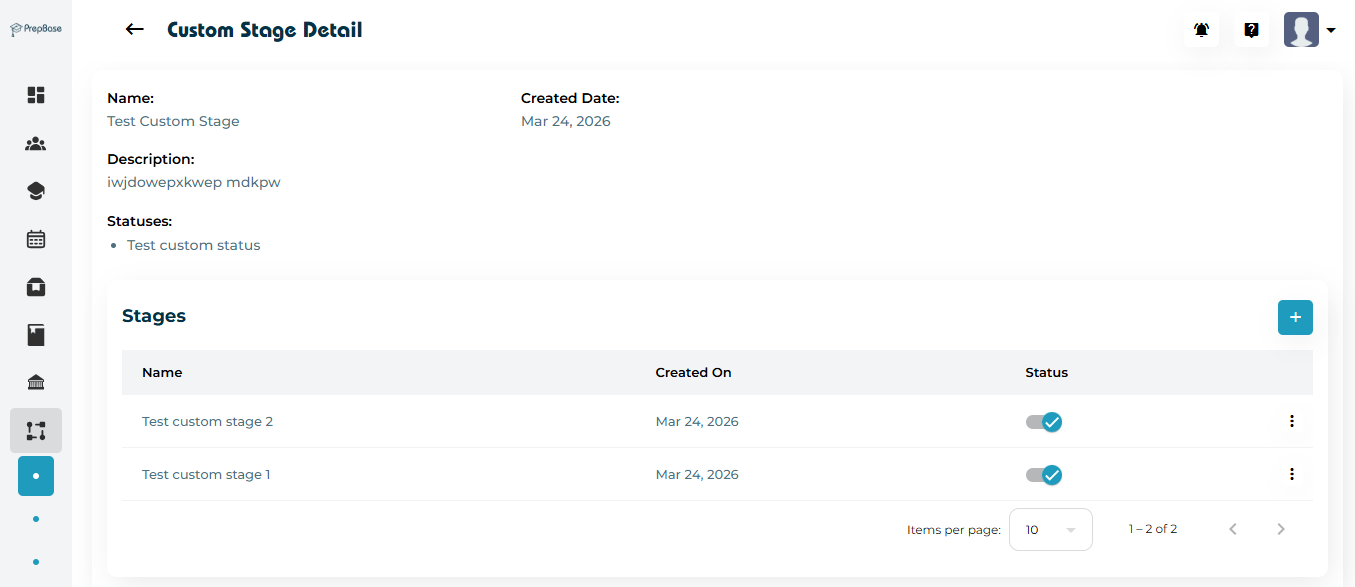
This opens the Custom Stage Detail page.

Add Actual Stages

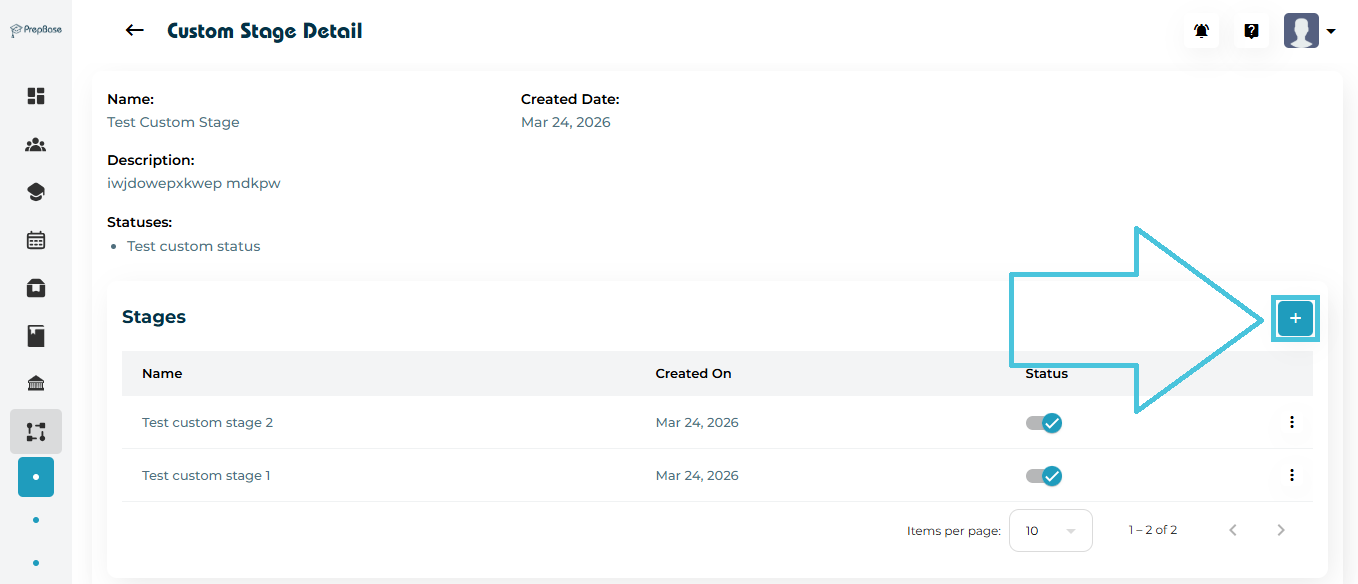
Inside this page:

  1. Go to the Stages section
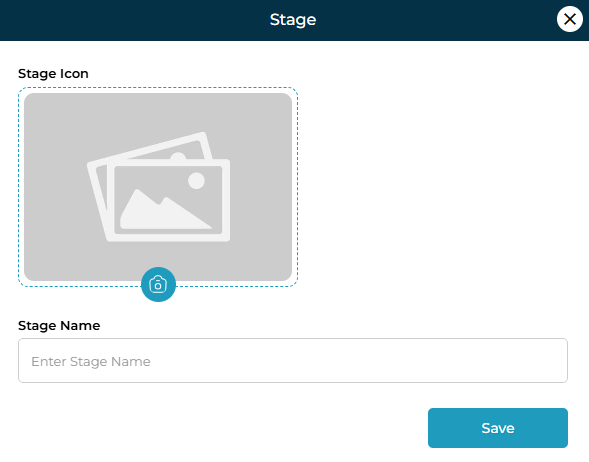
  2. Click the ➕ (Add) button
  3. Enter stage details (e.g., Application Submitted, Documents Verified, Interview Scheduled)
  4. Assign a status
  5. Click Save
What This Step Does
  • Converts your stage list into a usable workflow
  • Defines the actual steps users will follow
  • Links each stage with a status for tracking progress
Example Flow

Stage List: Undergraduate Admissions
Statuses: Pending, In Progress, Completed

Stages inside list:

  • Application Submitted
  • Documents Verified
  • Interview Scheduled
  • Offer Issued

9. Managing Custom Admission Stages

Once custom stage lists and their stages are created, admins can manage them from the Custom tab.

Viewing Stage Lists

All custom stage lists are displayed in a table with the following details:

ColumnDescription
NameName of the stage list (clickable to open details)
No. of StagesTotal stages created inside the list
DescriptionOverview of the workflow
Linked ProjectsNumber of projects using this stage list
Created DateDate when the list was created
StatusActive/Inactive toggle
Opening and Managing Stages

To manage stages within a list:

  1. Click on the Stage List Name
  2. You will be redirected to the Custom Stage Detail page
Inside the Detail Page

You can view:

SectionDescription
Name & DescriptionBasic information about the stage list
StatusesStatus options defined during creation
Stages TableAll stages added inside the list

Managing Individual Stages

Inside the Stages section, you can:

Add New Stage


  • Click
  • To add new custom stages
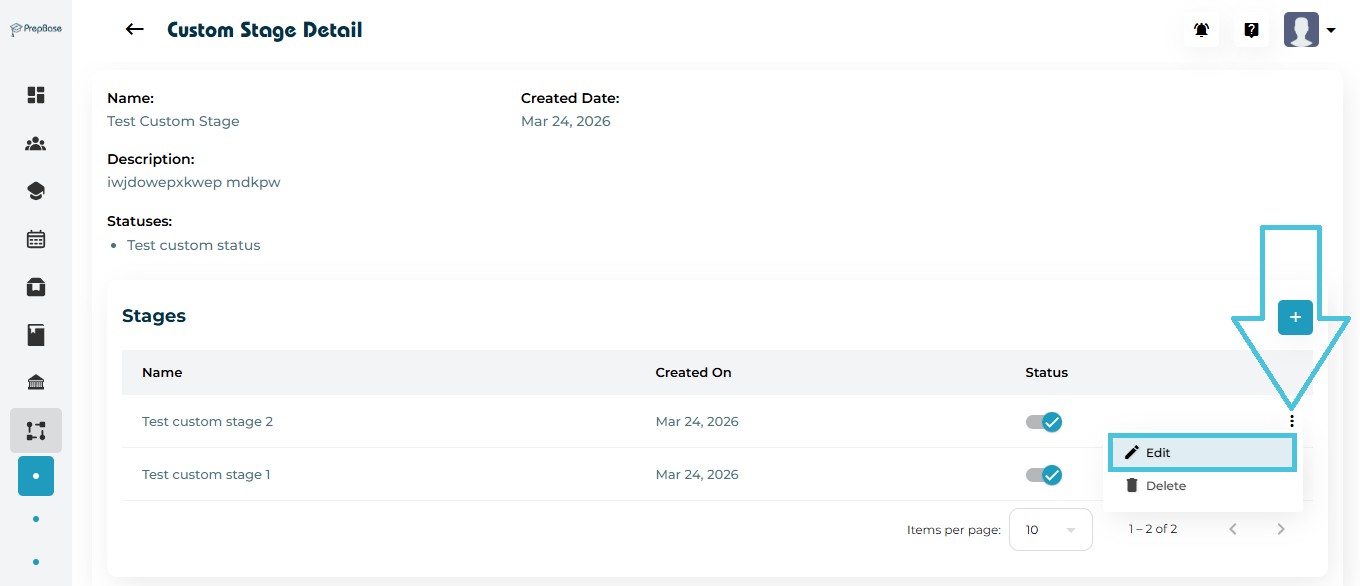
Edit Stage

  • Use the three-dot menu (⋮)

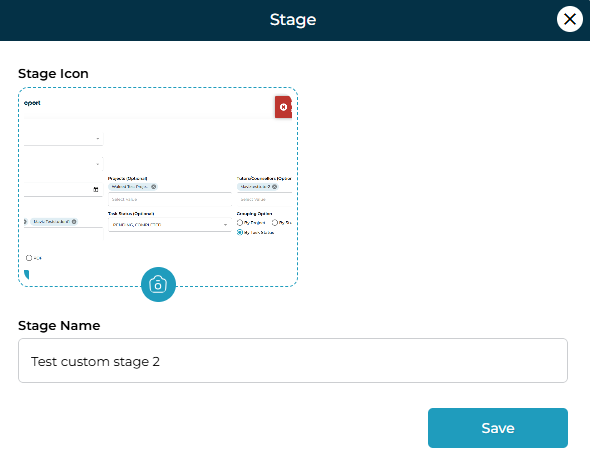
  • Update stage Icon  or name
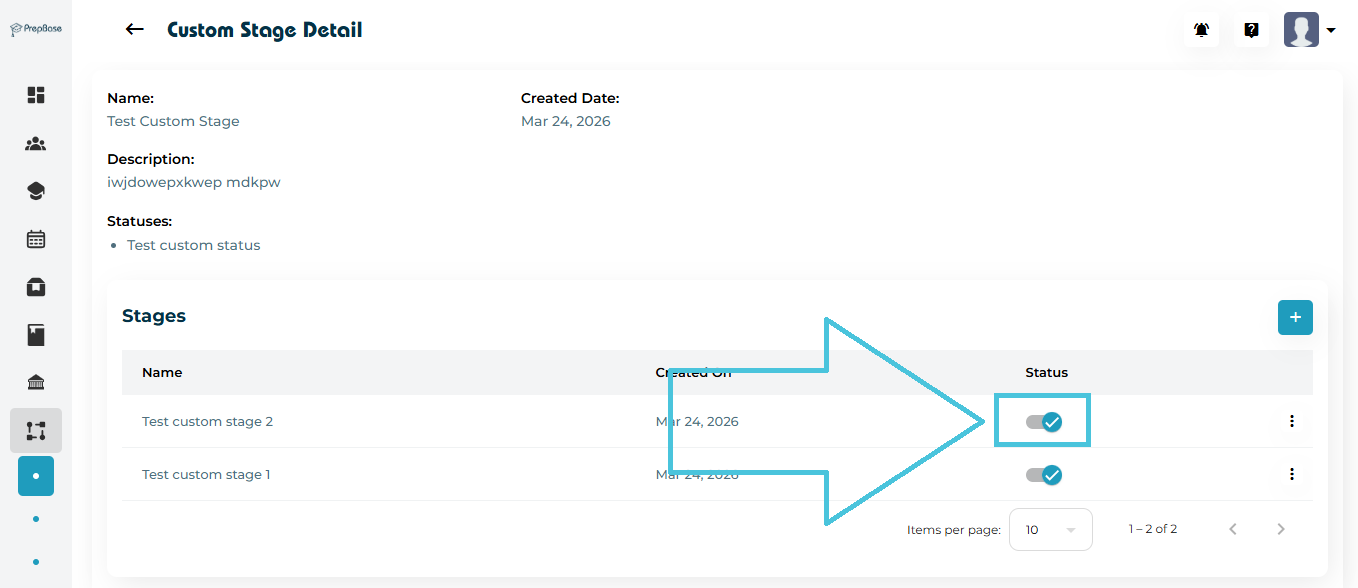
Activate / Deactivate Stage

  • Toggle the status switch
  • Control whether a stage is usable
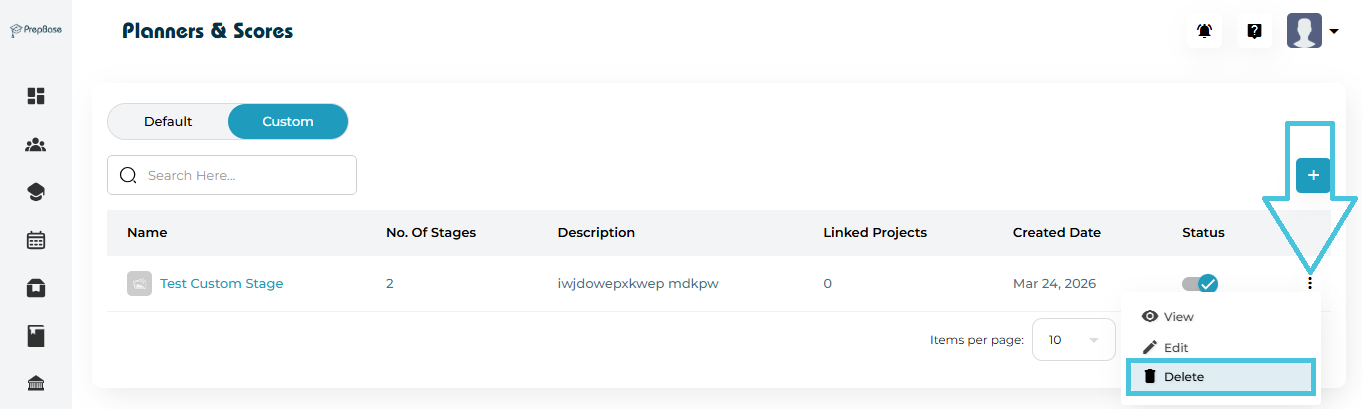
Managing Stage List (Main Table Actions)

From the main Custom tab table:

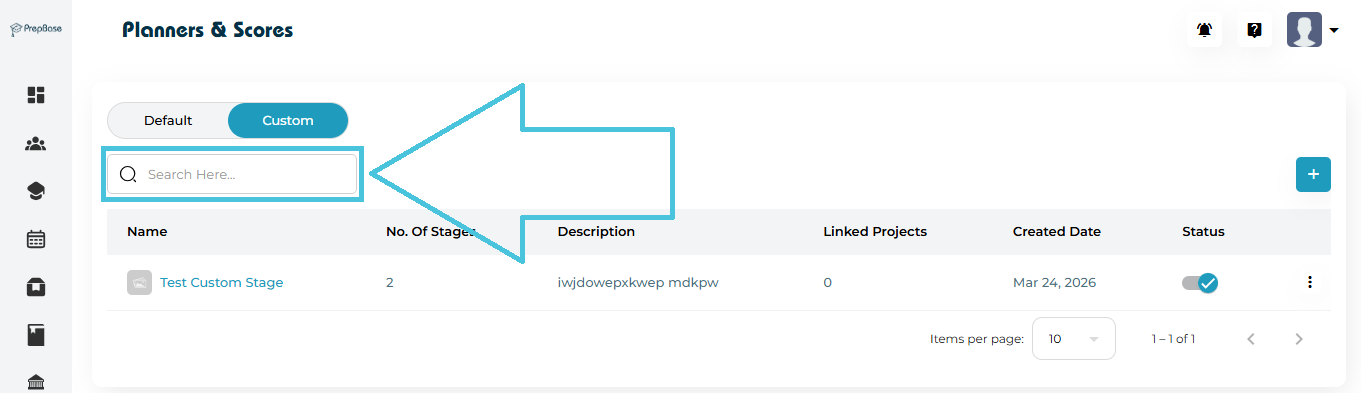
Search Stage Lists

  • Use the Search bar to quickly find a list
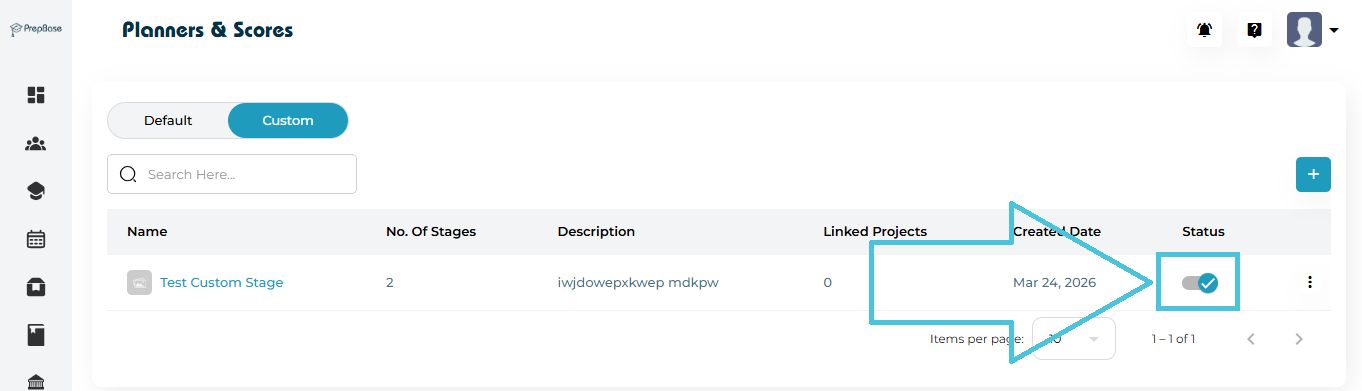
Enable / Disable Stage List

  • Toggle the Status switch
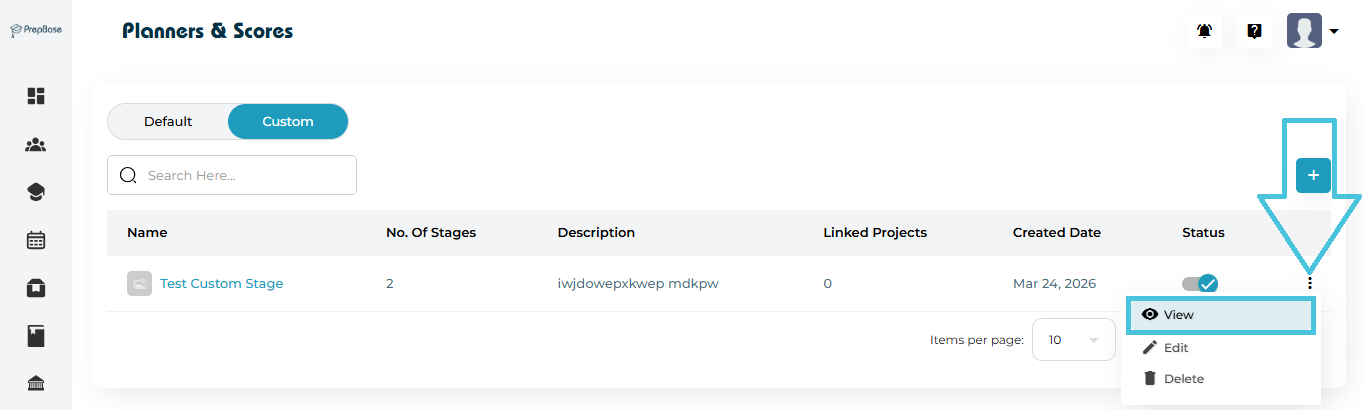
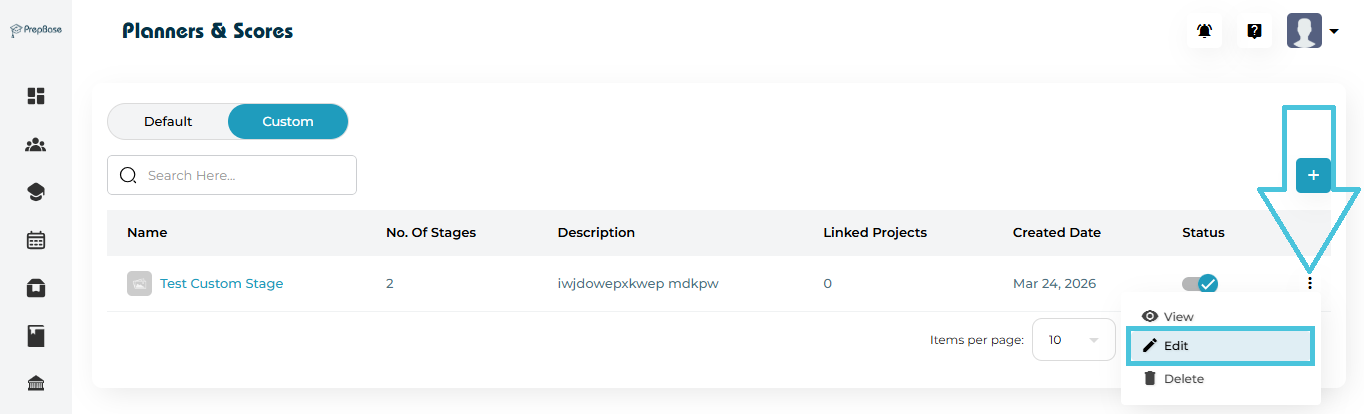
More Actions (⋮ Menu)

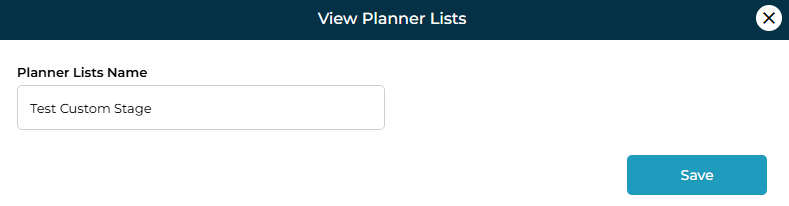
  • Click the view stage list button

  • Stage list name form

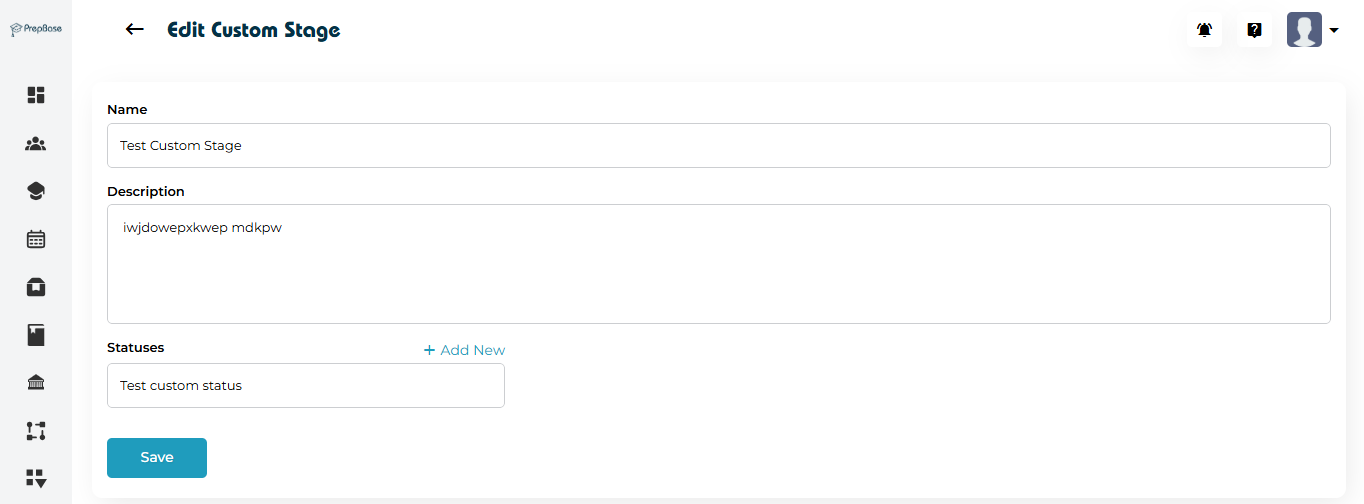
  • Click the edit stage list button

  • Update stage list form

  • Delete Stage list

Important Behavior 

  • A stage list is NOT usable until stages are added inside it
  • Statuses define progress states, while stages define workflow steps
  • Stage lists can be linked to projects for structured tracking

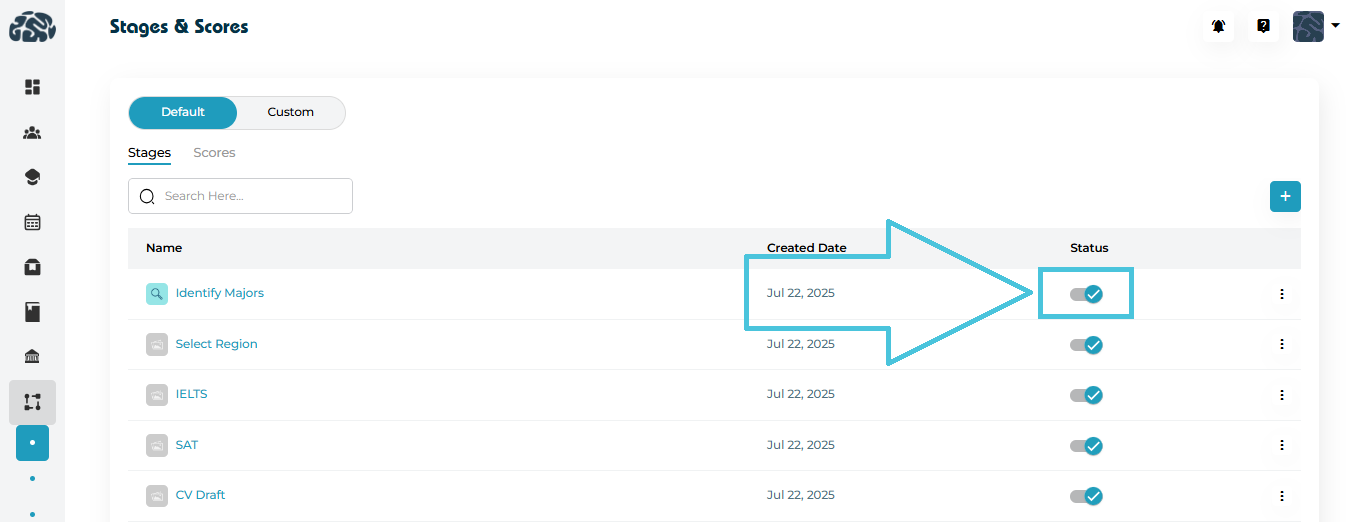
10. Enabling or Disabling Stages & Scores

Each stage or score includes a status toggle:

  • Enabled: Available for use in workflows

  • Disabled: Hidden from selection but not deleted

This allows admins to pause usage without losing historical data.

IN THIS ARTICLE