Navigate to:
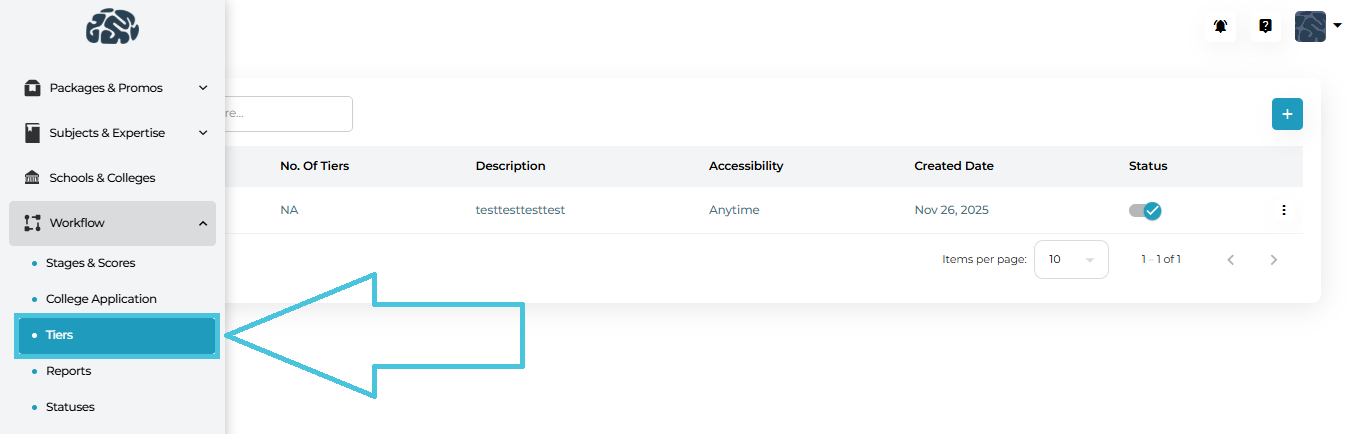
Admin Panel → Workflow → Tiers
Here, you’ll see a complete list of existing tier reports with:
Tier report name
Number of tiers inside it
Description
Accessibility (e.g., Anytime or date-based)
Created date
Status (Active/Inactive)
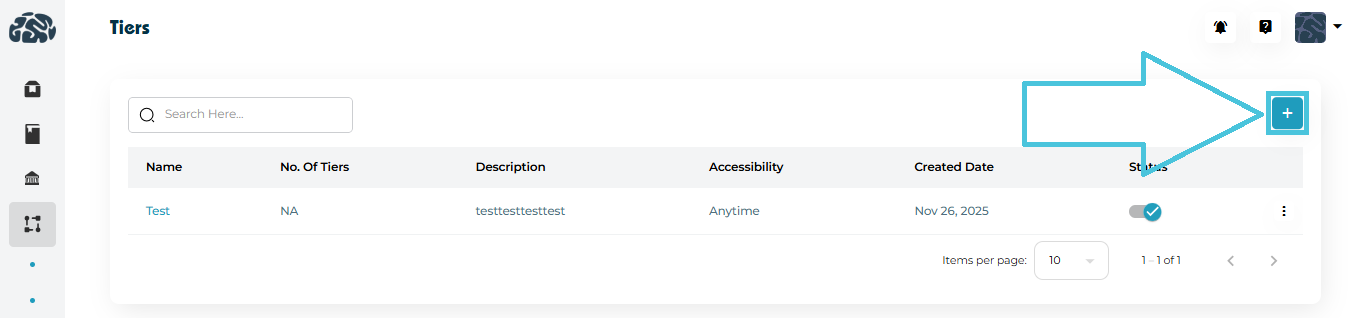
Click ➕ Add on the Tiers page.
Enter the Tier Report Name (e.g., “Initial Review”).
Select Accessibility:
Anytime – always available
Once per month – available
- Twice per month – available
(Optional) Add a Description to clarify the tier report’s purpose.
Click Save.
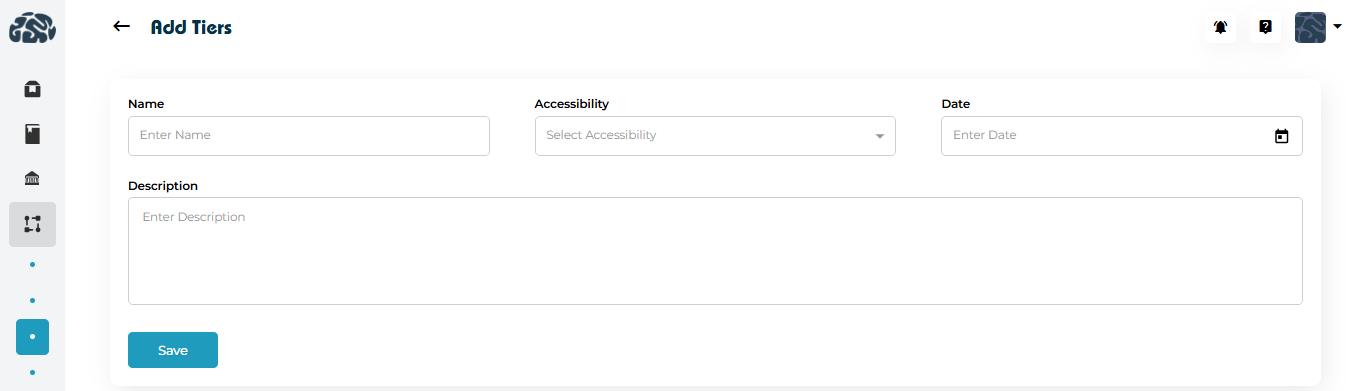
The tier report is now available for use in projects when created from the admin panel.
You can open a tier report in two ways:
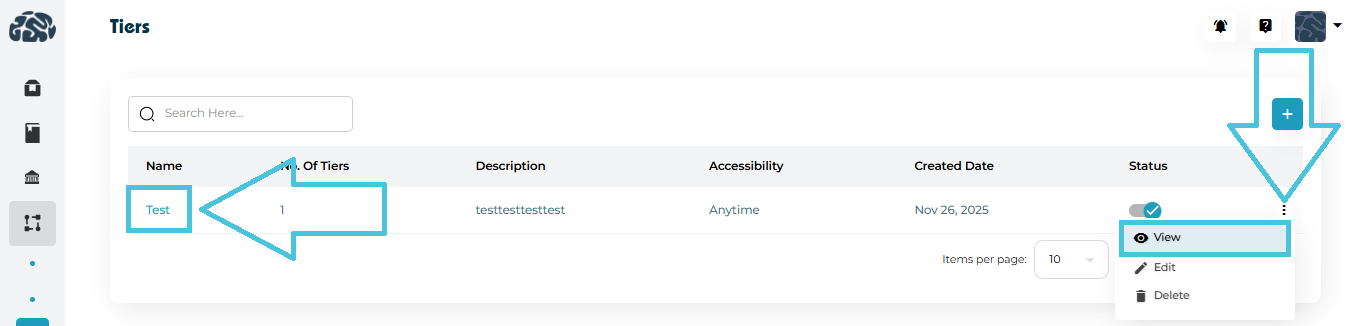
Click the tier name directly.
Use the three-dot menu → View.
The View Tier page displays:
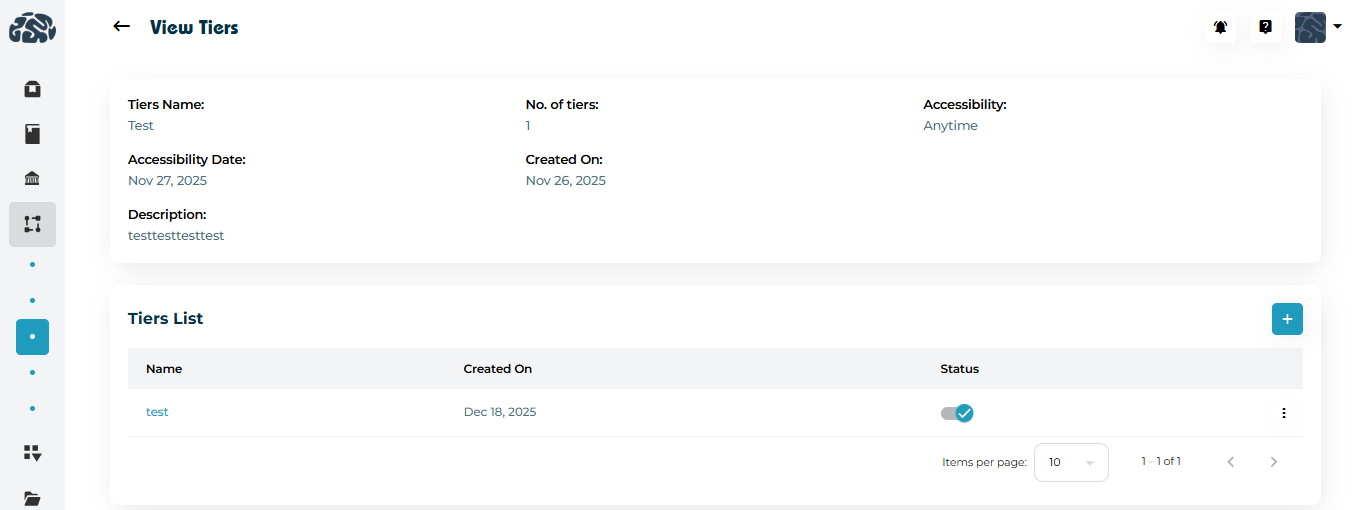
Tier Report name and description
Accessibility settings
Created date
List of tiers inside it (if applicable)
Current status (active/inactive)
Once the Tier Report has been created, tiers can then be added within the report to collect the reporting data.
From the View Tier page
Adding Statuses and Actions to a Tier
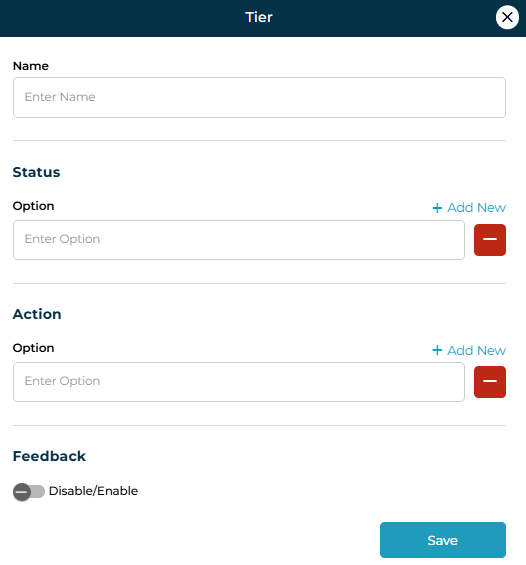
Each tier can define how progress is tracked:
Status Options
Add multiple status labels (e.g., Not Started, In Review, Completed).
These appear when tracking or reporting progress.
Action Options
Define actions users can take (e.g., Request Documents, Approve, Escalate).
Actions standardize workflow decisions.
Feedback Toggle
Enable Feedback if qualitative input or remarks are required at this tier.
Useful for counselor notes or reviewer comments.
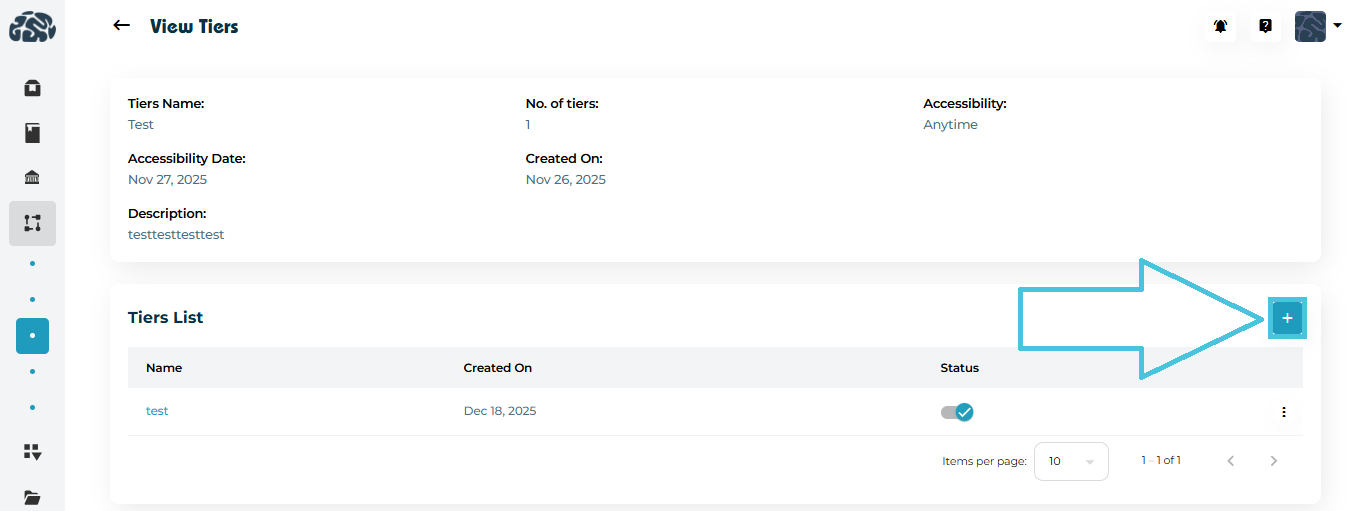
Adding a tier
Scroll to Tiers List.
Click
 Add to create a tier inside the parent tier report.
Define its name, statuses, actions, and feedback settings.
Save to add it to the hierarchy.
This allows granular reporting without cluttering the main workflow.
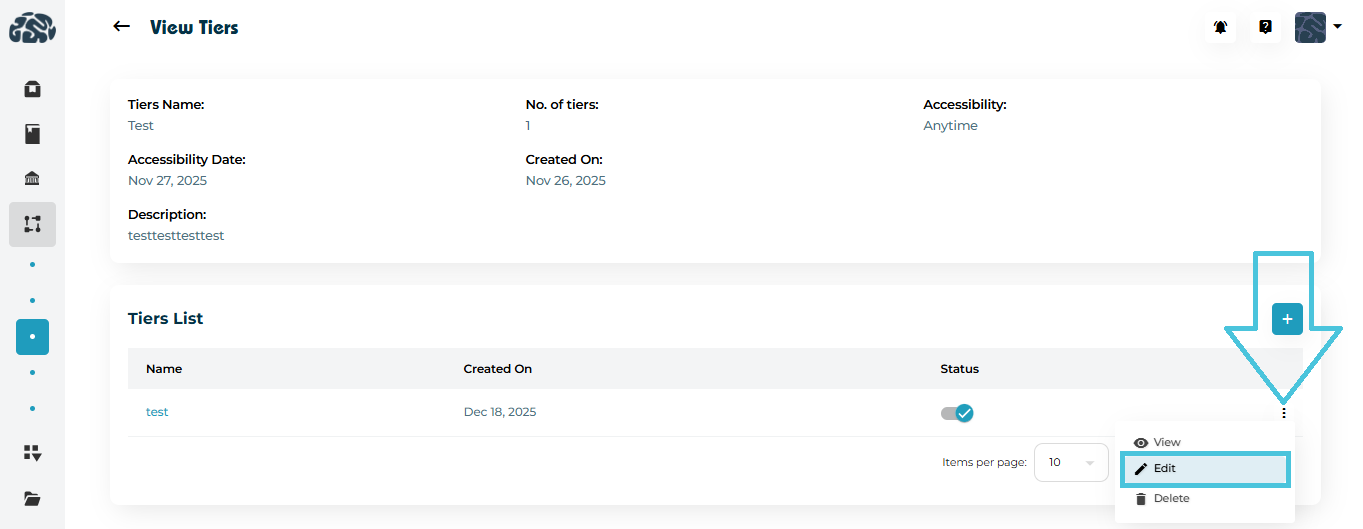
Editing a tier
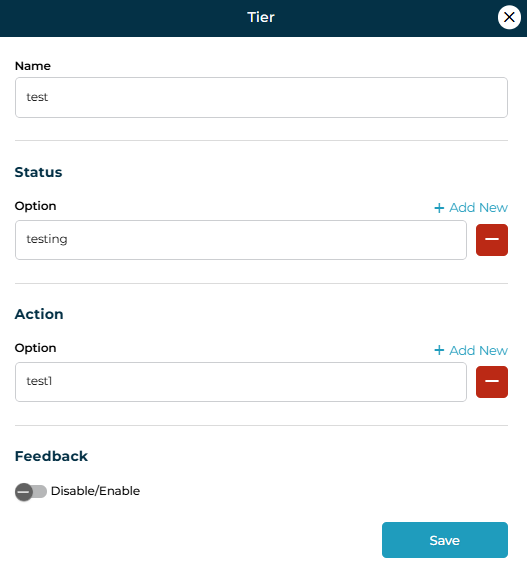
Open the three-dot menu → Edit.
Modify:
Name
Status
- Action
Feedback
Click Save to apply changes.
Edits take effect immediately across all related reports.
Deleting a tier
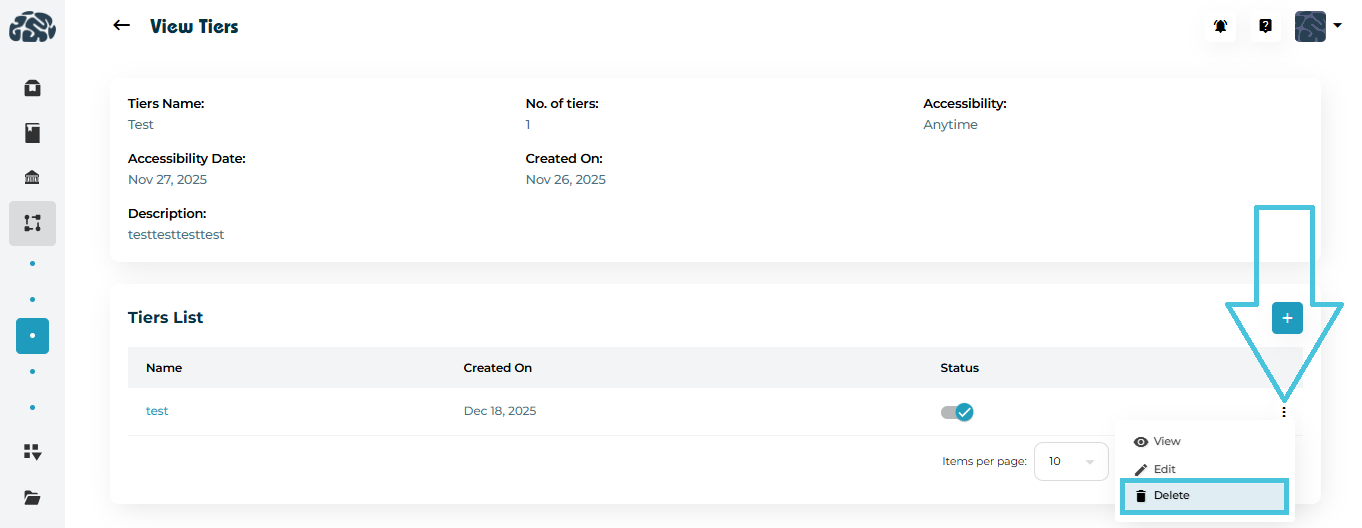
Open the three-dot menu → Delete.
Confirm the action.
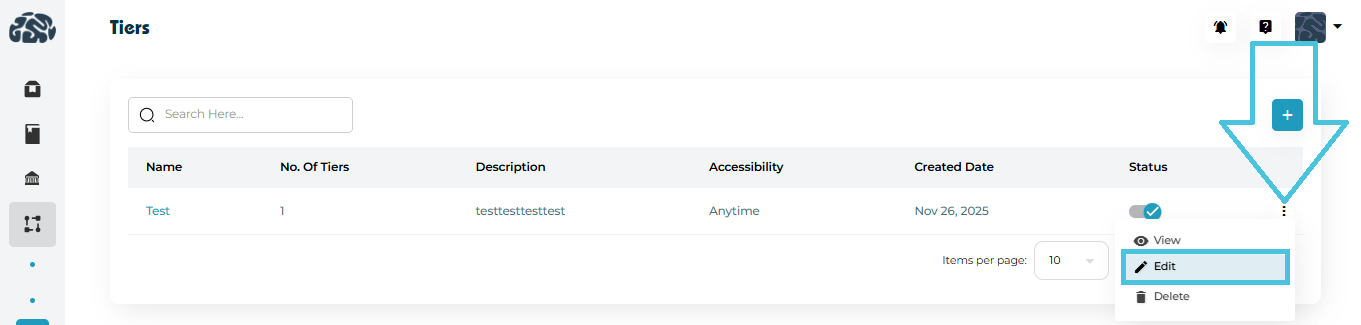
To update a tier report:
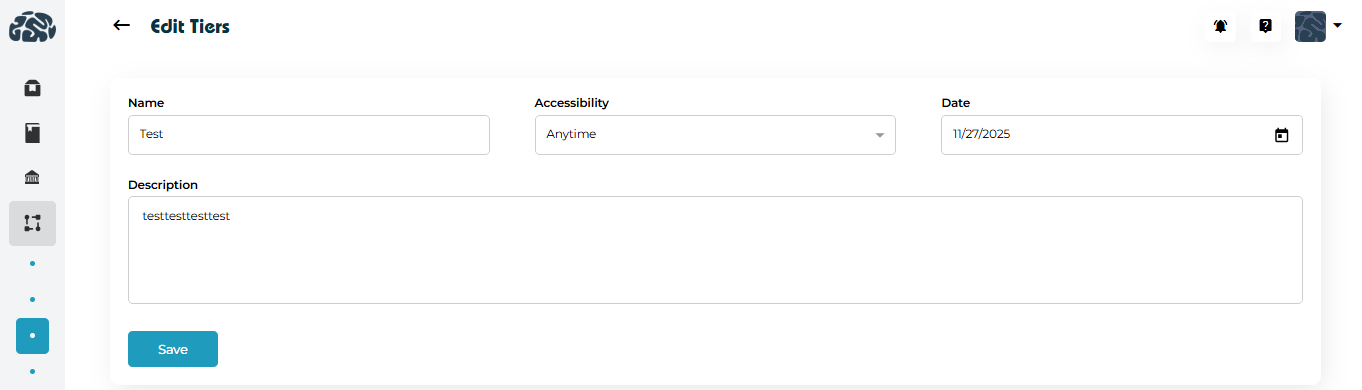
Open the three-dot menu → Edit.
Modify:
Name
Accessibility
- Date
Description
Click Save to apply changes.
Edits take effect immediately across all related reports.
To remove a tier:
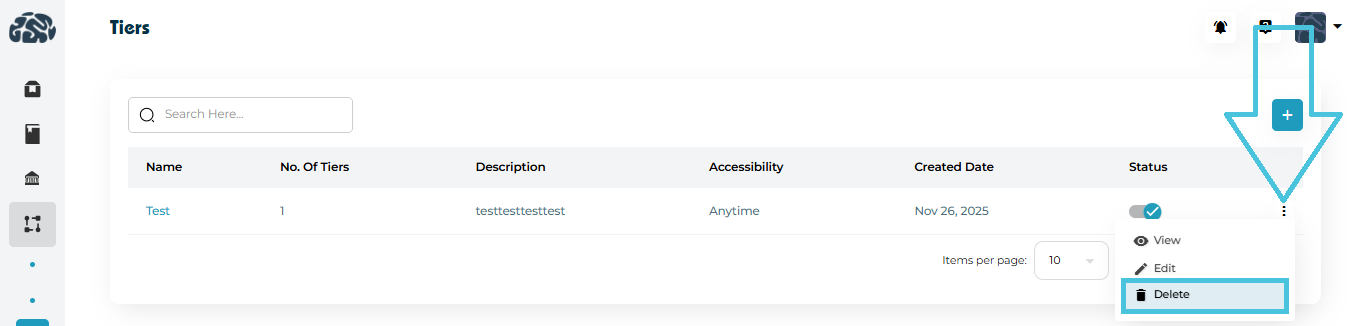
Open the three-dot menu → Delete.
Confirm the action.
⚠️ Best practice:
Only delete tiers that are no longer referenced in active workflows or reports to avoid data inconsistencies.