Adding student hobbies and interests

Adding Student Hobbies and Interests

The Hobbies & Interests module allows Admins to define the extracurricular categories that students can select in their profiles. These categories help instructors, counselors, and the system better understand a student’s passions, personality, and non-academic inclinations.

This section lets you add, edit, view, activate/deactivate, and delete hobby categories, ensuring your list remains accurate and relevant.

1. Accessing the Hobbies & Interests Module

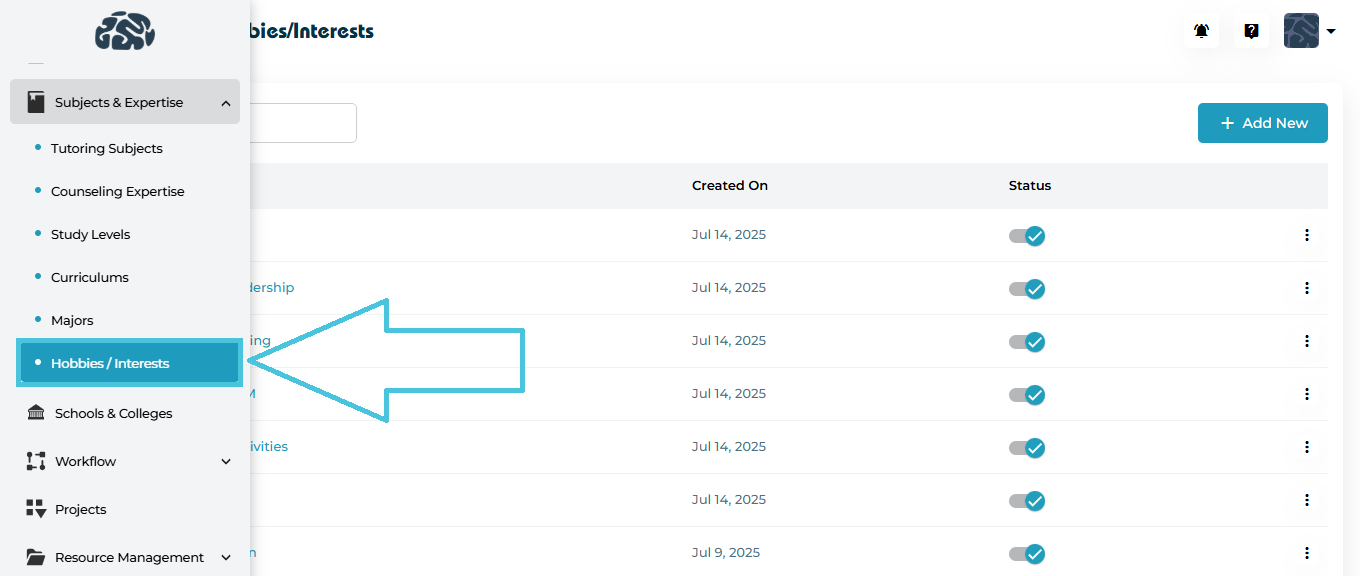
Navigate to:

Subjects & Expertise → Hobbies / Interests

Here you will see the complete list of existing hobbies, along with their:
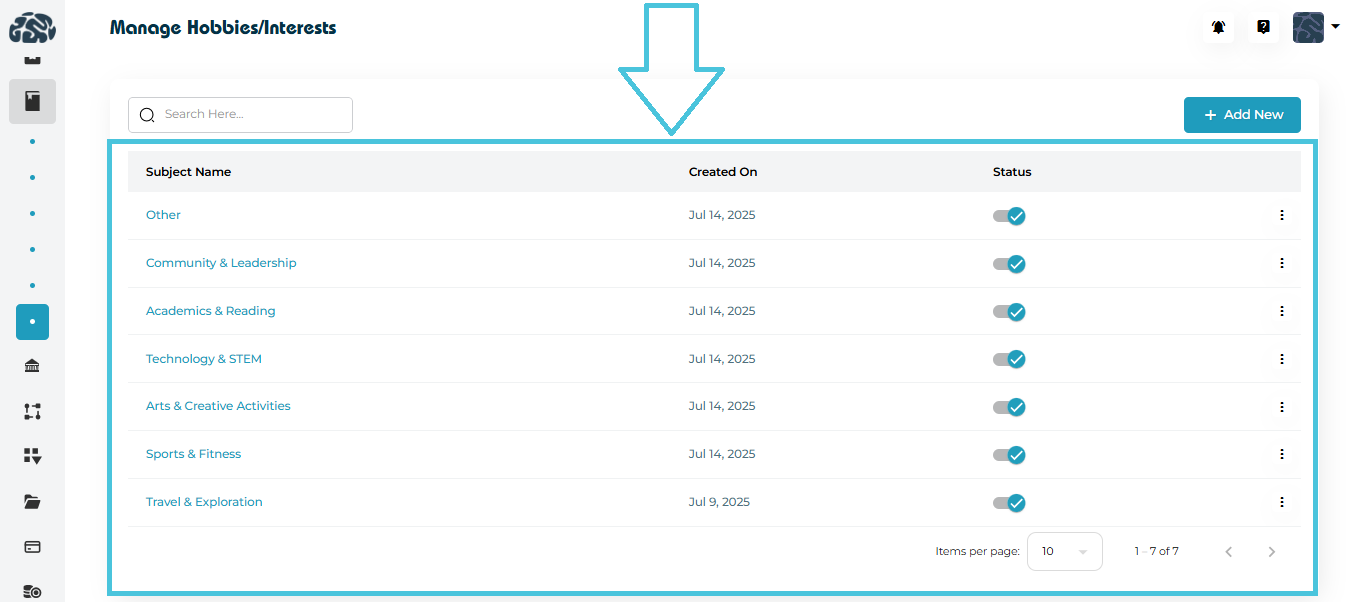
  • Subject Name

  • Created On

  • Status (Active/Inactive)

  • Actions menu (View, Edit, Delete)

2. Adding a New Hobby or Interest

Click + Add New at the top right of the hobbies list.
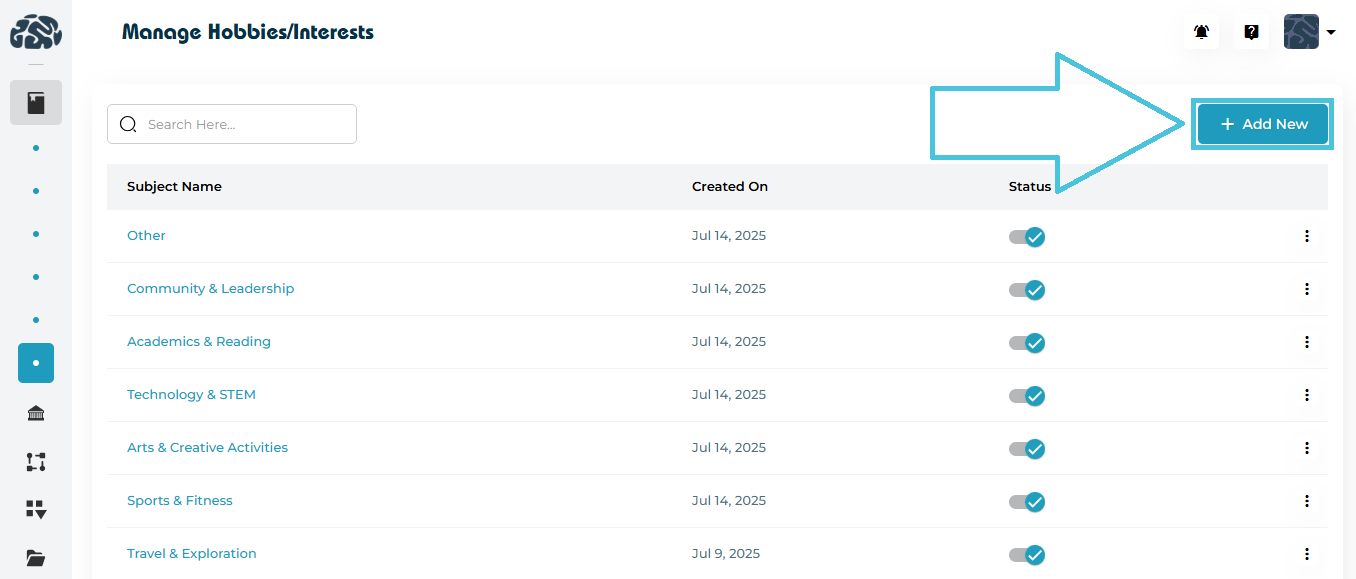
This opens the Add Hobby form.
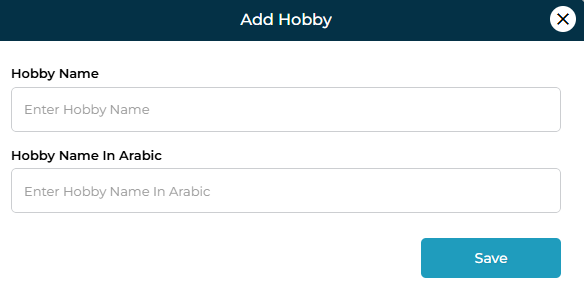
Fields Included
FieldDescription
Hobby NameEnter the hobby/interest in English.
Hobby Name in ArabicEnter the Arabic translation of the hobby (optional but recommended for bilingual platforms).

Once completed, click Save to add the hobby to the list.

3. Viewing an Existing Hobby

There are two methods to view hobby details:
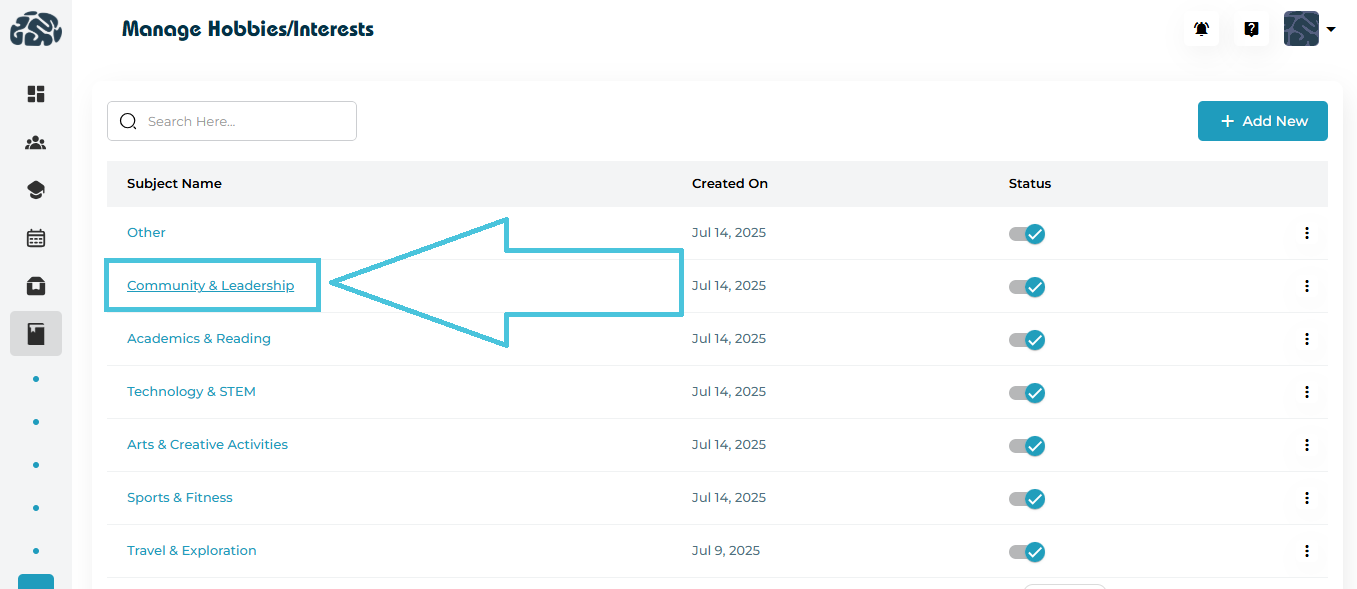
Method 1: Click the Hobby Name Directly

Simply click on any hobby listed under Subject Name to open its detailed view.
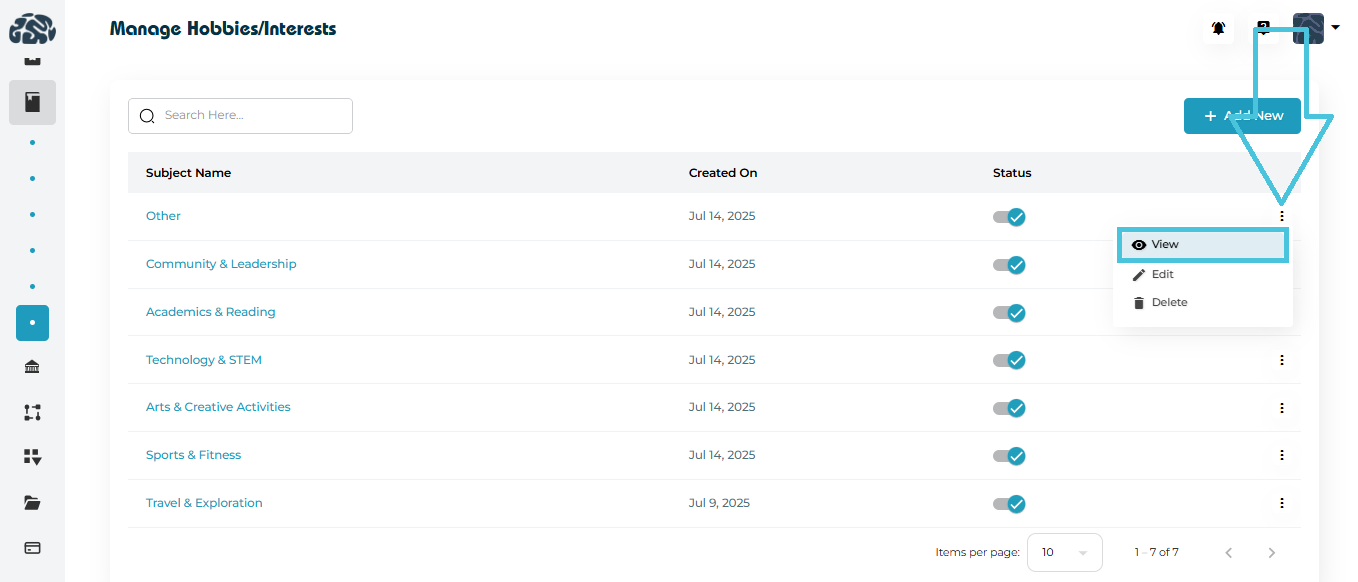
Method 2: Using the Three-Dot Menu
  1. Locate the hobby row.

  2. Click the three-dot menu on the right side.

  3. Select View.

The View Hobby Form displays:
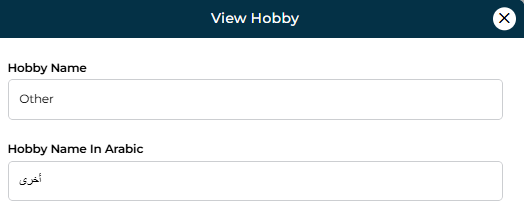
  • Hobby Name (English)

  • Hobby Name (Arabic)

This method ensures quick access without accidentally editing data.

4. Editing a Hobby

To update an existing hobby:

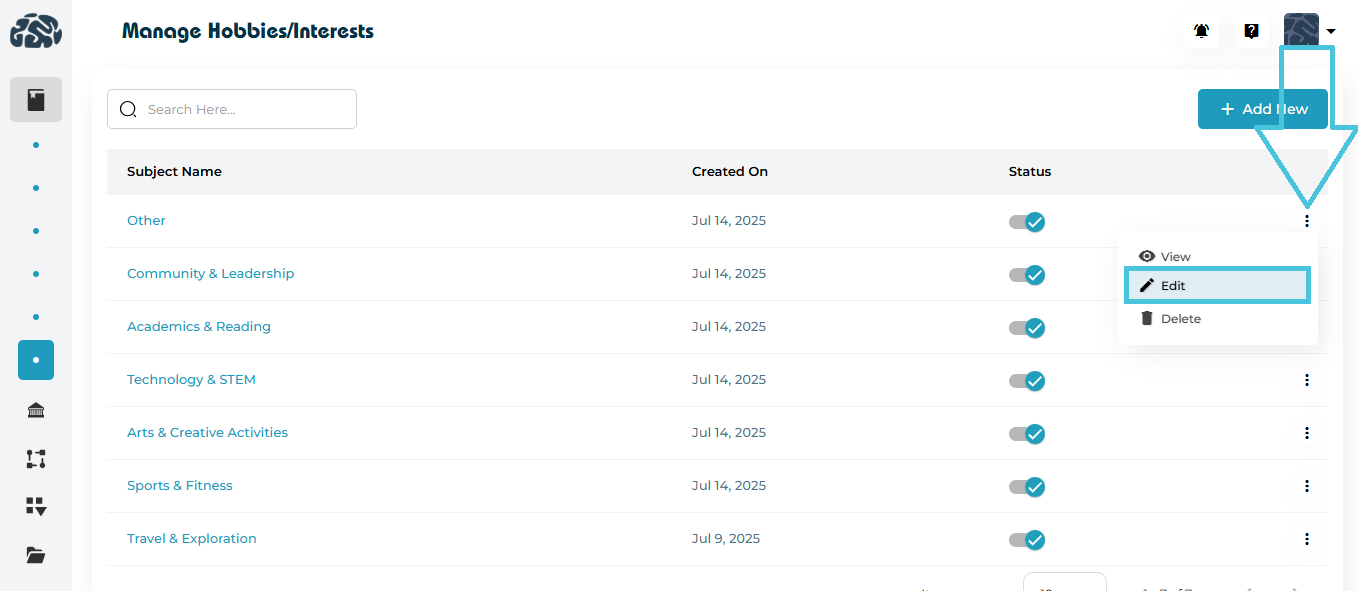
  1. Open the three-dot menu next to the hobby.

  2. Click Edit.

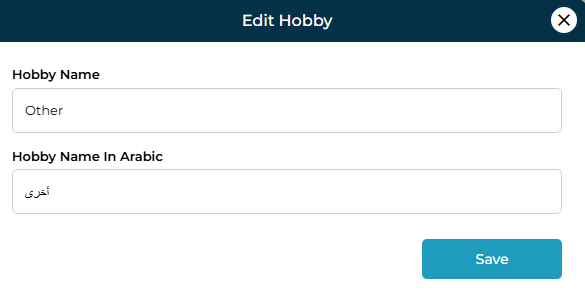
You can modify:

  • English Name

  • Arabic Name

Click Save to apply changes.

5. Activating or Deactivating Hobbies

Each hobby row includes a status toggle.
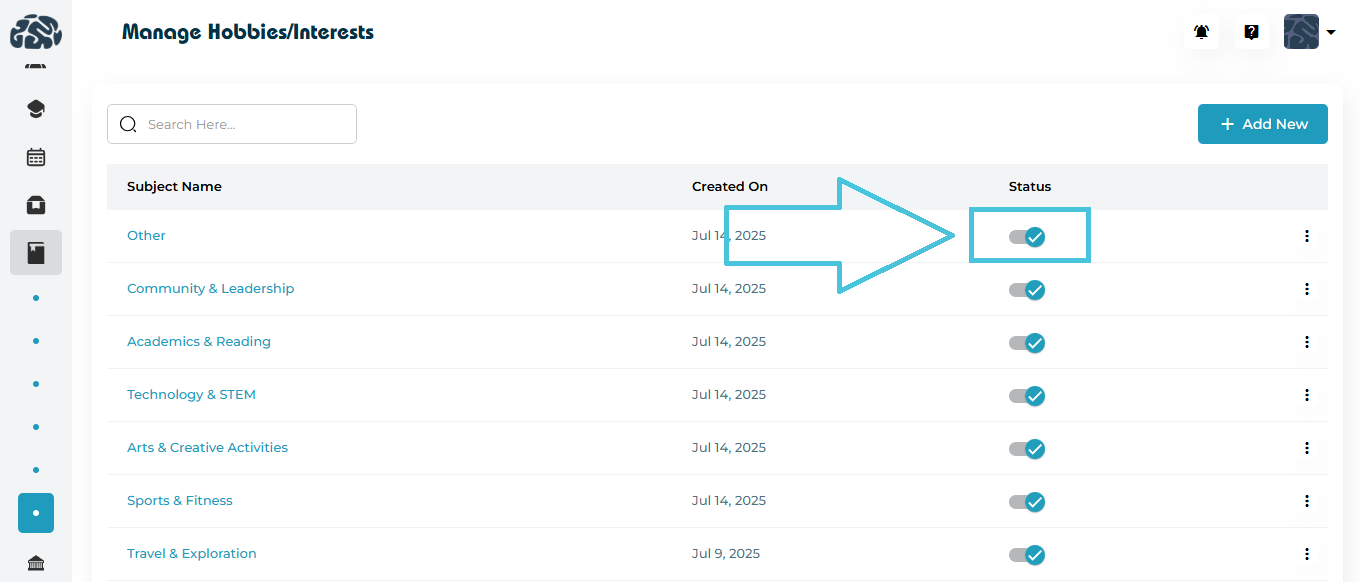
  • Blue checkmark → Active

  • Grey toggle → Inactive

Inactive hobbies will not appear in student-facing dropdowns but remain stored in the system.

Use this when a hobby is temporarily irrelevant or no longer offered.

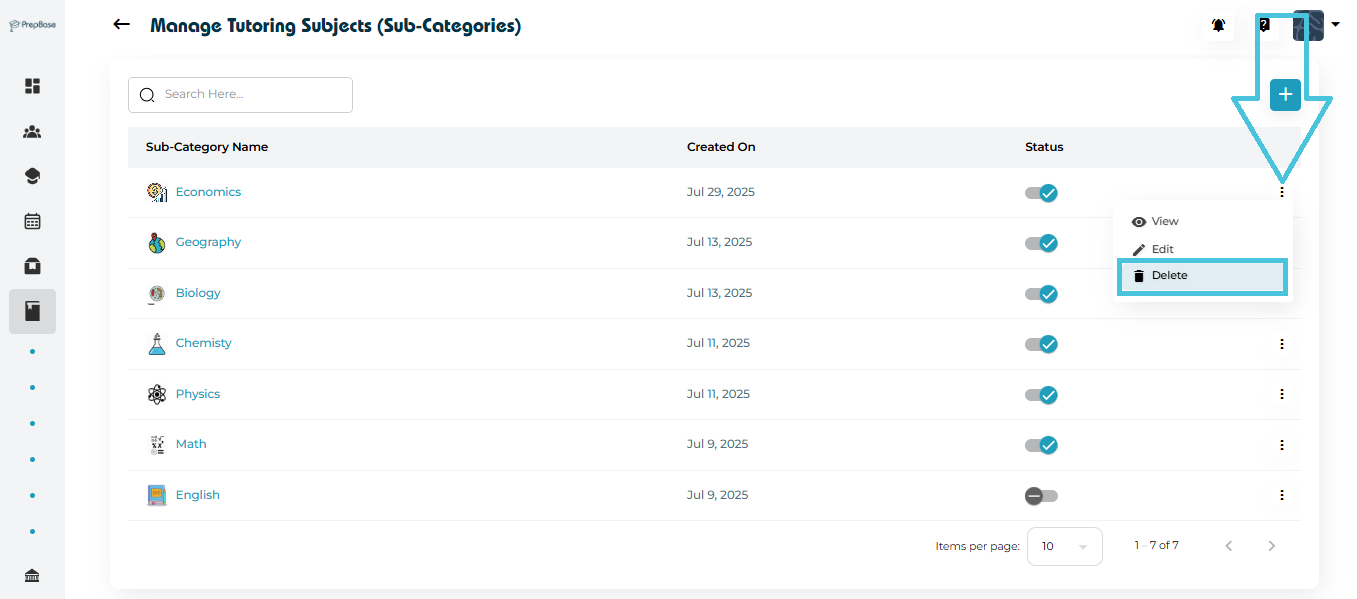
6. Deleting a Hobby or Interest

If a category is no longer needed:

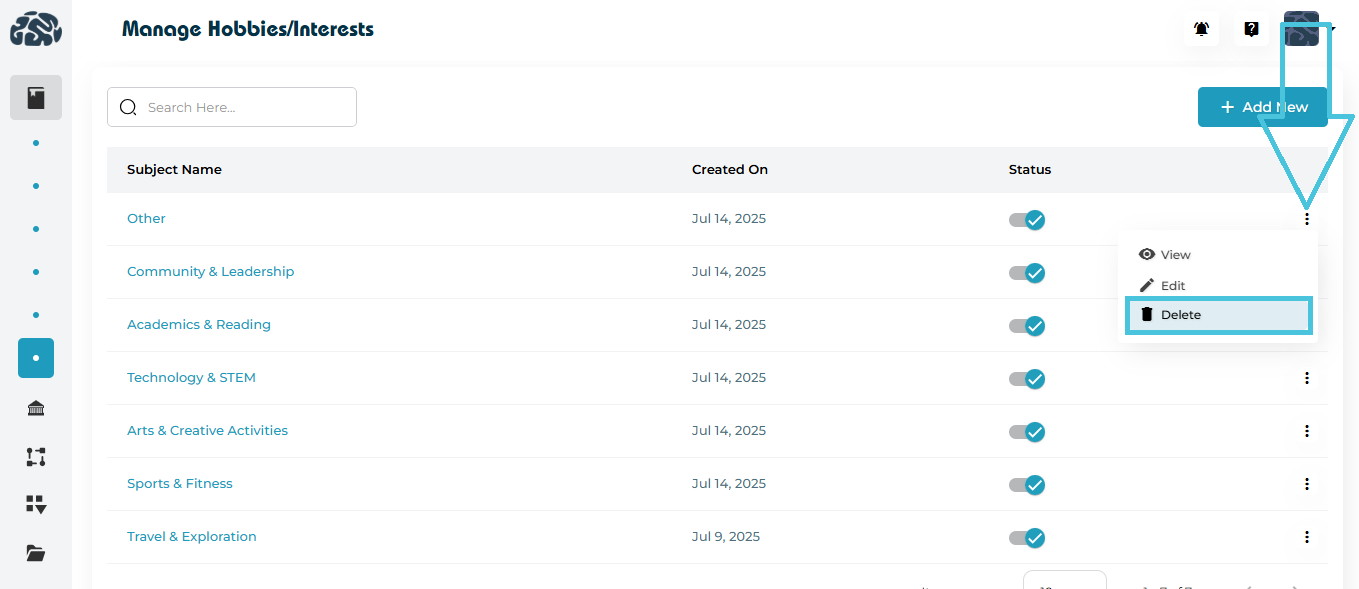
  1. Click the three-dot menu.

  2. Select Delete.

  3. Confirm the deletion.

⚠️ Note: Deleted hobbies cannot be recovered unless re-created manually.
IN THIS ARTICLE

Defining student majors

Defining Student Majors

The Majors module in PrepBase allows administrators to define, organize, and manage all academic majors offered within the platform. These majors are later used across student profiles, college records, course alignment, and reporting — making it essential that this list is well-structured and kept up to date.

This guide explains how to add, edit, delete, activate/deactivate, and view majors, with clear screenshots to help you understand every feature.

1. Accessing the Majors Module

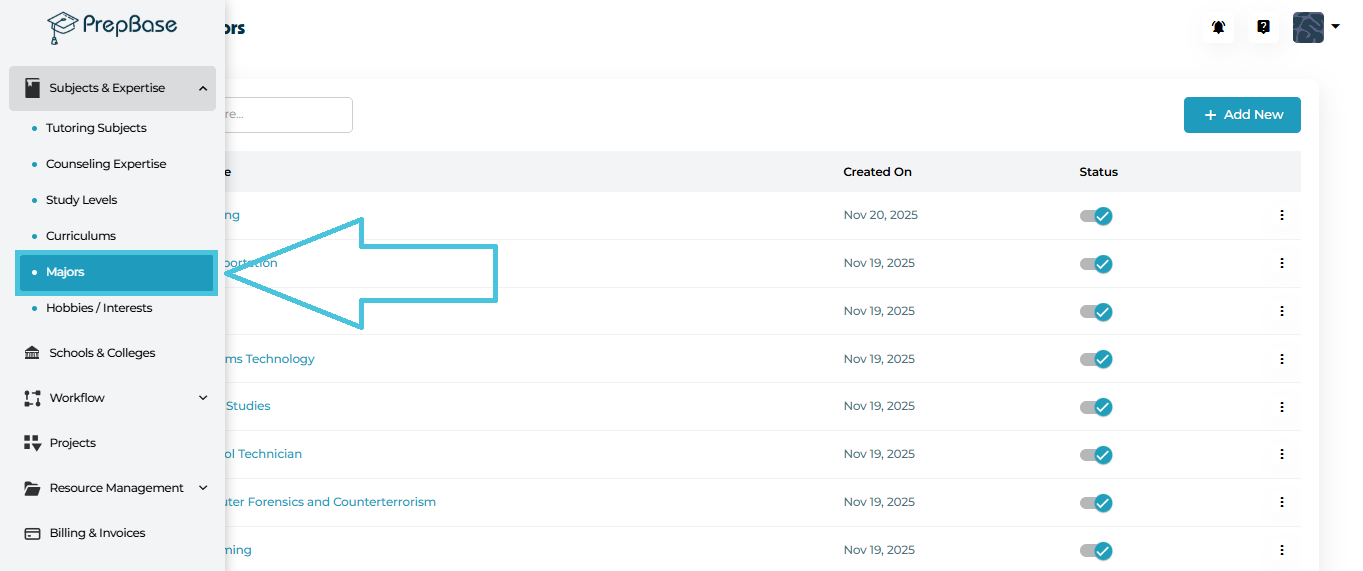
To open the Majors management area:

  1. Go to the left navigation menu.

  2. Open Subjects & Expertise.

  3. Select Majors.

2. Adding a New Major

To create a major:

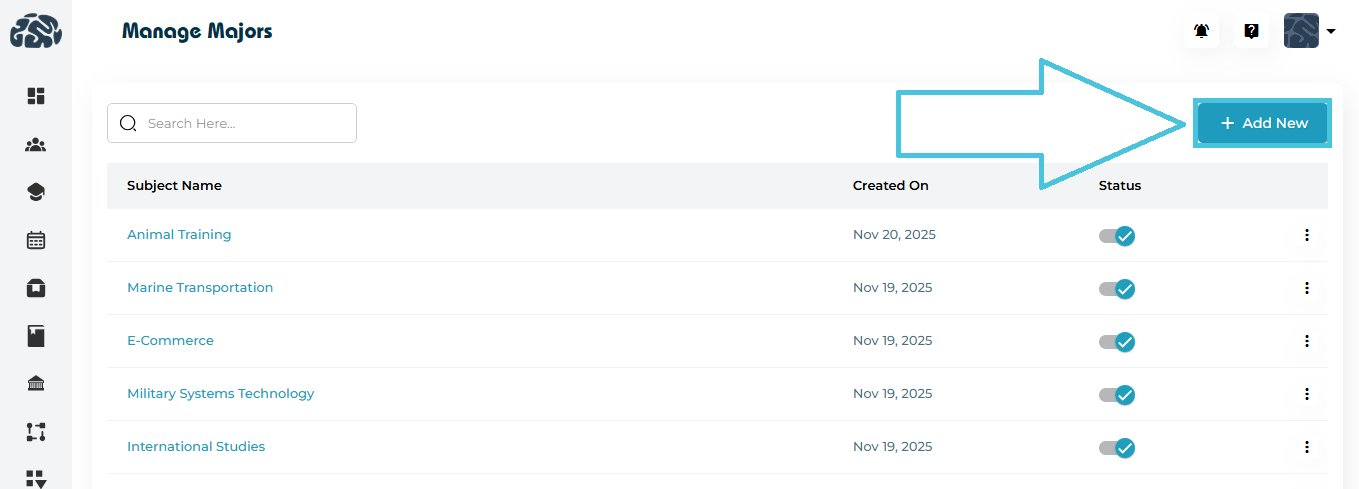
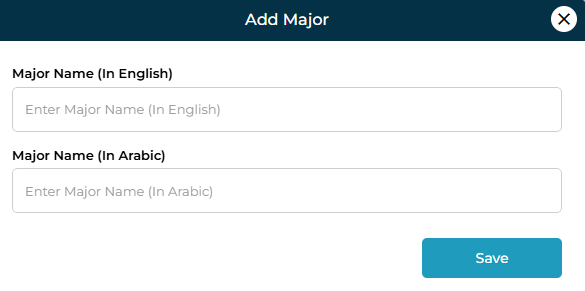
  1. Click the Add New button at the top right of the Majors page.

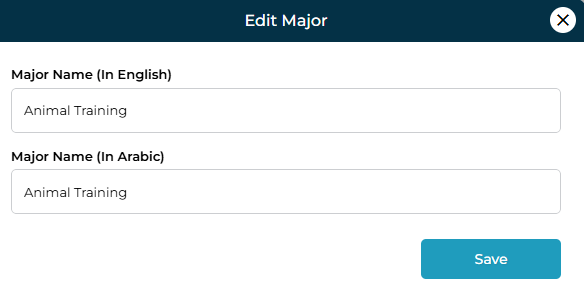
  2. A pop-up form will appear (as shown below).

  3. Enter:

    • Major Name (In English)

    • Major Name (In Arabic) — optional but recommended for bilingual environments

  4. Click Save.

After saving, the new major appears instantly in the majors list.

3. Viewing a Major (Two Methods)

Admins can view major details in two different ways, depending on their workflow preference:

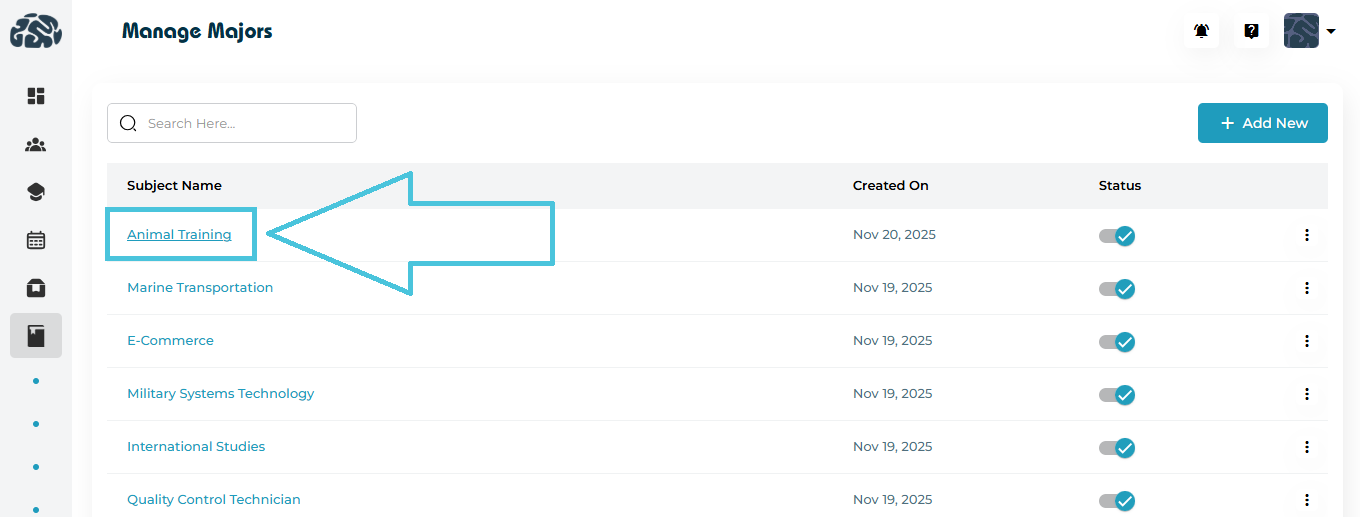
1. Click the Major Name Directly
  1. Simply click the Subject Name (major name) in the list.

  2. The same view window will open.

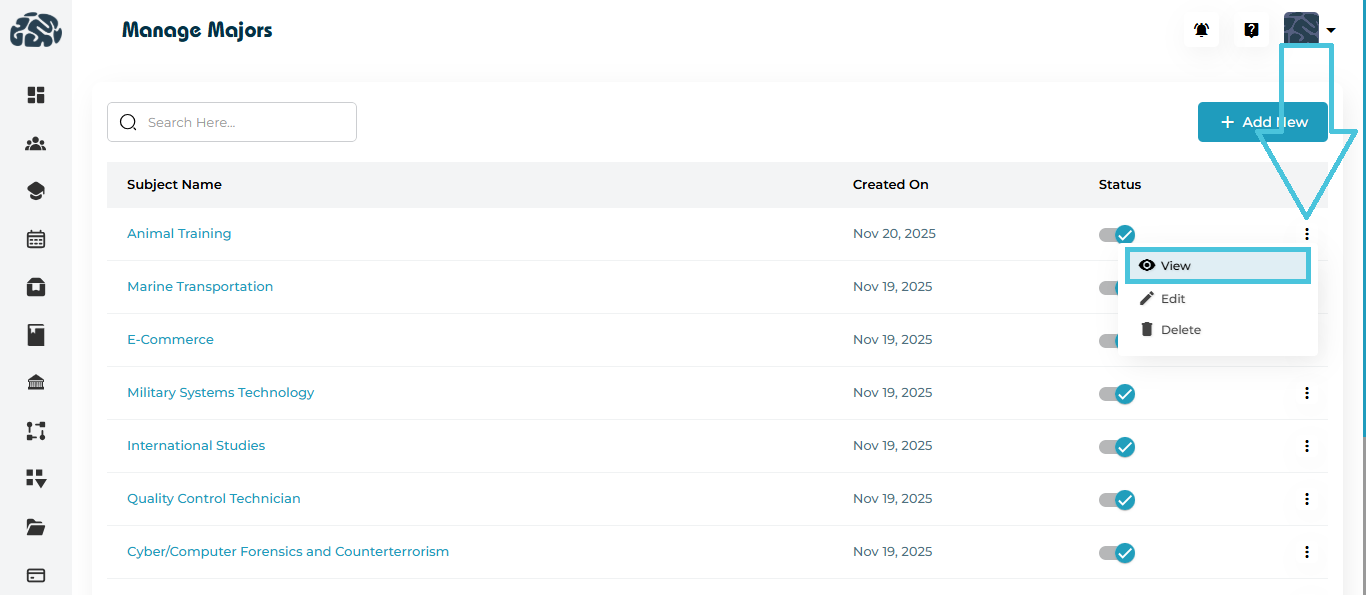
2. From the Three-Dot Menu
  1. Click the three-dot menu next to any major.

  2. Select View.

Both methods open the View Major window where administrators can review:

  • English name

  • Arabic name

(No editing is allowed in viewing mode.)

4. Editing Existing Majors

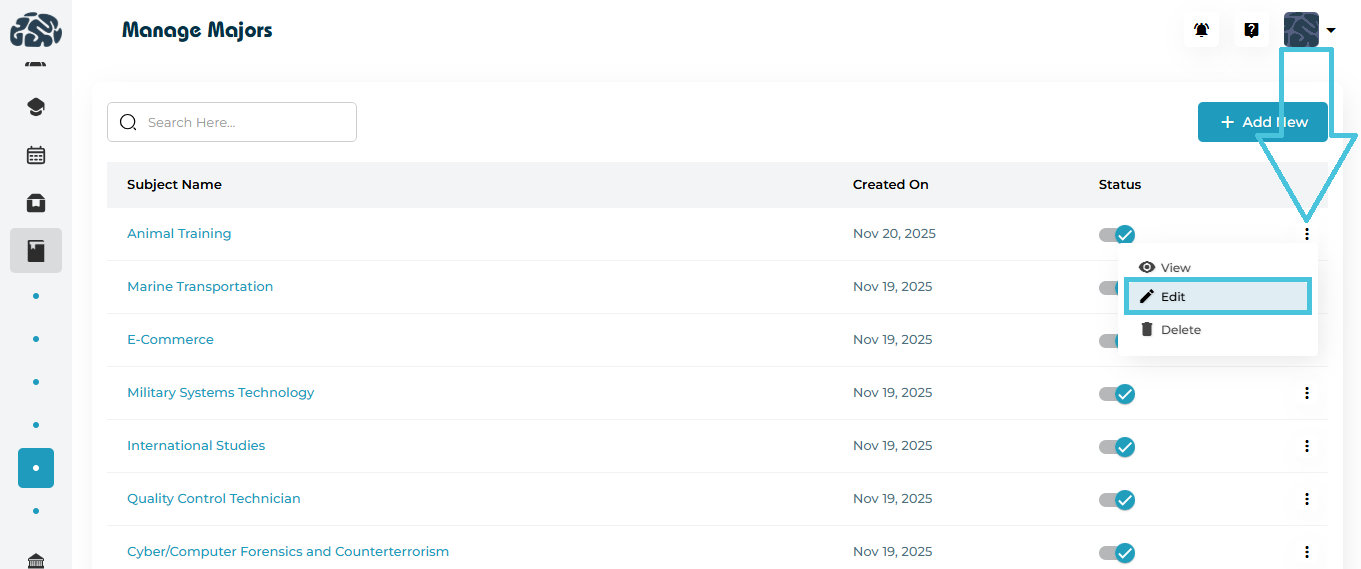
To modify a major:

  1. Click the three-dot menu beside the major.

  2. Select Edit.

  3. Update the English or Arabic name as needed.

  4. Click Save.

Editing is useful when standardizing naming conventions or correcting mistakes.

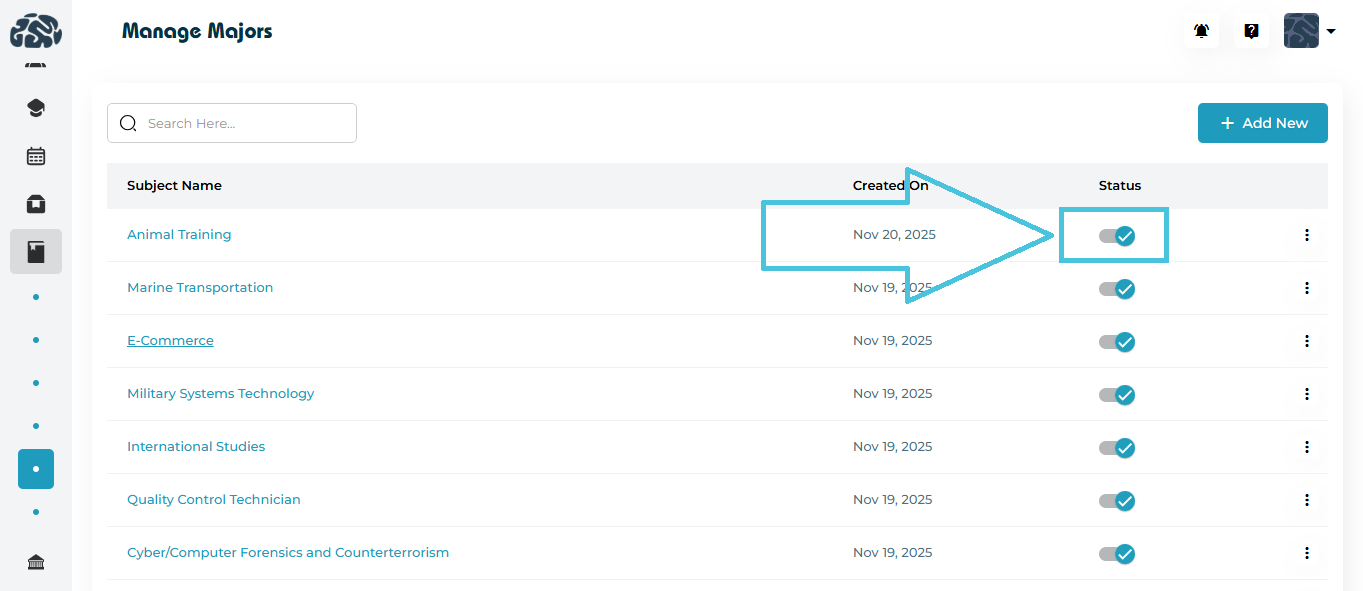
5. Activating or Deactivating Majors

Every major has a status toggle that allows admins to activate or deactivate it without deleting.

  • Active (blue checkmark) → Can be assigned across the platform

  • Inactive (grey state) → Hidden from dropdowns but remains in the database

This is especially helpful when temporarily removing discontinued or seasonal majors.

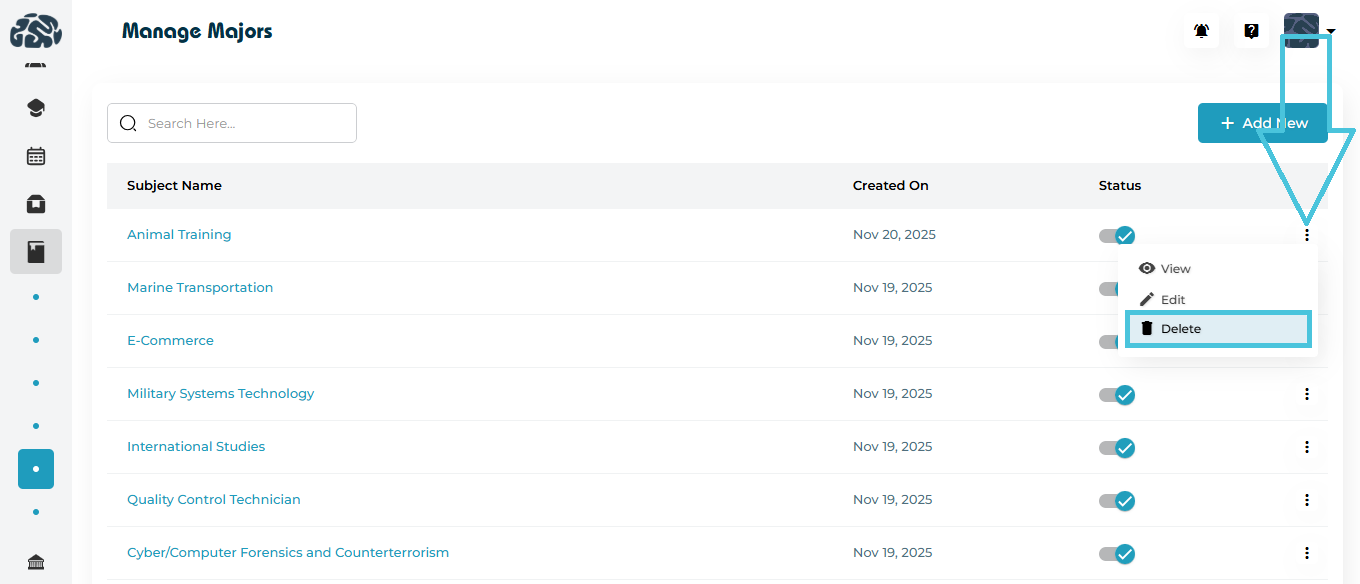
6. Deleting a Major

To remove a major entirely:

  1. Click the three-dot menu on the desired major.

  2. Select Delete.

  3. Confirm the deletion in the prompt that appears.

⚠️ Important:
Deleting a major may affect student profiles or other sections where the major was used. Proceed carefully.

IN THIS ARTICLE

Managing available curriculums

Managing available curriculums

Managing curriculums allows your organization to standardize learning pathways, assign students or instructors to the correct academic framework, and ensure all teaching content aligns with recognized educational standards.
This article provides a complete, guide to adding, editing, viewing, activating/deactivating, and deleting curriculums in the PrepBase Admin Portal.

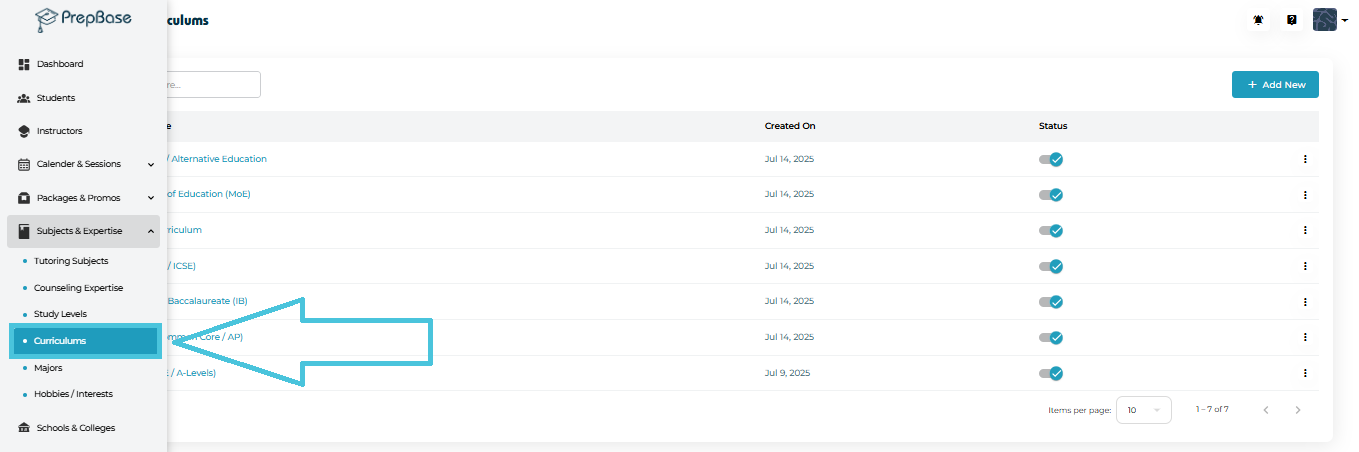
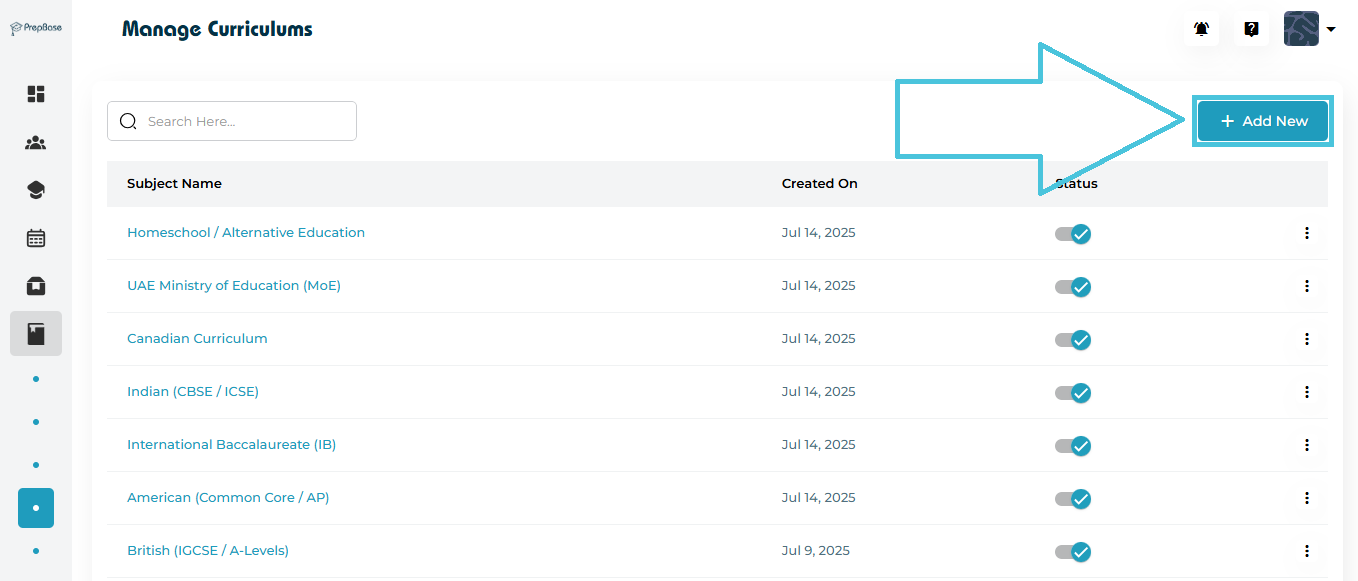
1. Where to Manage Curriculums

Navigate to:


Subjects & Expertise → Curriculums

Here you’ll find the full list of curriculums your institution supports (e.g., IB, British, American, CBSE, Canadian, Homeschool, etc.).
Each curriculum row displays:

  • Curriculum Name

  • Created On Date

  • Status (Active / Inactive toggle)

  • Action Menu (View / Edit / Delete)

2. Adding a New Curriculum

Click the Add New button on the top-right corner of the page.


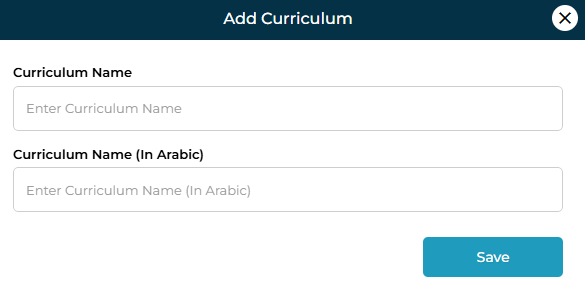
A form titled Add Curriculum appears.

Fields Included
FieldDescription
Curriculum NameThe English name of the curriculum. Example: International Baccalaureate (IB)
Curriculum Name (Arabic)Optional Arabic equivalent for bilingual organizations.
Save ButtonStores the new curriculum in your system.

After saving, the curriculum is added to the list and automatically activated.

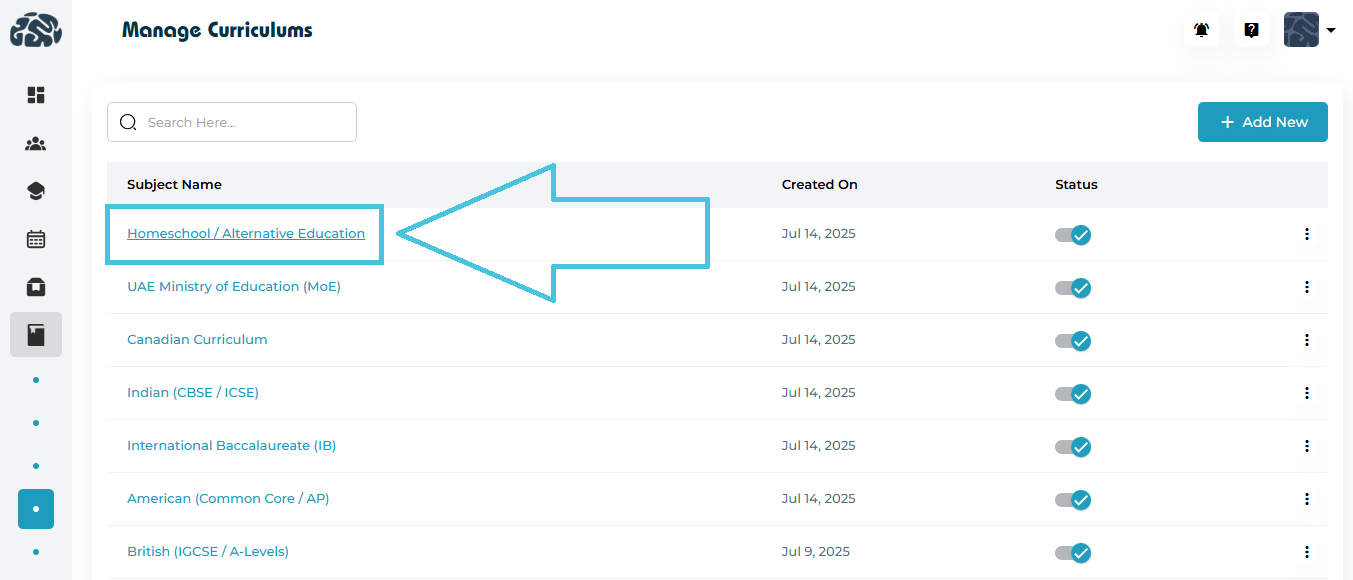
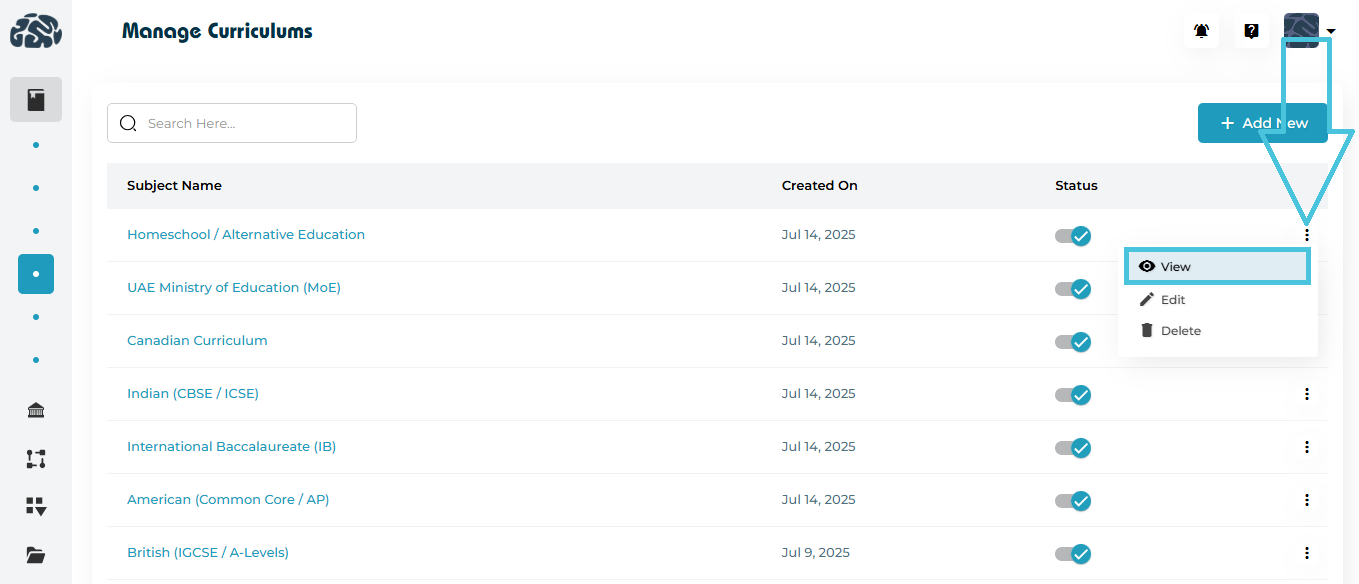
3. Two Ways to View Curriculum Details

PrepBase provides two convenient methods to open detailed curriculum information:

1. Clicking the Curriculum Name (direct open)

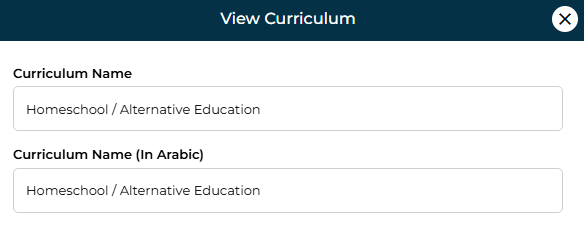
Simply click on the curriculum name (e.g., Canadian Curriculum) to open the View Curriculum form.

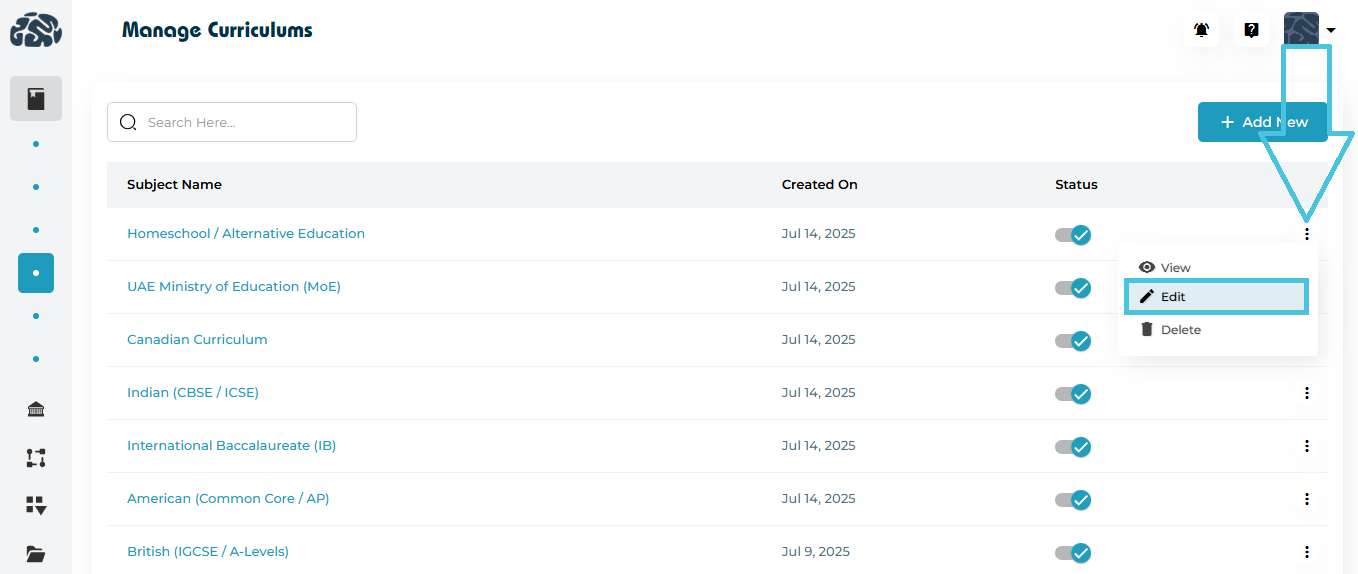
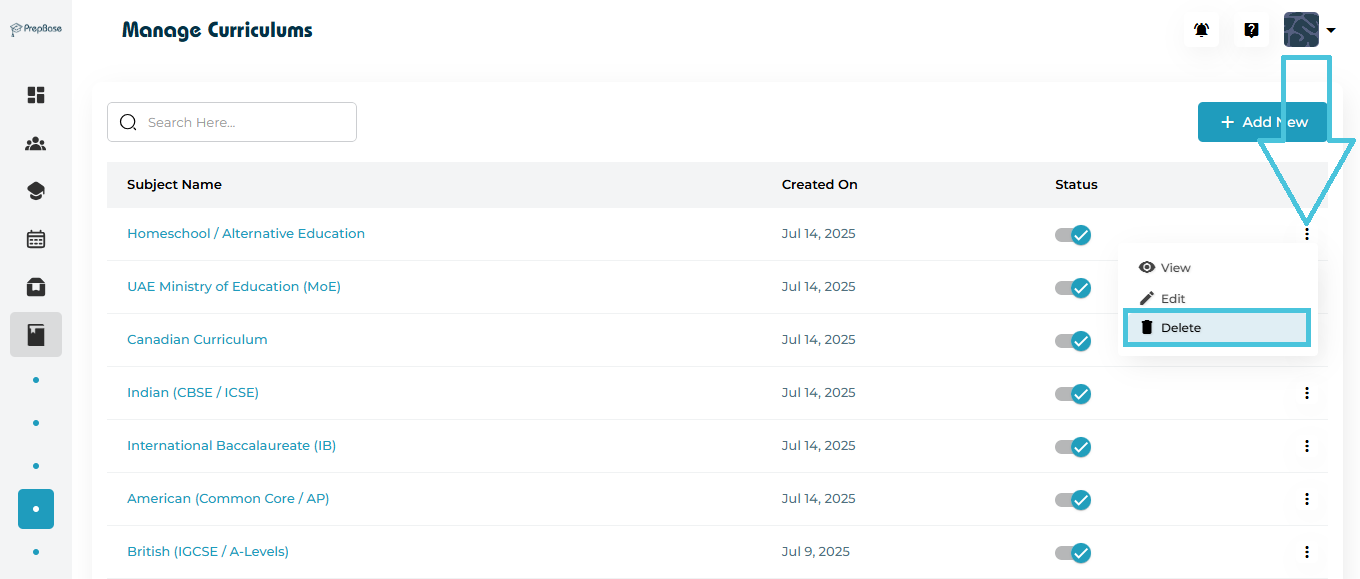
2. Using the Three-Dot Menu (⋮) → View

Open the action menu beside the curriculum and select View.

View Form Includes:
  • Curriculum Name (English)

  • Curriculum Name (Arabic)

This screen is read-only and is ideal for quickly reviewing stored details.

4. Editing an Existing Curriculum

To modify curriculum information:

  1. Click ⋮ Three-Dot Menu

  2. Select Edit

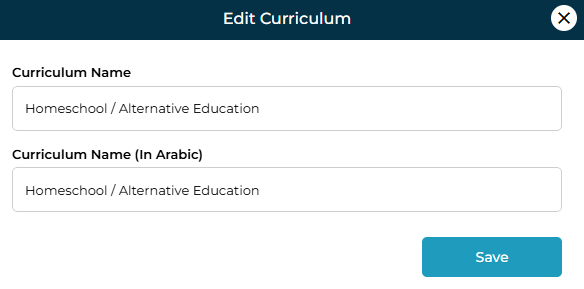
The Edit Curriculum form appears, containing:

FieldEditable?Notes
Curriculum Name✔️Update English name anytime
Curriculum Name (Arabic)✔️Optional bilingual support

Click Save to apply changes.
The updates reflect instantly across all modules referencing this curriculum.

5. Activating or Deactivating a Curriculum

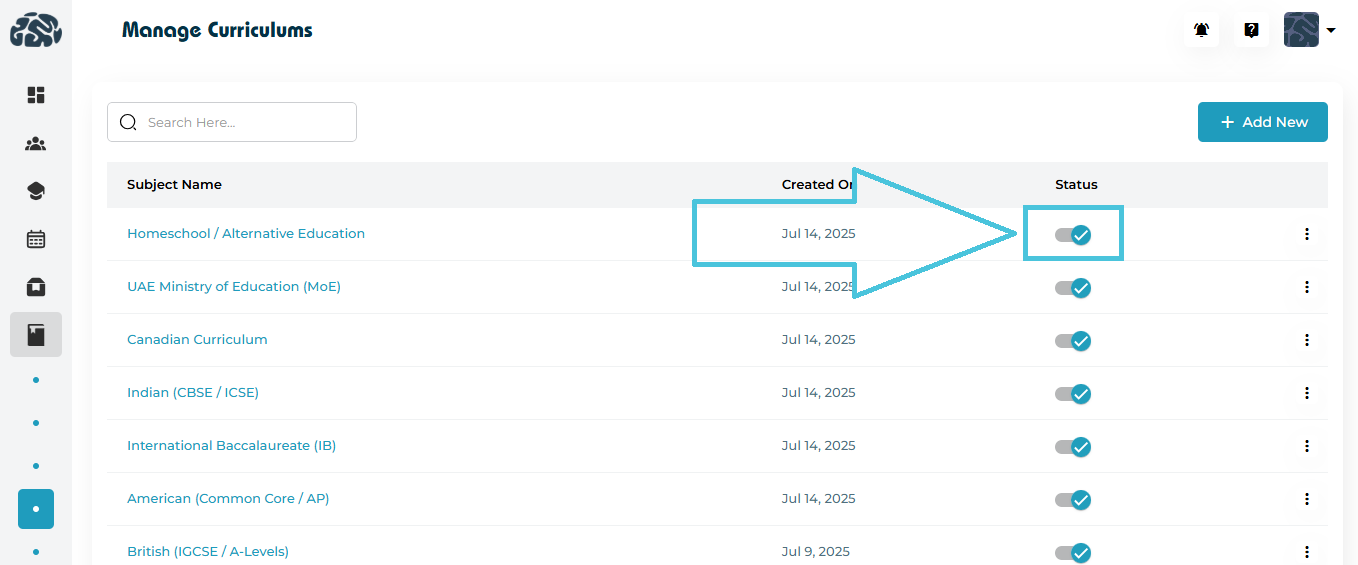
Each curriculum has a Status Toggle in the list view.

Active (blue tick)

Curriculum is visible and selectable throughout the system.

Inactive (grey toggle)

Curriculum is hidden from selection menus but remains stored for historical data consistency.

This feature is especially useful when a curriculum becomes obsolete or is temporarily unavailable.

6. Deleting a Curriculum

To remove a curriculum:

  1. Click ⋮ Three-Dot Menu

  2. Select Delete

  3. Confirm the deletion in the prompt

Important Notes
  • Deleted curriculums cannot be assigned further.

  • Existing records linked to deleted curriculums remain intact for reporting and audit purposes.

IN THIS ARTICLE

Configuring different study levels

Configuring Different Study Levels

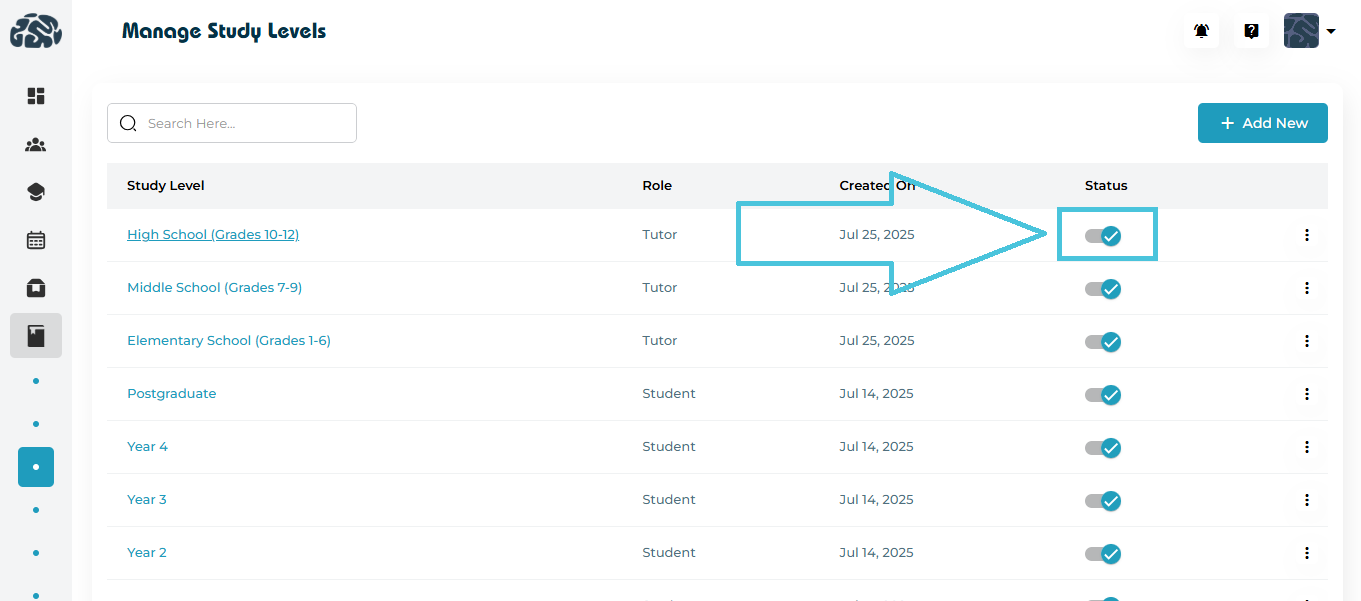
Study Levels represent the academic stages your institution supports—such as Elementary, Middle School, High School, University Years, or Postgraduate levels. These labels help categorize students accurately and ensure instructors are assigned to the correct academic tiers.

In PrepBase, admins can add, edit, view, activate/deactivate, and delete study levels for both Tutor and Student roles. This article explains how to manage them effectively.

1. Where to Manage Study Levels

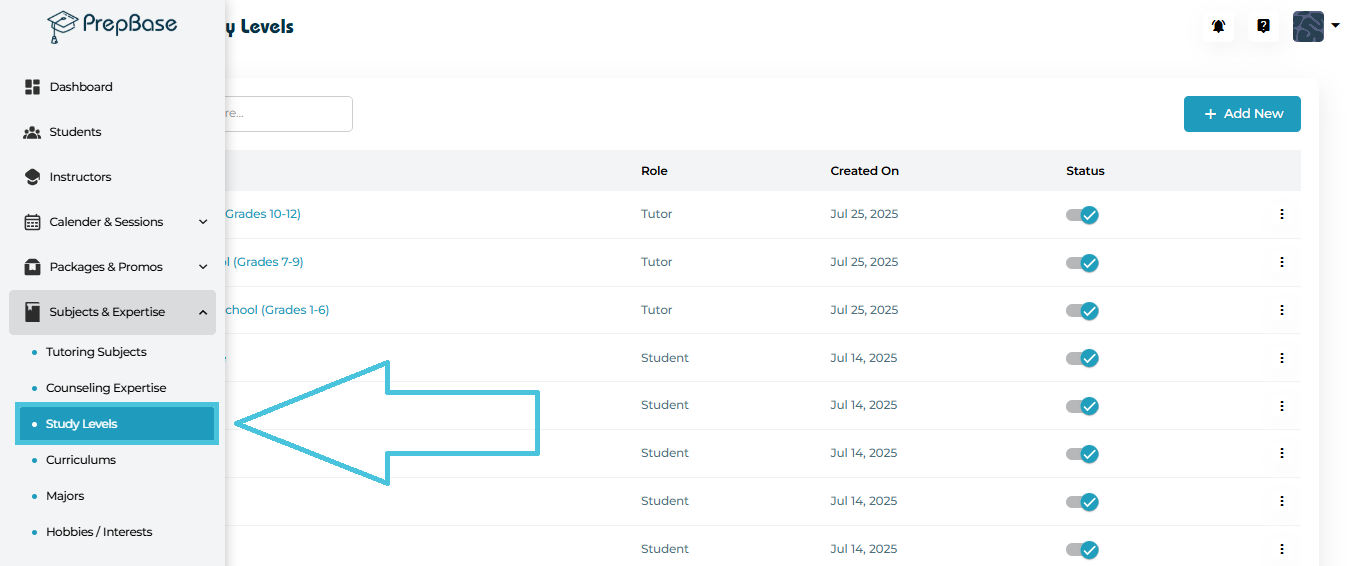
Navigate to:

Subjects & Expertise → Study Levels

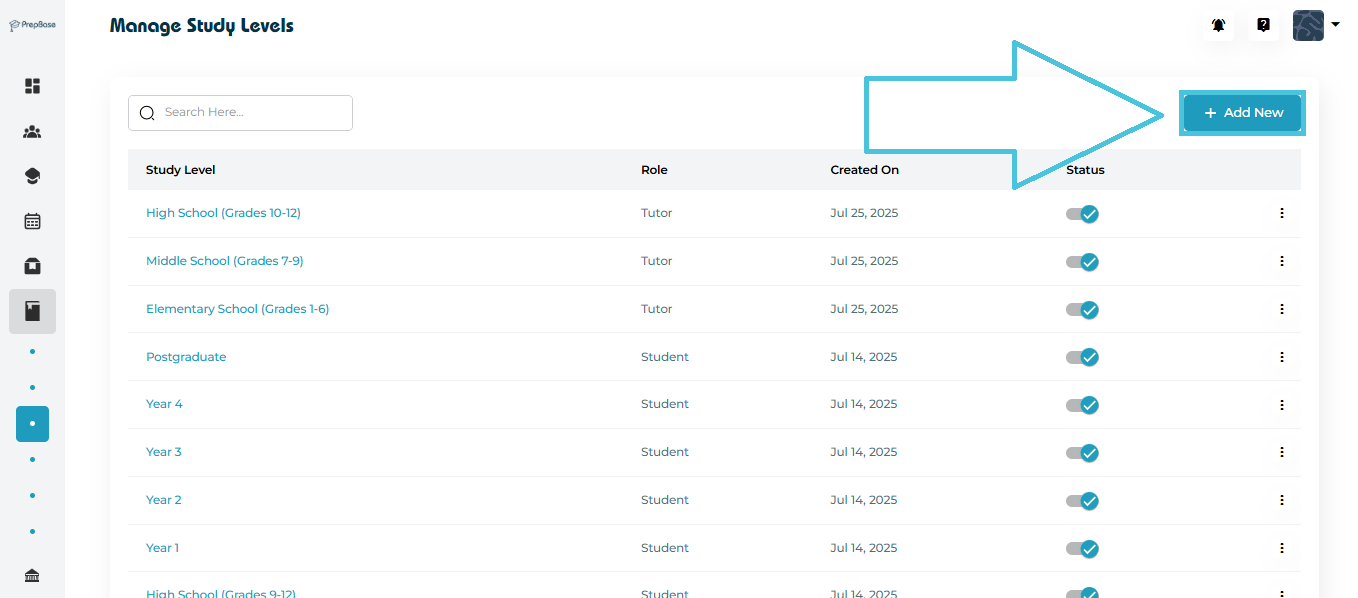
Here you will see a complete list of study levels along with:

  • Study Level Name

  • Assigned Role (Tutor or Student)

  • Created On date

  • Status Toggle (Active / Inactive)

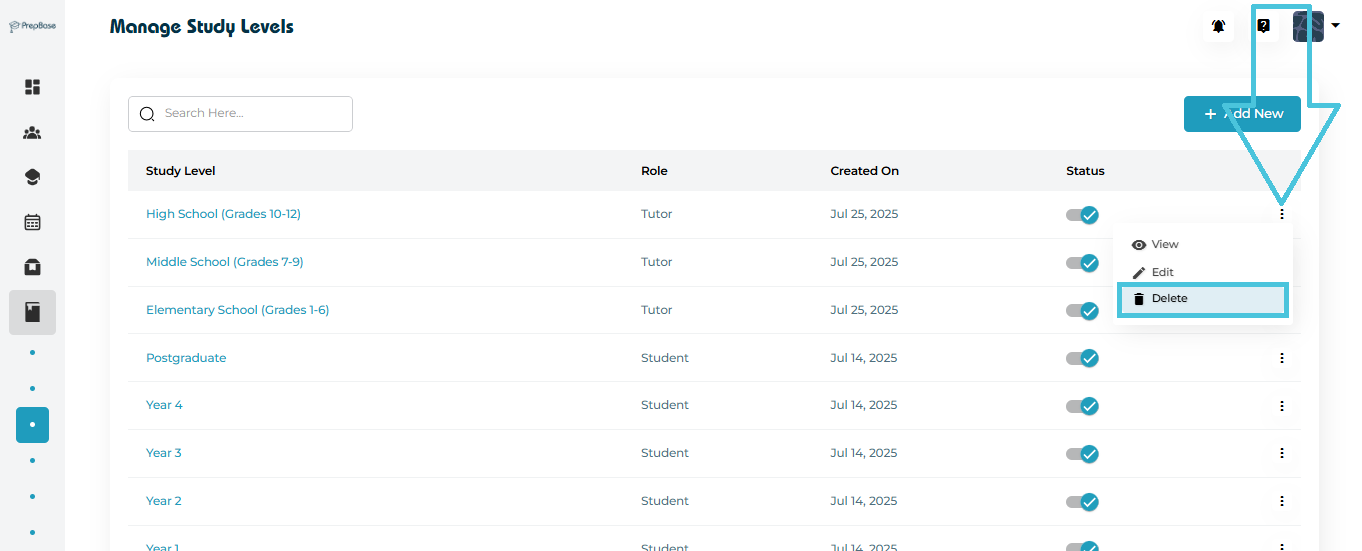
  • Actions Menu (View, Edit, Delete)

2. Adding a New Study Level

Click the Add New button (top-right corner) to open the form.

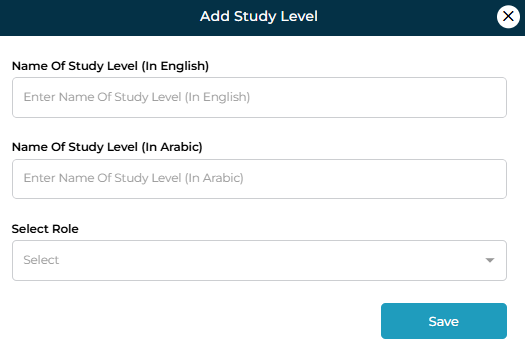
Fields Required
FieldDescription
Name of Study Level (In English)Enter the academic level title (e.g., “High School (Grades 10–12)”).
Name of Study Level (In Arabic)Optional — Arabic translation for bilingual environments.
Select RoleChoose whether this level applies to Tutor or Student accounts.

Click Save to add the new study level.

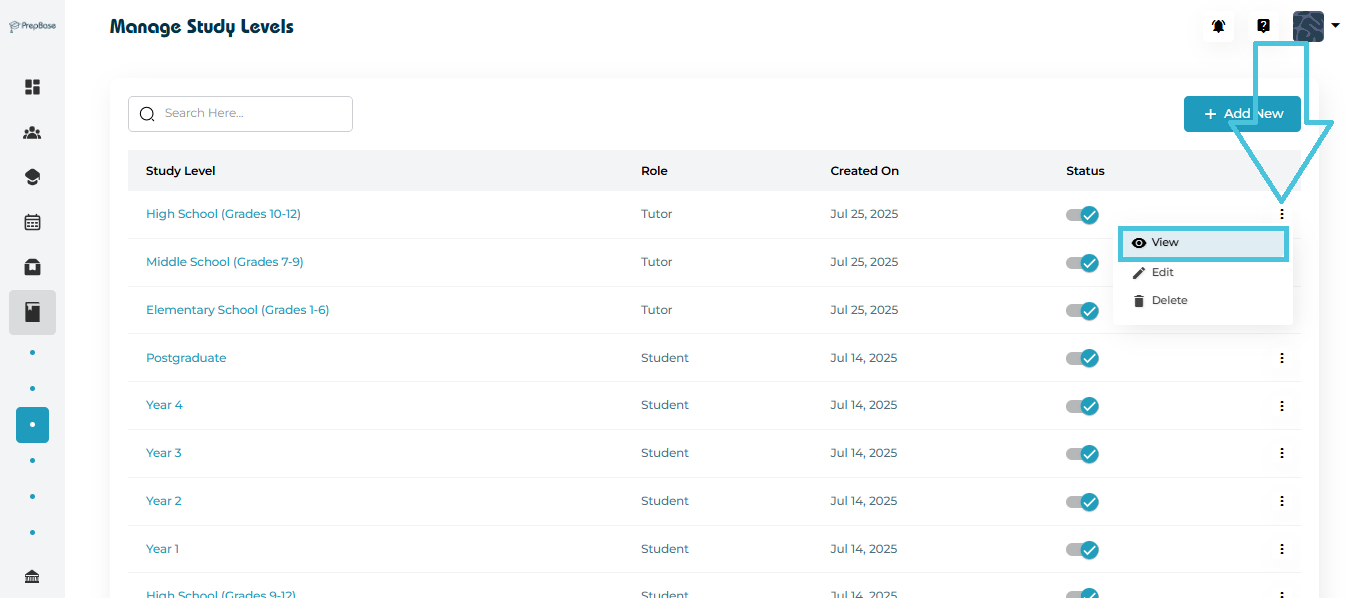
3. Viewing a Study Level

There are two methods to open the details of a study level:

Method 1: Through the Three-Dot Menu
  1. Click the three dots on the right side of any study level.

  2. Select View.

Method 2: By Clicking the Study Level Name

Simply click the name of the study level directly in the table.
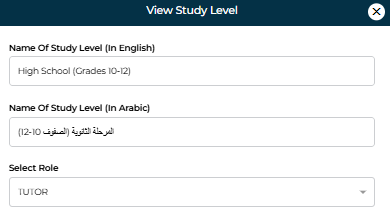
This will open the same View screen.

What You Can See
  • English & Arabic names

  • Assigned role

  • Read-only view of all details

This is useful when you need to verify configurations without modifying them.

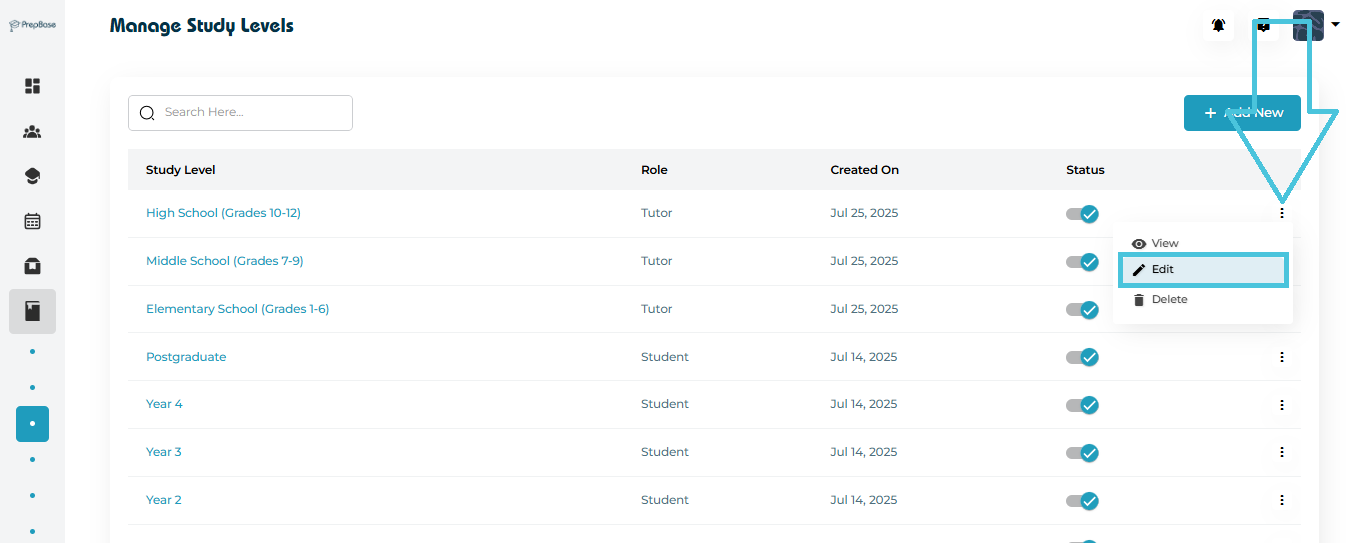
4. Editing an Existing Study Level

To update a study level:

  1. Click the three-dot menu beside any entry.

  2. Select Edit.

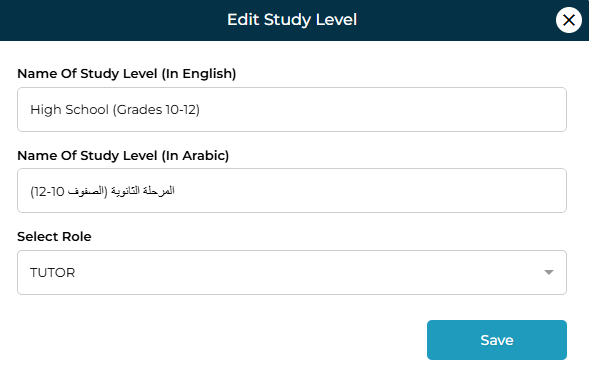
You can modify:

  • English & Arabic names

  • Assigned role

Click Save to apply updates.

5. Activating or Deactivating a Study Level

Use the status toggle to switch a study level ON or OFF.

  • Activated (blue checkmark): The level is available for use.

  • Deactivated (grey): The level is hidden from selection but not deleted.

This is helpful when:

  • A grade level is being phased out

  • Certain academic tiers are seasonal

  • Temporary suspension of a specific level is required

6. Deleting a Study Level

To remove a study level permanently:

  1. Click the three-dot menu beside the level.

  2. Select Delete.

  3. Confirm the action.

IN THIS ARTICLE

Managing counseling expertise categories

Managing Counseling Expertise Categories

The Counseling Expertise module in PrepBase allows admins to organize, expand, and maintain the areas of expertise offered by counselors. Each expertise category can have multiple sub-expertise entries, making it easier to classify counselor skills and match them with student needs.

This guide walks you through:
  • Viewing counseling expertise categories
  • Adding new sub-expertise
  • Editing sub-expertise
  • Deleting sub-expertise
  • Exporting sub-expertise data

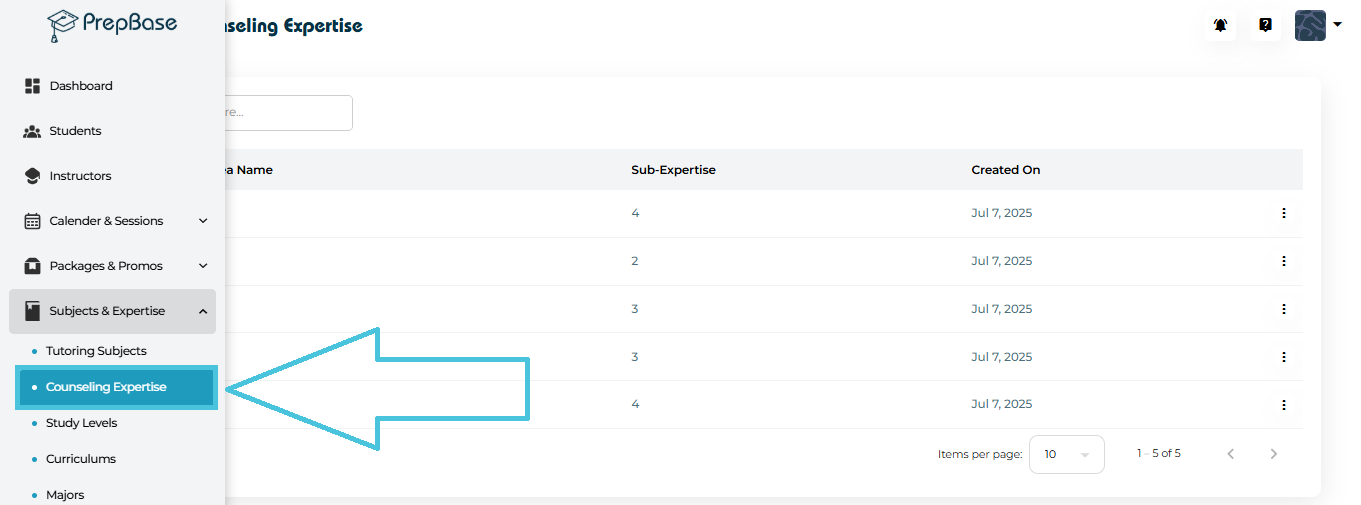
1. Navigating to Counseling Expertise

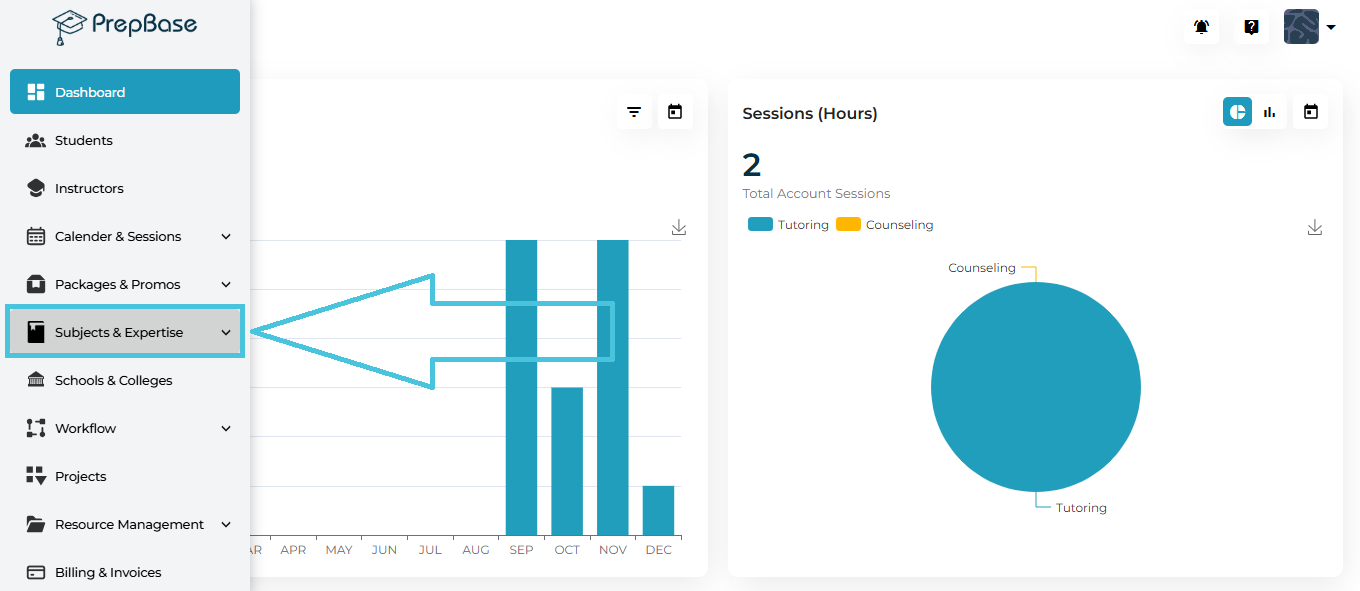
To manage counseling expertise categories:

  1. Go to Subjects & Expertise from the left-side menu.

  2. Click Counseling Expertise.

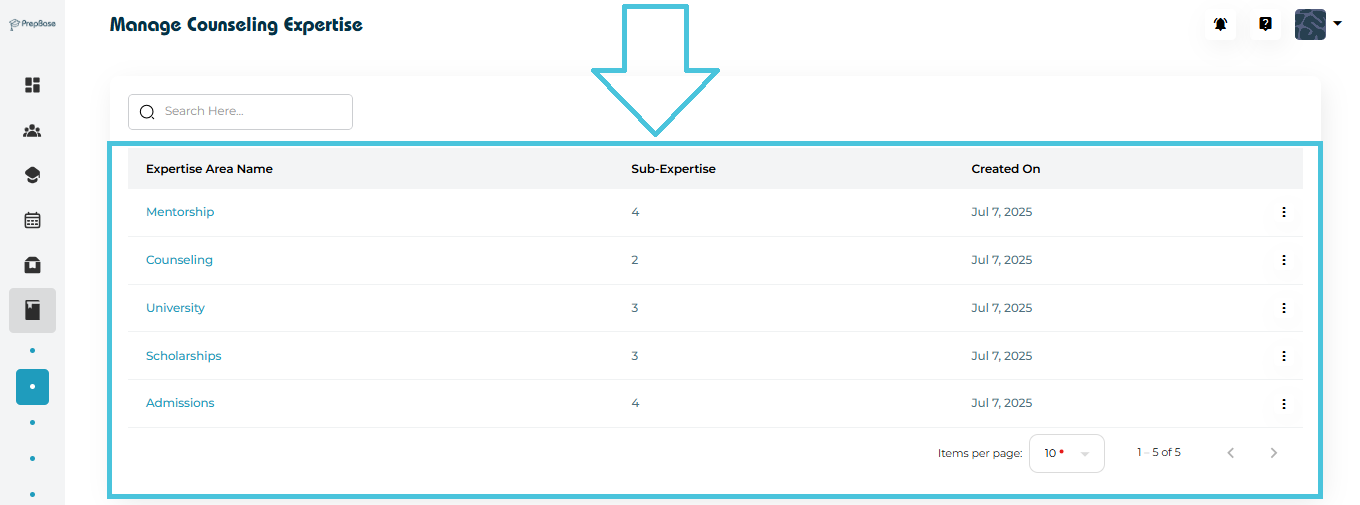
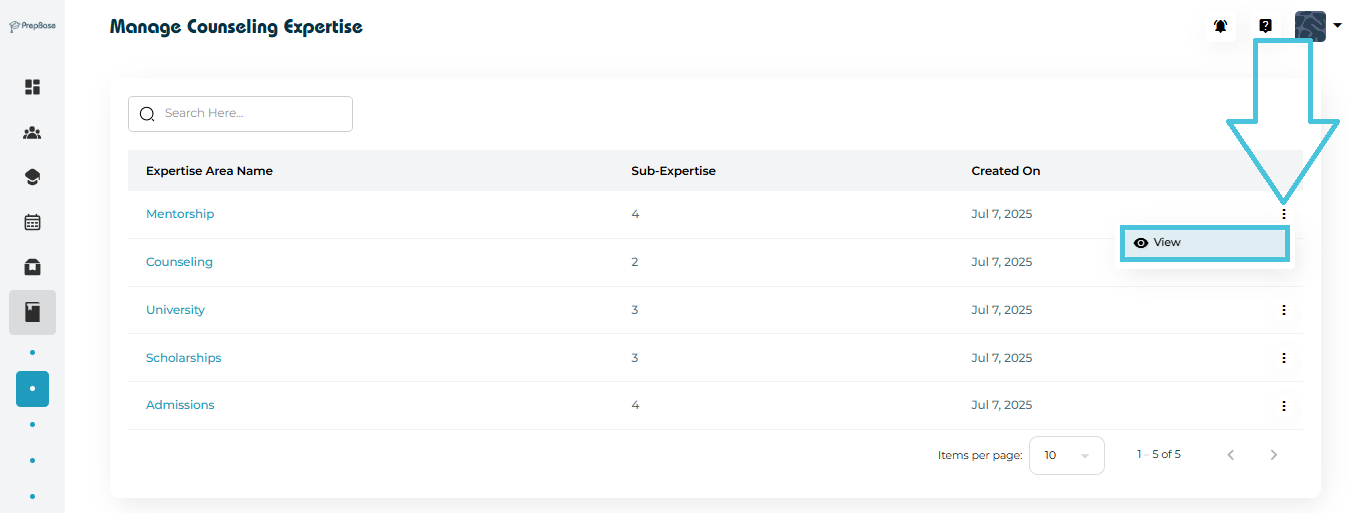
You will see a list of expertise areas added by your organization such as:

  • Mentorship

  • Counseling

  • University

  • Scholarships

  • Admissions

Each row displays:

  • Expertise Area Name

  • Number of Sub-Expertise Items

  • Created On date

2. Viewing Expertise Entries

To see the detailed sub-expertise under any category:

  1. Click the three-dot menu beside the expertise category.

  2. Select View.

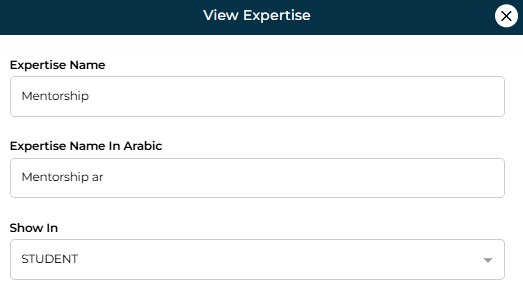
A popup opens displaying:

  • Expertise Name

  • Expertise Name In (Arabic)

  • Show In

3. Viewing Sub-Expertise Entries


To see the detailed sub-expertise under any category:

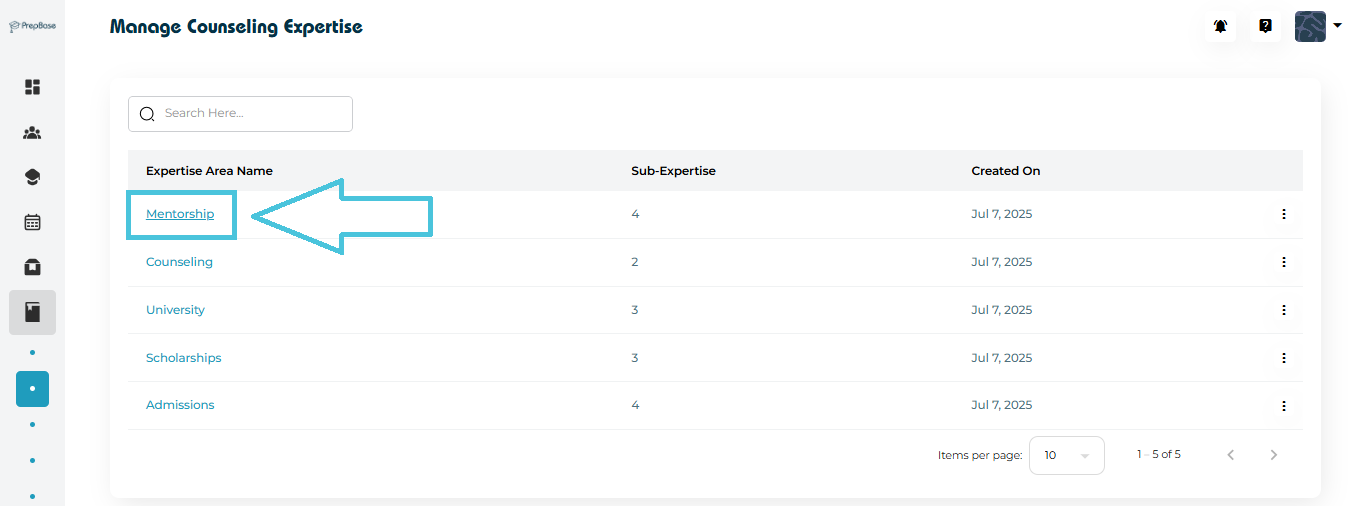
  1. Click the expertise area name.

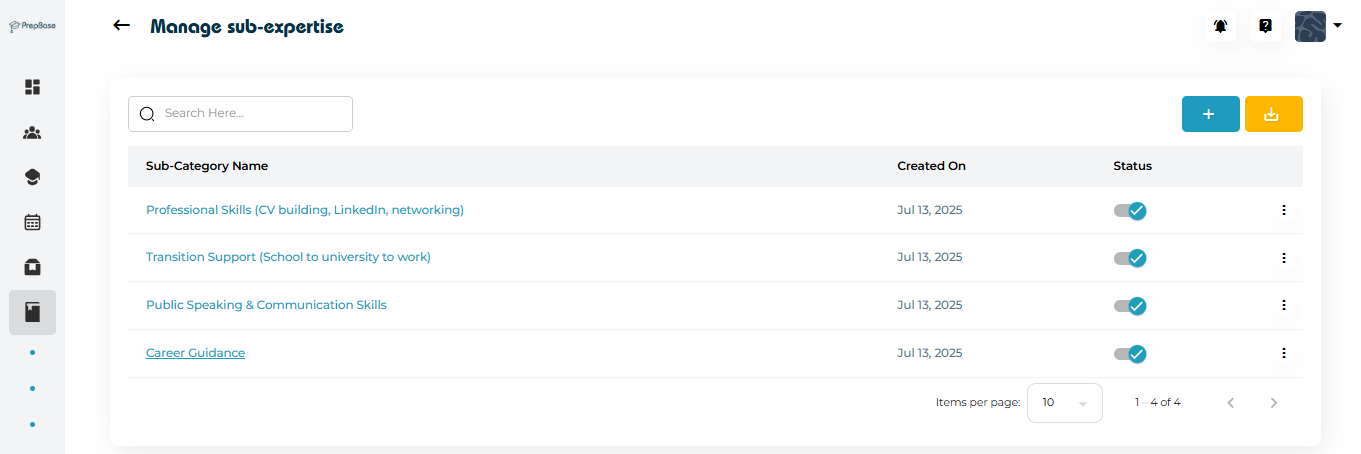
  2. You will be redirected to sub-expertise detail page.


4. Adding New Sub-Expertise


To introduce a new specialization within a counseling expertise area:

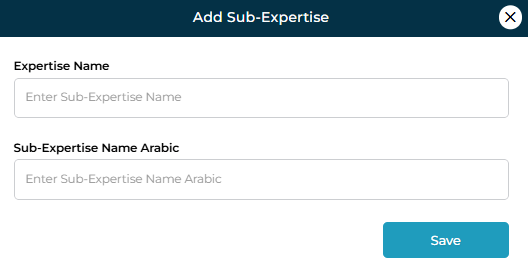
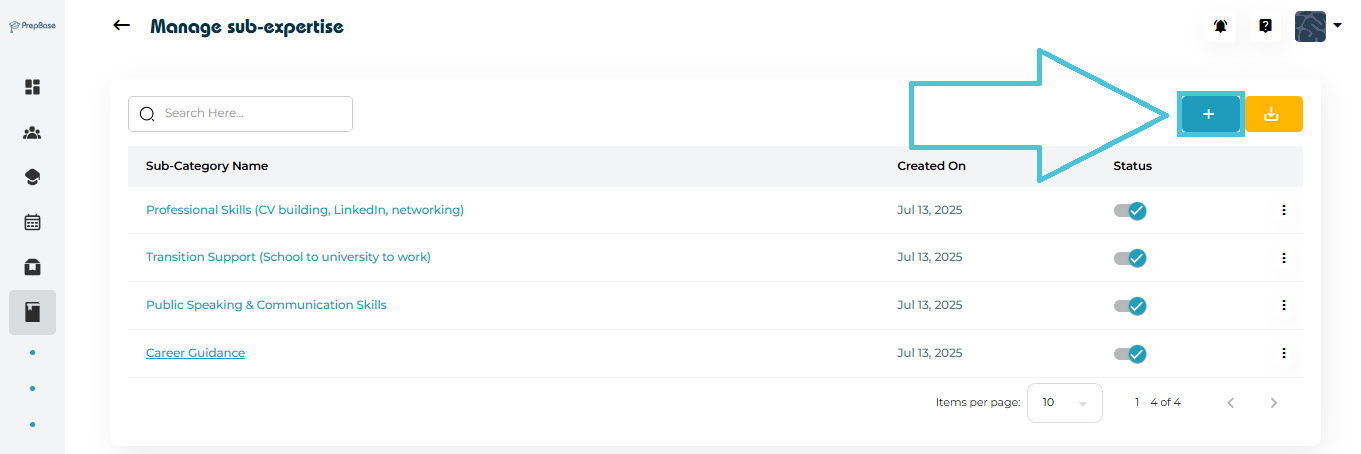
  1. Click the + (Add Sub-Expertise) button on the top-right.

  2. Fill out the form:

    • Sub-Expertise Name (English)

    • Sub-Expertise Name (Arabic)

  3. Click Save.

Typical sub-expertise examples include:

  • Professional Skills

  • Public Speaking

  • CV Building

  • Scholarship Guidance

  • Career Transition Support

This keeps counselor assignments structured and searchable.

5. Editing an Existing Sub-Expertise

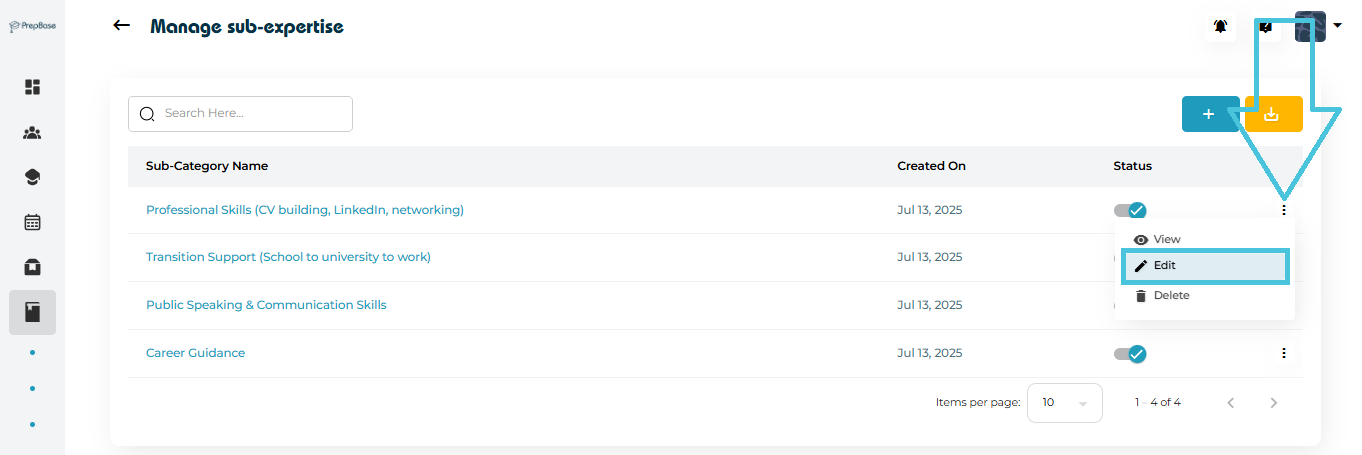
If you need to update or correct a sub-expertise name:

  1. Open the three-dot menu beside the sub-expertise entry.

  2. Select Edit.

  3. Modify the English or Arabic name as needed.

  4. Click Save to apply changes.

6. Deleting Sub-Expertise

You can remove outdated or unused sub-expertise entries:

  1. Click the three-dot menu beside the sub-expertise.

  2. Select Delete.

  3. Confirm the action.

7. Exporting Sub-Expertise Data

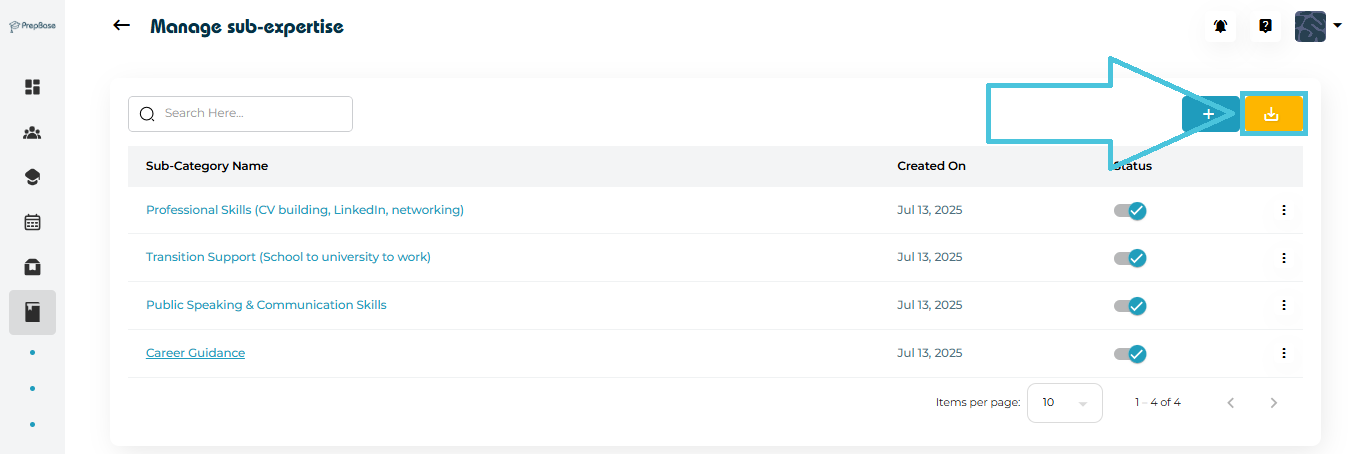
Admins can download all sub-expertise into a CSV file for reporting or planning purposes.

  1. Click the Export (Download CSV) button.

  2. A file containing all sub-expertise details will download to your device.

This is ideal for:

  • Internal audits

  • Counselor performance reviews

  • Training content planning

IN THIS ARTICLE

Defining tutoring subjects

Tutoring Subjects Setup

Organizing your tutoring subjects into clear categories and sub-categories ensures students are matched with the right instructors and makes session scheduling more efficient. The Subjects & Expertise module allows admins to define subject categories, add sub-subjects, assign icons, manage visibility, and keep subject offerings structured as your academic programs grow.

This guide covers everything you need to set up and manage tutoring subjects inside the admin panel.

1. Accessing the Tutoring Subjects Module

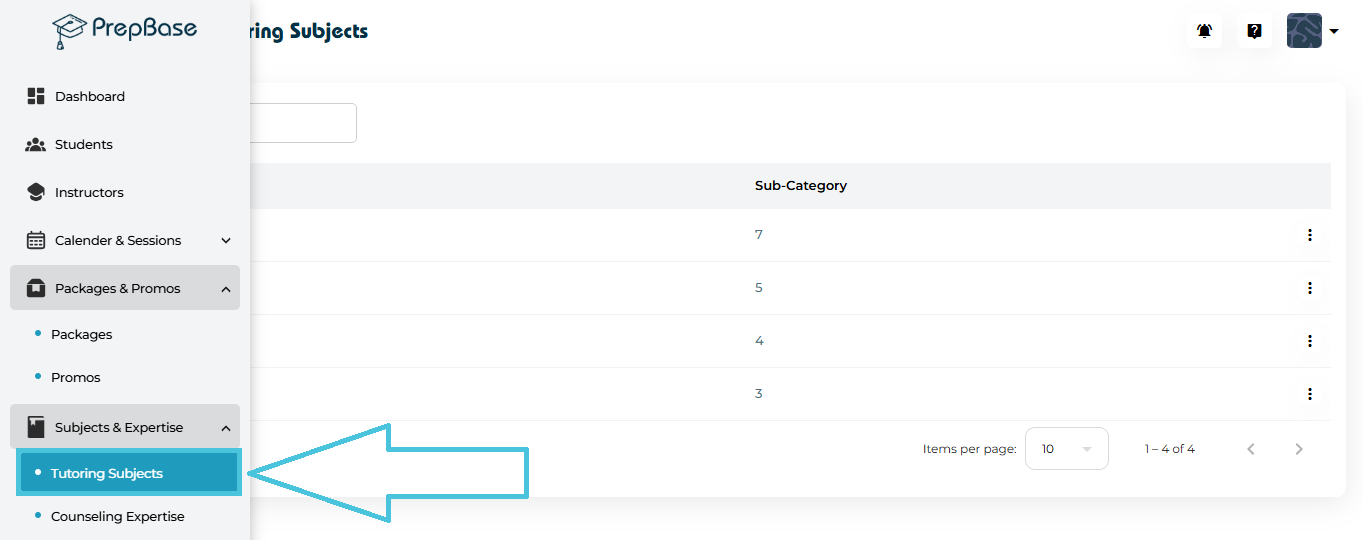
 To begin managing your tutoring subjects:

  1. Open the Subjects & Expertise section from the left navigation panel.

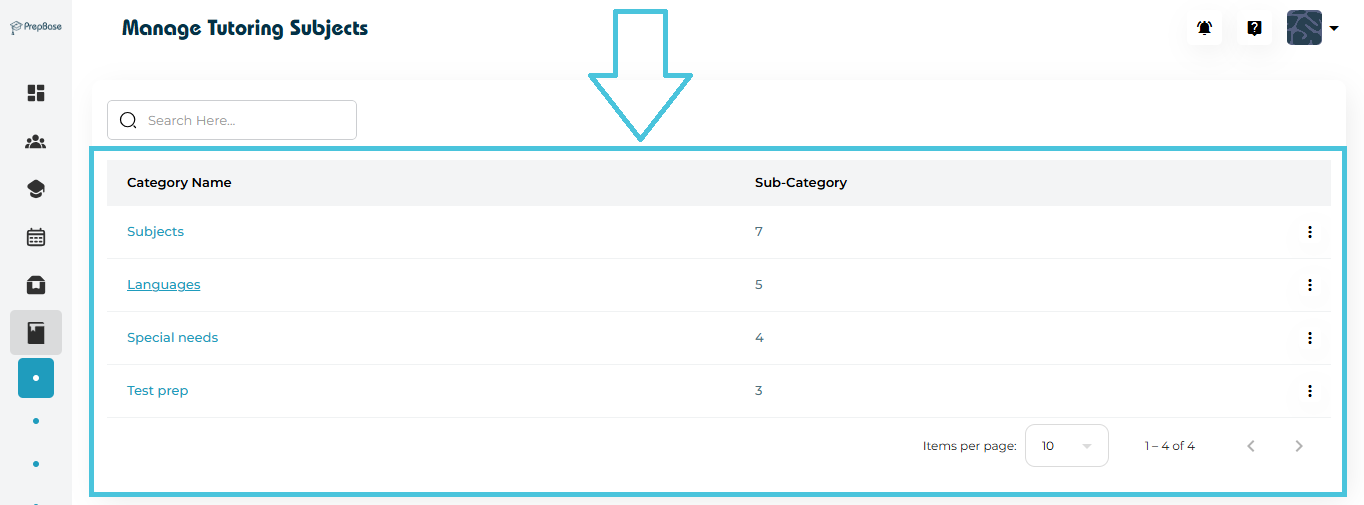
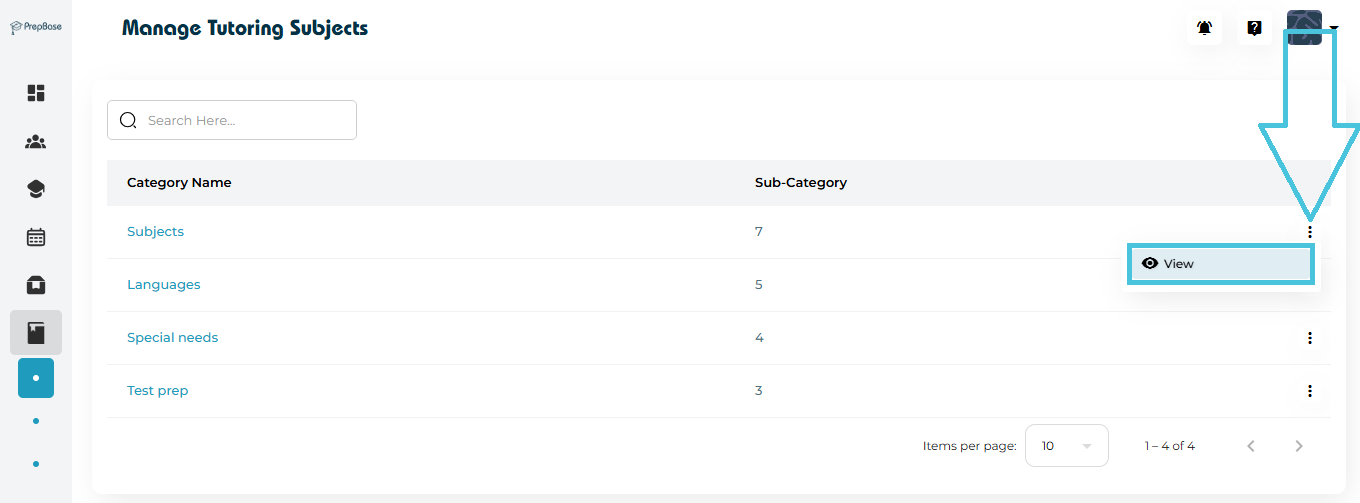
  2. Select Tutoring Subjects to view all existing subject categories and the number of sub-categories assigned to each.

You will now see a list of categories such as Subjects, Languages, Special Needs, Test Prep, etc., along with their associated sub-subjects.

2. Understanding Subject Categories

A category acts as a parent grouping—helpful for organizing subjects logically.
Examples include:

  • Subjects → Math, Biology, Chemistry, English

  • Languages → French, Arabic, Spanish

  • Special Needs → Dyslexia support, Learning difficulties

  • Test Prep → SAT, IELTS, GED

The category list page displays:

  • Category Name

  • Total Sub-Categories

  • Actions Menu (⋮) for viewing details

3. Viewing Category Details

PrepBase provides two convenient methods to open detailed Category information:

1. Clicking the Category Name (direct open)

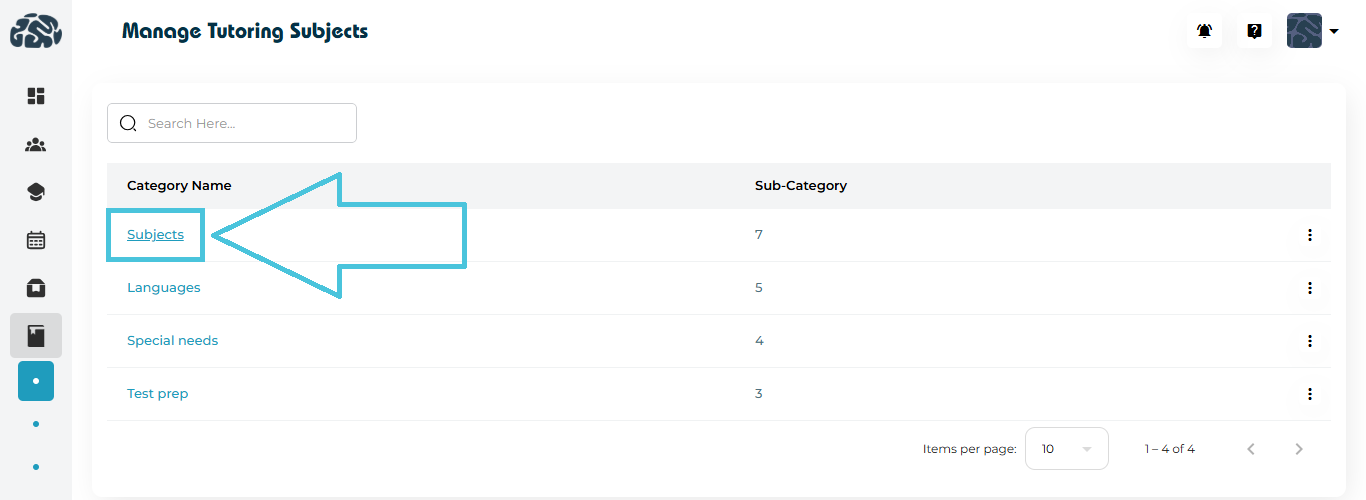
Simply click on the Category name (e.g., Subjects) to open the sub-category detail page.

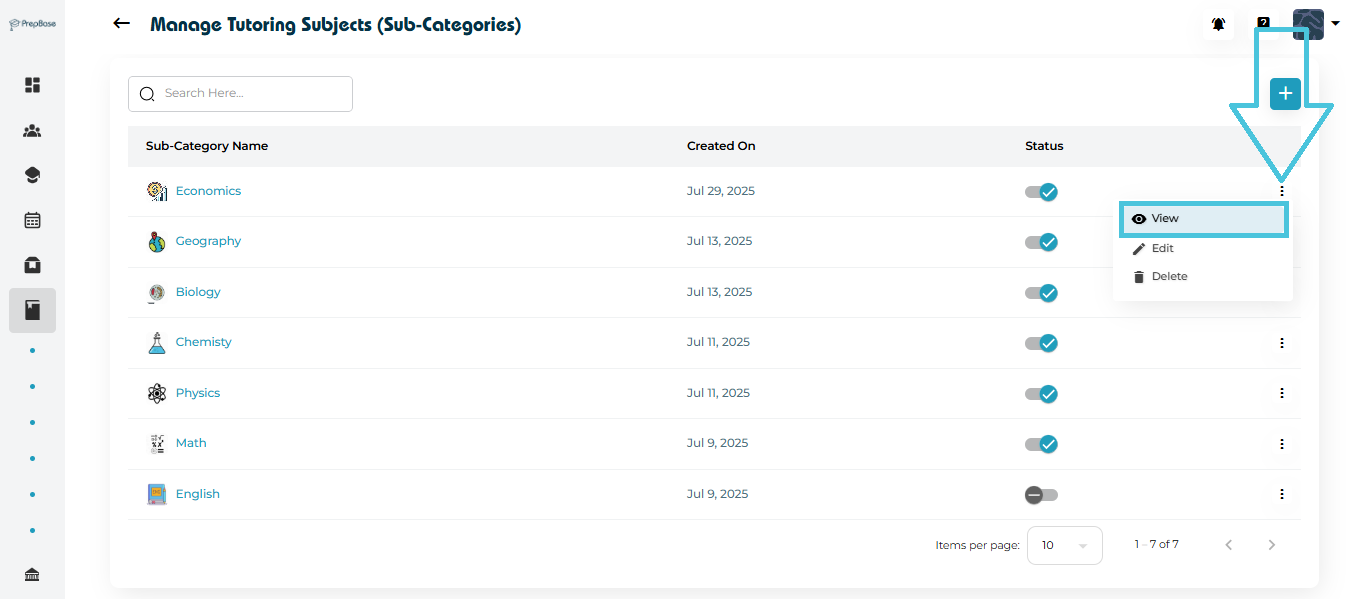
2. Using the Three-Dot Menu (⋮) → View

Open the action menu beside the Sub-category and select View.

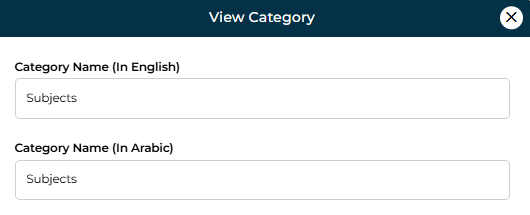
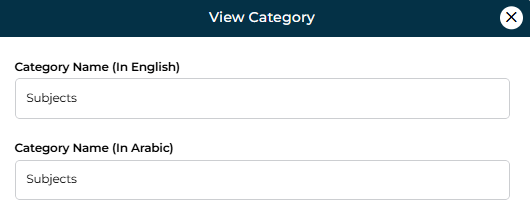
View Form Includes:
  • Category Name (English)

  • Category Name (Arabic)

This screen is read-only and is ideal for quickly reviewing stored details.

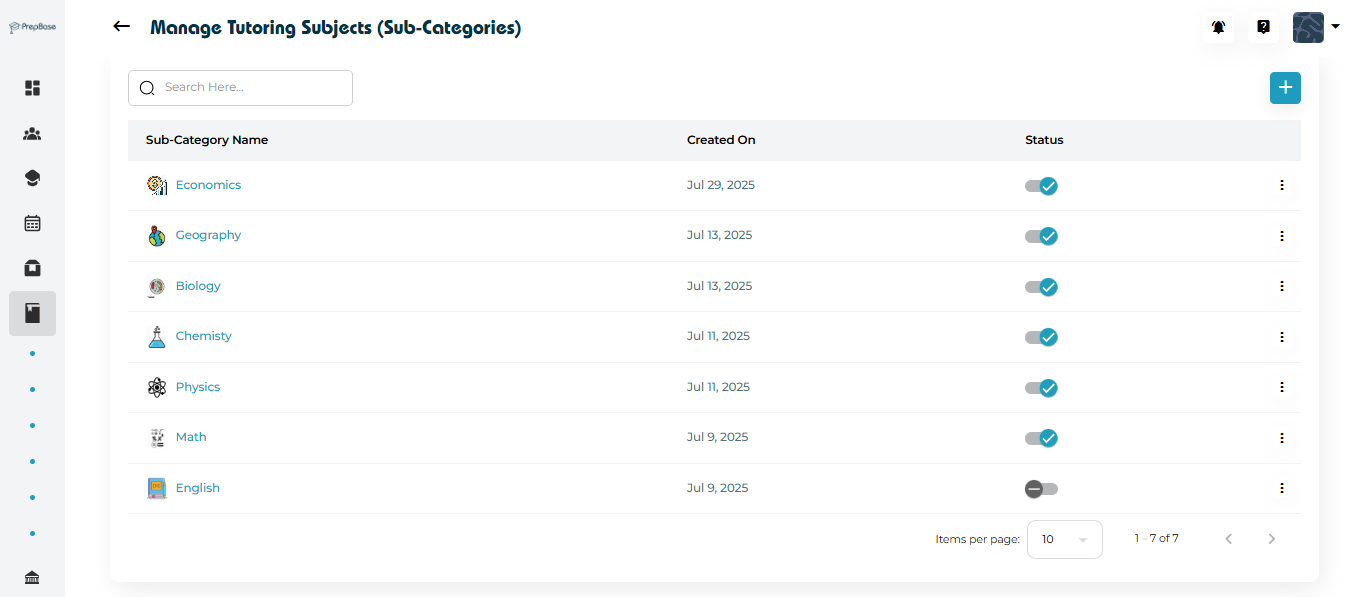
4. Managing Sub-Categories (Individual Subjects)

Sub-categories represent the actual subjects students enroll in and instructors teach (e.g., Physics, Math, Economics).

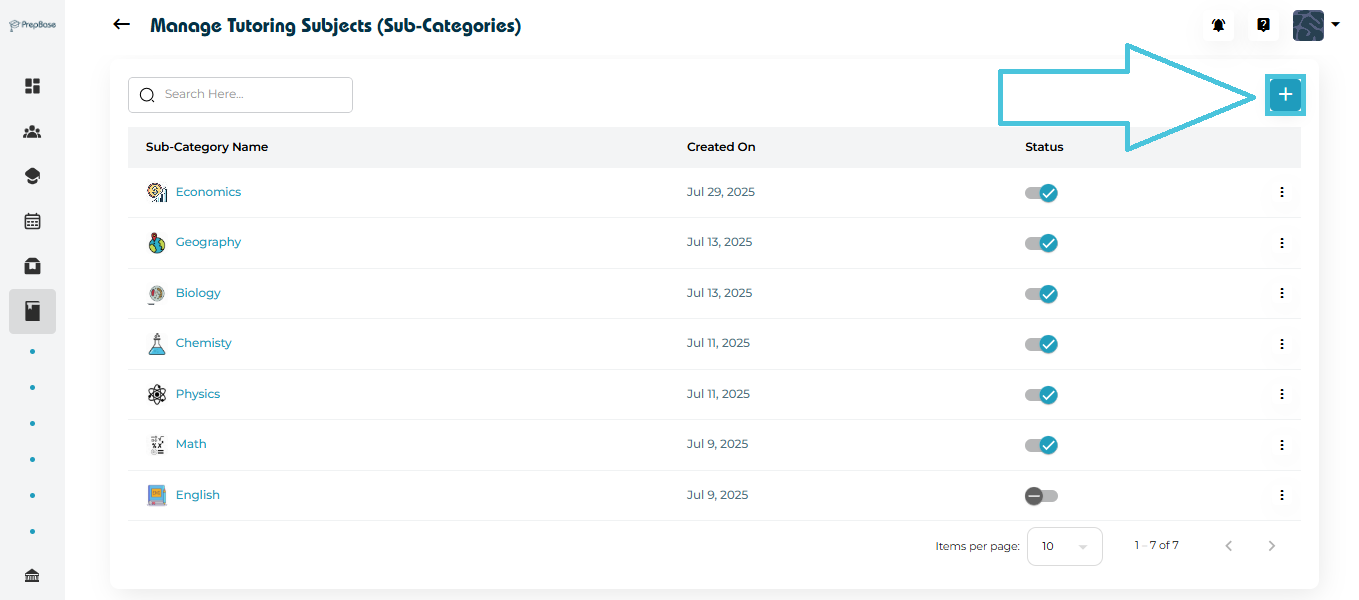
On the Manage Tutoring Subjects (Sub-Categories) page, you can:

  • Add new subjects

  • Assign subject icons

  • Edit subject names

  • Activate or deactivate subjects

  • Delete subjects

5. Adding a New Subject (Sub-Category)

To create a new tutoring subject:

  1. Click the “+” button in the top right corner.

  2. The Add Sub-Category form will appear.

Fill in the following details:

  • Icon
  • Sub-Category Name (English)
  • Sub-Category Name (Arabic)
  • Save the Subject

Click Save to finalize.

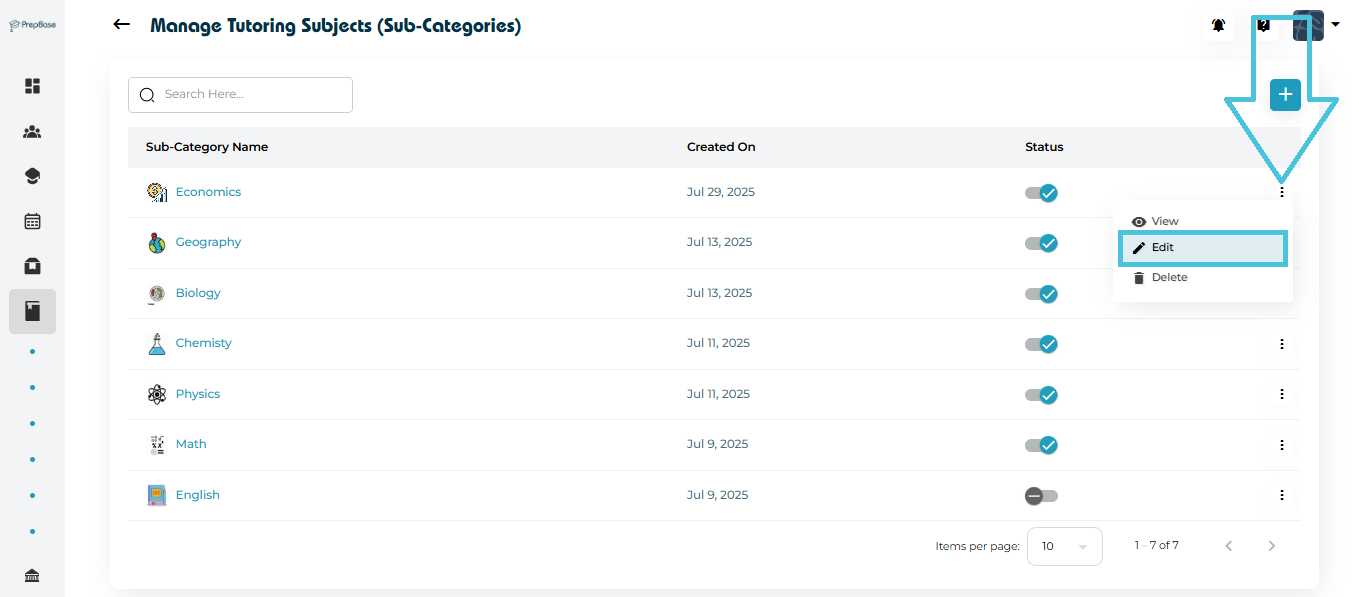
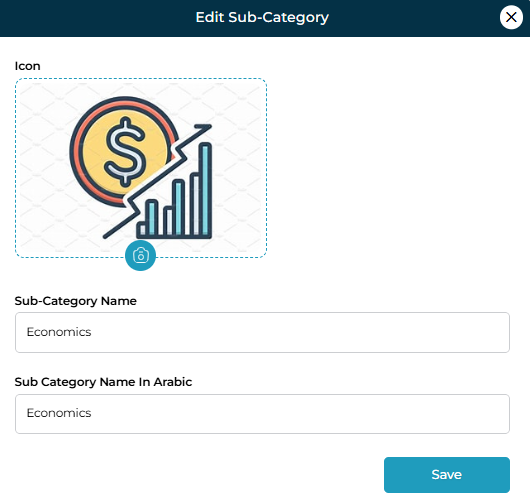
6. Editing an Existing Subject

If a subject name needs correction or rebranding:

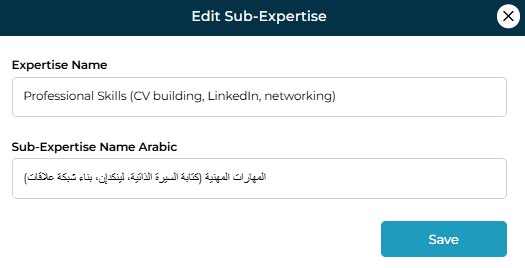
  1. Open the Actions Menu (⋮) next to the subject.

  2. Click Edit.

  3. Update the English name, Arabic name, or icon.

  4. Save your changes.

7. Viewing Sub-Category Details

The View option shows a simplified detail view of the subject including:

  • English name

  • Arabic name

This is helpful when cross-checking naming standards or auditing category structure.

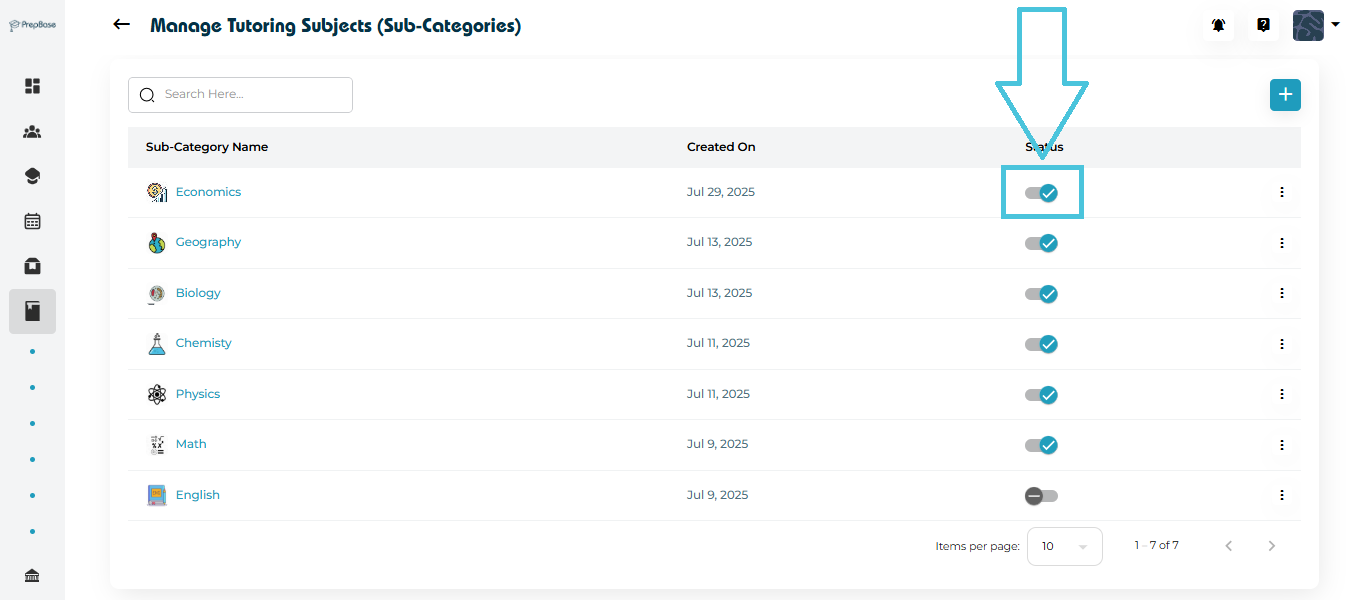
8. Activating or Deactivating a Subject

Every subject includes a status toggle, allowing admins to control its visibility:

  • Active (blue) → Students and instructors can see and use the subject

  • Inactive (gray) → Hidden from selection menus but preserved in your database

This feature is useful when phasing out outdated subjects or temporarily limiting availability.
9. Deleting a Subject
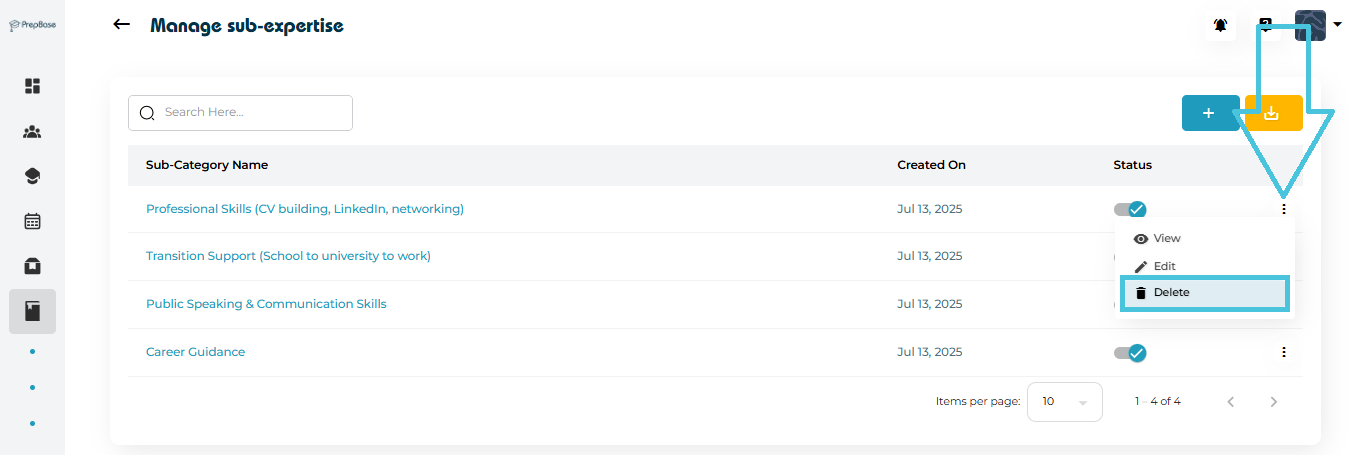
If a subject is no longer needed:

  1. Click the Actions Menu (⋮).

  2. Select Delete.

  3. Confirm the deletion.

IN THIS ARTICLE