Creating categories for files, courses, and articles

Creating Categories for Files, Courses, and Articles

Categories in PrepBase help you organize files, courses, and educational content in a structured and scalable way.
Using categories and sub-categories ensures that admins can easily find relevant resources across the platform.

This guide explains how to create, manage, edit, delete, and export categories and sub-categories for:

  • Files

  • Courses

  • Articles & Guides

1. Where to Find Categories

Navigate to:

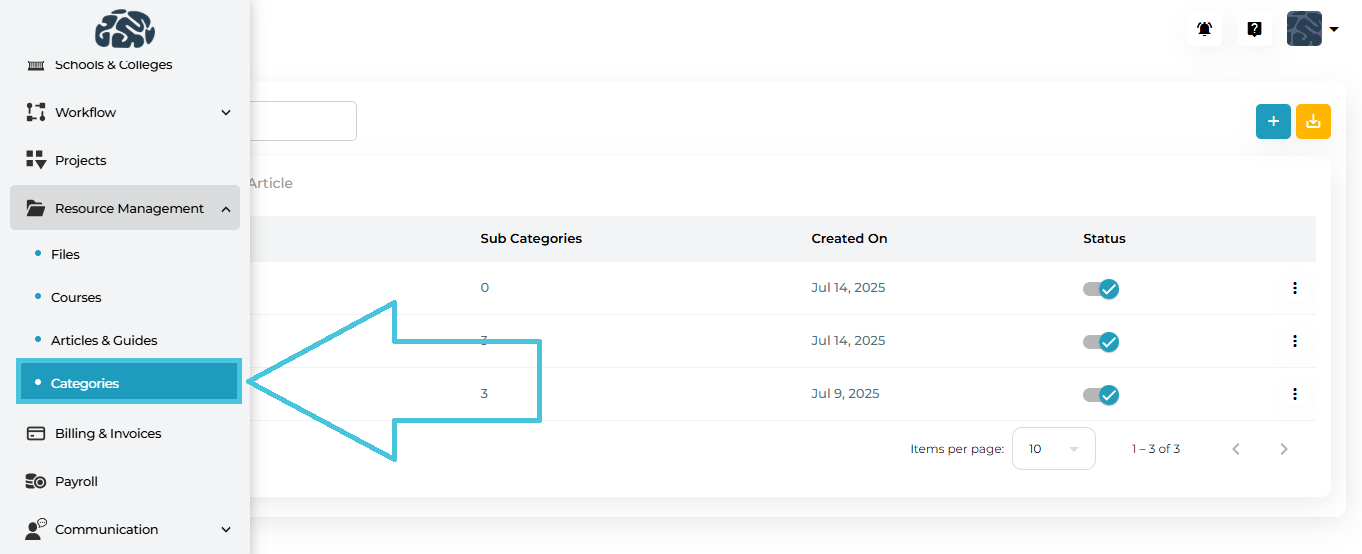
Admin Portal → Resource Management → Categories

2. Categories Module Overview

The Categories screen is divided into three tabs, each managing a different resource type:

TabPurpose
FileOrganize uploaded files and folders
CourseOrganize video courses and learning content
ArticleOrganize articles, guides, and FAQs

Each tab works the same way, but applies to a different resource type.

3. File Categories

File categories are used when uploading files in Resource Management → Files and also inside Projects and Profiles.

Viewing File Categories
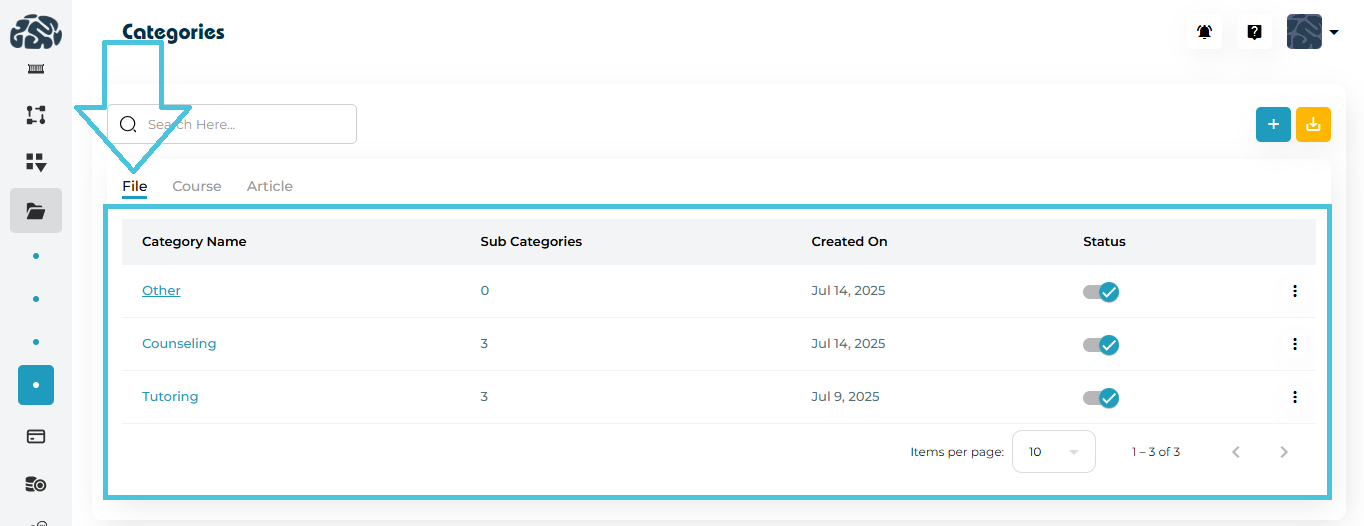
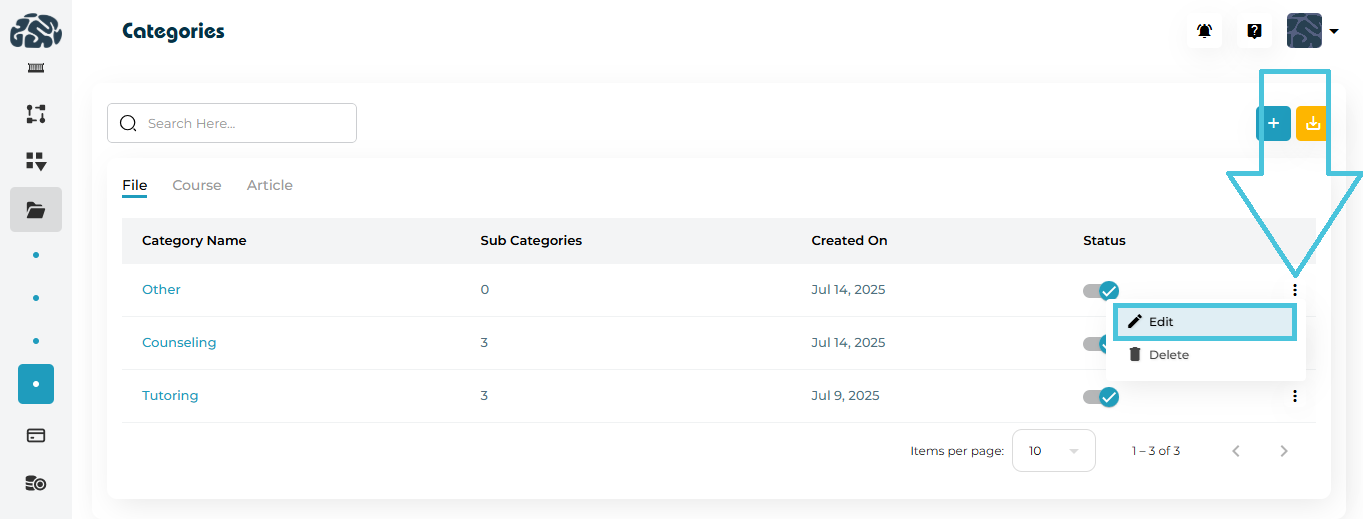
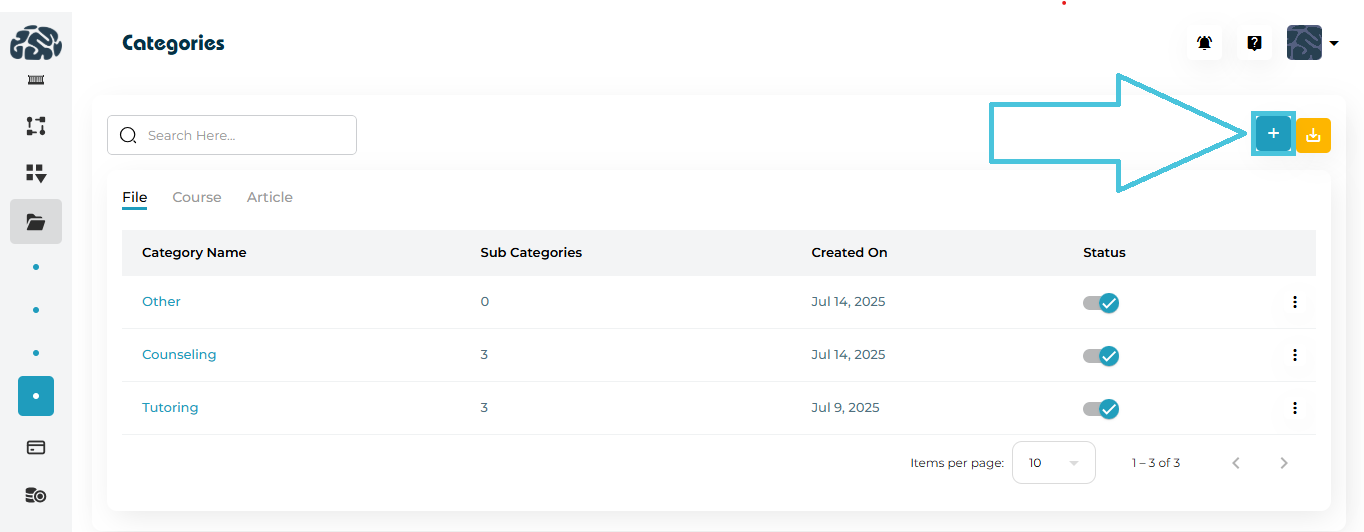
  • Click the File tab

  • View category name, number of sub-categories, creation date, and status
Adding a New File Category
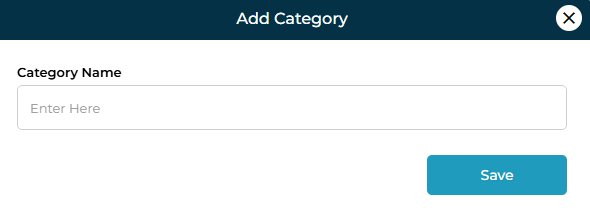
  1. Click the ➕ Add Category button

  2. Enter the Category Name

  3. Click Save

Editing a File Category

  1. Click the three-dot menu beside a category

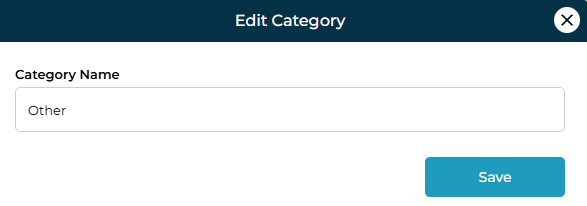
  2. Select Edit

  3. Update the category name

  4. Click Save

Deleting a File Category

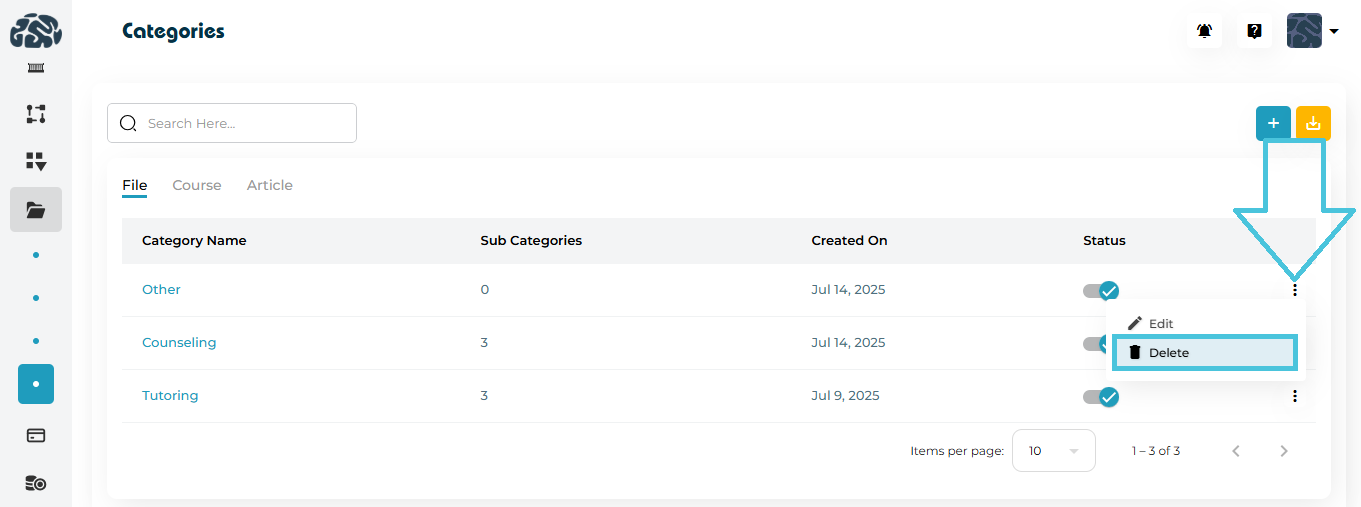
  1. Click the three-dot menu

  2. Select Delete

  3. Confirm the action

⚠️ Note: Deleting a category does not delete files, but may require reassignment.

Exporting File Categories
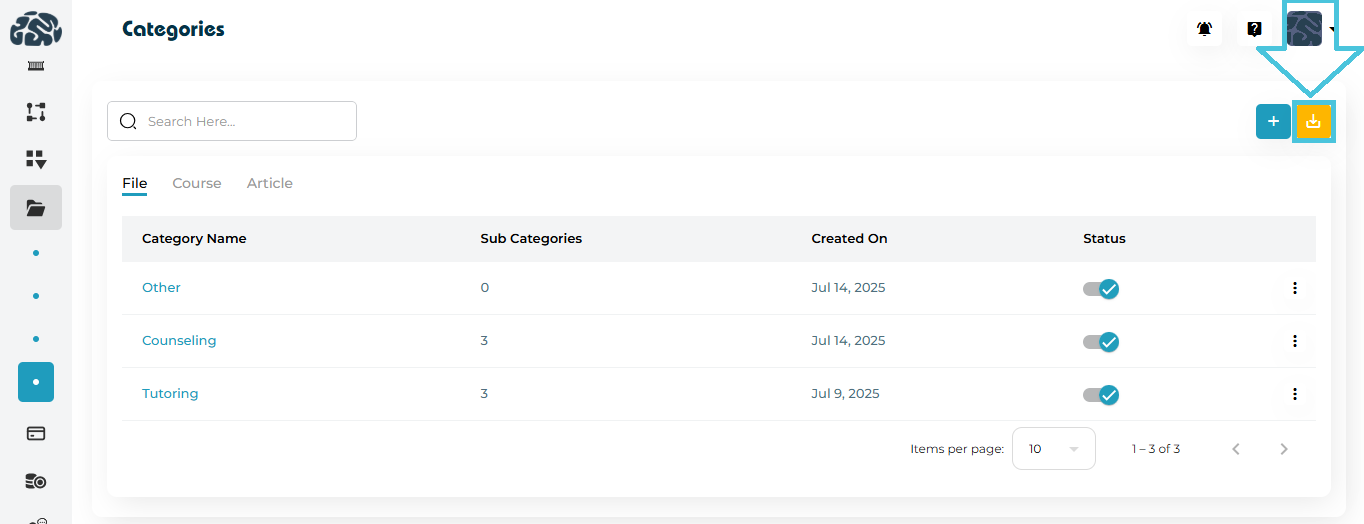
  • Click the Download (⬇️) icon to export file categories as CSV

4. File Sub-Categories

Sub-categories provide additional classification under a main category.

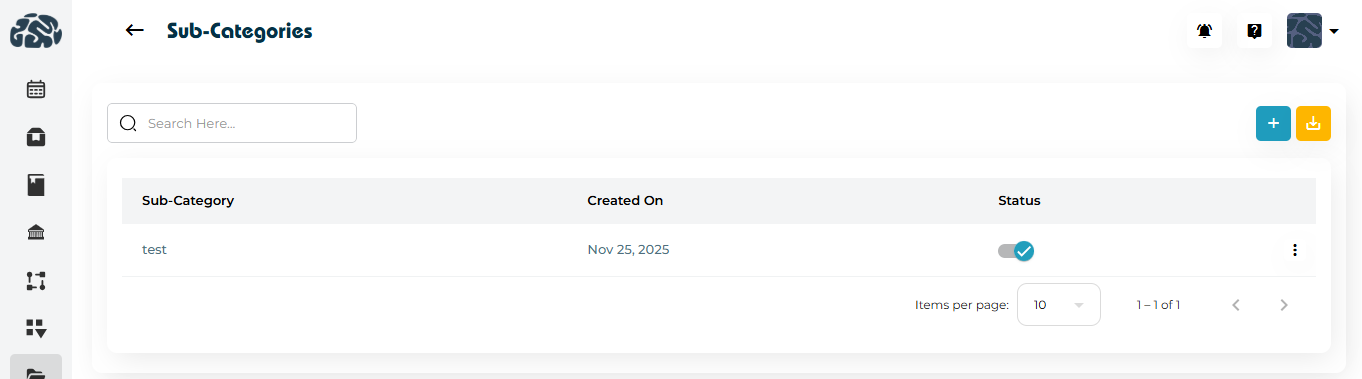
Viewing Sub-Categories
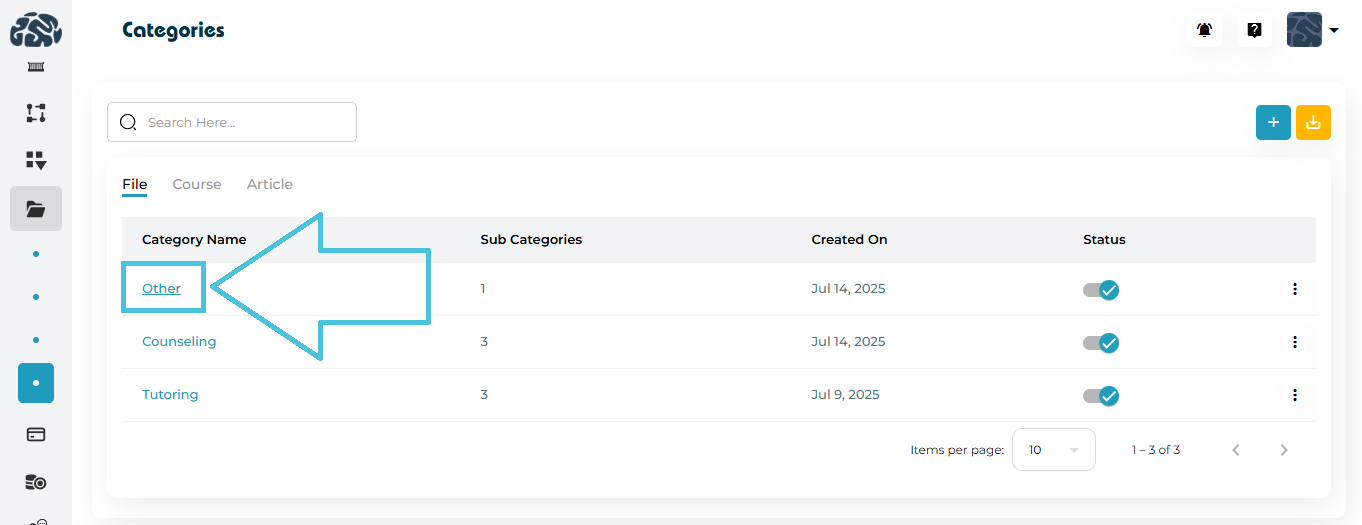
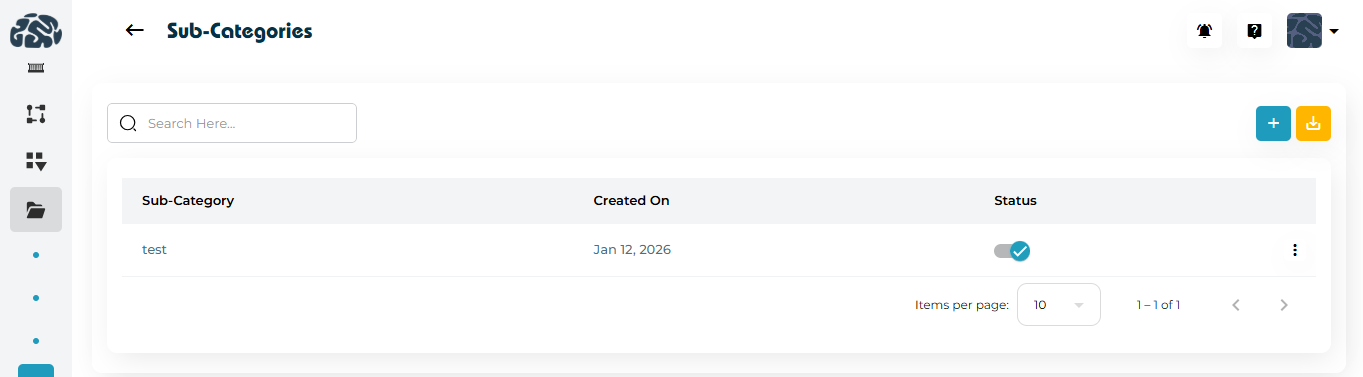
  • Click a category name


  • You’ll be redirected to the Sub-Categories page

Adding a File Sub-Category
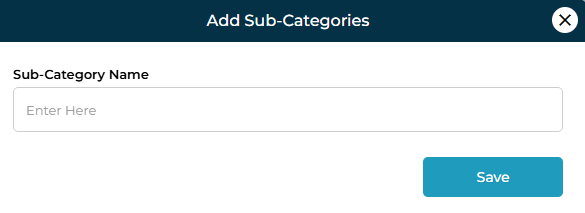
  1. Click ➕ Add Sub-Category

  2. Enter the sub-category name

  3. Click Save

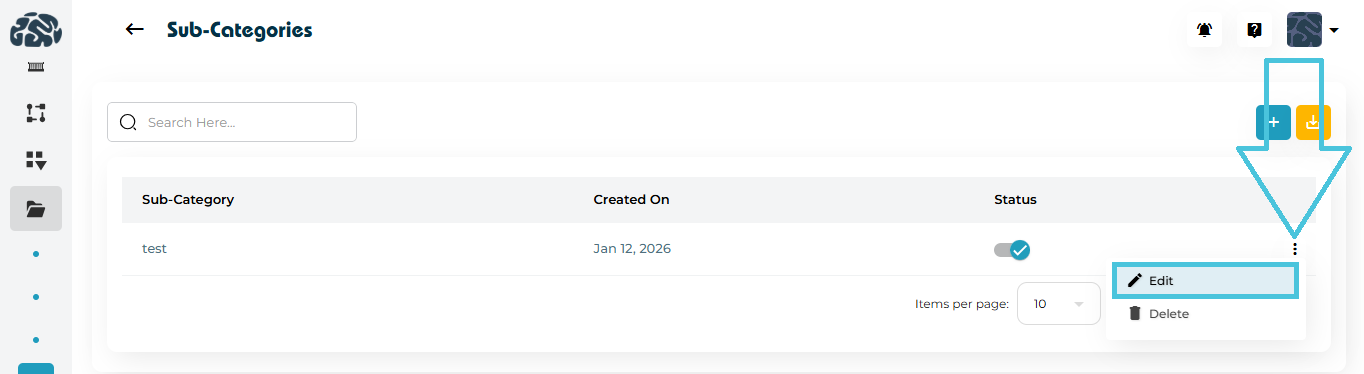
Editing a File Sub-Category
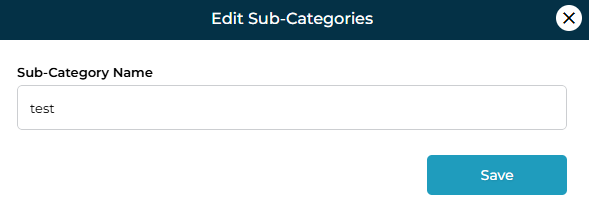
  1. Click the three-dot menu

  2. Select Edit

  3. Update the name and save

Deleting a File Sub-Category
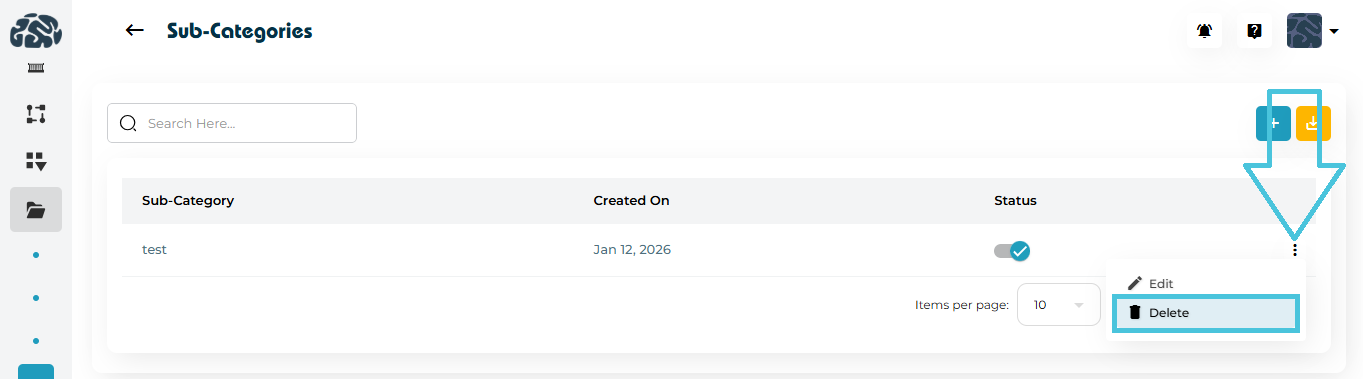
  1. Click the three-dot menu

  2. Select Delete

  3. Confirm deletion

Exporting File Sub-Categories
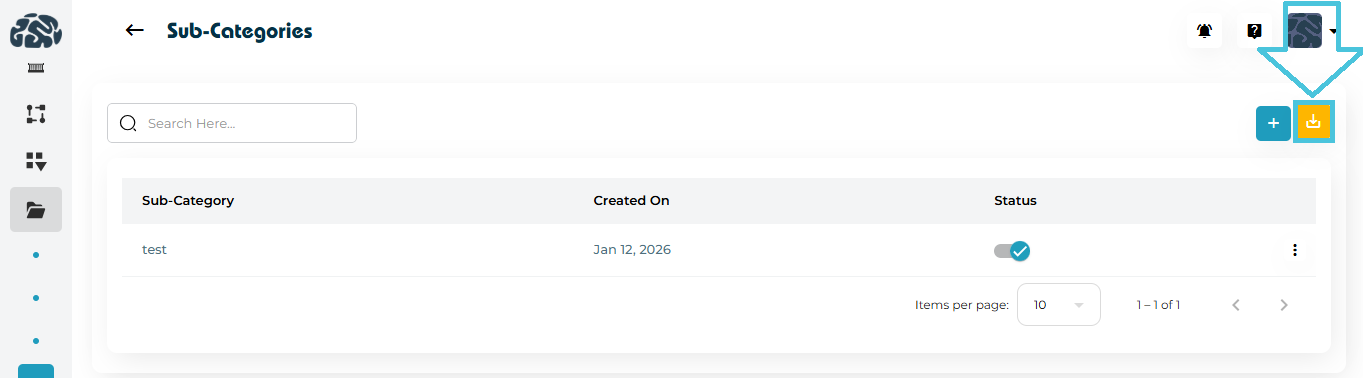
  • Use the Download (⬇️) icon to export sub-categories as CSV

5. Course Categories

Course categories help organize video courses and learning programs.

Viewing Course Categories
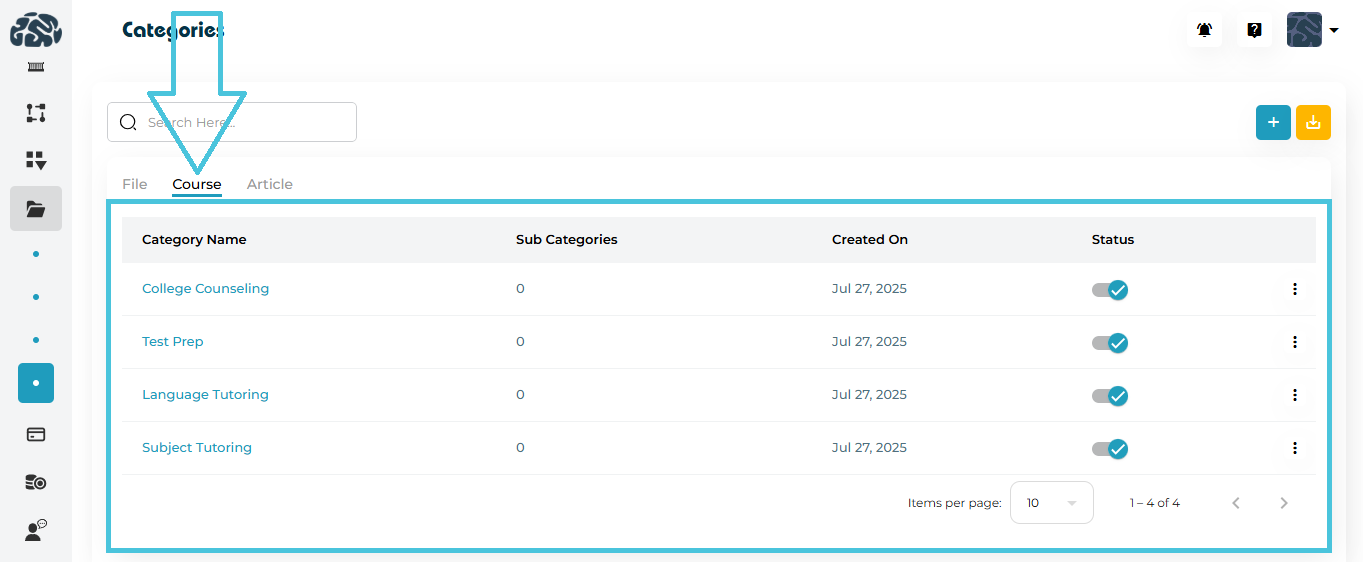
  • Switch to the Course tab

  • View categories and sub-category counts

Adding a Course Category
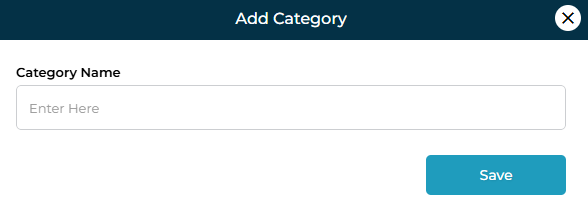
  1. Click ➕ Add Category

  2. Enter category name

  3. Save

Managing Course Sub-Categories

  • Click a course category name to manage sub-categories

  • Add, edit, delete, or export sub-categories the same way as files
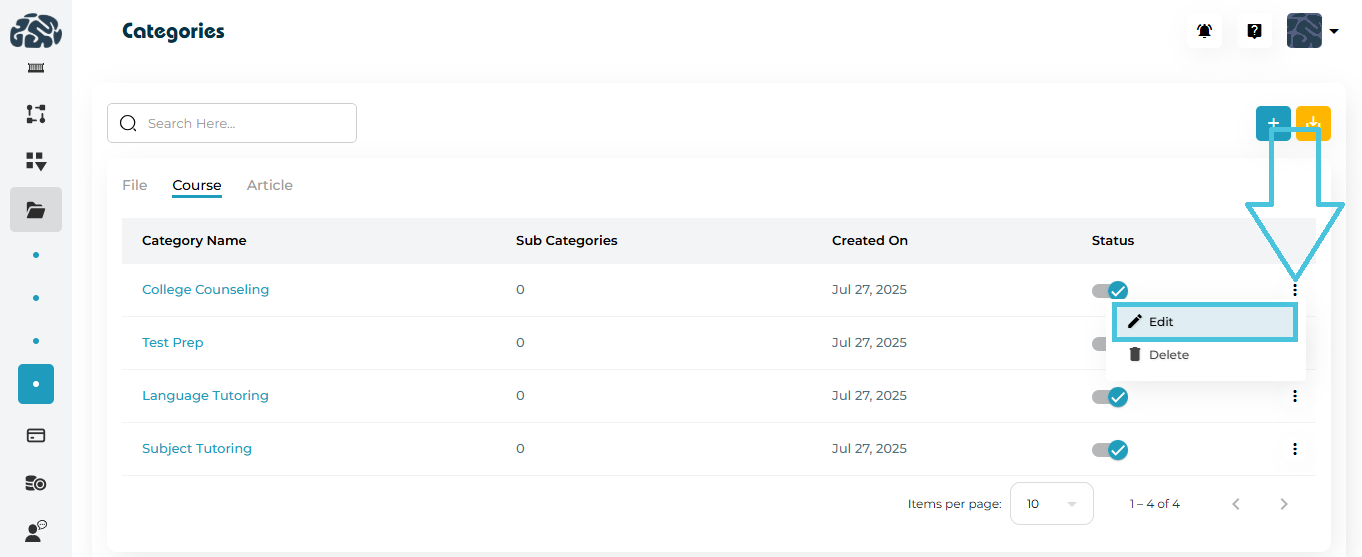
Editing & Deleting Course Categories
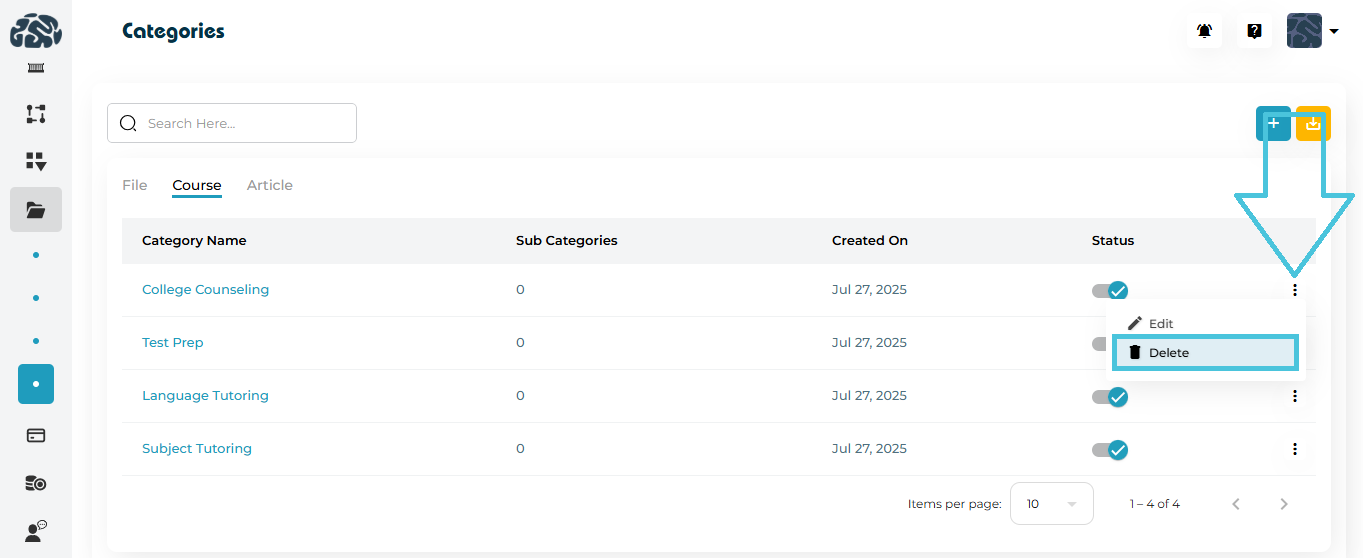
  • Use the three-dot menu to edit or delete

  • Changes reflect immediately in course creation and filtering

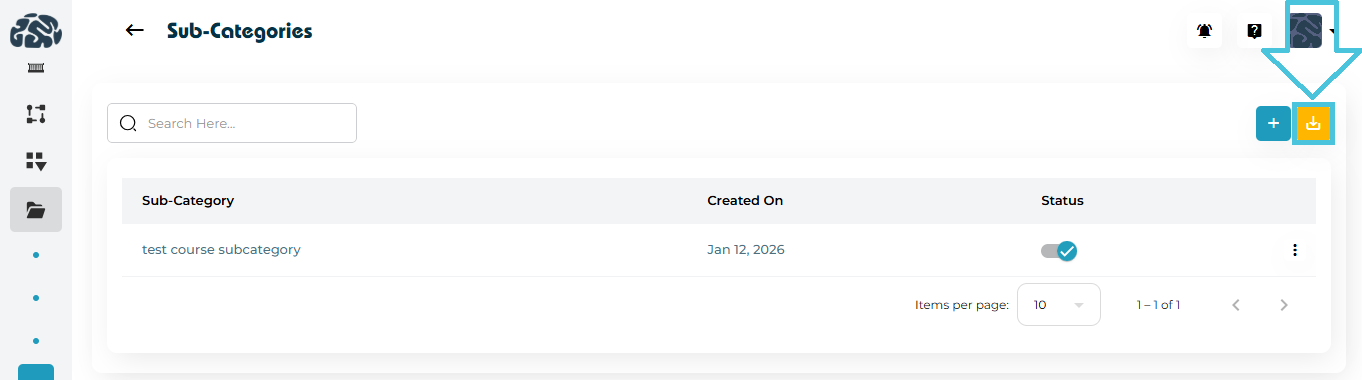
Exporting Course Categories & Sub-Categories

  • Use the Download (⬇️) icon for CSV export
6. Article Categories

Article categories organize Articles, Guides, and FAQs shown in Articles & Guides.

Viewing Article Categories
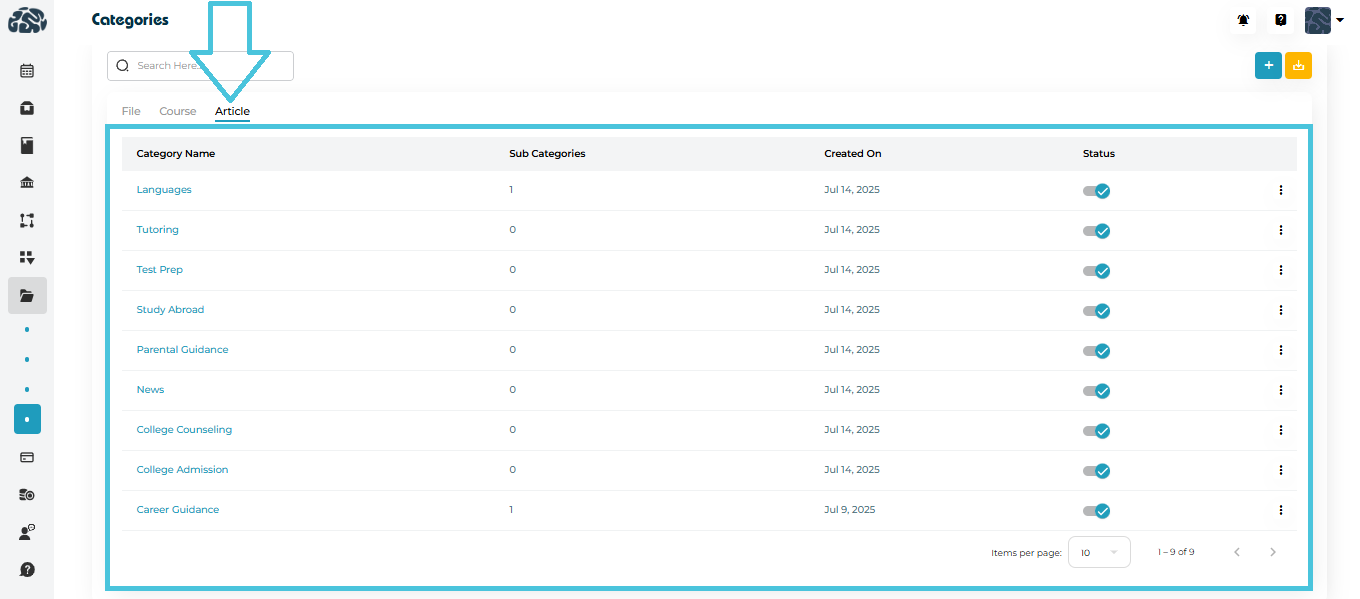
  • Switch to the Article tab

  • See categories used for educational content
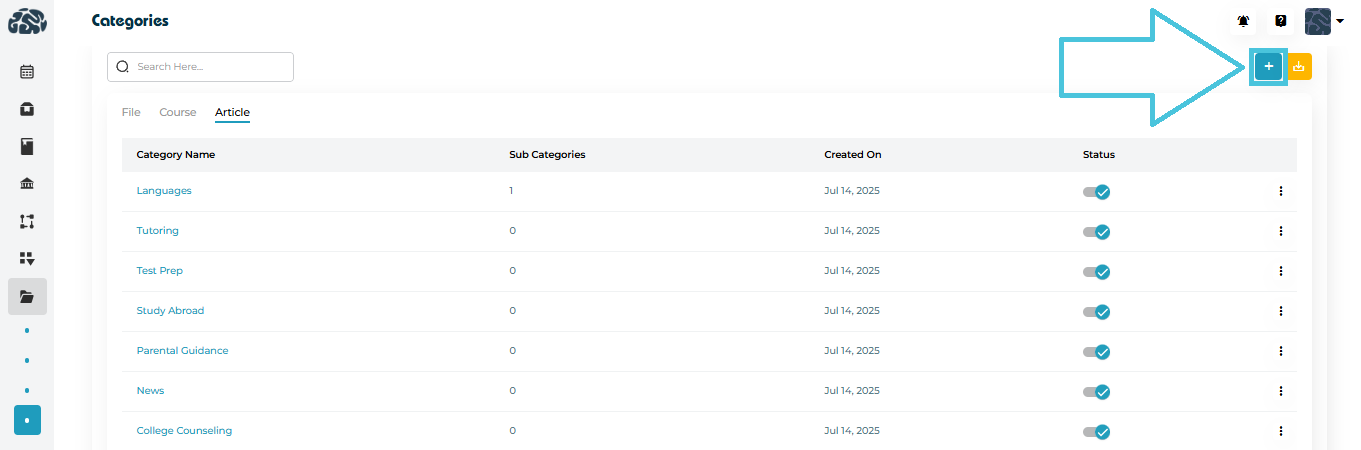
Adding an Article Category
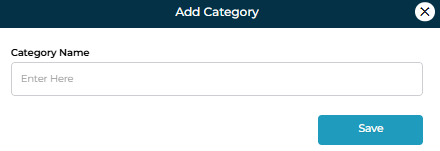
  1. Click ➕ Add Category

  2. Enter category name

  3. Save

Managing Article Sub-Categories

  • Click a category name to open sub-categories

  • Add or manage sub-categories for content grouping
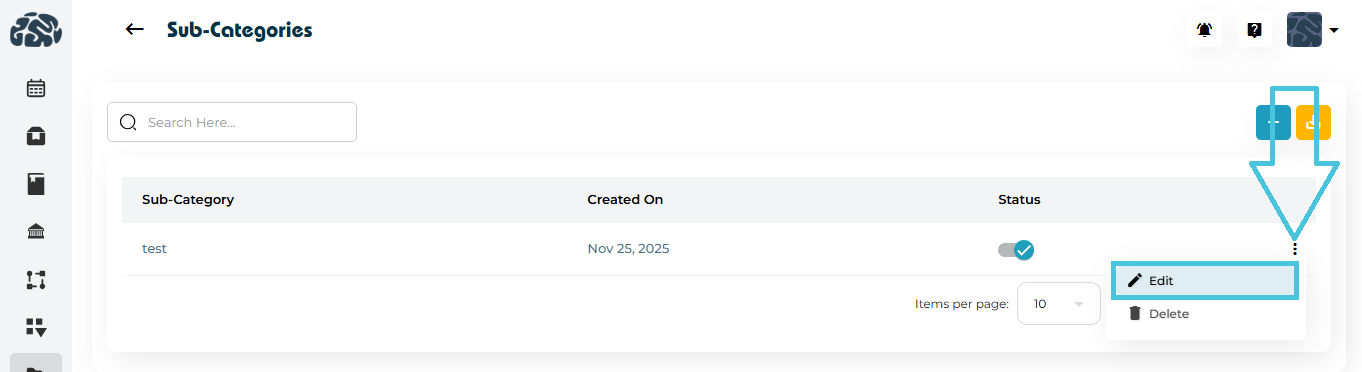
Editing & Deleting Article Categories
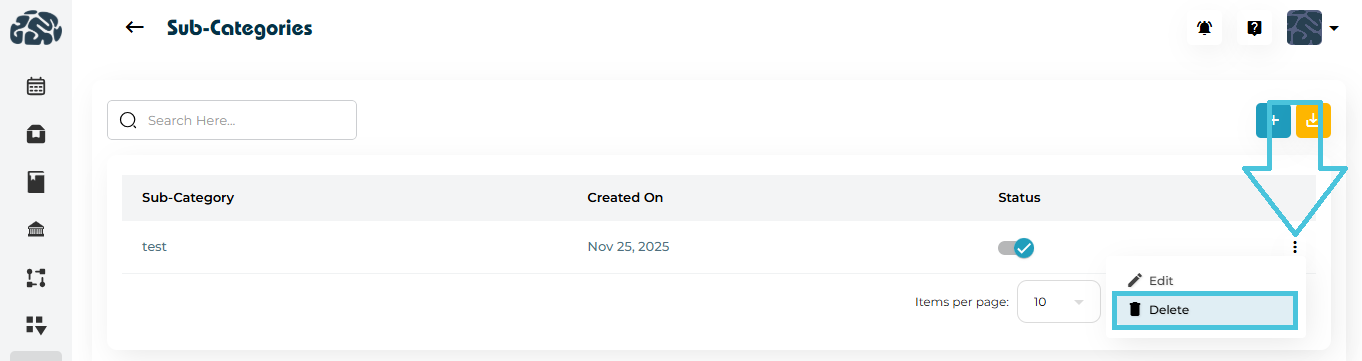
  • Use the three-dot menu

  • Select Edit or Delete

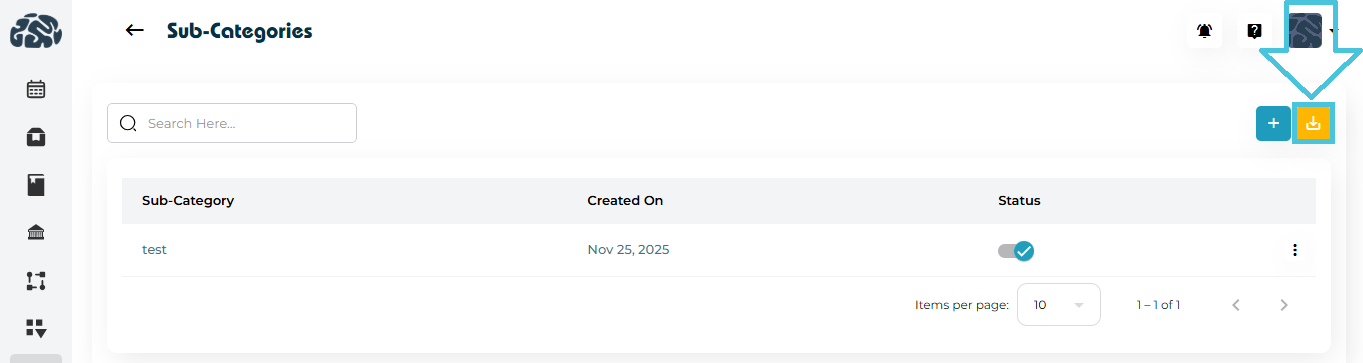
Exporting Article Categories
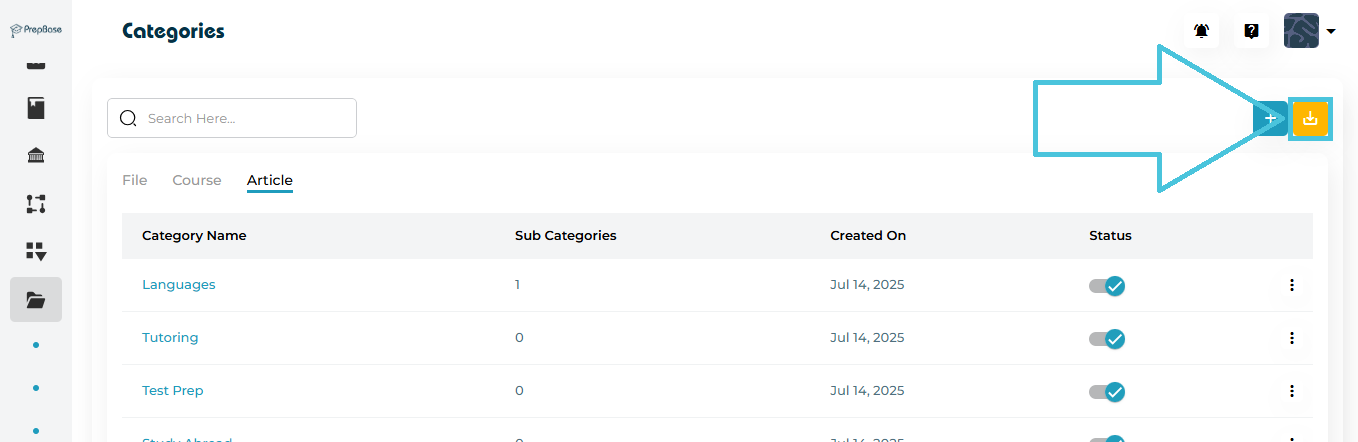
  • Click Download (⬇️) to export article categories and sub-categories
IN THIS ARTICLE

Adding and managing educational articles

Adding and Managing Educational Articles

PrepBase allows admins to create, manage, and organize educational content through the Articles & Guides module. This section is designed to help teams publish structured knowledge resources such as:

  • Educational Articles

  • Long-form Guides

  • Frequently Asked Questions (FAQs)

These resources can be used internally by teams or shared with students and parents, depending on visibility and usage.

This article explains how to add, view, edit, filter, and delete educational articles, guides, and FAQs.

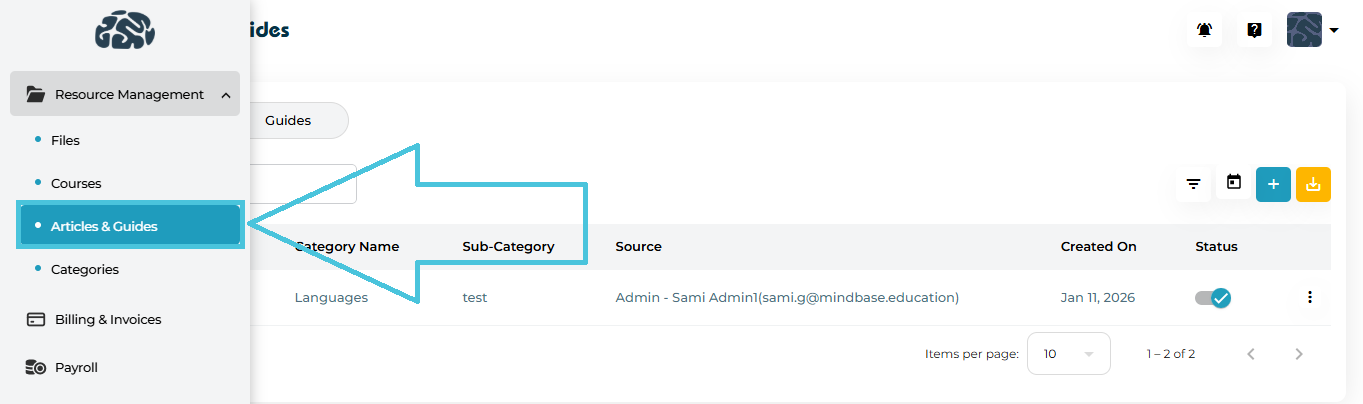
1. Accessing Articles & Guides

  1. Open the Admin Portal

  2. Navigate to Resource Management

  3. Click Articles & Guides

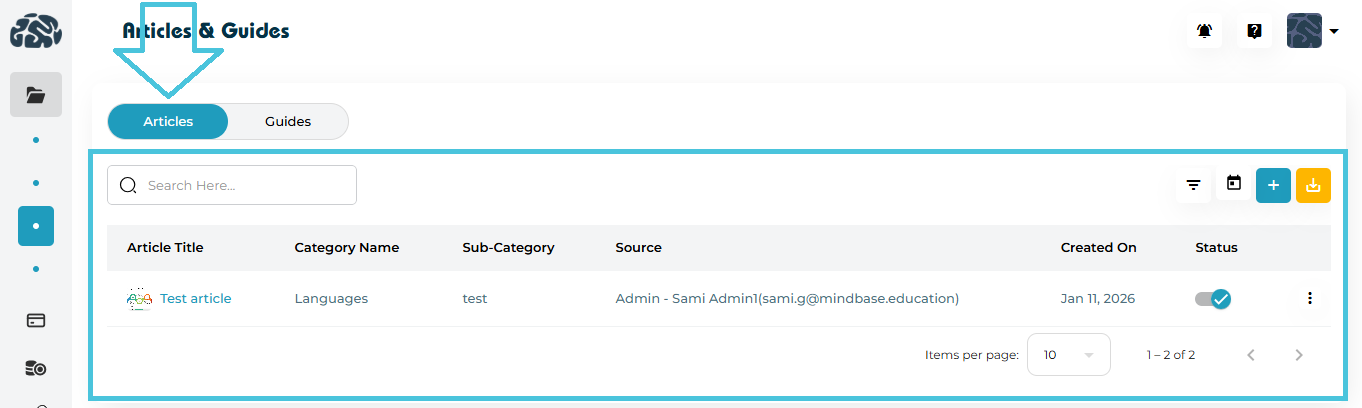
You’ll see two primary sections:

  • Articles

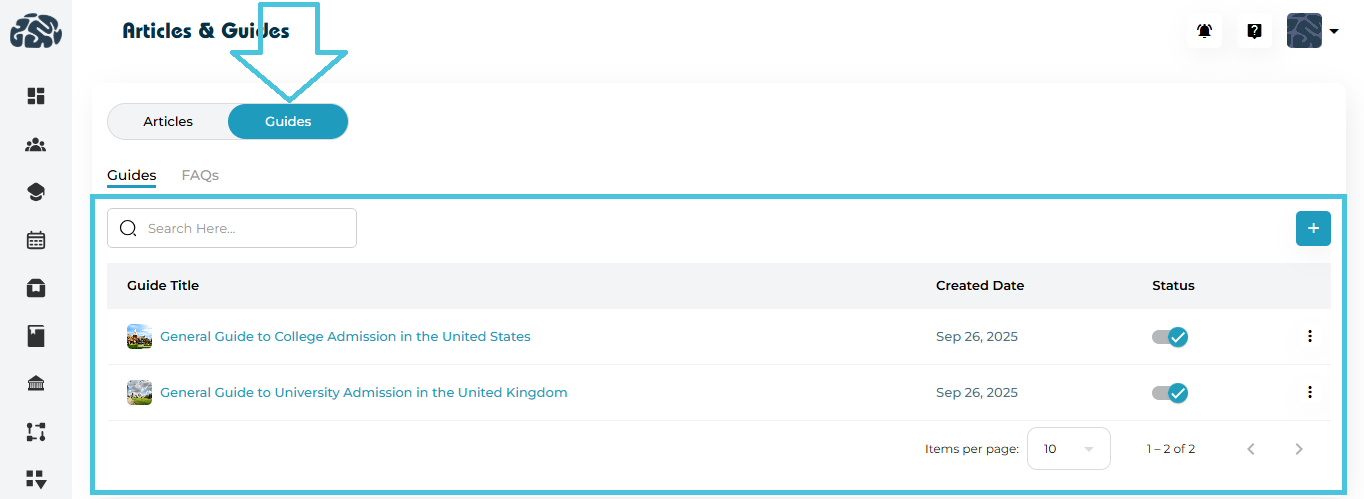
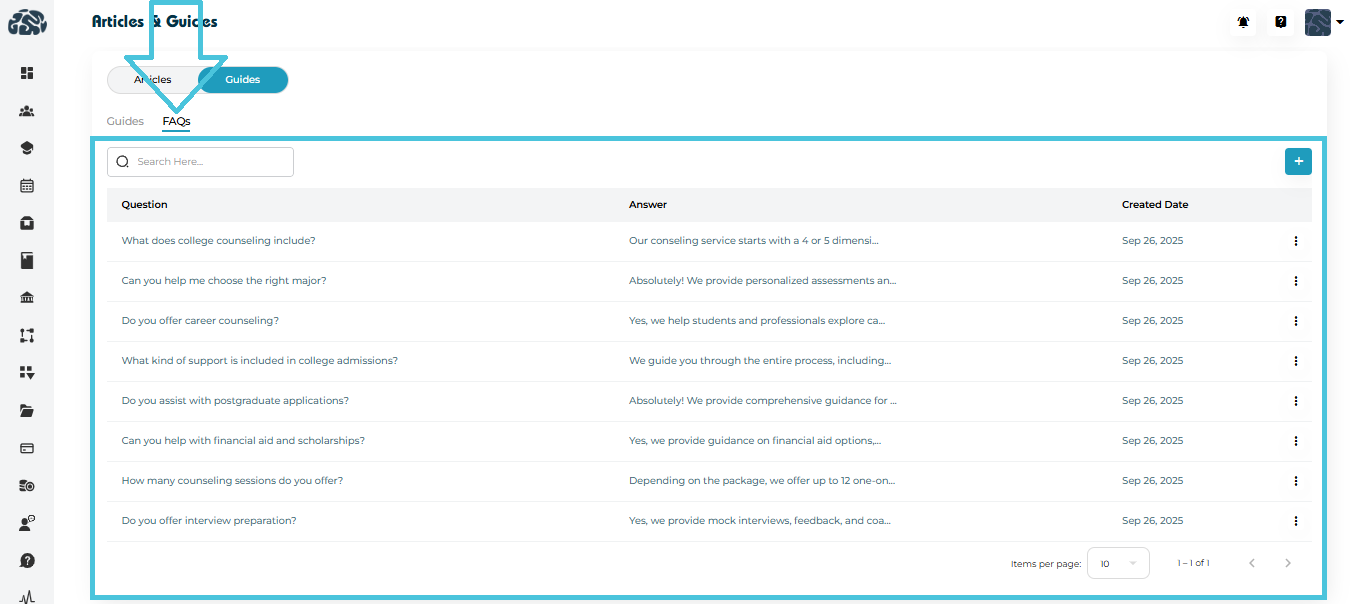
  • Guides (with a nested FAQs tab)

2. Understanding Content Types

Articles

Articles are structured educational posts with:

  • Title

  • Category & Sub-Category

  • Featured Image

  • Rich-text content

  • Author/source information

Guides

Guides are long-form instructional resources, typically step-by-step or topic-focused.

FAQs

FAQs are short, question-and-answer entries used for quick reference.

3. Managing Articles

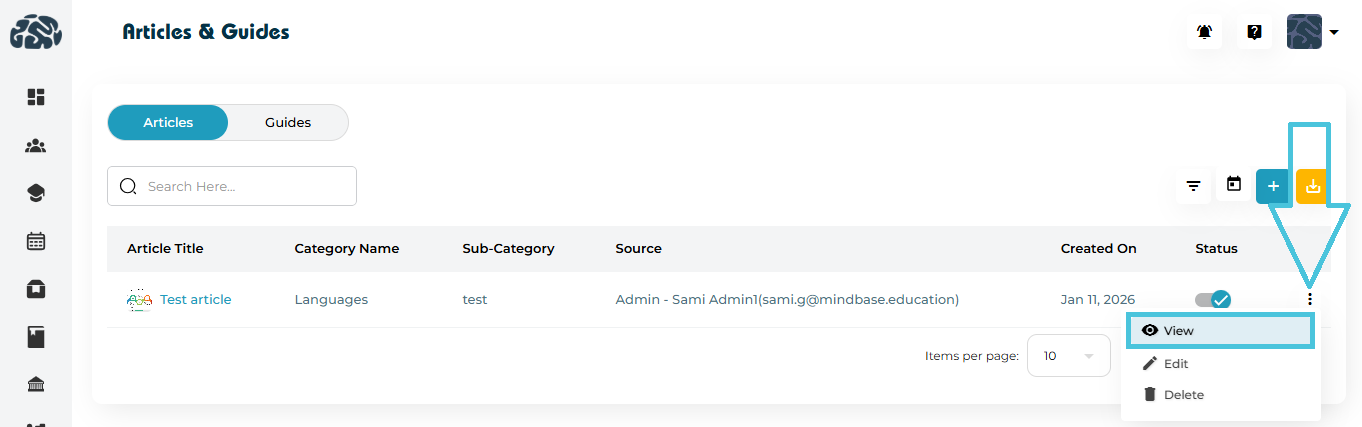
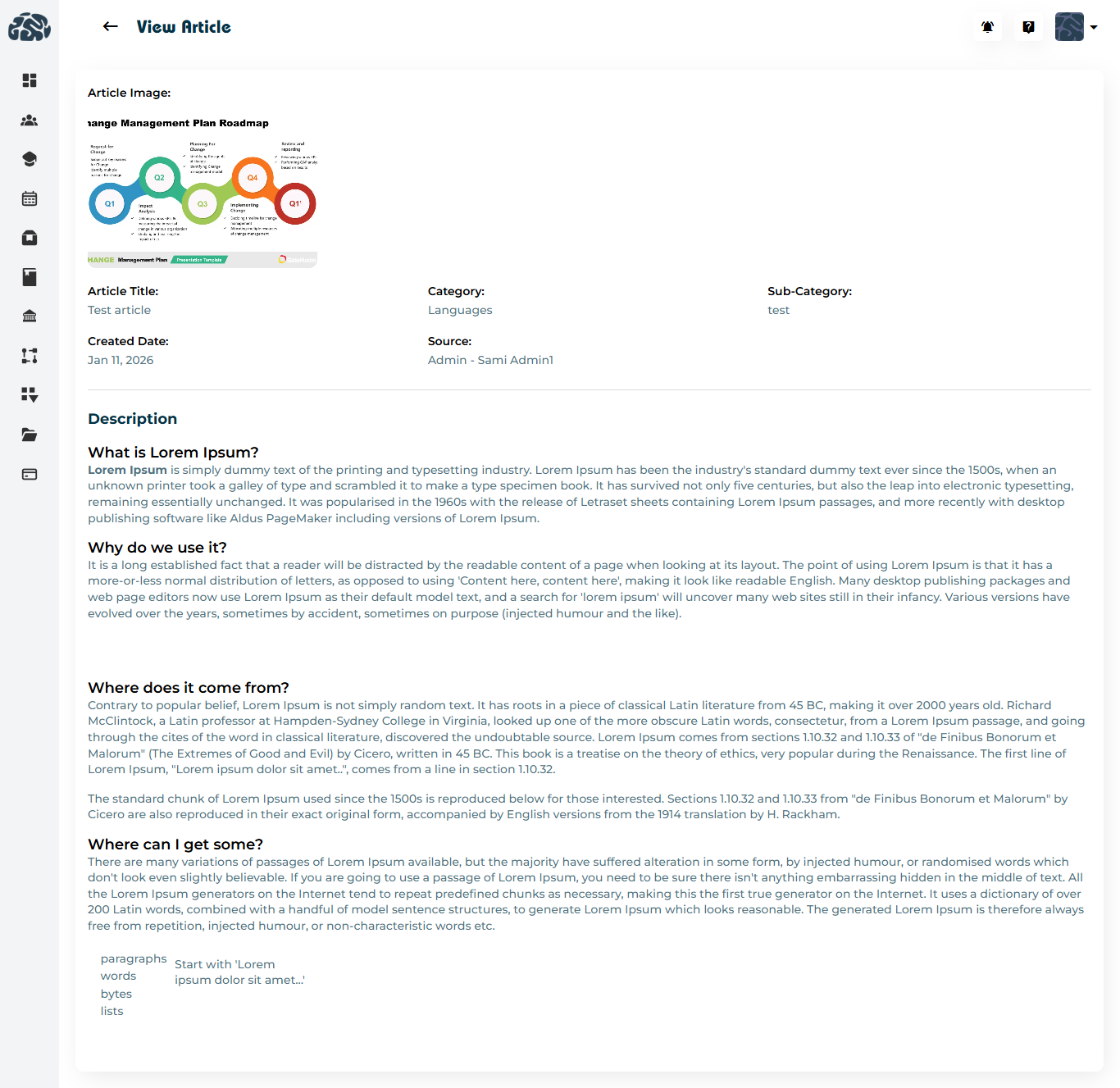
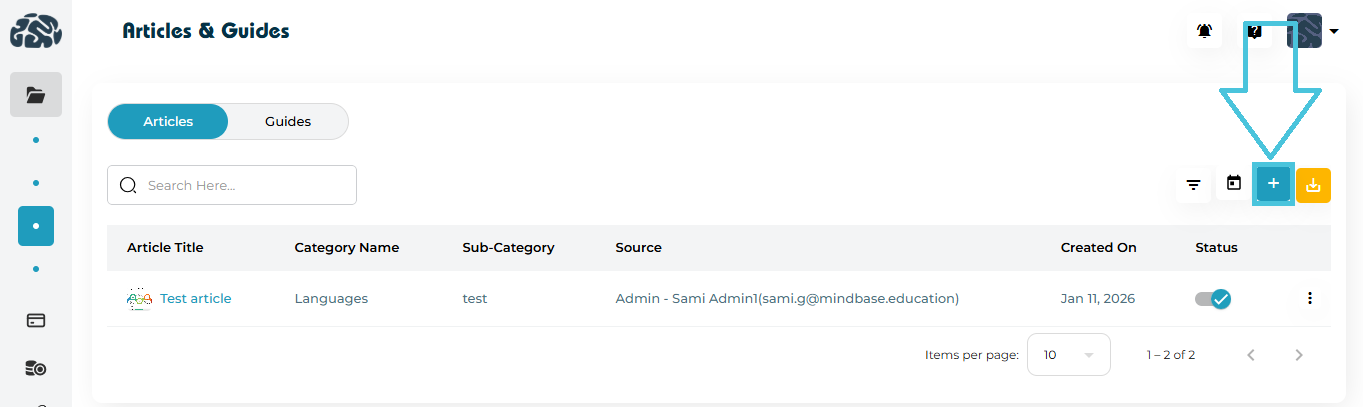
Viewing Articles

  • Open the Articles tab

  • Click on an Article Title to open the full article view

Adding a New Article
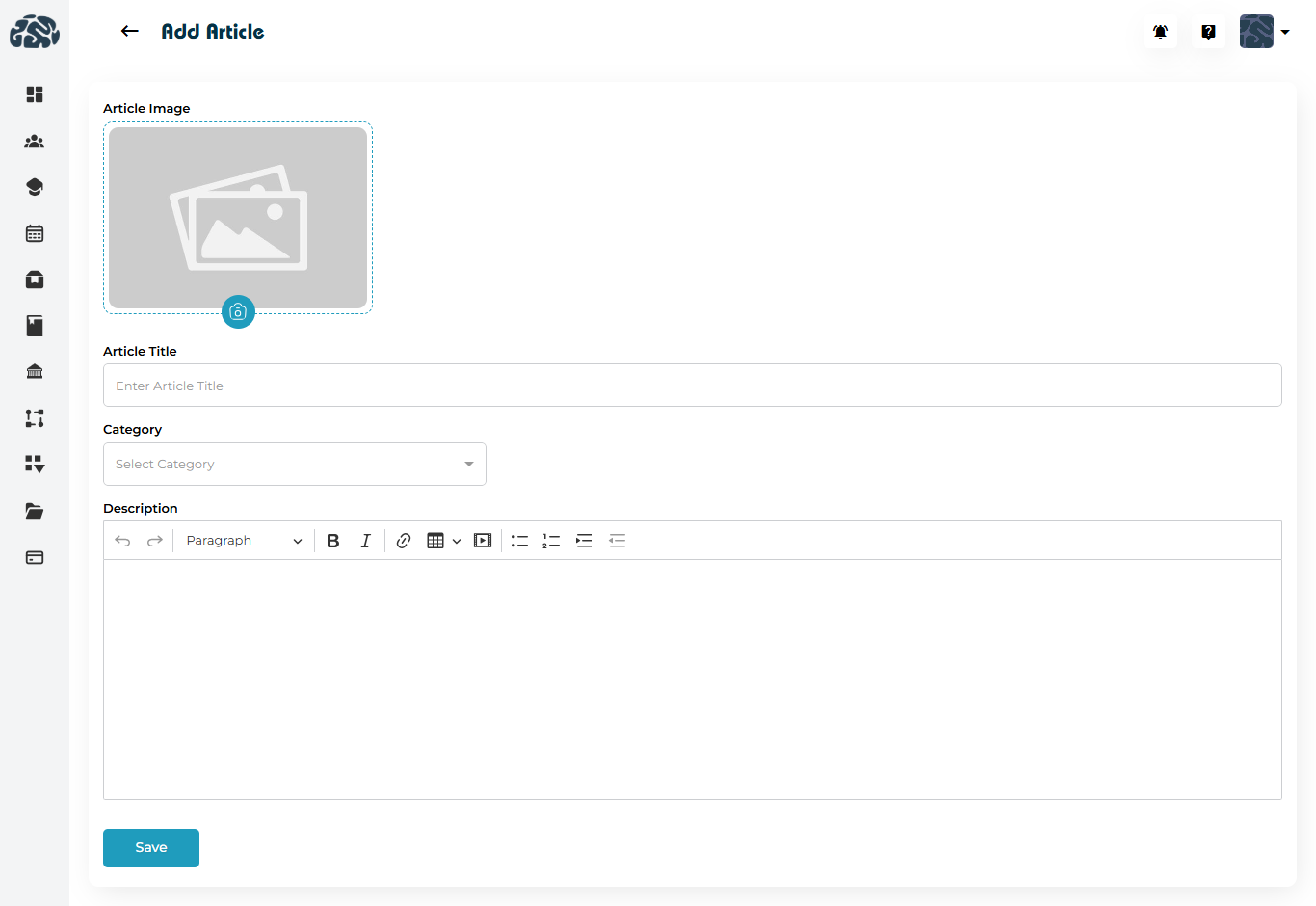
  1. In the Articles tab, click ➕ Add

  2. Fill in the following fields:

    • Article Image (optional but recommended)

    • Article Title

    • Category

    • Sub-Category

    • Description (rich-text editor)

  3. Click Save.

Editing an Article
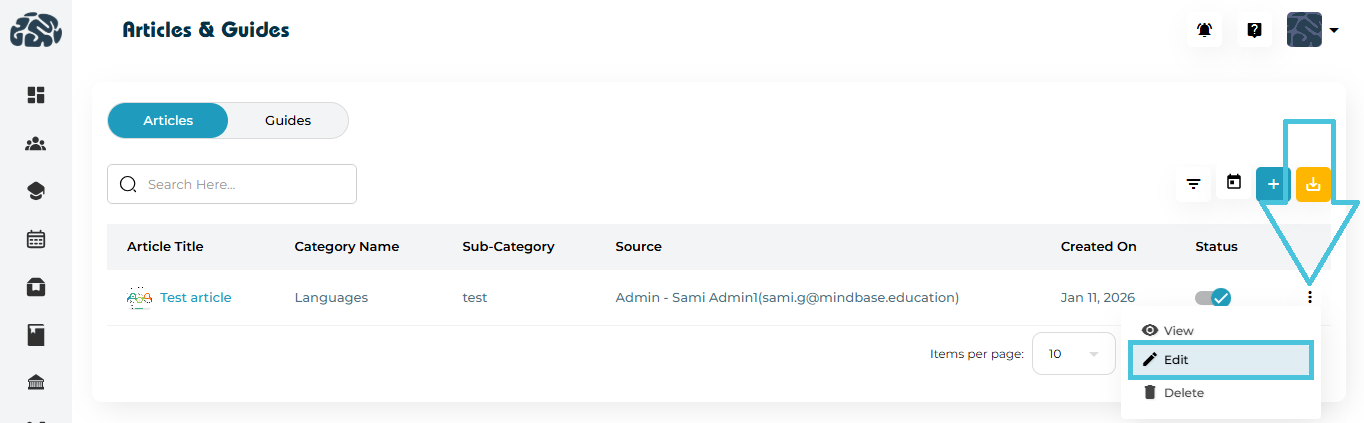
  1. Click the three-dot menu (⋮) next to an article

  2. Select Edit

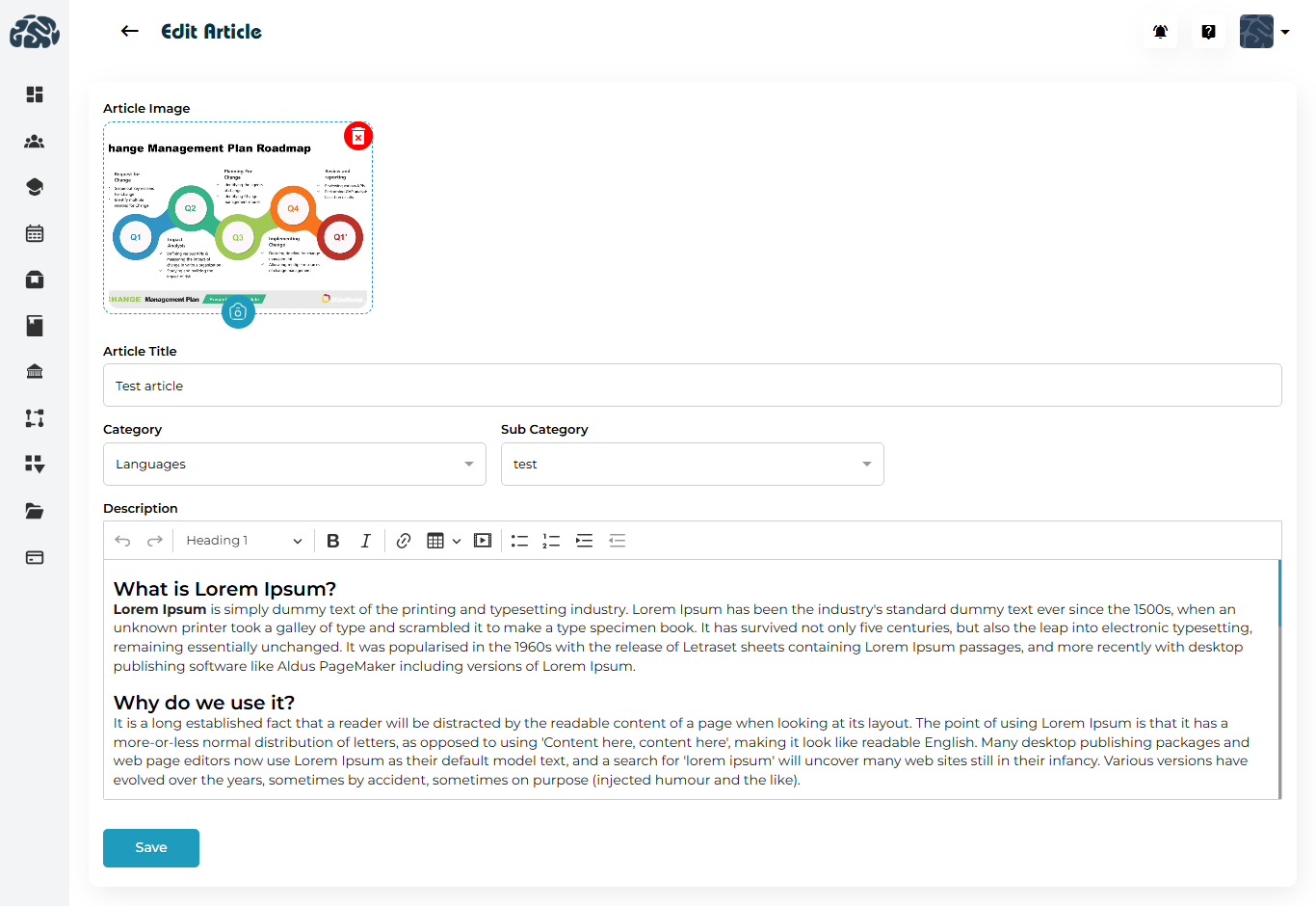
  3. Update the required fields

  4. Click Save

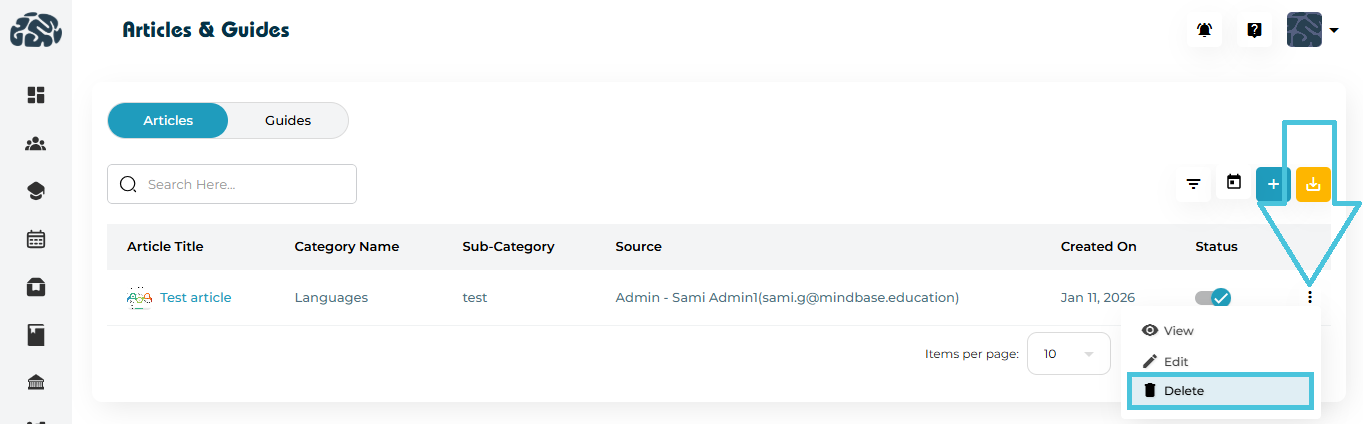
Deleting an Article

  1. Click the three-dot menu (⋮)

  2. Select Delete

  3. Confirm the action

⚠️ Deleted articles are permanently removed and cannot be restored.
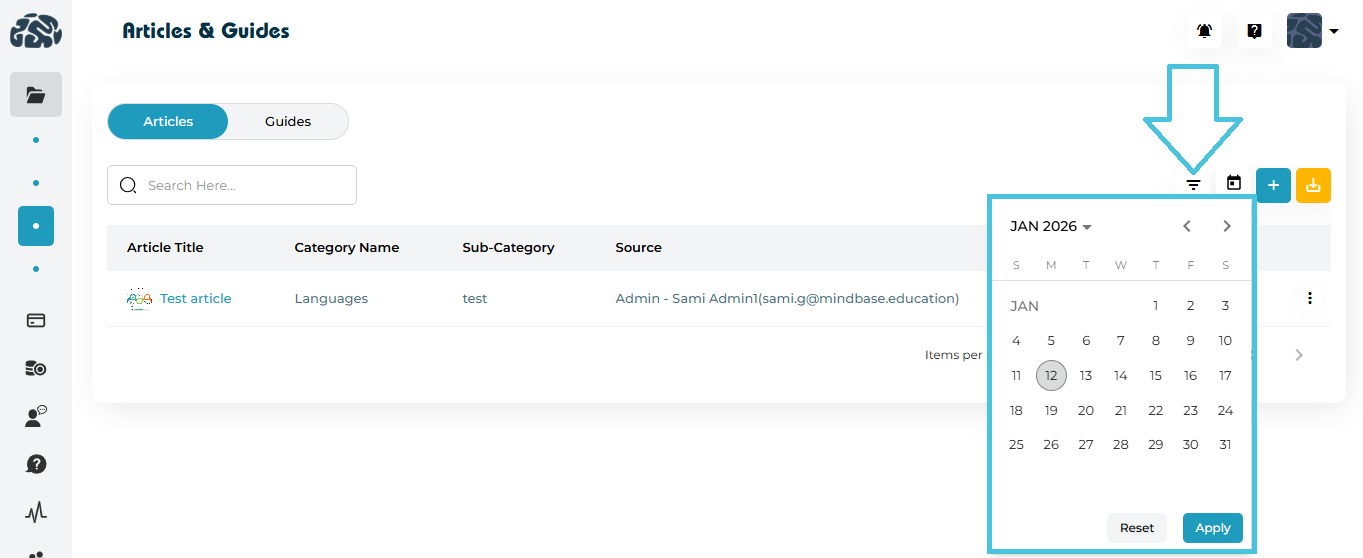
Filtering Articles

Admins can filter articles using:

  • Category

  • Sub-Category

  • Source

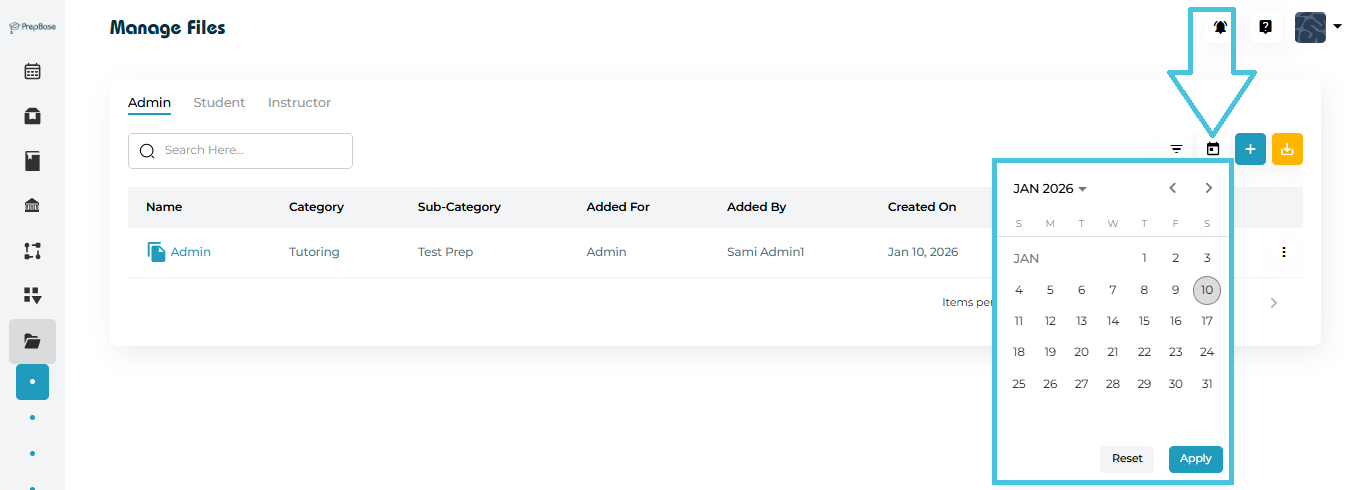
  • Created Date (calendar filter)

Click Apply to refine results or Reset to clear filters.
4. Managing Guides

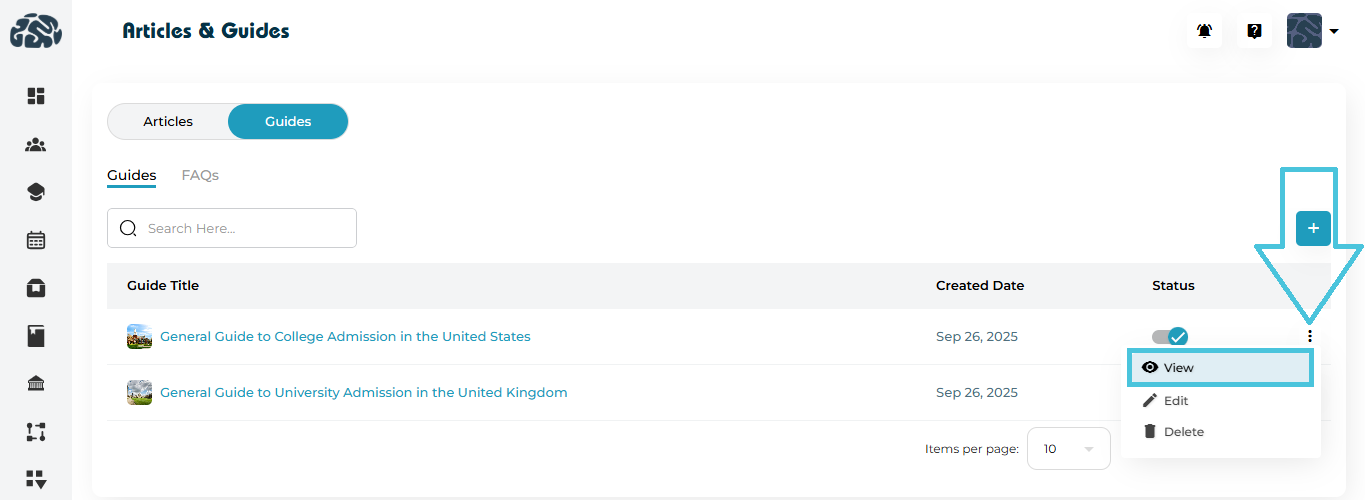
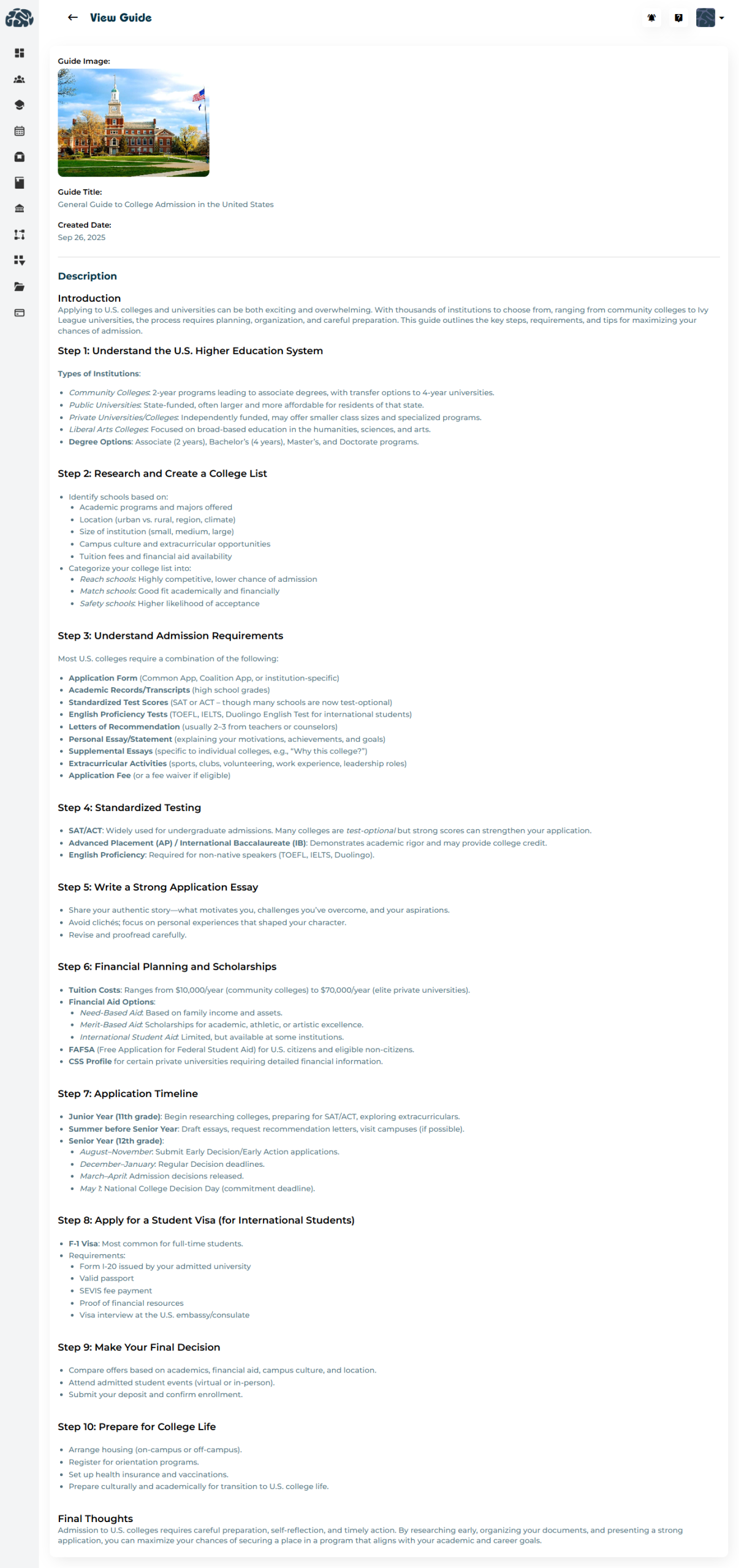
 Viewing Guides
  1. Switch to the Guides tab

  2. Click on any Guide Title to view its full content

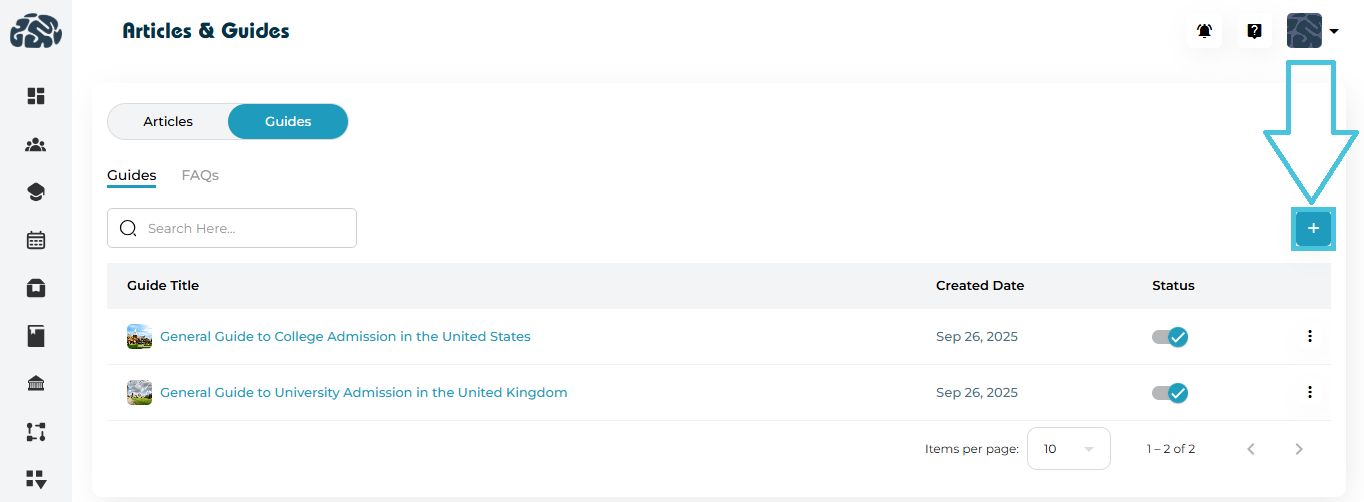
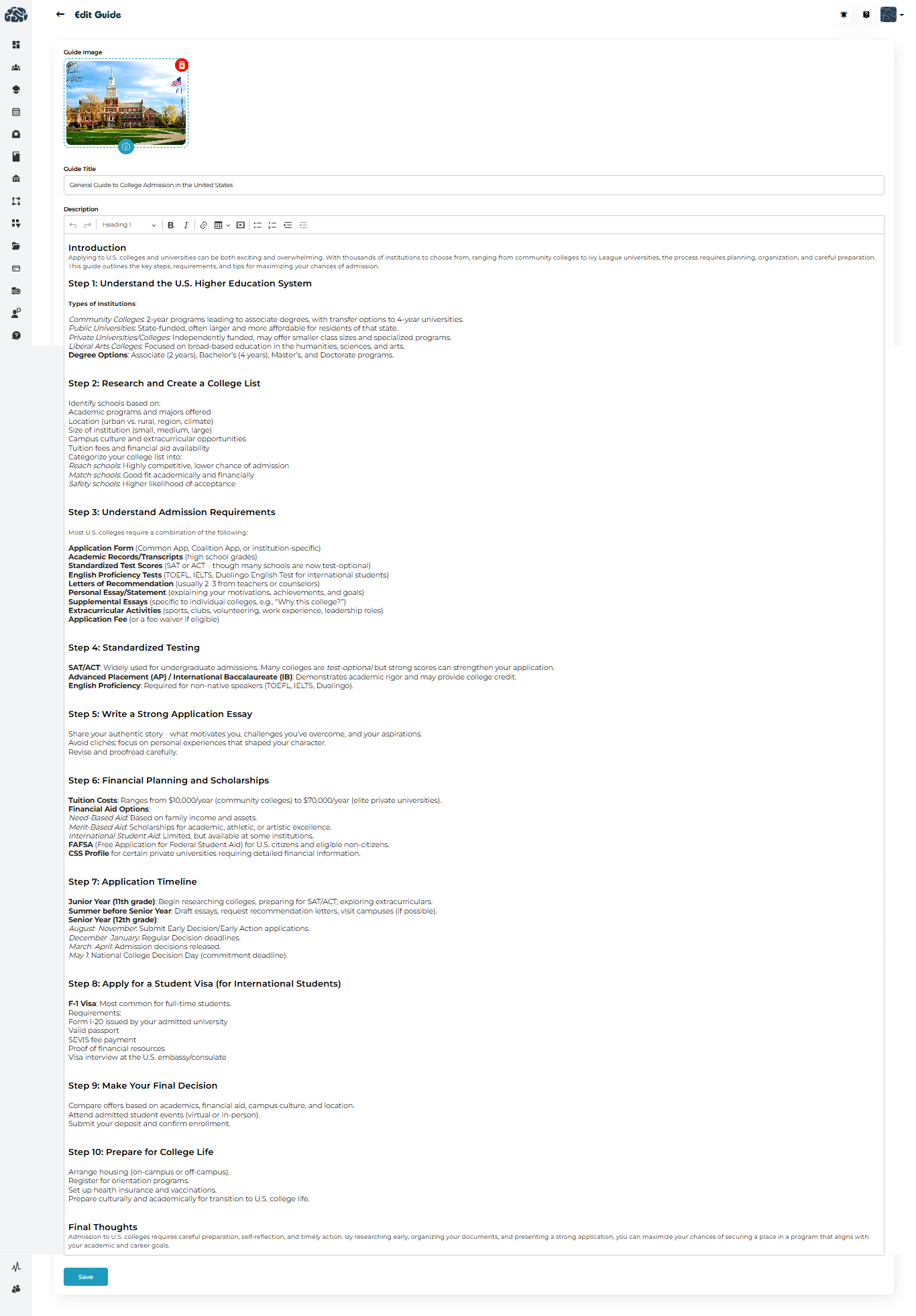
Adding a New Guide
  1. Click ➕ Add in the Guides tab

  2. Provide:

    • Guide Image

    • Guide Title

    • Description (rich-text editor)

  3. Click Save 

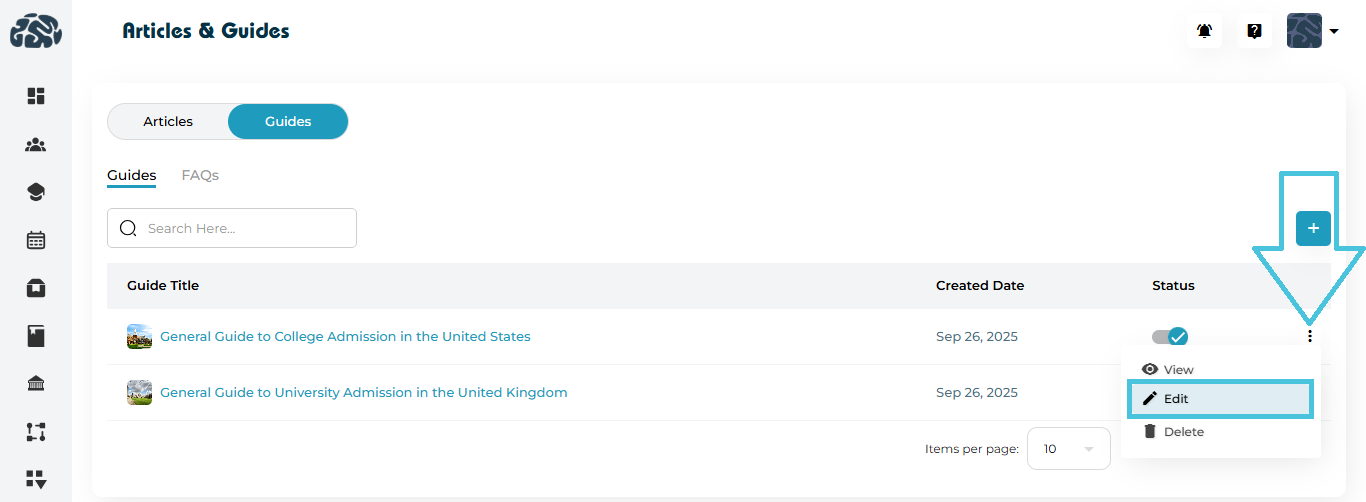
Editing a Guide
  1. Open the three-dot menu (⋮) next to a guide

  2. Select Edit

  3. Update the content

  4. Click Save

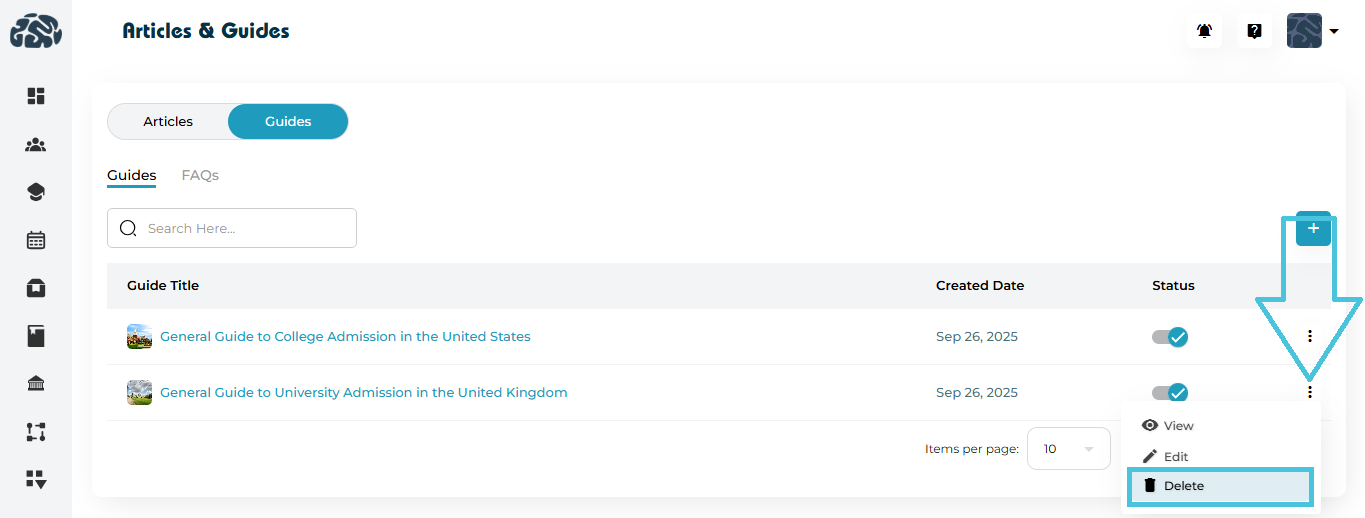
Deleting a Guide

  1. Click ⋮ → Delete

  2. Confirm deletion

5. Managing FAQs

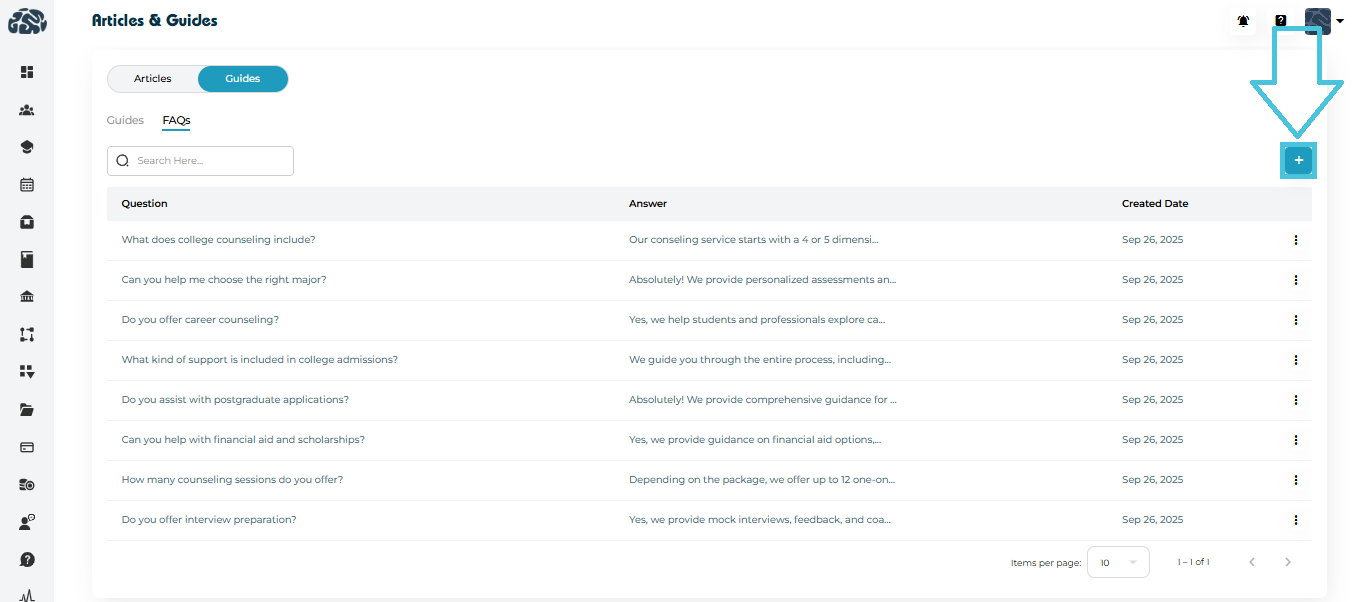
 Viewing FAQs
  • Open Guides

  • Switch to the FAQs tab

  • Browse questions and answers in a list format

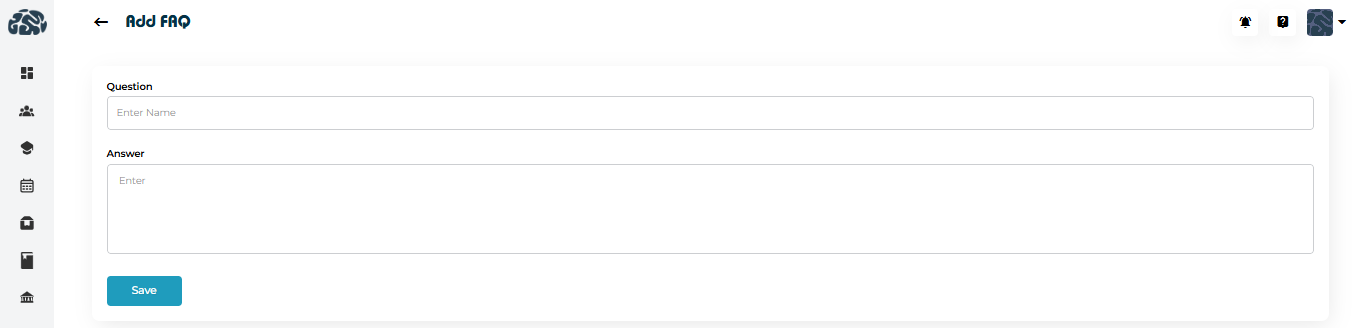
Adding a New FAQ
  1. Click ➕ Add in the FAQs tab

  2. Enter:

    • Question

    • Answer

  3. Click Save

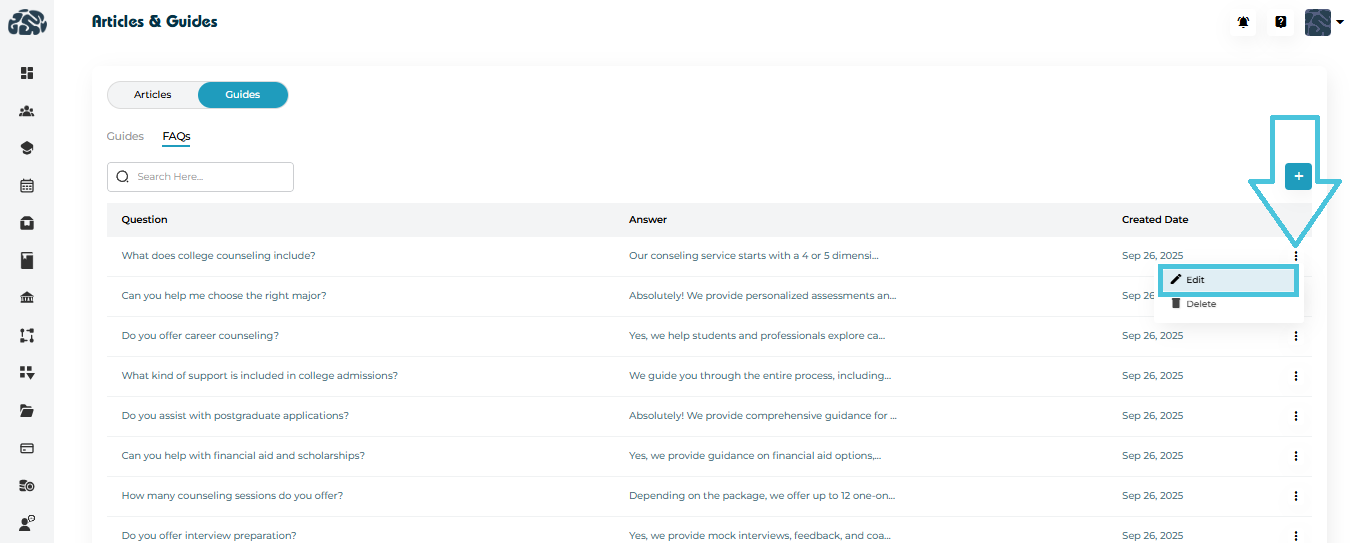
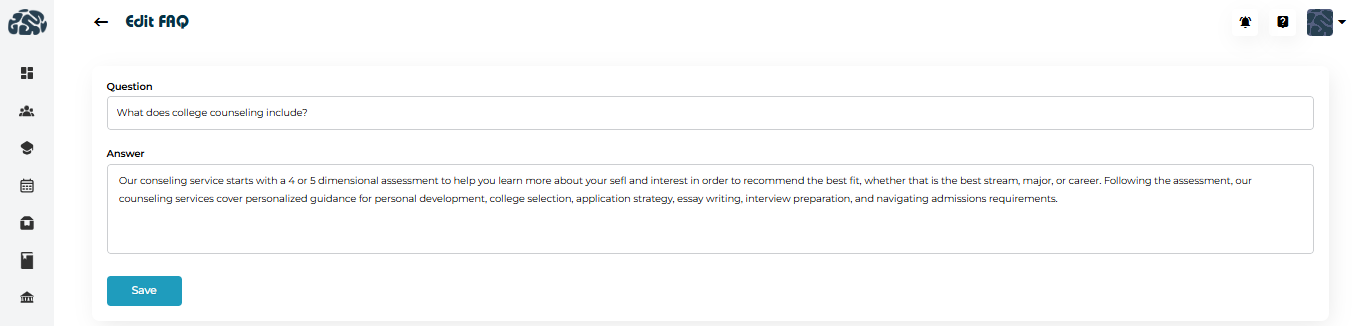
Editing an FAQ
  1. Click the three-dot menu (⋮)

  2. Select Edit

  3. Update the question or answer

  4. Click Save

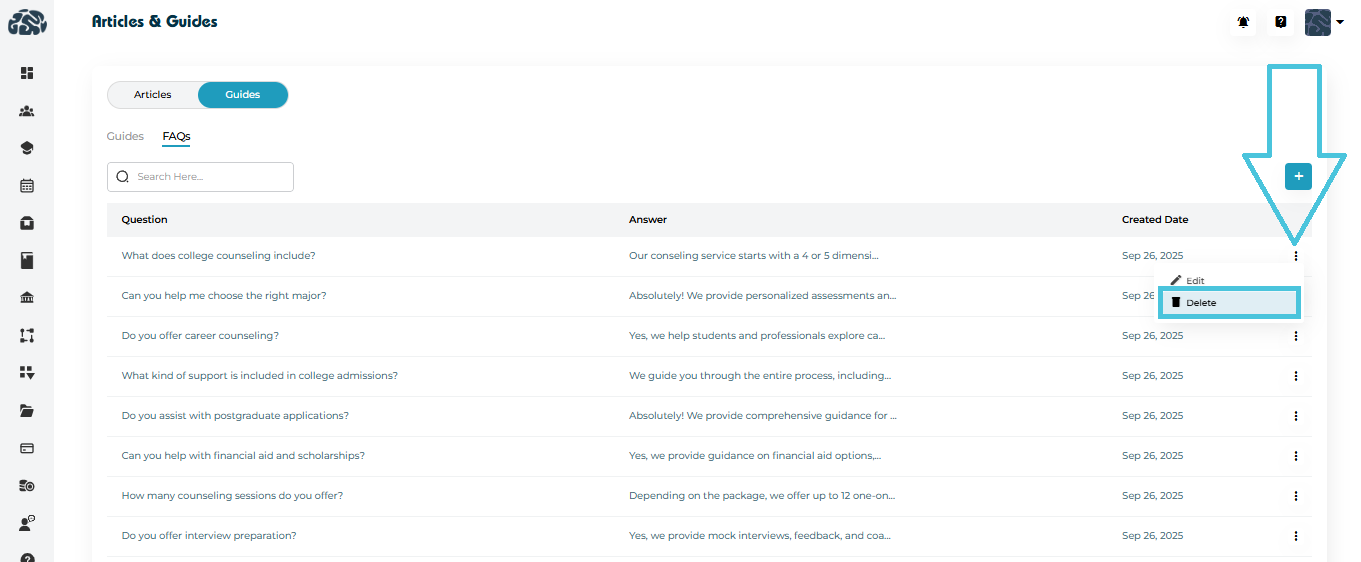
Deleting an FAQ

  1. Click ⋮ → Delete

  2. Confirm the action

IN THIS ARTICLE

Uploading and managing video courses

Uploading and Managing Video Courses

This guide explains how to create, upload, manage, and organize video-based courses in PrepBase. It covers everything from adding a new course to managing lessons, quizzes, filters, and course visibility—using the Resource Management → Courses module.

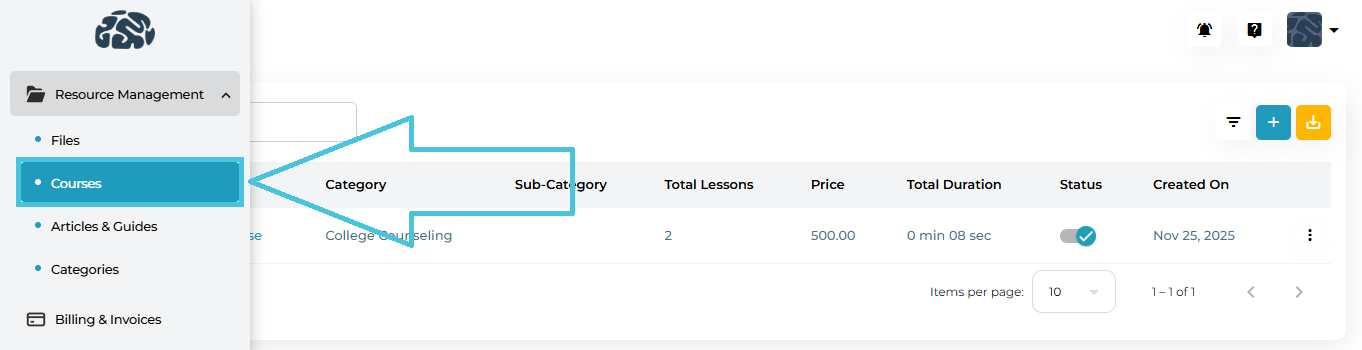
1. Accessing Courses in Resource Management

  1. Open the Admin Portal.

  2. Navigate to Resource Management → Courses.

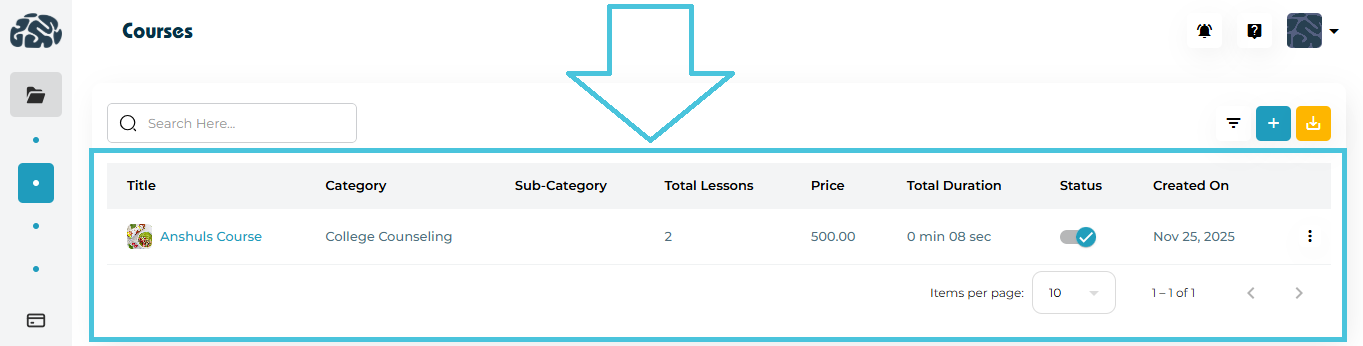
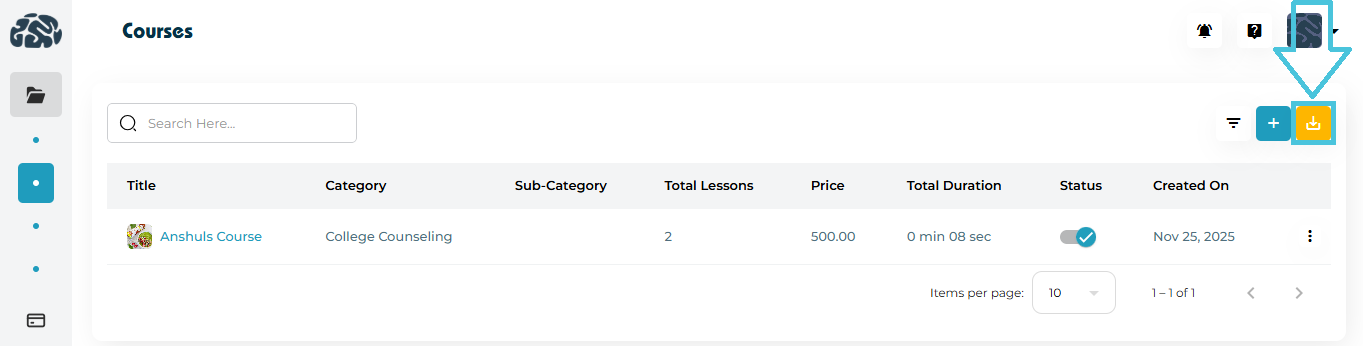
  3. You’ll see a list of all created courses with key details such as category, price, total lessons, duration, and status.

2. Courses List Overview

Each course row displays:

  • Course Title

  • Category & Sub-Category

  • Total Lessons

  • Price

  • Total Duration

  • Status (Active / Inactive)

  • Created On

  • Actions Menu (⋮)

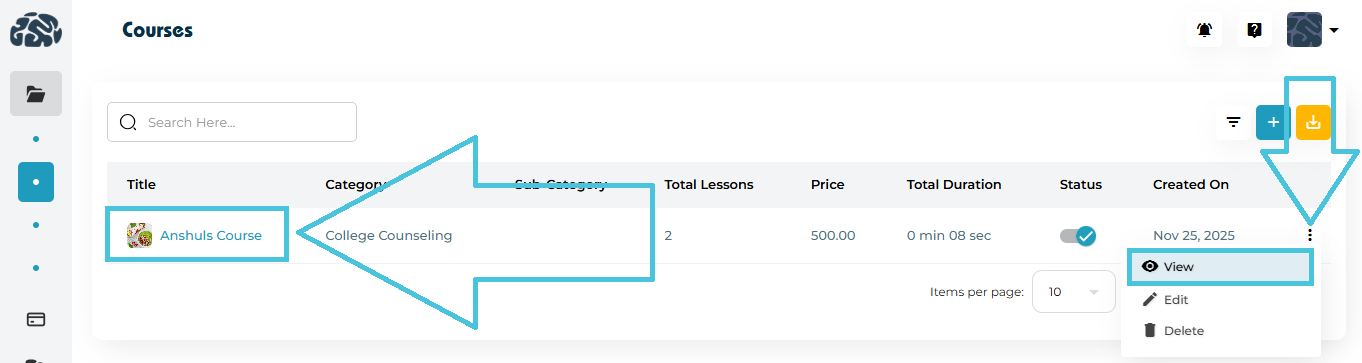
Available Actions

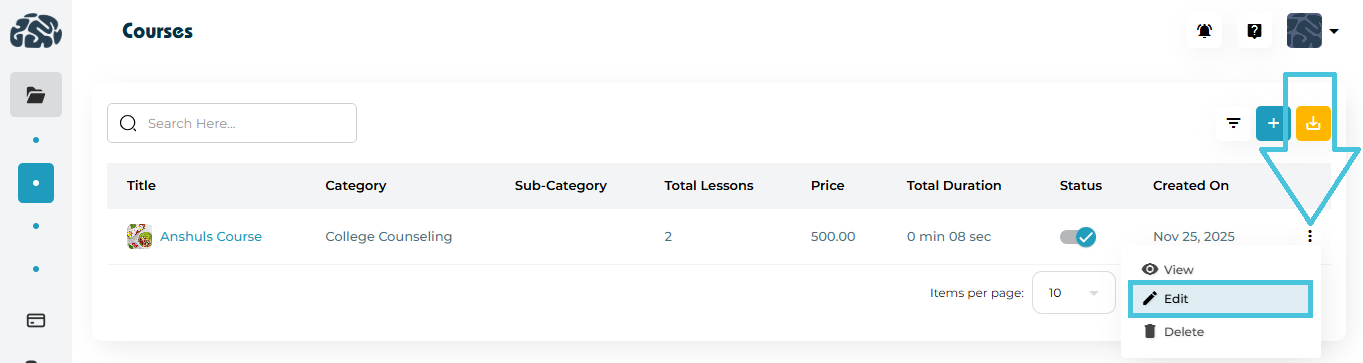
  • View Course click on the course title or three dot menu’s view button

  • View Course page to open course details and lessons

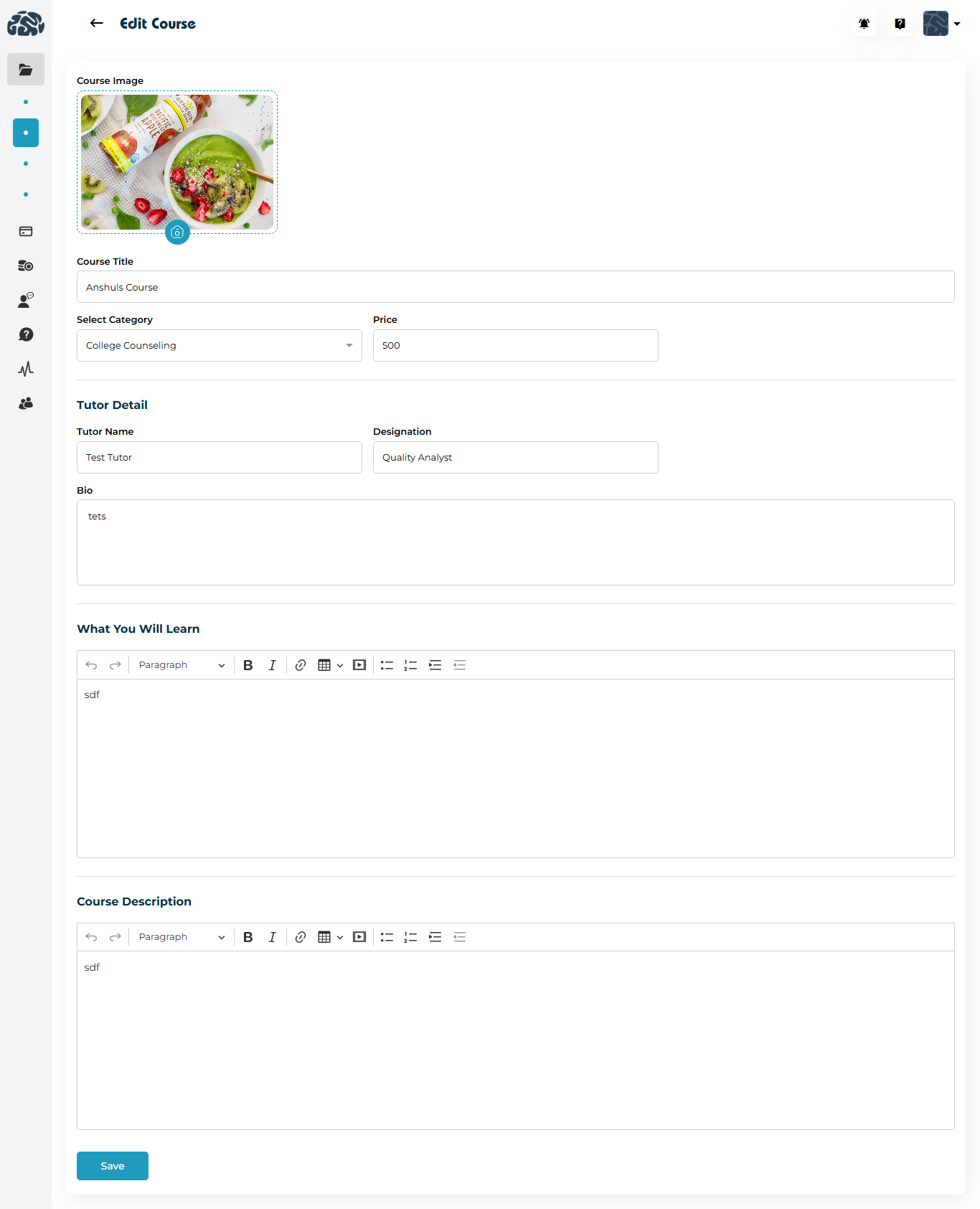
  • Edit 

  • Edit Quiz Form to update course information

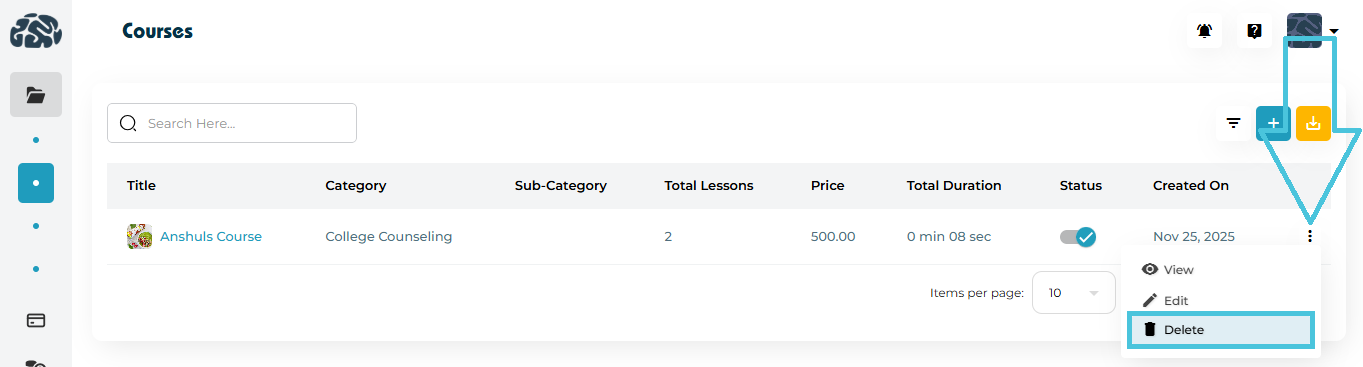
  • Delete – Permanently remove the course

3. Adding a New Course

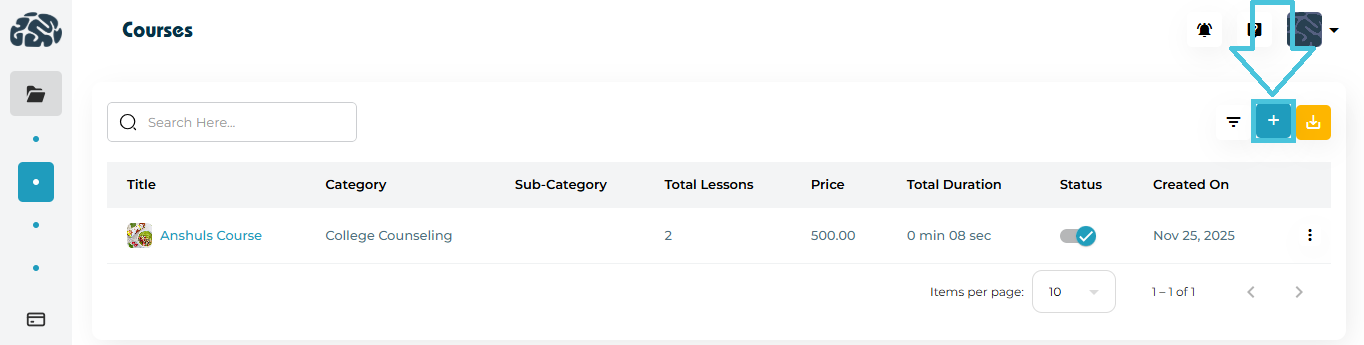
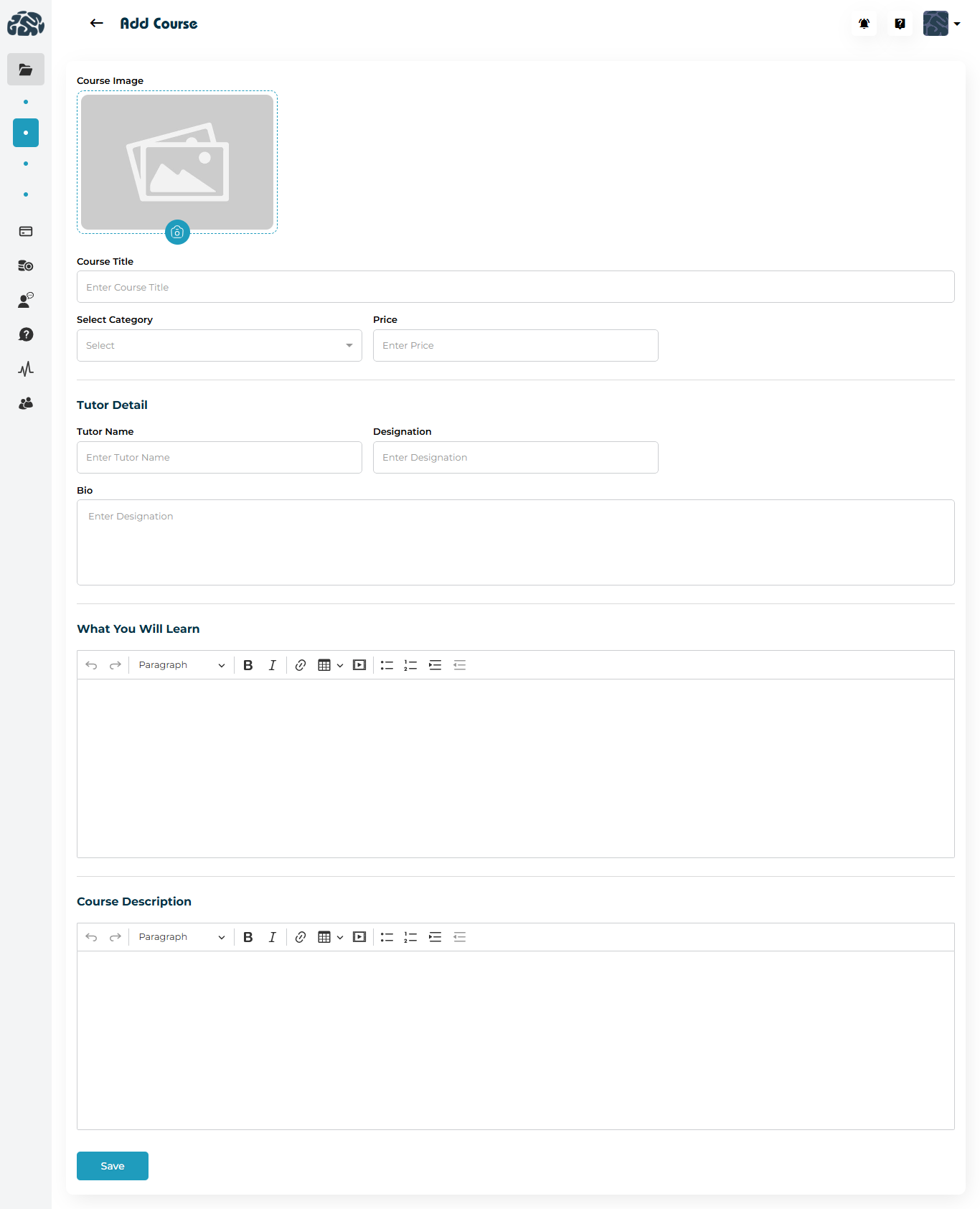
  1. Click the ➕ Add Course button.

  2. Fill in the course details:

    • Course Image (thumbnail)

    • Course Title

    • Category & Sub-Category

    • Price

  3. Add Tutor Details:

    • Tutor Name

    • Designation

    • Bio

  4. Enter:

    • What You Will Learn

    • Course Description

  5. Click Save to create the course.

📌 Once saved, you can start uploading lessons.

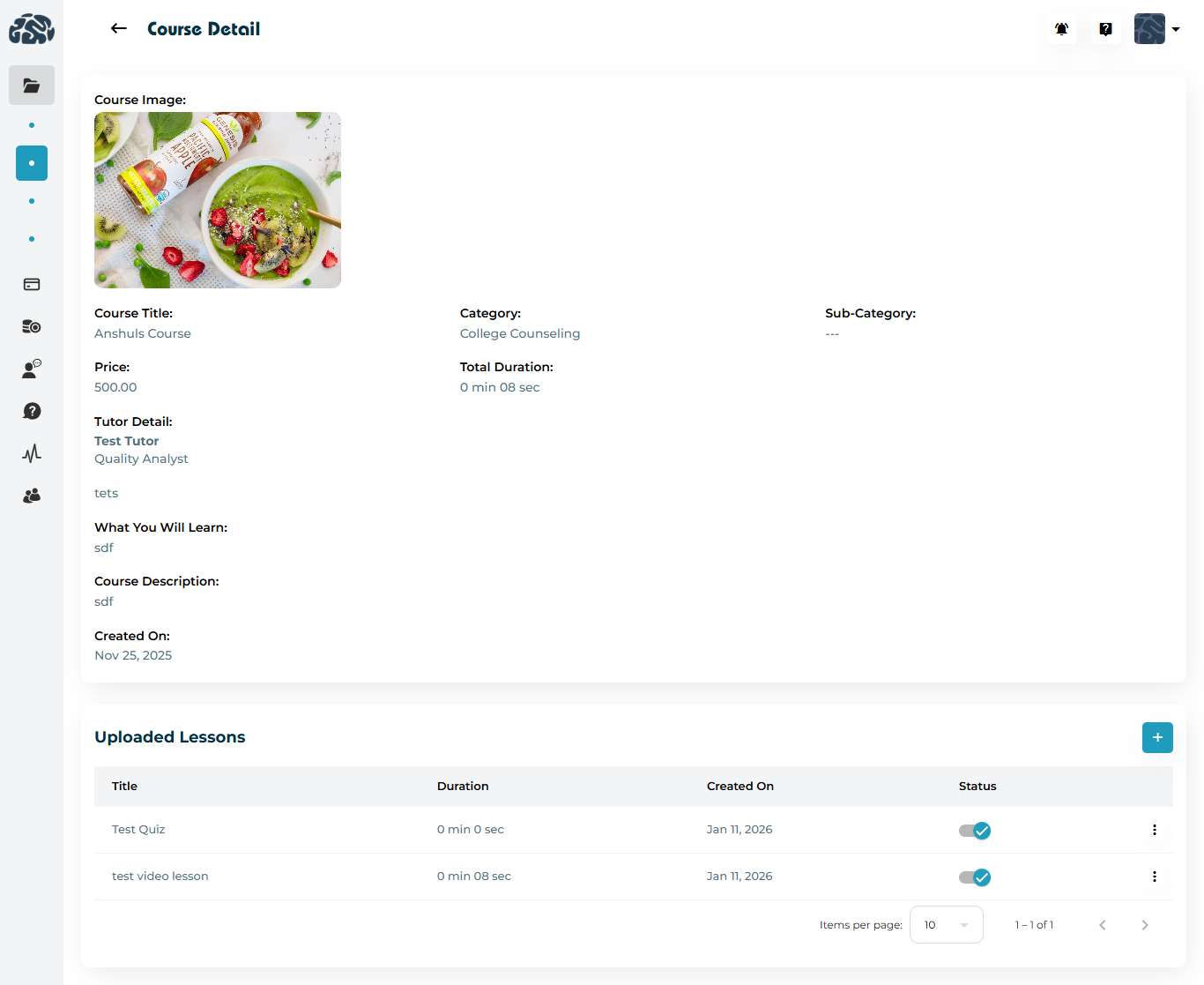
4. Viewing Course Details

The Course Detail page shows:

  • Course image and metadata

  • Tutor information

  • Learning outcomes

  • Description

  • Creation date

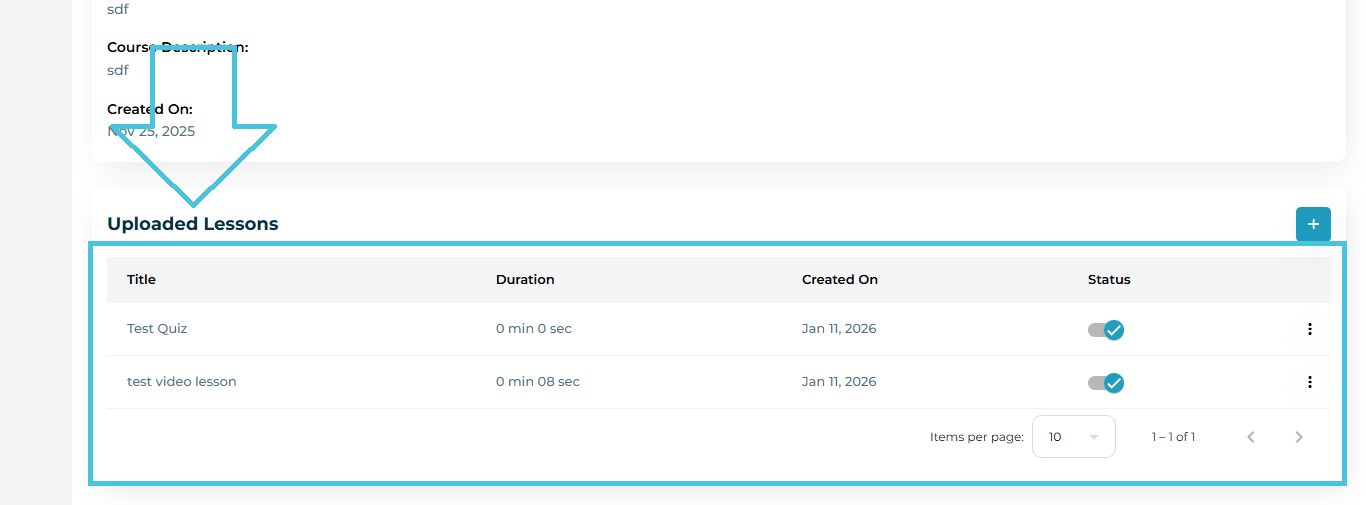
  • Uploaded Lessons section

5. Managing Uploaded Lessons

Lessons are managed from the Uploaded Lessons area inside a course.

Uploaded Lessons tab in course detail page

Lesson Types Supported
  • Video Lessons

  • Short Quizzes

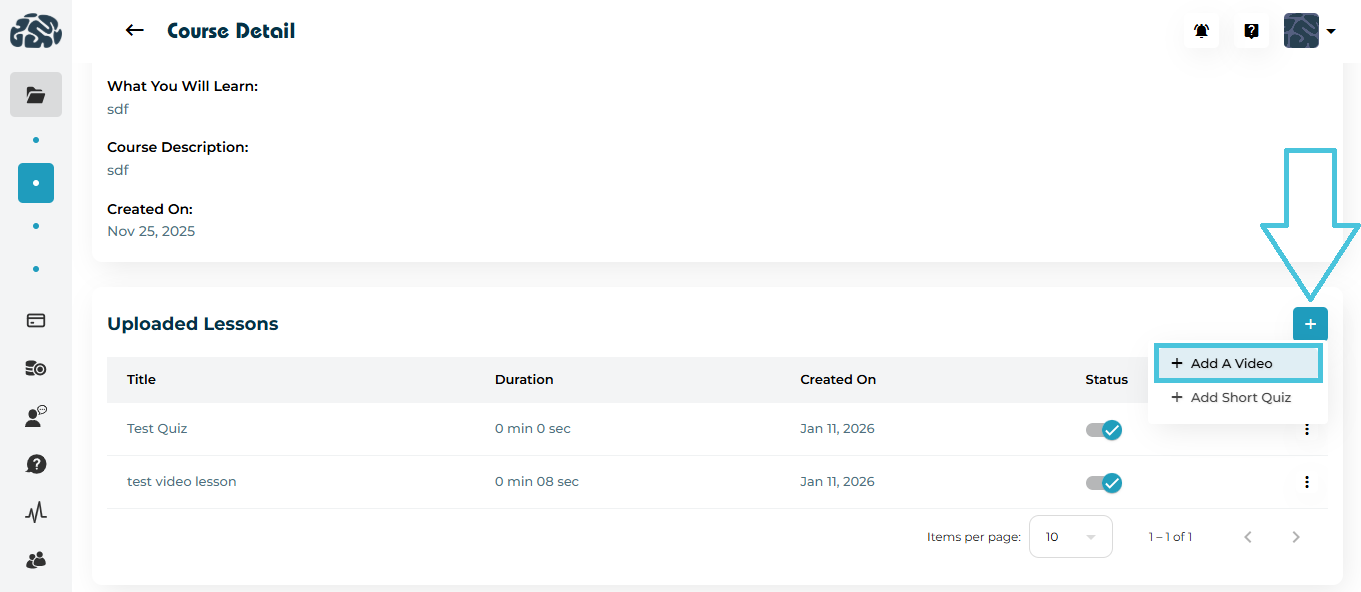
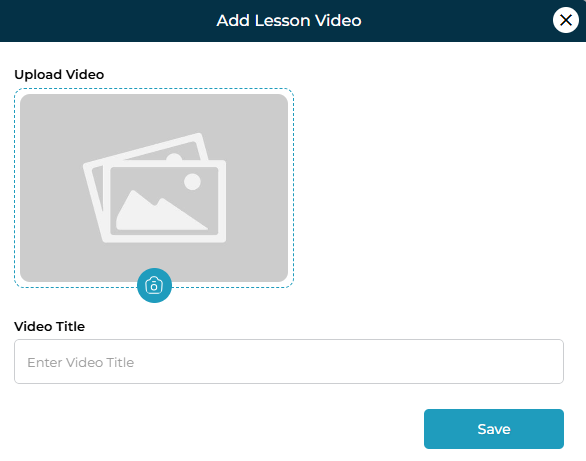
6. Adding a Video Lesson

  1. Click ➕ AddAdd a Video.

  2. Upload the video file.

  3. Enter a Video Title.

  4. Click Save.

The system automatically calculates and displays the video duration.

7. Viewing & Managing Video Lessons

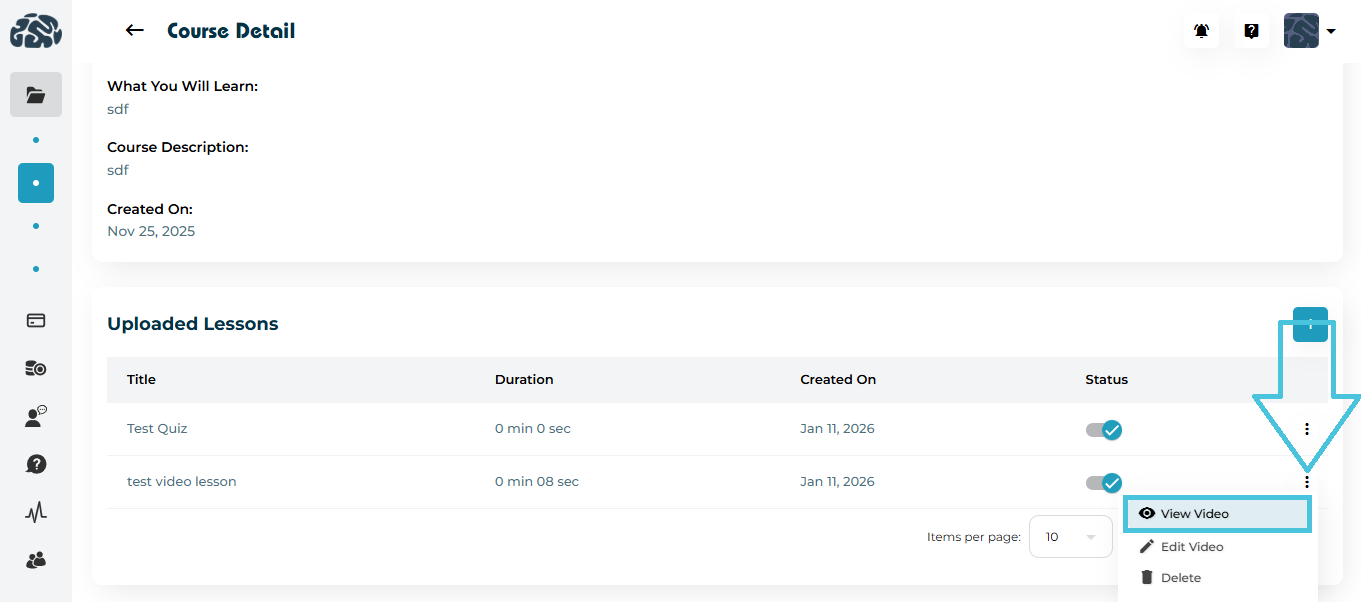
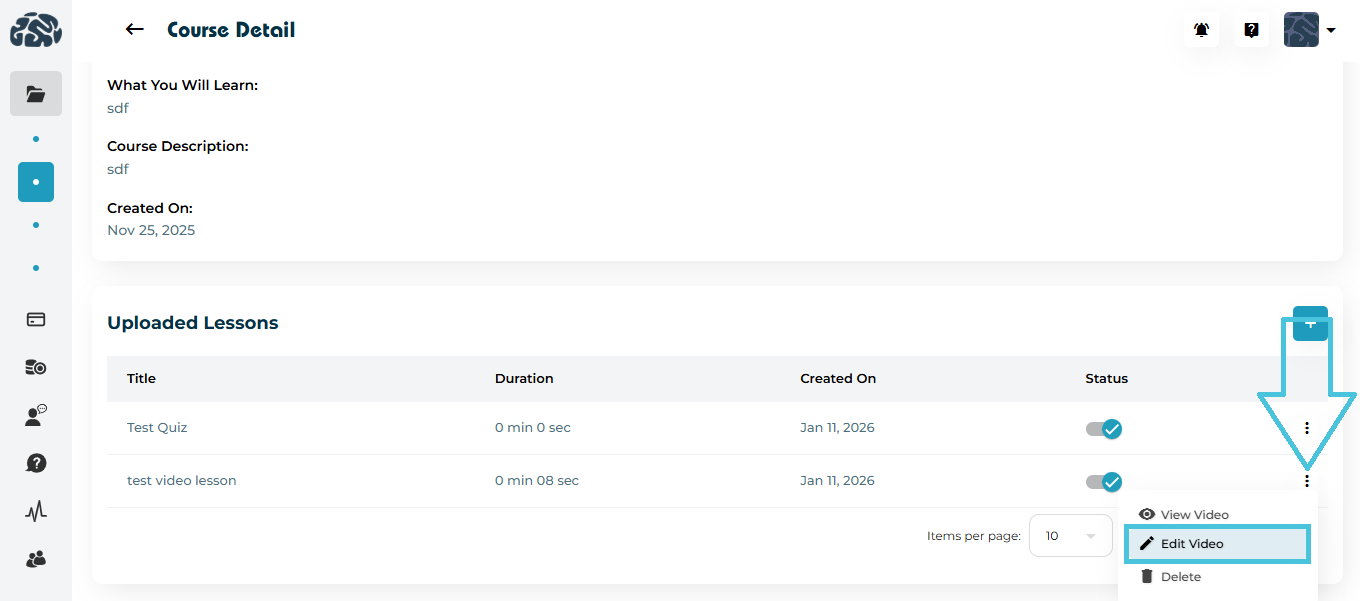
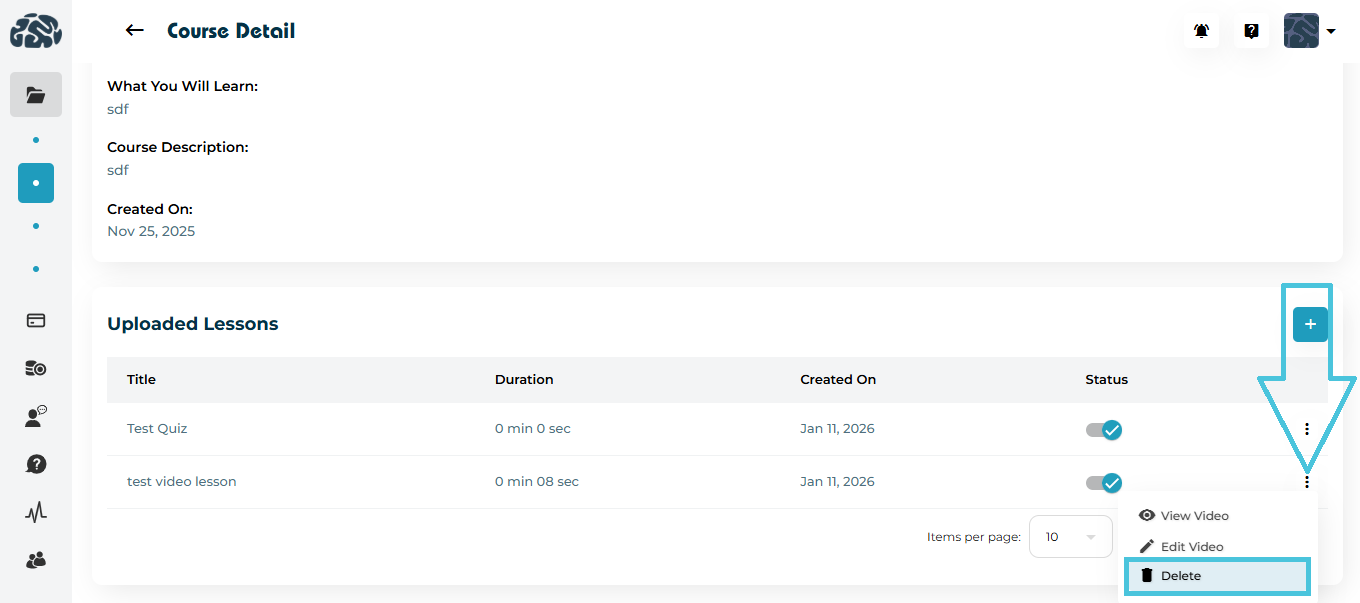
From the ⋮ menu next to a video lesson:

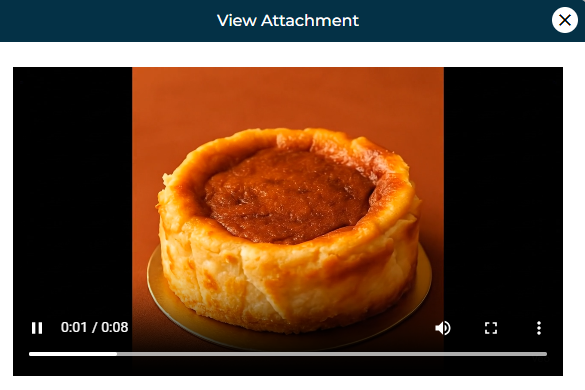
  • View Video

  • View Video Form to opens the video player

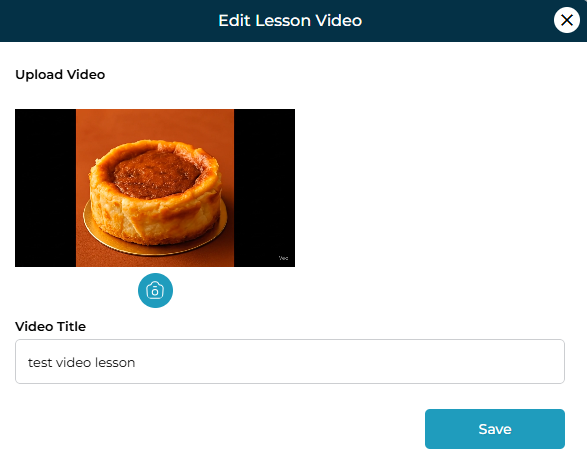
  • Edit Video 

  • Edit Video Form to replace or rename the video

  • Delete – Remove the video from the course

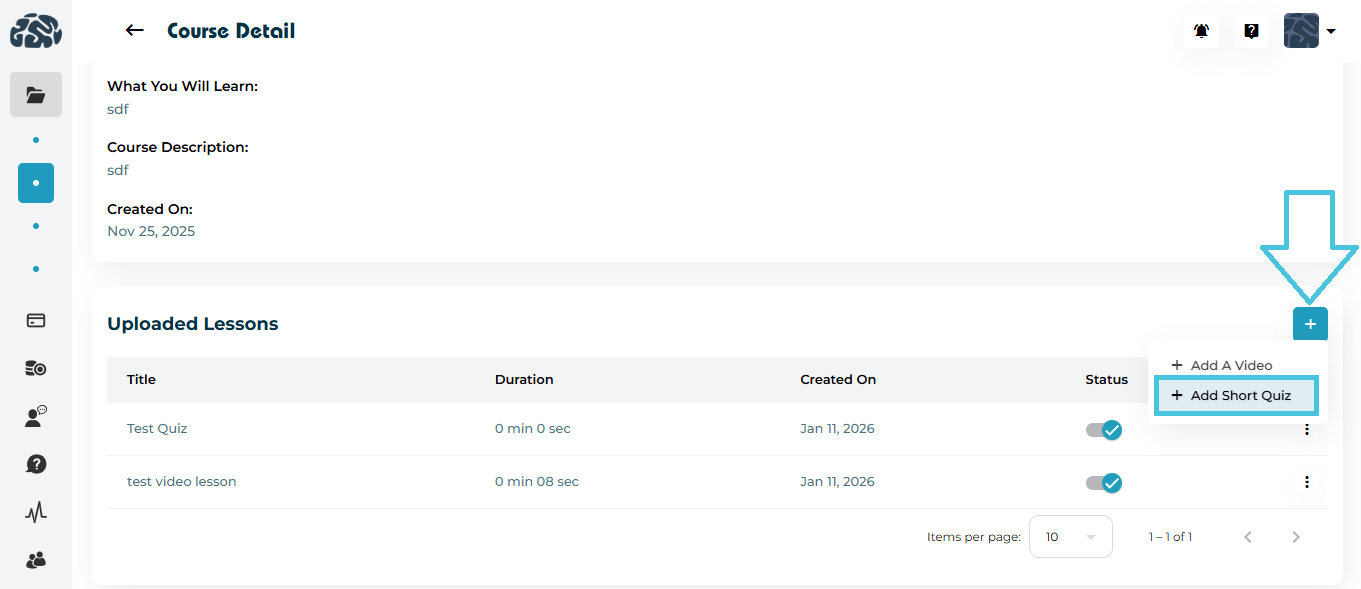
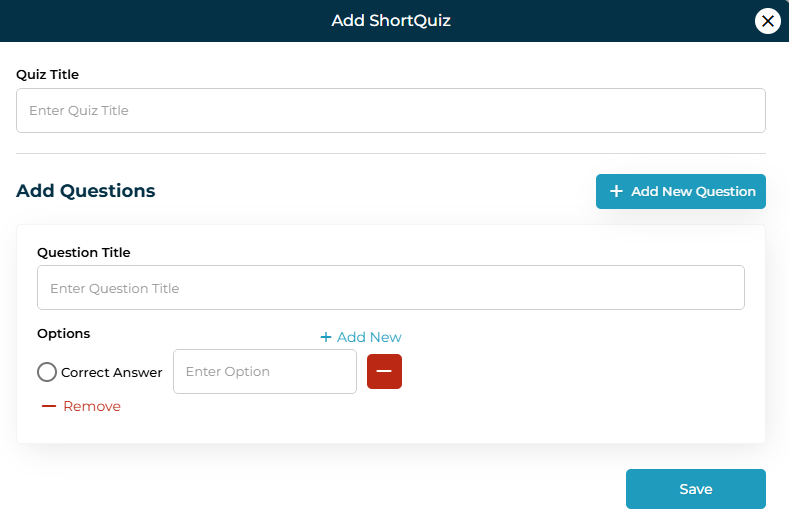
8. Adding a Short Quiz

  1. Click ➕ AddAdd Short Quiz.

  2. Enter a Quiz Title.

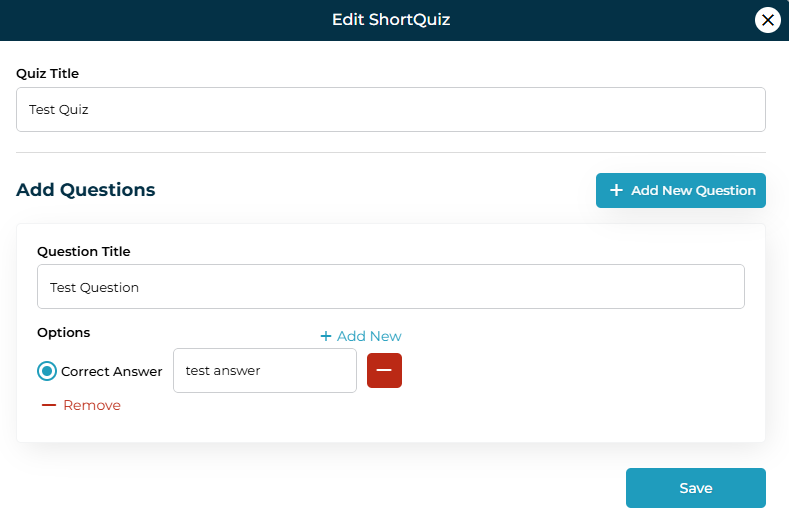
  3. Add one or more Questions:

    • Question title

    • Multiple options

    • Mark the correct answer

  4. Click Save.

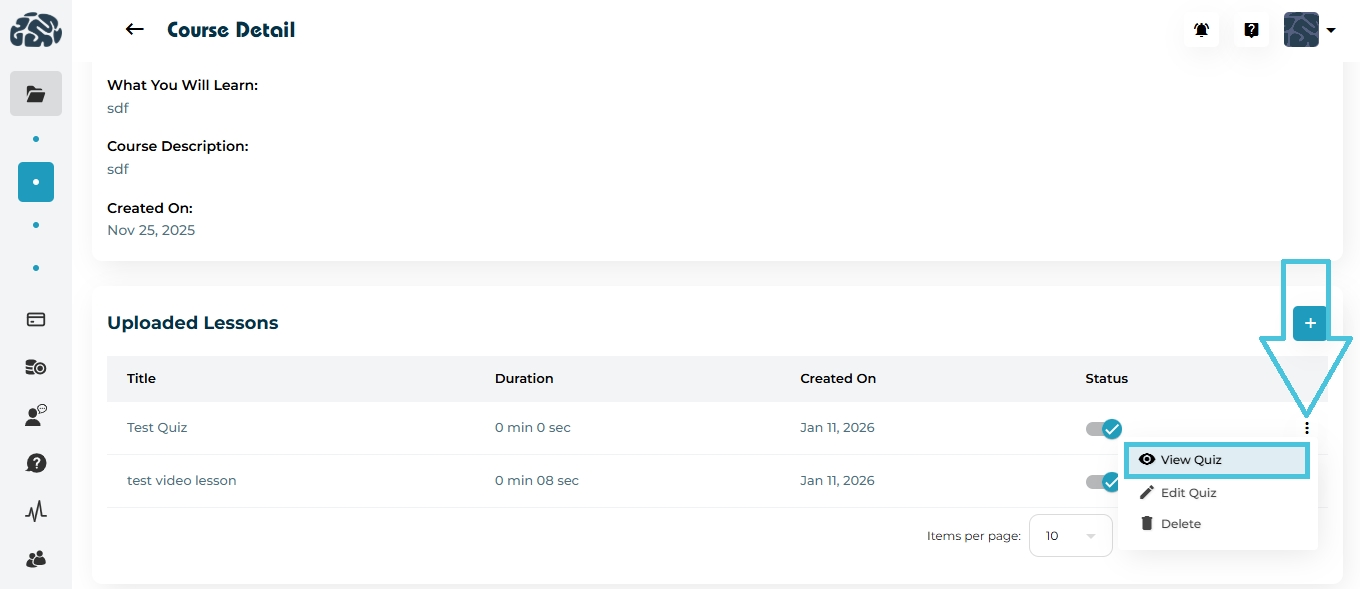
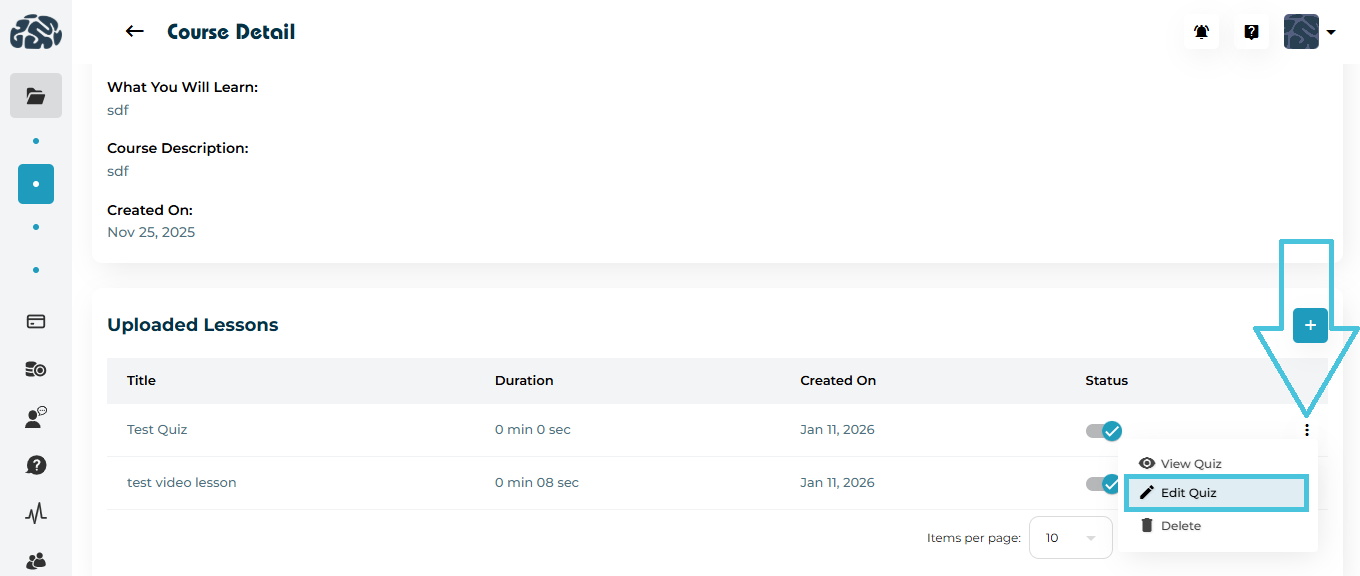
9. Viewing & Editing Quizzes

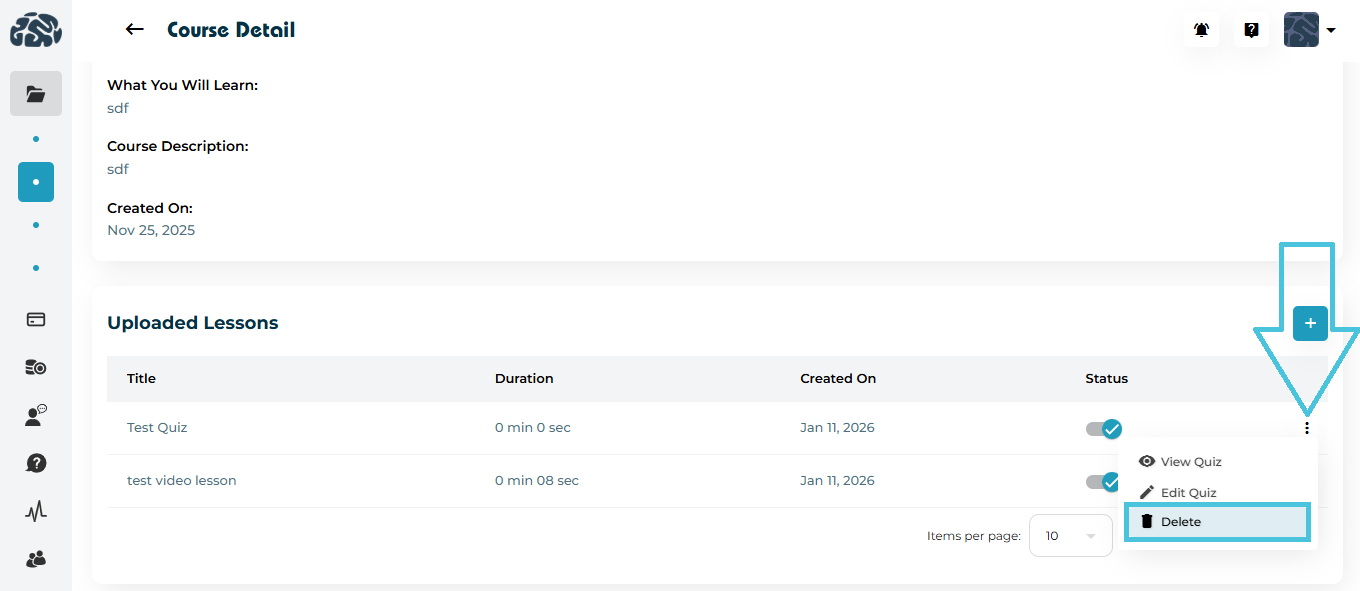
Quiz actions include:

  • View Quiz 

  • View Quiz Form to See questions and correct answers

  • Edit Quiz

  • Edit Quiz Form to modify questions or options

  • Delete Quiz – Permanently remove the quiz

10. Filtering and Searching Courses

You can filter courses by:

  • Category

  • Sub-Category

  • Price Range

  • Status

Click Apply to filter or Reset to clear filters.

11. Exporting Course Data

  • Use the Export (CSV) button to download course data.

  • Useful for reporting, audits, or offline review.

IN THIS ARTICLE

Managing student, parent, and instructor files

Managing Admin, Student and Instructor Files

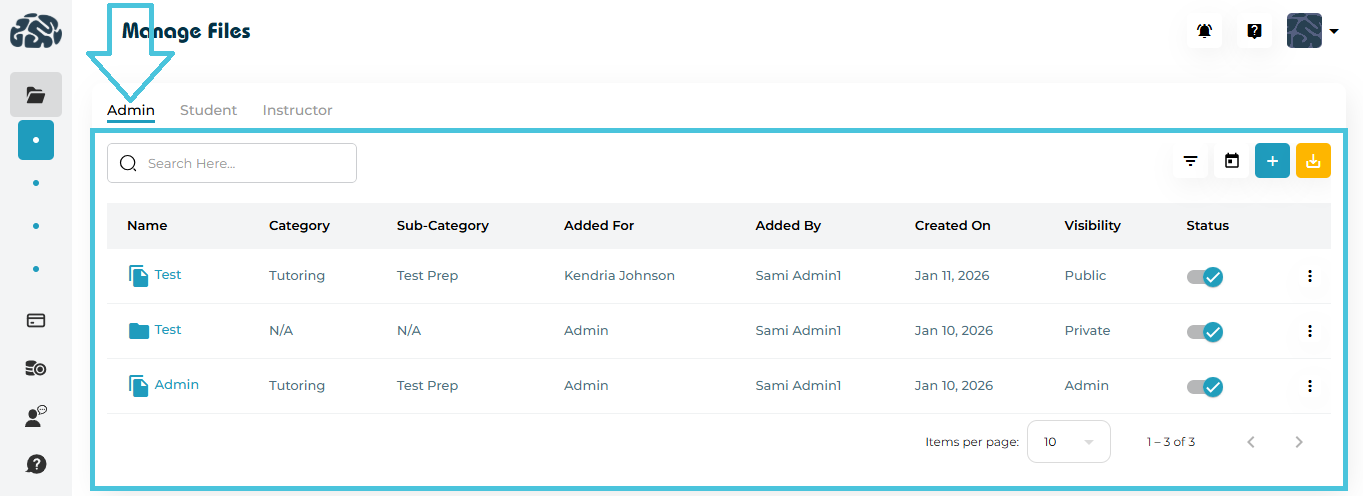
The Manage Files module in PrepBase allows Admins to centrally organize, control, and distribute files for students and instructors—with clear visibility rules and role-based access. This ensures sensitive documents remain secure while public resources are easily accessible to the right audience.

Important to know (as per your system design):

  • The Files module has three tabs: Admin, Student, and Instructor.

  • Add File / Create Folder actions are available only in the Admin tab.

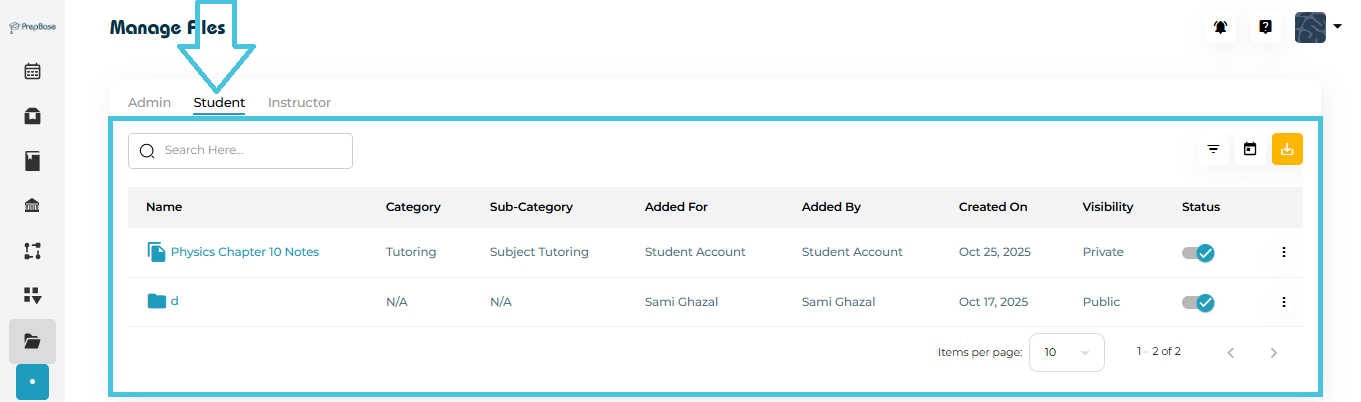
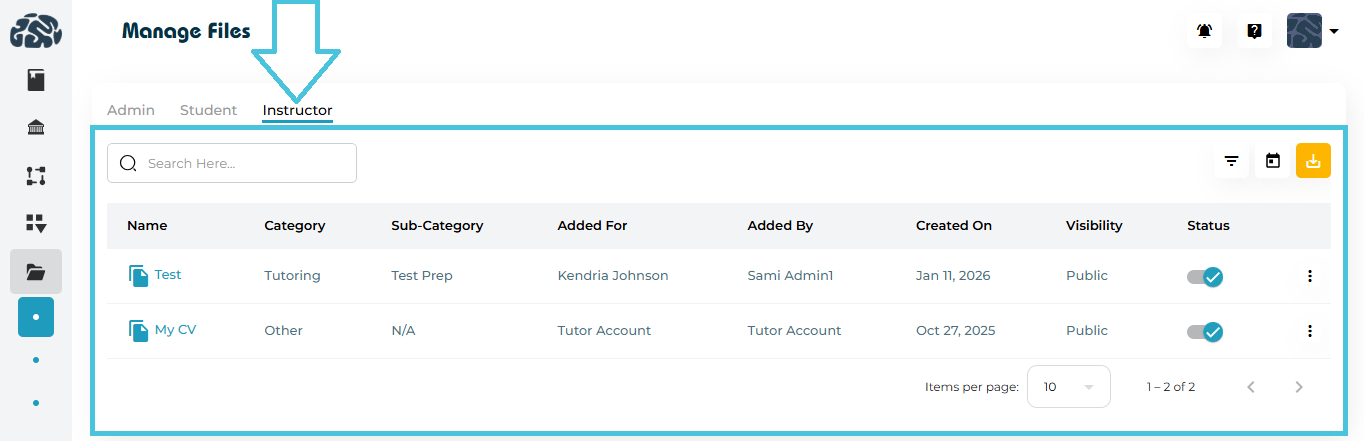
  • Student and Instructor tabs display files that are set to Public by Students or Instructors.

  • Actions like View, Download, Filter, and (where permitted) Edit/Delete work similarly across all tabs.

1. How to Access Manage Files

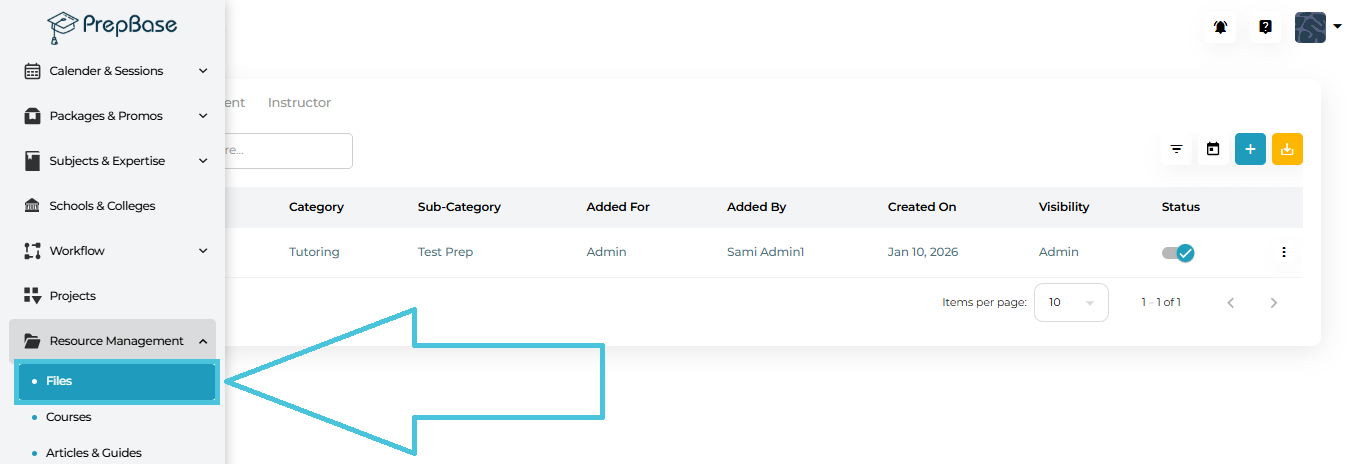
  1. From the left navigation, go to Resource Management → Files.

  2. You’ll land on the Manage Files page with three tabs at the top:

    • Admin

    • Student

    • Instructor

2. Understanding the Three File Tabs

 1) Admin Tab (Primary Control Center)

The Admin tab is where all file and folder management happens.

Admins can:

  • Add new files

  • Create folders

  • Edit file or folder details

  • Set visibility and accessibility

  • Download files

  • Delete files or folders

  • Filter and export file data

Columns you’ll see:

  • Name – File or folder name (clickable)

  • Category / Sub-Category – For structured organization

  • Added For – Admin / Student / Instructor

  • Added By – Who uploaded the file

  • Created On – Upload date

  • Visibility – Admin Only or Public

  • Status – Active / Inactive

2) Student Tab (Read-Only, Public Files)

The Student tab shows:

  • Files uploaded by Admins, Students, or Instructors

  • Only files marked as Public

Students can:

  • View files

  • Download files

  • Use filters and search

Students cannot add or create folders from this tab.

3) Instructor Tab (Read-Only, Public Files)

The Instructor tab behaves the same as the Student tab:
  • Displays Public files only

  • Supports viewing, downloading, and filtering

  • No add or folder creation permissions

3. Adding a New File (Admin Only)

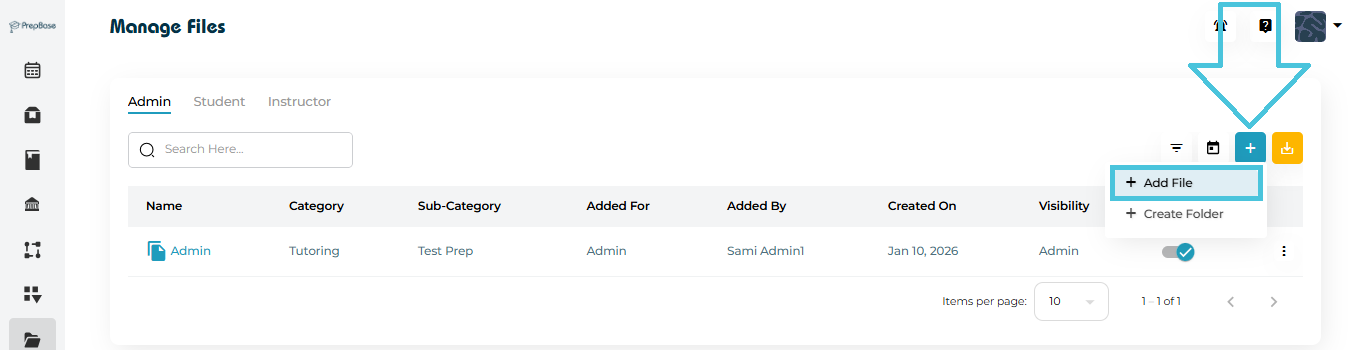
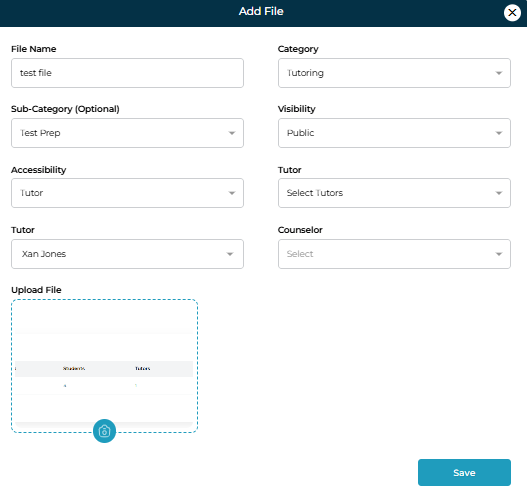
Adding a new file

  1. Go to Admin → Files.

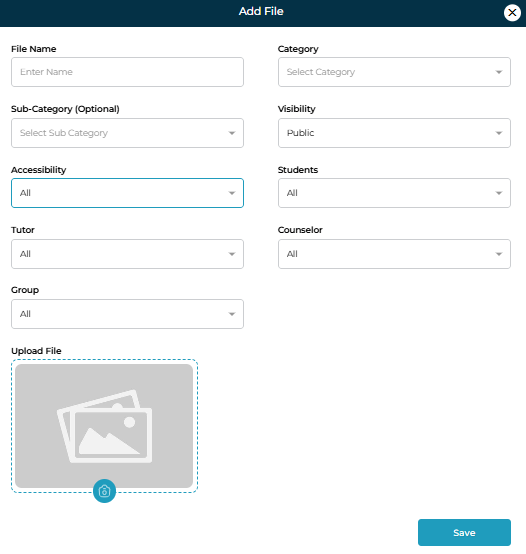
  2. Click + Add File.

  3. Fill in the form:

    • File Name

    • Category

    • Sub-Category (optional)

    • Visibility

      • Admin Only → Visible only to Admins

      • Public → Visible in Student & Instructor tabs

    • Accessibility (shown when Visibility = Public)

      • All Students / All Tutors / All Counselors

      • Or select specific users

  4. Upload the file.

  5. Click Save.

✅ The file immediately appears in the appropriate tabs based on visibility.

4. Creating and Managing Folders (Admin Only)

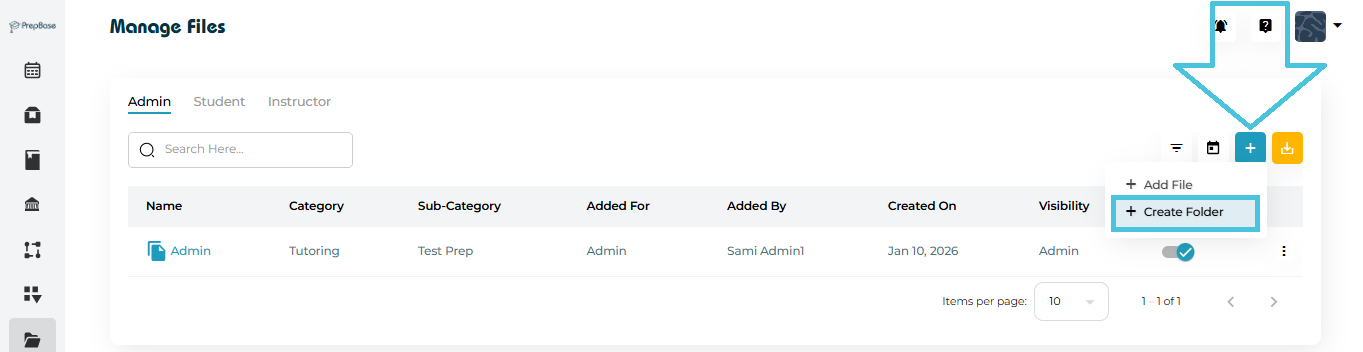
Create a Folder
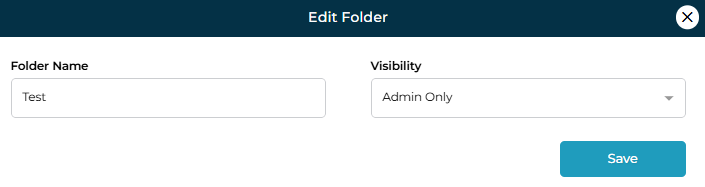
  1. Click + Create Folder in the Admin tab.

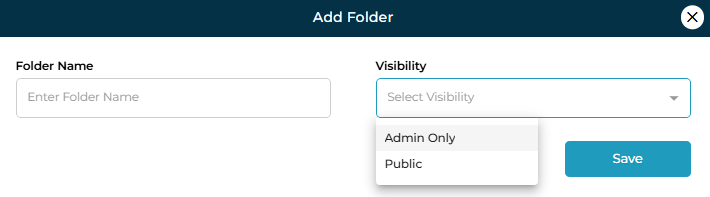
  2. Enter:

    • Folder Name

    • Visibility (Admin Only / Public)

  3. Save.

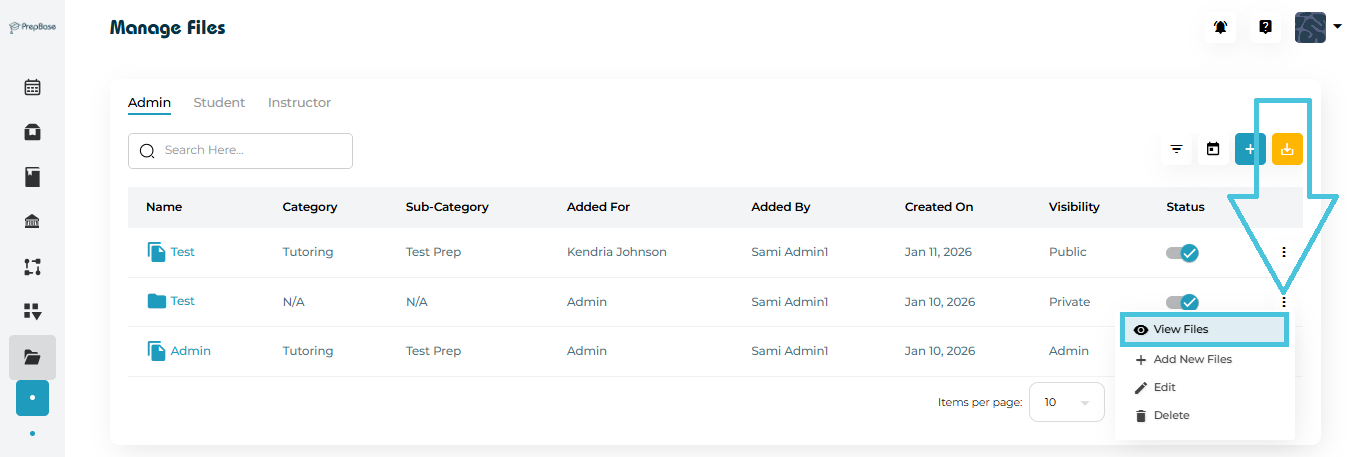
Folder Actions

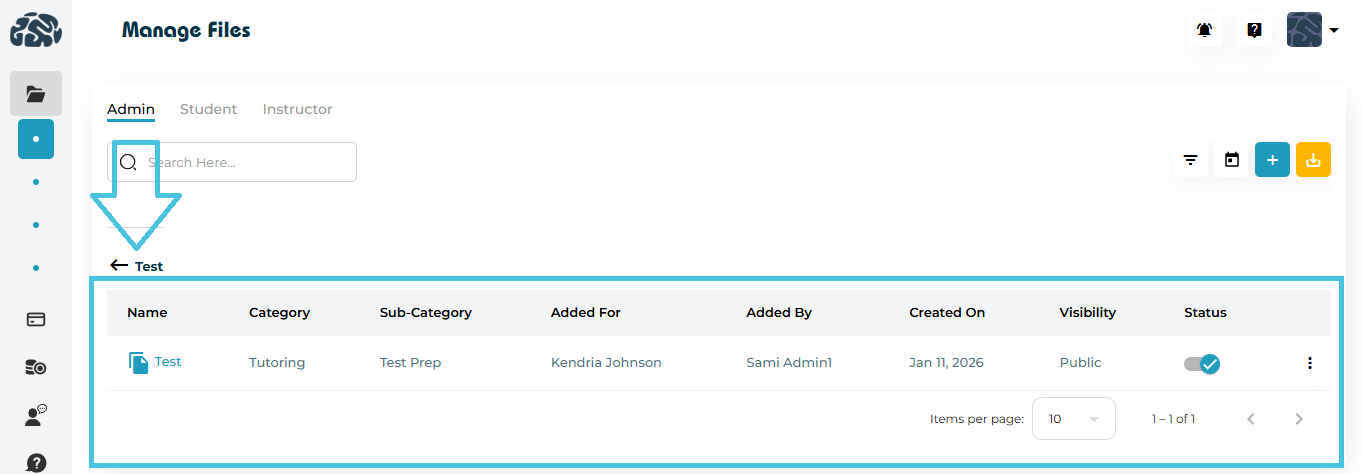
  • View Files (open folder)

  • View Files page in a folder

  • Add New Files inside the folder

  • Add New Files Form inside the folder

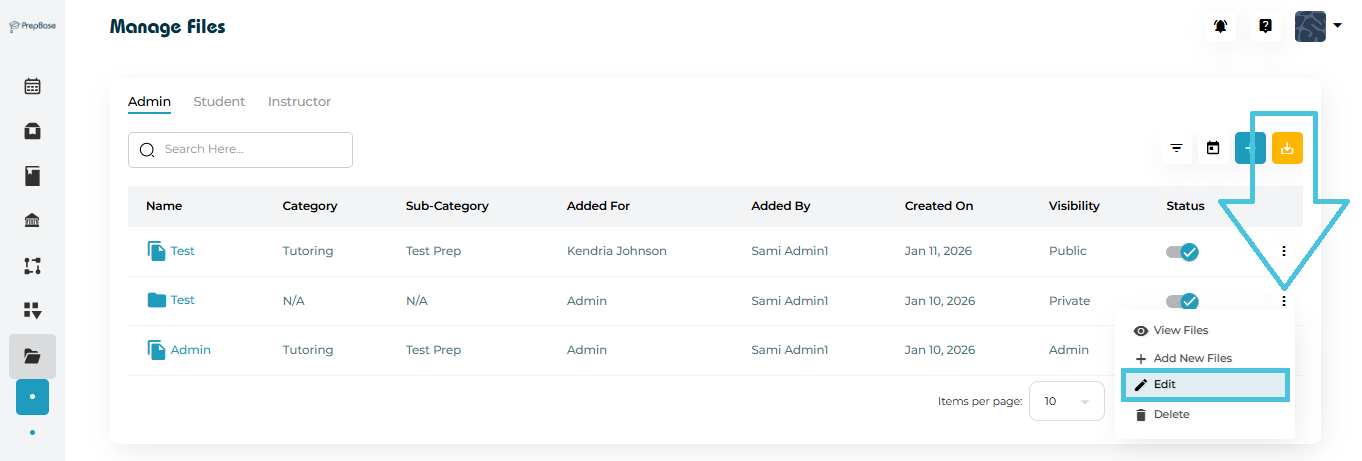
  • Edit Folder

  • Edit Folder Form

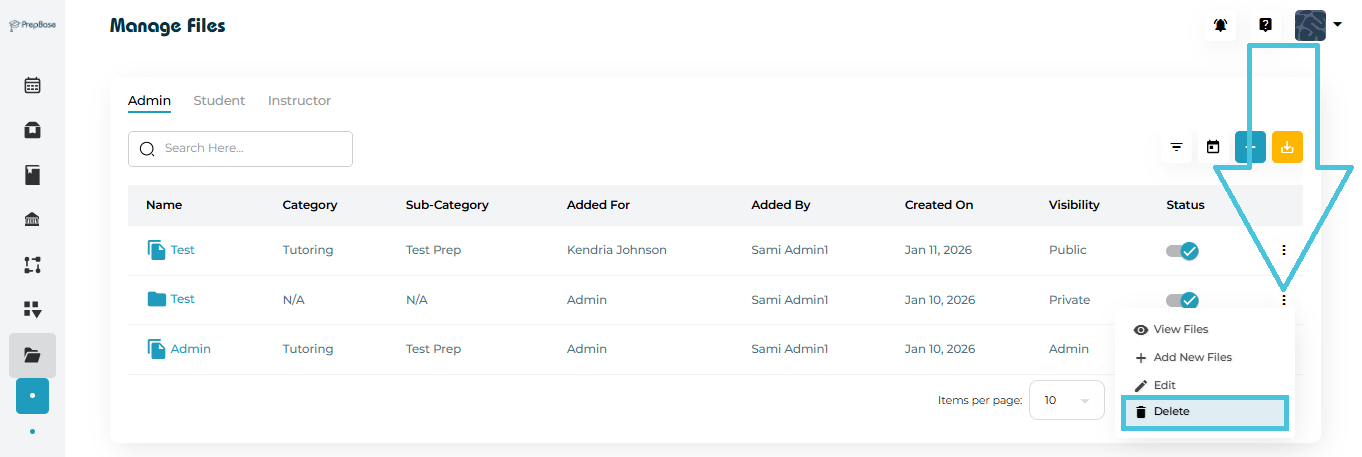
  • Delete Folder

5. Viewing and Downloading Files

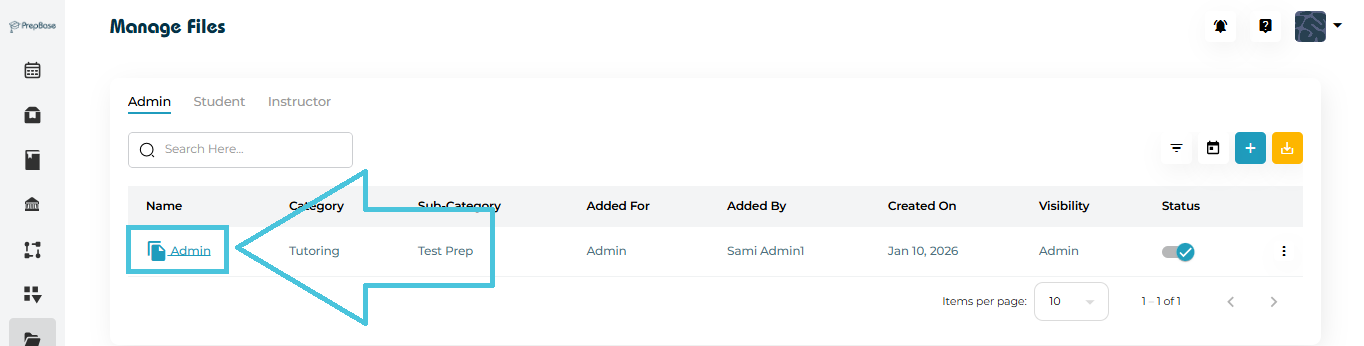
  • Click a file name to open it in a new browser tab.

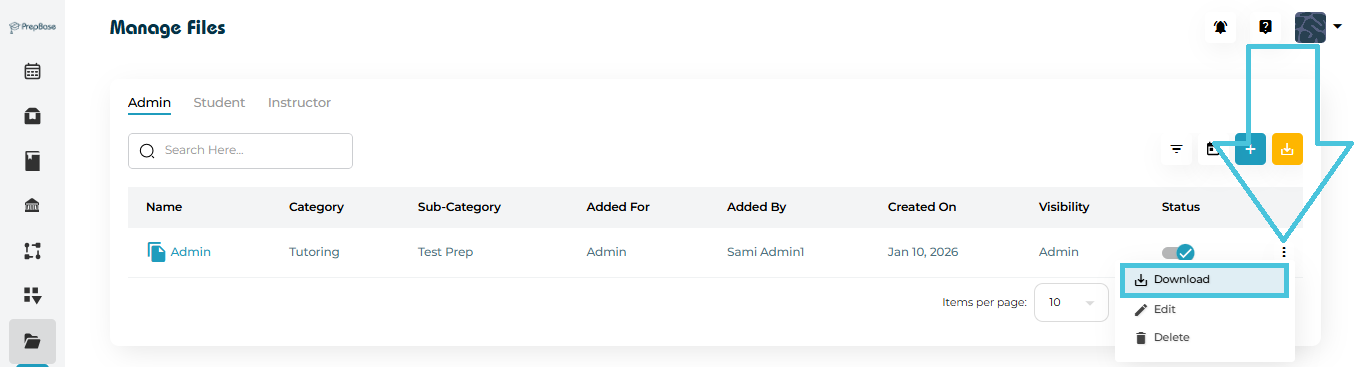
  • Use the Download option from the three-dot menu to save the file locally.

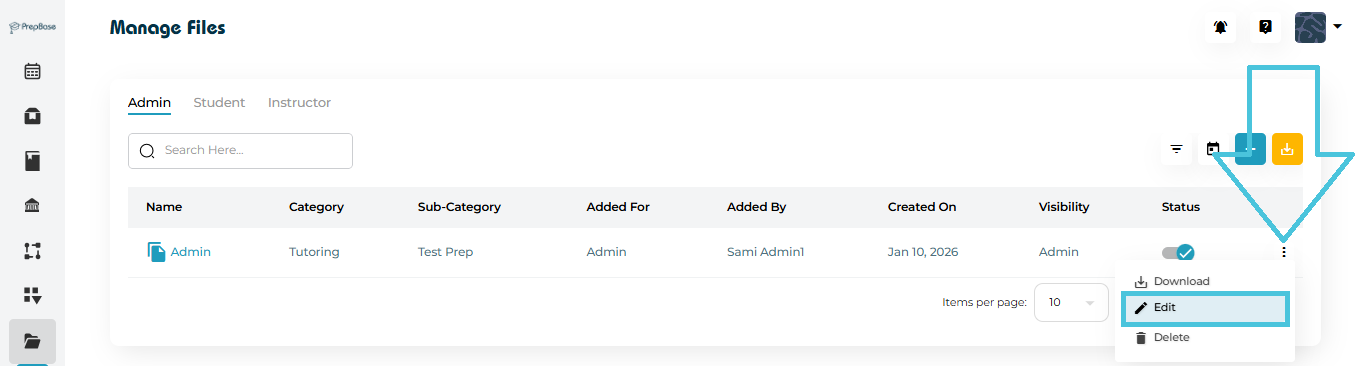
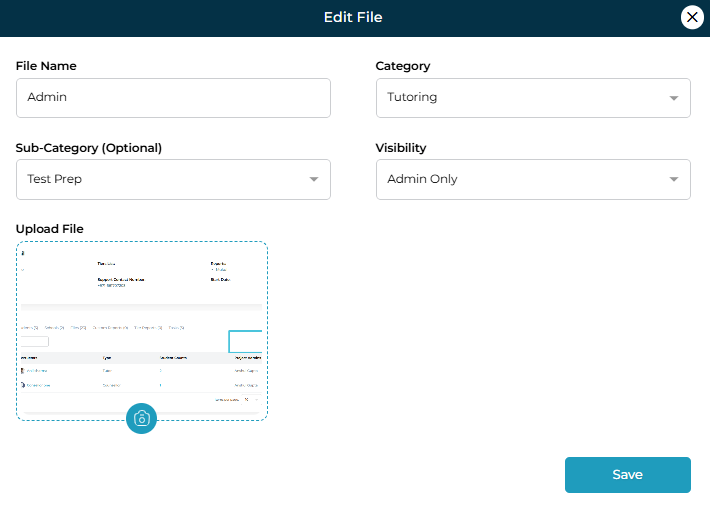
6. Editing Files (Admin Permissions Apply)

Admins can update:

  • File name

  • Category / Sub-category

  • Visibility & accessibility

  • Replace uploaded file

Editing availability in Student/Instructor tabs depends on system permissions, but Admins always retain full control.

7. Deleting Files and Folders

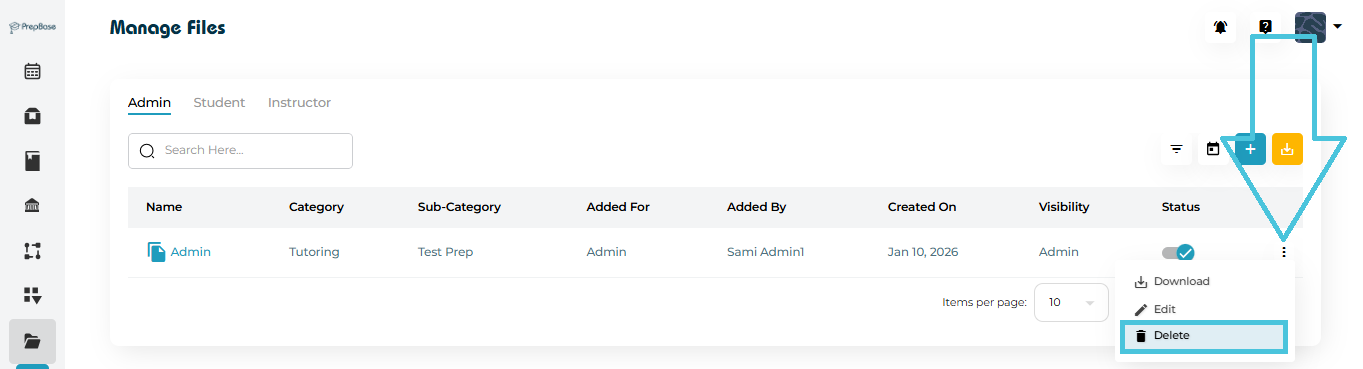
  • Use the Delete option from the three-dot menu.

  • Deleting a folder removes all files inside it.

  • This action is permanent.

8. Searching, Filtering, and Calendar View

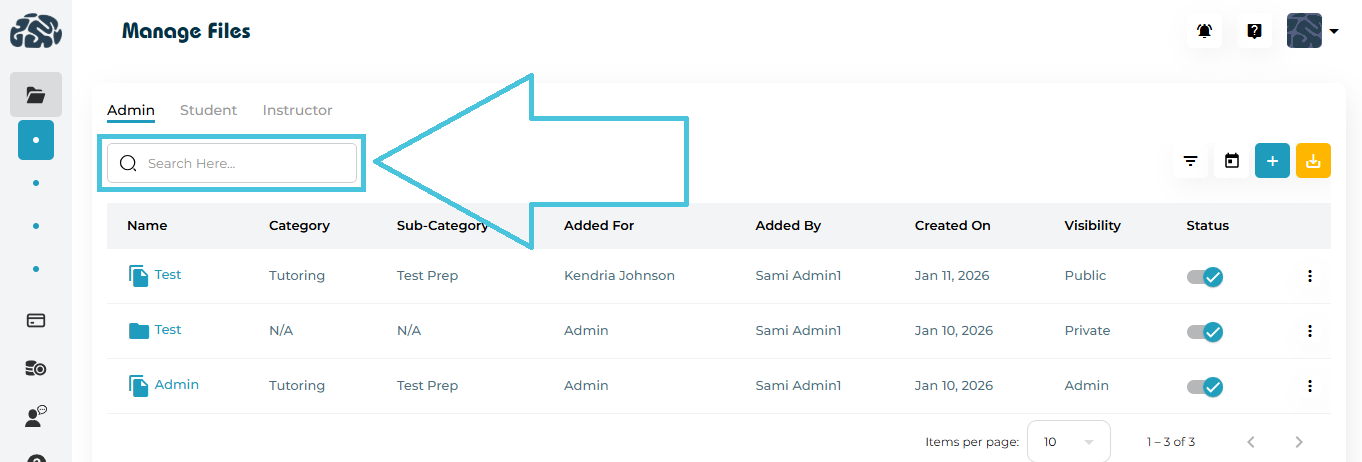
Search

  • Use the Search bar to quickly locate files or folders.

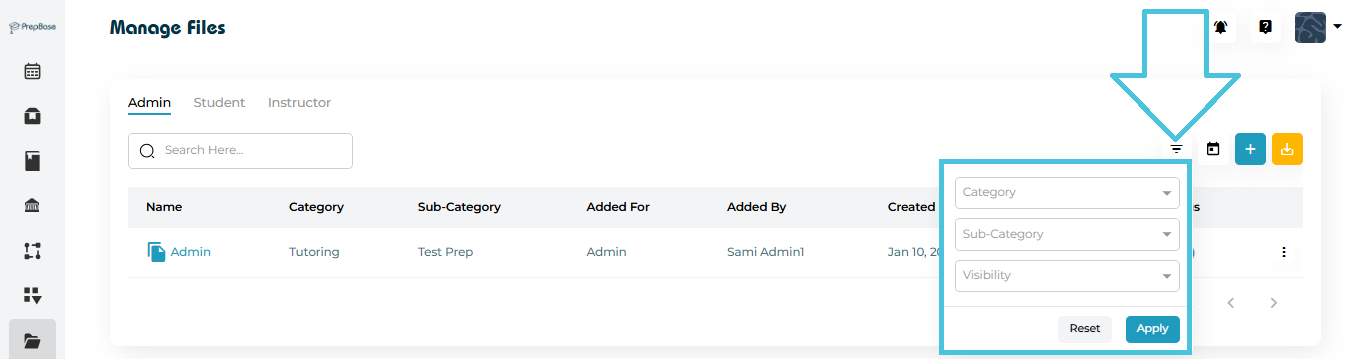
Filters

  • Filter by:

    • Category

    • Sub-Category

    • Visibility

    • Added By

    • Date (via calendar picker)

Export

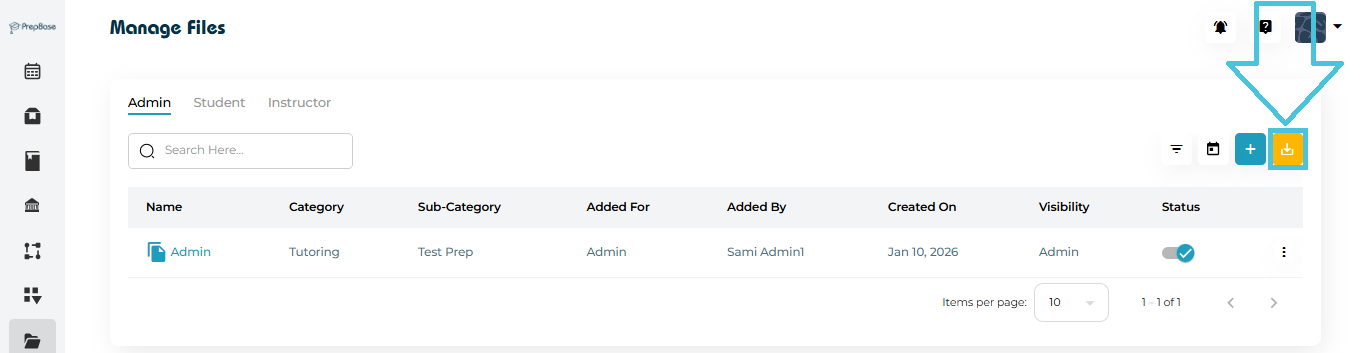
  • Admins can export file data to CSV for reporting or audits.

IN THIS ARTICLE