To manage counseling expertise categories:
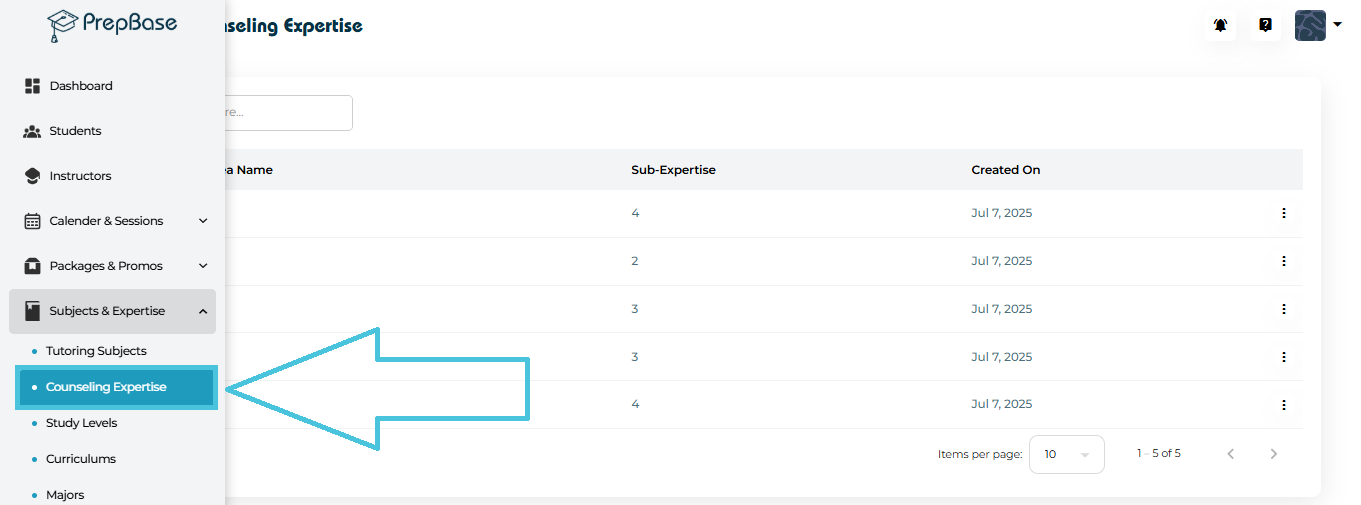
Go to Subjects & Expertise from the left-side menu.
Click Counseling Expertise.
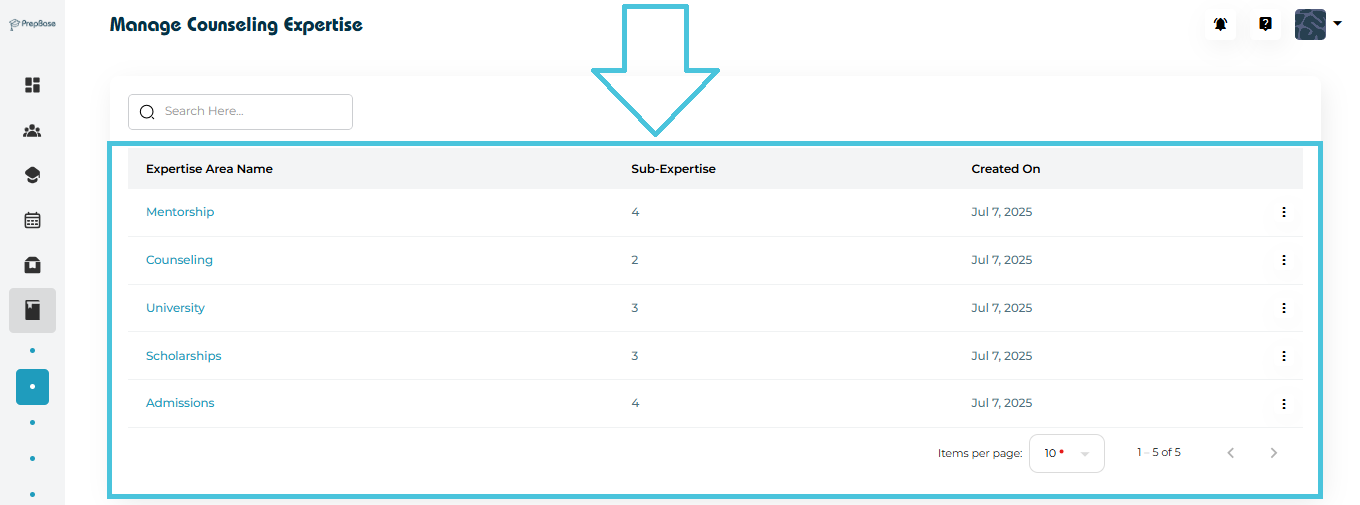
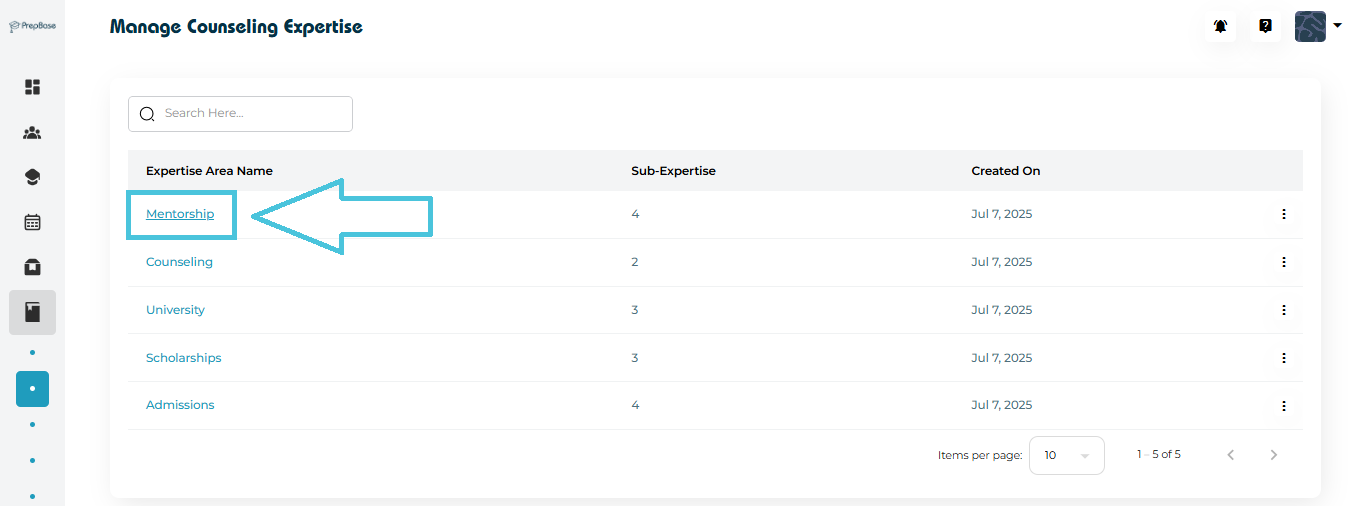
You will see a list of predefined expertise including:
Mentorship
Counseling
University
Scholarships
Admissions
Each row displays:
Expertise Area Name
Number of Sub-Expertise Items
Created On date
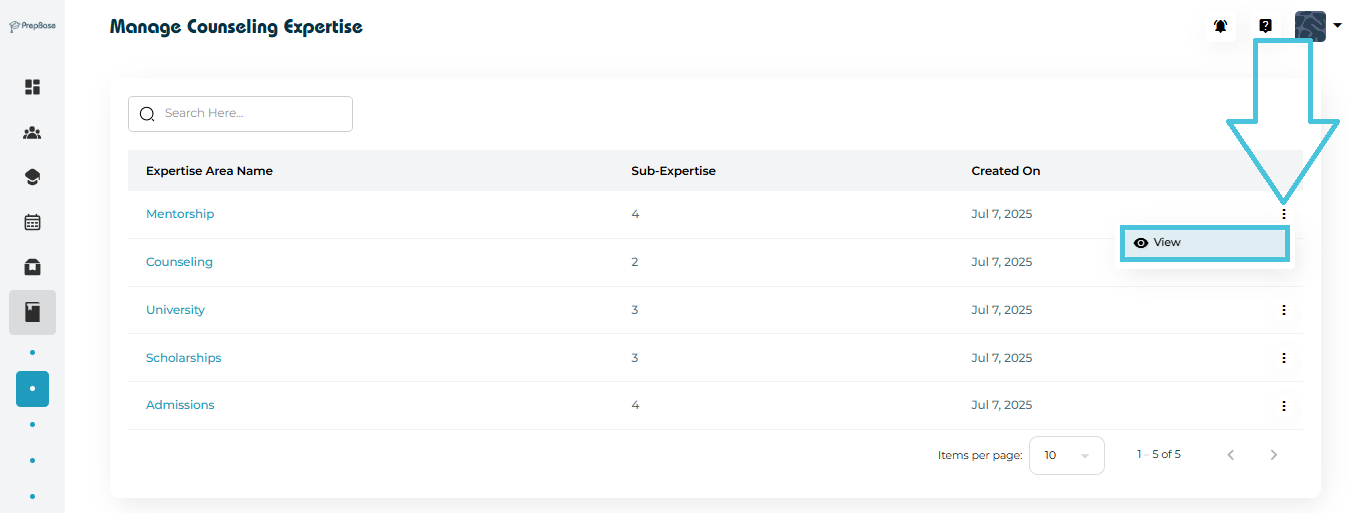
To see the detailed sub-expertise under any category:
Click the three-dot menu beside the expertise category.
Select View.
A popup opens displaying:
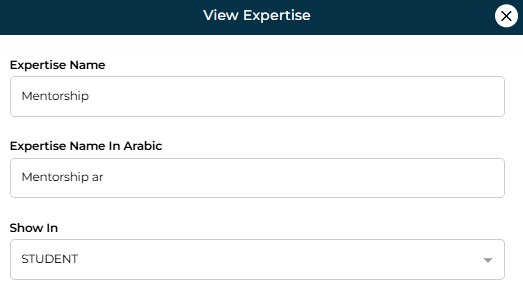
Expertise Name
Expertise Name In (Arabic)
- Show In
To see the detailed sub-expertise under any category:
Click the expertise area name.
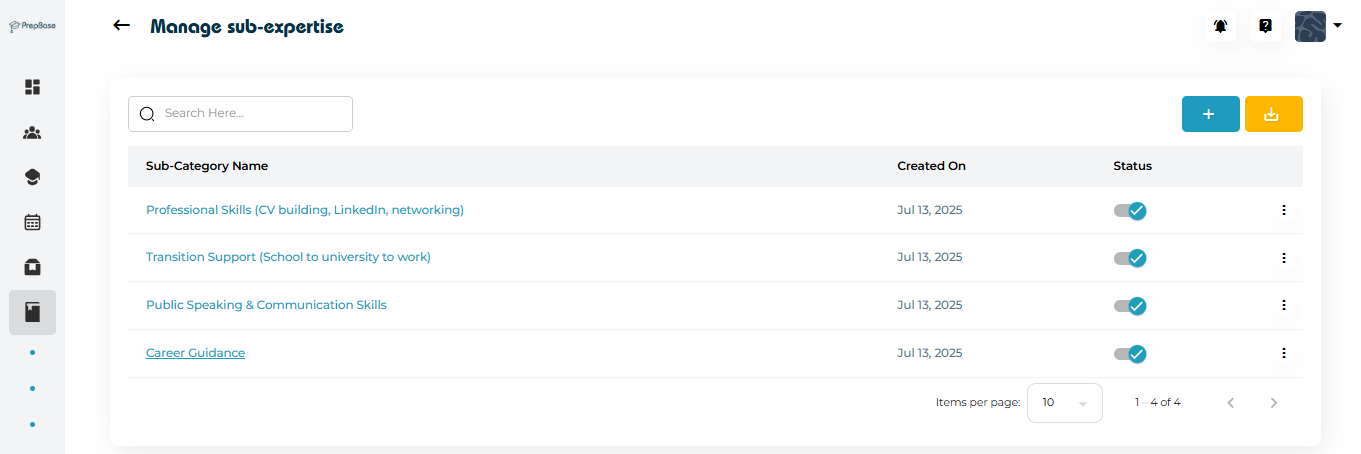
You will be redirected to sub-expertise detail page.
To introduce a new specialization within a counseling expertise area:
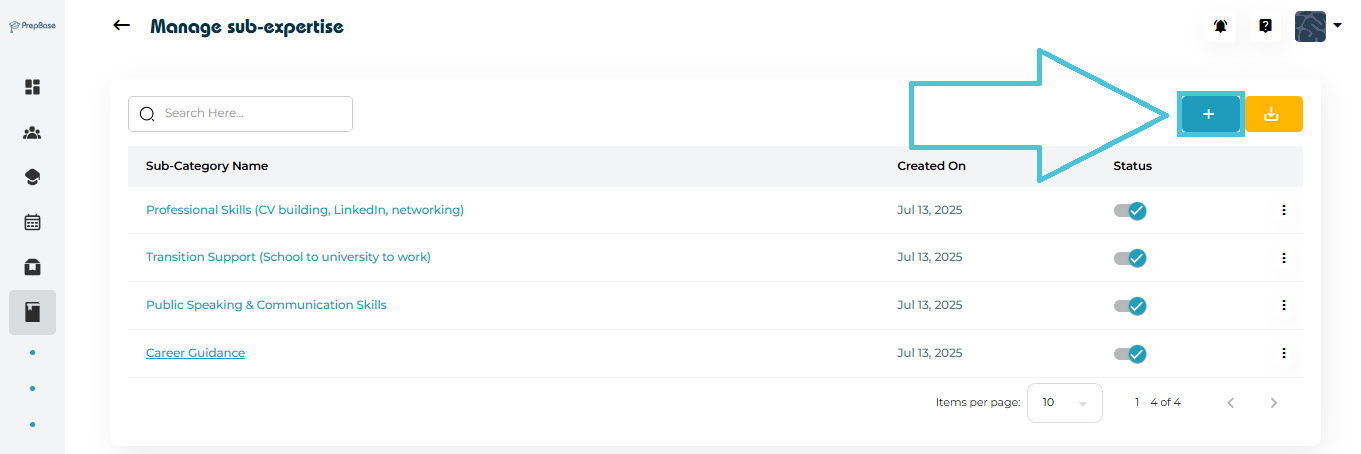
Click the + (Add Sub-Expertise) button on the top-right.
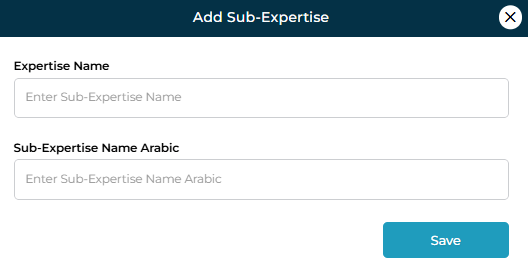
Fill out the form:
Sub-Expertise Name (English)
Sub-Expertise Name (Arabic)
Click Save.
Typical sub-expertise examples include:
Professional Skills
Public Speaking
CV Building
Scholarship Guidance
Career Transition Support
This keeps counselor sessions structured and searchable.
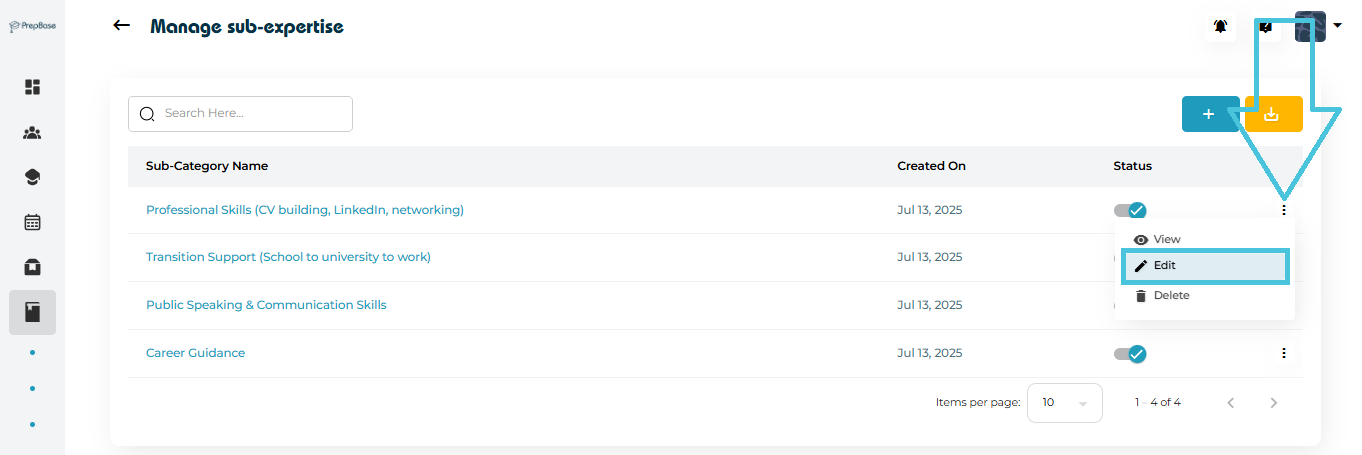
If you need to update or correct a sub-expertise name:
Open the three-dot menu beside the sub-expertise entry.
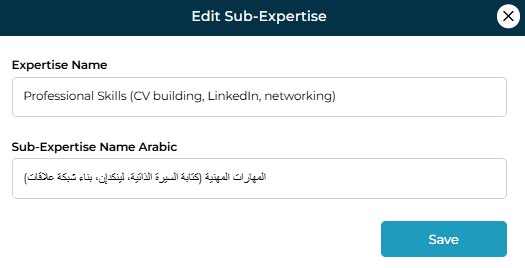
Select Edit.
Modify the English or Arabic name as needed.
Click Save to apply changes.
You can remove outdated or unused sub-expertise entries:
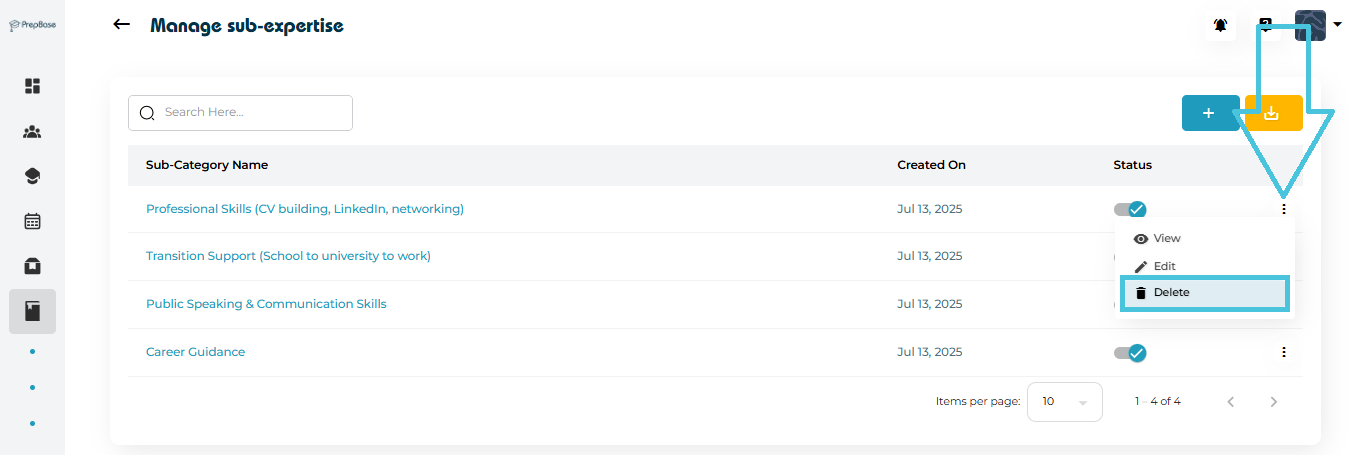
Click the three-dot menu beside the sub-expertise.
Select Delete.
Confirm the action.
Admins can download all sub-expertise into a CSV file for reporting or planning purposes.
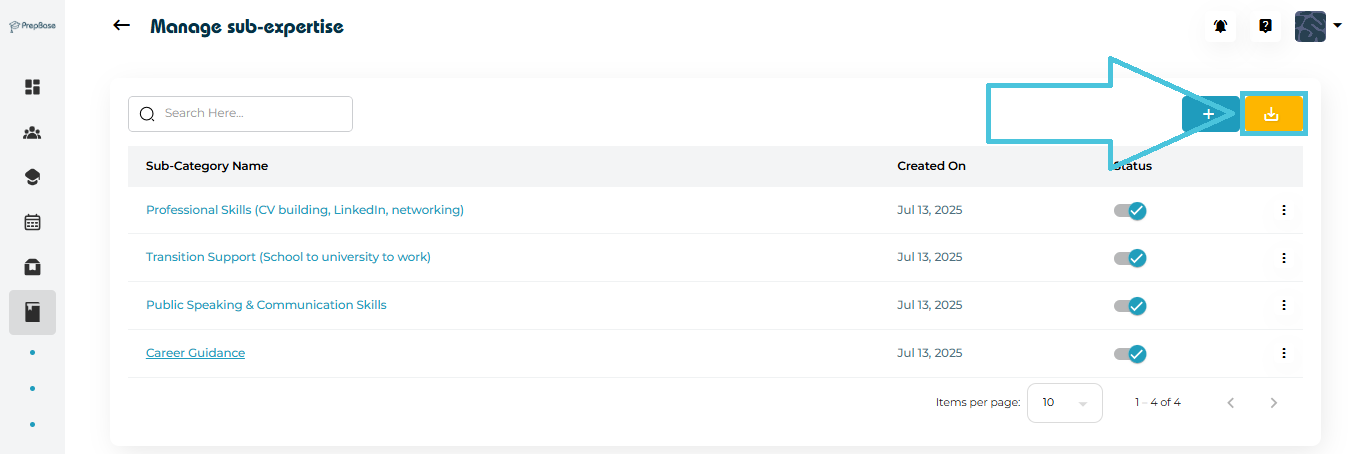
Click the Export (Download CSV) button.
A file containing all sub-expertise details will download to your device.
This is ideal for:
Internal audits
Counselor performance reviews
Training content planning