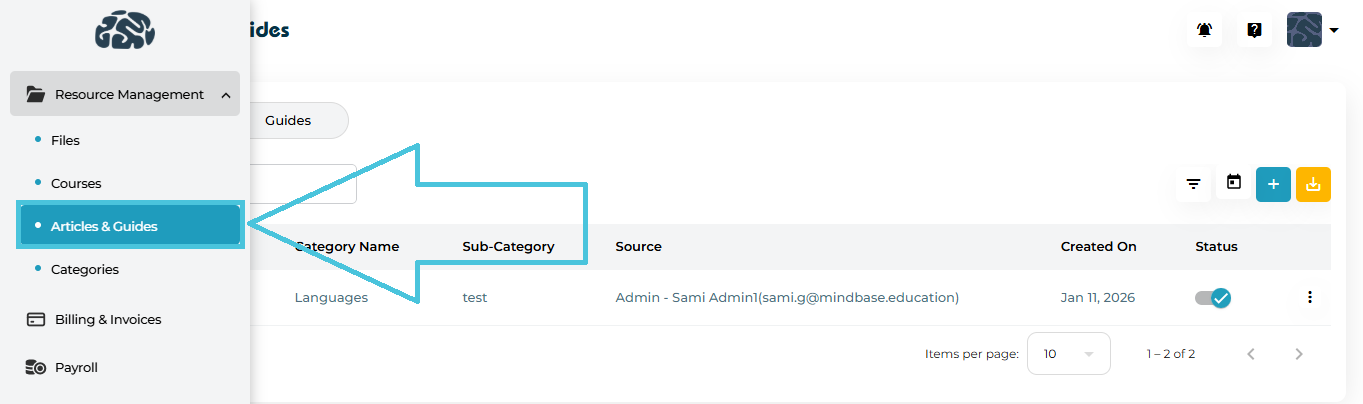
Open the Admin Portal
Navigate to Resource Management
Click Articles & Guides
You’ll see two primary sections:
Articles
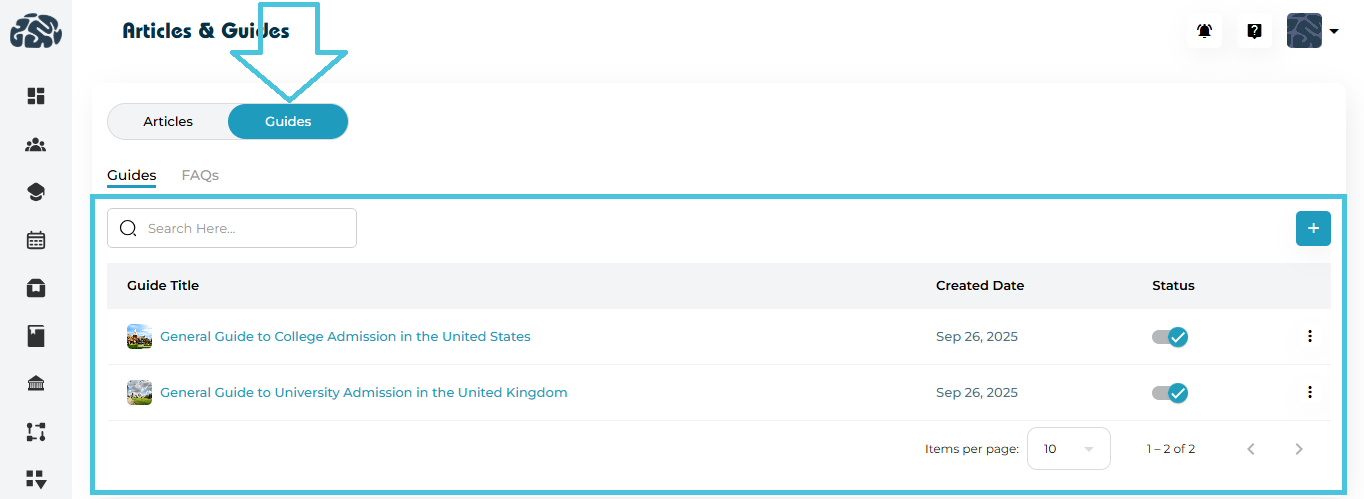
Guides (with a nested FAQs tab)
Articles
Articles are structured educational posts with:
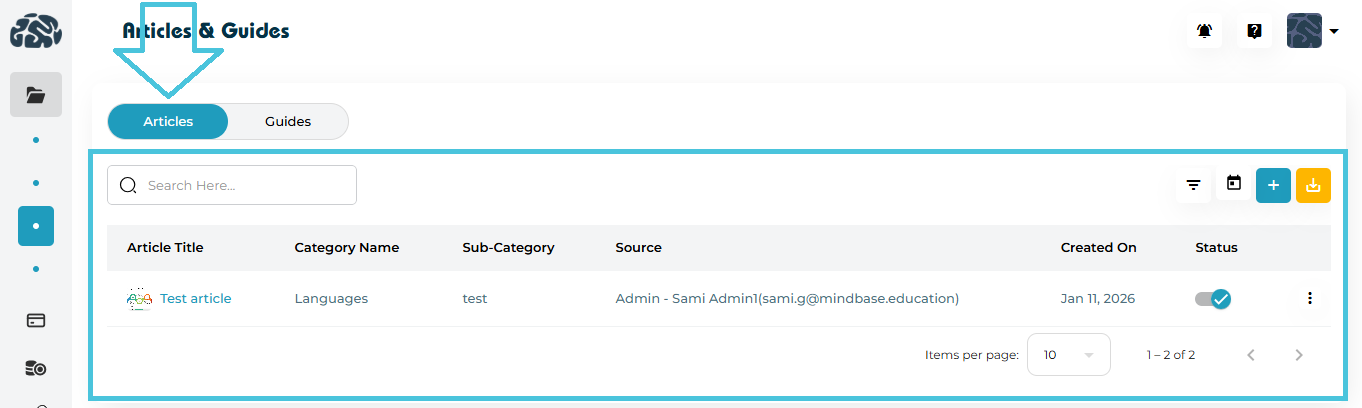
Title
Category & Sub-Category
Featured Image
Rich-text content
Author/source information
Guides
Guides are long-form instructional resources, typically step-by-step or topic-focused.
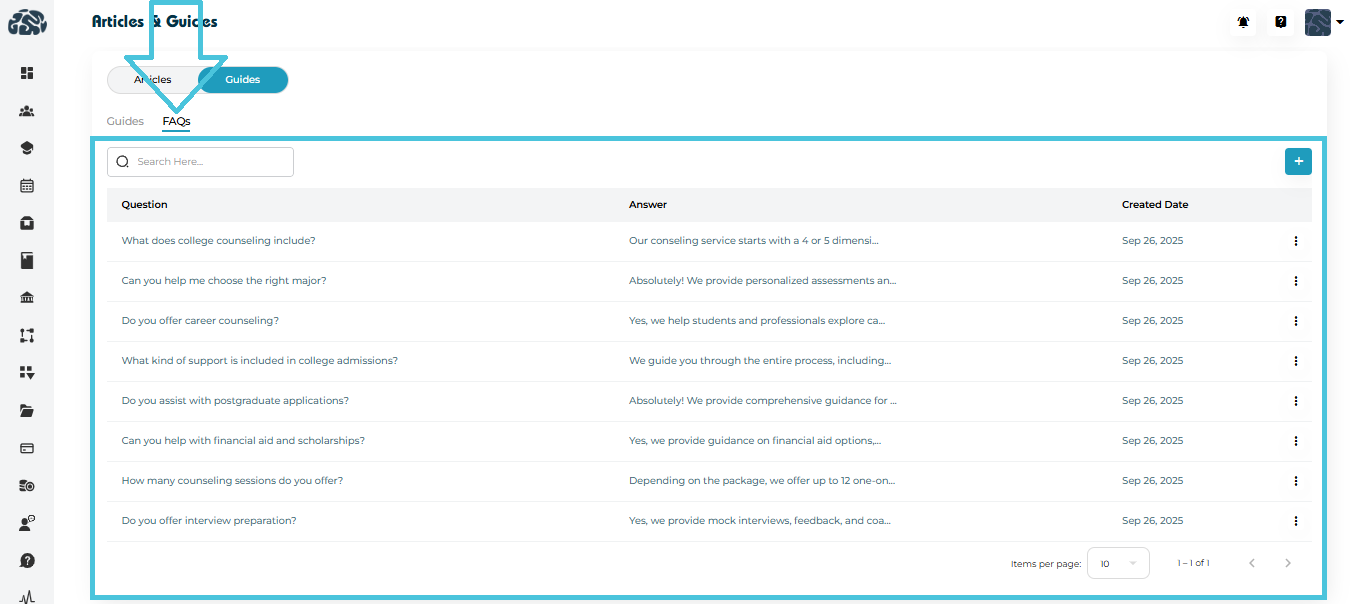
FAQs
FAQs are short, question-and-answer entries used for quick reference.
Viewing Articles
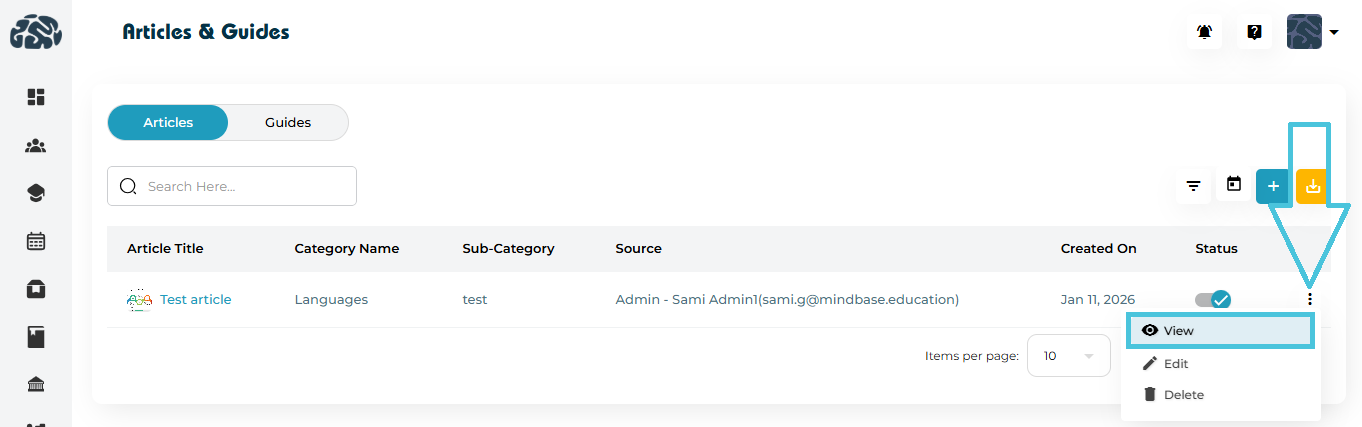
Open the Articles tab
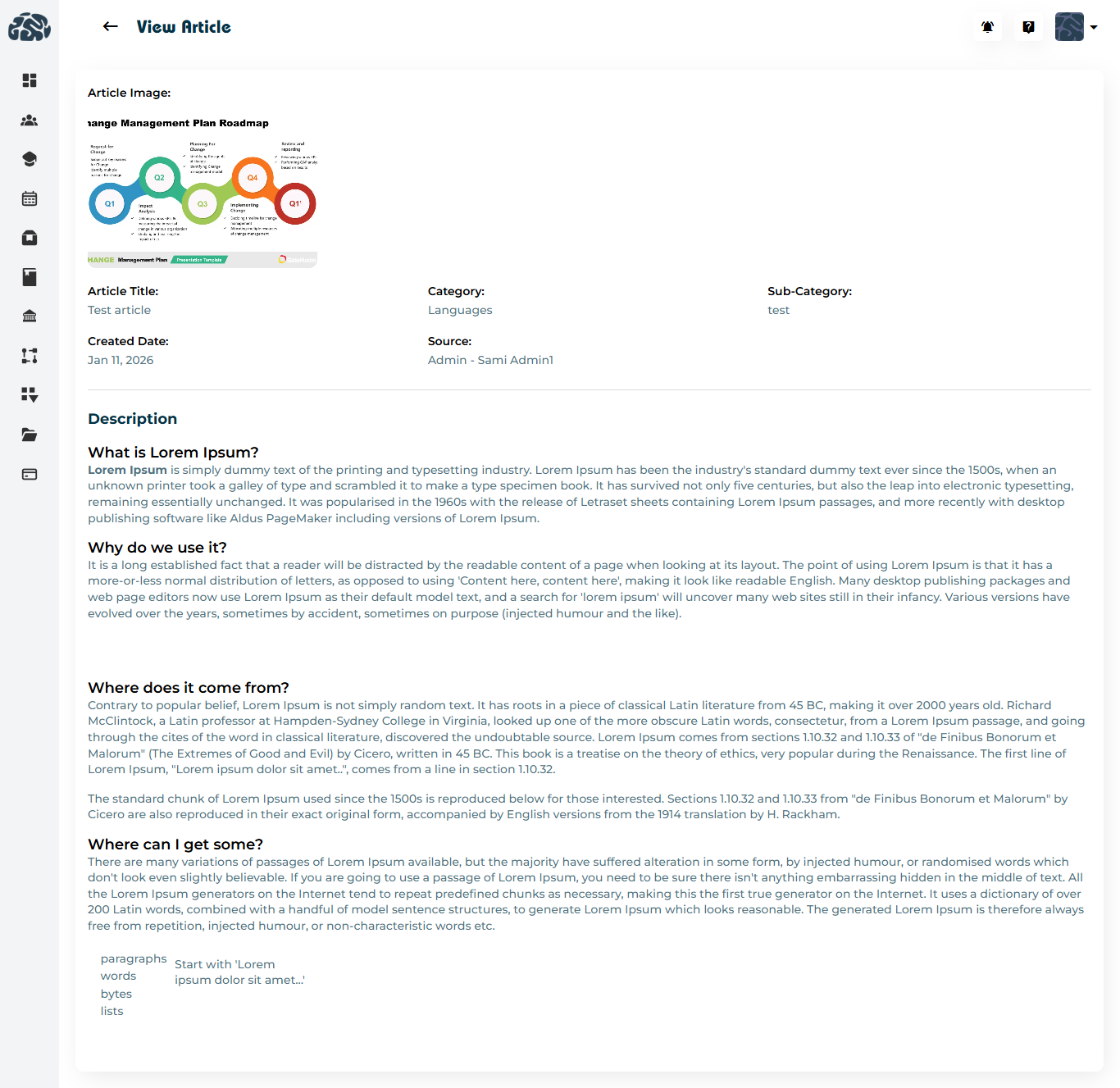
Click on an Article Title to open the full article view
Adding a New Article
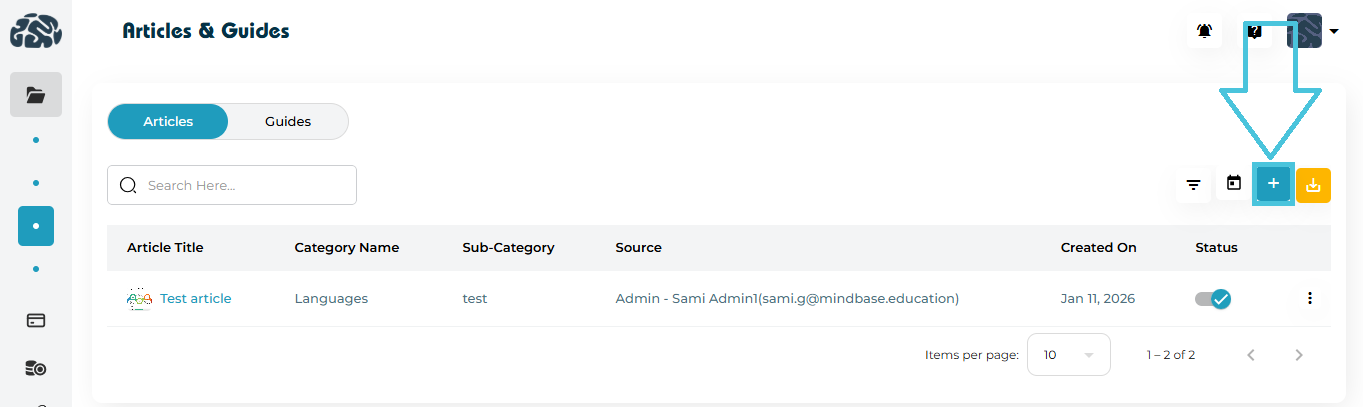
In the Articles tab, click
 Add
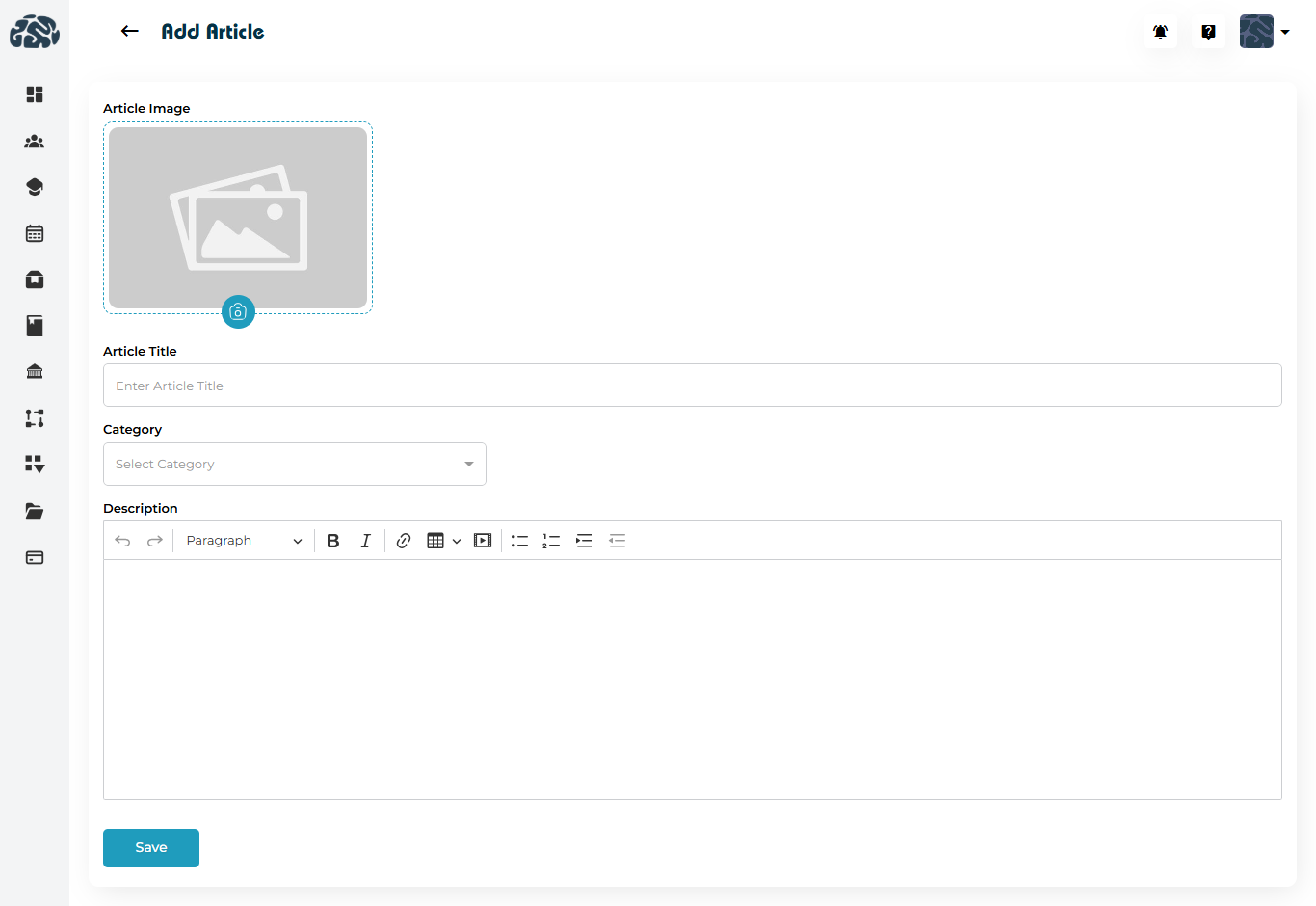
AddFill in the following fields:
Article Image (optional but recommended)
Article Title
Category
Sub-Category
Description (rich-text editor)
Click Save.
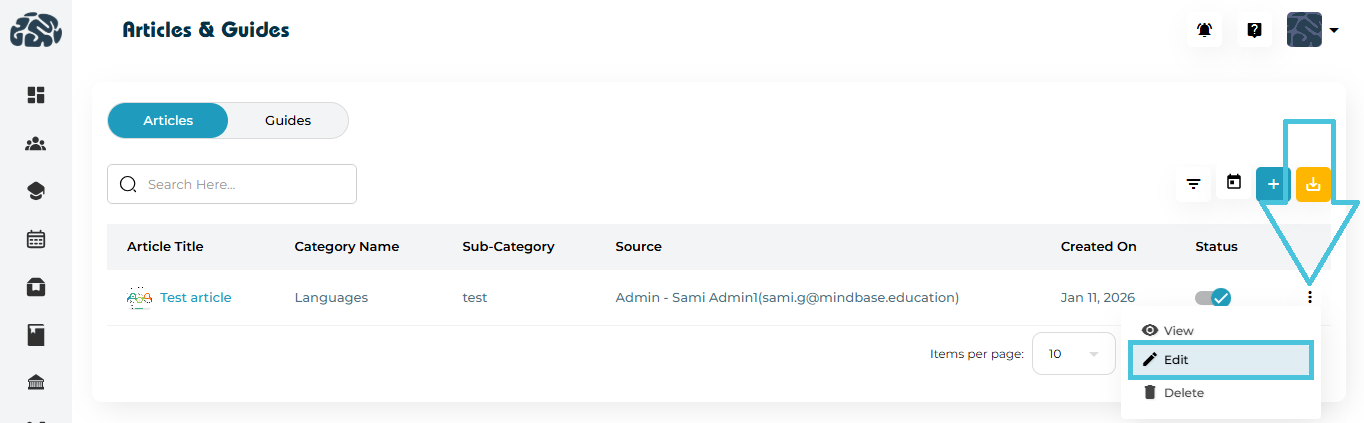
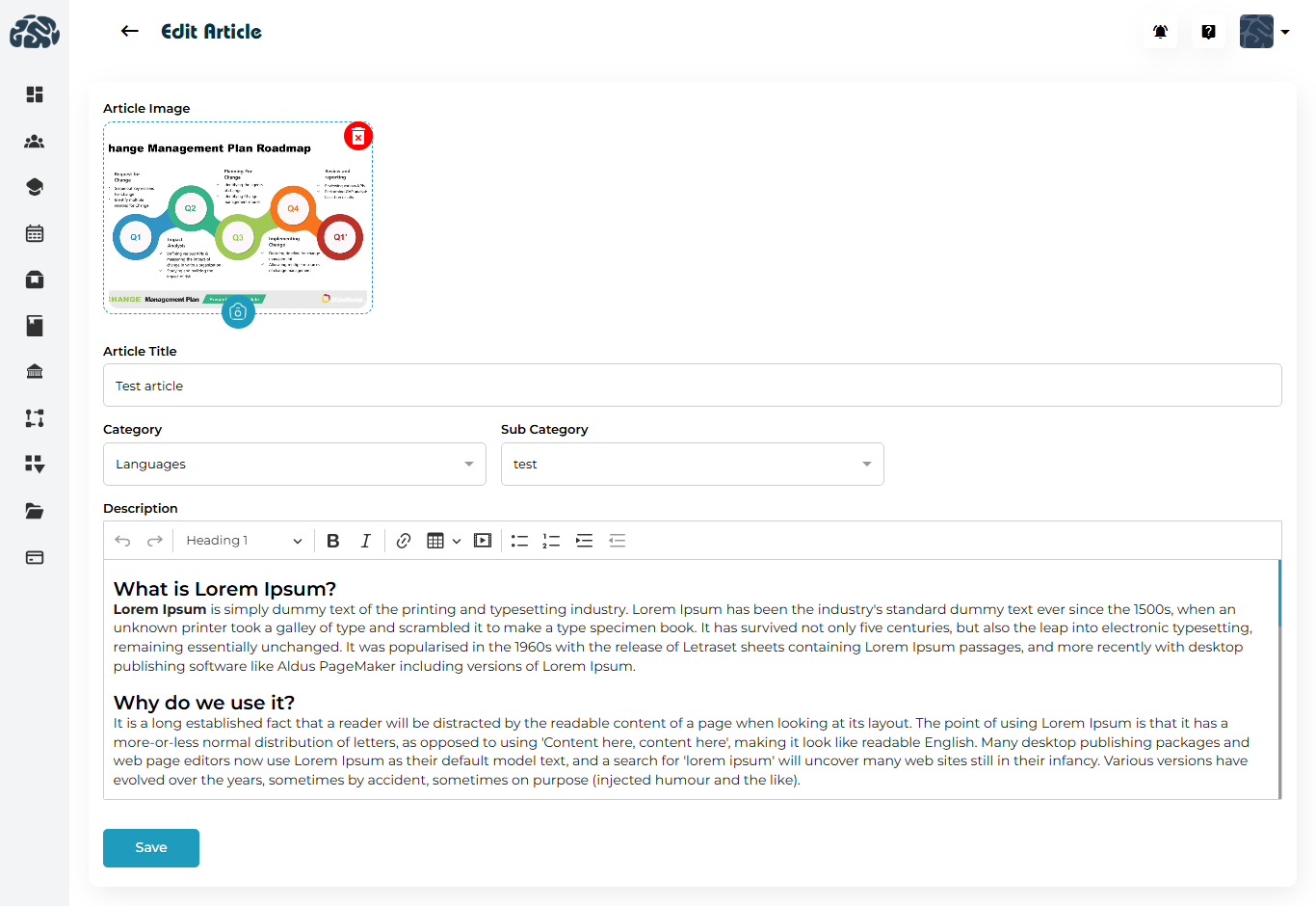
Editing an Article
Click the three-dot menu (⋮) next to an article
Select Edit
Update the required fields
Click Save
Deleting an Article
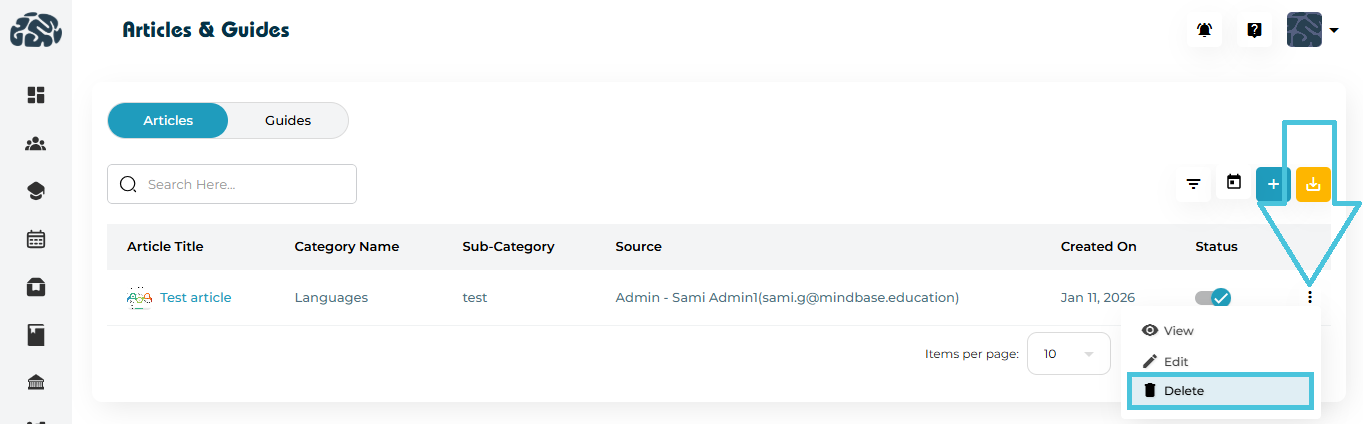
Click the three-dot menu (⋮)
Select Delete
Confirm the action
 Deleted articles are permanently removed and cannot be restored.
Filtering Articles

Admins can filter articles using:
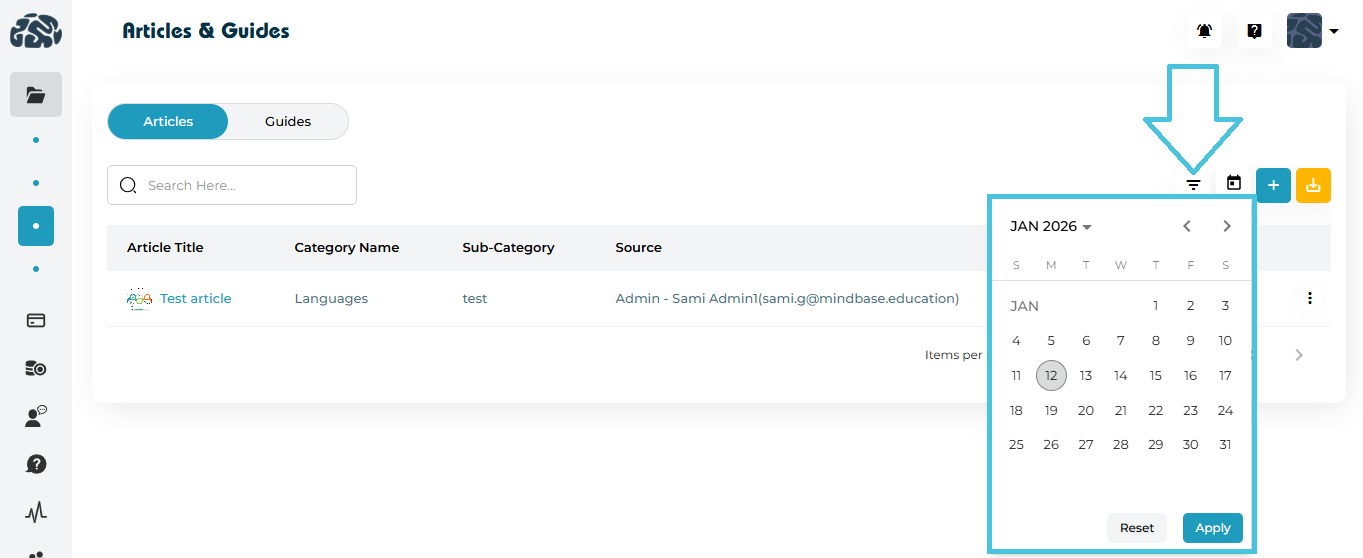
Category
Sub-Category
Source
Created Date (calendar filter)
Click Apply to refine results or Reset to clear filters.
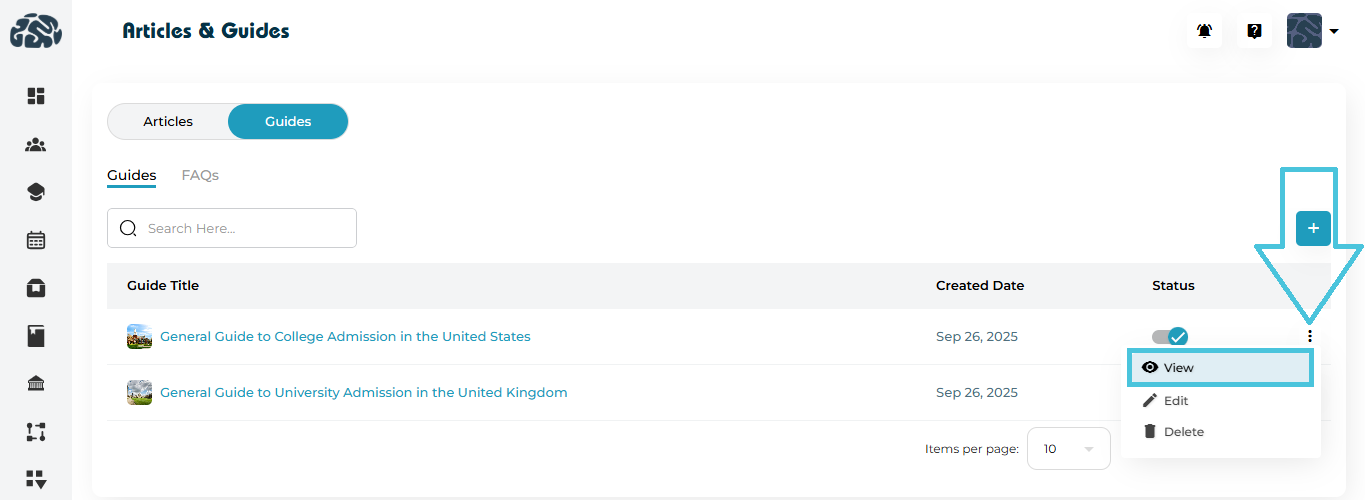
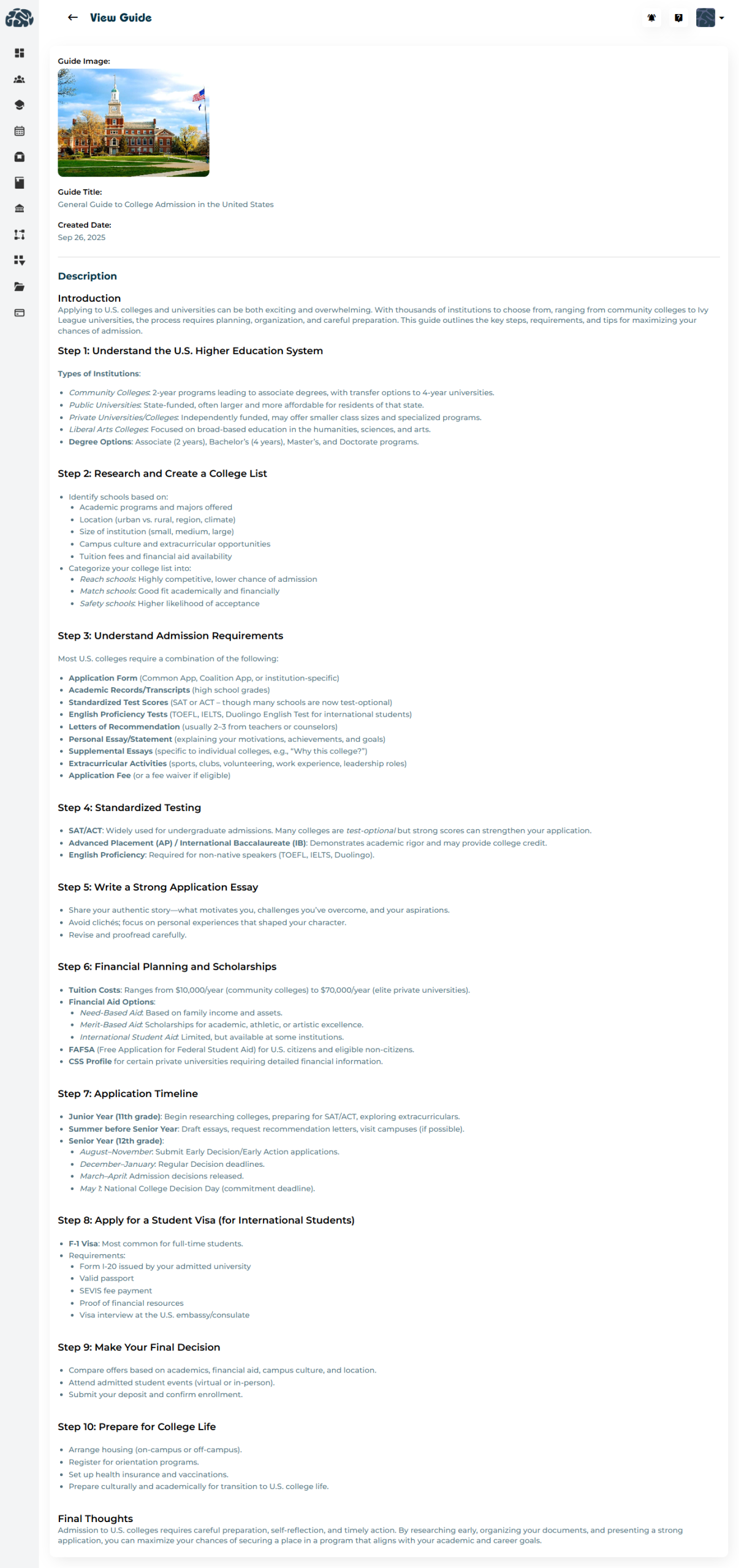
Viewing Guides
Switch to the Guides tab
Click on any Guide Title to view its full content
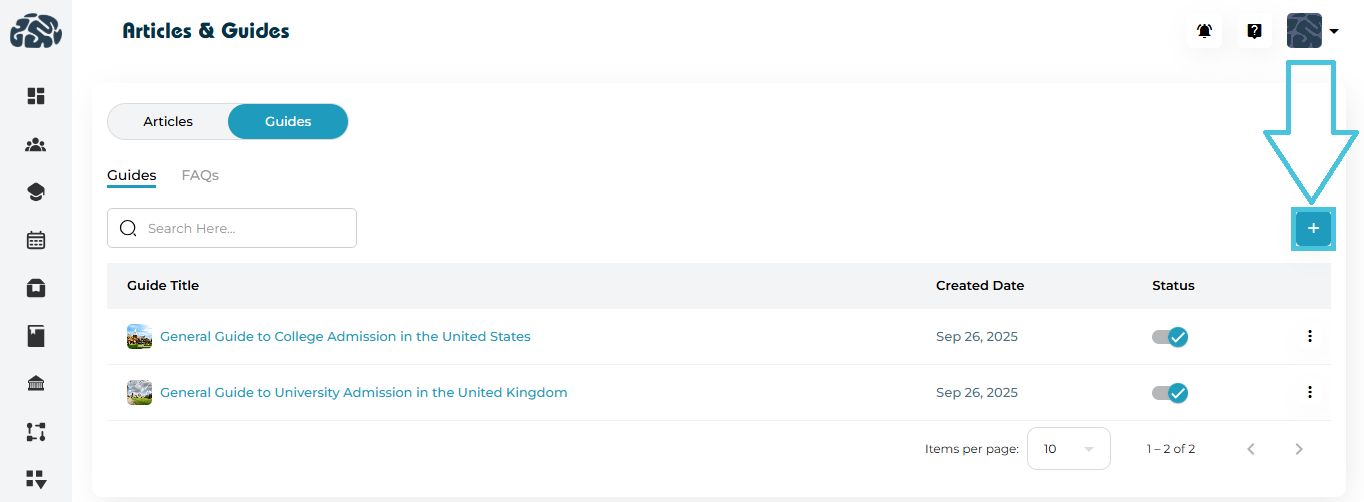
Adding a New Guide

Click ➕ Add in the Guides tab
Provide:
Guide Image
Guide Title
Description (rich-text editor)
Click Save
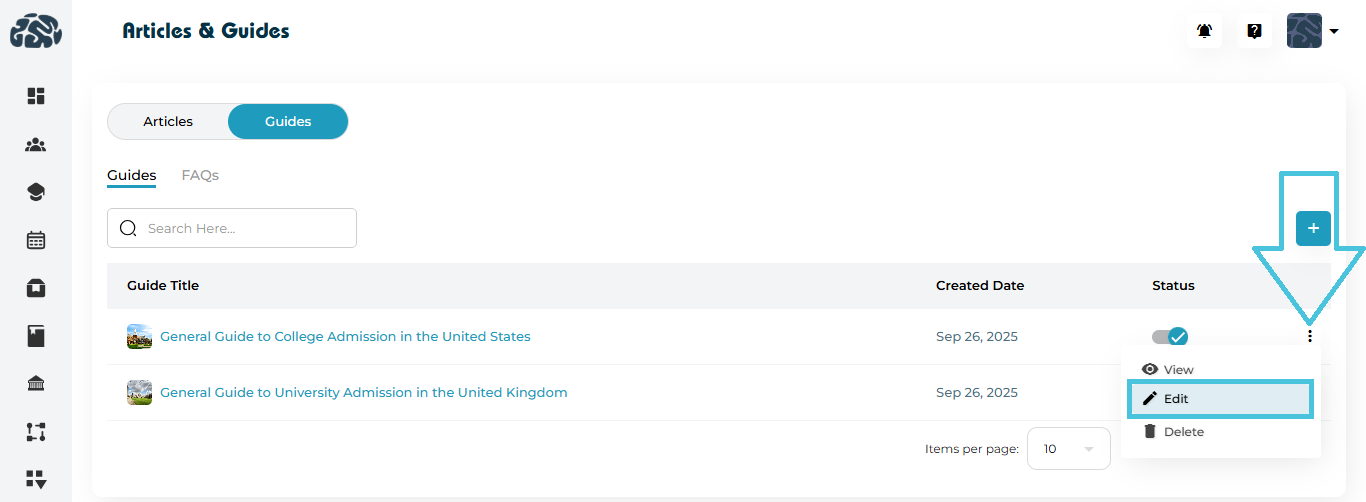
Editing a Guide
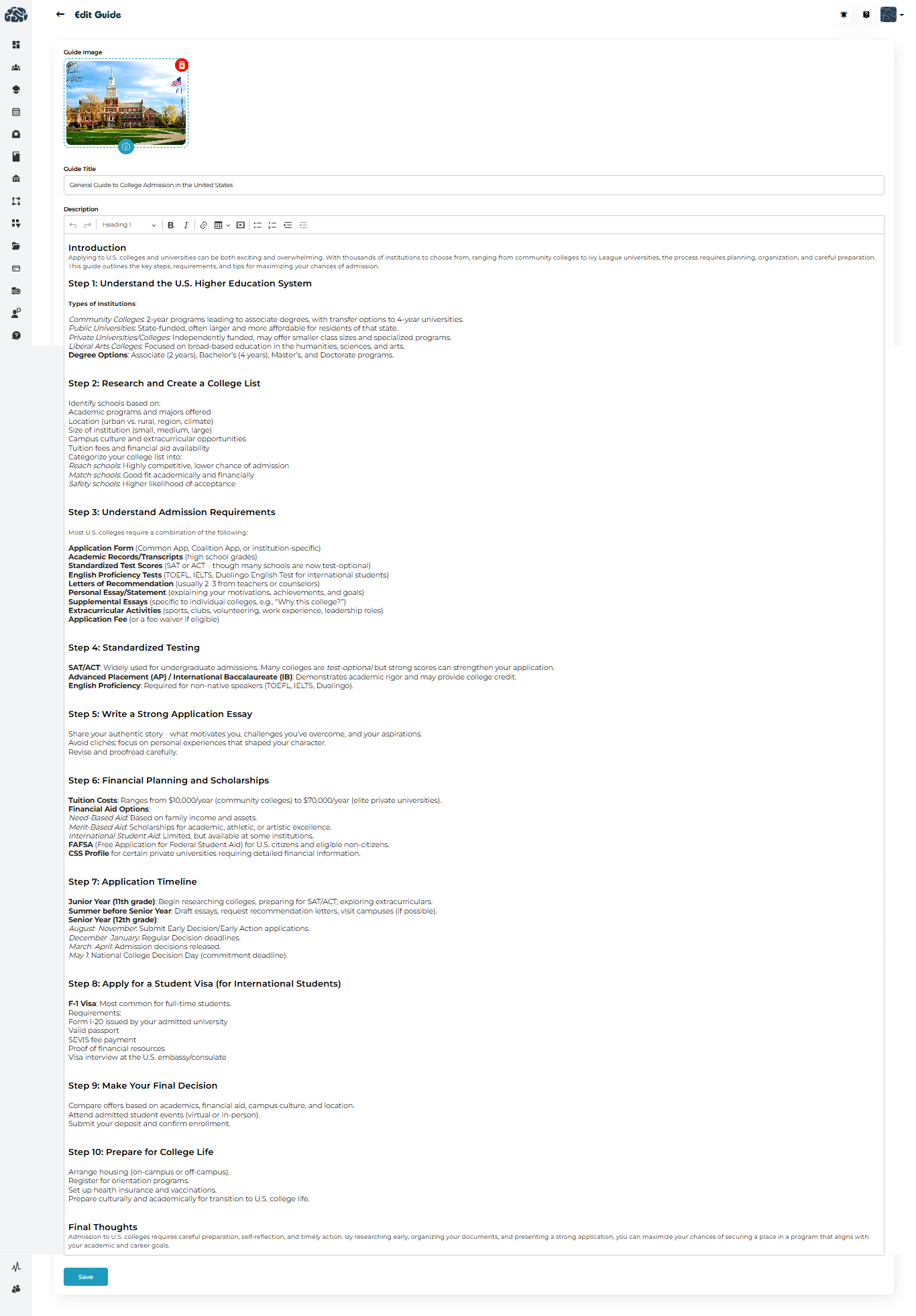
Open the three-dot menu (⋮) next to a guide
Select Edit
Update the content
Click Save
Deleting a Guide
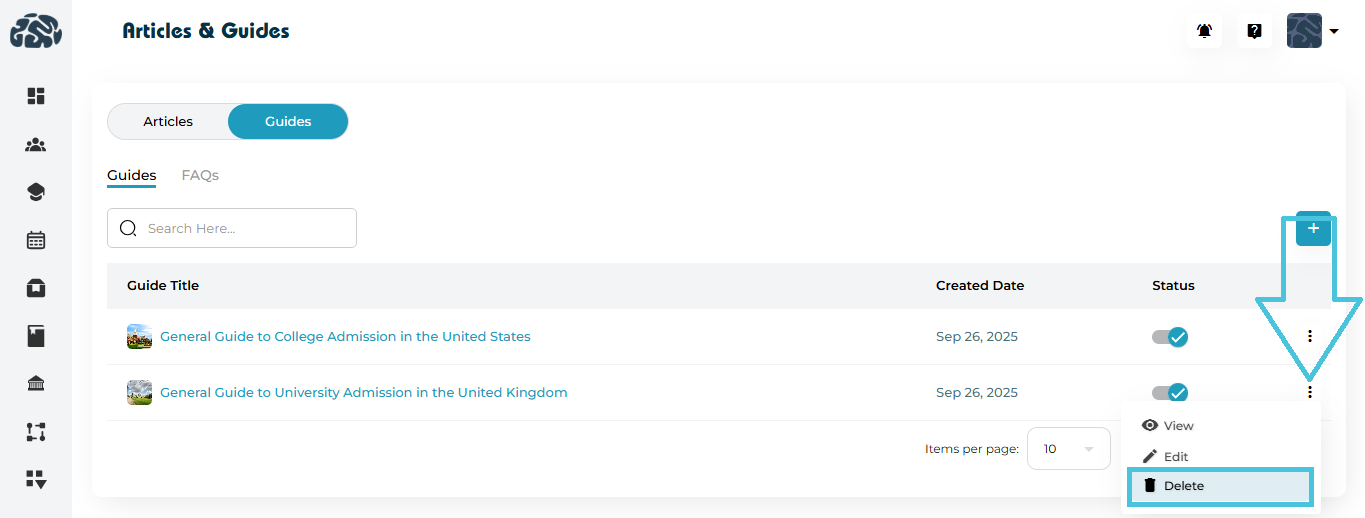
Click ⋮ → Delete
Confirm deletion
Viewing FAQs
Open Guides
Switch to the FAQs tab
Browse questions and answers in a list format
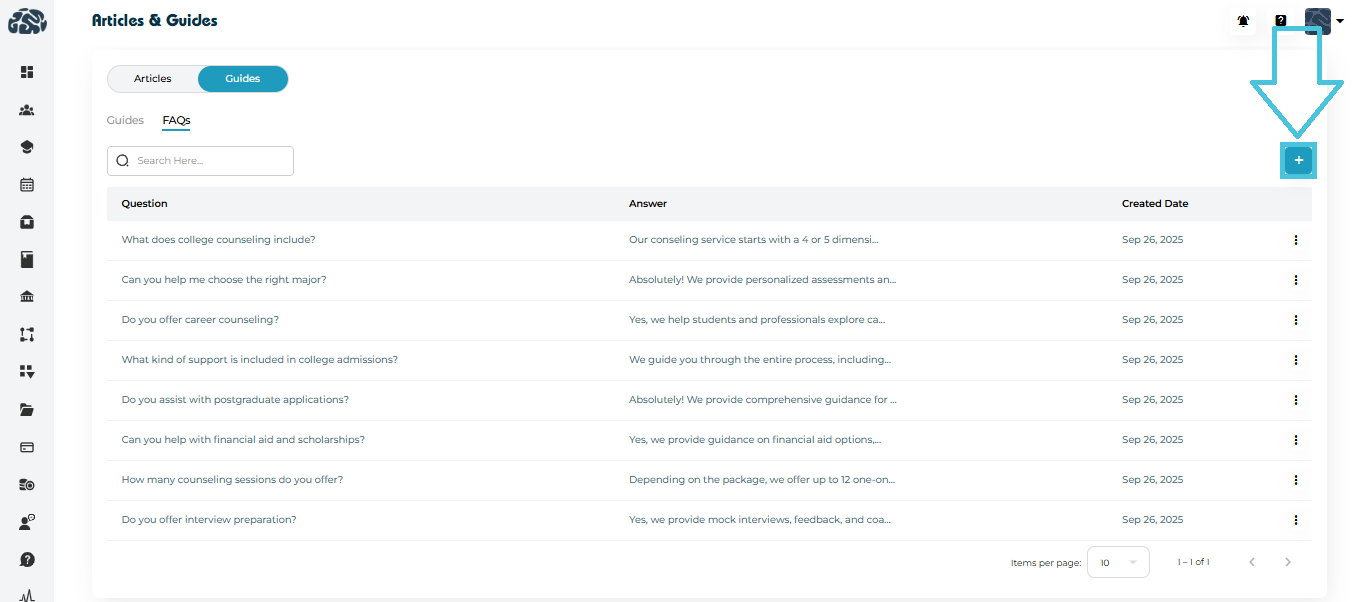
Adding a New FAQ
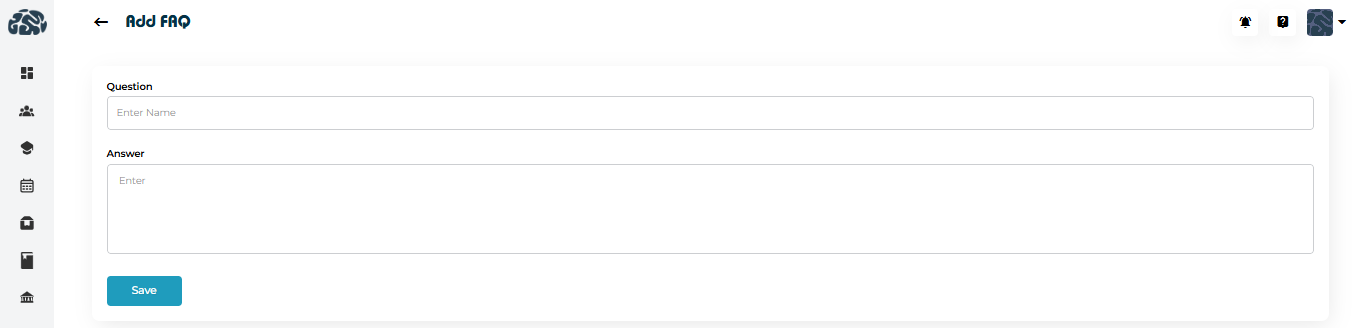
Click ➕ Add in the FAQs tab
Enter:
Question
Answer
Click Save
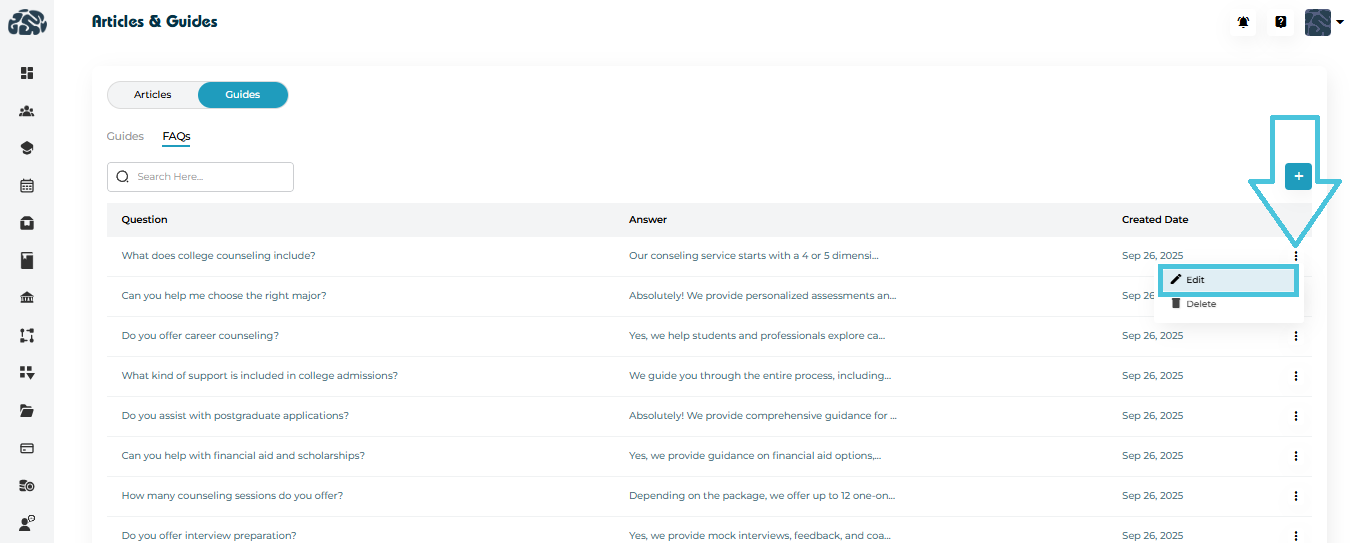
Editing an FAQ
Click the three-dot menu (⋮)
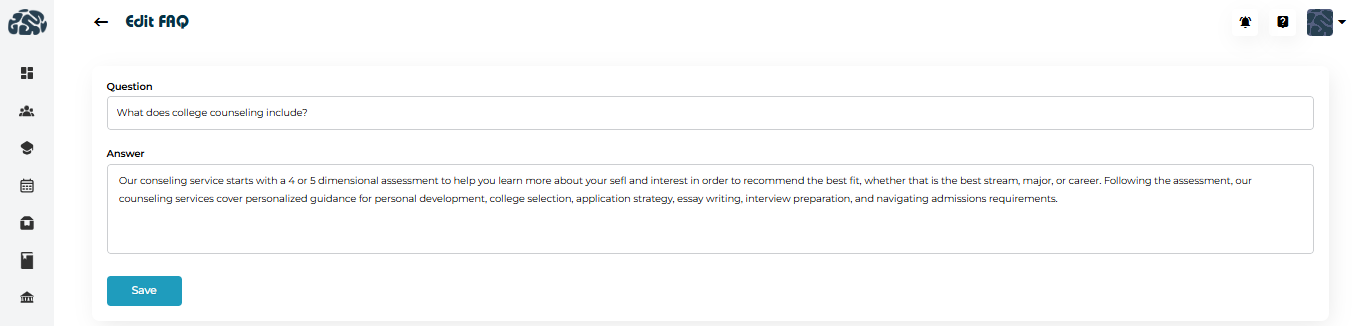
Select Edit
Update the question or answer
Click Save
Deleting an FAQ
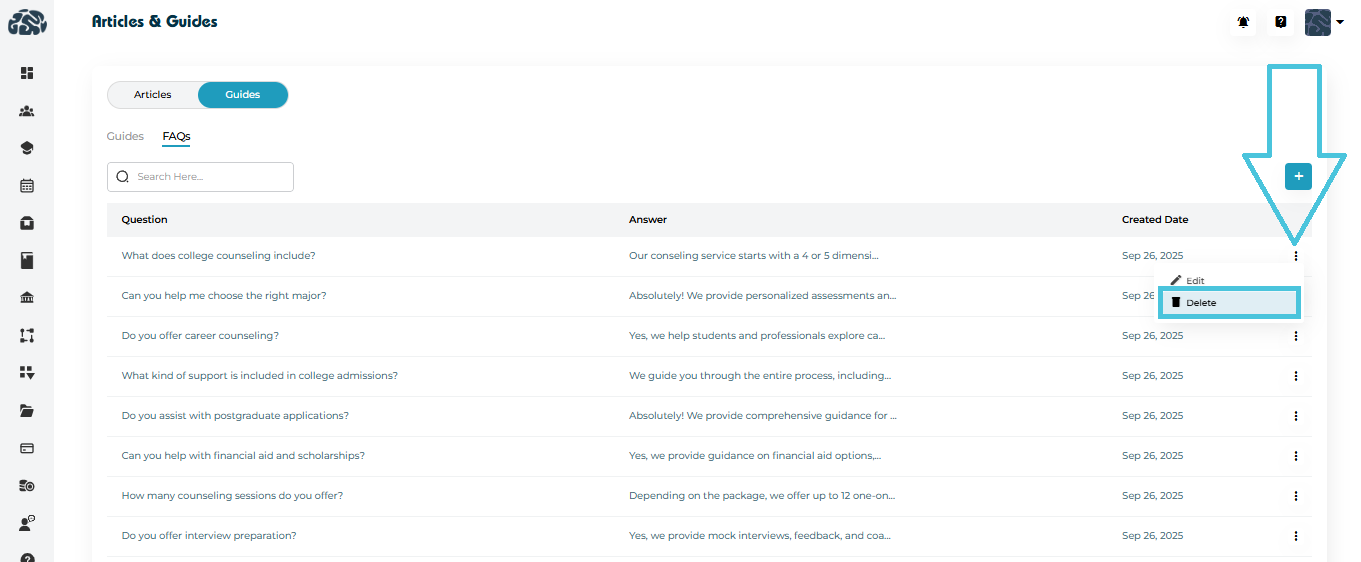
Click ⋮ → Delete
Confirm the action