Navigate to:
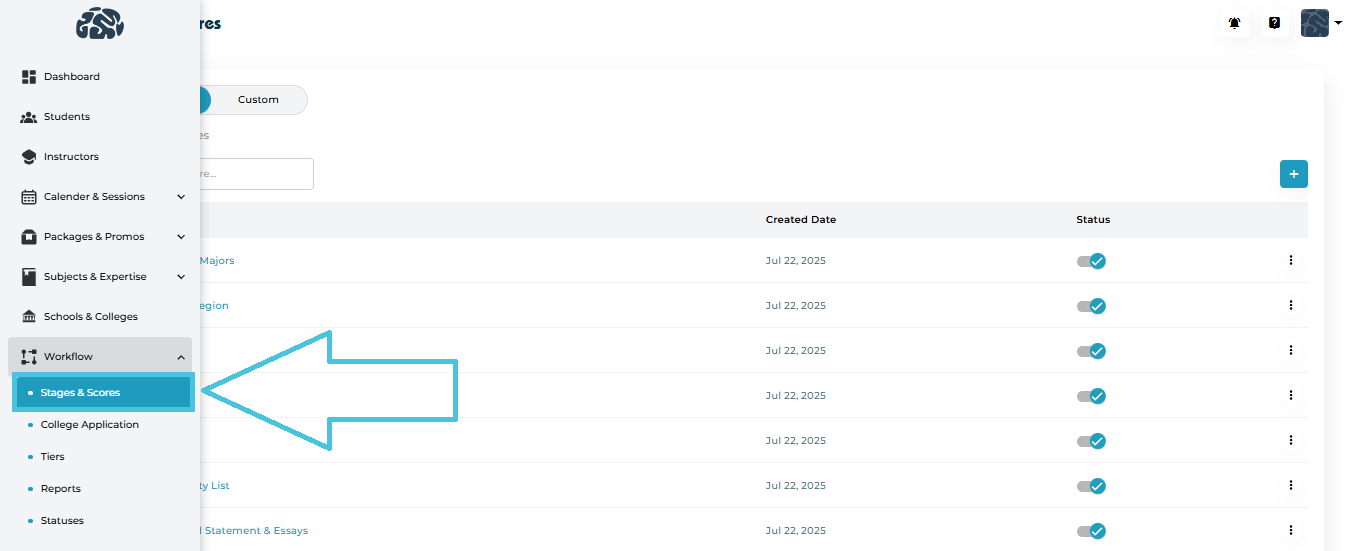
Admin Panel → Workflow → Stages & Scores
You will see two main views:
Default
Custom
Default view is further divided into:
Stages
Scores
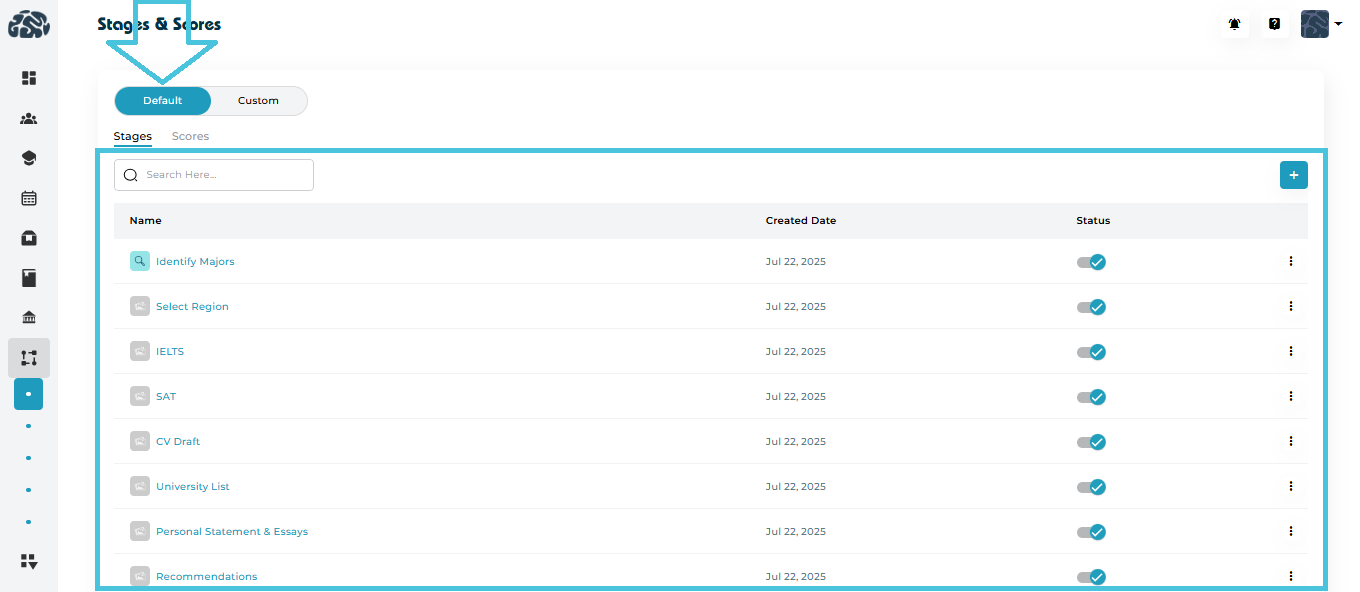
Default
System-defined stages and scores
Designed to cover common admissions workflows
Can be viewed, edited, or disabled (depending on permissions)
Custom
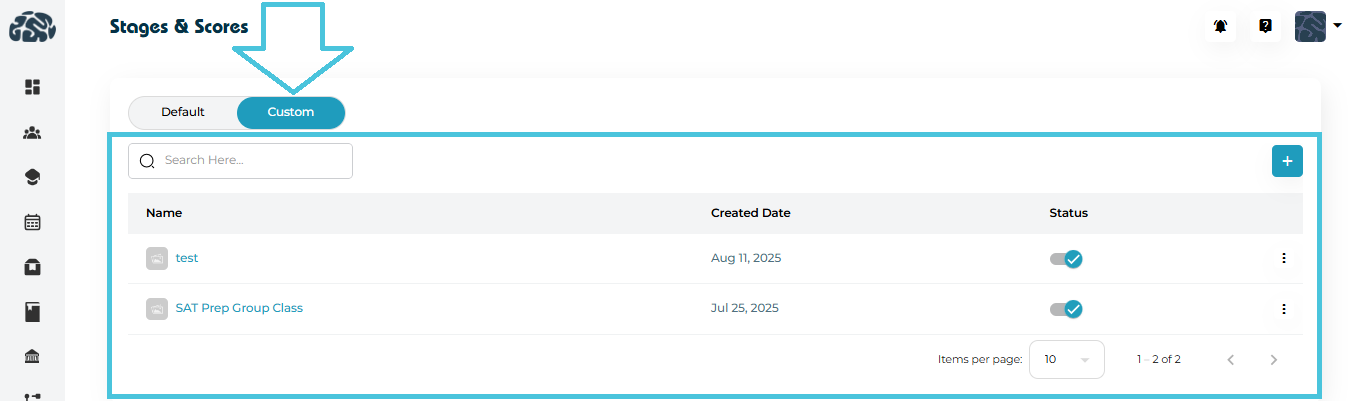
Admin-created stages and workflows
Fully customizable to match your organization’s process
Ideal for specific programs (e.g., SAT Prep Group Class, Counseling Tracks)
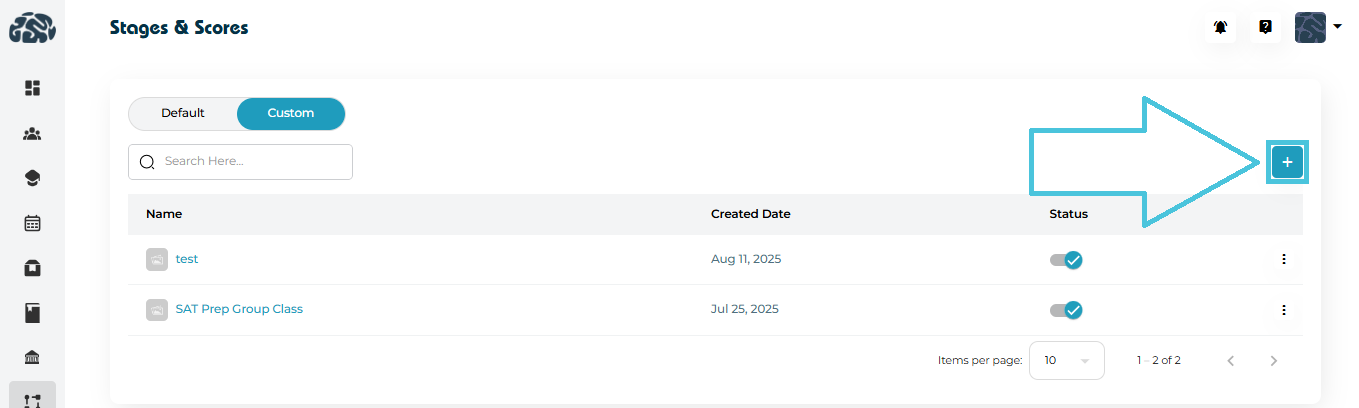
Step-by-Step
-
Open Stages & Scores
-
Switch to the Custom tab
-
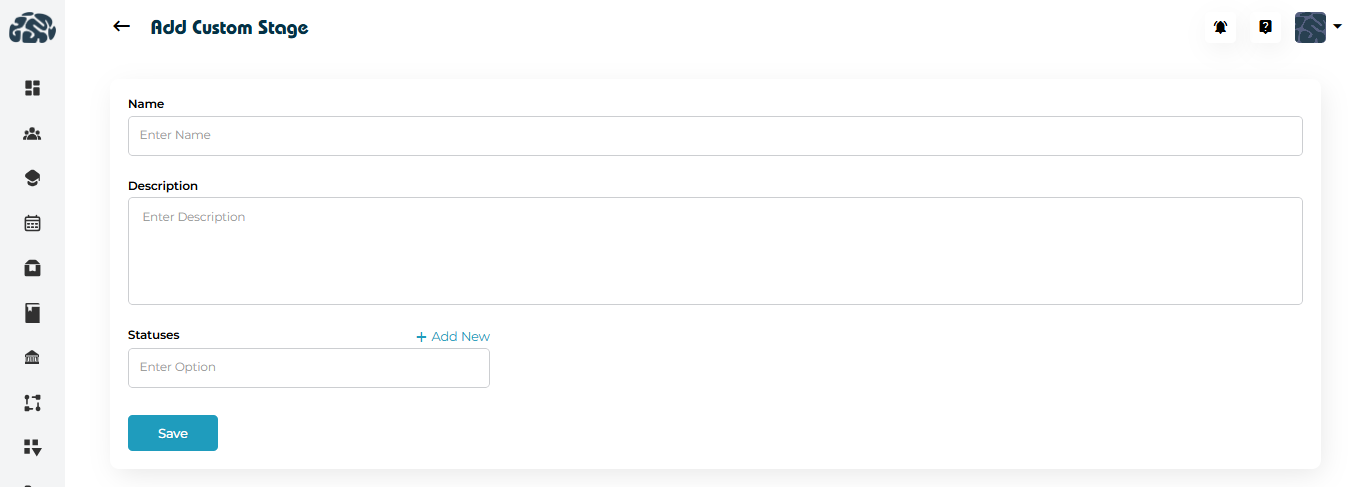
Click ➕ Add Stage
-
Upload a stage image (optional but recommended)
-
Enter:
-
Stage Name
-
Description
-
-
Add one or more Statuses
-
Example: Not Started, In Progress, Completed
-
-
Click Save
Once created, the stage becomes available for use in workflows and projects.
Each stage row provides a three-dot menu with the following options:
View Stage
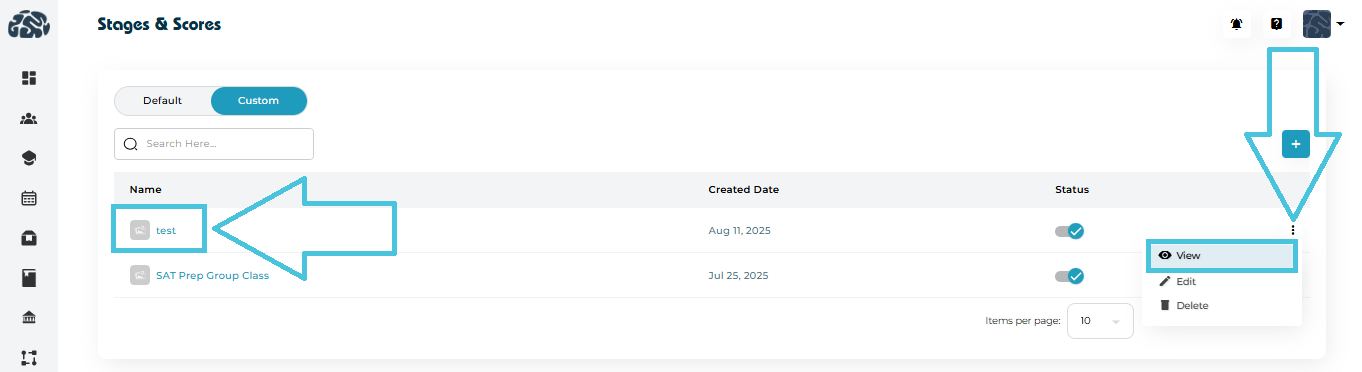
Opens a detailed view showing:
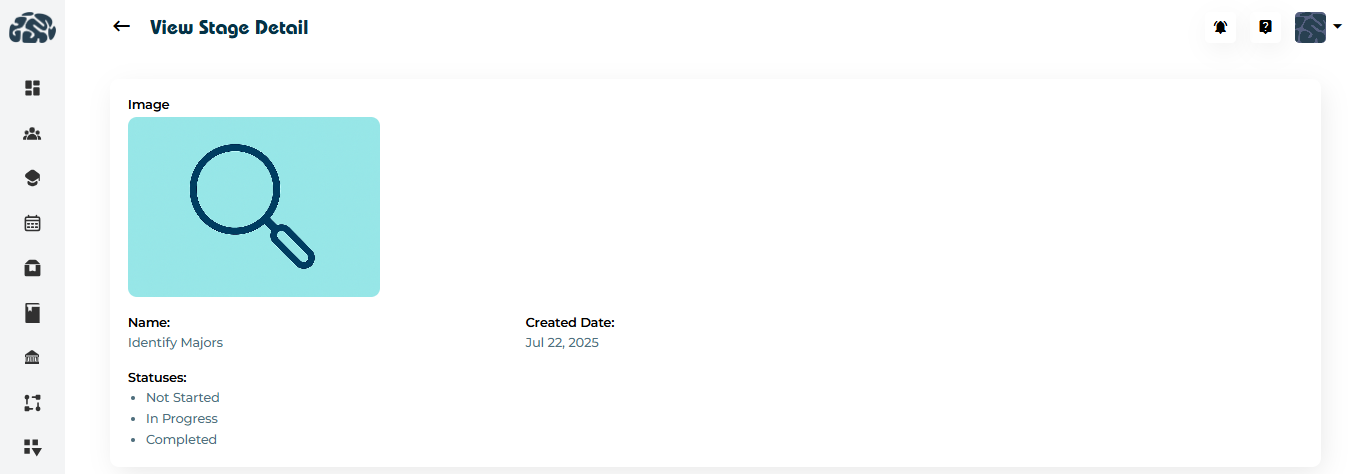
Stage Image
Stage Name
Creation date
Associated statuses
Edit Stage
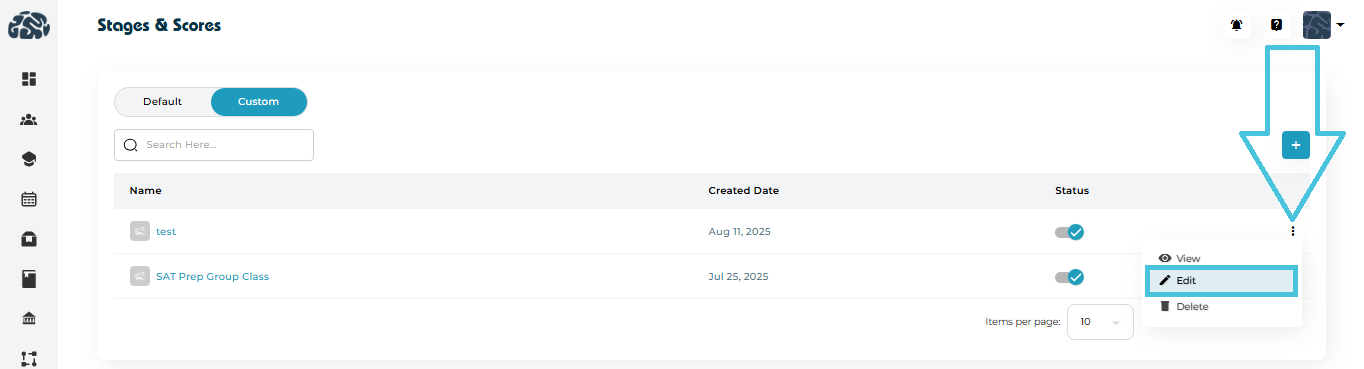
Update:
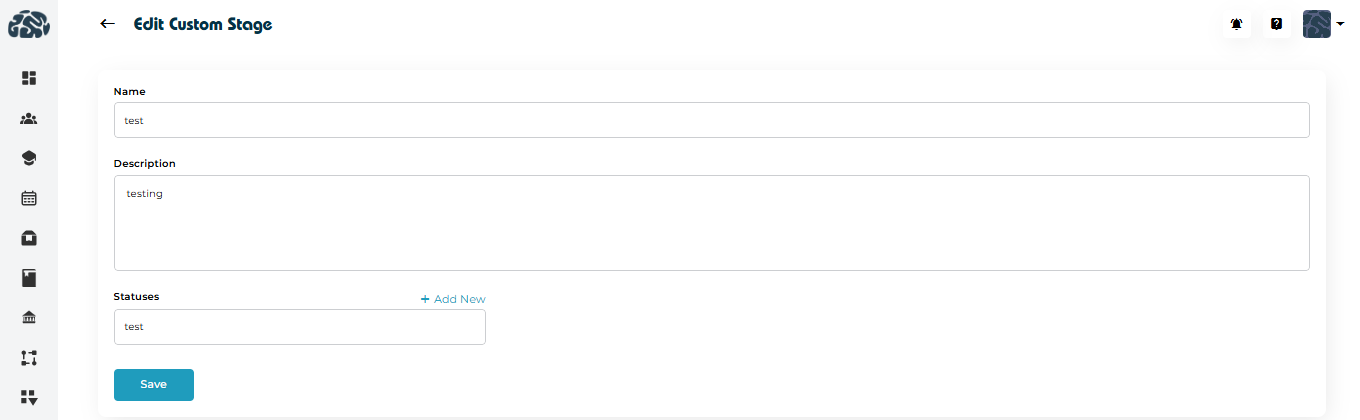
Stage Name
Description
Statuses
Delete Stage
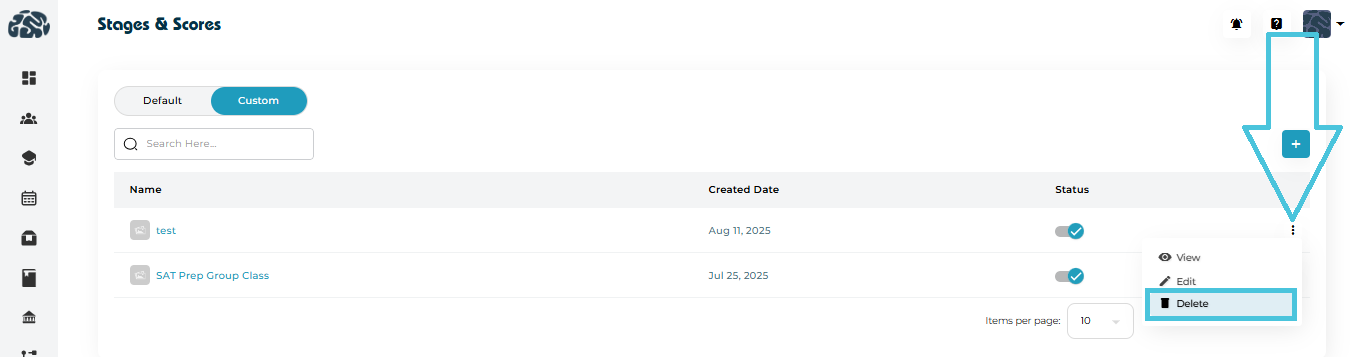
Permanently removes the stage
Recommended only if the stage is not actively used
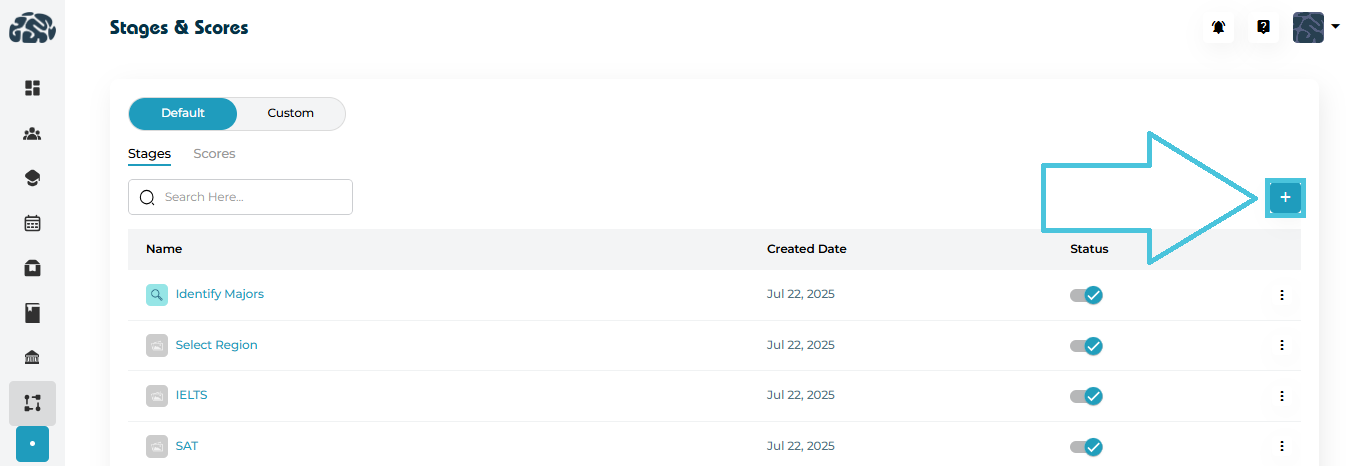
Adding New default Stage
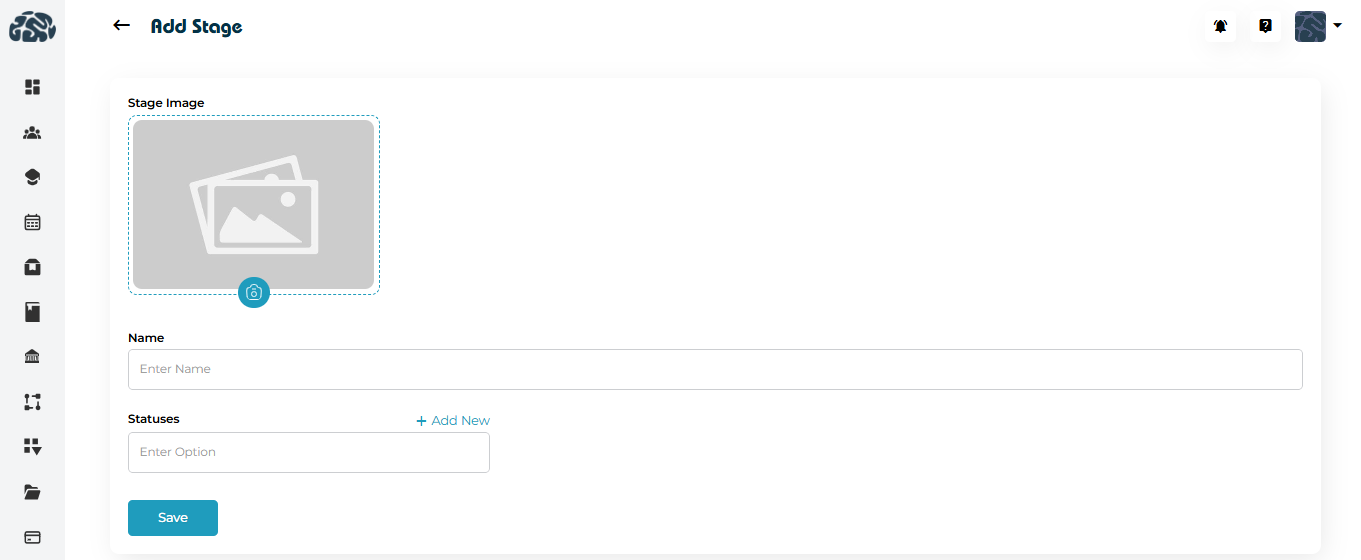
Go to Stages & Scores → Stages
Click ➕ Add Stage
Upload a stage image (optional)
Enter:
Stage Name
- Status
Click Save
Each stage row provides a three-dot menu with the following options:
View Stage
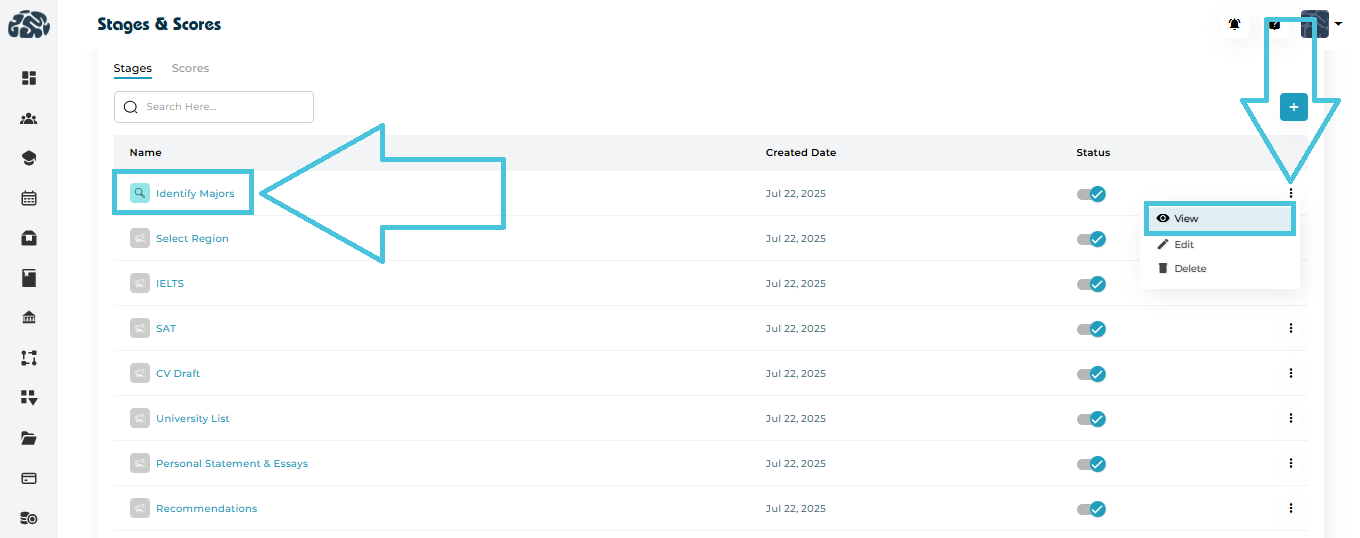
Opens a detailed view showing:
Stage Image
Stage Name
Creation date
Associated statuses
Edit Stage
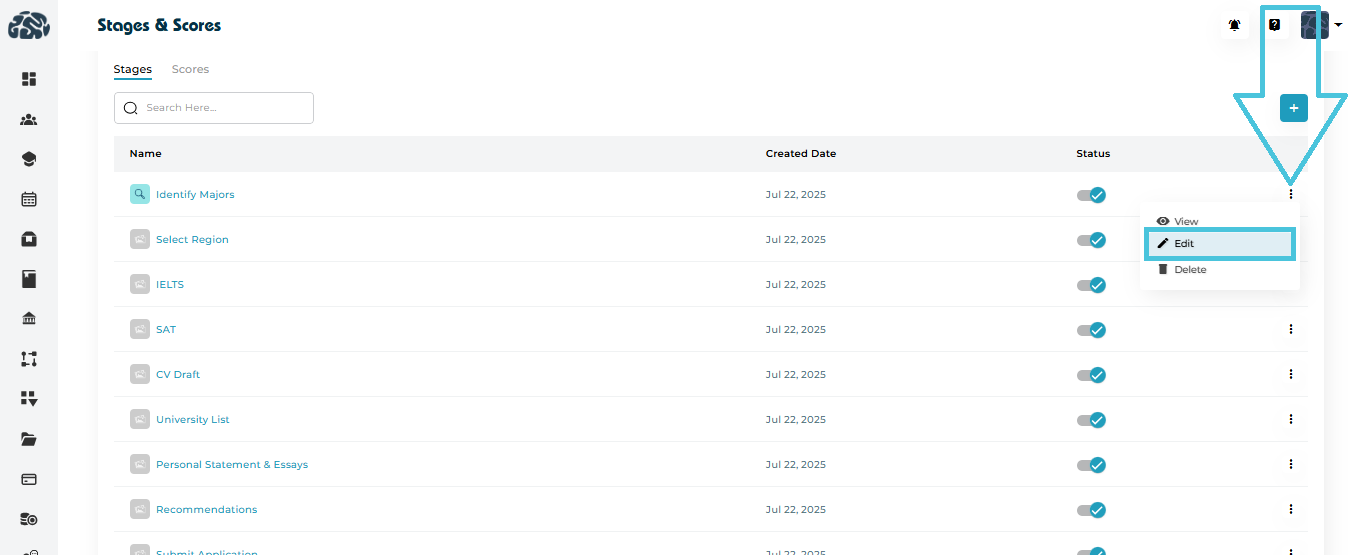
Update:
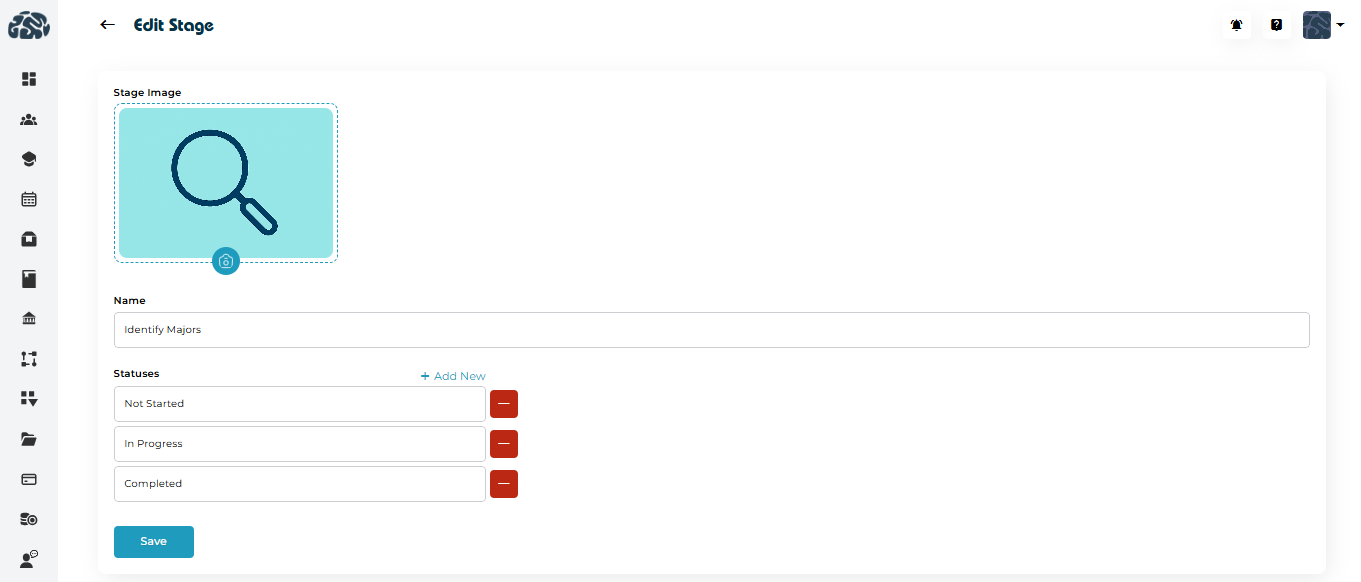
Stage name
Stage image
Statuses
Delete Stage
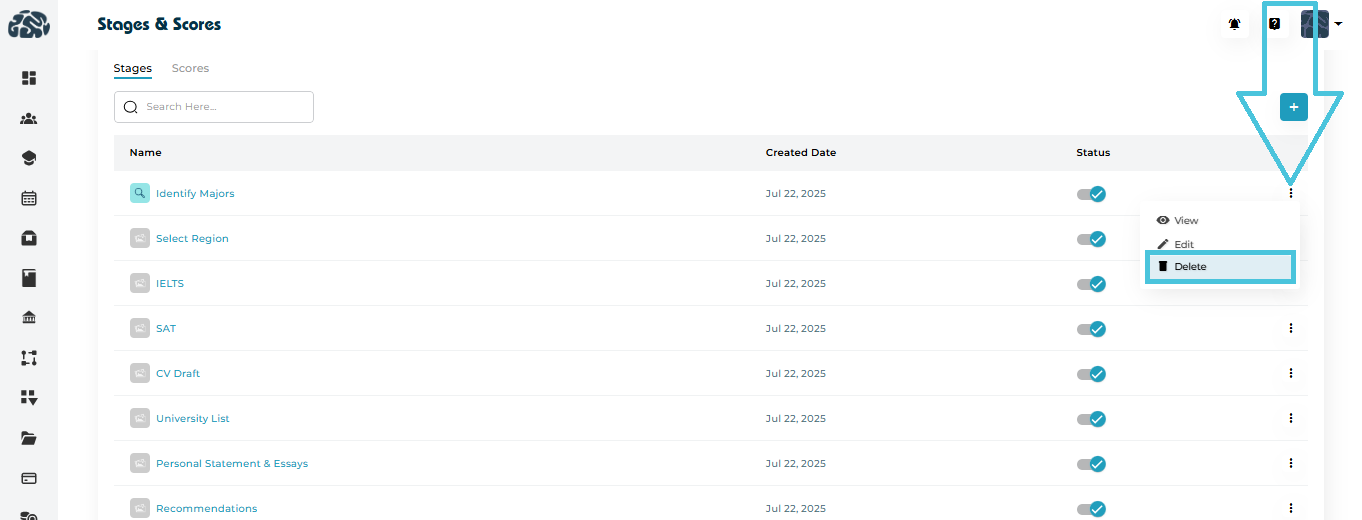
Permanently removes the stage
Recommended only if the stage is not actively used
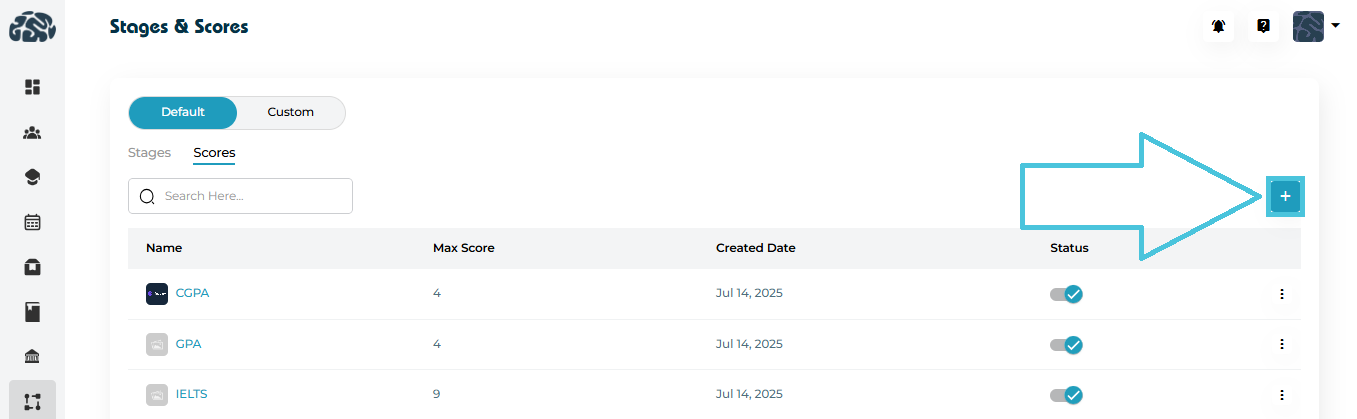
Adding New Score
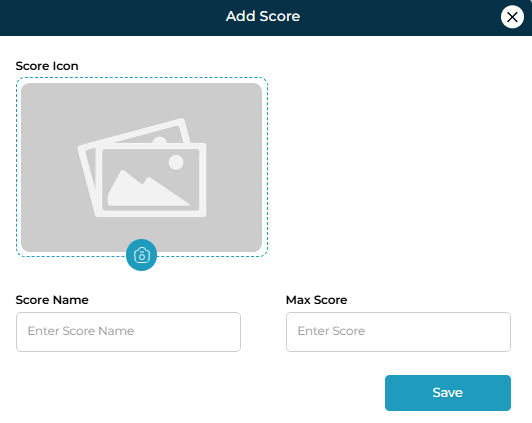
Go to Stages & Scores → Scores
Click ➕ Add Score
Upload a score icon (optional)
Enter:
Score Name (e.g., IELTS)
Maximum Score
Click Save
Each score row provides a three-dot menu with the following options:
View Scores
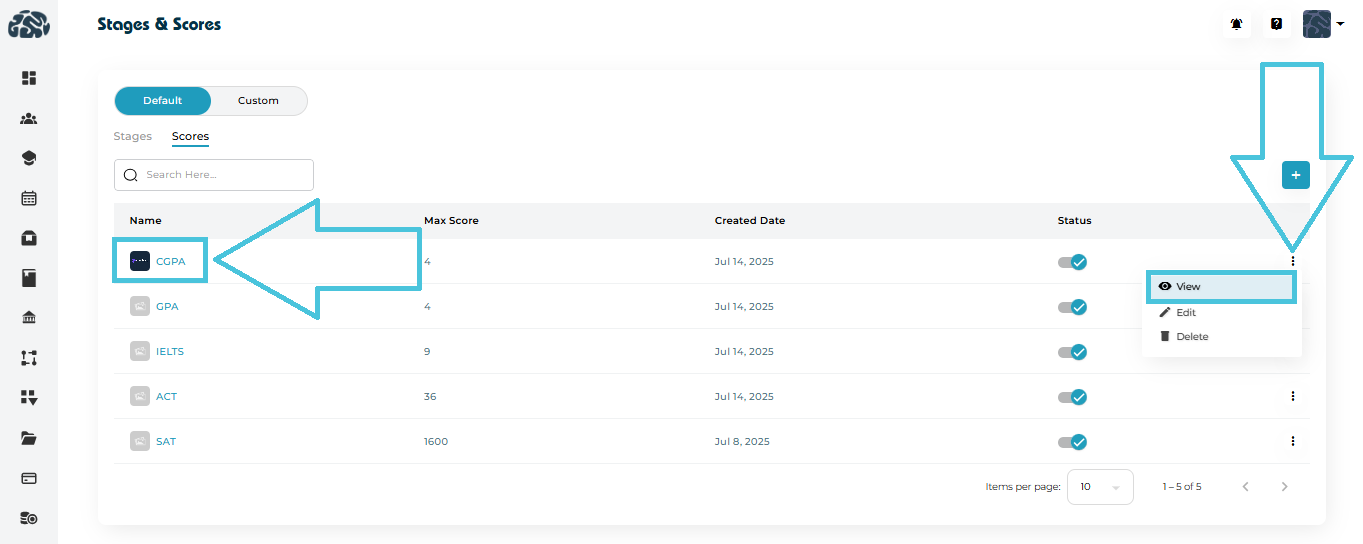
Opens a detailed view showing:
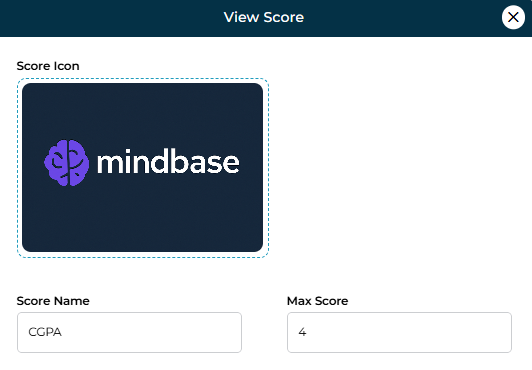
Score Icon
Score Name
Max Score
Edit Score
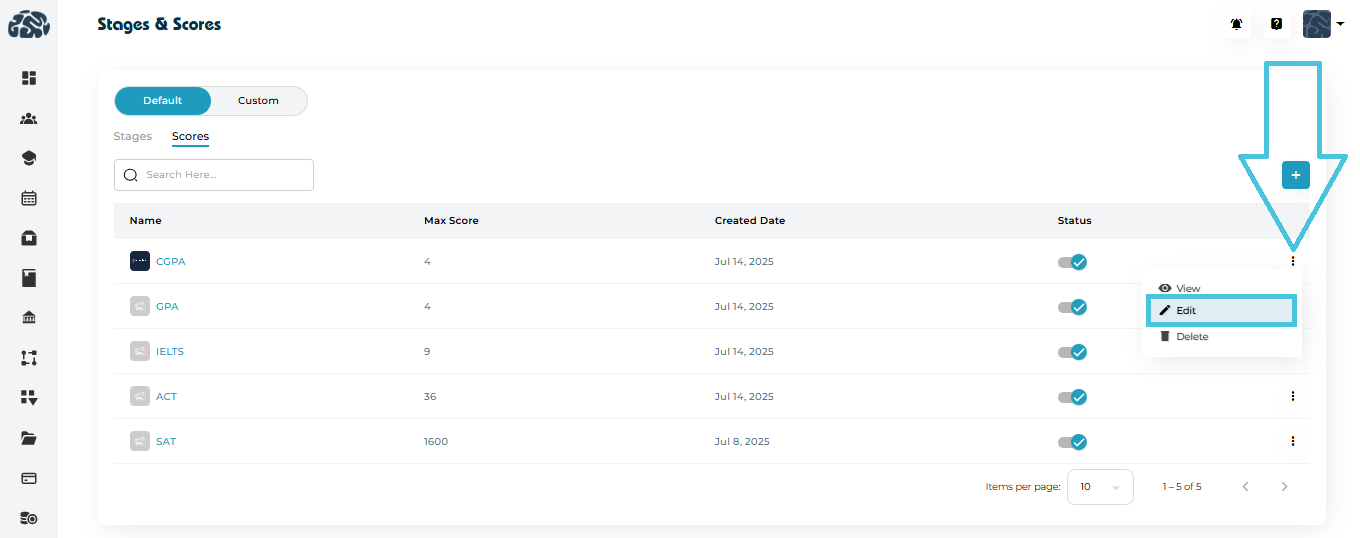
Update:
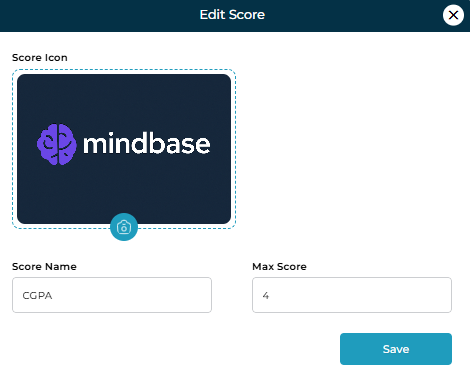
Score Icon
Score Name
Max Score
Delete Score
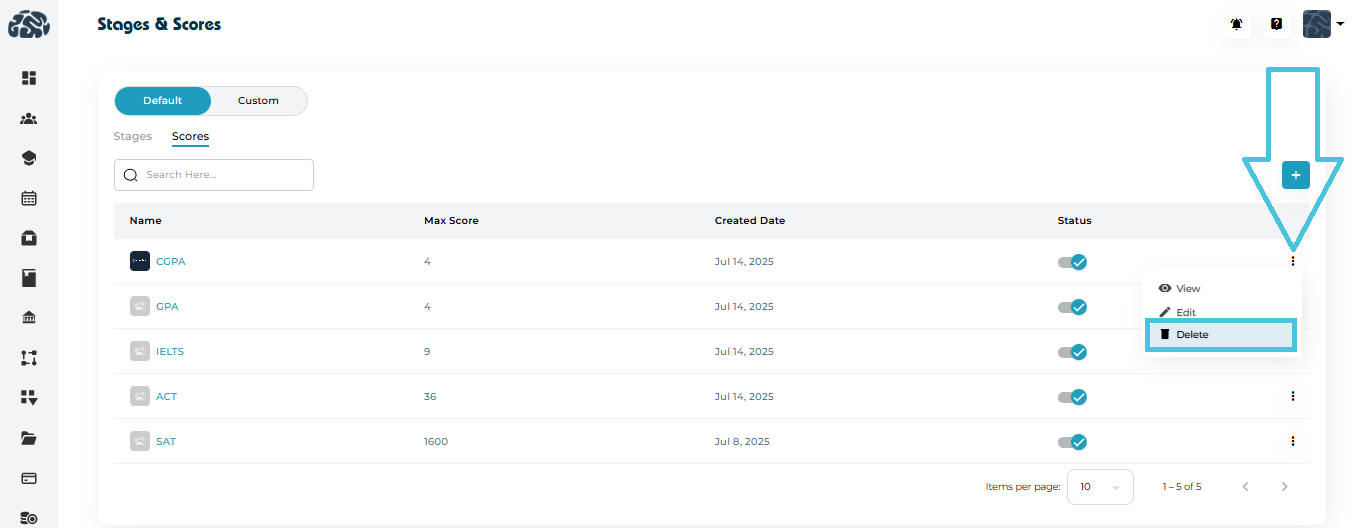
Permanently removes the score
Recommended only if the score is not actively used
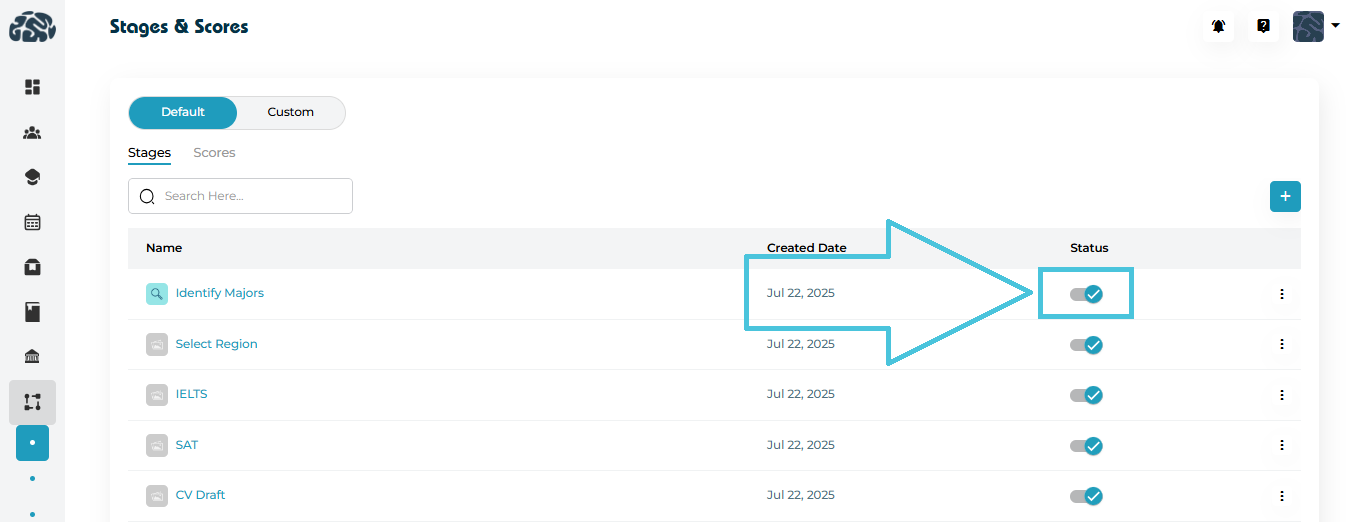 Each stage or score includes a status toggle:
Enabled: Available for use in workflows
Disabled: Hidden from selection but not deleted
This allows admins to pause usage without losing historical data.