Applying and managing promotional offers

Applying and Managing Promotional Offers

Promotional offers play a key role in driving enrollment, encouraging package upgrades, and rewarding loyal students. In PrepBase, the Promos Management module allows admins to create, activate, edit, and retire promo codes that can be applied to tutoring, counseling, or other service packages.

This guide explains how to manage promos efficiently so your organization can run discounts or special campaigns with complete control.

1. Where to Manage Promos

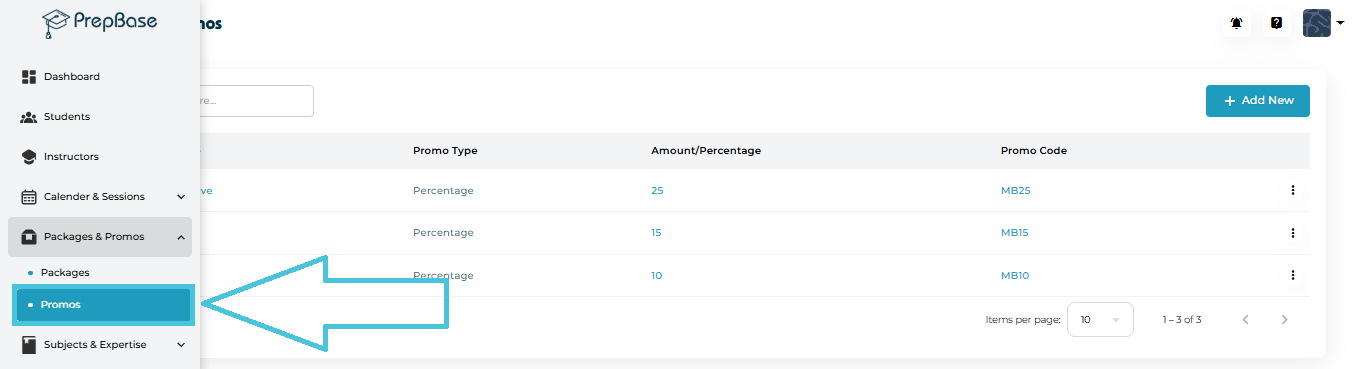
Navigate to:

Packages & Promos → Promos

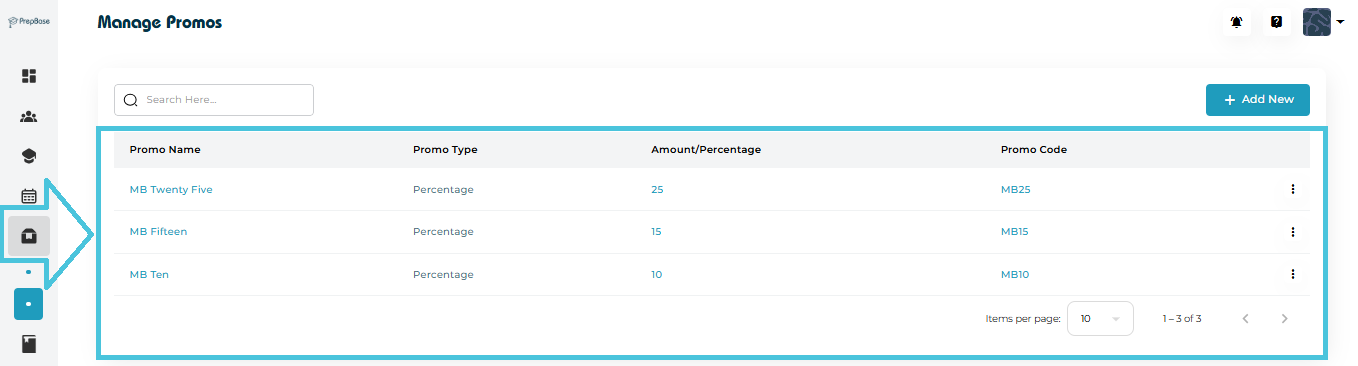
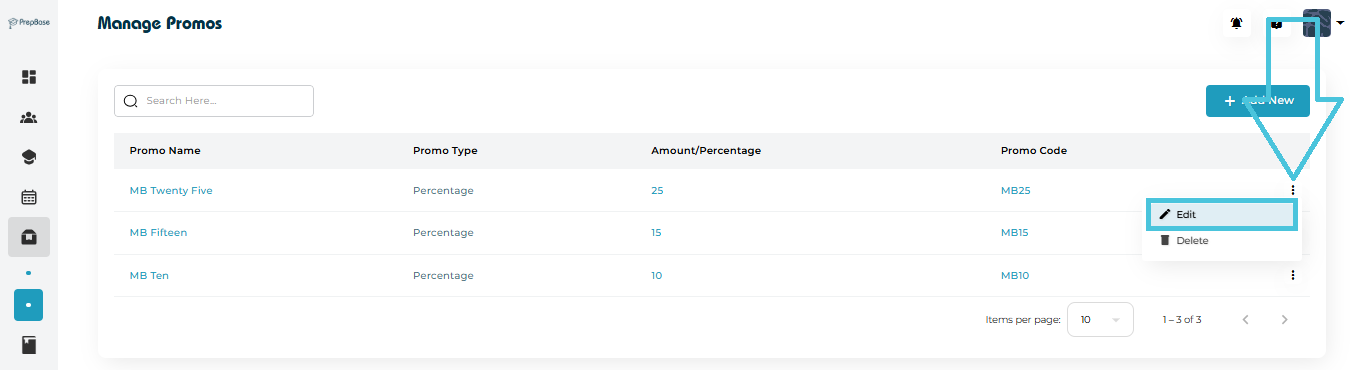
Here, you’ll see a list of all existing offers with details like:

  • Promo Name

  • Promo Type (Percentage or Fixed amount)

  • Discount Value

  • Promo Code

  • Status (Active/Inactive)

This dashboard gives admins a quick view of all marketing or promotional activities currently available.

2. Creating a New Promotional Offer

To launch a new discount campaign:

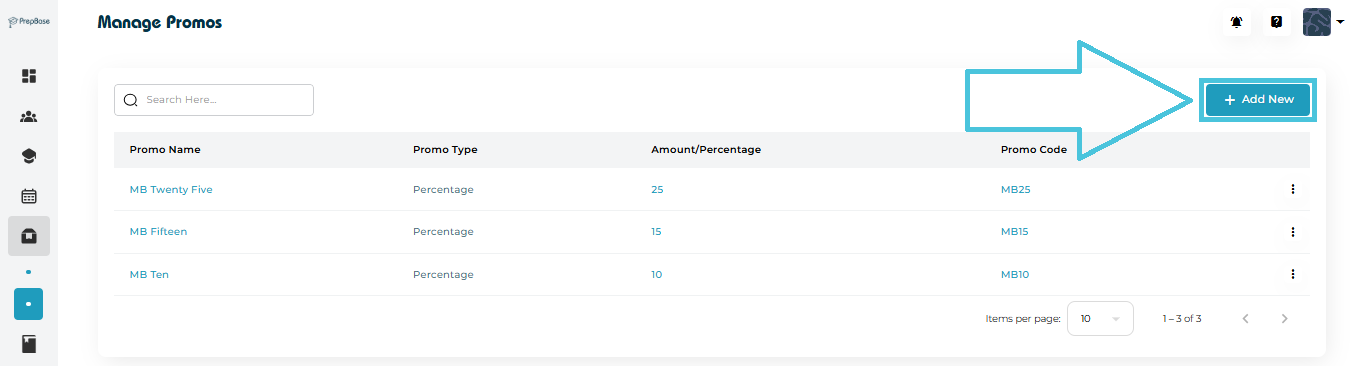
  1. Click the Add New button.

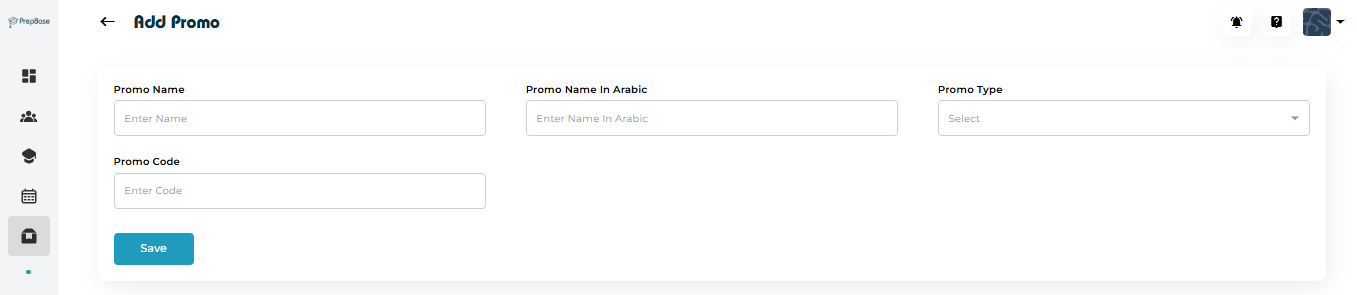
  2. Fill out the required fields:

Promo Name

A clear and recognizable name such as:

  • “Back-to-School 20% Off”

  • “MB Fifteen”

  • “New Student Bonus”

Promo Name (Arabic)

Optional—useful for bilingual organizations.

Promo Type

You can choose one of the following:

  • Percentage Discount (e.g., 10%, 15%, 25%)

  • Fixed Discount (e.g., 100 AED off, 50 USD off)

Promo Code

The actual code students or admins will apply during package selection.

Examples:

  • MB25

  • NEW10

  • SUMMER50

  1. Click Save to add the promo to the system.

Your new promo will now appear in the promo list and can be applied to packages immediately.
3. Editing an Existing Promo

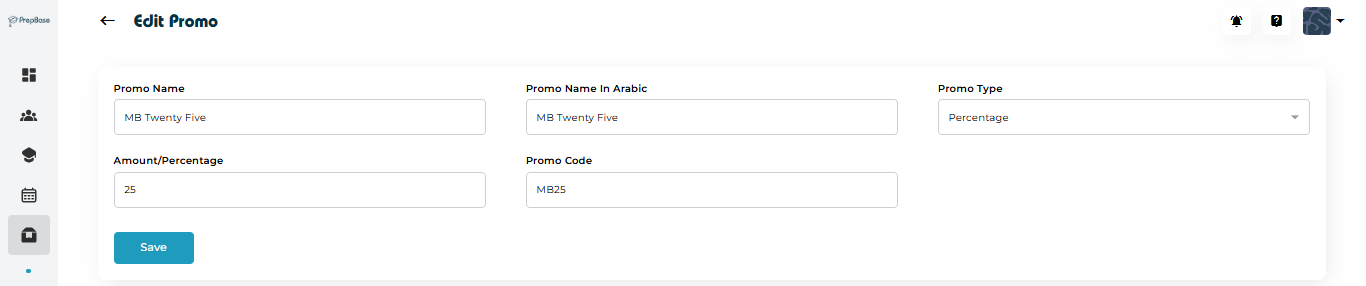
If you need to adjust a promo—for example, change its discount value or modify the name:
  1. Open the Promos list.

  2. Click the options menu (⋮) next to the promo.

  3. Select Edit.

  4. Update the fields such as:

    • Promo name

    • Arabic name

    • Promo type

    • Discount amount or percentage

    • Promo code

  5. Click Save to apply changes.

Editing is useful for seasonal updates or extending an active campaign without creating a brand-new promo.

4. Deleting or Retiring a Promo

If a promotional offer is no longer needed:
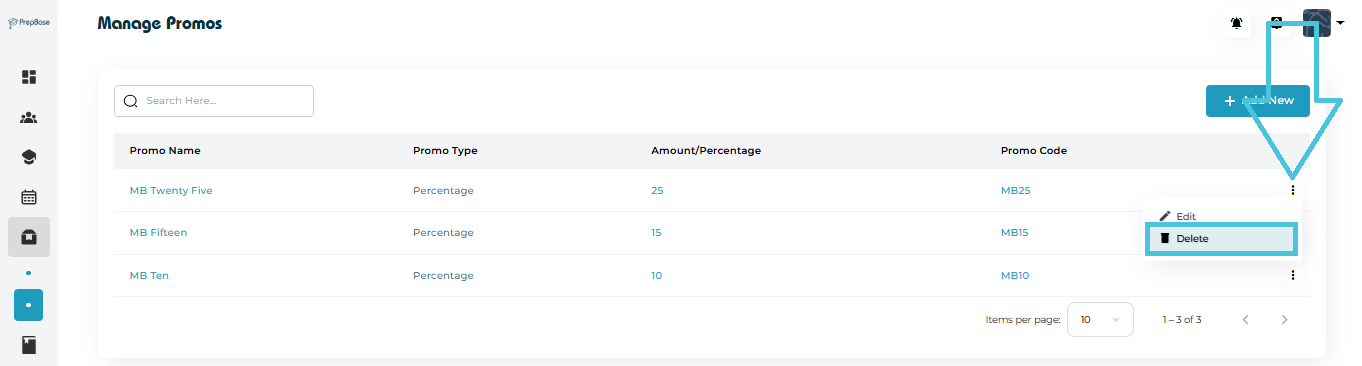
  1. Open the Promos list.

  2. Click the options menu (⋮) next to the promo.

  3. Select Delete.

  4. Confirm the action.

Once deleted, the promo cannot be applied to new purchases.

5. Understanding Promo Types (Examples)

Promo codes in any organization may support wide-ranging use cases. Here are examples that can match various business models:

Percentage Discount Promo

Perfect for campaigns like:

  • 15% Off for New Students

  • 25% Summer Learning Discount

  • 10% Referral Bonus

When a student applies a percentage promo, the package price is reduced proportionally.

Fixed Amount Discount Promo

Ideal for:

  • Deducting a set amount from total fee

  • Running value-based offers (e.g., “Save 100 AED”)

  • Offering flat reductions on premium packages

This gives predictable discounting for accounting and planning.

6. Applying Promo Codes to Student Packages

When adding or editing a tutoring or counseling package for a student:

  • The admin can select Promo Code Accepted: Yes/No

  • Students can redeem any active promo code that meets your internal rules

  • The system automatically calculates the discounted price based on promo type

This ensures smooth checkout, accurate billing, and controlled application of discounts.

7. Best Practices for Managing Promotional Codes

  • Keep promo names clear and unique
  • Use consistent naming patterns (e.g., MB10, MB20)
  • Activate promos only during the intended campaign period
  • Deactivate instead of deleting if you want historical tracking
  • Avoid overlapping promos unless you want stackable offers

IN THIS ARTICLE