Navigate to:
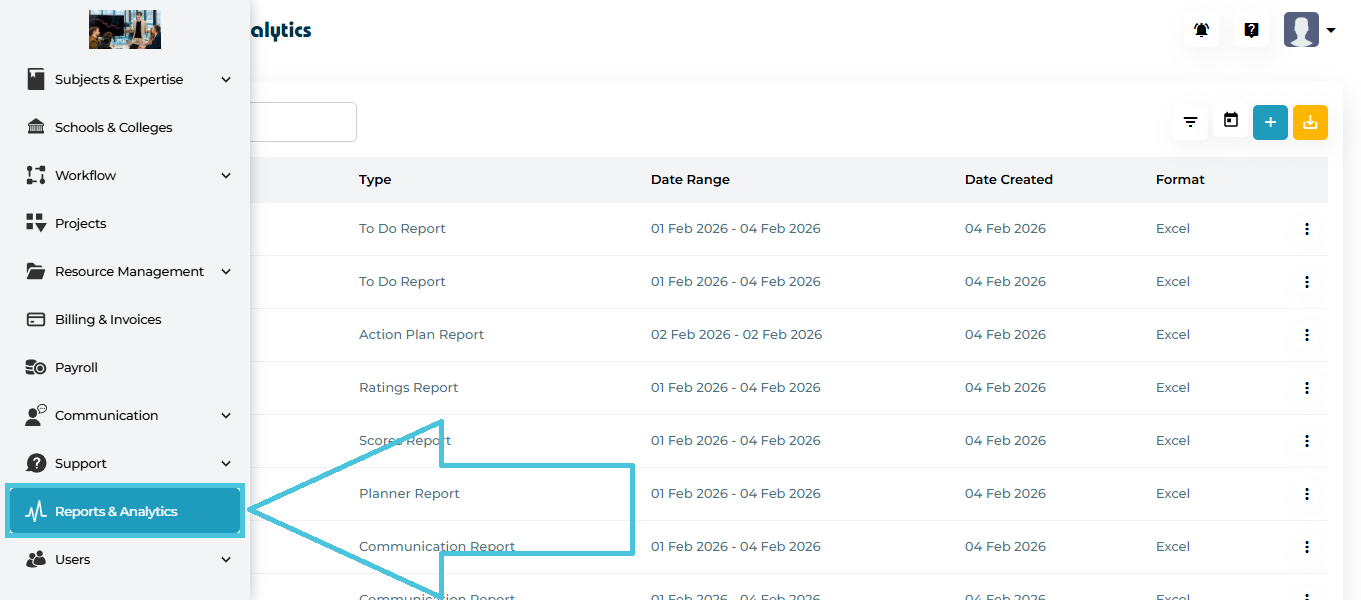
Left Sidebar → Reports & Analytics
The Reports listing page includes:
- Search Bar
- Recently Viewed Reports by Type
- Quick Export Options (PDF, Excel, CSV)
Admins can click on the three dots action menu to open the detailed report view.
The main Reports & Analytics page displays a log of all generated reports.
Visible Columns
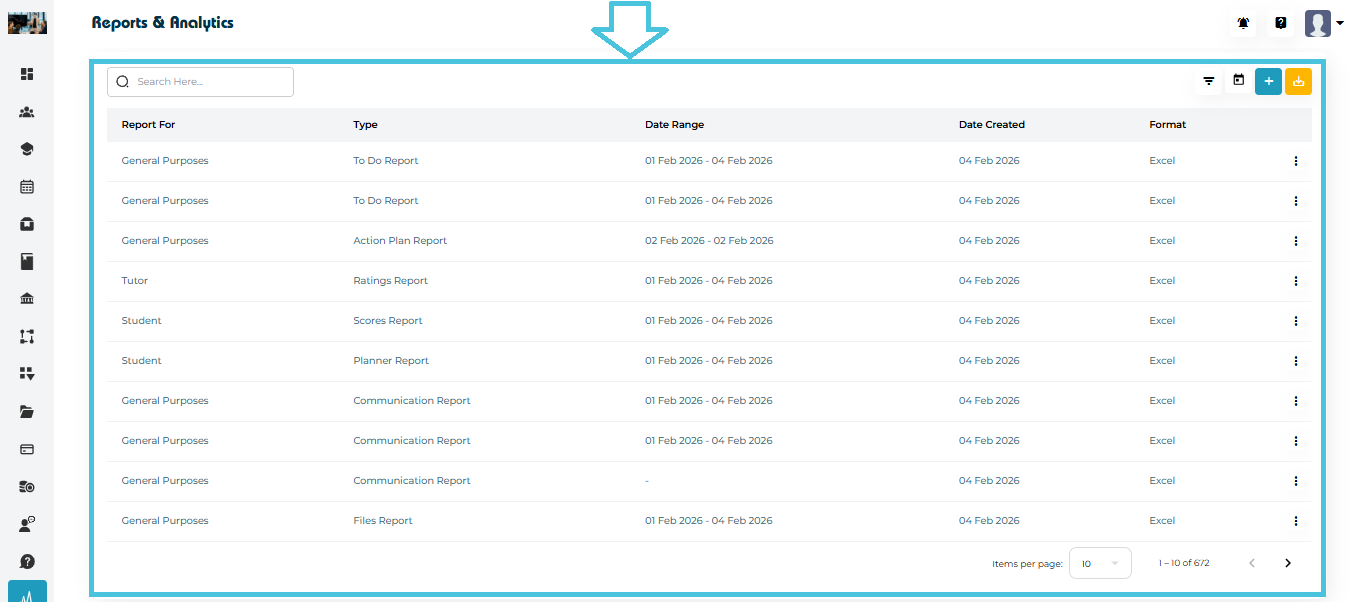
On the main page, the following columns are displayed:
- Report for (Category)
- Type
- Date range
- Date Created
- Format
Actions Menu (Three Dots)
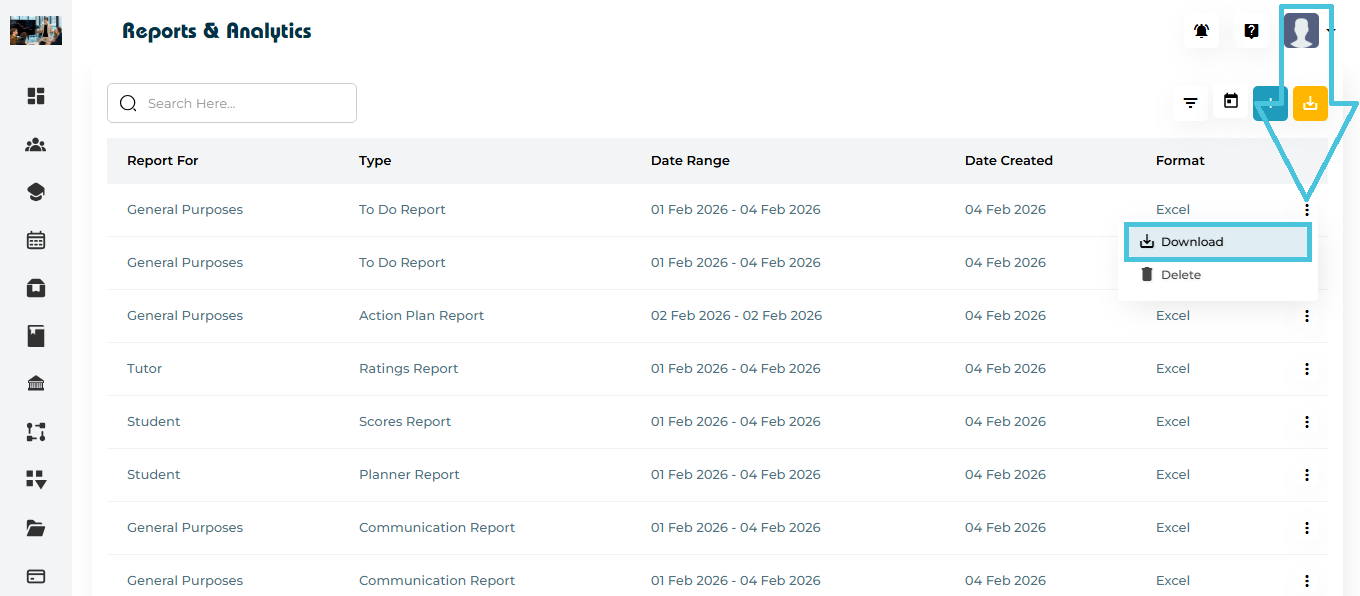
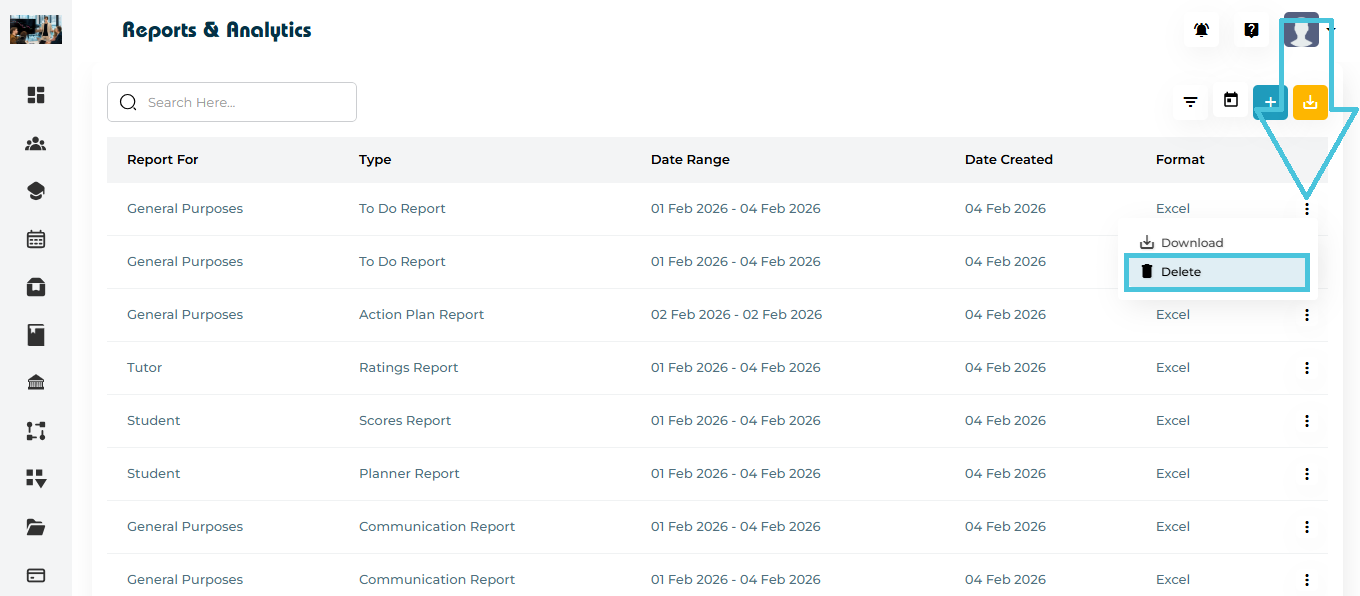
Each report row includes a three-dot action menu on the right-hand side, allowing users to:
- Download the selected report
- Delete the selected report
Page Controls
The main page also includes:
- Filter options by:
- Report For (Students, Tutor/Counselor, Schools/Universities, Projects, General Purpose)
- Format (Excel, CSV, PDF)
- Calendar icon to select the desired date range for reports
- Download button for exporting reports
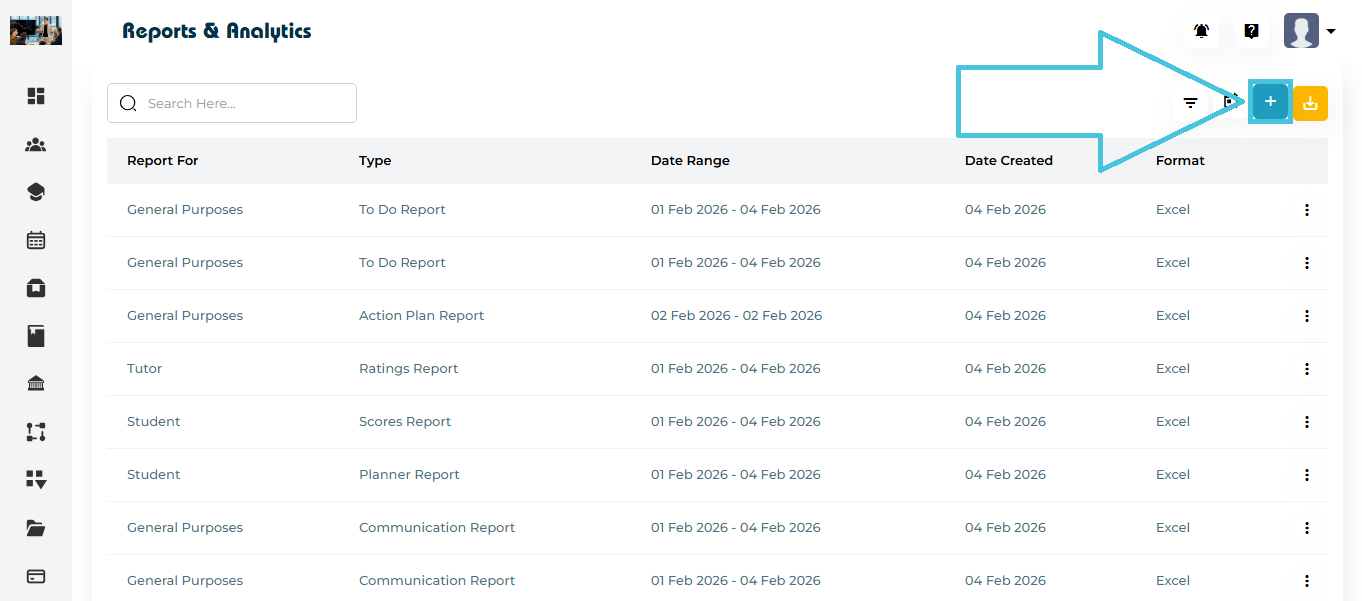
- ➕ Create Report button to generate a new report
Reports in PrepBase are organized by category. These categories appear:
- As filters on the main Reports page, and
- As category options when creating a new report.
Reports Categories:
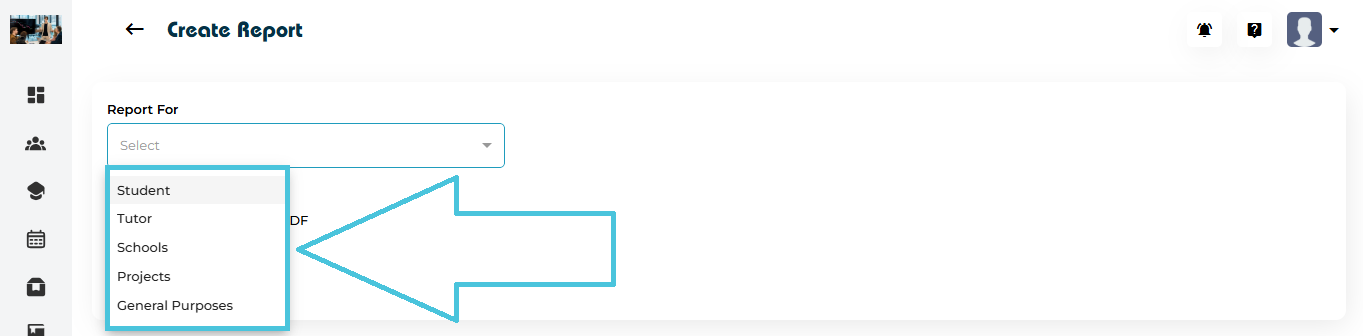
- Student
- Tutor/Counsellor
- Schools
- Projects
- General Purposes
Reports are created from the Reports & Analytics page and follow a consistent workflow regardless of category.
Steps to create a report:
- Navigate to Reports & Analytics
- Click the ➕ Create Report button
- Select the required Report Category (Students, Tutors / Counselors, Schools / Universities, Projects, or General Purpose)
- Select the applicable Report Type
- Configure available filters and options
- Select the export format (Excel, CSV, or PDF)
- Click Generate
The generated report will appear in the main Reports list and can be downloaded or deleted using the action menu.
When Student is selected as the report category, the following report types are available:
Student report types include:
- Scores Report
- Planner Report
- College List Report
- College Application Report
- Families Report
- Student Retention Report
- Activity Report
- Student Details Report
- Packages Report
5.1 Student Report – Scores Reports
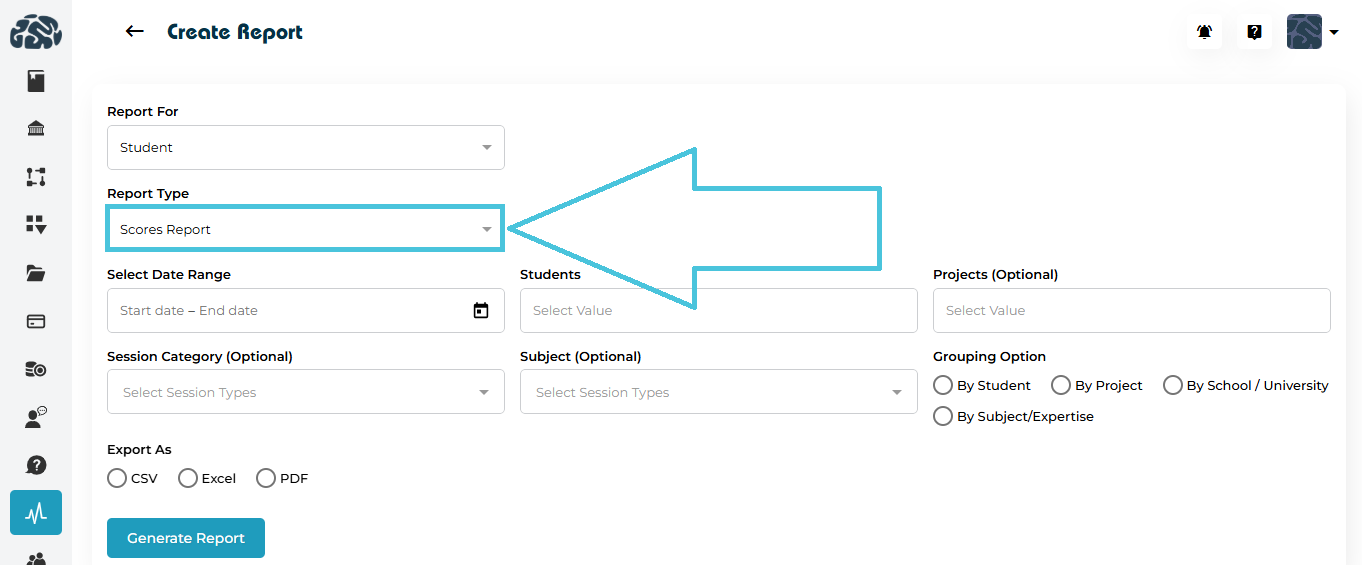
The Scores Report provides insight into student performance and engagement. This will show the scores details from all the actions plans for the studnets based on the tutors/counselors inputs.
Available Filters & Options
When generating a Scores Report, users can configure the following:
- Date Range (via calendar selection)
- Students (one or more students can be selected)
- Projects ( one or more projects can be selected)
- Session Category ( this field is optional, and users may select one or multiple categories)
- Subject / Expertise (this field is optional, and users may select one or multiple categories)
- Grouping Options:
- By Student
- By Project
- By School / University
- By Subject / Expertise
Export Formats
The Scores Report can be generated in the following formats:
- Excel
- CSV
5.2 Student Reports – Planner Report
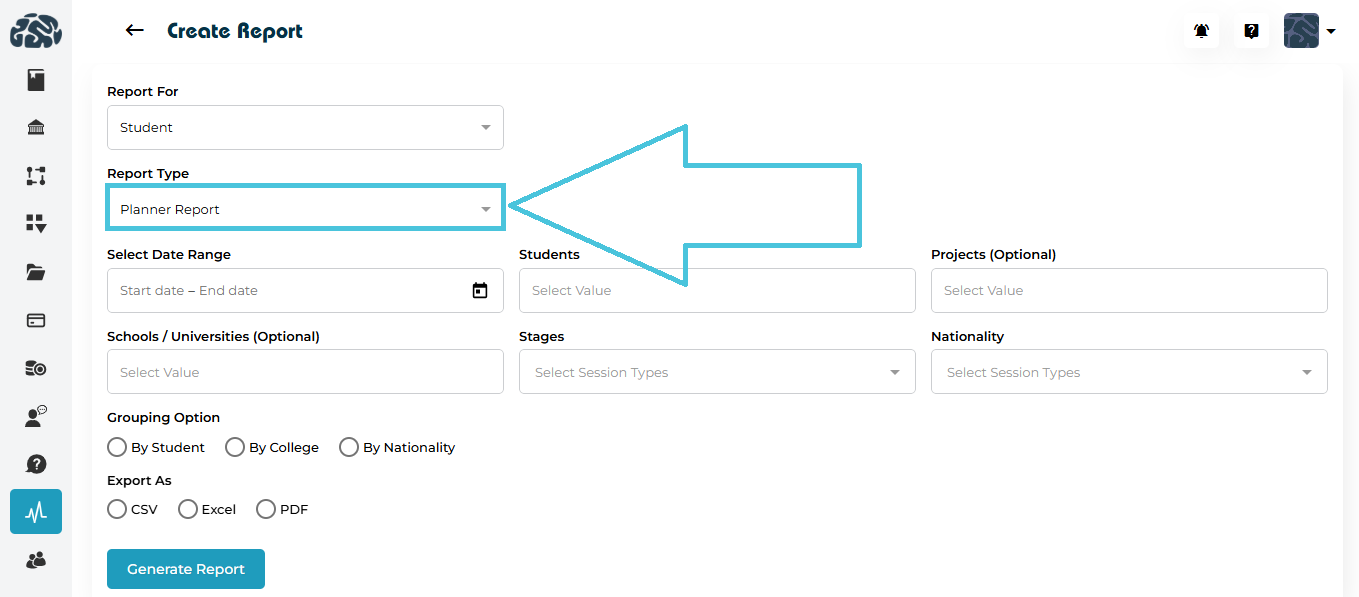
The Planner Report provides visibility into student planning data, including assigned stages, and saved scores within the studnets Planner Tab under Counseling.
Available Filters & Options
When generating a Planner Report, users can configure the following:
- Date Range (via calendar selection)
- Students (may select one or more students)
- Projects (Optional)
- Schools / Universities (Optional)
- Stages (may select one or more stages)
- Nationality (may select one or more countries)
Grouping Options
- By Student
- By College
- By Nationality
Export Formats
The Planner Report can be generated in the following formats:
- Excel
- CSV
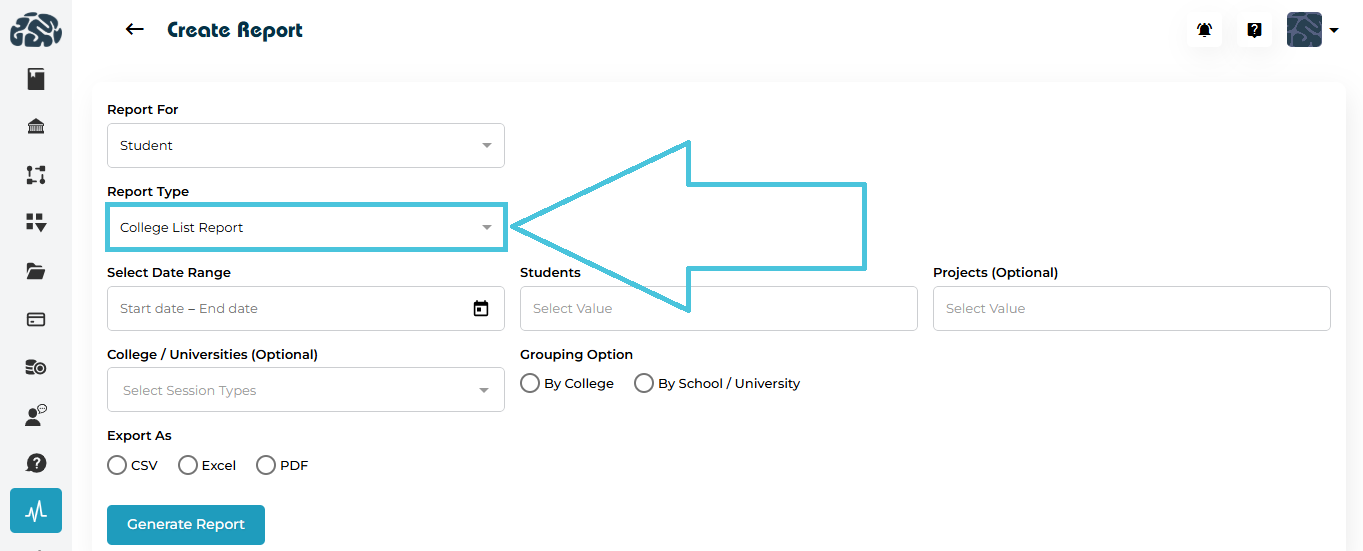
5.3 Student Reports – College List Report
The College List Report provides visibility into colleges or universities saved by the students into their College List Tab under Counseling.
Available Filters & Options
When generating a College List Report, users can configure the following:
- Date Range (via calendar selection)
- Students (may select one or more students)
- Projects (Optional)
- College / Universities (Optional)
Grouping Options
- By College
- By School / University
Export Formats
The College List Report can be generated in the following formats:
- Excel
- CSV
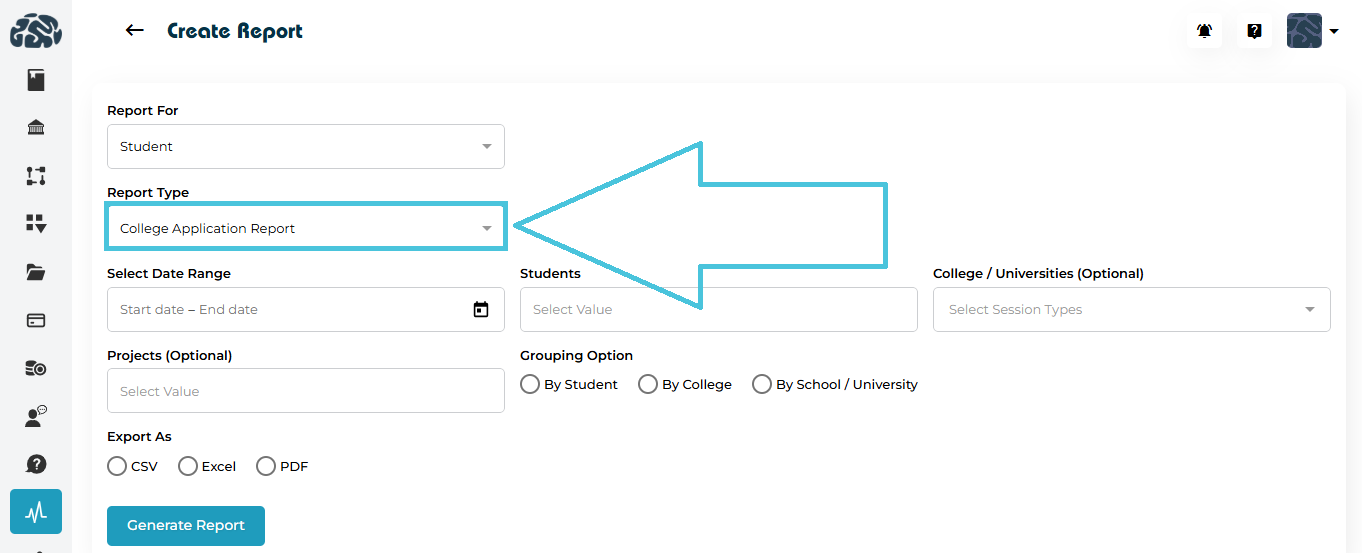
5.4 Student Reports – College Application Report
The College Application Report provides visibility into student college application records based on what they are saving within their College List.
Available Filters & Options
When generating a College Application Report, users can configure the following:
- Date Range (via calendar selection)
- Students (may select one or more students)
- Projects (Optional)
- College / Universities (Optional)
Grouping Options
- By Student
- By College
- By School / University
Export Formats
The College Application Report can be generated in the following formats:
- Excel
- CSV
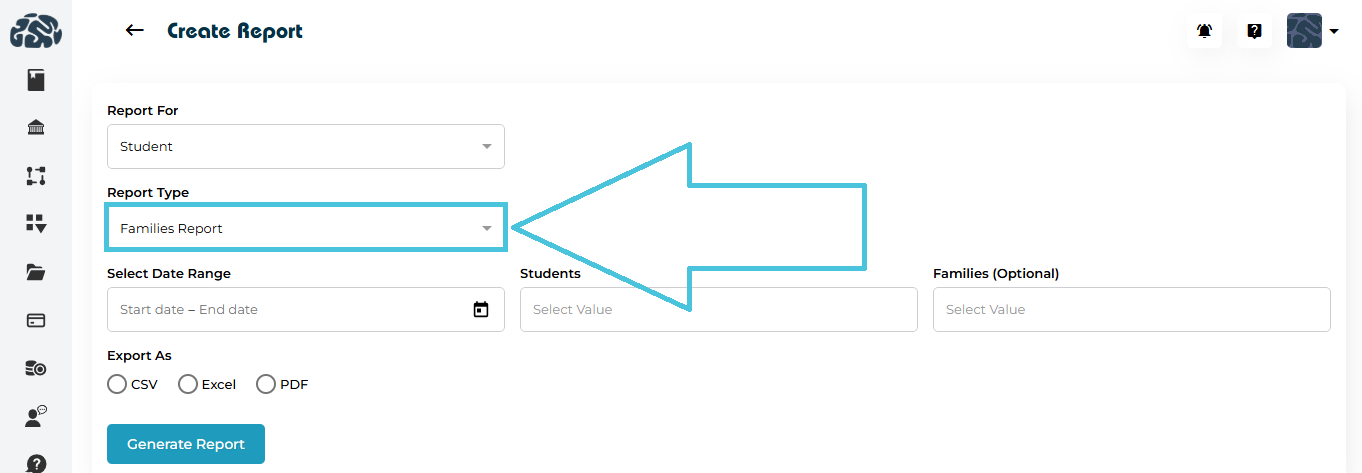
5.5 Student Reports – Families Report
The Families Report provides visibility into family records associated with students including, family details and total amount spend or outstanding.
Available Filters & Options
When generating a Families Report, users can configure the following:
- Date Range (via calendar selection)
- Students (may select one or more students)
- Families (Optional)
Export Formats
The Families Report can be generated in the following formats:
- Excel
- CSV
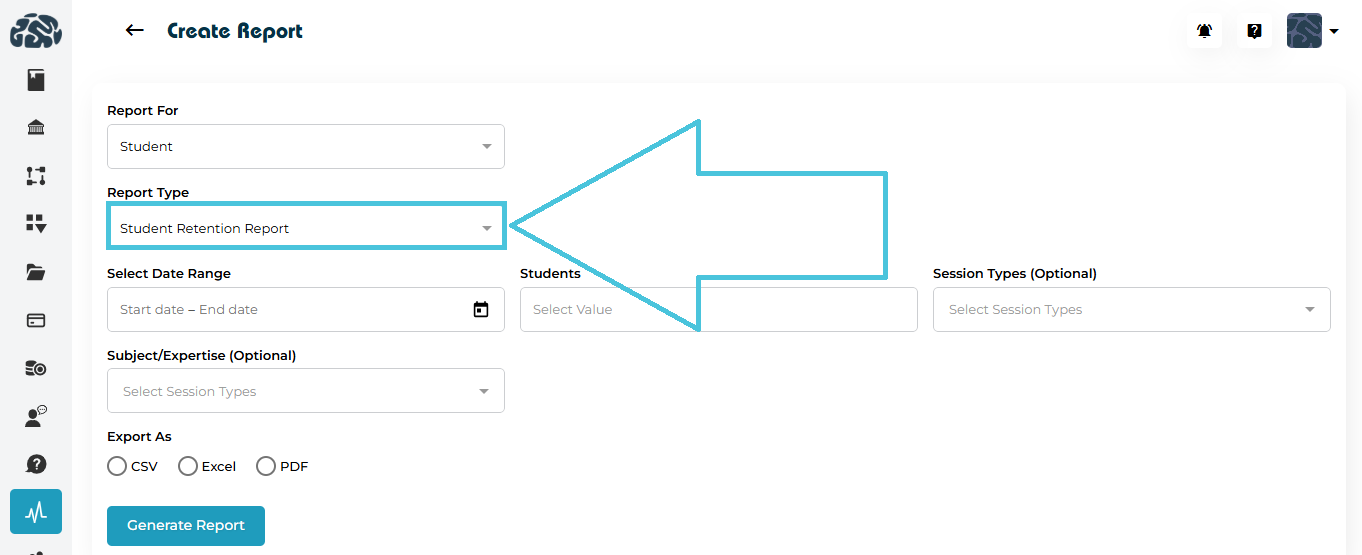
5.6 Student Reports – Student Retention Report
The Student Retention Report provides visibility into student retention data over a selected period based on the purchased packages.
Available Filters & Options
When generating a Student Retention Report, users can configure the following:
- Date Range (via calendar selection)
- Students (may select one or more students)
- Session Types (Optional)
- Subject / Expertise (Optional)
Export Formats
The Student Retention Report can be generated in the following formats:
- Excel
- CSV
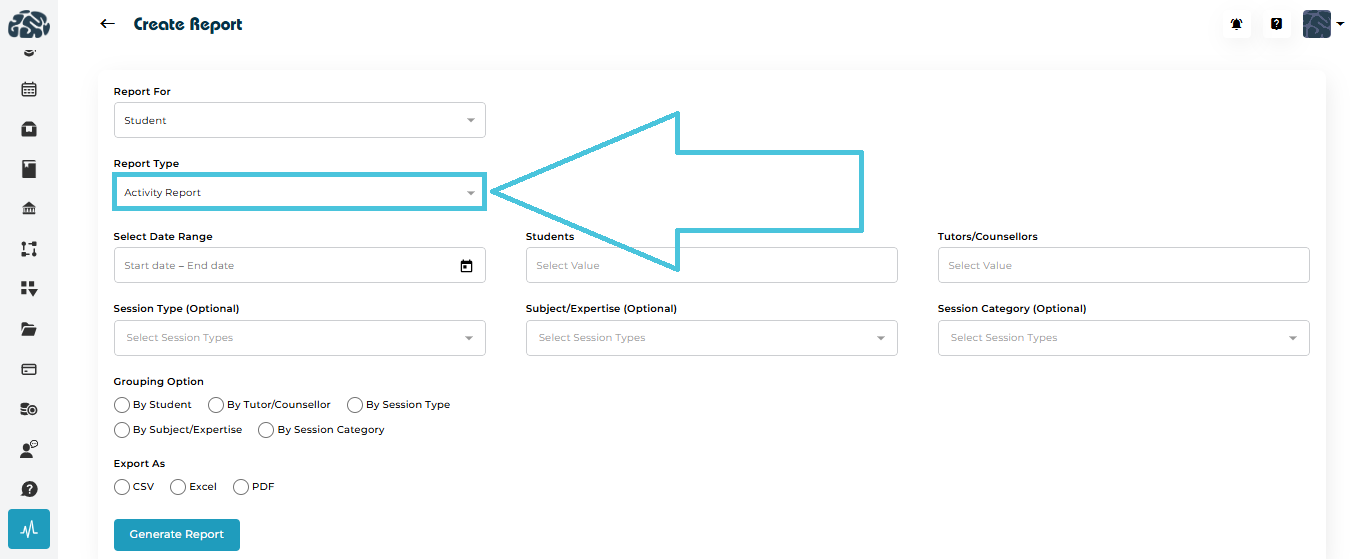
5.7 Student Reports – Activity Report
The Activity Report provides visibility into student session activity and total hours consumed over a selected period.
Available Filters & Options
When generating an Activity Report, users can configure the following:
- Date Range (via calendar selection)
- Students (may select one or more students)
- Tutors / Counselors (may select one or more tutors/counselors)
- Session Type (Optional)
- Subject / Expertise (Optional)
- Session Category (Optional)
Grouping Options
- By Student
- By Tutor / Counselor
- By Session Type
- By Subject / Expertise
- By Session Category
Export Formats
The Activity Report can be generated in the following formats:
- Excel
- CSV
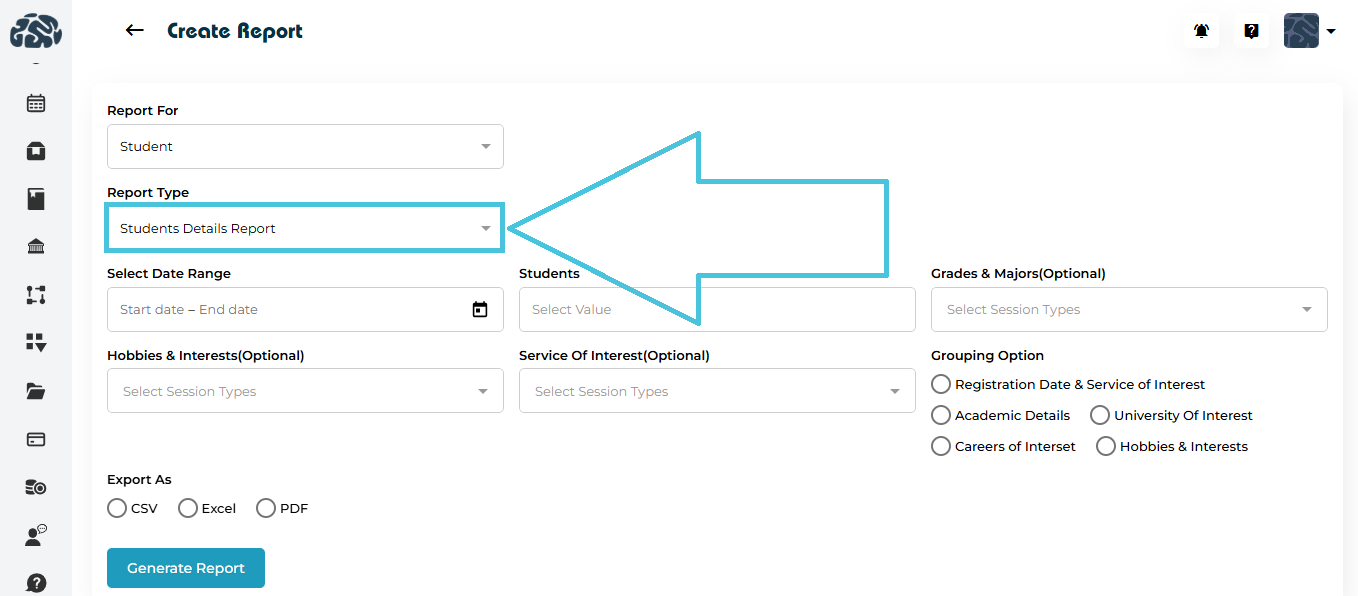
5.8 Student Reports – Student Details Report
The Student Details Report provides detailed student profile information based on selected criteria.
Available Filters & Options
When generating a Student Details Report, users can configure the following:
- Date Range (via calendar selection)
- Students (may select one or more students)
- Grades & Majors (Optional)
- Hobbies & Interests (Optional)
- Service of Interest (Optional)
Grouping Options
- Registration Date & Service of Interest
- Academic Details
- University of Interest
- Careers of Interest
- Hobbies & Interests
Export Formats
The Student Details Report can be generated in the following formats:
- Excel
- CSV
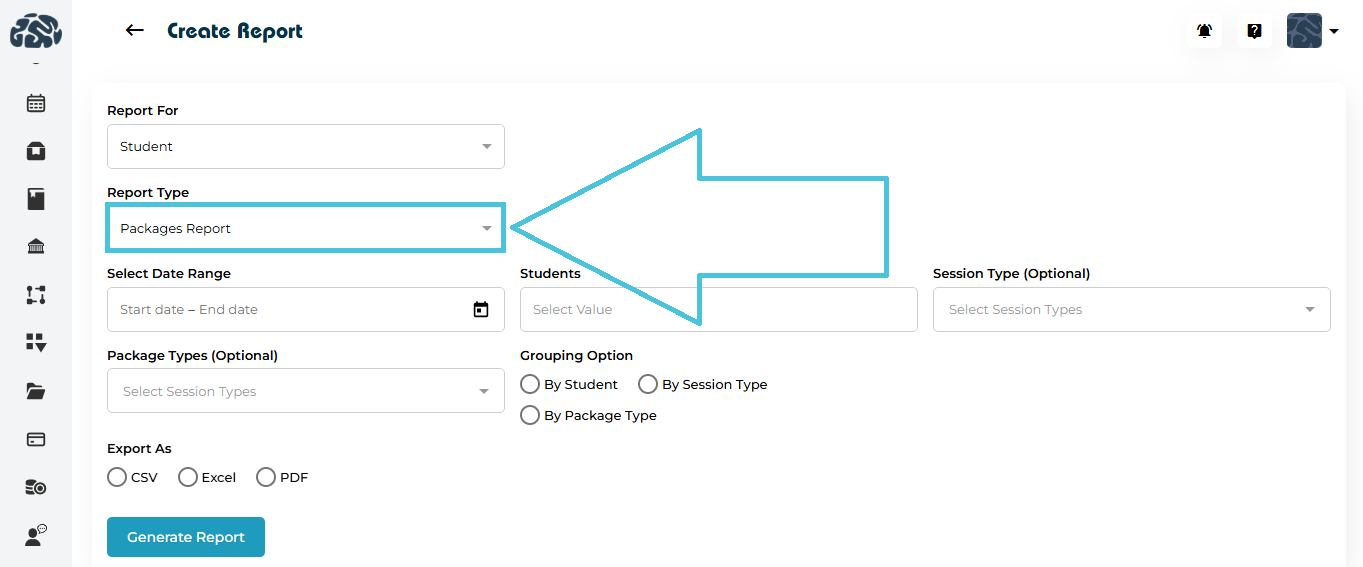
5.9 Student Reports – Packages Report
The Packages Report provides visibility into student package allocations and usage over a selected period.
Available Filters & Options
When generating a Packages Report, users can configure the following:
- Date Range (via calendar selection)
- Students (may select one or more students)
- Session Type (Optional)
- Package Types (Optional)
Grouping Options
- By Student
- By Session Type
- By Package Type
Export Formats
The Packages Report can be generated in the following formats:
- Excel
- CSV
When Tutor is selected as the report category, the following report types are available:
- Ratings Report
- Activity Report
- Instructors Details Report
- Availability Report
- Preferences Report
- Matched Students Report
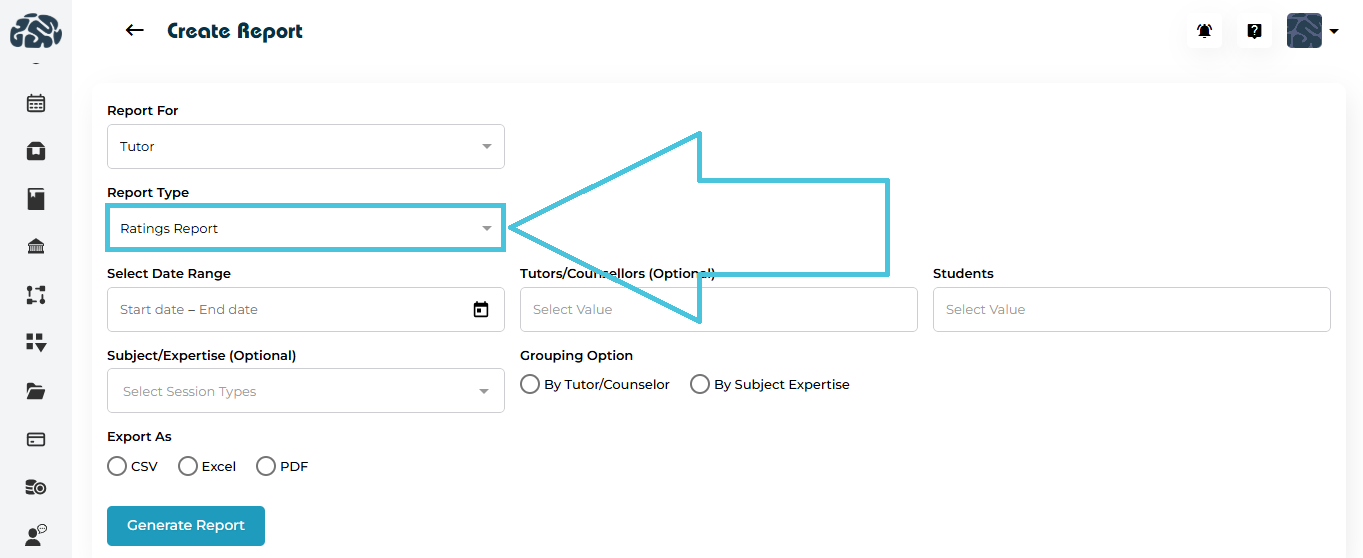
6.1 Tutor / Counselor Reports – Ratings Report
The Ratings Report provides visibility into tutor or counselor ratings over a selected period including student feedback.
Available Filters & Options
When generating a Ratings Report, users can configure the following:
- Date Range (via calendar selection)
- Tutors / Counselors (Optional, may select one or more)
- Students (may select one or more)
- Subject / Expertise (Optional)
Grouping Options
- By Tutor / Counselor
- By Subject / Expertise
Export Formats
The Ratings Report can be generated in the following formats:
- Excel
- CSV
6.2 Tutor / Counselor Reports – Activity Report
The Activity Report provides visibility into tutor or counselor session activity over a selected period including total hours delivered.
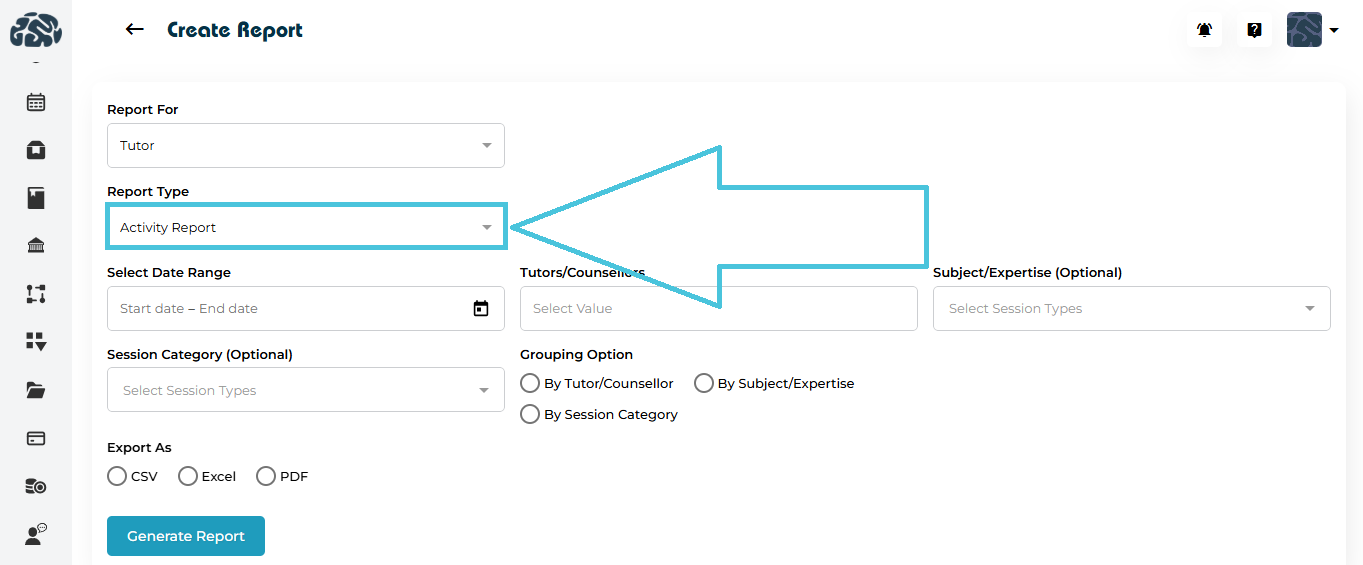
Available Filters & Options
When generating an Activity Report, users can configure the following:
- Date Range (via calendar selection)
- Tutors / Counselors
- Subject / Expertise (Optional)
- Session Category (Optional)
Grouping Options
- By Tutor / Counselor
- By Subject / Expertise
- By Session Category
Export Formats
The Activity Report can be generated in the following formats:
- Excel
- CSV
6.3 Tutor / Counselor Reports – Instructors Details Report
The Instructors Details Report provides detailed profile information for tutors or counselors based on selected criteria.
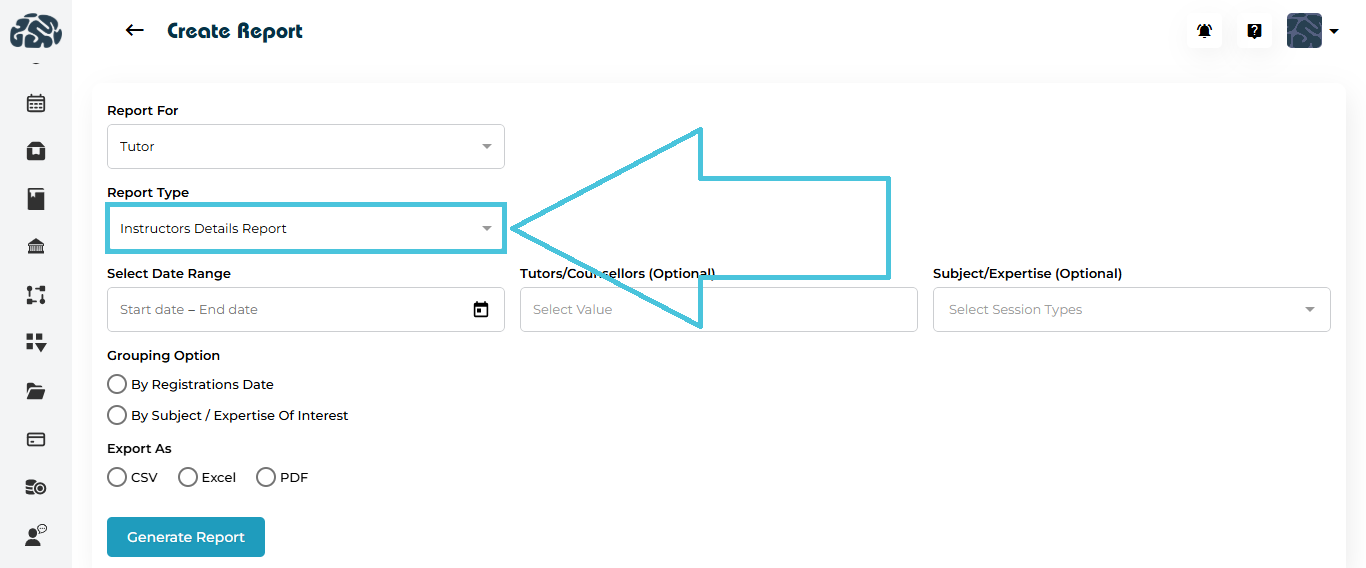
Available Filters & Options
When generating an Instructors Details Report, users can configure the following:
- Date Range (via calendar selection)
- Tutors / Counselors (Optional)
- Subject / Expertise (Optional)
Grouping Options
- By Registration Date
- By Subject / Expertise of Interest
Export Formats
The Instructors Details Report can be generated in the following formats:
- Excel
- CSV
6.4 Tutor / Counselor Reports – Availability Report
The Availability Report provides visibility into tutor or counselor availability based on the preference set under their profile.
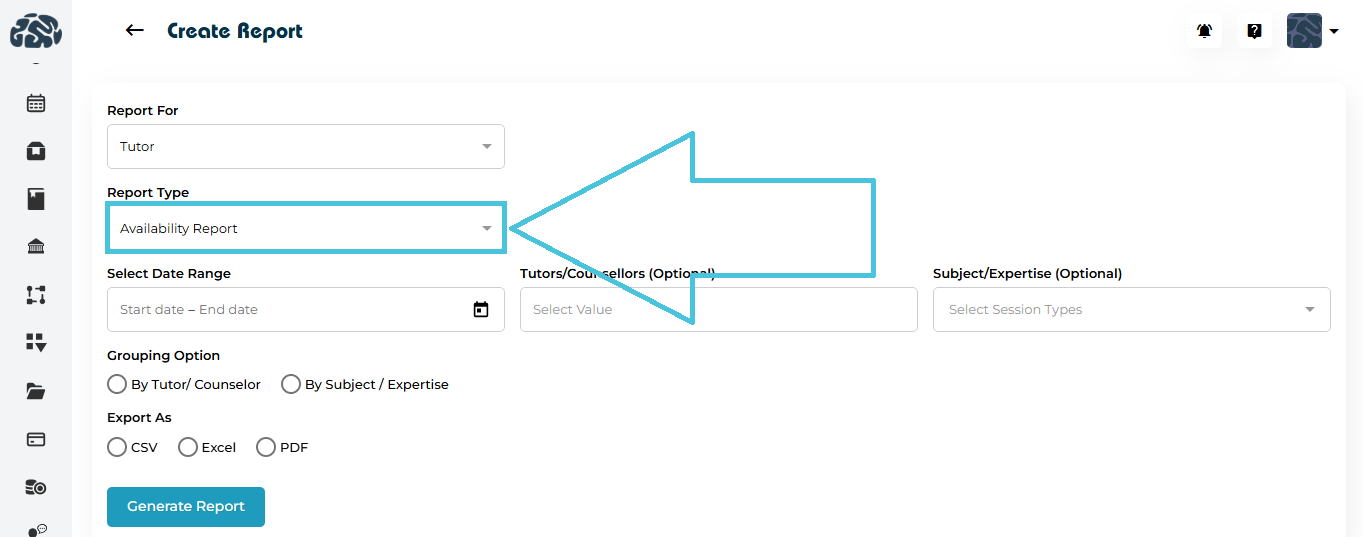
Available Filters & Options
When generating an Availability Report, users can configure the following:
- Date Range (via calendar selection)
- Tutors / Counselors (Optional)
- Subject / Expertise (Optional)
Grouping Options
- By Tutor / Counselor
- By Subject / Expertise
Export Formats
The Availability Report can be generated in the following formats:
- Excel
- CSV
6.5 Tutor / Counselor Reports – Preferences Report
The Preferences Report provides visibility into tutor or counselor preferences and settings including preferred mode of delivery and offering a free consultation.
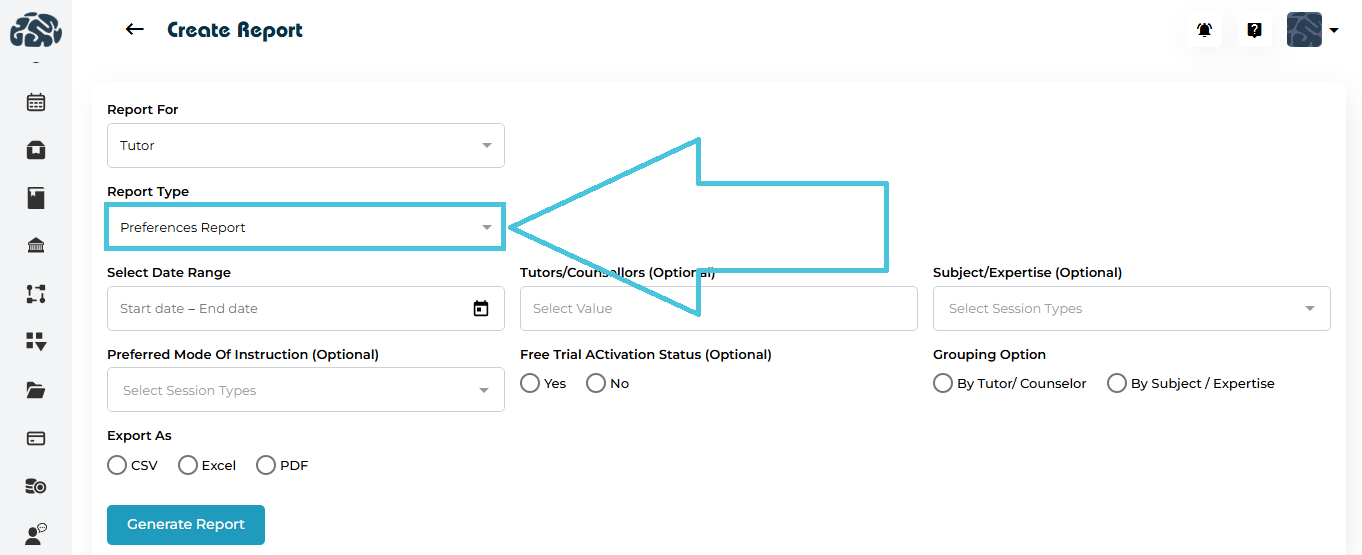
Available Filters & Options
When generating a Preferences Report, users can configure the following:
- Date Range (via calendar selection)
- Tutors / Counselors (Optional)
- Subject / Expertise (Optional)
- Preferred Mode of Instruction (Optional)
- Free Trial Activation Status (Optional: Yes / No)
Grouping Options
- By Tutor / Counselor
- By Subject / Expertise
Export Formats
The Preferences Report can be generated in the following formats:
- Excel
- CSV
6.6 Tutor / Counselor Reports – Matched Students Report
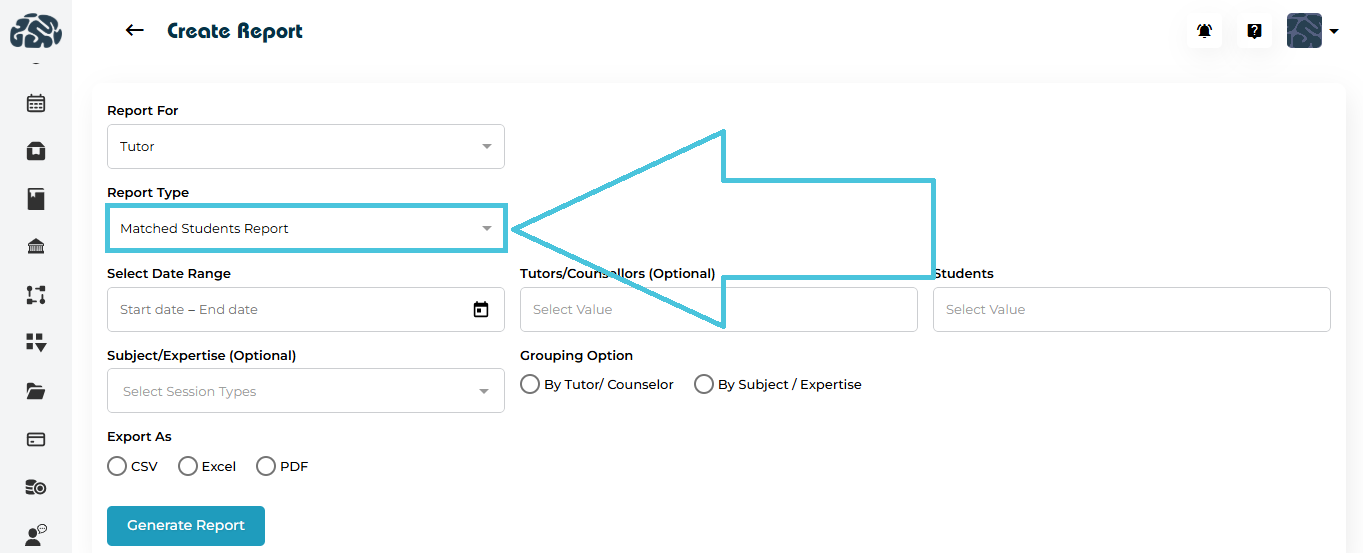
The Matched Students Report provides visibility into students matched with tutors or counselors over a selected period.
Available Filters & Options
When generating a Matched Students Report, users can configure the following:
- Date Range (via calendar selection)
- Tutors / Counselors (Optional)
- Students (may select one or more students)
- Subject / Expertise (Optional)
Grouping Options
- By Tutor / Counselor
- By Subject / Expertise
Export Formats
The Matched Students Report can be generated in the following formats:
- Excel
- CSV
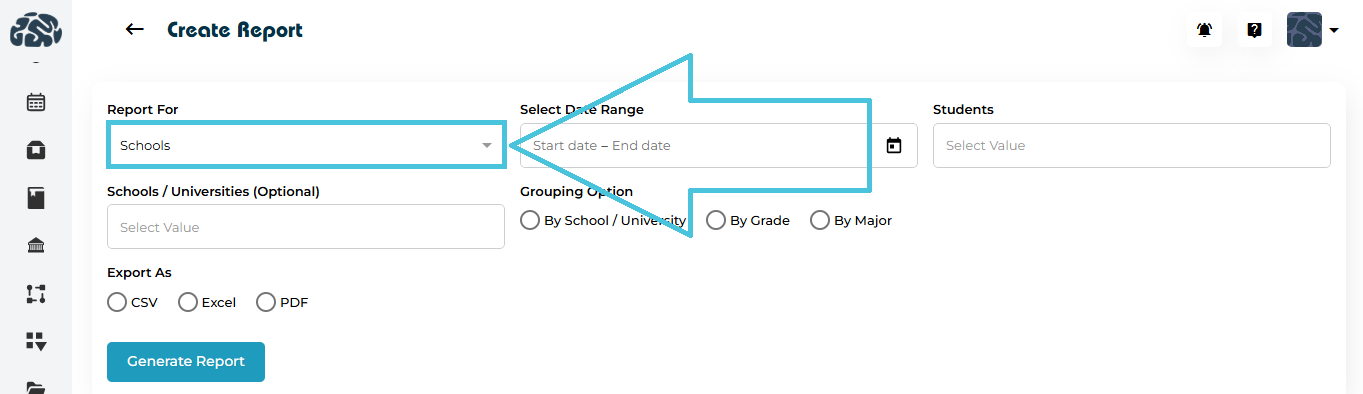
The Schools Report provides visibility into student distribution across schools over a selected period.
Available Filters & Options
When generating a Schools / Universities Report, users can configure the following:
- Date Range (via calendar selection)
- Students (may select one or more)
- Schools / Universities (Optional, may select one or more)
Grouping Options
- By School / University
- By Grade
- By Major
Export Formats
The Schools / Universities Report can be generated in the following formats:
- Excel
- CSV
Projects Reports provide structured insights into project-level data, allowing users to analyze participants, progress stages, tiers, tasks, and delivery status across projects.
Accessing Projects Reports
- Navigate to Reports.
- Select Create Report.
- From Report For, select Projects.
Report Types
Under Report Type, users can select one of the following:
- Users Report
- Students Report
- Stages Report
- Tier Report
- Custom Reports
- Tasks Report
- Delivery Report
Each report type determines the data structure and available output.
8.1 Projects Reports – Users Report
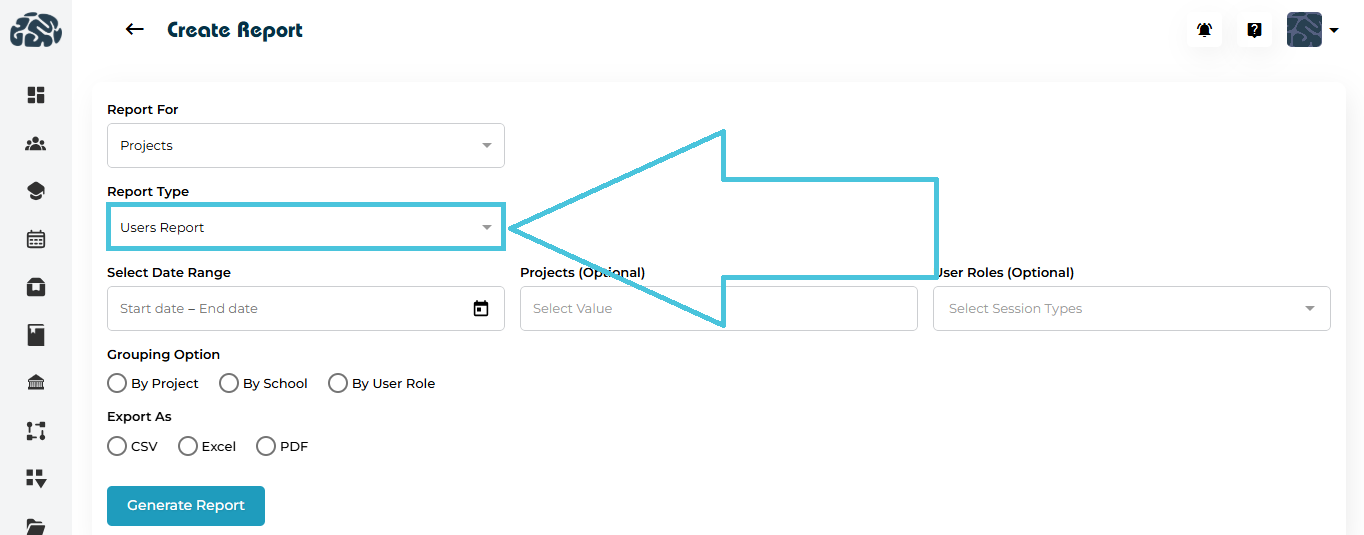
The Users Report under Projects provides visibility into users associated with projects, allowing administrators to analyze user participation, roles, and distribution across projects.
Available Filters & Options
When generating a Projects – Users Report, users can configure the following:
- Date Range (via calendar selection)
- Projects (Optional, may select one or more)
- User Roles (Optional, may select one or more)
Grouping Options
- By Project
- By School
- By User Role ( Admin, Coordinator, Student, Tutor, Counselor )
Export Formats
The Projects – Users Report can be generated in the following formats:
- Excel
- CSV
8.2 Projects Reports – Students Report
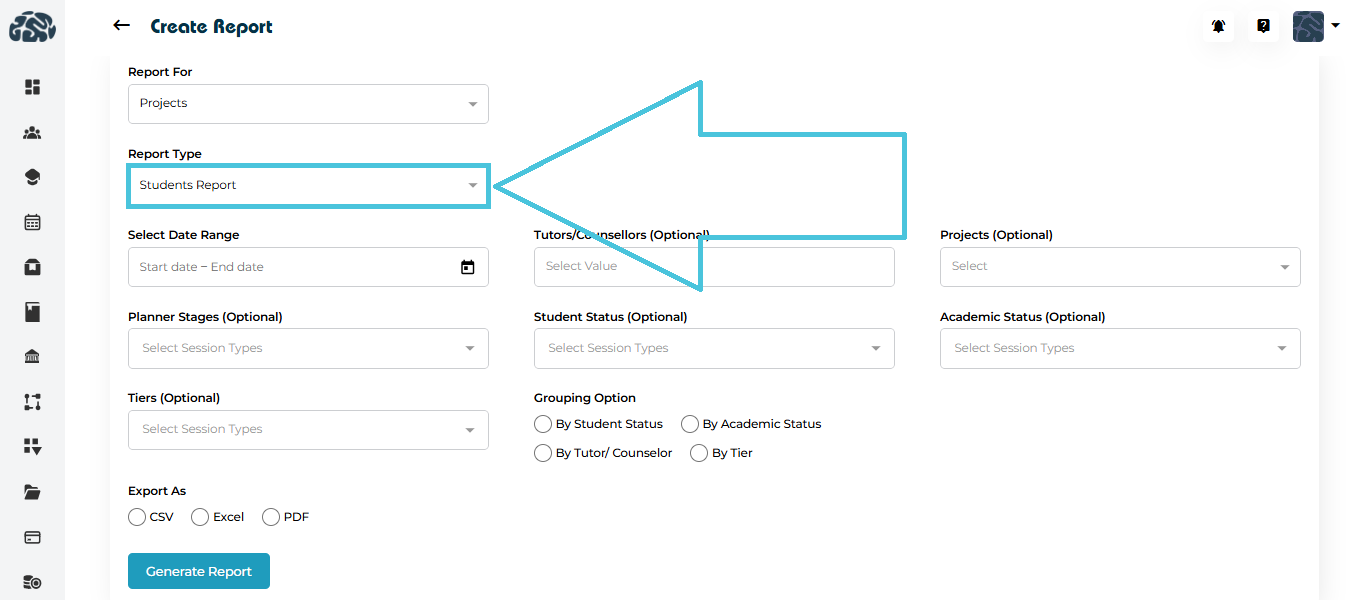
The Projects – Students Report provides visibility into students associated with projects over a selected period, allowing users to analyze student status, academic status, stages and tiers.
Available Filters & Options
When generating a Projects – Students Report, users can configure the following:
- Date Range (via calendar selection)
- Tutors / Counsellors (Optional, may select one or more)
- Projects (Optional, may select one or more)
- Planner Stages (Optional, may select one or more)
- Student Status (Optional, may select one or more)
- Academic Status (Optional, may select one or more)
- Tiers (Optional, may select one or more)
Grouping Options
- By Student Status
- By Academic Status
- By Tutor / Counsellor
- By Tier
Export Formats
The Projects – Students Report can be generated in the following formats:
- Excel
- CSV
8.3 Projects Reports – Stages Report
The Projects – Stages Report provides visibility into project stages over a selected period, enabling users to track progress and status of students within each stage of the project.
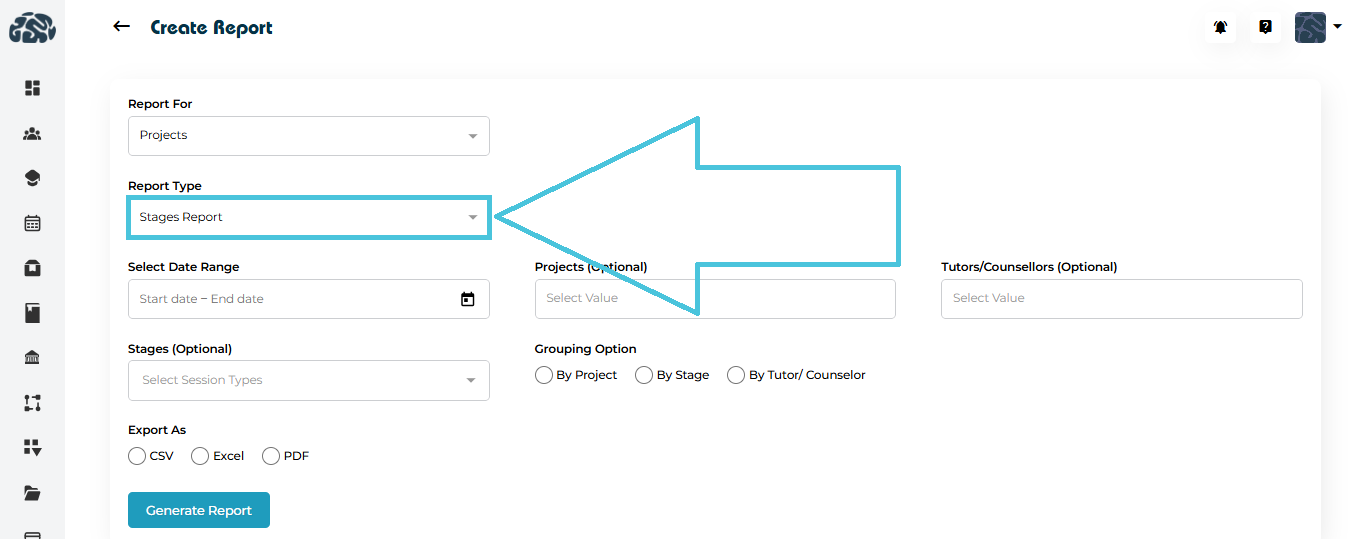
Available Filters & Options
When generating a Projects – Stages Report, users can configure the following:
- Date Range (via calendar selection)
- Projects (Optional, may select one or more)
- Tutors / Counsellors (Optional, may select one or more)
- Stages (Optional, may select one or more)
Grouping Options
- By Project
- By Stage
- By Tutor / Counsellor
Export Formats
The Projects – Stages Report can be generated in the following formats:
- Excel
- CSV
8.4 Projects Reports – Students Report
The Projects – Tier Report provides visibility into project distribution across different tiers over a selected period based on the linked Tier reports for every project.
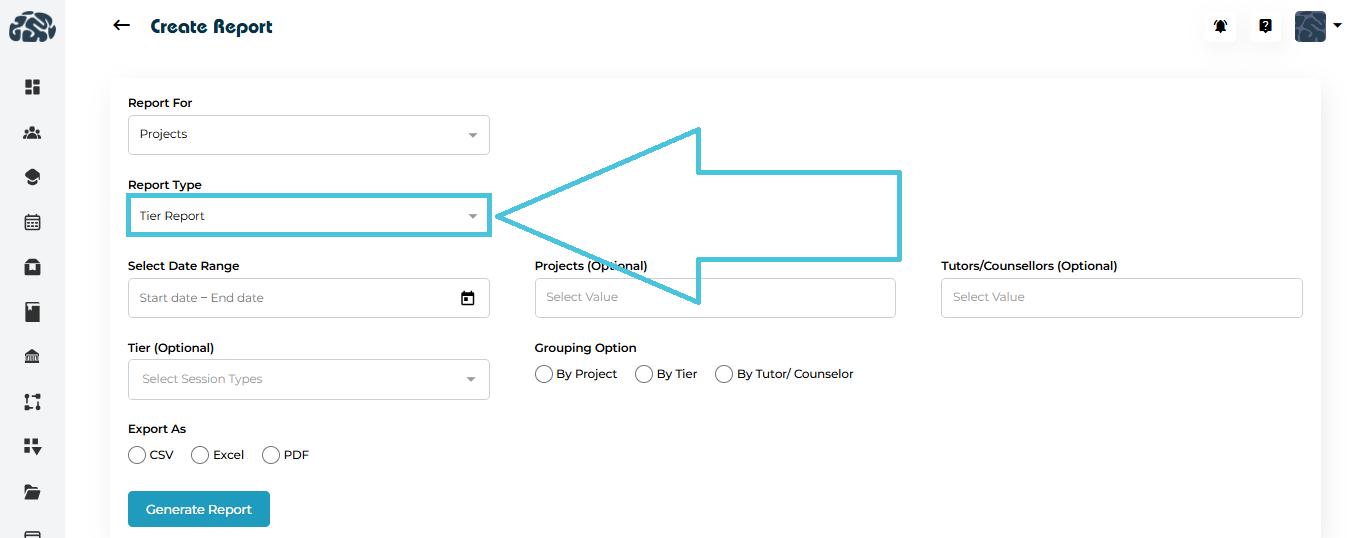
Available Filters & Options
When generating a Projects – Tier Report, users can configure the following:
- Date Range (via calendar selection)
- Projects (Optional, may select one or more)
- Tutors / Counsellors(Optional, may select one or more)
- Tier (Optional, may select one or more)
Grouping Options
- By Project
- By Tier
- By Tutor / Counsellor
Export Formats
The Projects – Tier Report can be generated in the following formats:
- Excel
- CSV
8.5 Projects Reports – Students Report
The Projects – Custom Reports option allows users to generate tailored project reports based on selected custom reporting configurations attached to each project.
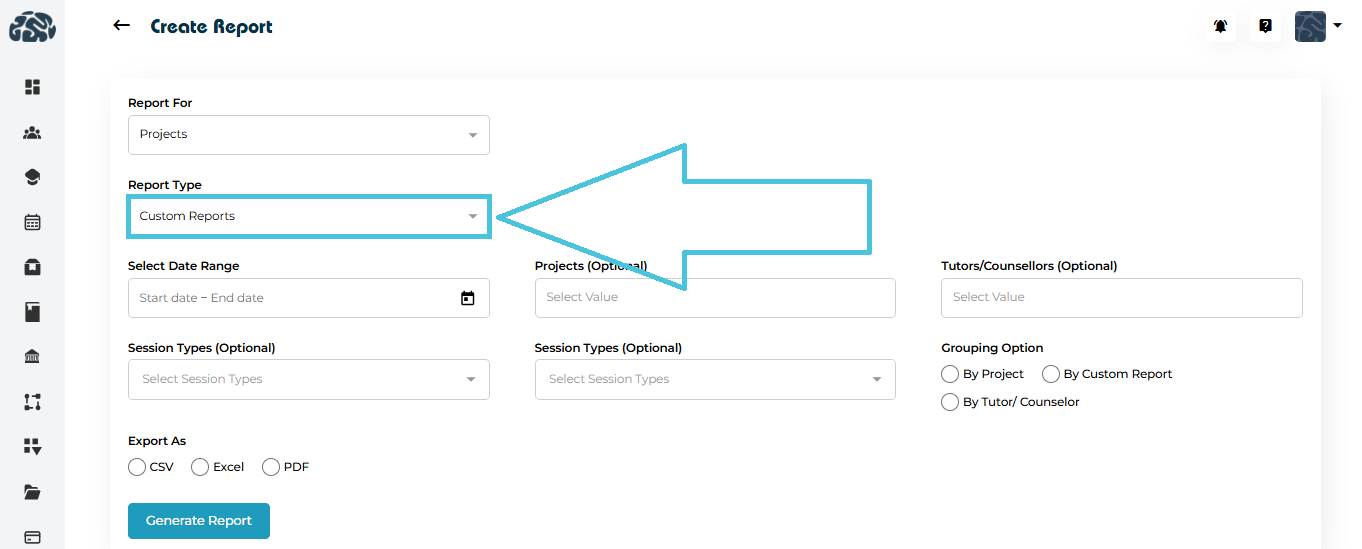
Available Filters & Options
When generating a Projects – Custom Report, users can configure the following:
- Date Range (via calendar selection)
- Projects (Optional, may select one or more)
- Tutors / Counsellors (Optional, may select one or more)
- Session Types (Optional, may select one or more)
- Custom Report Type (Optional, depending on configuration)
Grouping Options
- By Project
- By Custom Report
- By Tutor / Counsellor
Export Formats
The Projects – Custom Reports can be generated in the following formats:
- Excel
- CSV
8.6 Projects Reports – Students Report
The Projects – Tasks Report provides visibility into tasks associated with projects over a selected period. This report helps track task assignments, progress, and status across students for each project.
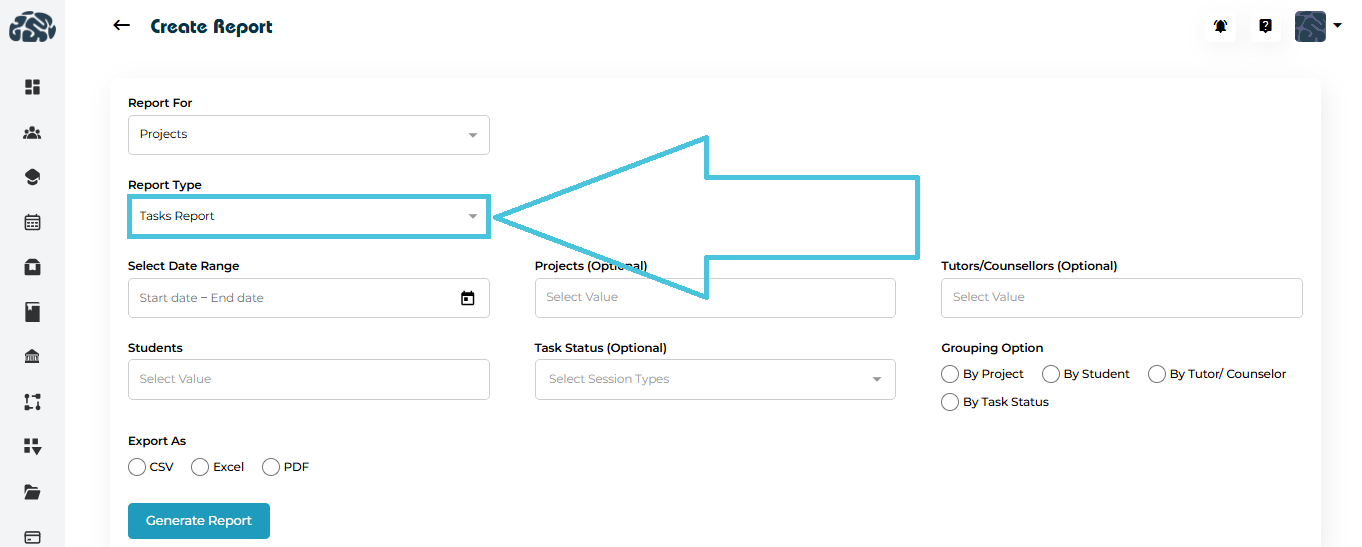
Available Filters & Options
When generating a Projects – Tasks Report, users can configure the following:
- Date Range (via calendar selection)
- Projects (Optional, may select one or more)
- Tutors / Counsellors (Optional, may select one or more)
- Students (may select one or more)
- Task Status (Optional, may select one or more)
Grouping Options
- By Project
- By Student
- By Tutor / Counsellor
- By Task Status
Export Formats
The Projects – Tasks Report can be generated in the following formats:
- Excel
- CSV
8.7 Projects Reports – Students Report
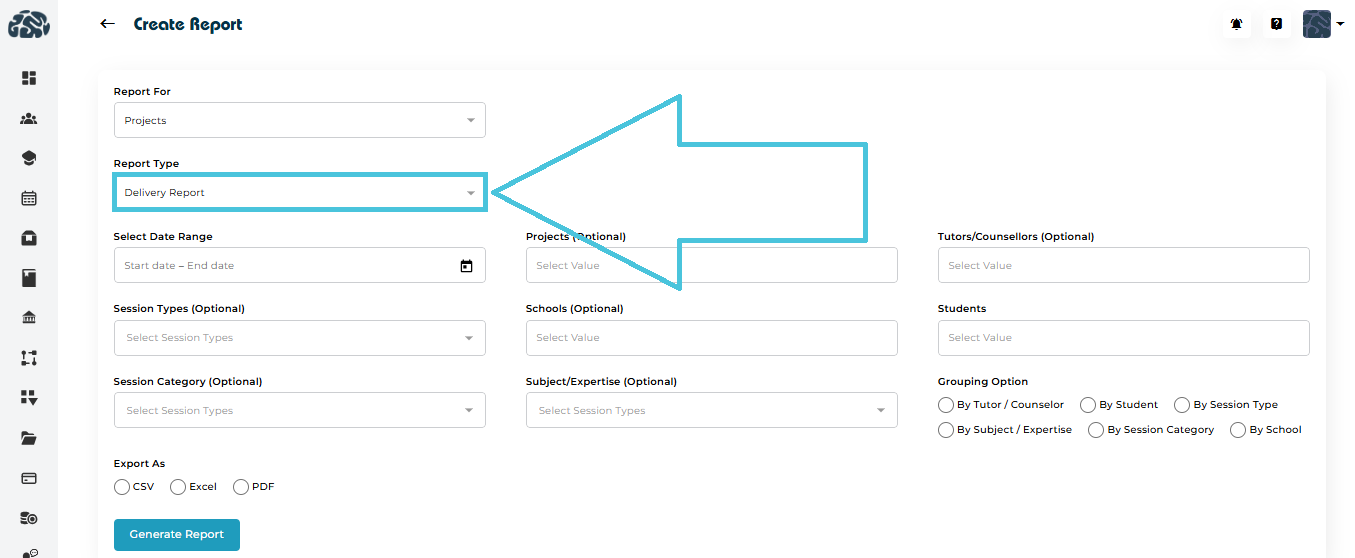
The Projects – Delivery Report provides insights into session delivery across projects within a selected period. This report supports monitoring of service delivery by tracking sessions across tutors, students, schools, and session categories.
Available Filters & Options
When generating a Projects – Delivery Report, users can configure the following:
- Date Range (via calendar selection)
- Projects (Optional, may select one or more)
- Tutors / Counsellors (Optional, may select one or more)
- Students (may select one or more)
- Schools (Optional, may select one or more)
- Session Types (Optional, may select one or more)
- Session Category (Optional, may select one or more)
- Subject / Expertise (Optional, may select one or more)
Grouping Options
- By Tutor / Counsellor
- By Student
- By Session Type
- By Subject / Expertise
- By Session Category
- By School
Export Formats
The Projects – Delivery Report can be generated in the following formats:
- Excel
- CSV
General Purposes Reports provide flexible, cross-functional insights that are not tied to a specific project or role. These reports allow users to analyze operational, financial, academic, and communication-related data across the platform, supporting high-level monitoring and administrative reporting needs.
Accessing General Purposes Reports
- Navigate to Reports
- Select Create Report
- From Report For, select General Purposes
Report Types
Under Report Type, users can select one of the following options. Each report type defines the available filters, grouping options, and output structure:
- Revenue Report
- Sales Tax Report
- Sessions Report
- Action Plan Report
- To Do Report
- Notes Report
- Files Report
- Communication Report
- Courses Report
9.1 General Purposes – Revenue Report
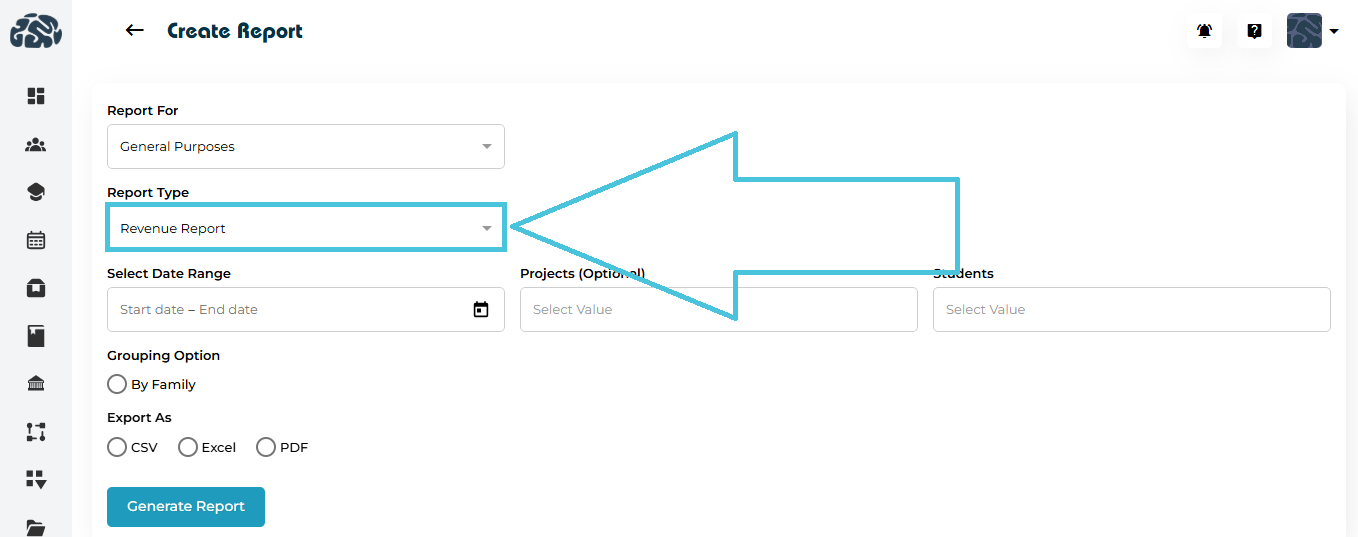
The Revenue Report provides visibility into financial revenue and payments generated across the platform over a selected period.
Available Filters & Options
When generating a Revenue Report, users can configure the following:
- Date Range (via calendar selection)
- Projects (Optional, may select one or more)
- Students (may select one or more)
Grouping Options
- By Family
Export Formats
The Revenue Report can be generated in the following formats:
- Excel
- CSV
9.2 General Purposes – Sales Tax Report
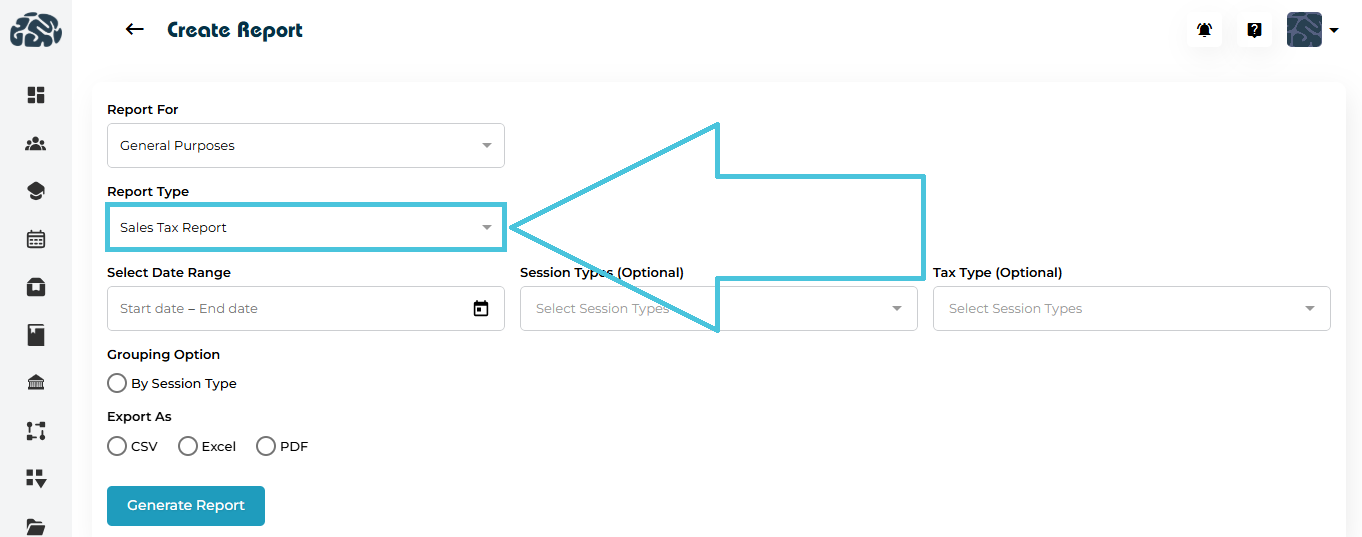
The Sales Tax Report provides detailed visibility into tax amounts applied to total revenue over a selected period.
Available Filters & Options
When generating a Sales Tax Report, users can configure the following:
- Date Range (via calendar selection)
- Session Types (Optional, may select one or more)
- Tax Type (Optional, may select one or more)
Grouping Options
- By Session Type
Export Formats
The Sales Tax Report can be generated in the following formats:
- Excel
- CSV
9.3 General Purposes – Session Report
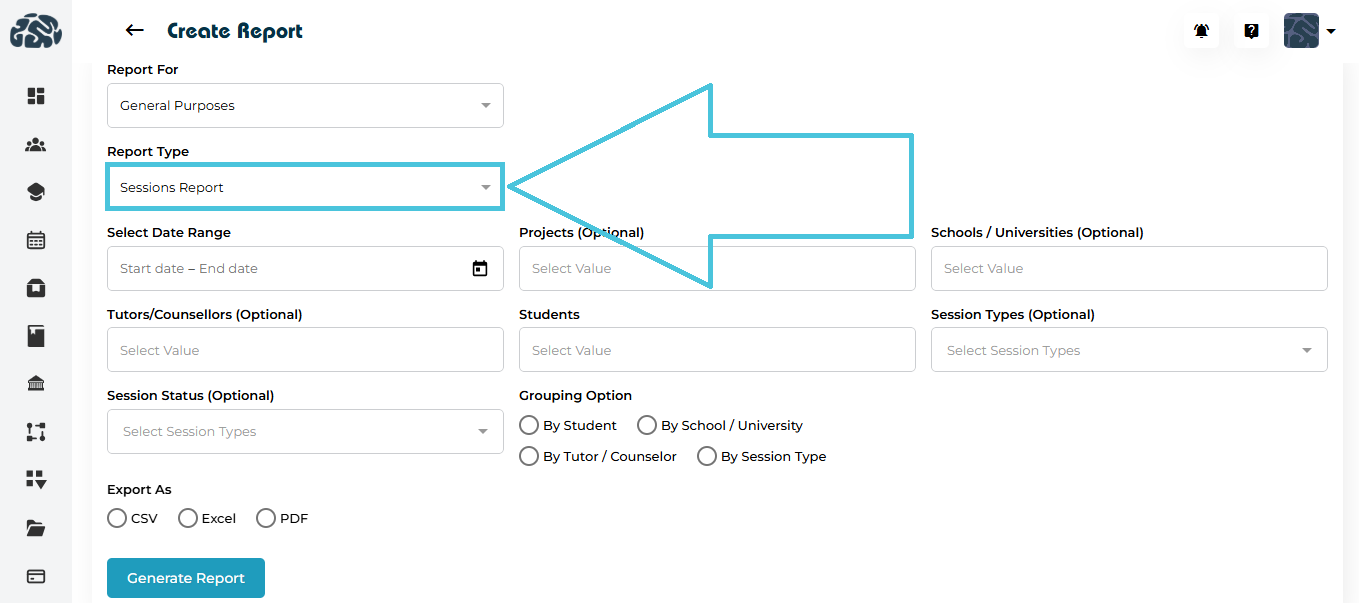
The Sessions Report provides comprehensive visibility into tutoring and counseling sessions conducted over a selected period. It enables users to analyze session activity across students, tutors, and session categories.
Available Filters & Options
When generating a Sessions Report, users can configure the following:
- Date Range (via calendar selection)
- Projects (Optional, may select one or more)
- Schools / Universities (Optional, may select one or more)
- Tutors / Counselors (Optional, may select one or more)
- Students (may select one or more)
- Session Types (Optional, may select one or more)
- Session Status (Optional, may select one or more)
Grouping Options
- By Student
- By School / University
- By Tutor / Counselor
- By Session Type
Export Formats
The Sessions Report can be generated in the following formats:
- Excel
- CSV
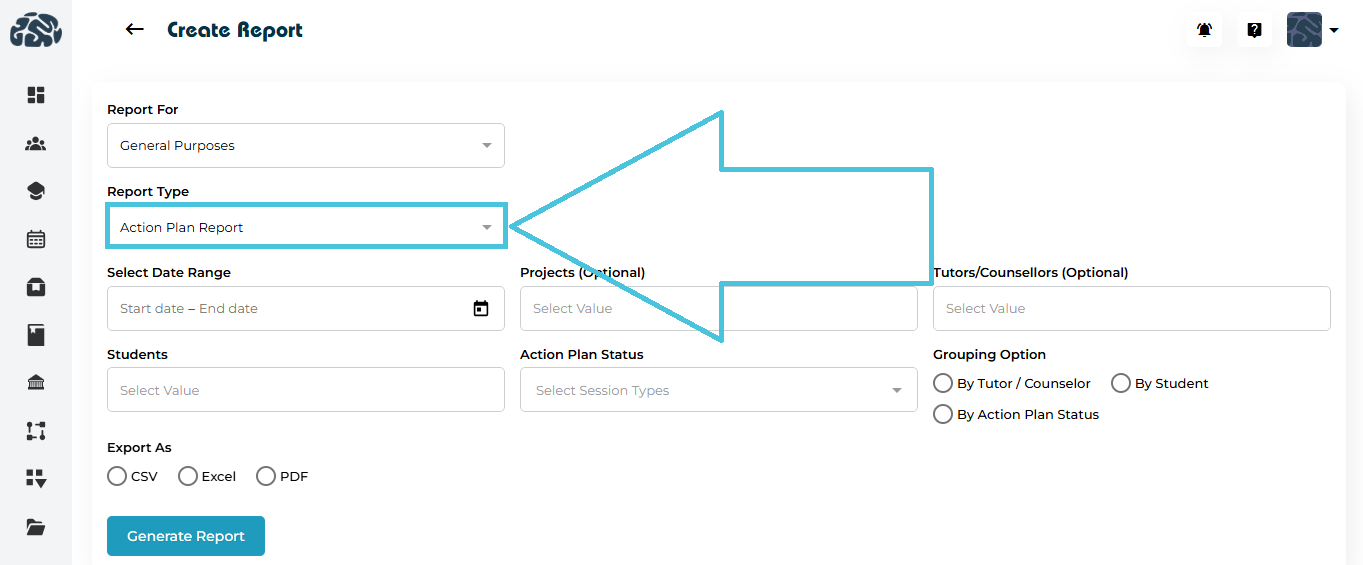
9.4 General Purposes – Action Plan Report
The Action Plan Report provides visibility into action plans assigned to students over a selected period. It allows users to track attendance, session scores, and sesson reports across tutors, counselors, and students.
Available Filters & Options
When generating an Action Plan Report, users can configure the following:
- Date Range (via calendar selection)
- Projects (Optional, may select one or more)
- Tutors / Counselors (Optional, may select one or more)
- Students (may select one or more)
- Action Plan Status (Optional, may select one or more)
Grouping Options
- By Tutor / Counselor
- By Student
- By Action Plan Status
Export Formats
The Action Plan Report can be generated in the following formats:
- Excel
- CSV
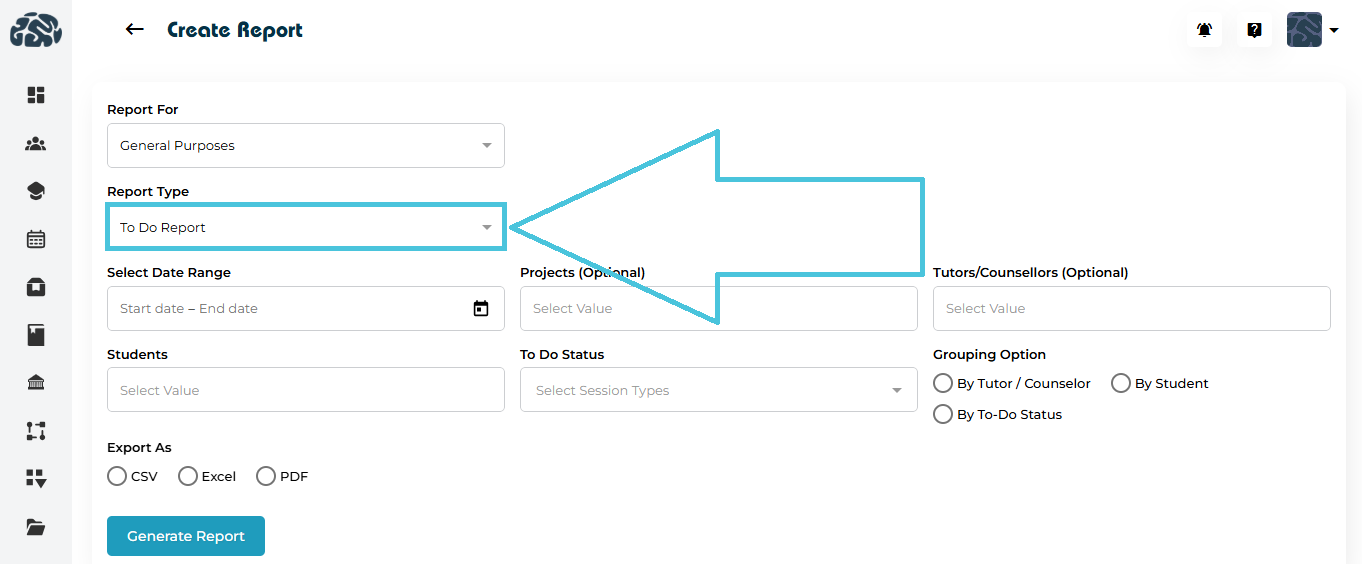
9.5 General Purposes – To Do Report
The To Do Report provides visibility into to-do items assigned to students over a selected period. It allows users to monitor completion status, ownership, and outstanding tasks across tutors, counselors, and students.
Available Filters & Options
When generating a To Do Report, users can configure the following:
- Date Range (via calendar selection)
- Projects (Optional, may select one or more)
- Tutors / Counselors (Optional, may select one or more)
- Students (may select one or more)
- To Do Status (Pending, Completed, Overdue)
Grouping Options
- By Tutor / Counselor
- By Student
- By To Do Status
Export Formats
The To Do Report can be generated in the following formats:
- Excel
- CSV
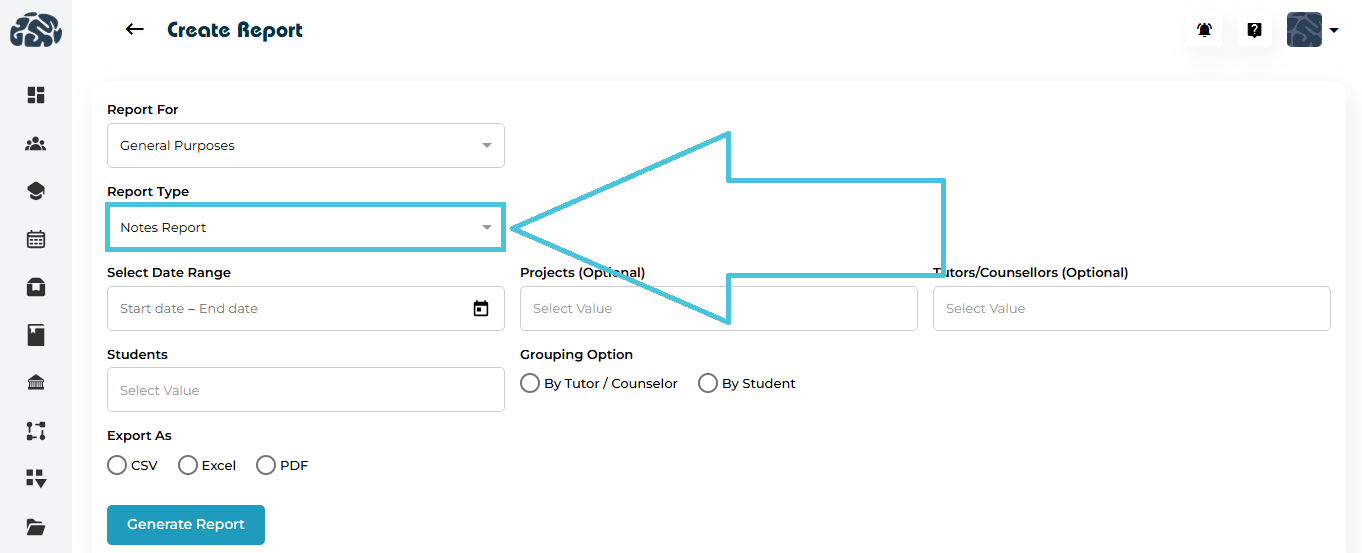
9.6 General Purposes – Notes Report
The Notes Report provides visibility into notes created for students over a selected period. It allows users to review documented interactions, observations, and follow-up records created by tutors or counselors for students.
Available Filters & Options
When generating a Notes Report, users can configure the following:
- Date Range (via calendar selection)
- Projects (Optional, may select one or more)
- Tutors / Counselors (Optional, may select one or more)
- Students (may select one or more)
Grouping Options
- By Tutor / Counselor
- By Student
Export Formats
The Notes Report can be generated in the following formats:
- Excel
- CSV
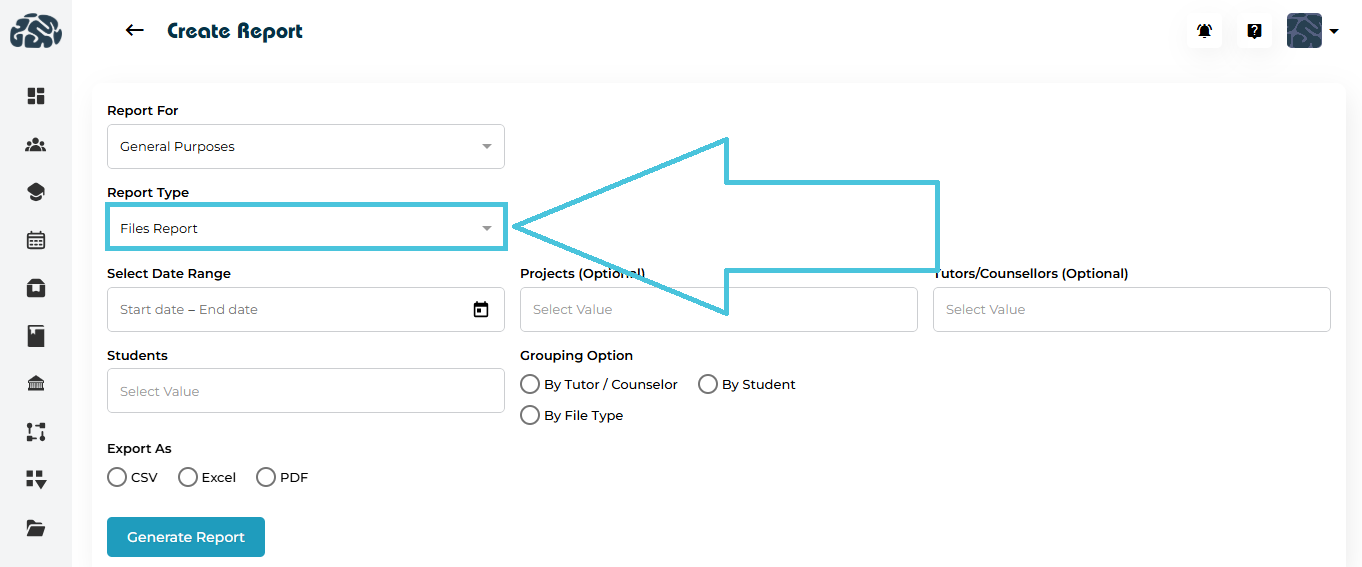
9.7 General Purposes – Files Report
The Files Report provides visibility into files uploaded and associated with students, tutors, and counselors over a selected period. It enables users to review documentation activity, file distribution, and file types shared by tutors or counselors.
Available Filters & Options
When generating a Files Report, users can configure the following:
- Date Range (via calendar selection)
- Projects (Optional, may select one or more)
- Tutors / Counselors (Optional, may select one or more)
- Students (may select one or more)
Grouping Options
- By Tutor / Counselor
- By Student
- By File Type
Export Formats
The Files Report can be generated in the following formats:
- Excel
- CSV
9.8 General Purposes – Communication Report
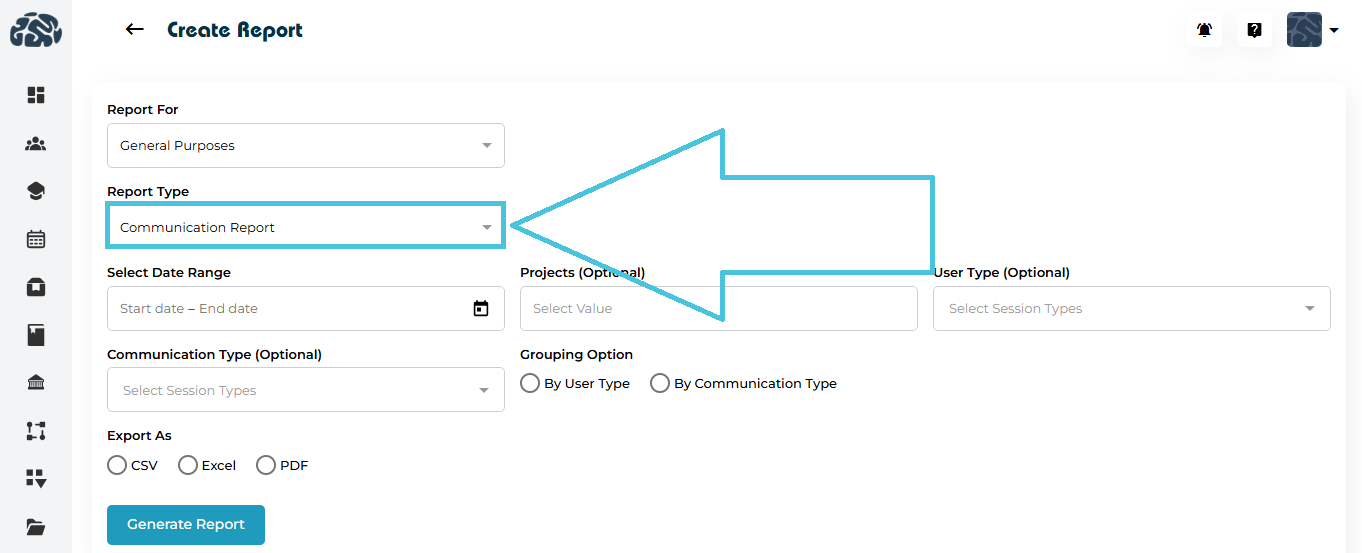
The Communication Report provides visibility into communication activities recorded within the system over a selected period. It allows users to review communication volume and types across user groups.
Available Filters & Options
When generating a Communication Report, users can configure the following:
- Date Range (via calendar selection)
- Projects (Optional, may select one or more)
- User Type (Optional)
- Communication Type (Optional)
Grouping Options
- By User Type
- By Communication Type
Export Formats
The Communication Report can be generated in the following formats:
- Excel
- CSV
9.9 General Purposes – Courses Report
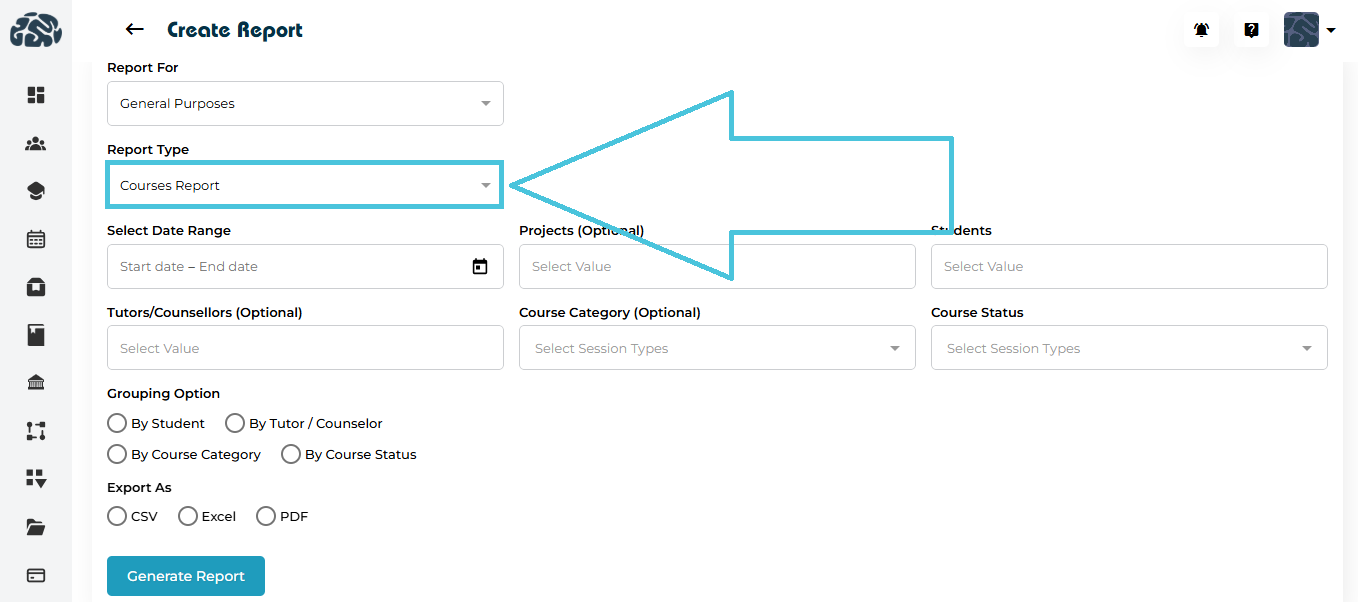
The Courses Report provides visibility into course-related data, allowing users to analyze course participation, categories, and completion status over a selected period.
Available Filters & Options
When generating a Courses Report, users can configure the following:
- Date Range (via calendar selection)
- Projects (Optional, may select one or more)
- Students (may select one or more)
- Tutors / Counselors (Optional)
- Course Category (Optional)
- Course Status (Optional- In Progress/ Completed)
Grouping Options
- By Student
- By Tutor / Counselor
- By Course Category
- By Course Status
Export Formats
The Courses Report can be generated in the following formats:
- Excel
- CSV