Go to:
Left Sidebar → Communication
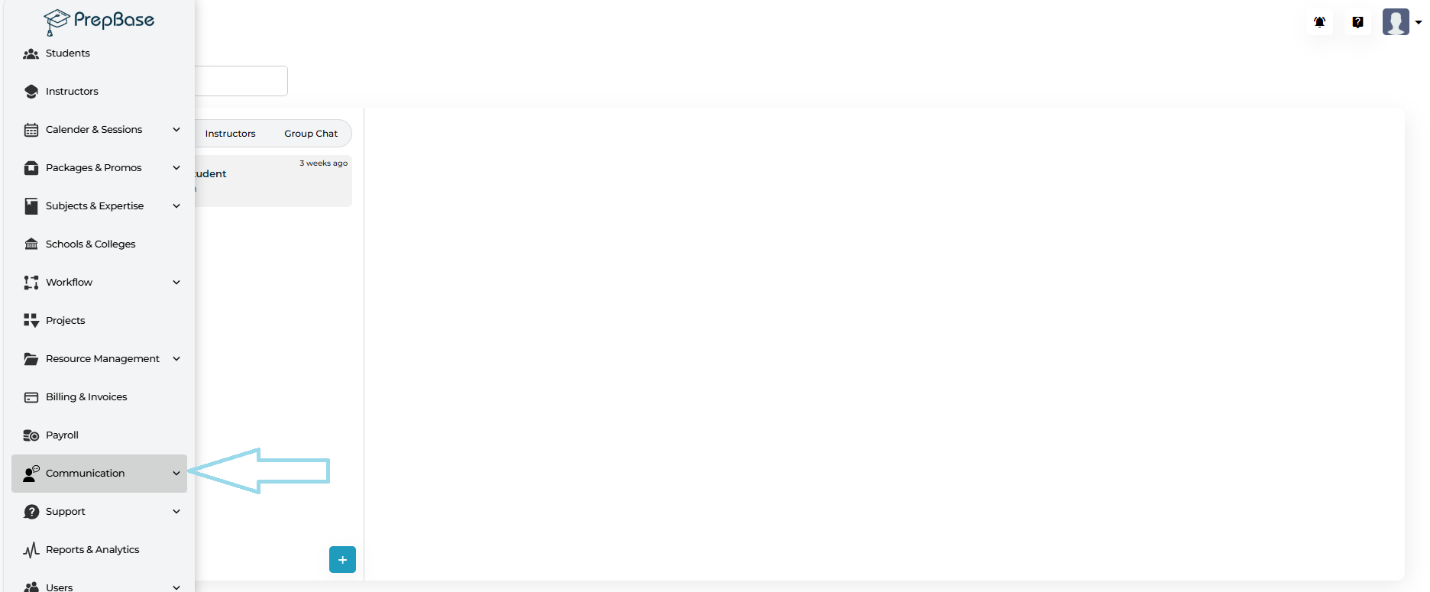
The Messaging section allows admins to initiate and manage direct communication with individual users or groups.
This includes:
- One-to-one messages
- Group messages
Sending a New Message
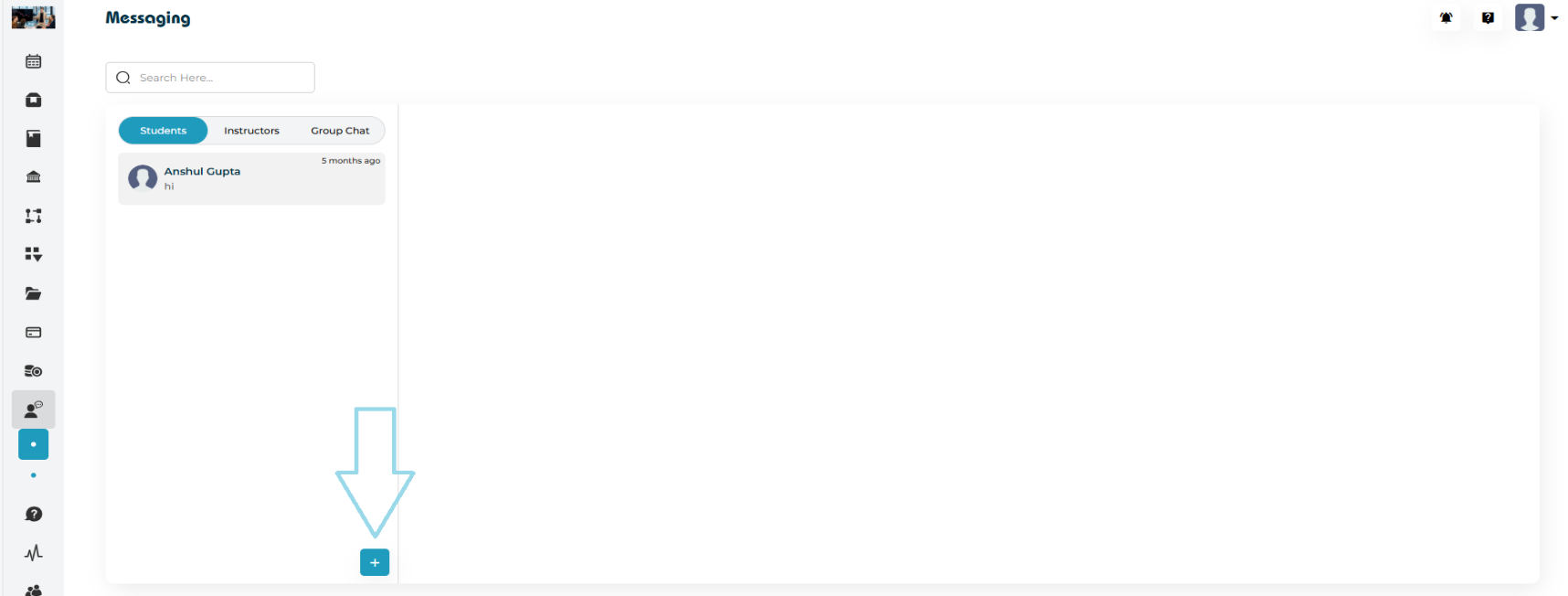
Admins can send a new message directly from the Communication module.
Steps:
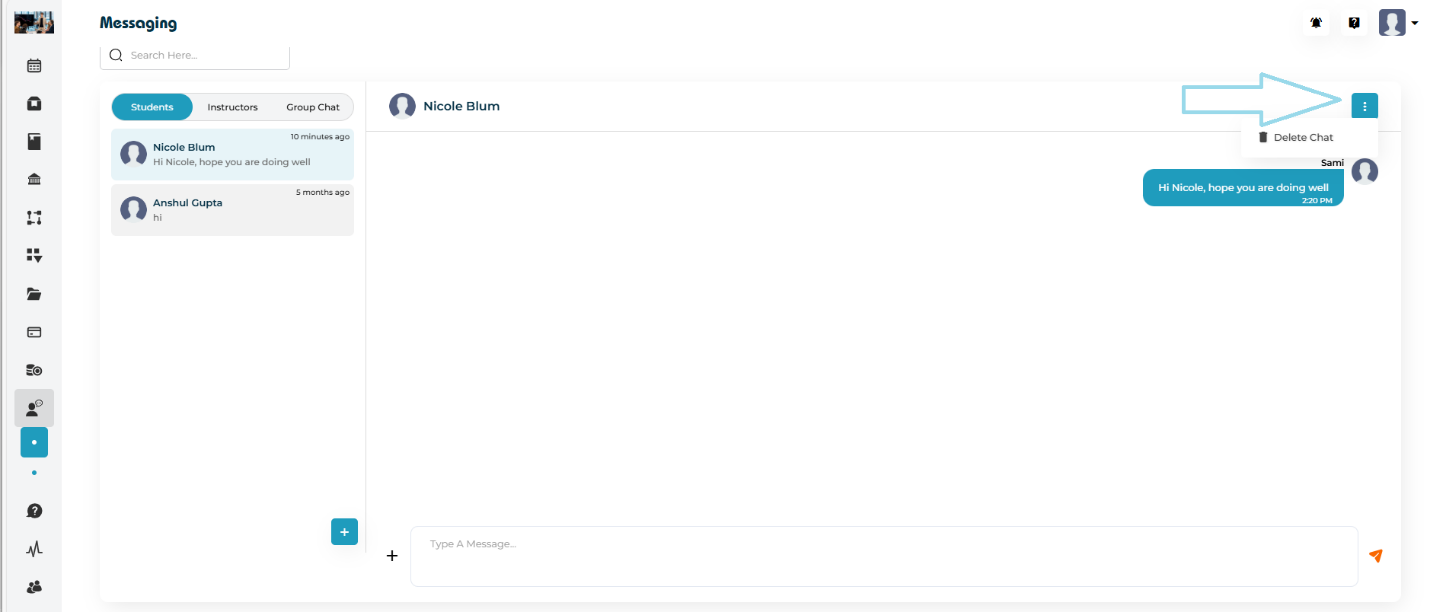
- Click the ➕ Add button in the lower-left corner.
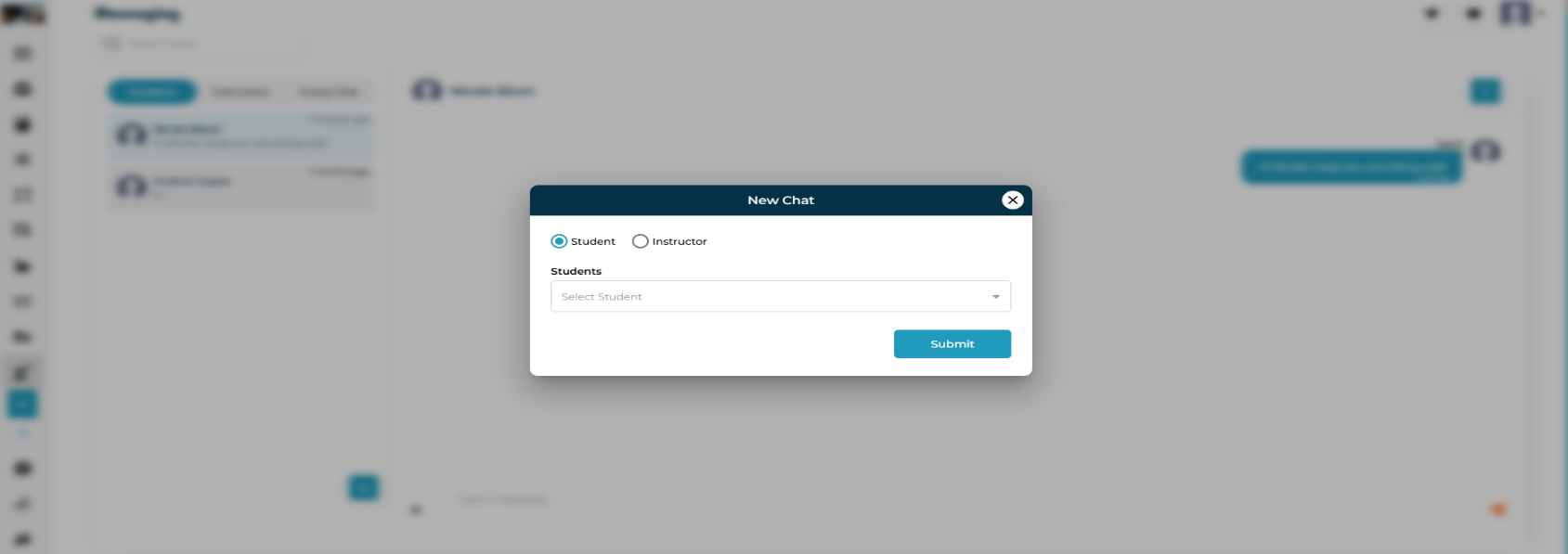
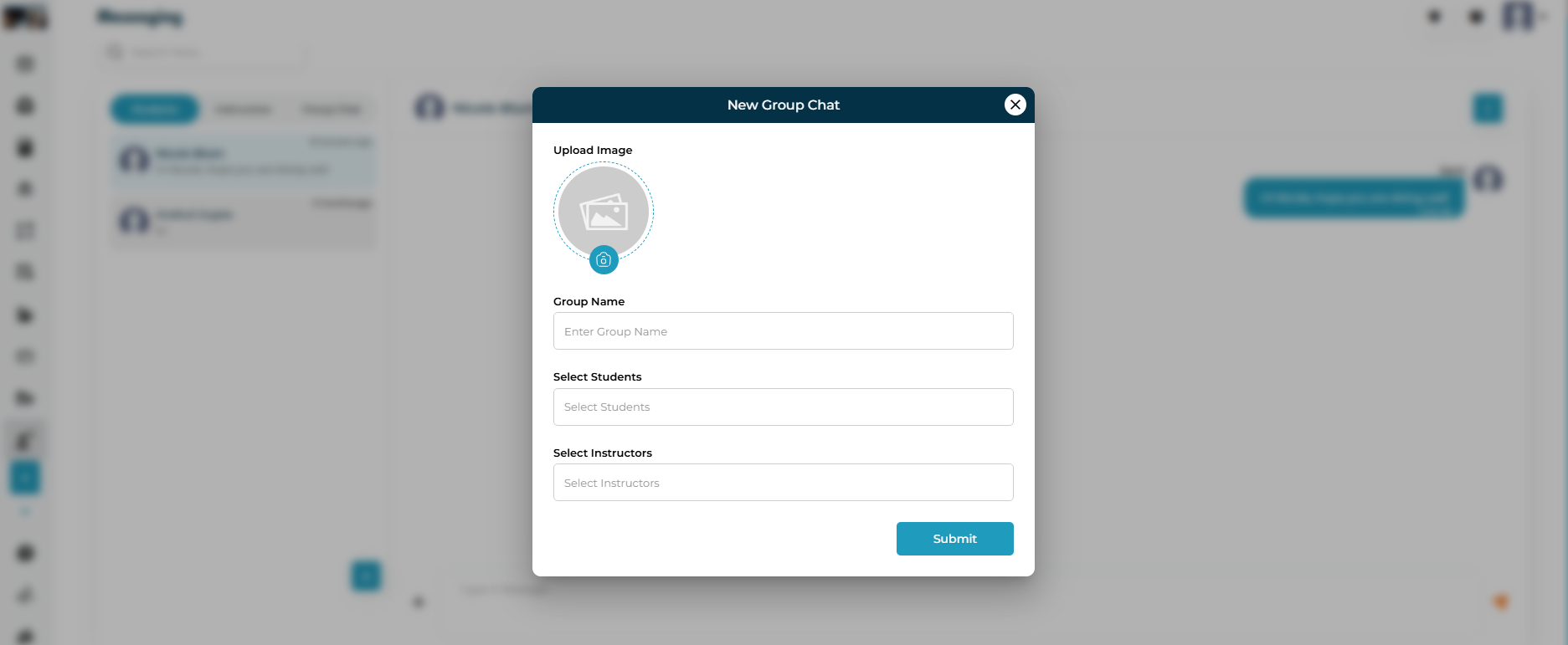
- Choose between two options: New Chat or Group Chat.
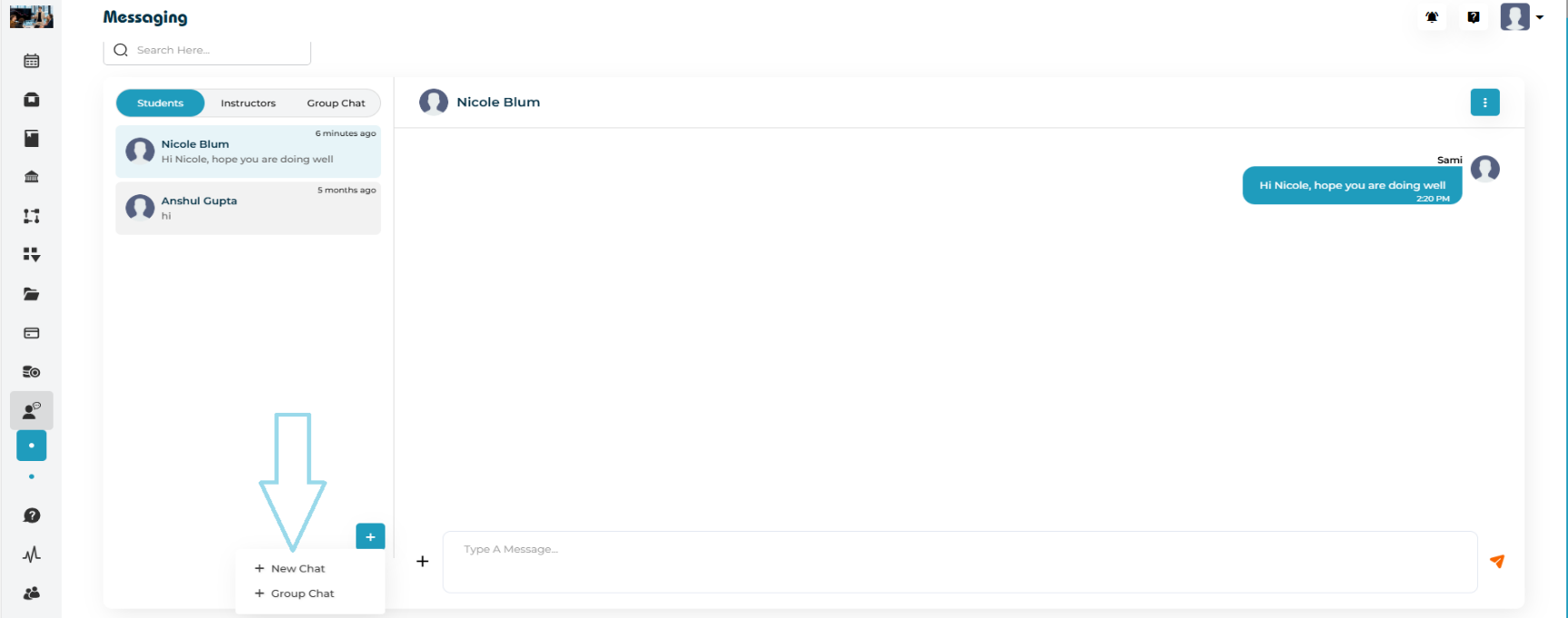
- New Chat: Select either a Student or an Instructor, press submit.
- Group Chat: Upload a group image, add a group name, select Students, and select Instructors, press submit.
- Type the message content.
- Use additional chat options as needed:
- Record a voice note
- Add a document
- Select from gallery
- Share location
- Click Send to deliver the message. The message will appear instantly in the message list and in the recipient’s inbox.
- To delete a chat, click the three dots in the upper‑right corner of the chat and select Delete.
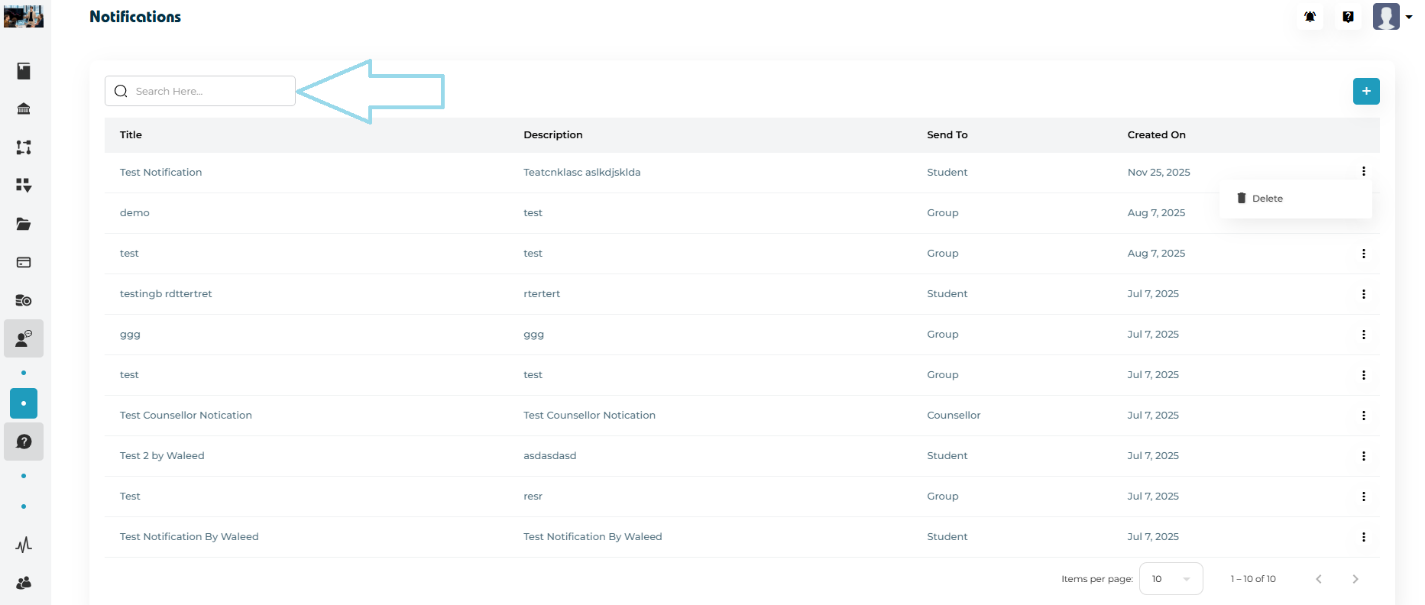
Notifications are system‑generated alerts created by admins to keep users informed. Any type of notification can be sent based on the platform’s needs, and admins can view the full notification list along with delivery status
Notification listing includes:
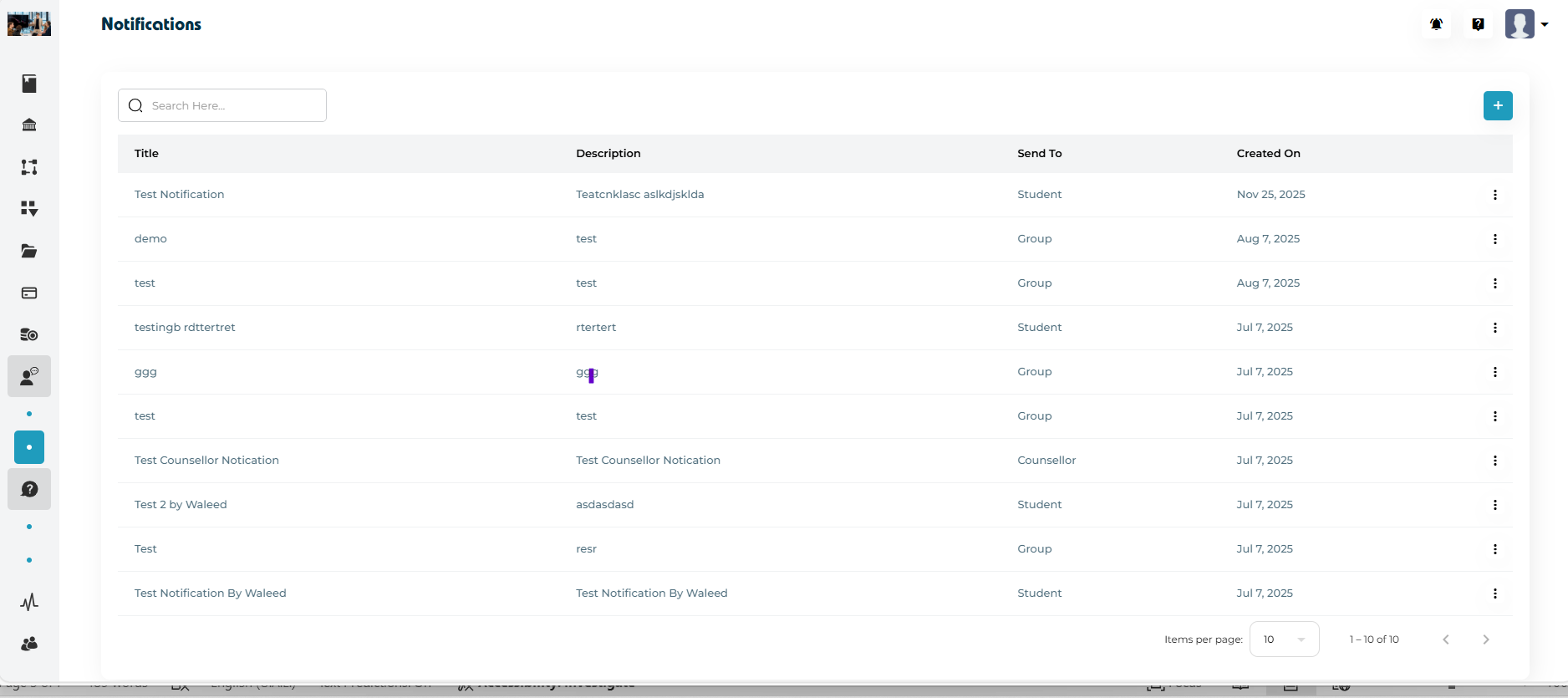
- Type of Notification
- Description
- Recipient
- Date created
To send a notification:
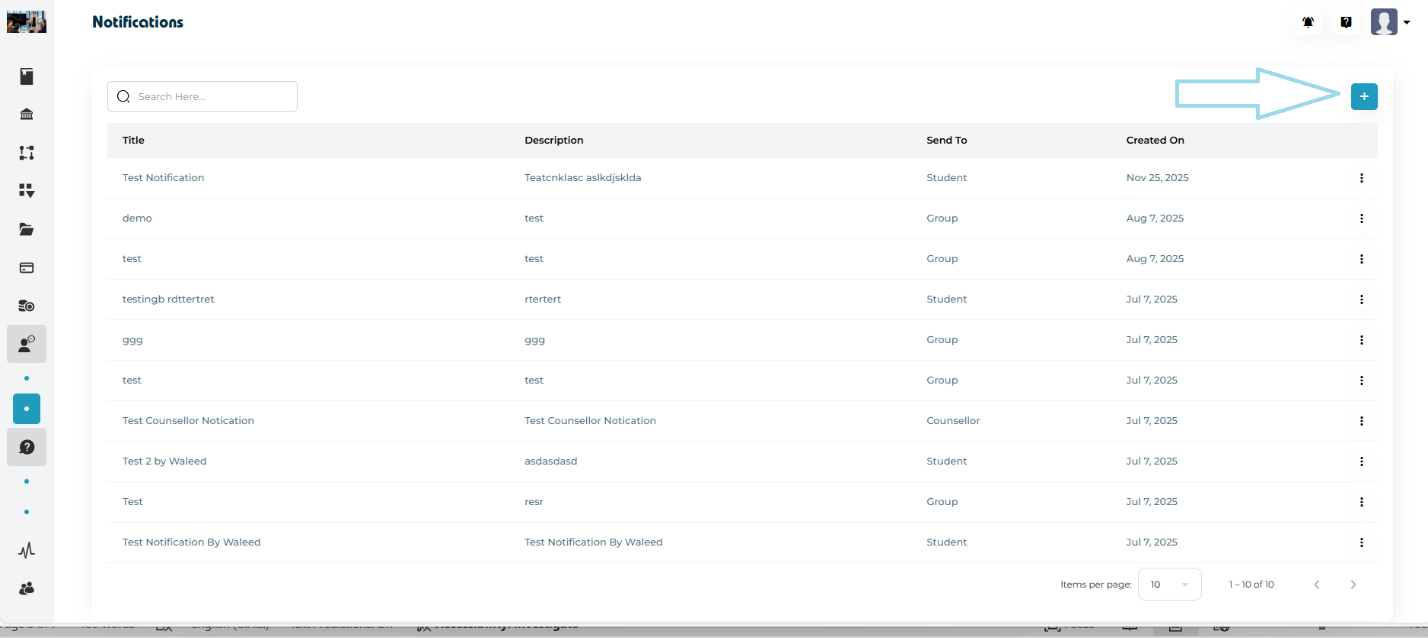
- Click the ➕ button in the upper‑right corner.
- Add the Notification Title.
- Select Accessibility — choose one of the following:
- All
- Student
- Counselor
- Tutor
- Group
- For each selected category, you can choose one, multiple, or all recipients.
- Add the Description of the notification.
- Click Save to send the notification.
To delete a notification, click the three dots on the right side and select Delete.
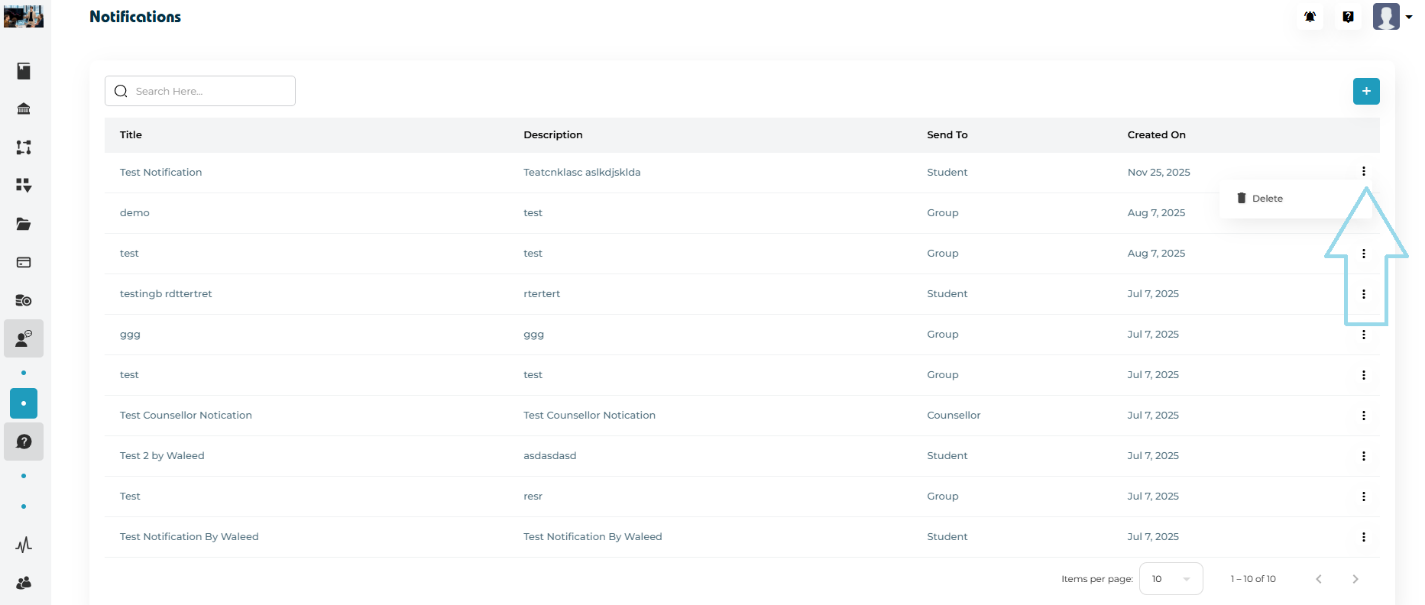
To search for a notification, type the required keyword into the search bar on the left side.