Managing user-submitted tickets

Managing User-Submitted Tickets

The Tickets module in PrepBase allows admins to manage support requests submitted by users across the platform. Tickets help track issues, requests, and project-specific queries in a structured way—ensuring accountability, prioritization, and timely resolution.

PrepBase supports two types of user-submitted tickets:

  • General Tickets

  • Project-Related Tickets

Both are managed from the same Tickets interface but serve different use cases.

1. Where to Access Tickets

Navigate to:

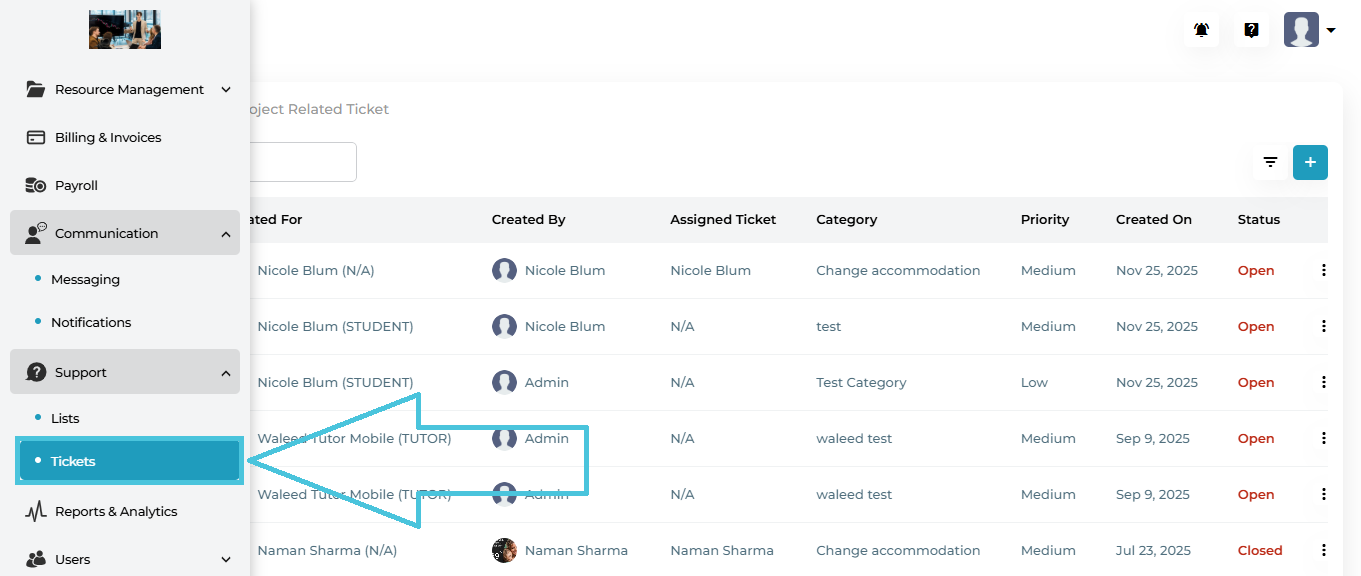
Support → Tickets

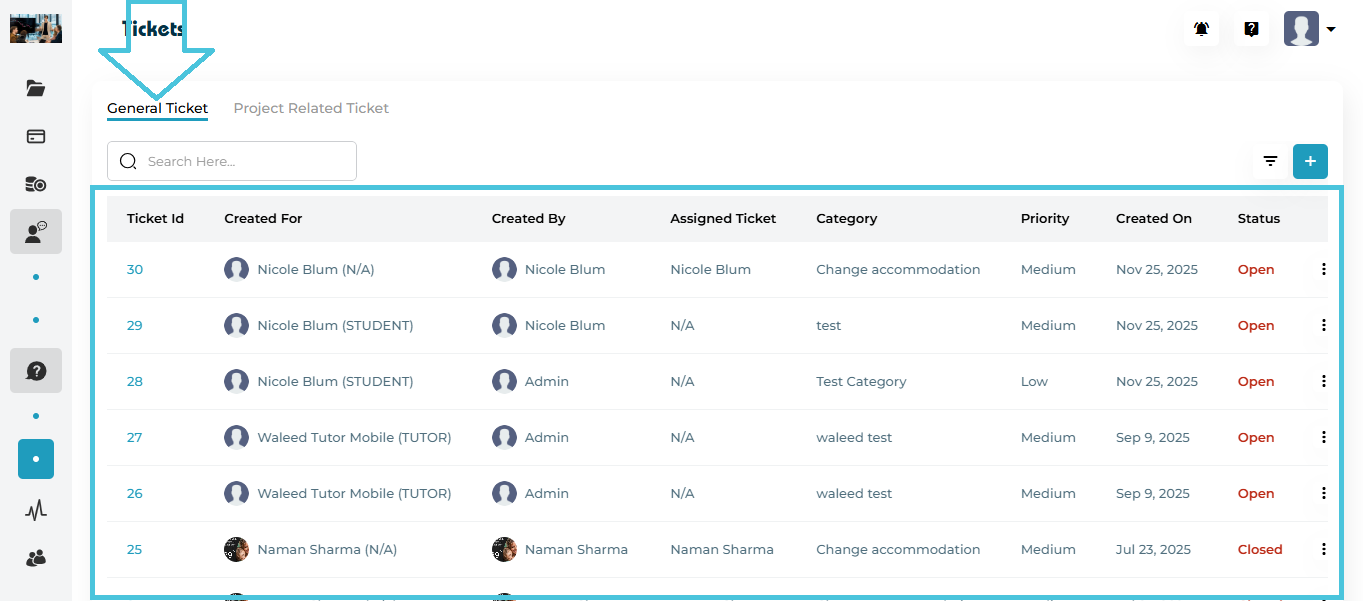
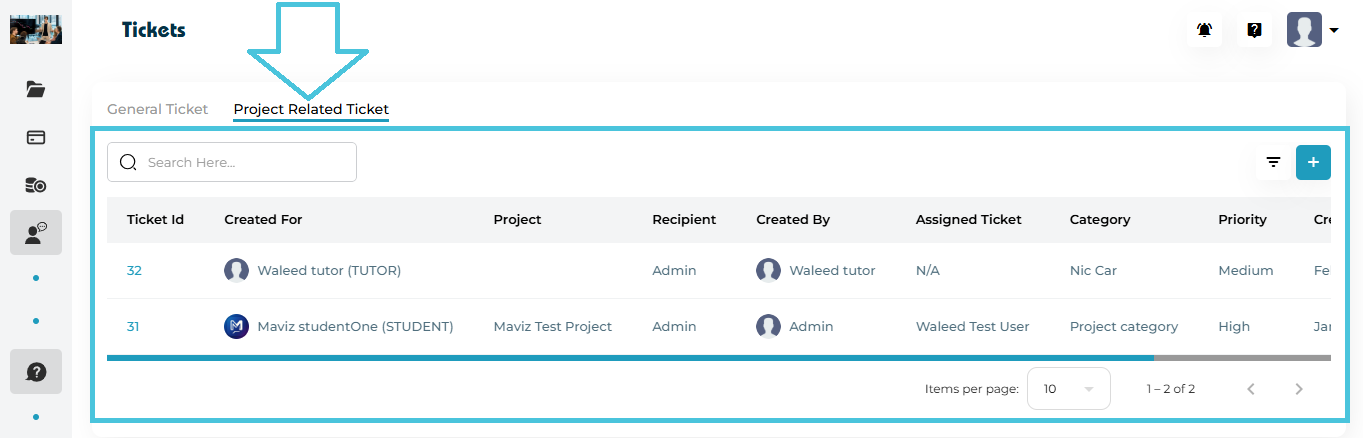
This opens the Tickets management screen with two tabs at the top:

  • General Ticket

  • Project Related Ticket

2. Tickets Interface Overview

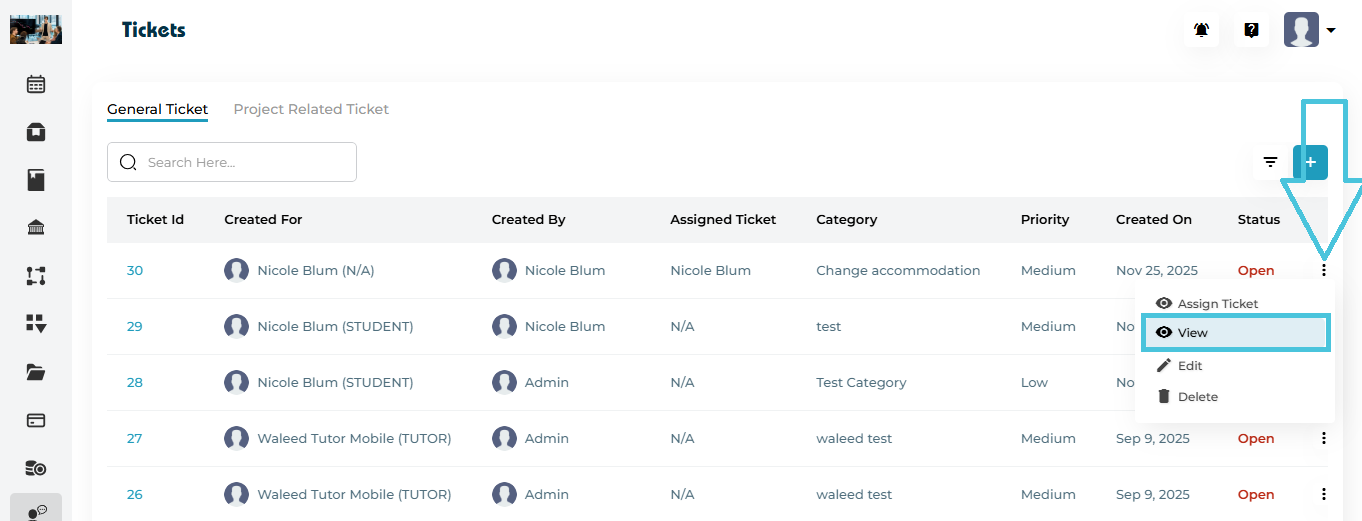
The Tickets page provides a centralized view of all user-submitted support requests.

Key Elements on the Page
  • Tabs – Switch between General and Project-Related tickets

  • Search Bar – Quickly find tickets by user or keyword

  • Filter Panel – Filter tickets by priority and status

  • ➕ Add Ticket – Create a new ticket on behalf of a user

  • Tickets Table – Displays all tickets with relevant details

  • Actions Menu – Manage individual tickets

3. General Tickets

General Tickets are used for non-project-specific support requests, such as:
  • Account issues

  • Accommodation changes

  • General inquiries

  • Platform-related problems

General Tickets Table Columns
ColumnDescription
Ticket IDUnique system-generated ticket number
Created ForUser for whom the ticket was created
Created ByUser or admin who submitted the ticket
Assigned TicketSub-admin assigned to handle the ticket
CategorySupport category selected during creation
PriorityLow, Medium, or High
Created OnTicket creation date
StatusOpen or Closed
ActionsAssign, View, Edit, Delete

4. Project-Related Tickets

Project-Related Tickets are linked to a specific project and are typically used for:
  • Project deliverables

  • Workflow clarifications

  • Project-specific issues

  • Coordinator or admin communication

Project-Related Tickets Table Columns
ColumnDescription
Ticket IDUnique ticket number
Created ForUser associated with the ticket
ProjectLinked project name
RecipientAdmin or coordinator receiving the ticket
Created ByUser or admin who created the ticket
Assigned TicketSub-admin handling the ticket
CategoryProject support category
PriorityTicket urgency
Created OnDate created
StatusOpen or Closed
ActionsAssign, View, Edit, Delete

5. Creating a New Ticket

Admins can create tickets manually on behalf of users.
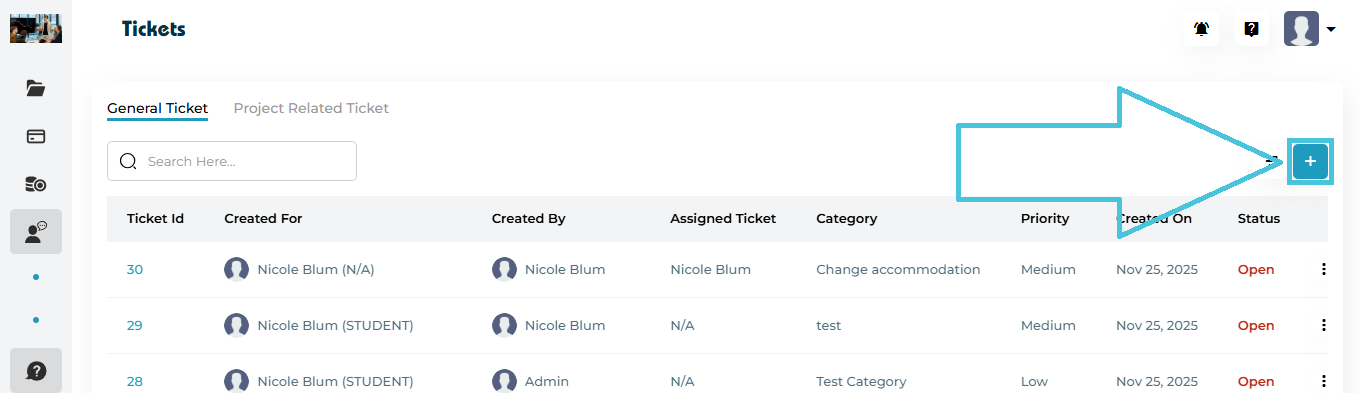
Steps:
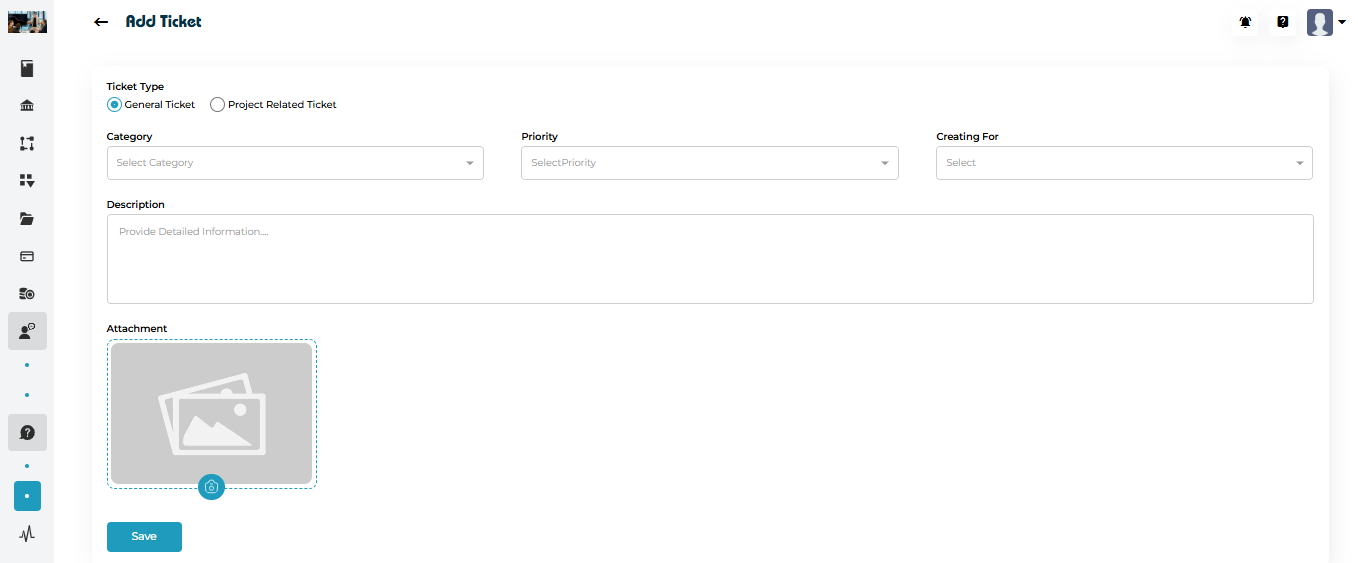
Creating a General Ticket

  1. Open the General Ticket tab

  2. Click ➕ Add Ticket

  3. Select Ticket Type: General Ticket

  4. Choose a Category

  5. Set the Priority

  6. Select Creating For (Student, Tutor, etc.)

  7. Enter a detailed Description

  8. (Optional) Upload an Attachment

  9. Click Save

Creating a Project-Related Ticket
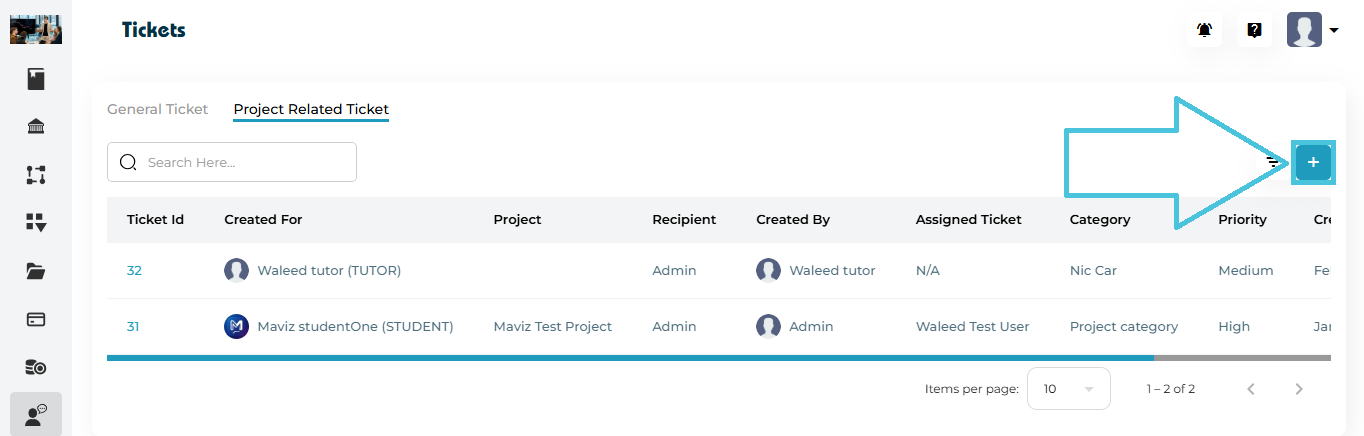
Steps:
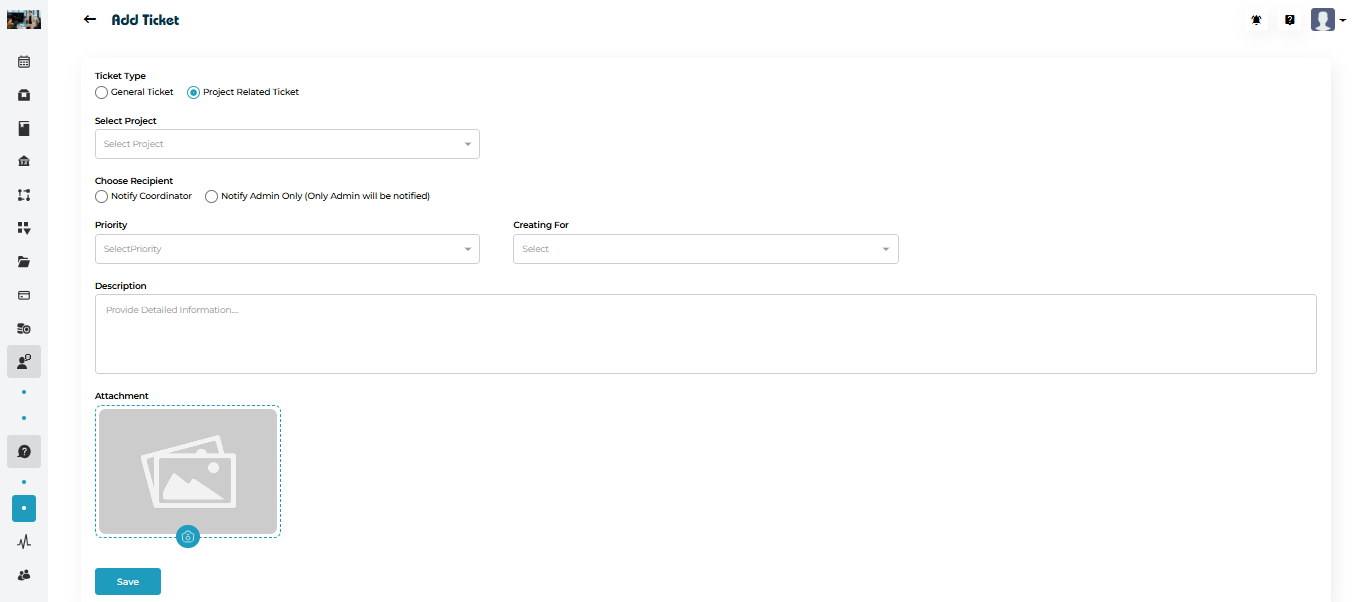
  1. Switch to the Project Related Ticket tab

  2. Click ➕ Add Ticket

  3. Select Ticket Type: Project Related Ticket

  4. Select the Project

  5. Choose the Recipient

    • Notify Coordinator

    • Notify Admin Only

  6. Set Priority

  7. Select Creating For (Student, Tutor, etc.)

  8. Add a Description

  9. (Optional) Upload an attachment

  10. Click Save

6. Assigning a Ticket

 Tickets can be assigned to Sub-Admins for handling.
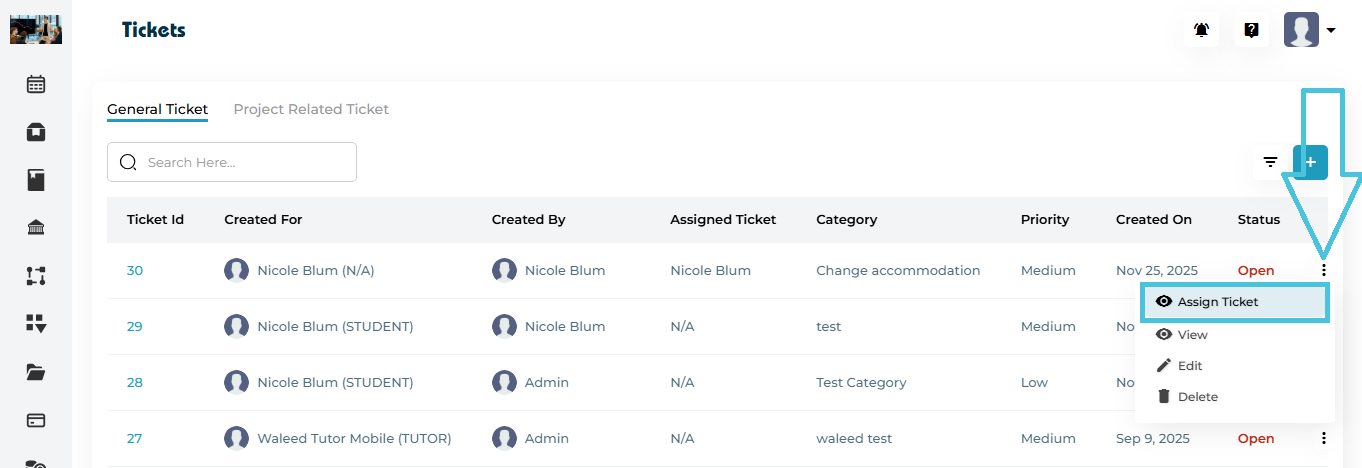
Steps:
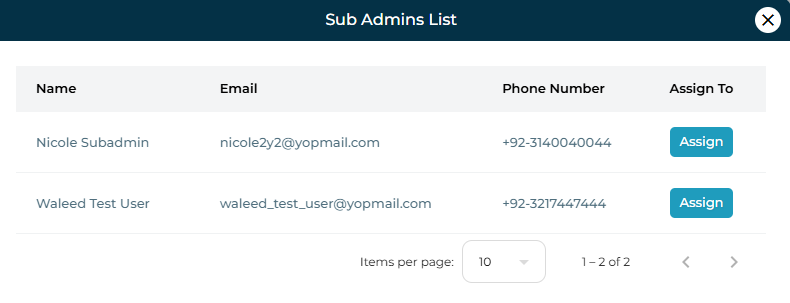
How to Assign a Ticket
  1. Click the three-dot menu next to a ticket

  2. Select Assign Ticket

  3. A Sub Admins List modal opens

  4. Click Assign next to the appropriate sub-admin

The assigned user will now appear under Assigned Ticket.

7. Viewing Ticket Details

To view a ticket:

  1. Open the Actions menu

  2. Click View

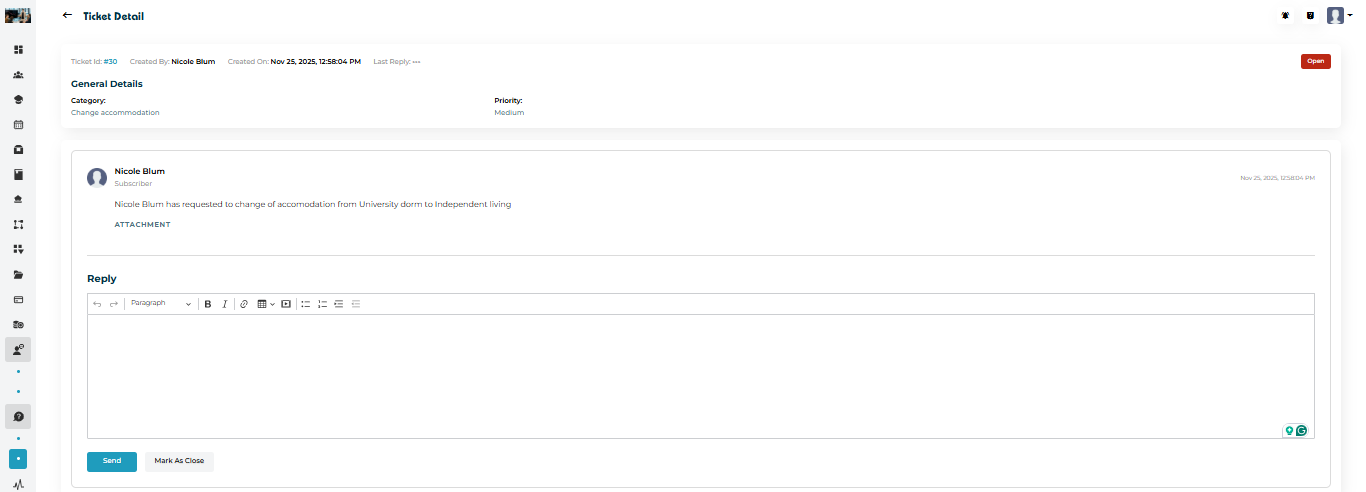
Ticket Detail Page Includes
  • Ticket ID and timestamps

  • Category and Priority

  • Ticket status (Open / Closed)

  • Original message and attachments

  • Full conversation history

Replying to a Ticket

Admins can respond directly within the ticket.

Reply Section
  • Rich text editor for formatting replies

  • Attachments supported

  • Messages are logged chronologically

Actions Available
  • Send – Posts the reply and keeps ticket open

  • Mark as Close – Closes the ticket after responding

8. Editing a Ticket

Admins can update ticket details when needed.
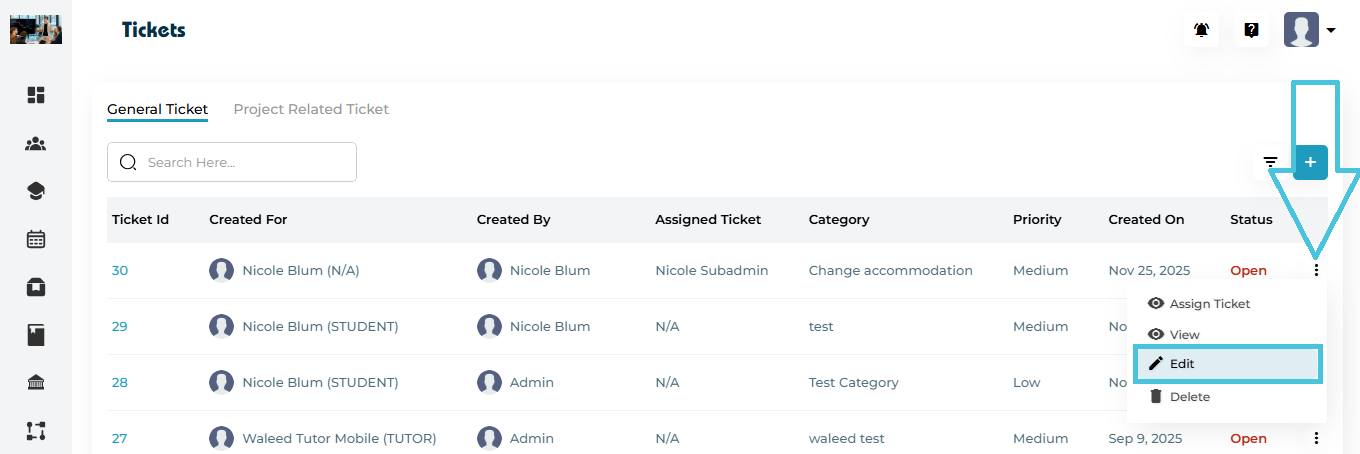
Editable Fields
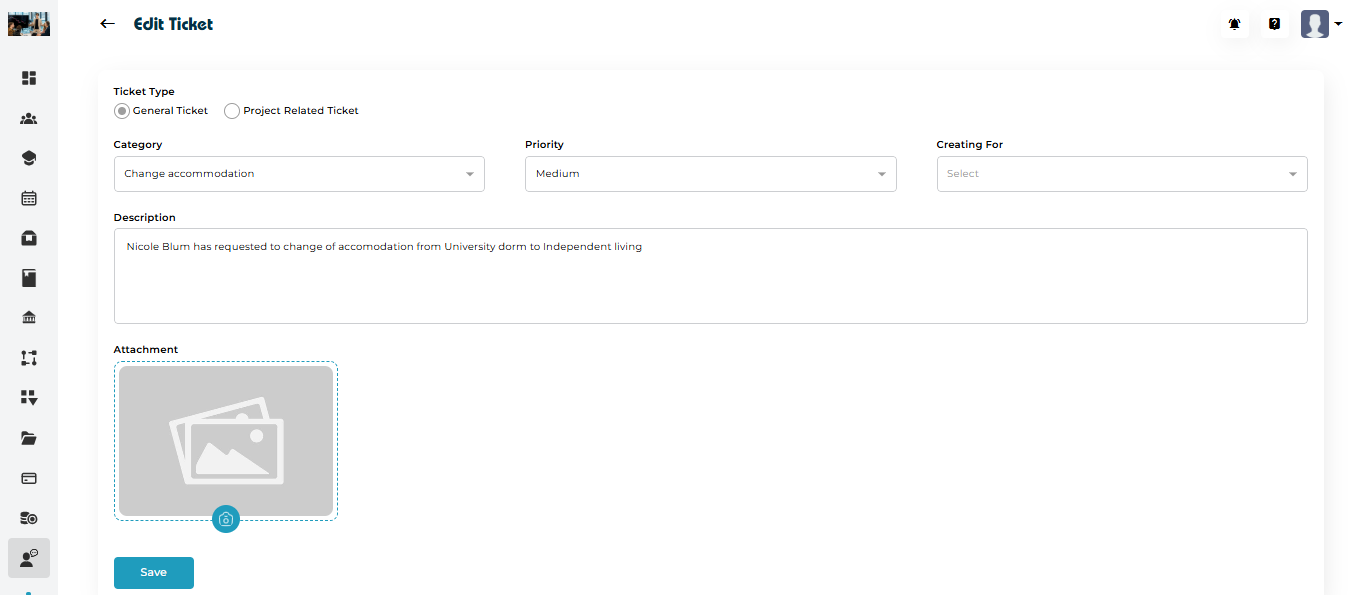
  • Category

  • Priority

  • Creating For

  • Project (for project-related tickets)

  • Description

  • Attachment

To edit:

  1. Click Actions → Edit

  2. Update required fields

  3. Click Save

9. Deleting a Ticket

Admins can permanently remove tickets.
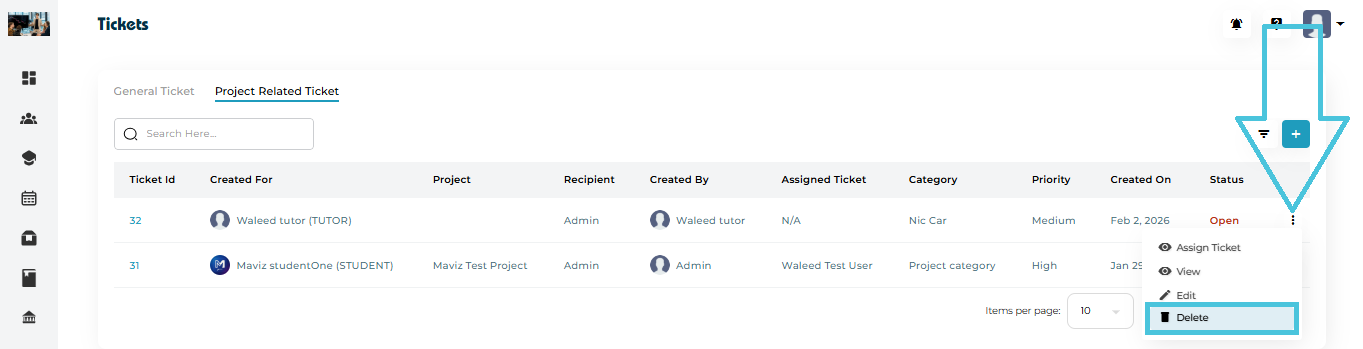
How to Delete
  1. Click the three-dot menu

  2. Select Delete

  3. Confirm the action

⚠️ Deleted tickets cannot be recovered.

10. Filtering & Searching Tickets

Both ticket tabs support advanced filtering.
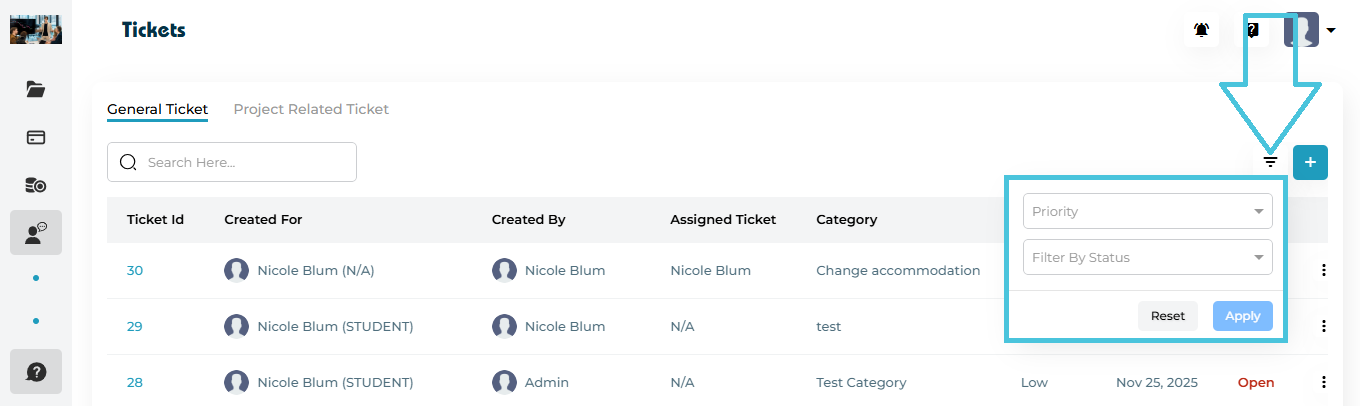
Available Filters
  • Priority – Low / Medium / High

  • Status – Open / Closed

  • Apply / Reset options

Filters help admins focus on urgent or unresolved tickets.

Search bar

Use the Search bar to find tickets by:
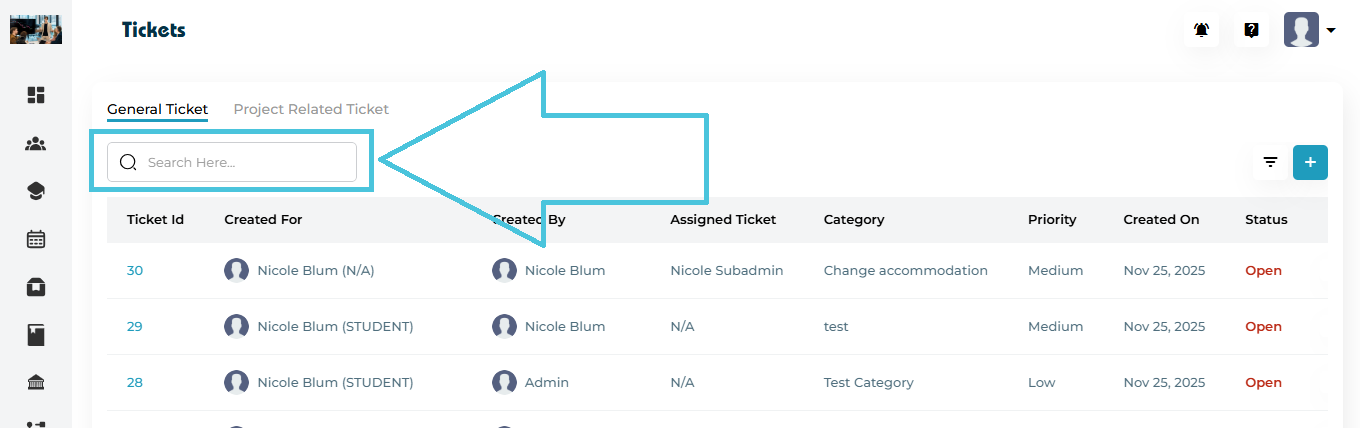
  • Ticket ID

  • User name

  • Project name (for project-related tickets)

Search works independently in each tab.
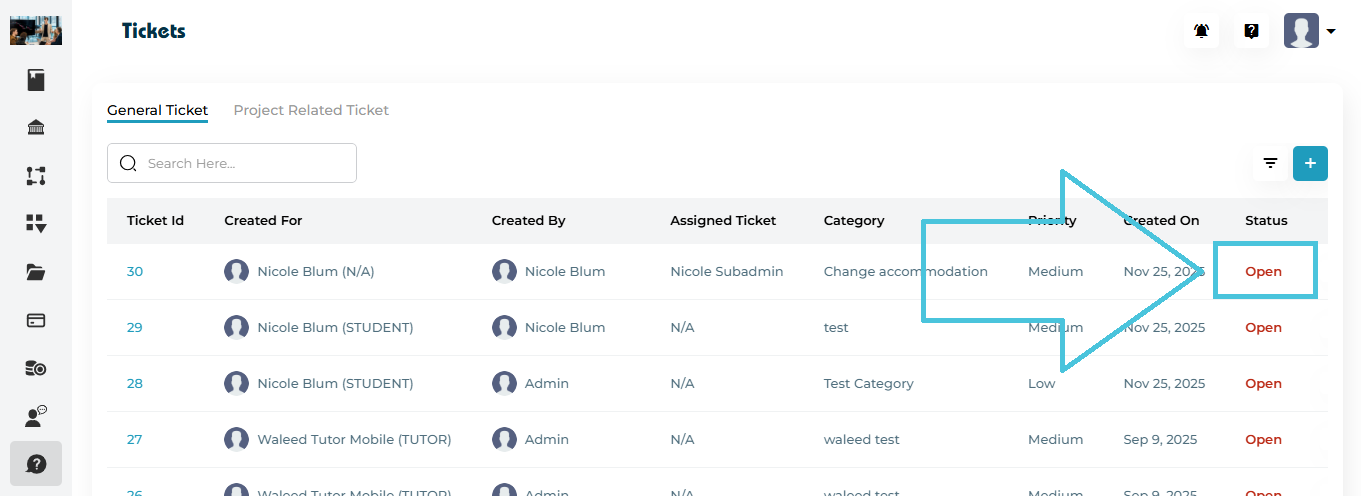
11. Ticket Status Lifecycle

  • Open – Ticket is active and awaiting resolution

  • Closed – Ticket has been resolved

Closing a ticket indicates the issue has been handled successfully.
IN THIS ARTICLE

Creating support categories

Creating Support Categories

Support categories in PrepBase help organize incoming support tickets, define priority levels, and automatically notify the right users or teams. These categories are managed through the Lists module and are essential for building a structured, efficient support workflow.

In PrepBase, support categories are created and maintained using Default Lists and Project Lists.

1. Where to Manage Support Categories

Navigate to:

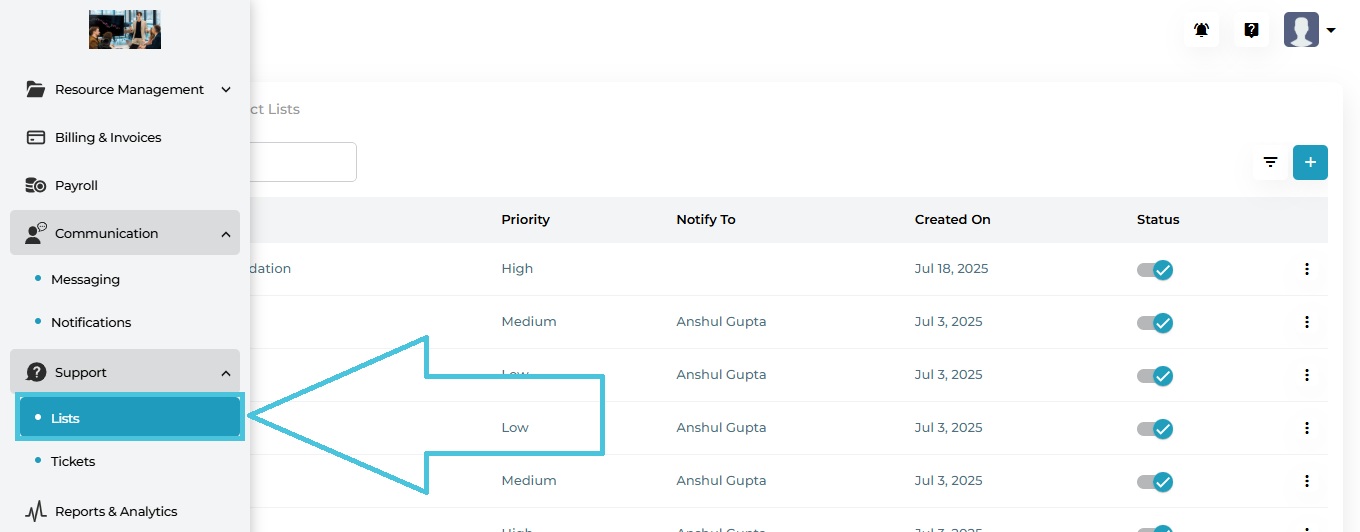
Support → Lists

This opens the Lists management screen, where all support categories are created, edited, enabled/disabled, and deleted.

2. Lists Module Overview

The Lists screen is divided into two tabs: 

  • Default List

  • Project Lists

Both are used as support categories, but serve different organizational purposes.

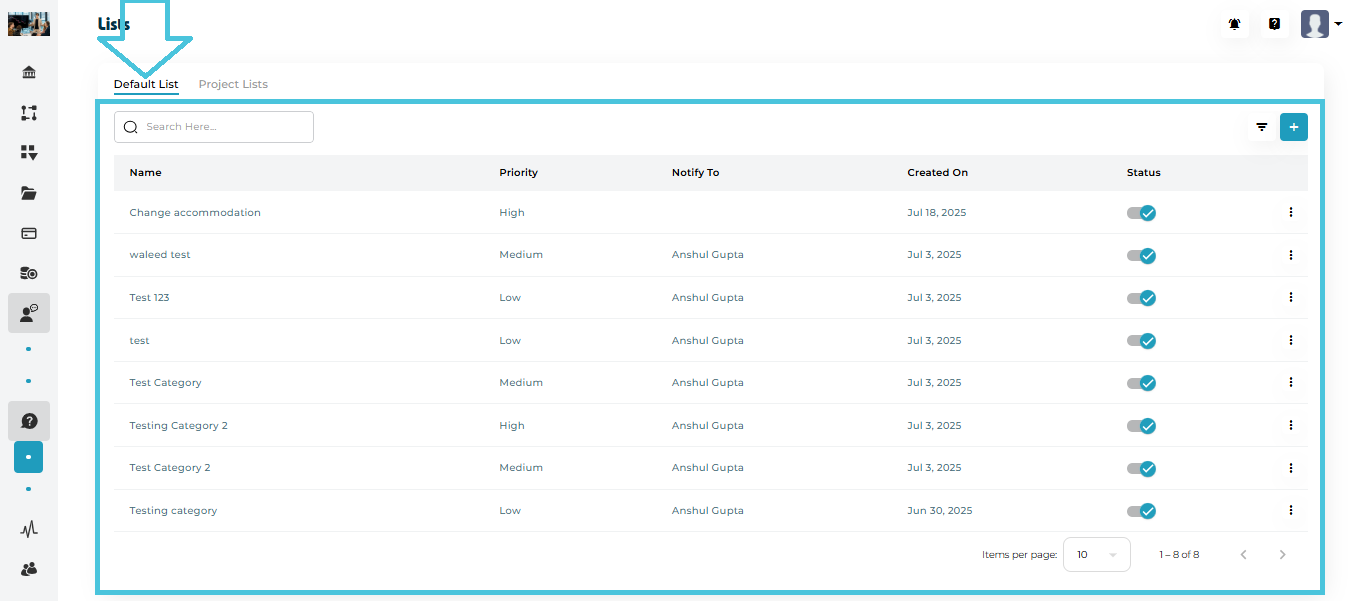
3. Default List (Global Support Categories)

The Default List tab is used to create global support categories that are available across the entire platform.

Default List Table Columns
ColumnDescription
NameSupport category name (e.g., Change Accommodation).
PriorityPriority level: Low, Medium, or High.
Notify ToUsers who will be notified when tickets are created under this category.
Created OnDate the category was created.
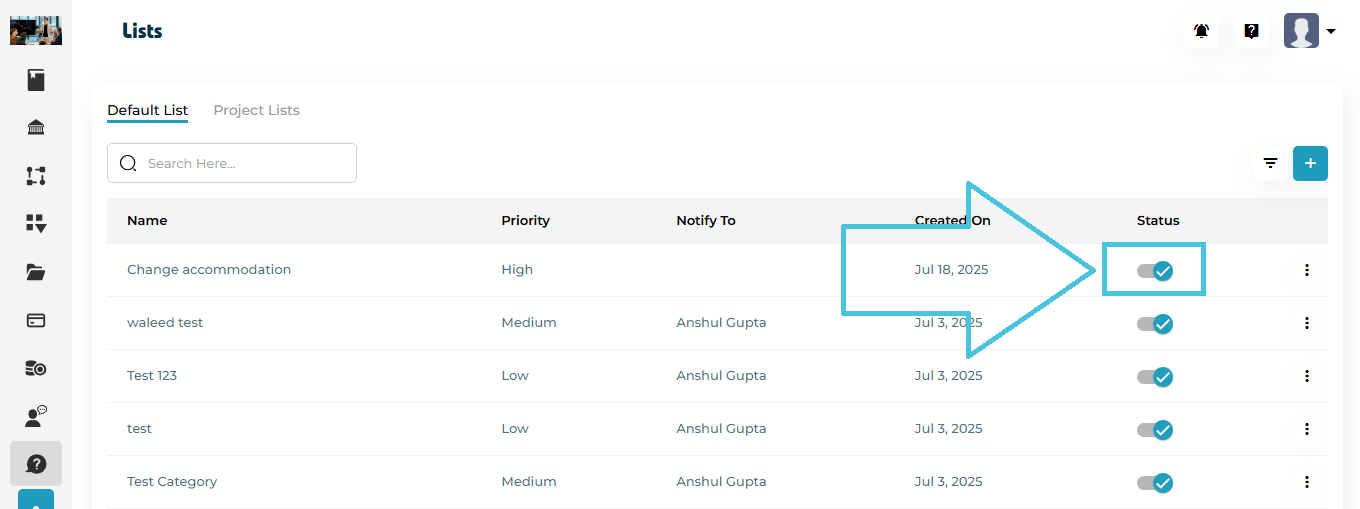
StatusActive / Inactive toggle.
ActionsEdit or Delete options.

Creating a New Default Support Category

Steps

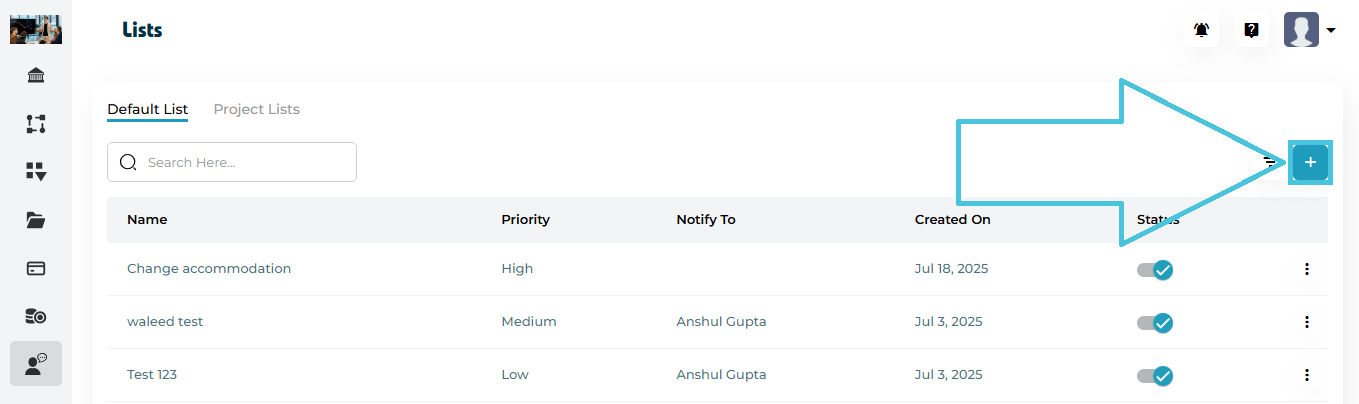
  1. Open the Default List tab

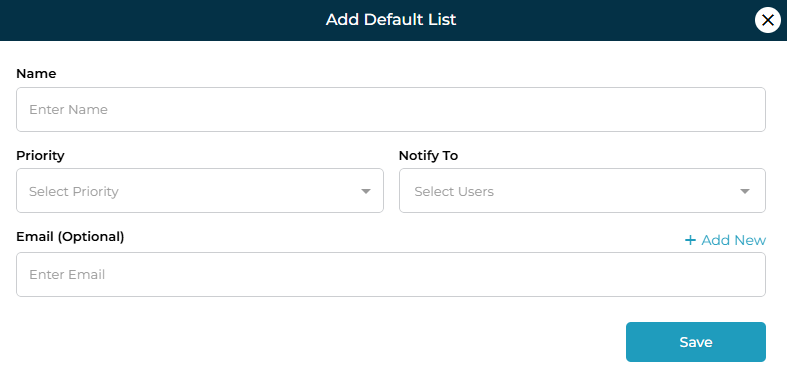
  2. Click the ➕ Add button

  3. Enter the Name of the support category

  4. Select a Priority

    • Low

    • Medium

    • High

  5. Choose Notify To users (admins or sub-admins)

  6. (Optional) Add an Email

    • Click Add New to include external email recipients

  7. Click Save

The category is immediately available for use in Support tickets.

Editing a Default Support Category

Steps:

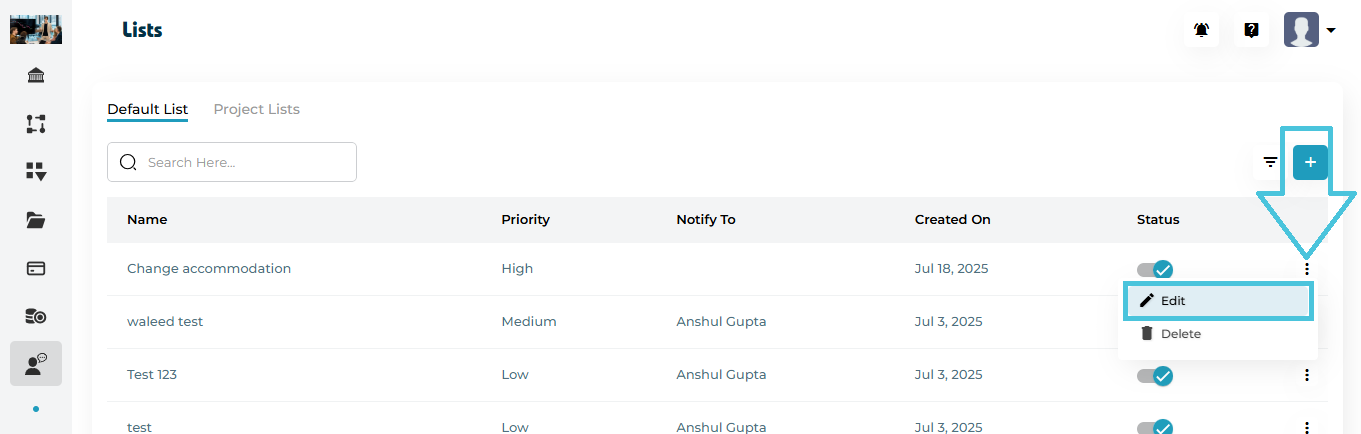
  1. Click the three-dot menu next to a category

  2. Select Edit

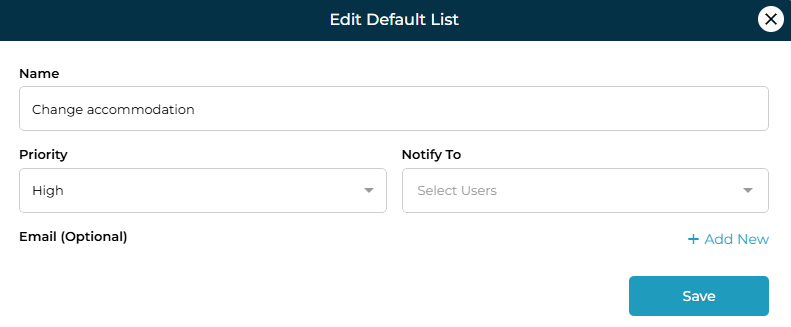
  3. Update:

    • Name

    • Priority

    • Notify To users

    • Email (Optional)

  4. Click Save

Changes apply instantly to future tickets.

Deleting a Default Support Category

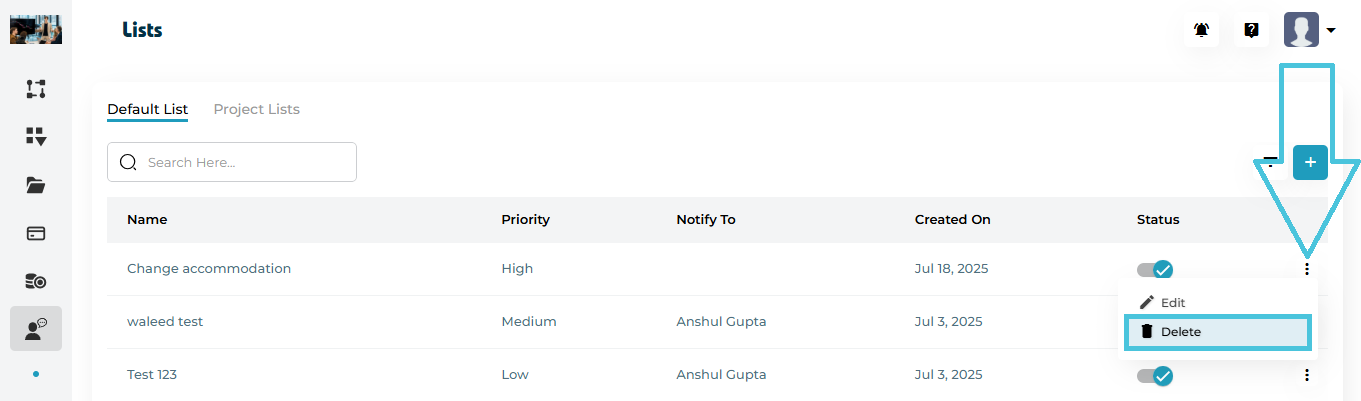
  1. Open the three-dot menu

  2. Click Delete

  3. Confirm the action

⚠️ Deleting a category permanently removes it and may affect ticket categorization.

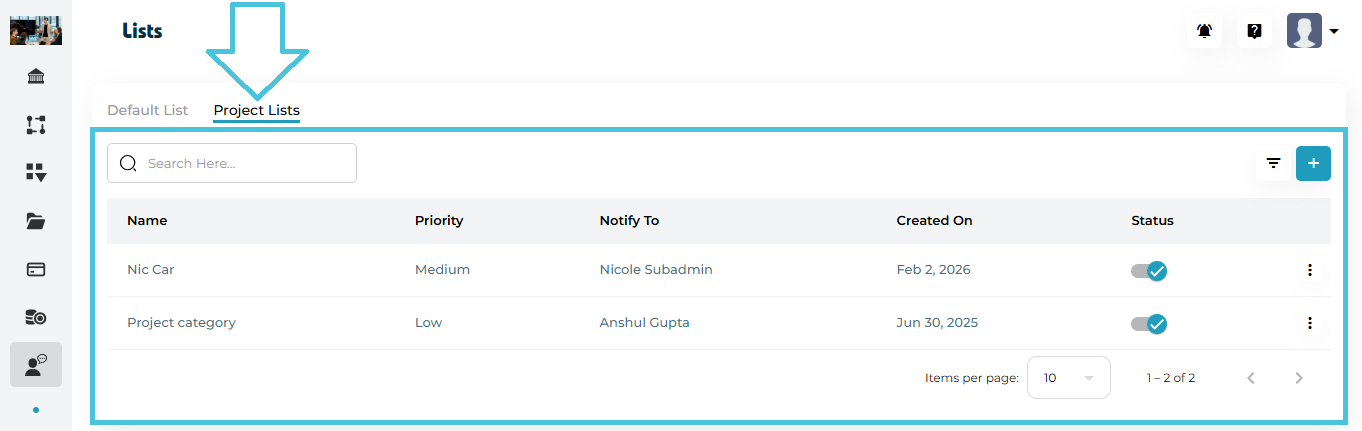
4. Project Lists (Project-Specific Support Categories)

The Project Lists tab is used to create support categories limited to specific projects or workflows.

Project Lists Table Columns
ColumnDescription
NameProject-specific support category name.
PriorityLow, Medium, or High.
Notify ToAssigned user for notifications.
Created OnCreation date.
StatusActive / Inactive toggle.
ActionsEdit or Delete options.

Creating a Project-Specific Support Category

Steps

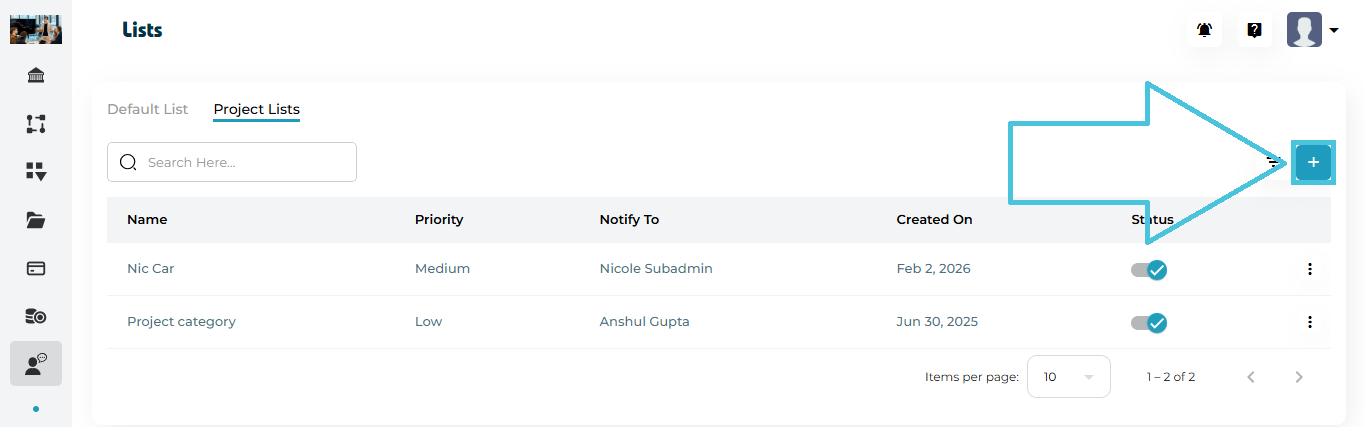
  1. Switch to the Project Lists tab

  2. Click ➕ Add

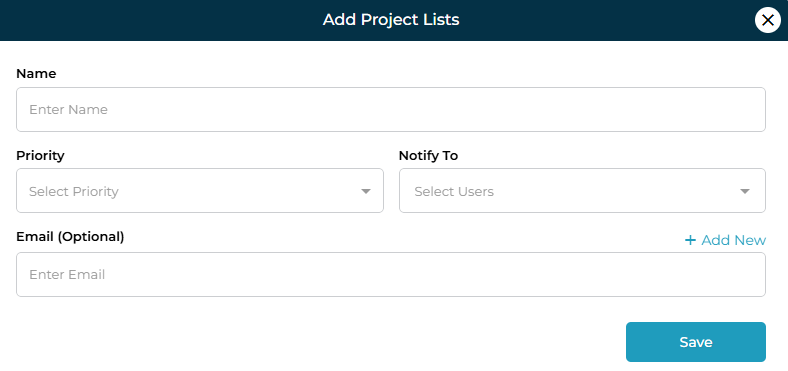
  3. Enter the Category Name

  4. Select Priority

  5. Choose Notify To user(s)

  6. (Optional) Add an Email

  7. Click Save

This category will be available only in the relevant project context.

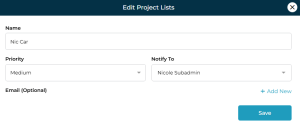
Editing a Project-Specific Support Category

Steps:

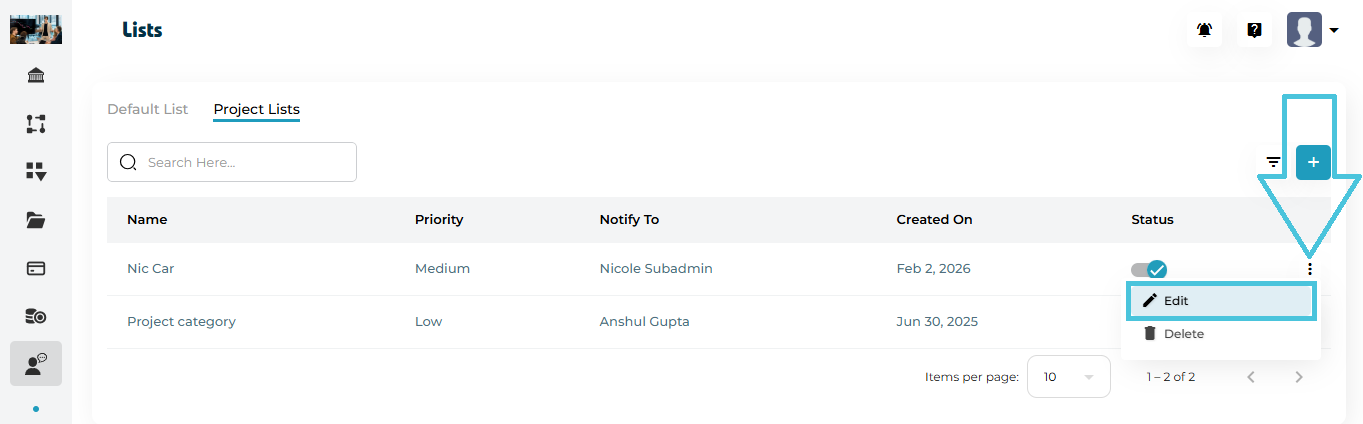
  1. Click the three-dot menu next to a category

  2. Select Edit

  3. Update:

    • Name

    • Priority

    • Notify To users

    • Email (Optional)

  4. Click Save

Changes apply instantly to future tickets.

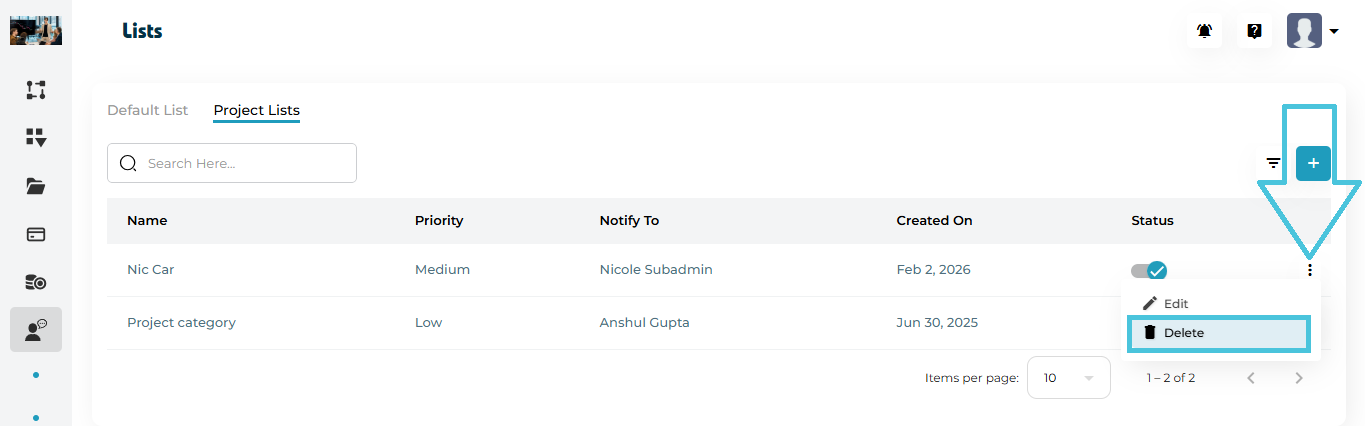
Deleting a Project-Specific Support Category

  1. Open the three-dot menu

  2. Click Delete

  3. Confirm the action

⚠️ Deleting a category permanently removes it and may affect ticket categorization.

5. Priority Levels Explained

Priority determines urgency and handling order of support tickets.

  • High – Urgent issues requiring immediate attention

  • Medium – Standard operational issues

  • Low – Informational or non-urgent requests

Admins should assign priority carefully to maintain SLA discipline.

6. Notification Behavior (Notify To & Email)

When a ticket is created using a support category:

  • Users selected in Notify To receive in-app notifications

  • Optional Email recipients receive email alerts

  • Multiple users/emails can be notified per category

This ensures tickets reach the right people automatically.

7. Filtering & Searching Support Categories

Available Controls

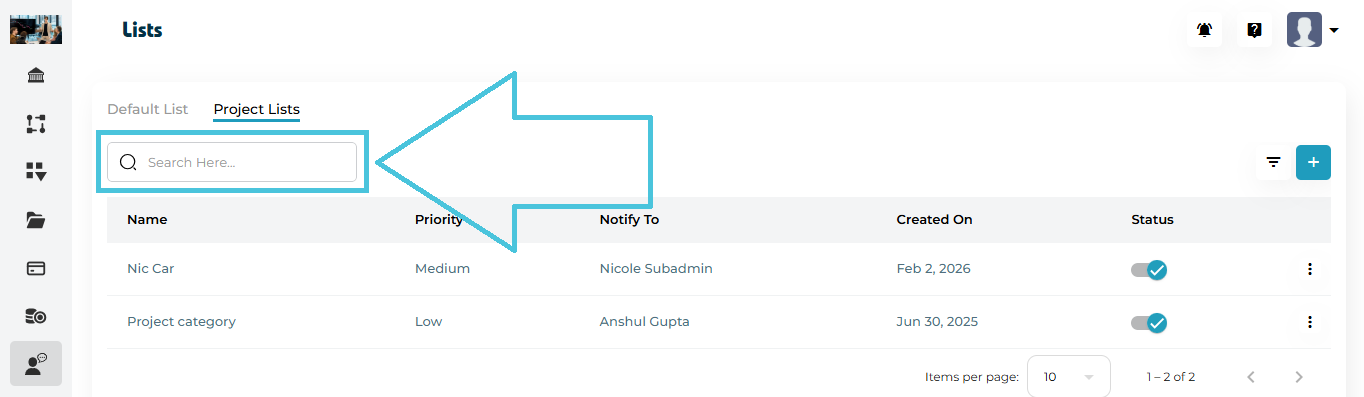
  • Search Bar

    • Search categories by name

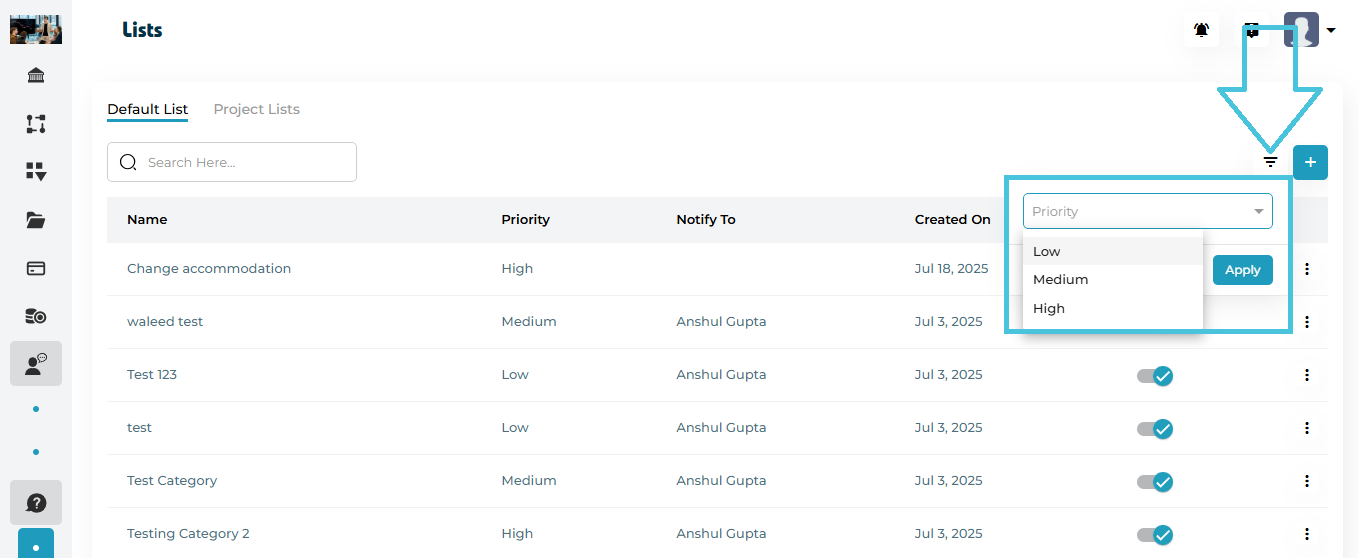
  • Priority Filter

    • Filter by Low / Medium / High

  • Apply / Reset

    • Quickly adjust list visibility

Filters work independently in Default List and Project Lists tabs.

8. Enabling or Disabling a Support Category

Each category includes a Status toggle:

  • Enabled – Category is available for ticket creation

  • Disabled – Category is hidden and cannot be selected

This is useful for:

  • Temporarily retiring categories

  • Seasonal or project-based workflows

IN THIS ARTICLE