Editing Session Details

Editing Session Details

Within the Sessions tab under a student’s profile, admin can easily update or modify details of any scheduled session.
This includes editing session time, duration, assigned tutor, location, or subject — without needing to recreate the session.

1. Accessing the Edit Session Page

  1. Go to Students → Student Profiles.

  2. Select a student to open their detailed record.

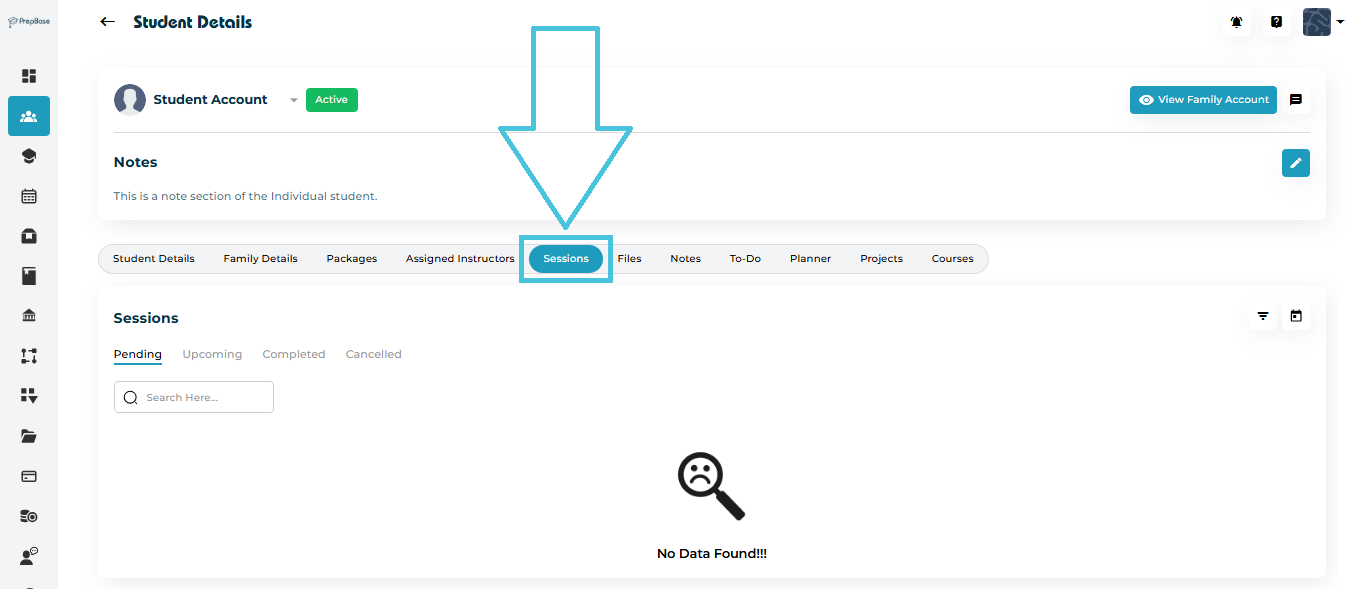
  3. Click on the Sessions tab.

  4. Under the list of Upcoming, Completed, or Pending sessions, click on the Session Date & Time to open the full session view.

This will open the Calendar & Session Details page.

2. Viewing Session Information

On the Session Details page, you can review:

  • Session Date & Time

  • Session Type (Tutoring or Counseling)

  • Session Category (Online Session, In Center Workshop, etc.)

  • Subject / Expertise Area

  • Tutor Details

  • Student Details

  • Location Type and Address

  • Visibility (Public or Private)

This summary provides a complete overview before making any edits.

3. Editing a Session

To modify an existing session:

  1. Click the ✏️ Edit button on the top-right of the session details page.

  2. The Edit Session form will open.

4. Editing Session Fields

In the Edit Session form, you can modify the following details:

FieldDescription
Session TypeChoose whether it’s a Tutoring or Counseling session.
TutorSelect or change the assigned tutor.
SubjectUpdate the session’s subject or topic.
Session CategoryDefine how the session will take place (e.g., In Center Workshop, Online Session).
Location Type & AddressSpecify the session location (center, home, or online).
Date & TimeChange session date and start time.
DurationSet the updated session duration (e.g., 1h, 1h 30m).
PricingChoose from Default, No Charge, or Enter price manually.
StudentsAdd or remove students participating in the session.
Note (Optional)Add internal notes (Private, Public, or Both).
VisibilityDecide whether the session should be visible to students or private to staff.
AttachmentsUpload relevant files or study materials.

Once all changes are made, click Save to confirm updates.
The session record will refresh with the new details immediately.

5. Example Update Scenario

For instance, if a session was originally set as an Online English Tutoring session and the student requested an In-Center Workshop, you can:

  • Change the Session Category to In Center Workshop

  • Update Location Type Value to the desired center address

  • Adjust the Date/Time and Duration if necessary

  • Click Save to apply changes

6. When to Edit a Session

  • The tutor or counselor changes.

  • The session date/time or duration needs adjustment.

  • The location changes from online to in-person.

  • The pricing or billing method is updated.

  • Additional notes or materials need to be added post-scheduling.

IN THIS ARTICLE

Viewing past and upcoming sessions

Viewing Past and Upcoming Sessions

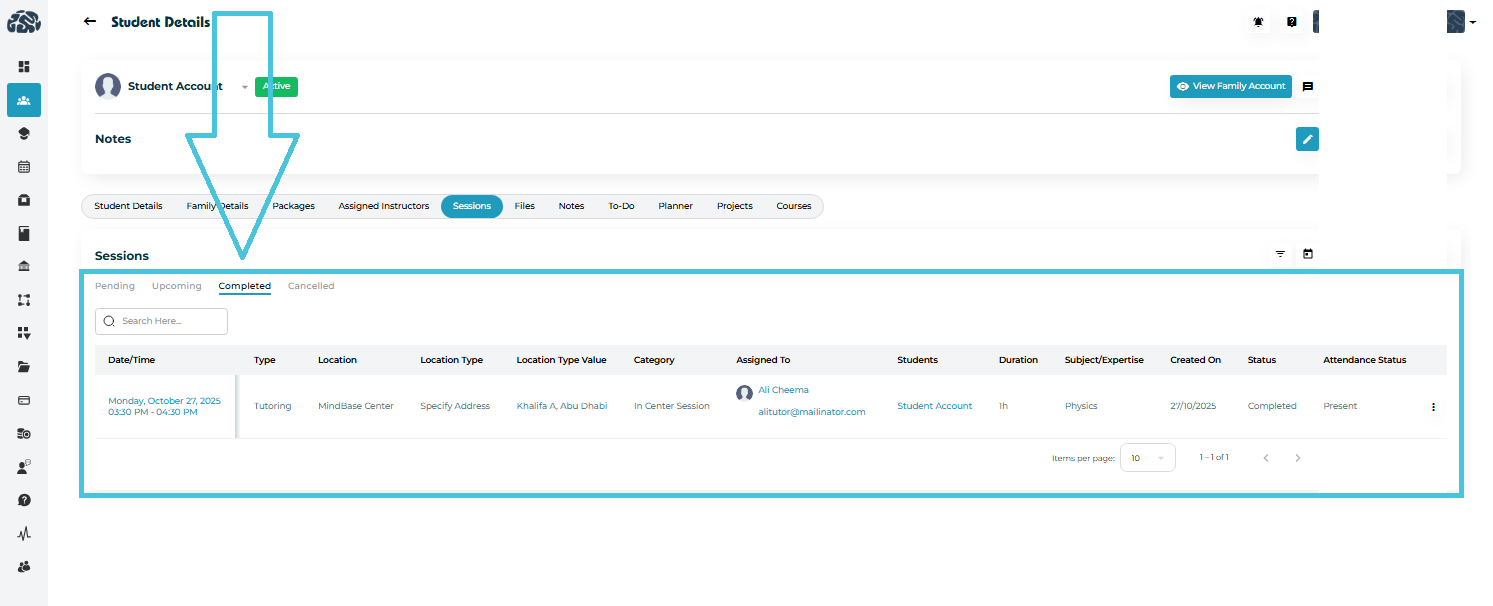
The Sessions tab inside each student’s profile allows Admins to view, manage, and track all scheduled, ongoing, and completed sessions in one place.
This feature provides a detailed timeline of a student’s learning activities — helping you monitor attendance, progress, and instructor engagement effectively.

1. Accessing the Sessions Tab

  1. Navigate to Students → Student Profiles.

  2. Select a student from the list.

  3. Open the Sessions tab from the top navigation menu.

You’ll see a structured list of all past and upcoming sessions linked to that student. Each record shows:

  • Session Title / Type

  • Date and Time

  • Assigned Tutor or Counselor

  • Subject or Category

  • Session Duration

  • Status (Upcoming, Completed, or Cancelled)

2. Viewing Past Sessions

The Past Sessions section lists all completed or cancelled sessions associated with the student.

Each record includes:

  • Completion Date

  • Instructor Name

  • Session Category

  • Actual Duration

  • Status (Completed, Pending, or Cancelled)

3. Viewing Upcoming Sessions

Upcoming sessions display all lessons, workshops, or counseling appointments scheduled for future dates.
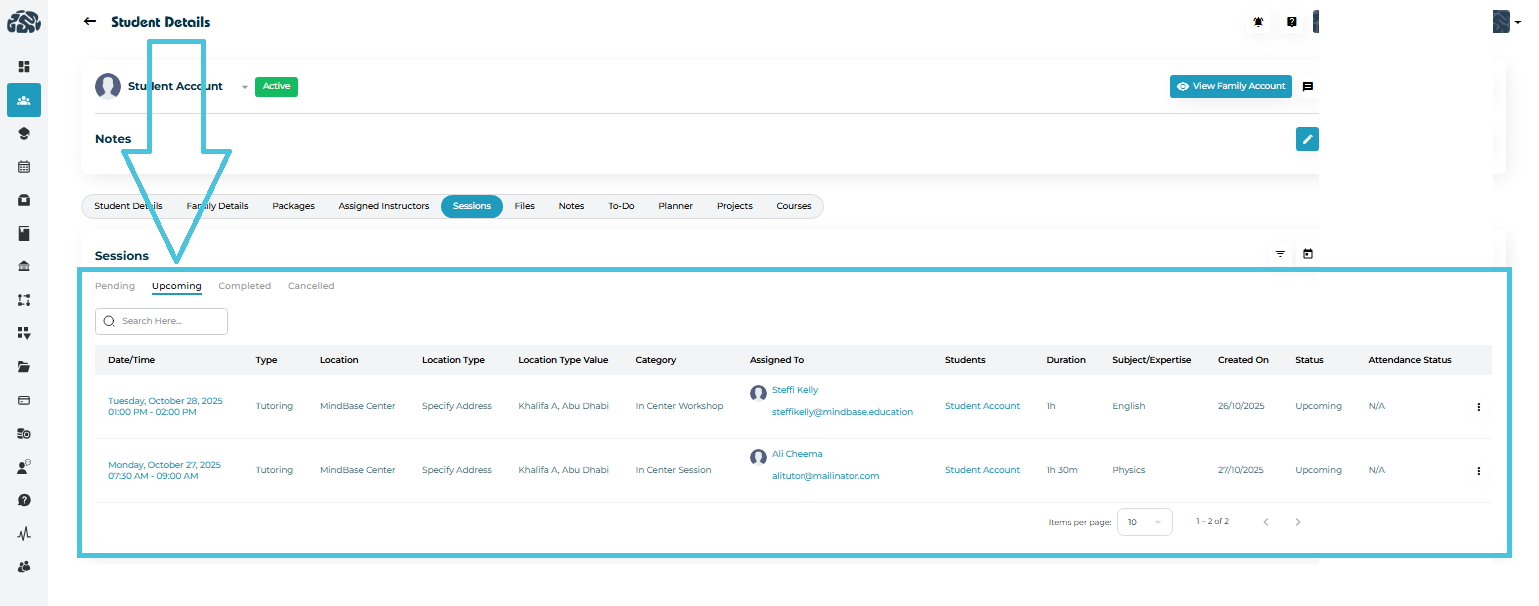
Each upcoming session entry includes:

  • Session Date & Time

  • Instructor Name

  • Session Type (Online, In-Center, Workshop, etc.)

  • Duration (e.g., 1h, 1h 30m)

Benefits of Tracking Upcoming Sessions
  • Ensure students are consistently engaged.

  • Manage instructor workload efficiently.

  • Identify scheduling conflicts early.

  • Maintain accountability for booked hours.

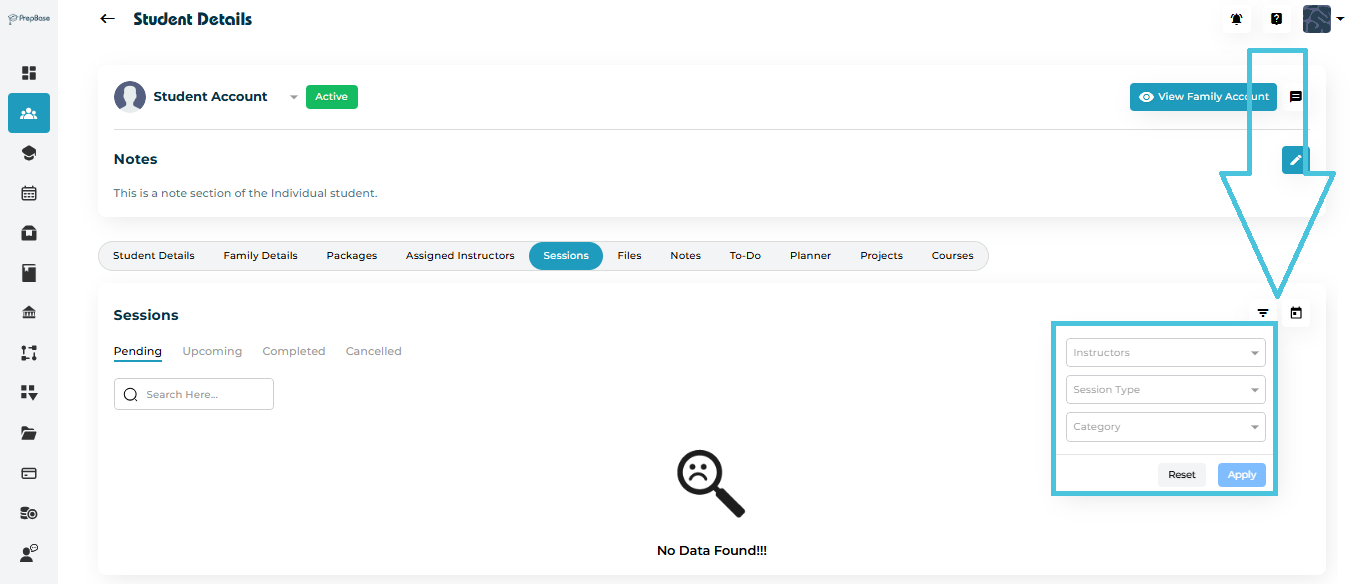
4. Filtering Sessions

To easily find specific sessions:

  1. Use the Filter icon on the top-right corner of the session list.

  2. Apply filters such as:

    • Date Range

    • Instructor Name

    • Session Type

    • Session Category

  3. Click Apply to view results.
5. Session Status Overview

StatusDescription
UpcomingScheduled and yet to occur.
CompletedConducted successfully; recorded in the progress log.
CancelledSession was cancelled by the tutor, counselor, or admin.
PendingSession not attended or confirmed as complete.

Statuses are automatically updated based on attendance logs and instructor feedback.

6. Using Session Data for Progress Tracking

Session records provide insight into a student’s overall engagement and learning consistency.
Admins and counselors can use this data to:

  • Review session frequency and duration trends.

  • Identify students who need follow-ups or rescheduling.

  • Generate reports for academic progress or billing reconciliation.

IN THIS ARTICLE

Managing student-instructor relationships

Managing Student–Instructor Relationships

The Student–Instructor tab allows Admins to effectively assign instructors (tutors or  counselors) to the students.

1. Overview of Assigned–Instructor tab

To view all current instructors linked to a student:

  1. Go to Students Accounts → Student Profiles.

  2. Select the desired student.

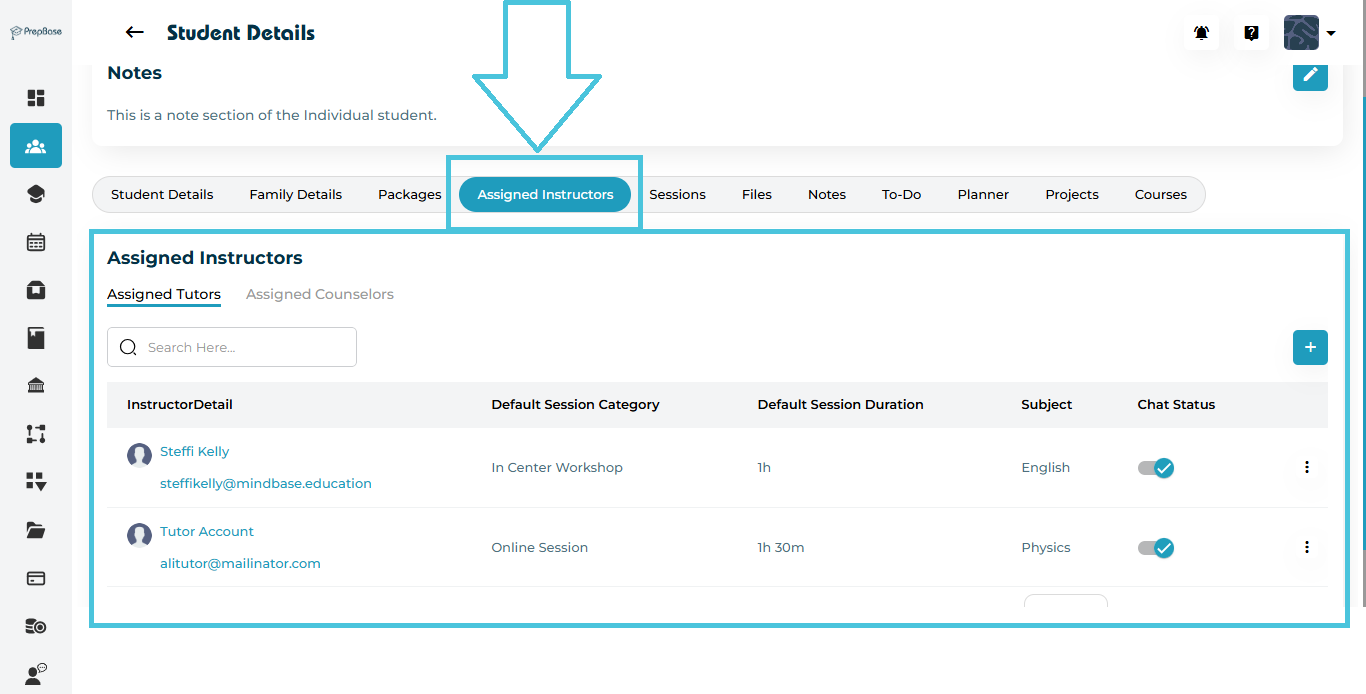
  3. Click the Assigned Instructors tab.

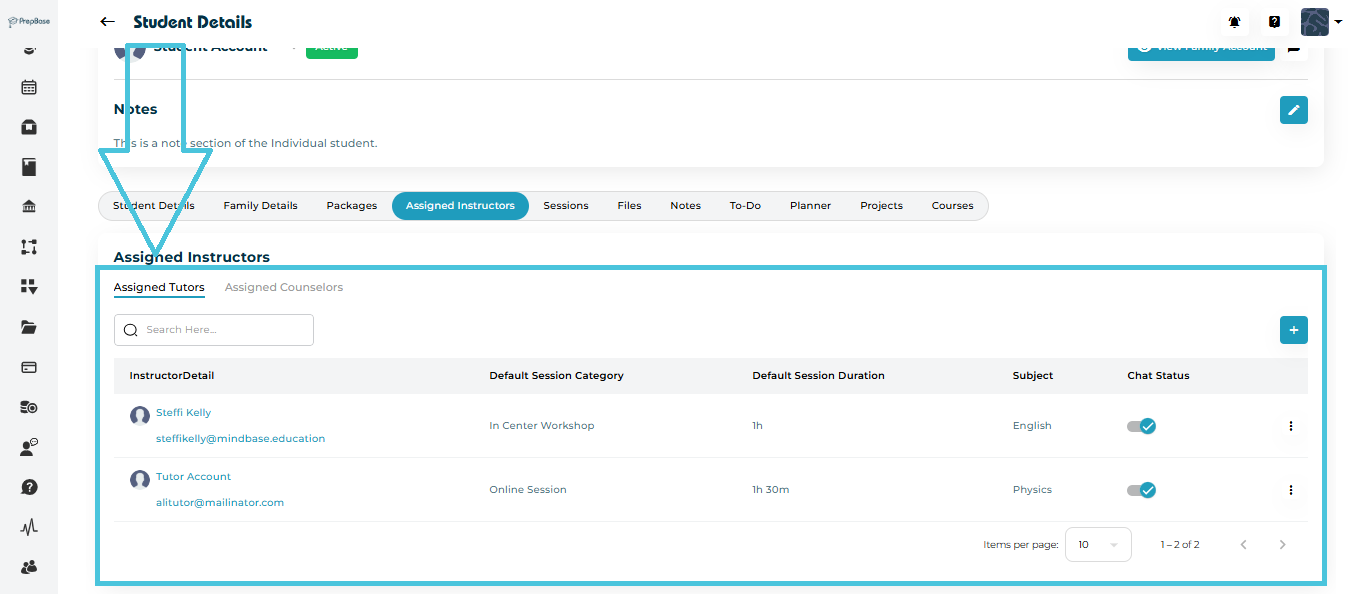
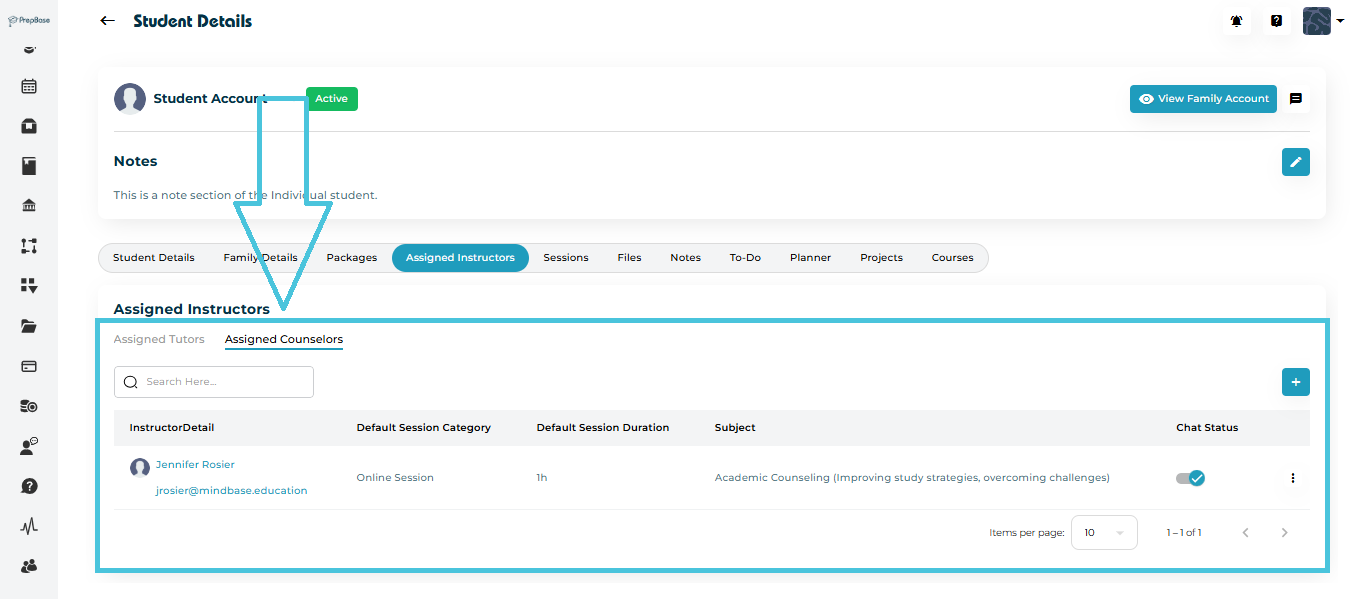
  4. You’ll see two subtabs:

  • Assigned Tutors

  • Assigned Counselors

Each tab lists the instructor’s name, contact info, default session duration, and category.

  • Instructor Detail – Who the instructor is (name, email, avatar).

  • Default Session Category – Which session category they use by default (e.g., Online Session, In Center Workshop).

  • Default Session Duration – The standard length of their sessions (e.g., 1h, 1h 30m).

  • Subject – The subject this instructor is teaching for this specific student (e.g., English, Physics).

  • Chat Status – Whether chat between the student and this instructor is On or Off.

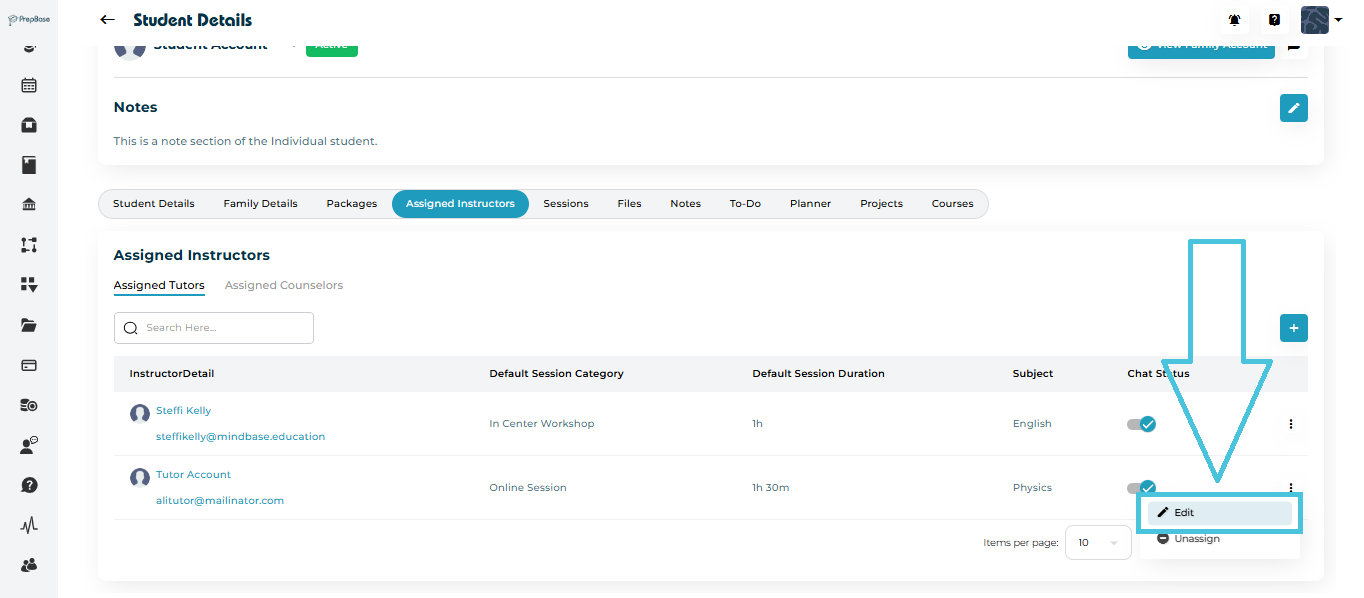
2. Editing or Updating Instructor Relationships

If a tutor or counselor changes, you can update the relationship easily:

  1. Open the Assigned Instructors tab.

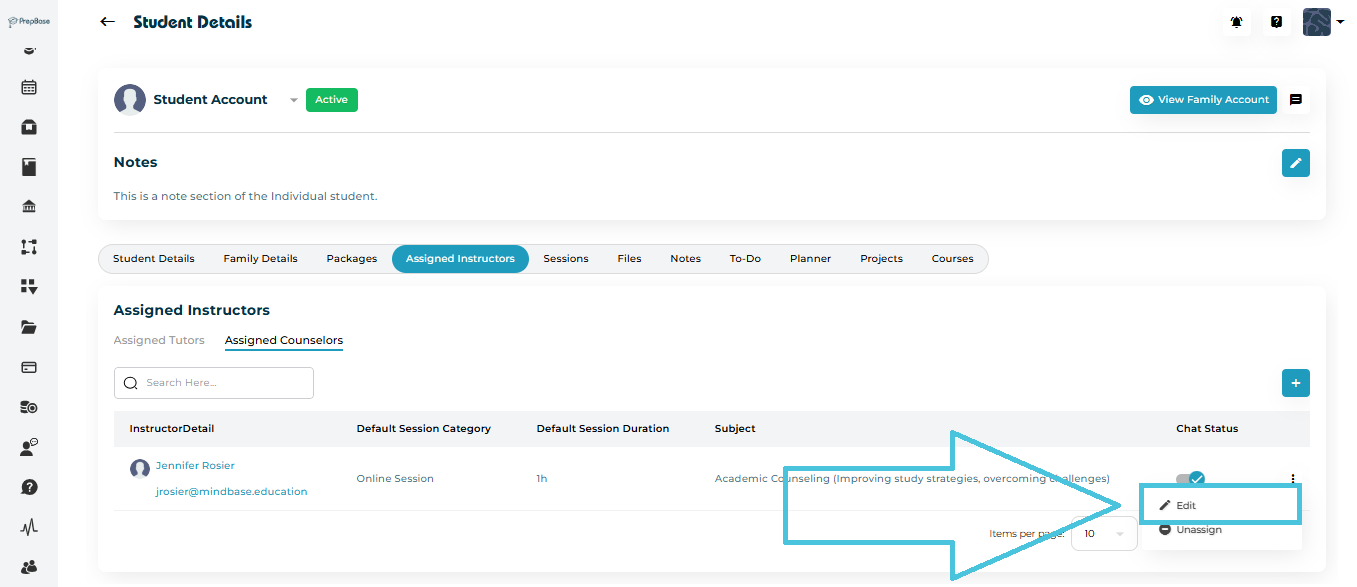
  2. Click the ⋮ (three-dot menu) beside the instructor’s name.

  3. Choose Edit to change the instructor, session duration, or category.

  4. Click Save to apply changes instantly.


IN THIS ARTICLE

Assigning and Updating Instructors

Assigning and Updating Instructors

The Assigned Instructors tab enables Admins to assign tutors and counselors to individual students for academic support, learning sessions, or career guidance.
This section helps maintain clear visibility of who is mentoring or teaching the student, along with default session details and subjects assigned.

1. Accessing the Assigned Instructors Tab

  1. Navigate to Students → Student Profiles.

  2. Click on the student’s name to open their detailed profile.

  3. Select the Assigned Instructors tab from the top navigation bar.

The screen is divided into two sections:

  • Assigned Tutors – Displays all academic tutors linked to the student.

  • Assigned Counselors – Lists all mentors or counselors managing the student’s academic or career guidance.

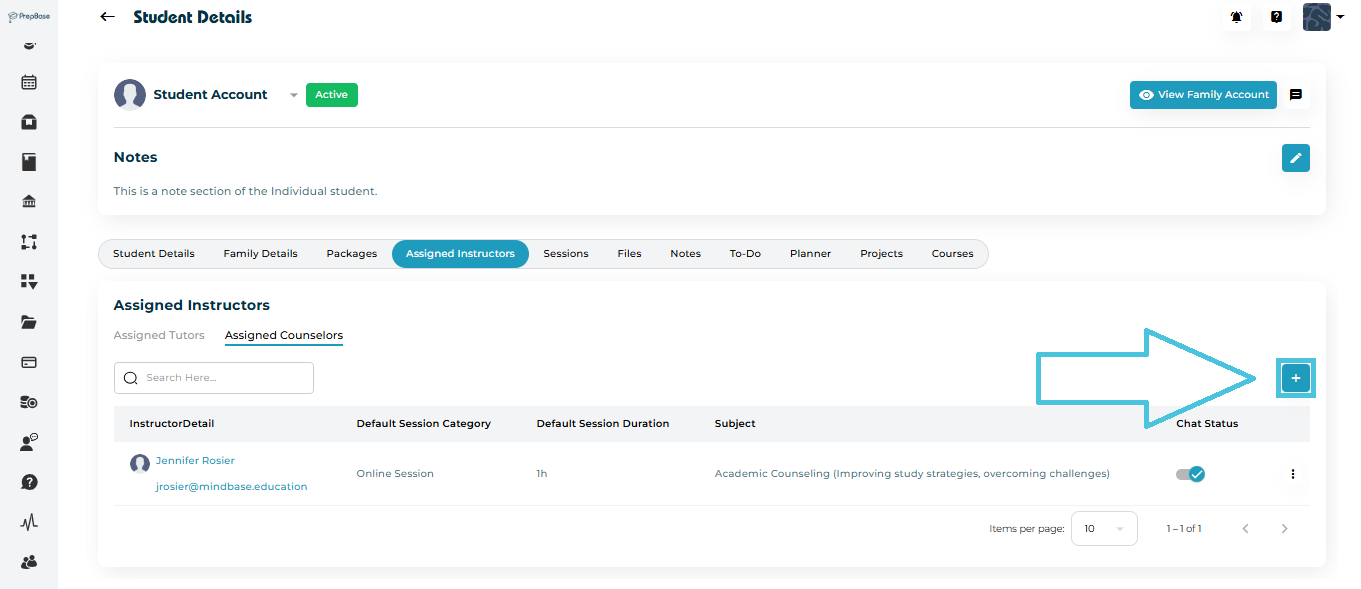
2. Assigning a Tutor

To assign a student to a tutor:

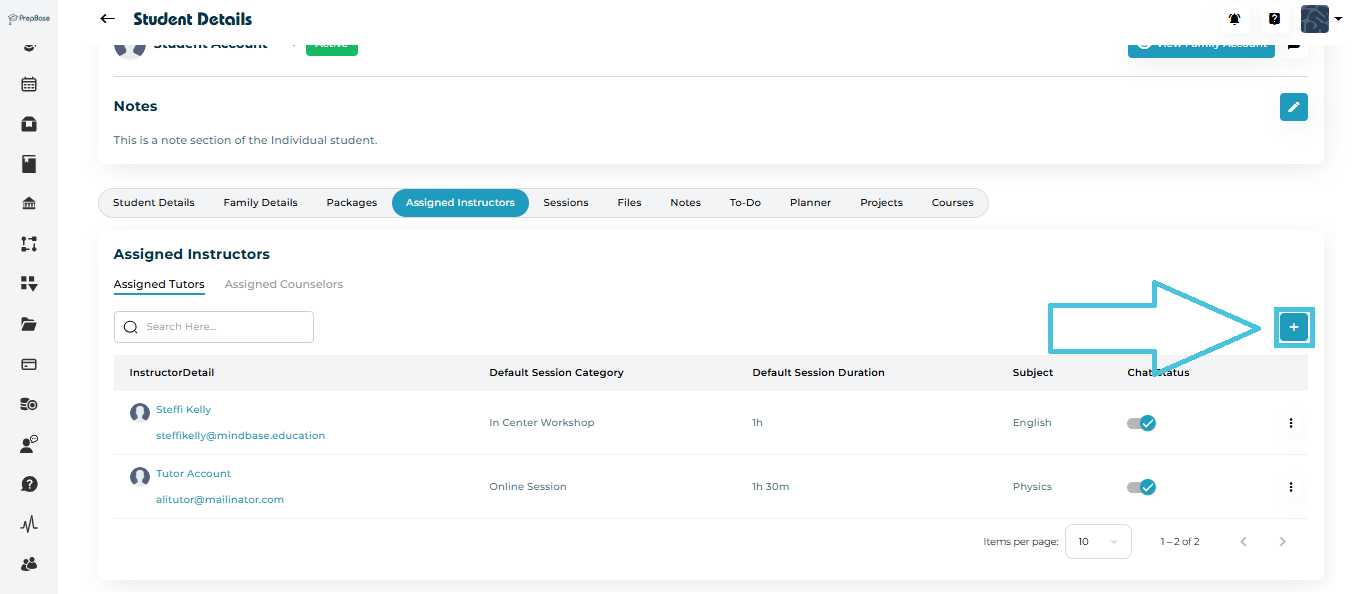
  1. Go to the Assigned Tutors section.

  2. Click the ➕ Add button in the top-right corner.

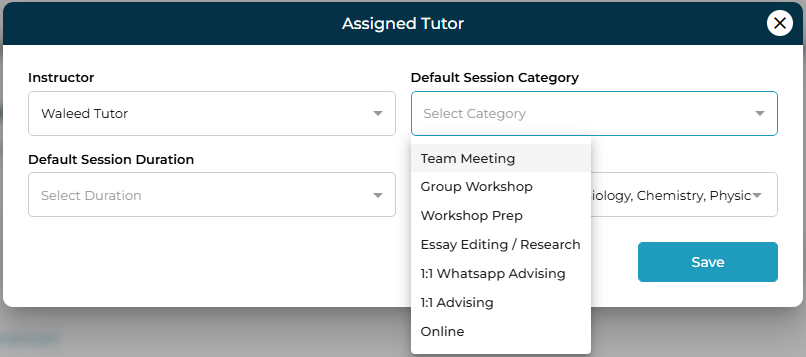
  3. A popup window titled Assigned Tutor will appear.

Steps to Assign

  1. From the Instructor dropdown, select the tutor’s name.
    (You can search by name or email for quick selection.)

  2. Choose the Default Session Category — e.g., Online Session, In-Center Workshop, Essay Editing, Group Workshop, etc.

  3. Set the Default Session Duration — e.g., 30m, 1h, 1h 30m, 2h, etc.

  4. Click Save to finalize the assignment.

Once saved, the tutor appears in the Assigned Tutors list with details like:

  • Instructor Name and Email

  • Default Session Category

  • Default Session Duration

  • Subject(s)

  • Chat Status (enabled/disabled)

3. Assigning a Counselor

To assign a student to an academic or career counselor:

  1. Switch to the Assigned Counselors tab.

  2. Click the ➕ Add button.

  3. A similar popup titled Assigned Counselor will appear.

  4. Select the counselor’s name, session category, and duration.

  5. Click Save.

The assigned counselor will now appear in the list with:

  • Counselor Name and Contact Email

  • Default Session Category (e.g., Online Session)

  • Default Session Duration

  • Subject or Area of Counseling

  • Chat Status (for direct student communication)

4. Editing or Updating Assignments

Admins can modify the instructor’s session settings anytime.

  1. Click the three-dot menu (⋮) next to the tutor or counselor’s name.

  2. Select Edit.

  3. Update session category, duration, or other details.

  4. Click Save to confirm changes.

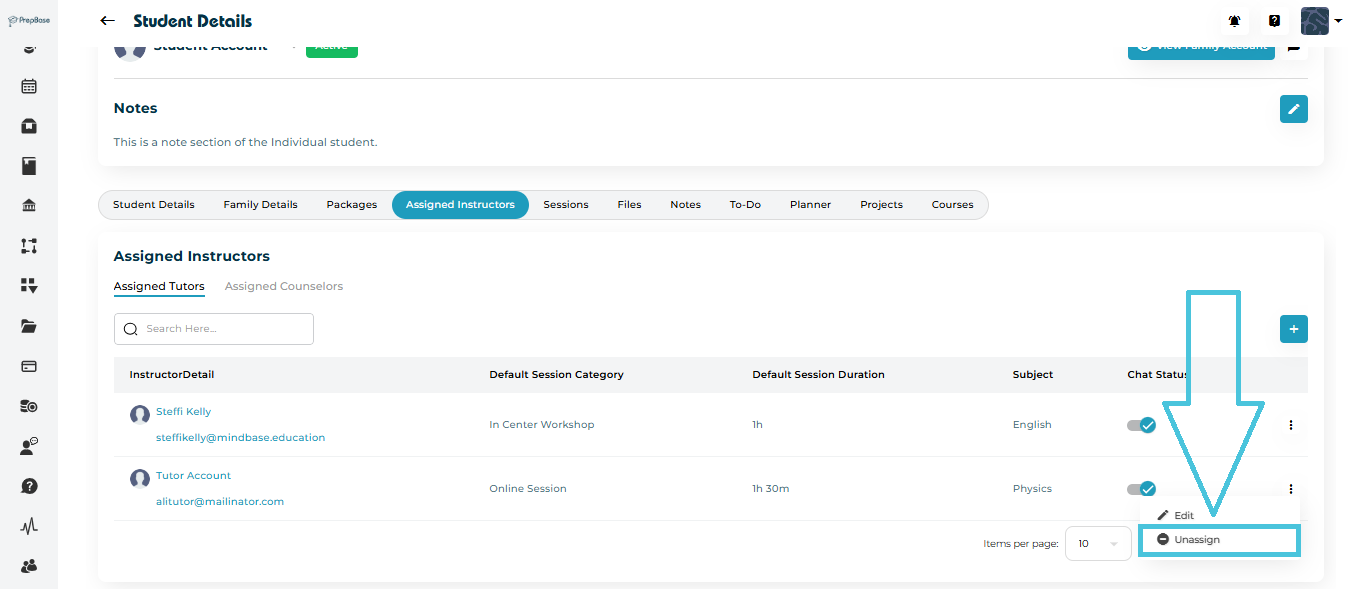
5. Unassigning a Tutor or Counselor

If a student no longer needs a particular instructor:

  1. Click the three-dot menu (⋮) beside the tutor or counselor’s record.

  2. Select Unassign.

The selected instructor will be removed from the list immediately, but past session history remains stored under the Sessions tab.

6. Viewing Chat Status

The Chat Status toggle allows Admins to enable or disable communication between the student and their assigned instructor.
When activated (✅), the student can directly chat with the tutor or counselor through the PrepBase portal.

IN THIS ARTICLE

Tracking Package Usage

Tracking Package Usage

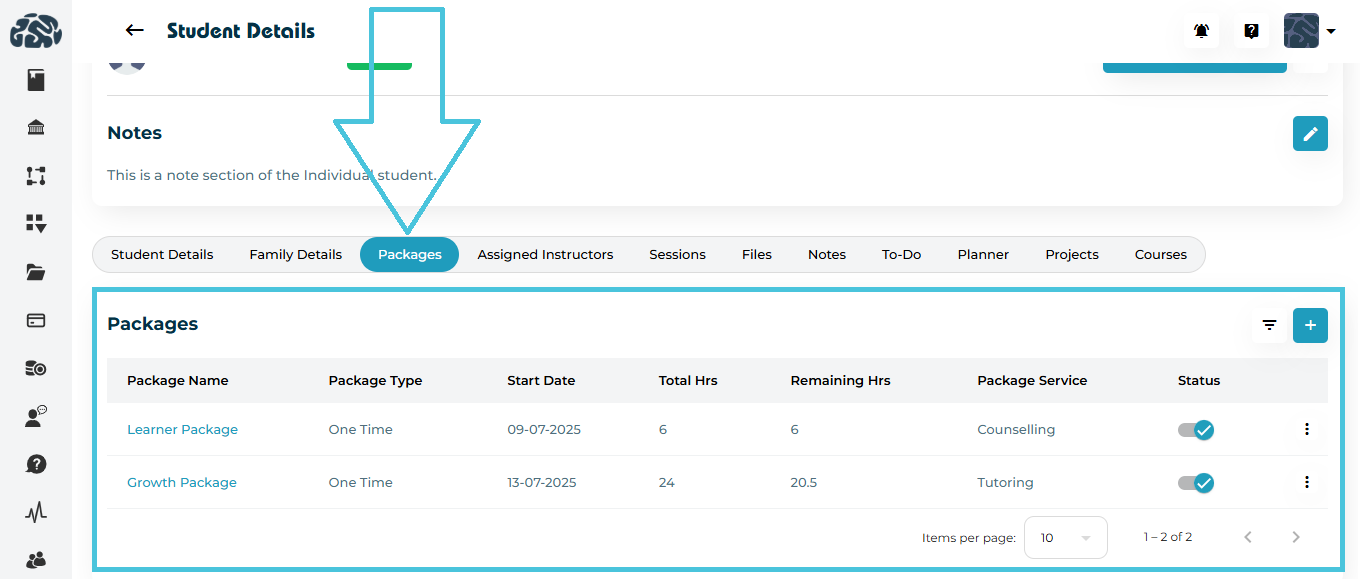
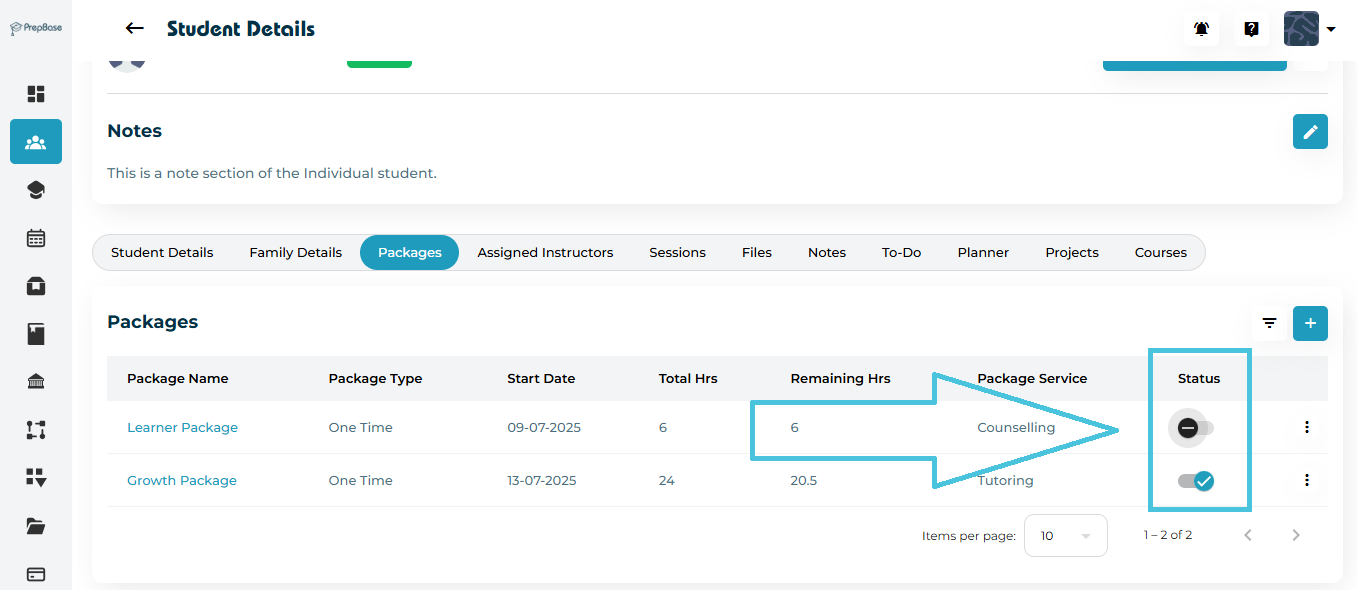
The Packages tab in each student’s profile helps Admins track how tutoring or counseling hours are being utilized over time.
It provides a complete overview of all assigned packages, their total hours, remaining balance, and current status — ensuring transparent session and billing management for every student.

1. Accessing Package Information

  1. Go to Students → Student Profiles.

  2. Click the student’s name to open their full profile.

  3. Select the Packages tab from the top navigation.

Here, you’ll see all packages currently assigned to that student, along with details such as:

  • Package Name

  • Package Type (One-Time / Recurring)

  • Start Date

  • Total Hours

  • Remaining Hours

  • Package Service (Tutoring / Counseling)

  • Status


2. Understanding Package Usage

Each time a tutoring or counseling session is completed, the corresponding hours are automatically deducted from the student’s package balance.
This helps both Admins and Counselors monitor real-time usage and ensure students are making steady progress.

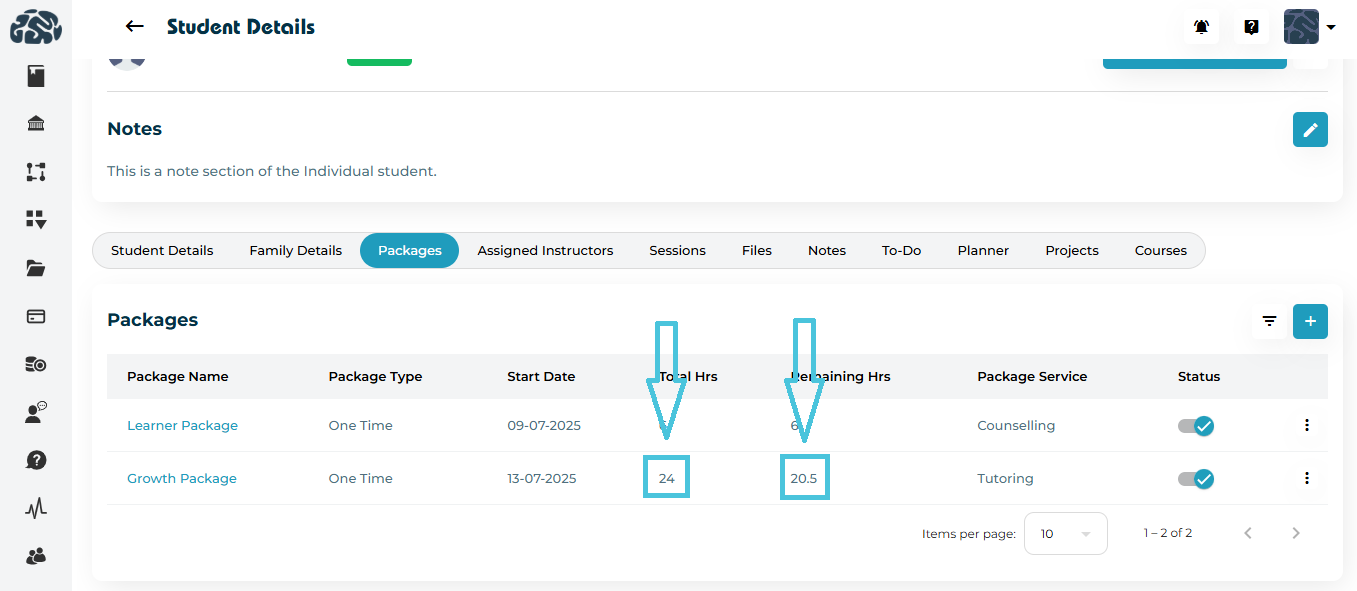
ColumnDescription
Total HrsThe total number of hours included in the assigned package.
Remaining HrsThe unused hours left in the package after sessions are completed.
Package ServiceIndicates whether the package is for Tutoring or Counseling.
StatusShows whether the package is Active or Inactive.

3. Tracking Package usage

PrepBase intelligently tracks package hours based on session activity.

  • When a session is completed: the system automatically deducts that session’s duration from the package’s total hours.

  • When a session is cancelled: no hours are deducted from the student’s package.

  • When a new session is scheduled: it appears under “upcoming Sessions,” but hours are only reduced after completion.

Example:
If a student has a 24-hour Growth Package and completes a 3.5-hour tutoring session, the Remaining Hours will update to 20.5 hours.

4. Package Status Management

You can easily check which packages are currently active:

Each package has a toggle switch that reflects whether it’s Active or Inactive.

  • Active: Package is currently in use and hours are being consumed.

  • Inactive: Package has expired, been unassigned, or paused.

5. When to Assign or Renew Packages

If a student’s Remaining Hours reach zero or near depletion:

  • Notify the family or student.

  • Assign a new package using the ➕ Add Package button.

  • Set the appropriate Package Type to continue tracking seamlessly.

6. Why Tracking Packages Matters

Accurate package tracking ensures:

  • Transparent usage monitoring for Admins, Tutors, and Families.

  • Automatic synchronization with billing and scheduling modules.

  • Improved academic planning and time allocation.

  • Data-driven insights into student engagement levels.

IN THIS ARTICLE

Assigning Learning and Counseling Packages

Assigning Learning and Counseling Packages

The Packages tab allows Admins to assign, manage, and monitor tutoring or counseling packages linked to each student.
This feature ensures every student has access to the correct learning or counseling plan, with clear tracking of hours, progress, and package type.

1. Accessing Student Packages

  1. Navigate to Students → Student Profiles.

  2. Select the student whose packages you want to manage.

  3. Open the Packages tab within the student’s profile.

Here, you’ll find a table listing all assigned packages, including:

  • Package Name

  • Package Type (e.g., One-Time, Monthly)

  • Start Date

  • Total Hours

  • Remaining Hours

  • Package Service (Tutoring or Counseling)

  • Status

2. Assigning a New Package

To assign a new tutoring or counseling package:

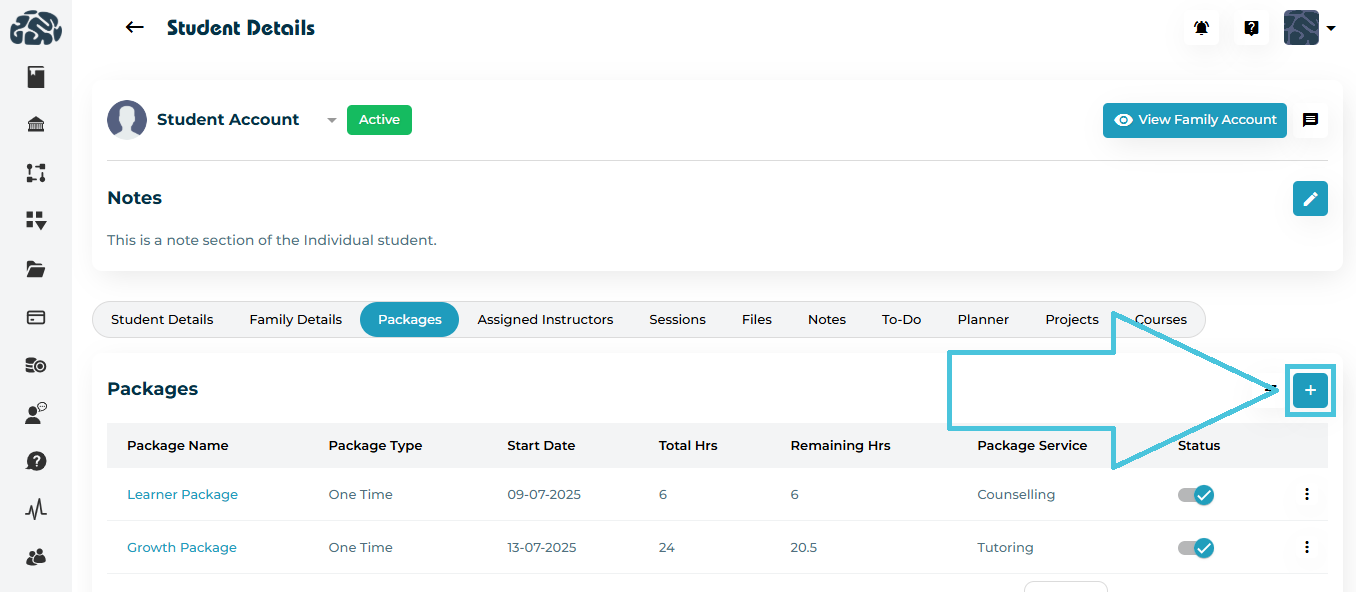
  1. Click the ➕ Add button at the top-right corner of the Packages section.
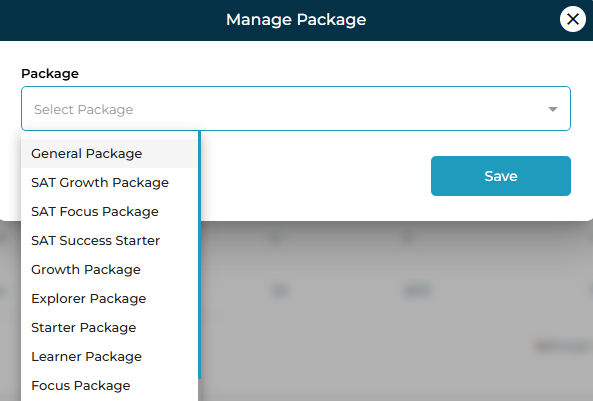
  2. A Manage Package popup window will appear.

  3. Select the appropriate package from the Packages and promos section of your organization’s admin panel as you can view example package names below and in screenshot above.
    The list includes all available packages such as:

    • General Package

    • Learner Package

    • Growth Package

    • Focus Package

    • SAT Growth / Focus Packages

    • Explorer / Starter Packages

  4. Click Save to assign the package to the selected student.

3. Filtering Packages by Type

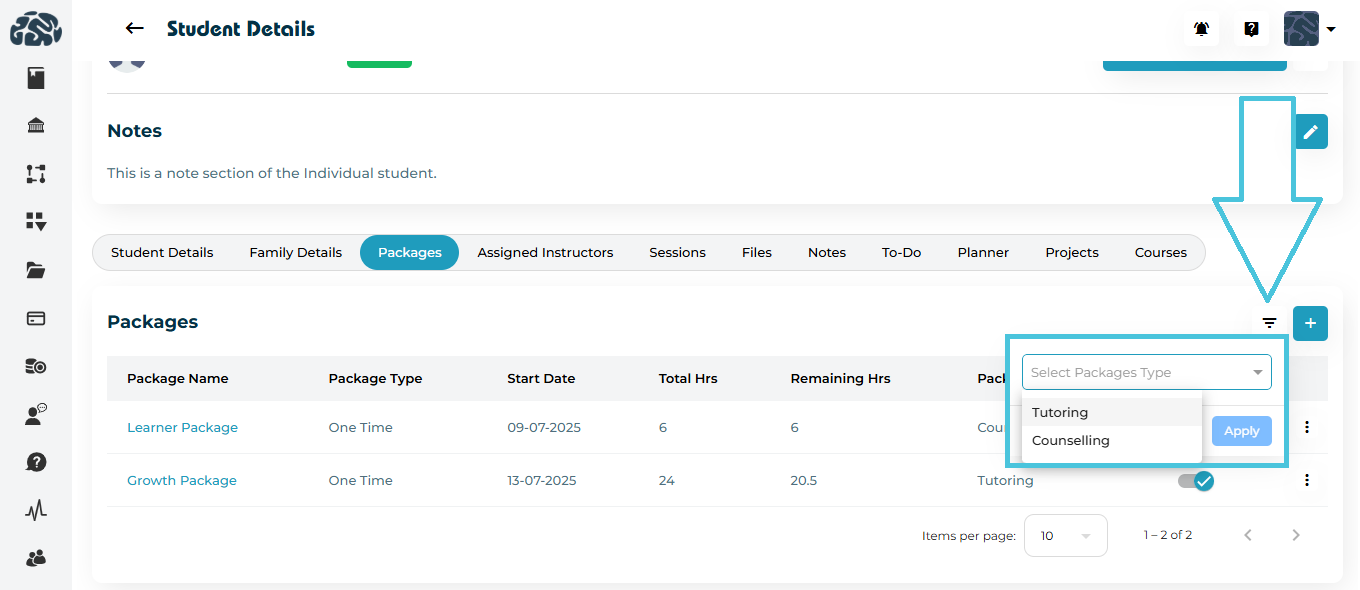
You can easily filter packages to view only Tutoring or Counseling types.

To focus on a specific service type:

  1. Click the Filter icon beside the Add (+) button.

  2. Choose the package type — Tutoring or Counseling.

  3. Click Apply to filter the list.

4. Monitoring Assigned Packages

Once a package is assigned, you can monitor:

  • Total Hours: The total time allocated in the package.

  • Remaining Hours: Updated automatically as sessions are completed.

  • Service Type: Indicates whether it’s used for Tutoring or Counseling.

  • Status: Shows whether the package is active or inactive.

5. Unassigning a Package

If a package is no longer relevant or was added by mistake, you can unassign it.

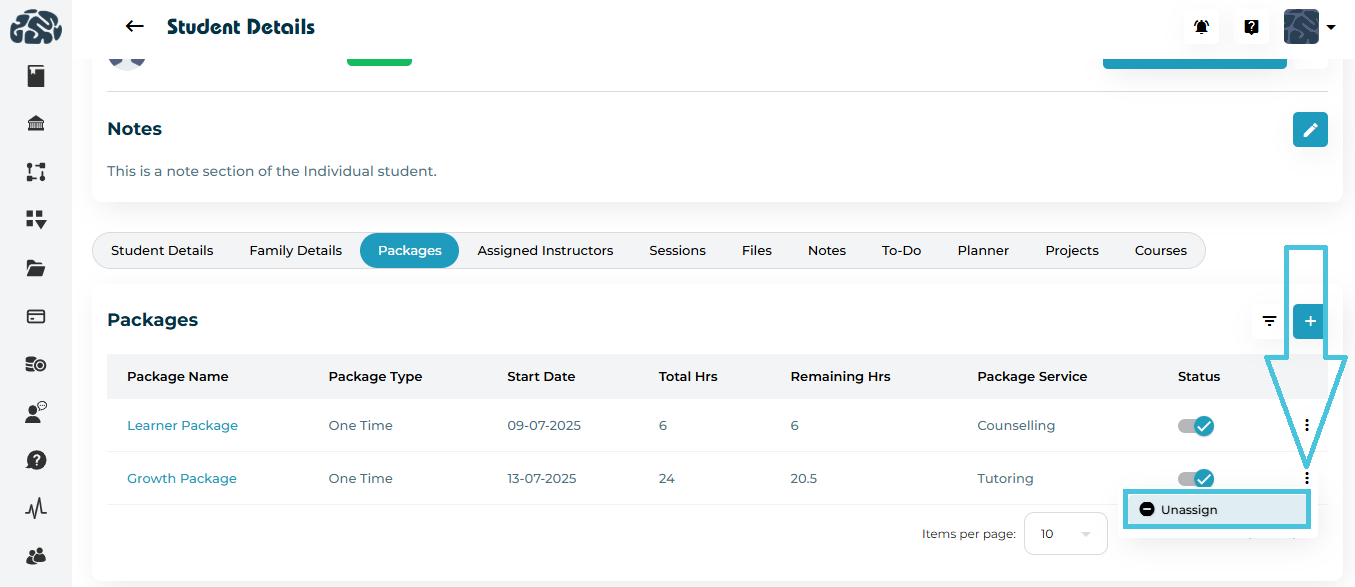
  1. Click the three-dot menu (⋮) next to the package.

  2. Select Unassign to remove it from the student’s profile.

Once unassigned, the package will no longer appear in the student’s active list, but session history associated with it remains for record purposes.

IN THIS ARTICLE

Managing Parental Communication

Managing Parental Communication

The Family Details section in PrepBase allows Admins to efficiently manage how parents or guardians communicate and receive updates about their linked students.
This includes storing family contact information, setting notification preferences, leaving notes, managing access permissions, and reviewing activity history — ensuring transparent and well-organized communication between your institution and families.

1. Accessing Family Communication Settings

  1. Navigate to Students → Student Profiles.

  2. Select a student to open their Student Details view.

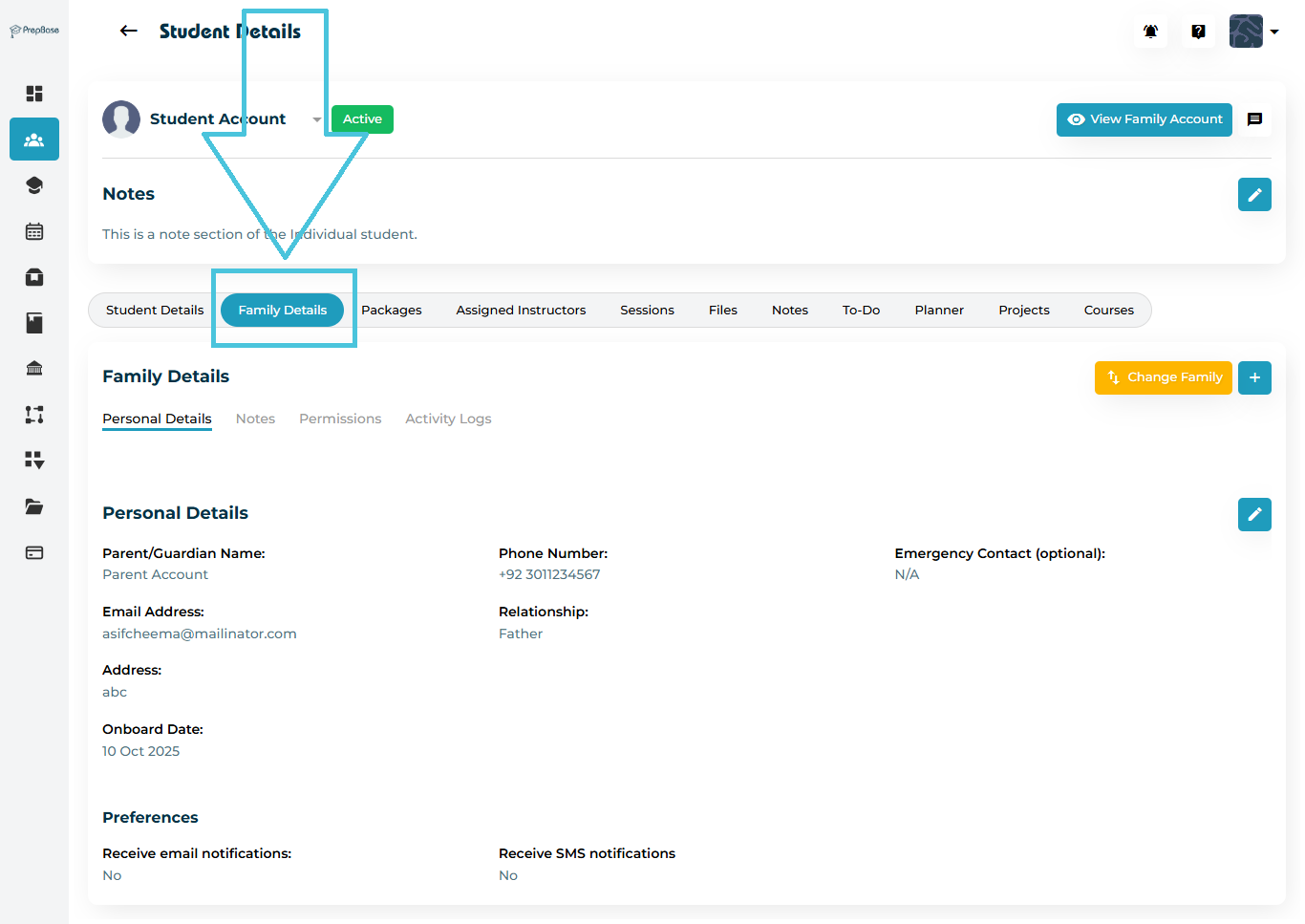
  3. Click on the Family Details tab.

Here, you can view or update:

  • Parent/Guardian Contact Information

  • Notification Preferences (Email & SMS)

  • Communication Notes

  • Access Permissions

  • Activity Logs

2. Updating Family Contact Information

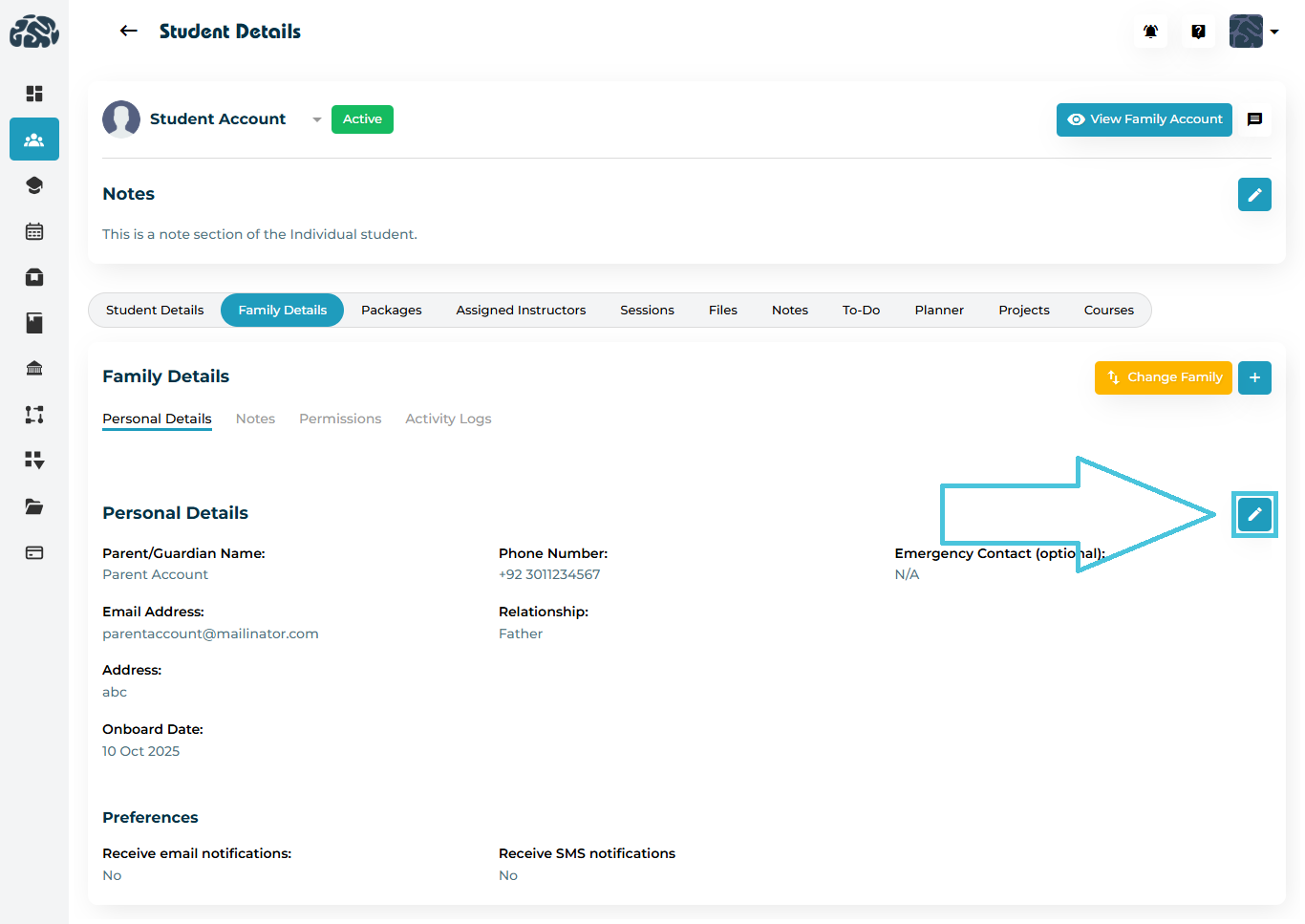
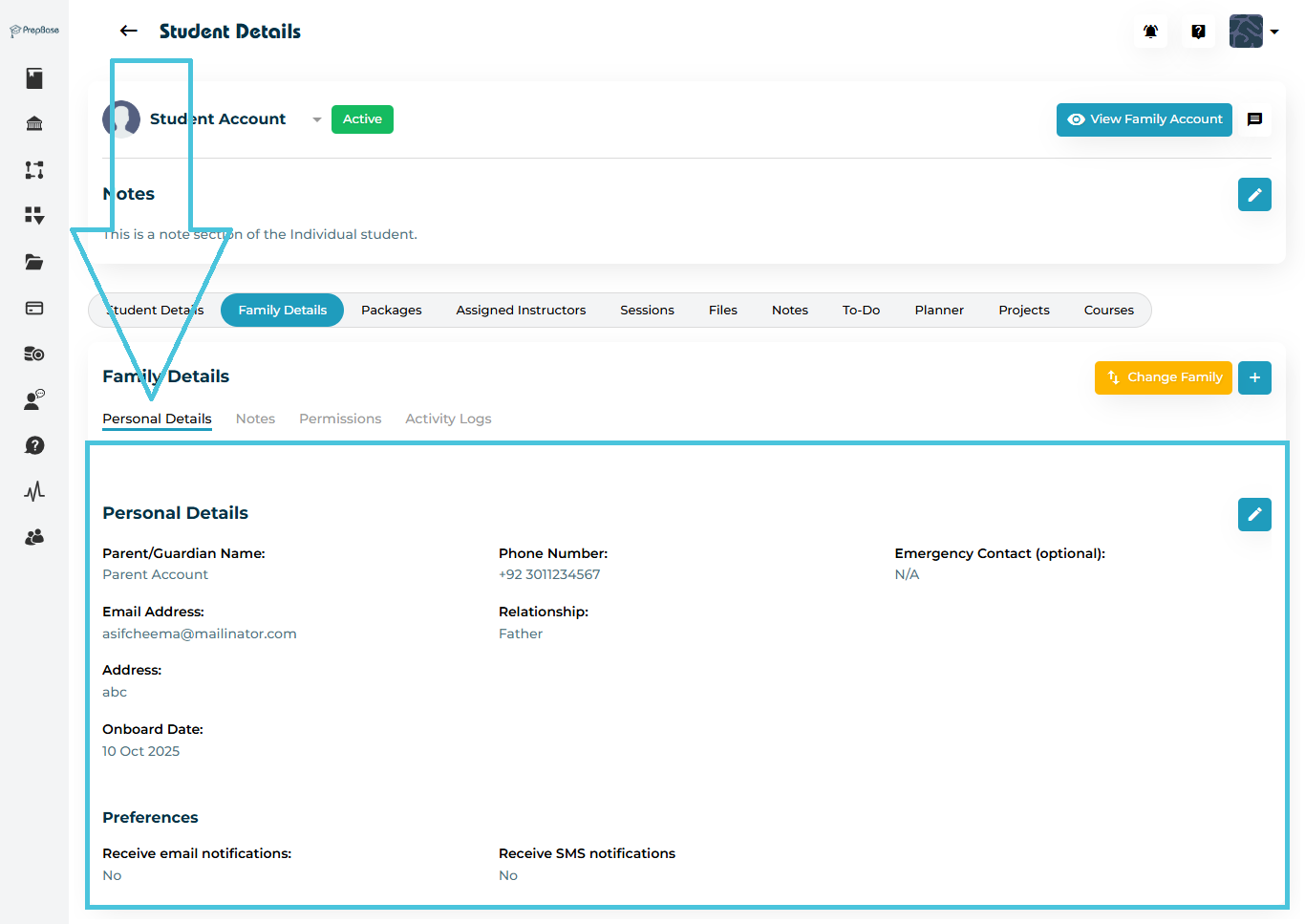
The Personal Details sub-tab displays key contact information for parents or guardians.

Each family record includes:

  • Parent/Guardian Name

  • Phone Number & Email Address

  • Relationship to Student

  • Address

  • Emergency Contact (Optional)

  • Notification Preferences

3. Setting Notification Preferences

Admins can control how parents receive updates directly from the system.
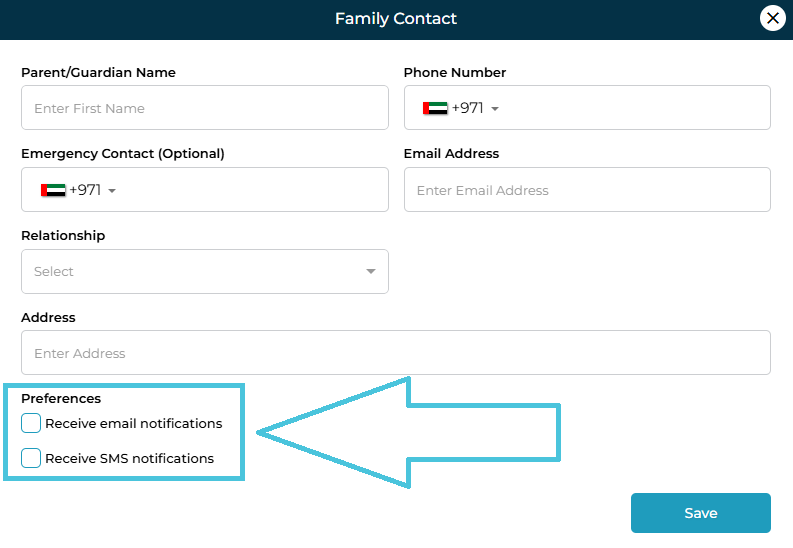
Notification settings are managed from the Family Contact Form when adding or editing a guardian.

Available Options:
PreferenceDescription
Receive Email NotificationsSends automatic updates such as schedule confirmations, invoices, and progress summaries to the parent’s registered email.
Receive SMS NotificationsSends short alerts for session reminders, cancellations, or important notices via SMS.

Best Practice: Enable email notifications for academic updates and use SMS notifications for urgent or time-sensitive communication.

4. Adding Communication Notes

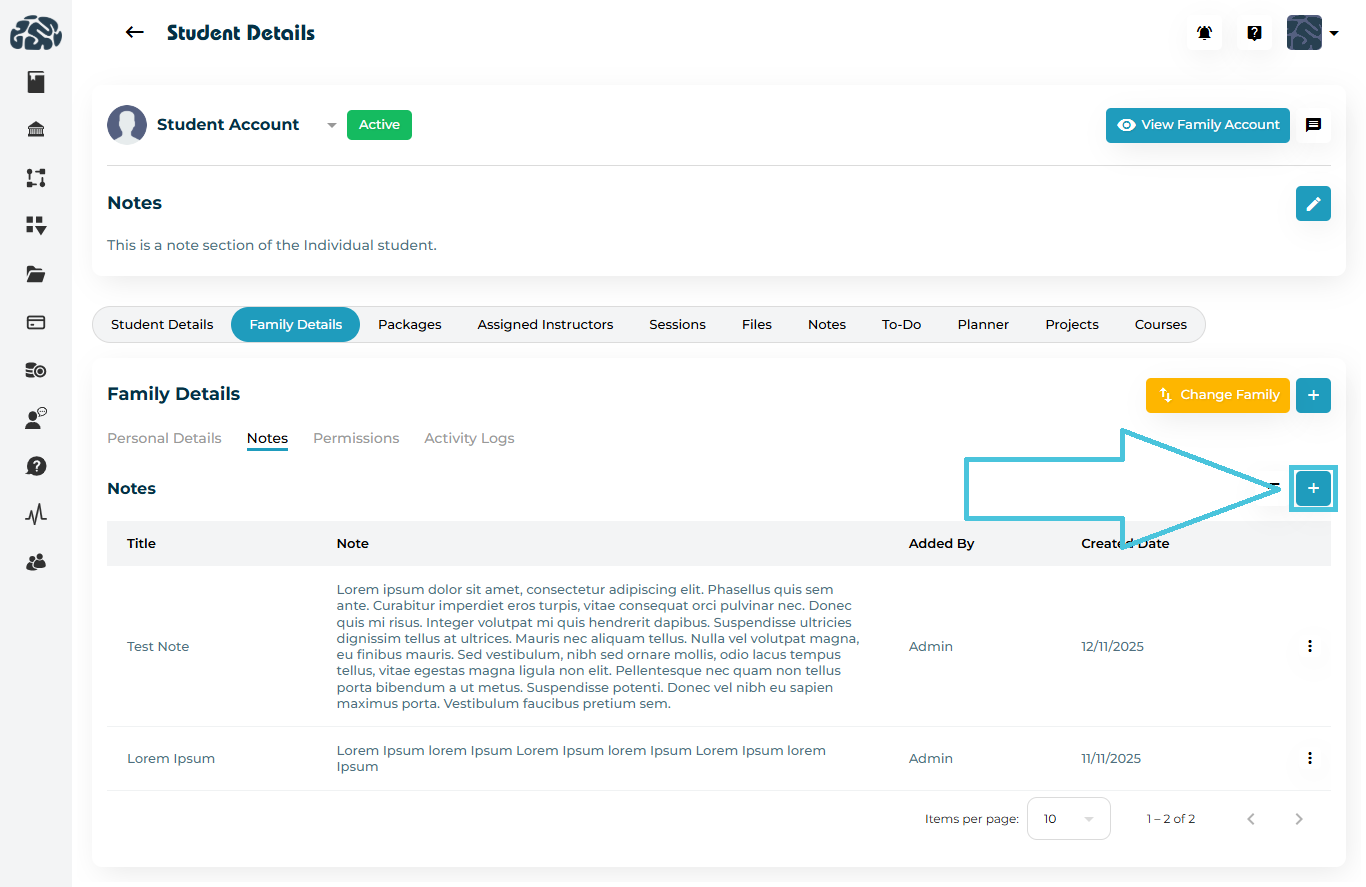
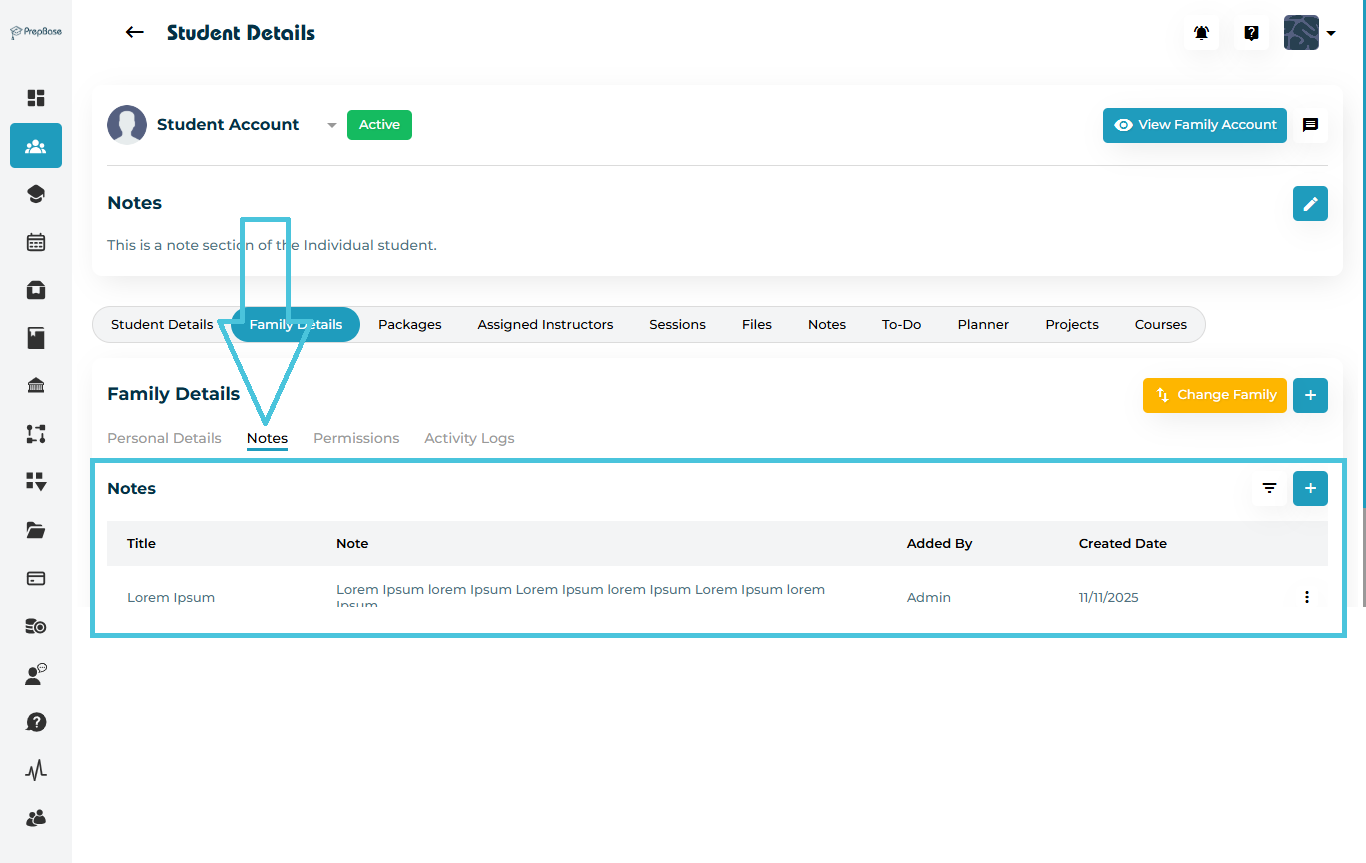
The Notes sub-tab is designed for internal use by Admins to document communication with parents — such as feedback, meeting outcomes, or follow-up reminders.

How to Add a Note:
  1. Go to Family Details → Notes.

  2. Click the ➕ Add button.

  3. Enter a Title and the Note Description.

  4. Click Save to log it.

Each note shows:

  • Title & Message

  • Added By (Admin)

  • Created Date

5. Managing Parent Permissions


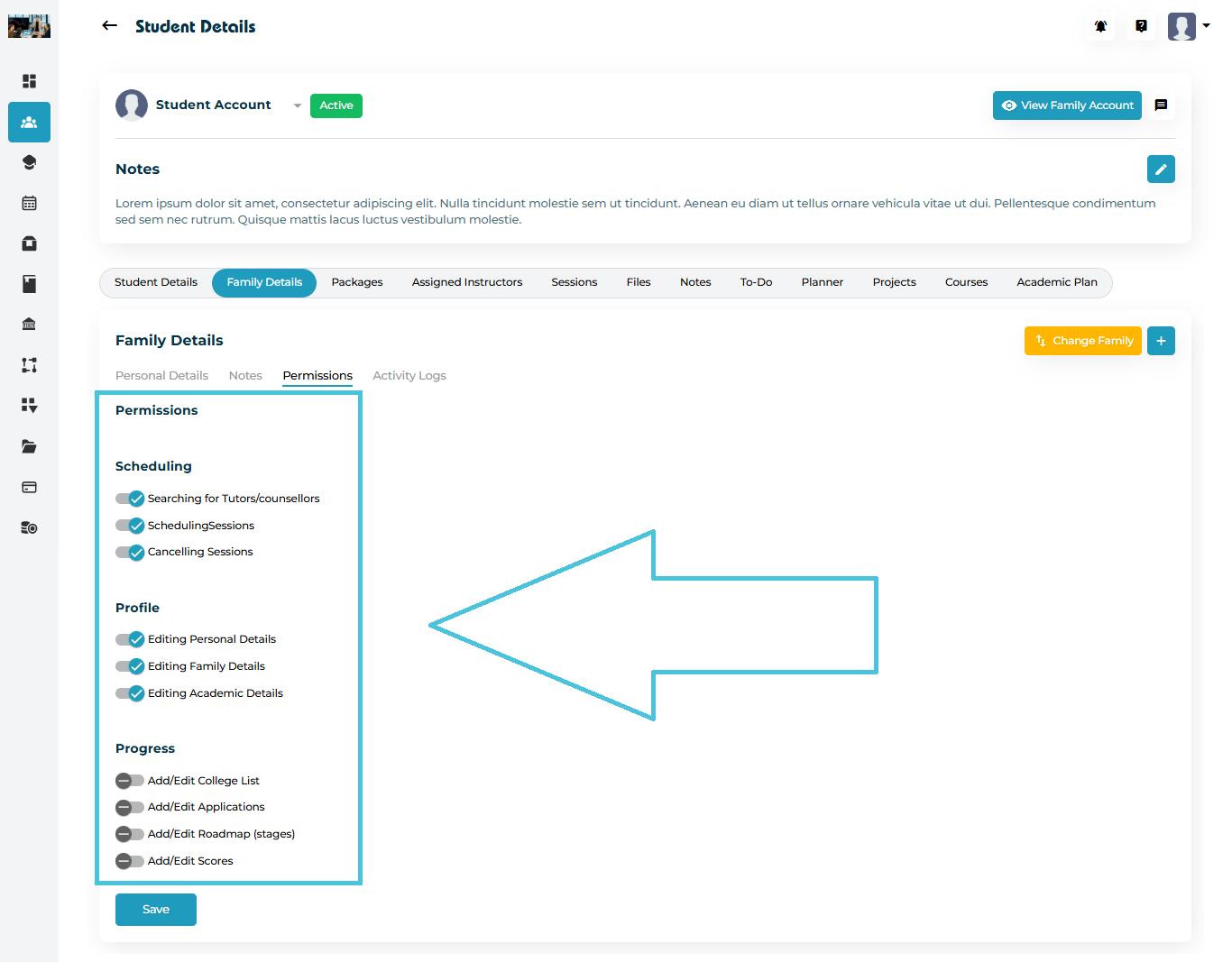
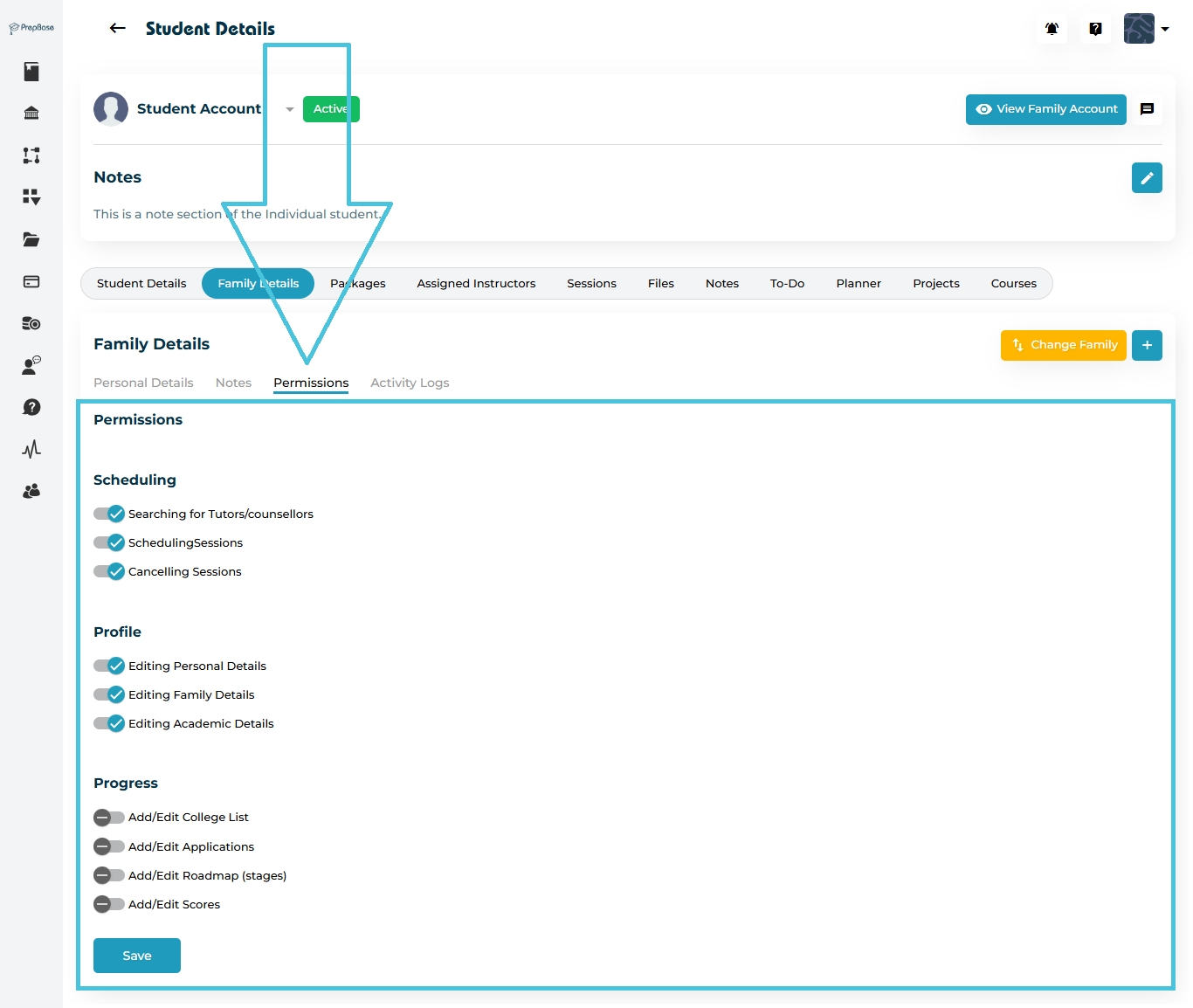
From the Permissions sub-tab, you can define what actions a parent can perform in their linked account.

Permission GroupDescription
SchedulingAllows parents to search for tutors, schedule, or cancel sessions on behalf of the student.
ProfileEnables parents to edit family or student information.
ProgressLets parents view or update student progress details, applications, or scores.

IN THIS ARTICLE

Linking parents to students

Linking Parents to Students

The Family Details section allows Admins to connect students with their parents or guardians inside their organization.
By linking a parent or family account, you can centralize communication, share progress updates, manage billing information, and track login activity — all from one place.

1. Accessing Family Details

  1. Go to Students → Student Profiles.

  2. Click on a student’s name to open their detailed profile.

  3. Select the Family Details tab from the top navigation.

Within the Family Details view, you’ll find four key sub-sections:

  • Personal Details

  • Notes

  • Permissions

  • Activity Logs

2. Viewing Family Personal Details

The Personal Details sub-tab displays the parent or guardian’s contact information linked to the student.

Displayed Information
  • Parent/Guardian Name

  • Phone Number

  • Email Address

  • Emergency Contact (optional)

  • Relationship (e.g., Father, Mother, Guardian)

  • Address

  • Onboard Date

  • Notification Preferences (Email or SMS)

If no parent is currently linked, you can use the Add (+) or Change Family button to associate the student with a new or existing family account.

3. Adding a New Parent or Guardian

  1. Click the ➕ Add button in the top-right corner of the Family Details tab.

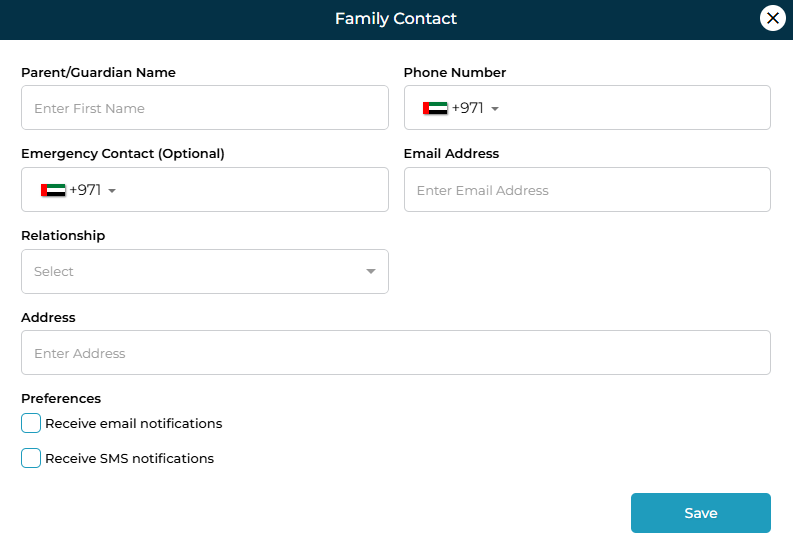
  2. A Family Contact form will appear.

  3. Fill out the form with the parent or guardian’s information:

FieldDescriptionRequired
Parent/Guardian NameFull name of the parent or guardian
Phone NumberContact number with country code
Emergency ContactAlternate contact number (optional)
Email AddressParent’s or guardian’s email address
RelationshipDefine the relationship to the student (Father, Mother, Guardian, etc.)
AddressResidential address
PreferencesChoose whether the parent receives Email and/or SMS notifications

     4. Click Save to create the connection.
Once saved, the family contact appears under Personal Details.

4. Changing or Linking to an Existing Family Account

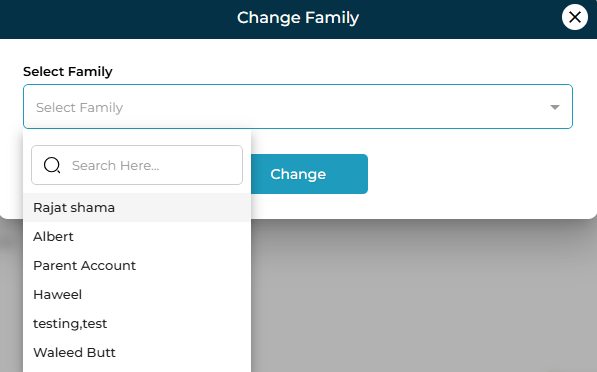
If the student already has a parent account created in the system, you can quickly link it using the Change Family button.

  1. Click Change Family.

  2. In the dropdown, search or select an existing family record.

  3. Click Change to finalize the link.

5. Adding Family Notes

The Notes sub-tab allows Admins to record important comments related to the parent or guardian — for example, communication preferences, feedback, or meeting records.

Each note displays:

  • Title & Description

  • Created By (User)

  • Created Date

Click the ➕ Add button to create a new note and record updates securely.

6. Family Permissions

Similar to student permissions, Admins can manage what family members can access or modify within their linked accounts.

Permission GroupDescription
SchedulingEnable or restrict parents from viewing tutors, scheduling, or canceling sessions.
ProfileControl whether parents can edit their personal or family details.
ProgressAllow parents to view or update specific progress data like applications or scores.

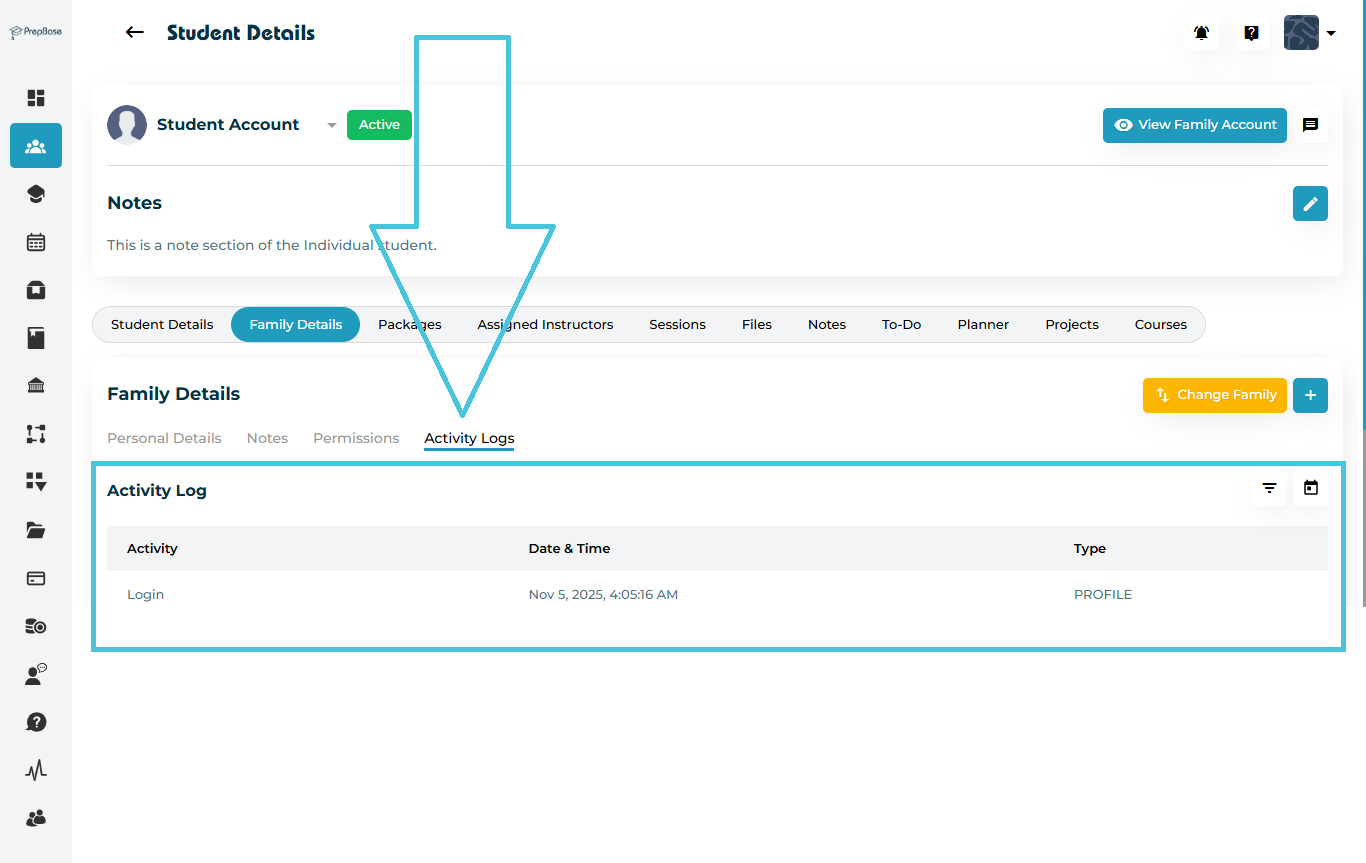
7. Viewing Family Activity Logs

The Activity Logs sub-tab tracks every action taken by the parent or guardian, such as portal logins or updates to student information.

Each entry includes:

  • Activity Type (e.g., Login, Update)

  • Date & Time of the event

  • Activity Category (e.g., Profile, Portal)

8. Why Linking Parents Matters

Connecting family members to student profiles ensures:

  • Centralized communication between counselors, students, and guardians

  • Accurate billing and shared payment access

  • Real-time academic visibility for parents

  • Streamlined record management for multi-student families

This feature helps maintain transparency and collaboration throughout the student’s learning journey.

IN THIS ARTICLE

Managing Student Permissions

Managing Student Permissions

The Permissions tab allows Admins to control what each student can view or edit within their account.
From scheduling sessions to editing personal details or updating progress milestones, these settings define the level of access available to each student inside their PrepBase portal.

By managing permissions effectively, Admins can ensure students have the right tools and visibility — while maintaining system security and workflow accuracy.

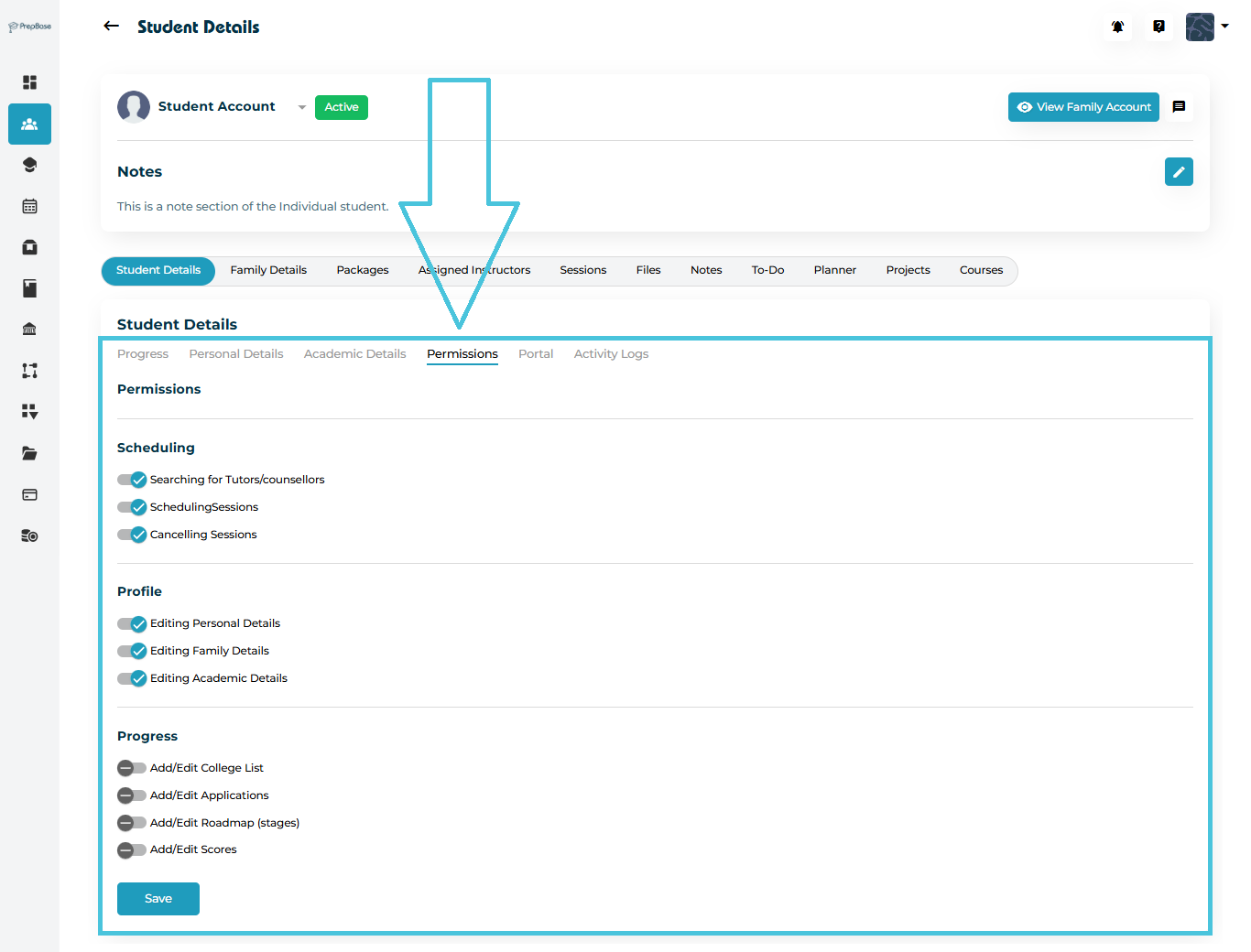
1. Accessing the Permissions Tab

  1. Navigate to Students → Student Profiles.

  2. Open any student record by clicking on their name.

  3. Inside the Student Details page, select the Permissions tab.

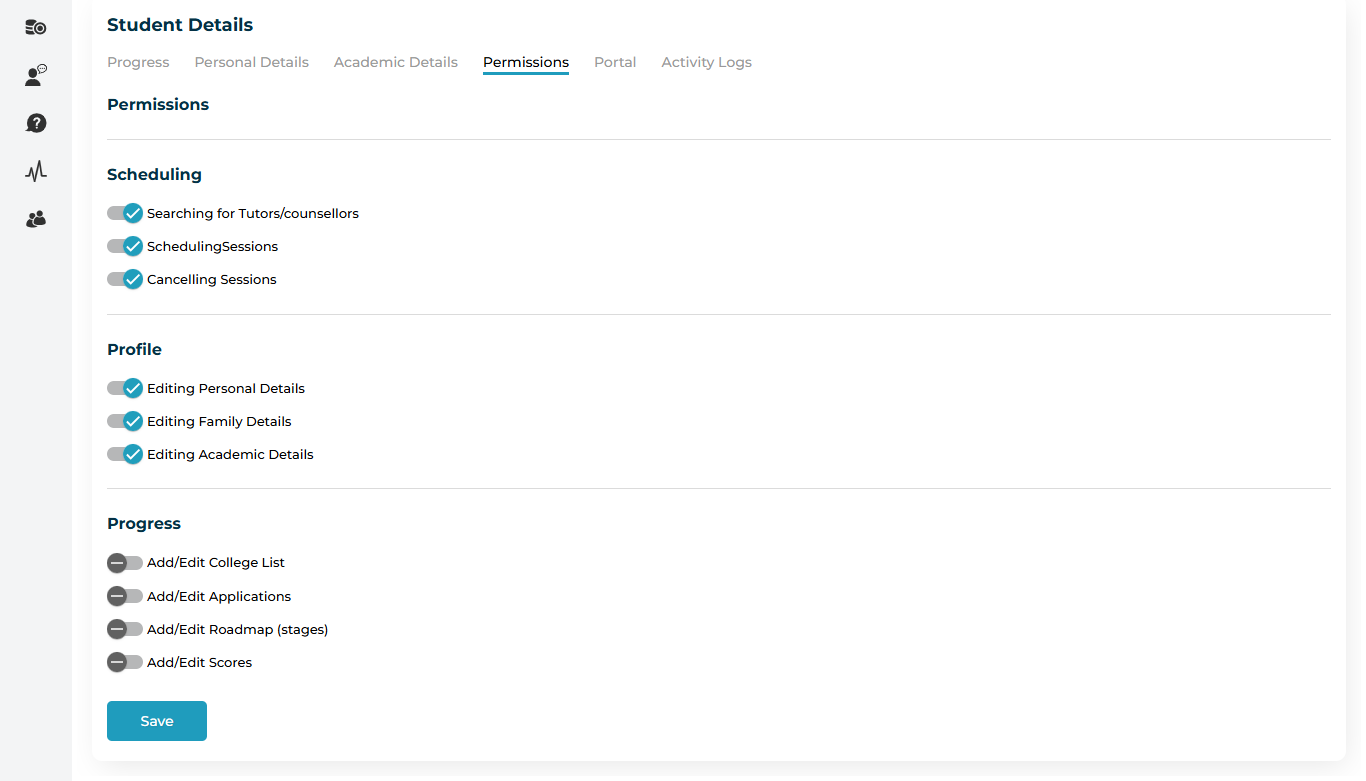
The screen will display grouped permission categories with toggle switches that can be enabled or disabled as required.

2. Understanding Permission Categories

Permissions are grouped into three main sections to make management simple and clear.

Scheduling

Controls how students interact with their tutoring and counseling sessions.

  • Searching for Tutors/Counselors — allows the student to browse available tutors or counselors.

  • Scheduling Sessions — lets the student book new sessions based on their packages or availability.

  • Cancelling Sessions — grants permission to cancel scheduled sessions if needed.

Tip: Disable this option if session bookings are managed only by instructors or administrators.

Profile

Manages access to the student’s personal and family information.

  • Editing Personal Details — allows the student to update contact details and preferences.

  • Editing Family Details — enables changes to linked parent or guardian information.

  • Editing Academic Details — allows editing academic data like curriculum, major, or study level.

Recommendation: Keep these permissions active to ensure student data remains accurate and current.

Progress

Controls how students interact with their academic planners and performance tracking.

  • Add/Edit College List — enables students to maintain their college application list.

  • Add/Edit Applications — allows them to track and update their application progress.

  • Add/Edit Roadmap (Stages) — provides access to plan future admission stages.

  • Add/Edit Scores — lets students enter or modify their test and exam results.

Note: These permissions are often restricted for counselor-managed accounts.

3. Enabling or Disabling Permissions

To update a student’s permissions:

  1. Click the toggle switch beside each option to enable (✅) or disable (🚫) the permission.

  2. After making all changes, click the Save button at the bottom of the page.

Pro Tip: The system automatically updates student access in real time once saved — no need to refresh.

4. Why Permissions Matter

Configuring permissions ensures:

  • Data privacy for sensitive student or family information.

  • Proper control over scheduling and progress editing.

  • Efficient collaboration between students, instructors, and counselors.

When permissions are set correctly, students can focus on their studies while administrators maintain full oversight.

IN THIS ARTICLE

Checking student activity logs

Checking Student Activity Logs

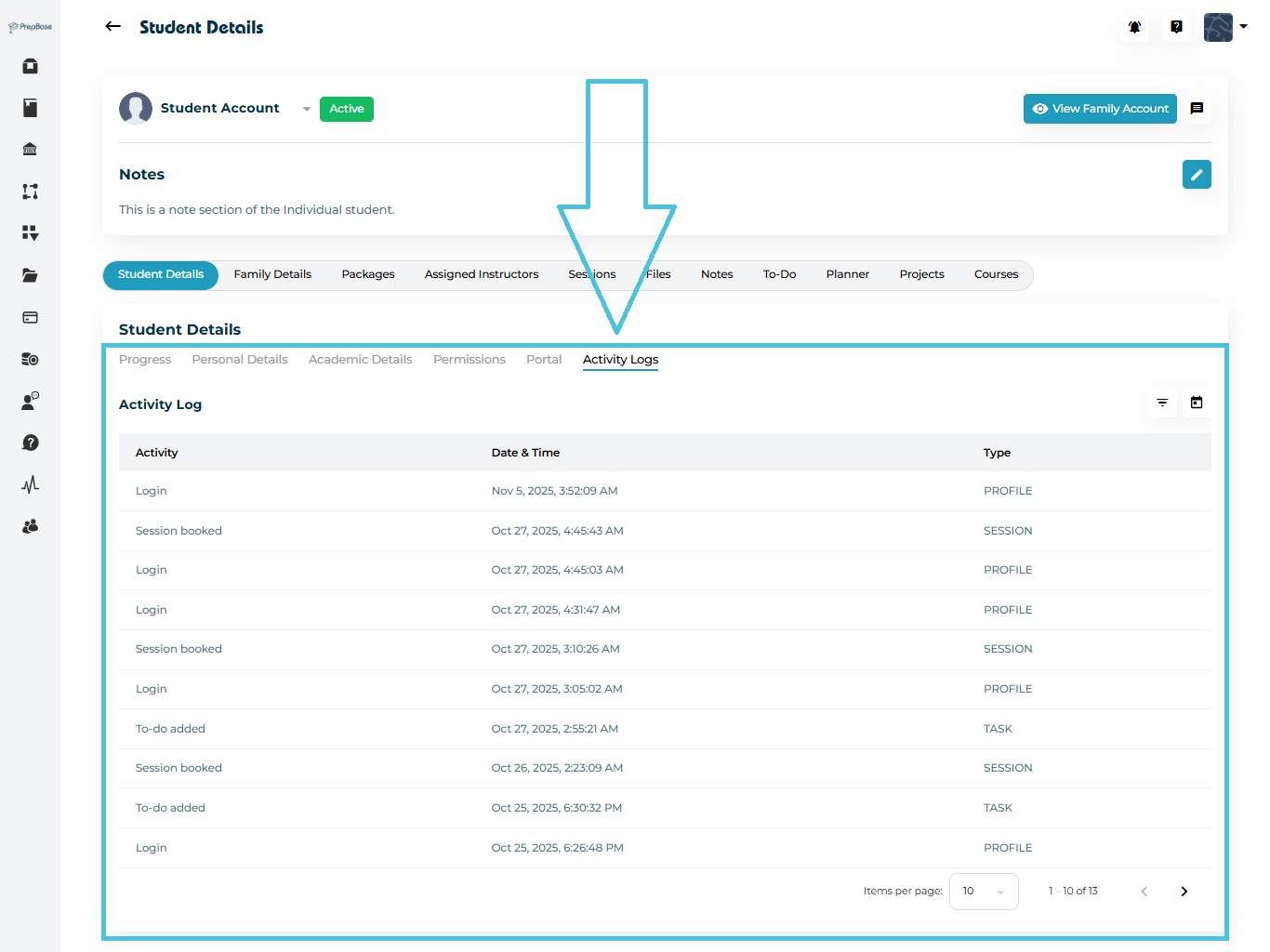
Monitoring a student’s activity history helps you stay informed about everything happening in their account — from booked sessions to progress updates.
The Activity Logs tab in PrepBase gives a transparent record of each student’s interactions within the platform.

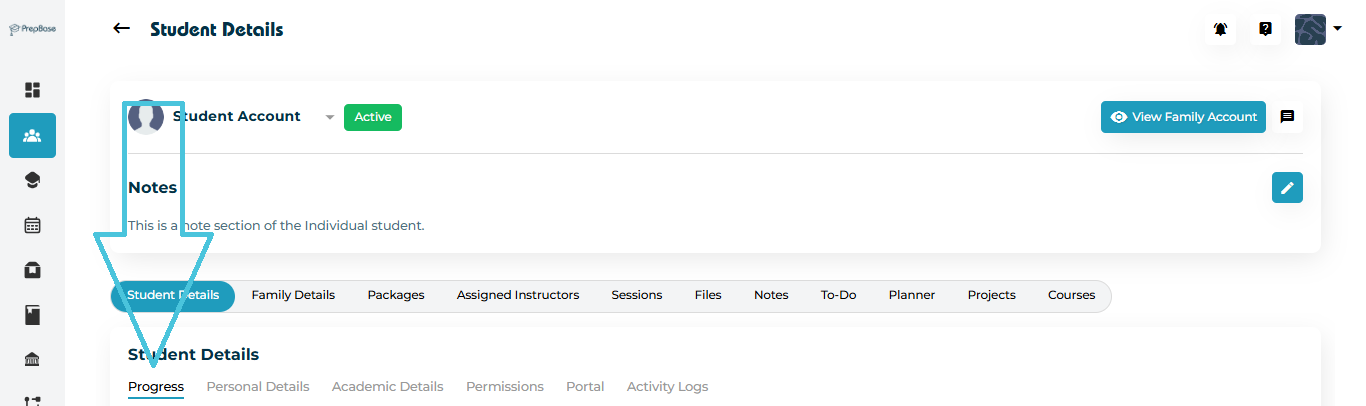
1. Accessing Activity Logs

To view the full history of a student’s actions:

  1. Navigate to Students Accounts → Student Profiles.

  2. Select the desired student from the list.

  3. Open the Student Details page.

  4. Click the Activity Logs tab at the top of the profile.

You’ll now see a detailed list of every action associated with that student — such as booked sessions, completed activities, and changes made to their profile.

2. Understanding the Activity Log Table

The Activity Log is organized into three main columns for easy tracking:

ColumnDescription
ActivityDescribes the action taken (e.g., Session booked, Profile updated).
Date & TimeShows when the action occurred, including timestamp.
TypeSpecifies the category of activity (e.g., Session, Profile, Note).

3. Using Filters and Date Range

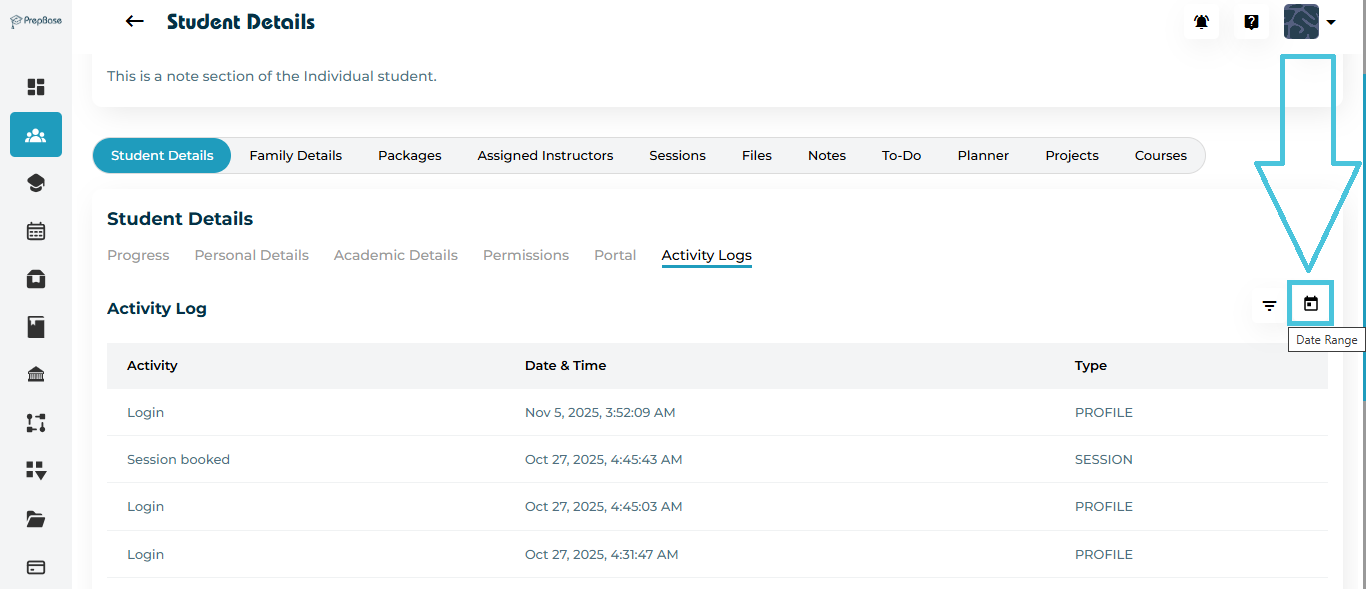
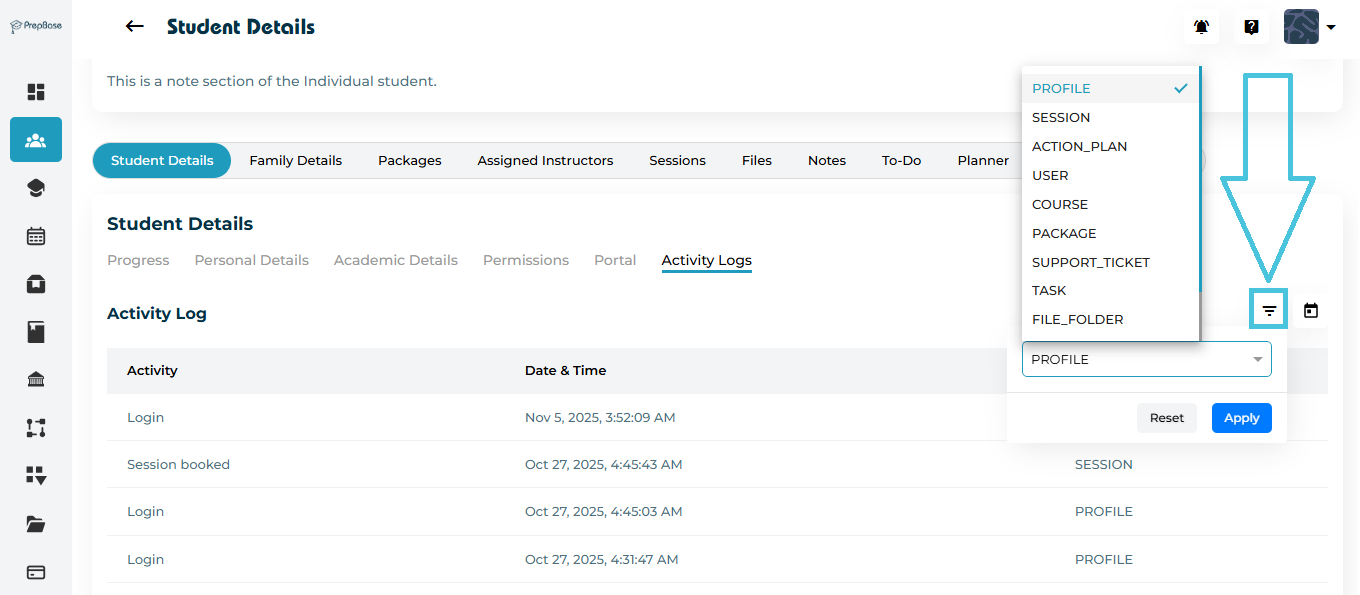
PrepBase makes it easy to filter logs and focus on what matters most:

By Date Range

  • Click the calendar icon in the top right corner of the Activity Logs table.

  • Select a specific start and end date to view logs for that time period.

By Activity Type

  • Use the filter icon next to the date selector.

  • Filter results by Profile, Session, Action_Plan, User, Course, Package, Support ticket, task and File_Folder.

Note: Filters are especially useful when tracking large datasets for active students.

4. Interpreting Log Entries

Each log entry provides valuable insight into student actions:

Common Activity Types Include:

  • Session Booked: The student (or instructor) scheduled a new session.

  • Session Completed: The student attended and completed a session.

  • Profile Updated: Personal or academic details were modified.

  • File Uploaded: A new document or assignment was added.

  • Project Submission: The student submitted a project milestone.

Reviewing these logs helps tutors and counselors identify recent interactions and ensure accountability across the platform.

IN THIS ARTICLE