Tracking course completion

Tracking Course Completion

Once a student is enrolled in a course, PrepBase automatically tracks their learning progress across modules and scored activities.

This data helps Admins monitor the student’s academic engagement and overall learning performance.

1. Accessing Course Progress

  1. Open the student’s profile

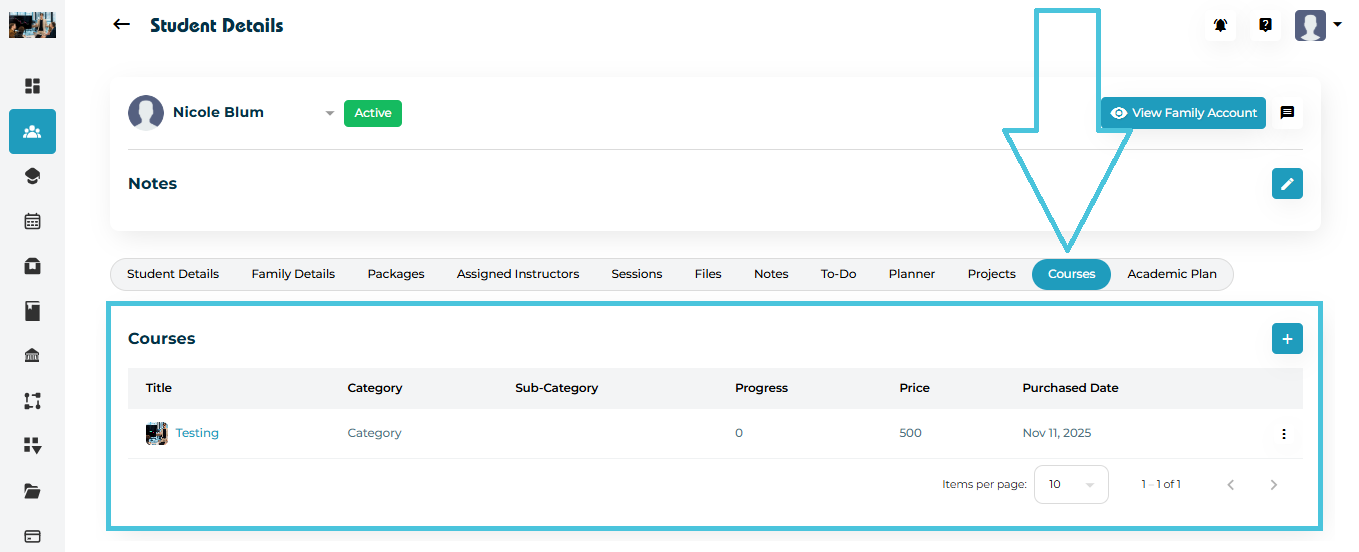
  2. Click the Courses tab

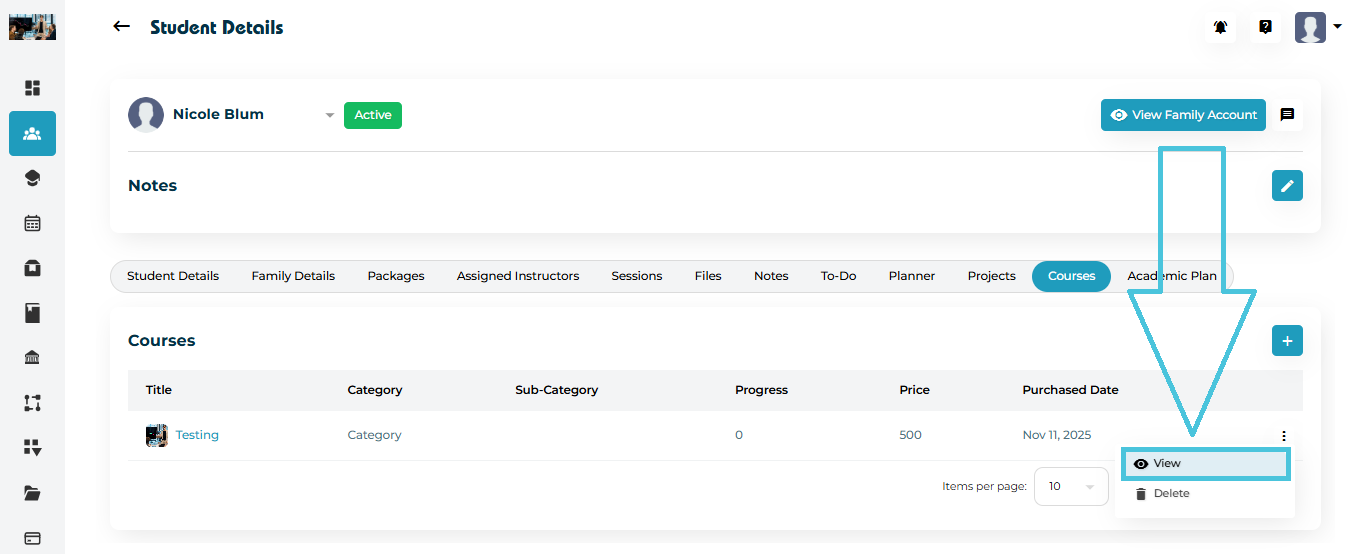
  3. Open a course using View

2. Understanding Course Progress

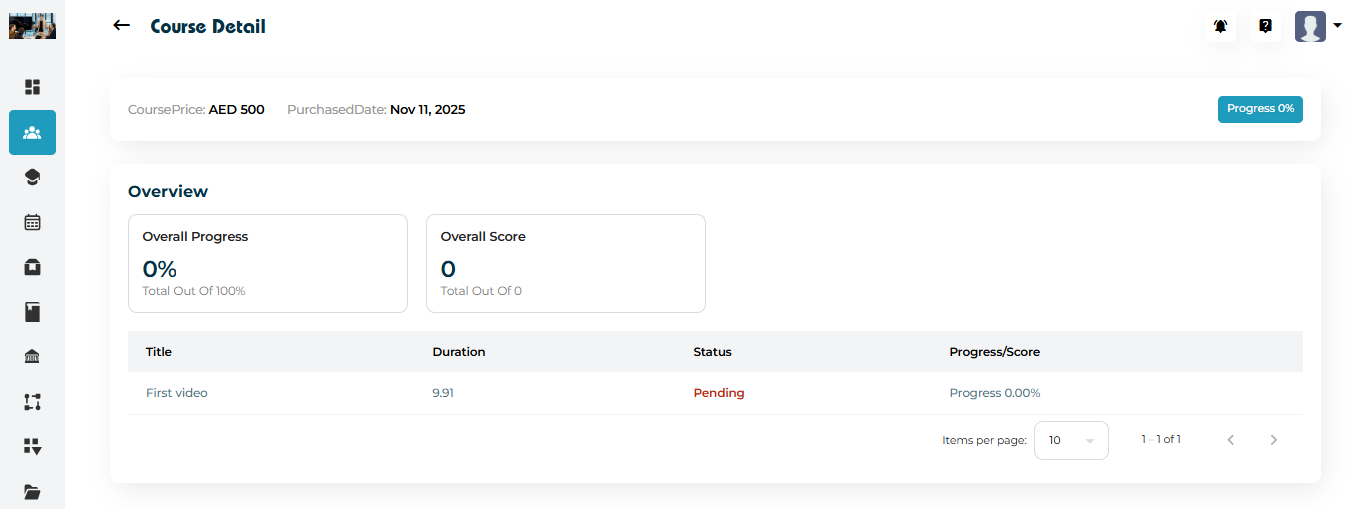
Inside the Course Detail screen, progress is displayed clearly using:

1. Overall Progress (0–100%)

Shows how much of the course the student has completed.

2. Overall Score

Displays the total score earned from graded items.

3. Lesson-by-Lesson Breakdown

Each lesson shows:

  • Title

  • Duration

  • Status (Pending, In Progress, Completed)

  • *Progress %

These values update automatically as the student uploads work or completes assessments.

3. Tracking Progress Over Time

Admins can use this data to:

  • Identify students who are falling behind

  • Encourage completion before exams or milestones

  • Evaluate skill mastery

  • Recommend follow-up tasks or sessions

  • Adjust learning plans if needed

4. Managing Course Status (Delete / Reset)

If needed, a course can be removed from a student’s profile.
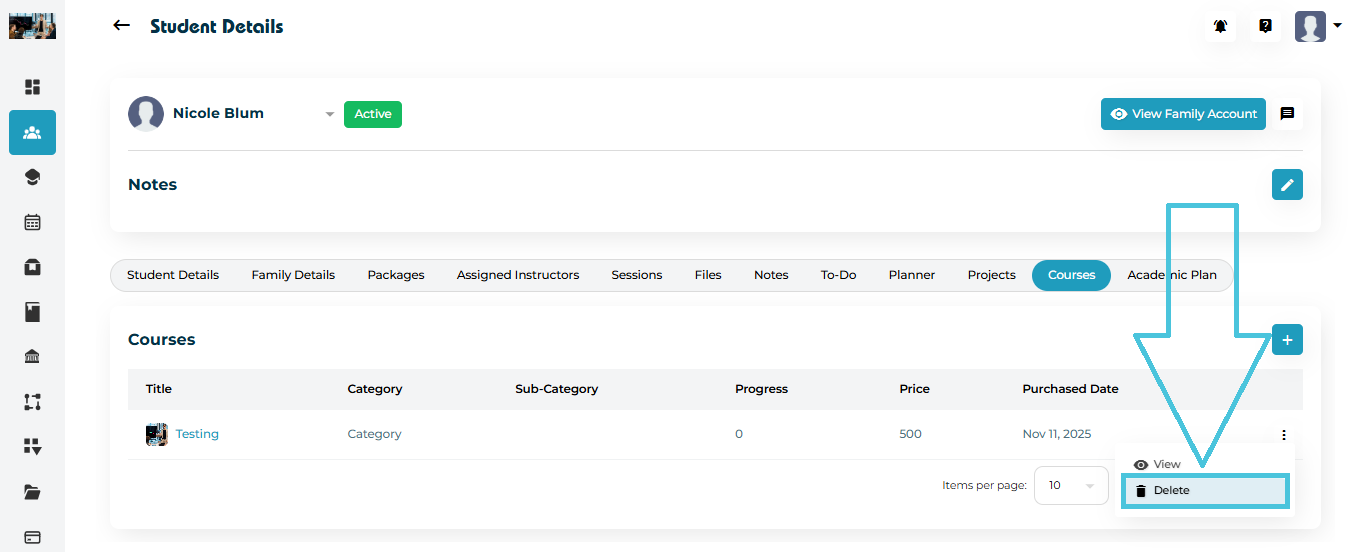
  1. Click the three-dot menu (⋮)

  2. Select Delete

This is typically done when:

  • A course was assigned incorrectly

  • A student changes programs

  • Duplicate enrollments exist
IN THIS ARTICLE

Enrolling students in courses

Enrolling Students in Courses

The Courses tab allows Admins to assign paid or free digital courses to a student’s profile.
Once enrolled, the student can access the course materials through their portal, and the system will automatically track their progress and completion status.

1. Accessing the Courses Tab

  1. Go to Students → Student Profiles

  2. Select a student

  3. Click the Courses tab in the top navigation

Here you will see:

  • Course Title

  • Category / Sub-Category

  • Progress (%)

  • Price

  • Purchased Date

  • Action menu (View / Delete)

2. Enrolling a Student in a Course

To add a new course to the student’s profile:

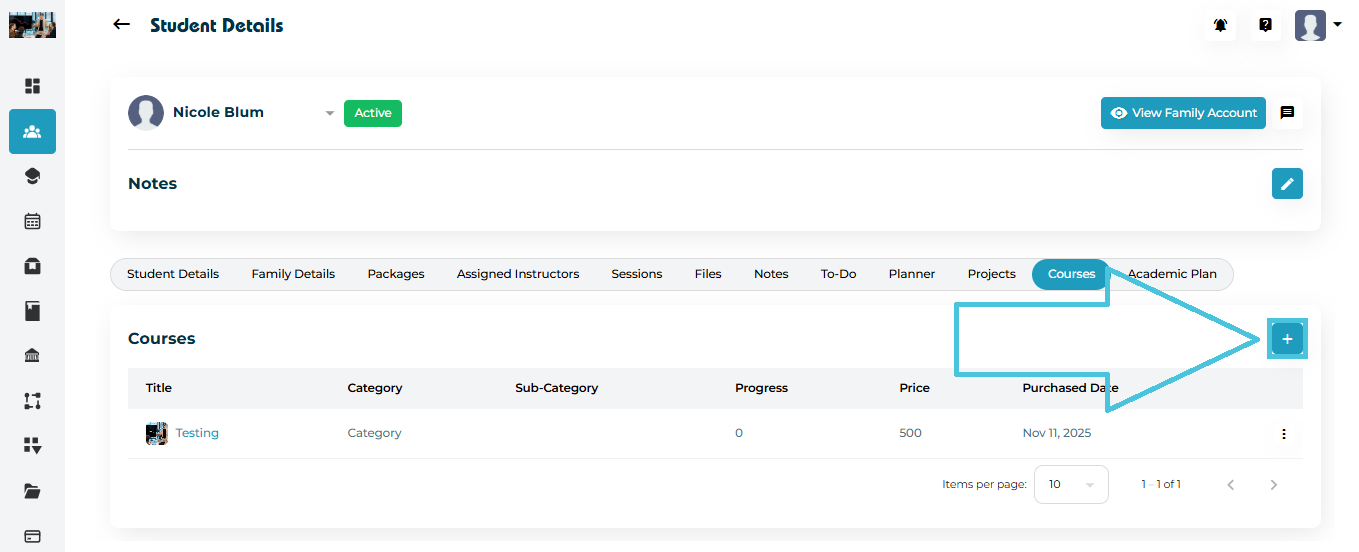
Step 1 — Click “+ Add Course”

Step 2 — Select the Course

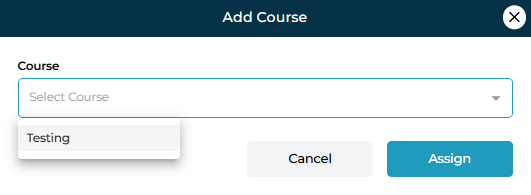
The Add Course modal will appear with a dropdown list.

Choose the course you want to assign (e.g., Testing).

Step 3 — Assign the Course

Click Assign.

Once assigned, the course appears in the student’s course list with:
  • Purchase date

  • Progress = 0% (initially)

  • Course fee

3. Viewing Course Details

Admins can inspect detailed course information using the action menu.

  1. Click the three-dot menu (⋮) beside the course

  2. Select View

You will be redirected to the Course Detail page.

4. Course Detail Page Overview

The page includes:

Header
  • Course Price

  • Purchased Date

  • Progress (%)

Overview Cards
  • Overall Progress

  • Overall Score

Lesson Breakdown

A table listing:

  • Lesson Title

  • Duration

  • Status (e.g., Pending, Completed)

  • Progress %

These values update automatically based on student activity.

5. Removing a Course from a Student

If a course was assigned by mistake:

  1. Click the three-dot menu (⋮) next to the course

  2. Select Delete

IN THIS ARTICLE

Managing deadlines and deliverables

Managing Deadlines and Deliverables

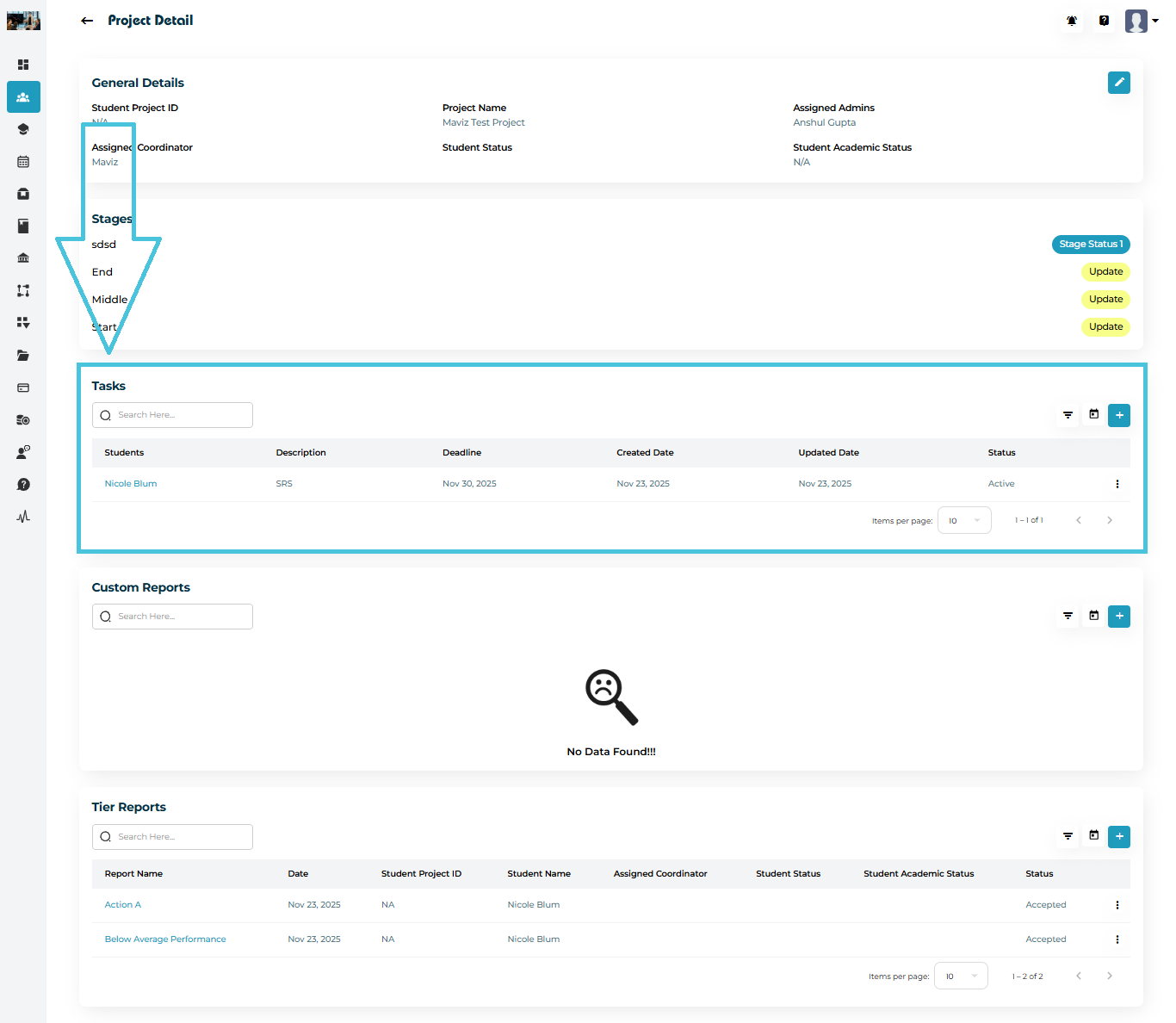
The Tasks section inside the Project Detail page is where Admins can manage all student deliverables.
Tasks help track deadlines, progress, and uploaded solutions.

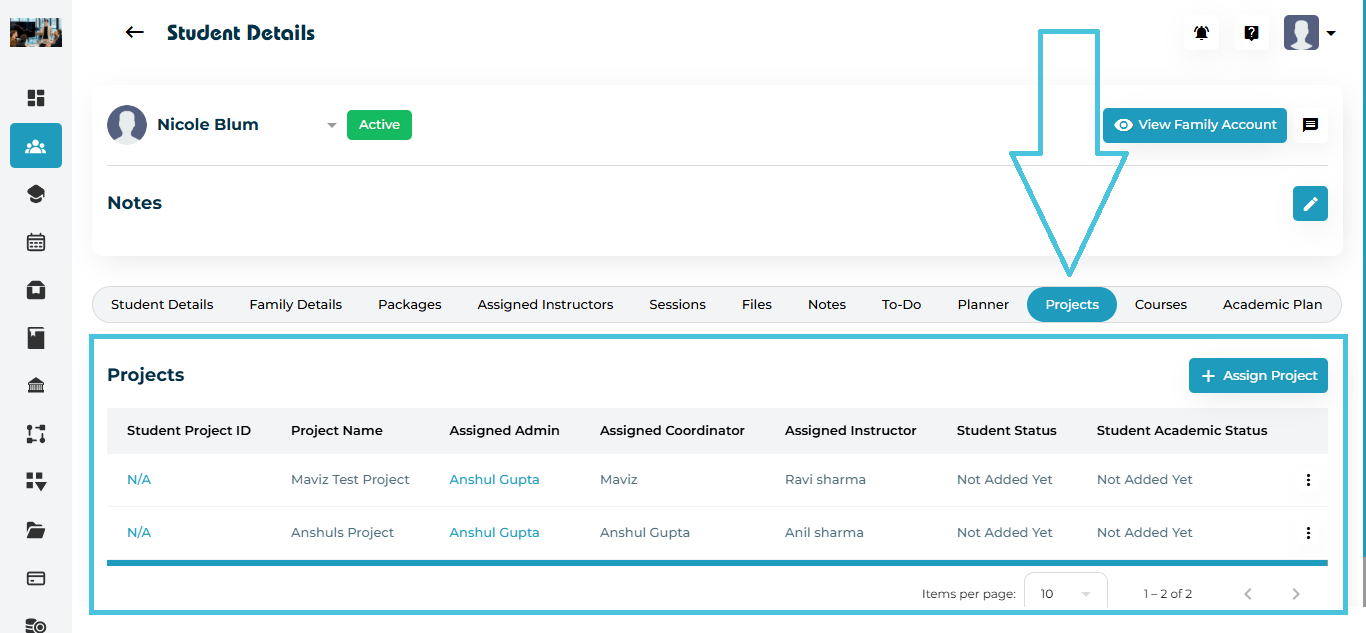
1. Accessing Project Tasks

  1. Open Student → Projects

  2. Click View on any project

  3. Scroll to the Tasks section

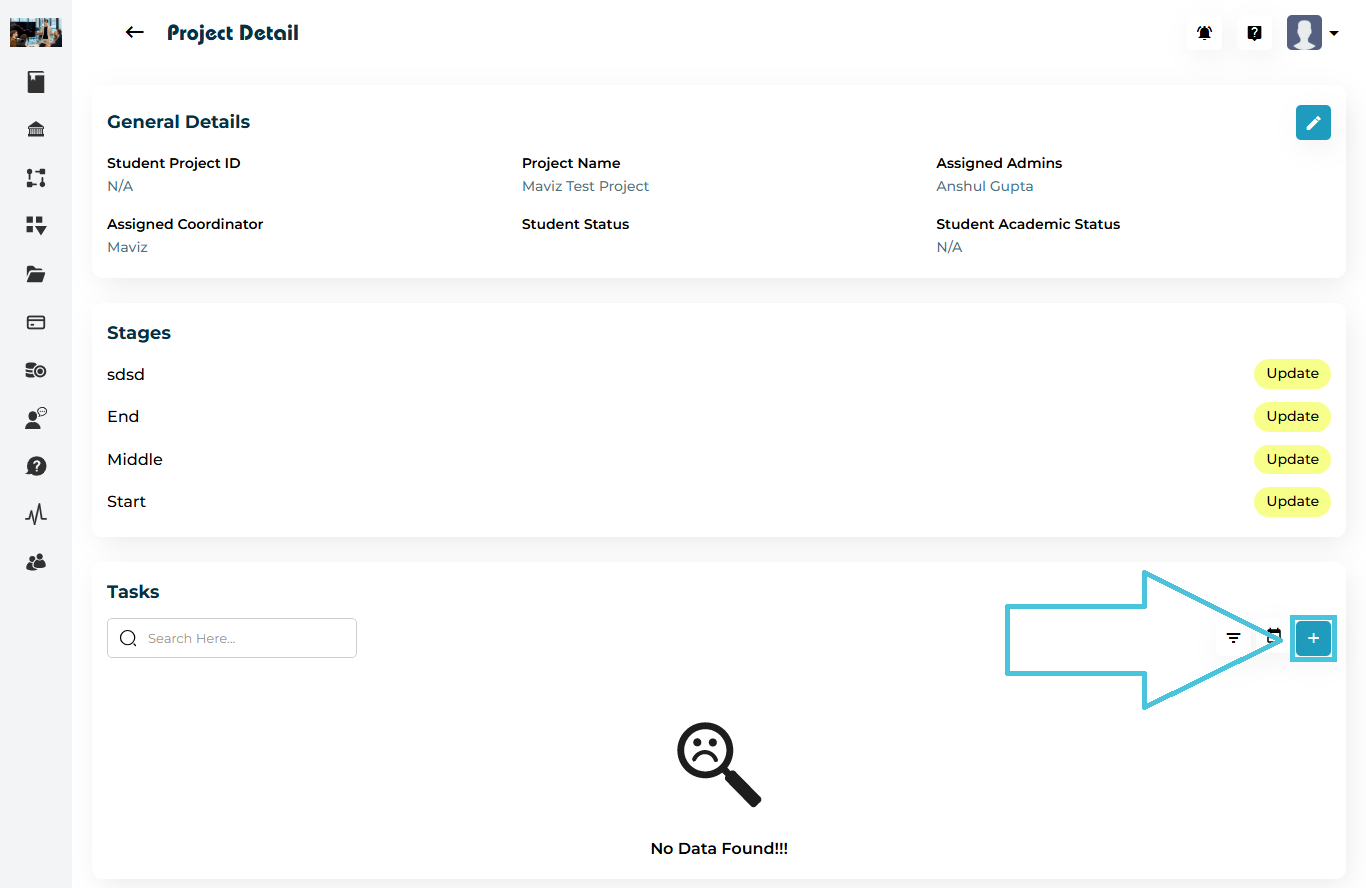
If no tasks are assigned, you will see a No Data Found message.

2. Adding a New Task

  1. Click the + Add Task button in the Tasks section.

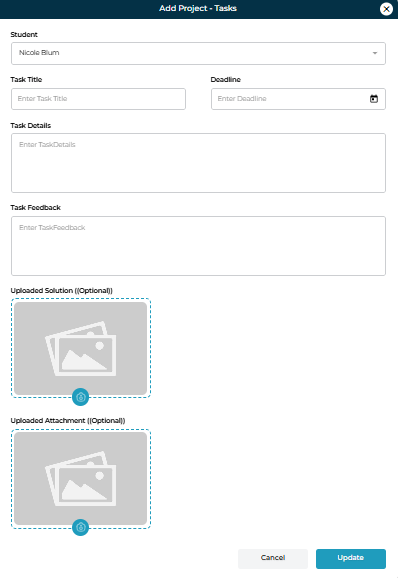
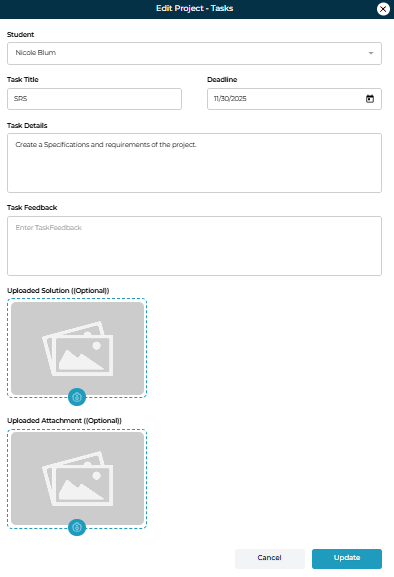
  2. The Add Project – Tasks modal opens.

Fields Explained
FieldDescription
Task TitleShort name of the student’s task.
DeadlineDate by which the task must be completed.
Task DetailsComplete instructions or requirements.
Task FeedbackSpace for instructors to give feedback after submission.
Uploaded Solution (Optional)File submitted by student.
Uploaded Attachment (Optional)Additional documents from admin/tutor.
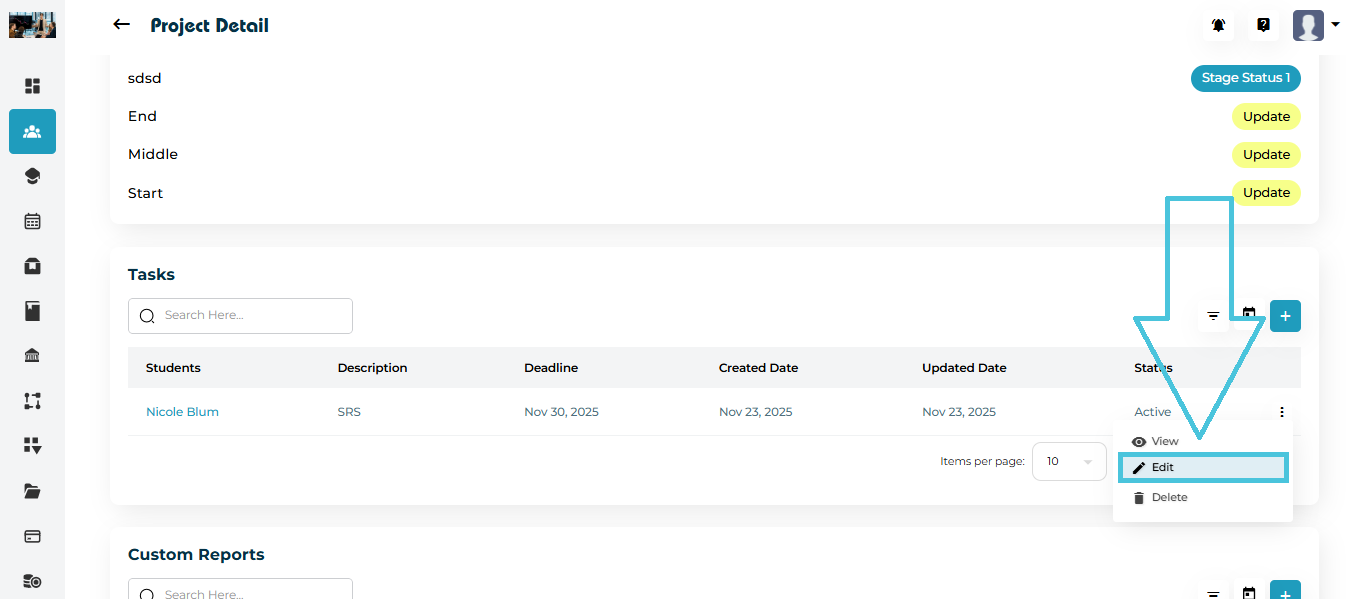
3. Editing a Task

To update an existing task:

  1. Click the three-dot menu (⋮)

  2. Select Edit

  3. Adjust task title, details, feedback, attachments

  4. Click Update

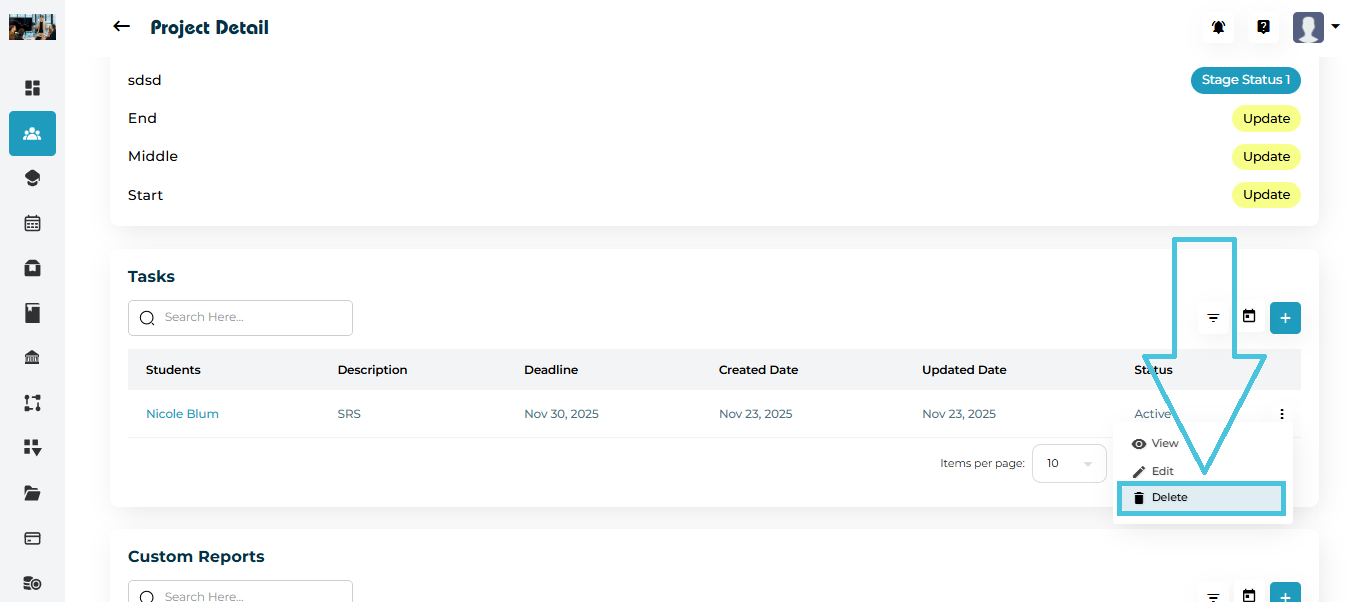
4. Deleting a Task

To delete a task:

  1. Open the three-dot menu (⋮)

  2. Select Delete

  3. Confirm deletion

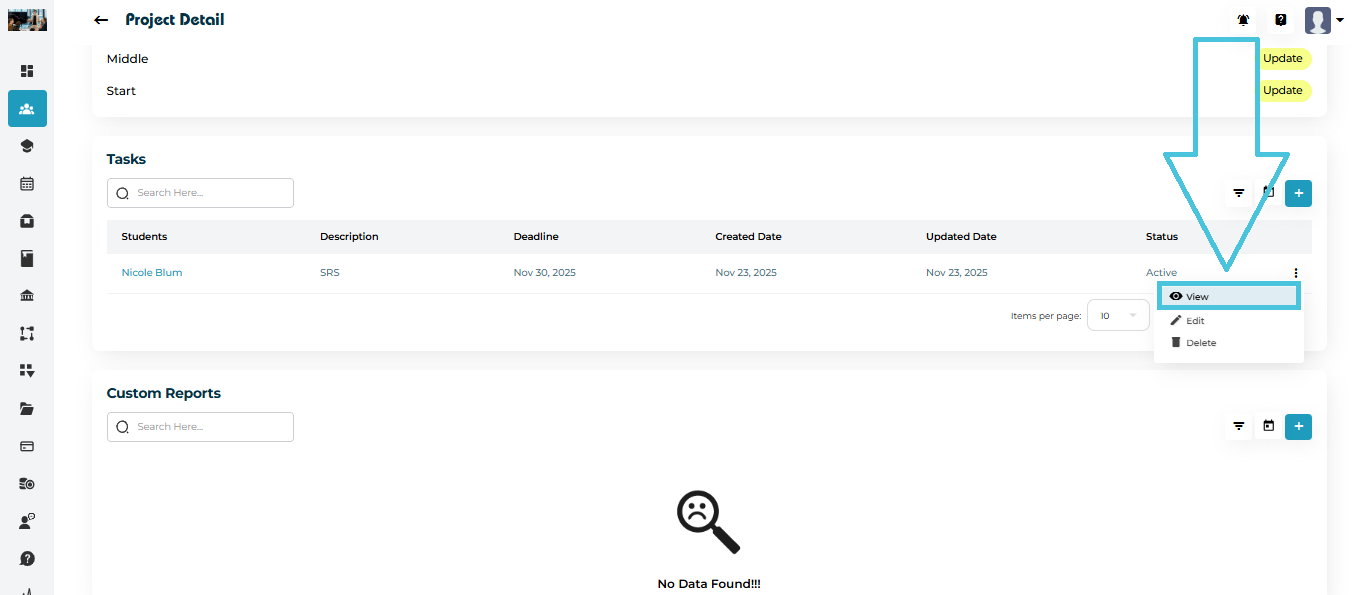
5. Viewing a Task

You can preview full details by clicking:

  • The View option in the action menu

This displays:

  • Task description

  • Deadline

  • Attachments

  • Feedback

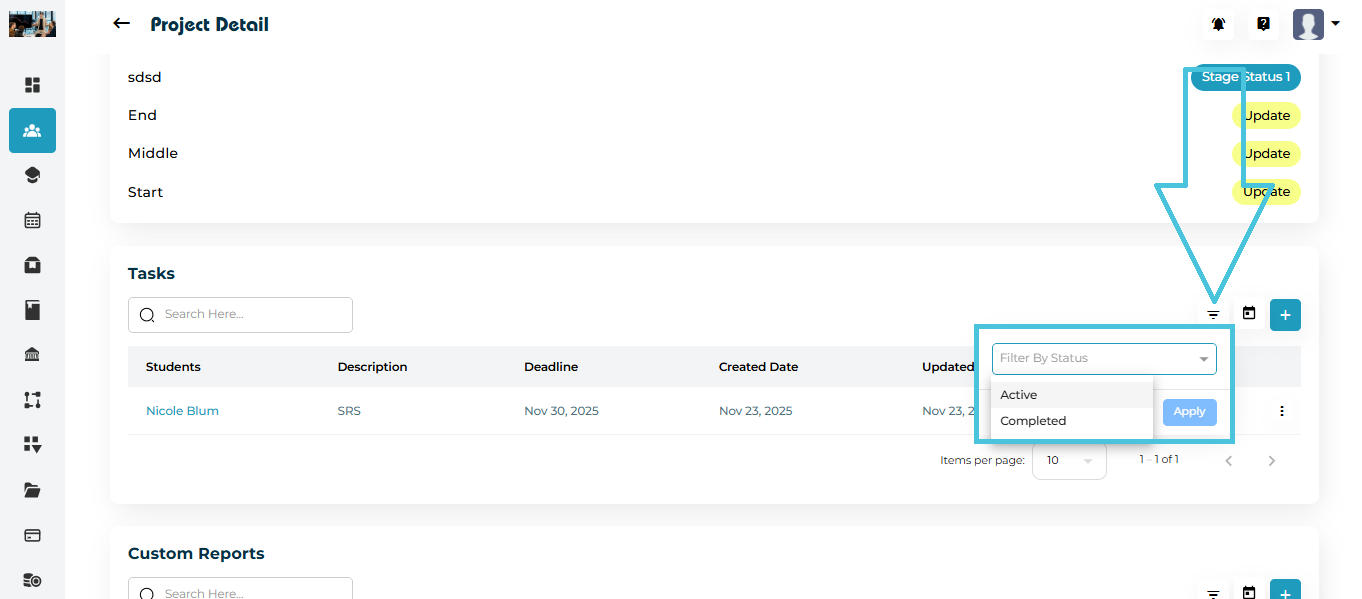
6. Using Filters in Tasks

The Tasks section includes filtering tools to help manage multiple deliverables.

You can filter by Status:

  • Active

  • Completed

This makes it easy to track high-priority or overdue items.

IN THIS ARTICLE

Assigning student projects

Assigning Student Projects

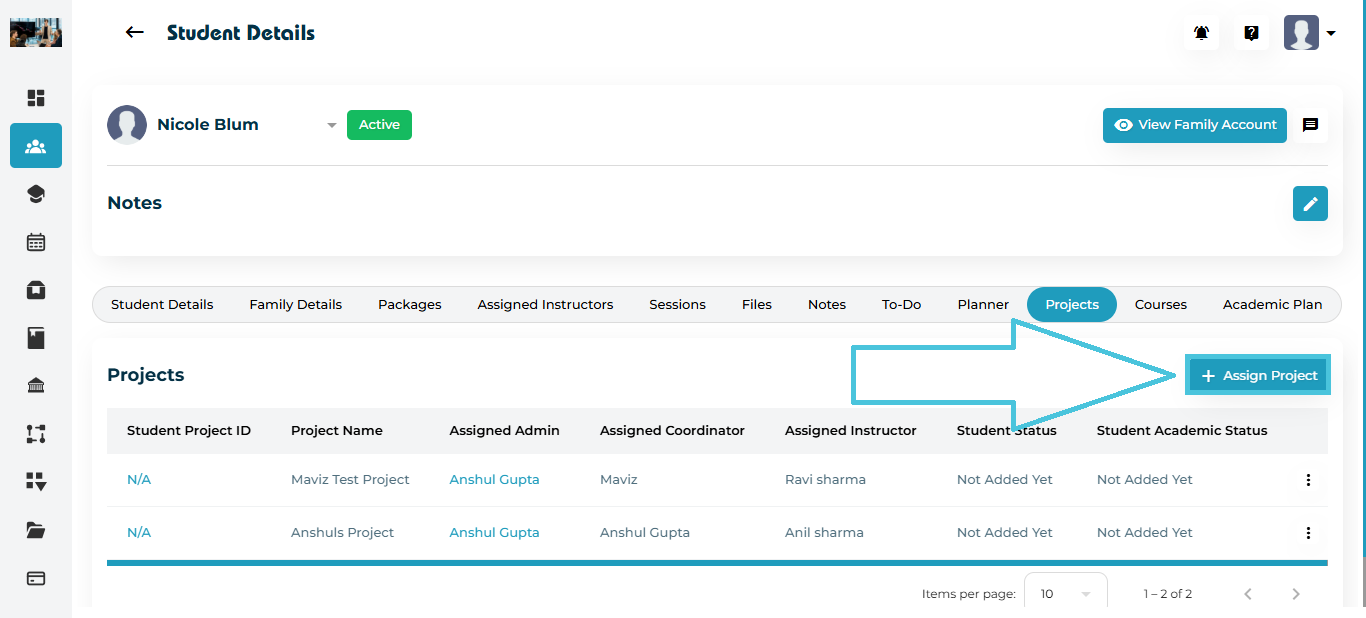
The Projects tab allows Admins to assign academic or enrichment projects to students.
Each project includes designated team roles, stages, tasks, reports, and deadlines — offering a comprehensive workflow for structured project-based learning.

1. Accessing the Projects Tab

  1. Go to Students → Student Profiles

  2. Select the student

  3. Open the Projects tab from the top navigation

You will see:

  • Existing assigned projects

  • Project name

  • Assigned Admin / Coordinator / Instructor

  • Student Status & Academic Status

  • Action menu (View / Edit / Delete)

2. Assigning a New Project

  1. Click Assign Project (+) in the top-right corner.

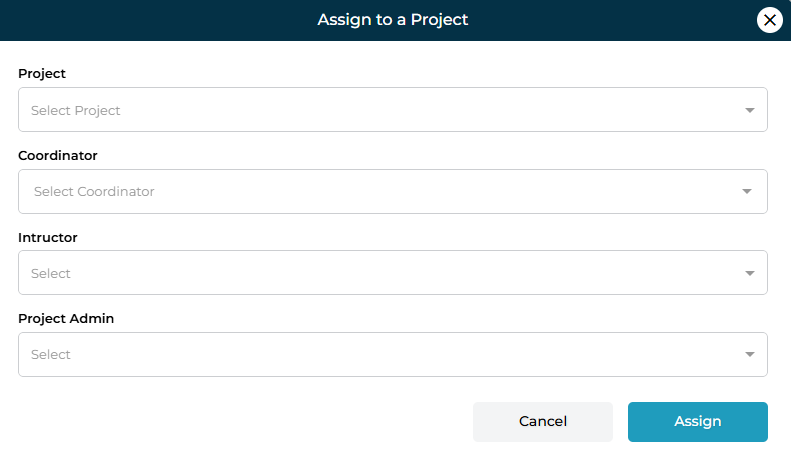
  2. The Assign to a Project modal will open.

Fields Explained
FieldPurpose
ProjectSelect an existing project template created by the Admin team.
CoordinatorChoose the staff member responsible for overseeing the student’s project progress.
InstructorTutor or mentor assigned to support student tasks.
Project AdminSenior staff/admin responsible for project results & approvals.

After selecting all roles, click Assign.

The project now appears in the project table for that student.

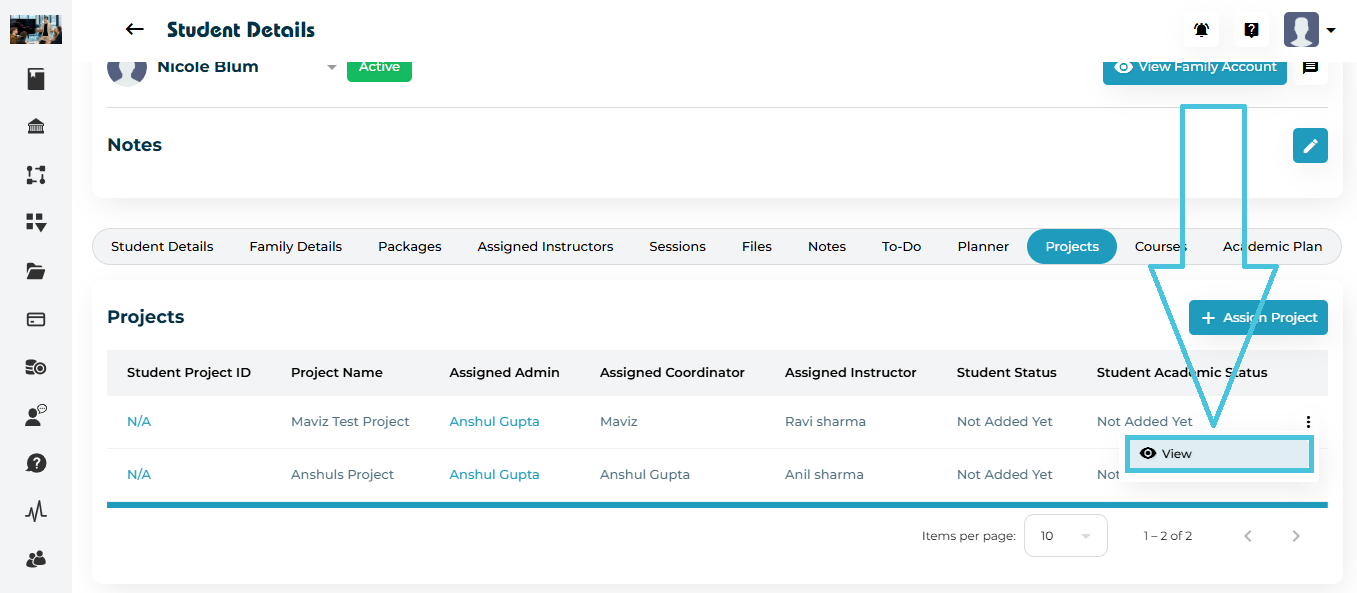
3. Viewing Project Details

To open full project details:


  1. Click the three-dot menu (⋮) beside the project

  2. Select View

You will be redirected to the Project Detail page.

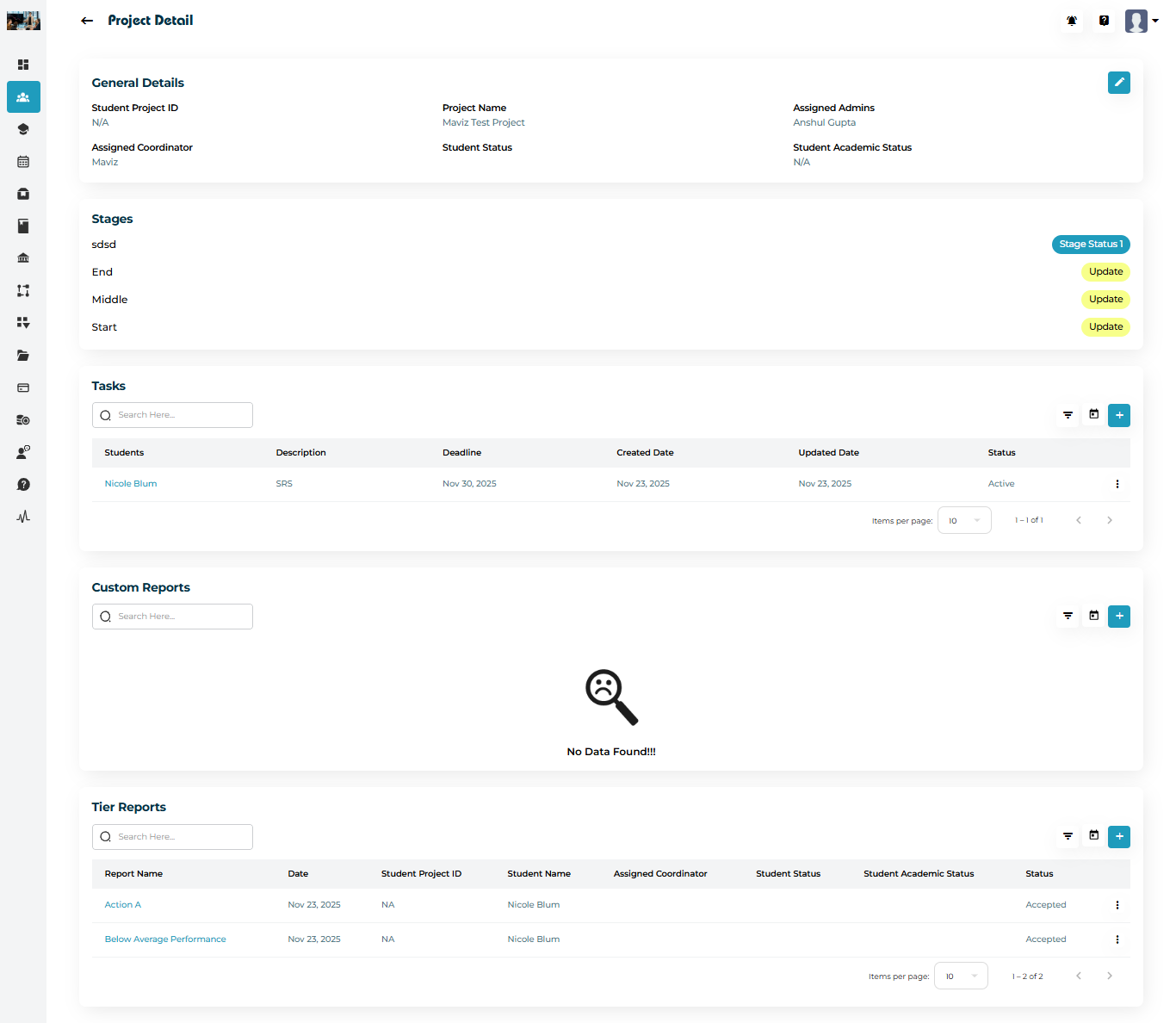
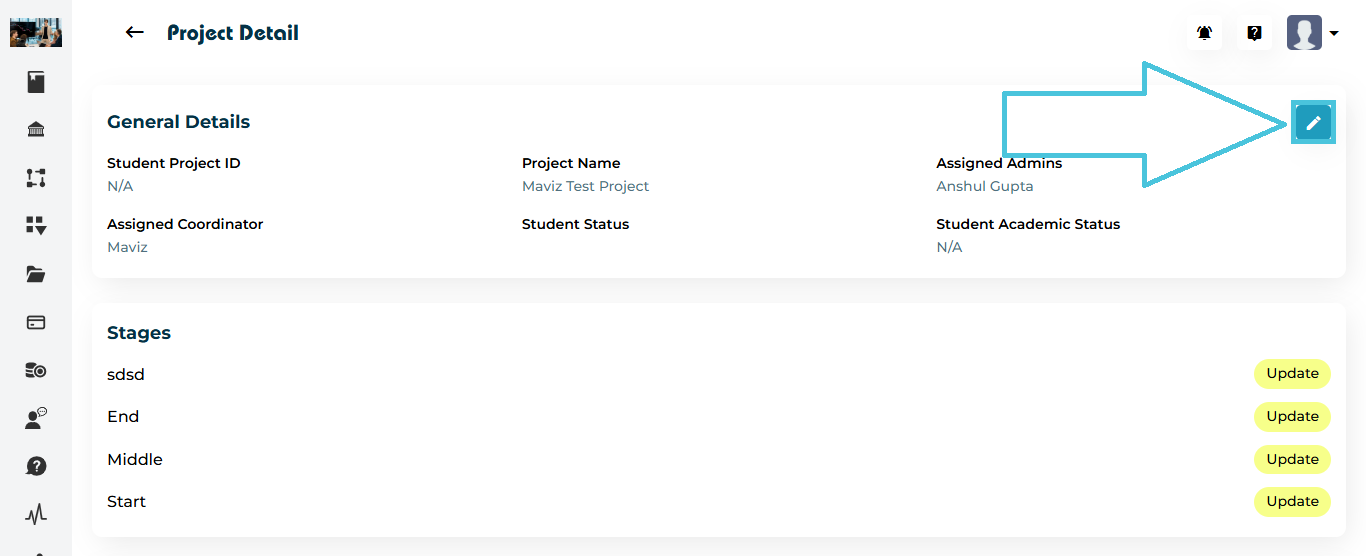
4. Project Detail Page Overview

The Project Detail view contains everything related to the student’s project:

Sections Included
  • General Details (Project name, admin, coordinator, student status)

  • Stages (Custom steps defined by the project template)

  • Tasks (Student deliverables)

  • Custom Reports

  • Tier Reports

5. Editing General Project Details

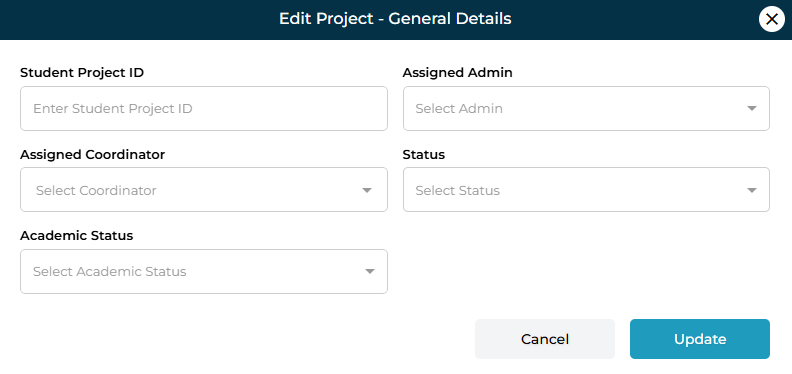
  1. Click the Edit (✏️) icon in the General Details block.

  2. The Edit Project – General Details modal will open.

Here, you can update:

  • Project ID

  • Assigned Admin

  • Assigned Coordinator

  • Project Status

  • Student Academic Status

Click Update to save changes.

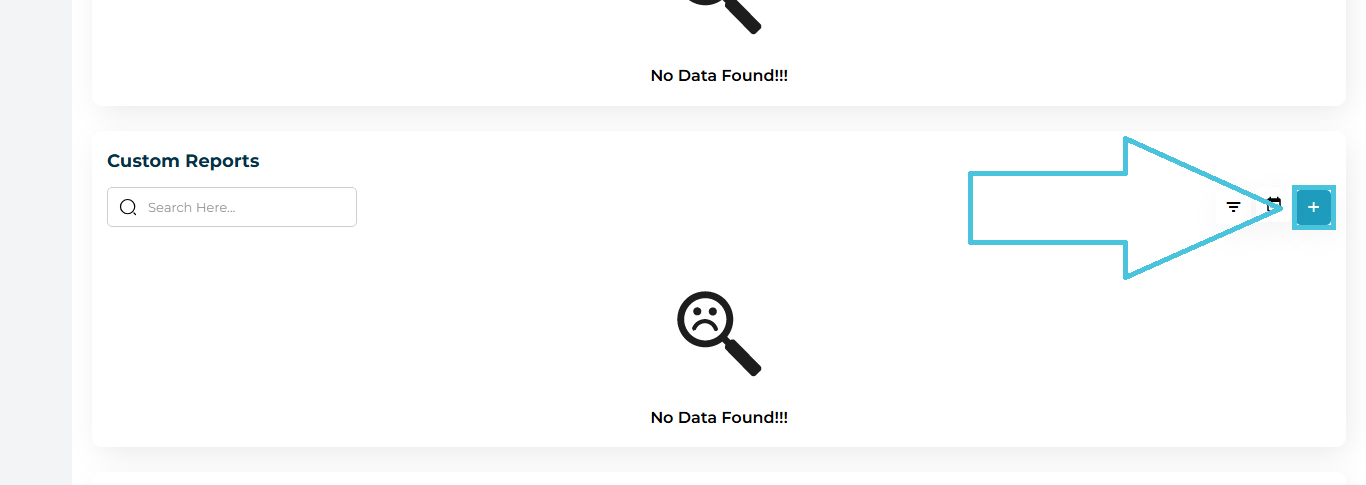
6. Adding Custom Reports

Under Custom Reports, click the + Add button.


Fill in:

  • Report

  • Student

  • Custom question fields

Click Update to save.

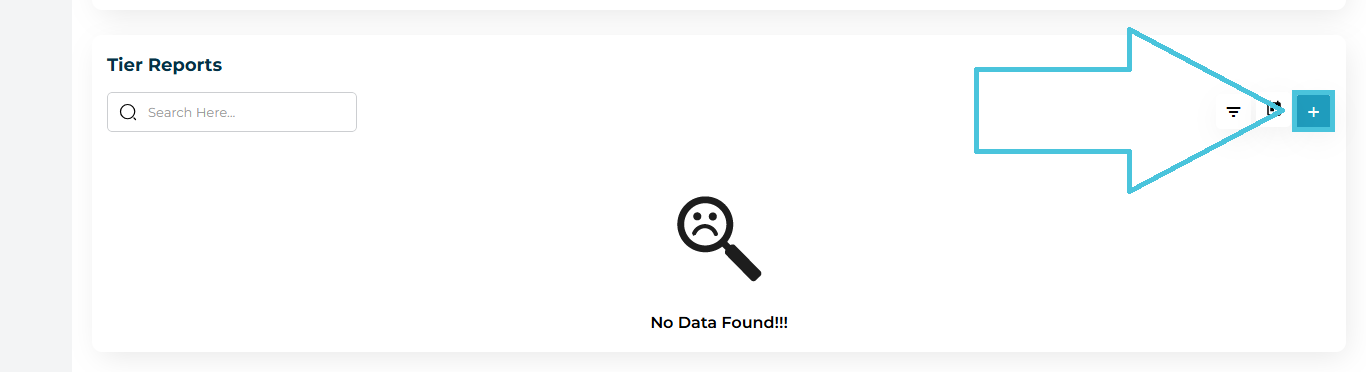
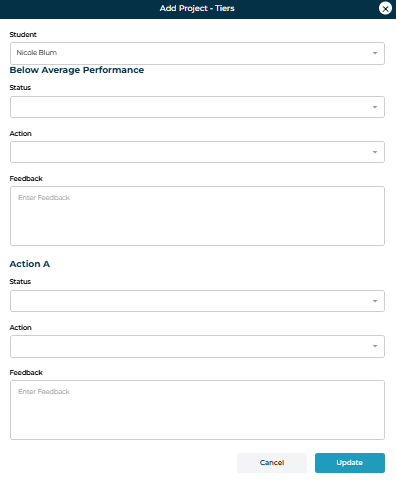
7. Adding Tier Reports

Tier Reports are structured performance review reports.

  1. Scroll to Tier Reports

  2. Click the + button

Fill fields such as:

  • Status

  • Action

  • Feedback

Click Update.

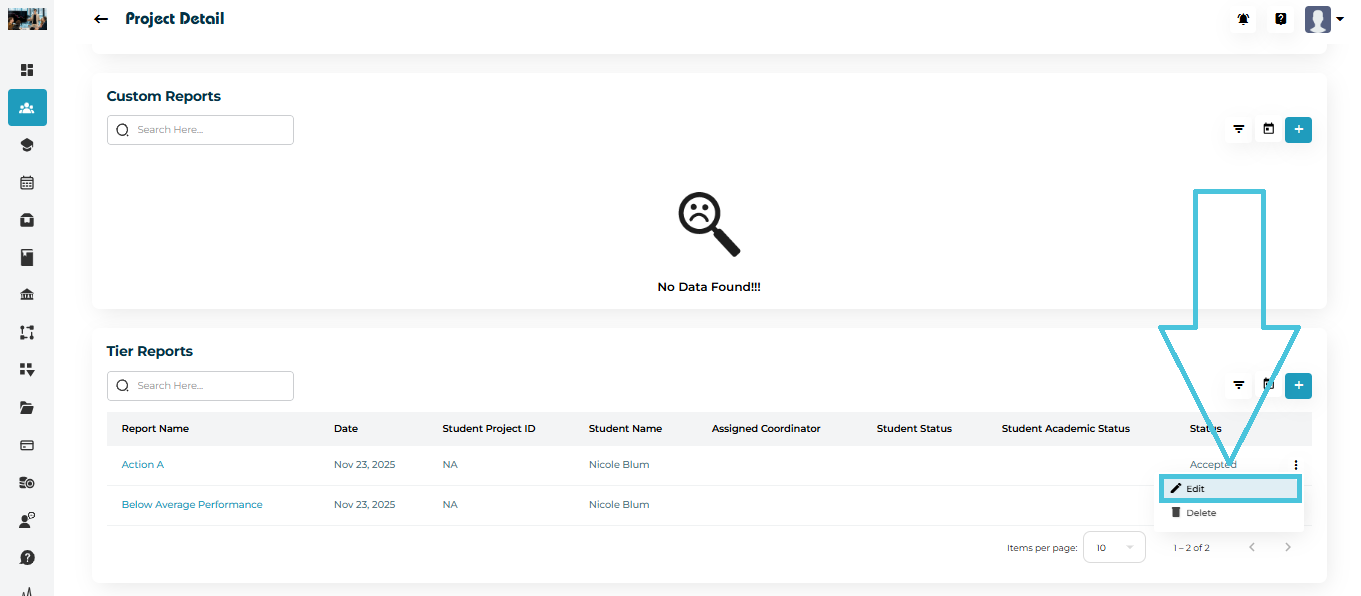
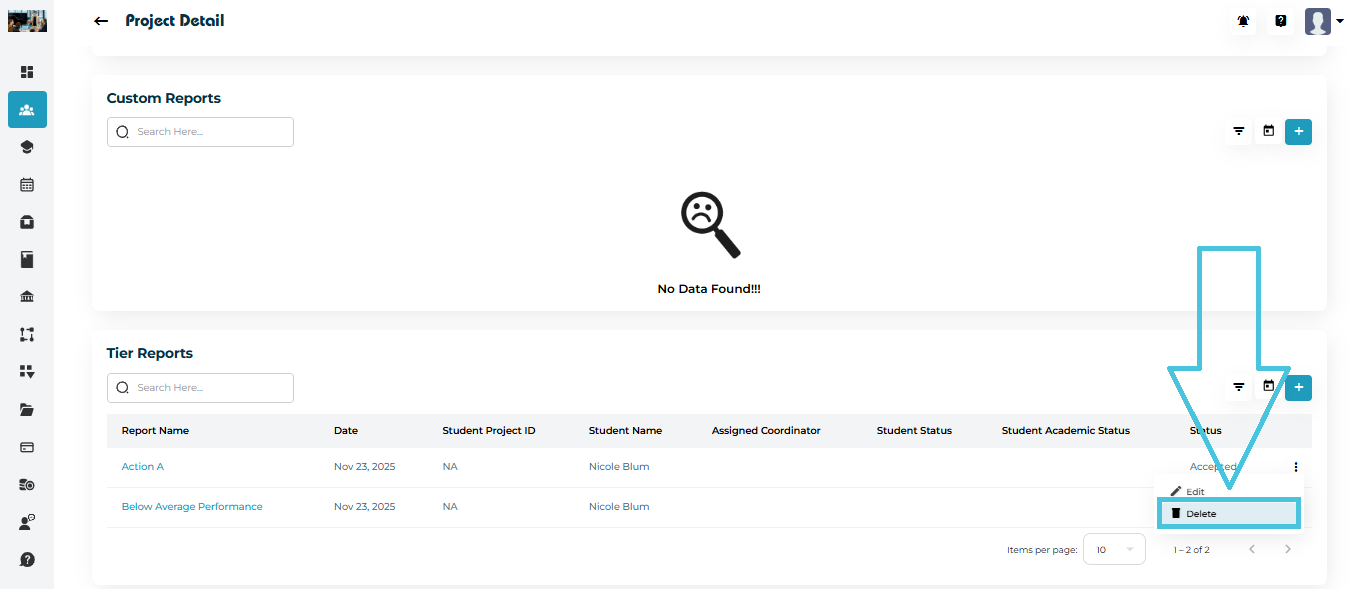
You can also edit or delete existing tier reports using the action menu.


IN THIS ARTICLE

Viewing scores, college lists, and applications

Viewing Scores, College Lists, and Applications

This article covers how Admins can view, update, and manage the core components of a student’s admission profile:
Scores, College Lists, and Assessments/Applications.

These sections ensure that all academic and application data remain organized and accessible.

1. Accessing Planner Components

  1. Open Students → Student Profiles

  2. Select a student

  3. Navigate to the Planner tab

  4. Switch between:

    • Scores

    • College List

    • Assessments

2. Scores: Viewing and Updating Student Test Results

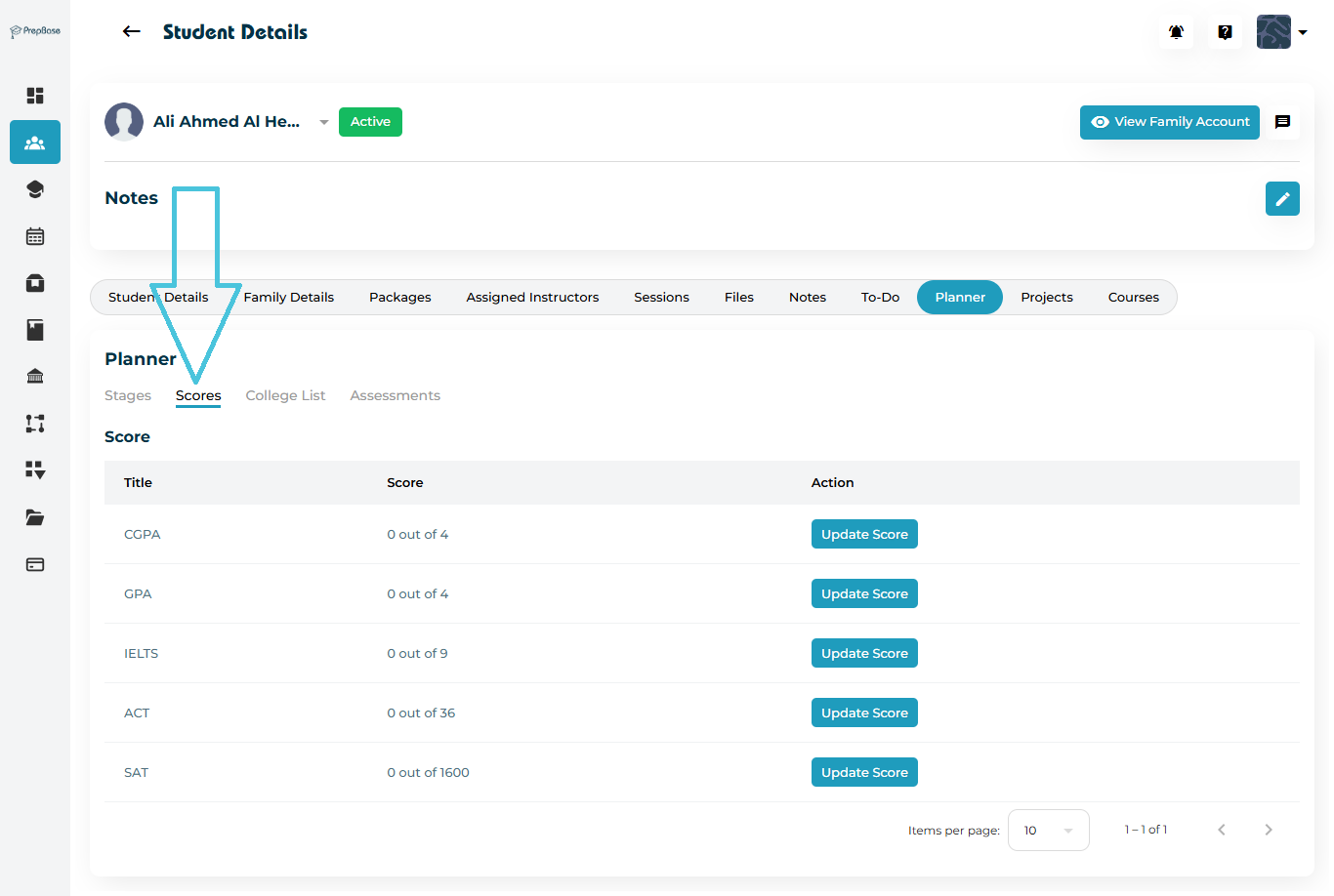
The Scores tab shows a clean table of all standardized test results.

Available scores include:

  • CGPA (0–4)

  • GPA (0–4)

  • IELTS (0–9)

  • ACT (0–36)

  • SAT (0–1600)

Updating a Score

Click Update Score next to the exam → enter new score → Save.

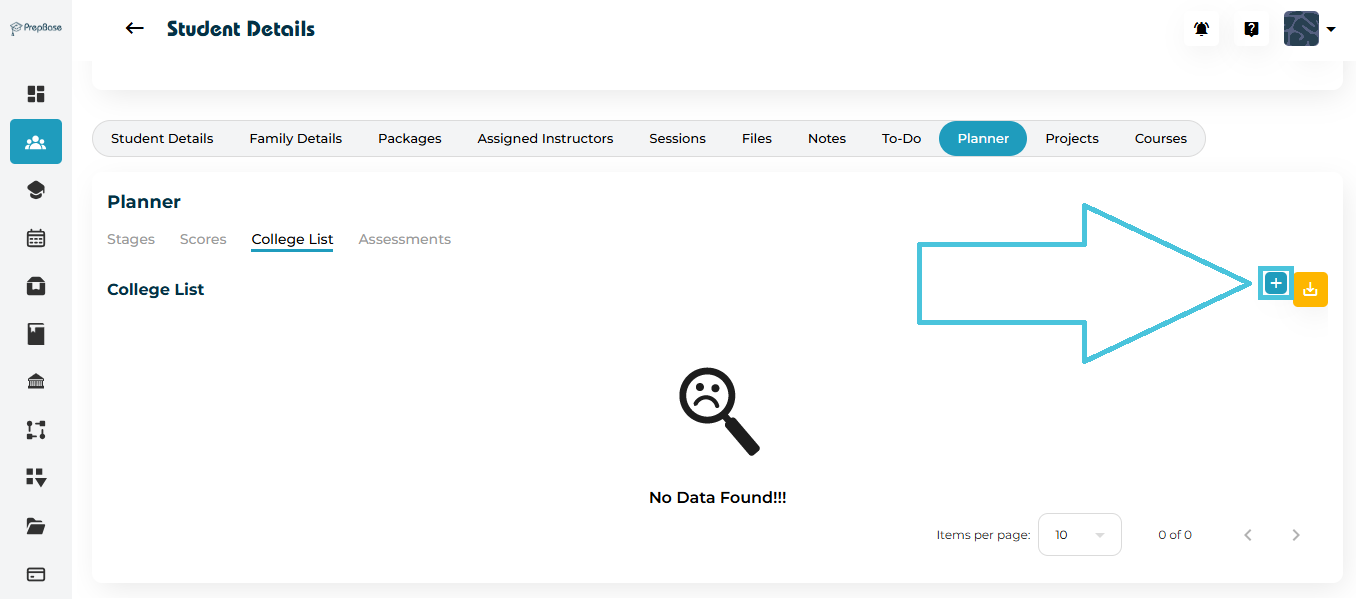
3. College List: Viewing Student’s University Choices

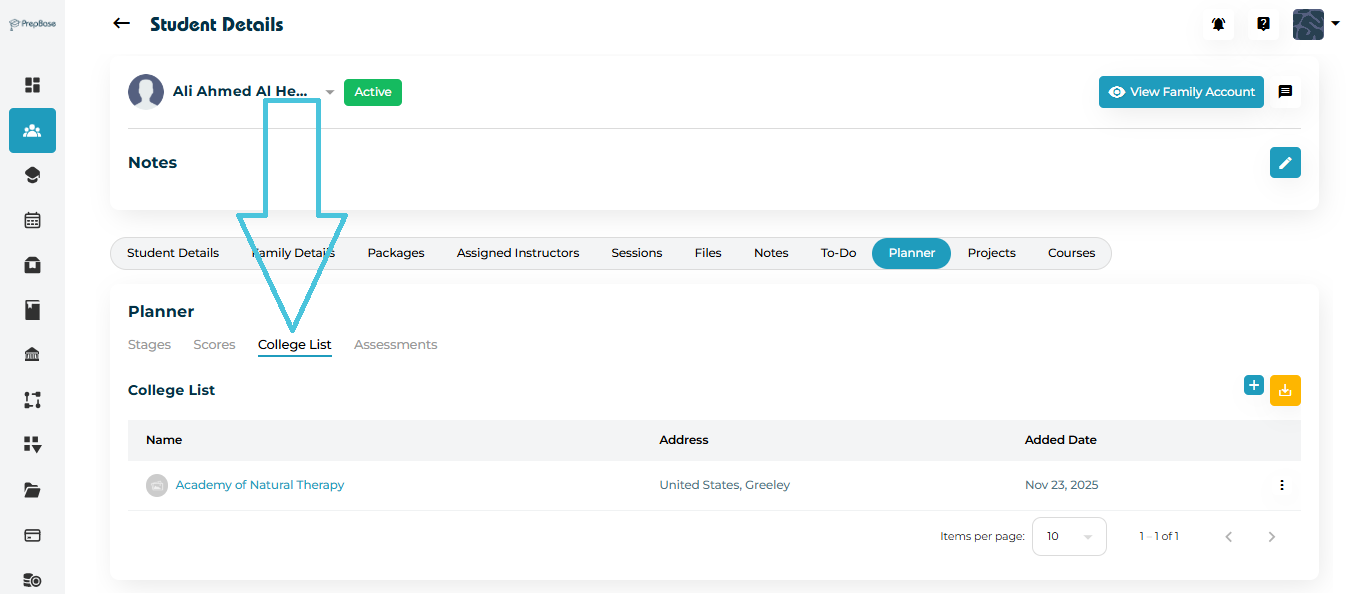
The College List tab shows universities the student has chosen to apply to.

What You Can Do:
  • View selected universities

  • Add new colleges

  • Check study locations, majors, ranks, and fees

  • Export the list using the download button

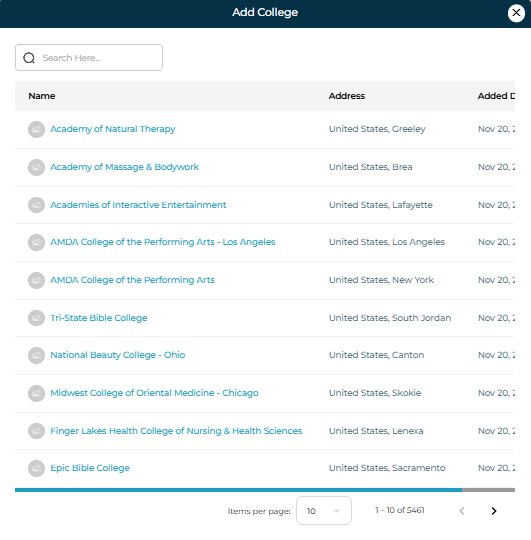
Adding New Colleges

  1. Click Add (+)

  2. Use the search bar to find a college

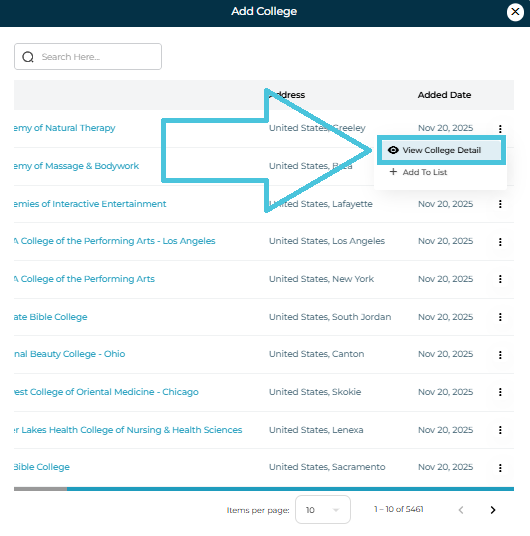
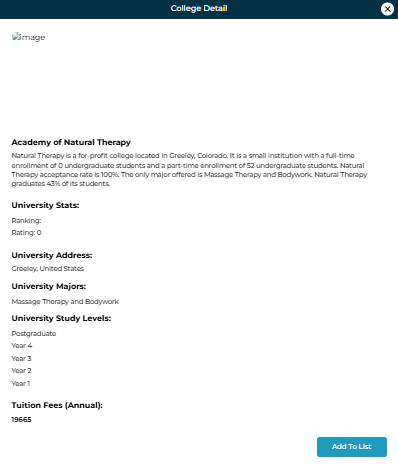
  3. Use View College Detail to preview information

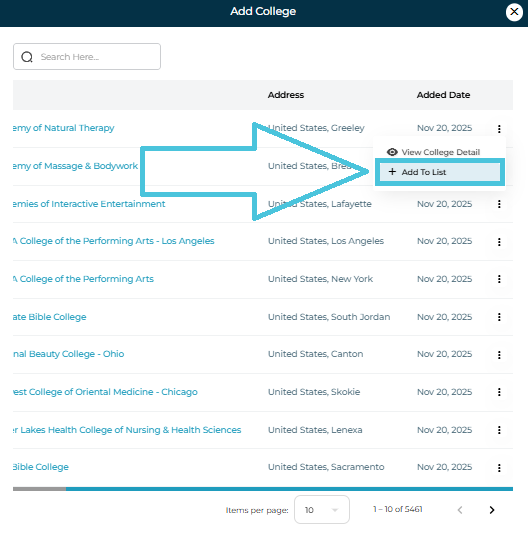
  4. Select Add to List to include it in the student’s plan

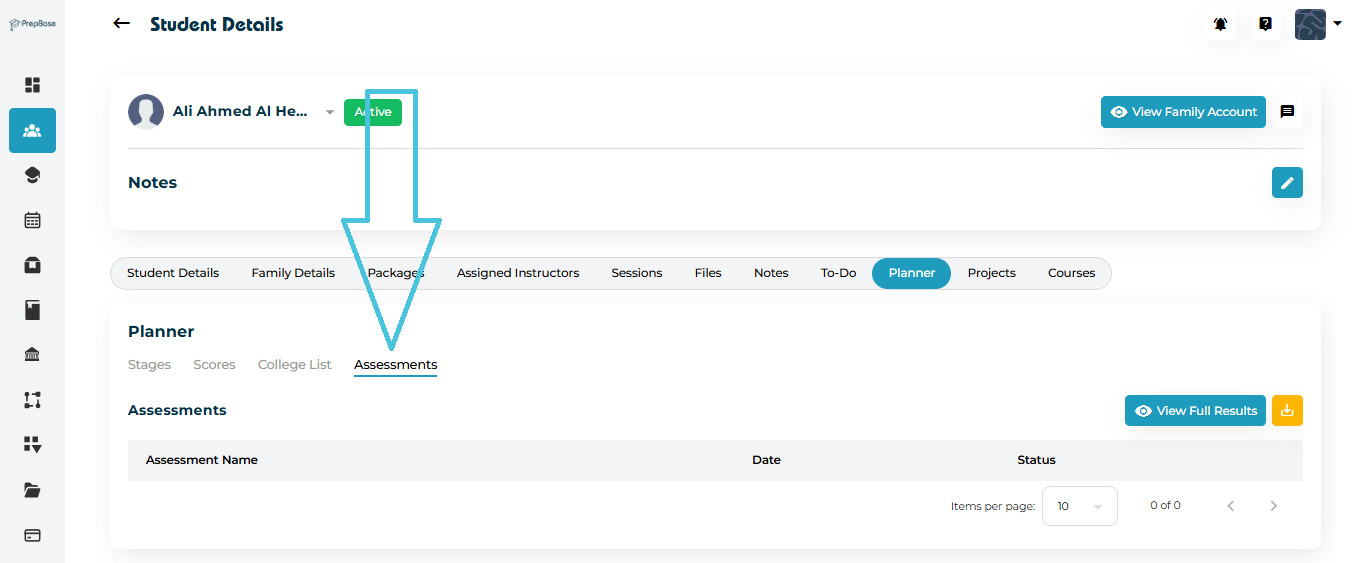
4. Assessments: Viewing Admission Readiness Evaluations

The Assessments tab displays all academic or counseling assessments completed by the student.

You can:
  • View the assessment name

  • Check completion date

  • Review the status

  • Open full results via View Full Results

These assessments help administrators measure the student’s preparedness for the application cycle.

5. Applications (within College List & Stages)

While PrepBase does not show a separate “Applications” tab, applications are tracked across:

  • Stages (e.g., Submit Application, University List)

  • College List (selected universities)

  • Scores (eligibility indicators)

  • Assessments (readiness indicators)

This provides a holistic view of the student’s application progress.

6. Why This Matters

Admins can quickly:

  • Assess student preparedness

  • Track which universities they are applying to

  • Monitor eligibility through test scores

  • Evaluate progress through assessment results

  • Support students effectively in the admission journey

IN THIS ARTICLE

Managing college admission planner

Managing the College Admission Planner

The College Admission Planner helps administrators guide students through each stage of the university application journey.
This powerful tool organizes progress into Stages, Scores, College Lists, and Assessments — ensuring no part of the admission process is missed.

Each section updates individually, giving a complete overview of how prepared a student is for university applications.

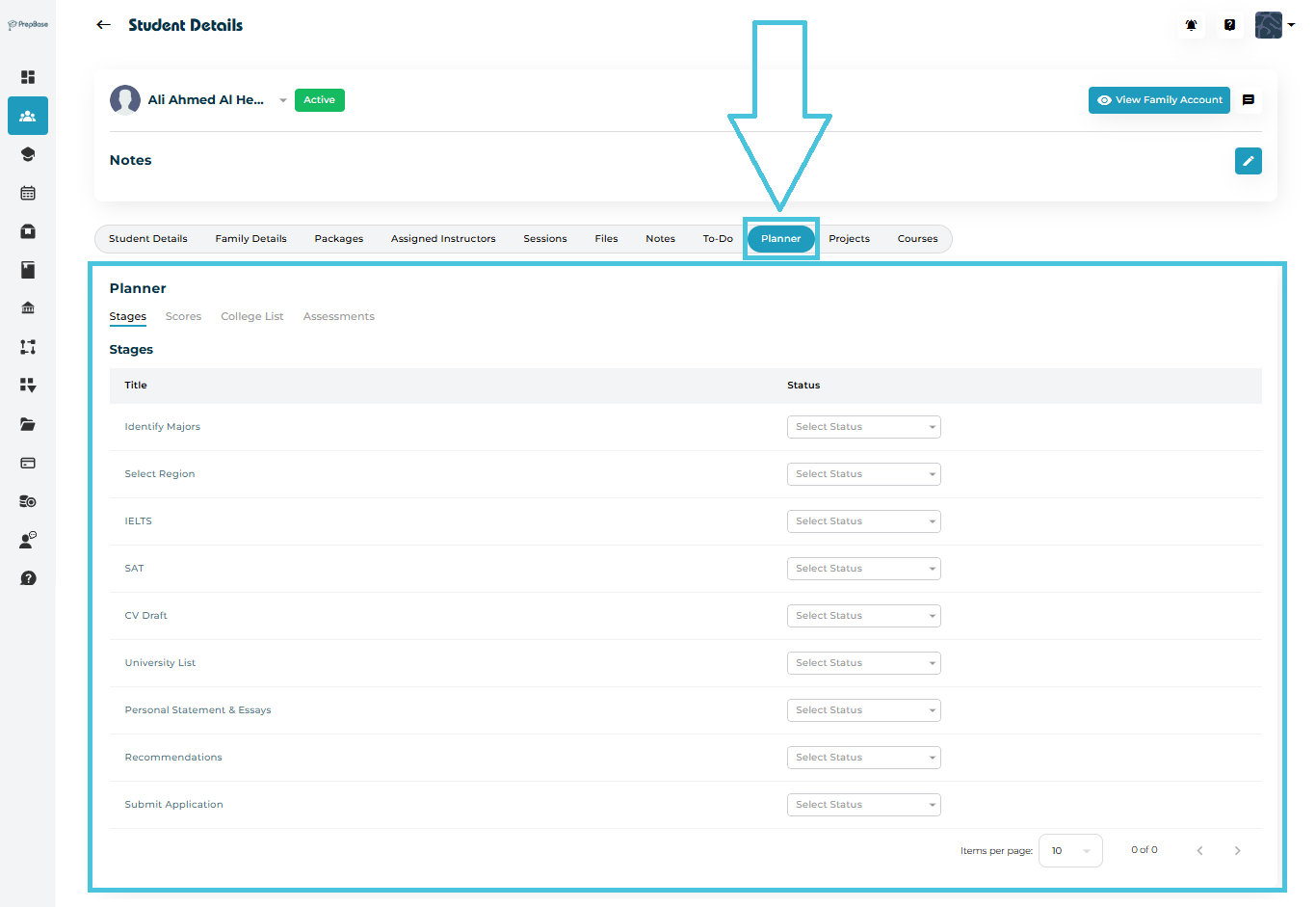
1. Accessing the College Admission Planner

  1. Go to Students → Student Profiles

  2. Select a student

  3. Click the Planner tab

Inside the Planner, you’ll find four sub-sections:

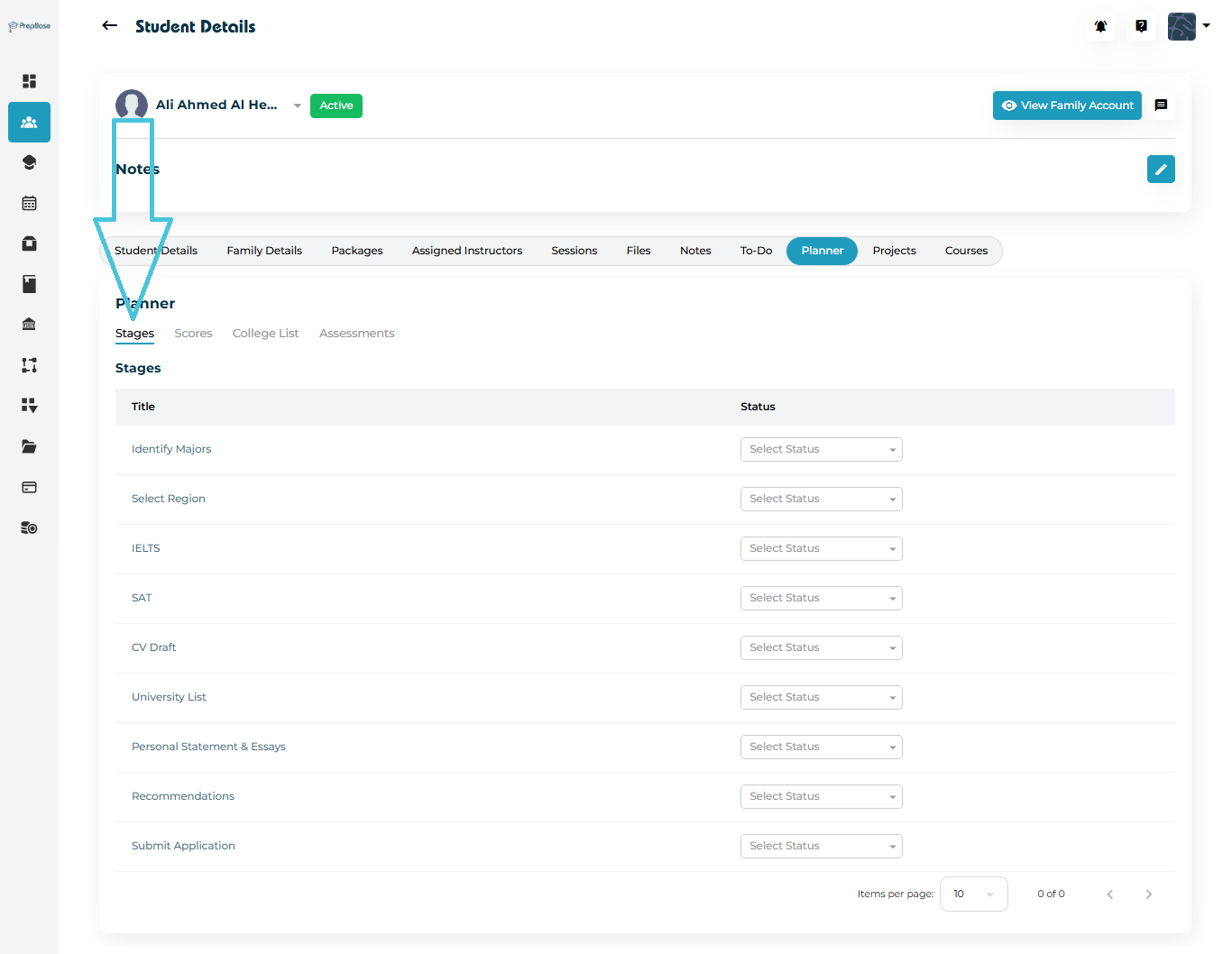
  • Stages – Tracks key steps in the student’s application timeline

  • Scores – Stores standardized test results

  • College List – Saves colleges the student intends to apply to

  • Assessments – Displays academic assessments completed through PrepBase

2. Stages: Tracking Application Milestones

The Stages tab breaks the entire application process into actionable steps.

Typical stages include:

  • Identify Majors

  • Select Region

  • IELTS / SAT prep

  • CV Draft

  • Personal Statement

  • Recommendations

  • University List

  • Submit Application

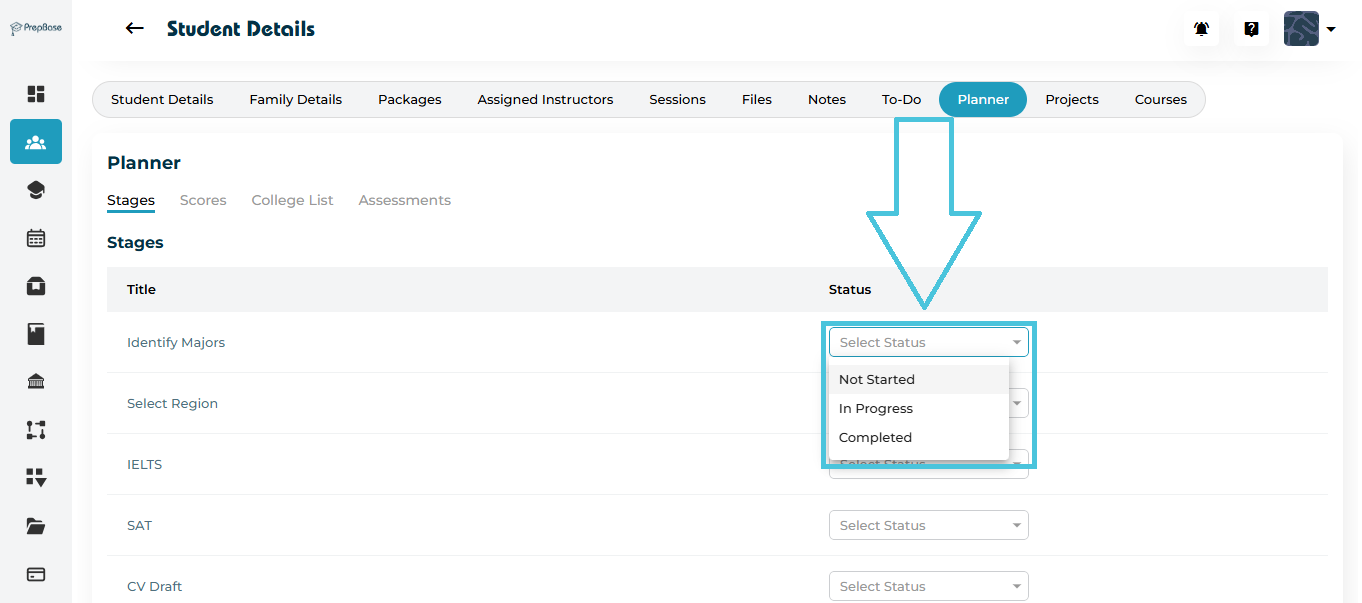
Updating Stage Status

Each stage has a dropdown with three statuses:

  • Not Started

  • In Progress

  • Completed

Simply:

  1. Select the stage

  2. Choose the status

  3. Status saves automatically

3. Scores: Recording Test Scores

The Scores tab displays key academic test results required for admissions.

Scores that can be updated include:

  • CGPA

  • GPA

  • IELTS

  • ACT

  • SAT

Updating a Score
  1. Click Update Score next to the test

  2. Enter the score

  3. Save changes

This creates an easy reference sheet for counselors managing applications.

4. College List: Managing Target Universities

The College List sub-tab stores all universities a student is planning to apply to.

Adding a College to the List

  1. Click the ➕ Add College button

  2. A searchable list of all PrepBase colleges appears

  1. Search for the college

  2. Click the three-dot menu (⋮) next to the college

  3. Select Add to List

The college will now appear in the student’s personalized application list.

5. Viewing College Details Before Adding

To review college information before adding:

  • Click View College Detail from the menu

This shows:

  • Overview

  • Address

  • Fees

  • Majors

  • Rankings

  • Study levels


6. Assessments: Reviewing Academic Assessments

The Assessments tab shows assessments completed by the student, if available.

You can:

  • View the full results

  • Check the assessment date

  • Review the status

7. Why the Admission Planner Matters

The Planner centralizes the entire admissions process, helping:

  • Admins track student readiness

  • Students stay organized

  • Admins maintain accurate records

  • Parents stay informed about progress

IN THIS ARTICLE

Tracking task completion

Tracking Task Completion

The To-Do list automatically tracks the status of every student task — allowing Admins to monitor progress in real time.

Each task has a Status toggle in the last column:

  • On (✓) → Completed

  • Off (○) → Incomplete

This simple system makes it easy to see what the student has finished and what still needs attention.

1. Viewing All Tasks

Navigate to:

Students → Student Profiles → To-Do

You will see all tasks assigned to the student, sorted by:

  • Priority

  • Due Date

  • Completion Status

2. Marking a Task as Complete

Admins or assigned instructors can update the status using the Status toggle.

  1. Go to the To-Do list

  2. Locate the task

  3. Click the toggle in the Status column

    • Blue ✓ = Completed

    • Grey ○ = Not Completed

3. Monitoring Progress Over Time

Task completion data helps Admins:

  • Measure engagement between sessions

  • Identify students who need additional support

  • Track preparation before exams or assessments

  • Encourage consistency and accountability

High-priority tasks not completed by the due date can be flagged for follow-up.

4. Updating Task Details for Accuracy

If a student’s circumstances change, you can edit the task at any time:

  1. Use Edit to update due dates or instructions

  2. Use Delete to remove outdated tasks

  3. Use Filters to review tasks by priority, student, or instructor

This ensures the To-Do list always reflects current expectations and priorities.

IN THIS ARTICLE

Assigning tasks to students

Assigning Tasks to Students

The To-Do tab allows Admins to assign tasks directly to a student.
Tasks can include homework, study reminders, forms to complete, revision topics, or preparation steps for upcoming sessions.

Each task includes a title, description, priority level, and optional due date — helping students stay organized and on track.

1. Accessing the To-Do Tab

  1. Go to Students → Student Profiles

  2. Select the student you want to assign tasks to

  3. Open the To-Do tab in the top navigation.

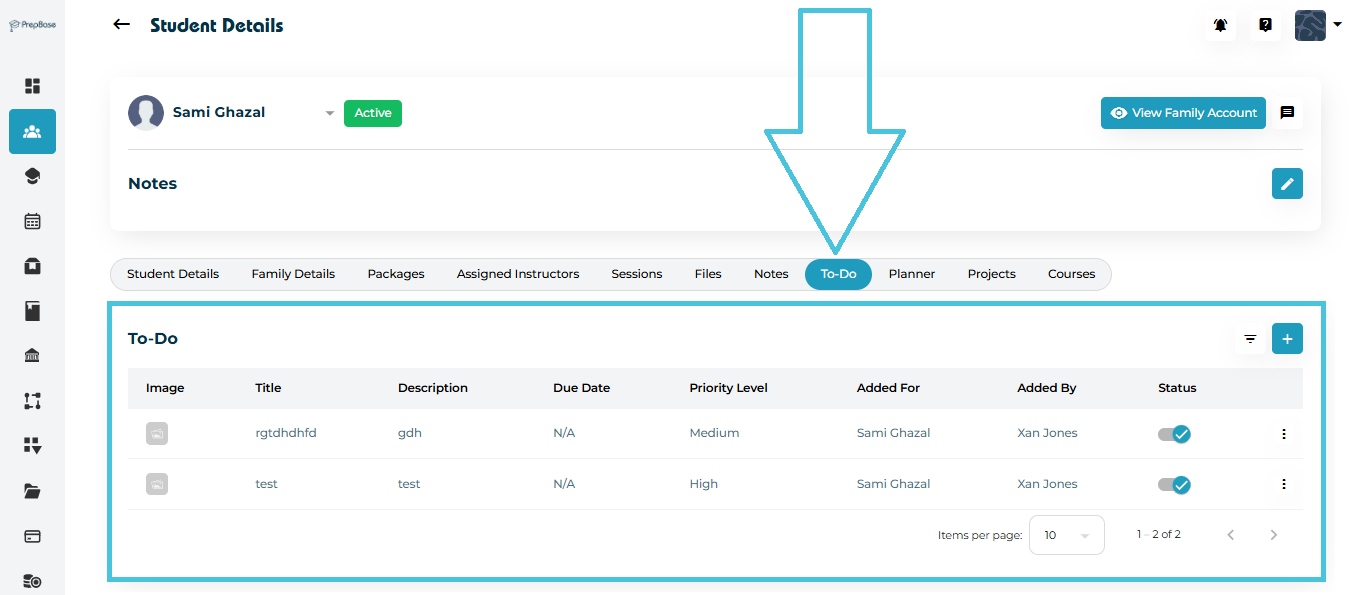
You will see a table listing:

  • Image (optional task image)

  • Title

  • Description

  • Due Date

  • Priority Level

  • Added For (Student)

  • Added By (Admin / Counselor / Tutor)

  • Status (Completed / Incomplete)

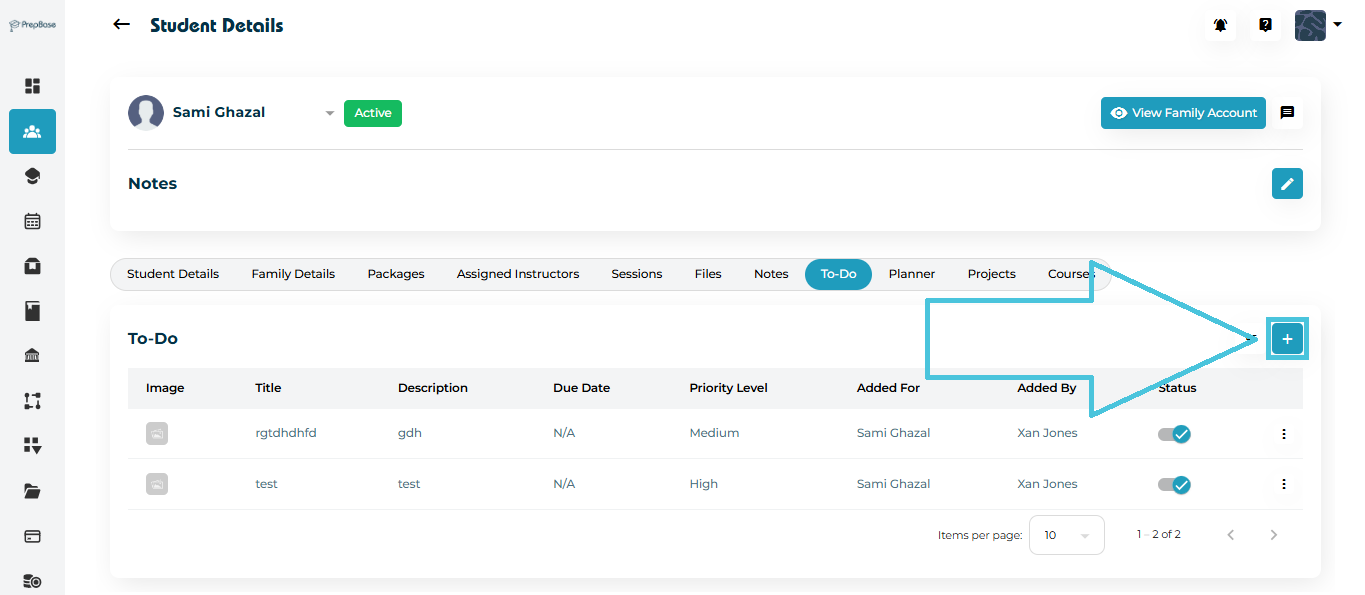
2. Assigning a New Task

  1. Click the ➕ Add button at the top-right of the To-Do list.

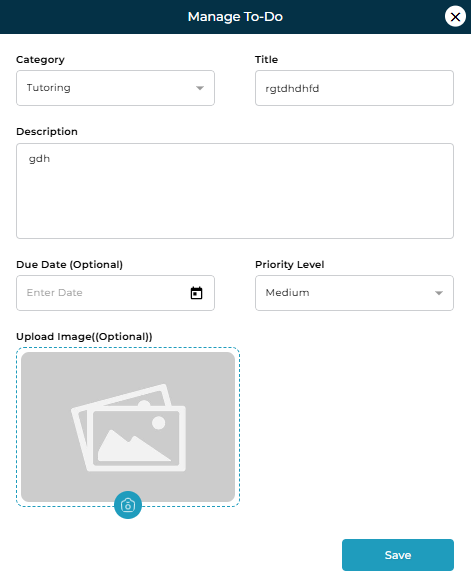
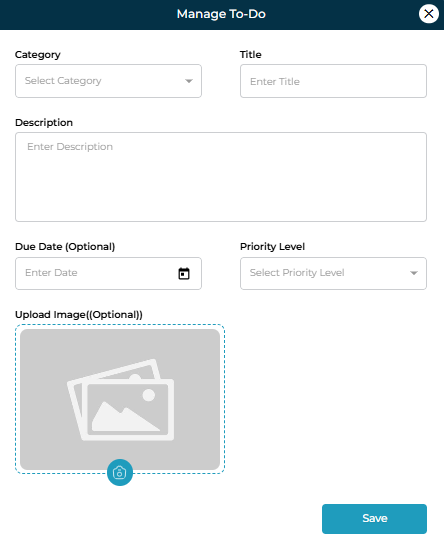
  2. The Manage To-Do modal will open.

Fields in the To-Do Form
FieldDescriptionRequired
CategoryChoose: Tutoring or Counselling
TitleShort, clear task name
DescriptionDetailed instructions for the student
Due DateOptional deadline for task completion
Priority LevelSelect Low, Medium, or High
Upload ImageAdd optional attachments or supporting images

After filling the details, click Save.

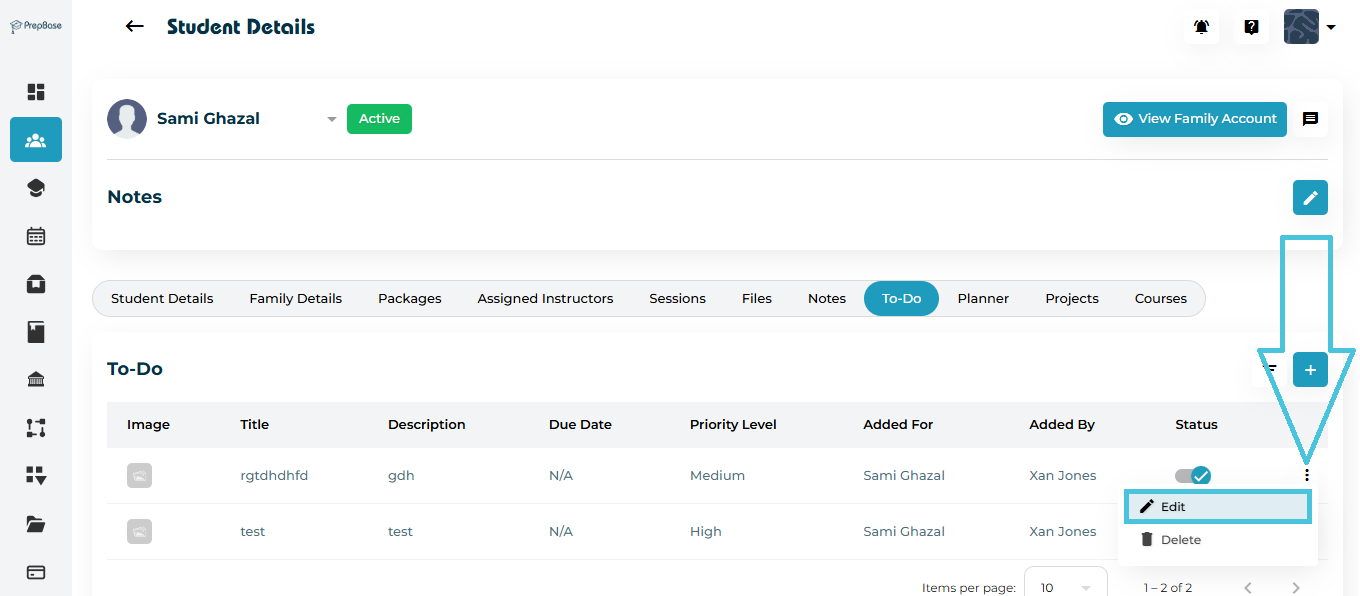
3. Editing an Existing Task

If a task must be updated:

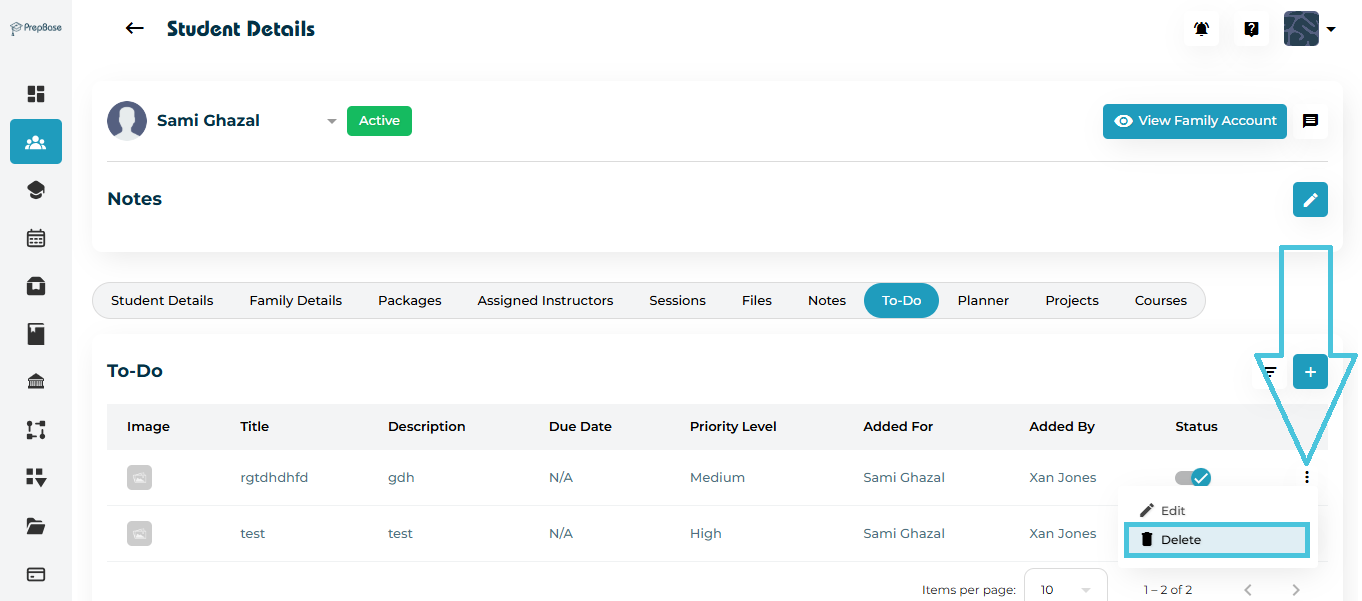
  1. Click the three-dot menu (⋮) next to the task

  2. Select Edit

  3. Update the category, title, description, due date, or priority

Click Save to apply all changes.

4. Deleting a Task

To remove a task:

  1. Click the three-dot menu (⋮)

  2. Select Delete

  3. Confirm deletion

5. Filtering To-Do Tasks

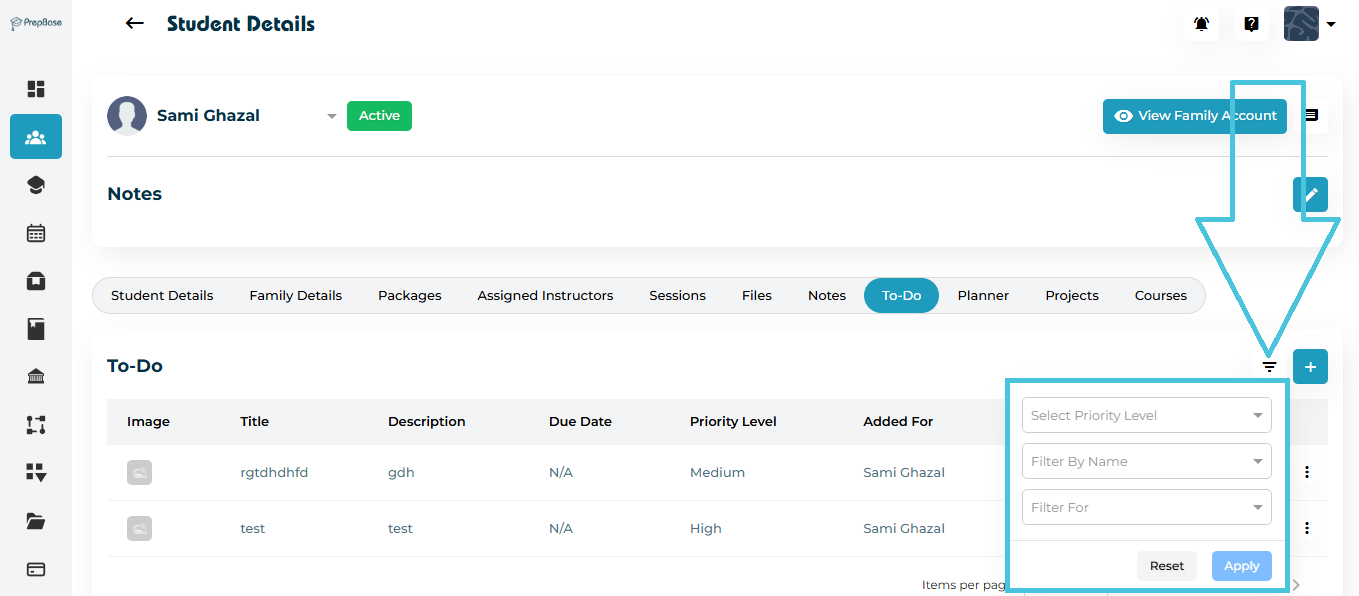
Admins can quickly locate tasks using the built-in filter panel.

  1. Click the Filter icon

  2. Filter by:

    • Select Priority Level (Low / Medium / High)

    • Filter By Name (Tutor / Counselor / Admin)
    • Filter For (Tutoring or counselling)

  3. Click Apply

  4. Use Reset to clear filters

6. Why Assign Tasks?

Assigning tasks helps:

  • Improve session preparation

  • Boost accountability

  • Reinforce learning outside sessions

  • Track student progress between sessions

  • Improve communication between counselors, tutors, and students

IN THIS ARTICLE

Adding and managing notes for tracking student progress

Adding and Managing Notes for Tracking Student Progress

The Notes tab allows Admins to record important academic, behavioral, or communication-related updates for each student.
Notes help maintain a clear history of interactions, student progress, and decisions made — ensuring that all team members have consistent and accurate information.

Admins can:

  • Add new notes

  • Control who can see the note

  • Edit existing notes

  • Delete notes

  • Filter notes for quick searching

1. Accessing the Notes Tab

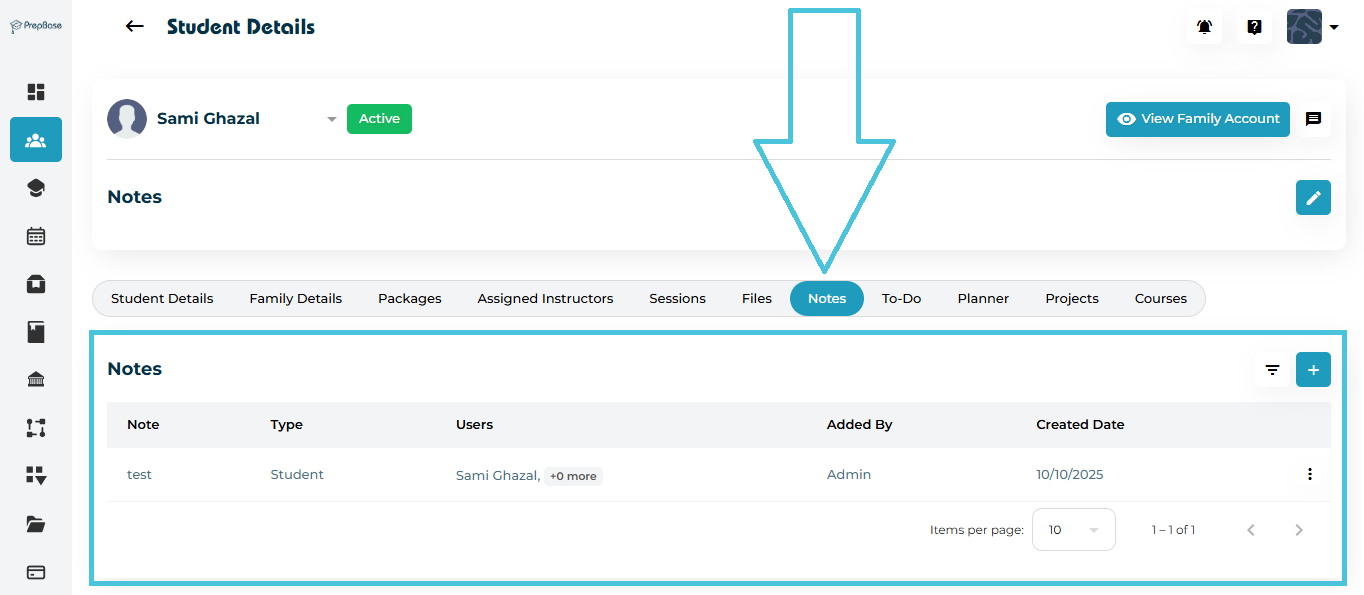
  1. Navigate to Students → Student Profiles.

  2. Select the student whose notes you want to manage.

  3. Click the Notes tab in the top navigation.

You will see a table showing:

  • Note Title

  • Type (Visibility)

  • Users

  • Added By

  • Created Date

2. Adding a New Note

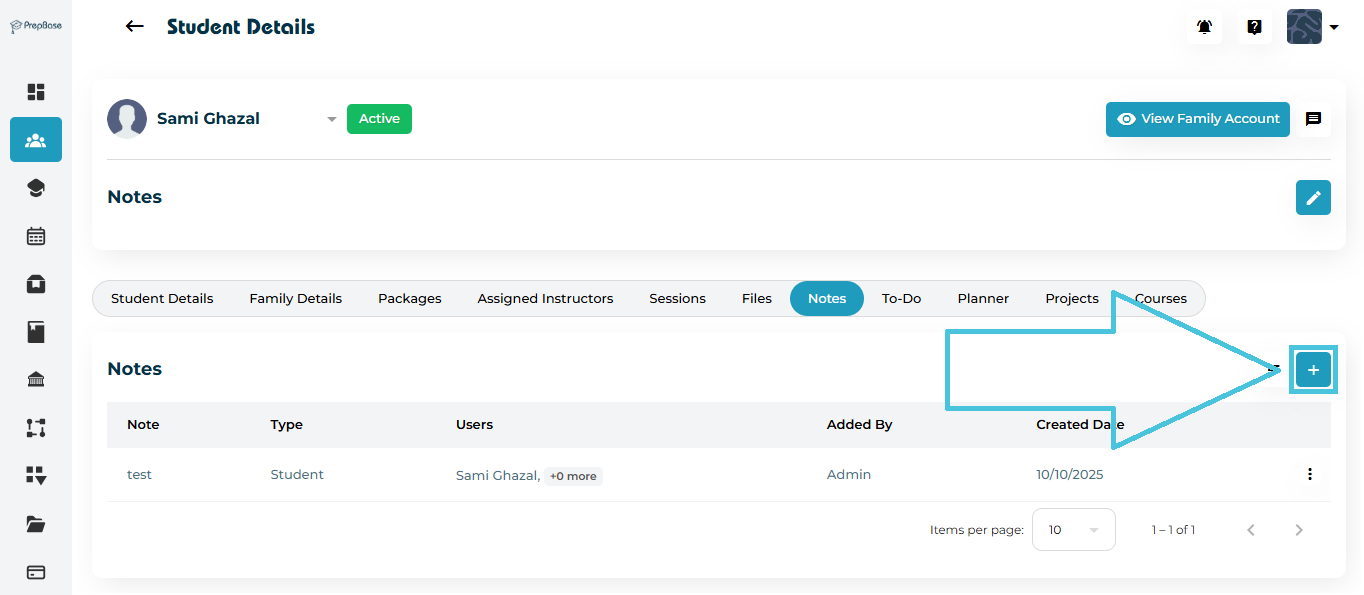
  1. Click the ➕ Add button on the top-right side of the Notes section.

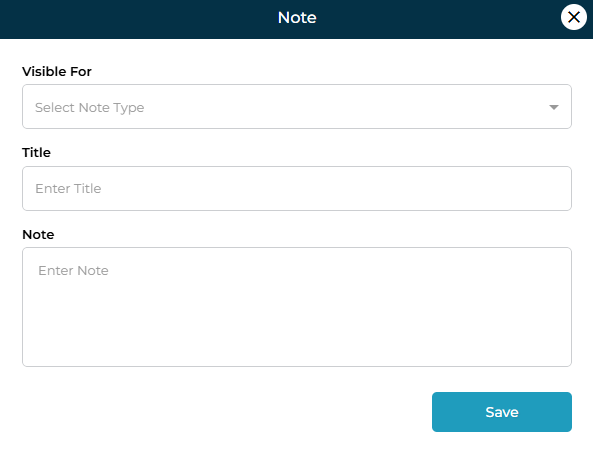
  2. A Note form will open.


Fields in the Add Note Form
FieldDescription
Visible ForSelect who can see the note: Admin, Student, Parent, or Both (Student & Parent).
TitleA short label identifying the note.
NoteDetailed explanation, update, or message you want to record.

After filling in all details, click Save.

3. Editing an Existing Note

If a note needs correction or an update:

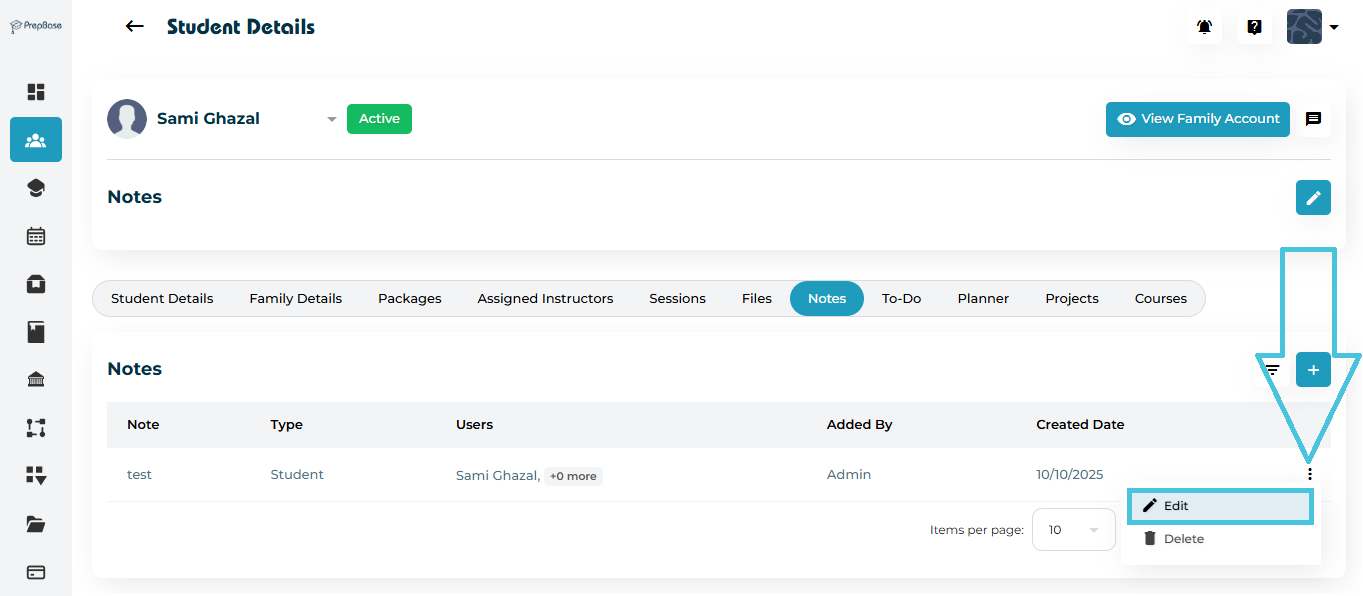
  1. Click the three-dot menu (⋮) next to the note.

  2. Click Edit.

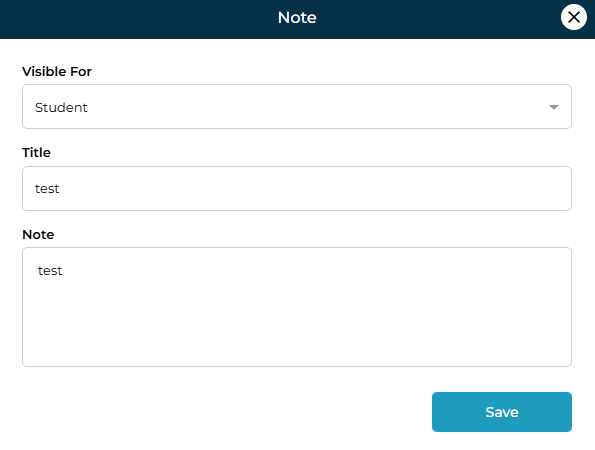
  3. Update the fields inside the form.

  4. Click Save to apply changes.

You can modify:

  • Visibility

  • Title

  • Note text

4. Deleting a Note

To remove a note:

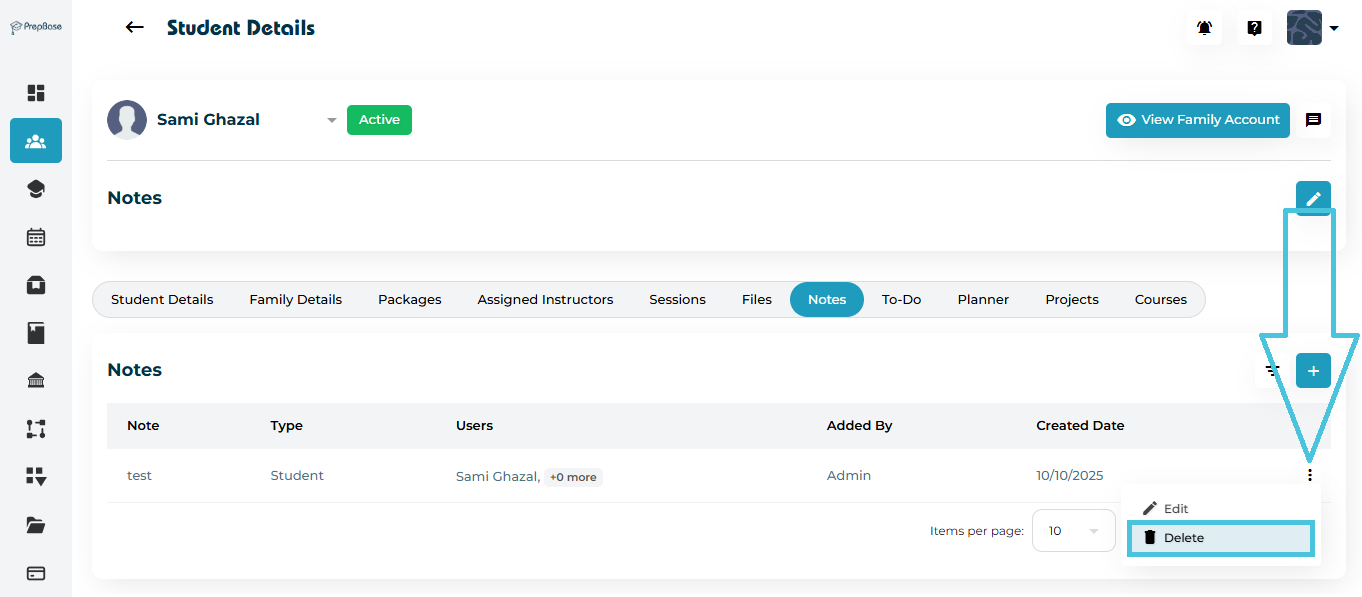
  1. Click the three-dot menu (⋮) beside the note.

  2. Select Delete.

  3. Confirm your action in the pop-up.

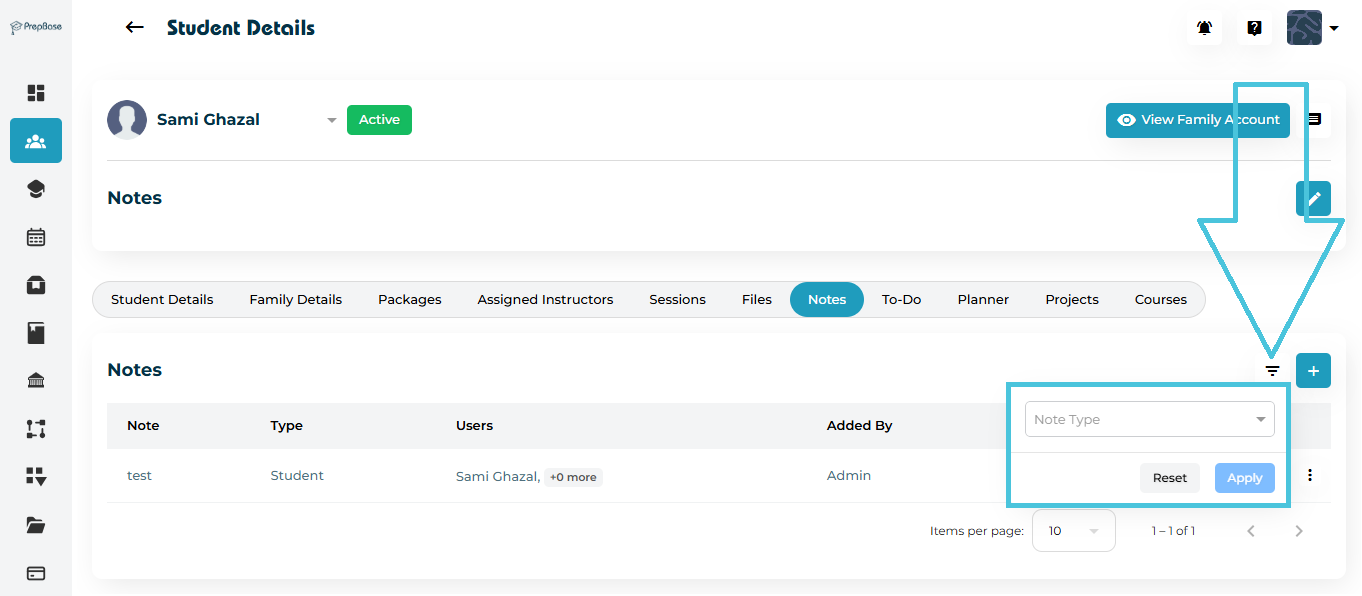
5. Filtering Notes

To quickly find specific notes:

  1. Click the Filter icon next to the Add button.

  2. Use the filter options:

    • Note Type (Visibility) – Admin, Student, Parent, Both

  3. Click Apply to show filtered results.

  4. Click Reset to clear all filters.

This helps when managing a large number of notes for long-term students.

6. Why Notes Are Important

Adding notes helps:

  • Track academic or behavioral progress

  • Record communication history with students or parents

  • Provide context for future instructors or counselors

  • Maintain transparency across the counseling and academic teams

Notes create a reliable, centralized record that supports improved decision-making and student success.


IN THIS ARTICLE

Uploading and managing student-related files

Uploading and Managing Student-Related Files

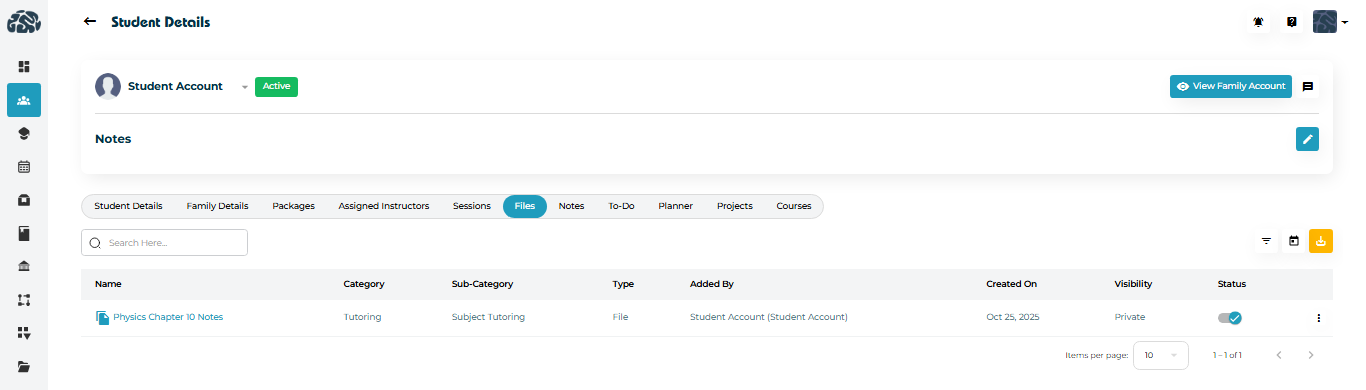
The Files tab within the Student Details page allows administrators to view and manage learning materials, session resources, and student documents.
This helps keep all academic content organized and accessible in one place.

1. Accessing Student Files

  1. Navigate to Students → Student Profiles.

  2. Select the student whose files you want to view.

  3. Click the Files tab in the top navigation bar.

Each file record displays:

  • Name of the file

  • Category and Sub-Category

  • Type (e.g., File, Document, Image)

  • Added By (Student, Instructor, or Counselor)

  • Created On date

  • Visibility (Private or Public)

  • Status (Active/Inactive)

Note: Files uploaded by students or instructors automatically appear here once saved on their portals.

2. Viewing Files

Admins can preview file information directly from the list view, including category and visibility settings.
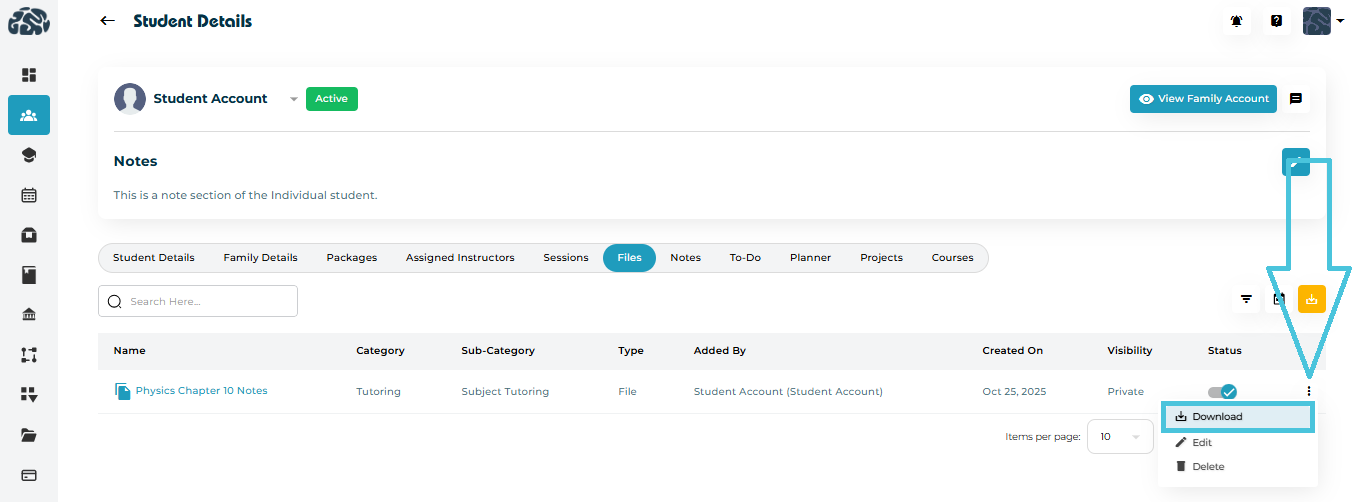
To open or download a file:

  1. Click the name of the file to open it in a new tab.

  2. Click the three-dot menu (⋮) beside the file.

  3. Select Download to open or save it locally.

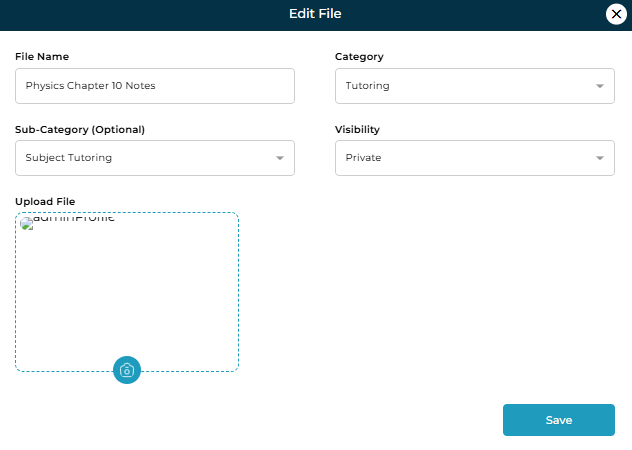
3. Editing File Details

If an uploaded file needs re-categorization or visibility updates, Admins can edit its metadata.

  1. Click the three-dot menu (⋮) next to the file.

  2. Select Edit.

  3. The Edit File modal will appear.

Editable Fields
FieldDescription
File NameRename the file for better clarity.
CategoryDefine whether it relates to Tutoring, Counseling, etc.
Sub-CategoryOptionally specify sub-topics such as Subject Tutoring, Academic Planning, etc.
VisibilityChoose Private (visible only to internal users) or Public (visible to student).

After editing, click Save to apply changes.

4. Filtering Files

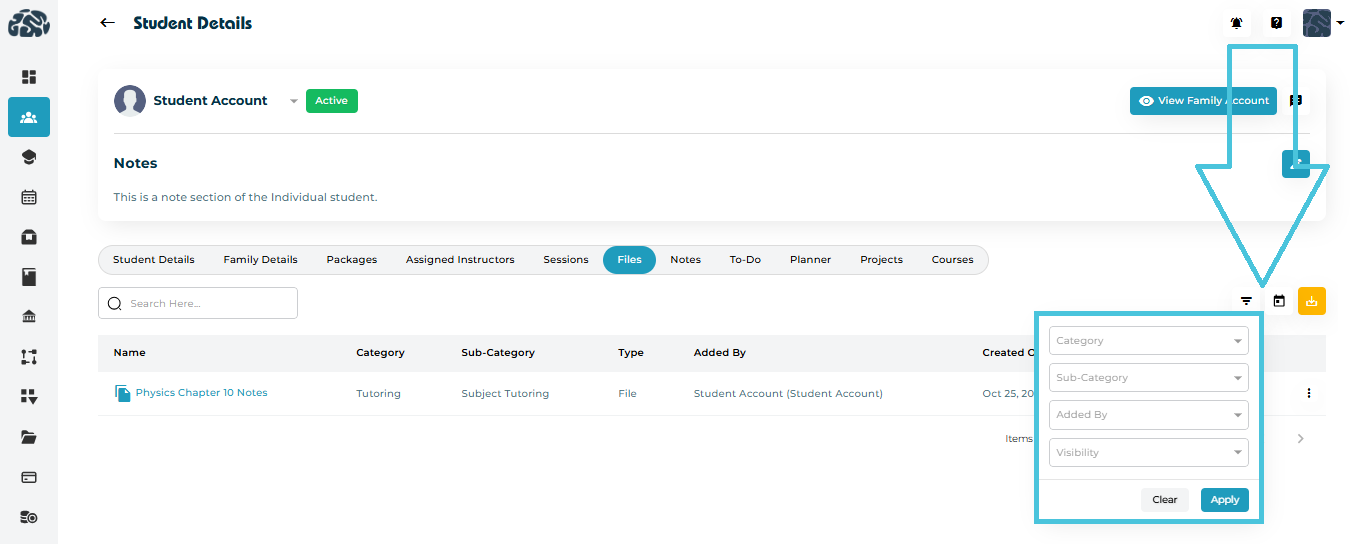
To locate specific files quickly:

  1. Click the Filter icon on the top-right corner of the Files tab.

  2. Use available filters:

    • Category

    • Sub-Category

    • Added By

    • Visibility (Private/Public)

  3. Click Apply to refine the list.

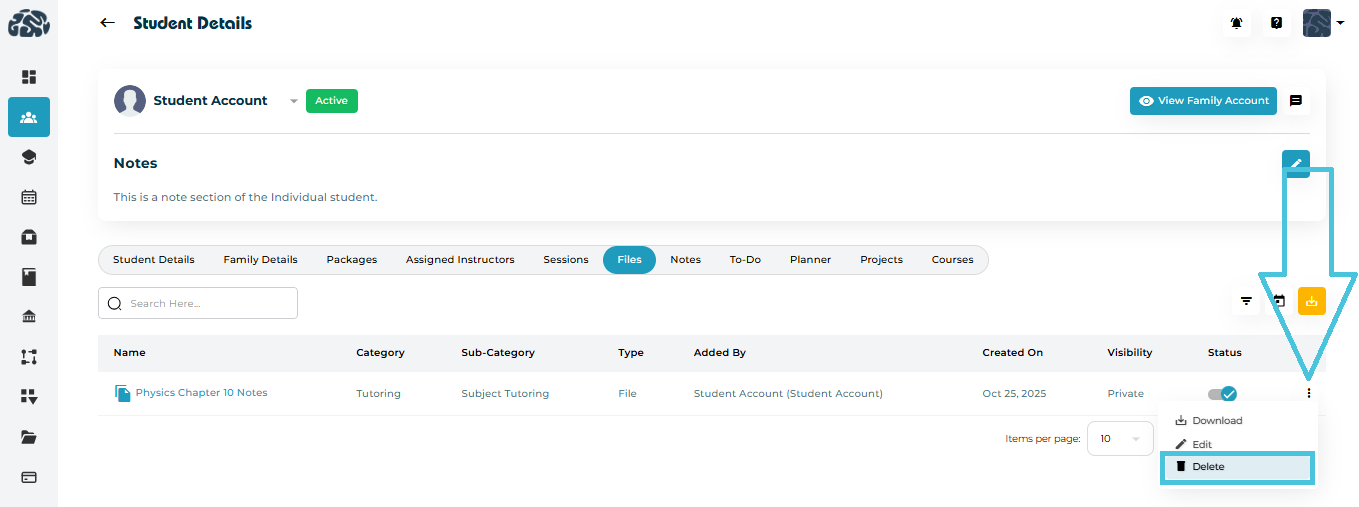
5. Deleting Files

If a file is outdated or uploaded incorrectly, Admins can remove it.

  1. Click the three-dot menu (⋮) beside the file name.

  2. Select Delete.

  3. Confirm the action when prompted.

Once deleted, the file is permanently removed from the student’s record and cannot be recovered.

6. Important Notes for Admins

  • Admins can:

    • View and download any uploaded file.

    • Edit file details like name, category, or visibility.

    • Delete unwanted or duplicate files.

  • Visibility settings help manage what files are accessible to students and which remain internal.

IN THIS ARTICLE