Managing in-app notifications

Managing In-App Notifications

The In-App Notifications feature in PrepBase allows admins to send important updates, alerts, and announcements directly within the platform. Notifications help ensure that students, instructors, counselors, and groups stay informed without relying solely on email or external communication tools.

1. Where to Access In-App Notifications

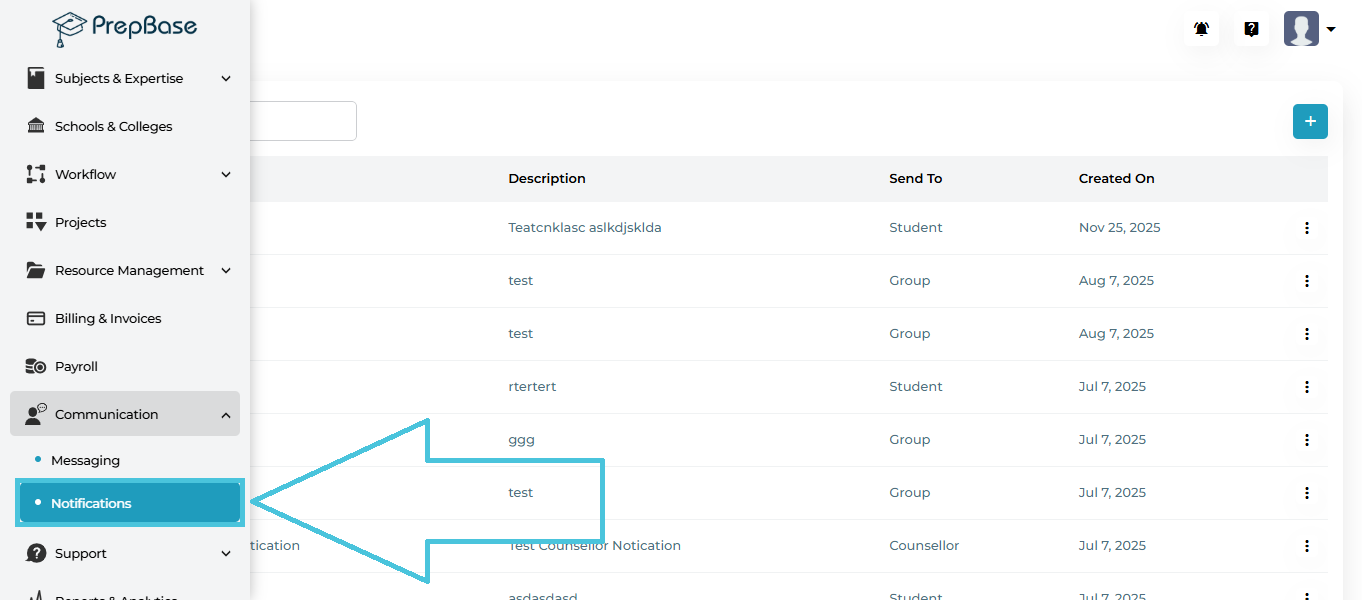
Navigate to:

Communication → Notifications

This opens the Notifications management screen, where all previously created notifications are listed and managed.

2. Notifications Page Overview

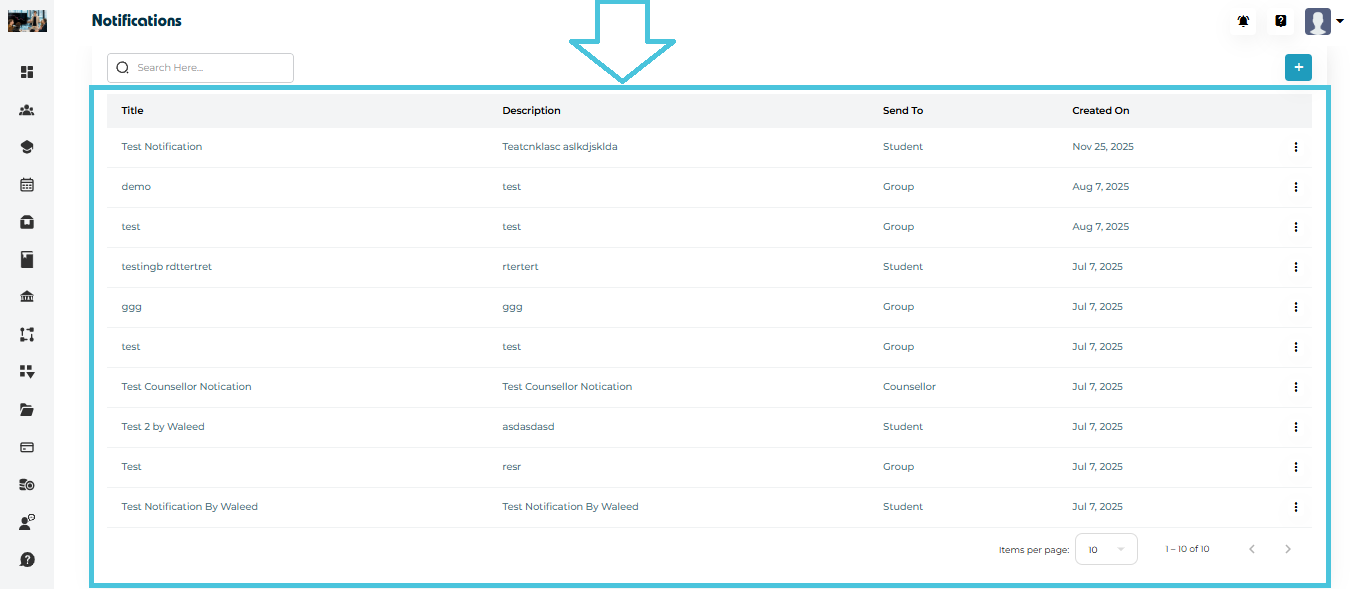
The Notifications page provides a centralized view of all in-app notifications.

Key Areas on the Page
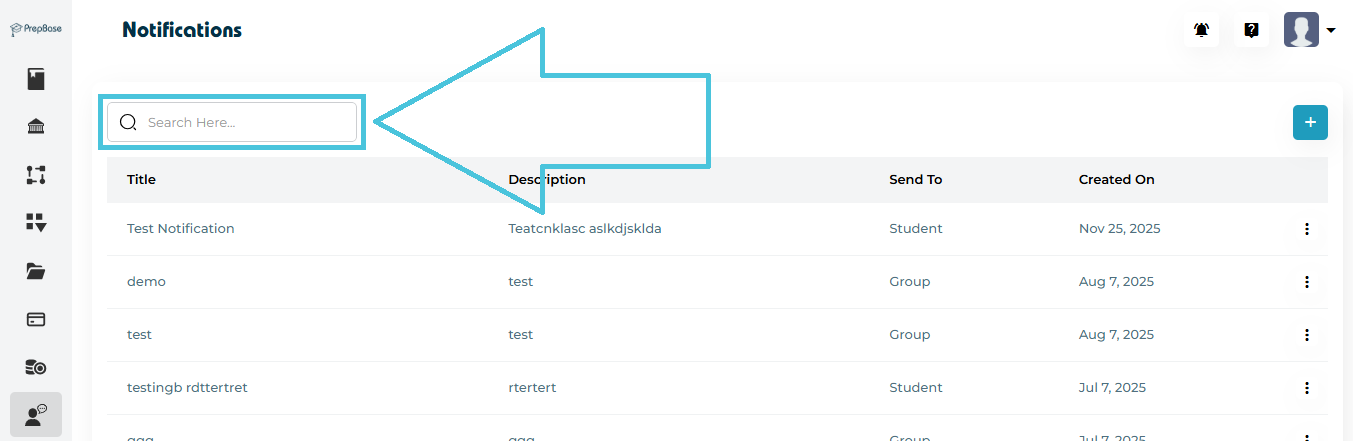
  • Search Bar – Quickly find notifications by title

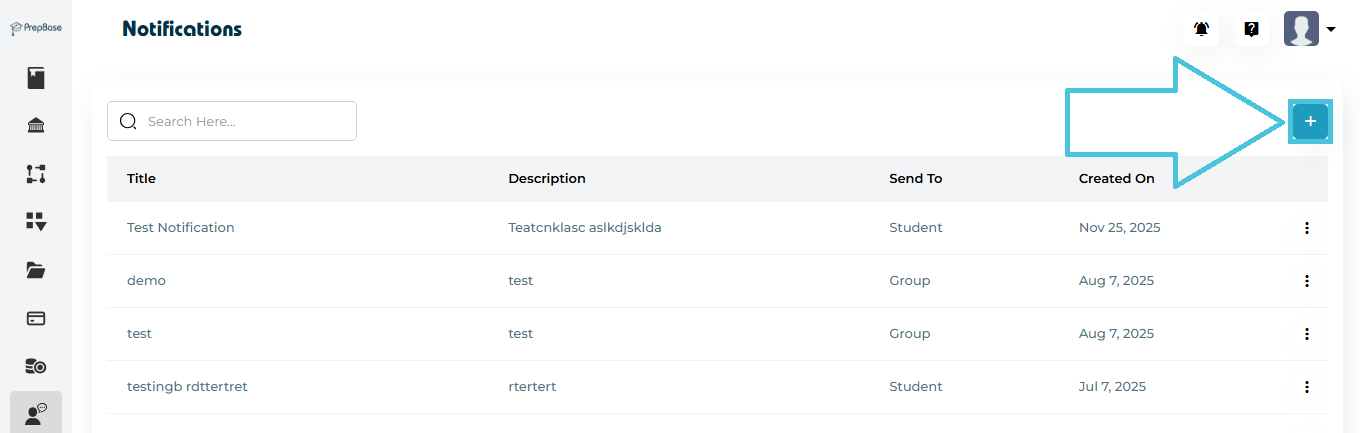
  • Add Notification (+) – Create a new in-app notification

  • Notifications Table – Displays all notifications

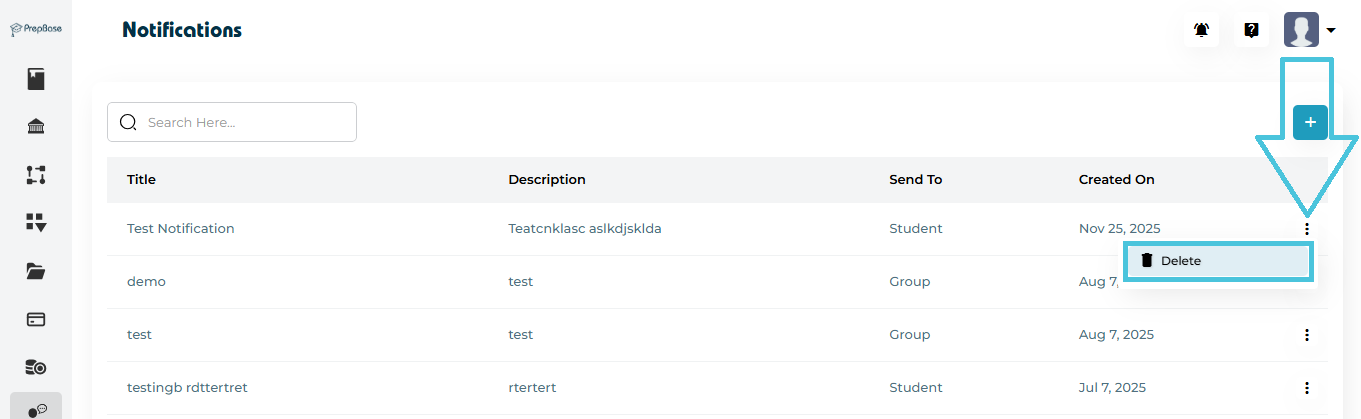
  • Actions Menu – Delete individual notifications

  • Pagination Controls – Navigate through notification history

Notifications List Columns Explained

Each row in the list represents one notification.
Column Description
Title Notification title shown to recipients.
Description Message content of the notification.
Send To Target audience (Student, Instructor, Counselor, or Group).
Created On Date the notification was created.
Actions Context menu for deleting the notification.

3. Creating a New Notification

Admins can create new notifications at any time.
Steps to Add a Notification
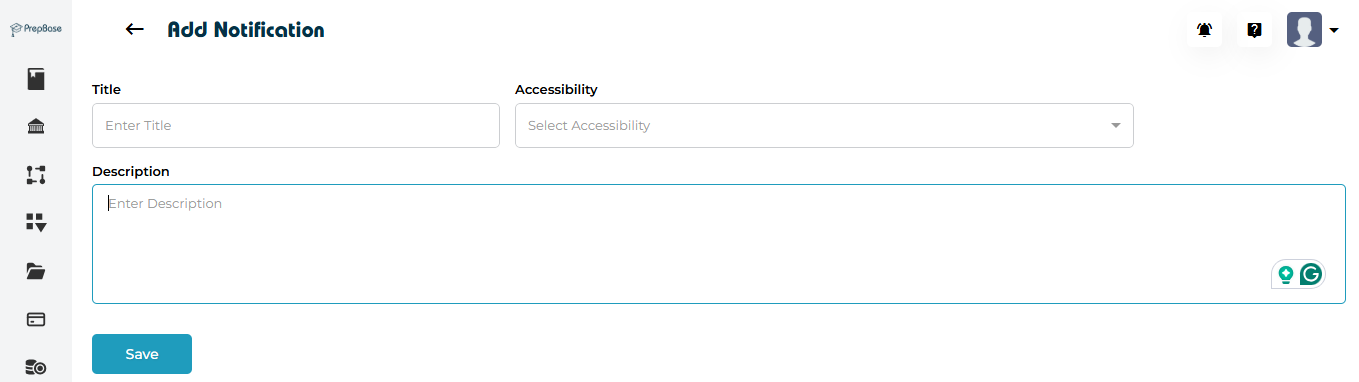
  1. Click the ➕ Add Notification button

  2. Enter a clear Title

  3. Add the Description (notification message)

  4. Select Send To:

    • Student

    • Instructor

    • Counselor

    • Group

  5. Click Submit / Save

The notification is immediately delivered to the selected recipients inside PrepBase.

4. Who Receives Notifications

Notifications are visible inside the PrepBase interface for the selected users.

  • Students – Receive notifications related to sessions, billing, or announcements

  • Instructors / Counselors – Receive updates related to teaching, payroll, or system alerts

  • Groups – Useful for batch announcements or program-wide updates

5. Searching Notifications

To find a specific notification:

  1. Use the Search field at the top

  2. Enter part or all of the notification title

The list updates instantly to match the search criteria.

6. Deleting a Notification

To delete a notification:

  1. Click the three-dot menu next to the notification

  2. Select Delete

  3. Confirm the action

This is useful for removing outdated or incorrect announcements.
IN THIS ARTICLE

Sending messages between users

Sending Messages Between Users

The Messaging module in PrepBase enables direct and group communication between Admins, Students, and Instructors. This feature centralizes conversations, improves coordination, and keeps all communication tied to the platform—no external tools required.

1. Where to Access Messaging

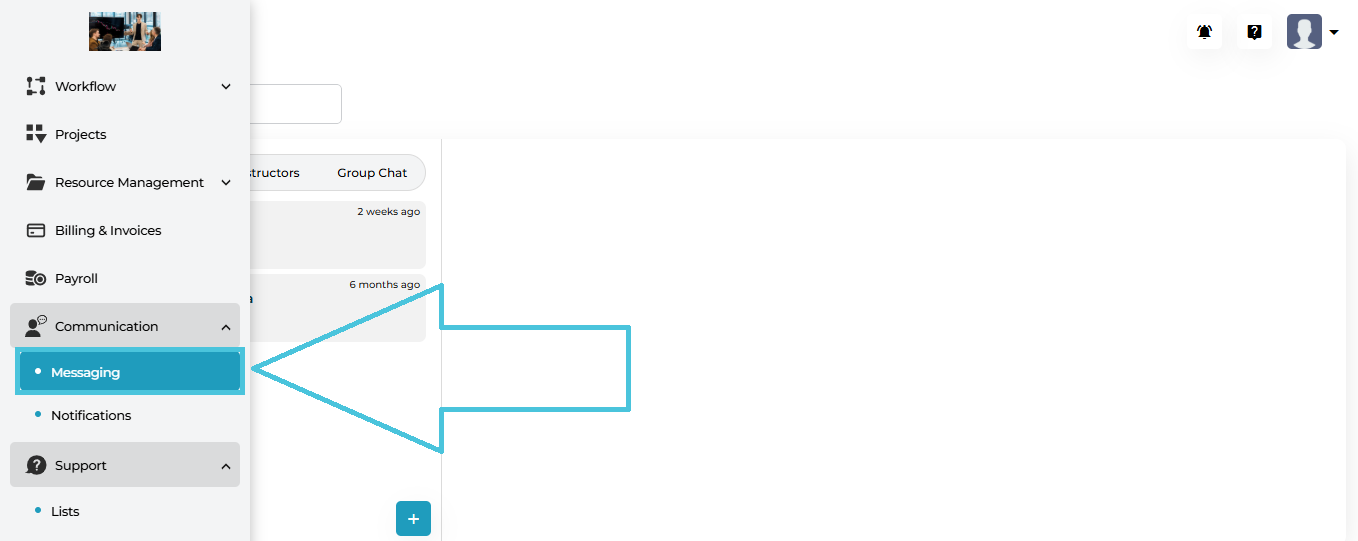
Navigate to:

Communication → Messaging

This opens the main Messaging interface, where all one-to-one and group conversations are managed.

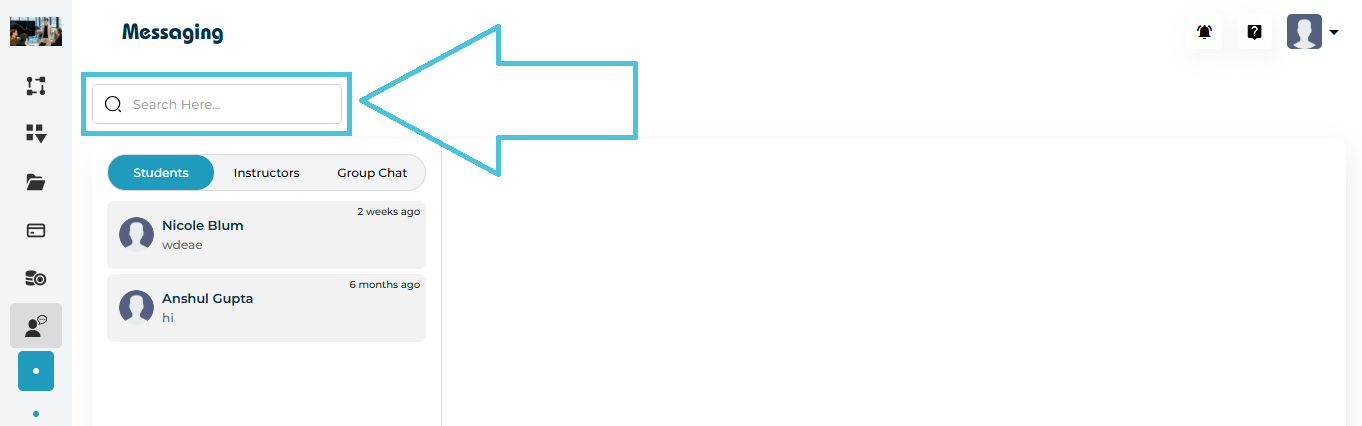
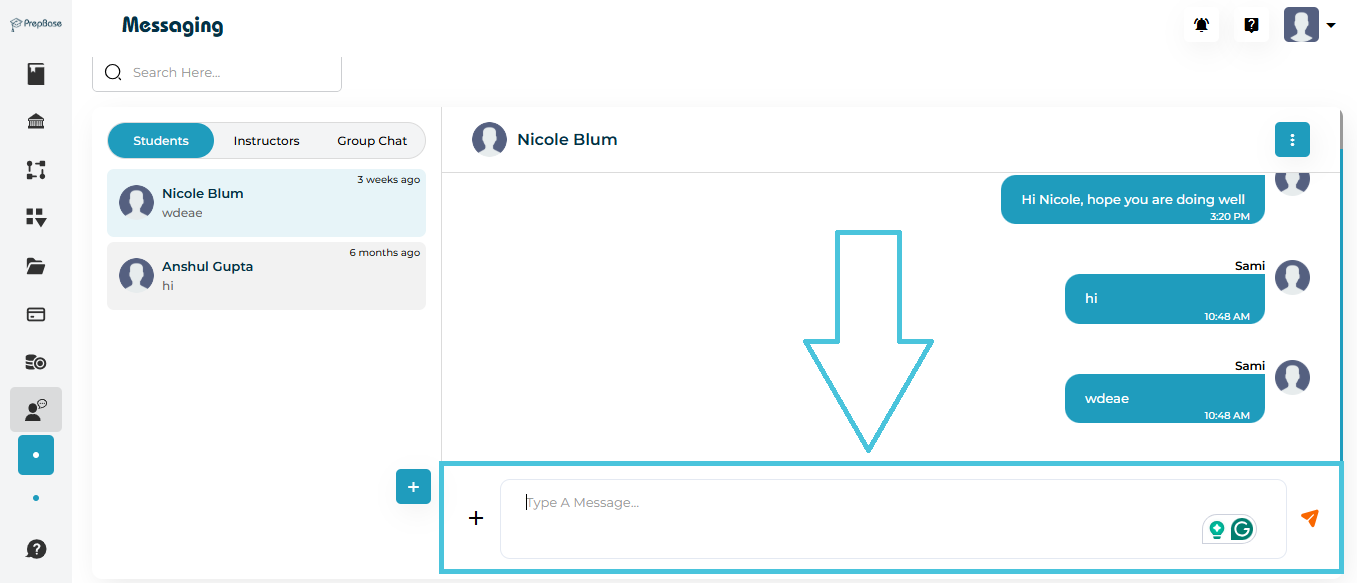
2. Messaging Interface Overview

The Messaging screen is divided into three main areas:

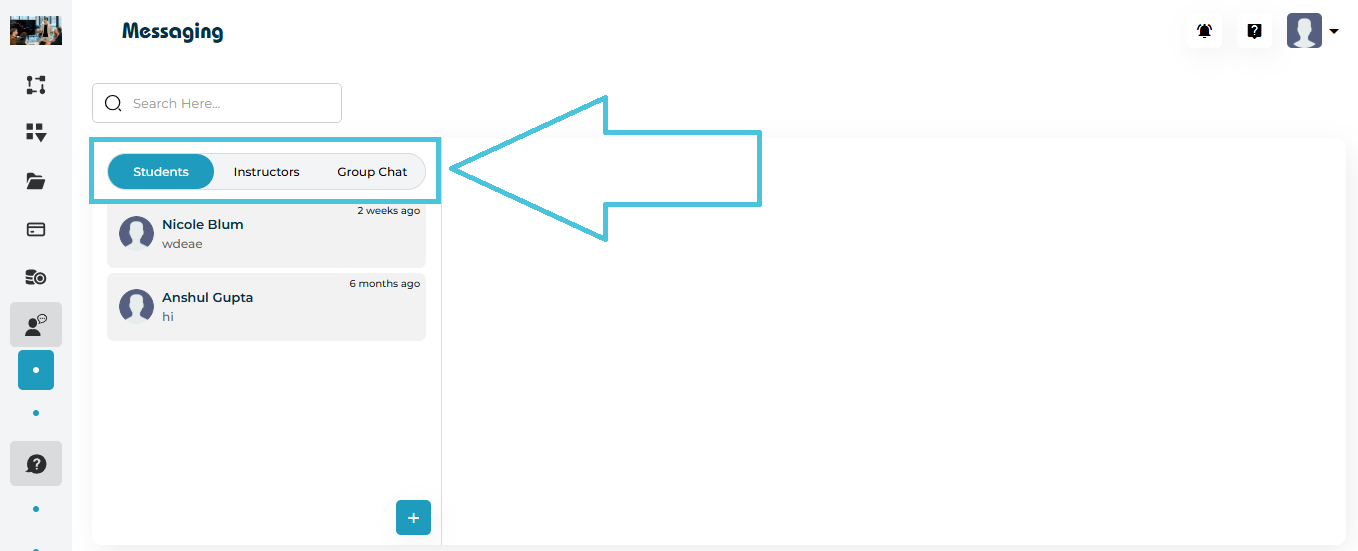
1. Conversation Categories (Top Tabs)

  • Students – One-to-one chats with students

  • Instructors – One-to-one chats with instructors

  • Group Chat – Group conversations with multiple participants

You can switch between these tabs at any time without losing chat history.

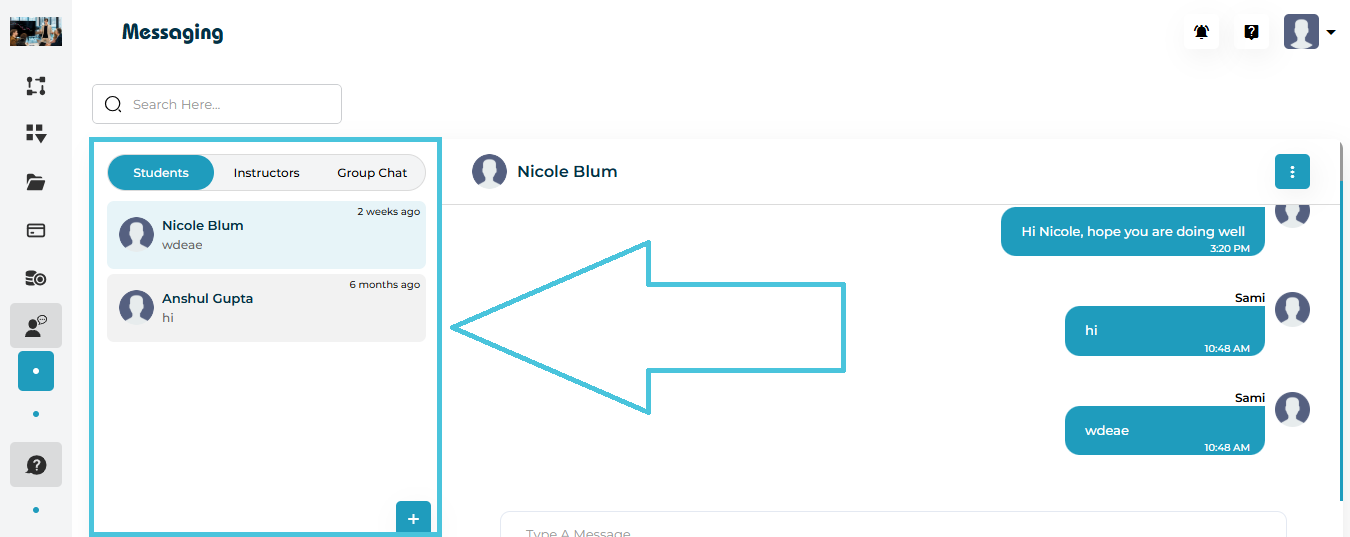
2. Conversation List (Left Panel)

This panel displays all existing conversations under the selected tab.

Each conversation shows:

  • User or group name

  • Profile icon

  • Last message preview

  • Time since last activity

Search Conversations

Use the Search bar at the top to quickly find a conversation by name.

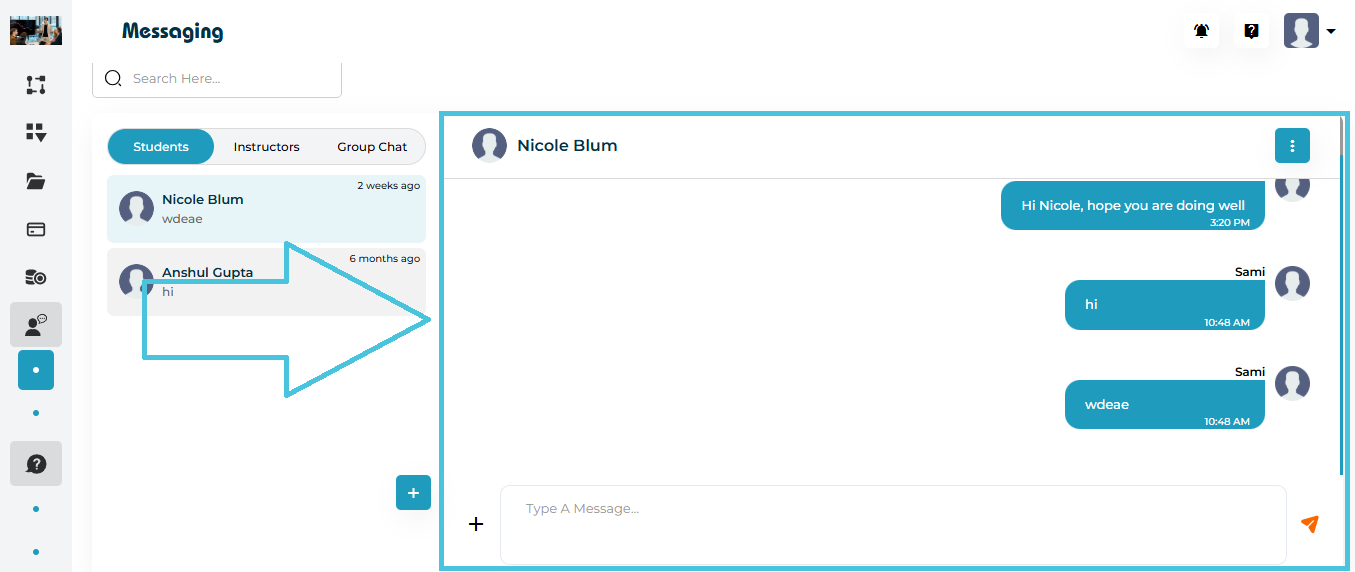
3. Chat Window (Main Panel)

The main panel shows:

  • Chat header with participant name

  • Message history

  • Message input field

  • Send button

Messages are displayed in a chat-style format, making conversations easy to follow.

3. Starting a New Chat

Admins can start new conversations directly from the Messaging module.

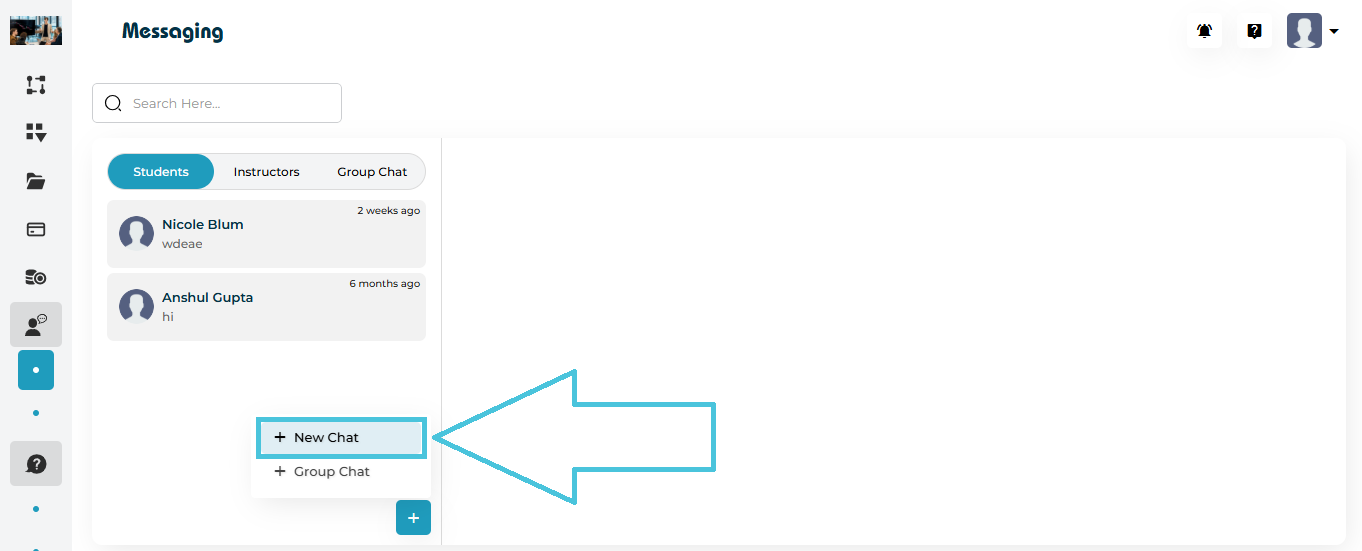
How to Start a New Chat

  1. Click the ➕ (Add) button at the bottom of the conversation list

  2. Select New Chat

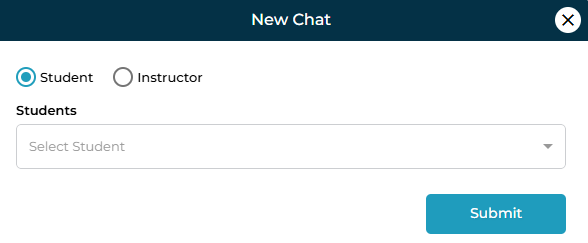
  3. Choose the chat type:

    • Student

    • Instructor

  4. Select the user from the dropdown list

  5. Click Submit

A new one-to-one chat is created instantly.

4. Sending Messages

Once a conversation is open:

  1. Click inside the Type a message… input field

  2. Enter your message

  3. Click the Send (➤) button

The message is delivered in real time and added to the chat history.

Sending Attachments

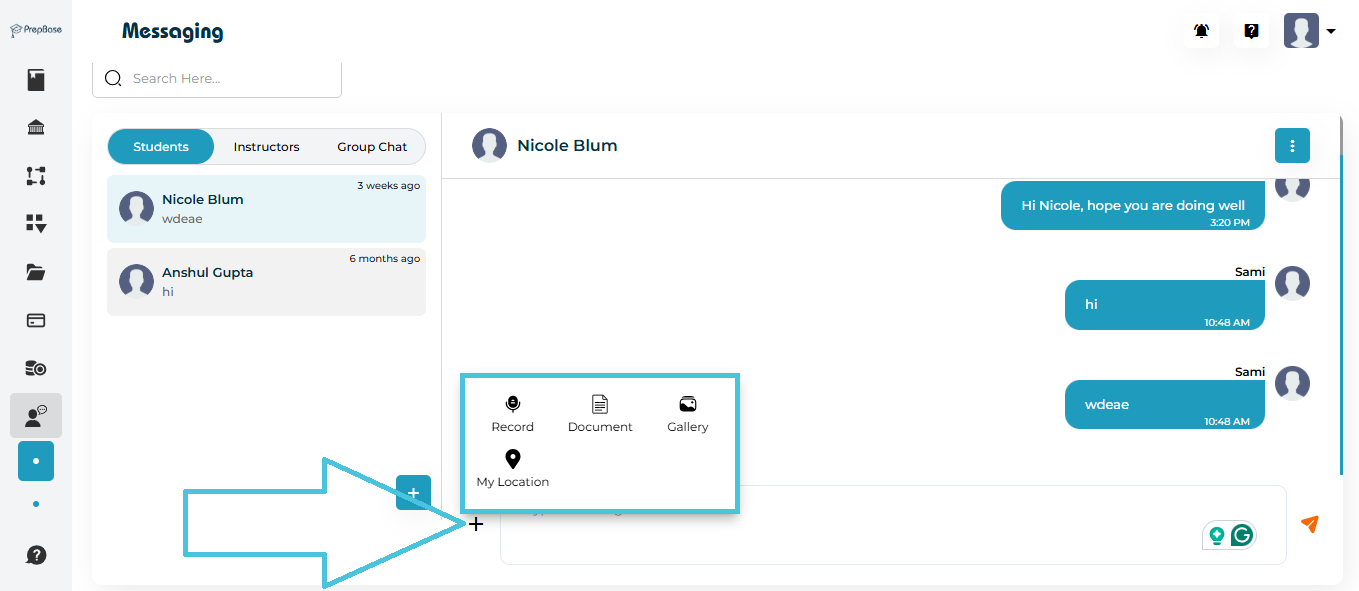
PrepBase allows you to share additional content such as documents, images, voice recordings, and location details during a conversation.

To send an attachment:

  1. Click the ➕ (Add) icon next to the message input field.

  2. Select one of the available attachment options:

    • Record – Record and send a voice message directly from the chat.

    • Document – Upload and share files such as PDFs, Word documents, or other supported file types.

    • Gallery – Select and send images from your device.

    • My Location – Share your current location with the recipient.

  3. Choose or upload the required file/content.

  4. Click the Send (➤) button to deliver the attachment.

The attachment is sent instantly and appears within the conversation thread, just like regular messages.

5. Creating a Group Chat

Group chats allow admins to communicate with multiple users simultaneously.

How to Create a Group Chat

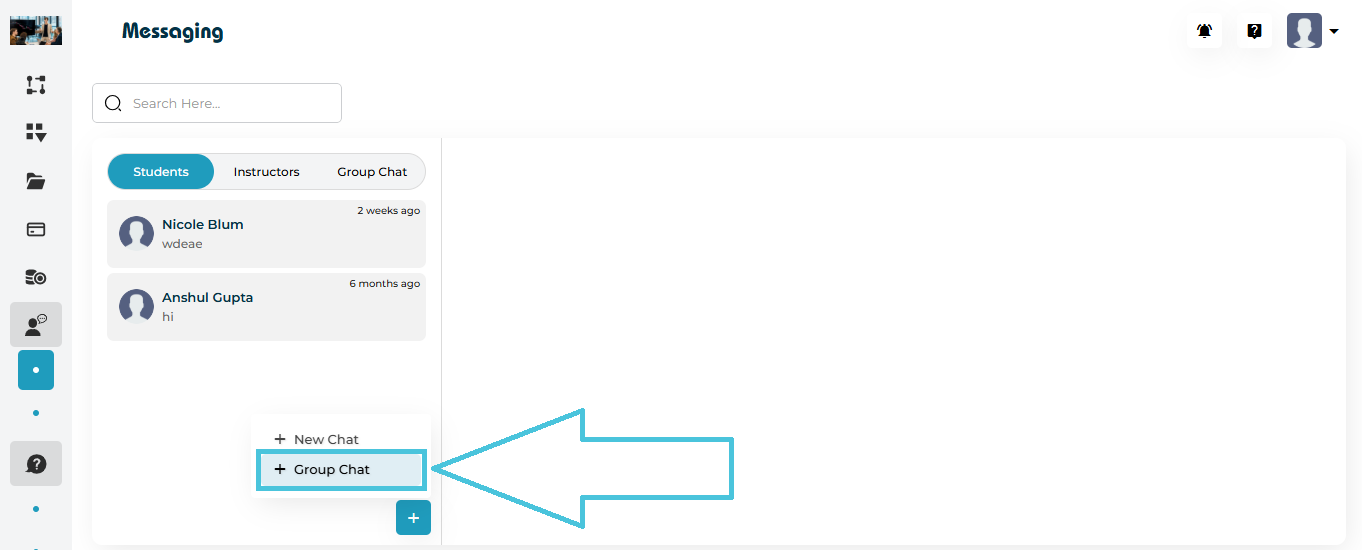
  1. Click the ➕ (Add) button

  2. Select Group Chat

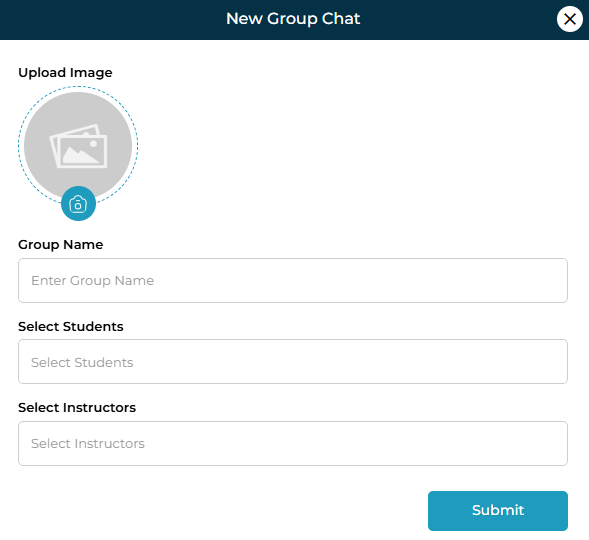
  3. Upload a Group Image (optional)

  4. Enter a Group Name

  5. Select Students

  6. Select Instructors

  7. Click Submit

The group chat is created and appears under the Group Chat tab.

Managing Group Conversations

In group chats:

  • All selected participants can view and respond to messages

  • Messages are visible to all members

  • Group chats are useful for:

    • Batch announcements

    • Session coordination

    • Program or class communication

6. Deleting a Conversation

Admins can remove conversations when they are no longer needed.

How to Delete a Chat

  1. Open the conversation

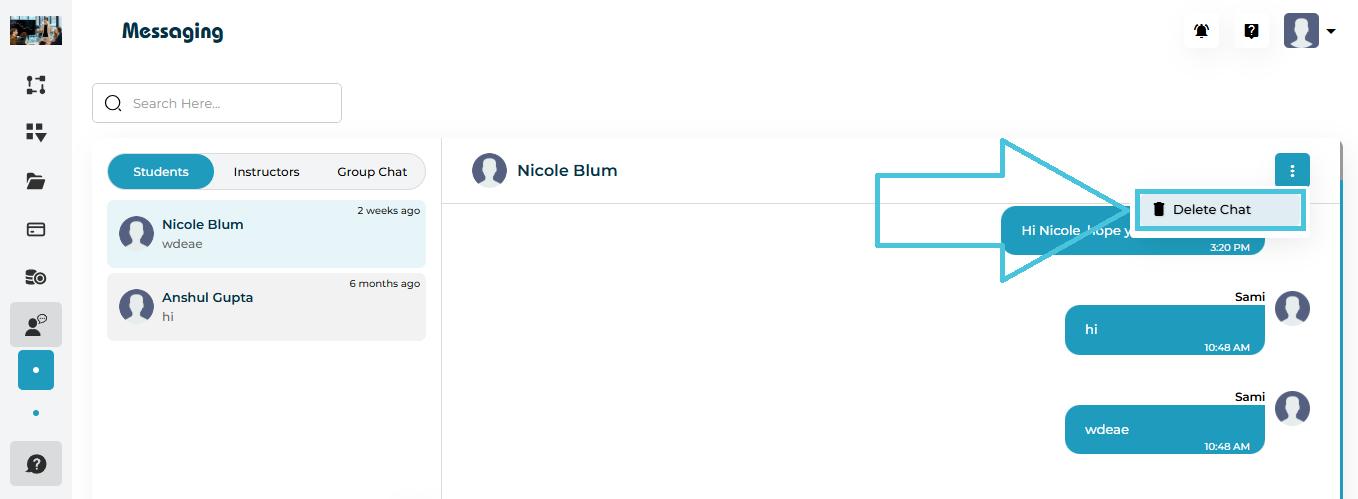
  2. Click the three-dot menu in the top-right corner

  3. Select Delete Chat

  4. Confirm the action

⚠️ Deleting a chat permanently removes the conversation history.

IN THIS ARTICLE