Creating session report templates

Creating Session Report Templates

Session report templates help standardize how instructors document student progress, session summaries, action plans, and feedback. Instead of writing reports from scratch after every session, instructors can generate consistent, high-quality reports using predefined formats created by the admin team.

This feature is especially valuable for organizations that manage many instructors, work across different programs, or require structured reporting for quality assurance.

1. Why Use Session Report Templates?

A well-designed template ensures:

  • Consistency across all instructors and departments

  • Faster reporting, reducing admin work

  • Structured progress tracking for each student

  • Standardized metrics such as goals achieved, topics covered, next steps, attendance notes, or action items

  • Multilingual reporting (e.g., English + Arabic) if your organization supports multiple languages

Templates can be used for tutoring sessions, workshops, counseling sessions, assessments, mentoring, or any recurring learning activity.

2. Accessing the Templates Module

Navigate to:

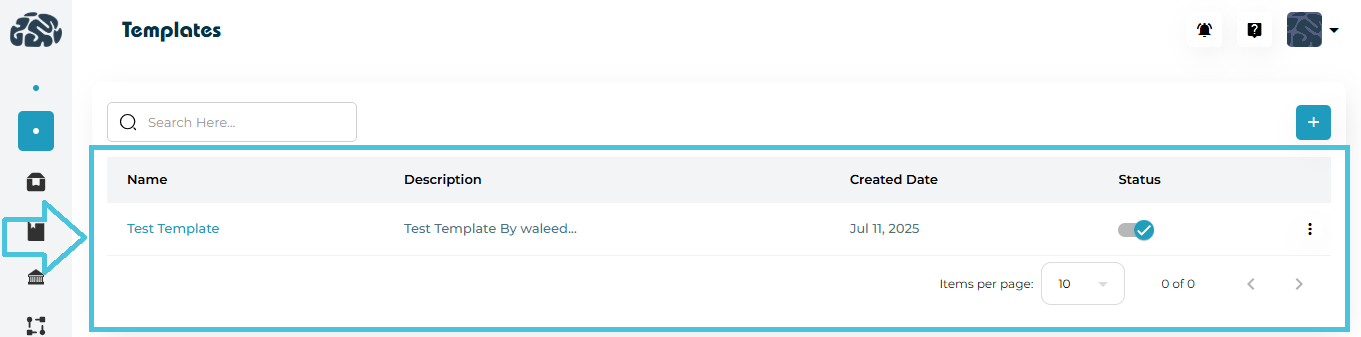
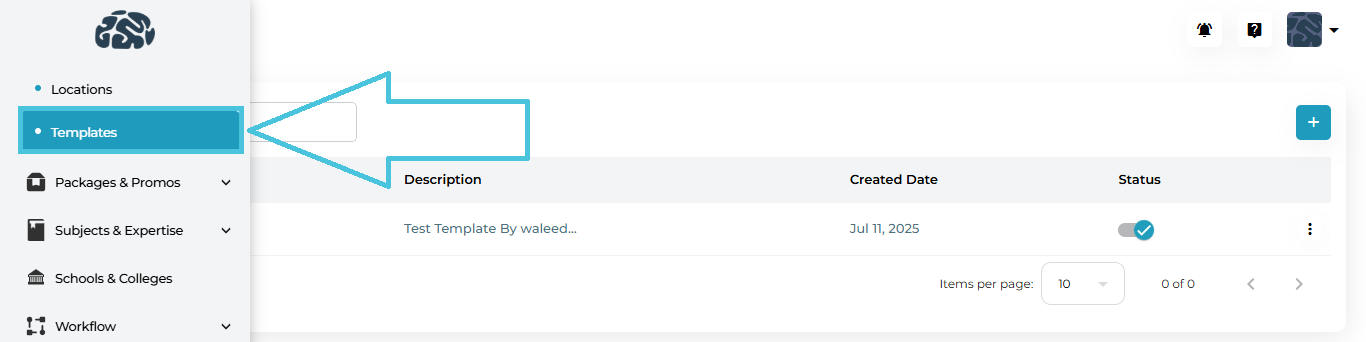
Calendar & Sessions → Templates

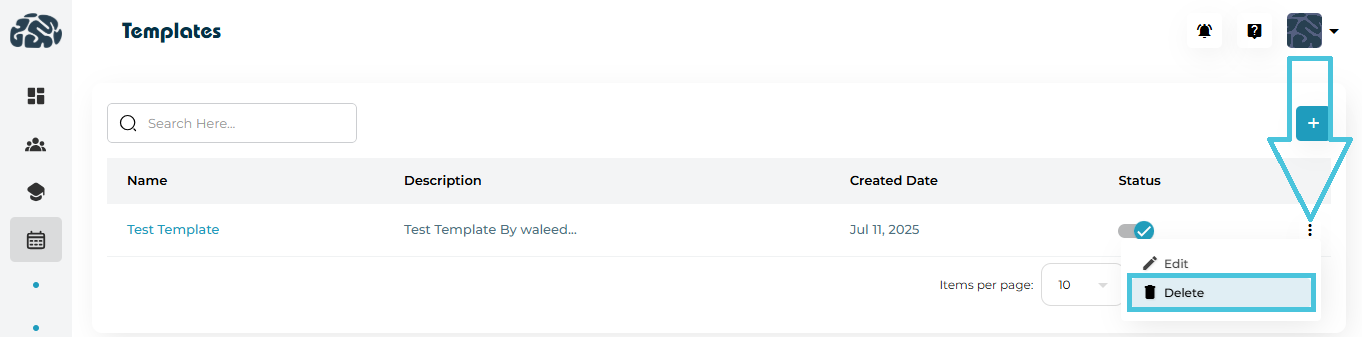
Here, you can view all existing templates, toggle their status, or create new ones.

3. Creating a New Session Report Template

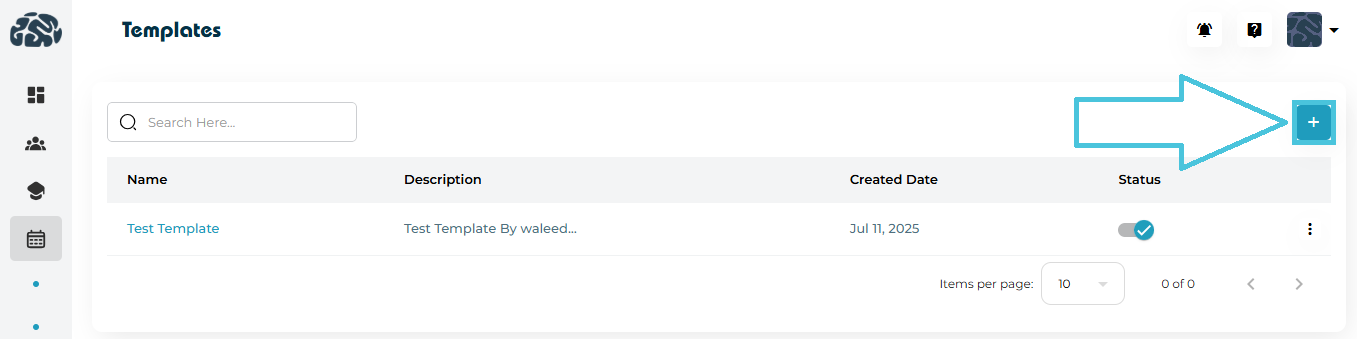
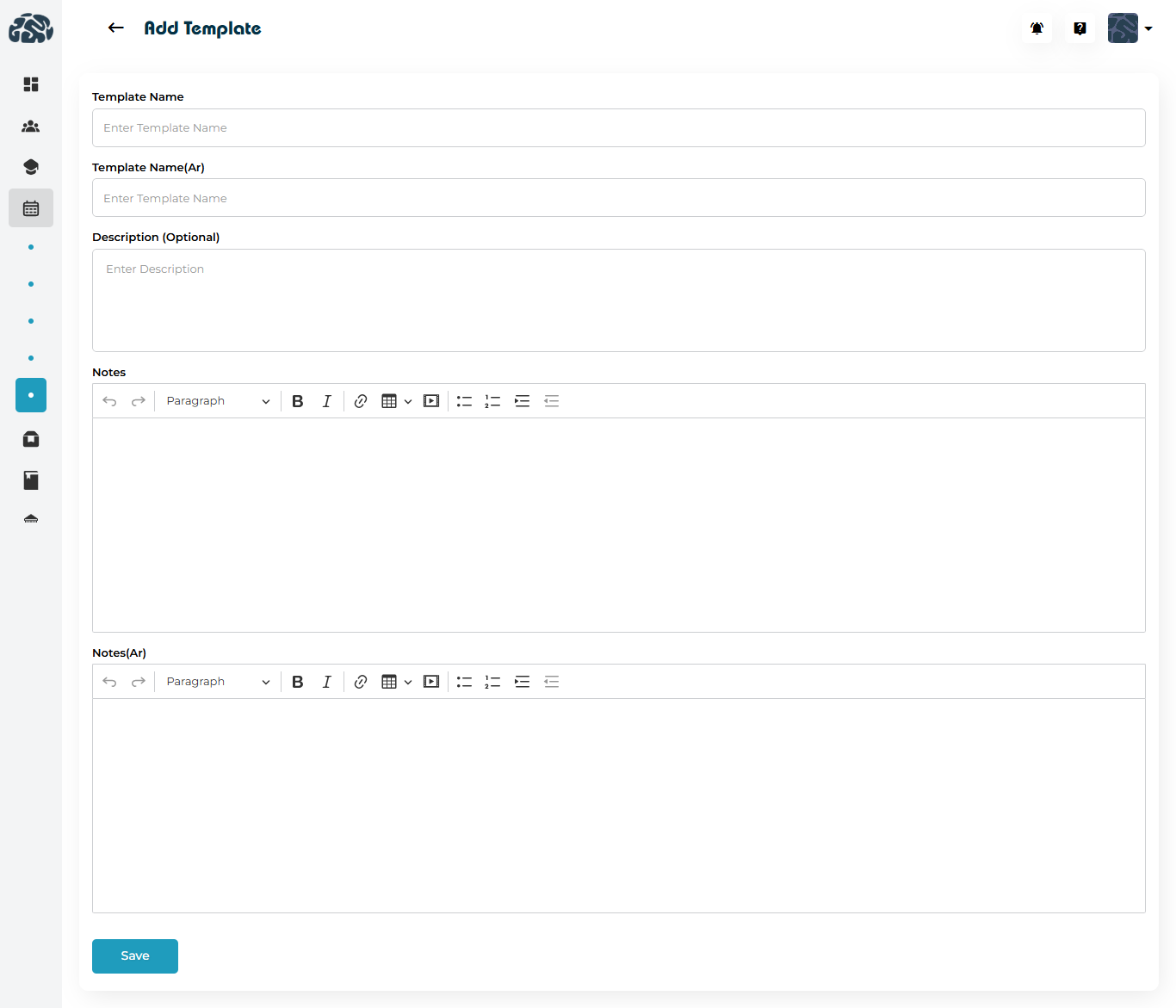
Click the “+” (Add Template) button to open the Template Builder.

You will be able to configure:

Template Name

Give your template a clear, recognizable name such as:

  • “Standard Tutoring Report”

  • “Weekly Counseling Summary”

  • “STEM Workshop Feedback Report”

Template Name (Arabic)

If your organization supports Arabic, add the equivalent name for bilingual reporting.

Description (Optional)

Explain the purpose of the template—for example:
“Used for documenting weekly student engagement and academic progress.”

Notes Section

This is the rich-text area where you build the actual report structure.
You can include:

  • Headings (e.g., Topics Covered, Strengths, Weaknesses, Homework)

  • Checklists

  • Bullet or numbered points

  • Tables for structured data

  • Placeholder lines for instructors to fill in

Example Template Layout:

Notes (Arabic)

Replicate the same structure for Arabic-speaking instructors or clients.

3. Saving and Managing Templates

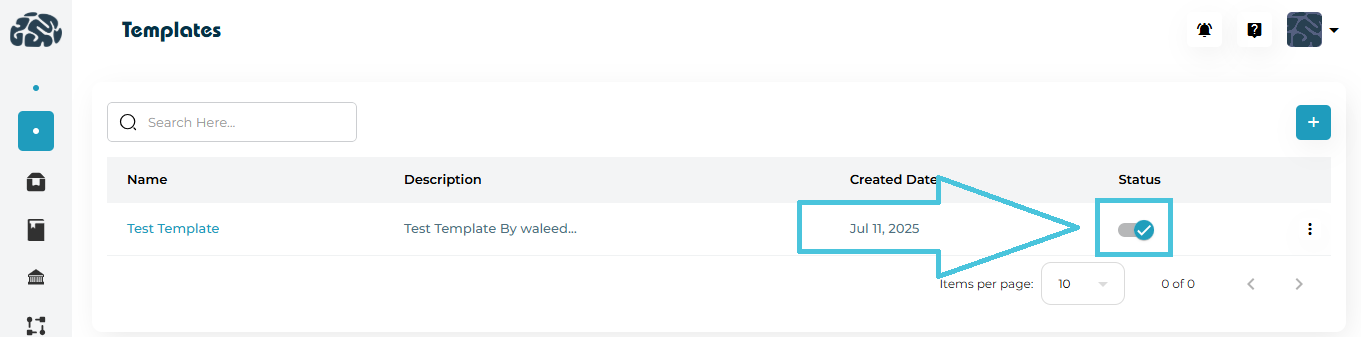
After building your template, click Save.

The template will now appear in the list with:

  • Template Name

  • Description

  • Created Date

  • Status Toggle (Active/Inactive)

Admins can:

Enable / Disable Templates

Deactivate templates that are outdated but keep them stored for reference.

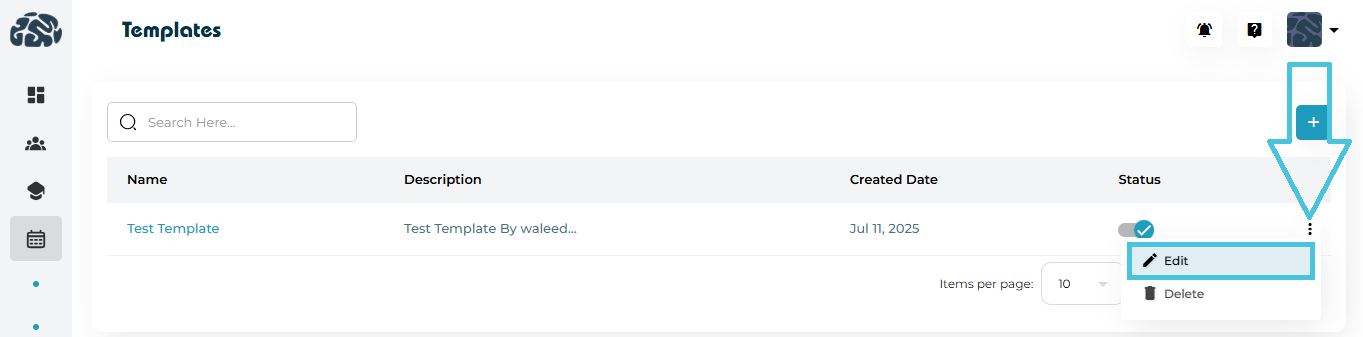
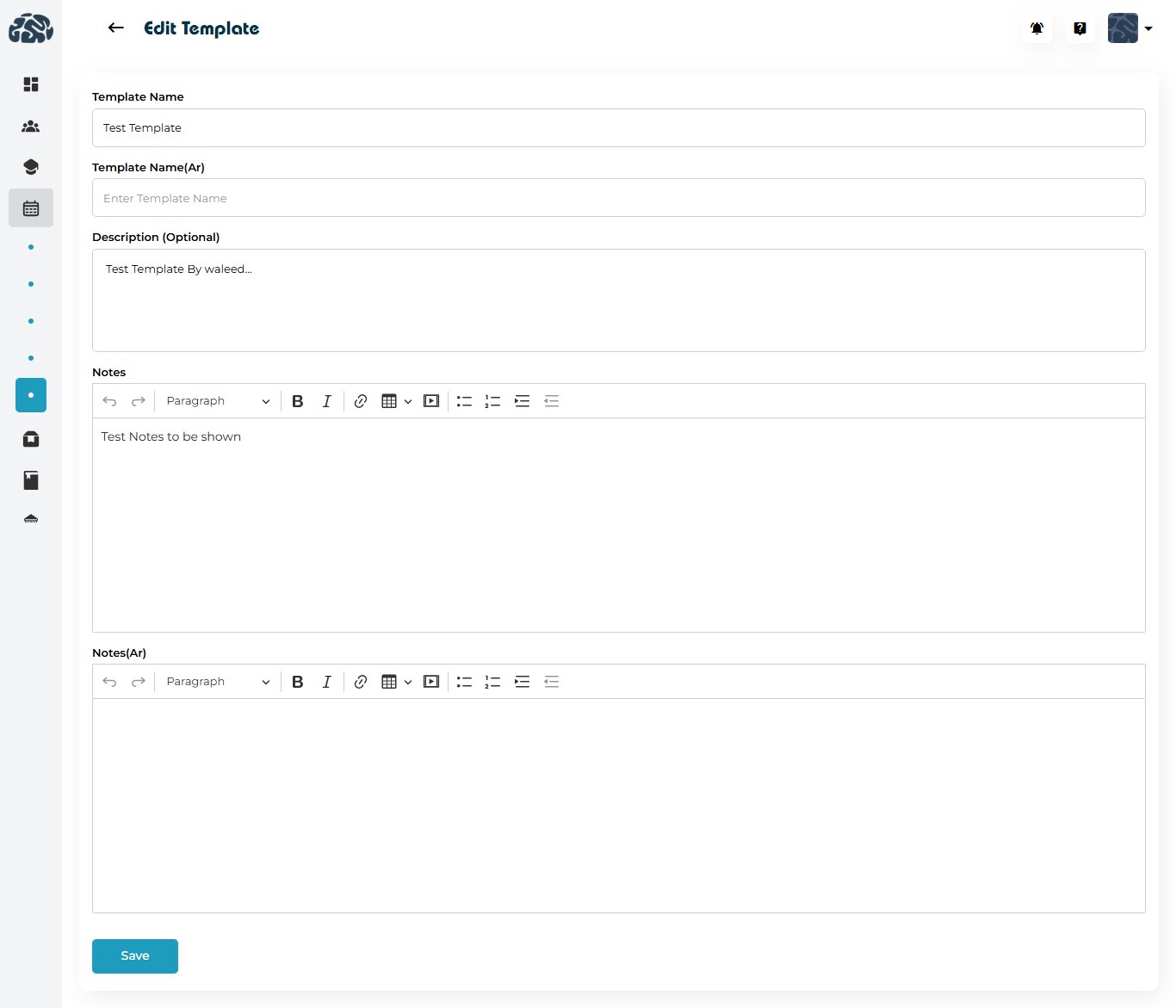
Edit Templates

Modify the structure anytime—useful if reporting requirements change.

Delete Templates

Remove templates that are no longer needed.

4. How Templates Are Used

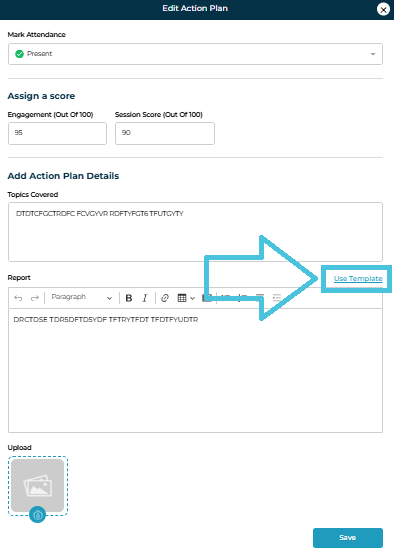
Once active, templates become available to instructors when they open a session’s Action Plan or Report form.

Instructors can:

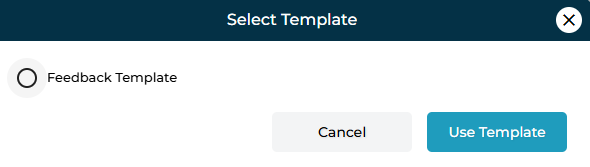
  • Select a template

  • Auto-populate structured fields

  • Fill in the session-specific details

  • Submit consistent and complete reports in minutes

This ensures all students receive uniform documentation and all departments follow the same reporting standards.

IN THIS ARTICLE

Defining session locations

Defining Session Locations

Session locations help organizations clearly identify where a class, tutoring session, workshop, consultation, or event will take place. Whether your operations are completely virtual, fully on-site, or hybrid, setting up accurate locations ensures students, instructors, and administrators always know where a session is happening.

The Locations module within the Calendar & Sessions settings allows Admins to create, edit, or remove session locations that can later be used across all session types.

1. Why Defining Locations Matters

Clear location setup helps you:

  • Maintain consistent naming across all scheduled sessions.

  • Distinguish between on-site, virtual, and off-site sessions.

  • Improve session reporting and filtering.

  • Help instructors and students quickly identify where they need to be.

  • Support multi-branch or multi-center organizations by listing each physical site.

Locations can represent anything from a training center, a virtual meeting space, a school campus, a student’s home, or even special event venues.

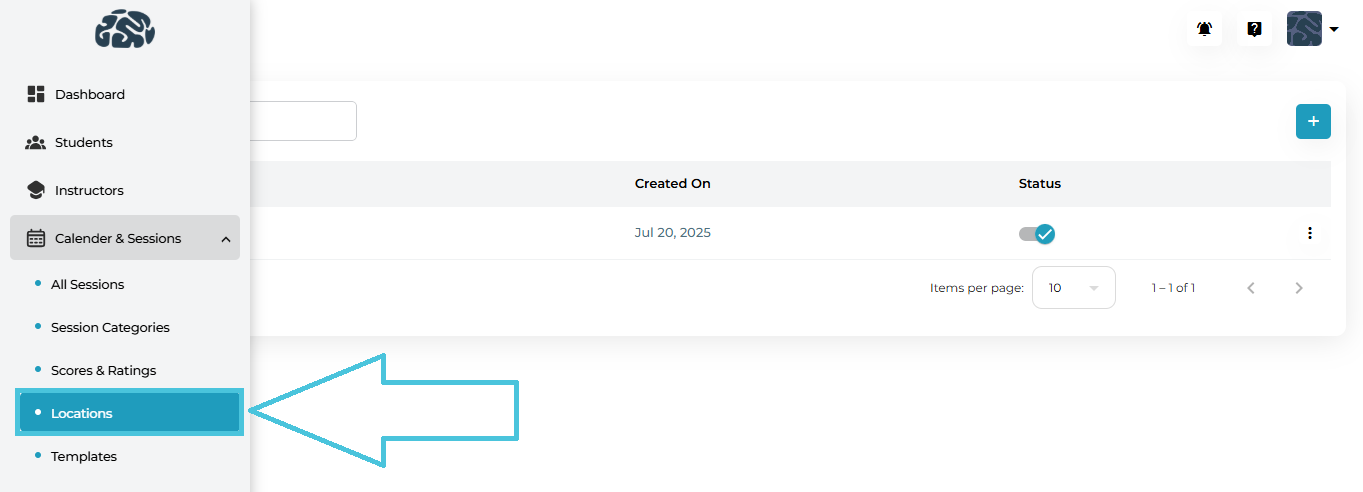
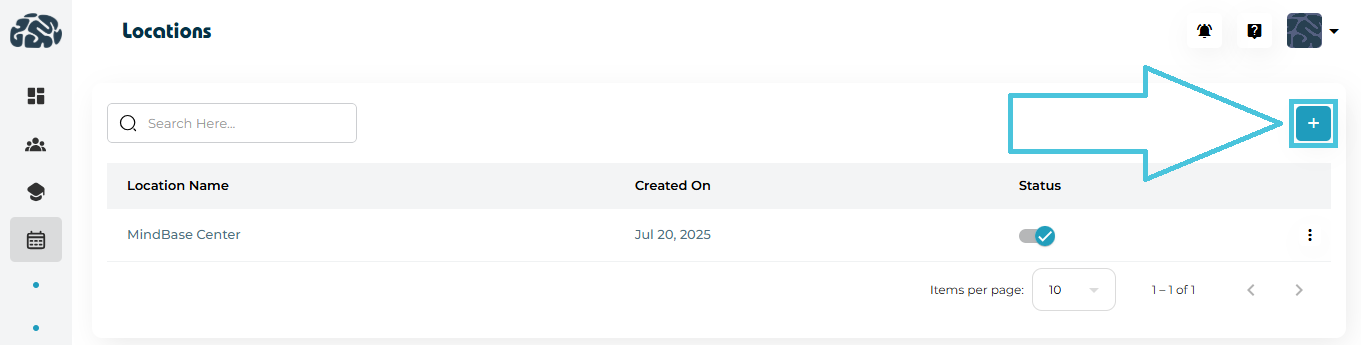
2. Navigating to Locations

  1. Go to Calendar & Sessions from the left navigation panel.

  2. Click Locations.

3. Adding a New Session Location

Administrators can create new session locations to match organizational needs.

How to Add a Location

  1. Go to Calendar & Sessions → Locations.

  2. Click the Add Location (+) button.

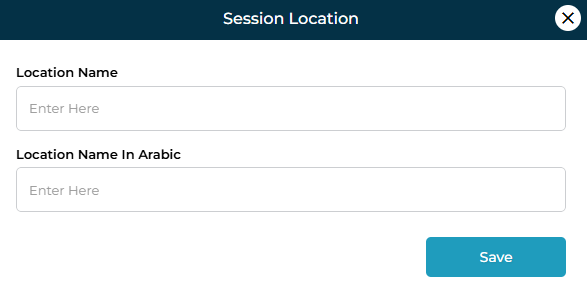
  3. Fill in the required details:

    • Location Name (English)

    • Location Name in Arabic (optional for bilingual setups)

  4. Click Save.

Examples of Locations You Might Add
  • Main Training Center

  • Dubai Academic Campus

  • Student Home Visit

  • Virtual Meeting (Zoom, Google Meet, Teams)

  • Conference Room A

  • Library Study Hall

By defining these once, instructors can select them easily during session scheduling, preventing errors and inconsistencies.

4. Editing an Existing Location

If a location name changes or needs updating:

Steps to Edit

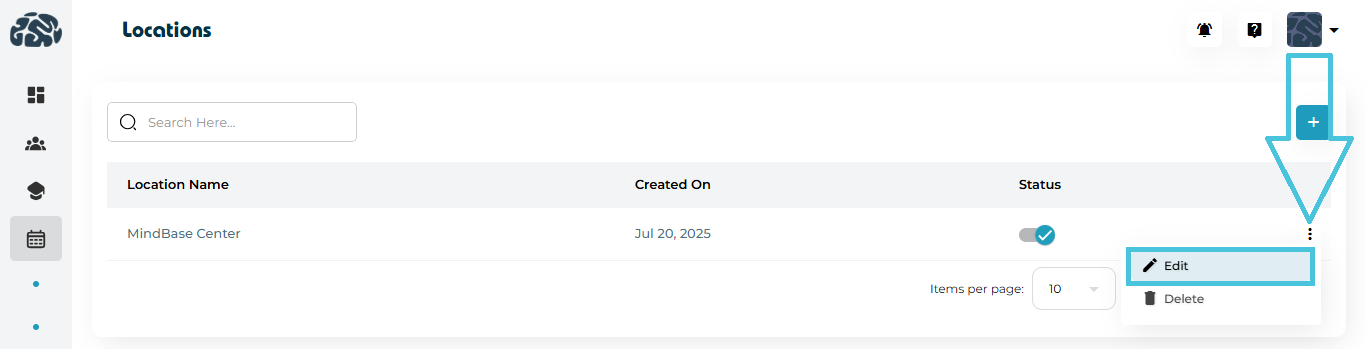
  1. Open Calendar & Sessions → Locations.

  2. Click the three-dot menu next to the location.

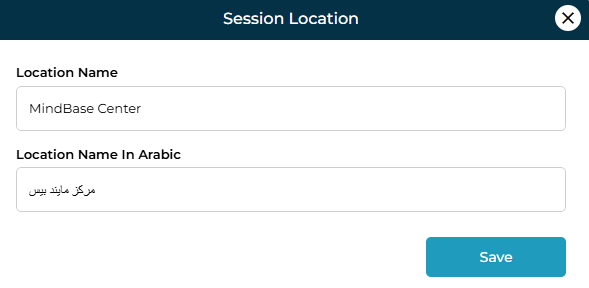
  3. Select Edit.

  4. Update the English or Arabic name as needed.

  5. Click Save.

Use Case Example
  • Rebranding “MindBase Center” to “PrepBase Learning Hub”.

  • Updating “Virtual Meeting” to include a specific platform name.

  • Refining location names for clarity (e.g., “Room 12B – Math Lab”).

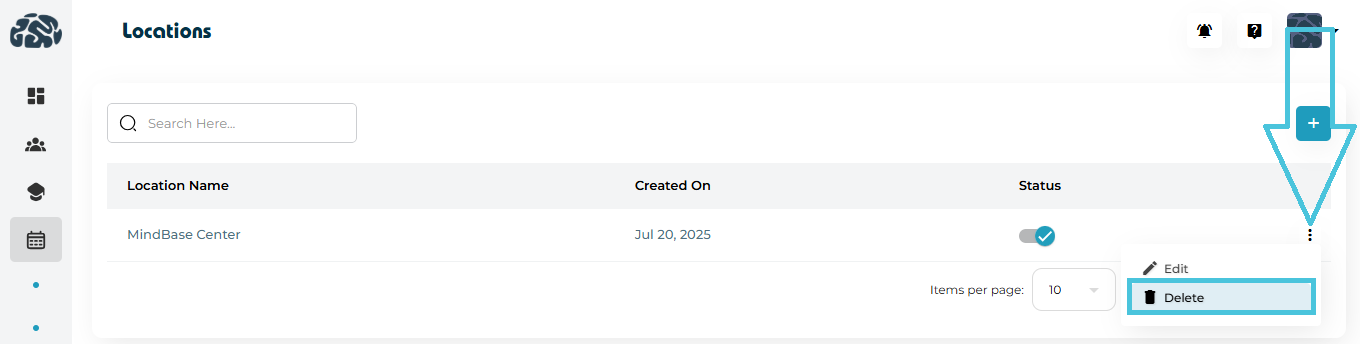
5. Deleting a Location

Locations can be removed if they are no longer in use.

How to Delete
  1. Navigate to the Locations list.

  2. Click the options menu (⋮) on the right of the location.

  3. Choose Delete.

  4. Confirm the action.

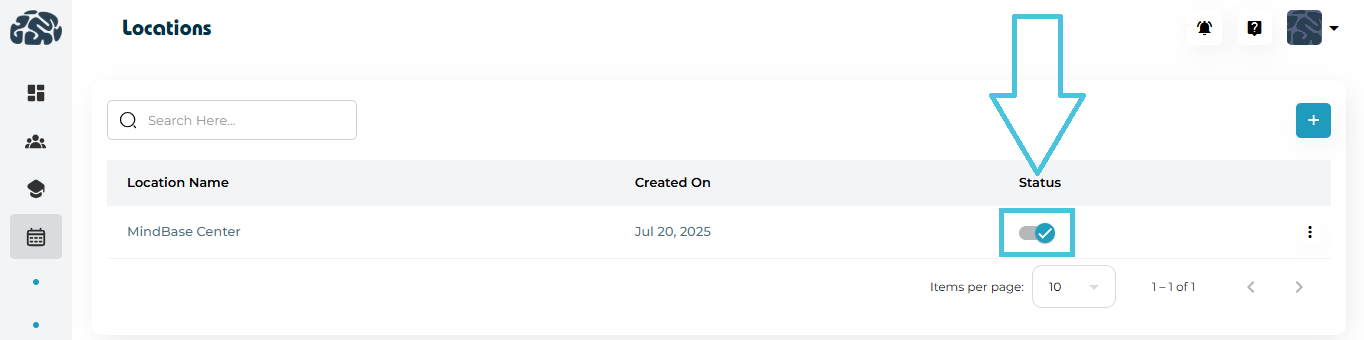
6. Activating or Deactivating Locations

Each location includes a status toggle that allows Admins to control availability without deleting the record.

Why Use Status Controls?
  • Temporarily disable locations during renovations or closures.

  • Hide locations not yet ready for use.

  • Prevent instructors from selecting outdated or inactive sites.

Locations marked as inactive will not appear in the session scheduling dropdowns.

7. How Locations Integrate With the Scheduling System

Once defined, locations automatically appear across all relevant modules:

  • Session Type definitions

  • Creating or editing a session

  • Calendar views (daily, weekly, monthly)

  • Filtering sessions by location

  • Reports related to center usage or instructor load

This ensures operations run smoothly and consistently.

IN THIS ARTICLE

Configuring student performance ratings

Configuring Student Performance Ratings

Student performance evaluation is a key component of academic tracking and quality assurance. The Scores & Ratings feature within the Calendar & Sessions module allows each organization to design its own customized evaluation framework—based entirely on its academic model, instructional methods, and reporting preferences.

Whether you measure participation, comprehension, skill mastery, discipline, or any other aspect of student performance, this module provides complete flexibility.

1. What Are “Scores” and “Ratings”?

To support diverse learning environments, the system divides performance evaluation into two configurable components:
Scores (Numeric Evaluation Fields)

Scores are quantitative performance metrics. These allow instructors to assign a numerical value to specific behaviors or learning outcomes.

Examples (these vary by organization)
  • Engagement — scored on a scale, e.g., out of 10

  • Comprehension — scored out of 5

  • Problem-Solving — scored out of 3

  • Class Participation — scored out of 10

These are just examples; each institution decides which skills or competencies they want to assess and what maximum score should be assigned.

Ratings (Non-Numeric Qualitative Feedback)

Ratings capture qualitative impressions that may not require a numeric score. These fields allow instructors to record subjective or descriptive evaluations.

Examples (organization-specific)
  • Overall Session Satisfaction

  • Quality of Guidance/Teaching

  • Confidence Level

  • Preparedness

Again, these are fully customizable depending on the academic goals and teaching methodology.

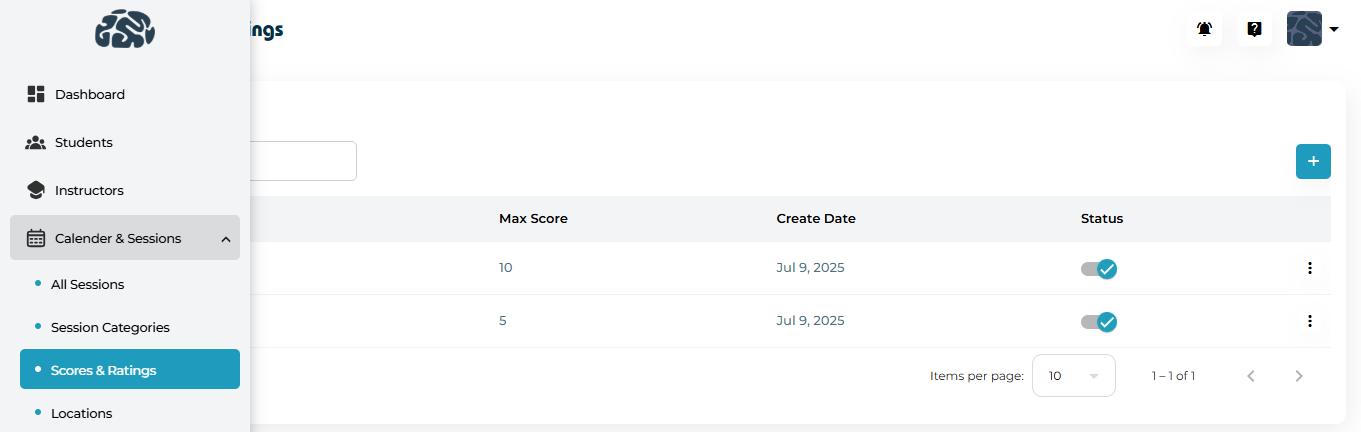
2. Navigating to Performance Configuration

Go to:

Calendar & Sessions → Scores & Ratings

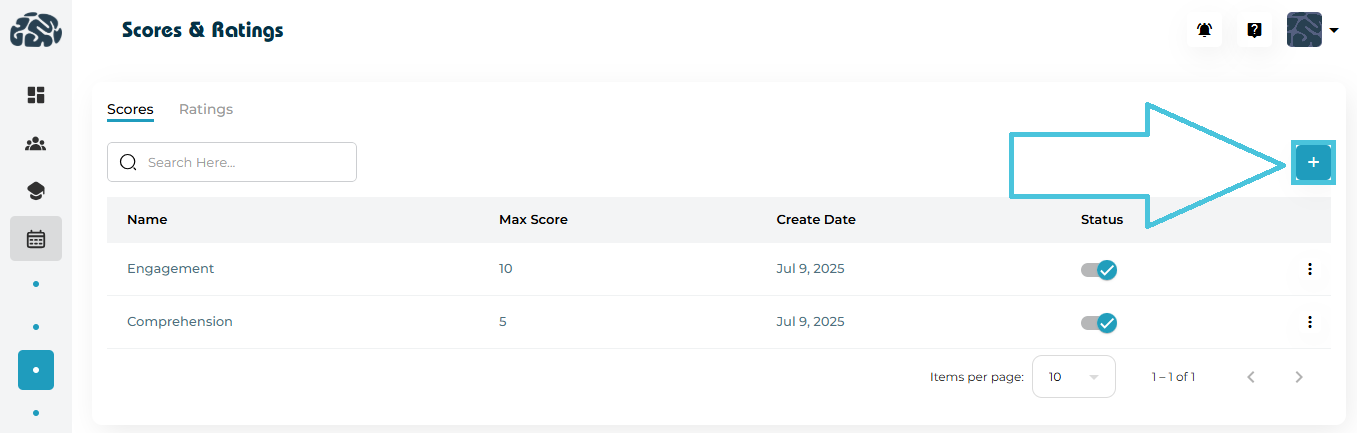
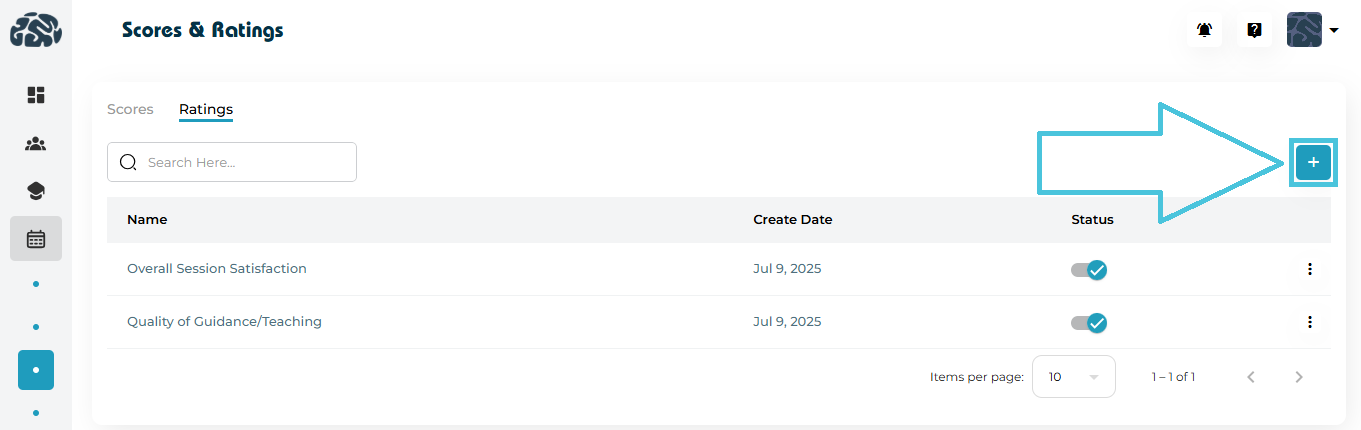
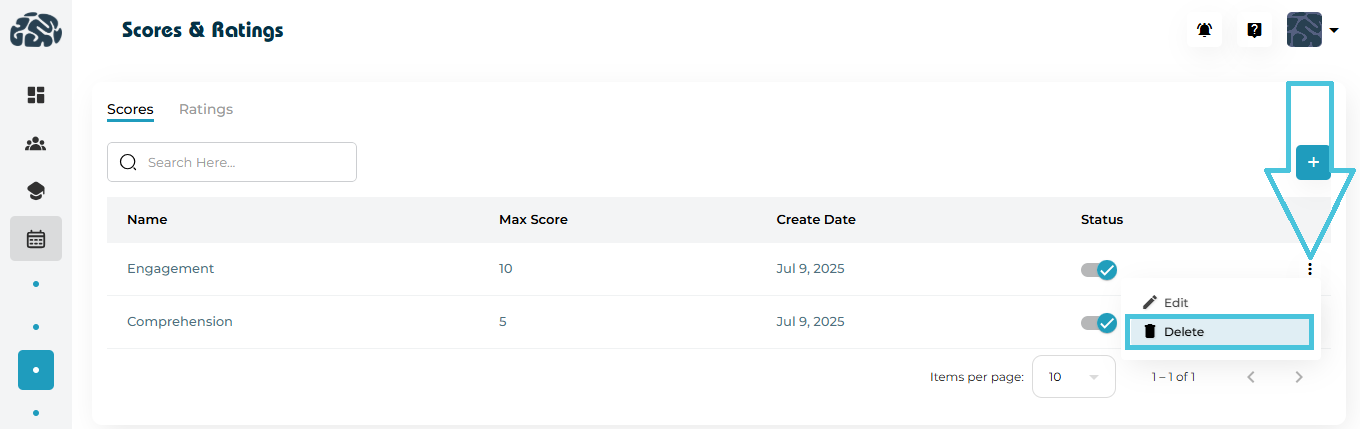
You’ll see two sections: Scores and Ratings, each with tools for adding, editing, activating, and deleting fields.

3. Adding New Performance Fields

To Add a Score (Numeric Field):

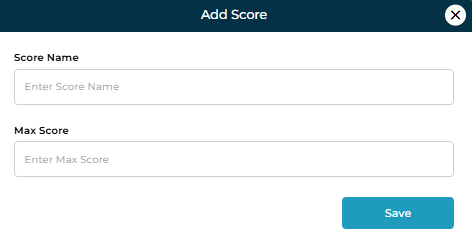
  1. Click the Add button.

  2. Enter a Score Name (e.g., Problem-Solving).

  3. Set a maximum score.

  4. Save to activate it for instructors.

To Add a Rating (Qualitative Field):

  1. Click the Add button.

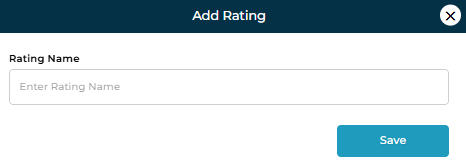
  2. Enter a Rating Name (e.g., Student Confidence).

  3. Save to make it available immediately.

This flexibility allows each organization to build its own evaluation rubric.

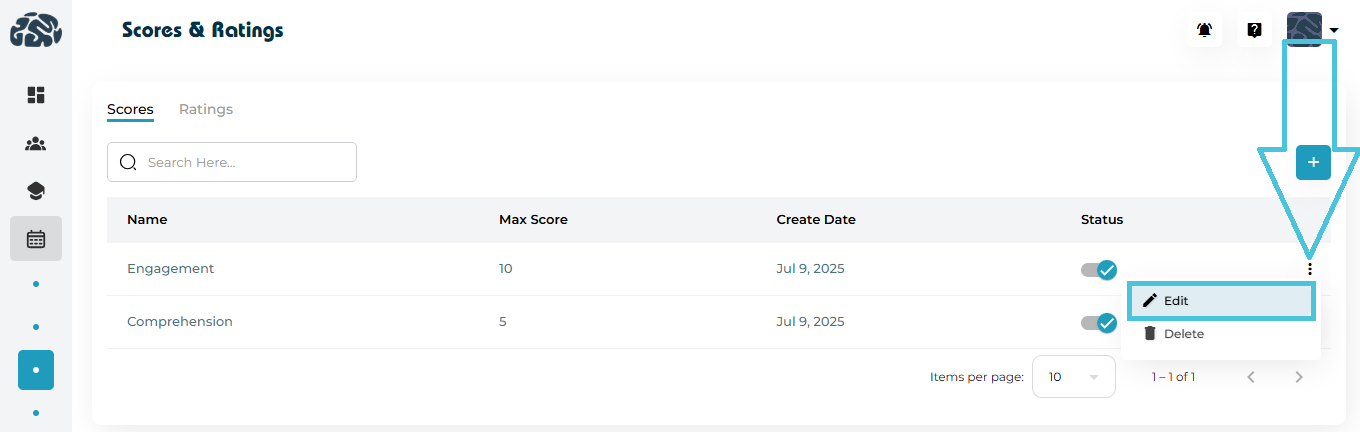
4. Editing or Updating Fields

Scores and Ratings can be updated to reflect new academic strategies, curriculum changes, or reporting needs.

You can modify:

  • Field name

  • Scoring scale (for numeric fields)

  • Visibility (activate/deactivate without deleting)

Updating fields ensures the evaluation system remains aligned with instructional goals.

5. Removing Unused Evaluation Criteria

If a metric is no longer needed:

  • Use the Delete option to remove it permanently,
    or

  • Use the Status toggle to temporarily deactivate it.

Organizations often disable seasonal or program-specific fields instead of deleting them.

6. Best Practices for Creating an Effective Rating System

  • Use consistent scoring scales to avoid confusion.

  • Match evaluation categories to your teaching style—e.g., skill-based, behavioral, or outcome-based.

  • Separate numeric and descriptive metrics to get a full picture of student performance.

  • Start simple, then expand as reporting needs grow.

  • Review performance fields periodically to keep them relevant.

IN THIS ARTICLE

Defining different session types

Defining Different Session Types

Session Types (also referred to as Session Categories) allow you to define the structure, purpose, and logistics of every session conducted on PrepBase. By creating customized session types—such as In-Home Sessions, Online Sessions, Workshops, Group Sessions, or Consultations—Admins can standardize how sessions behave across the platform, including:

  • Location type and predefined addresses

  • Supported reminder types (email/SMS)

  • Visibility rules for Students, Tutors, and Counselors

  • Scoring & rating fields

  • Optional buffer times between sessions

This article explains how to view, create, edit, and manage session types using the Admin Portal.

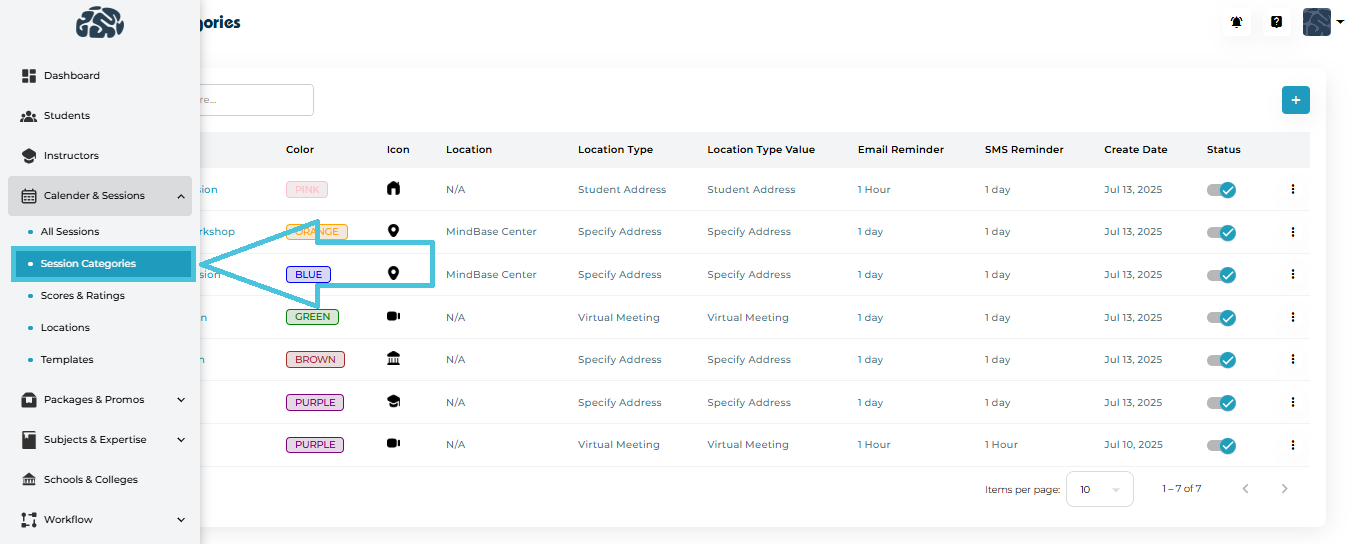
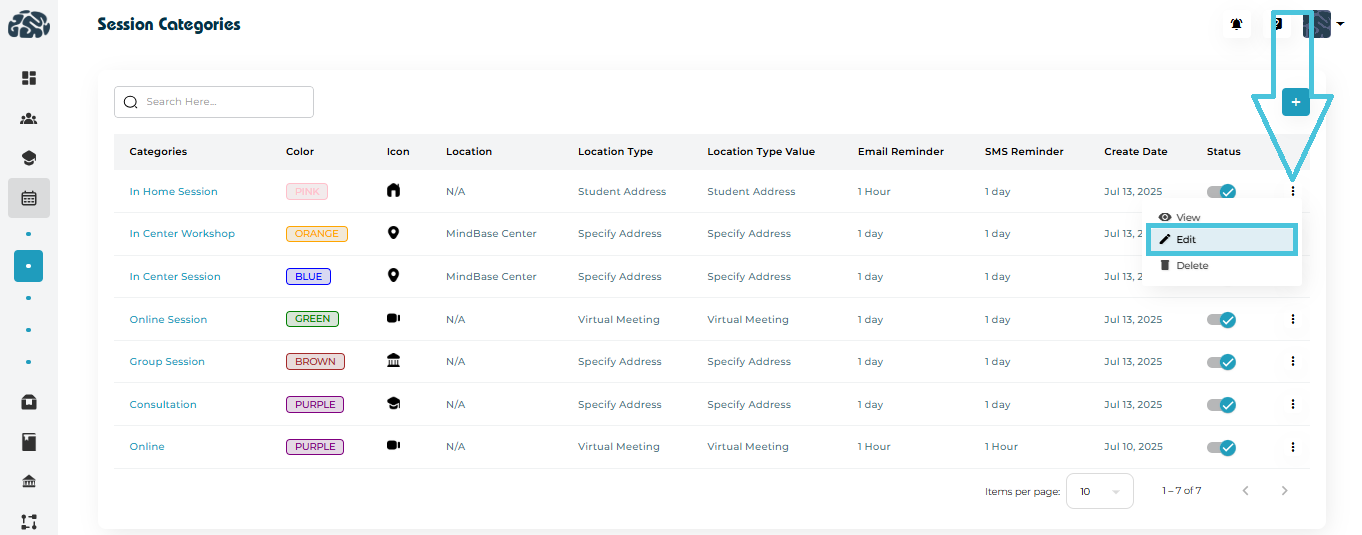
1. Navigating to Session Categories

To manage session types:

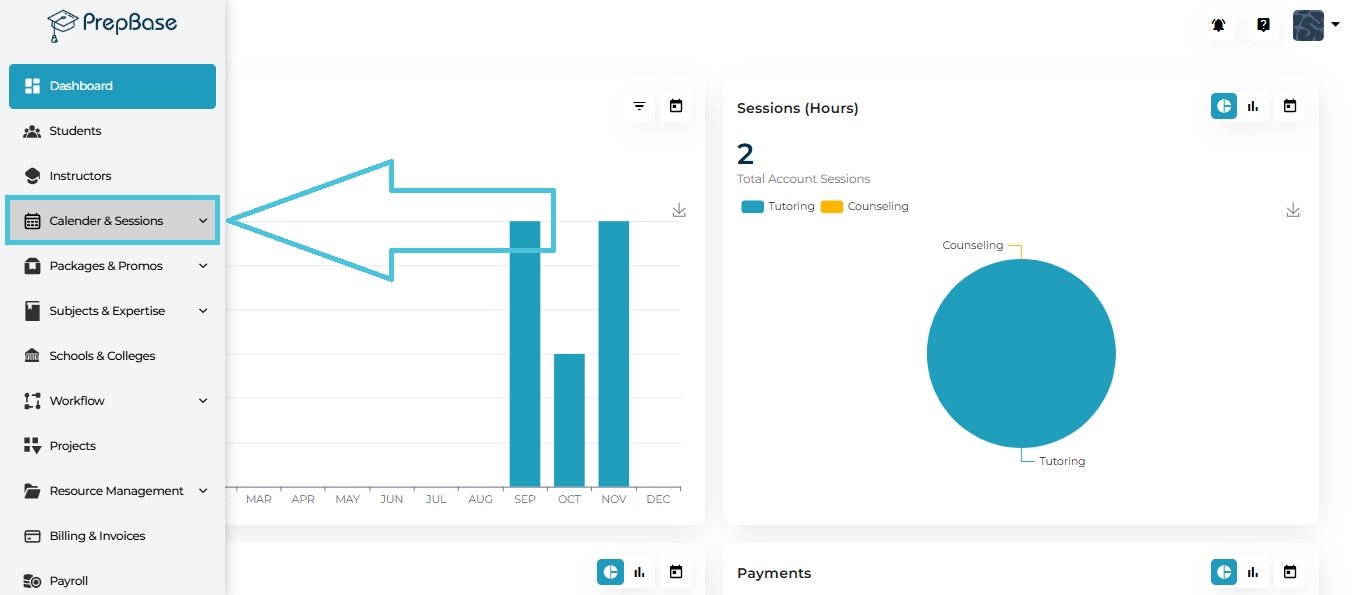
  1. Go to Calendar & Sessions from the left navigation panel.

  2. Click Session Categories.

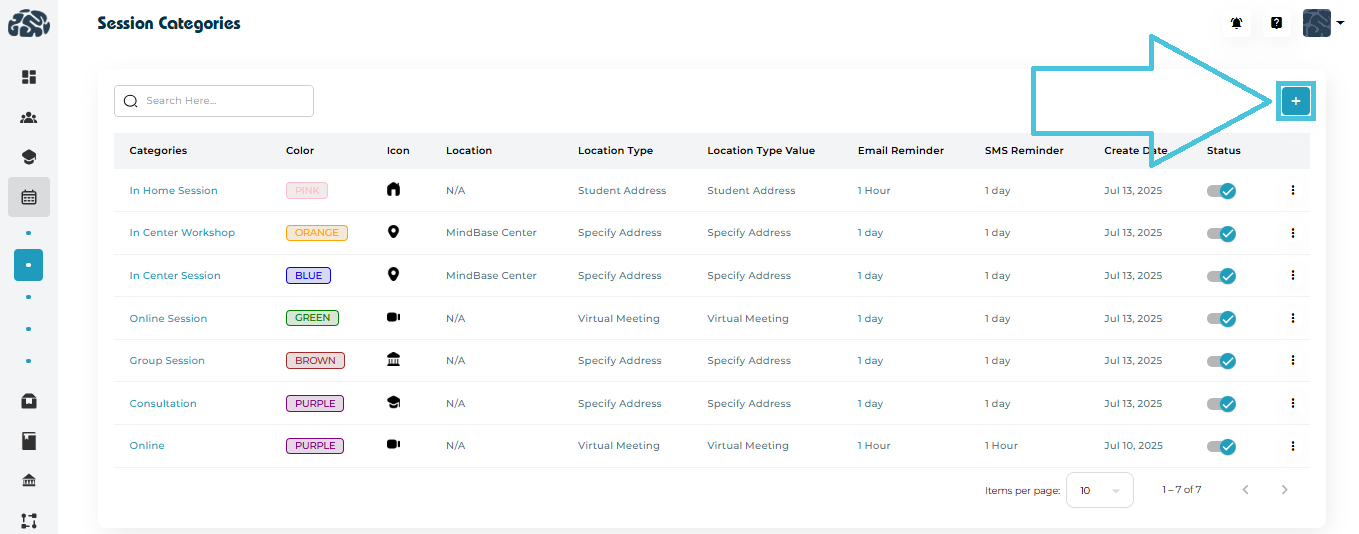
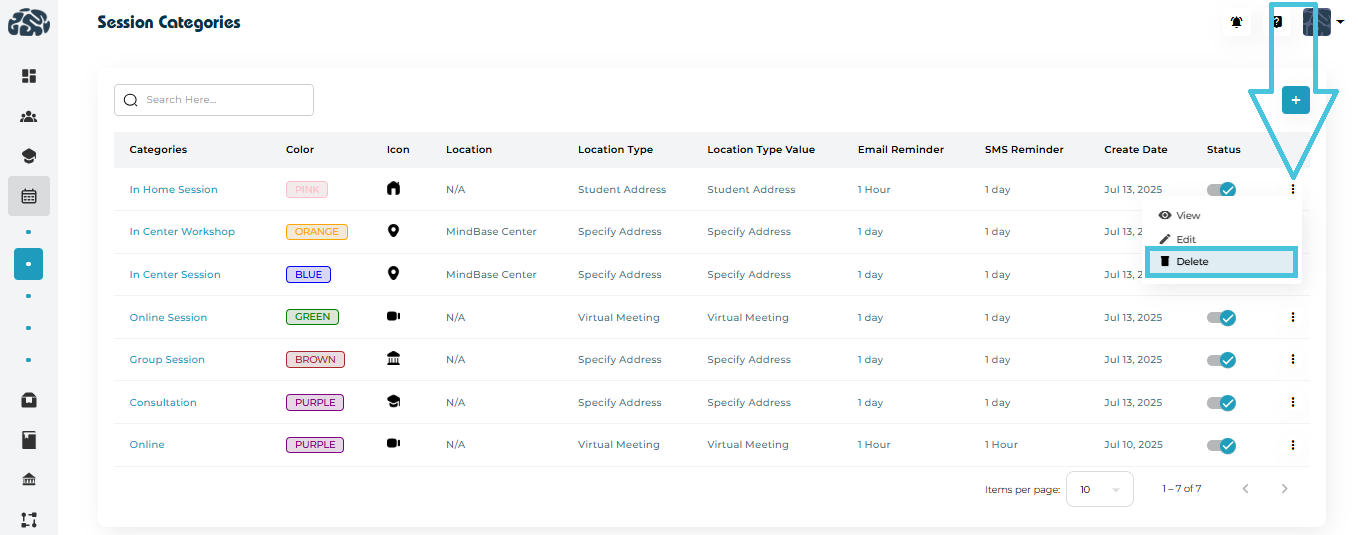
You will see a complete list of existing session types, including:
  • Category Name

  • Color Tag

  • Icon

  • Location Type (e.g., Student Address, MindBase Center, Virtual Meeting)

  • Reminder Settings

  • Created Date

  • Status Toggle

Each row includes a three-dot menu for viewing, editing, or deleting.


2. Adding a New Session Type

Click the “+” Add Session Category button at the top-right.

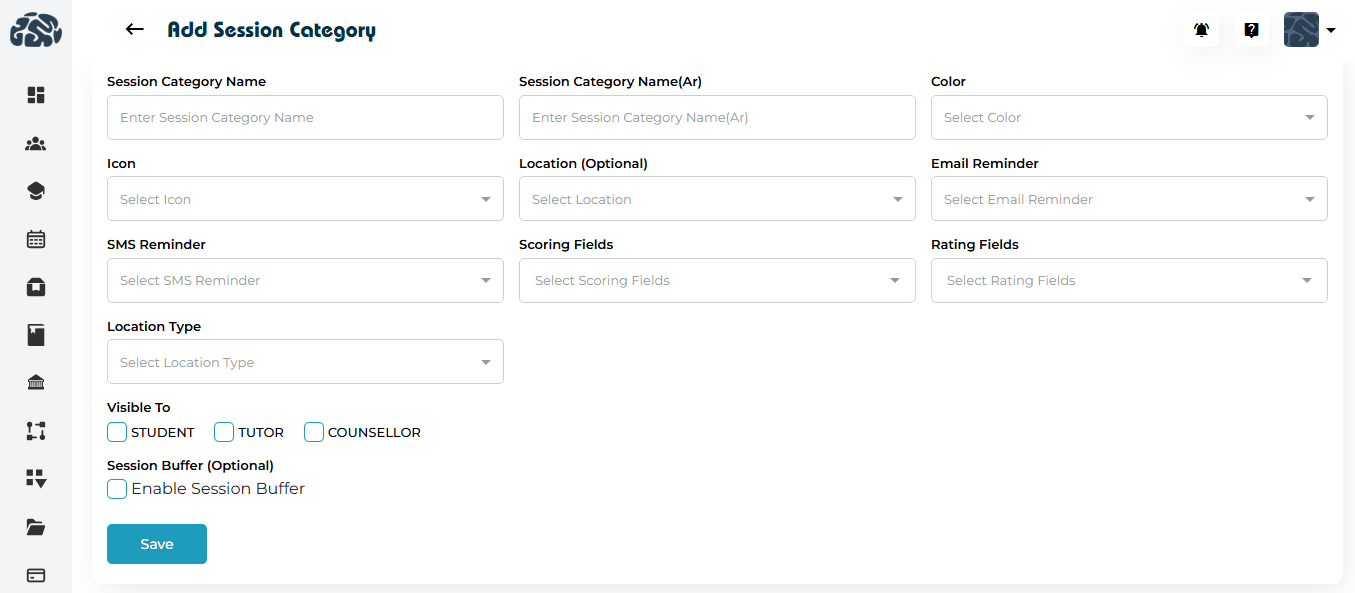
You will be taken to the Add Session Category form.
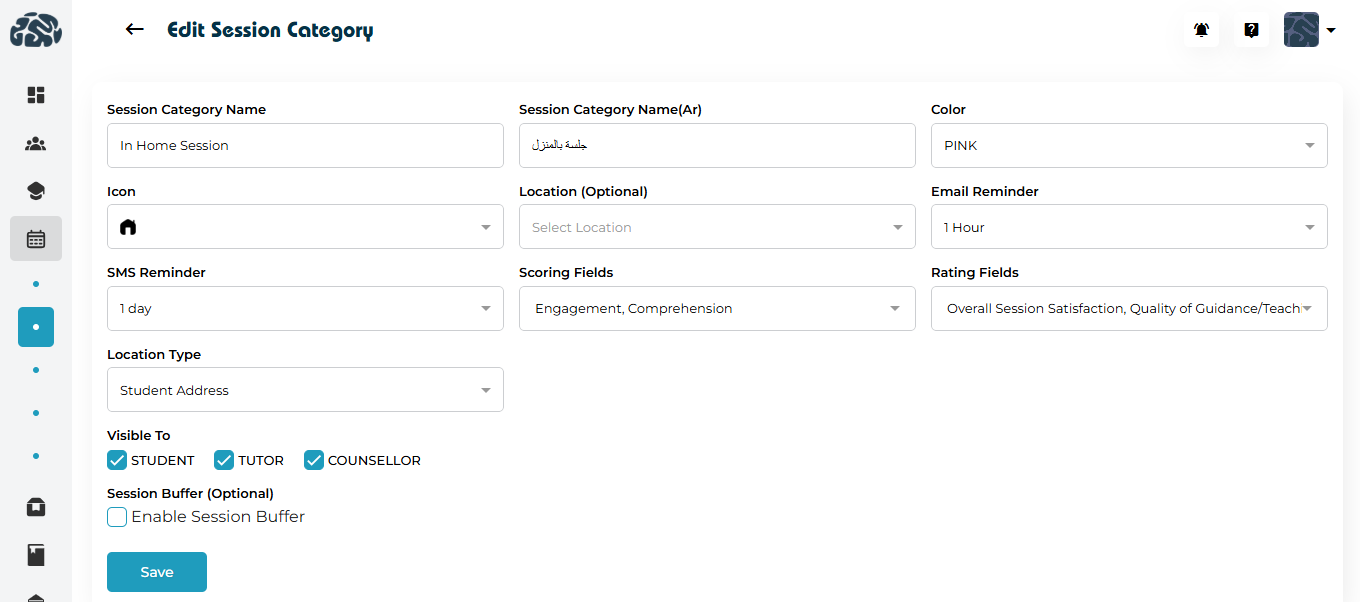
Fields Included in the Form
FieldDescription
Session Category NameDisplay name used across the system.
Session Category Name (Arabic)Optional Arabic label.
ColorColor badge used in calendars and listings.
IconVisual identifier (e.g., home, map pin, video icon).
Location (Optional)Predefined location if session always occurs in a specific place.
Email ReminderHow long before the session an email should be sent.
SMS ReminderSMS alert timing (optional).
Scoring FieldsMetrics the tutor will fill during Action Plans (e.g., Engagement, Comprehension).
Rating FieldsFields the student may rate (e.g., Session Satisfaction, Guidance Quality).
Location TypeDetermines how location is captured: Student Address, Specify Address, MindBase Center, Virtual Meeting.
Visible ToSelect whether the category is visible to Students, Tutors, and/or Counselors.
Session Buffer (Optional)Adds a mandatory break after sessions of this type.

After completing all fields, click Save.

3. Editing an Existing Session Type

To update a session type:

  1. Click the three-dot menu beside the session category.

  2. Select Edit.

You will be redirected to the Edit page where all fields can be modified, including:
  • Session Category Name / Session Category Name(Ar)

  • Color

  • Icon
  • Location (optional)

  • Email Reminder
  • SMS Reminder

  • Scoring & rating fields

  • Location Type
  • Visibility

  • Session Buffer (optional)

Click Save to update the session type.

4. Viewing Session Type Details

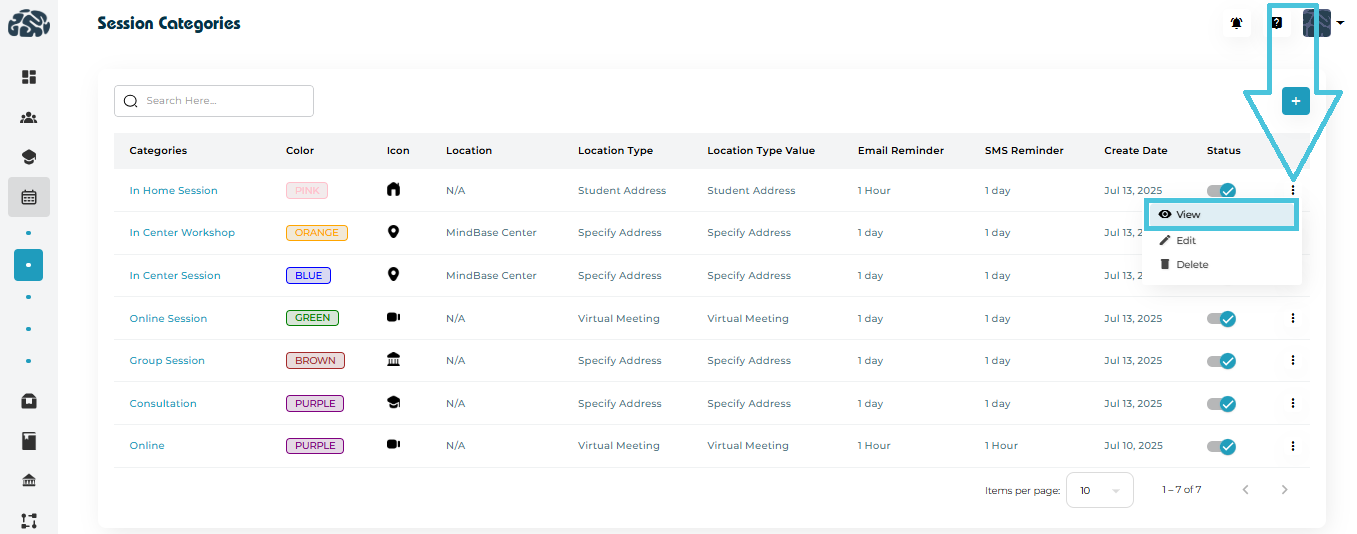
To inspect details of a session type:

  1. Click the name of the category or three-dot menu.

  2. Select View.

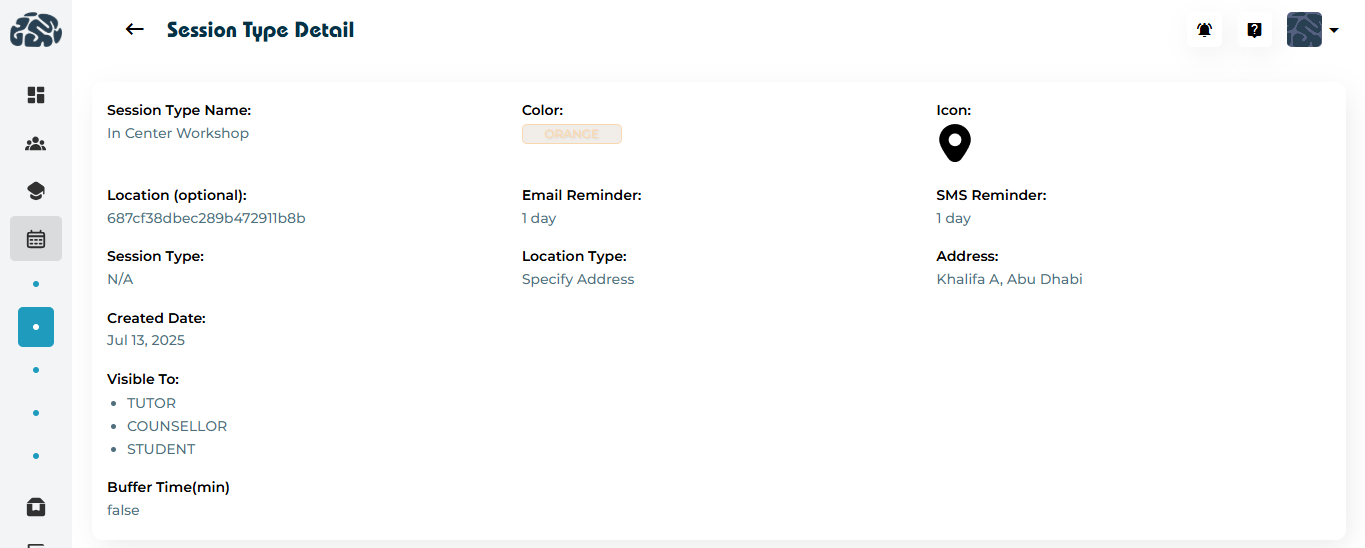
This page displays:
  • Session Type Name

  • Color

  • Icon
  • Location(optional)

  • Email Reminder
  • SMS Reminder

  • Session Type
  • Location Type

  • Address

  • Created date

  • Visible to (roles)

  • Buffer time

This is a read-only view helpful for quick verification.

5. Deleting a Session Type

If a session type is no longer required:

  1. Open the three-dot menu beside it.

  2. Select Delete.

6. Using Session Types Across the Platform

Once created, session types will be available in:

  • Session creation forms

  • Instructor calendar scheduling

  • Student and Tutor action plans

  • Reports & analytics

  • Session filtering options in the Calendar view

Consistent session definitions ensure:

  • Accurate scheduling
  • Automated reminders
  • Standardized reporting
  • Improved user experience for students and tutors

IN THIS ARTICLE

Viewing scheduled sessions and events

Viewing Scheduled Sessions & Events

The Calendar & Sessions module provides administrators with a complete overview of all scheduled sessions, events, and instructor-student meetings happening across your organization. This area is designed to help you quickly track session timelines, review event details, apply advanced filters, and switch between multiple calendar layouts for better scheduling visibility.

This guide explains how to view pending, upcoming, completed, and cancelled sessions, along with how to open full session details and navigate calendar views.

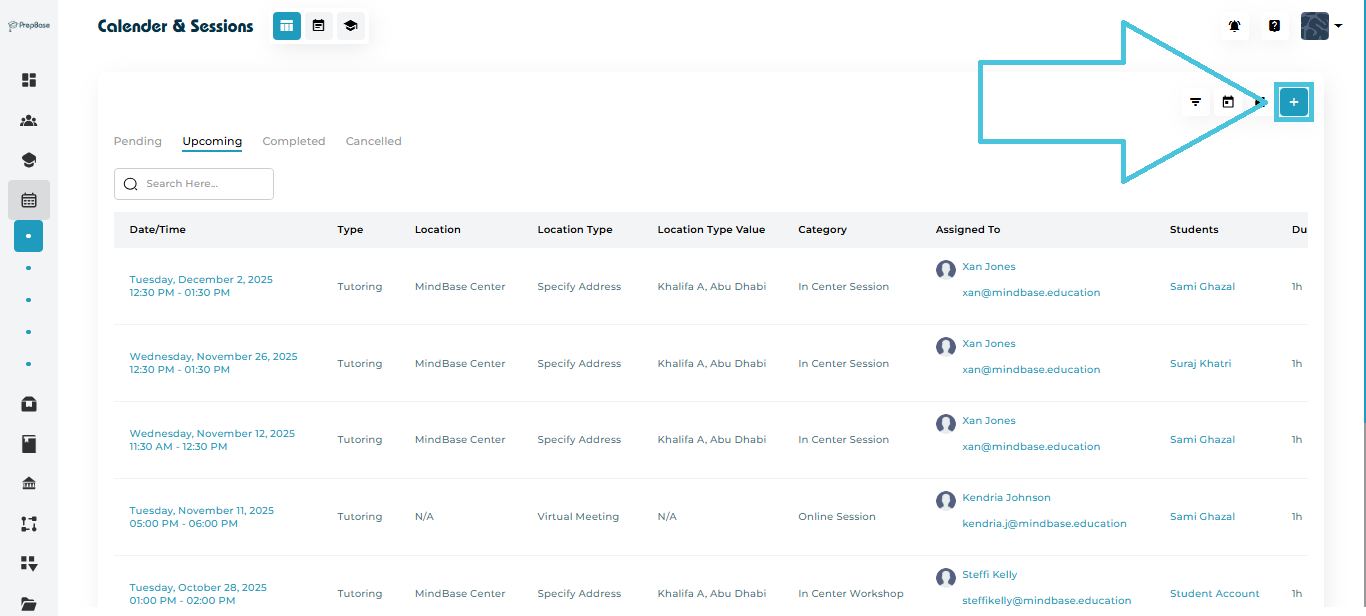
1. Accessing Scheduled Sessions & Events

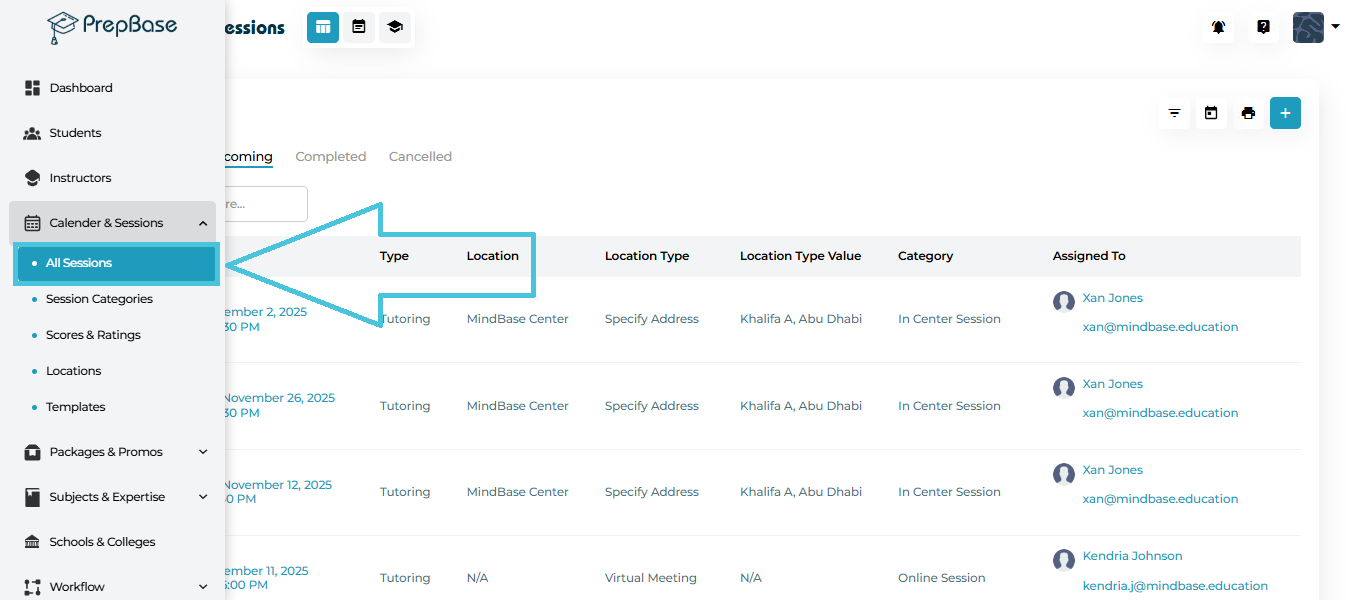
To open the schedule:

Left Menu → Calendar & Sessions → All Sessions

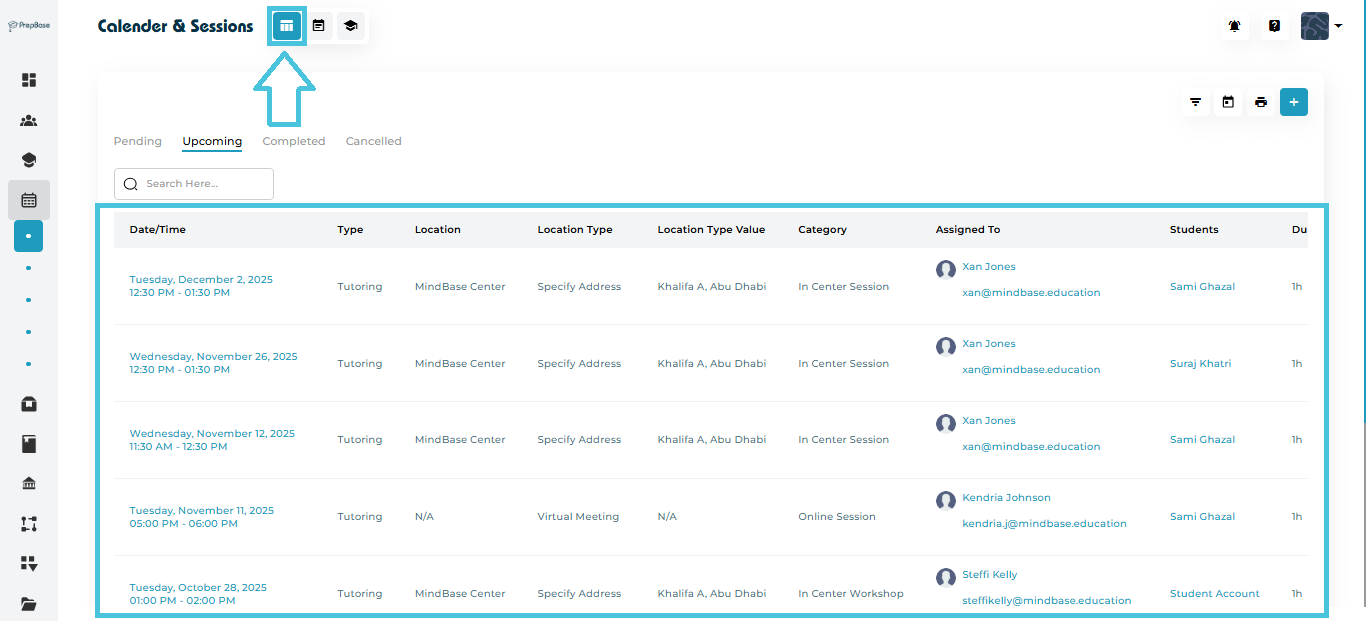
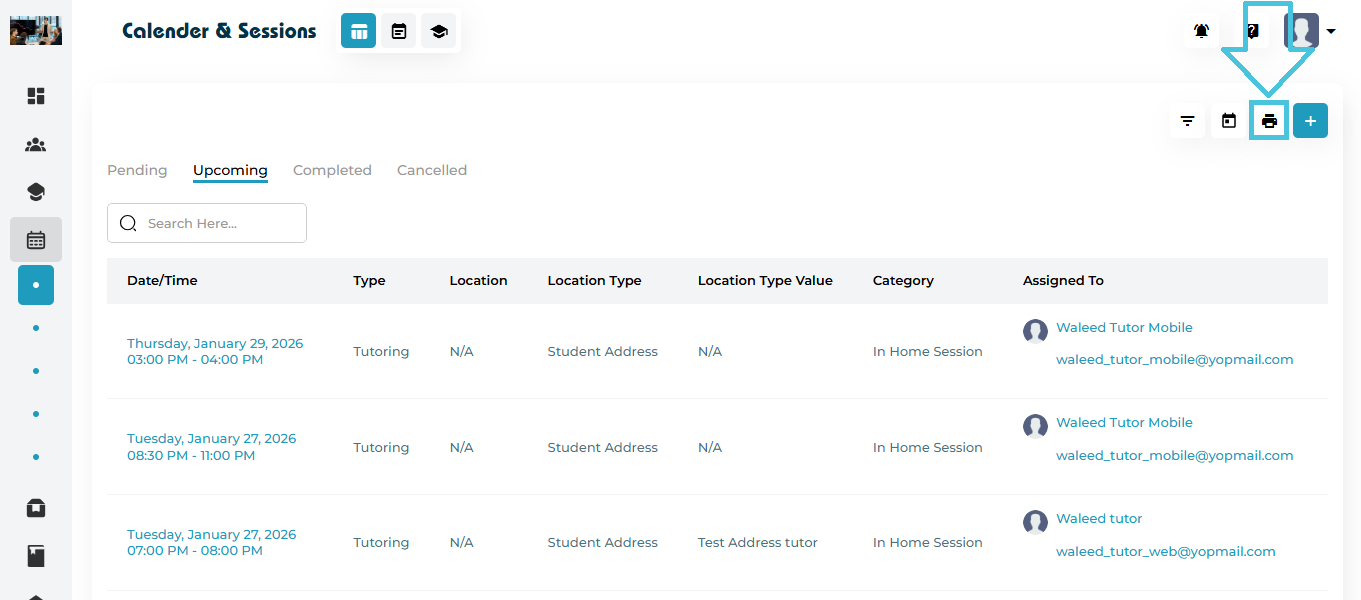
You will land on the sessions list view, which displays all sessions in a table format.

The top tabs let you switch between:

  • Pending

  • Upcoming

  • Completed

  • Cancelled

Each tab represents a specific stage of a session’s lifecycle.

2. Pending Sessions

Pending sessions are scheduled but not yet marked as upcoming or completed.

What you can view here:
  • Session date and time

  • Session type

  • Location & location type

  • Category (online, in center, workshop, etc.)

  • Assigned instructor

  • Students

  • Duration

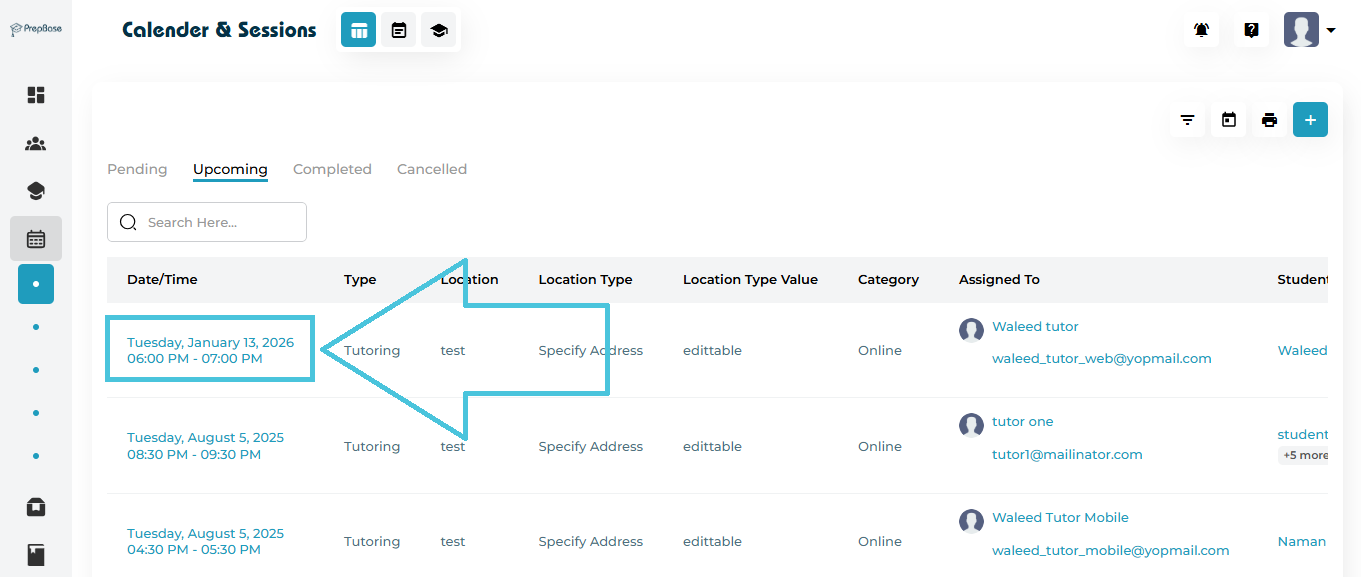
You may click the Date/Time or three-dot menu → View to open the session details page.

3. Upcoming Sessions

The Upcoming tab displays all future sessions in chronological order.

Here, you can quickly scan:

  • When the class will take place

  • Who is teaching

  • Which student(s) are attending

  • Session format (online, in-home, center session)

  • Exact location or meeting link

  • Duration and subject

Opening a session

Click View from the three-dot menu to visit the detailed session page.

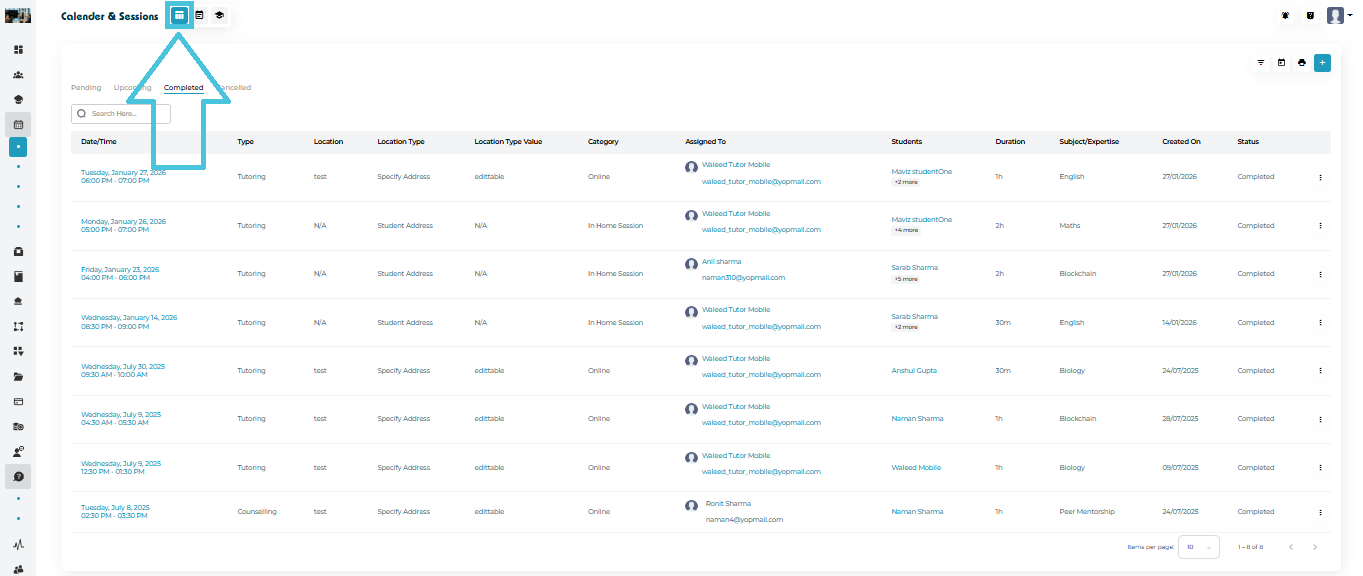
4. Completed Sessions

Completed sessions appear under the Completed tab. These sessions contain additional academic and performance insights.

What’s included:
  • Completion date

  • Instructor name

  • Student list

  • Subject/expertise

  • Duration

  • A Completed badge for clarity

Viewing Completed Session Details

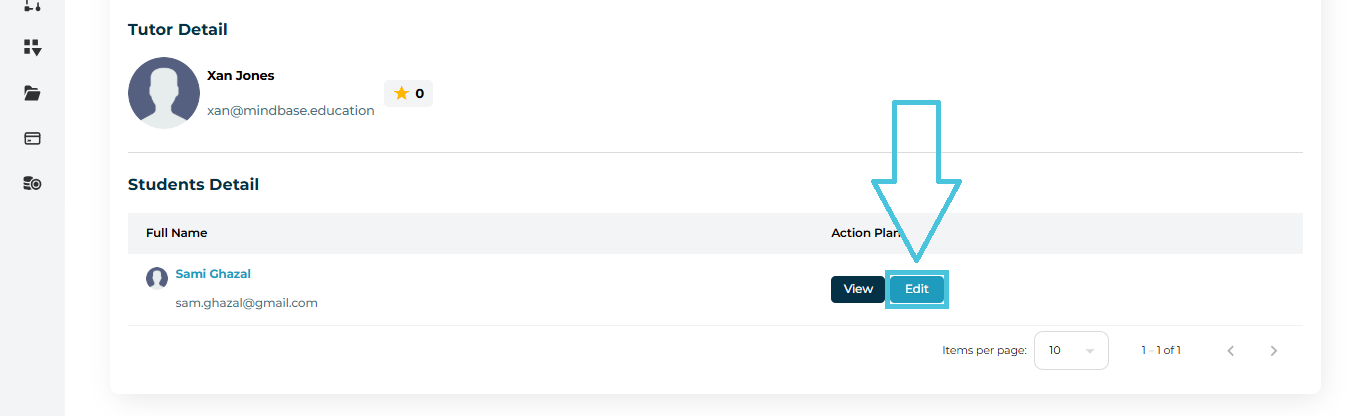
Inside the session details page, you can review:

  • General session details

  • Tutor information

  • Student information

  • Action Plans submitted by instructors

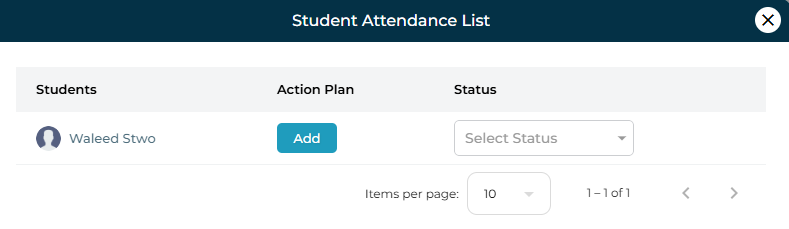
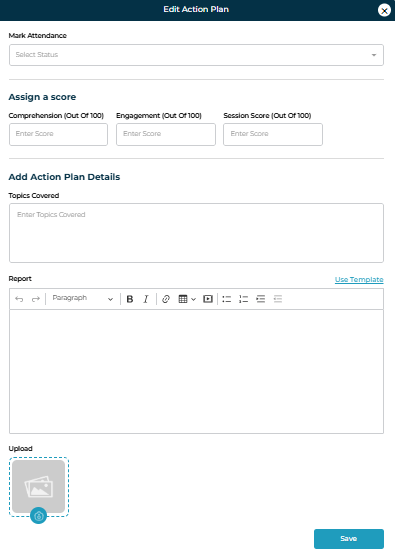
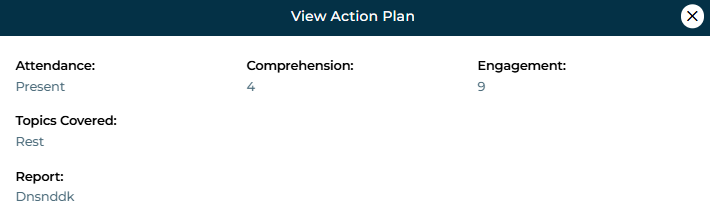
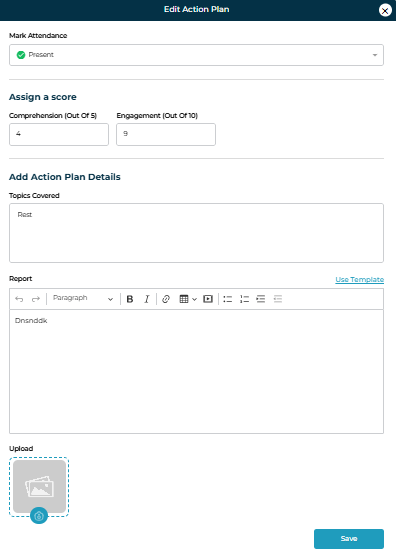
Action Plans include:

  • Attendance status

  • Comprehension score

  • Engagement score

  • Topics covered

  • Written session report

  • Any uploaded supporting files

This is often used for monitoring instructional quality and documenting progress.

5. Cancelled Sessions

Cancelled sessions appear under the Cancelled tab and include:

  • Date & time

  • Instructor

  • Student

  • Cancellation badge

  • All general session details

Cancelled sessions do not contain action plans.


6. Filtering Scheduled Events

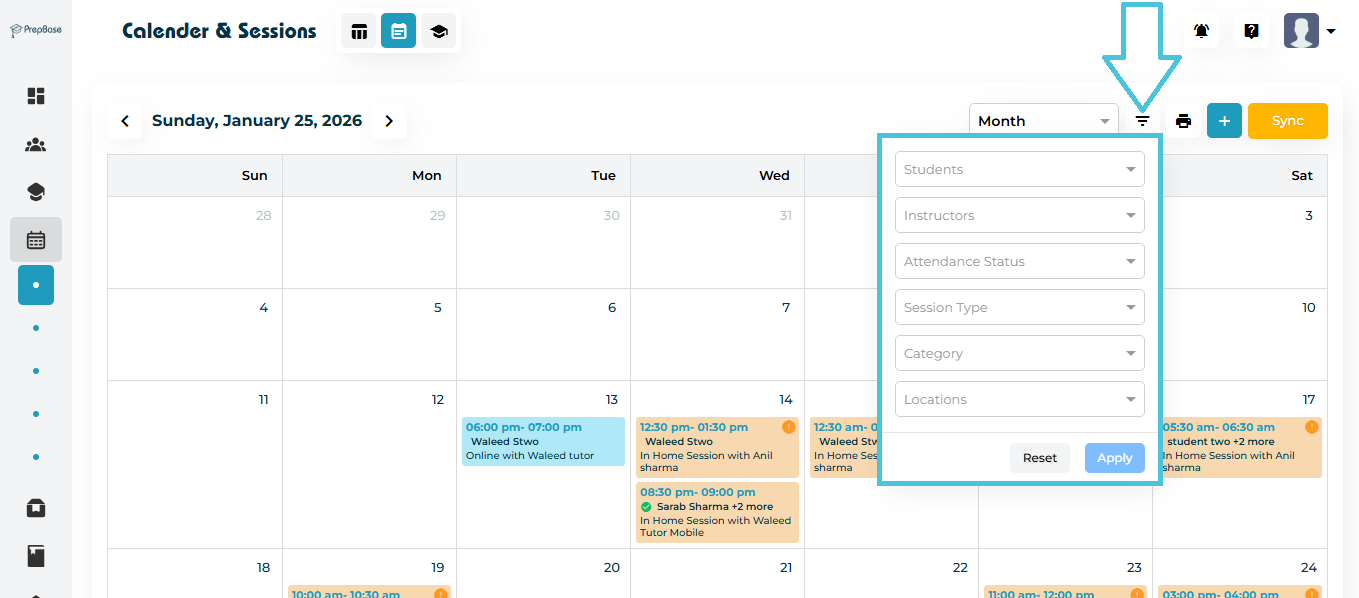
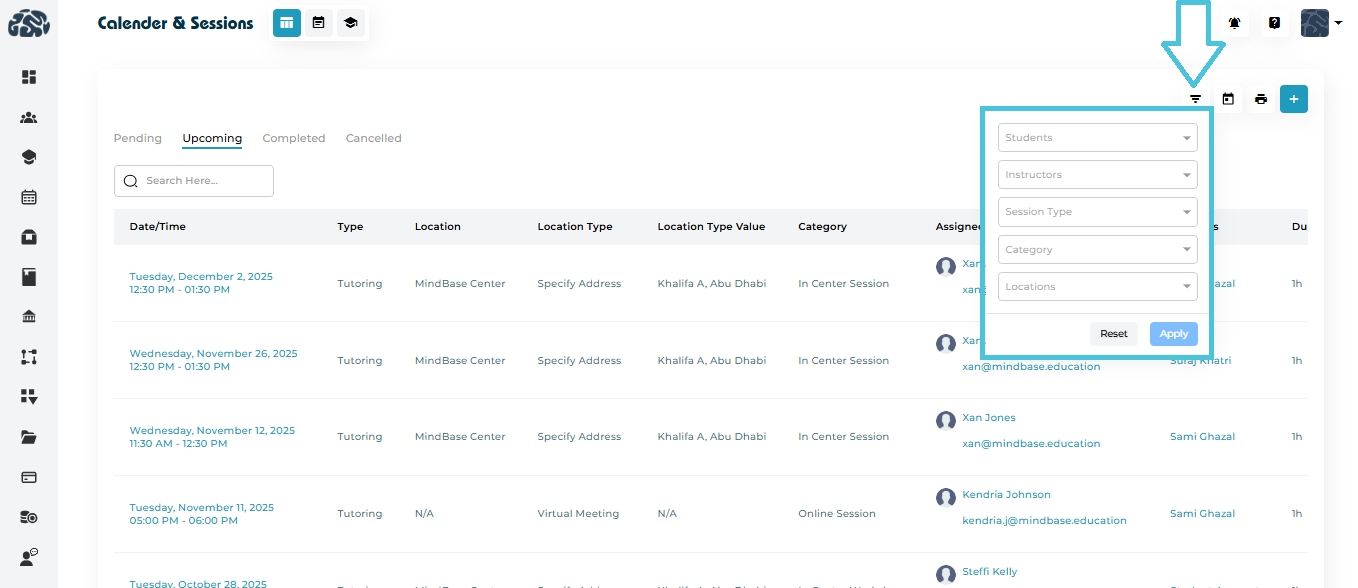
At the top right of All Sessions, click the Filter icon to open advanced filtering options.

You can filter sessions by:

  • Students

  • Instructors

  • Session Type

  • Category

  • Location

Click Apply to refine the displayed list.
Click Reset to return to all sessions.

Filters help teams quickly locate sessions for a specific instructor, day, subject, or group of students.

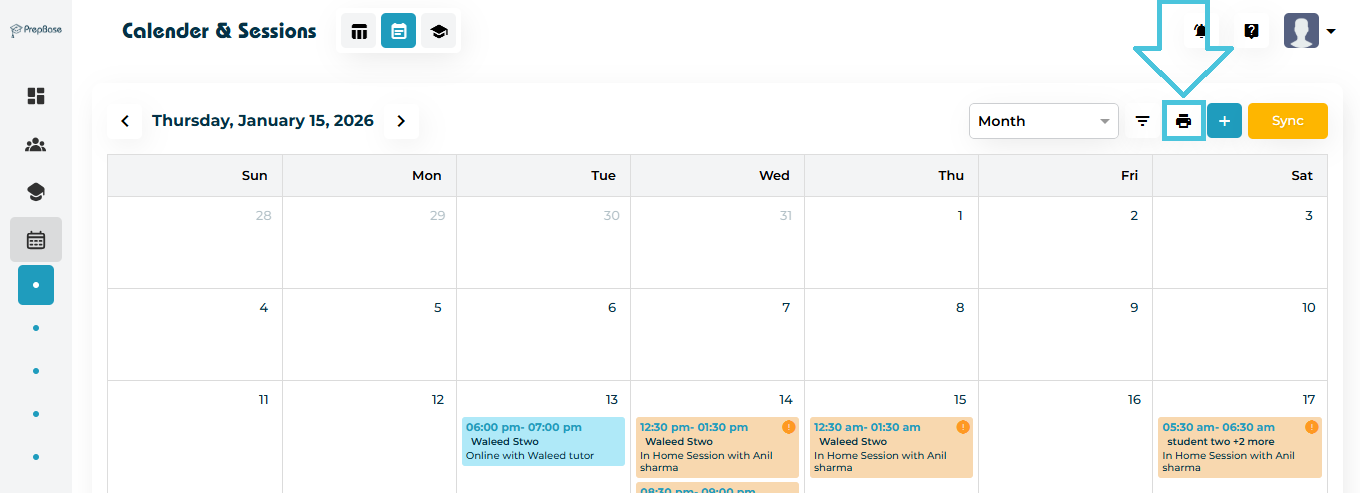
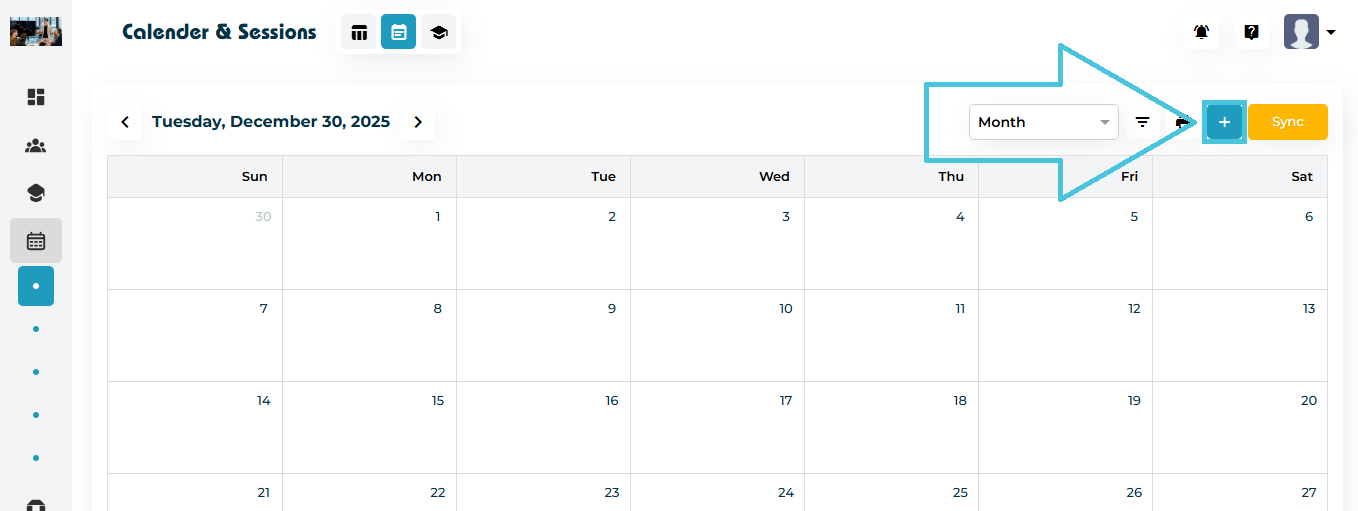
7. Viewing Sessions in Calendar Mode

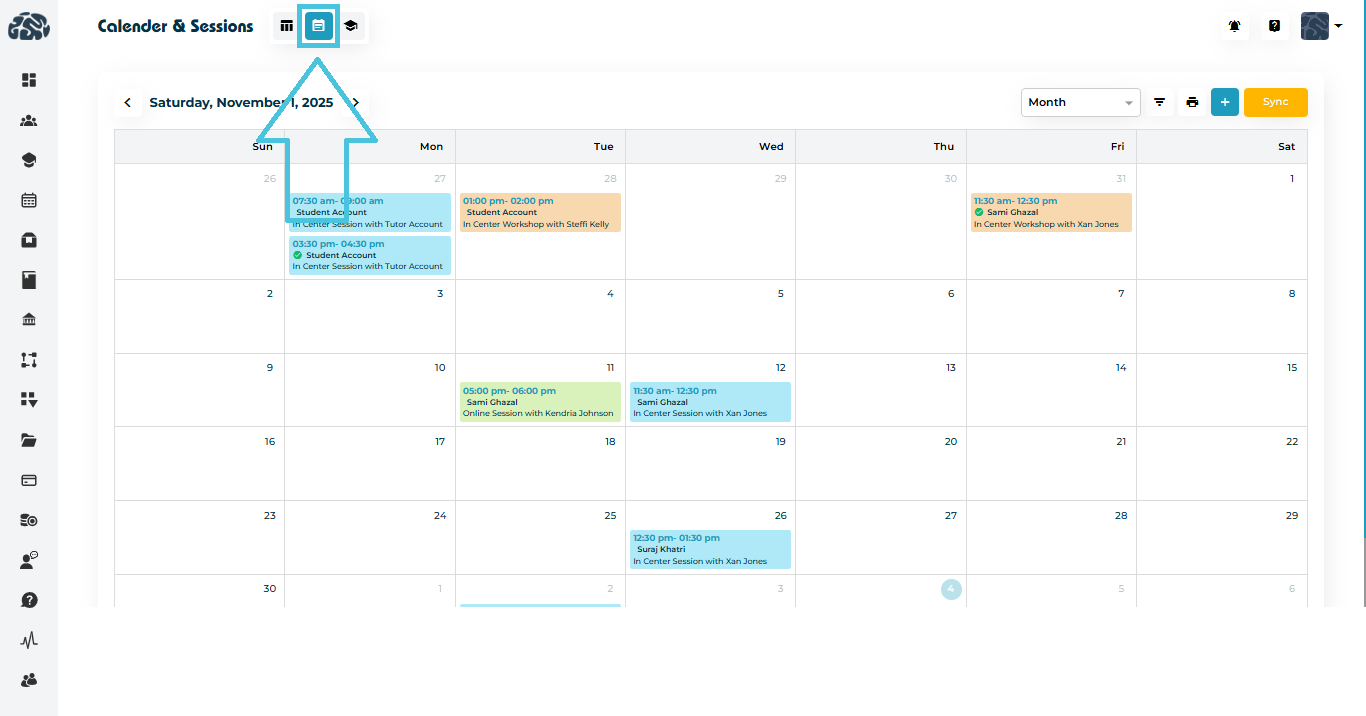
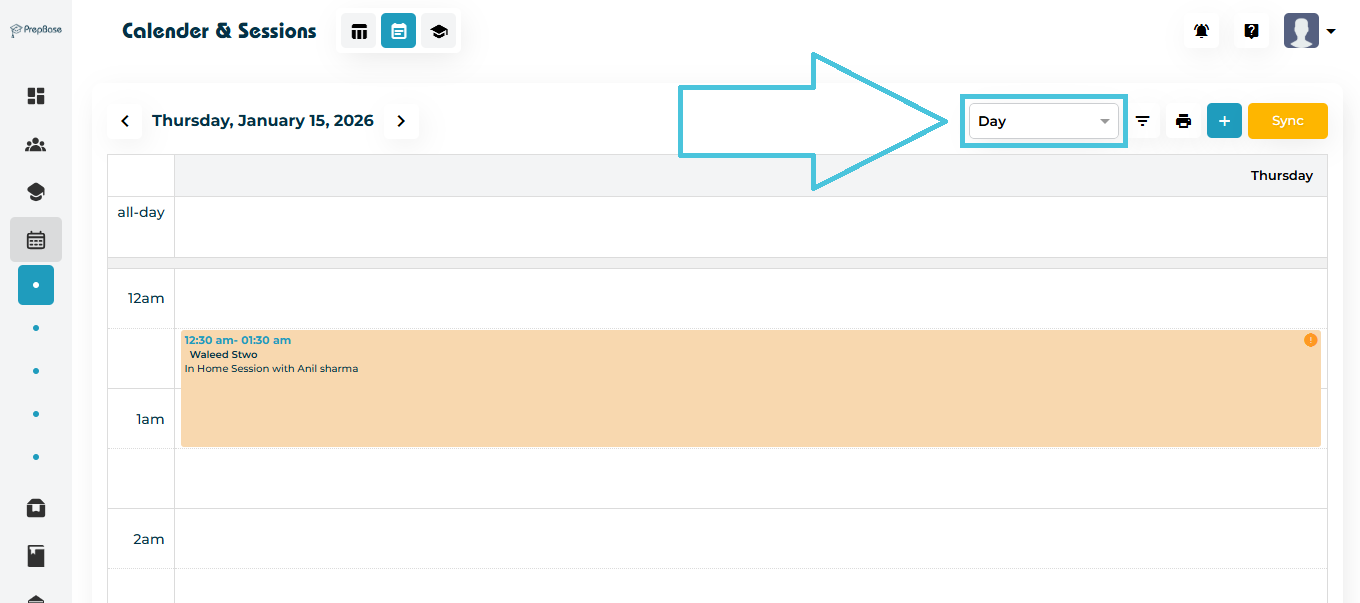
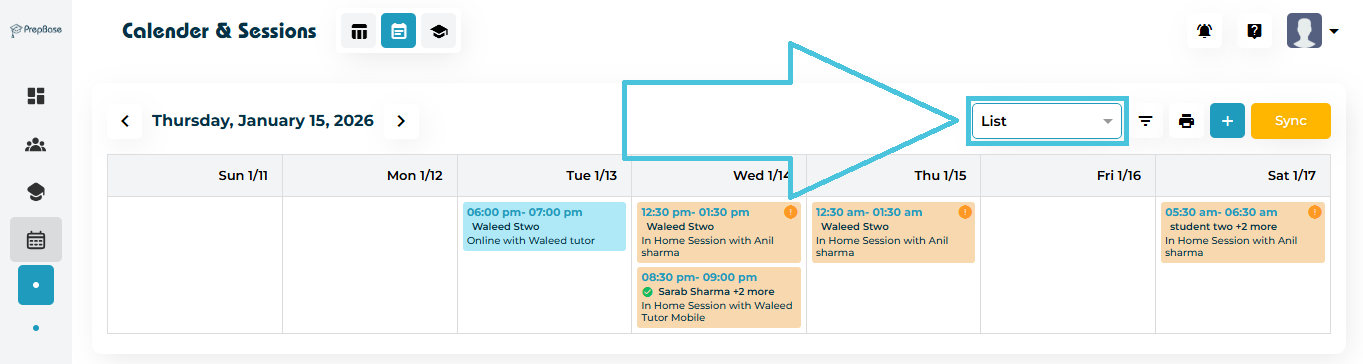
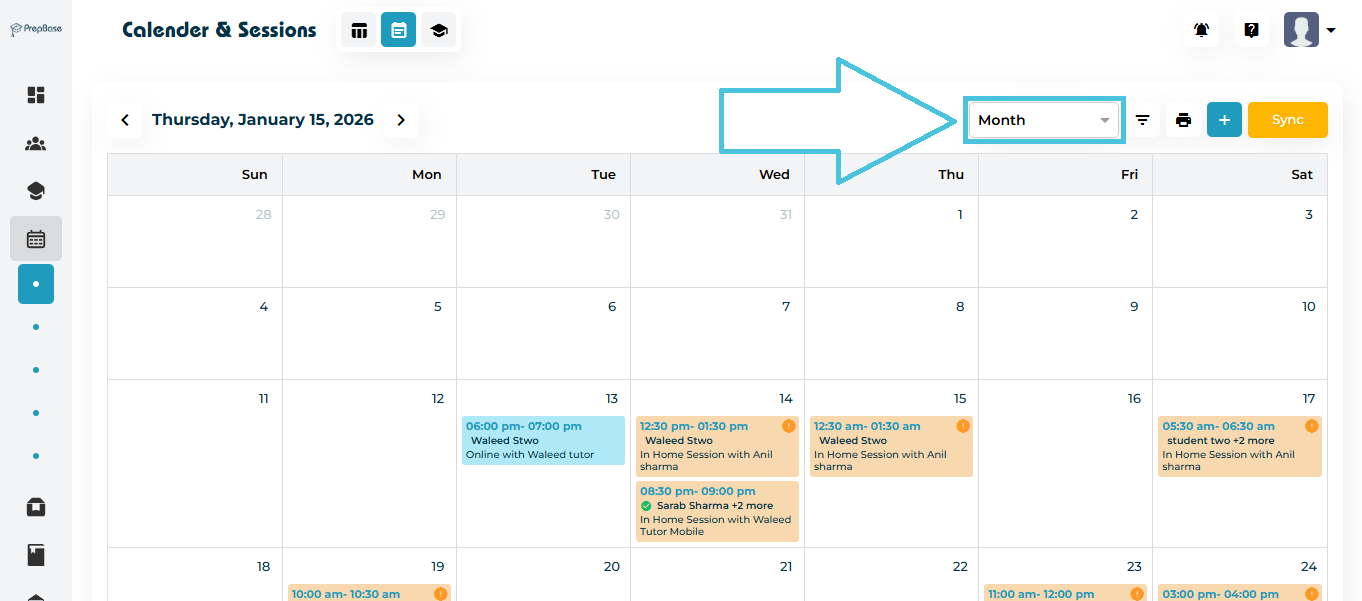
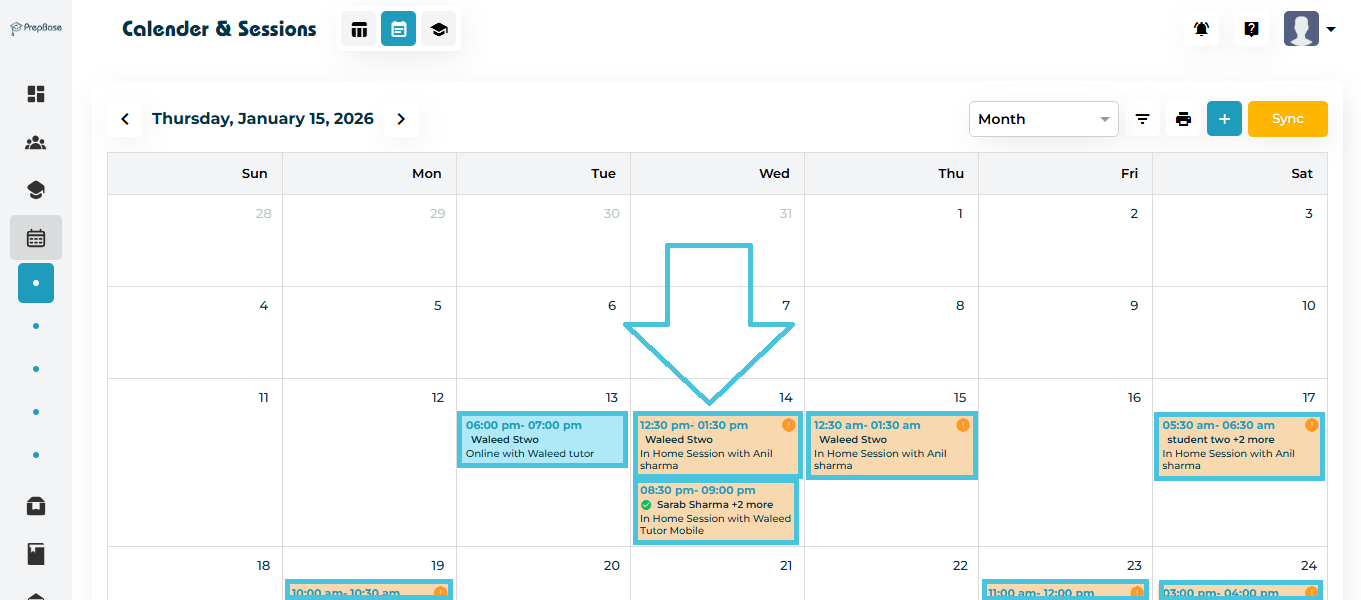
In addition to list view, the Calendar & Sessions module provides two more visual layouts:

  • Month View

  • Week View

  • Day View

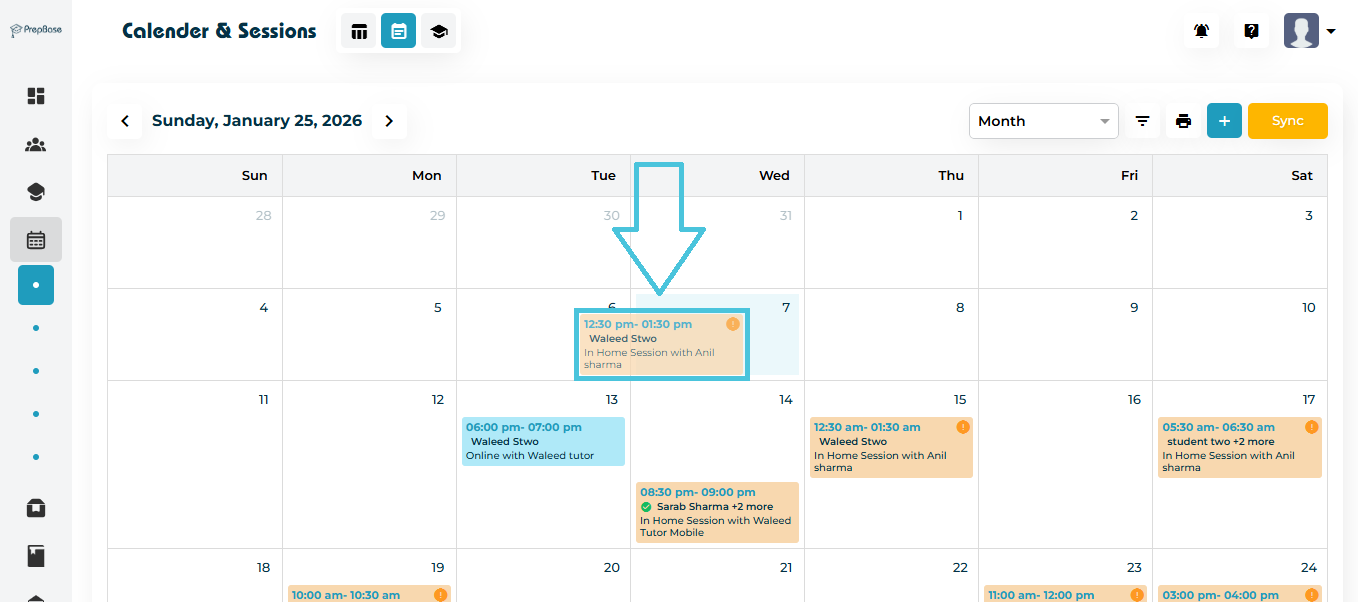
Click the Calendar icon at the top left of the calendar & Sessions to switch between layouts.

Month View

Displays the entire month with color-coded session cards.
Each card includes:

  • Student name

  • Instructor name

  • Session duration

  • Session category

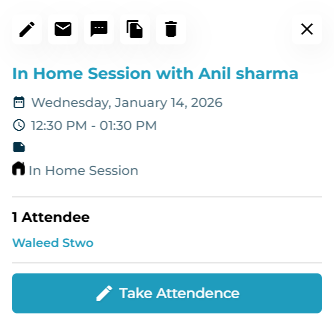
Click any entry to open full details.

Week View

Shows a week-long hourly timeline. Ideal for:

Each card includes:

  • Student name

  • Instructor name

  • Session duration

  • Session category

Day View

Displays all sessions for a specific day in a detailed timeline.

Each card includes:

  • Student name

  • Instructor name

  • Session duration

  • Session category

Perfect for front-desk teams scheduling facilities or for coordinators managing instructor availability.

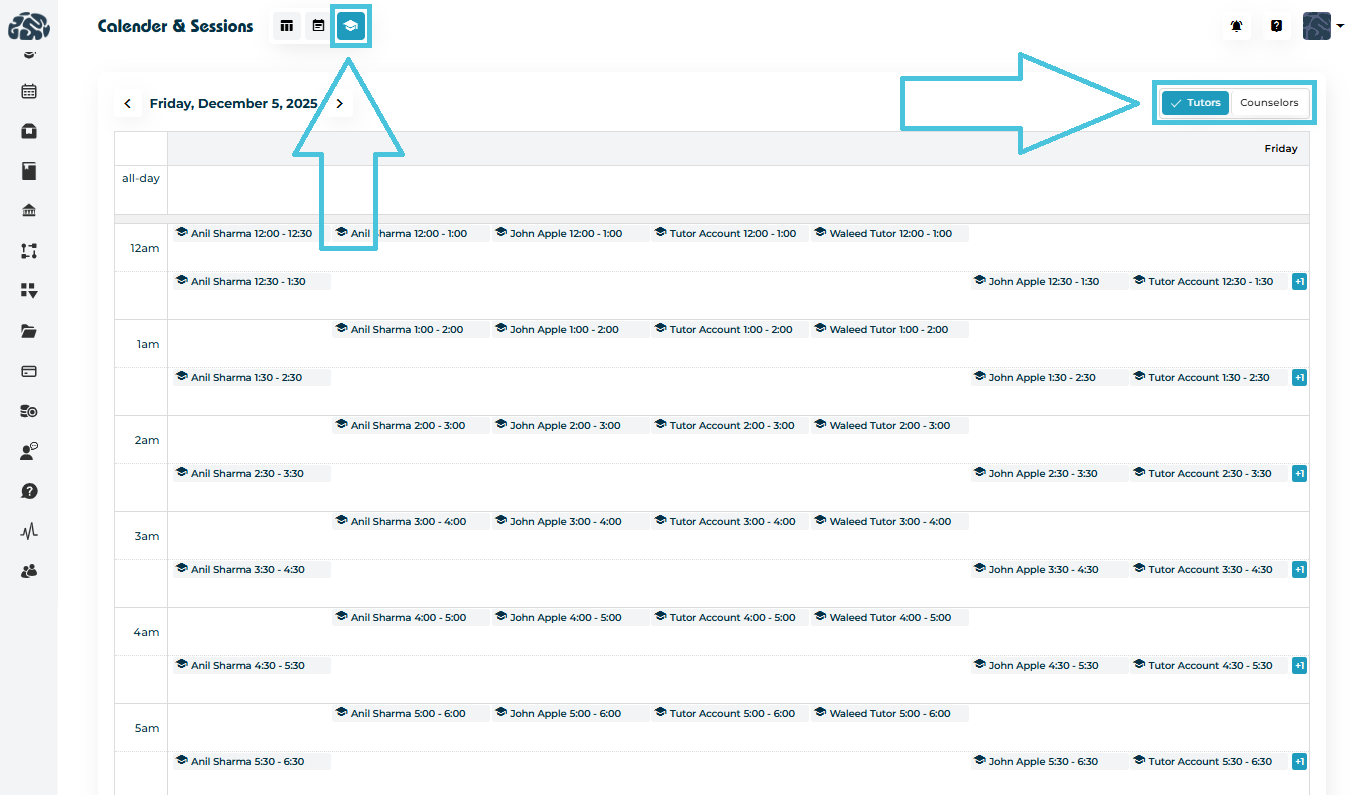
8. Viewing Tutor/Counselor based sessions

Shows sessions grouped by tutor or counselor depending on the selected toggle:

  • Tutors

  • Counselors

Perfect for front-desk teams scheduling facilities or for coordinators managing instructor availability.

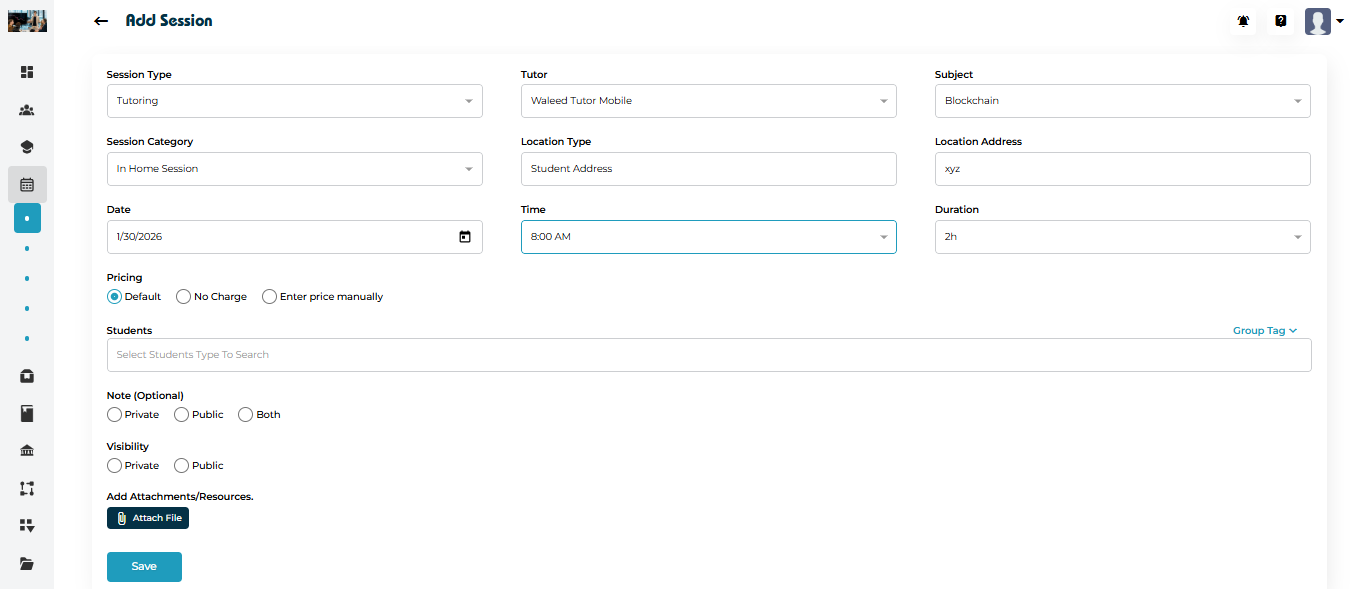
9. Viewing Session Details

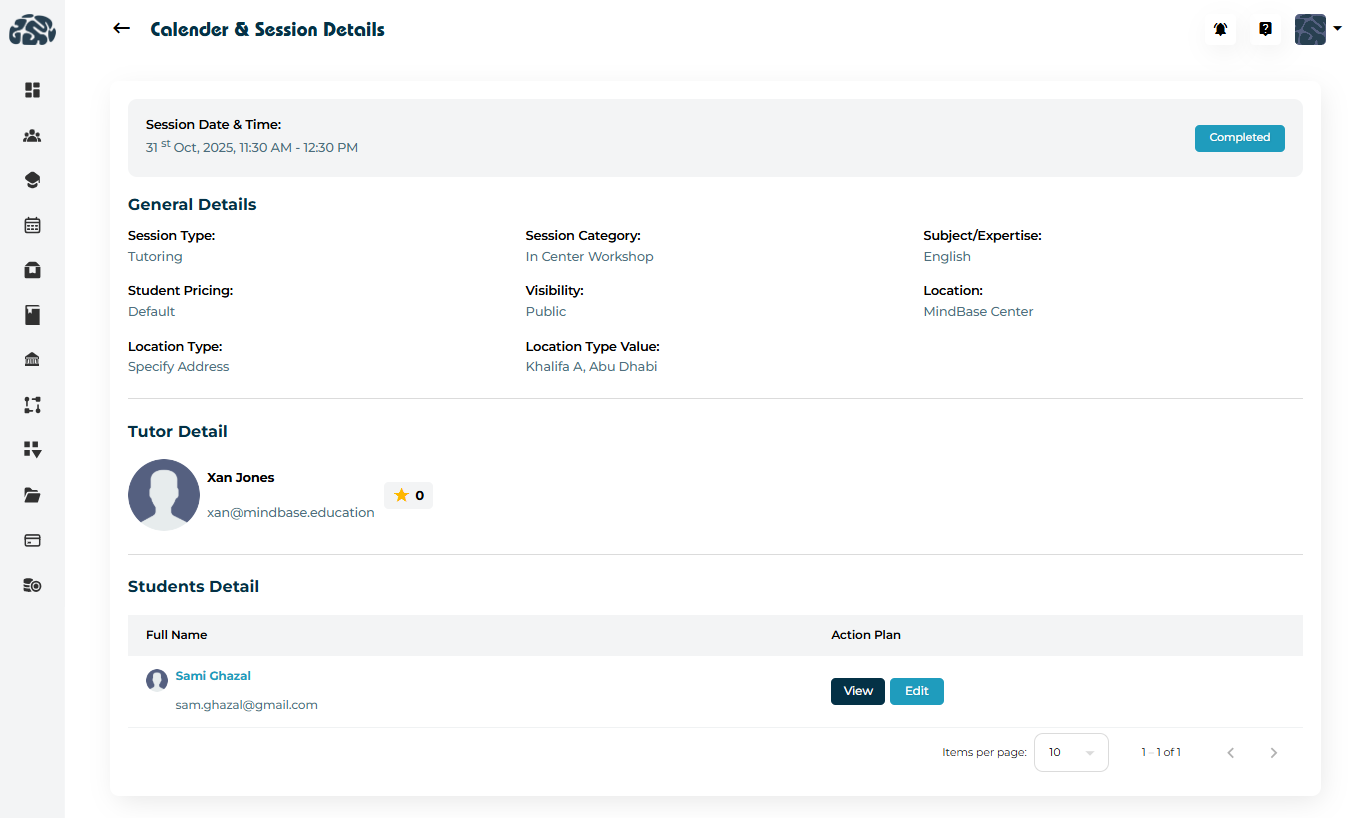
Regardless of which view you are in (list, month, week, day), clicking a session opens the Session Detail Page, which includes:

General Details
  • Session type

  • Session category

  • Subject/expertise

  • Student Pricing

  • Visibility

  • Location

  • Location type & value

  • Session Date & time

Instructor Details
  • Tutor/Counselor avatar

  • Name

  • Rating

  • Contact email

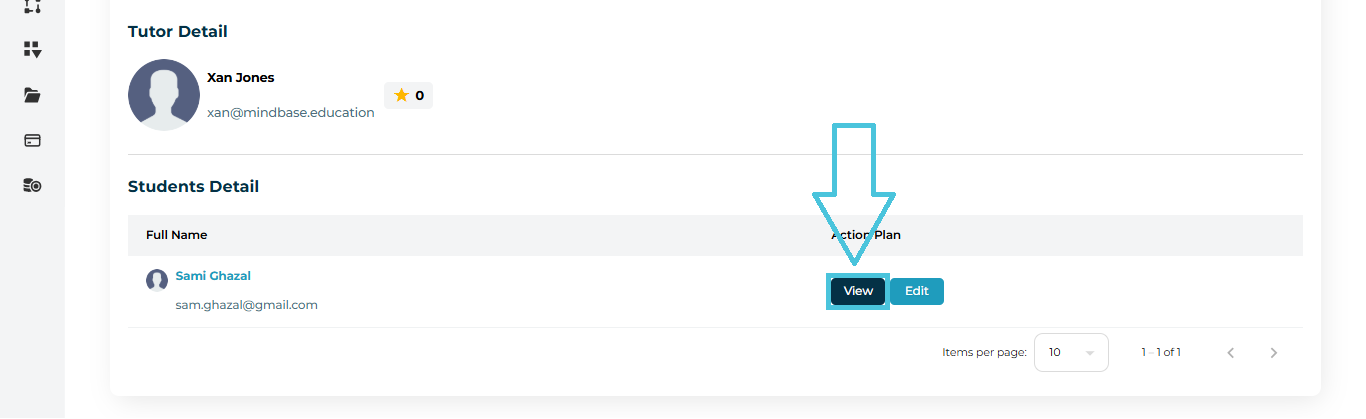
Student Details
  • Student name

  • Student email

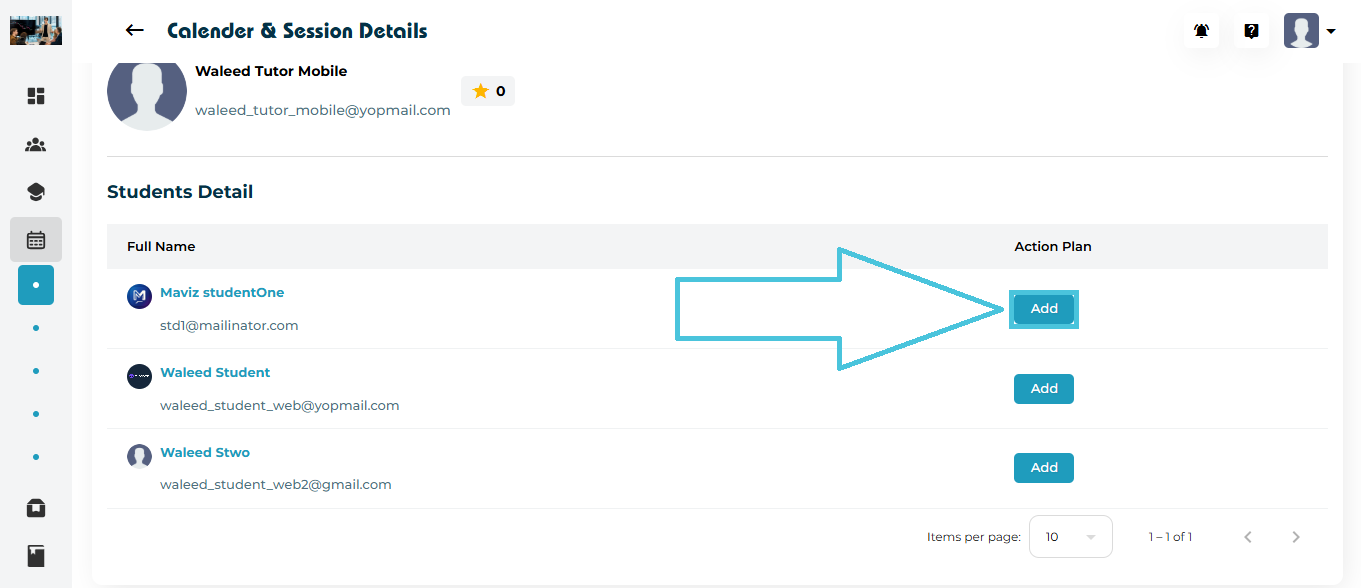
  • Action Plan (View / Edit depending on session status)

For Completed Sessions:

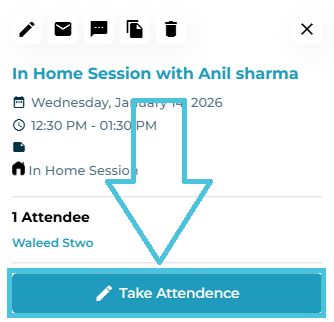
You can view or edit the full Action Plan containing attendance, scores, topics, reports, and attachments etc.

10. Sync Sessions With Your Own Calendar

In the Month/Week/Day views, a Sync button appears on the top right.
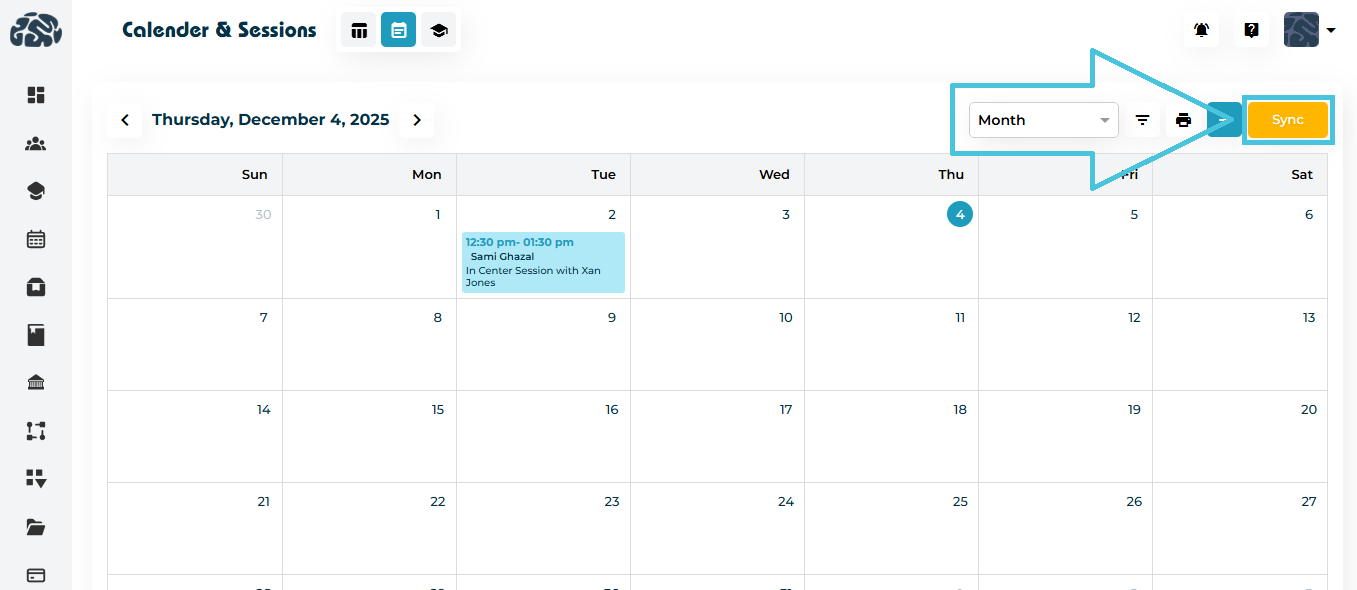
This allows administrators or instructors to sync their sessions with an external calendar (Google Calendar, Outlook, Apple Calendar, etc.), ensuring seamless personal schedule management.
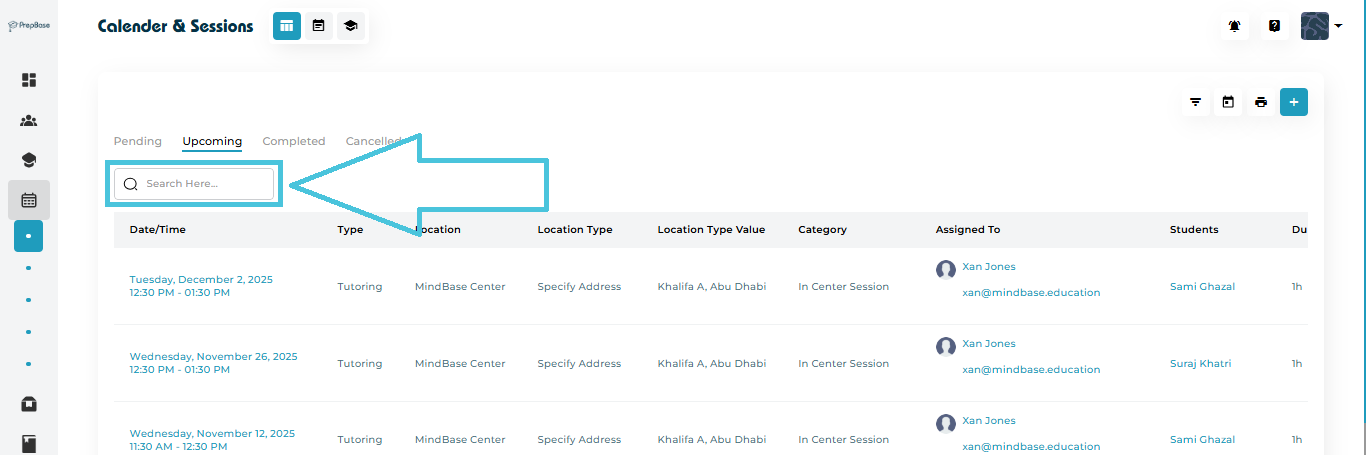
11. Searching for Sessions

Use the search bar available in list view and all tab views to search for:
  • Student names

  • Instructor names

  • Session types

  • Dates

The module instantly filters the displayed sessions.

IN THIS ARTICLE