Viewing Past and Upcoming Sessions
The Sessions tab within each student’s profile allows Admins to view, manage, and track all scheduled, ongoing, and completed sessions in one place.
This feature provides a detailed timeline of a student’s learning activities — helping you monitor attendance, progress, and instructor engagement effectively.
1. Accessing the Sessions Tab

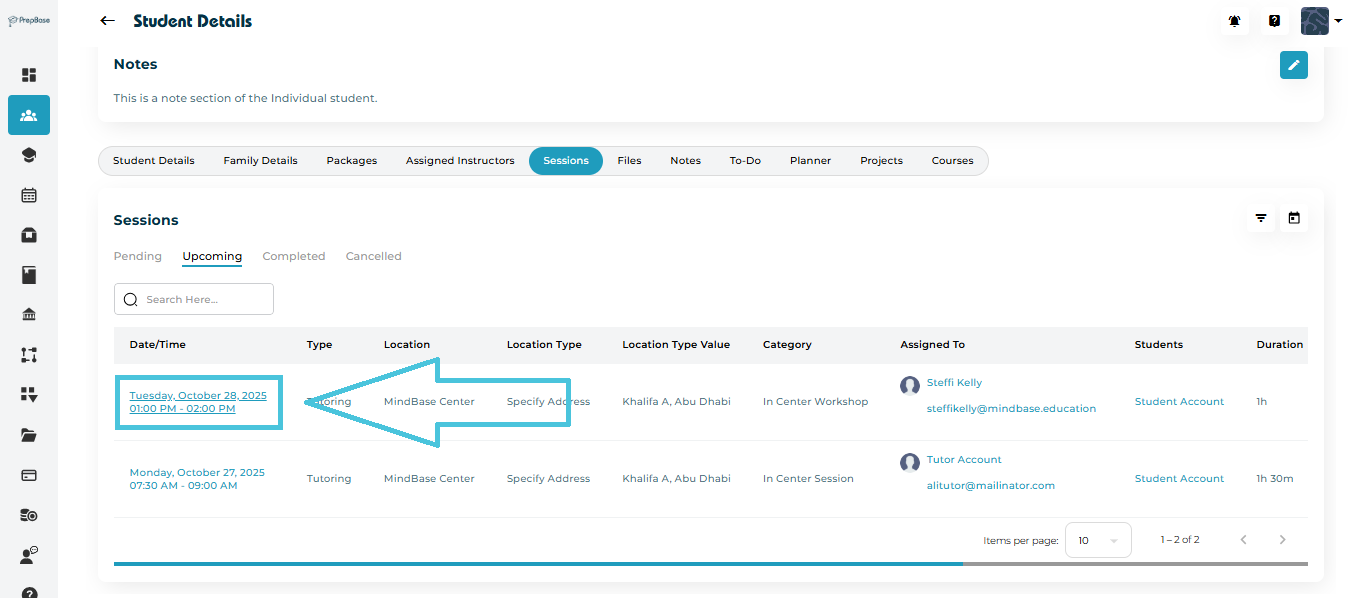
Navigate to Students → Student Profiles.
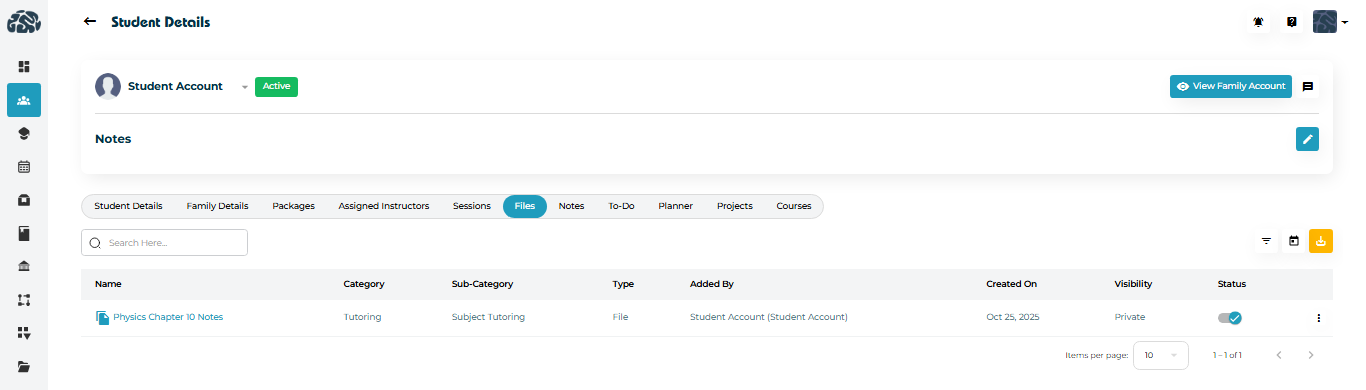
Select a student from the list.
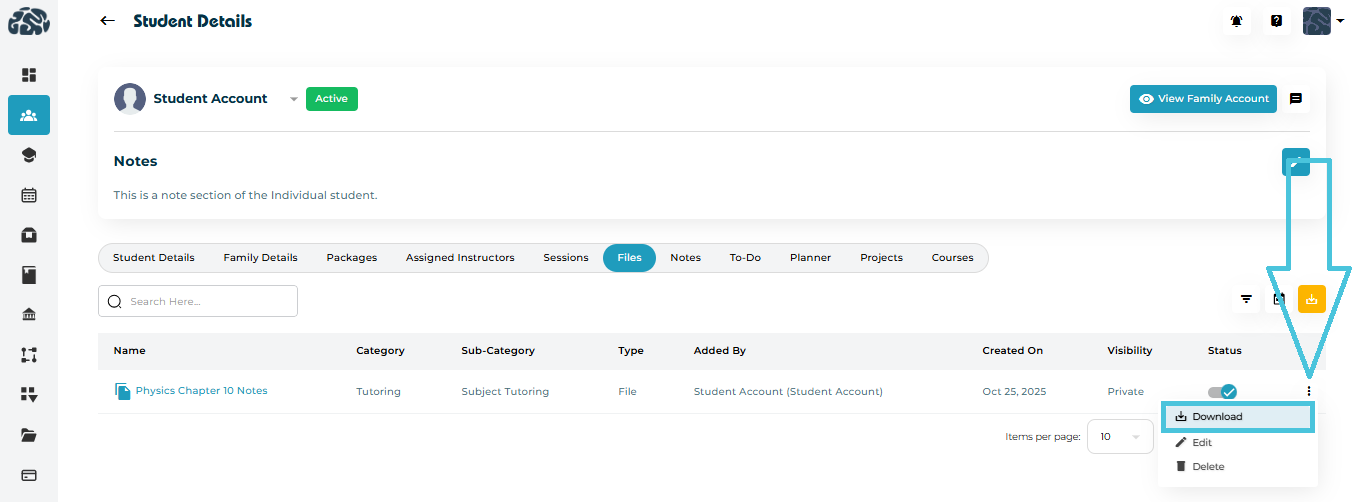
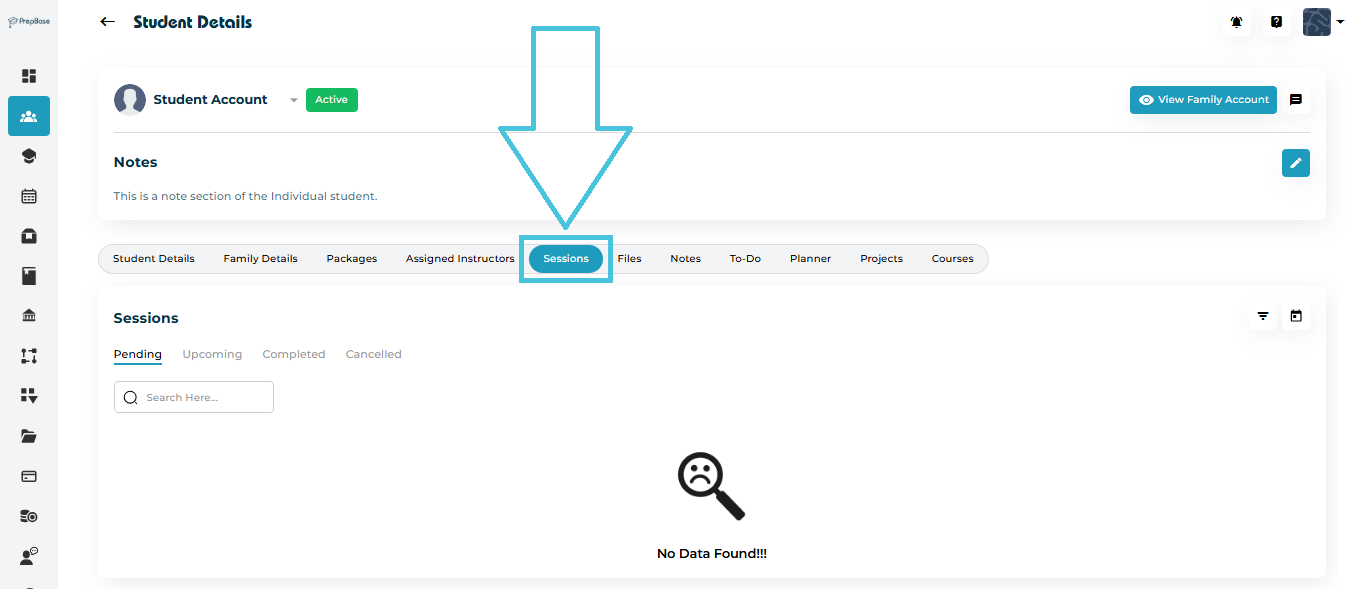
Open the Sessions tab from the top navigation menu.
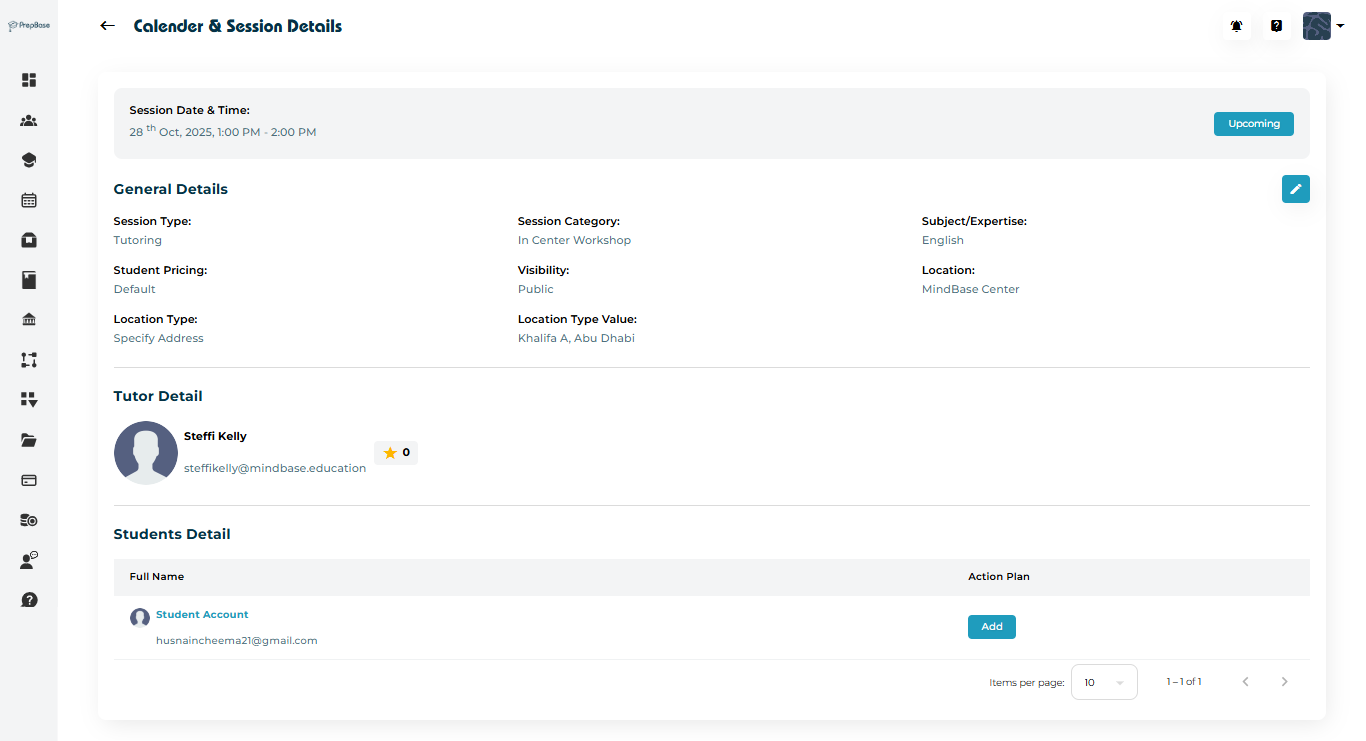
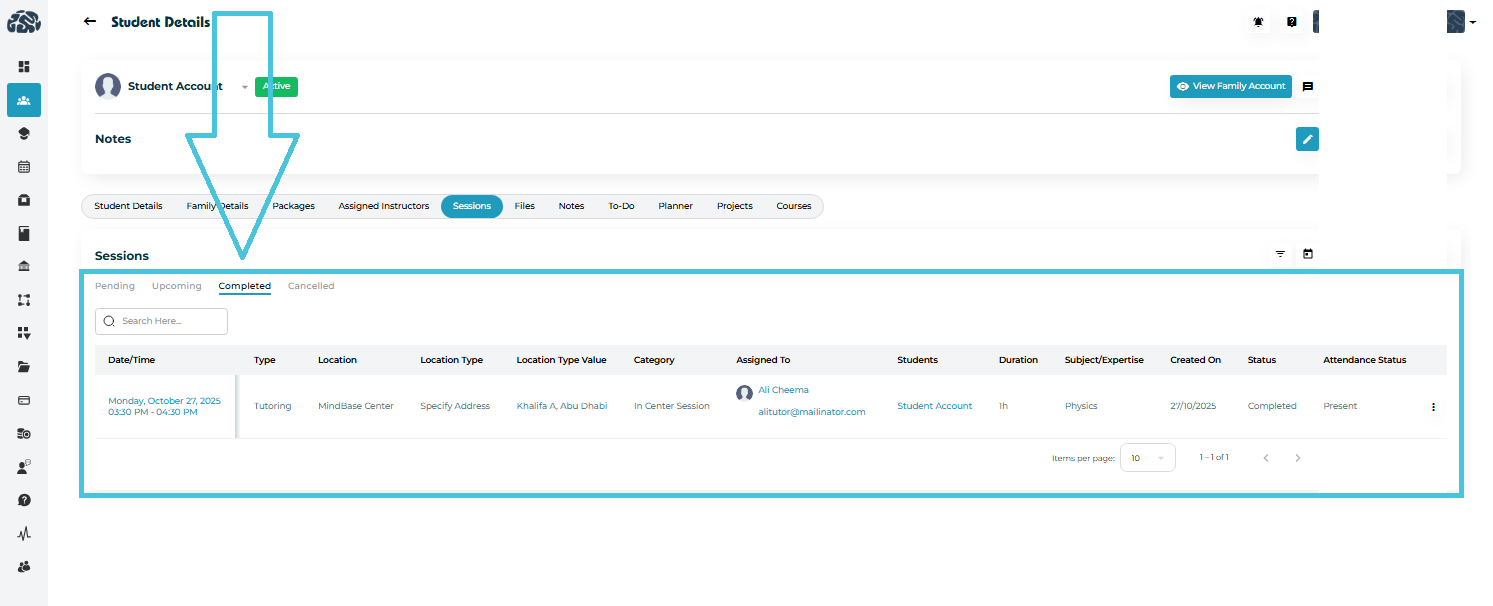
You’ll see a structured list of all past and upcoming sessions linked to that student. Each record shows:
- Date and Time
Session Type
Session Location
- Session Location Type and Type Value
- Session Category
Assigned Tutor or Counselor
- Participating Student(s)
- Session Duration
Subject or Expertise
Creation Date
Status (Upcoming, Completed, or Cancelled)
- Attendance Status (for Completed Sessions)
To learn more about session types, categories, locations, and location types, please visit the Calendar & Sessions section.
2. Viewing Past Sessions

The Past Sessions section lists all completed or cancelled sessions associated with the student.
Each record includes:
Completion Date
Instructor Name
Session Category
Actual Duration
Status (Completed, Pending, or Cancelled)
3. Viewing Upcoming Sessions
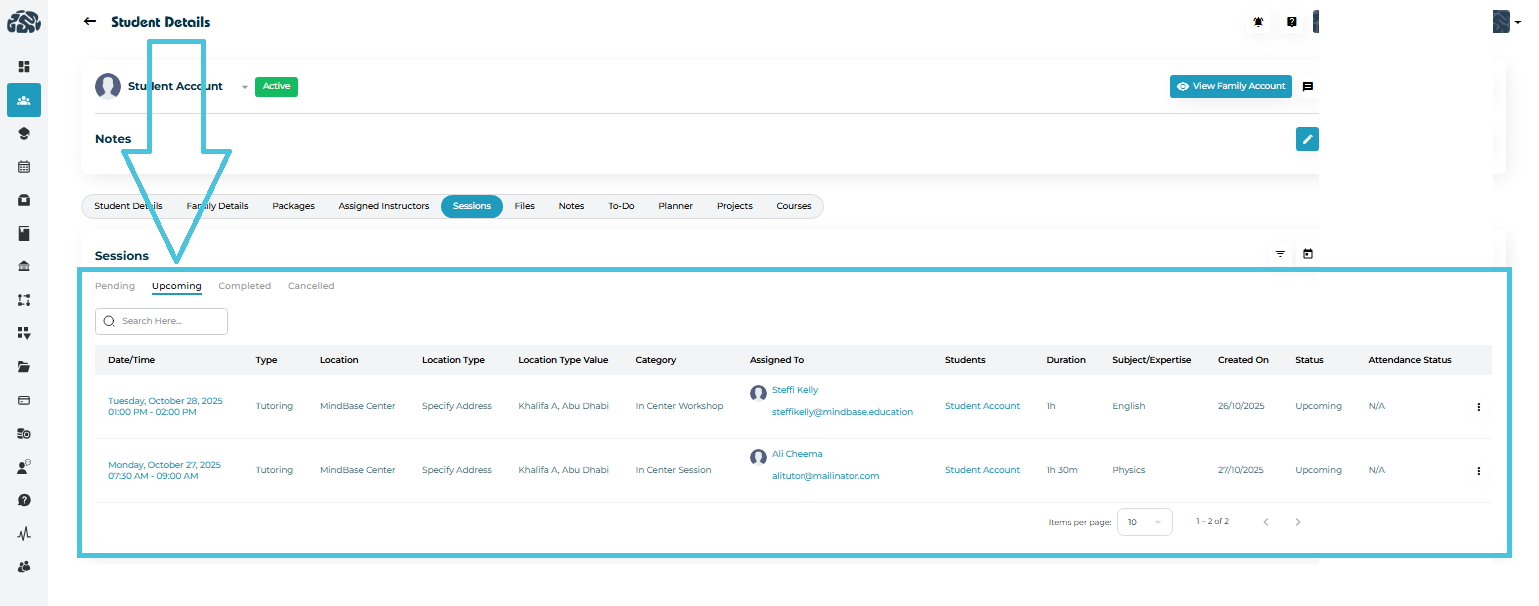
Upcoming sessions display all lessons, workshops, or counseling appointments scheduled for future dates.

Each upcoming session entry includes:
Session Date & Time
Instructor Name
Session Type (Tutoring or Counseling)
Duration (e.g., 1h, 1h 30m)
Benefits of Tracking Upcoming Sessions
Ensure students are consistently engaged.
Manage instructor workload efficiently.
Identify scheduling conflicts early.
Maintain accountability for booked hours.
NOTE: Pending Sessions are those scheduled by the instructors or admins and not yet accepted by the students. To learn more about session statuses, please visit the Calendar & Sessions section.
4. Filtering Sessions
To easily find specific sessions:

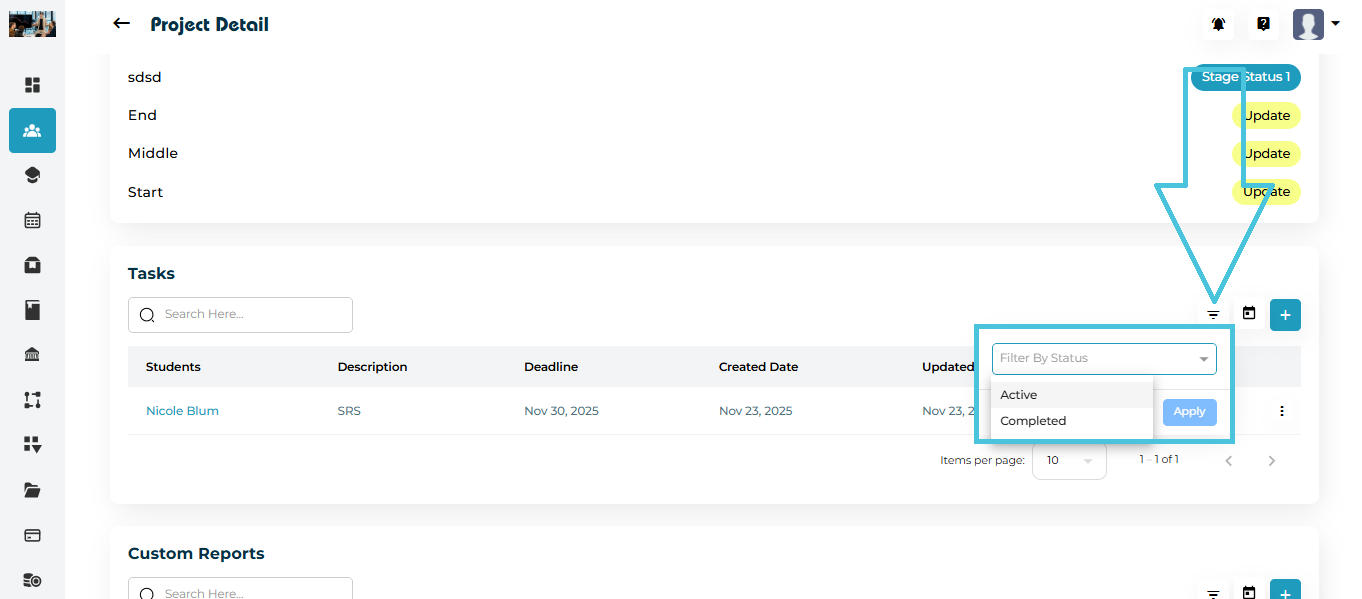
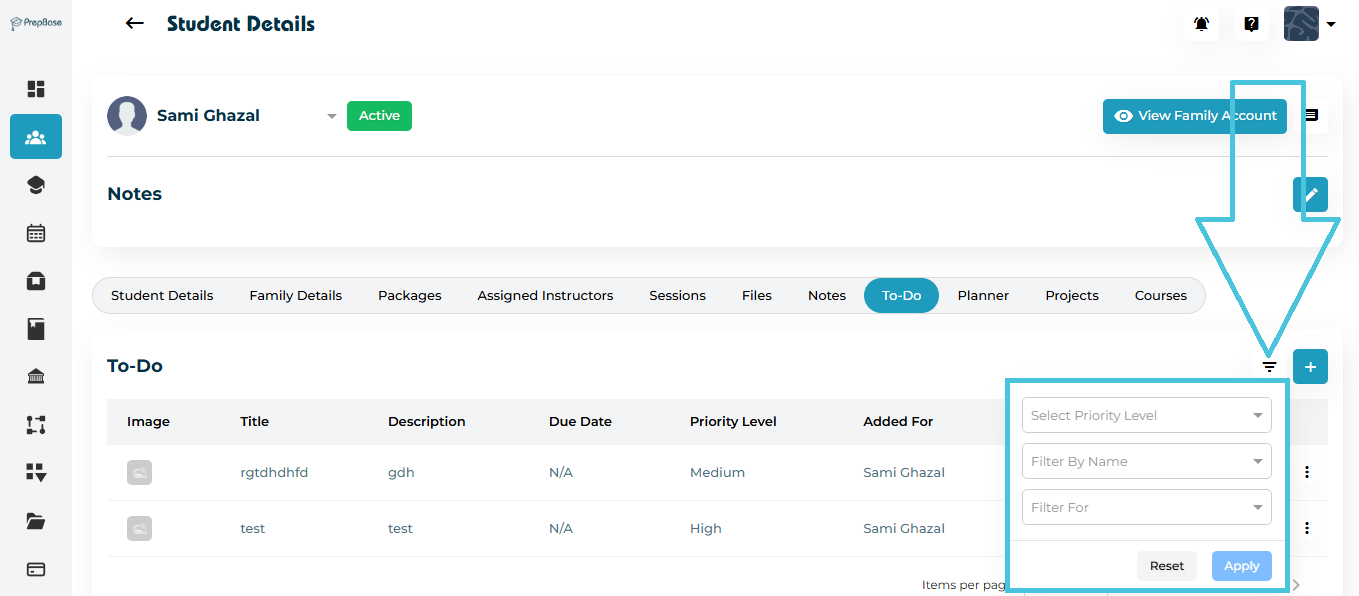
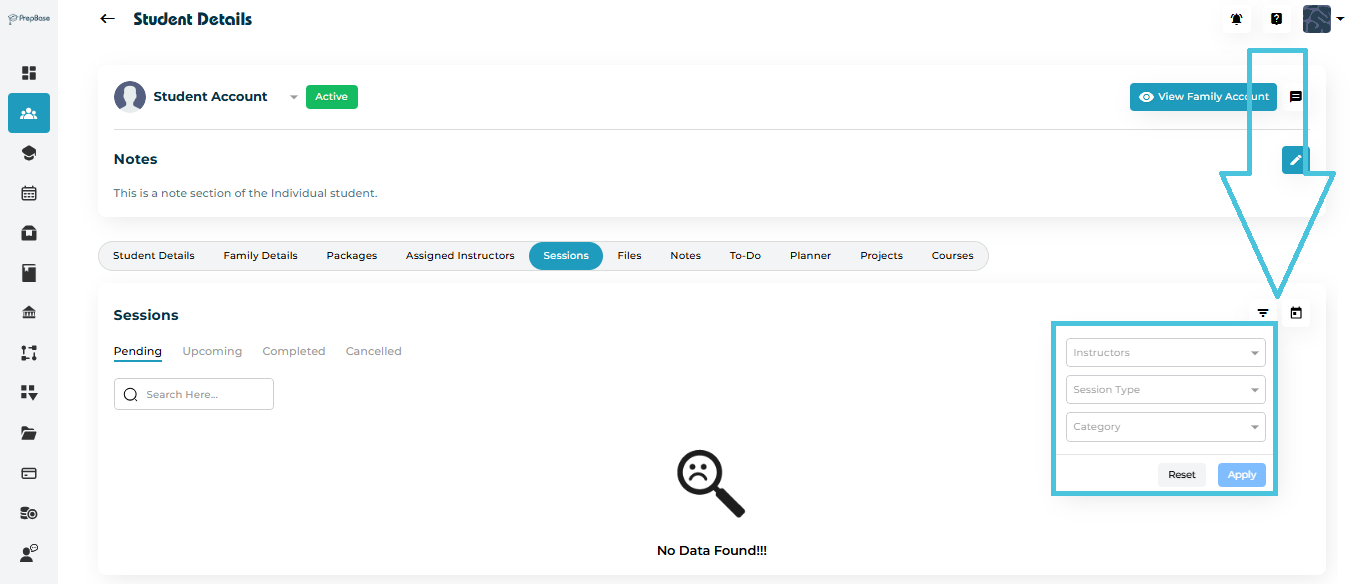
Use the Filter icon on the top-right corner of the session list.
Apply filters such as:
Date Range
Instructor Name
Session Type (tutoring or counseling)
Session Category (created by admin)
Click Apply to view results.
5. Session Status Overview
| Status | Description |
|---|---|
| Upcoming | Scheduled by the students/parents or scheduled by instructors/admins and accepted by the student/parent. |
| Completed | Conducted successfully; Action plan completed by the tutor or counselor and attendance is taken. |
| Cancelled | Session was cancelled by the student/parent, tutor/counselor, or admin. |
| Pending | Sessions scheduled by instructors or admins and not yet accepted by the students or parents. |
Statuses are automatically updated based on attendance taken within the action plan completed by tutors or counselors.
6. Using Session Data for Progress Tracking
Session records provide insight into a student’s overall engagement and learning consistency.
Admins and counselors can use this data to:
-
Review session frequency and duration trends.
-
Identify students who need follow-ups or rescheduling.
-
Generate reports for academic progress or billing reconciliation.