Viewing individual student details

Viewing Individual Student Details

The Student Details section allows administrators to view, manage, and update all information related to a single student in PrepBase.
It consolidates progress analytics, personal and academic records, portal permissions, and linked billing details — giving admins a complete picture of each learner.

1. Accessing Student Profile

Description
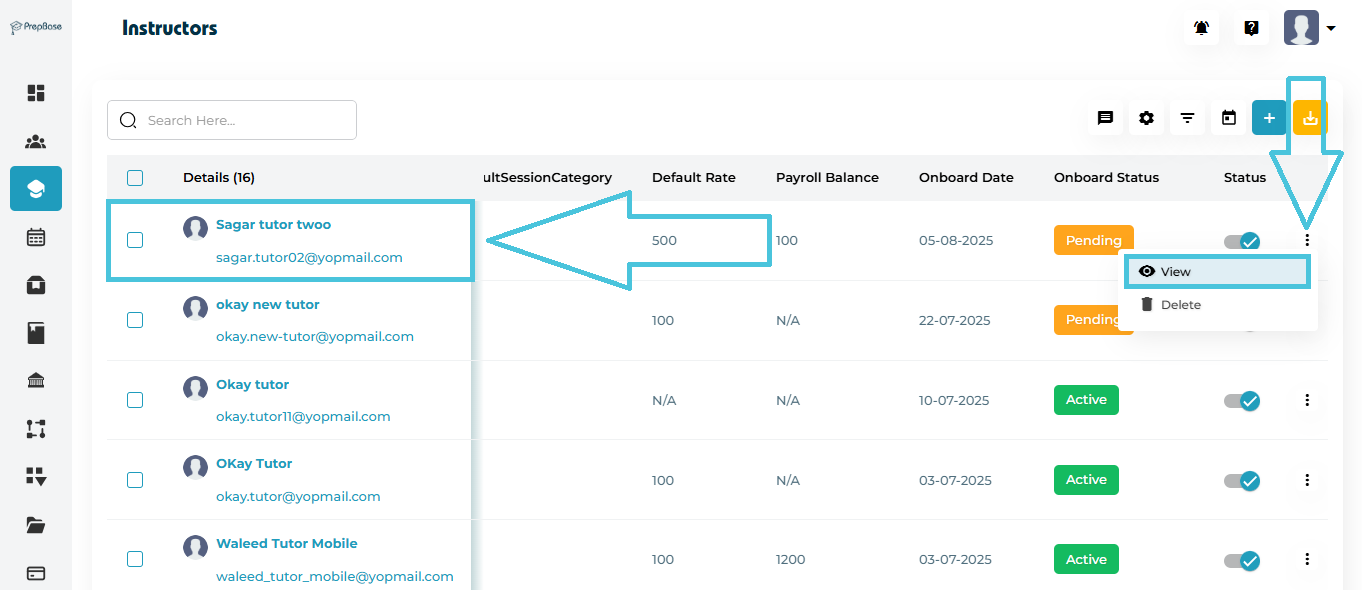
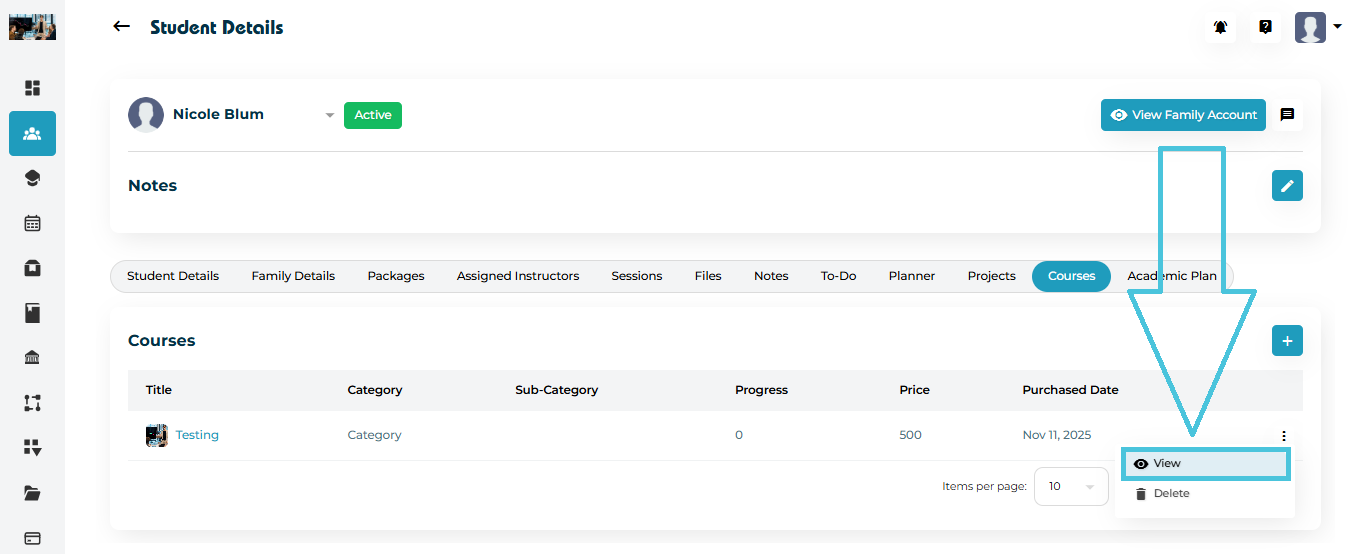
Administrators can access a student’s full profile using either of two options — directly clicking the student’s name or selecting View from the ⋮ (three-dot) action menu.
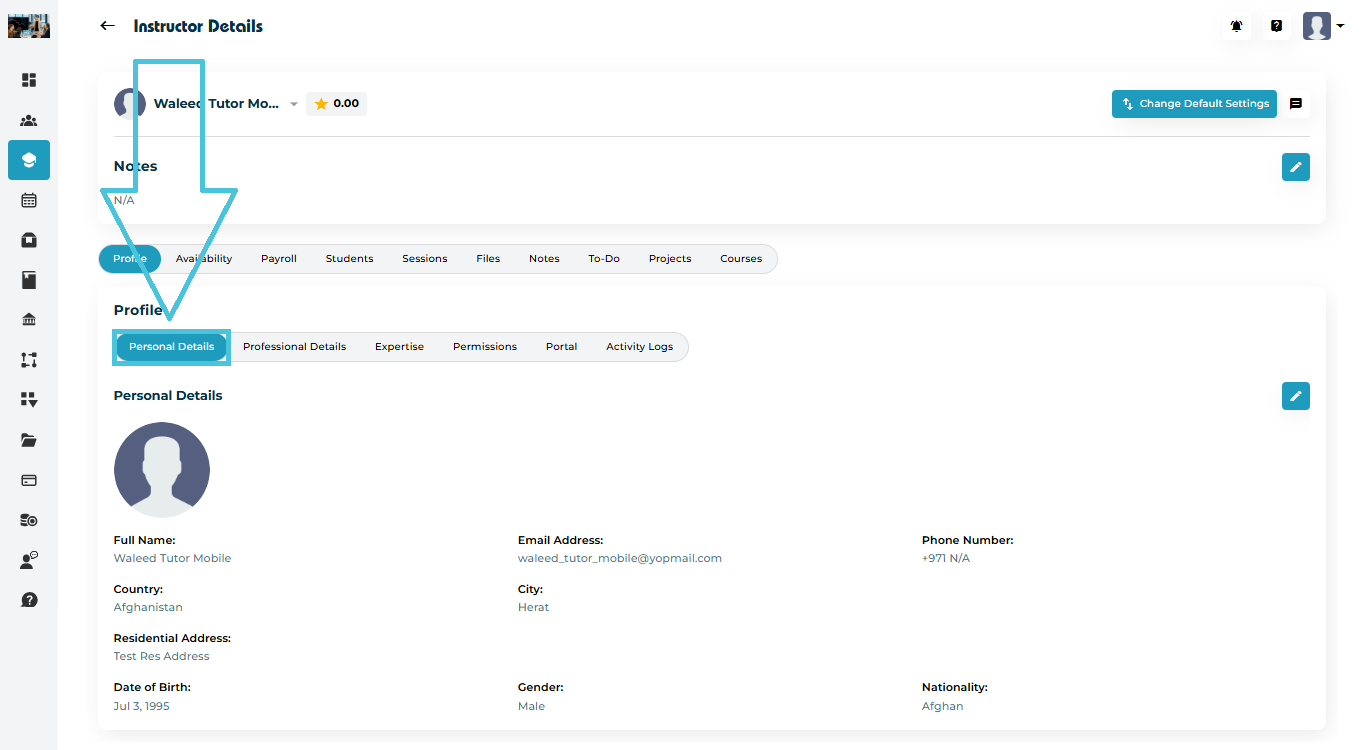
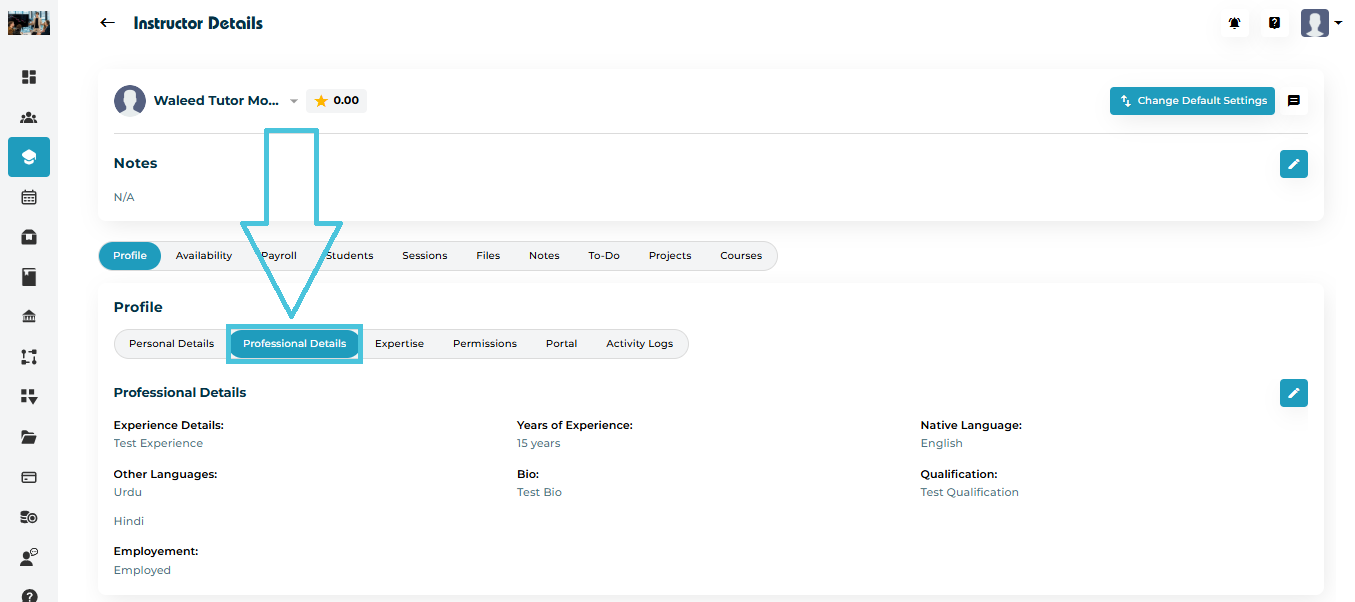
Both open the same Student Details page where all tabs (Progress, Personal Details, Academic Details, Permissions, Portal, and Family Account) are visible.

Steps

  1. Navigate to the Students module from the left-hand sidebar.

  2. Locate the student in the list using the search bar or scrolling.

  3. To open the student profile:

    • Option 1: Click the student’s name under the Details column.

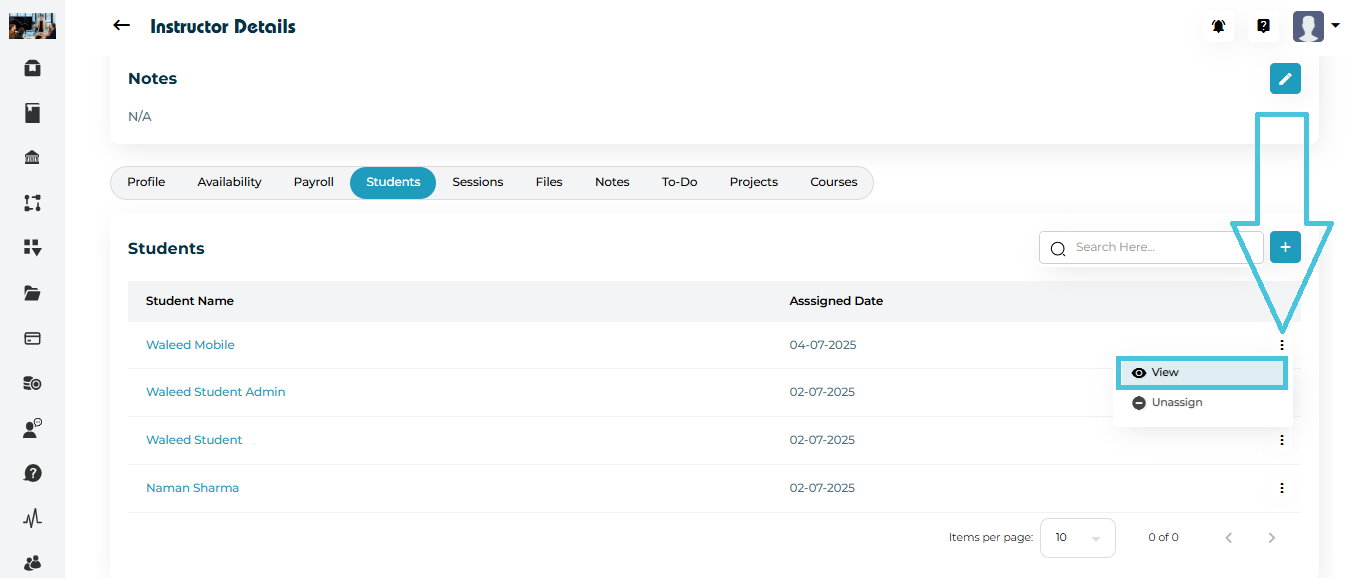
    • Option 2: Click the ⋮ (three-dot) icon at the end of the row and select View.

  4. The system loads the Student Details page with all profile and activity tabs.

2. Student Name Dropdown

This dropdown allows admins to instantly switch between different student profiles without returning to the main Students List. It is especially useful when reviewing siblings, multiple leads from the same family, or when quickly navigating through several profiles during audits or admin reviews. Selecting another student from this dropdown loads their entire profile, including overview details, sessions, packages, and linked information.

3. Status Tag

The status tag highlights the student’s current lifecycle stage inside PrepBase. It can display Active, Pending, Inactive, Lead, or Trial. Each status helps admins instantly understand the student’s engagement level: • Active – Currently enrolled and using services. • Pending – Awaiting onboarding steps. • Inactive – No ongoing activity or expired packages. • Lead – A potential student not yet enrolled. • Trial – Student is on a trial package or session plan. This tag helps tutors, counselors, and admins decide which follow-ups or actions are needed.

4. Notes Section

A dedicated area for storing internal notes related to the student. These notes are visible only to admins and help teams keep track of important information such as behavior notes, follow-up reminders, academic concerns, or special requirements. Notes can be added at any time and serve as a historical log that supports tutoring and counseling decisions.

5. View Family Account

This button links directly to the parent or guardian’s Billing & Invoices Section. From there, admins can view and manage invoices, subscriptions, payment history, saved cards, promotions, or family-linked student profiles. This quick link is extremely helpful during billing inquiries, package renewals, or when resolving payment-related issues.

6. Email / SMS

These quick communication shortcuts allow admins to message the student directly from the profile. Clicking Email or SMS opens the corresponding sending interface where the admin can draft a message, send important updates, reminders, payment notifications, or any other communication. This ensures fast, centralized communication without switching to another platform.

IN THIS ARTICLE

My Profile

My Profile

Your My Profile section in PrepBase allows you to view and manage your personal admin account details.
From here, you can update your profile information, upload a profile image, and change your password securely.

1. Accessing Profile

To access your profile:

  1. Log in to your PrepBase Admin Dashboard.

  2. Click on your Profile Icon located at the top-right corner of the screen.

  3. Select My Profile from the dropdown menu.

Once opened, you’ll see a summary of your personal information such as name, email address, and contact number.

2. Profile Overview

The Profile Overview page displays your key account details in a clean and organized layout.

FieldDescription
NameDisplays the full name associated with your account.
Email AddressYour registered email used for login and communication.
Phone NumberThe contact number linked to your admin account.
Profile ImageThe photo or logo associated with your account.

3. Editing Your Profile

To update your personal information:

    1. Click the Edit Profile button on the top-right corner of the My Profile page.

    2. In the Edit Profile tab, make the necessary updates:

      • Upload or replace your profile image.

      • Update your Name or Phone Number.

      • (The Email Address field is view-only and cannot be modified.)

    3. Click Save to apply your changes.

4. Changing Your Password

For account security, you can update your password anytime from within the same screen.

  1. Go to the Change Password tab at the top of the Edit Profile section.

  2. Enter your Old Password for verification.

  3. Type your New Password, then re-enter it in Confirm Password.

  4. Click Save to apply the change.

🔐 Security Tips:

  • Use at least 8 characters with a mix of letters, numbers, and symbols.

  • Avoid reusing passwords from other accounts.

  • Change your password periodically to maintain account safety.

5. Saving and Confirming Changes

After saving your updates:

  • The system automatically refreshes your Profile Overview with the new information.

  • You’ll receive a confirmation message (if notifications are enabled).

  • Your new password (if updated) will take effect immediately at the next login.

💡 Note: If you forget your password, you can always reset it through the login page using the “Forgot Password?” option.

IN THIS ARTICLE

Navigating the Dashboard

Navigating the Dashboard

The PrepBase Dashboard is your central control panel — the first page you see after logging in.
Each user role (Admin, Tutor & Counselor, Student, and Parent) has its own dashboard tailored to their access level and daily needs.

This guide explains how to navigate these dashboards, interpret key widgets, and use the sidebar tools efficiently.

1. Administrator Dashboard

The Admin Dashboard provides a complete overview of your organization’s operations — including user activity, session performance, revenue, and instructor analytics.

Dashboard Overview

The dashboard is divided into multiple data-driven widgets:

SectionDescription
UsersDisplays total number of active users, categorized by role (Students, Tutors & Counselors, Parents).
Sessions (Hours)Shows total tutoring and counseling hours logged across your organization.
RevenueSummarizes total income from tutoring and counseling packages.
PaymentsDisplays processed payments and category breakdowns.
PackagesTracks the total number of assigned learning or counseling packages.
ProjectsLists active projects with details about assigned tutors & counselors, and students.
Top SessionsHighlights most popular subjects or session types.
Top InstructorsShows top-performing tutors & counselors based on completed hours.

2. Tutor / Counselor Dashboard

The Tutor & Counselor Dashboard is designed to help instructors manage their sessions, students, and notes efficiently.

 Dashboard Overview
SectionDescription
Earnings SummaryDisplays total tutoring earnings and current account balance. Tutor & counselors can track their payout eligibility and total billed hours here.
My ProgressProvides performance insights, including total completed sessions, scheduled sessions, active students, and tutor rating (if applicable).
To-Do’sLists pending tasks or student follow-ups created by the tutor & counselors (e.g., grading assignments, preparing materials).
My AgendaShows upcoming sessions with details like subject, student name, and session timing. Tutors & counselors can Reschedule, Cancel, or Message directly from this section.
My FilesDisplays uploaded teaching materials or shared resources. Files are visible to assigned students if marked public.

3. Student Dashboard

The Student Dashboard is designed for easy learning management and progress tracking.

 Dashboard Overview
SectionDescription
My ProgressSummarizes Attendance and performance scores recorded by tutors & counselors when submitting an Action Plan after each completed session.
Depending on the session type, the scoring fields may vary — for example, general categories such as Comprehension and Engagement, or other custom metrics defined for that particular session.
The system then calculates and displays an aggregate total of all attendance and performance scores for the student.
My PackagesDisplays assigned or purchased tutoring and counseling packages with total and remaining hours. Students can see progress bars showing usage percentage.
My AgendaLists upcoming tutoring or counseling sessions with session type, instructor name, and timing. Students can Reschedule, Cancel, or Message their instructor directly.
To-Do’sDisplays assigned tasks, such as homework or test preparation. Each task includes a due date, tutor & counselor name, and priority tag (High, Mid, Low).
My FilesShows uploaded study materials or notes shared by tutors & counselors. Files are downloadable if access is granted.

4. Parent / Guardian Dashboard

The Parent Dashboard provides families with real-time visibility into their child’s academic progress, packages, and session activity.

 Dashboard Overview
SectionDescription
StudentsDisplays the children total completed and scheduled tutoring and counseling hours along with attendance percentage.
My PackagesShows active packages assigned to the student, remaining hours, and subjects included.
My AgendaLists upcoming sessions with the tutor’s & counselor’s name, subject, and date/time. Parents can message the tutor directly if needed.
To-Do’sReflects ongoing or upcoming student tasks (e.g., assignments, assessments) with due dates. Parents can view task details but cannot modify them.
Student NotesDisplays any learning updates, remarks, or feedback shared by tutors & counselors. Helps parents stay informed about the student’s academic or behavioral progress during ongoing sessions or assessments.


5. Admin Sidebar Navigation

The Admin Dashboard features a left sidebar that provides quick access to all organizational management tools.
Each menu item allows admins to oversee students, instructors, sessions, billing, reporting, and more — ensuring a streamlined workflow across every module.

Menu ItemDescription
DashboardView your organization’s overall statistics, including users, sessions, revenue, packages, and performance analytics.
StudentsManage student records, academic progress, family details, packages, and linked instructors.
InstructorsManage tutor and counselor profiles, assign students, and monitor instructor activity.
Calendar & SessionsSchedule, view, and manage tutoring or counseling sessions; access session categories, scores, and locations.
Packages & PromotionsCreate, assign, or track active learning and counseling packages; manage promotional discounts and offers.
Subjects & ExpertiseDefine subjects, study levels, curricula, and academic interests for students and instructors.
Schools & CollegesAdd, edit, and manage institutions for student admission or reporting purposes.
WorkflowConfigure academic workflows such as application stages, admission steps, and project pipelines.
ProjectsManage student and instructor projects; track progress, deadlines, and related documentation.
Resource ManagementOversee educational files, articles, and courses shared among users and teams.
Billing & InvoicesManage invoices, payments, and family account transactions.
PayrollCalculate and process instructor or counselor payouts automatically.
CommunicationManage internal messages, notifications, and system-wide announcements.
SupportAccess support tickets and categorize user-submitted issues for quick resolution.
Reports & AnalyticsGenerate, view, and export detailed reports on performance, sessions, revenue, and user engagement.
UsersManage administrative users, assign roles, and set access permissions.
 

6. Notifications & Activity Feed

Each dashboard includes a notification center (top-right bell icon) that keeps users informed of updates such as:

  • Session confirmations or cancellations.

  • Package activations or expirations.

  • Shared files, notes, or tasks.

  • Project milestones or deadlines.


IN THIS ARTICLE

Logging In & User Access

Logging In & User Access

Welcome to PrepBase Admin!
This guide will walk you through how to log in to your PrepBase Admin Dashboard, access your settings, and understand how different users (admins, students, tutors & counselors, and parents) log in from their respective URLs.

⚠️ Note: This article applies specifically to PrepBase Admin access. Logging in as students, parents, or tutors & counselors is done from separate dashboards with different URLs (explained below).

1. Logging in to the Admin Panel

All administrators access PrepBase through a dedicated organization admin URL:

🔗 Example:
yourorganizationname.admin.prep-base.com

Here’s how to log in:

  1. Open your admin login page (as shown above).

  2. Enter your registered email address and password.

  3. Click Login to access your organization’s PrepBase Admin Dashboard.

2. Resetting Your Password

If you forget your password:

  1. Click on “Forgot Password?” from the login screen.

  2. Enter your registered admin email address.

  3. Follow the link sent to your email to reset your password.

3. Accessing Your Admin Dashboard

After logging in successfully, you’ll be directed to your PrepBase Admin Dashboard, which gives you a clear, data-driven overview of your organization’s activities.

The dashboard provides real-time insights into:

SectionDescription
UsersDisplays the total number of registered users — including students, tutors & counselors, and parents — with monthly growth visualization.
Sessions (Hours)Shows the total tutoring and counseling hours completed within the platform, divided by session type.
RevenueTracks the total earnings generated through active tutoring and counseling packages.
PaymentsDisplays all recorded payments, categorized by type (Tutoring, Counseling, Other).
PackagesIndicates how many learning and counseling packages are currently active or assigned to students.
ProjectsLists all active or recent projects — including participating tutors & counselors, students, and linked schools.
Top SessionsHighlights the most frequently conducted subjects or session types (e.g., Physics, Math).
Top InstructorsDisplays your highest-performing tutors & counselors based on total session hours delivered.

4. User Dashboard Access (Students, Parents, Tutors & counselors)

Once the Admin has set up roles and permissions, users can log in through their dedicated PrepBase dashboards.
Each dashboard provides a tailored experience designed specifically for that user type — giving access only to the tools, data, and features relevant to their role.

 Dashboard URLs

Every user type in PrepBase has a unique web address (URL) for login.
Admins should share these URLs directly with their users to ensure they access the correct portal.

User TypeExample Login URLDescription
Tutor & Counselor (Instructors)https://yourorganizationname.user.prep-base.comUsed by tutors & counselors to manage their assigned students, scheduled sessions, notes, and performance reports.
Studenthttps://yourorganizationname.user.prep-base.comProvides students access to their learning dashboard — where they can view upcoming sessions, assigned instructors, tasks, uploaded files, and academic progress.
Parenthttps://yourorganizationname.user.prep-base.comAllows parents to monitor their child’s progress, packages, invoices, and overall academic performance.

IN THIS ARTICLE

How to use this guide

How to use this guide

Welcome to the PrepBase Help Center!
This guide is your central resource for learning, setting up, and managing every part of the PrepBase platform.

PrepBase is built to simplify how educational institutions, tutors & counselors and students connect, learn, and grow — and this guide shows you how to get the most out of every feature.

1. Purpose of This Guide

The Help Center is divided into key sections, each representing a major feature of the PrepBase platform.
Every article explains:

This ensures you never feel lost — and can master the platform at your own pace.

2. How to Navigate This Guide

Each card on the Help Center homepage represents a dedicated section. Here’s a quick overview of what you’ll find in each:

Getting Started

Learn the basics — how to create your PrepBase account, set up your profile, and get familiar with the dashboard layout.

Includes: Account setup, user roles, navigation, platform overview.

Students Accounts

Manage student profiles, link them with parent accounts, and track their learning journey.

Includes: Adding students, managing family accounts, setting student permissions.

Tutors & Counselors Accounts

Understand how to onboard and manage teaching staff. Learn how payroll works and how to assign students to tutors & counselors.

Includes: Tutors & Counselors setup, payroll overview, student-tutor linking.

Calendar & Sessions

Learn how to schedule, edit, and manage classes or sessions — plus how to set up recurring meetings.

Includes: Creating session types, scheduling tools, session history.

Packages & Promos

Set up and manage pricing plans, packages, and promo codes to streamline student enrollments and offers.

Includes: Custom package setup, discount creation, promo code tracking.

Subjects & Expertise

Add subjects, skill sets, and curriculums that match your institution’s or tutoring service’s offerings.

Includes: Subject creation, topic tagging, curriculum management.

Schools & Colleges

Set up institutions, assign users, and manage educational entities under one unified system.

Includes: Adding schools, connecting departments, monitoring institution data.

Workflows

Define your default operational flows (like project approval or class scheduling) and customize them for specific projects.

Includes: Workflow templates, conditional steps, and automation setup.

Projects

Learn how to create, manage, and customize educational or organizational projects within PrepBase.

Includes: Project creation, assigning members, and tracking progress.

Resource Management

Manage all your uploaded materials — files, lessons, notes, and course content — in one place.

Includes: Uploading files, organizing resources, managing categories.

Billing & Invoicing

Handle billing, transactions, and invoices between families, tutors & counselors, and institutions.

Includes: Generating invoices, tracking payments, and managing billing cycles.

Payroll

Manage and automate tutor and counselor payrolls efficiently.

Includes: Payment setup, Tutors & Counselors compensation management, payroll reports.

Communication

Learn how to send announcements, chat in-app, and manage messaging templates.

Includes: Message templates, announcements, and in-app chat setup.

Support

Understand how to use PrepBase’s built-in ticketing and support system.

Includes: Creating support tickets, tracking issues, escalation process.

Reports

Learn how to generate insightful reports on student performance, tutor efficiency, and institutional metrics.

Includes: Report customization, analytics dashboard, data export.

Users

Manage user profiles, permissions, and access levels for everyone on the platform.

Includes: Adding new users, assigning roles, editing privileges.

3. Finding What You Need Quickly

Use the search bar at the top of the Help Center — type in a keyword (like sessions, billing, or tutors & counselors) and you’ll get instant results.
You can also navigate through the side Table of Contents within each article to jump between topics easily.

4. Need More Help?

If you ever need assistance beyond the articles:

  • Submit a support ticket on your admin panel.

  • Email: hello@prep-base.com

Our team is always ready to guide you.

5. Next Step

Now that you understand how to use this Help Center, start with:
👉 Getting StartedPlatform Overview to begin your PrepBase journey.

IN THIS ARTICLE

Key features and benefits

Key Features and Benefits

PrepBase brings together every essential tool for educational institutions, tutors & counselors, and families — all in one unified platform.
From managing students and instructors to scheduling sessions, tracking performance, and automating billing, PrepBase simplifies the entire academic and administrative workflow.

1. Students and Educators

All-in-One Communication and Management

PrepBase makes it simple to organize student and instructor information in one central place. Easily manage academic records, profiles, and contact details while fostering collaboration through real-time messaging.

Key Benefits:
  • Centralized database for all students, tutors & counselors.

  • In-app chat and group communication for efficient collaboration.

  • Role-based access for students, educators, and administrators.

  • Real-time engagement tracking through attendance and activity logs.

2. Scheduling

Smart and Simple Session Management

Organize tutoring, counseling, and group sessions effortlessly using PrepBase’s powerful scheduling tools. Whether sessions are online or in-person, you can manage everything from a single, dynamic calendar.

Key Benefits:
  • Drag-and-drop calendar with real-time scheduling.

  • Categorize sessions by type — tutoring, counseling, or workshops.

  • Automatic reminders and email/SMS alerts to minimize no-shows.

  • Integrated virtual meeting links (Zoom, Meet, etc.).

  • Syncable with instructors’ personal calendars.

3. Learning and Admission

Simplify Academic Growth and College Preparation

PrepBase empowers counselors and educators to manage academic progress, guide admissions, and help students reach their college goals — all from one dashboard.

Key Benefits:
  • Monitor student progress, performance, and learning milestones.

  • Build and track personalized college admission planners.

  • Upload files, notes, and create student To-Do lists.

  • Centralize all learning resources (articles, videos, files).

  • Keep parents informed with shared updates and progress reports.

4. Invoicing and Payroll

Automated Financial Management Made Simple

Manage all your tuition payments, packages, and instructor compensation from one secure financial dashboard. PrepBase automates calculations and tracks every transaction with accuracy and transparency.

Key Benefits:
  • Create and customize student packages (one-time or recurring).

  • Automatically calculate instructor payrolls.

  • Accept online payments via integrated gateways (Visa, MasterCard, etc.).

  • View invoices, receipts, and full transaction history in real time.

  • Consolidate family accounts for simplified billing.

5. Courses and Projects

Deliver Engaging Learning Experiences and Collaborative Projects

PrepBase helps you create, manage, and track online courses and academic projects with ease. From video lessons to team-based assignments, everything is built to boost engagement and collaboration.

Key Benefits:
  • Upload and organize video courses and learning modules.

  • Create custom quizzes, assignments, and lesson plans.

  • Manage collaborative student projects and progress milestones.

  • Assign project coordinators and track deliverables.

  • Enable ticket-based project support and reporting.

6. Reporting and Analytics

Data-Driven Insights for Smarter Decisions

Turn academic and financial data into actionable insights. PrepBase’s analytics dashboard tracks everything — from session performance and revenue to student progress and instructor efficiency.

Key Benefits:
  • Access detailed analytics dashboards in real time.

  • Create and export custom reports (PDF or Excel).

  • Track attendance, engagement, and academic trends.

  • Monitor revenue, payroll, and resource allocation.

  • Visualize student success with easy-to-read charts and graphs.

7. Why Choose PrepBase?

 100% cloud-based and secure.
 Easy to use — designed for educators, not engineers.
 All departments connected — from academics to accounts.
 Scalable for schools, tutoring centers, and counseling firms.
 Dedicated support and continuous updates.

8. Conclusion

PrepBase brings everything your institution needs into one powerful platform — helping you teach smarter, manage better, and grow faster.
Whether you’re running tutoring programs, managing admissions, or automating finances, PrepBase keeps your entire ecosystem organized and efficient.

IN THIS ARTICLE

User roles and access levels

User Roles and Access Levels

PrepBase is a role-based platform — each type of user (Admin, Tutors & Counselors, Student, and Parent) has a dedicated login URL, customized dashboard, and access limited to their assigned tools.

This structure ensures data security, organized workflows, and clear separation between management, teaching, and learning activities.

URL: yourorganizationname.admin.prep-base.com

Administrators have full access to all platform modules and settings. This account type is typically assigned to institution heads, coordinators, or admin staff.

The Admin has the flexibility to create custom roles to delegate specific administrative responsibilities, with access limited to designated modules within the Admin Portal.

For instance, if session coordination becomes extensive, the Admin can create a “Session Manager” role and grant permissions exclusively for session management modules.
Users assigned to this role will log in through the same Admin Portal URL, but their dashboard will only display the Sessions section, enabling them to efficiently oversee and organize sessions for students, tutors, and counselors without visibility into other areas of the platform.

Similarly, if the organization requires assistance in managing billing and payments, the Admin can create a “Billing Coordinator” role. This role can be configured to access only the Billing & Invoices and Payroll sections, allowing the assigned user to handle financial operations while maintaining restricted access to academic or student-related data.

This role-based configuration ensures data security, operational efficiency, and clear segregation of responsibilities across administrative staff.

Main Permissions & Tools:
  • Manage all users — students, tutors & counselors, and parents.

  • Create and assign academic or counseling packages.

  • Schedule, monitor, or edit any session.

  • Set up and manage courses, projects, and categories.

  • Configure user roles, permissions, and organization policies.

  • Manage invoicing, payments, and instructor payroll.

  • Access all analytics, performance data, and reports.

  • View and modify platform-wide settings, such as login URLs and branding.

2. Tutor & Counselor

URL: yourorganizationname.user.prep-base.com

Tutors & counselors use their own dedicated dashboard to manage students, sessions, and notes.
They only see the information relevant to their assigned students or schedules.

Main Permissions & Tools:
  • View and manage their assigned student list.

  • Access each student’s profile, progress, and notes.

  • Schedule and conduct tutoring or counseling sessions.

  • Record session details and mark sessions as completed.

  • Add notes, tasks, and To-Do items for assigned students.

  • Upload relevant course files or learning materials.

  • View personal payroll and session history (read-only).

3. Student

URL: yourorganizationname.user.prep-base.com

Students access a personalized dashboard to track their learning progress, sessions, and assigned projects.
This dashboard helps students stay organized and engaged in their academic journey.

Main Permissions & Tools:
  • View all upcoming and completed tutoring or counseling sessions.

  • Track academic progress, test scores, and planner updates.

  • Access uploaded files, notes, and shared study materials.

  • View assigned instructors and contact information (read-only).

  • Submit projects or complete assigned To-Do items.

  • Access learning resources and online courses.

4. Parent / Guardian

URL: yourorganizationname.user.prep-base.com

Parents have a dedicated dashboard to monitor their child’s academic activity and progress.
This ensures transparency while allowing administrators and counselors to maintain control.

Main Permissions & Tools:
  • View linked student’s profile, academic progress, and packages.

  • Track upcoming and completed sessions.

  • Access session reports and notes shared by instructors.

  • Review package details, duration, and remaining hours.

  • Receive email and SMS notifications about student updates.

  • View invoices and payment summaries for their child’s account.

IN THIS ARTICLE

Overview of the plateform

Overview of the Plateform

Welcome to the PrepBase Help Center — your complete guide to getting started, mastering features, and maximizing the impact of PrepBase.
Whether you are an administrator setting up your organization, a tutor managing your sessions, or a student accessing your learning resources — this guide will help you navigate every part of the PrepBase experience with confidence.

PrepBase is a comprehensive academic management platform designed to bring structure, automation, and clarity to educational operations.
It empowers schools, tutoring centers, and independent educators to manage students, staff, schedules, communication, and finances — all in one connected system.

At its core, PrepBase helps institutions reduce manual work, improve collaboration, and deliver personalized learning experiences efficiently.

1. Who PrepBase Is For

PrepBase was designed with versatility in mind. It supports every type of educational user:

  • Administrators — Manage the organization’s overall operations, configure settings, and track performance analytics.

  • Tutors & Counselors — Schedule sessions, manage students, and handle payroll with minimal effort.

  • Students & Families — Access learning schedules, track academic progress, and manage billing or payments seamlessly.

Whether you manage a small tutoring team or a large institution, PrepBase adapts to your workflows and scales as you grow.

2. Key Capabilities

PrepBase covers every core area of your institution’s day-to-day operations:

1. Effortless Onboarding

Start quickly with guided setup steps for each user type. Create accounts, assign roles, and configure organization preferences in just a few minutes.

2. Centralized Student Management

Keep every student organized — from enrollment to performance tracking. View learning progress, attendance history, and session reports in one unified dashboard.

3. Tutor & Counselor Administration

Add team members, define their expertise, track their sessions, and manage payroll directly from the platform. Everything is automated, accurate, and transparent.

4. Intelligent Calendar & Scheduling

Plan sessions and events with ease. The dynamic calendar prevents scheduling conflicts, supports multiple time zones, and keeps every participant updated.

5. Simplified Billing & Invoicing

PrepBase automates complex billing processes. Create invoices, apply promo codes, manage family billing, and track payments — all with real-time transparency.

6. Powerful Reporting & Insights

Generate visual reports and analytics to understand trends in student progress, staff performance, and financial metrics. Make data-driven decisions with confidence.

7. Resource Management

Store, organize, and share learning materials in one secure space. Whether it’s documents, videos, or lesson plans — everything stays accessible and categorized.

8. Built-in Communication Tools

Engage with your team and students using PrepBase’s integrated messaging system. Use templates for consistent communication or send announcements directly to groups.

9. Projects & Workflows

Streamline your operational processes with customizable workflows. Define stages, assign tasks, and manage projects with clarity and accountability.

3. Why Choose PrepBase?

PrepBase isn’t just a software tool — it’s a complete ecosystem for academic excellence.

Unlike traditional management systems, PrepBase was built from the ground up with real-world educational challenges in mind.
Every feature is focused on saving time, improving visibility, and enhancing collaboration between administrators, tutors & counselors and students.

Here’s what makes PrepBase stand out:

  •  Unified platform replacing multiple disconnected tools

  • Lightning-fast, modern interface optimized for all devices

  • Secure data handling and role-based access control

  • Real-time analytics for smarter decision-making

  • Scalable architecture for growing institutions

  • Built-in communication and support tools

With PrepBase, you can focus on what matters most — delivering meaningful learning experiences while the platform takes care of everything else.

4. How to Get Started

If this is your first time using PrepBase, we recommend starting with the Getting Started section in this Help Center.
It covers:

Once you’re set up, explore the following guides:

  • Students Accounts — Learn how to add and manage students efficiently.

  • Tutors & Counselors — Understand how to schedule sessions and manage payroll.

  • Calendar & Sessions — Explore time management, event creation, and automation.

  • Billing & Invoicing — Master financial tracking and payment processes.

5. Need Additional Help?

If you ever get stuck or want to explore advanced features, our team is here to help.
You can reach us directly via the Support section or by submitting a request through the Help Center Contact Form.

We’re constantly updating our documentation and tutorials to ensure you always have the latest information.

6. In Summary

PrepBase is your all-in-one platform for educational management — designed to simplify administration, enhance collaboration, and deliver measurable results for every role in your organization.
IN THIS ARTICLE

Settings

Settings

The Settings module in PrepBase allows administrators to configure and customize their organization’s platform preferences — from general information and branding to subscription management, billing, and system policies.

All configuration options are divided into dedicated tabs for easier management.
This page provides a detailed explanation of each section and how to update it effectively.

1. General Settings

This section contains your organization’s basic information and contact details.

 Fields Overview
FieldDescription
Company NameThe official name of your organization.
Organization NameThe internal identifier or display name used across the PrepBase system.
Web URLThe unique domain where your students, parents, tutors and counselors can log in or sign up. Example: https://yourorganizationname.admin.prep-base.com.
🔹 Note: Replace “yourorginzationname” with your organization’s PrepBase subdomain — do not copy this example link as-is.
CountryThe country where your organization operates.
AddressPhysical or mailing address of your organization.
EmailPrimary contact email for system communication.
Phone NumberOrganization’s contact phone number.
Time ZoneThe default time zone applied across your PrepBase dashboards and sessions.


2. Theme & Website

This section allows you to personalize your PrepBase interface with custom branding and color themes that reflect your organization’s identity.

Branding Options
AssetWhere It AppearsRecommended Size
Upload Web LogoShown on the website header, help center pages, and system emails using the web theme.200×45 px (transparent PNG/SVG)
Upload App LogoAppears on student, tutor & counselor dashboards. If upgraded to branded mobile apps, it becomes the main logo in the app header.200×45 px
Favicon UploadDisplays as the small browser tab icon for all portals.64×64 px (square PNG/ICO)
Upload Admin LogoShown at the top-left corner of the admin dashboard (back office).200×45 px
 
 Social Login Keys

You can enable Google or Facebook login for your students and tutors & counselors by entering their respective API keys.

KeyWhere to GetWhat to Enter
GoogleKey1. Visit Google Cloud ConsoleAPIs & Services → CredentialsCreate Credentials → OAuth Client ID (Web).
2. Add this redirect URI:
https://yourorganizationname.admin.prep-base.com/auth/google/callback
Paste the Client ID into the GoogleKey field.
FacebookKey
1. Go to Facebook for DevelopersCreate App → Facebook Login (Web).
2. Add this redirect URI:
https://yourorganizationname.admin.prep-base.com/auth/facebook/callback
Paste the App ID into the FacebookKey field.
Connect to Website

When you enter your Website Domain, PrepBase automatically generates a Sign-Up / Login widget script such as:

To use this widget on your public website:

  1. WordPress users → add the script in a Custom HTML block or the footer scripts area.

  2. Elementor users → drag an HTML widget onto your sign-up page and paste the script.

  3. Custom-built sites → paste the script before the closing </body> tag or exactly where you want the sign-up form to appear.

3. Subscription

The Subscription section in PrepBase allows administrators to view, manage, and update their active plan.
It controls how billing cycles, user seats, upgrades, and payment confirmations work across your organization.

Understanding the Subscription Flow

PrepBase follows a Software-as-a-Service (SaaS) model — meaning your organization’s subscription is active based on a recurring payment plan.
Here’s a simple breakdown of how the process works:

StepDescription
1. Free Trial SignupNew organizations begin with a free trial to explore PrepBase features. During this period, all modules remain accessible.
2. Trial ExpiryOnce the trial ends:
– If a payment card is added → payment is charged automatically.
– If no card is added or payment fails → account status becomes Pending, and access is restricted until the payment is confirmed.
3. Successful PaymentOnce payment succeeds, the system automatically:
Activates your account
Generates an invoice reflecting charges based on the number of users (seats)
– Adjusts amounts automatically for prorated changes.
4. Changing Seats Mid-CycleIf you add or remove users during a billing month, PrepBase recalculates the charges.
The change appears as a prorated adjustment on your next invoice.
5. Upgrades vs. DowngradesUpgrades take effect immediately — the system charges the difference right away.
Downgrades are scheduled for the next renewal period, ensuring uninterrupted service.
6. Subscription & Cancellation ConfirmationWhenever you start, modify, or cancel a subscription, PrepBase sends a confirmation email to your registered admin email address.
7. Canceling a PlanIf you cancel mid-cycle, your PrepBase account stays active until the end of your paid period. Once the billing period ends, access is automatically paused.
8. Payment Validity PeriodEach subscription remains active until the end of the paid cycle — usually 30 days from the payment date. Renewal charges are applied automatically at the start of the next cycle.
Example Scenario

Suppose your school subscribes to PrepBase on March 1st with 10 users:

  • Mid-month, you add 2 more tutors & counselors — PrepBase automatically prorates the cost for the remaining days of the month.

  • If you remove a user, the reduction applies to your next month’s invoice — no refunds are issued mid-cycle.

  • If you upgrade your plan (e.g., to include the Whitelabel App), the additional cost is billed instantly, and PrepBase’s team will contact you to collect setup requirements.

Transactions History – Field Descriptions
FieldDescription
Invoice DateThe date on which the system generated the invoice. This helps users track when each billing cycle started.
Transaction IDA unique identifier assigned to every payment. It is used to verify or reference a specific transaction.
Payment MethodThe method used to complete the payment — for example, CARD, Apple Pay, Google Pay, or any other supported gateway.
Total PriceThe total billed amount for that invoice. This includes the subscription plan price.
CurrencyThe currency in which the payment was processed.
ExpiryThe date until which this invoice remains valid. It also indicates the next renewal or billing date.
  • Subscription invoices are automatically generated and visible under Billing & Invoices.

  • You can update your saved card or payment details anytime within the Subscription tab.

  • When upgrading to the Whitelabel Mobile App, PrepBase’s team will reach out to guide you through branding and publishing requirements after successful payment.

4. Billing & Invoices

This section defines how your invoices are generated and displayed.

 Invoice Setup
FieldDescription
Upload LogoAdd your organization’s logo to appear on invoices.
Header TextText displayed at the top of invoices.
Footer TextA short thank-you or contact note shown at the bottom.
 
 Invoice Number Format
ControlExplanation
Generate Invoice Number (Checkbox)When checked, PrepBase automatically assigns an invoice number to each new invoice.
Invoice Number FormatUse a combination of placeholders to define your numbering pattern:
NNNN – sequential 4-digit invoice counter (auto-incremented).
MM – month (01–12).
YY – year (last 2 digits).Example: NNNN-MM-YY0008-10-25
Next Invoice NumberSet the starting number for the NNNN sequence. It will increment automatically with each invoice.

Note: You cannot preview an invoice number pattern until the settings are saved.

 
Sales Tax
FieldDescription
Tax NameDefine the tax label shown on invoices (e.g., VAT).
PercentageEnter the tax rate (e.g., 5%).

5.Policies

This section manages your platform’s session booking and cancellation rules.

 Cancellation Policy
  • Cancellation Policy Text: Message shown when a student cancels.

  • Cancellation Deadline (Hours): How many hours before a session students can cancel without charge.

  • Convert Cancelled Slots to Available: Frees up cancelled slots for rebooking.

Booking Policy
  • Waiting Time (Hours): The minimum lead time required to schedule a session.

  • Booking Buffer Time (Minutes): Adds an automatic buffer before and after each session when it’s booked.

    • The buffer is attached to Session Categories, so when a session uses that category, PrepBase blocks the buffer period on both sides to prevent overlapping or back-to-back bookings.

    • Use this to allow transition or setup time between consecutive sessions.

6. Online Payments

The Online Payments section lets you configure your payment processor.

FieldDescription
Payment ProcessorCurrently supports Stripe integration.
CurrencyDefault currency for online payments (e.g., AED).
 
Stripe Setup
  1. Log in to your Stripe Dashboard.

  2. Go to Developers → API Keys → copy Live keys Click the ⋮ (three-dot) icon in prepbase’s  → Click edit → paste the Publishable Key,Secret Key and webhook key in the fields → click save.

  3. Ensure both Stripe and PrepBase use the same default currency.

7. Email Account

This section defines the sender email address used for automated notifications.

Field Description
Email Address The “From” address that will appear in emails sent from PrepBase.
Sending Method Emails are sent using PrepBase’s secure email server (hello@prep-base.com), but replies go directly to your configured address.

8. CMS (Content Management System)

The CMS section lets you manage your organization’s content pages and legal documents displayed across portals.

 Editable Sections
SectionDescription
Terms & ConditionsAdd or edit your organization’s terms (English & Arabic versions supported).
Privacy PolicyDefine data usage and privacy terms.
About UsDescribe your organization’s mission and values.
Data Deletion PolicyOutline how users can request account deletion.
FAQManage Frequently Asked Questions for your users.

9. Templates

Manage all email, SMS, and notification templates used for automated communications in PrepBase.

Email Templates

Admins should review and customize all templates before launching the platform.
It’s recommended to configure and verify these templates to ensure accurate communication with users.

Template NamePurpose
Credentials for New UserSends login password to students and instructors when created from admin panel
New User Added by AdminNotifies users when an admin manually creates their account.
Onboarding as UserReceives welcome message after registration.
Onboarding as InstructorReceives welcome message after registration.
New Registration in PortalConfirms registration for users who sign up through your public PrepBase portal.
Login Enabled by AdminSent to notify users that their account access has been activated.
Notification Templates

Define automated in-app notifications for different system events.

SMS Templates

Manage SMS alerts sent to students, parents, or tutors & counselors for reminders and updates.

IN THIS ARTICLE