Creating tutoring & counseling packages

Creating Tutoring & Counseling Packages

The Packages module allows administrators to create tutoring or counseling packages based on a specific rata and a number of hours that can be purchsased by students or parents. In order for students/parents, instructors, or admin to be able to schedule any tutoring or counseling sessions, the corresponding account of the student needs to have an active package with available hours. Once created from the admin panel, packages can be purchased if online payments is activated, or addded manually by admins from the student profile.

This guide walks you through everything you can do inside the Packages section, using tutoring and counseling packages as examples.

1. Navigating to the Packages Section


  1. Open the side navigation menu.

  2. Go to Packages & Promos → Packages.

  3. Choose the service category you want to manage:

    • Tutoring

    • Counseling

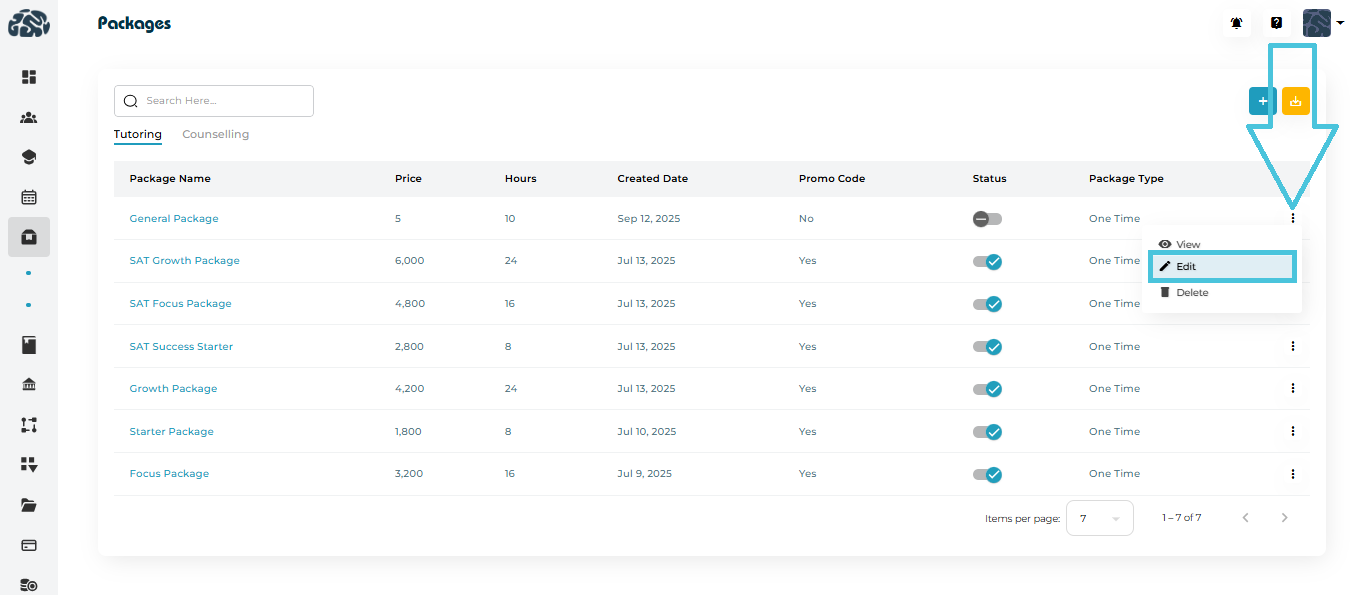
Each tab lists all active packages under that service, showing key details such as price, hours, promo code eligibility, status, and package type (One-Time or Recurring).

2. Creating a New Package

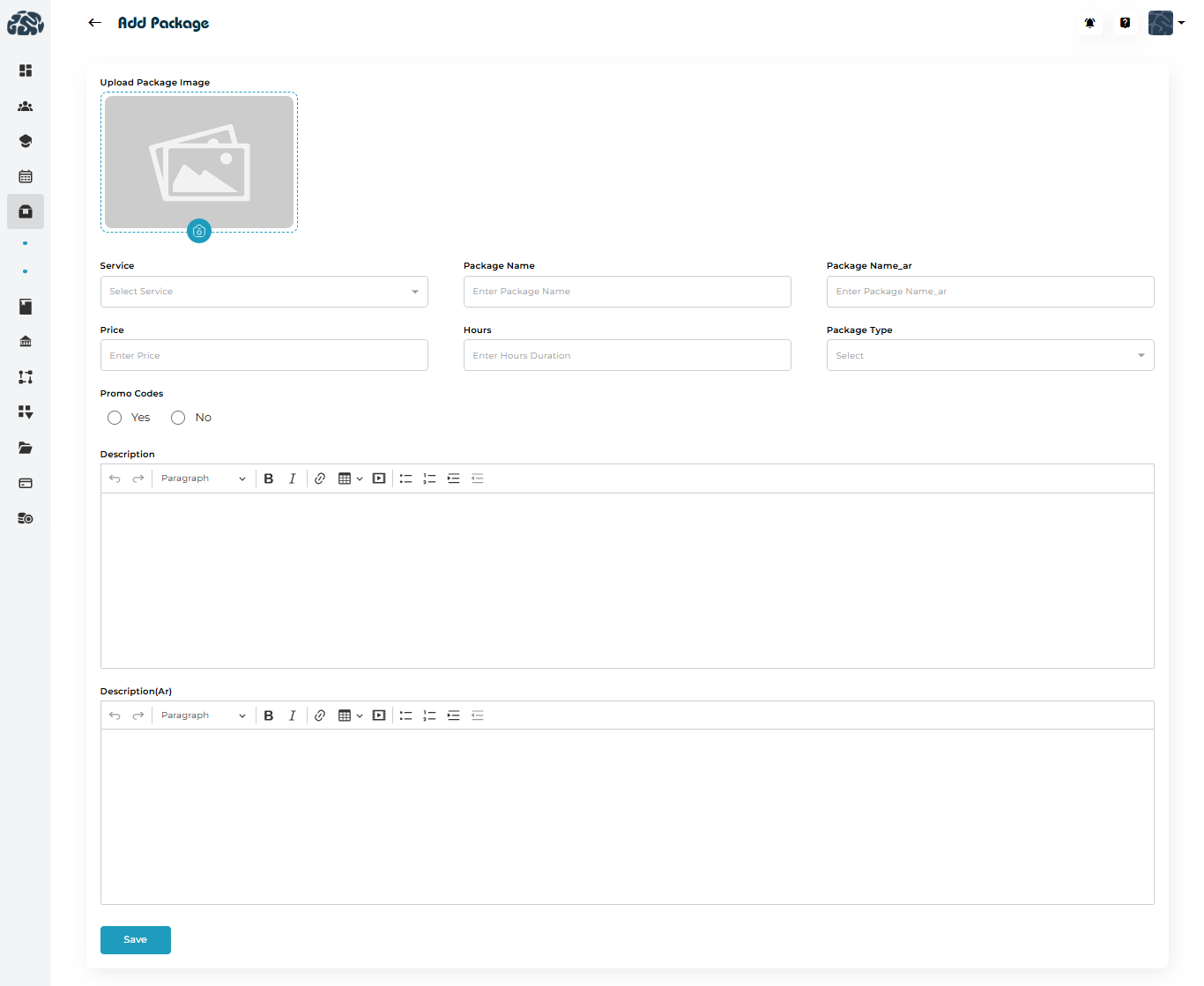
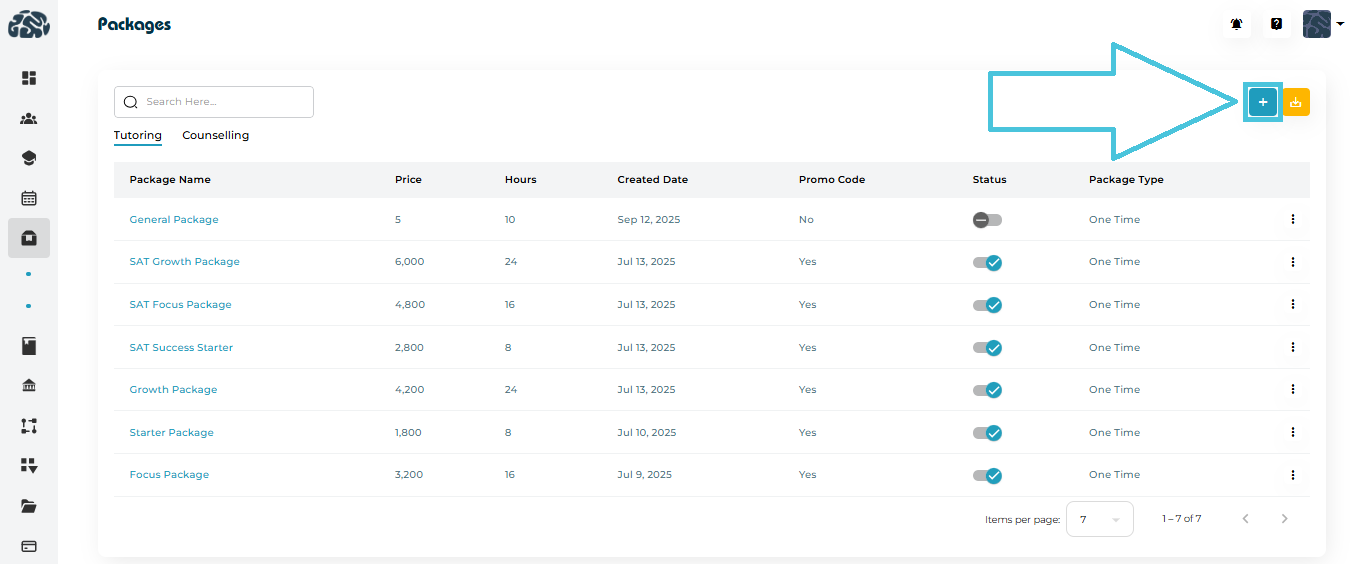
Click the “+” Add Package button to open the package creation form. 

Fields Included When Creating a Package

When adding a new tutoring or counseling package, you will be able to configure:

  • Package Image

  • Service Selection (Tutoring or Counseling)

  • Package Name (EN & AR)

  • Price

  • Hours

  • Package Type (One Time Purchase or Recurring Monthly Package)

  • Promo Code Eligibility (Which Code(s) to be Accepted)

  • Description (EN & AR)

3. Adding Hour Extensions (Optional Add-On)

Once the package is created, admins also have the ability to add options to extend a package by purchasing hourly add-ons.

If enabled, you can define:

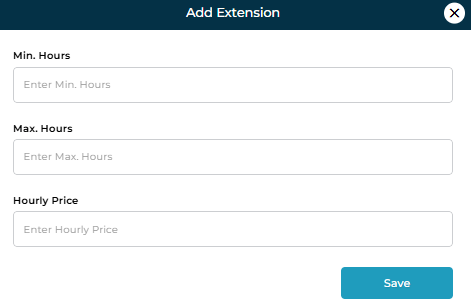
  • Minimum Hours that can be extended

  • Maximum Hours for extentions

  • Hourly Price for the extended hours

This is perfect for students who finish their package but want extra sessions without purchasing a full new package.

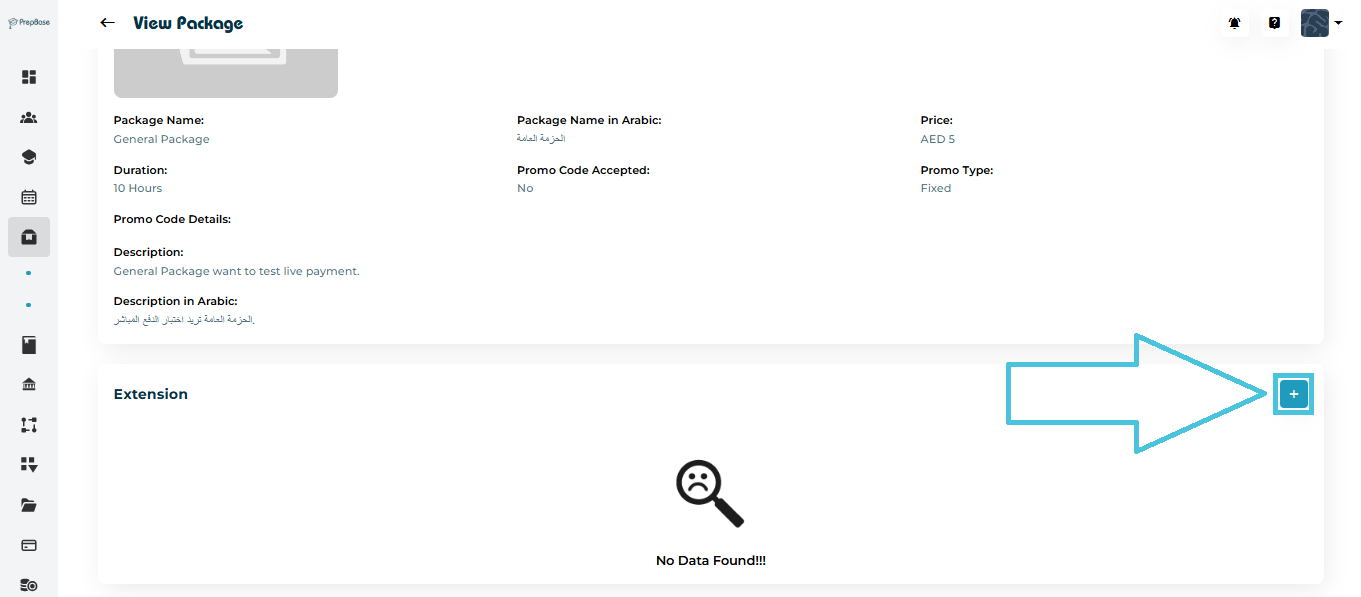
To add an extension:

  1. Open the package.

  2. Scroll to the Extension section.

  3. Click the “+ Add” button.

  4. Enter the extension configuration.

  5. Save.

4. Viewing Package Details

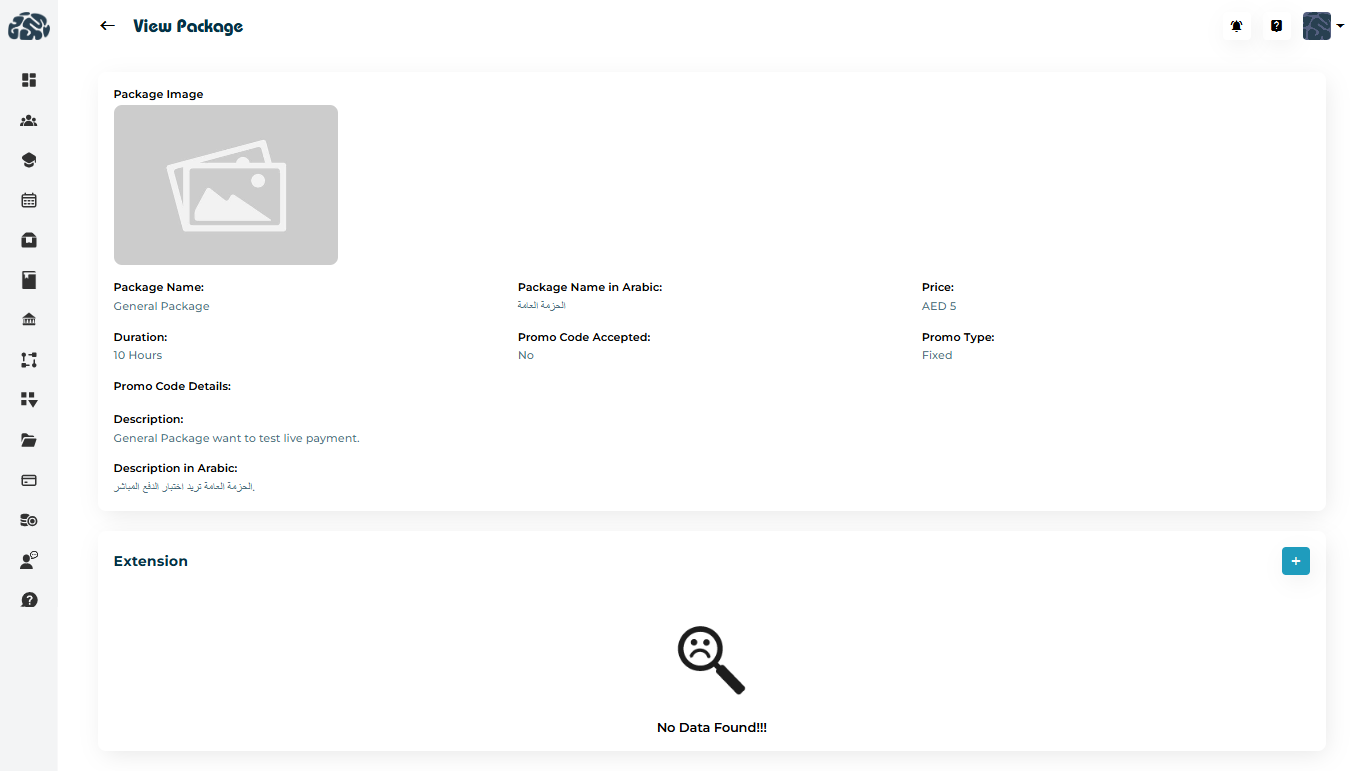
Each package has a detailed view showing: 

  • Package image

  • Name (EN & AR)

  • Duration (total hours)

  • Price

  • Promo code acceptance

  • Package type

  • Full description in all available languages

  • Extension details (if any)

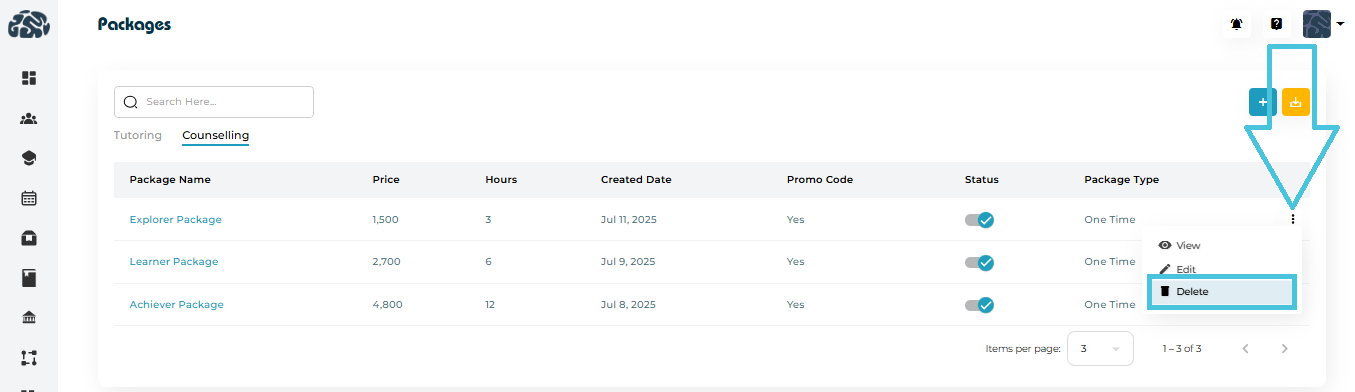
You can access this by selecting “View” from the options menu (three dots).

5. Editing an Existing Package

If you need to update a tutoring or counseling package:

  1. Click the three dots (…) beside the package.

  2. Choose Edit.

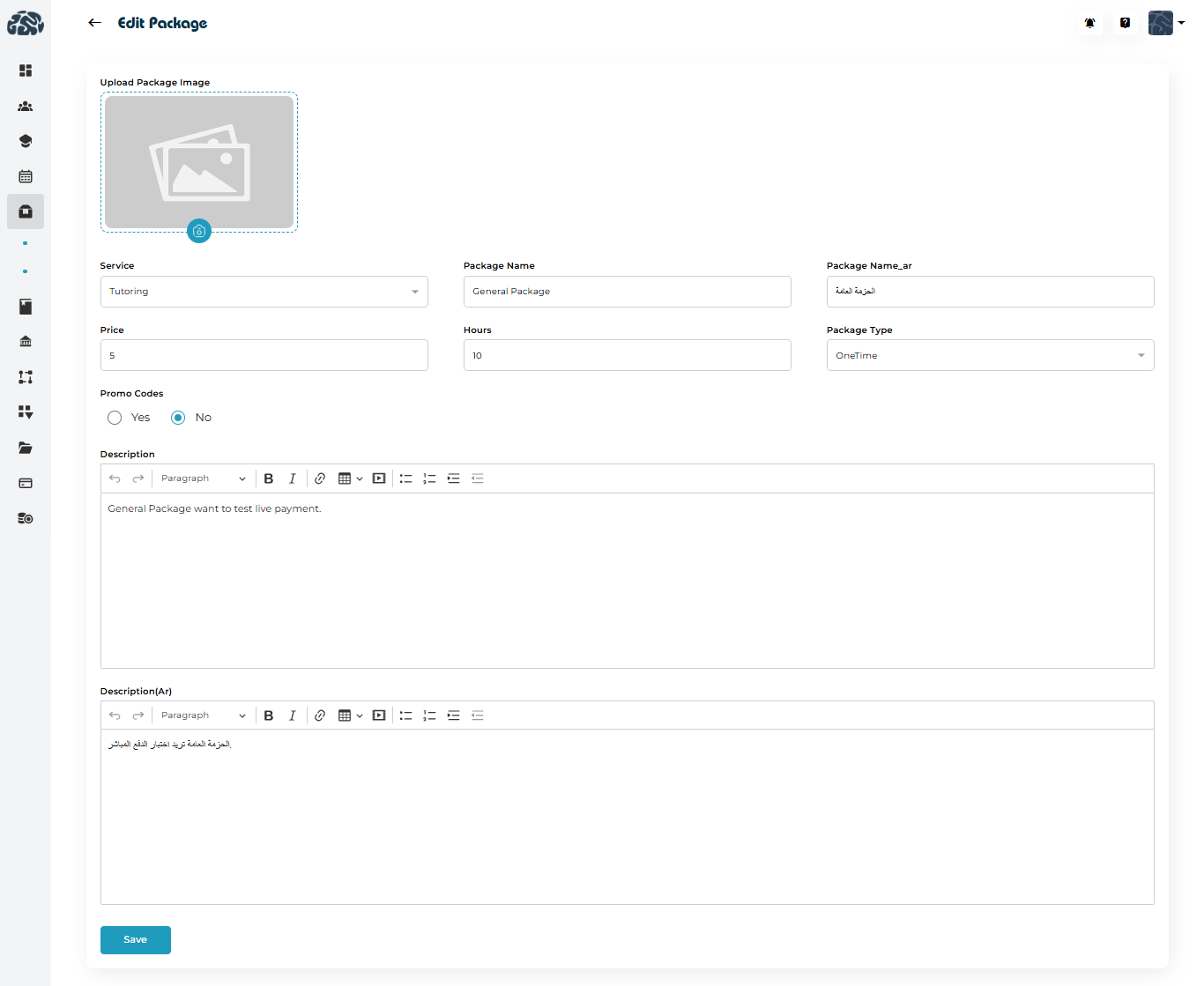
  3. Make your updates:

    • Adjust pricing

    • Update descriptions

    • Change hours

    • Replace the image

    • Enable/disable promo codes

    • Update extension rules

  4. Click Save.

Edits apply immediately to the package listing.

6. Deleting a Package

You may delete outdated or discontinued packages.

To delete:

  1. Select the three dots (…) next to the package.

  2. Click Delete.

  3. Confirm the action.

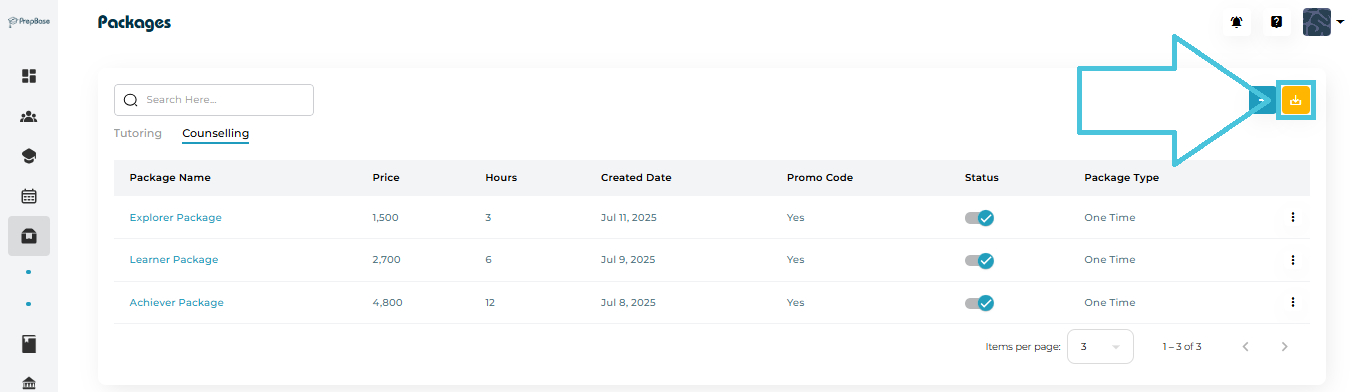
7. Exporting Package Data (CSV Download)

A CSV export button allows admins to download:

  • Tutoring package data

  • Counseling package data

This helps with:

  • Finance reports

  • Sales analytics

  • Inventory of services

  • Operational tracking

One click generates a clean file for offline use.

8. Tutoring vs. Counseling Packages — What’s The Difference?

Although the creation process is identical, tutoring and counseling packages may differ in:

Tutoring Packages
allow students/parents to utilize the hours for tutoring sessions only
Counseling Packages
allow students/parents to utilize hours for counseling sessions only


Both types support:

  • Custom pricing

  • Hour allocation

  • Multilingual descriptions

  • Promo code rules

  • Optional extensions

9. Best Practices

  • Use clear, benefit-driven names
    e.g., Achiever Package, Explorer Counseling Plan, Test Prep Starter Bundle.

  • Add detailed descriptions
    Explain exactly what the student receives.

  • Enable promo codes strategically
    Great for marketing campaigns.

  • Use extensions to upsell additional hours
    Flexible and convenient for students/parents

IN THIS ARTICLE

Creating session report templates

Creating Session Report Templates

Session report templates help standardize how instructors document student progress, session summaries, action plans, and feedback. Instead of writing reports from scratch after every session, instructors can generate consistent, high-quality report templates to be filled out using predefined formats created by the admin team.

This feature is especially valuable for organizations that manage many instructors, work across different programs, or require structured reporting for quality assurance.

1. Why Use Session Report Templates?

A well-designed template ensures:

  • Consistency across all instructors and departments

  • Faster reporting, reducing admin work

  • Structured progress tracking for each student

  • Standardized metrics such as goals achieved, topics covered, next steps, attendance notes, or action items

  • Multilingual reporting (e.g., English + Arabic) if your organization supports multiple languages

Templates can be used for tutoring sessions, workshops, counseling sessions, assessments, mentoring, or any recurring learning activity.

2. Accessing the Templates Module

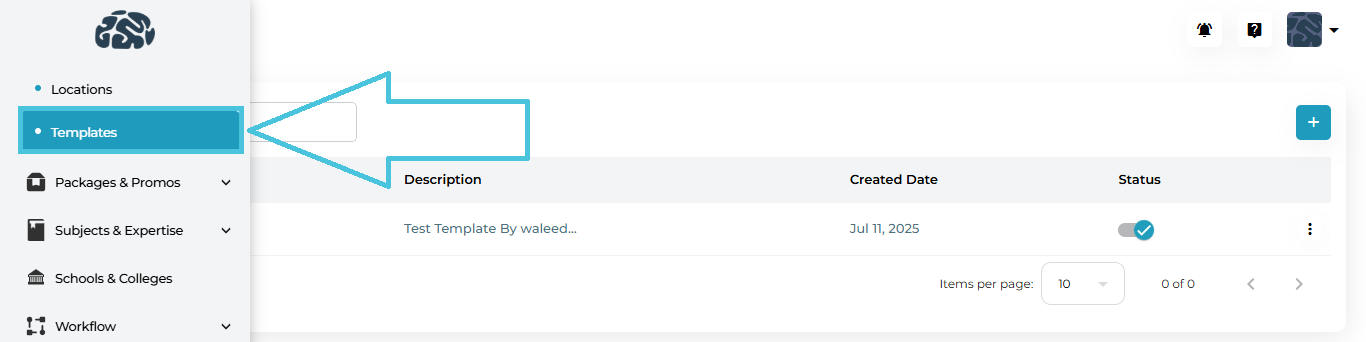
Navigate to:

Calendar & Sessions → Templates

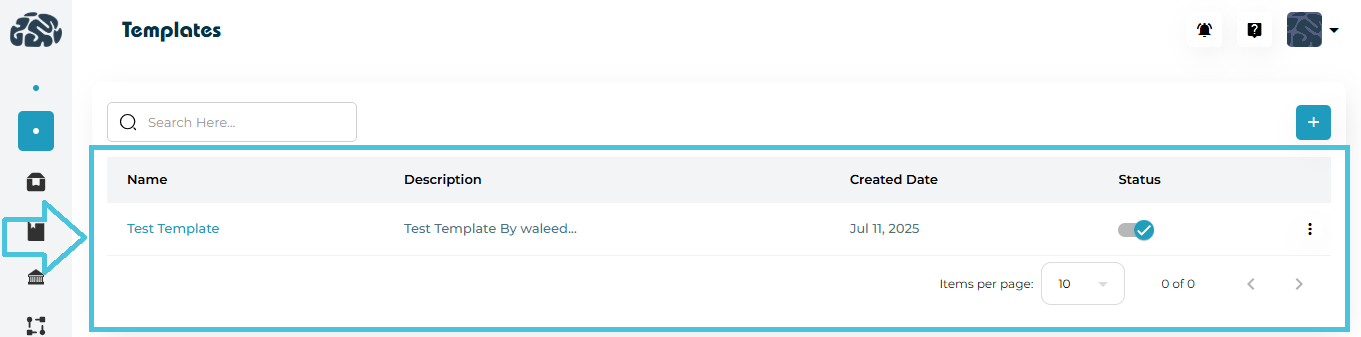
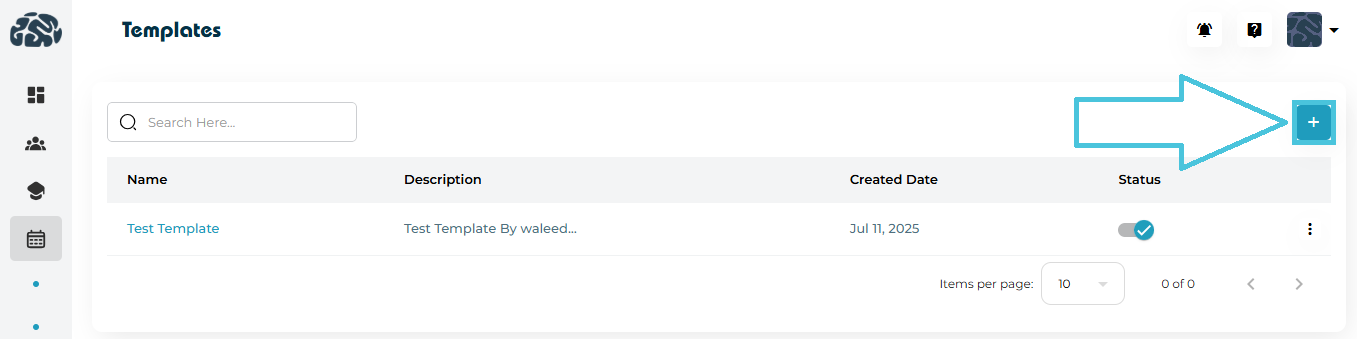
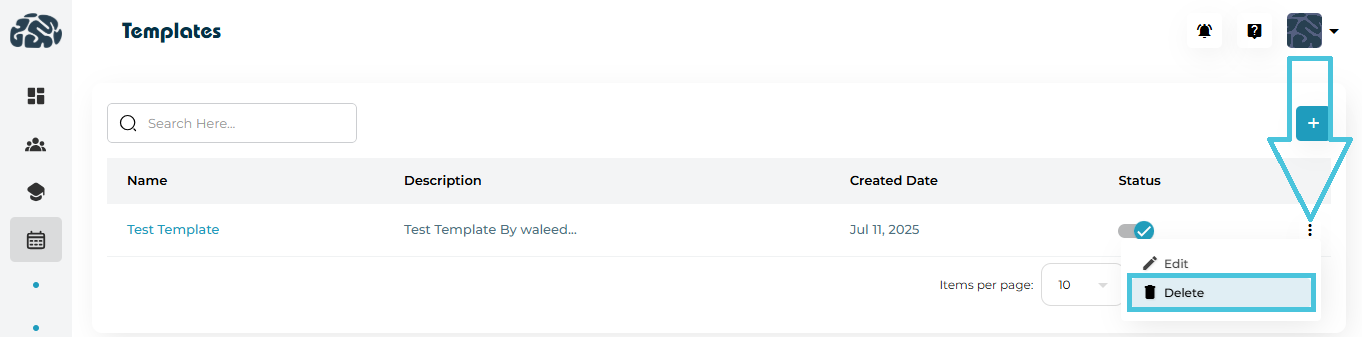
Here, you can view all existing templates, toggle their status, or create new ones.

3. Creating and Managing Session Report Templates

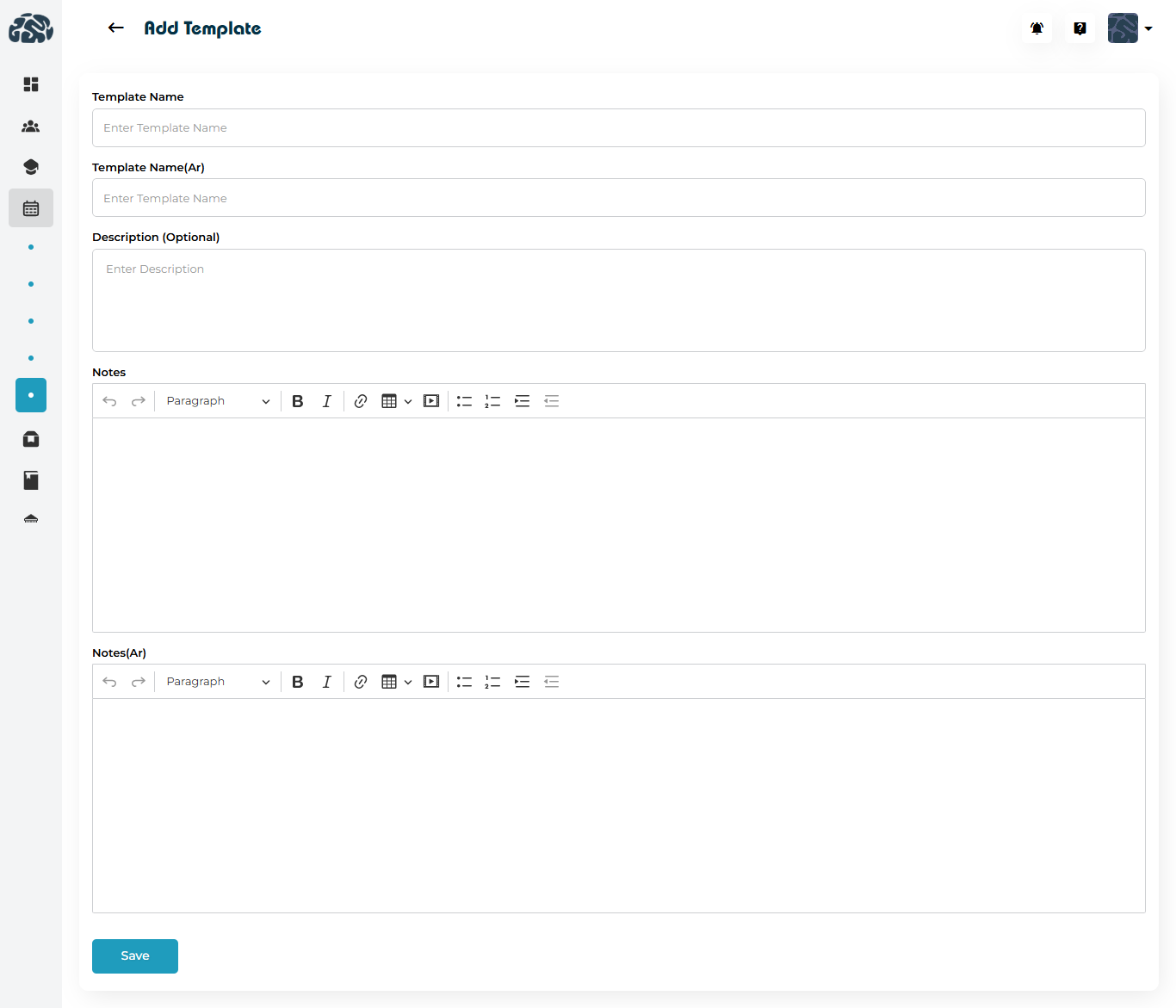
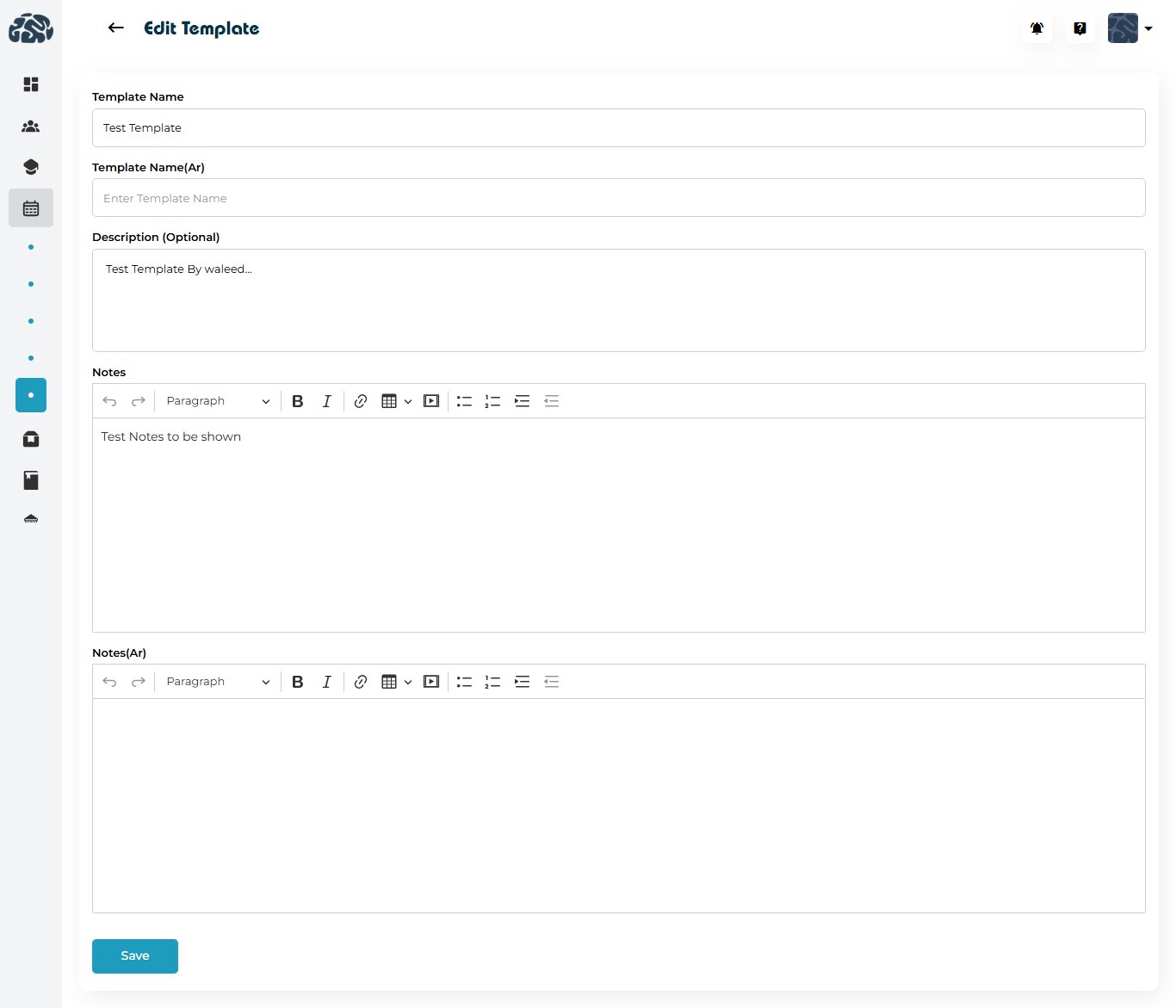
Click the “+” (Add Template) button to open the Template Builder.

You will be able to configure:

Template Name

Give your template a clear, recognizable name such as:

  • “Standard Tutoring Report”

  • “Weekly Counseling Summary”

  • “STEM Workshop Feedback Report”

Template Name (Arabic)

If your organization supports Arabic, add the equivalent name for bilingual reporting.

Description (Optional)

Explain the purpose of the template—for example:
“Used for documenting weekly student engagement and academic progress.”

Notes Section

This is the rich-text area where you build the actual report structure.
You can include:

  • Headings (e.g., Topics Covered, Strengths, Weaknesses, Homework)

  • Checklists

  • Bullet or numbered points

  • Tables for structured data

  • Placeholder lines for instructors to fill in

Example Template Layout:

Notes (Arabic)

Replicate the same structure for Arabic-speaking instructors or clients.

Saving and Managing Templates

After building your template, click Save.

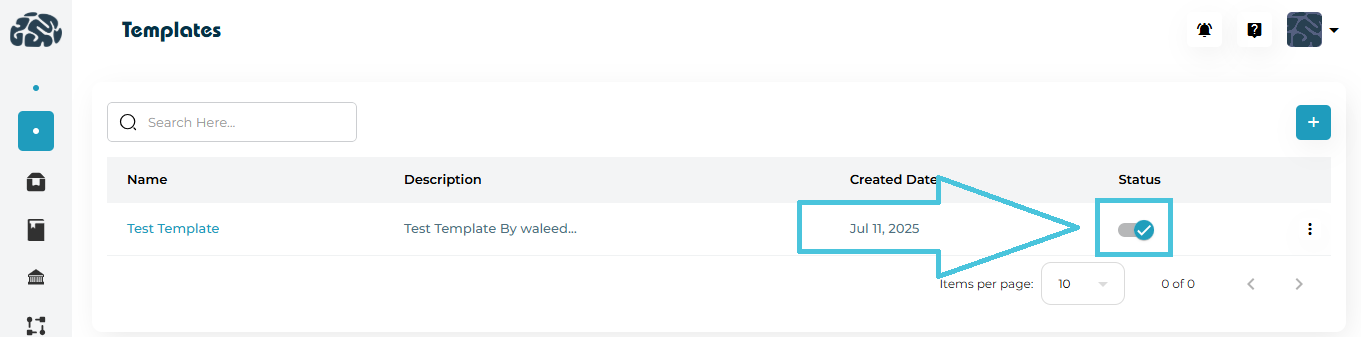
The template will now appear in the list with:

  • Template Name

  • Description

  • Created Date

  • Status Toggle (Active/Inactive)

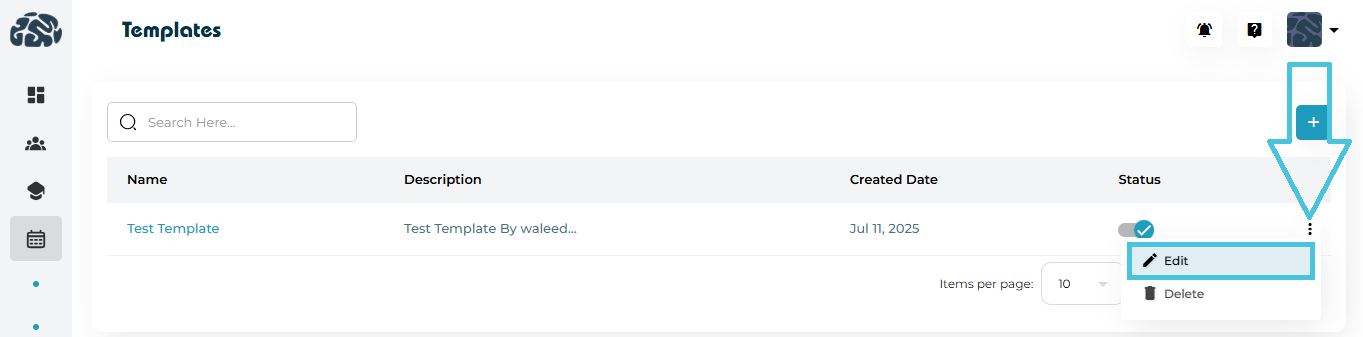
Admins can:

 
Enable / Disable Templates

Deactivate templates that are outdated but keep them stored for reference.

 
Edit Templates

Modify the structure anytime—useful if reporting requirements change.

Delete Templates

Remove templates that are no longer needed.

4. How Templates Are Used

Once active, templates become available to instructors when they open a session’s Action Plan or Report form.

Instructors can:

  • Select a template

  • Auto-populate structured fields

  • Fill in the session-specific details

  • Submit consistent and complete reports in minutes

This ensures all students receive uniform documentation and all departments follow the same reporting standards.

Using Session Report Templates in Action Plans

Session Report Templates are applied directly when creating or editing an Action Plan for a session. This ensures consistency and saves time when recording session outcomes.

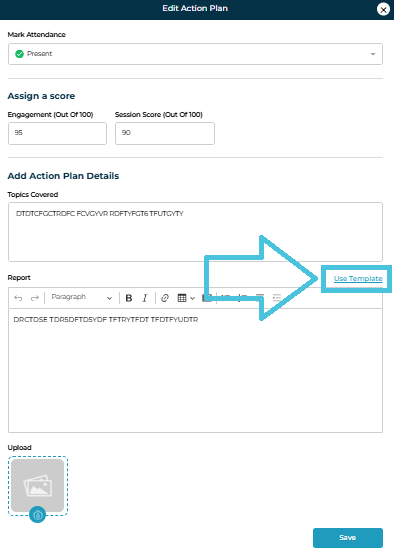
When adding or editing an Action Plan from Calendar & Sessions, the Use Template button appears inside the Report section of the Action Plan form.

Applying a Template to an Action Plan
  1. Open a session from Calendar View or Table View

  2. Click Take Attendance

  3. Under the Action Plan column, click Add or Edit

  4. In the Report editor, click Use Template

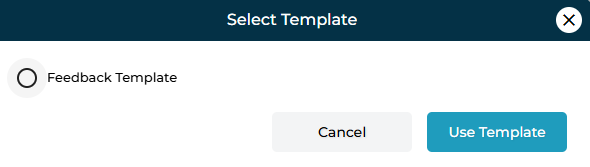
This opens the Select Template window.

Select Template Window

The Select Template window displays all available session report templates that can be applied to the action plan.

Select Template Options
Field / ActionDescription
Template ListDisplays the available session report templates (e.g., Feedback Template).
Template SelectionAllows selecting one template at a time using the radio button.
Use TemplateApplies the selected template and inserts its content into the report editor.
CancelCloses the window without applying any template.
Close (X)Exits the template selection window.

This allows admins and instructors to quickly generate structured session reports without starting from scratch.

IN THIS ARTICLE

Defining session locations

Defining Session Locations

Session locations help organizations clearly identify where a class, tutoring session, workshop, consultation, or event will take place. Whether your operations are completely virtual, fully on-site, or hybrid, setting up accurate locations ensures students, instructors, and administrators always know where a session is happening.

The Locations module within the Calendar & Sessions settings allows Admins to create, edit, or remove session locations that can be linked to different Session Categories while creating them.

1. Why Defining Locations Matters

Clear location setup helps you:

  • Maintain consistent naming across all scheduled sessions.

  • Distinguish between on-site, virtual, and off-site sessions.

  • Improve session reporting and filtering.

  • Help instructors and students quickly identify where they need to be.

  • Support multi-branch or multi-center organizations by listing each physical site.

Locations can represent anything from a training center, a virtual meeting space, a school campus, a student’s home, or even special event venues.

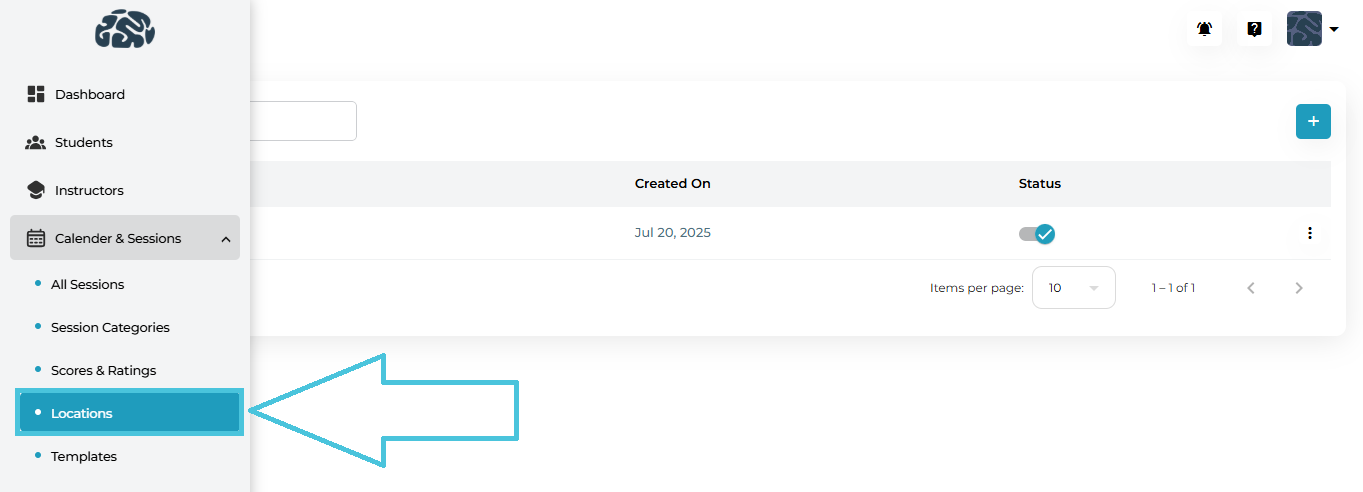
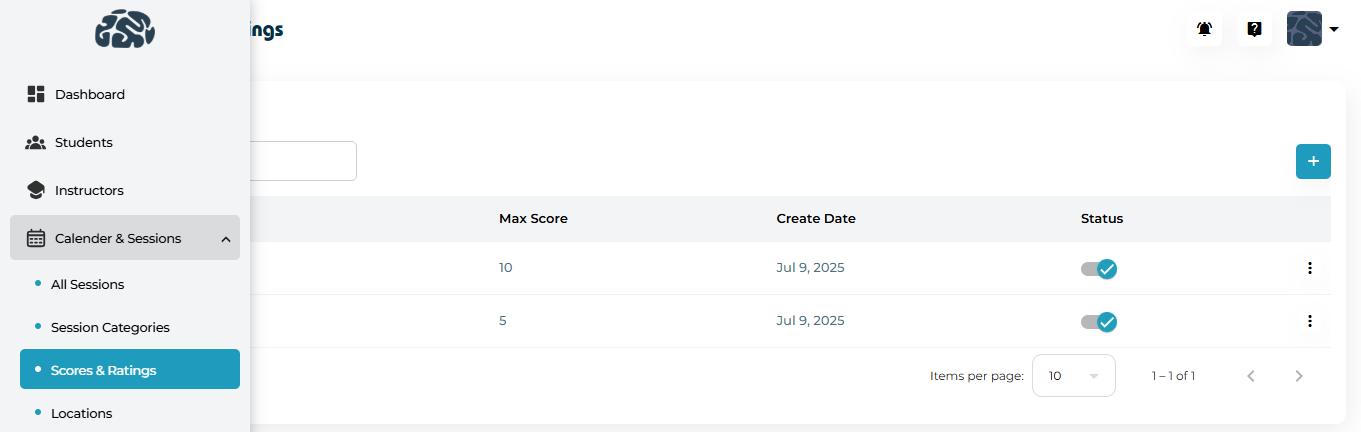
2. Navigating to Locations

  1. Go to Calendar & Sessions from the left navigation panel.

  2. Click Locations.

3. Adding a New Session Location

Administrators can create new session locations to match organizational needs.

How to Add a Location

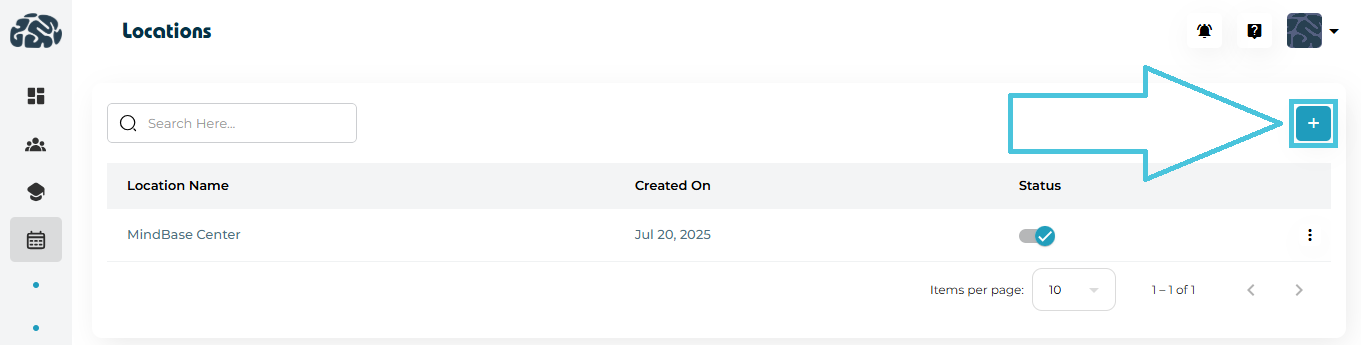
  1. Go to Calendar & Sessions → Locations.

  2. Click the Add Location (+) button.

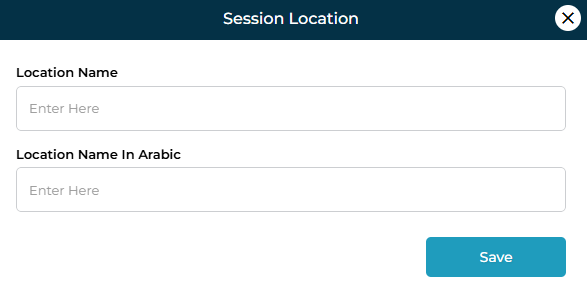
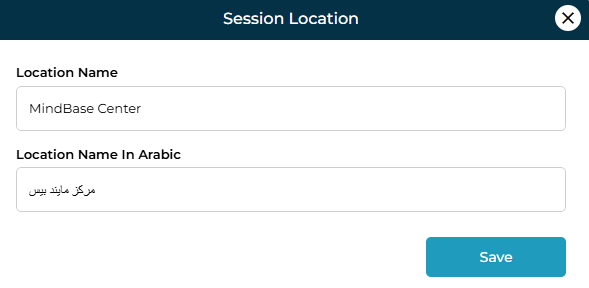
  3. Fill in the required details:

    • Location Name (English)

    • Location Name in Arabic (optional for bilingual setups)

  4. Click Save.

Examples of Locations You Might Add
  • Main Training Center

  • Dubai Academic Campus

  • Student Home Visit

  • Virtual Meeting (Zoom, Google Meet, Teams)

  • Conference Room A

  • Library Study Hall

By defining these once, instructors can select them easily during session scheduling, preventing errors and inconsistencies.

4. Editing an Existing Location

If a location name changes or needs updating:

Steps to Edit

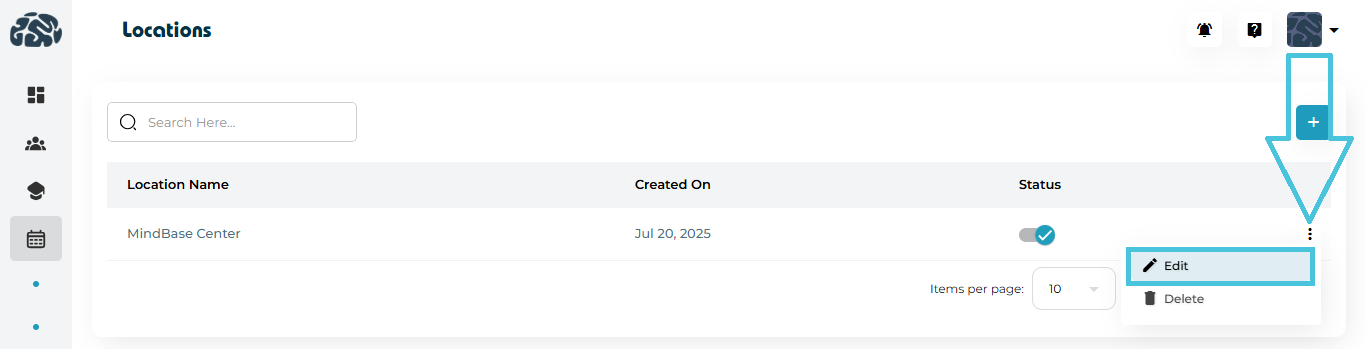
  1. Open Calendar & Sessions → Locations.

  2. Click the three-dot menu next to the location.

  3. Select Edit.

  4. Update the English or Arabic name as needed.

  5. Click Save.

Use Case Example
  • Rebranding “MindBase Center” to “PrepBase Learning Hub”.

  • Updating “Virtual Meeting” to include a specific platform name.

  • Refining location names for clarity (e.g., “Room 12B – Math Lab”).

5. Deleting a Location

Locations can be removed if they are no longer in use.

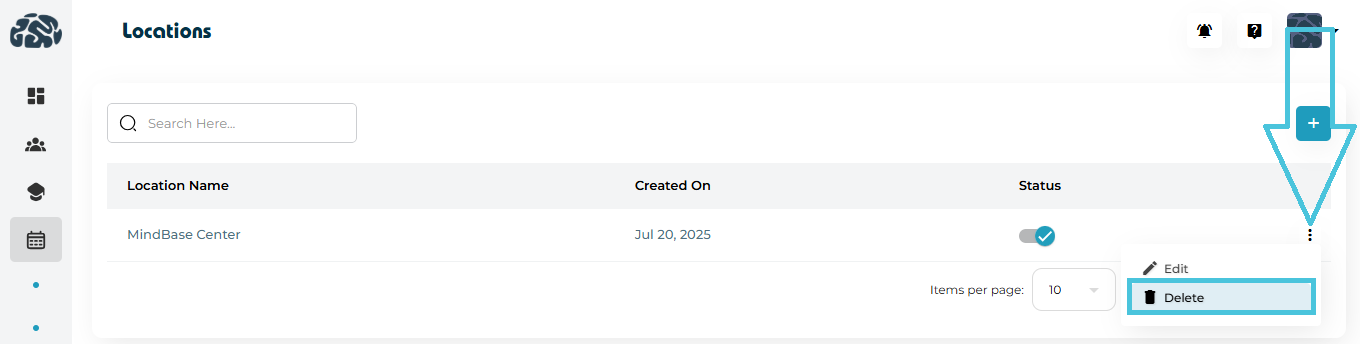
How to Delete
  1. Navigate to the Locations list.

  2. Click the options menu (⋮) on the right of the location.

  3. Choose Delete.

  4. Confirm the action.

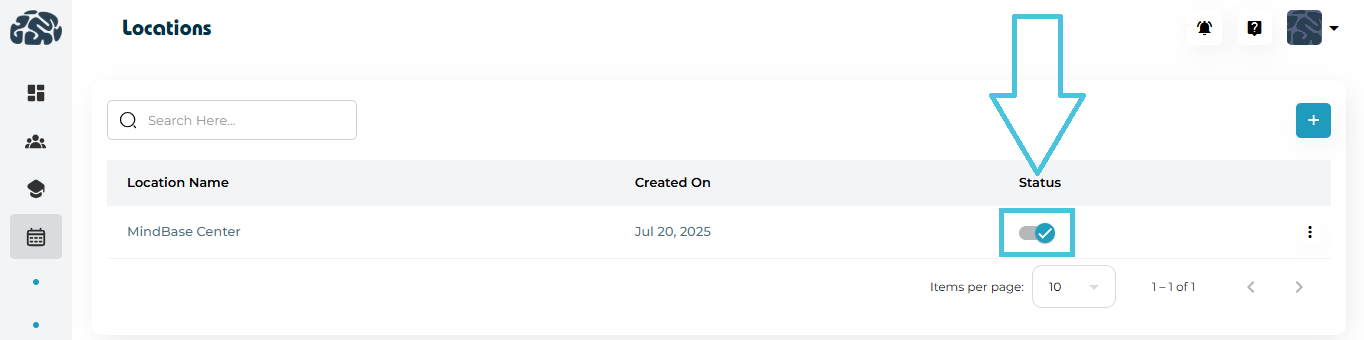
6. Activating or Deactivating Locations

Each location includes a status toggle that allows Admins to control availability without deleting the record.

Why Use Status Controls?
  • Temporarily disable locations during renovations or closures.

  • Hide locations not yet ready for use.

  • Prevent instructors from selecting outdated or inactive sites.

Locations marked as inactive will not appear in the session scheduling dropdowns.

7. How Locations Integrate With the Scheduling System

Once defined, locations automatically appear across all relevant modules:

  • Session Categories creation

  • Creating or editing a session

  • Calendar views (daily, weekly, monthly)

  • Filtering sessions by location

  • Reports related to center usage or instructor load

This ensures operations run smoothly and consistently.

IN THIS ARTICLE

Configuring student performance ratings

Configuring Student Performance Ratings

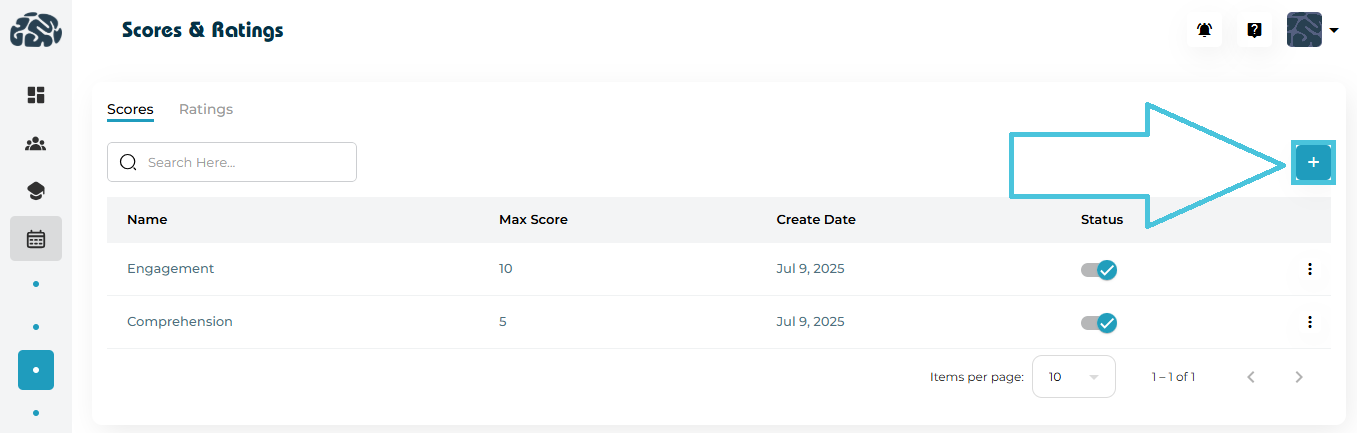
Student performance evaluation is a key component of academic tracking and quality assurance. The Scores & Ratings feature within the Calendar & Sessions module allows each organization to design its own customized evaluation framework, based entirely on its academic model, instructional methods, and reporting preferences.

Whether you measure participation, comprehension, skill mastery, discipline, or any other aspect of student performance, this module provides complete flexibility. It allows admins to create different scoring and rating items that can be linked to different Session Categories.

1. What Are “Scores” and “Ratings”?

To support diverse learning environments, the system divides performance evaluation into two configurable components:

Scores (Numeric Evaluation Fields)

Scores are quantitative performance metrics to evaluate student sessions. These allow instructors to assign a numerical value to specific behaviors or learning outcomes while they are completing the action plan for any session.

Examples (these vary by organization)
  • Engagement — scored on a scale, e.g., out of 10

  • Comprehension — scored out of 5

  • Problem-Solving — scored out of 3

  • Class Participation — scored out of 10

These are just examples; each institution decides which skills or competencies they want to assess and what maximum score should be assigned and then link these to the different session categories they are creating.

 
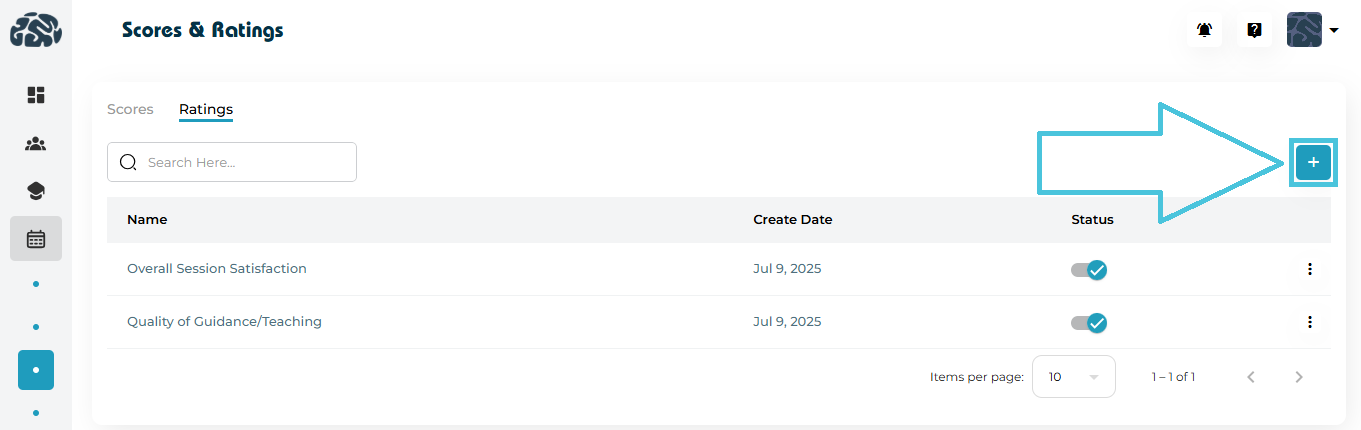
Ratings (Non-Numeric Qualitative Feedback)

Ratings capture qualitative impressions that may not require a numeric score where students can rate the instructor delivering a particular session. These fields allow students to record subjective or descriptive evaluations.

Examples (organization-specific)
  • Overall Session Satisfaction

  • Quality of Guidance/Teaching

  • Confidence Level

  • Preparedness

Again, these are fully customizable depending on the organization’s needs.

2. Navigating to Performance Configuration

Go to:

Calendar & Sessions → Scores & Ratings

You’ll see two sections: Scores and Ratings, each with tools for adding, editing, activating, and deleting fields.

3. Adding New Score Fields

 
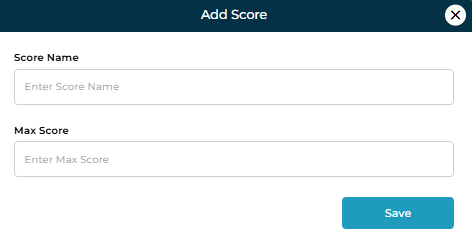
To Add a Score (Numeric Field):

  1. Click the Add button.

  2. Enter a Score Name (e.g., Problem-Solving).

  3. Set a maximum score.

  4. Save to activate it for instructors.

 
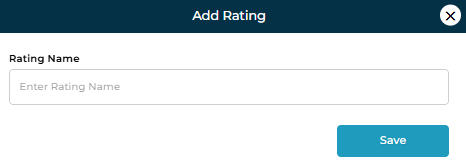
To Add a Rating (Qualitative Field):

Navigate to the Ratings subtab
 

  1. Click the Add button.

  2. Enter a Rating Name (e.g., Quality of Teaching).

  3. Save to make it available immediately.

This flexibility allows each organization to build its own evaluation rubric.

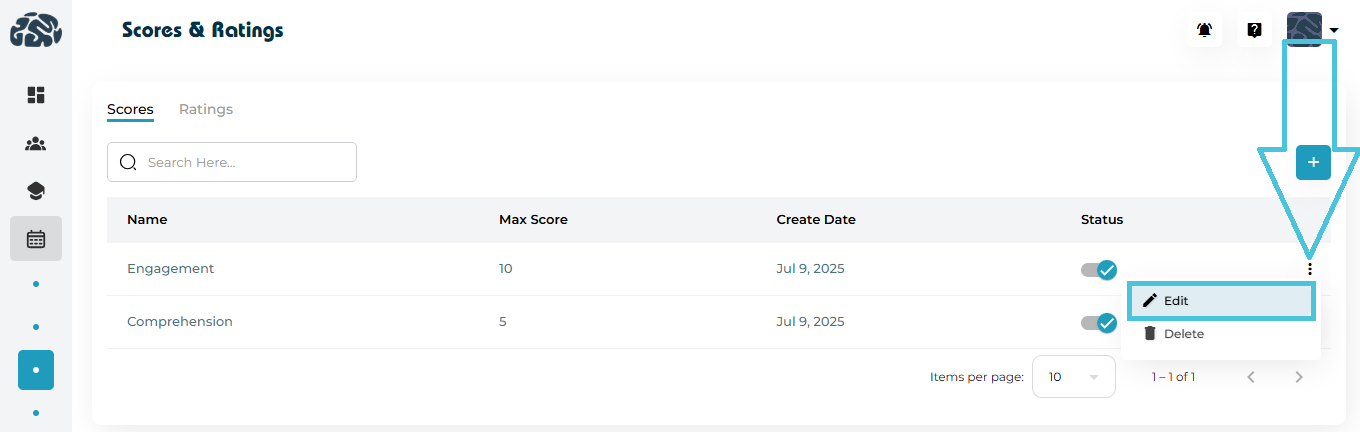
4. Editing or Updating Fields

Scores and Ratings can be updated to reflect new academic strategies, curriculum changes, or reporting needs.

You can modify:

  • Field name

  • Scoring scale (for numeric fields)

  • Visibility (activate/deactivate without deleting)

Updating fields ensures the evaluation system remains aligned with instructional goals.

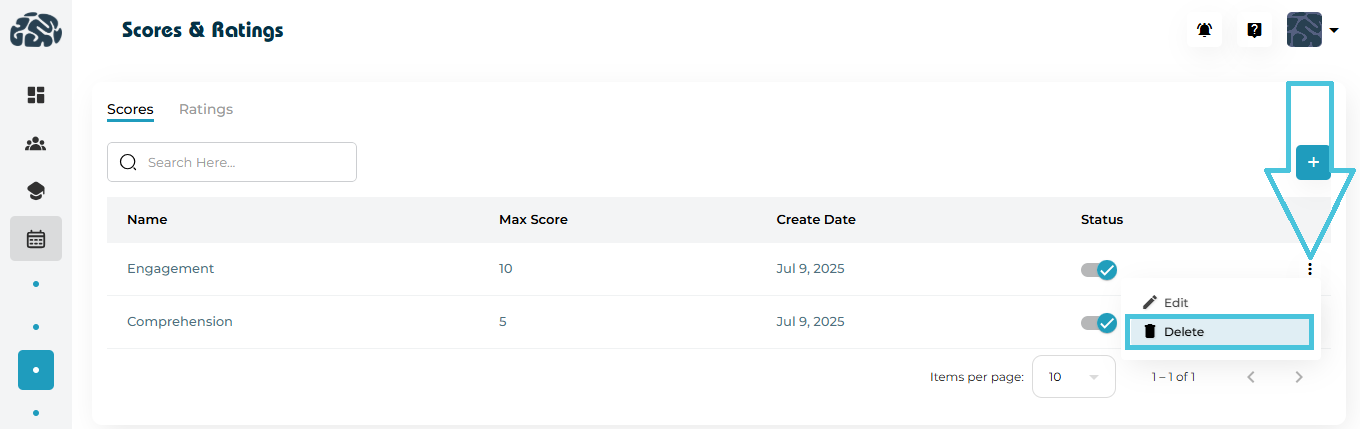
5. Removing Unused Evaluation Criteria

If a metric is no longer needed:

  • Use the Delete option to remove it permanently,
    or

  • Use the Status toggle to temporarily deactivate it.

Organizations often disable seasonal or program-specific fields instead of deleting them.

6. Best Practices for Creating an Effective Scoring & Rating System

  • Use consistent scoring scales to avoid confusion.

  • Match evaluation categories to your teaching style—e.g., skill-based, behavioral, or outcome-based.

  • Separate numeric and descriptive metrics to get a full picture of student performance.

  • Start simple, then expand as reporting needs grow.

  • Review performance fields periodically to keep them relevant.

IN THIS ARTICLE

Defining different session Categories

Defining Different Session categories

Session Categories allow you to define the purpose and customization of every session conducted on PrepBase. By creating customized session categories, such as In-Home Sessions, Online Sessions, Workshops, Group Sessions, or Consultations, Admins can standardize how sessions behave across the platform, including:

  • The location of the session category if applicable

  • The location type of the session based on predefined settings such as the student address or a virtual meetings link
  • Supported reminder types (email/SMS)

  • Visibility rules for Students, Tutors, and Counselors

  • Scoring & rating fields

  • Optional buffer times between sessions

This article explains how to view, create, edit, and manage session Categories using the Admin Portal.

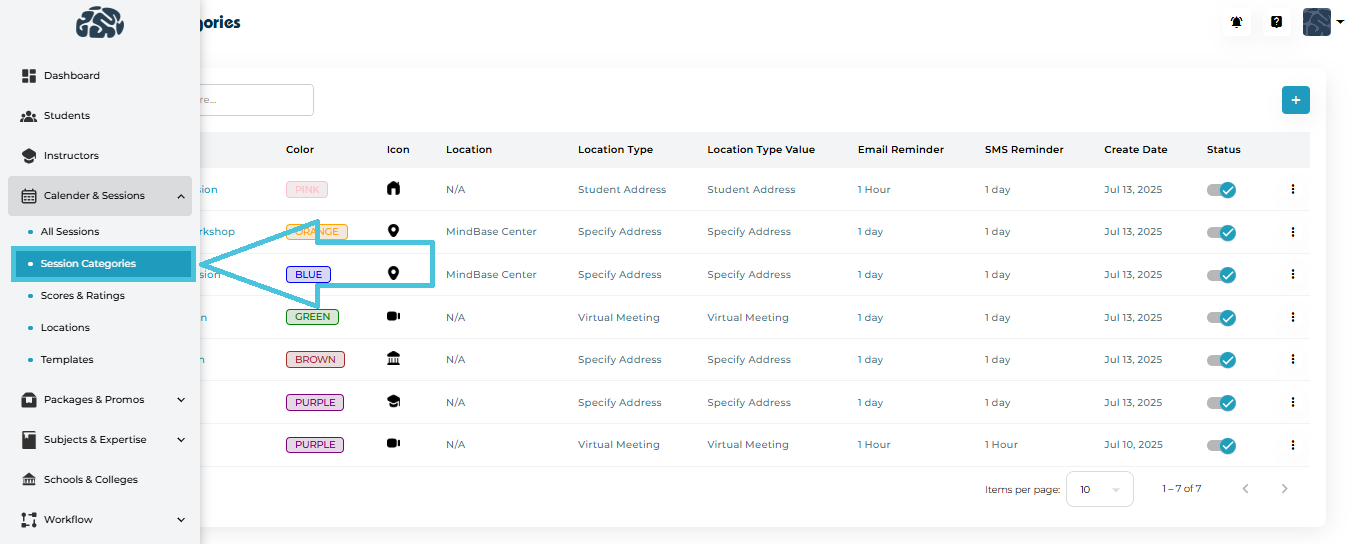
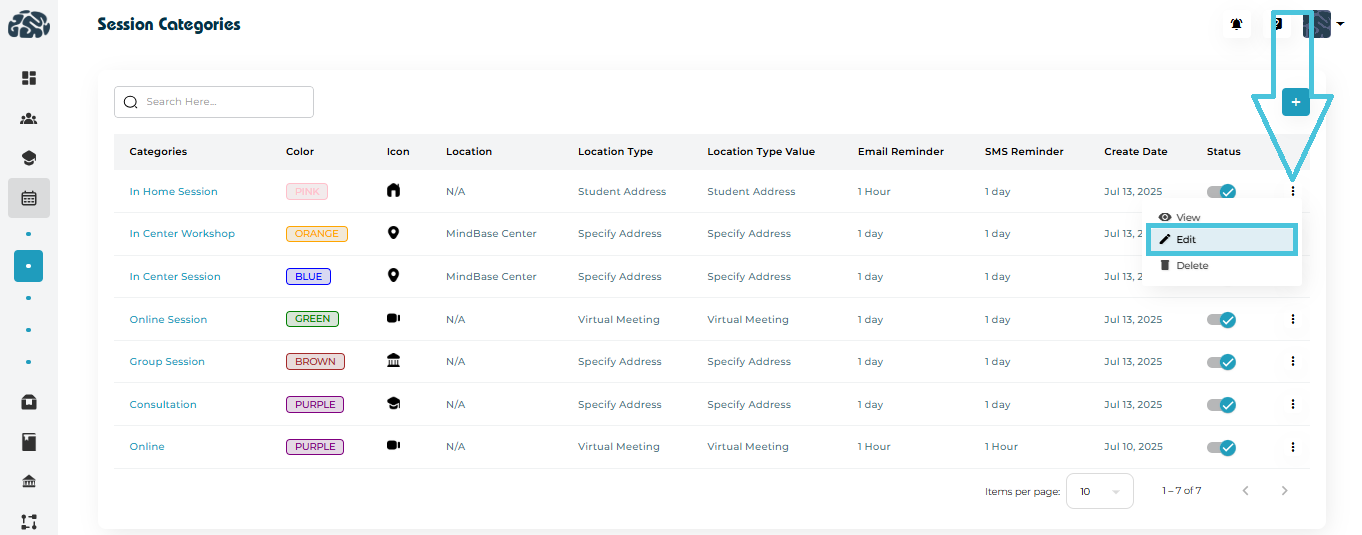
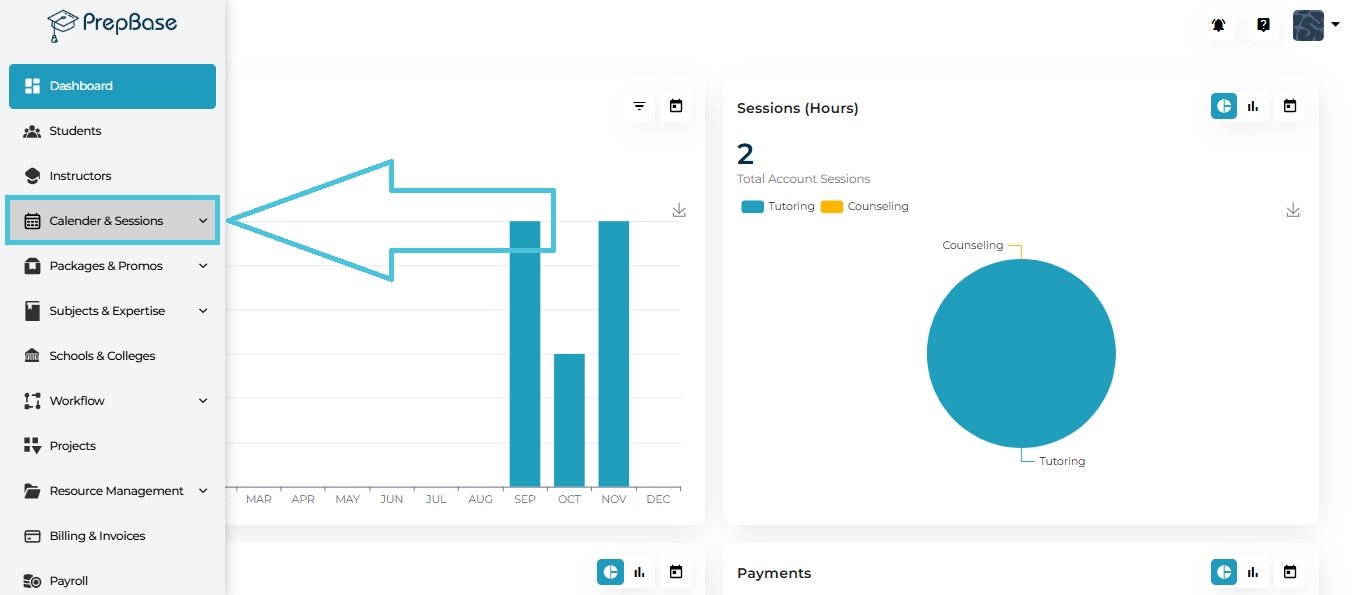
1. Navigating to Session Categories

To manage session Categories:

  1. Go to Calendar & Sessions from the left navigation panel.

  2. Click Session Categories.

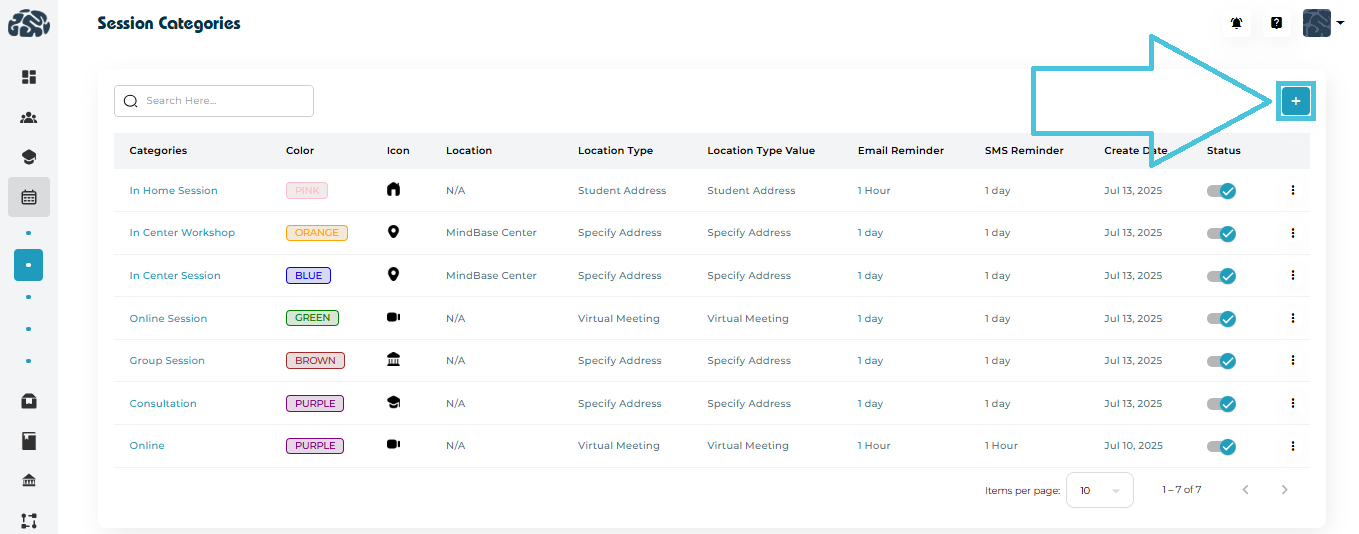
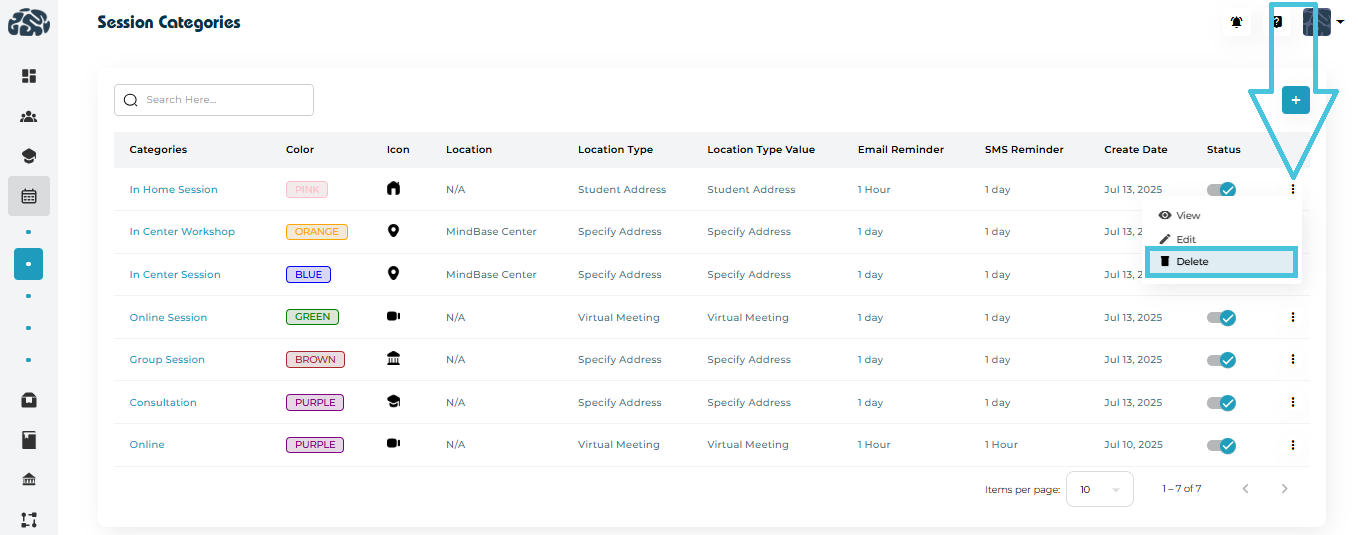
You will see a complete list of existing session categories, including:

  • Category Name

  • Color Tag

  • Icon

  • Location
  • Location Type and Value (e.g., Student Address, Custom Address, Virtual Meeting)

  • Reminder Settings

  • Created Date

  • Status Toggle

Each row includes a three-dot menu for viewing, editing, or deleting.


2. Adding a New Session Category

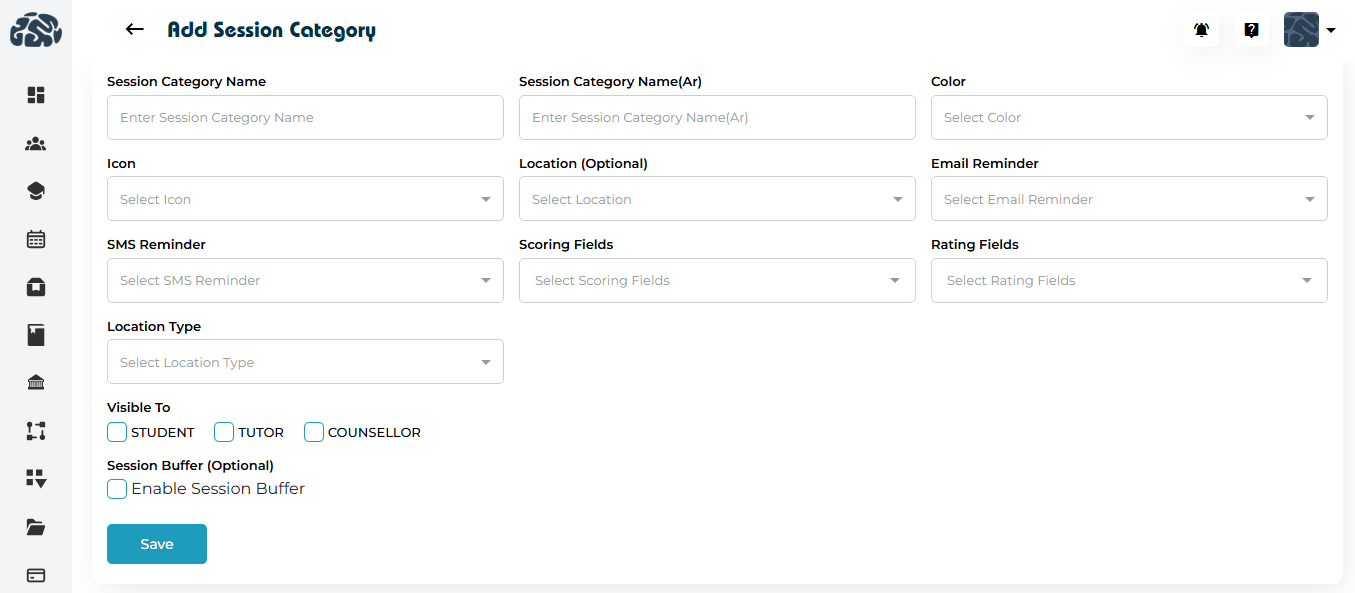
Click the “+” Add Session Category button at the top-right.

You will be taken to the Add Session Category form.
Fields Included in the Form
FieldDescription
Session Category NameDisplay name used across the system.
Session Category Name (Arabic)Optional Arabic label.
ColorColor badge used in calendars and listings.
IconVisual identifier (e.g., home, map pin, video icon).
Location (Optional)Predefined location if session always occurs in a specific place. This can be defined from the Locations subtab under the Calendar & Sessions main tab in the admin panel.
Email ReminderHow long before the session an email should be sent.
SMS ReminderHow long before the session an SMS should be sent..
Scoring FieldsMetrics the instructor will fill while completing the Action Plans for this session category (e.g., Engagement, Comprehension). This can be defined from the Scores & Ratings subtab under the Calendar & Sessions main tab in the admin panel.
Rating FieldsFields the student may rate for this sessions category (e.g., Session Satisfaction, Guidance Quality). This can be defined from the Scores & Ratings subtab under the Calendar & Sessions main tab in the admin panel.
Location TypeAutomatically populates the selected address value for this session category: No Address, Student Address, Specify Address, MindBase Center, Virtual Meeting. If the virtual meeting option is selected and a virtual meetings is added to the instructor profile then this will automatically populate on the scheduled sessions for the corresponding sessions category.
Visible ToSelect whether the category is visible to Students, Tutors, and/or Counselors.
Session Buffer (Optional)Adds a mandatory buffer time before and after sessions of this category to allow for travel time for example. This buffer time can be defined from the main Settings tab in the admin panel under the Policies subtab.


After completing all fields, click Save.

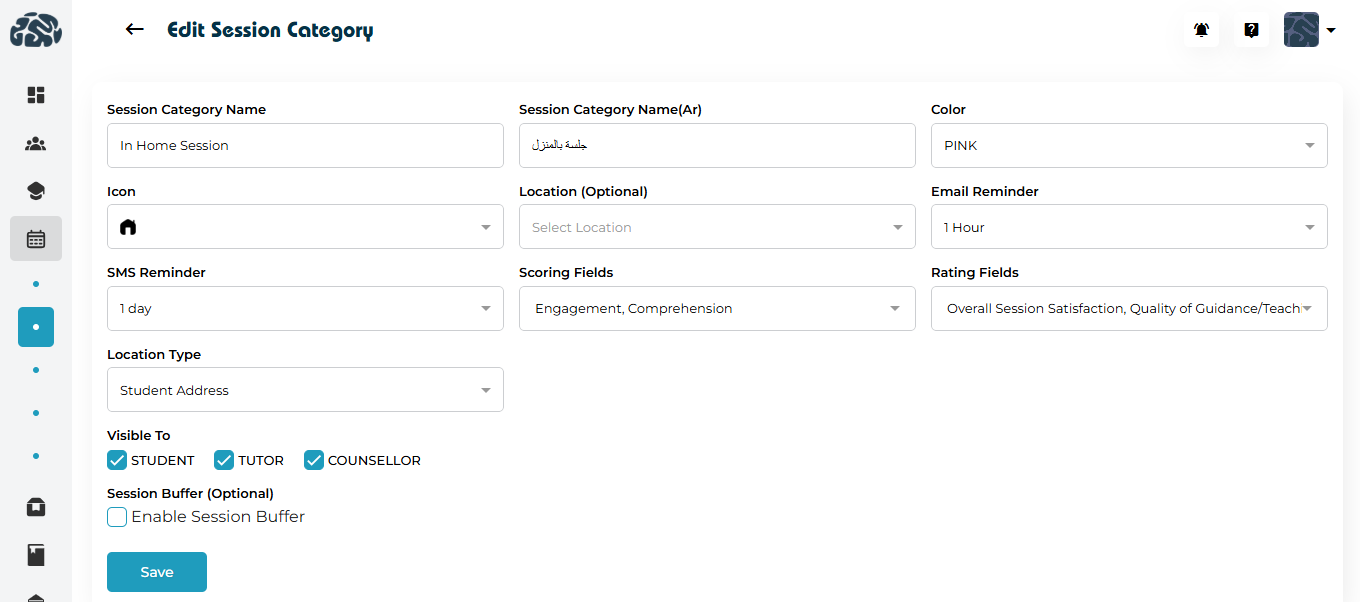
3. Editing an Existing Session Category

To update a session category:

  1. Click the three-dot menu beside the session category.

  2. Select Edit.


You will be redirected to the Edit page where all fields can be modified, including:

  • Session Category Name / Session Category Name(Ar)

  • Color

  • Icon
  • Location (optional)

  • Email Reminder
  • SMS Reminder

  • Scoring & rating fields

  • Location Type
  • Visibility

  • Session Buffer (optional)

Click Save to update the session category.

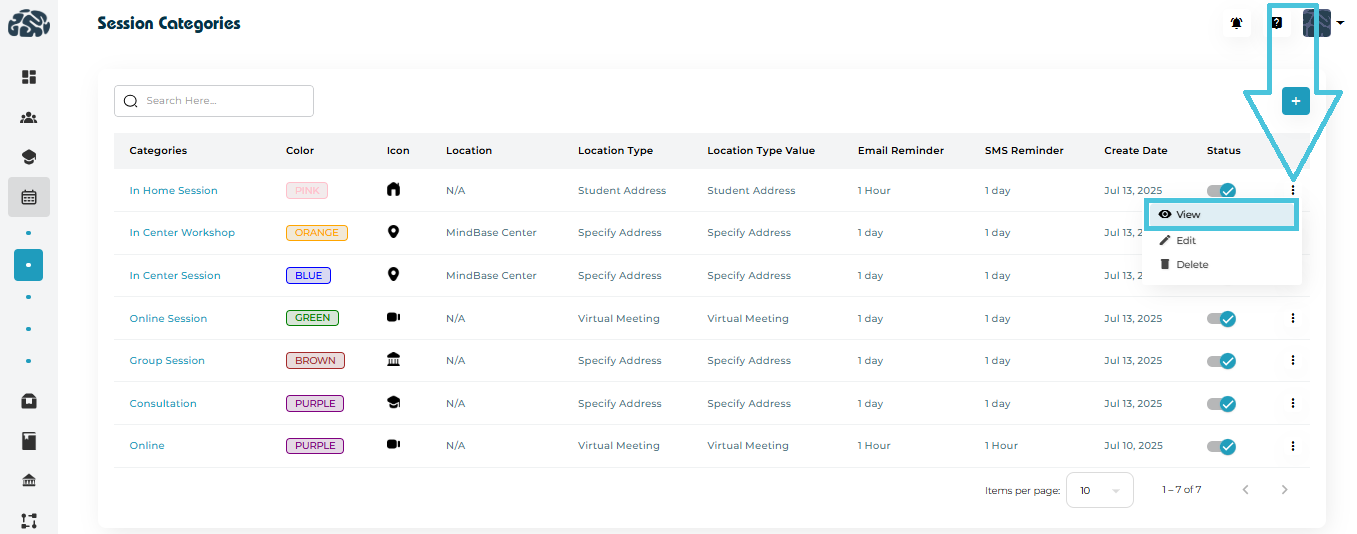
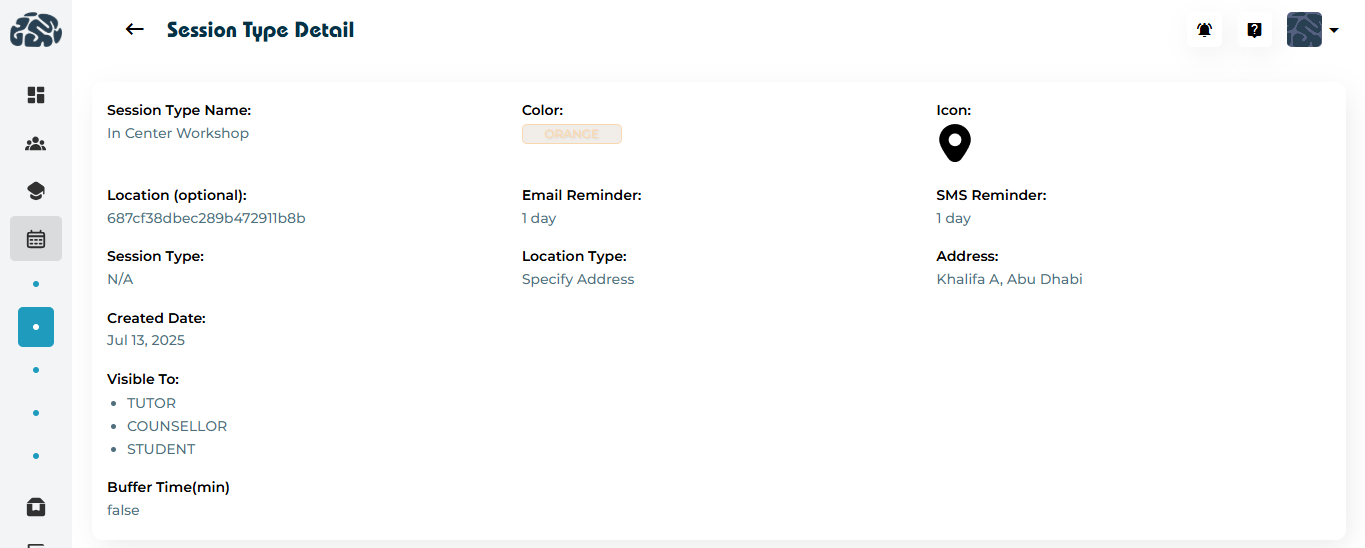
4. Viewing Session Category Details

To inspect details of a session category:

  1. Click the name of the category or three-dot menu.

  2. Select View.


This page displays:
  • Session Type Name

  • Color

  • Icon
  • Location(optional)

  • Email Reminder
  • SMS Reminder

  • Session Type
  • Location Type

  • Address

  • Created date

  • Visible to (roles)

  • Buffer time

This is a read-only view helpful for quick verification.

5. Deleting a Session Category

If a session Category is no longer required:

  1. Open the three-dot menu beside it.

  2. Select Delete.

6. Using Session Categories Across the Platform

Once created, session categories will be available in:

  • Session creation forms

  • Instructor calendar scheduling

  • Student and Tutor action plans

  • Reports & analytics

  • Session filtering options in the Calendar view

Consistent session definitions ensure:

  • Accurate scheduling
  • Automated reminders
  • Standardized reporting
  • Improved user experience for students and tutors

IN THIS ARTICLE

Creating and Managing Sessions

Creating and Managing Sessions

The Calendar & Sessions module provides administrators with the ability to create new sessions as well as a complete overview of all scheduled sessions, events, and instructor-student meetings happening across your organization. This area is designed to help you quickly track session timelines, review event details, apply advanced filters, and switch between multiple calendar layouts for better scheduling visibility.

This guide explains how to create new sessions and view pending, upcoming, completed, and cancelled sessions, along with how to open full session details and navigate calendar views.

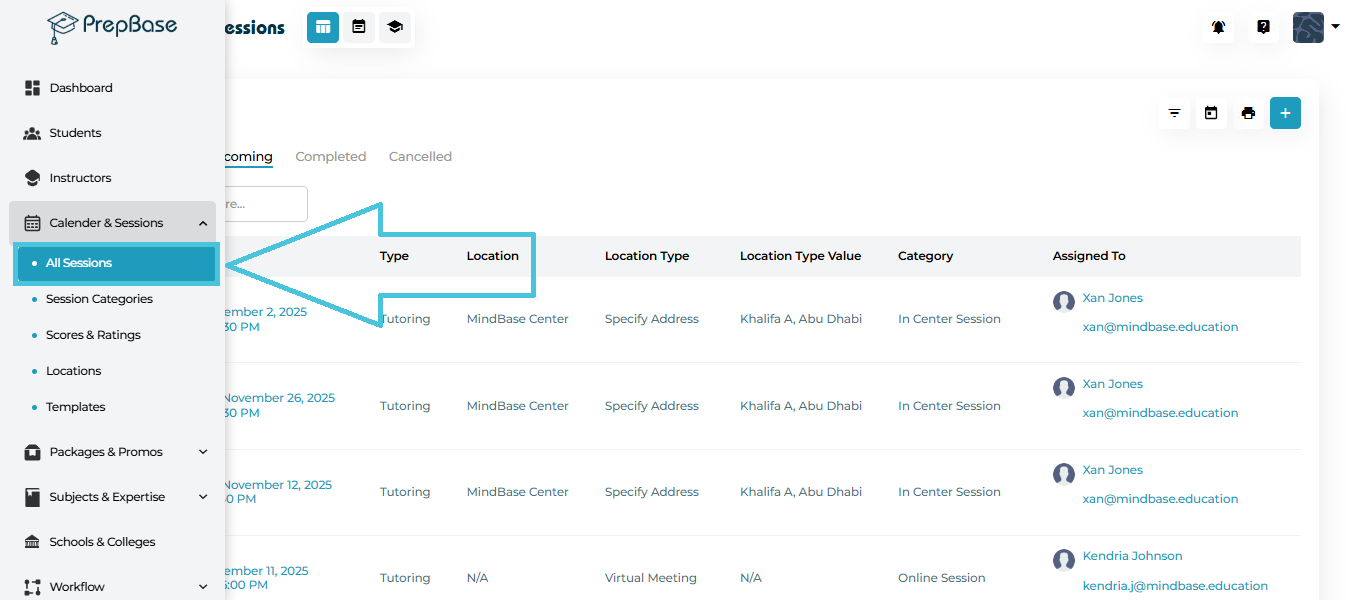
1. Accessing Scheduled Sessions & Events

To open the schedule:


Left Menu → Calendar & Sessions → All Sessions

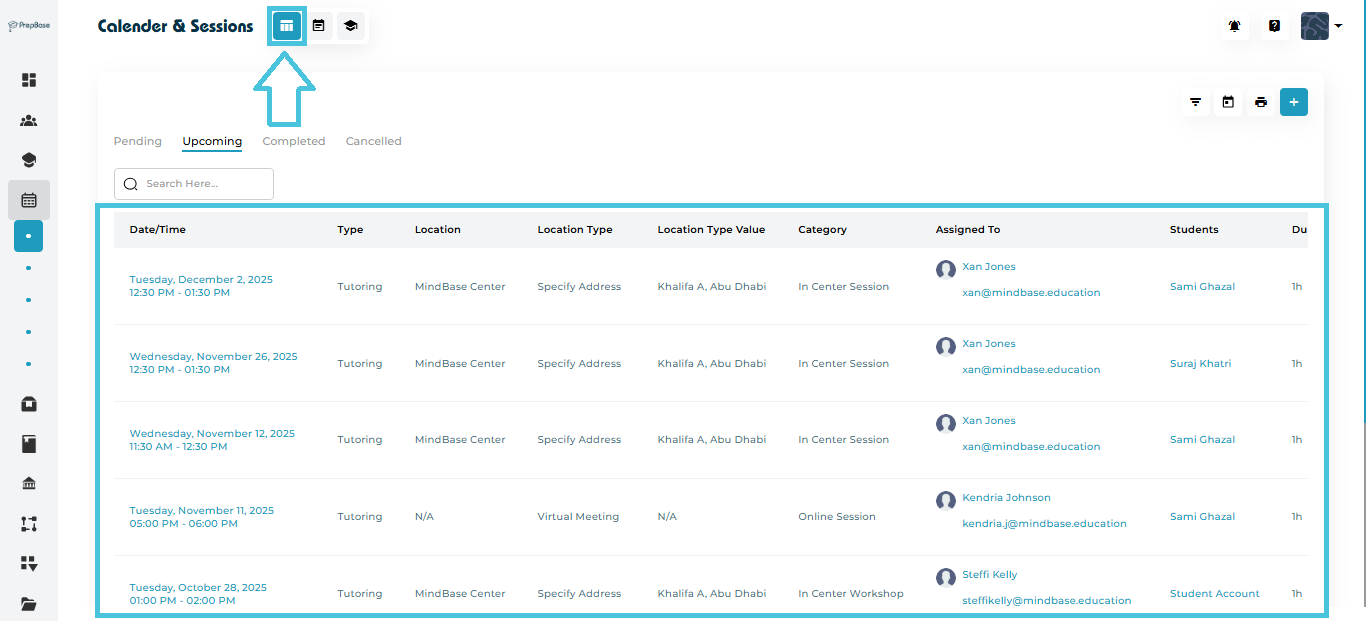
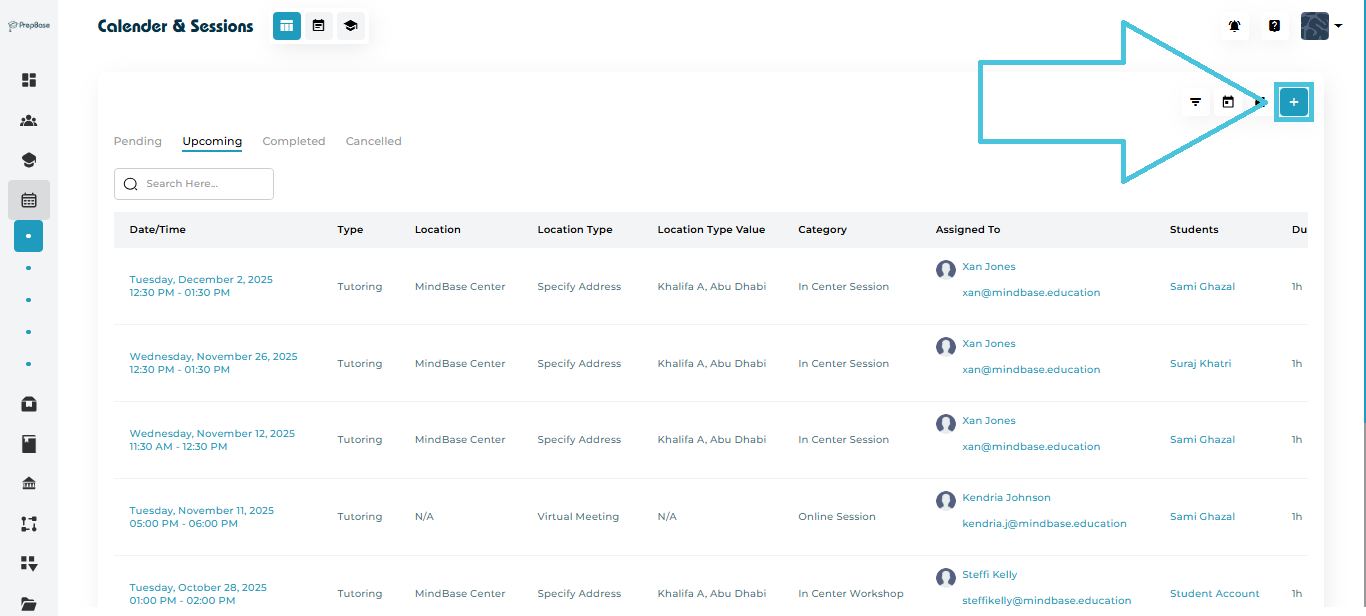
You will land on the sessions list view, which displays all sessions in a table format.


The top tabs let you switch between the different sessions statuses:

  • Pending – sessions scheduled by admin or instructors and not yet accepted by students/parents

  • Upcoming – sessions scheduled or accepted by students/parents

  • Completed – sessions with action plans/attendance already submitted by the instructors

  • Cancelled – sessions cancelled by students/parents, admin, or instructors


2. Creating New Sessions

Admins can create new sessions or events directly from the Calendar & Sessions module. Sessions can be added from both Calendar View and Table View, ensuring flexibility in scheduling.

Admins can add a new session using either of the following methods:

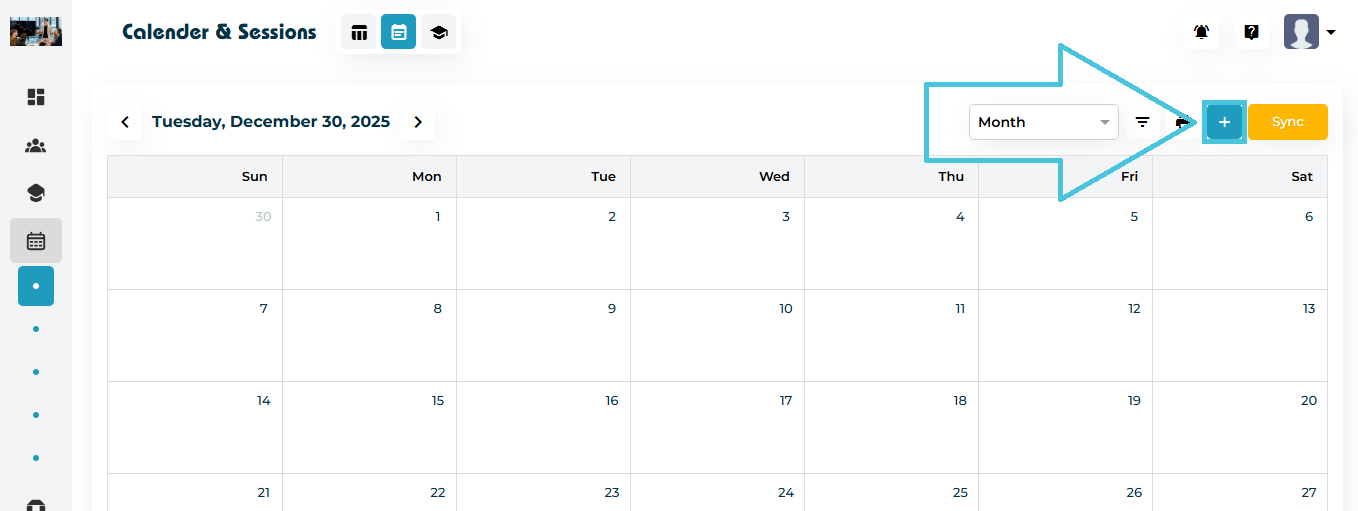
Option 1: From Calendar View

  • Navigate to Calendar & Sessions

  • Use the calendar navigation (Month / Week / Day)

  • Click the Add (+) button in the top-right corner

Option 2: From Sessions Table View

  • Switch to the Table view

  • Click the Add (+) button in the top-right corner

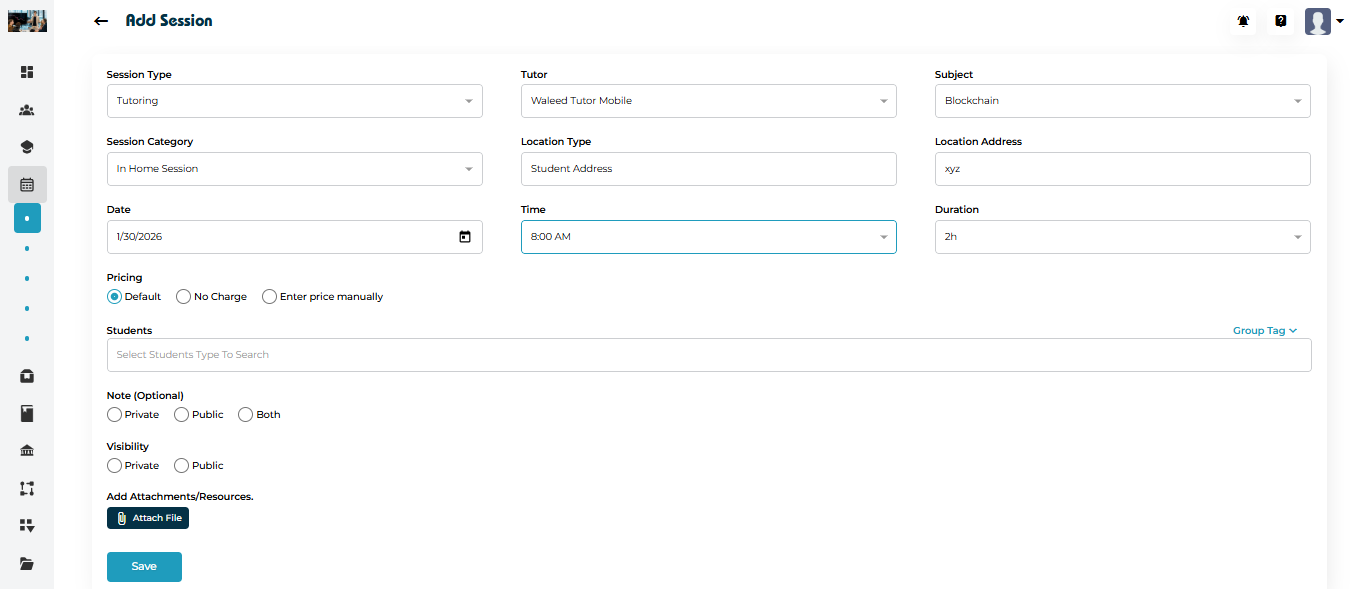
Both options open the Add Session form.

The Add Session form captures all essential details required to schedule a session or event.

Add Session – Field Description
FieldDescription
Session TypeSelects the type of session being scheduled, such as Tutoring or Counseling.
Tutor or CounselorAssigns the tutor or counselor who will conduct the session based on the selected session type.
Subject or ExpertiseDisplays the subject (for tutors) or expertise (for counselors) linked to the selected instructor.
Session CategoryThese are defined by admin from the Session Categories subtab under the main Calendar & Sessions main tab in the admin panel. An example would be In Home Session or Online Session.
Location Type and Location Type ValueSpecifies how the session location is determined and displays the value (e.g., Student Address or Virtual Link) as defined by admin when creating a Session Category.
Location AddressDisplays any location that is defined under the Session Category by admin or allows manual entry of the session location address.
DateSets the session date using the date picker.
TimeDefines the start time of the session.
DurationSets the total length of the session.
Pricing

Determines how the session is billed:

  • Default pricing: requires the student(s) to have an active tutoring or counseling package and deducts the session hours accordingly.
  • No Charge: considers a free session without requiring an active package or deducting hours from the student account.
  • Enter price manually: allows admin to enter a specific rate for the session which will bill the student(s) accordingly under the Family Account.
StudentsSelects the student or students who will attend the session. Group tags if created can be used to add all the students under that tag to the session.
Note (Optional)Allows adding a note on the scheduled session for admin or attendees to see. Notes can be marked as Private (viewable to admin only), Public (viewable to all), or Both (to add Public and Private notes).
VisibilityControls whether the session is visible publicly (to all users on the platform) or kept private (visible to instrcutor and attendees only).
Add Attachments / ResourcesUploads supporting files or resources related to the session.
 
Saving the Session

After completing the required fields:

  • Click Save

  • A confirmation message is displayed

  • The session appears immediately in:

    • Calendar View on the selected date and time

    • Table View under the appropriate tab (Pending or Upcoming)

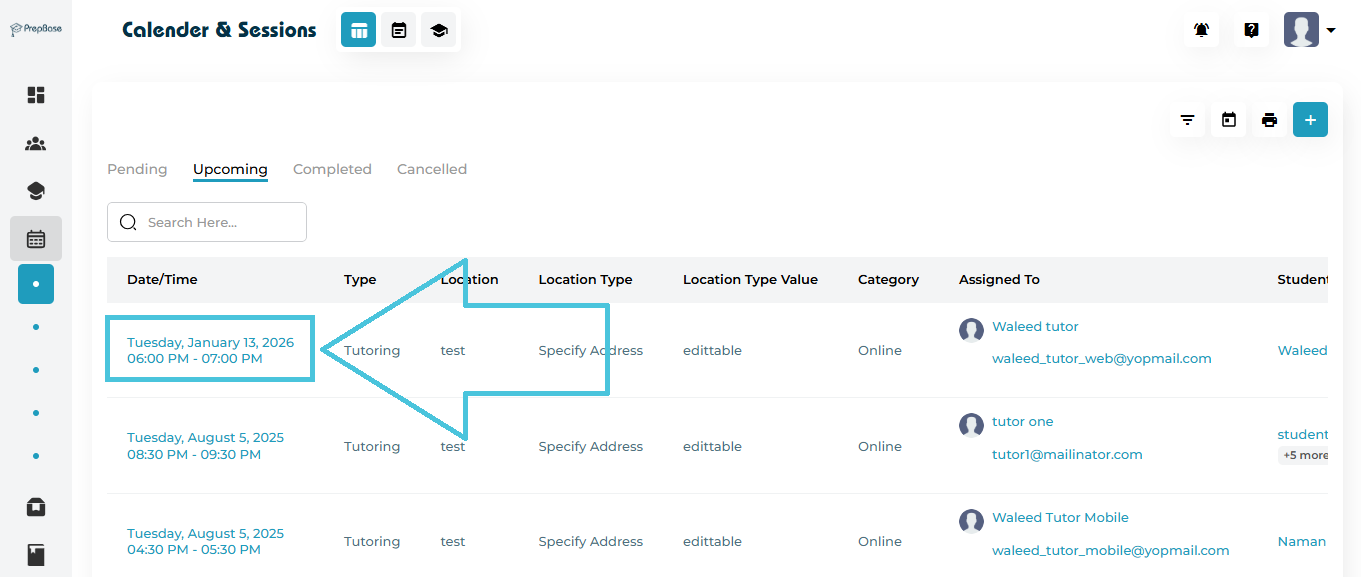
3. Viewing Session Details

To view complete information about a scheduled session, admins can open the session details directly from the sessions list. This allows you to review key information such as the student, instructor, session type, timing, and status before making any updates or changes.

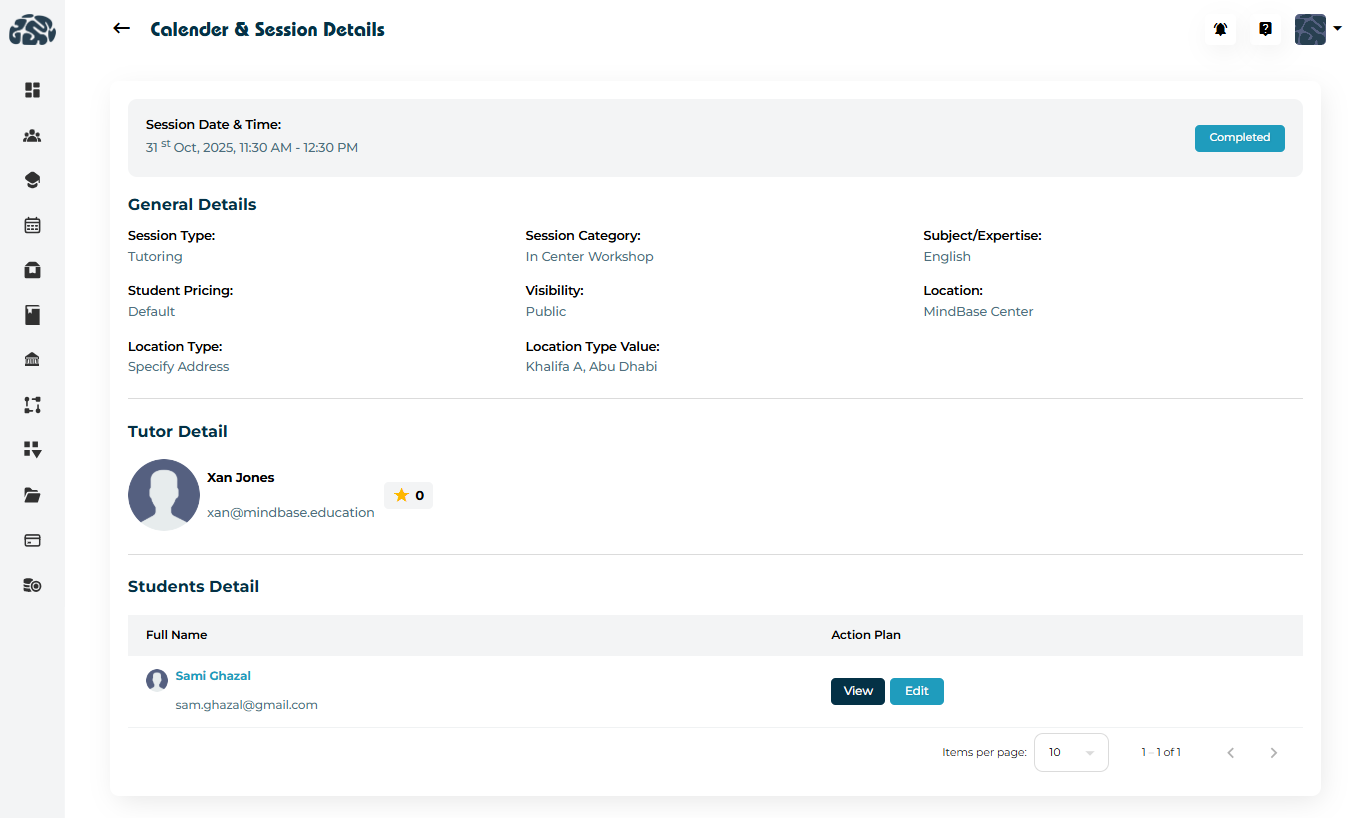
Regardless of which view you are in (list, month, week, day), clicking a session opens the Session Detail Page, which includes:

General Details
  • Session type

  • Session category

  • Subject/expertise

  • Student Pricing

  • Visibility

  • Location

  • Location type & value

  • Session Date & time

Instructor Details
  • Tutor/Counselor avatar

  • Name

  • Rating

  • Contact email

Student Details
  • Student name

  • Student email

  • Action Plan (View / Edit depending on session status)

Action Plan in Session Details

The Action Plan is considered a session report that allows admins and instructors to record:

1- Attendance per student

2- Performance per student by scoring the session based on the scores defined by admin and attached to this session catefory 3- Post-session notes and topics covered for all attendees.
Action Plan for Pending & Upcoming Sessions

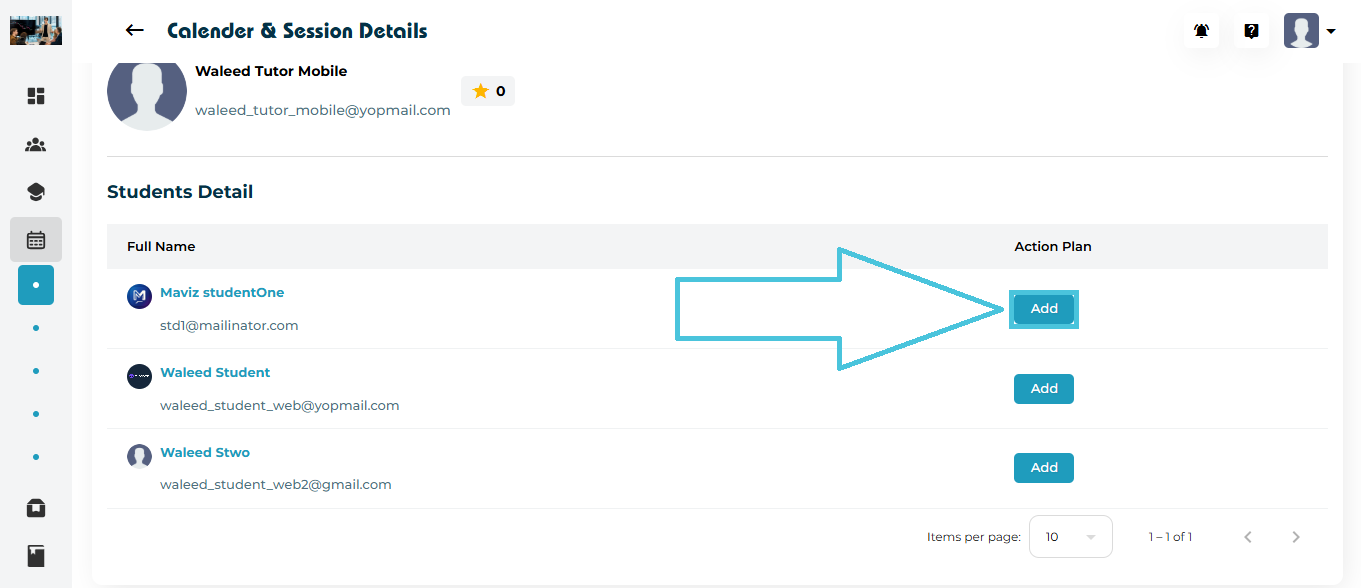
For Pending and Upcoming sessions, the session details page displays an Add button under the Action Plan column.

Clicking Add opens the Add Action Plan form, allowing admins or instructors to prepare or record session-related information.

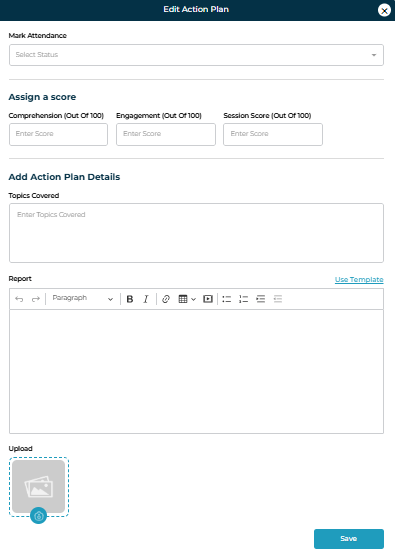
Add Action Plan Form

The Add Action Plan form captures structured feedback and session outcomes.

Action Plan Fields
Field Description
Attendance Marks the student as Present or Absent for the session.
Scoring Fields Rates the student’s based on the criteria attached to the session category defined by admin in the Scores & Ratings subtab under the main Calendar & Sessions main tab in the admin panel.
Topics Covered Records the key topics discussed during the session.
Report A rich-text editor for detailed session notes, observations, and feedback.
Upload Allows uploading supporting files or resources related to the session.

After entering the required information, click Save to store the action plan.

Action Plan for Completed Sessions

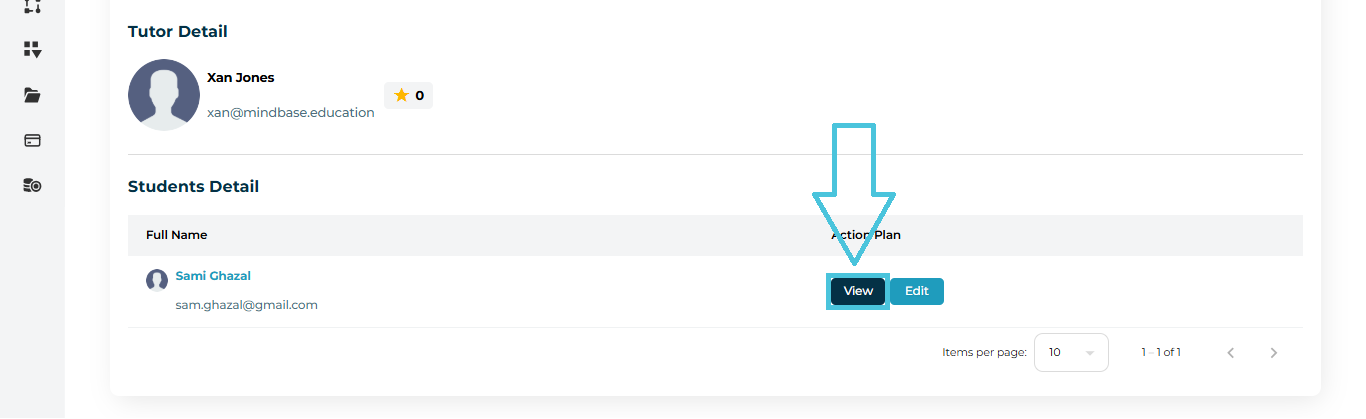
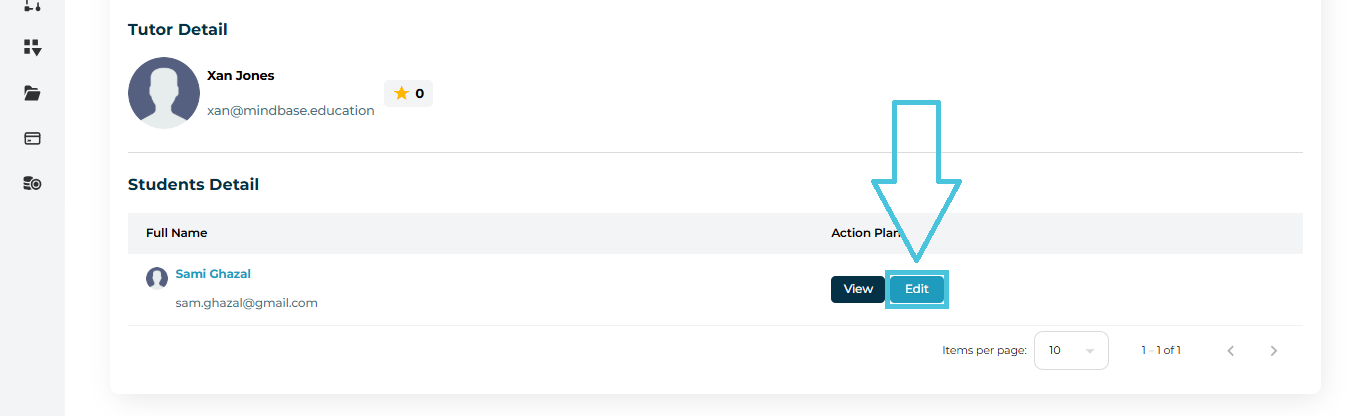
Once a session is marked as Completed, the Action Plan section changes to provide View and Edit options instead of Add.

Screenshot: View & Edit Action Plan Buttons (Completed Session)

This ensures that completed session records remain accessible for review while still allowing updates if required.

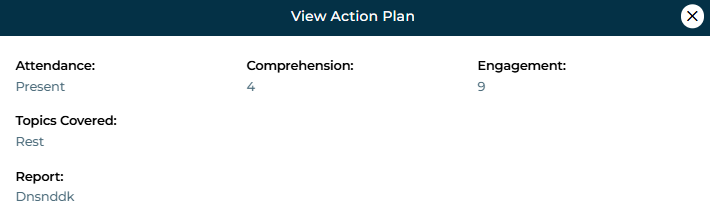
View Action Plan

Clicking View opens the Action Plan in a read-only format.

View Action Plan Details
Field Description
Attendance Displays whether the student was marked Present or Absent.
Scoring Metrics Shows the recorded scores for the session.
Topics Covered Lists the topics that were covered in the session.
Report Displays the instructor’s session report and observations.

This view is commonly used for academic reviews, quality checks, and performance tracking.

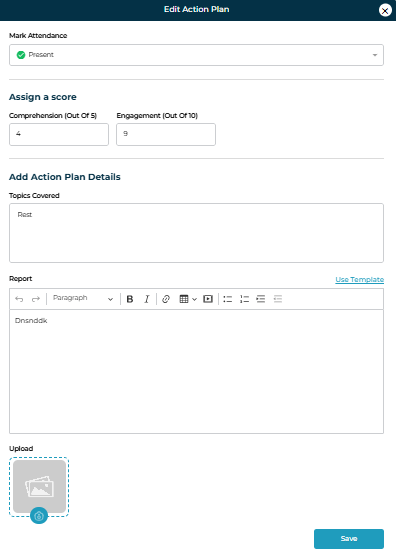
Edit Action Plan

Clicking Edit opens the Edit Action Plan form, pre-filled with existing data.

Edit Action Plan Fields
Summary of Action Plan Behavior by Session Status
Session Status Action Plan Options
Pending Add Action Plan
Upcoming Add Action Plan
Completed View & Edit Action Plan
Cancelled Action Plan not available

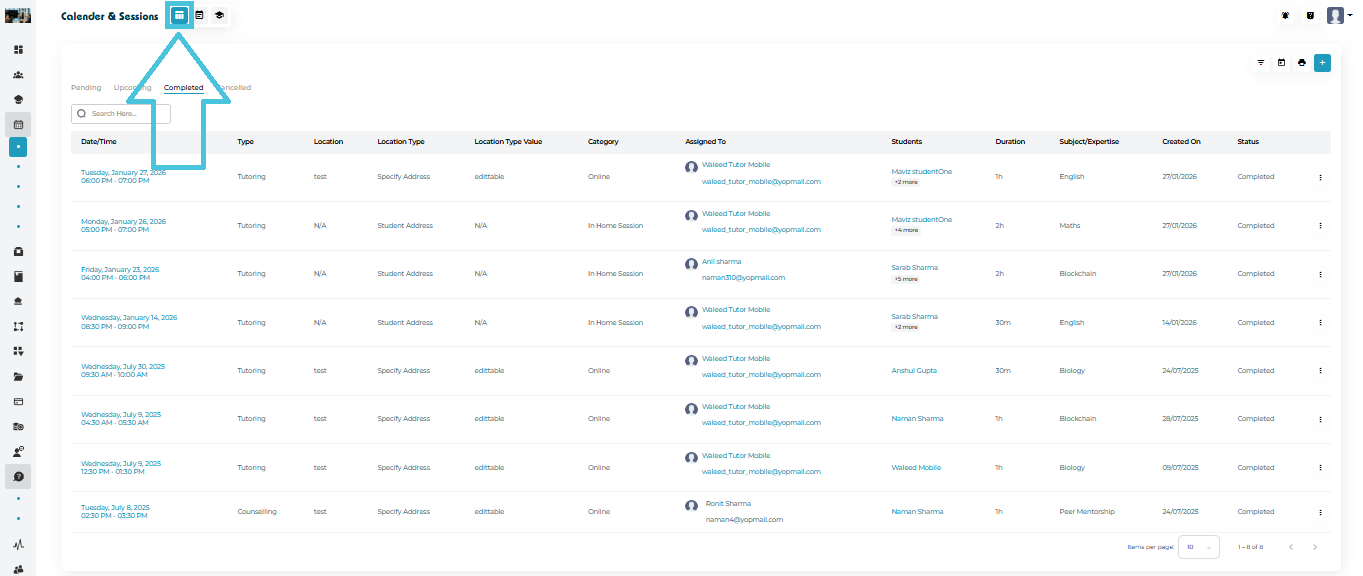
4. Table View of Sessions

The Table View displays all scheduled sessions in a structured, list-based format, making it easy to review, sort, and manage sessions at scale. This view is ideal for admins who need quick access to session details, statuses, and actions without switching between dates. It supports filtering and scanning multiple sessions efficiently in one place.


Table View Tabs

The table view of sessions displays 4 subtabs:

  • Pending – Sessions scheduled by admin or instructor and not yet accepted by students or parents.

  • Upcoming – Confirmed sessions scheduled or accepted by students or parents.

  • Completed – Sessions that have already taken place and the Action Plan is already completed. 

  • Cancelled – Sessions that were cancelled.

Each tab displays sessions relevant to its state, while the table structure and actions remain consistent.

Table Columns Explained (Applies to All Subtabs)
ColumnDescription
Date / TimeDisplays the scheduled date and time of the session, including start and end time and by clicking it opens session details page.
TypeIndicates the session type, such as Tutoring or Counseling.
LocationDisplays any location that is defined under the Session Category by admin or allows manual entry of the session location address.
Location TypeSpecifies how the session location is determined (e.g., Student Address or Virtual Link) as defined by admin when creating a Session Category.
Location Type ValueDisplays the actual location type value when applicable as defined by admin.
CategoryThese are defined by admin from the Session Categories subtab under the main Calendar & Sessions main tab in the admin panel. An example would be In Home Session or Online Session.
Assigned ToDisplays the assigned instructor, including name and email.
StudentsLists the primary student and indicates if additional students are included.
DurationShows the total duration of the session.
Subject / ExpertiseDisplays the subject or expertise associated with the session.
Created OnShows the date the session was created in the system.
StatusIndicates the current session status (Pending, Upcoming, Completed, or Cancelled).
ActionsProvides quick access to View, Edit and Delete session actions.


This unified approach reduces repetition and allows admins to manage all session states from one consistent interface.


Filtering Sessions

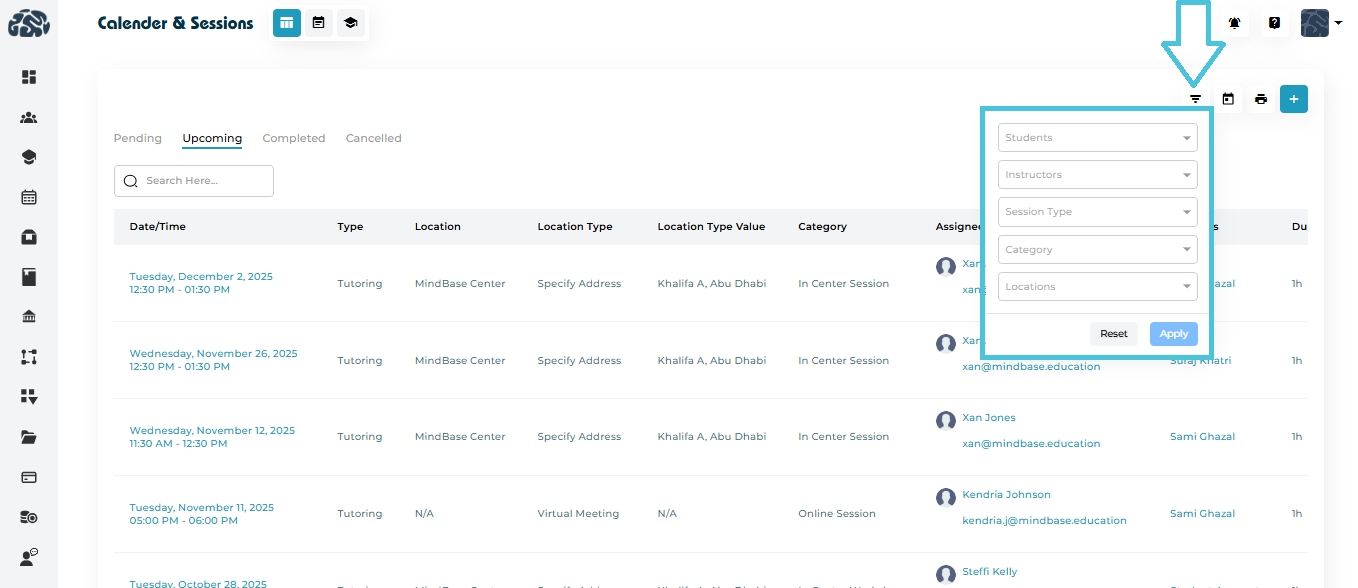
At the top right of All Sessions, click the Filter icon to open advanced filtering options.


You can filter sessions by:

  • Students

  • Instructors

  • Session Type

  • Category

  • Location

Click Apply to refine the displayed list.
Click Reset to return to all sessions.

Filters help teams quickly locate sessions for a specific instructor, day, subject, or group of students.

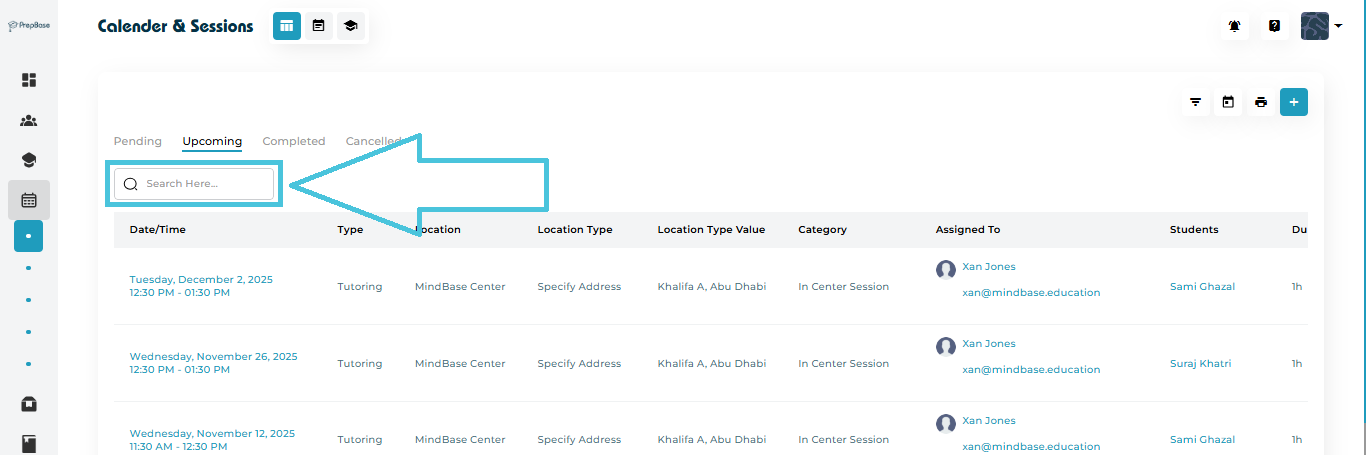
Searching for Sessions

Use the search bar available in list view and all tab views to search for:


  • Student names

  • Instructor names

  • Session types

  • Dates

The module instantly filters the displayed sessions.


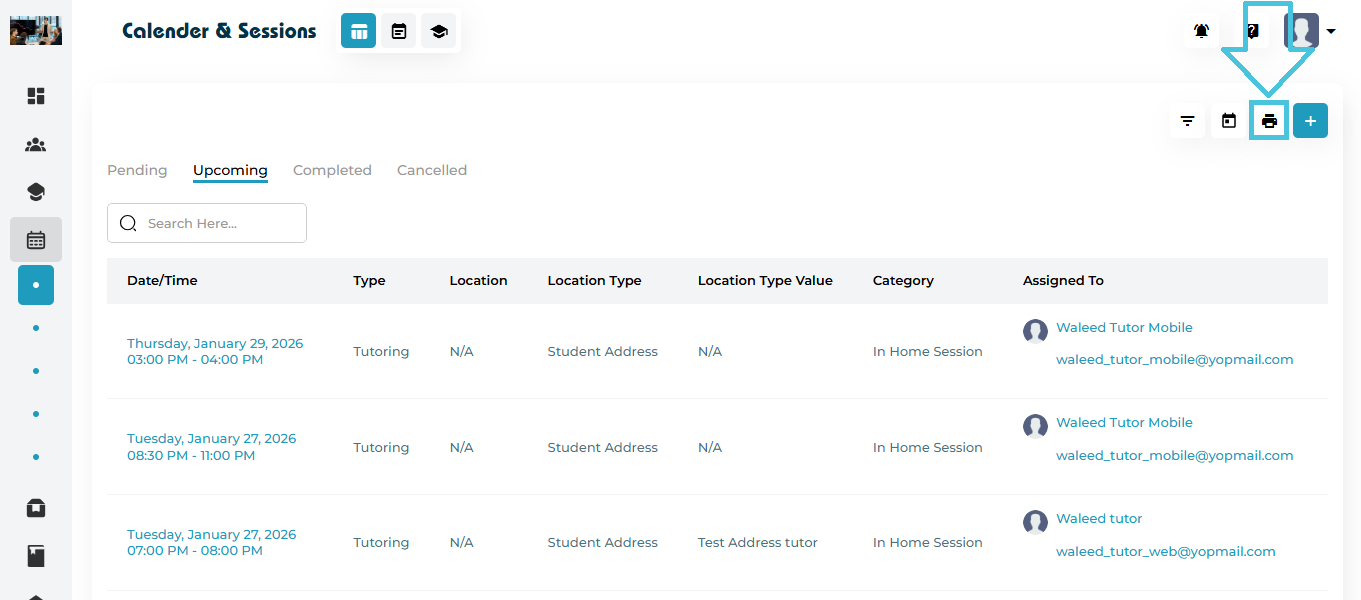
Print Table (Export Schedule)

The Print button (printer icon) lets admins generate a print-friendly copy of the currently visible Table schedule. This is useful when you need a hard copy for coordination, meetings, or offline review.


What this action does
  • Opens the Sessions table in a print preview format

  • Captures the whole list

  • Prints the schedule based on the filters currently applied (so you only print what you’re viewing)


Note: For best results, apply filters before printing so only relevant sessions appear.


5. Calendar View of Sessions

The Calendar View provides a visual, interactive overview of all scheduled sessions and events across students, instructors, and counselors. It allows admins to quickly understand availability, manage schedules efficiently, and make real-time adjustments without leaving the calendar interface.
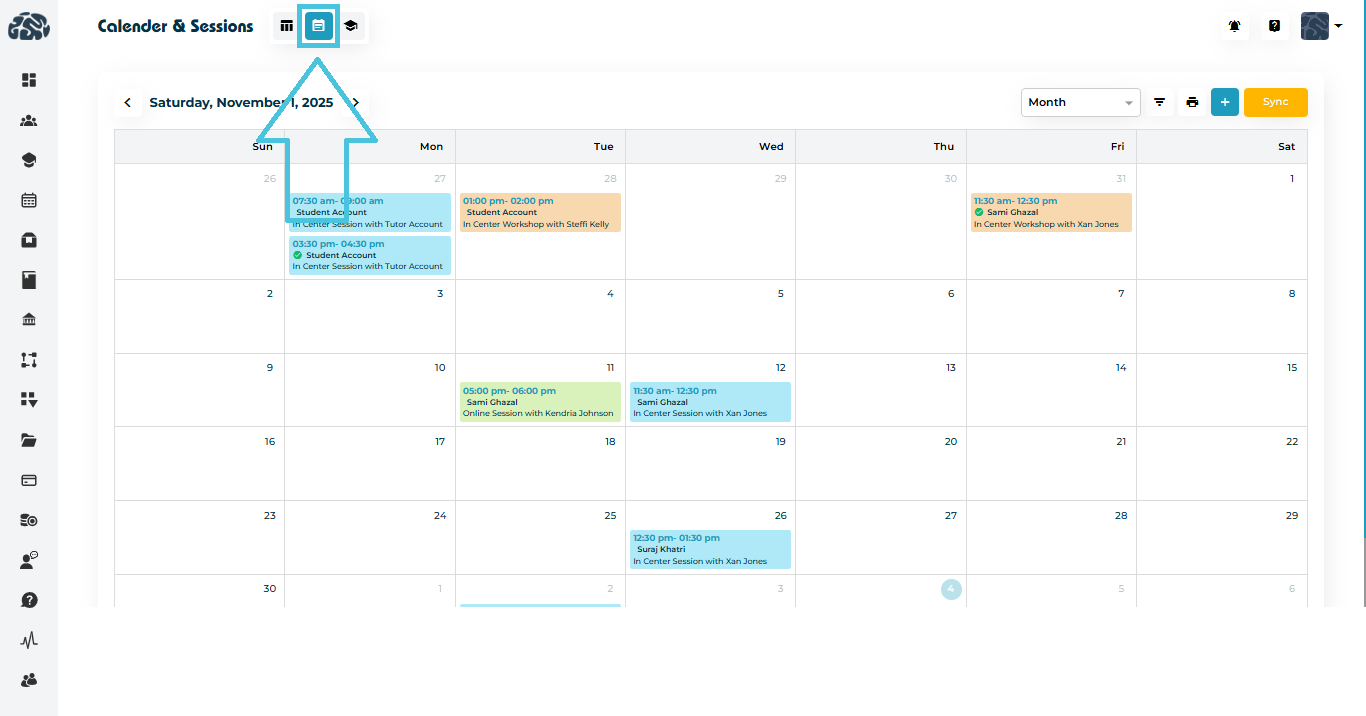
 

This view is designed for day-to-day operational control, especially when managing a high volume of sessions.


Available Calendar Views

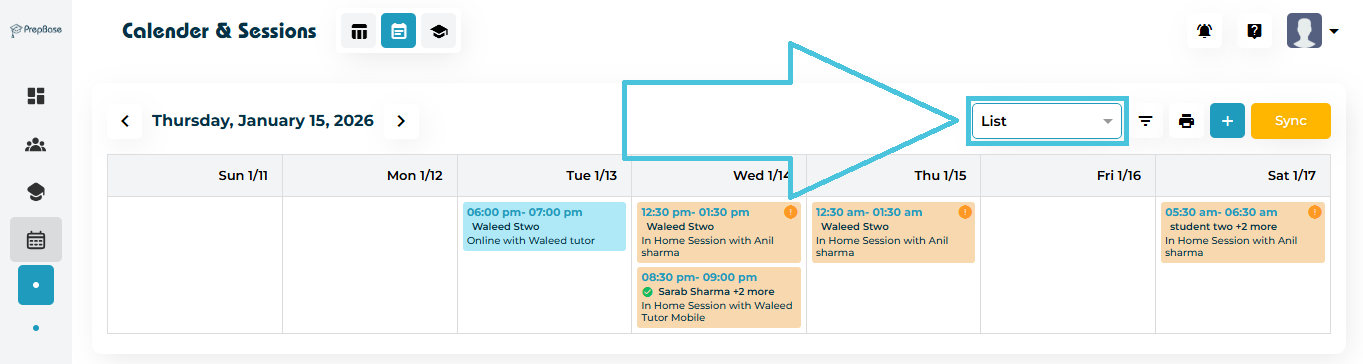
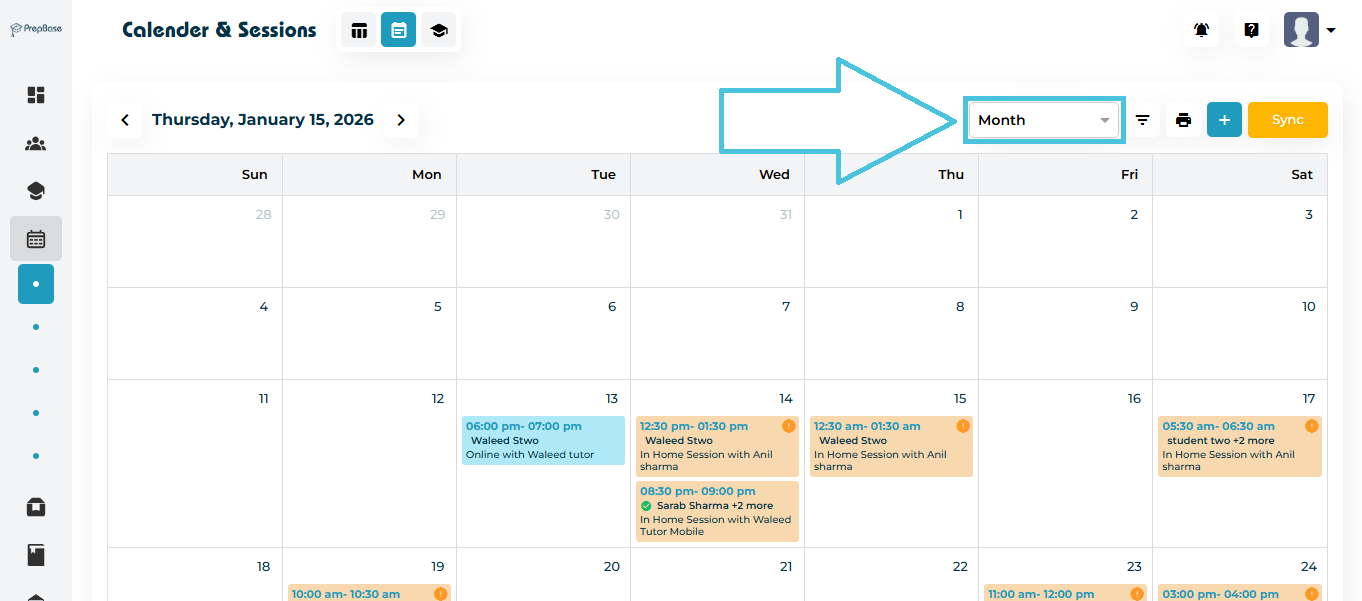
Admins can switch between multiple calendar layouts depending on their scheduling needs:
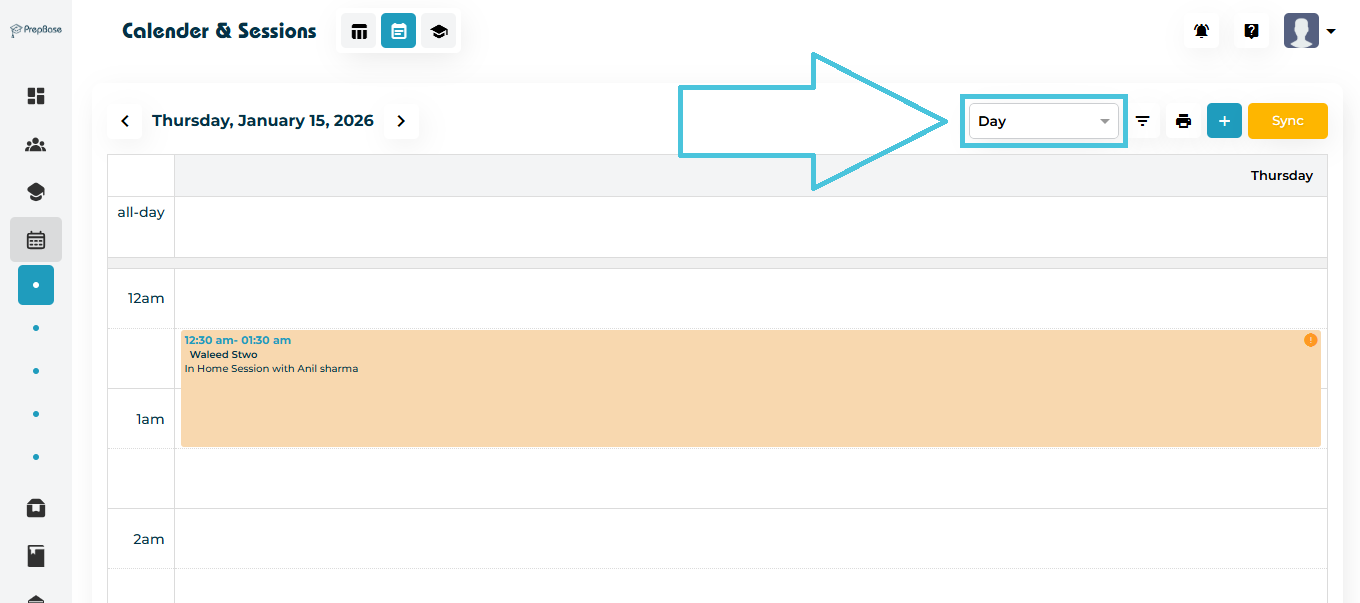
  • Day View – Focuses on sessions scheduled for a single day, ideal for detailed daily planning


  • Week View – Displays all sessions across a full week for broader workload visibility


  • Month View – Provides a high-level overview of scheduled sessions and upcoming events

Each view updates dynamically based on applied filters.


Session Cards in Calendar View

Each session displayed on the calendar appears as a session card, which includes:
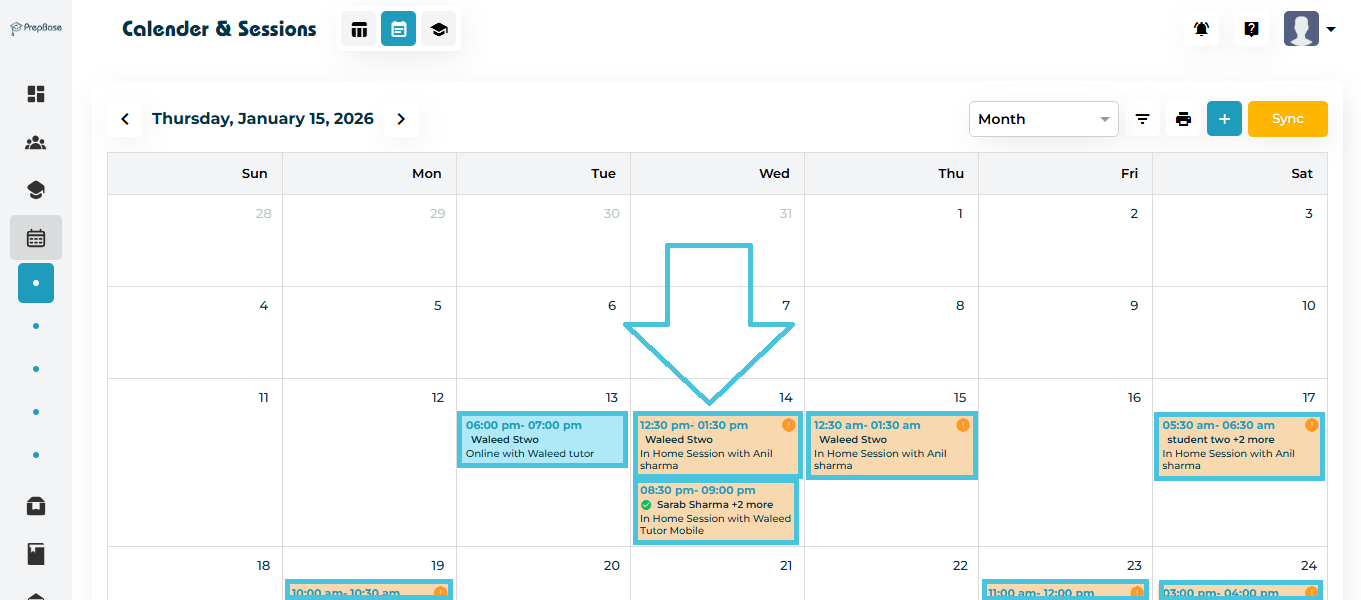
 

  • Student name

  • Assigned instructor

  • Session category 

  • Start and end time

IMPORTANT NOTES:

1- Color-coding is based on the admin selection while creating the Session Category

2- The ORANGE EXCLAMATION MARK icon represents Pending Sessions. 

3- Once attendance is taken the name of the student will display a green checkmark if present and a red X if absent. 

4- Cancelled sessions are greyed out on the calendar view. 

5- Dragging the session card to another date wil automatically reschedule the session at the same time for the new date. 

 
Session Card Details

When an admin clicks on any session card in the Calendar View, a detailed session panel opens. This panel provides a quick overview of the session along with multiple action buttons for managing the session without leaving the calendar.
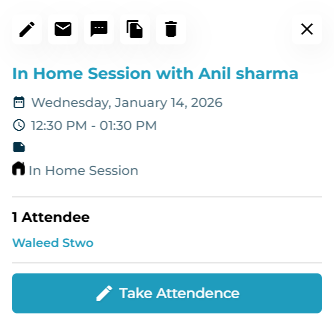
 
 
Session Information Displayed

The session card details panel displays the following information:

  • Session title (Session category and instructor name)

  • Scheduled date

  • Session time (start and end)

  • Location type value and location address if applicable
  • Session category 

  • Public or private notes
  • Number of attendees

  • List of assigned students

This allows admins to quickly review session details before taking any action.

 
Session Card Action Buttons

At the top of the session card details panel, multiple action icons are available. Each button performs a specific function.

Action Buttons Explained
ButtonDescription
Edit SessionOpens the Edit Session form, allowing admins to modify session details such as date, time, tduration, or students.
EmailSends an email related to the session to the assigned student(s).
SMSSends an SMS notification related to the session.
Duplicate SessionCreates a copy of the session with the same details by specifying the target date and time, allowing quick replication of similar sessions.
Delete SessionPermanently deletes the session from the system after confirmation.
CloseCloses the session card details panel and returns to the calendar view.

These actions allow admins to manage sessions efficiently without navigating away from the calendar.

 
Taking Attendance from Calendar View

Admins can take attendance directly from the session card details panel. 
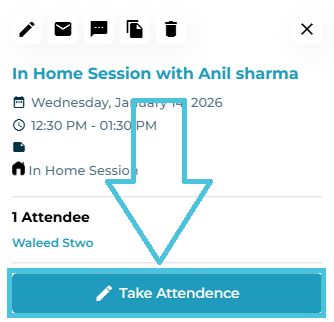
 
Student Attendance List

When the Take Attendance button is clicked from a session card in the Calendar View, the Student Attendance List panel opens. This screen allows admins to mark attendance and manage action plans for each student associated with the session.

 
Attendance Screen Overview

The Student Attendance List displays all students linked to the session in a tabular format. Each row represents one student and provides controls to record attendance and manage the student’s action plan.
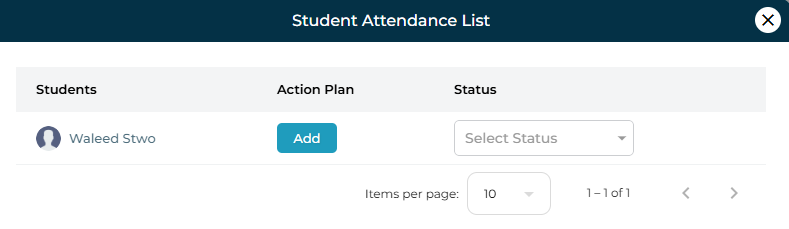
Attendance Table Columns Explained
ColumnDescription
StudentsDisplays the student’s name associated with the session.
Action PlanAllows admins to add or manage the action plan for the student.
StatusUsed to mark the attendance status of the student for the session.

 
Marking Attendance

To mark attendance for a student:

  1. Locate the student in the list

  2. Open the Status dropdown

  3. Select the appropriate attendance status (e.g., Present or Absent)

Attendance is saved instantly once selected.

 
Adding an Action Plan from Attendance Screen

The Add button under the Action Plan column allows admins to create an action plan directly while marking attendance.
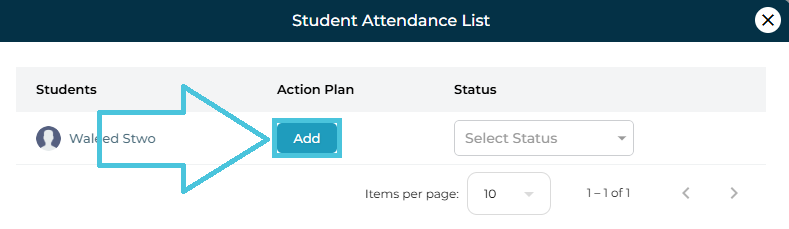
  • Clicking Add opens the Add Action Plan form

  • Admins can record:

    • Attendance confirmation

    • Performance scores

    • Topics covered

    • Session report

This ensures session outcomes are captured immediately after attendance is recorded.

 
Duplicate Session

The Duplicate Session action allows admins to quickly create a copy of an existing session without re-entering all session details. This is especially useful for scheduling recurring or similar sessions.
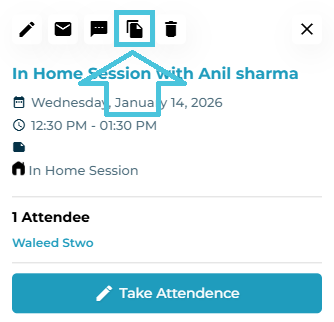


How to Duplicate a Session
  1. Open Calendar View

  2. Click on the session card you want to duplicate

  3. Click the Duplicate Session (copy) icon from the session card actions

This opens the Duplicate Session confirmation window.
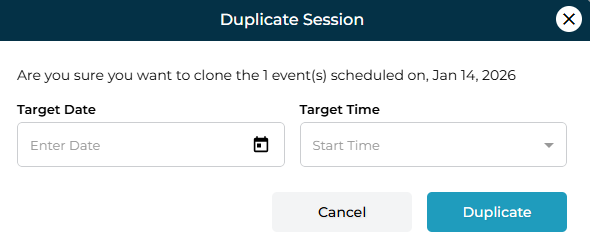


Duplicate Session Confirmation

The confirmation window displays a message confirming the session being cloned and allows admins to define the new schedule.

 
Duplicate Session Fields
FieldDescription
Target DateSelect the date on which the duplicated session should be scheduled.
Target TimeSelect the start time for the duplicated session.
 
Completing the Duplication
  • Click Duplicate to create the new session

  • Click Cancel to exit without duplicating


Once duplicated:

  • The new session retains the same:

    • Session type

    • Tutor or counselor

    • Subject or expertise

    • Duration

    • Location settings

    • Students

Only the date and time are changed based on the selected target values


The duplicated session immediately appears in:

  • Calendar View on the selected date and time

  • Table View under the appropriate tab (Pending or Upcoming)

 
Drag & Drop Scheduling

The calendar supports drag-and-drop functionality for faster schedule adjustments:
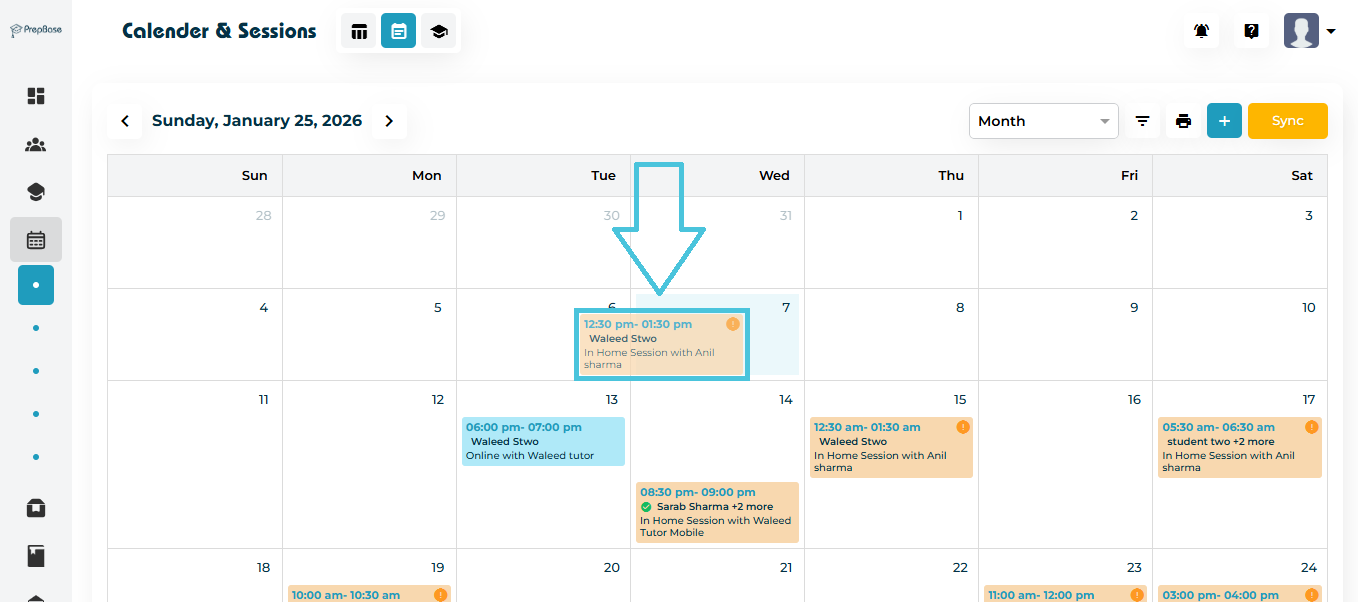
 

  • Move a session to another day directly from the calendar

  • Changes are saved instantly and reflected across all related profiles

This eliminates the need to open the session edit form for minor scheduling changes.

⚠️ Drag & drop respects instructor availability and conflict rules where applicable.


Calendar Filters

The filter panel allows admins to narrow down visible sessions based on specific criteria, such as:
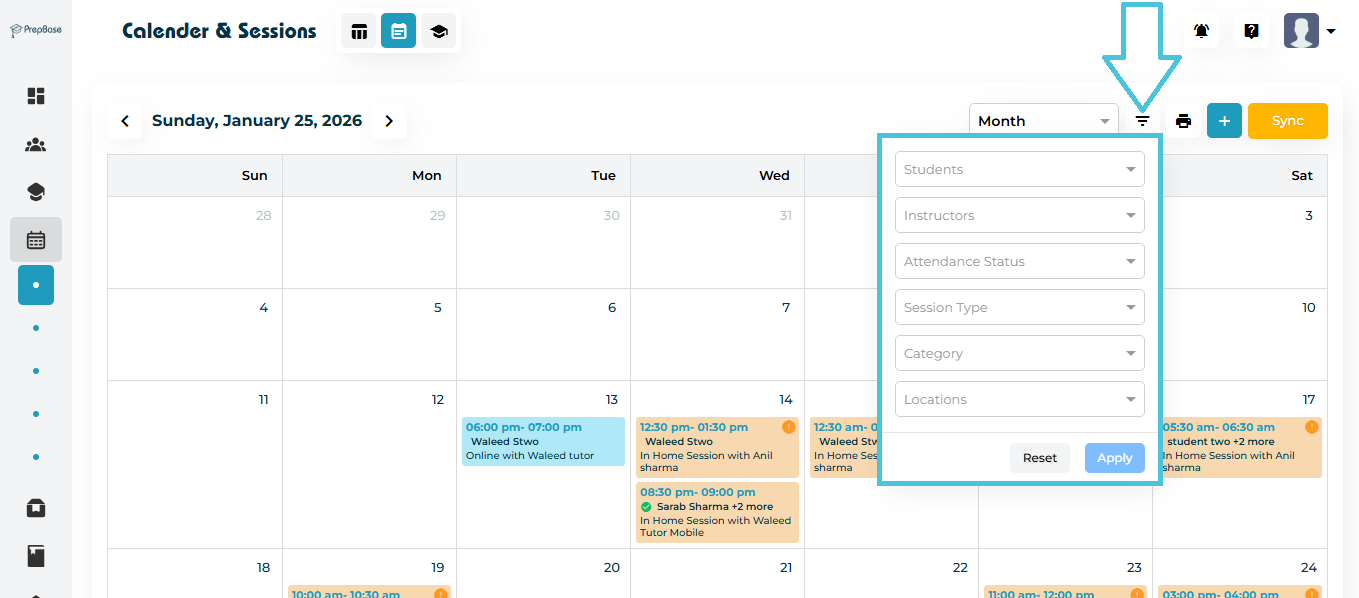
 

  • Student

  • Instructor

  • Attendance status
  • Session type

  • Session category

  • Session location


Filters can be applied individually or in combination, helping admins focus on exactly what they need to manage.

Filters apply instantly and update the calendar view in real time.


Print Calendar (Export Schedule)

The Print button (printer icon) lets admins generate a print-friendly copy of the currently visible calendar schedule. This is useful when you need a hard copy for coordination, meetings, or offline review.
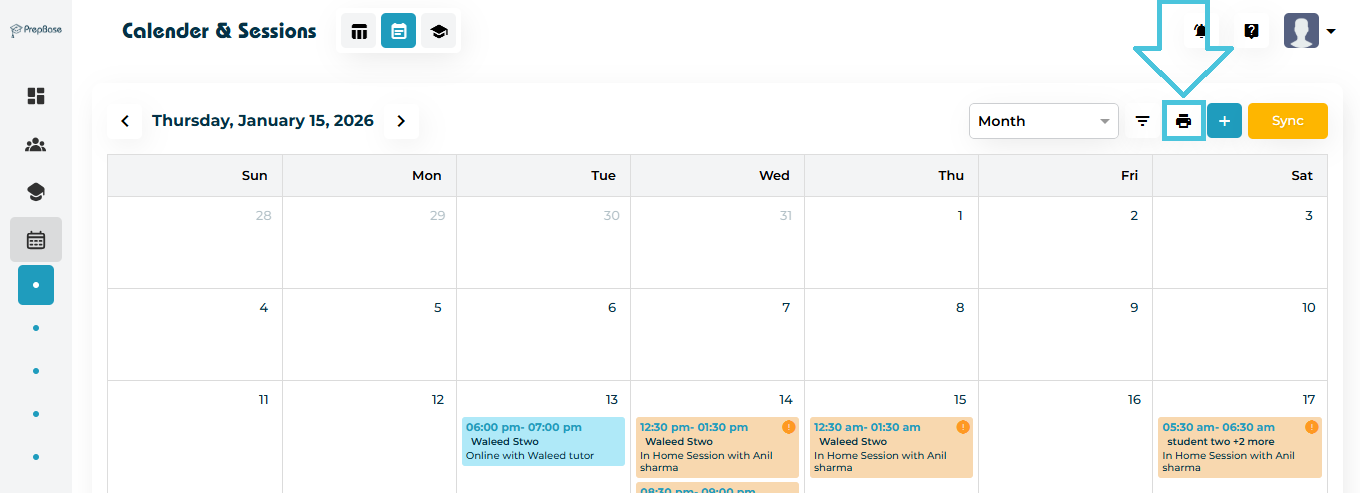


What this action does
  • Opens the calendar in a print preview format

  • Captures the same date range and view you are currently using (e.g., Month / Week / Day)

  • Prints the schedule based on the filters currently applied (so you only print what you’re viewing)

Note: For best results, apply filters before printing so only relevant sessions appear

 
Quick Actions from Calendar

From the calendar itself, admins can perform several actions without navigating away:

  • Open session details

  • Edit session information

  • Cancel or update session status

  • Duplicate sessions

  • Review session assignments

This ensures accurate scheduling data at all times.


Sync Sessions With Your Own Calendar

In the Month/Week/Day views, a Sync button appears on the top right.
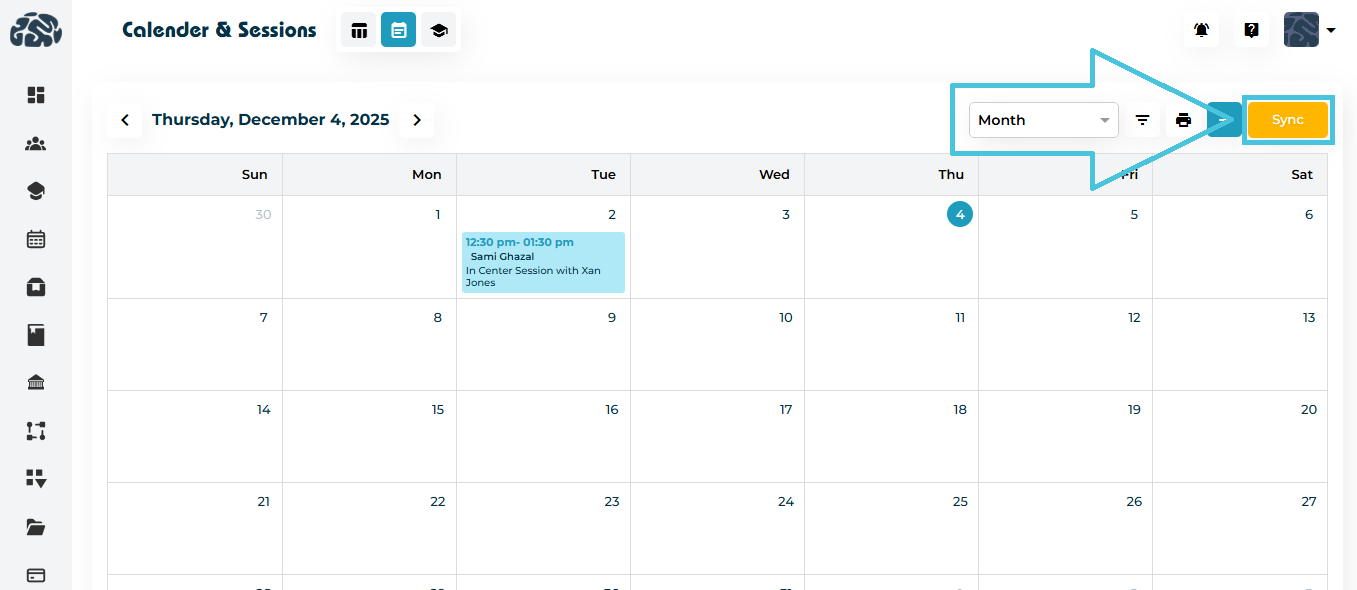


This allows administrators or instructors to sync their sessions with an external calendar (Google Calendar, Outlook, Apple Calendar, etc.), ensuring seamless personal schedule management.

 

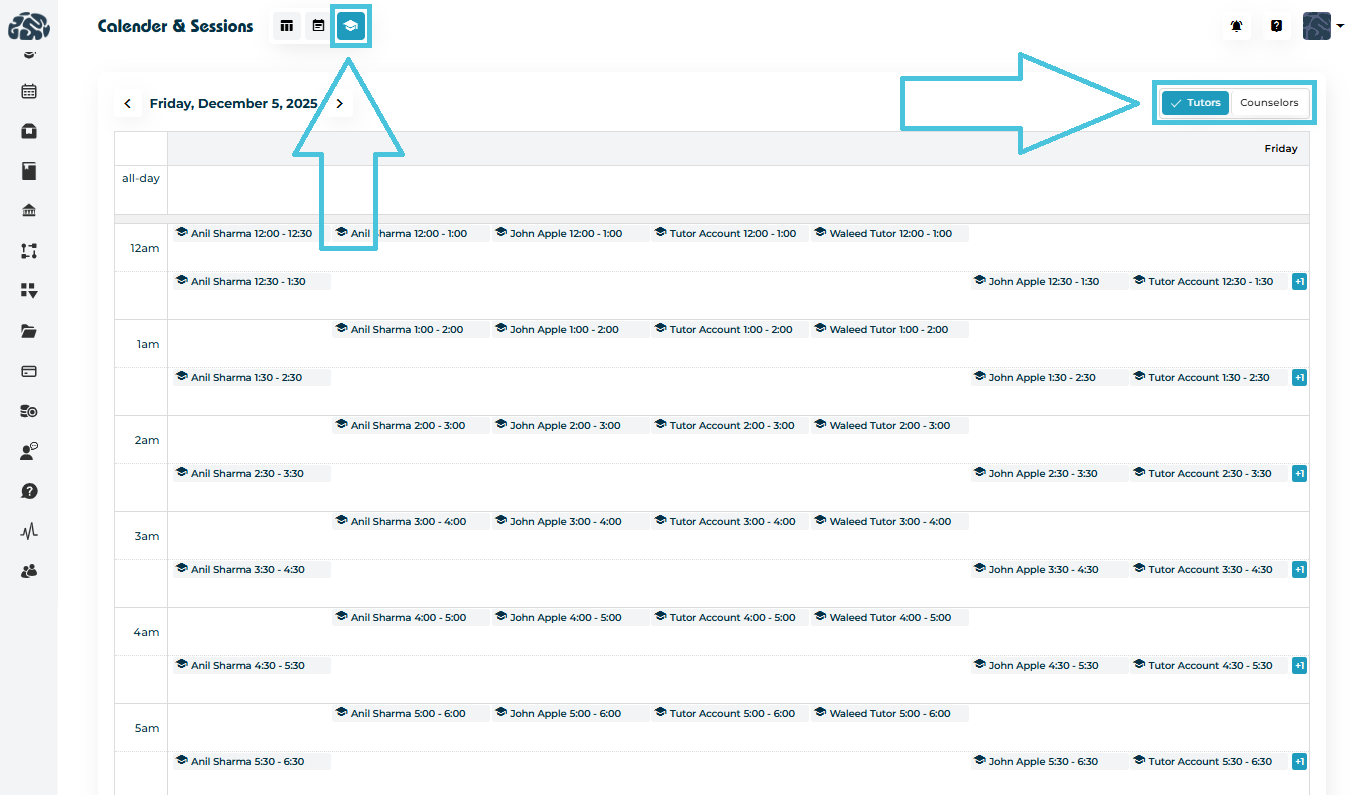
6. Instructors Availability View

Shows two subtabs to quickly view Tutors and Counselors availability on the calendar in a daily view

:


Perfect for front-desk teams scheduling facilities or for coordinators managing instructor availability.

IN THIS ARTICLE

Managing instructor involvement in courses

Managing Instructor Courses

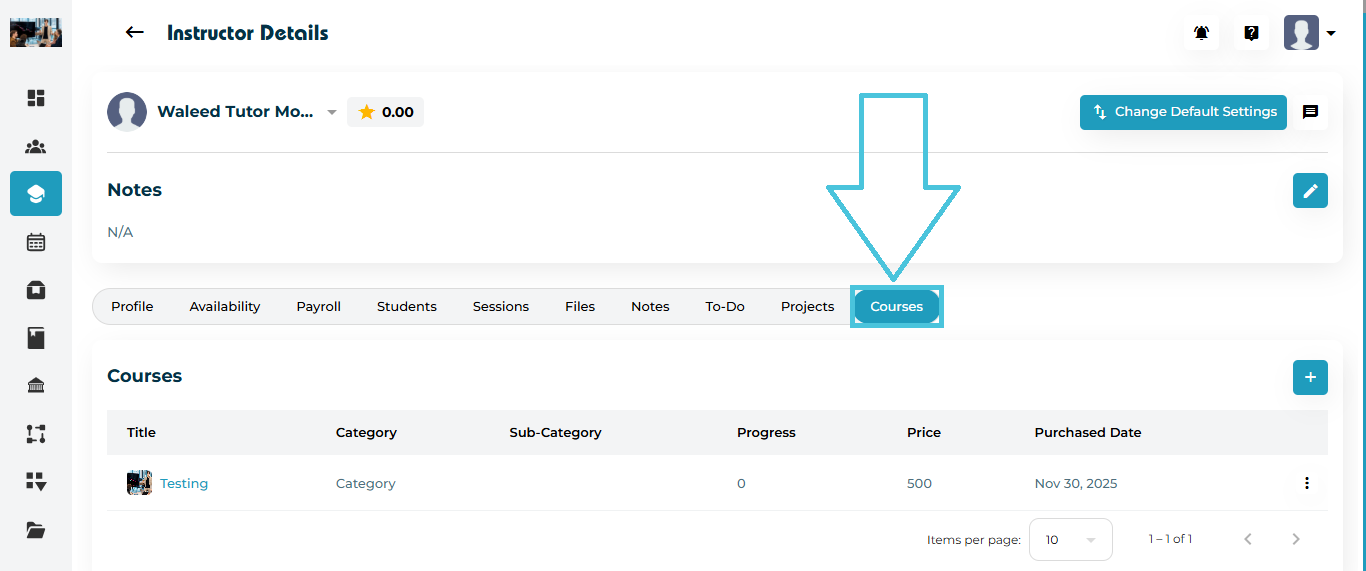
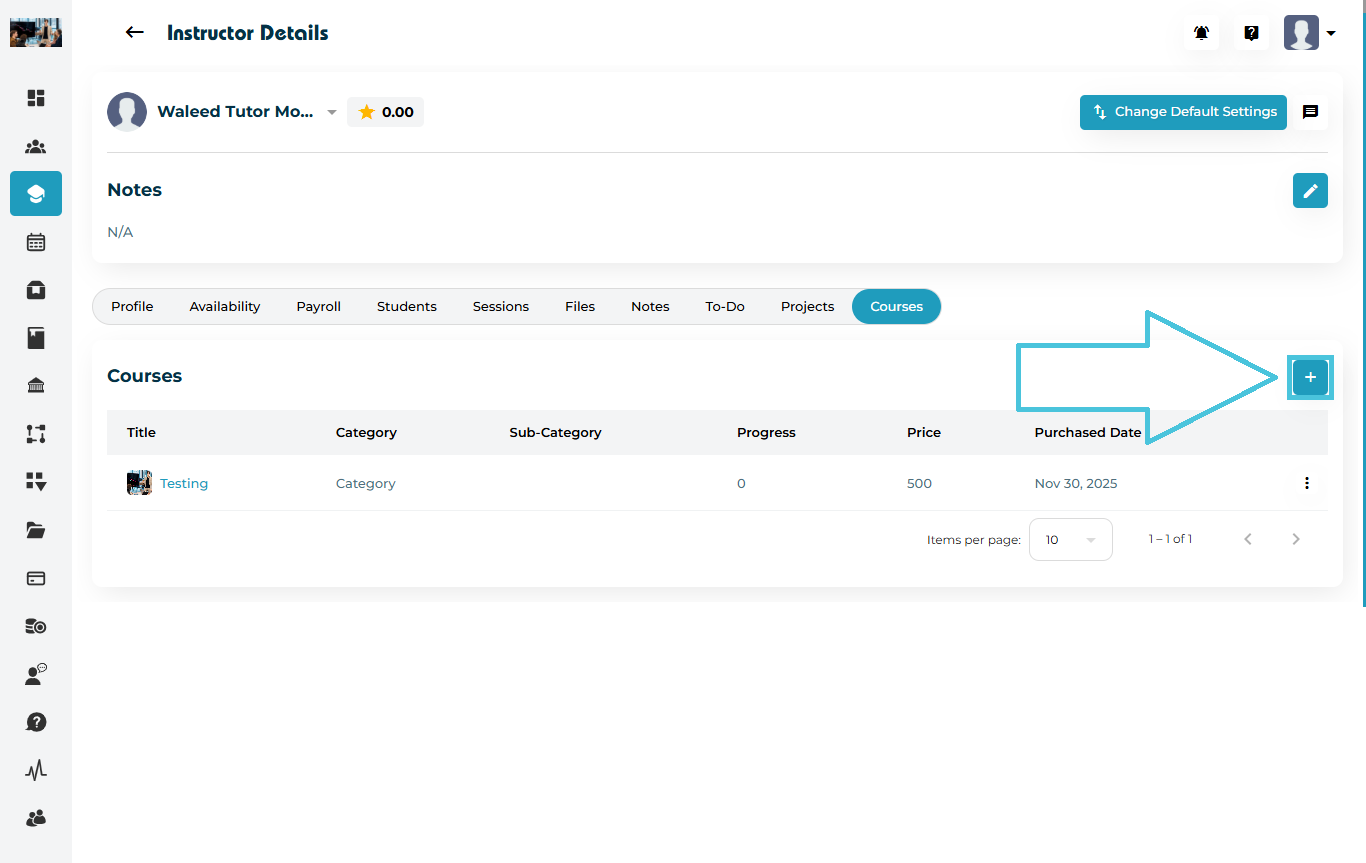
The Courses tab inside an instructor’s profile allows Admins to assign, review, and manage all course enrollments linked to that instructor. This helps you track instructor participation in PrepBase courses, understand their progress, and maintain accurate academic records.

1. Accessing the Instructor’s Courses Tab

  1. Go to Instructors from the left sidebar.

  2. Open any instructor profile.

  3. Navigate to the Courses tab.

Here, you will see a complete list of all courses associated with the instructor, including:

  • Course Title

  • Category & Sub-Category (defined by Admin from the Categories subtab within the Resource Management main tab in the admin panel)

  • Progress %

  • Price

  • Purchased Date

  • Three-dot menu (View / Delete)

2. Assigning a New Course to an Instructor

To enroll an instructor in a new course:

  1. Click the ➕ Add Course button on the top-right.

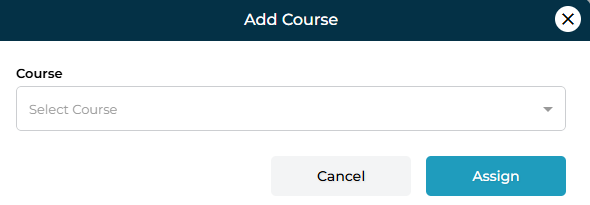
  2. A form titled Add Course will appear.

  3. Select the desired course from the dropdown.

  4. Click Assign to complete enrollment.

Once assigned, the newly added course appears instantly in the list with all relevant information.

3. Viewing Course Details & Progress

To see the instructor’s progress within a course:

  1. Click the three-dot menu (⋮) next to any course.

  2. Select View.

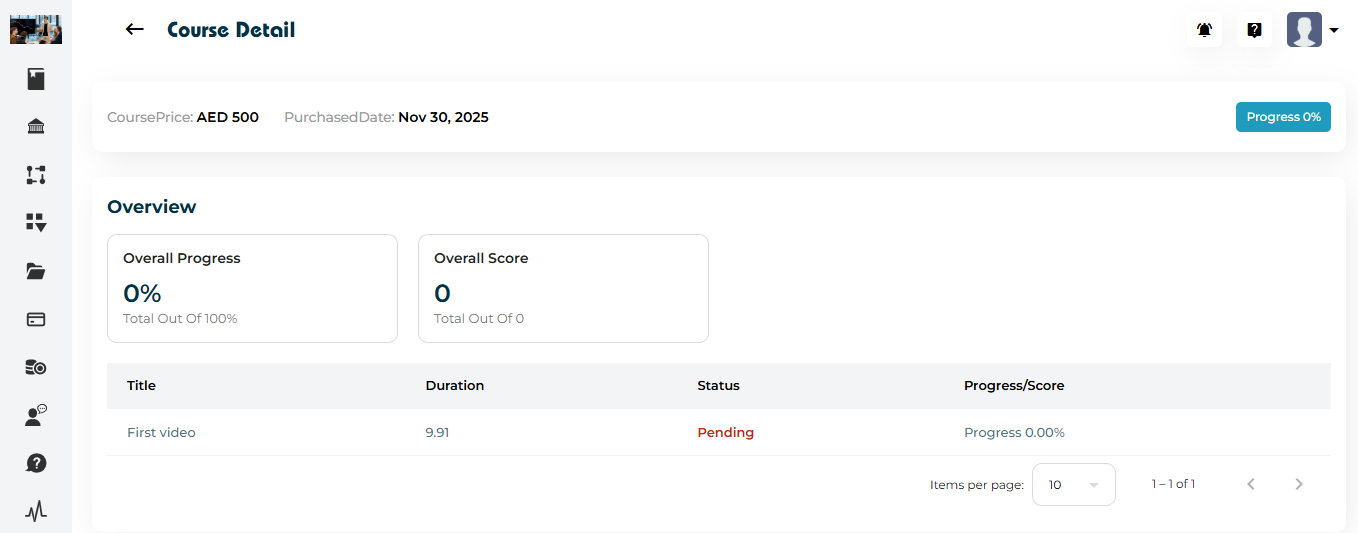
The Course Detail page displays:

Course Overview
  • Overall Progress (0–100%)

  • Overall Score (if quizzes are added)

  • Course Price

  • Purchase Date

Module-Level Information

Each module or lesson shows:

  • Title

  • Duration

  • Status (Pending / Completed)

  • Progress score

This helps you understand how far along the instructor is within the course.

4. Removing a Course From an Instructor

If a course was assigned by mistake or the instructor should no longer be associated with it:

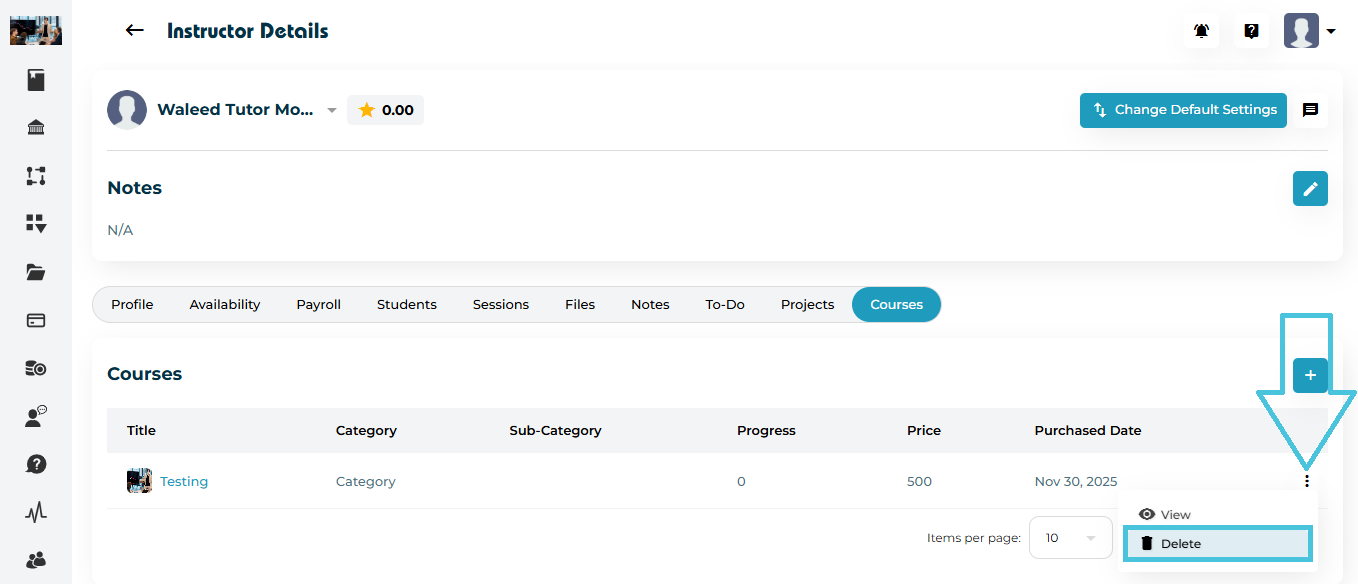
  1. Click the three-dot menu (⋮) on the course row.

  2. Choose Delete.

The course is removed instantly and will no longer appear in the instructor’s course list.

IN THIS ARTICLE

Managing instructor-led projects

Managing instructor-led projects

Instructor-led projects are customized Project that can be defined by admin where instructors and students can collaborate to help structure long-term academic work, portfolios, or specialized tasks assigned to students. The Projects tab inside an instructor’s profile allows Admins to easily review and manage these projects.

This guide explains how to access instructor projects and manage existing ones using the PrepBase Admin Portal.

1. Accessing the Instructor’s Projects Tab

To manage projects for any instructor:

  1. Go to Instructors from the left sidebar.

  2. Select the instructor whose projects you want to manage.

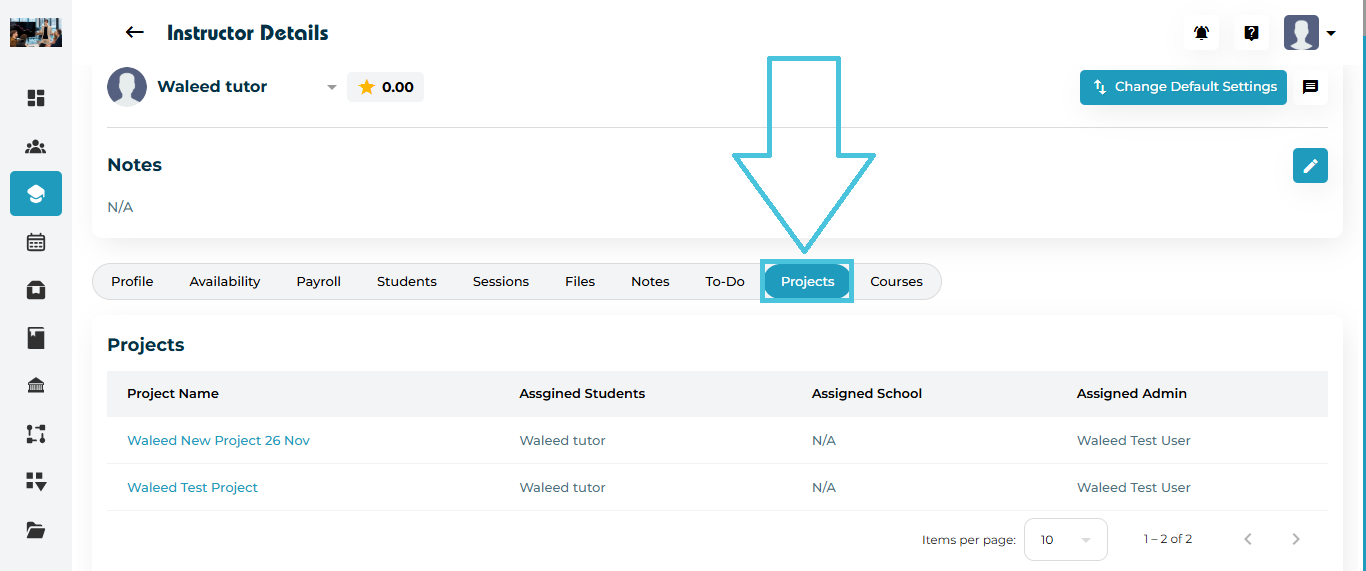
  3. Click the Projects tab on the top navigation bar.

The page will display a list of all projects linked to the selected instructor. Admin users can link instrcutors to a project from the main Projects tab in the admin panel.

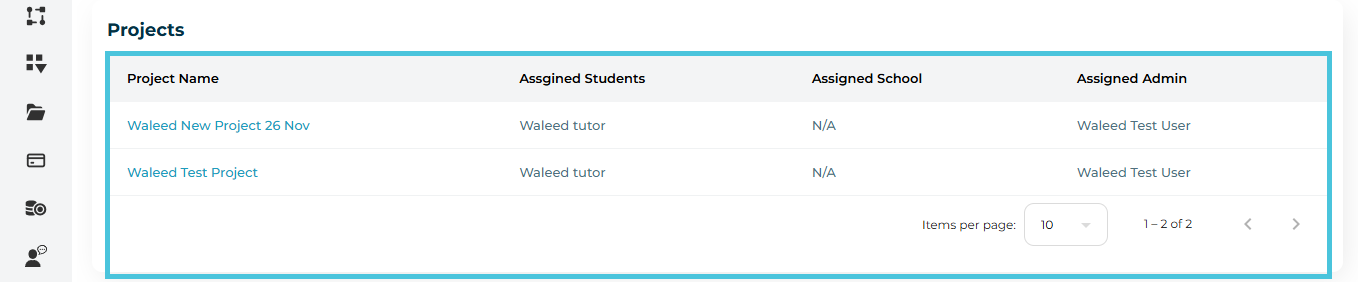
2. Understanding the Instructor Projects List

The project table includes:

  • Project Name

  • Assigned Students

  • Assigned School

  • Assigned Admin

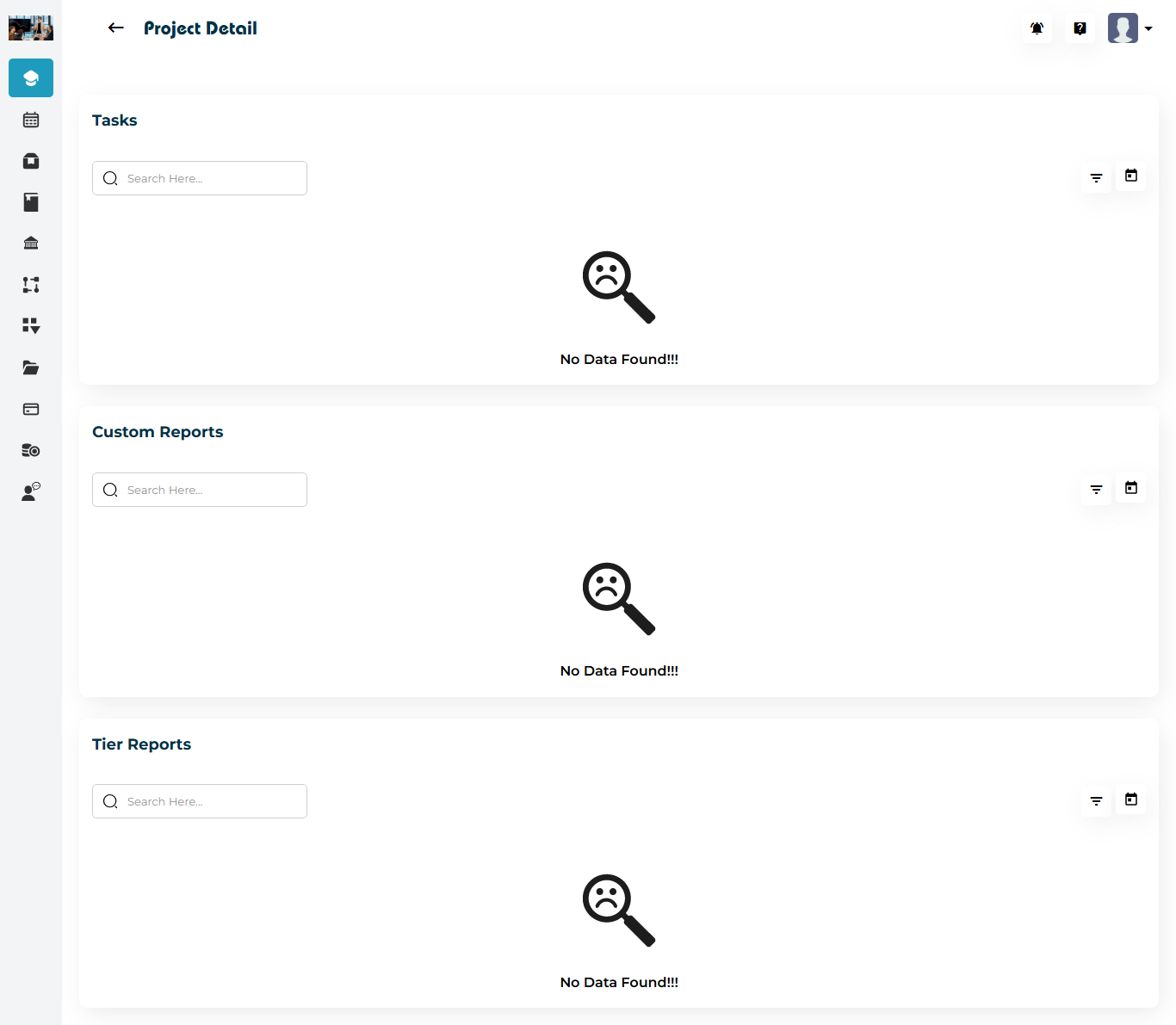
Clicking any project name (e.g., Waleed Test Project) opens the Project Detail Page, where additional project components appear such as:

  • Tasks

  • Custom Reports

  • Tier Reports

If no data exists, you will see placeholders indicating No Data Found.


To learn more about setting up Projects, please visit the Projects section of the guide. 

3. Viewing the Full Project Detail Page

Once assigned, click any project from the list to open its detail page.

Here you can view:

4.1 Instructor Project Tasks

Project tasks associated with the project that are assigned by the instructor for the their students.

  • If empty, it shows No Data Found.

  • The Admin can add tasks from the Projects main tab in the admin panel and the instructors can also do so from their project dashboard.

4.2 Custom Reports

Custom reports defined by Admin for the project and submitted by this instructor will appear here.

  • Any submitted reports will be highlighted and pending the Admin review to accept or reject the submission.

  • Admin can also filter by the status of the report or date range.

4.3 Tier Reports

Custom reports defined by Admin for the project and submitted by this instructor will appear here.

  • Any submitted reports will be highlighted and pending the Admin review to accept or reject the submission.
  • Admin can also filter by the status of the report or date range.


To learn more about adding project tasks and creating project reports, please visit the Projects part of the guide.

IN THIS ARTICLE

Assigning and tracking instructor tasks

Assigning and Tracking Instructor Tasks

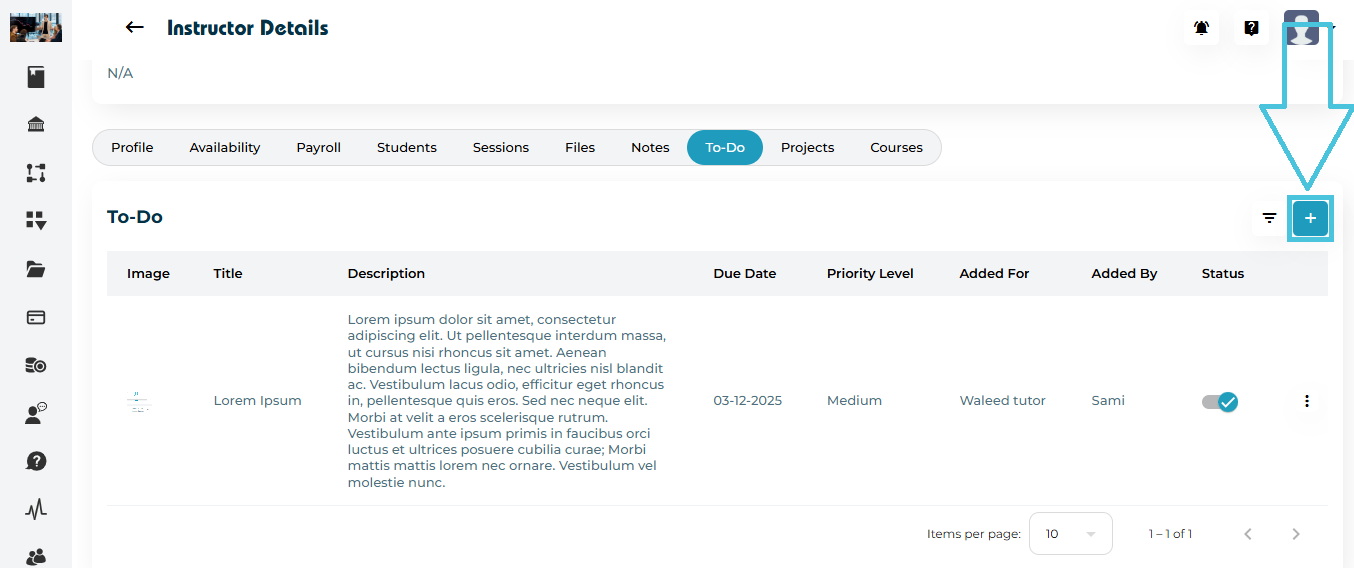
The To-Do tab inside an instructor’s profile allows Admins to assign or manage tasks and track completion statuses efficiently. This section centralizes all instructor-related task activities, ensuring smooth coordination and clear visibility across the PrepBase platform.

This guide explains how to:
  • Add / assign new tasks to instructors

  • Edit an existing task

  • Delete a task

  • Track task progress & completion

  • Filter and organize tasks for better workflow

1. Accessing the Instructor’s To-Do Tab

  1. Go to Instructors from the left navigation menu.

  2. Open any instructor’s profile.

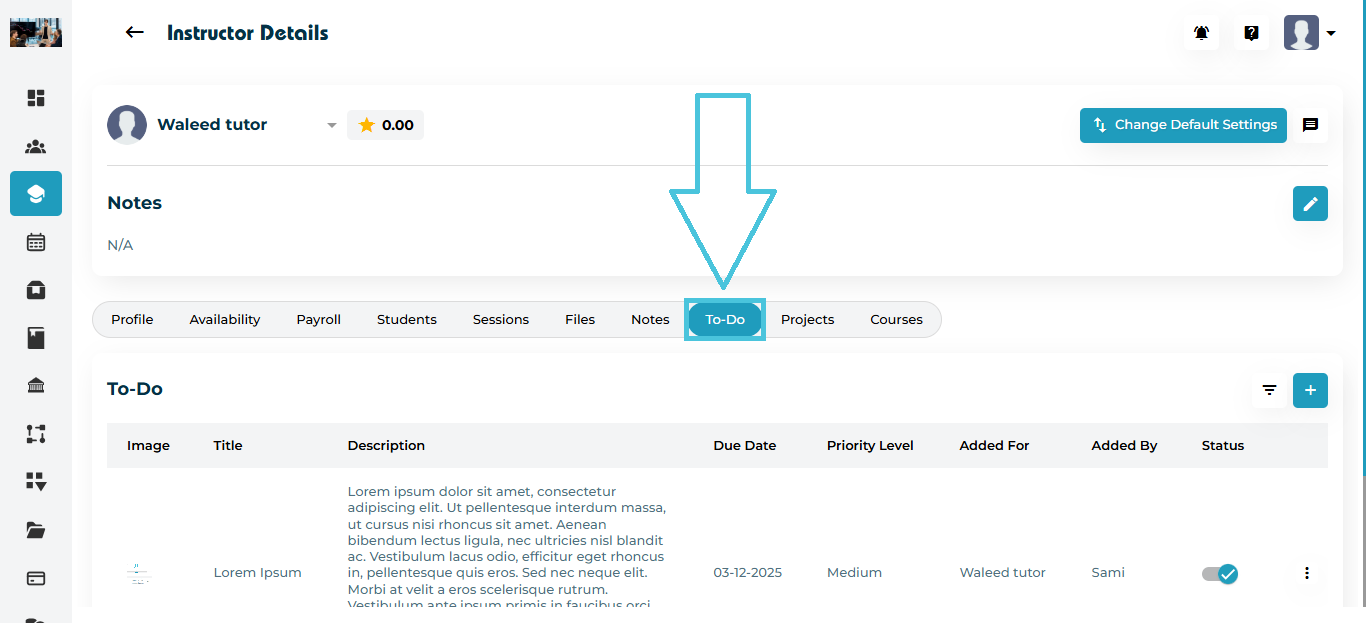
  3. Click the To-Do tab in the top submenu.

Here, you will see the complete list of tasks assigned to that instructor, including:
  • Image (if added)
  • Title

  • Description

  • Due Date

  • Priority Level (low/medium/high)

  • Added For (admin, self, student)

  • Added By (instructor or admin)

  • To D0 Status (pending or completed)

  • Status (enabled or disabled)
  • Action Menu (Edit/Delete)

2. Assigning a New Task

To add a new To-Do item:

  1. Click the ➕ Add button located at the top-right of the To-Do list.

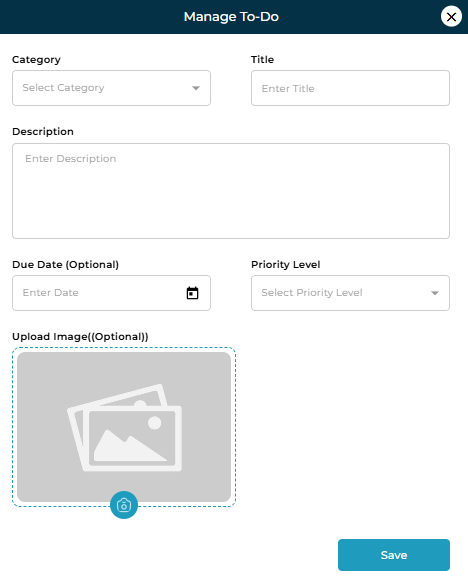
  2. The Manage To-Do form will open.

Fields in the Add Task Form

FieldDescription
CategoryChoose the task category (e.g., Tutoring, Counselling).
TitleA short title summarizing the task.
DescriptionProvide task instructions or important details.
Due Date (Optional)Specify a deadline when applicable.
Priority LevelChoose Low, Medium, or High.
Upload Image (Optional)Attach a reference image, material, or screenshot.


  1. After filling in the form, click Save.

The task will now appear in the instructor’s To-Do list instantly.

3. Editing an Existing Task

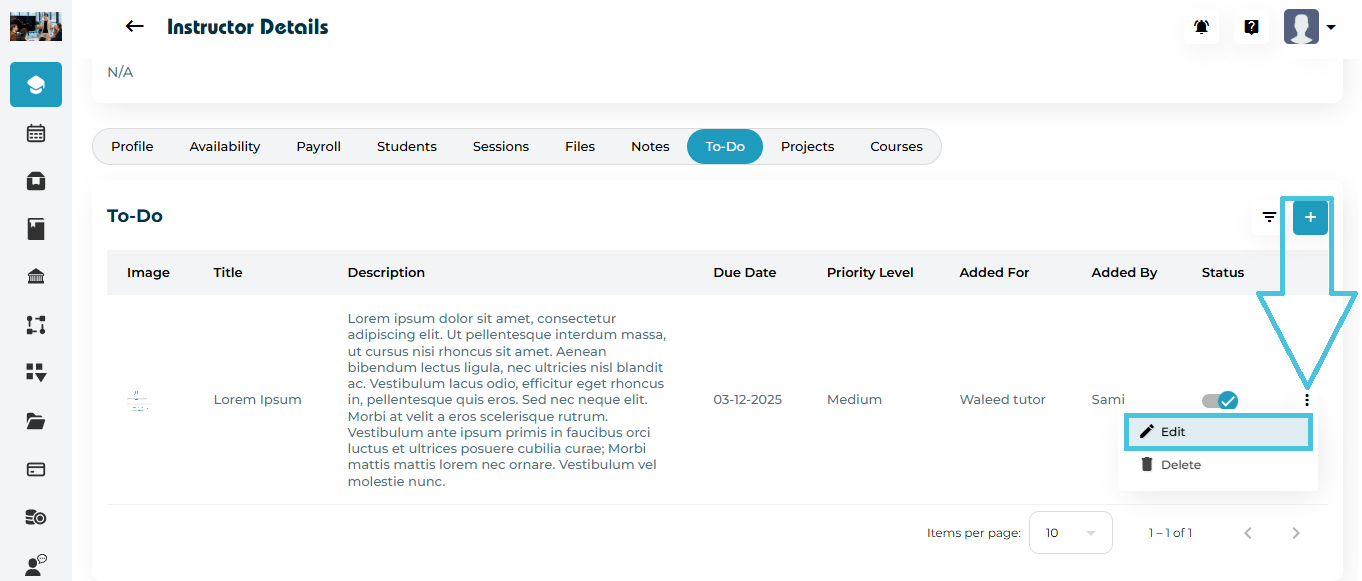
To update task details:

  1. Click the three-dots menu (⋮) beside any task.

  2. Select Edit.

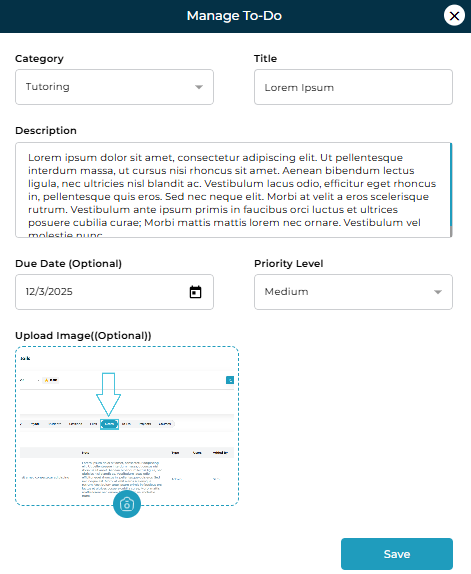
  3. Update any field such as:

    • Title

    • Description

    • Category

    • Due Date

    • Priority

    • Uploaded Image

  4. Click Save to apply changes.

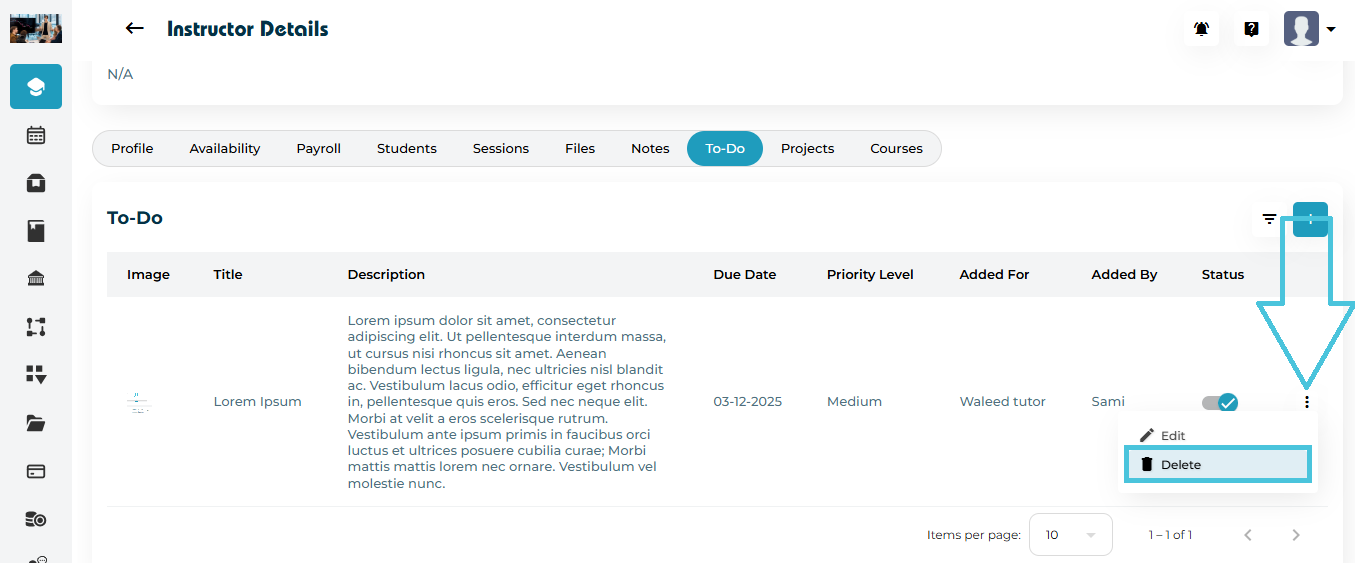
4. Deleting a Task

If you need to remove a task:

  1. Open the three-dots menu (⋮) next to the task.

  2. Click Delete.

  3. Confirm the action.

The task will be permanently removed from the instructor’s To-Do list.

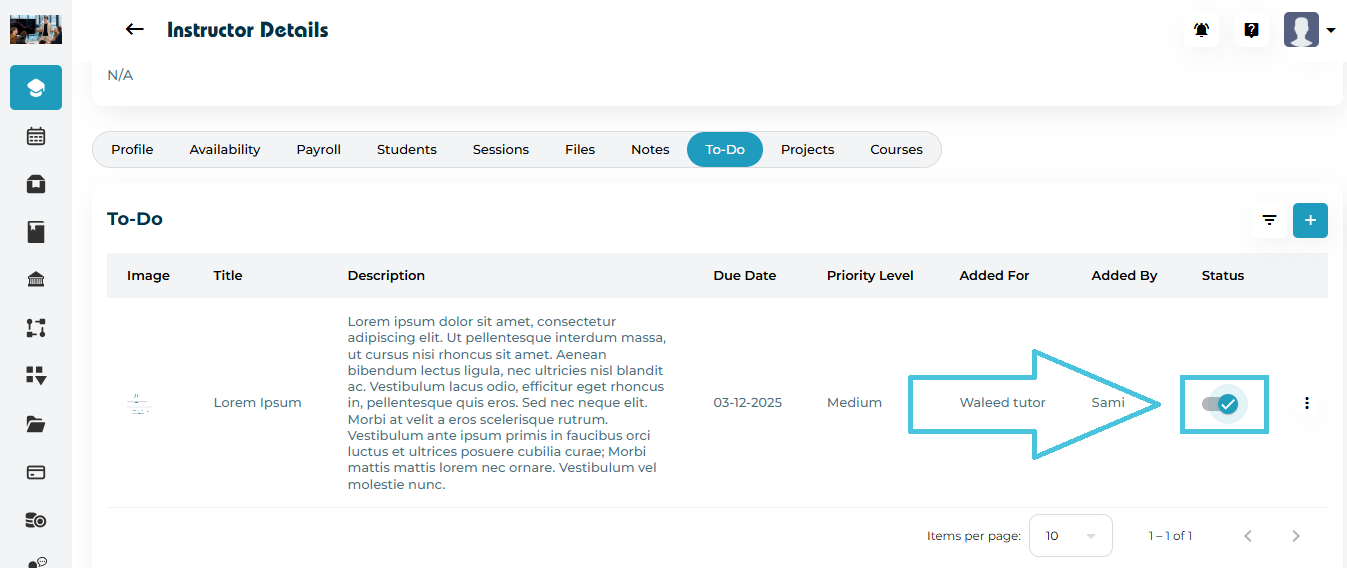
5. Tracking Task Completion Status

Each task has a status toggle beside it:

  • Checked (blue) = Task completed

  • Unchecked (grey) = Task pending

Instructors may mark tasks as complete from their portal, or Admins may update the status manually.

This helps track progress at a glance.

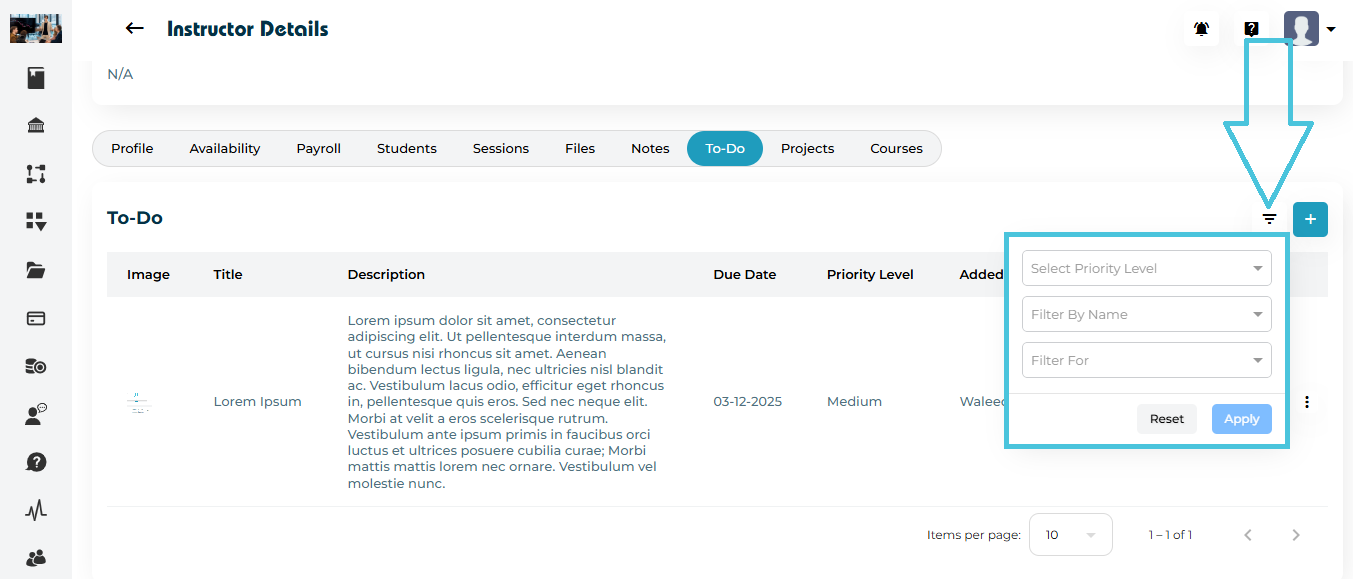
6. Filtering Instructor Tasks

To quickly locate or review tasks:

      1. Click the Filter icon next to the Add button.

      2. A filter panel will appear.

    Available Filters
    FilterPurpose
    Priority LevelView tasks by urgency (Low/Medium/High).
    Filter by NameTask added for Self, for Student ,or by Admin.
    Filter ForTask added for Tutoring or Counseling.

    1. Click Apply to run the filter.

    2. Click Reset to restore the full task list.

IN THIS ARTICLE

Adding and reviewing notes for instructors

Adding and Reviewing Notes for Instructors

The Notes section inside an instructor’s profile allows Admins to record, track, and manage important internal information or communication related to performance, students, updates, or administrative actions. These notes help maintain transparency and support effective staff management across the PrepBase ecosystem.

This article explains how to add new notes, edit or delete existing notes, and filter or review notes for any instructor.

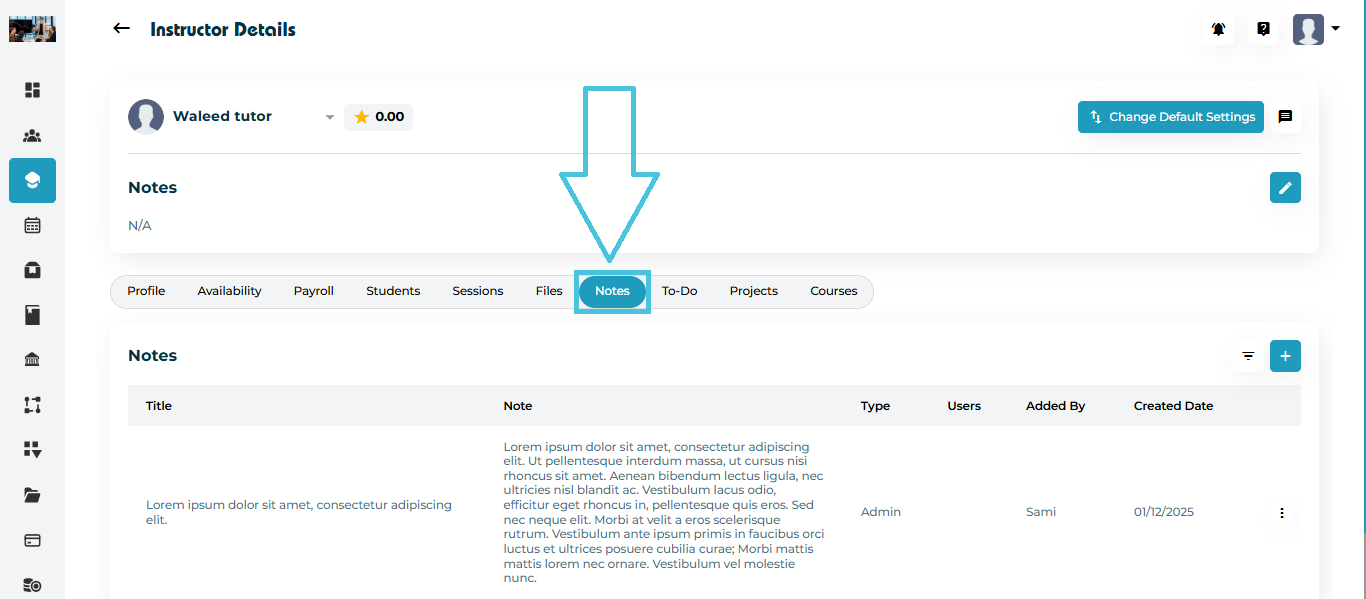
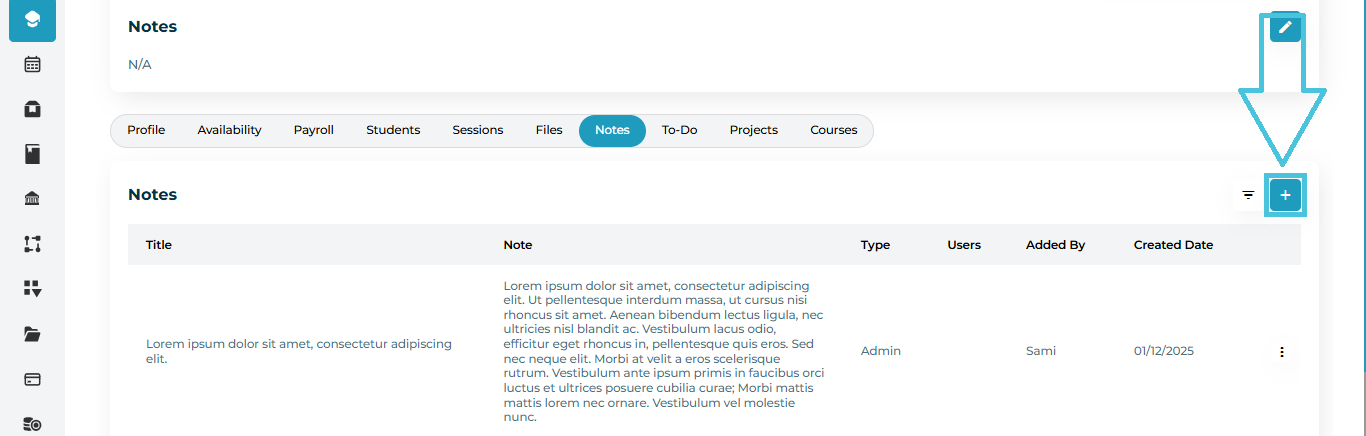
1. Accessing the Instructor Notes Tab

  1. Navigate to Instructors from the left-side menu.

  2. Open any instructor’s profile.

  3. Click the Notes tab from the top navigation inside the profile.

Here, you will see a table listing all notes with:

  • Title

  • Note text

  • Type (Admin note / Instructor note / Student or Parent note)

  • Users (who the note applies to)

  • Added By

  • Created Date

  • Actions (Edit, Delete)

2. Adding a New Note

To add a new note:

  1. Click the ➕ Add Note button on the right side of the Notes tab.

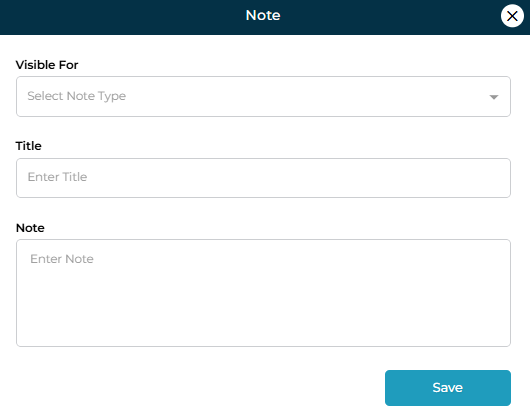
  1. A modal titled “Note” will open.

  2. Fill in the required fields:

Fields Explained
FieldDescription
Visible ForSelect who can view this note (Admin, Instructor, Student,Parent and Both students and parents)
TitleA short title summarizing the note.
NoteThe full note description with all relevant details.


  1. Click Save to add the note to the instructor profile.


NOTE: any note that is visible to students or both students and parents are also automatically visible to the instructor.

3. Editing an Existing Note

To update details or correct information:

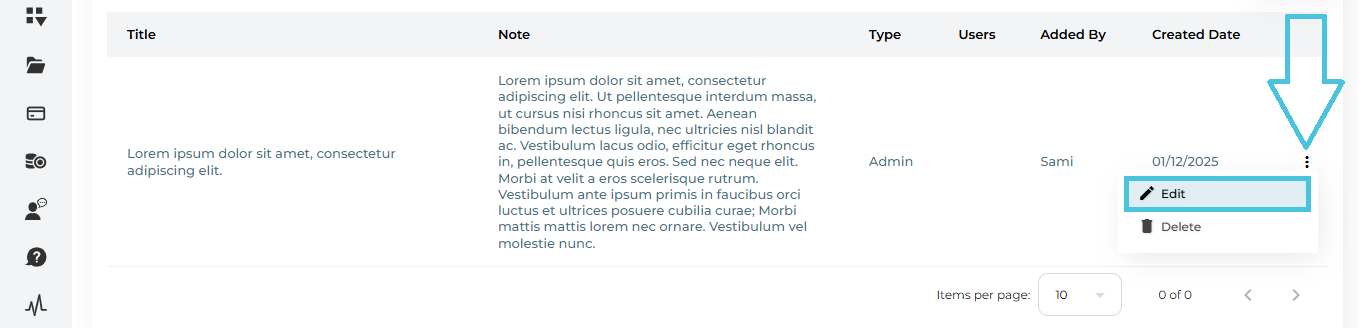
  1. Locate the note from the list.

  2. Click the three-dots menu (⋮) on the right.

  3. Select Edit.

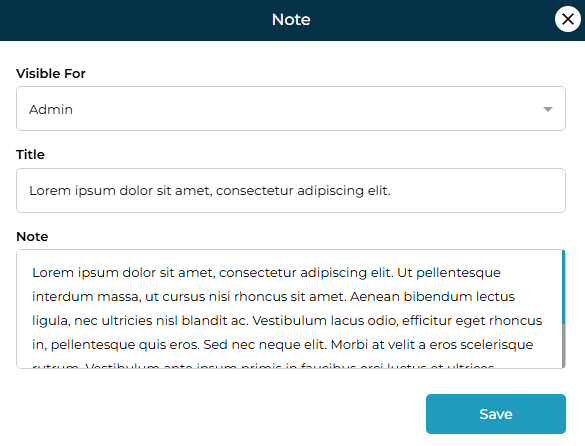
  1. The note form opens with existing data pre-filled.

  2. Modify the Visible For, Title, or Note body as needed.

  3. Click Save to update.

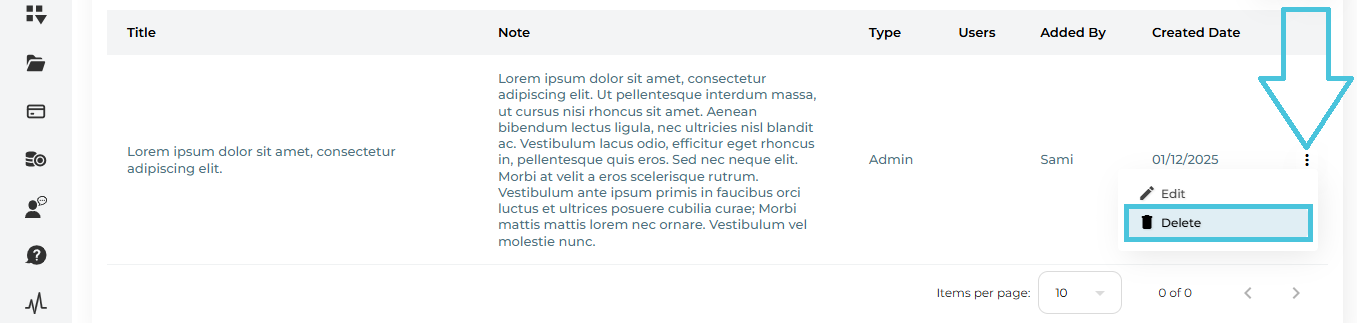
4. Deleting a Note

If a note is no longer required or was added by mistake:

  1. Open the ⋮ actions menu next to the note.

  2. Click Delete.

  3. Confirm the deletion.

Note: Deleted notes are permanently removed and cannot be recovered.

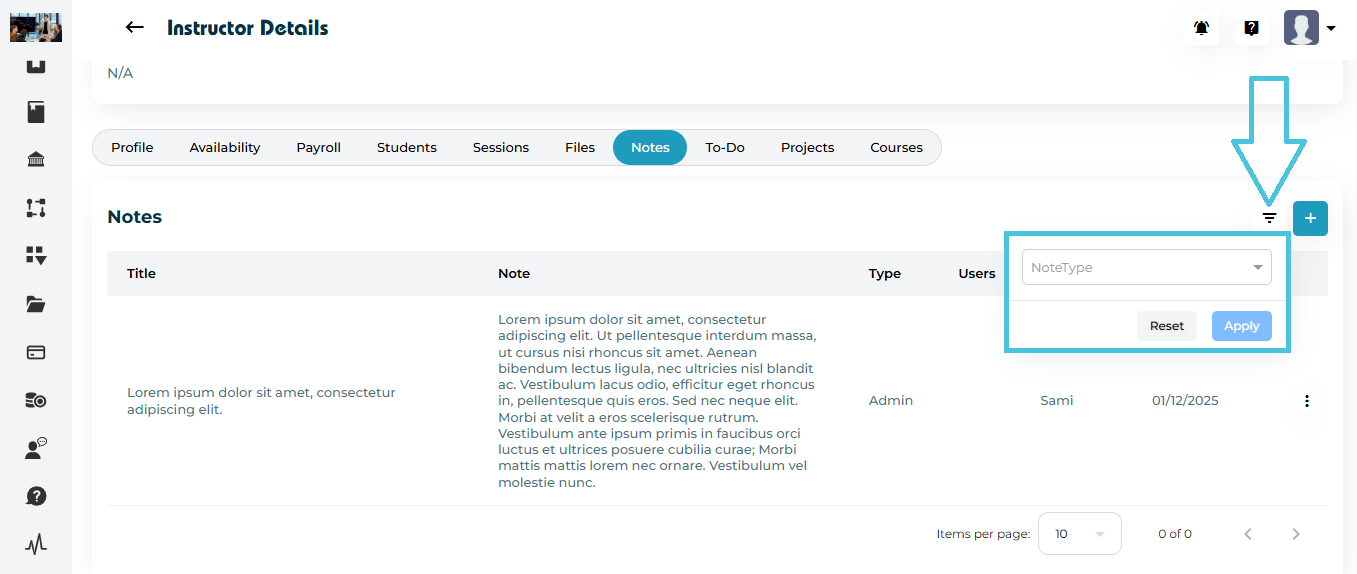
5. Filtering Instructor Notes

Use the Filter button to refine the list of notes.

  1. Click the Filter icon next to the Add Note button.

  2. You can filter notes by:

    • Note Type – who it is added for (Admin, Instructor, student, Parent and Both etc.)

  3. Click Apply to see filtered results, or Reset to clear all filters.

IN THIS ARTICLE