Navigate to:
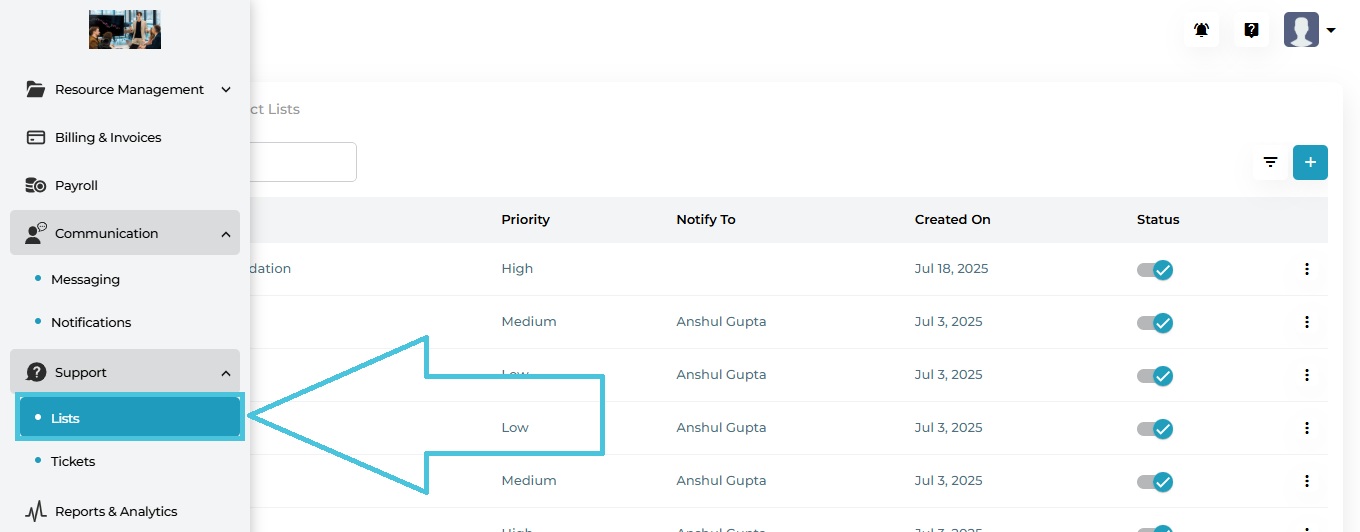
Support → Lists
This opens the Lists management screen, where all support categories are created, edited, enabled/disabled, and deleted.
The Default List tab is used to create global support categories that are available across the entire platform.
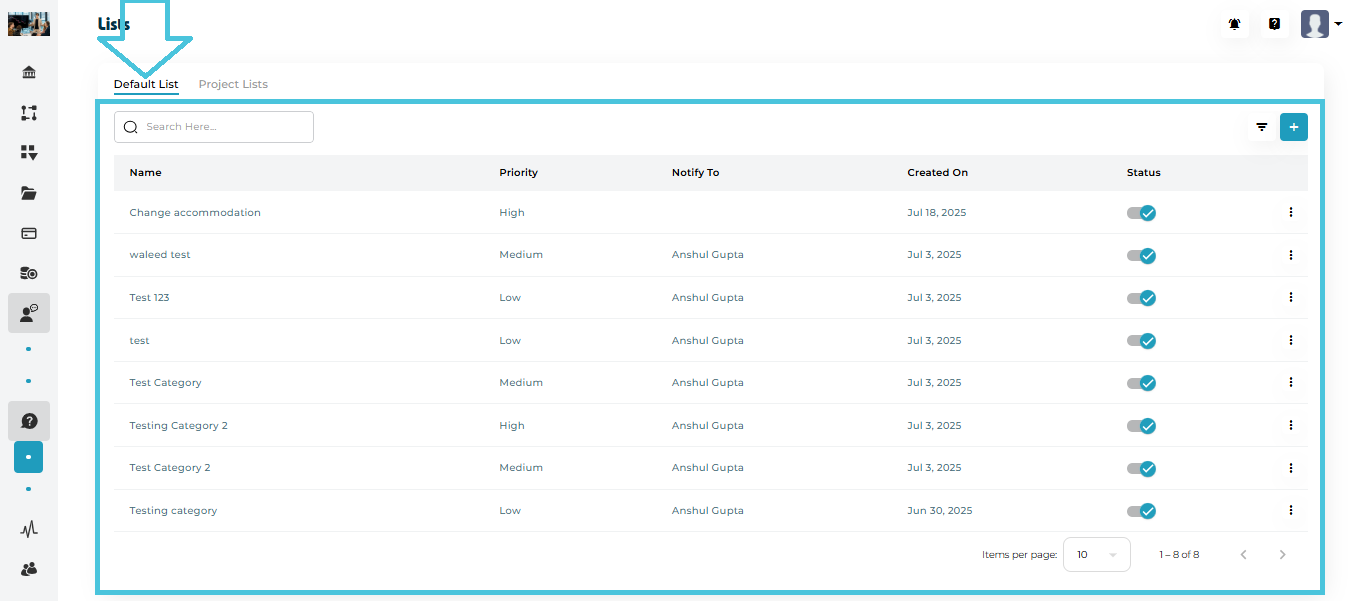
Default List Table Columns
| Column | Description |
|---|---|
| Name | Support category name (e.g., Change Accommodation). |
| Priority | Priority level: Low, Medium, or High. |
| Notify To | Users who will be notified when tickets are created under this category. |
| Created On | Date the category was created. |
| Status | Active / Inactive toggle. |
| Actions | Edit or Delete options. |
Creating a New Default Support Category
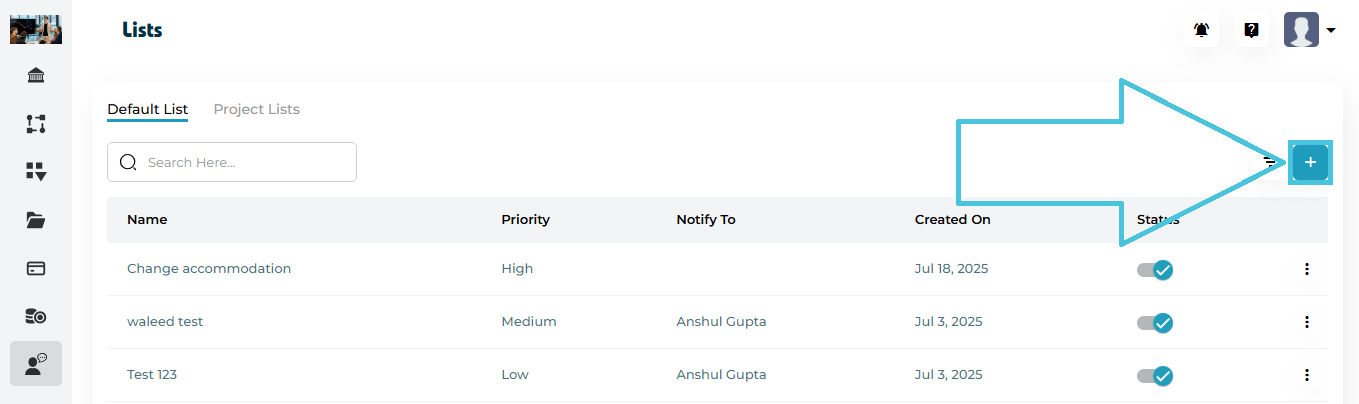
Steps
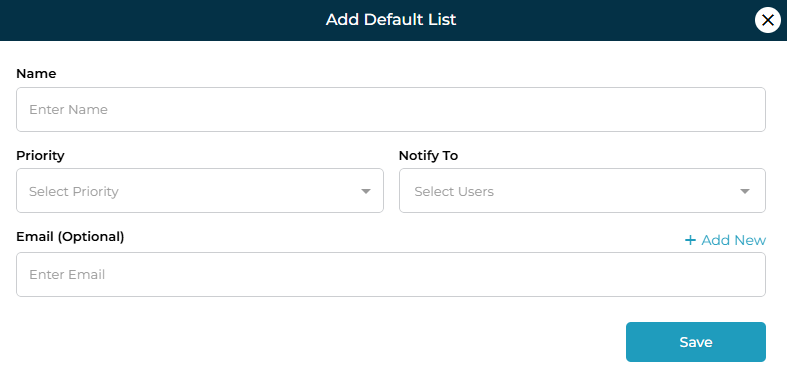
Open the Default List tab
Click the ➕ Add button
Enter the Name of the support category
Select a Priority
Low
Medium
High
Choose Notify To users (admins or sub-admins)
(Optional) Add an Email
Click Add New to include external email recipients
Click Save
The category is immediately available for use in Support tickets.
Editing a Default Support Category
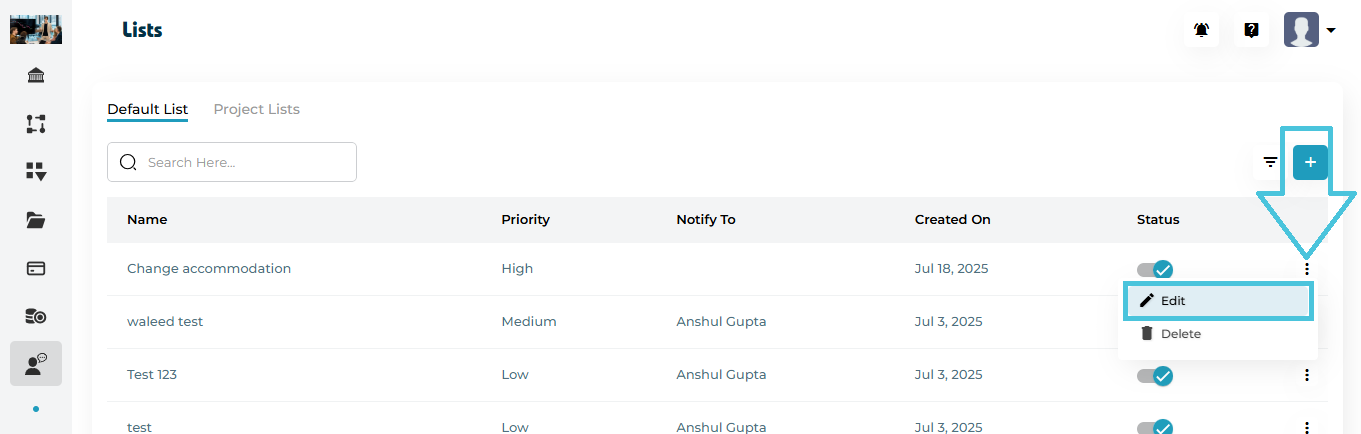
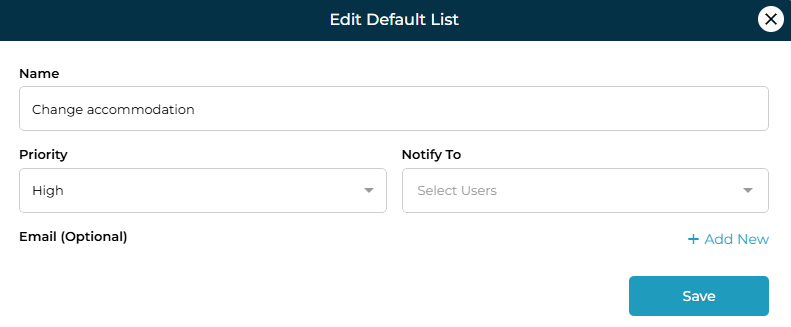
Steps
Click the three-dot menu next to a category
Select Edit
Update:
Name
Priority
Notify To users
Email (Optional)
Click Save
Changes apply instantly to future tickets.
Deleting a Default Support Category
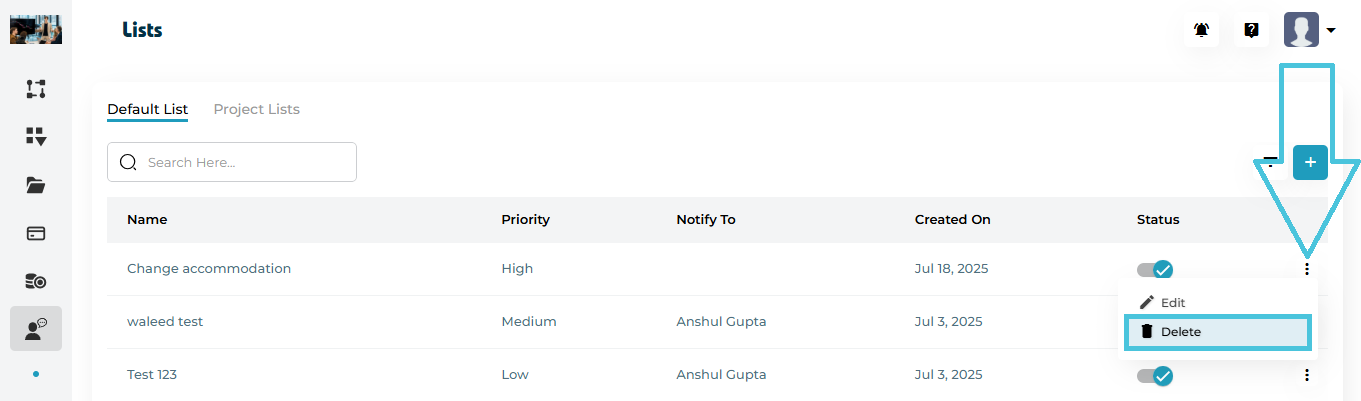
Open the three-dot menu
Click Delete
Confirm the action
⚠️ Deleting a category permanently removes it and may affect ticket categorization.
The Project Lists tab is used to create support categories limited to specific projects or workflows. These support categories can be selected by admin during the project creation process on the admin panel.
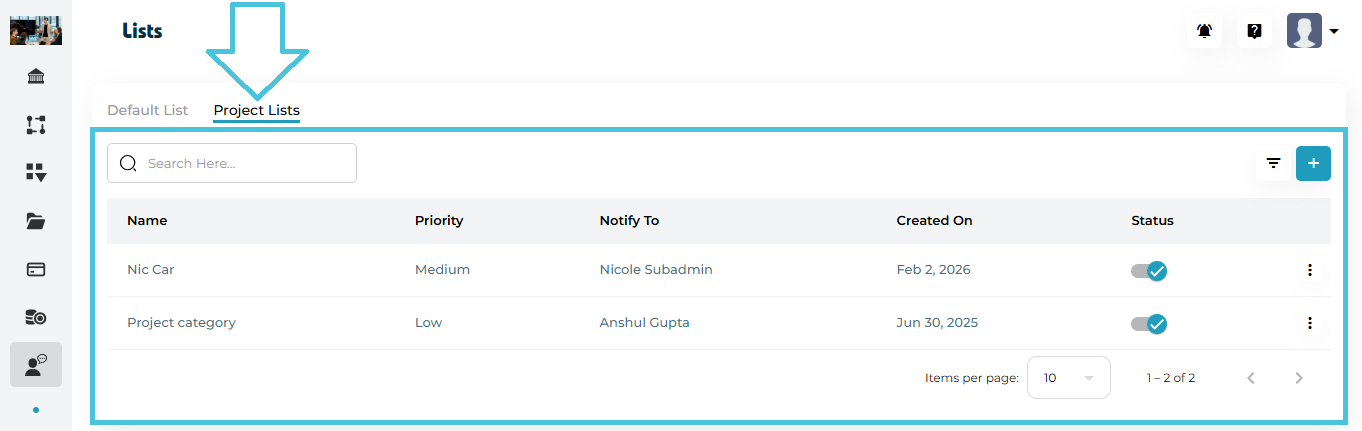
Project Lists Table Columns
| Column | Description |
|---|---|
| Name | Project-specific support category name. |
| Priority | Low, Medium, or High. |
| Notify To | Assigned user for notifications. |
| Created On | Creation date. |
| Status | Active / Inactive toggle. |
| Actions | Edit or Delete options. |
Creating a Project-Specific Support Category
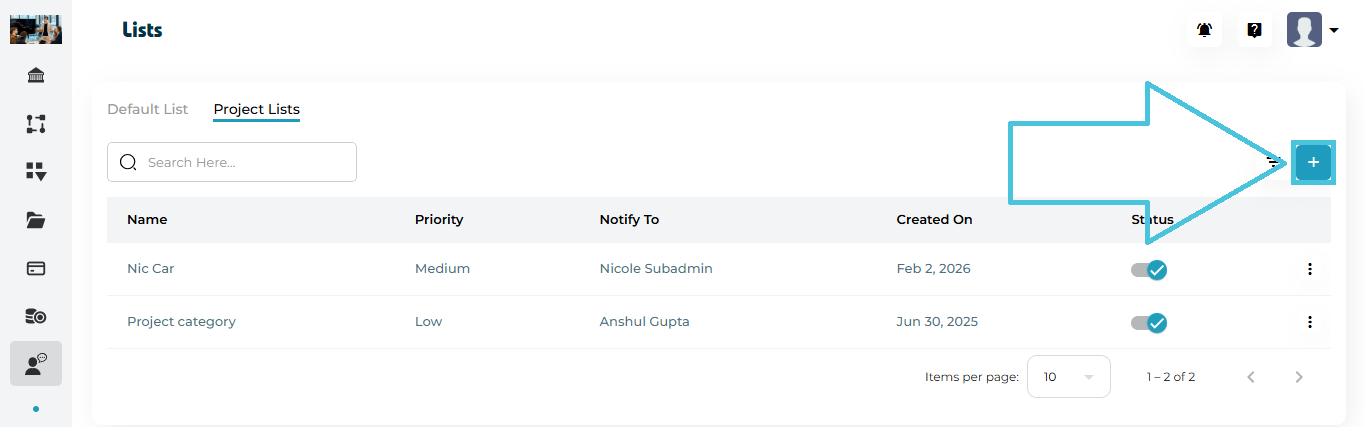
Steps
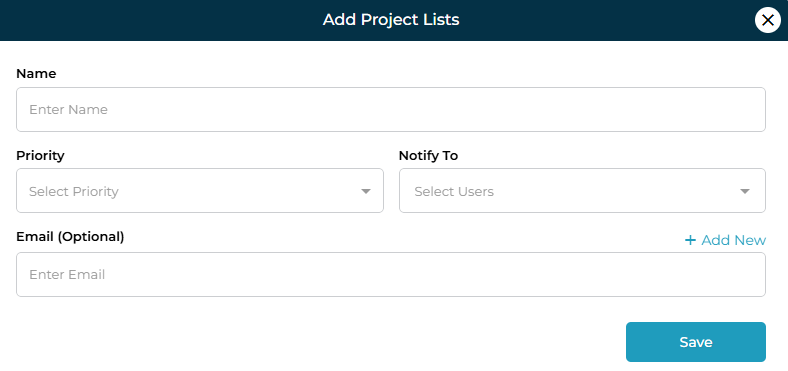
Switch to the Project Lists tab
Click ➕ Add
Enter the Category Name
Select Priority
Choose Notify To user(s)
(Optional) Add an Email
Click Save
This category will be available only in the relevant project context.
Editing a Project-Specific Support Category
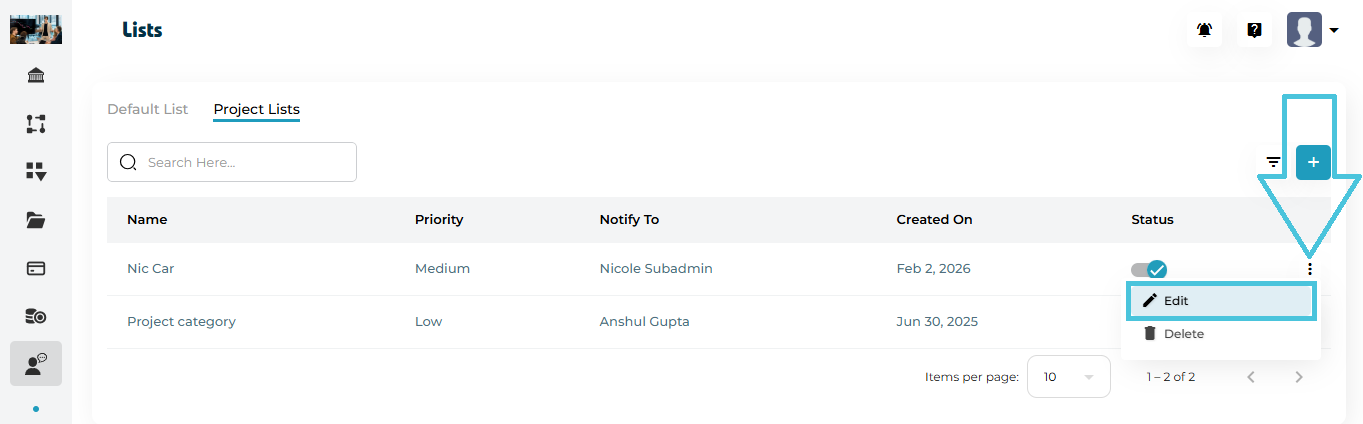
Steps:
Click the three-dot menu next to a category
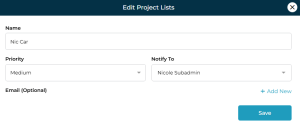
Select Edit
Update:
Name
Priority
Notify To users
Email (Optional)
Click Save
Changes apply instantly to future tickets.
Deleting a Project-Specific Support Category
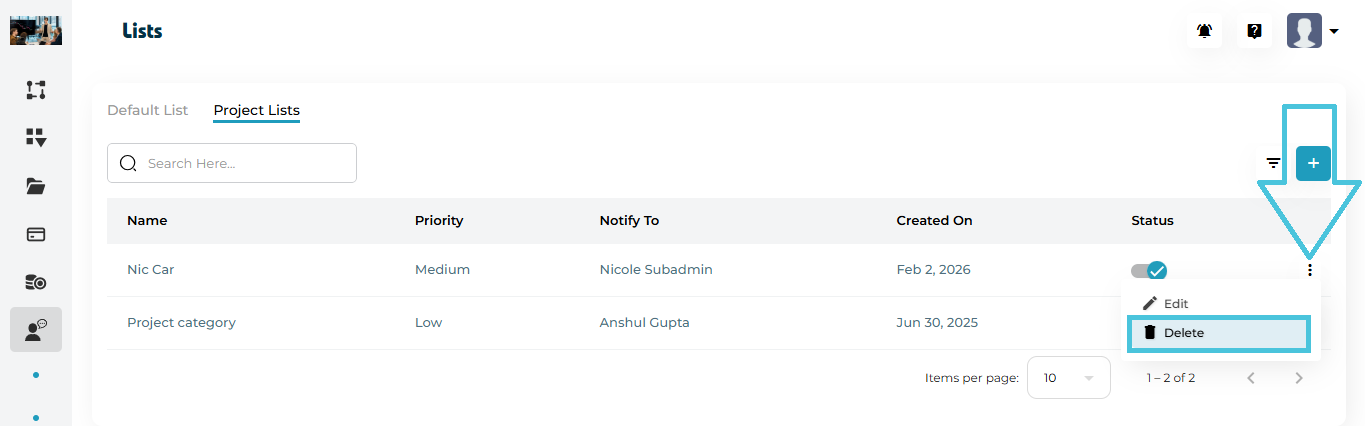
Open the three-dot menu
Click Delete
Confirm the action
⚠️ Deleting a category permanently removes it and may affect ticket categorization.
Available Controls
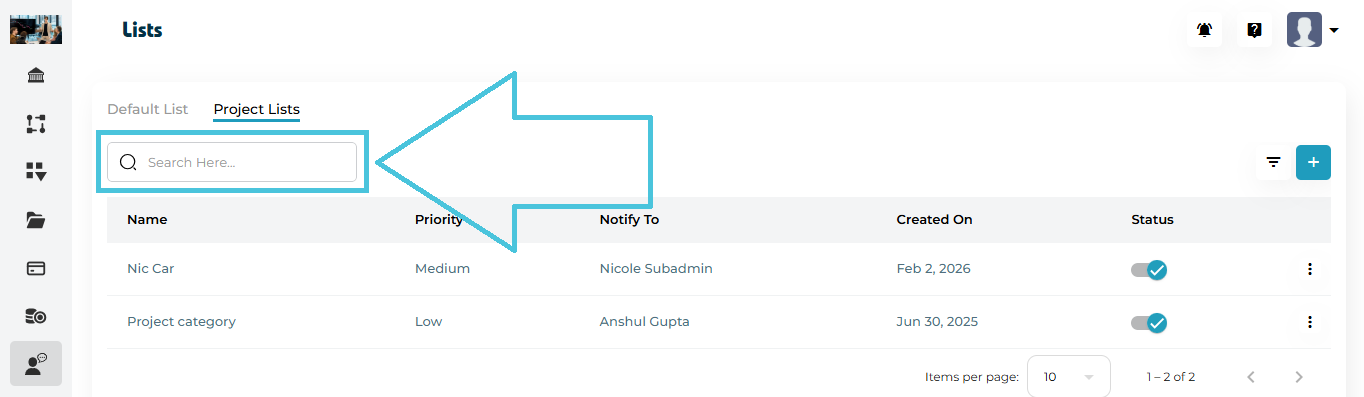
Search Bar
Search categories by name
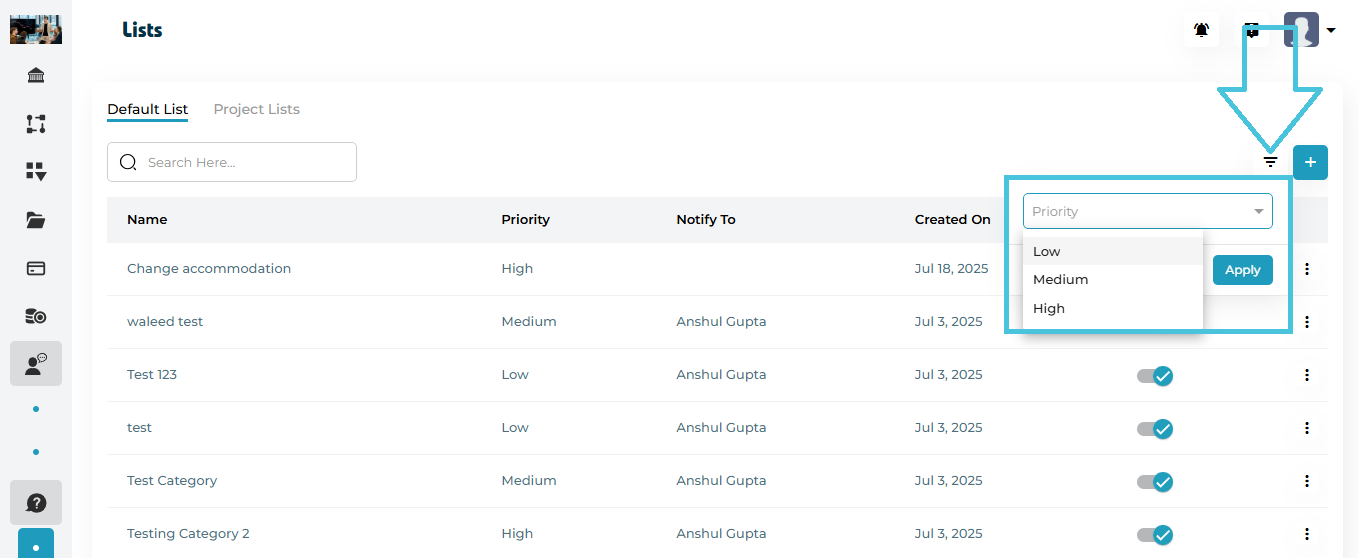
Priority Filter
Filter by Low / Medium / High
Apply / Reset
Quickly adjust list visibility
Filters work independently in Default List and Project Lists tabs.
Each category includes a Status toggle:
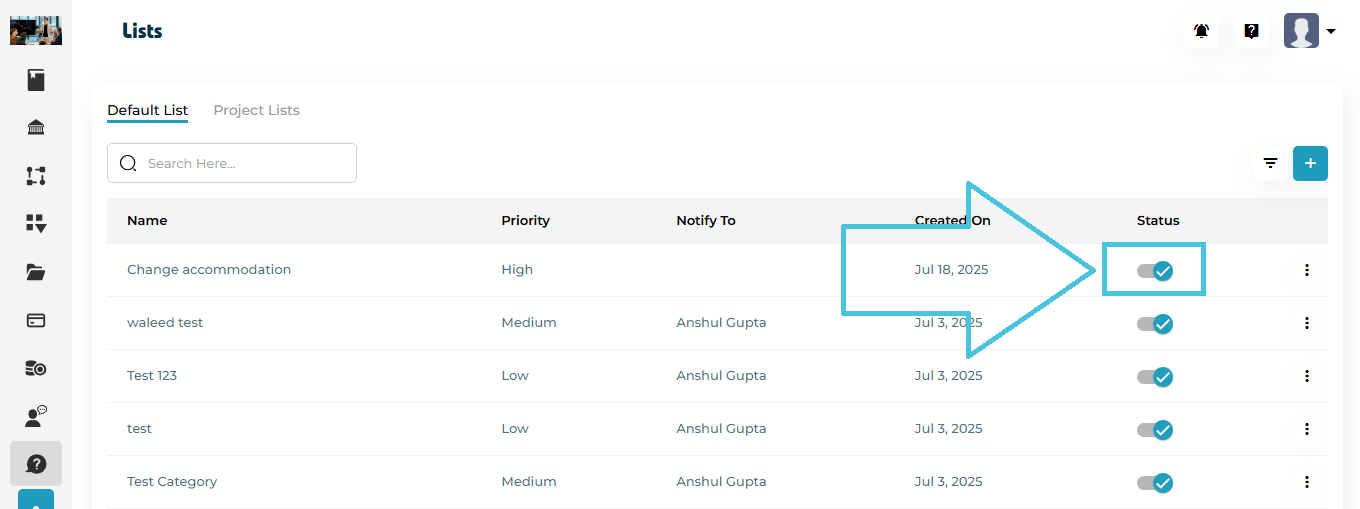
Enabled – Category is available for ticket creation
Disabled – Category is hidden and cannot be selected
This is useful for:
Temporarily retiring categories
Seasonal or project-based workflows