Navigate to: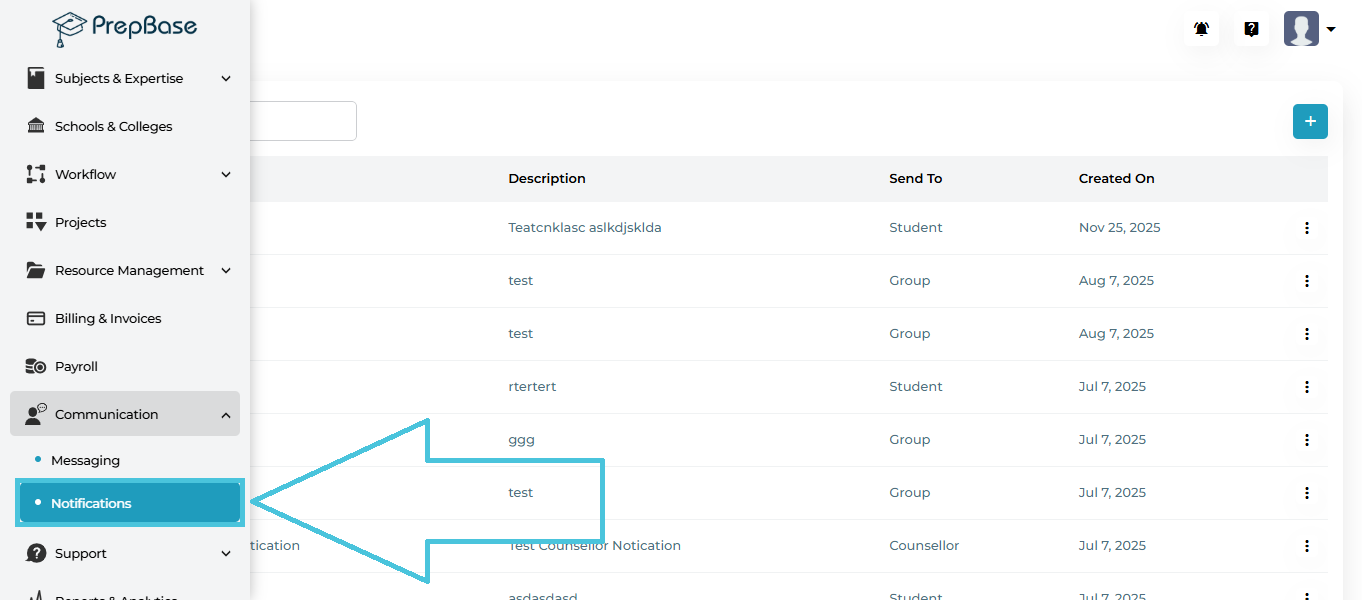
Communication → Notifications
This opens the Notifications management screen, where all previously created notifications are listed and managed.
The Notifications page provides a centralized view of all in-app notifications.
Key Areas on the Page
Search Bar – Quickly find notifications by title
Add Notification (+) – Create a new in-app notification
Notifications Table – Displays all notifications
Actions Menu – Delete individual notifications
Pagination Controls – Navigate through notification history
Notifications List Columns Explained
Each row in the list represents one notification.
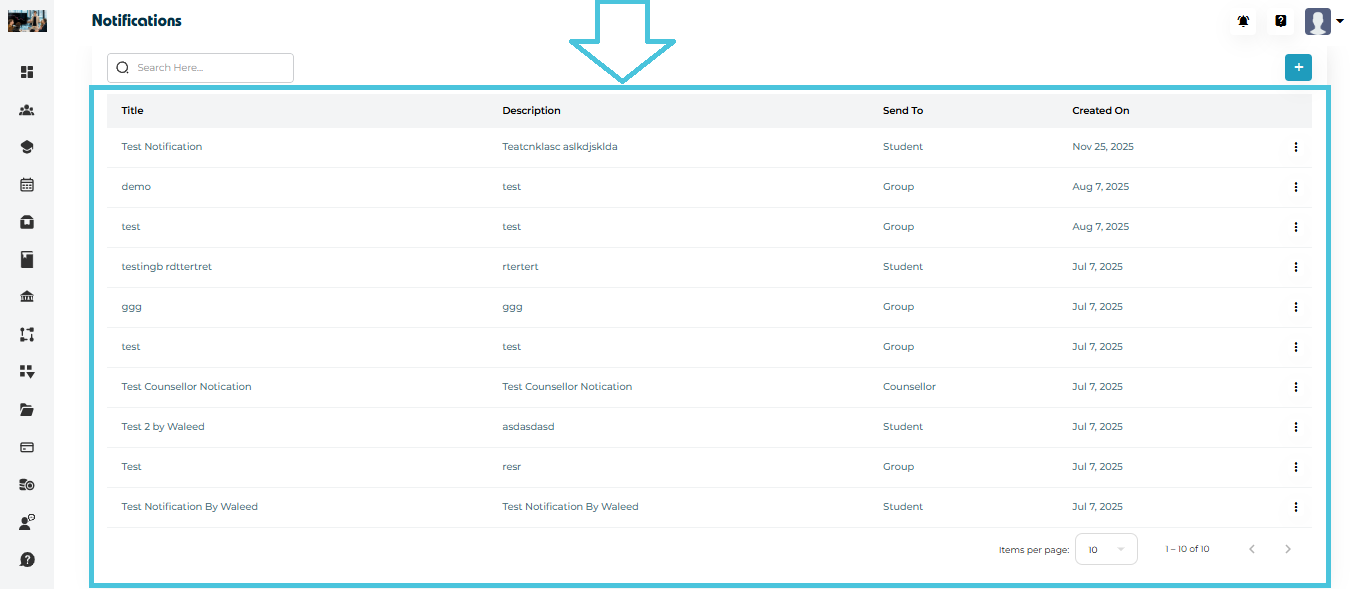
| Column | Description |
|---|---|
| Title | Notification title shown to recipients. |
| Description | Message content of the notification. |
| Send To | Target audience (Student, Instructor, Counselor, or Group). |
| Created On | Date the notification was created. |
| Actions | Context menu for deleting the notification. |
Admins can create new notifications at any time.
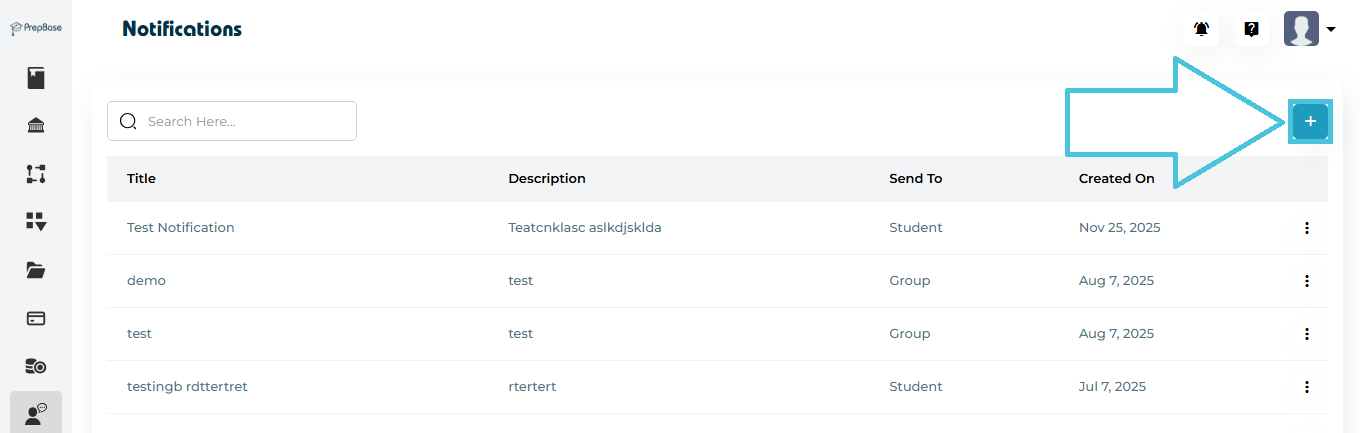
Steps to Add a Notification
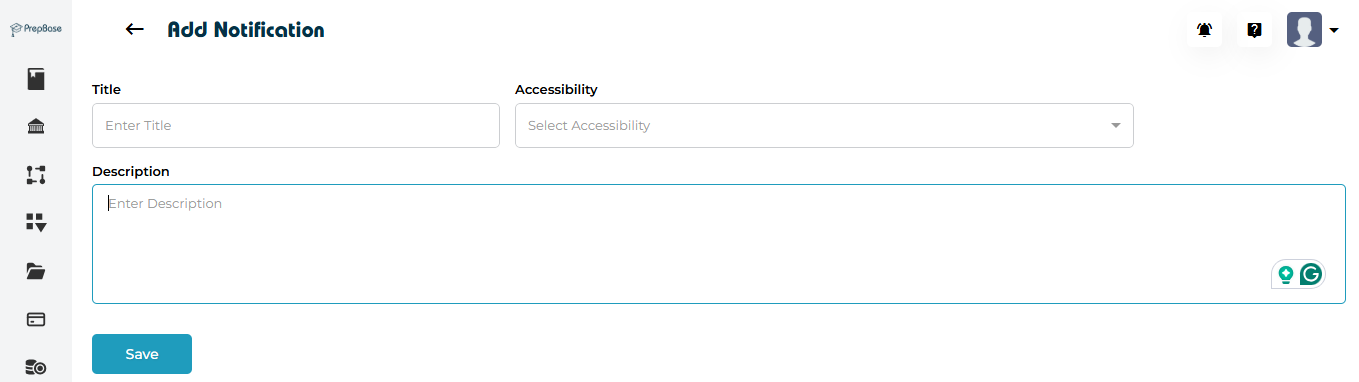
Click the ➕ Add Notification button
Enter a clear Title
Add the Description (notification message)
Select Send To:
Student
Instructor
Counselor
Group
Click Submit / Save
The notification is immediately delivered to the selected recipients inside PrepBase.
To find a specific notification:
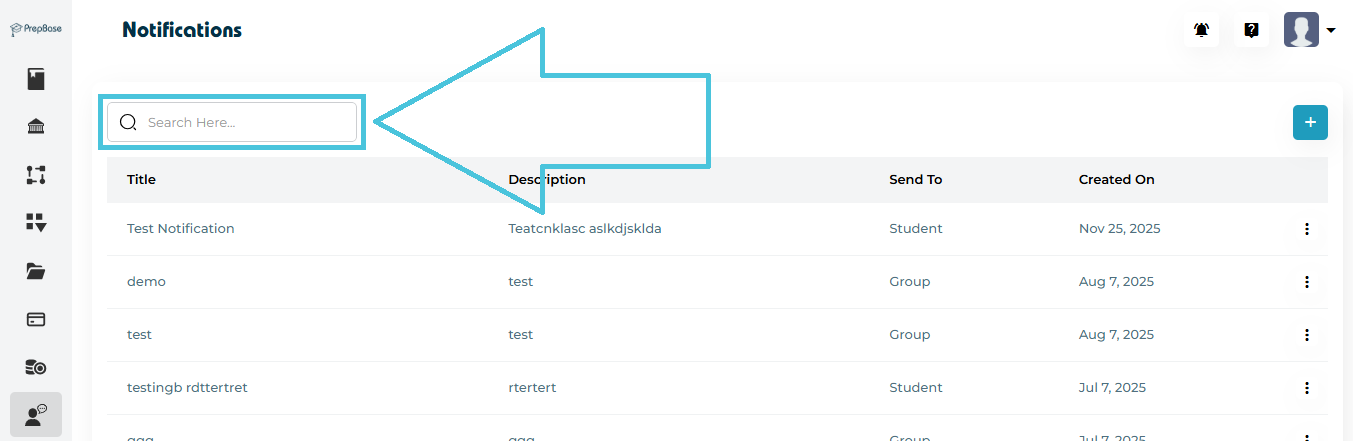
Use the Search field at the top
Enter part or all of the notification title
The list updates instantly to match the search criteria.
To delete a notification:
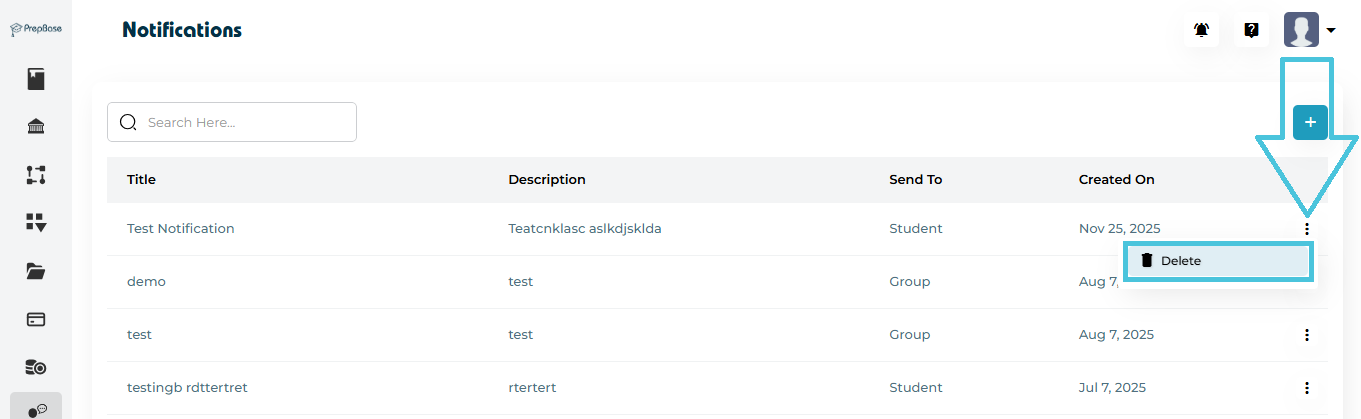
Click the three-dot menu next to the notification
Select Delete
Confirm the action
This is useful for removing outdated or incorrect announcements.