Navigate to:
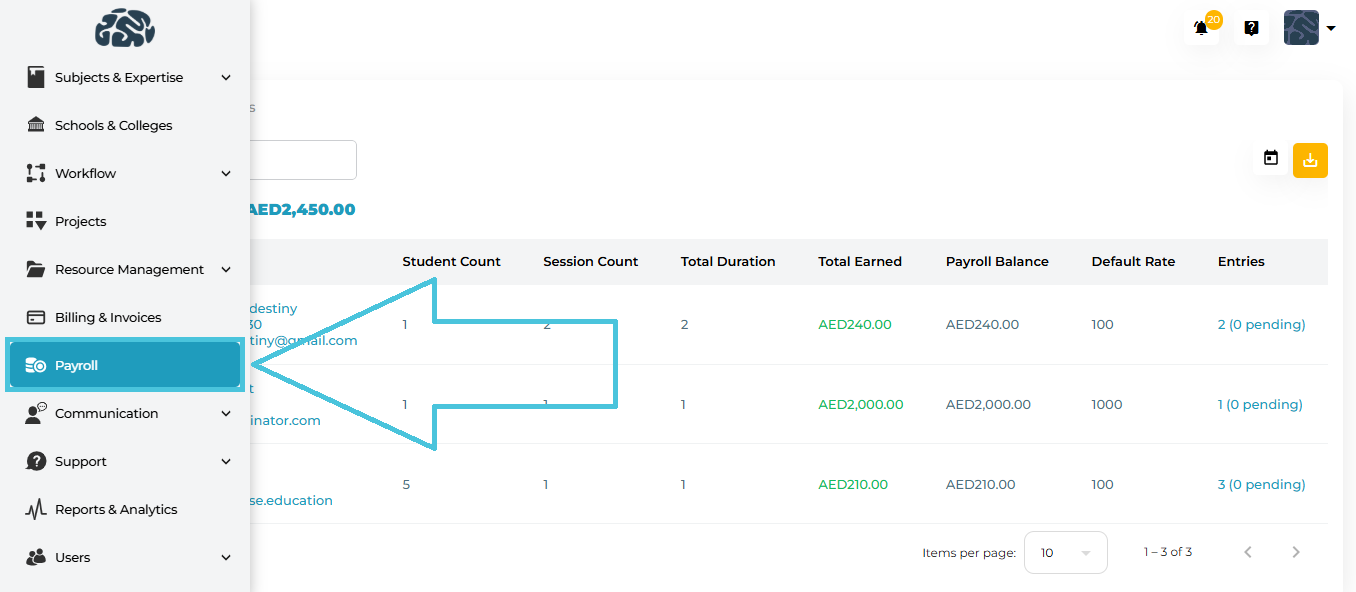
Payroll → Tutors / Counselors
Payroll is divided into two tabs:
Tutors
Counselors
Each tab functions the same way, displaying instructor-level earnings and entries based on completed sessions and approved manual work.
The payroll list provides a high-level summary of instructor earnings.
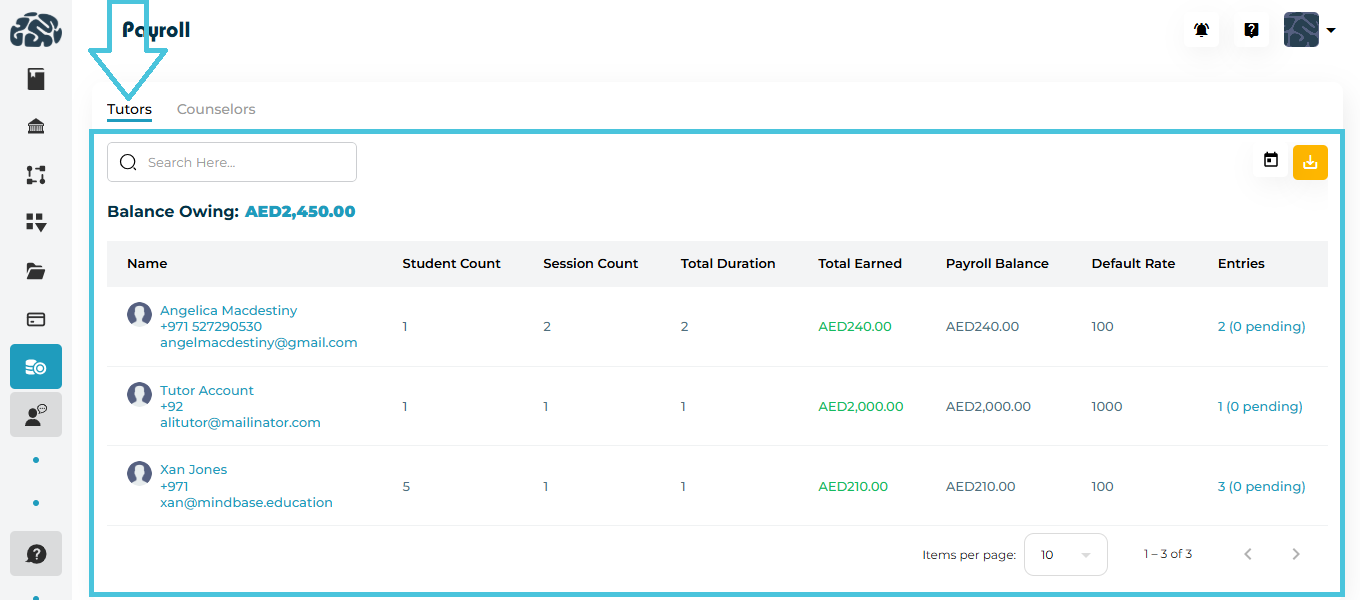
Columns Explained
Each row represents one instructor and includes:
Name
Instructor name with phone number and email
(Clicking the name or email opens the instructor’s detailed Entries page)Student Count
Number of unique matched with themSession Count
Total completed sessionsTotal Duration
Total Completed Sessions hours loggedTotal Earned
Total amount earned based on sessions and ratesPayroll Balance
Amount currently payable to the instructorDefault Rate
Hourly rate used for payroll calculationsEntries
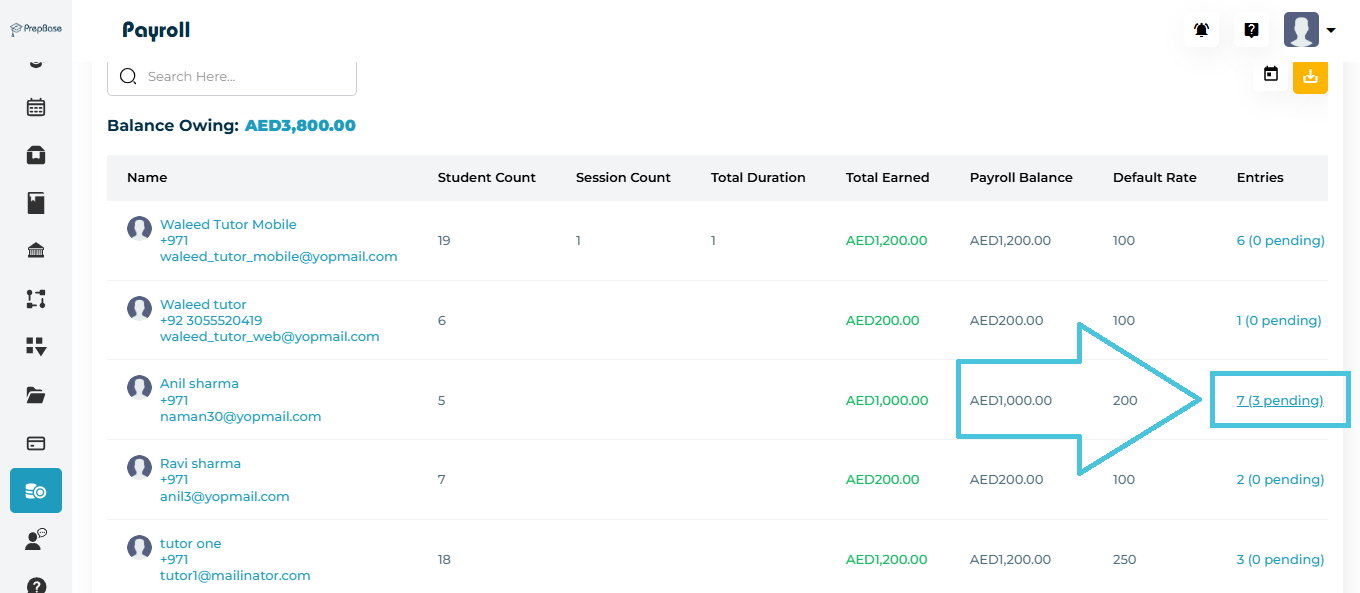
Total entries with pending manual entries clearly indicated
(e.g.,3 (0 pending))
At the top of the payroll page, Balance Owing shows:
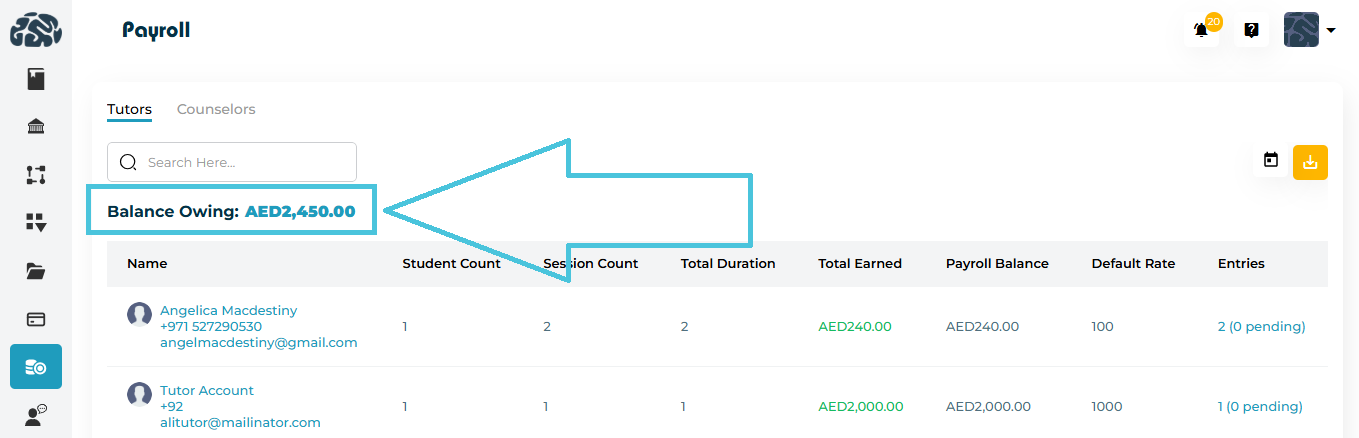
The total payable amount across all instructors in the selected tab (Tutors or Counselors)
This value updates automatically as manual entries are confirmed or rejected.
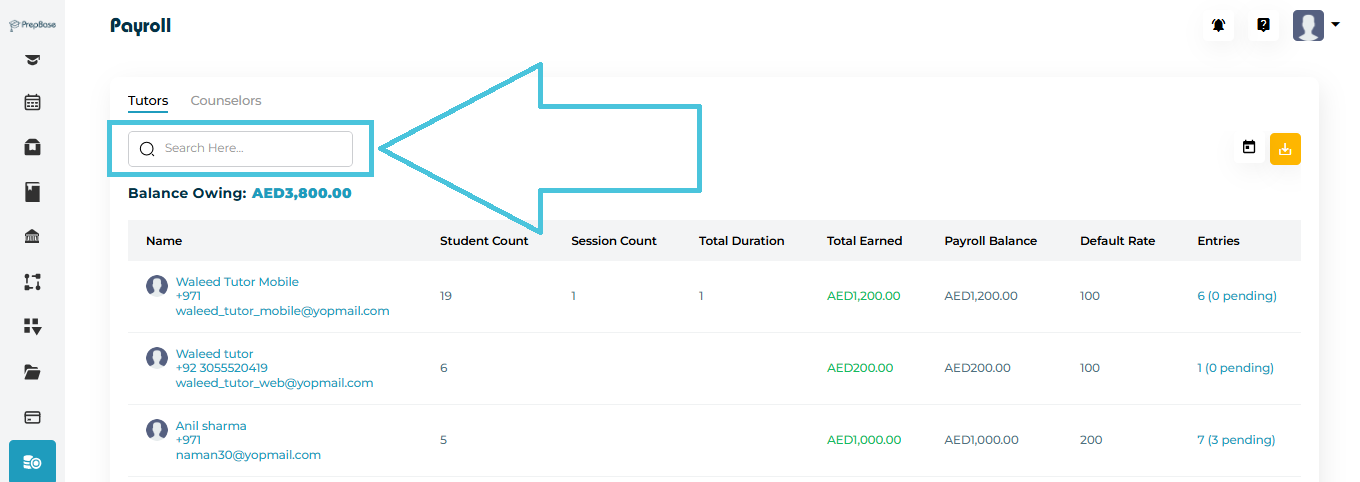
Search Instructors
Use the search bar to quickly find an instructor by name or email.
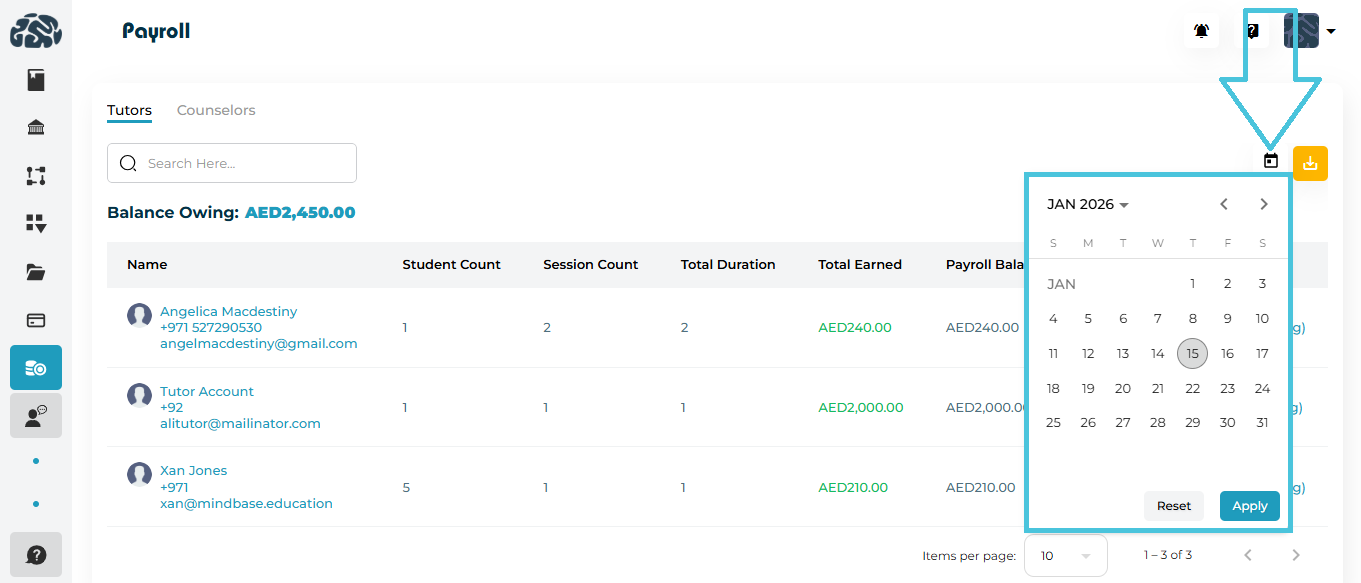
Date Filter (Calendar)
Admins can filter payroll data using a calendar picker to view earnings for a specific date range.
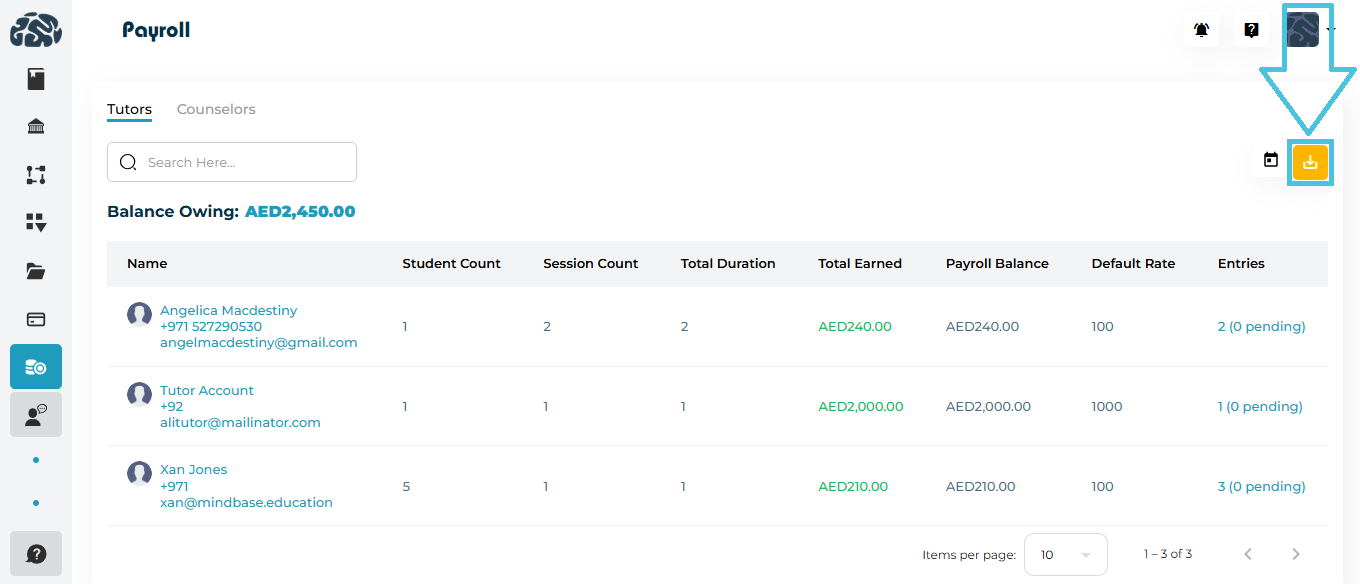
Export Payroll Data
Click Export CSV to download payroll summaries for reporting, reconciliation, or finance processing.
Clicking an entry will open entry page.
Entries Page Overview
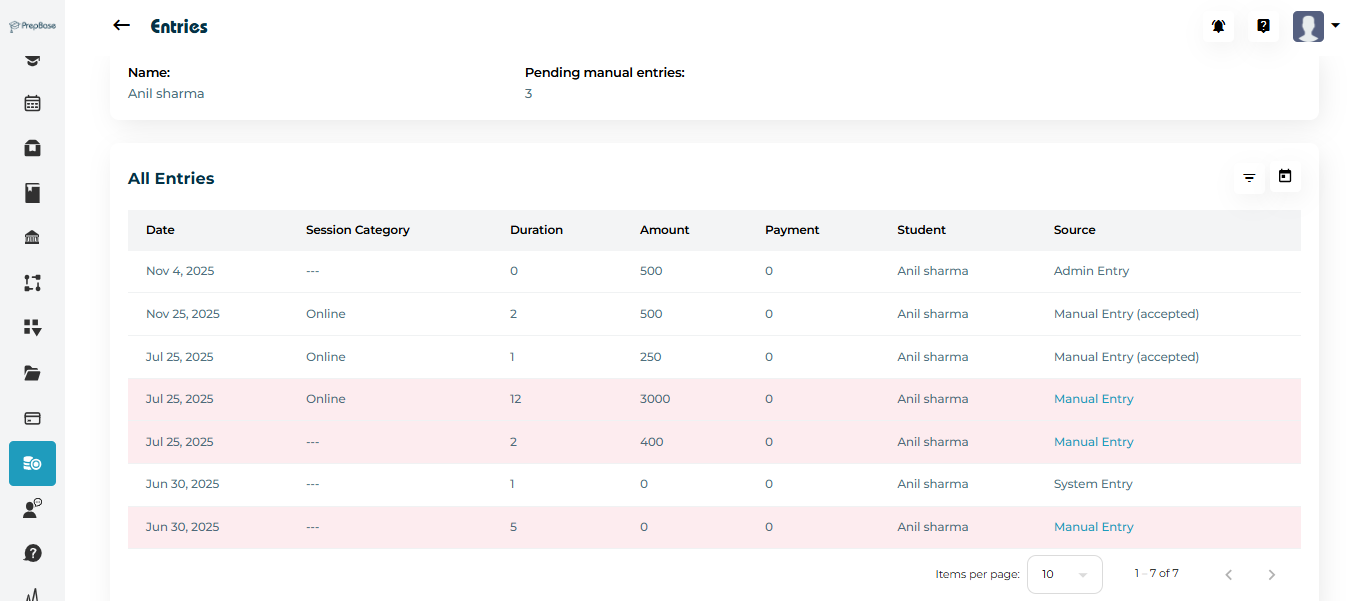
The Entries page shows:
Instructor name
Pending manual entries count
A complete list of all entries related to that instructor
Pending manual entries are:
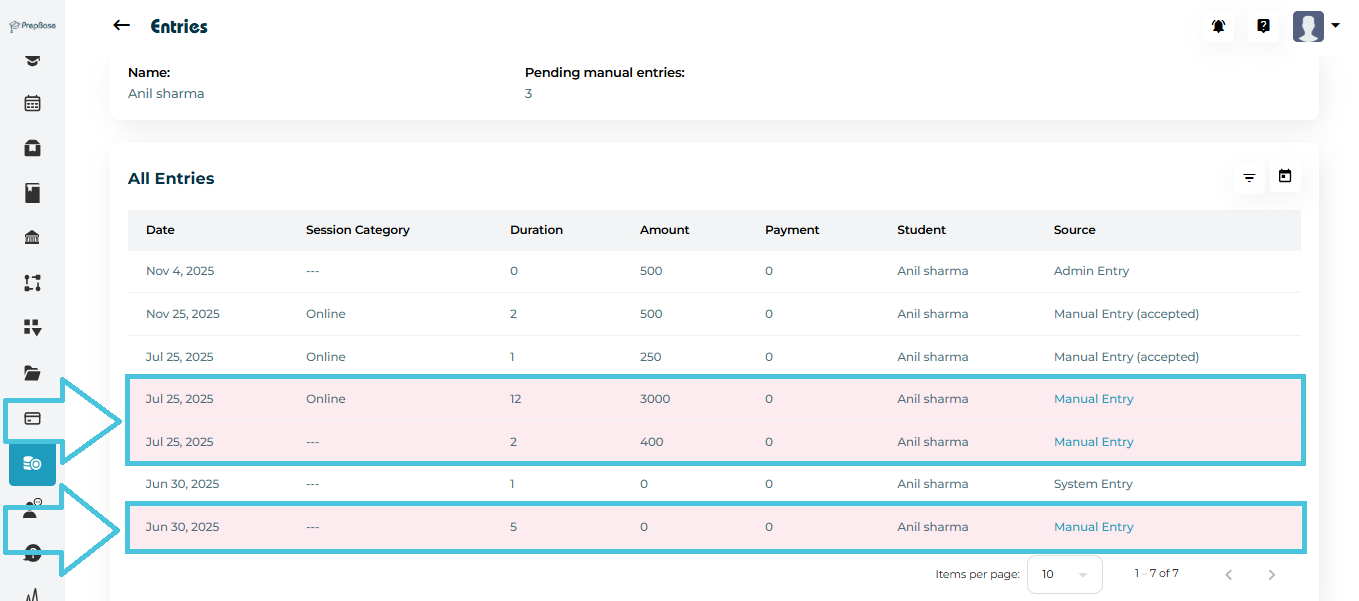
Highlighted visually
Labeled as Manual Entry
Counted at the top of the Entries page
Excluded from payroll totals until action is taken
Admins can filter entries to focus only on pending approvals.
- Pending Manual Entries toggle
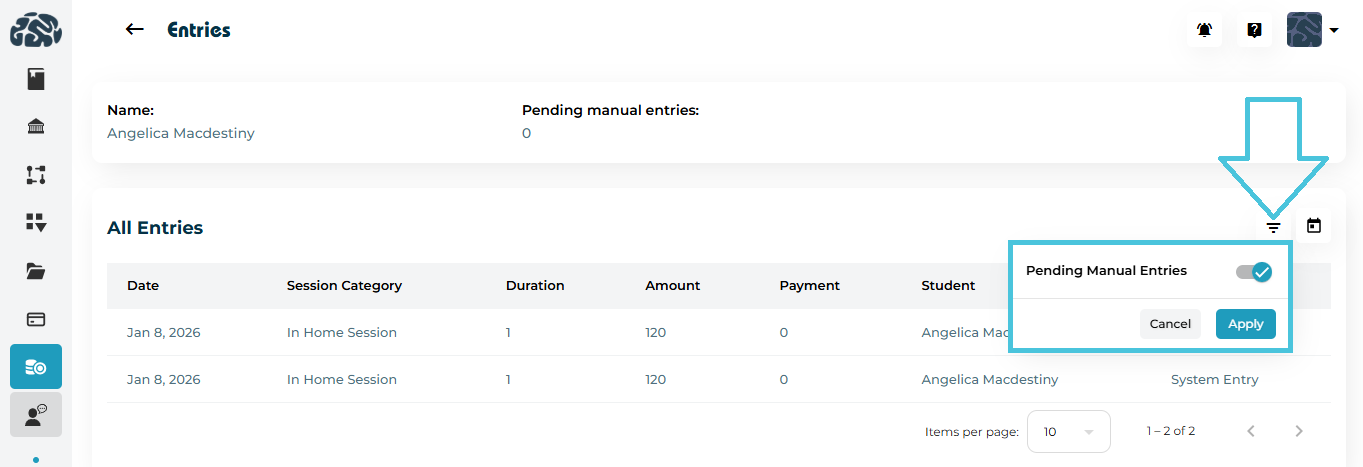
Filter Options
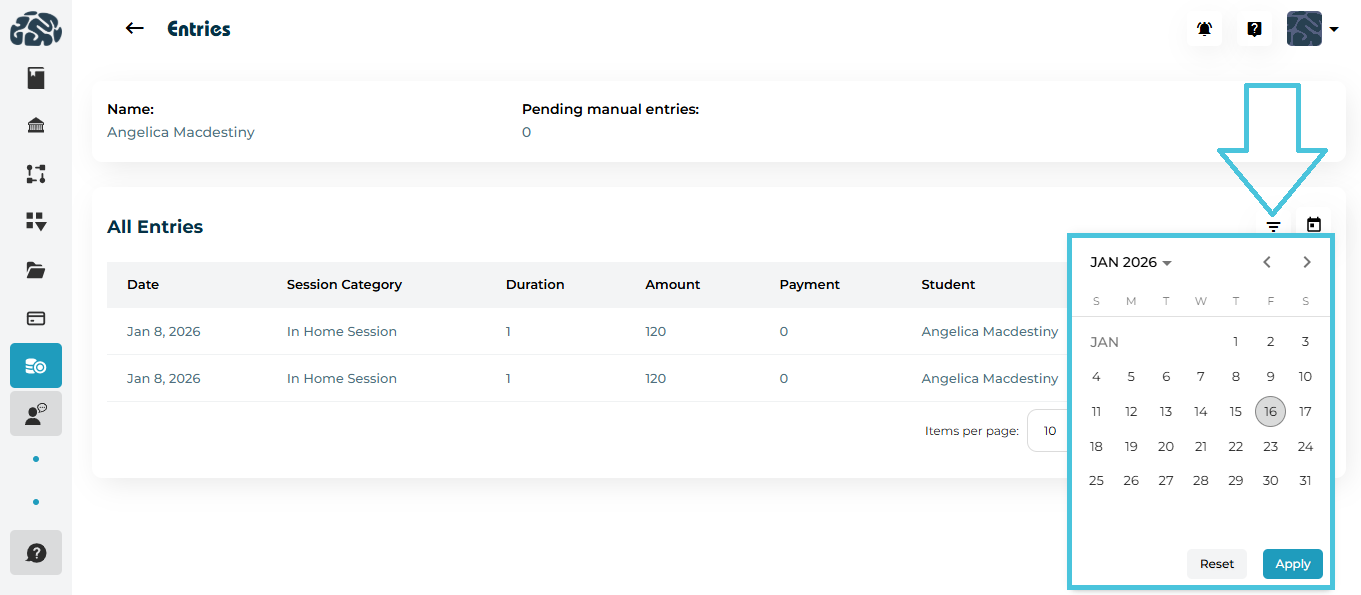
Calendar filter to narrow by date
Reset / Apply buttons to control filtering
This makes it easy to review only items requiring attention.
Click Manual Entry text in the Source column to open the review modal.
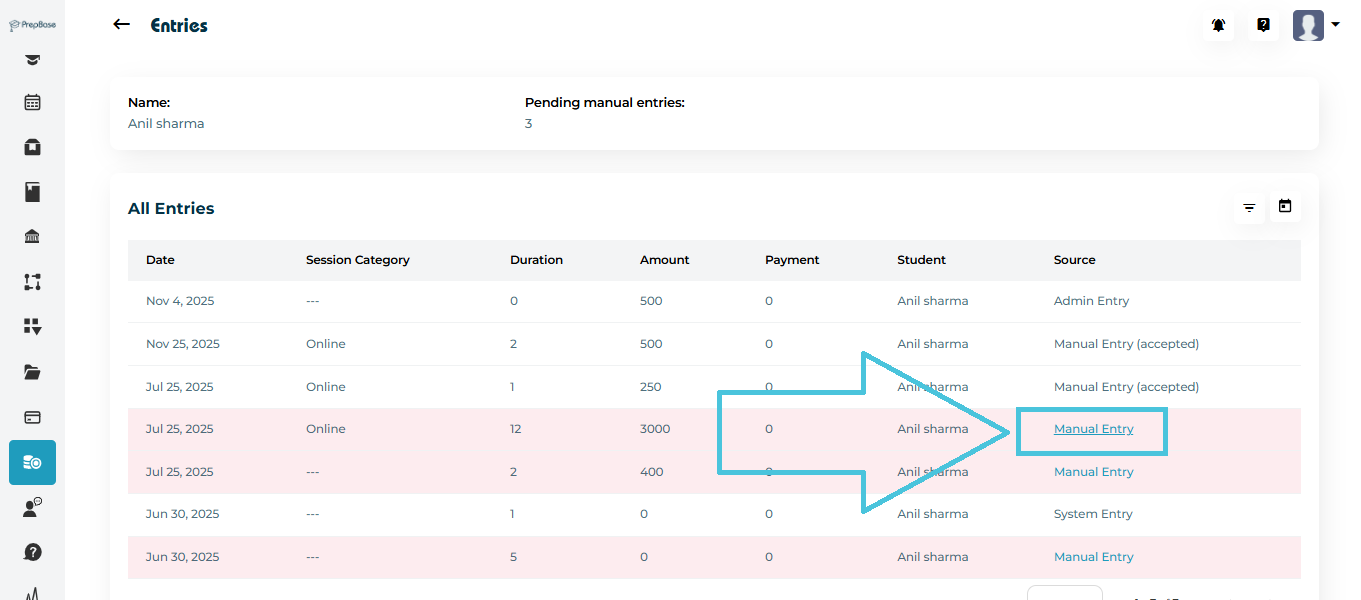
Manual Entry Review Form
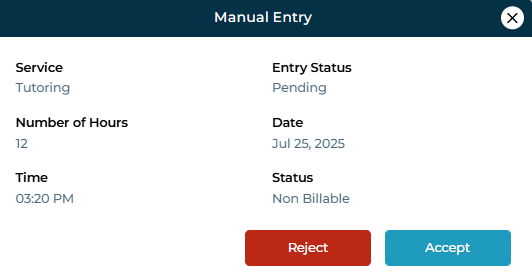
The form displays:
Service (e.g., Tutoring)
Entry Status (Pending)
Number of Hours
Date
Time
Billing Status (Billable or Non-Billable)
Available Actions
Accept
Entry becomes approved
Included in payroll calculations
Payroll balance updates automatically
Reject
Entry is excluded permanently
Does not affect payroll totals
When there are no pending manual entries:
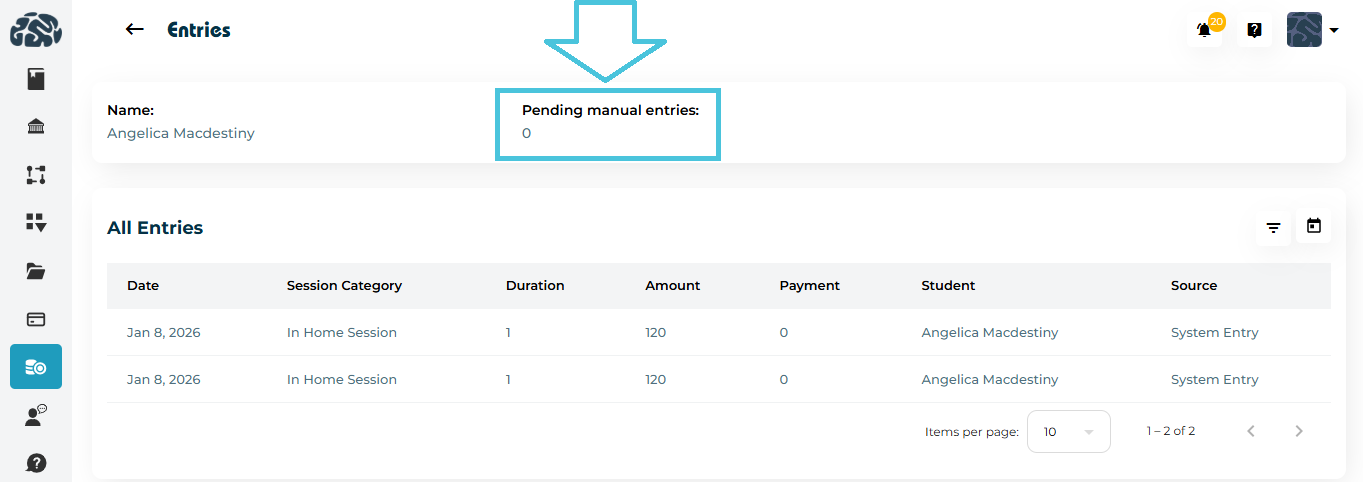
Only system and approved entries appear
Filters remain available
Payroll values remain locked and accurate