Navigate to:
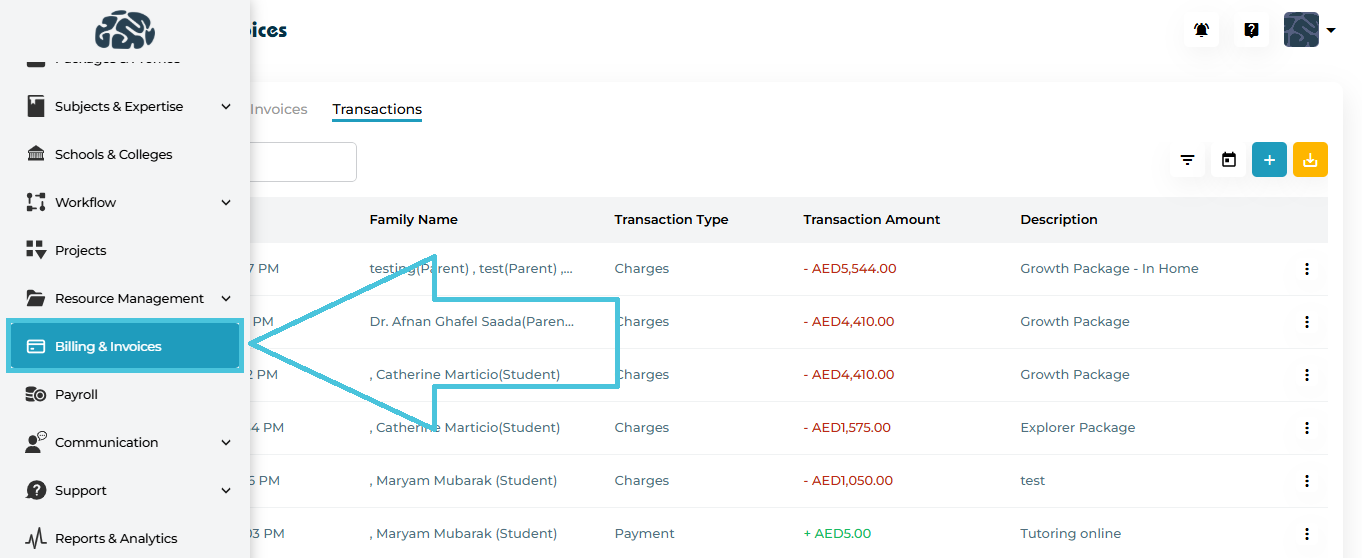
Billing & Invoices → Family Accounts
From here, you can:
View all family billing accounts
Monitor outstanding balances
Access detailed invoices and transactions
Create and manage invoices
Add or adjust manual transactions
Export financial records for reporting
The Family Accounts tab under Billing & Invoices is the central hub for managing billing at the family level. It allows admins to view balances, track invoice and payment history, access detailed family billing records, and perform exports for reporting and reconciliation.
Family Accounts List Overview
Each row in the Family Accounts table represents one family billing account, which may include one or more students under the same parent/guardian.
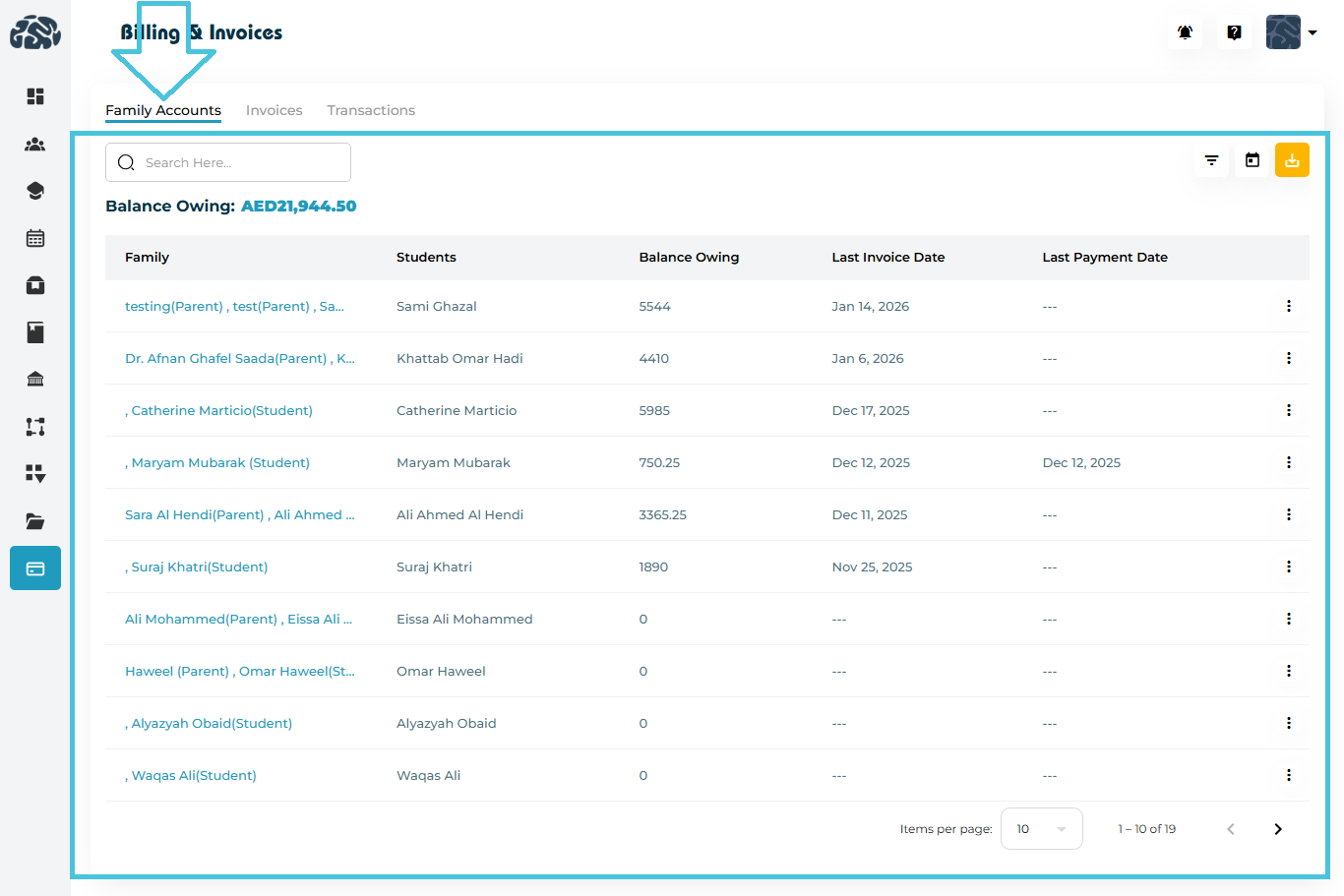
Family Accounts Table Columns Explained
| Column | Description |
|---|---|
| Family | Parent(s) and/or primary account holder name(s). |
| Students | Students linked to the family billing account. |
| Balance Owing | Total unpaid balance for the family. |
| Last Invoice Date | Date when the most recent invoice was issued. |
| Last Payment Date | Date when the most recent payment was recorded. |
| Actions | Context menu to view detailed family billing information. |
Balance Owing (Top Summary)
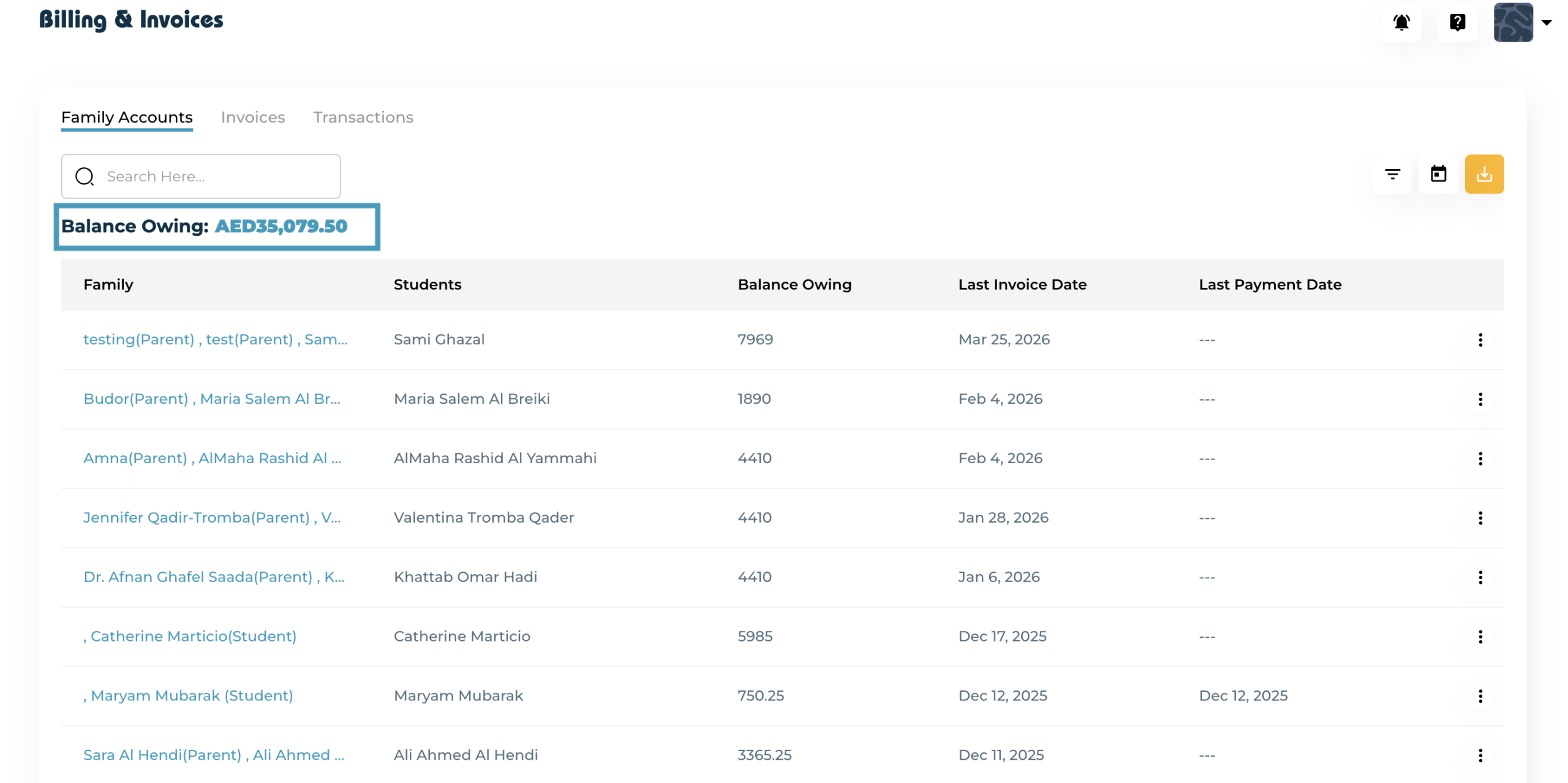
At the top of the Family Accounts tab, Balance Owing shows:
The total outstanding balance across all family accounts
This gives admins an instant snapshot of total receivables.
Filtering Family Accounts
The Family Accounts tab includes multiple filtering options to quickly locate specific records.
Available Filters
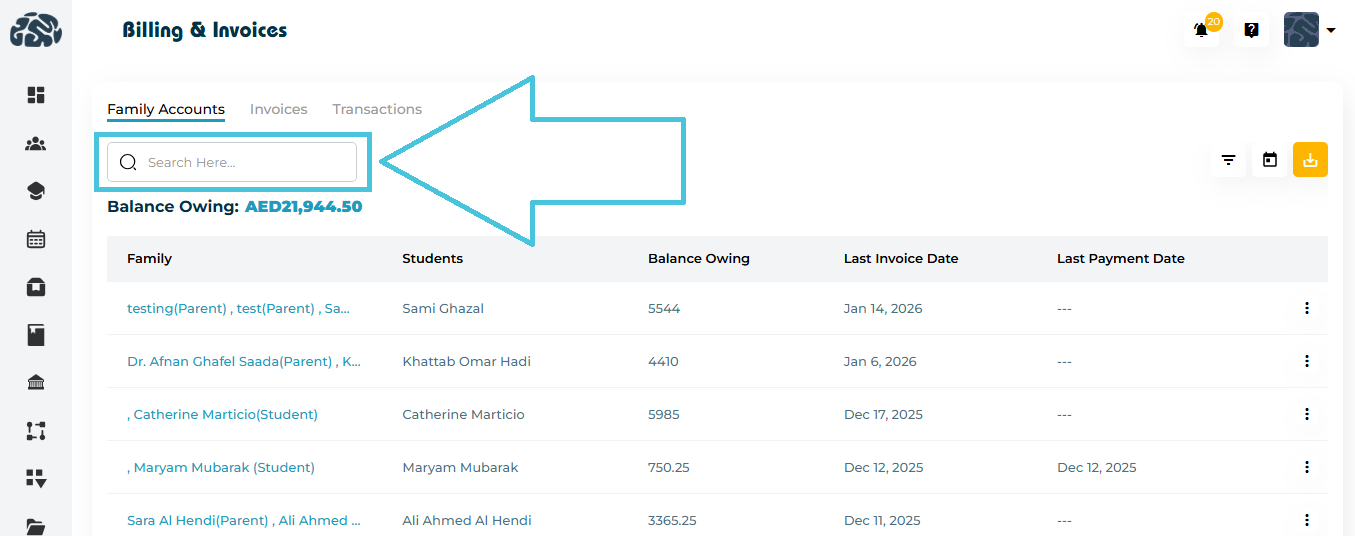
Search – Find families by parent or student name
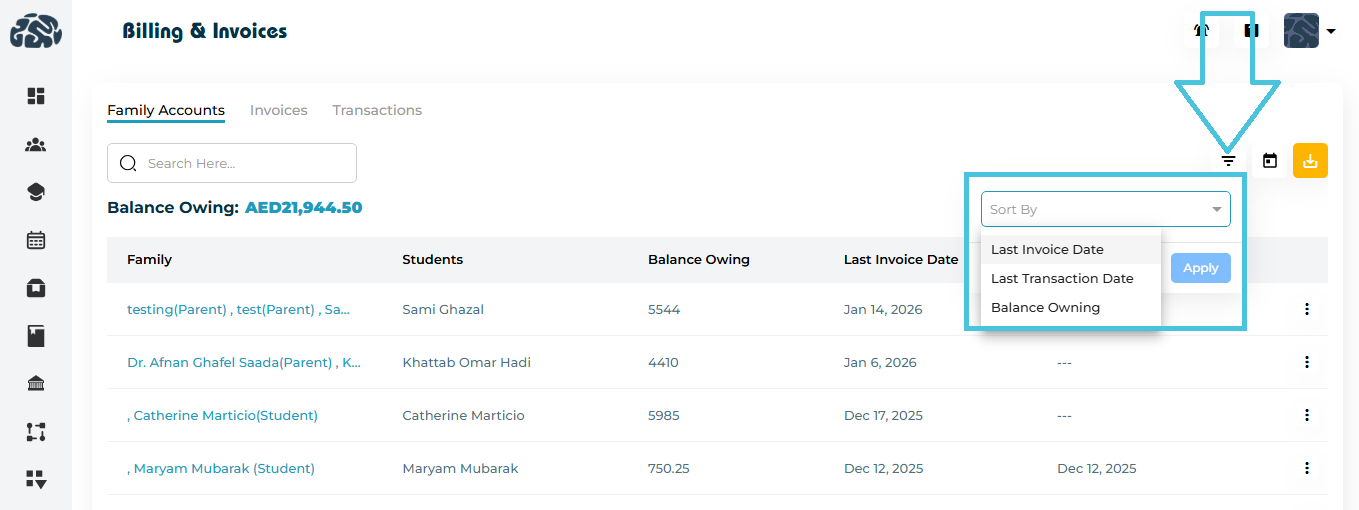
Sort By
Last Invoice Date
Last Transaction Date
Balance Owing
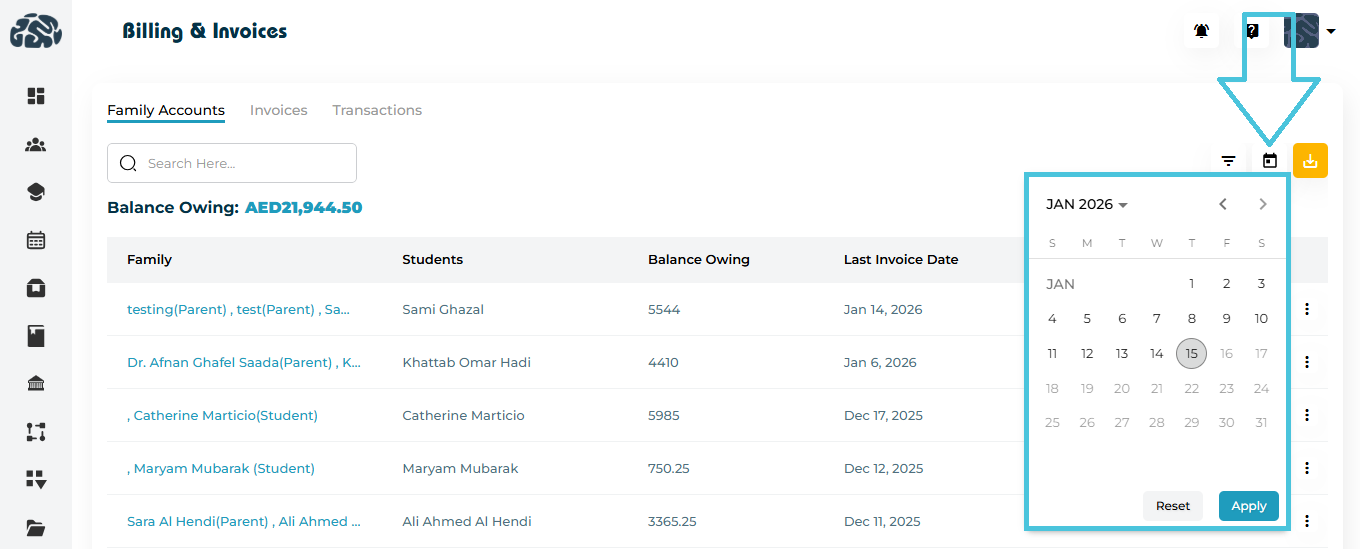
Calendar Filter
Filter families based on invoice or transaction dates
Reset / Apply controls for efficient filtering
Exporting Family Accounts Data
Admins can export family billing data at any time.
Export CSV
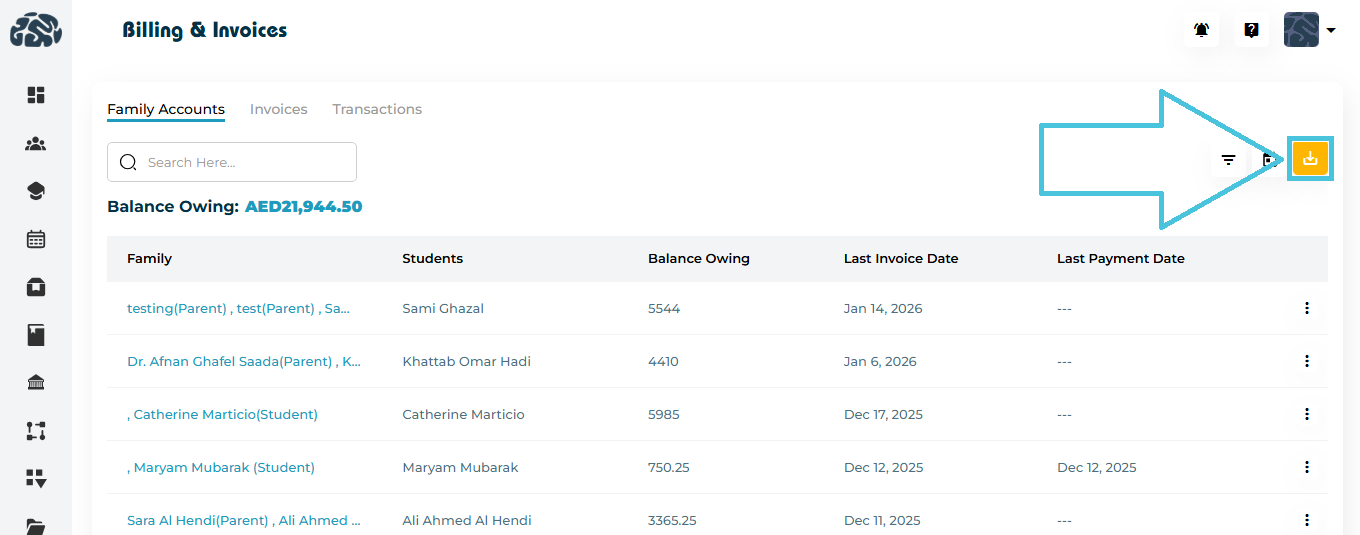
Click Export CSV
Downloads all visible family accounts
Respects applied filters and sorting
Viewing a Family Account
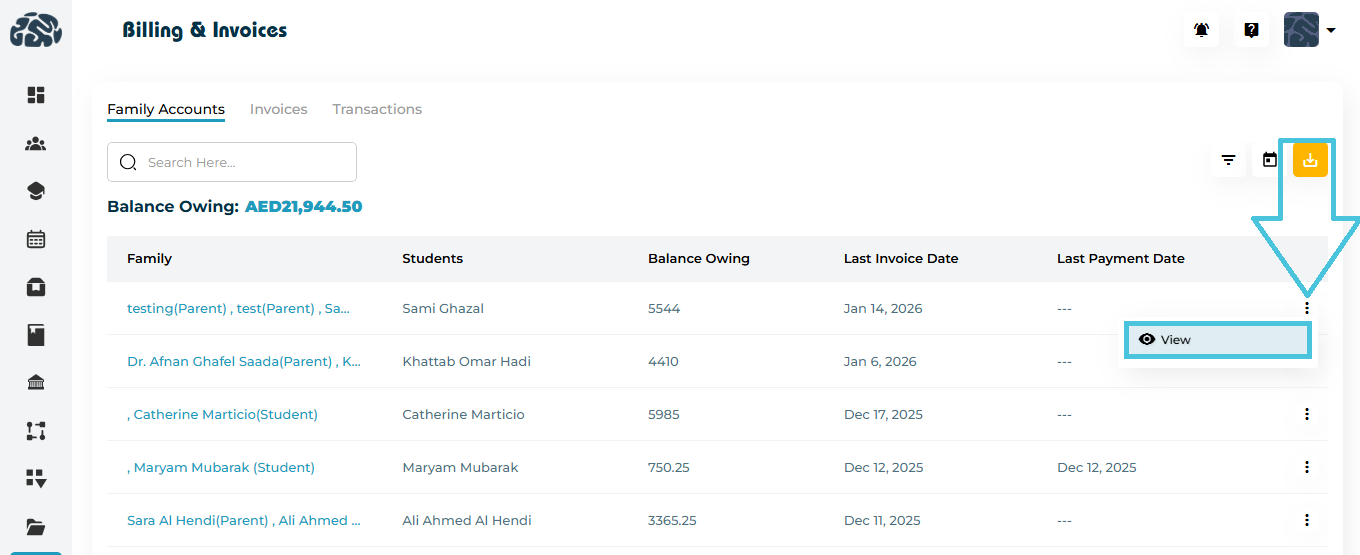
To access detailed billing information for a family:
Click the three-dot action menu on a family row
Select View
This opens the Family Account Detail page.
Family Account Details Page
The Family Account Details page provides a complete billing snapshot for a single family.
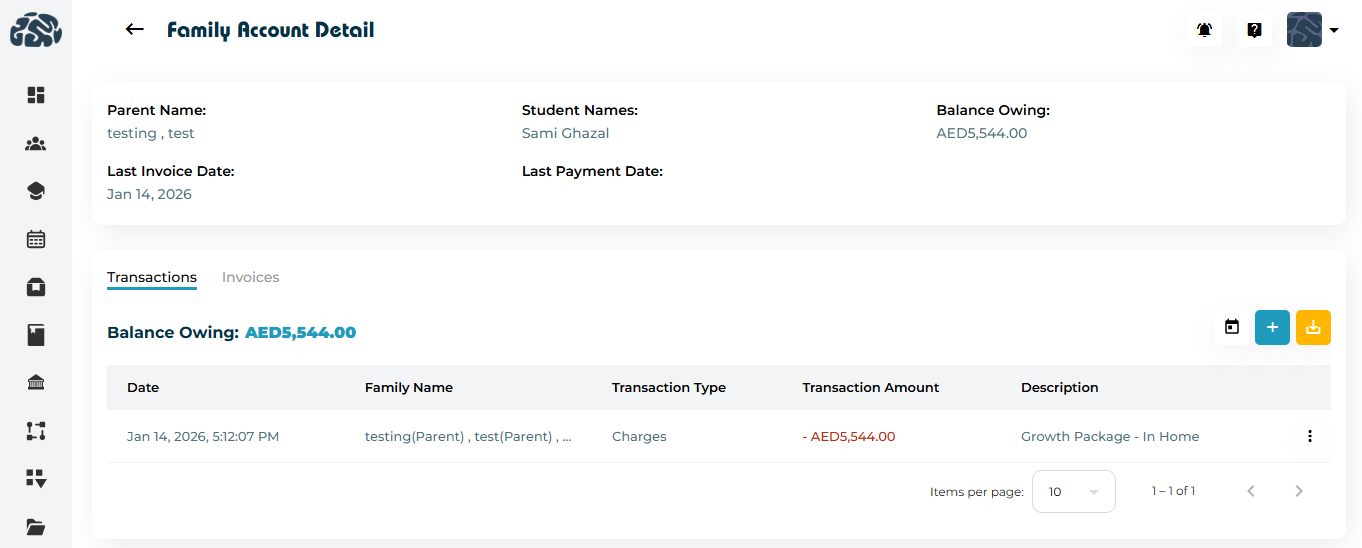
Header Information
At the top of the page, you can see:
Parent Name
Student Names
Balance Owing
Last Invoice Date
Last Payment Date
This summary helps admins quickly understand the family’s current billing status.
Family Account Sub-Tabs
Within the Family Account Detail page, there are two sub-tabs:
Transactions
Invoices
Each tab focuses on a different aspect of the family’s billing activity.
The Transactions tab shows all financial activity for the selected family.
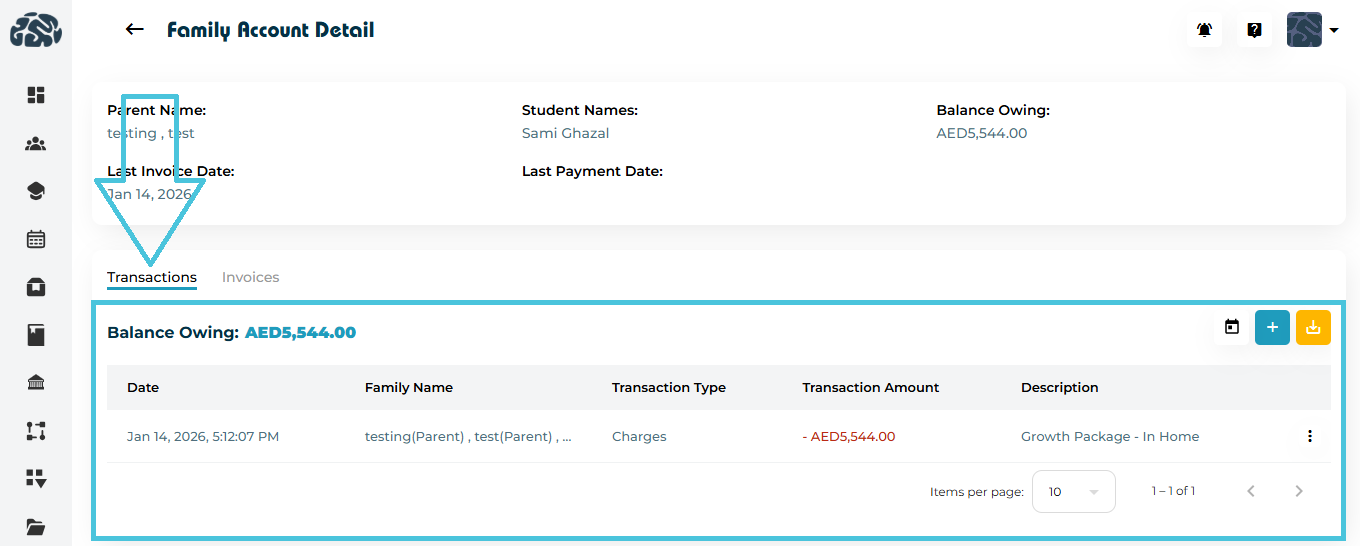
Transactions Table Columns
Date – When the transaction was recorded
Family Name – Parent and/or student associated
Transaction Type – Charges / Payment / Discount / Refund
Transaction Amount
Charges appear as negative values
Payments / Discounts / Refunds appear as positive values
Description – Notes or package details
Actions Menu
Important: Transaction Action Menu Behavior
⚠️ Only manually added transactions show Edit and Delete options.
Manual Transactions
Action menu includes:
Edit
Delete
System-generated Transactions (e.g., package charges, automated billing)
Action menu opens but shows no actions
These entries are read-only to maintain billing integrity
Adding a New Transaction
You can add manual transactions from:
Family Account → Transactions tab
Billing & Invoices → Transactions tab
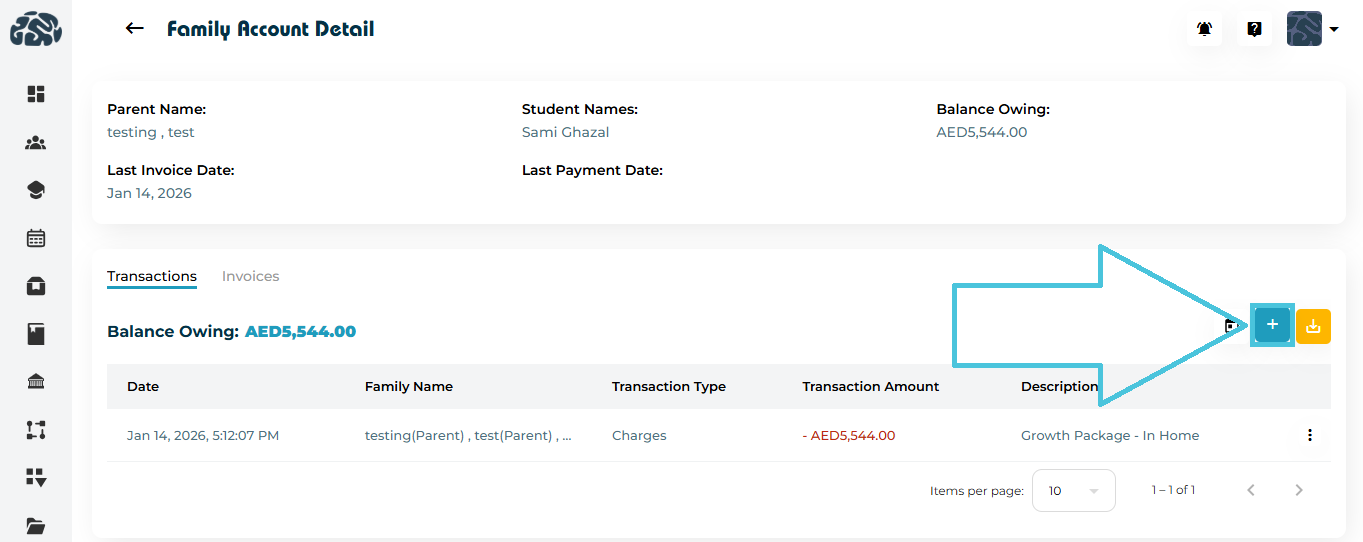
Steps to Add a Transaction
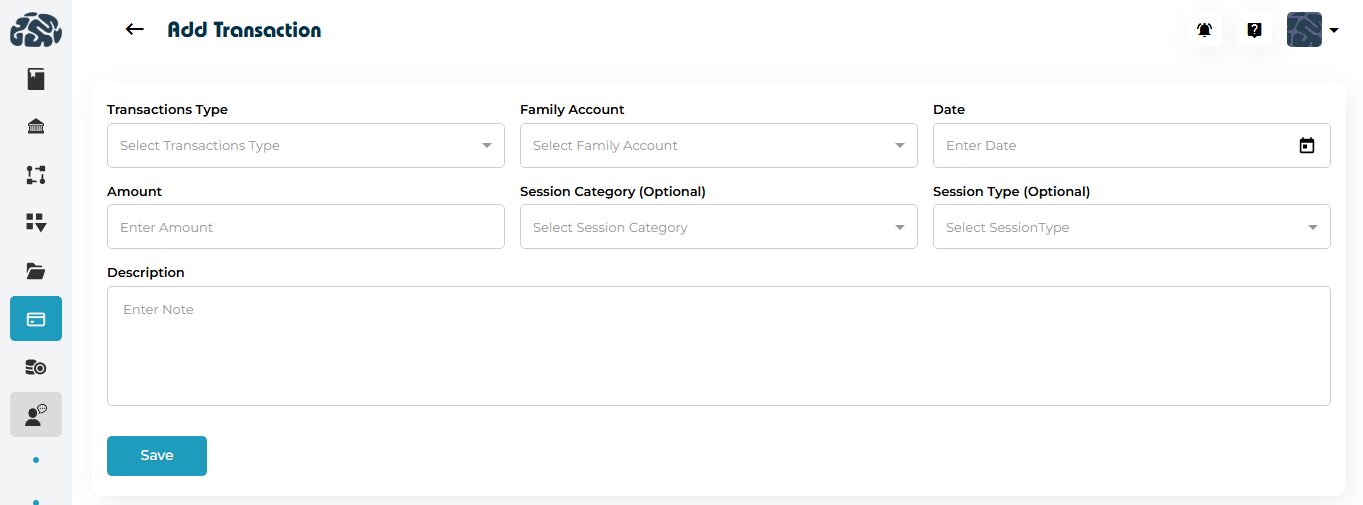
Click the ➕ Add Transaction button
Select Transaction Type (Charge / Payment / Discount / Refund)
Choose the Family Account or Student
Set the Date
Enter the Amount
(Optional) Select:
Session Category
Session Type
Add a Description for reference
Click Save
Manual transactions immediately affect the family’s balance.
Editing or Deleting a Transaction
Only available for manual transactions
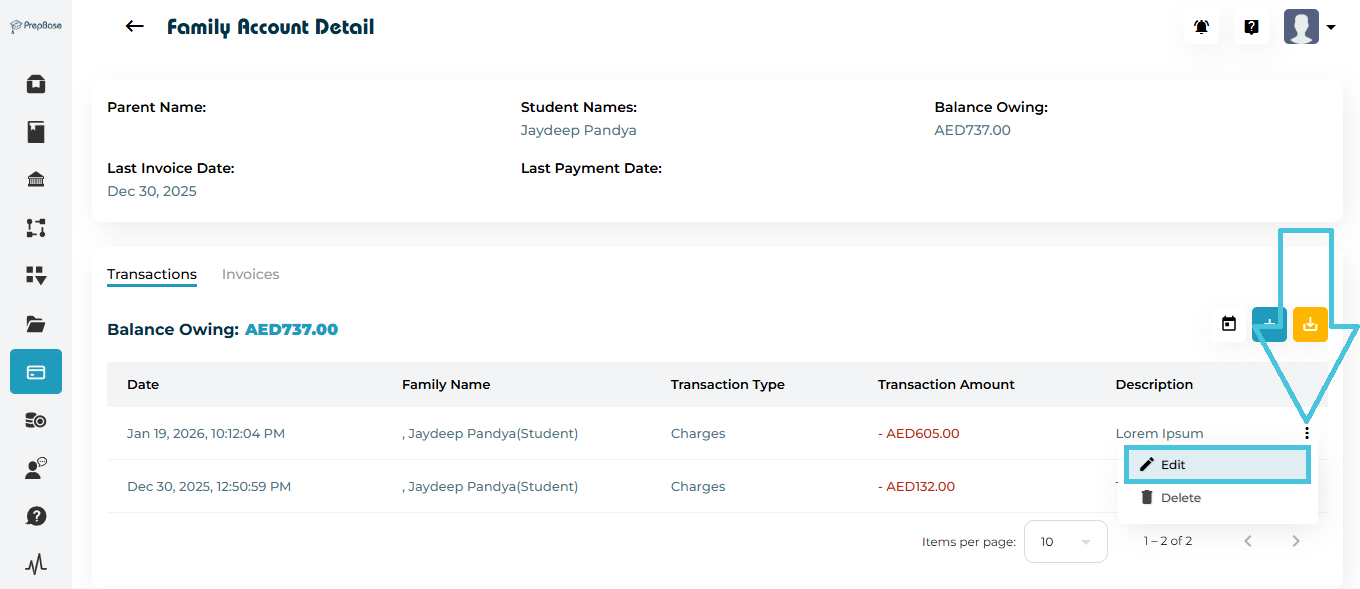
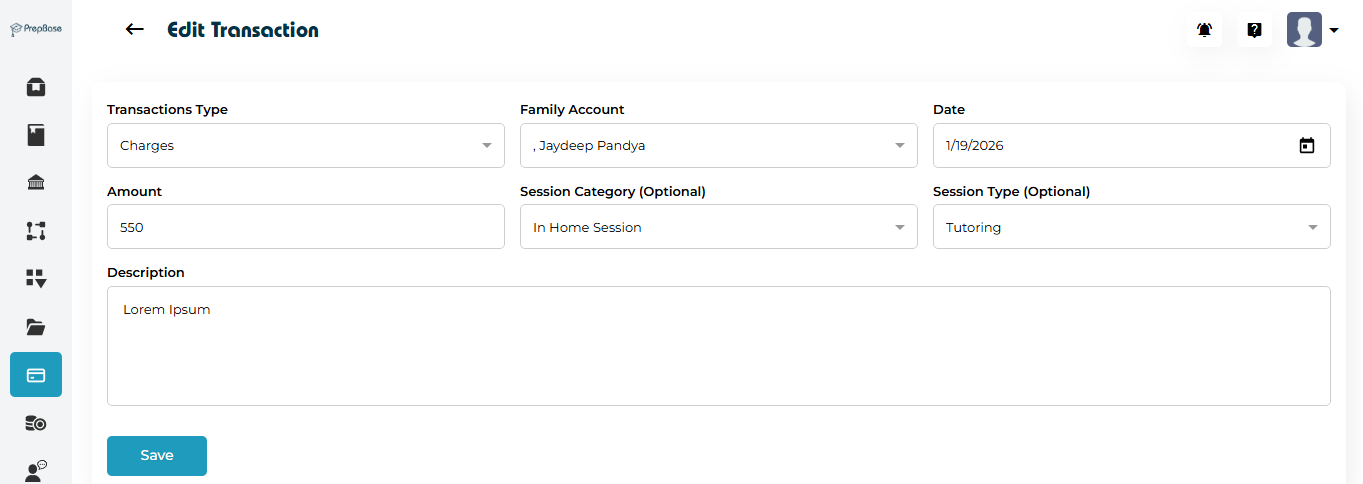
Open the three-dot menu next to the transaction and choose Edit to update details
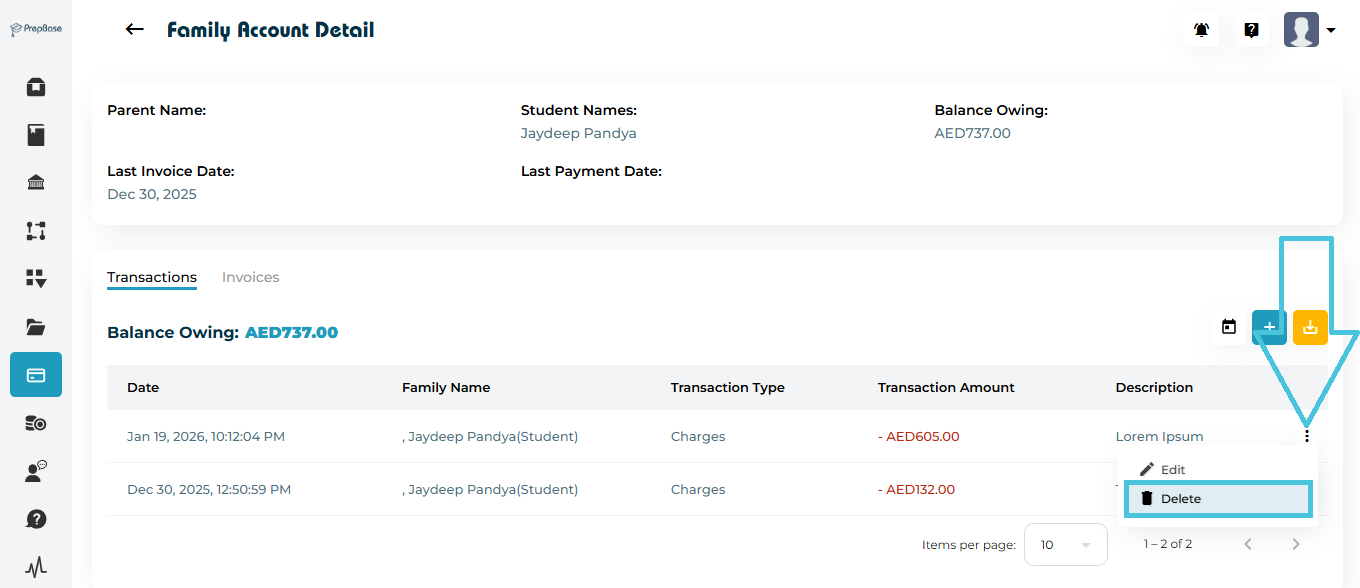
- Choose Delete to permanently remove the transaction
Transactions Filters & Export
Filtering Options
Calendar Filter
Filter transactions by date range
Reset / Apply filters as needed
Export Transactions
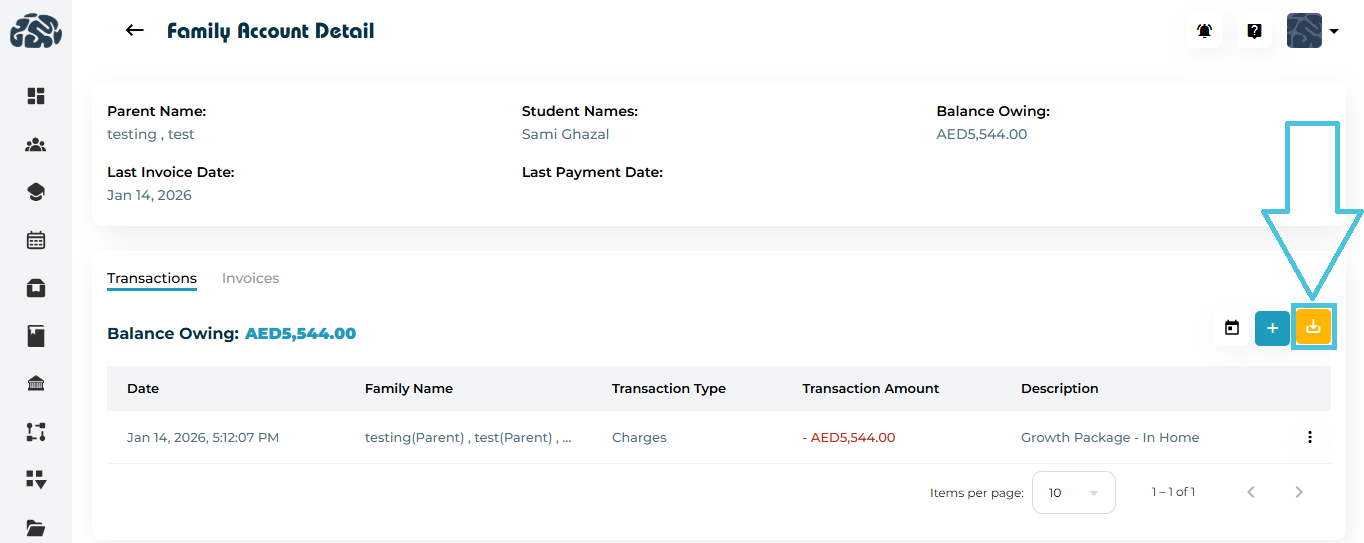
Click Export CSV
Downloads all visible transactions based on applied filters
The Invoices tab shows all invoices issued to the selected family.
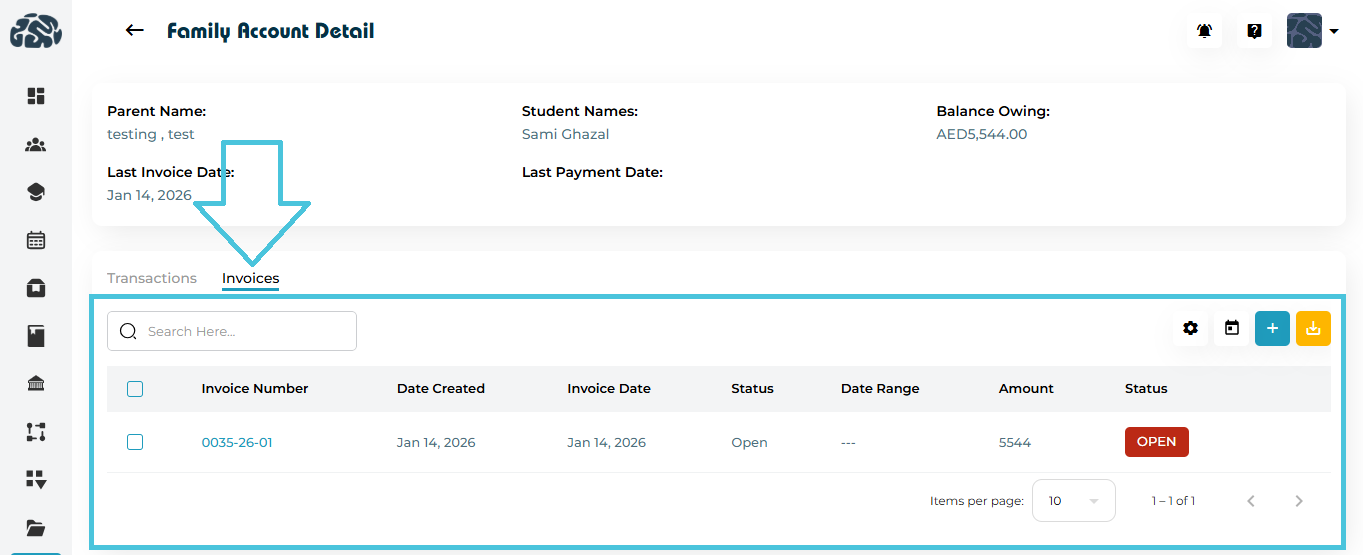
Invoice List Columns
Invoice Number
Date Created
Invoice Date
Status – Open, Paid, or Void
Date Range
Amount
Creating an Invoice
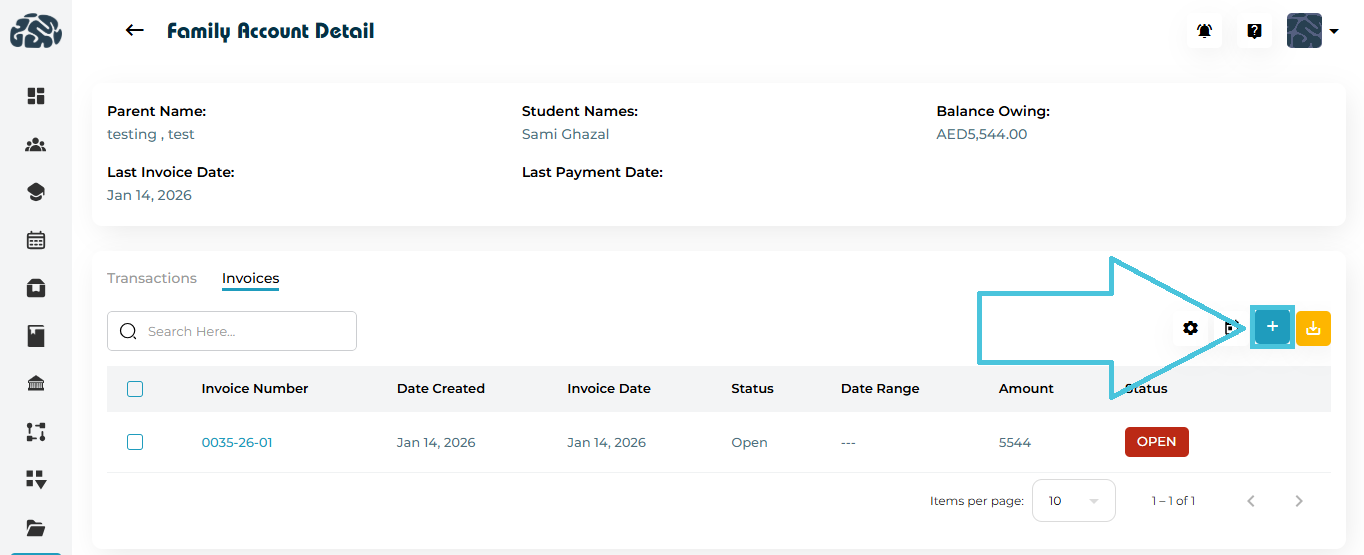
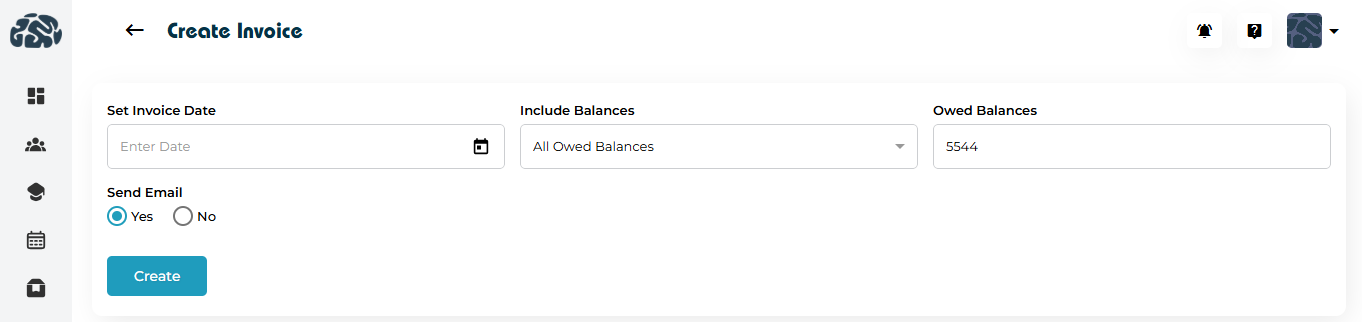
Click ➕ Add Invoice
Set the Invoice Date
Choose Include Balances
Typically includes all owed balances
- Choose certain range if you want to populate only the transaction within a specific date range
Review Owed Balances
Select whether to Send Email to the Family
Click Create
The invoice is generated and linked to the family account.
Viewing & Editing an Invoice
From the invoice list click on the Invoice Number to view the invoice details:
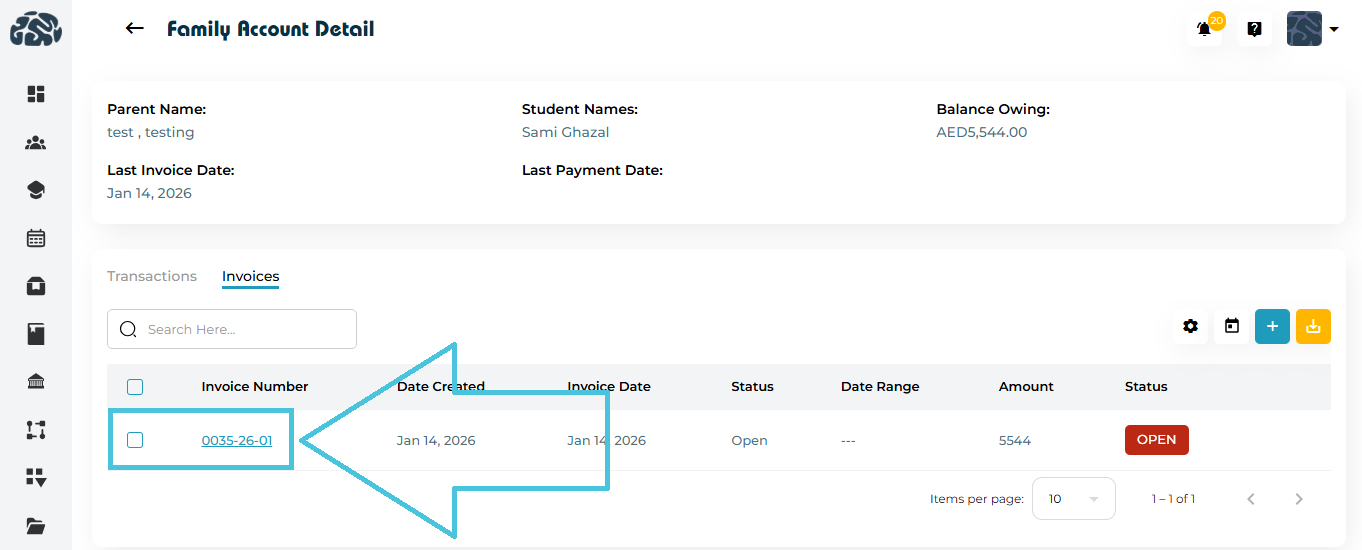
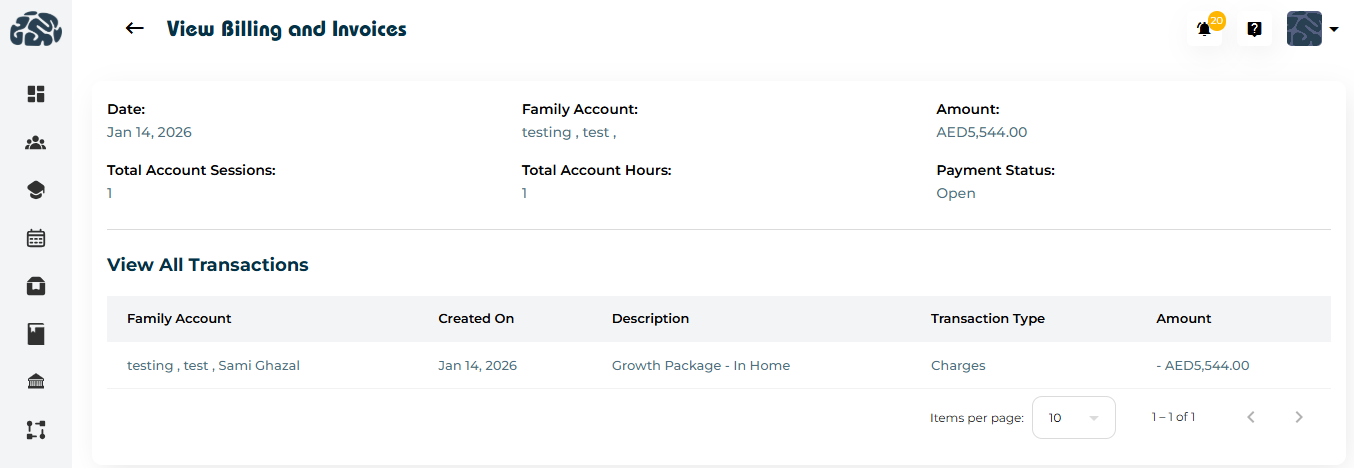
View – Opens the invoice summary page
Displays:
Family Account
Total Sessions
Total Hours
Invoice Amount
Payment Status
All related transactions
Edit – Editing is not available in invoice’s tab under family account detail page
Managing Invoice Status
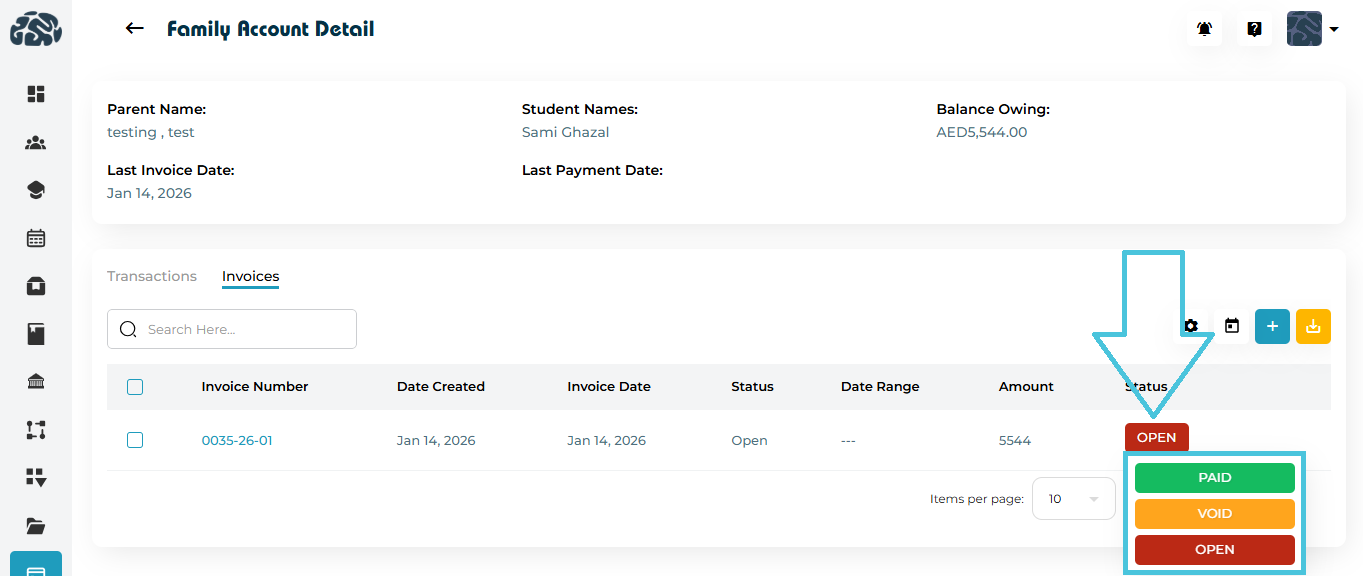
Invoices support three statuses:
Open – Invoice is unpaid
Paid – Invoice has been settled
Void – Invoice is canceled and excluded from billing
Admins can update invoice status directly from the invoice list.
Invoice Tools: Download, Email & Export
Bulk Invoice Actions
Using the settings menu in the Invoices tab, you can:
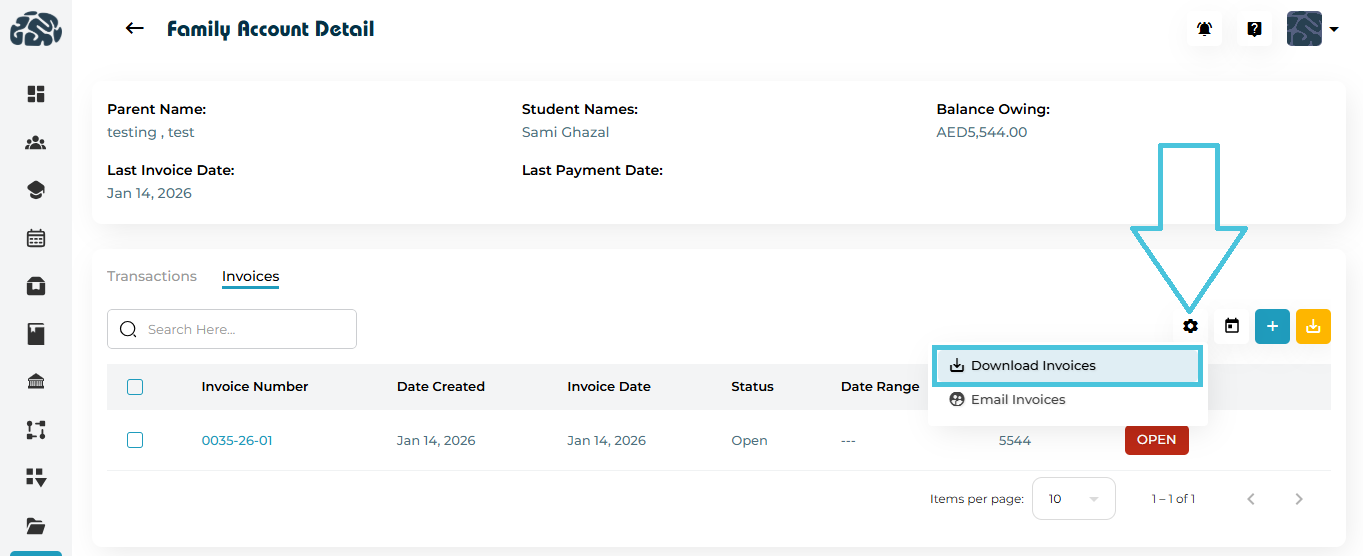
Download Invoices – Generate PDFs
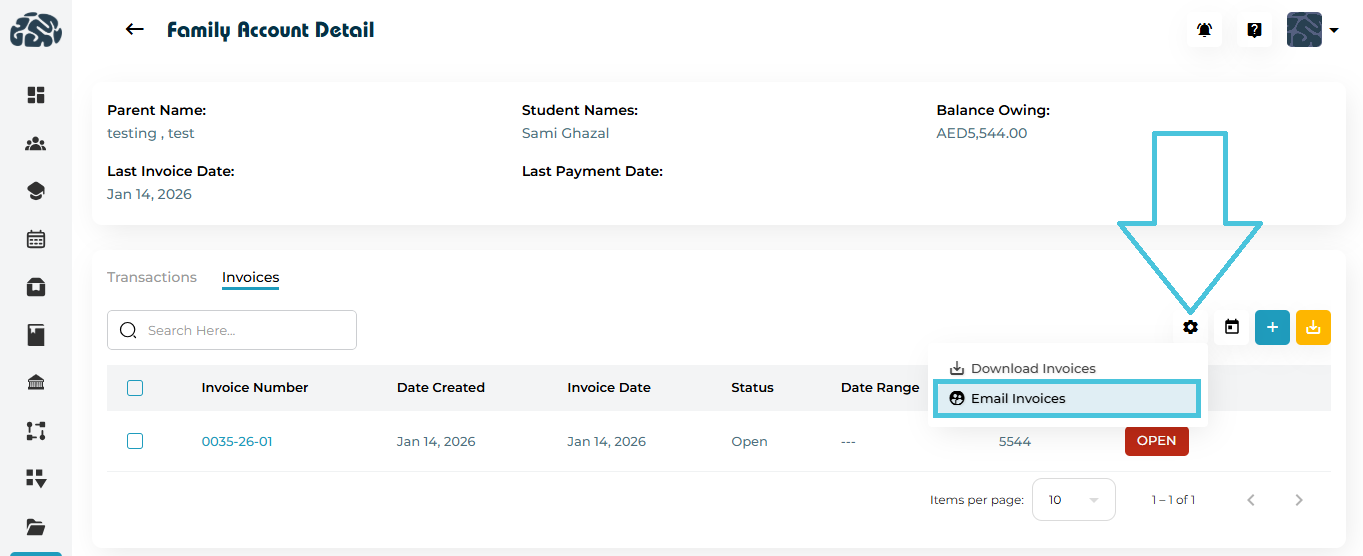
Email Invoices – Send invoices to families in bulk
Filtering Invoices
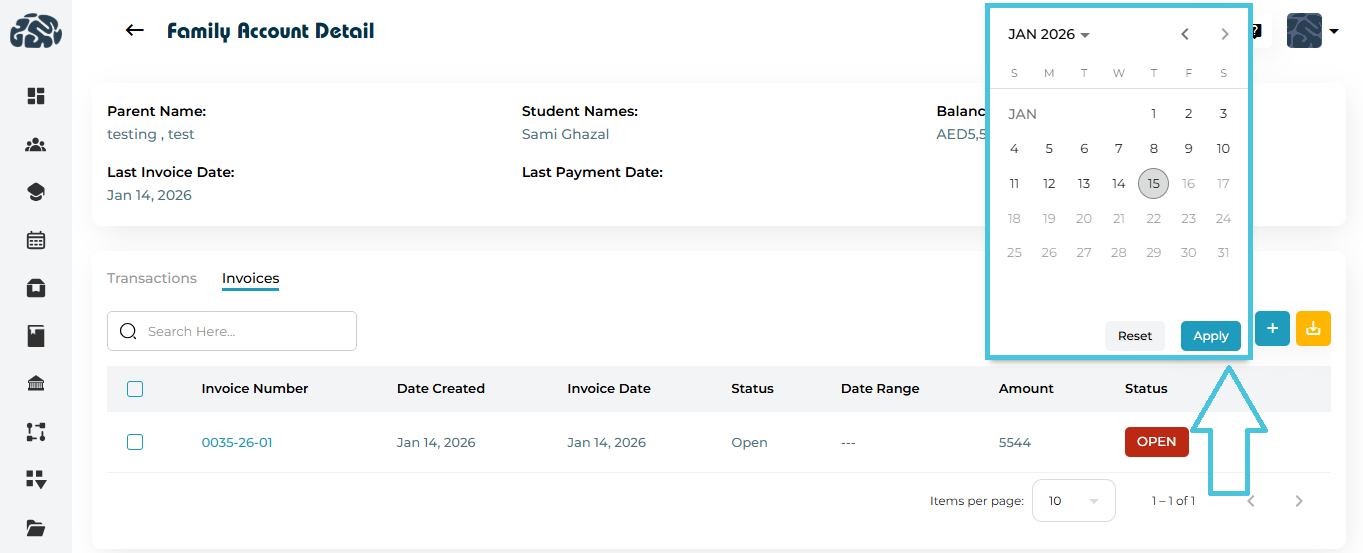
Use Calendar Date Filter
Apply or reset filters as needed
Export Invoices
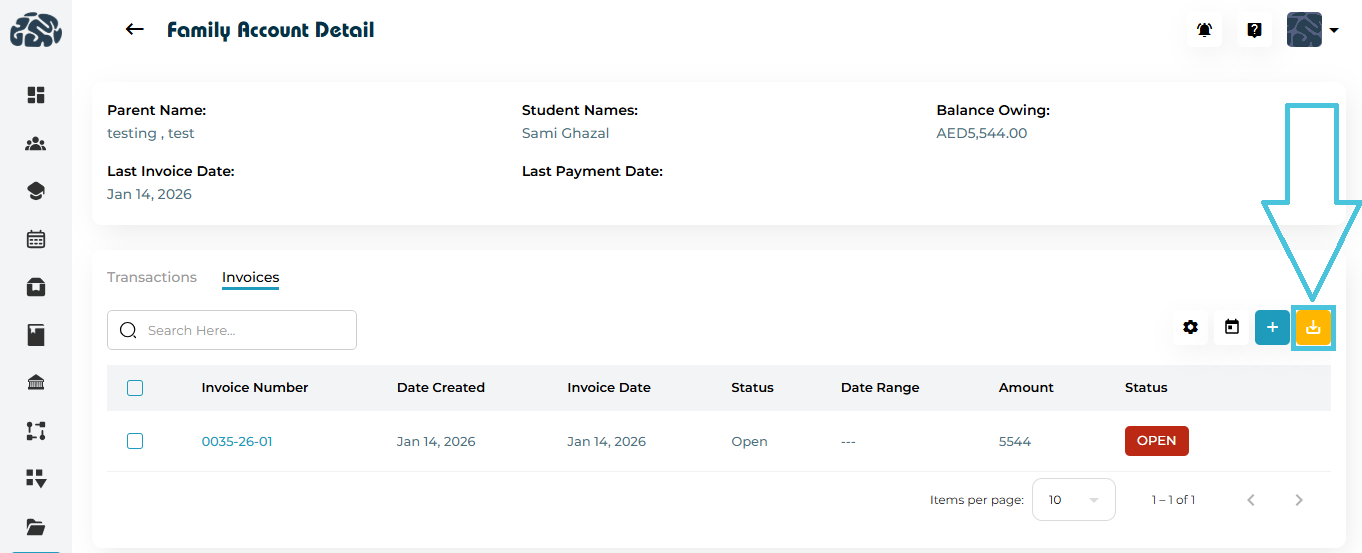
Click Export CSV
Downloads invoice data for reporting or accounting use
The Invoices tab under Billing & Invoices provides admins with a centralized view of all invoices generated across family accounts. This section is designed to help manage invoice creation, tracking, status updates, bulk actions, filtering, and exports efficiently.
Invoices List Overview
Each row in the Invoices table represents a single invoice.
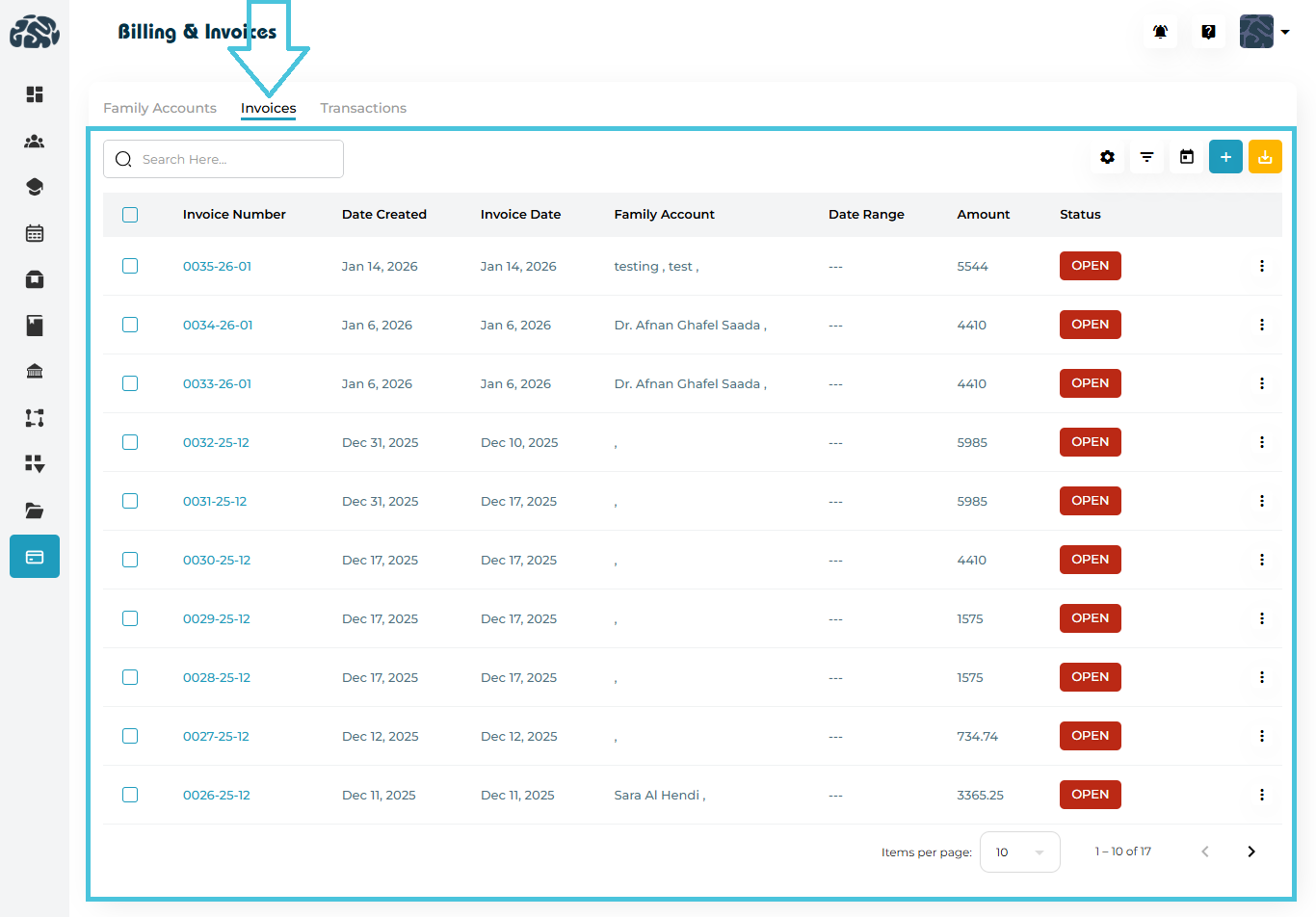
Invoice Table Columns Explained
| Column | Description |
|---|---|
| Invoice Number | Unique auto-generated invoice ID. Clickable for viewing invoice details. |
| Date Created | Date the invoice record was created in the system. |
| Invoice Date | Official invoice issue date (shown to families). |
| Family Account | Parent / family associated with the invoice. |
| Date Range | Billing period covered by the invoice (if applicable). |
| Amount | Total invoice amount. |
| Status | Current invoice status: Open, Paid, or Void. |
| Actions | Context menu for viewing or editing the invoice. |
Invoice Status Types
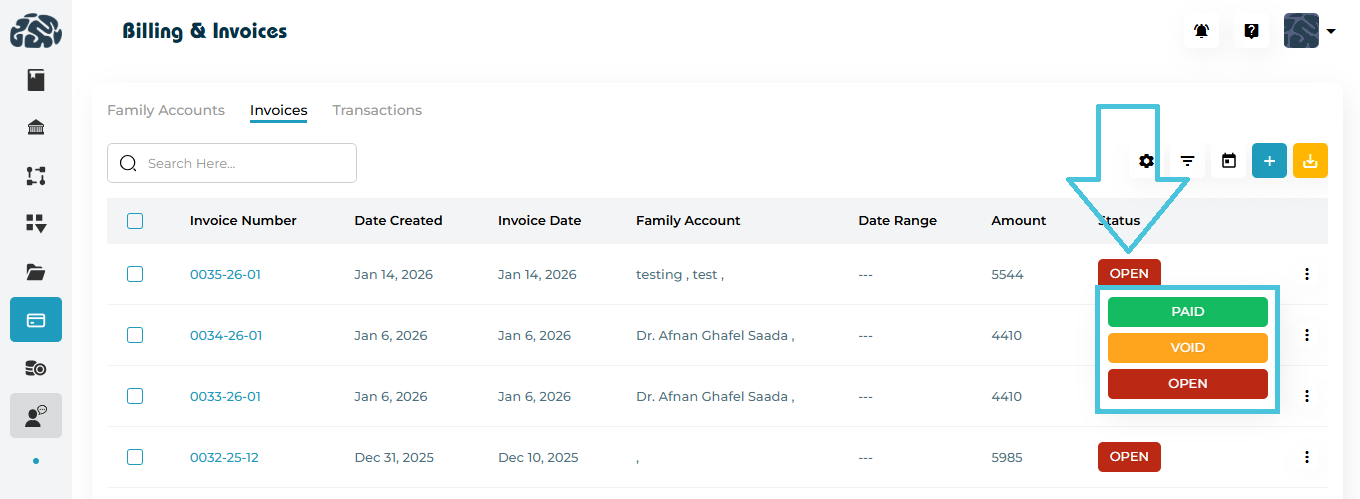
Invoices in PrepBase can have one of the following statuses:
Open
Invoice is issued but not yet paid.Paid
Invoice has been fully settled.Void
Invoice is cancelled and excluded from balance calculations.
Status changes immediately reflect in the related Family Account balance.
Viewing an Invoice
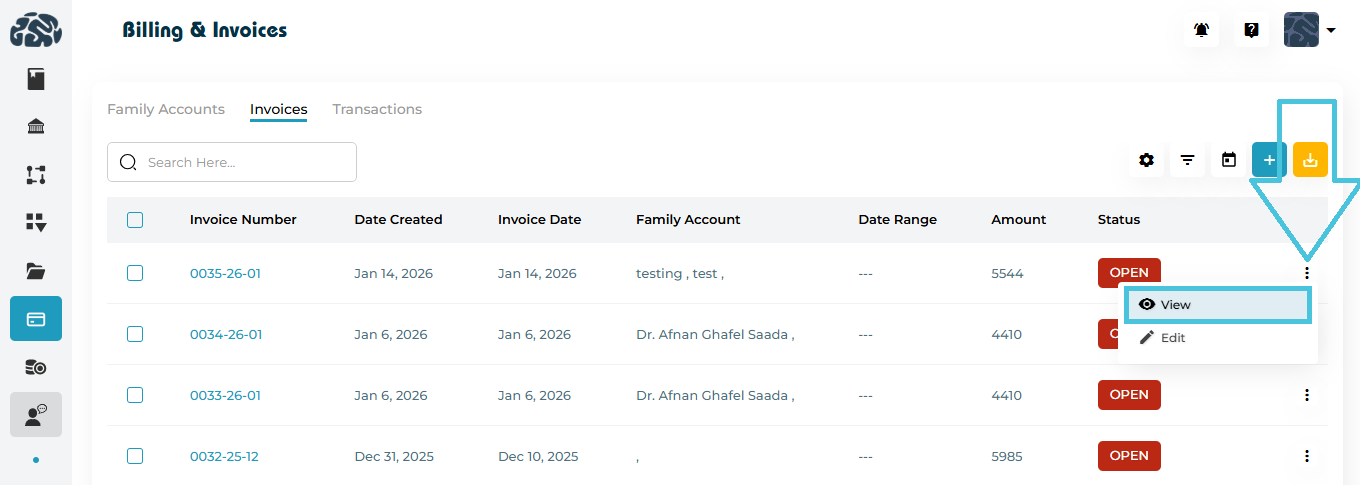
To view invoice details:
Click the three-dot action menu on an invoice row
Select View
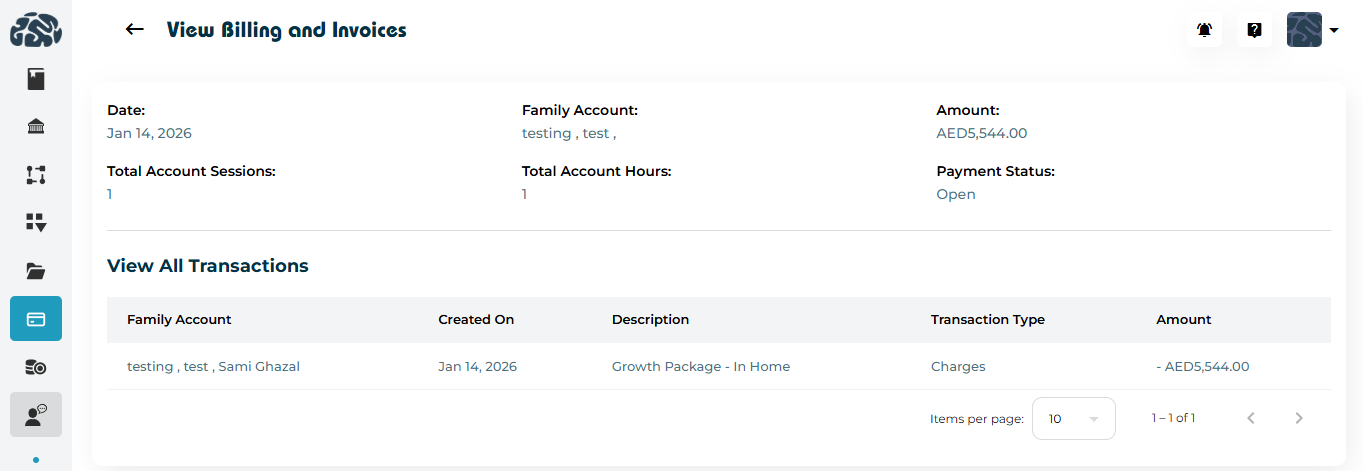
Invoice View Page Includes
Invoice Date
Family Account
Total Account Sessions
Total Account Hours
Total Amount
Payment Status
A full list of transactions included in the invoice
This view is read-only and intended for verification and reference.
Editing an Invoice
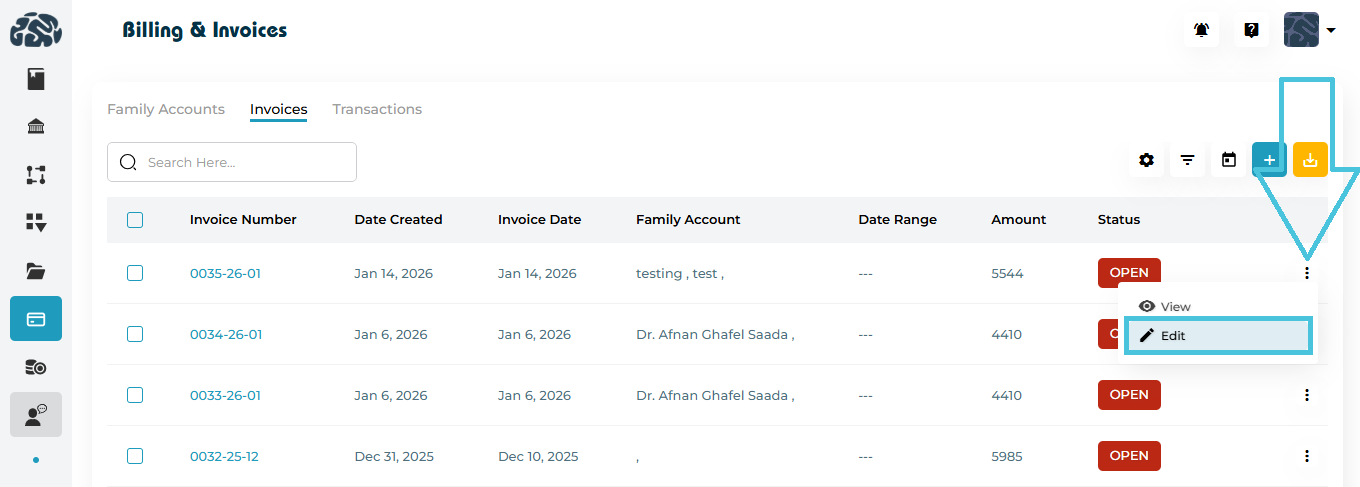
To edit an existing invoice:
Open the three-dot action menu
Click Edit
Editable Fields
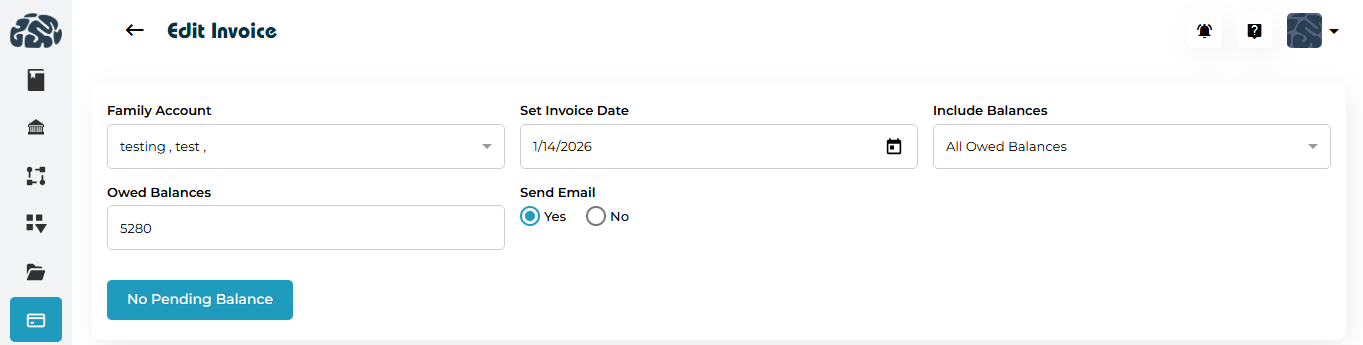
Invoice Date
Include Balances (e.g., all owed balances)
Send Email (Yes / No)
If no pending balance exists, the system clearly indicates No Pending Balance.
Creating a New Invoice
Admins can manually create invoices from the Invoices tab.
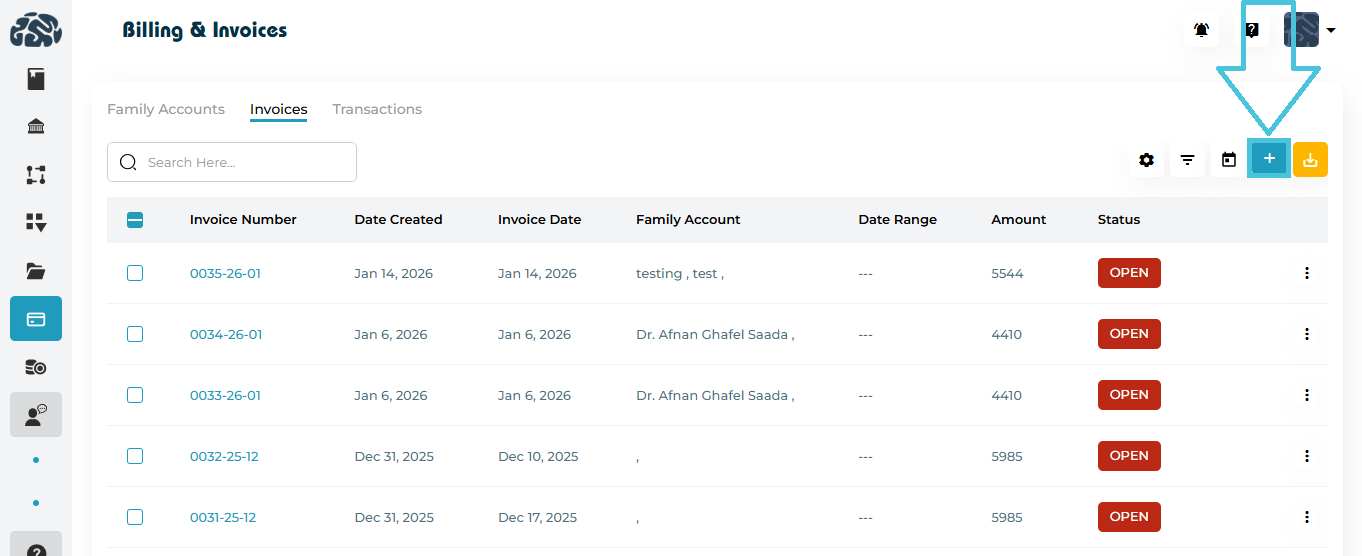
Steps to Create an Invoice

Click
 Add Invoice
Select the Family Account
Set the Invoice Date
Choose to Include All Balances or Certain Range
Review the Owed Balances
Select whether to Send Email
Click Create
The invoice is instantly generated and linked to the selected family account.
Bulk Invoice Actions (Settings Menu)
The settings ( ) icon at the top-right of the Invoices tab enables bulk invoice actions.
Available Bulk Actions
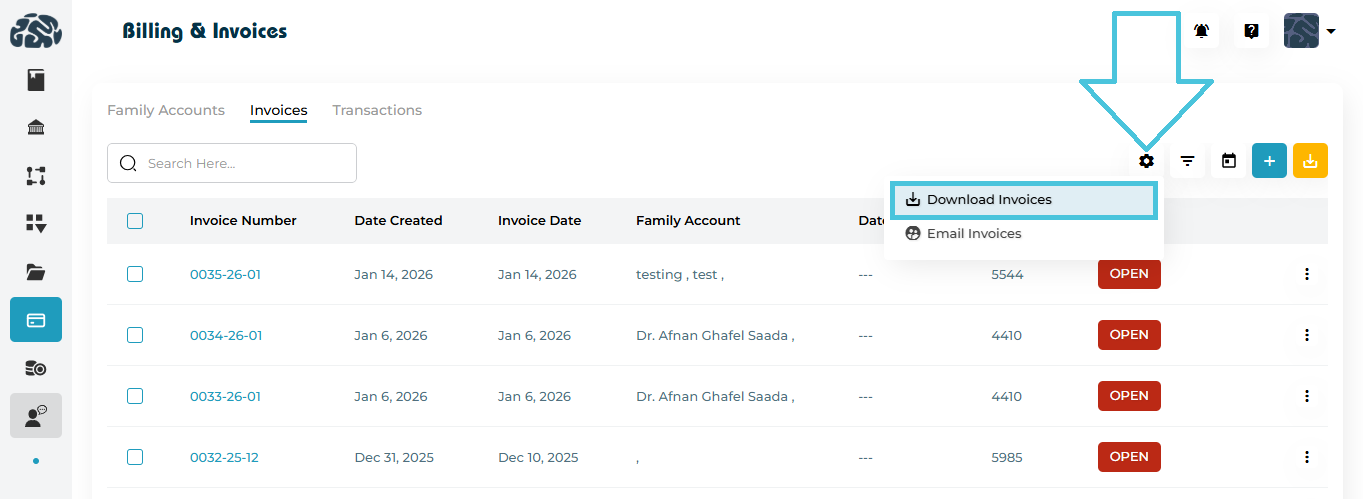
Download Invoices
Downloads selected invoices as PDF files.
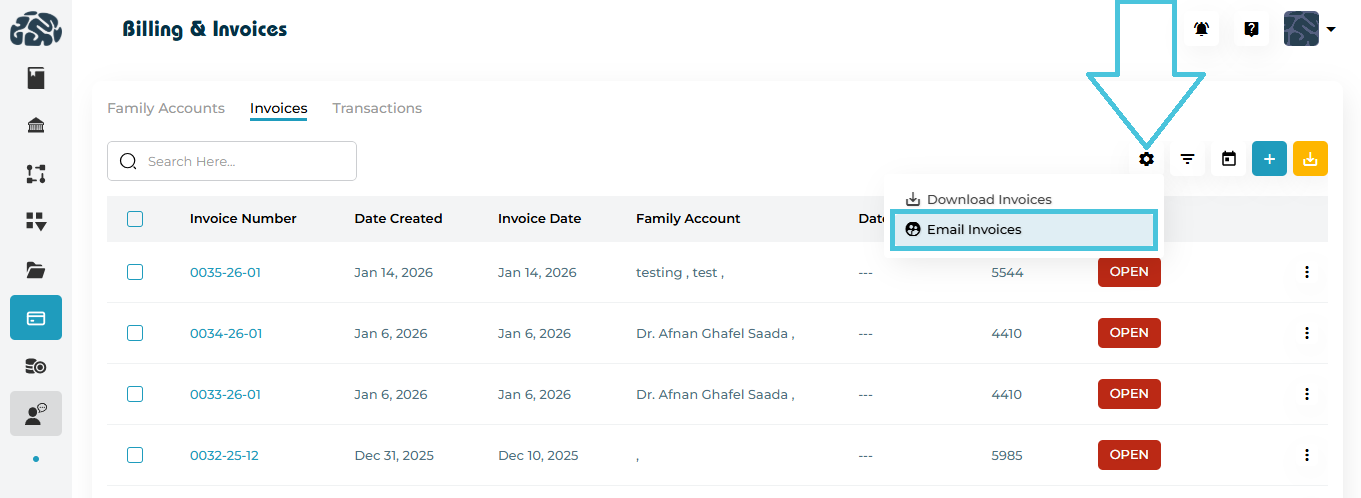
Email Invoices
Sends selected invoices directly to family email addresses.
These actions apply only to selected invoices using checkboxes.
Filtering Invoices
Powerful filters help admins quickly locate specific invoices.
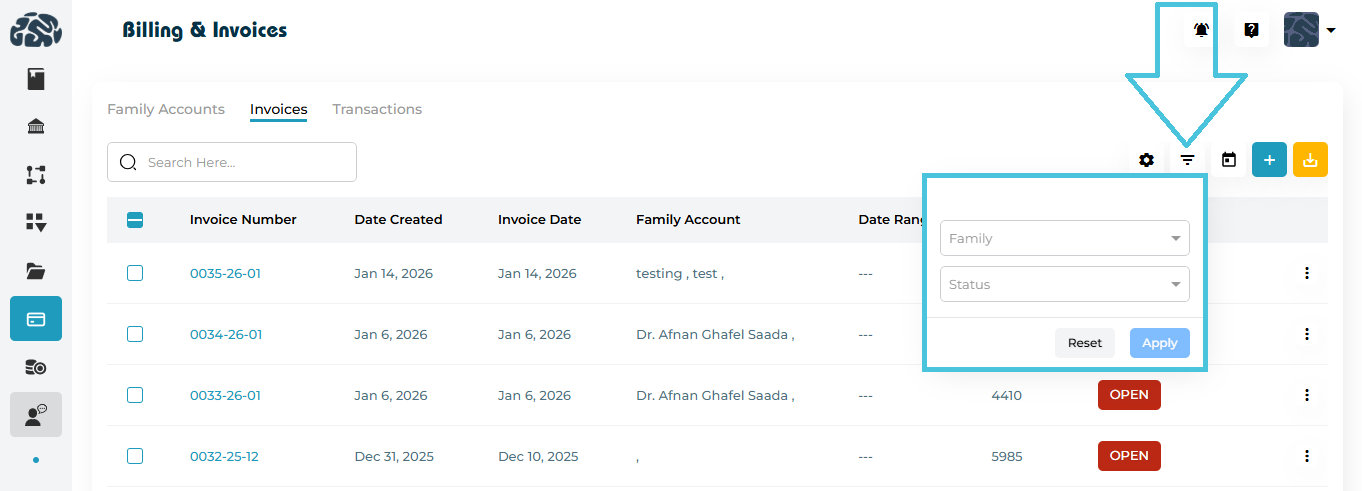
Filter Options
Family – Filter invoices by family account
Status – Open, Paid, or Void
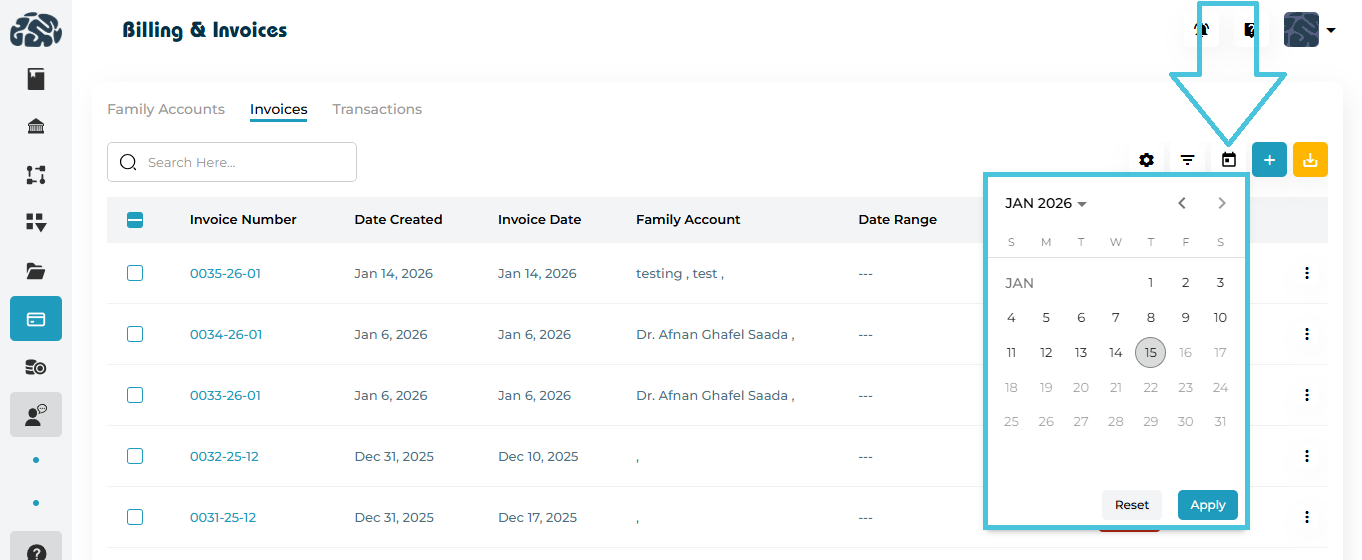
Calendar Filter – Filter invoices by invoice date
Reset / Apply controls for quick filter management
Filters apply instantly to both the table and bulk actions.
Searching Invoices
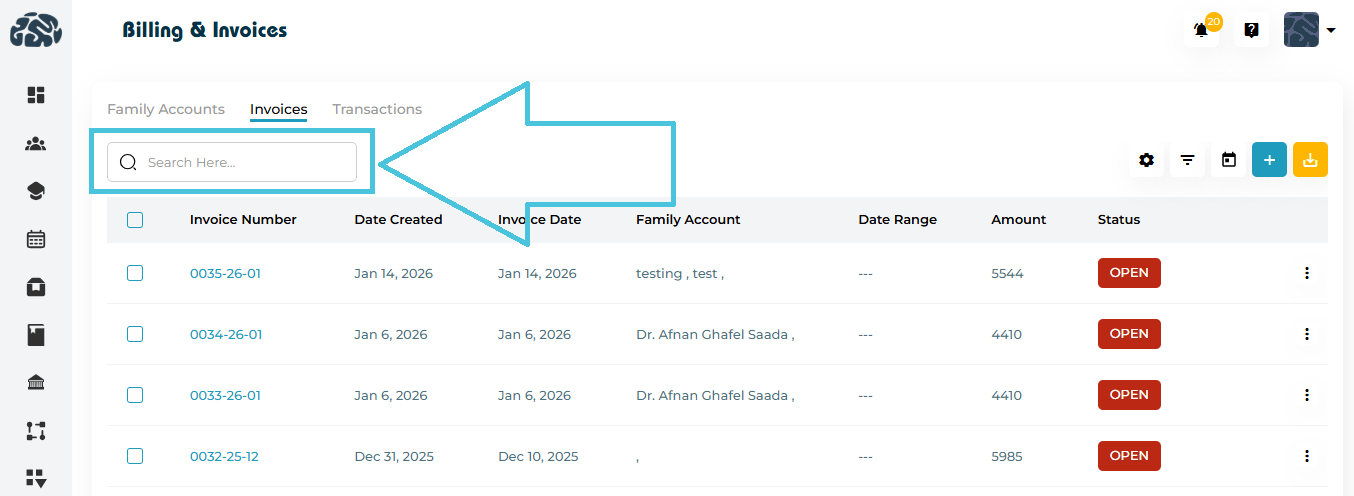
Use the search bar to find invoices by:
Invoice number
Family name
Search works in combination with filters.
Exporting Invoices
Admins can export invoice data for accounting or reporting.
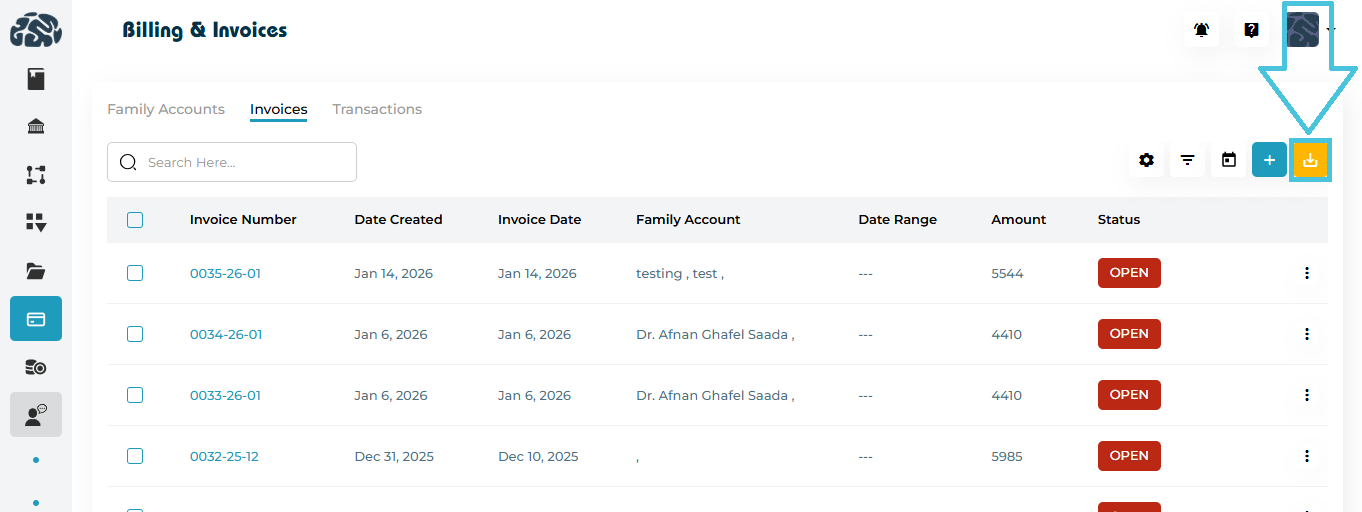
Export CSV
Click Export CSV
Downloads all visible invoices based on current filters
Ideal for:
Finance reconciliation
Monthly reporting
External accounting systems
The Transactions tab under Billing & Invoices provides admins with a complete, system-wide view of all financial transactions. This includes charges, payments, discounts, refunds, system-generated entries, and manual adjustments, allowing accurate tracking of billing activity across all family accounts.
Transactions List Overview
Each row in the Transactions table represents one financial transaction recorded in the system.
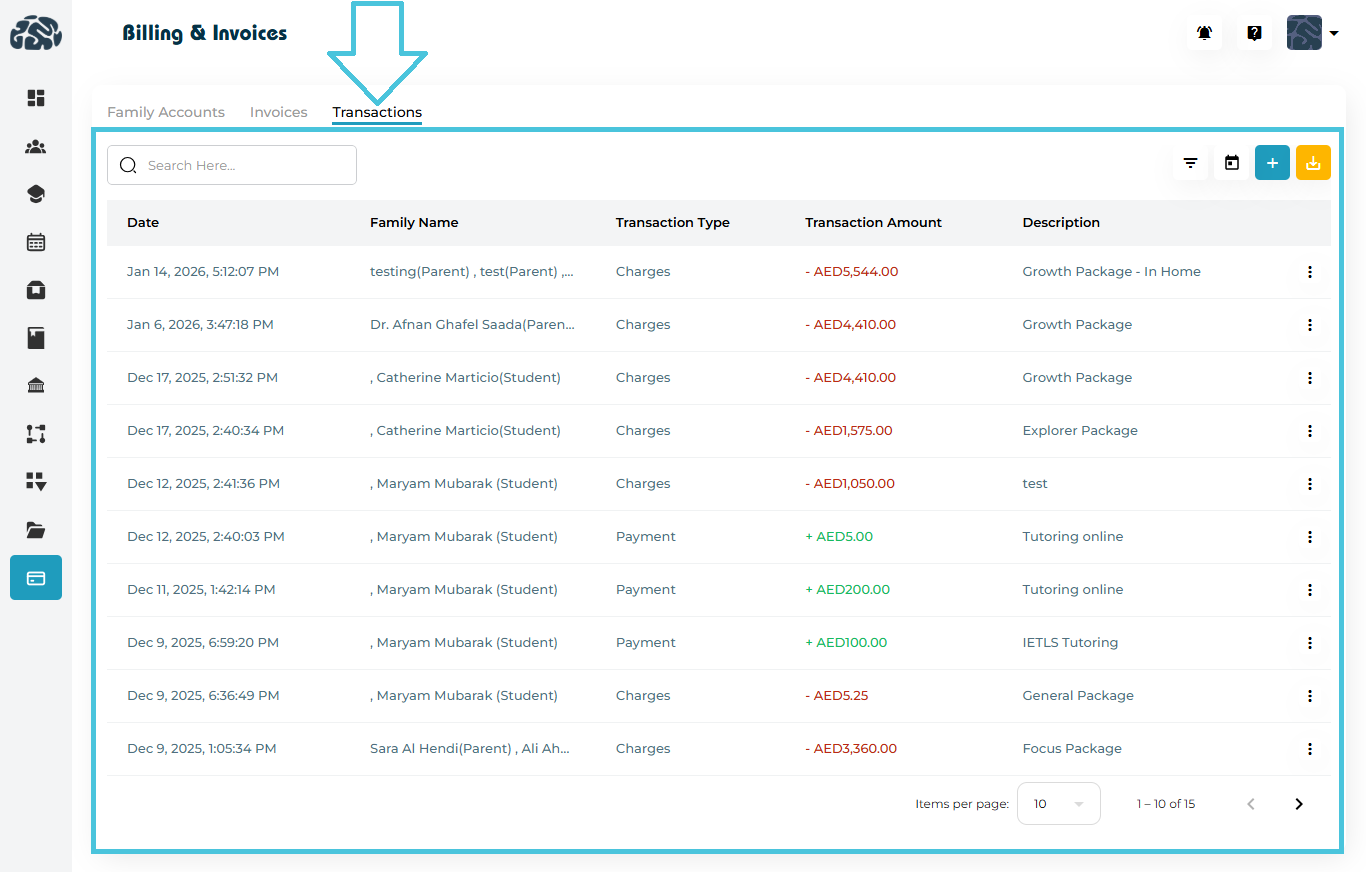
Transactions Table Columns Explained
| Column | Description |
|---|---|
| Date | Date and time when the transaction was created. |
| Family Name | Parent and/or student associated with the transaction. |
| Transaction Type | Indicates whether the entry is a Charge / Payment / Discount / Refund. |
| Transaction Amount | Monetary value of the transaction. |
| Description | Reason for the transaction (e.g., package name, tutoring payment). |
| Actions | Context menu for permitted actions (if applicable). |
Understanding Transaction Amounts
Transactions are visually distinguished for clarity:
Charges
Displayed as negative values
Represent money owed by the family
Payments / Discounts / Refunds
Displayed as positive values
Represent payments received from the family
This makes balance calculations and reconciliation straightforward.
Transaction Types & System Behavior
PrepBase supports two core transaction sources, and their behavior differs intentionally.
System-Generated Transactions
These include:
Package charges
Automated billing entries
Invoice-linked charges
Behavior:
Automatically created by the system
Read-only
Action menu opens but shows no options
Cannot be edited or deleted to preserve billing integrity
Manual Transactions
These are transactions added by admins, typically for:
Offline payments
Adjustments
Corrections
Special cases
Behavior:
Fully admin-controlled
Action menu includes:
Edit
Delete
⚠️ Only manual transactions show Edit and Delete options.
System-generated transactions do not allow modifications.
Adding a New Transaction
Admins can manually add transactions directly from the Transactions tab.
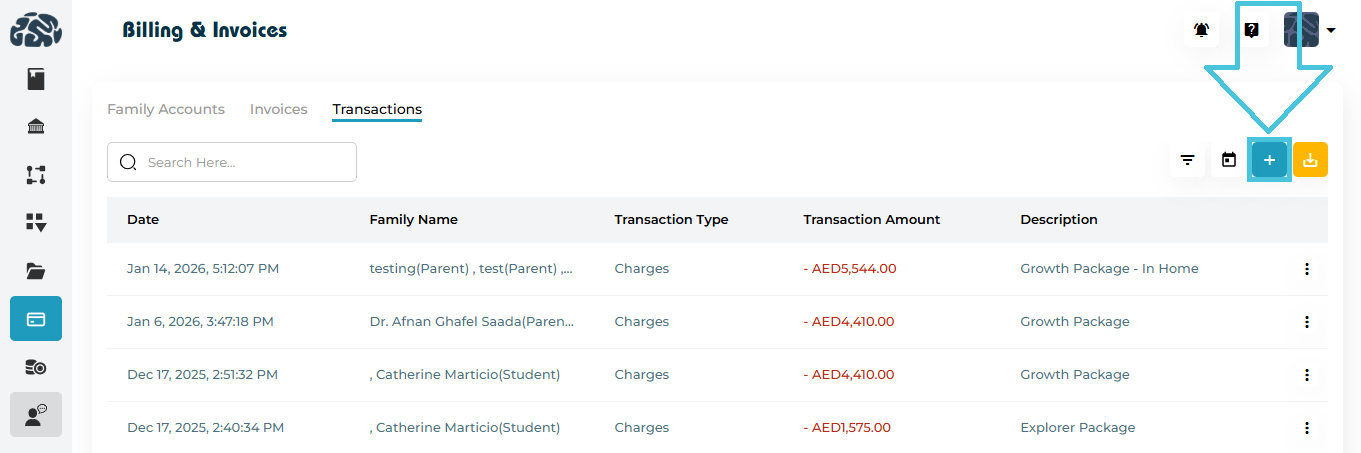
Steps to Add a Transaction
Click ➕ Add Transaction
Select Transaction Type
Charge
Payment
- Discount
- Refund
Choose the Family Account
Set the Date
Enter the Amount
(Optional) Select:
Session Category
Session Type
Add a clear Description
Click Save
The transaction is immediately recorded and reflected in the family’s balance.
Editing a Transaction
Editing is only available for manual transactions.
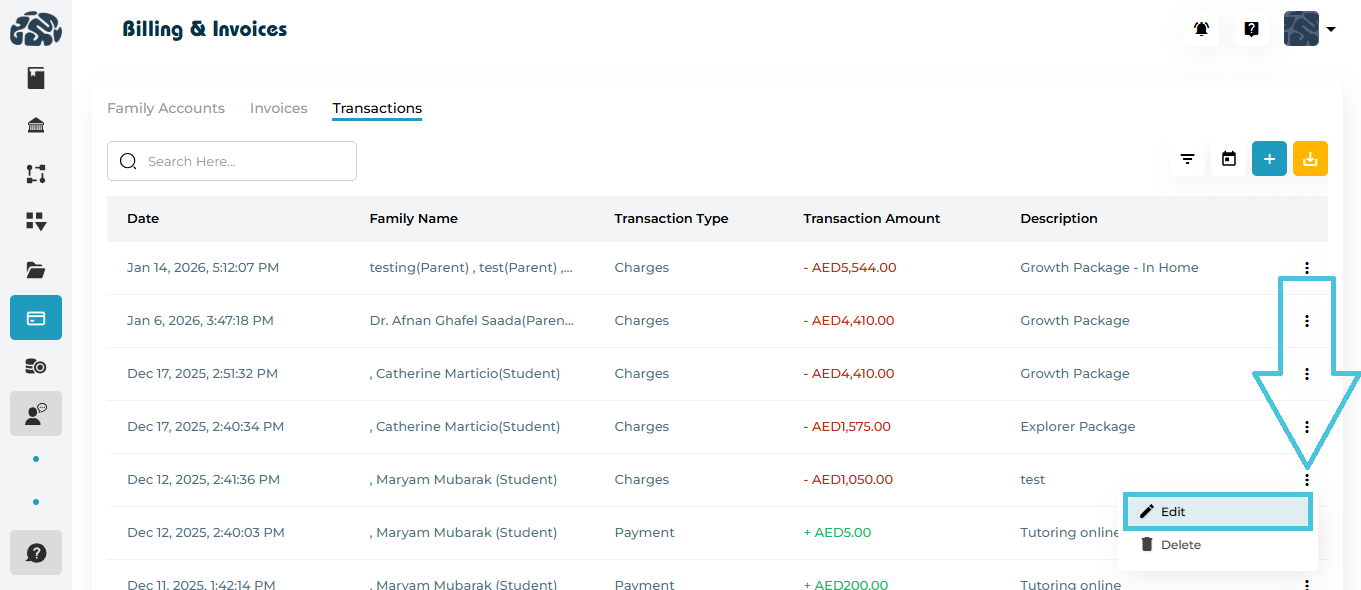
How to Edit
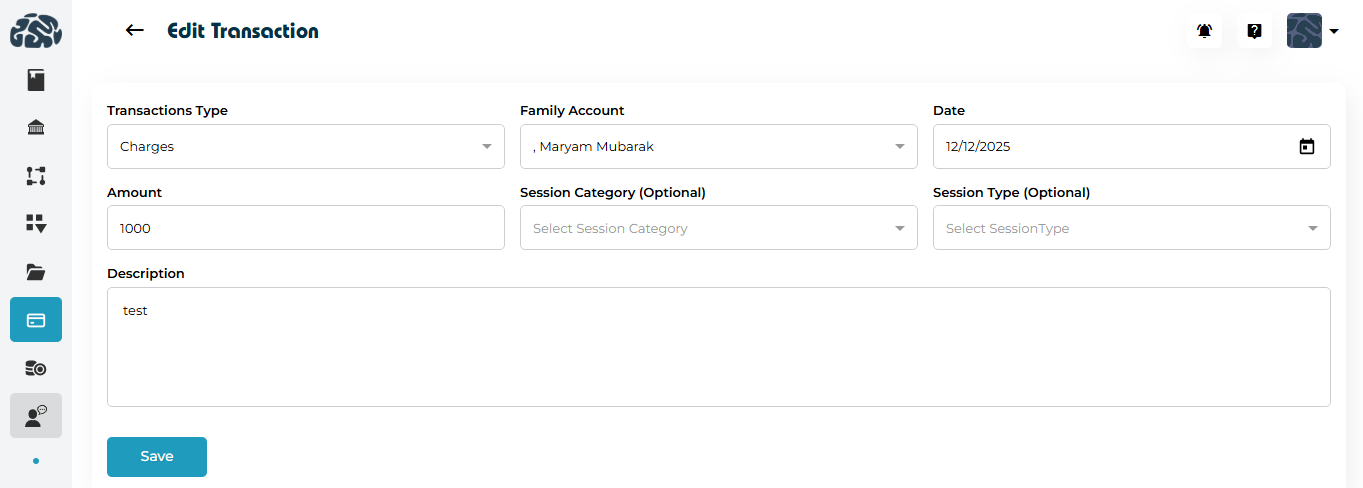
Click the three-dot menu on a manual transaction
Select Edit
Update any of the following:
Transaction Type
Date
Amount
Session Category / Type (if applicable)
Description
Click Save
Changes apply instantly to balances and reports.
Deleting a Transaction
Deletion is also restricted to manual transactions only.
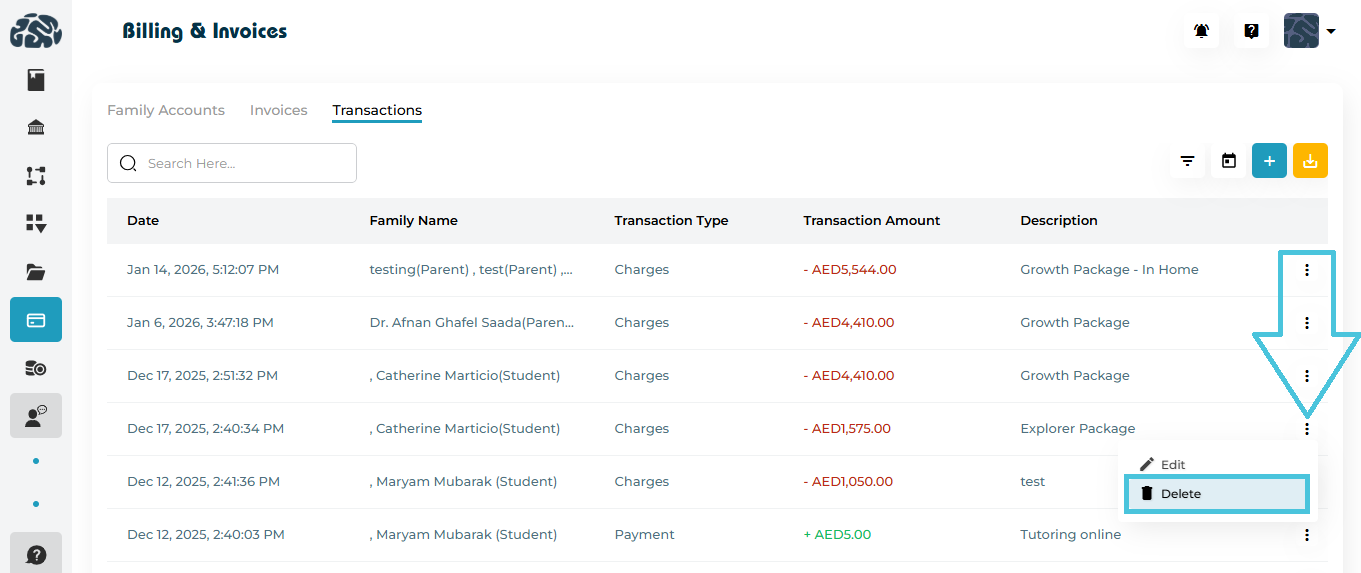
How to Delete
Open the three-dot menu
Click Delete
Confirm the action
⚠️ Deleted transactions are permanently removed and immediately affect balances.
Filtering Transactions
The Transactions tab includes powerful filtering tools for precise review.
Filter Options
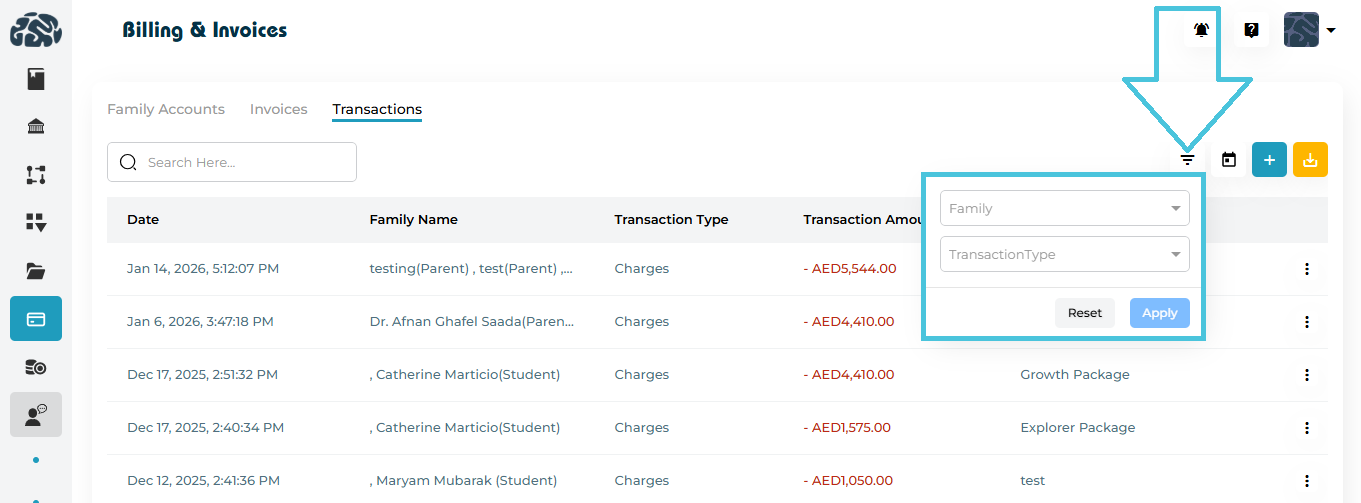
Family – View transactions for a specific family
Transaction Type – Charges or Payments
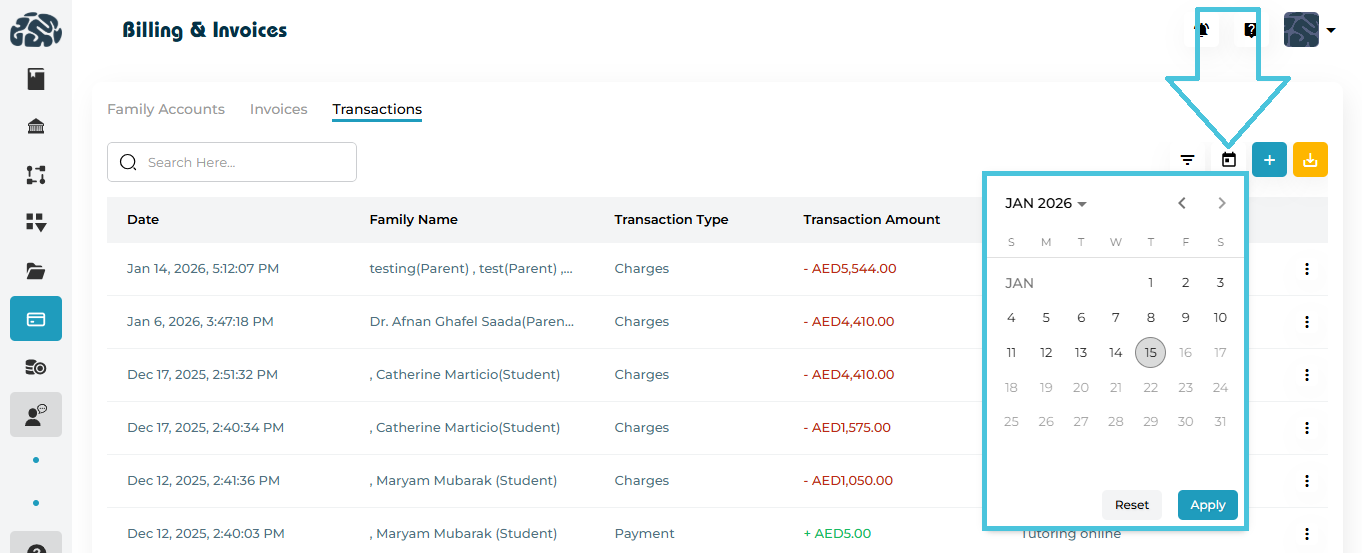
Calendar Filter – Filter transactions by date range
Reset / Apply buttons for quick control
Filters work together and update the list instantly.
Searching Transactions
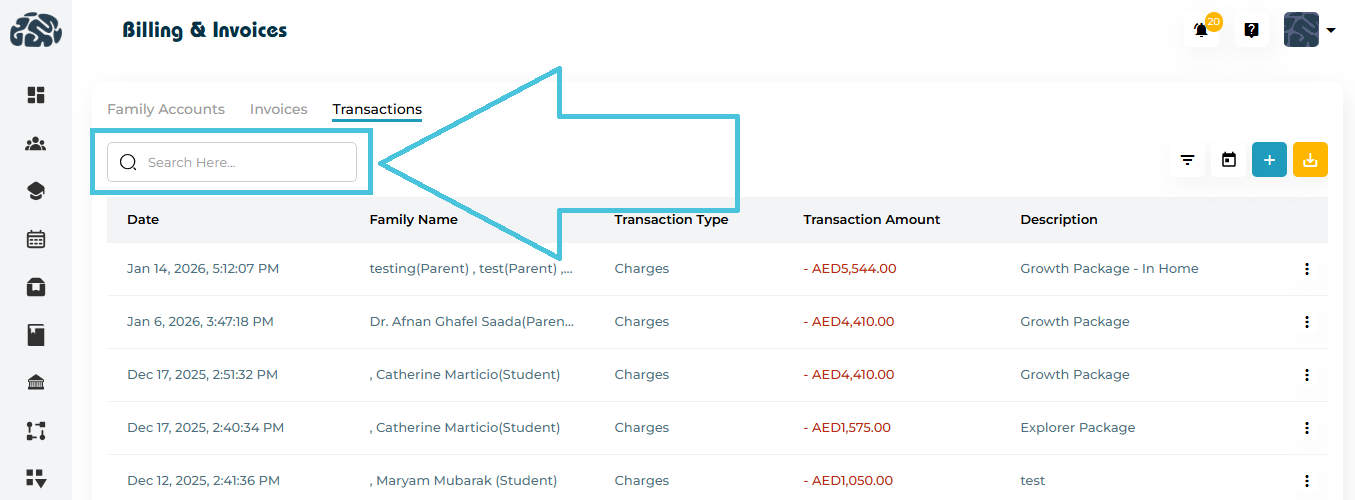
Use the search bar to locate transactions by:
Family name
Student name
Description keywords
Search can be combined with filters for faster results.
Exporting Transactions
Admins can export transaction data for accounting and audits.
Export CSV
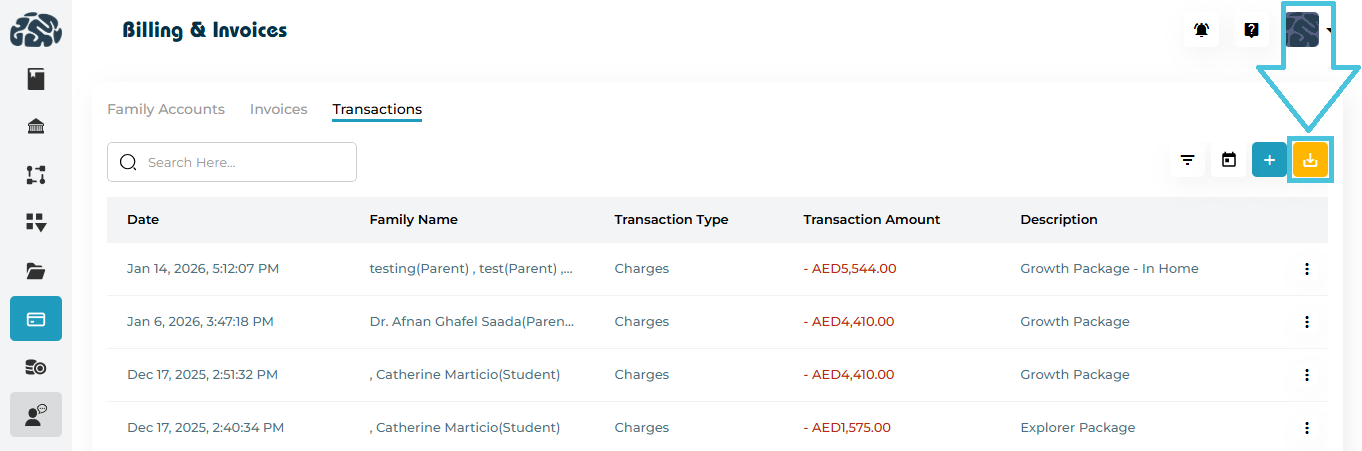
Click Export CSV
Downloads all currently visible transactions
Respects applied filters and date ranges
Common use cases:
Monthly reconciliation
External accounting systems
Financial audits