Configuring Student Performance Ratings
Student performance evaluation is a key component of academic tracking and quality assurance. The Scores & Ratings feature within the Calendar & Sessions module allows each organization to design its own customized evaluation framework—based entirely on its academic model, instructional methods, and reporting preferences.
Whether you measure participation, comprehension, skill mastery, discipline, or any other aspect of student performance, this module provides complete flexibility.
1. What Are “Scores” and “Ratings”?
Scores (Numeric Evaluation Fields)
Scores are quantitative performance metrics. These allow instructors to assign a numerical value to specific behaviors or learning outcomes.
Examples (these vary by organization)
-
Engagement — scored on a scale, e.g., out of 10
-
Comprehension — scored out of 5
-
Problem-Solving — scored out of 3
-
Class Participation — scored out of 10
These are just examples; each institution decides which skills or competencies they want to assess and what maximum score should be assigned.
Ratings (Non-Numeric Qualitative Feedback)
Ratings capture qualitative impressions that may not require a numeric score. These fields allow instructors to record subjective or descriptive evaluations.
Examples (organization-specific)
-
Overall Session Satisfaction
-
Quality of Guidance/Teaching
-
Confidence Level
-
Preparedness
Again, these are fully customizable depending on the academic goals and teaching methodology.
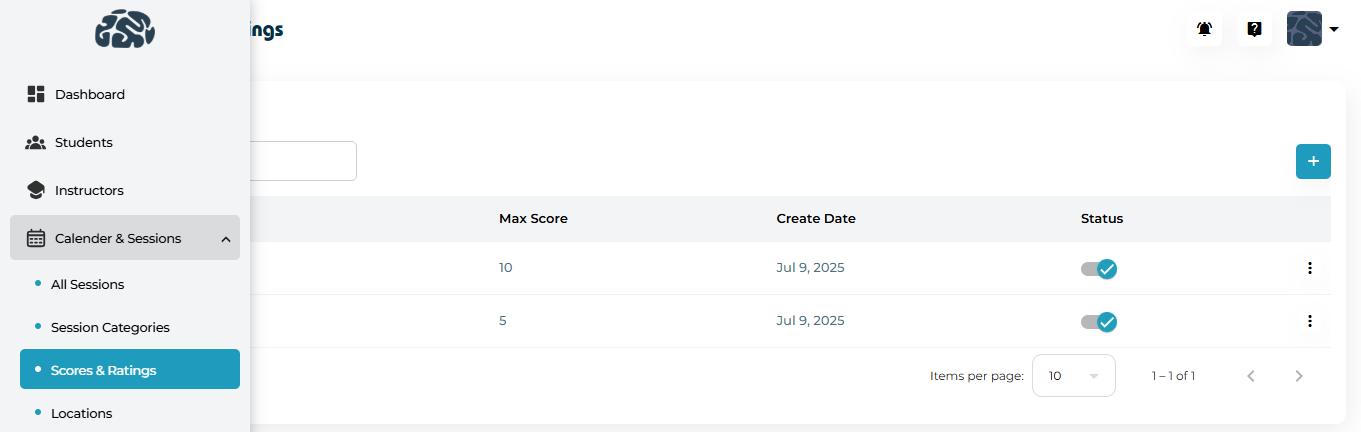
2. Navigating to Performance Configuration
Go to:

Calendar & Sessions → Scores & Ratings
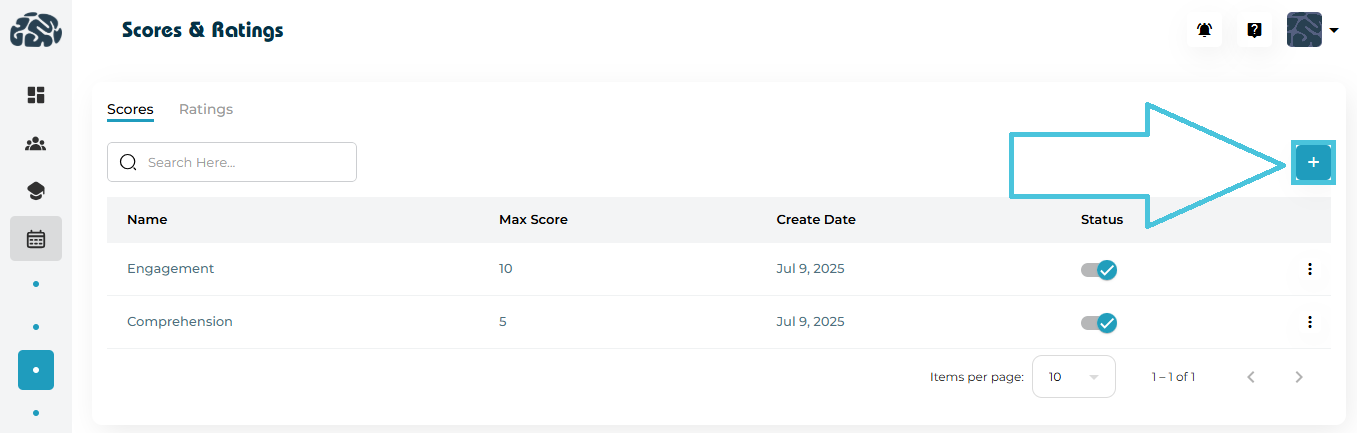
You’ll see two sections: Scores and Ratings, each with tools for adding, editing, activating, and deleting fields.
3. Adding New Performance Fields
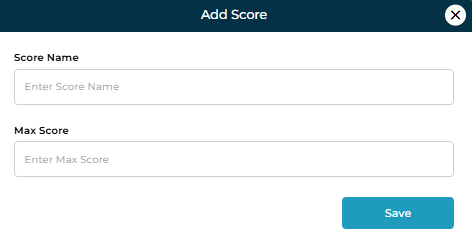
➕ To Add a Score (Numeric Field):

Click the Add button.
Enter a Score Name (e.g., Problem-Solving).
Set a maximum score.
Save to activate it for instructors.
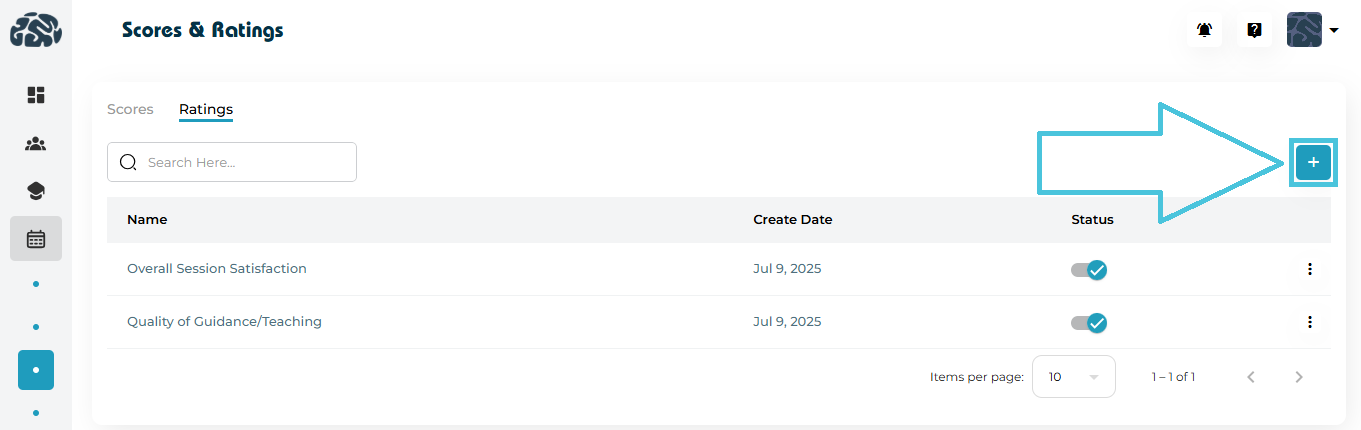
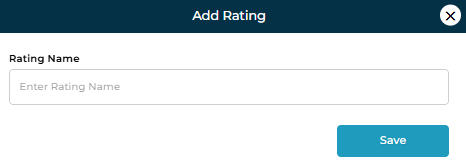
➕ To Add a Rating (Qualitative Field):

Click the Add button.
Enter a Rating Name (e.g., Student Confidence).
Save to make it available immediately.
This flexibility allows each organization to build its own evaluation rubric.
4. Editing or Updating Fields
Scores and Ratings can be updated to reflect new academic strategies, curriculum changes, or reporting needs.
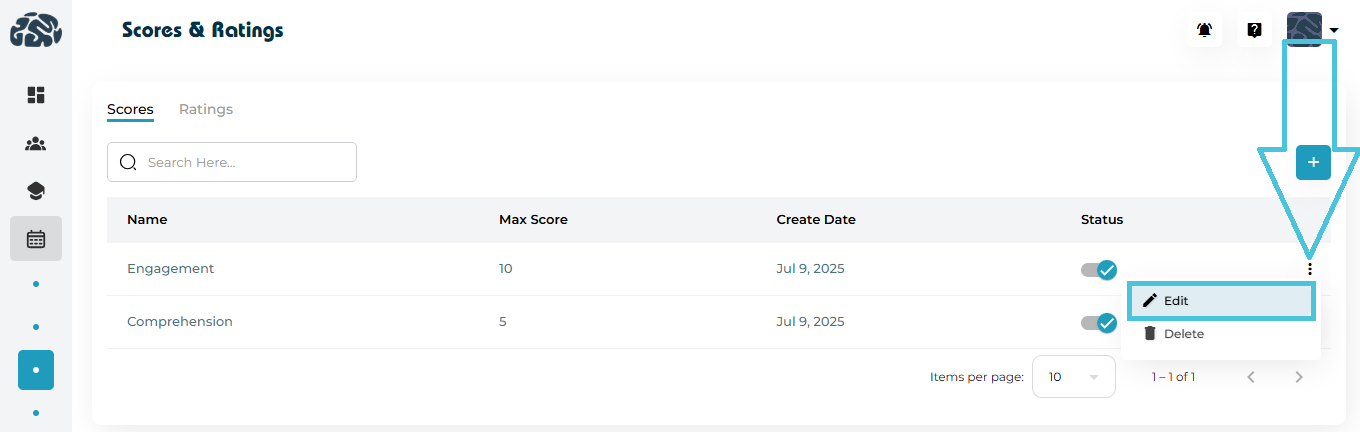
You can modify:
-
Field name
-
Scoring scale (for numeric fields)
-
Visibility (activate/deactivate without deleting)
Updating fields ensures the evaluation system remains aligned with instructional goals.
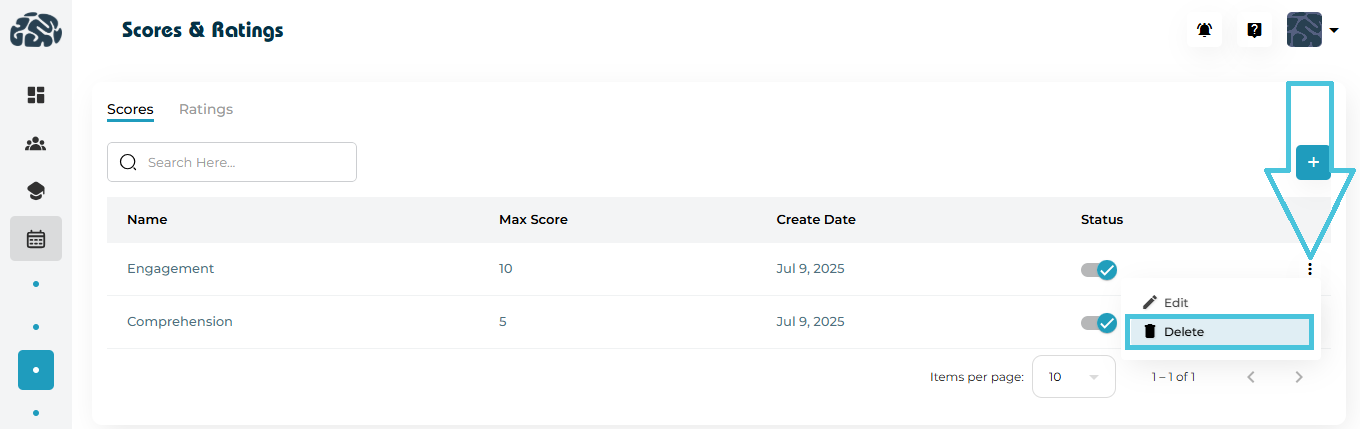
5. Removing Unused Evaluation Criteria
If a metric is no longer needed:

Use the Delete option to remove it permanently,
orUse the Status toggle to temporarily deactivate it.
Organizations often disable seasonal or program-specific fields instead of deleting them.
6. Best Practices for Creating an Effective Rating System
-
Use consistent scoring scales to avoid confusion.
-
Match evaluation categories to your teaching style—e.g., skill-based, behavioral, or outcome-based.
-
Separate numeric and descriptive metrics to get a full picture of student performance.
-
Start simple, then expand as reporting needs grow.
-
Review performance fields periodically to keep them relevant.