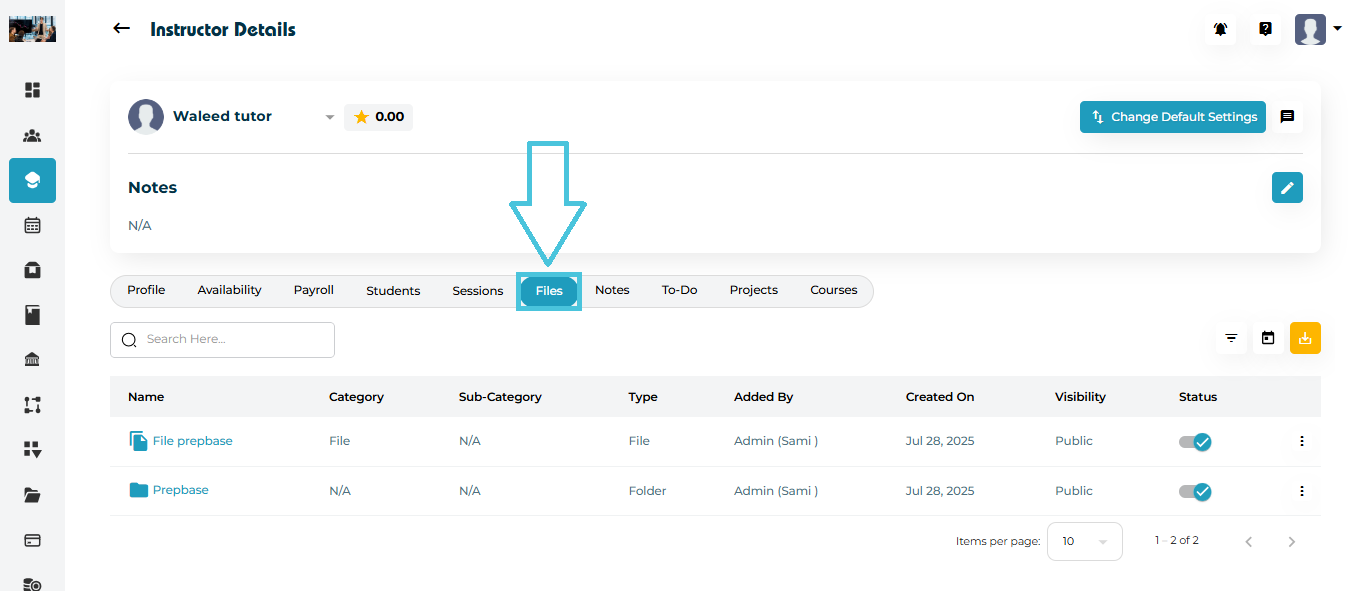
Navigate to Instructors from the left menu.
Open any instructor’s profile.
Select the Files tab from the top navigation bar.
You will see a file repository table showing all files and folders linked to the instructor account.
To update an instructor file:
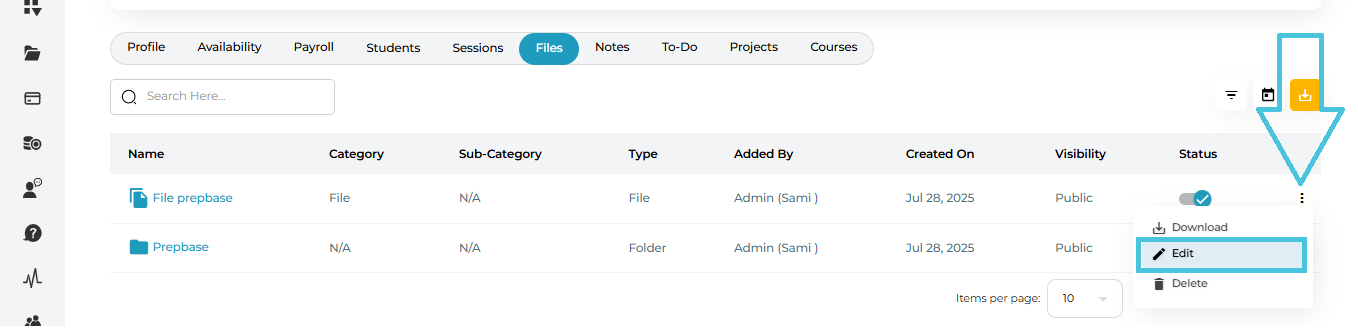
Click the three-dot menu beside the file name.
Select Edit.
The Edit File form will open.
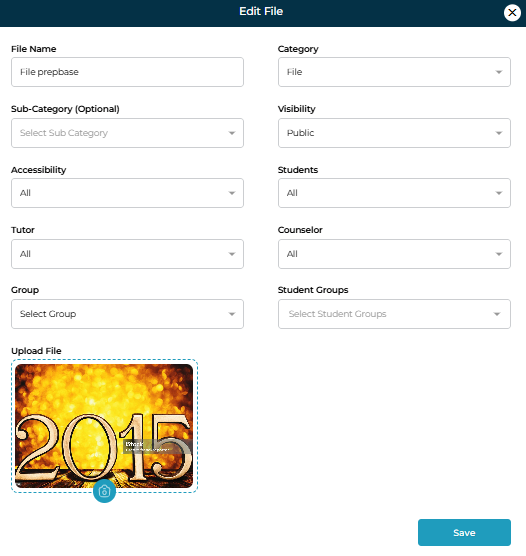
🔧 Editable Fields Include:
File Name
Category (as defined by admin)
Sub-Category (Optional)
Visibility (Public/Private)
Accessibility (All, Instructor-only, etc.)
Students, Tutor, Counselor access control
Associated Group or Student Groups
Upload File (to replace the existing one)
Click Save to update the file.
To learn more about adding a file and assigning accessability to users, please visit the Files section of the guide under Resource Management.
Admins can download instructor files directly:
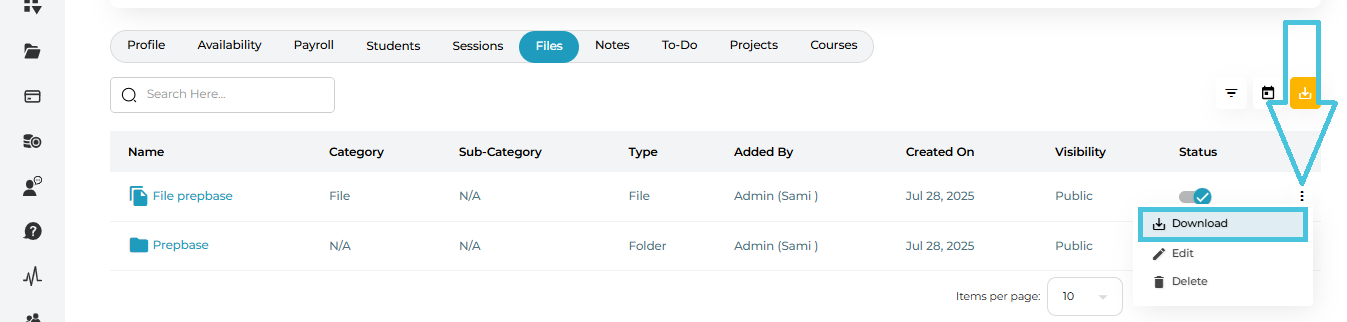
Open the three-dot menu beside the file.
Click Download.
This allows quick access for offline review, printing, or archiving.
To remove a file or folder:
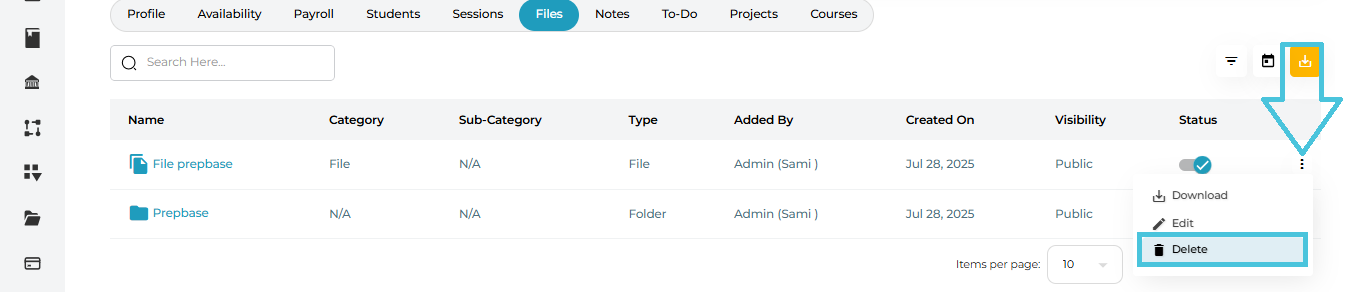
Click the three-dot menu beside the item.
Select Delete.
Confirm removal.
Deleted items are permanently removed from the instructor’s repository.
Large file libraries are easy to manage using built-in search and filter tools.
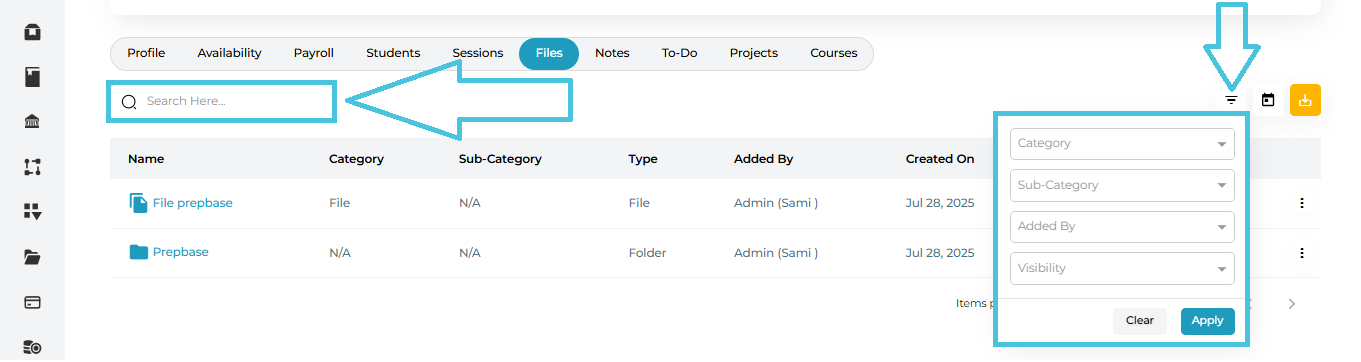
🔎 Search Bar
Search files by:
-
File name
-
Category
-
Created date
-
Uploader
🧩 Filter Options
Click the filter icon to open detailed filters:
-
Category
-
Sub-Category
-
Added By
-
Visibility
Click Apply to refine results.
Click Clear to reset filters.