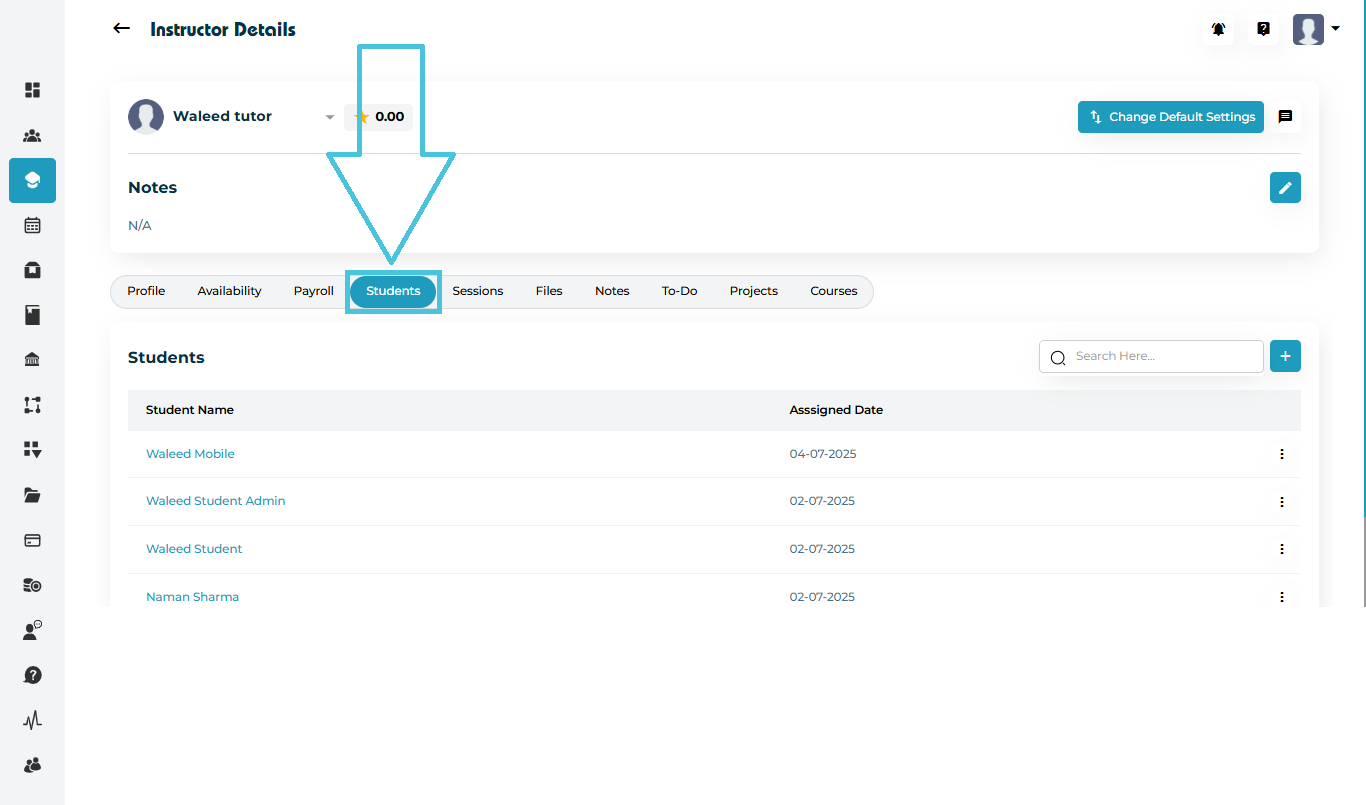
Go to Instructors from the left-side main menu.
Open any instructor to access the Instructor Details page.
Click on the Students tab located in the top navigation bar.
Here you will see the list of all assigned students including:
Student Name (clickable to view student profile)
Assigned Date
A three-dot menu (⋮) for actions such as View and Unassign
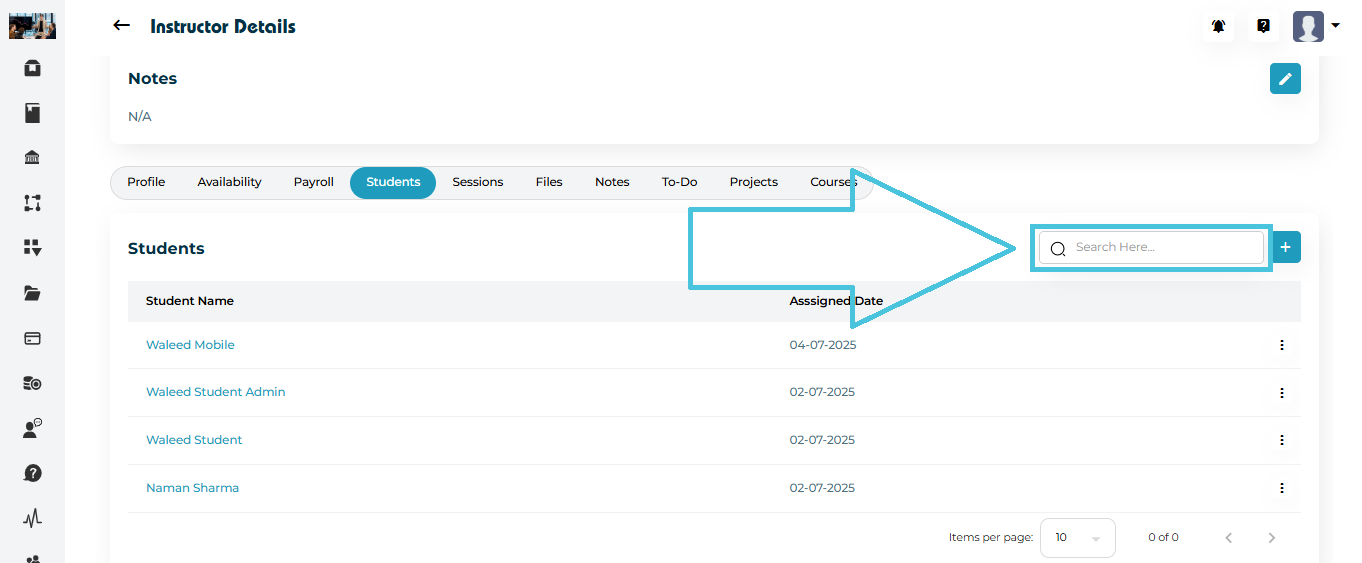
Use the Search Here… bar to quickly filter through long student lists by typing a name or keyword.
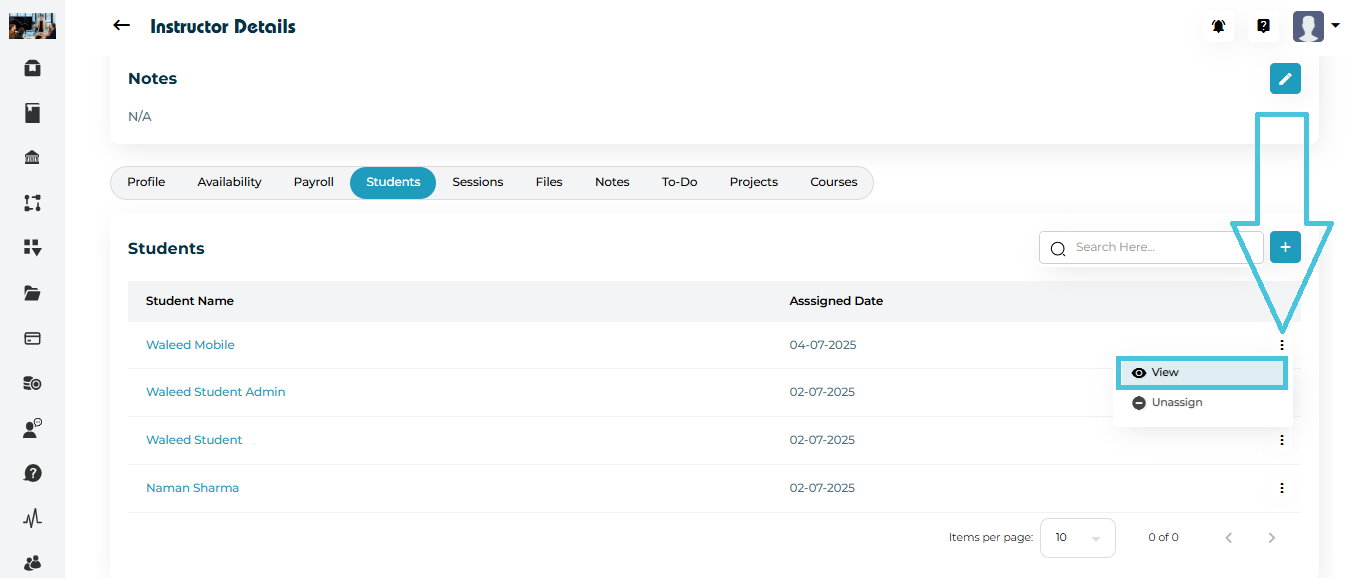
Each assigned student can be viewed directly from the instructor profile.
How to View
Click the three-dot menu next to the student’s name.
Select View.
This opens full student details including notes, sessions, packages, to-dos, planner information, projects, and more.
Key Benefits
Always know which students an instructor is responsible for.
Fully transparent assignment timeline.
Quick access to complete student records via the View button.