Go to Instructors from the left-side navigation menu.
Select an instructor and open their Instructor Details page.
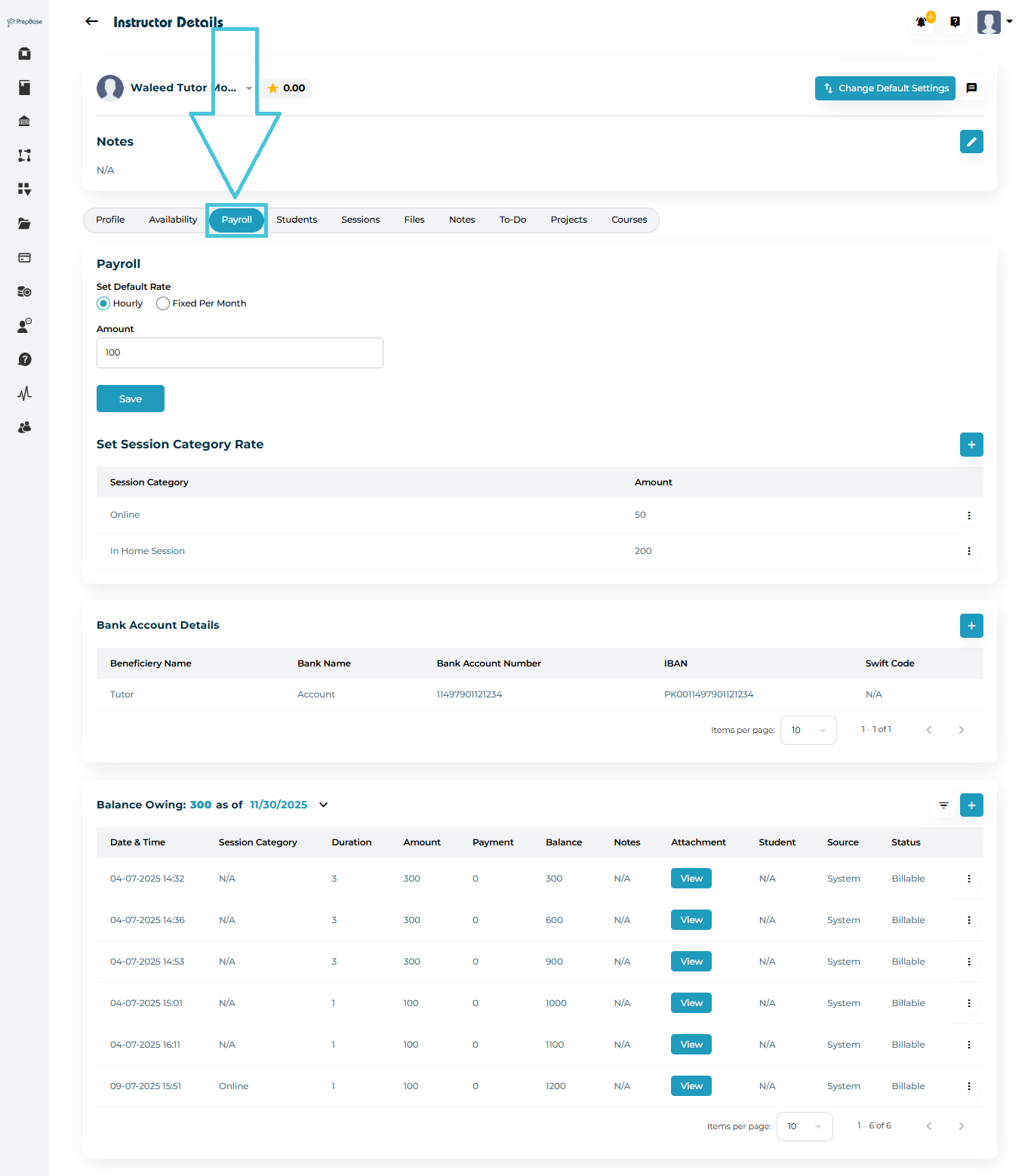
Click the Payroll tab from the top navigation bar.
You will now see the following major sections:
Default Rate
Session Category Rate (if hourly rate is selected)
Bank Account Details
- Balance Owing (transactions ledger)
The default rate is the primary compensation value for the instructor—used when a session does not fall under a special category.
NOTE: If only a default rate is added for an instructor, then all the session categories defined in the system will appear in the session category dropdown while booking a session with the instructor.

How to Set or Update the Default Rate
Under Set Default Rate, choose the payment model:
Hourly (paid per hour)
Fixed Per Month (paid a monthly salary)
Enter the Amount.
Click Save.
This updates the instructor’s base compensation across all their sessions.
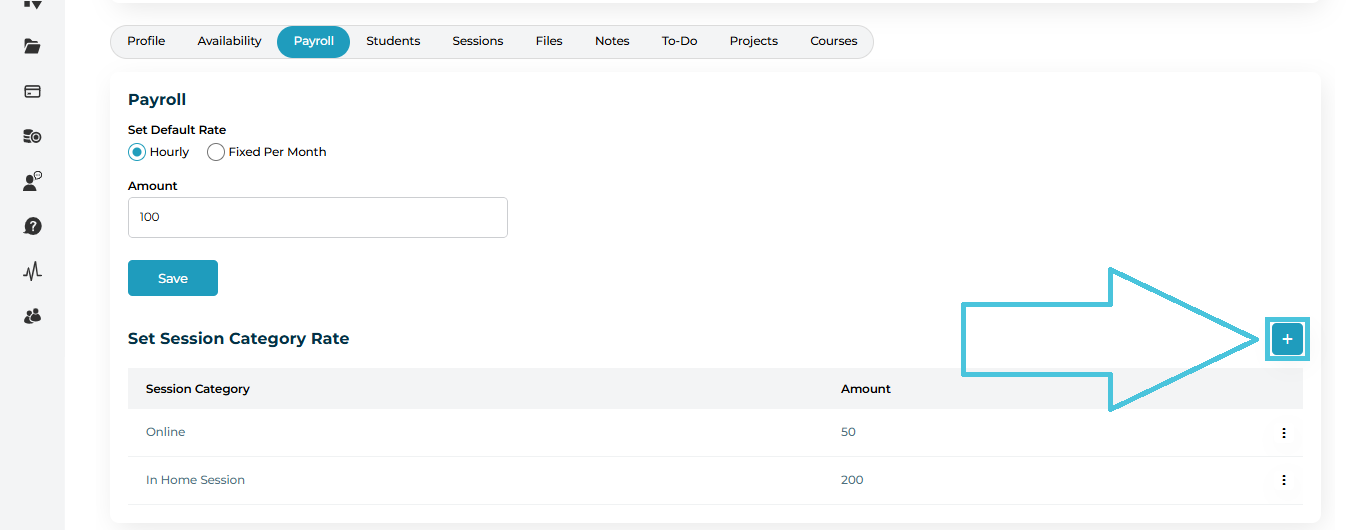
If the hourly payroll is selected then the session category pricing will be activate and this will allows you to define specific rates for different types of sessions that you have defined in the system under the Sessions Categories subtab within the Calendar & Sessions main tab in the admin panel (e.g., Online, In-Home, Workshop, etc.).
Add a New Session Category Rate
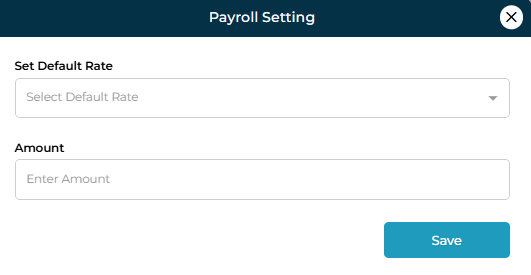
In the Set Session Category Rate section, click the + button on the right.
A form will open where you can:
Select a Session Category
Enter the Amount
Click Save.
The new category rate will now appear in the list.
Edit an Existing Rate
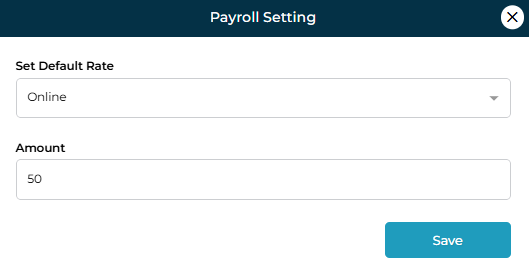
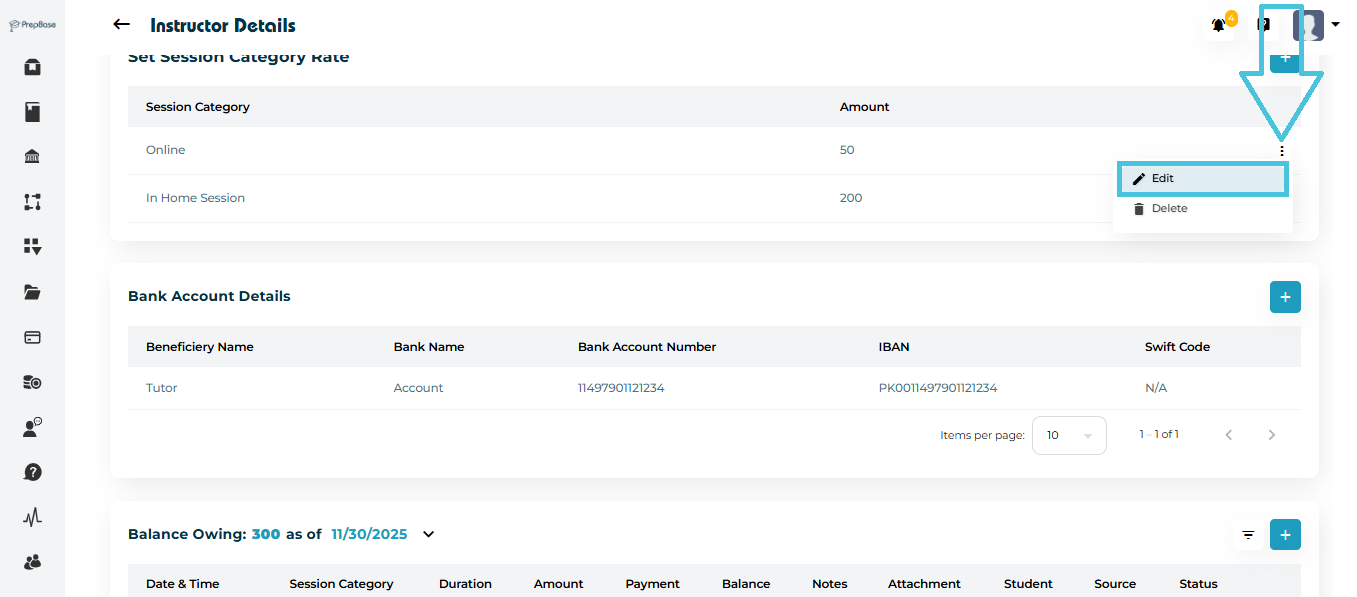
Click the three-dot menu next to a rate.
Select Edit.
Update the amount and save.
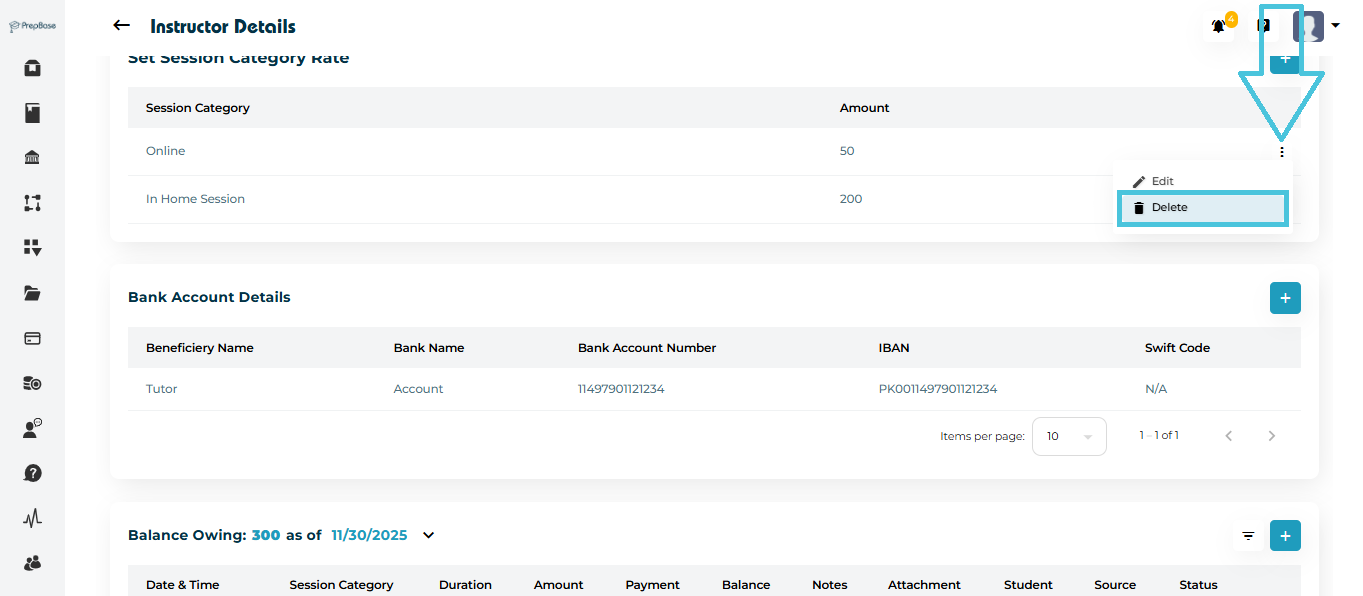
Delete a Rate
Click the three-dot menu.
Select Delete to remove the category from compensation rules.
Here you can keep track of the instructor’s Bank details for processing instructor payouts and this is optional.
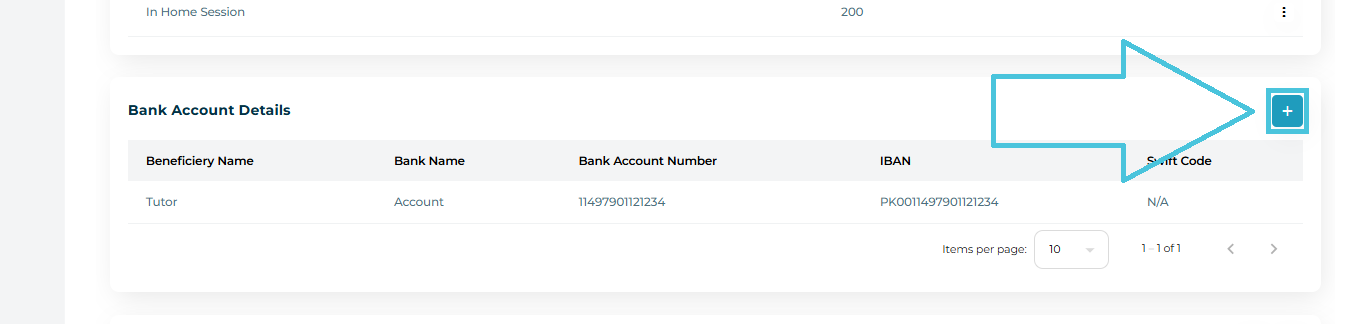
How to Add Bank Account Information
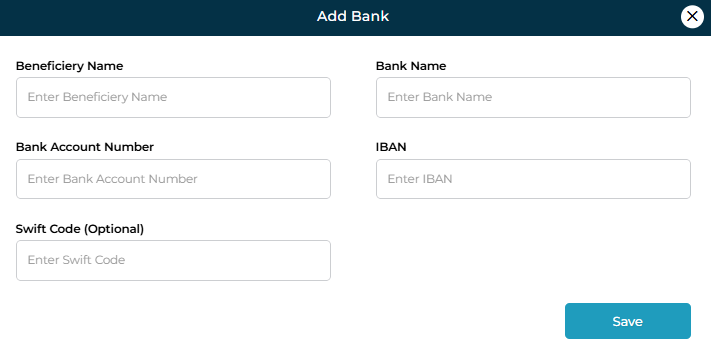
Scroll to Bank Account Details.
Click the + button on the right.
Fill in the form:
Beneficiary Name
Bank Name
Bank Account Number
IBAN
Swift Code (Optional)
Click Save.
The bank account will be listed for future payouts.