Updating availability
Instructor availability determines when a tutor or counselor is able to take sessions. Keeping this information accurate helps the scheduling system avoid conflicts, ensures smooth booking for students, and improves overall session management.
Instructors can also manage their own availaility from their dashboard. Based on the set availability of the instructor, the students or parents will be able to book sessions accoridngly for the selected days and time slots from their dashboard if they are given access.
The PrepBase Admin Portal allows administrators to easily add, edit, or remove an instructor’s available time slots.
NOTE: if an instructor’s availability is not added, then the instructor will not appear on the dashboard or app for the students or parents when they are trying to book any sessions.
1. Where to Find Instructor Availability

Go to Instructors from the Admin left menu.
Click View on any instructor.
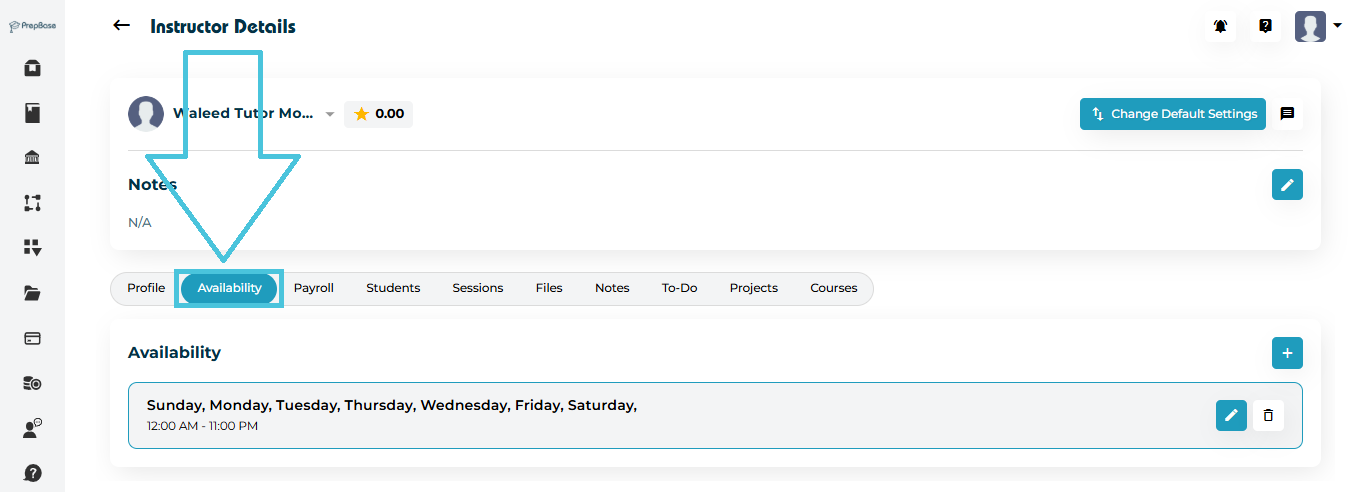
Open the Availability tab.
Here you will see all active availability entries listed by day and time.
2. Adding New Availability
To create new availability slots:

-
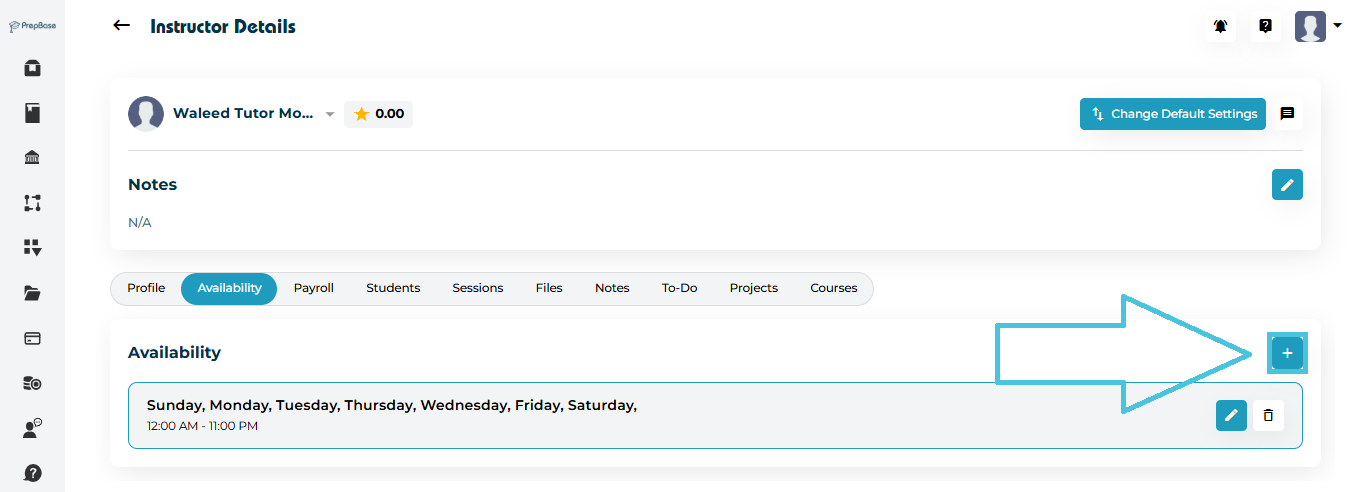
Click the ➕ Add Availability button.
-
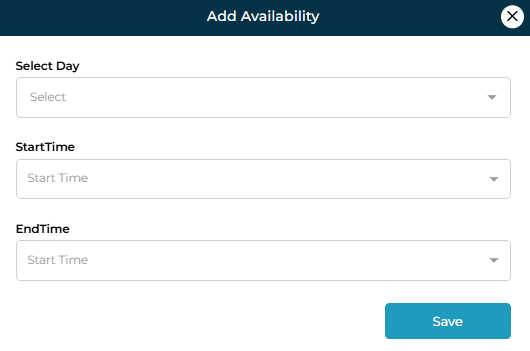
A form will appear where you can define:
-
Select Day (choose one or multiple days)
-
Start Time
-
End Time
-
-
Click Save to add the availability.
3. Editing Existing Availability
If an instructor’s hours change, you can update an existing entry instead of creating a new one.
-
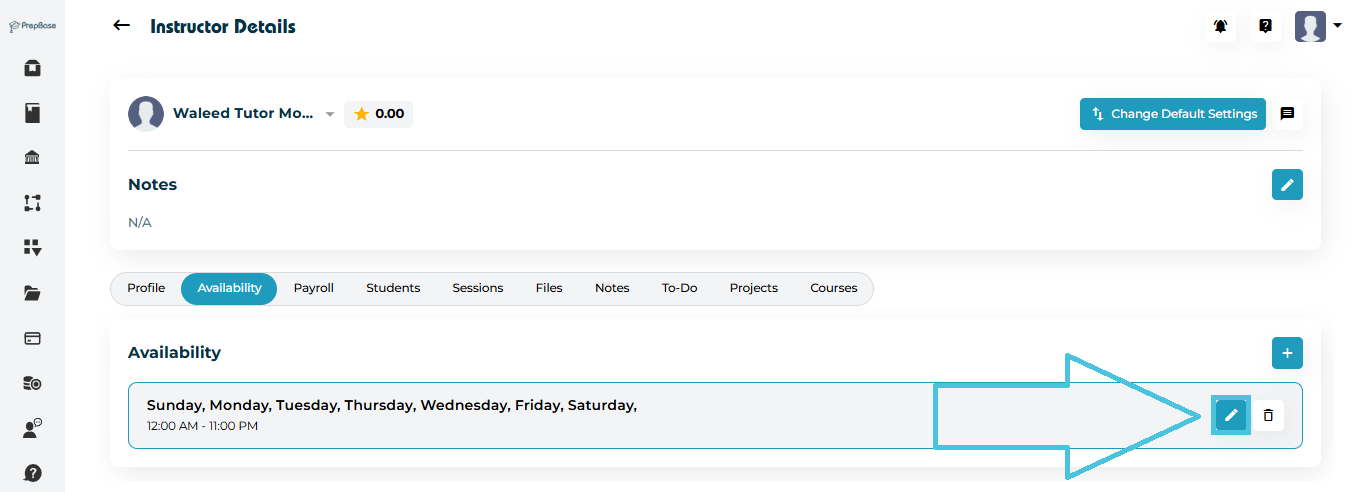
Locate the availability entry in the list.
-
Click the ✏️ Edit button.
-
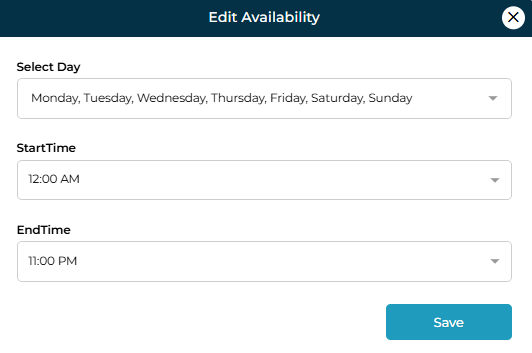
Update:
-
Selected Day(s)
-
Start Time
-
End Time
-
-
Click Save.
4. Deleting Availability
If an instructor is no longer available during a specific time:
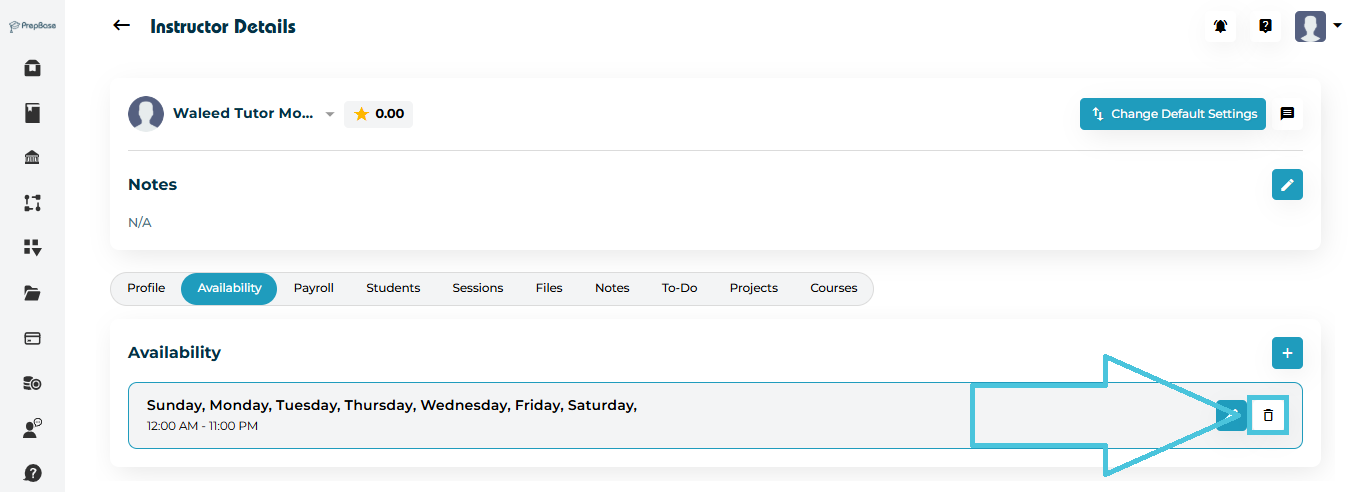
Click the 🗑 Delete icon on the availability entry.
Confirm deletion.
The slot will be permanently removed from their schedule.