Steps
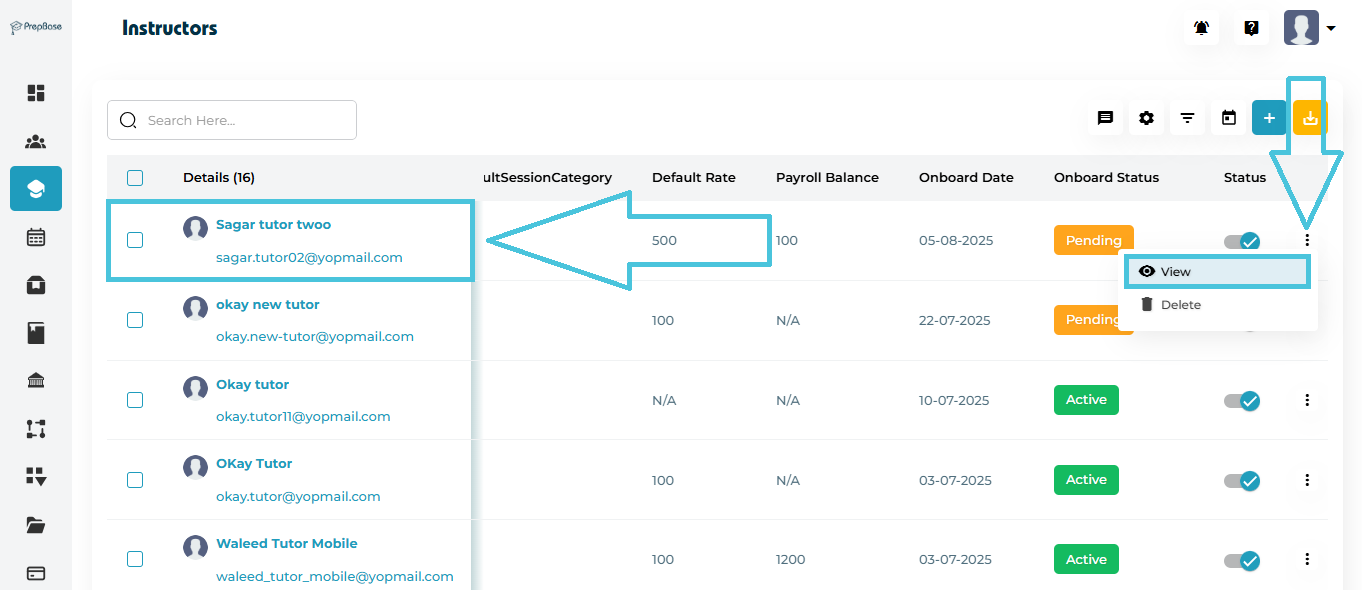
Navigate to the Instructor’s module from the left-hand sidebar.
Locate the instructor in the list using the search bar or scrolling.
To open the Instructor profile:
Option 1: Click the instructor’s name under the Details column.
Option 2: Click the ⋮ (three-dot) icon at the end of the row and select View.
The system loads the Instructor Details page with all profile and activity tabs.
The instructor profile includes multiple tabs:
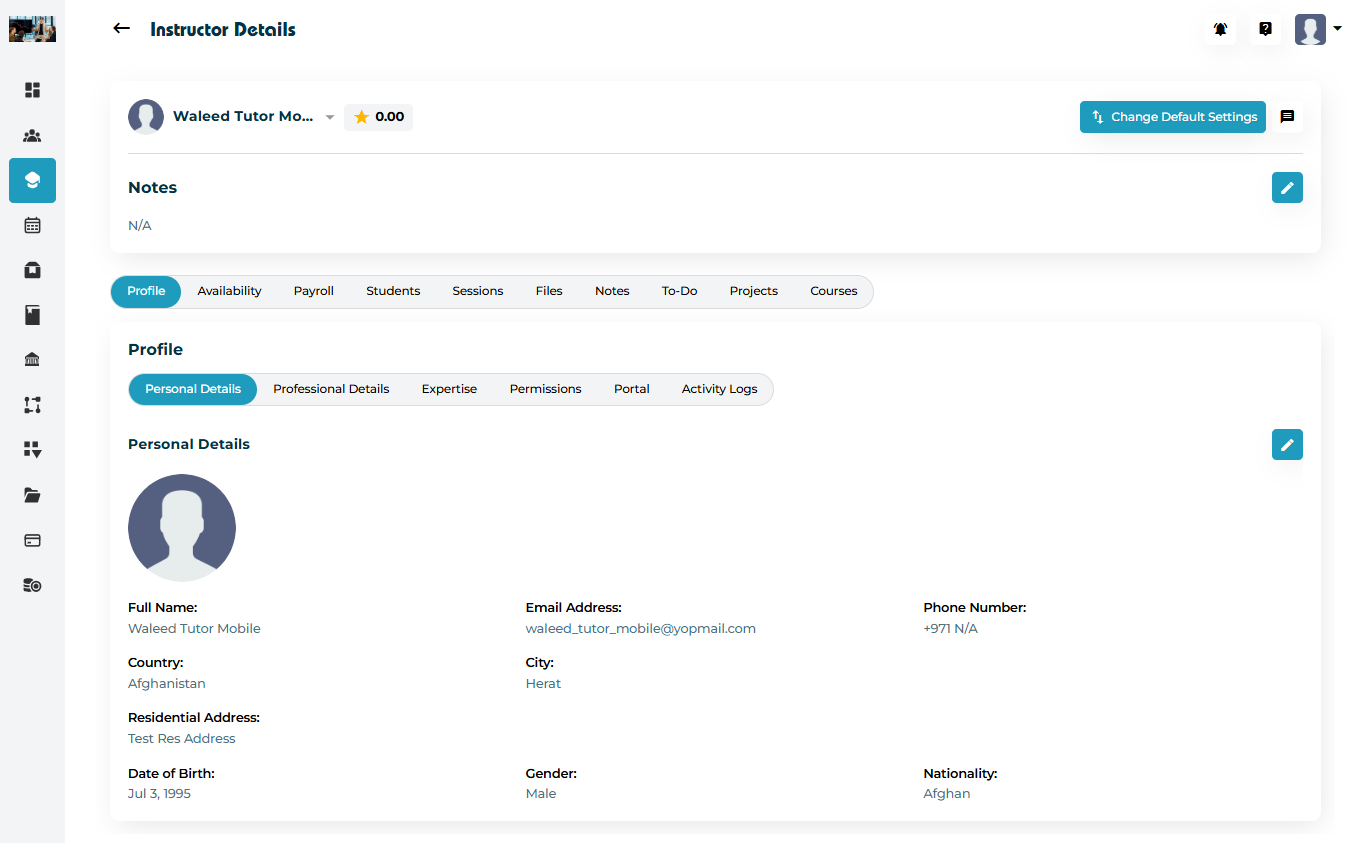
Profile
Personal Details
Professional Details
Expertise
Permissions
Portal
Activity Logs
Availability
Payroll
Students
Sessions
Files
Notes
To-Do
Projects
Courses
This article covers all Profile sub-sections in one place for convenience.
Navigate to:
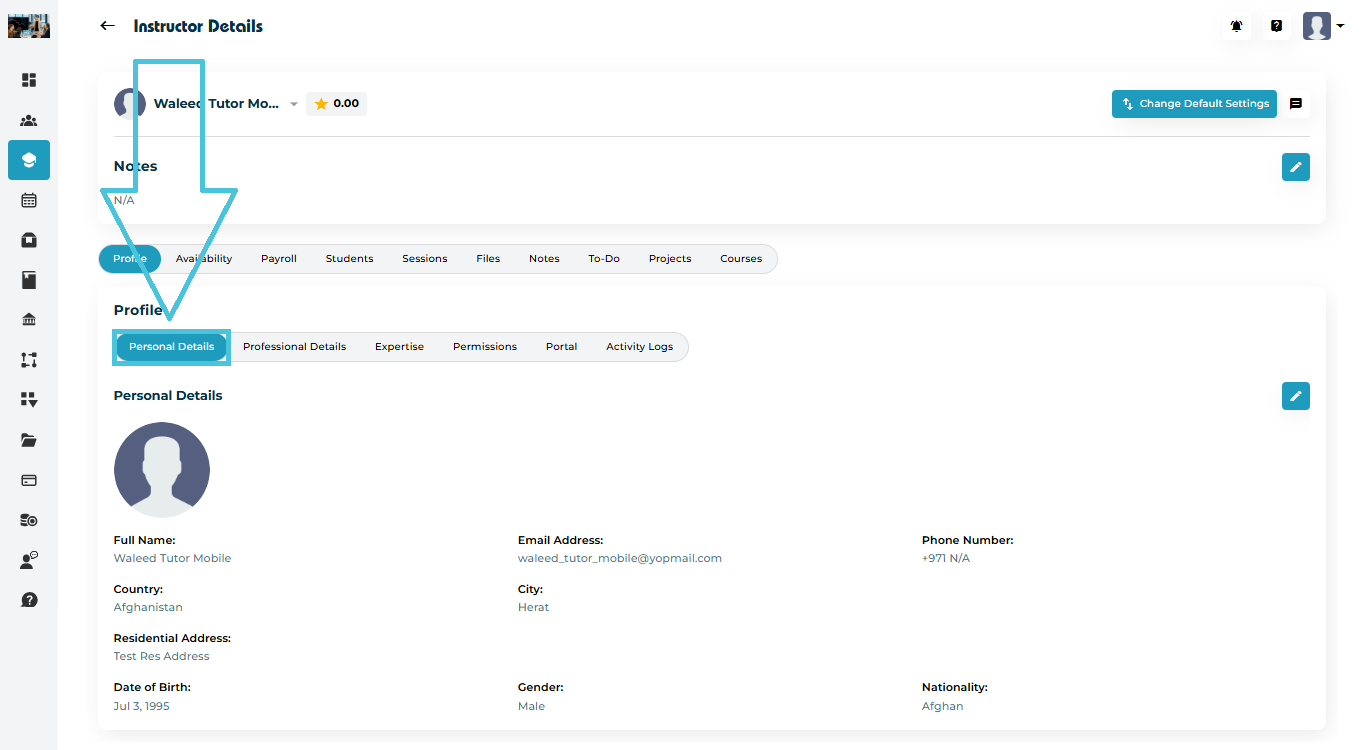
Instructor Details → Profile → Personal Details
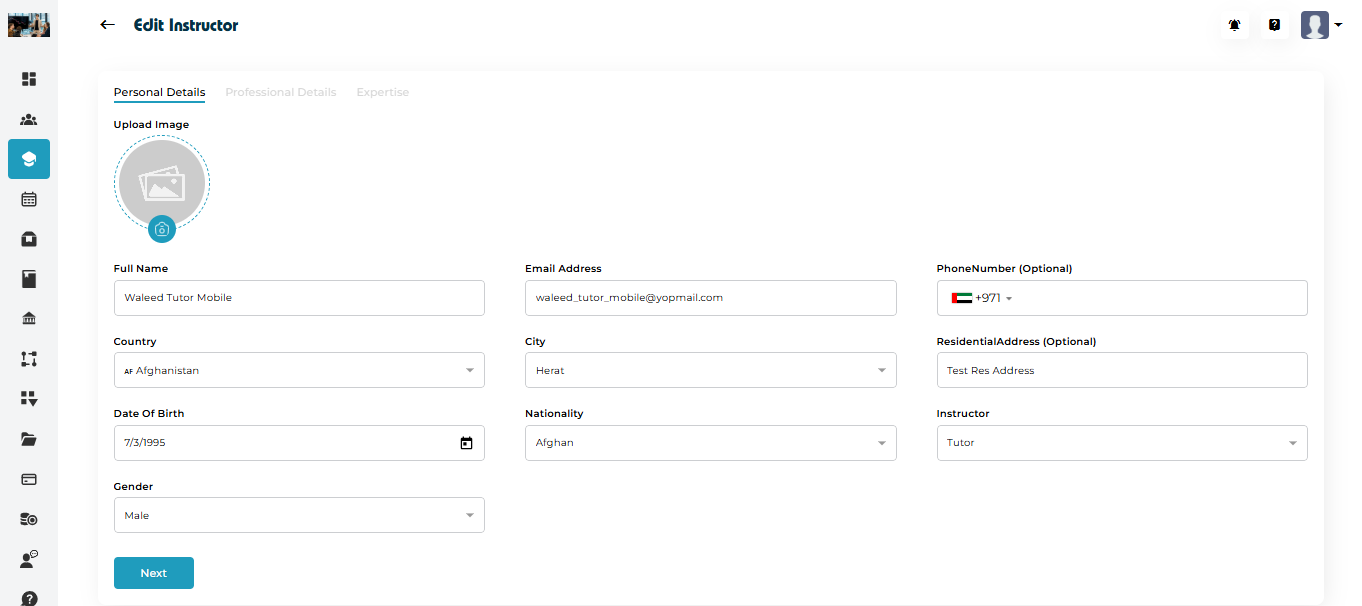
You can manage:
Name
Email Address
Country
City
Nationality
Date of Birth
Gender
Residential Address
Phone Number (optional)
Instructor Type (Tutor / Counselor)
Profile Photo
To edit, click the ✏️ Edit button → update fields → Save.
Navigate to:
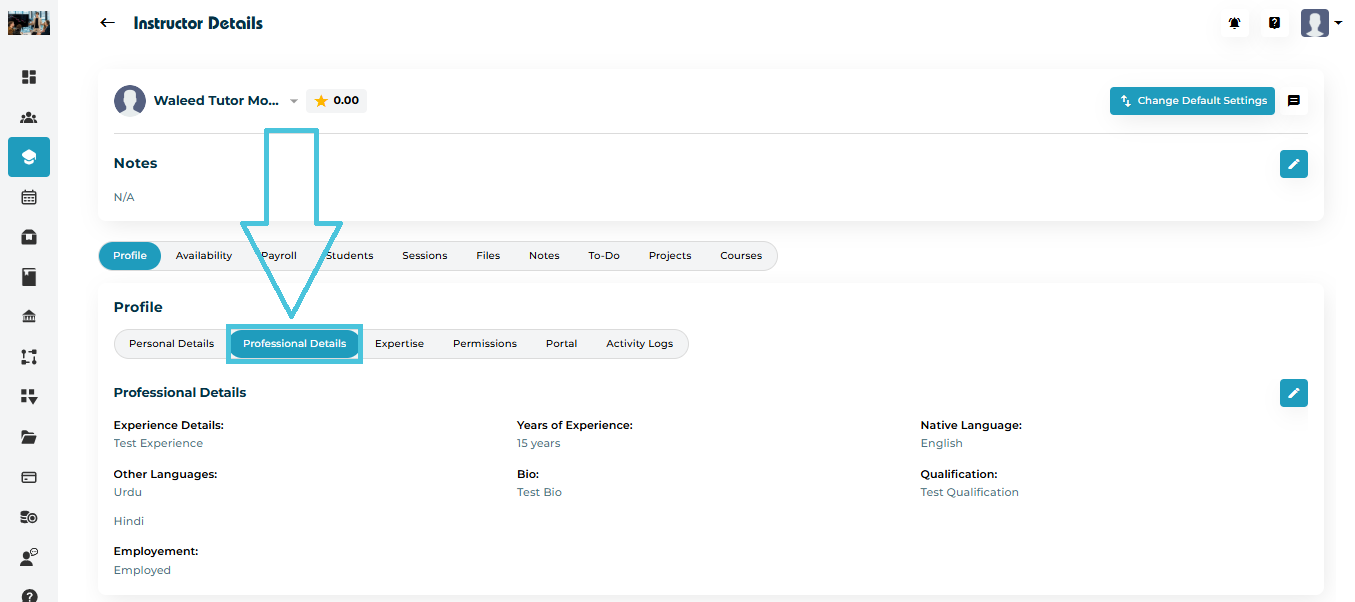
Profile → Professional Details
This section stores:

Experience Summary
Years of Experience
Native Language
Additional Languages
Employment Status
Qualifications
Instructor Bio
Resume Upload
Click ✏️ Edit to update and save changes.
Navigate to:
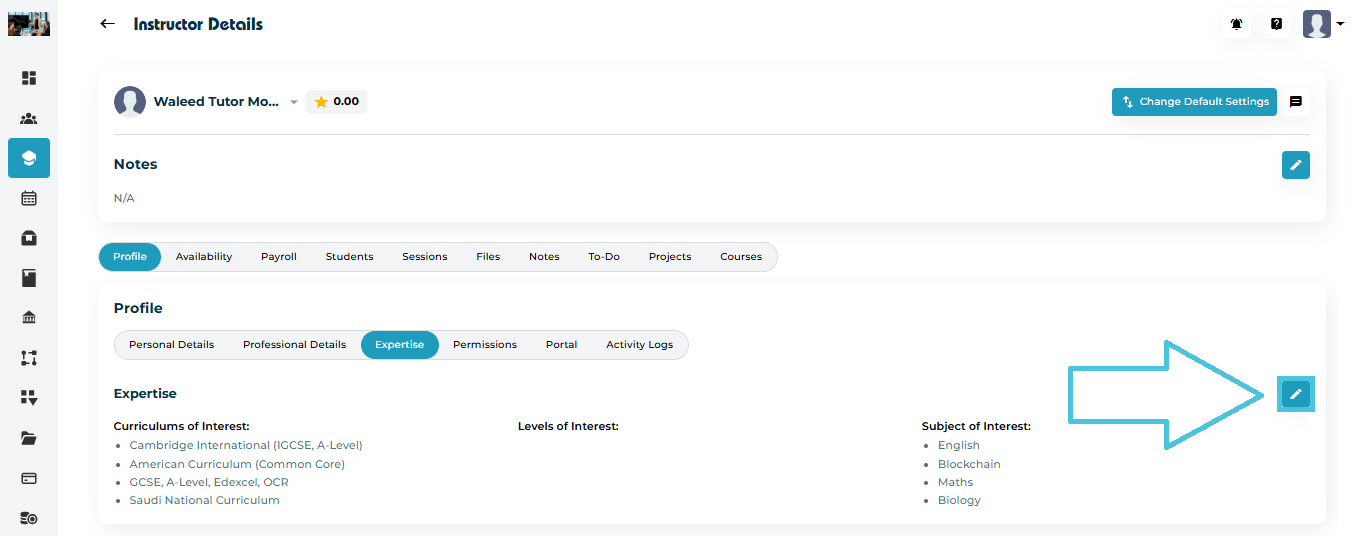
Profile → Expertise

You can configure the instructor’s:
Curriculums of Interest (e.g., IGCSE, American, IB)
Levels of Interest (Grade/Year levels)
Subjects of Interest
Click ✏️ Edit → Save.
Navigate to:
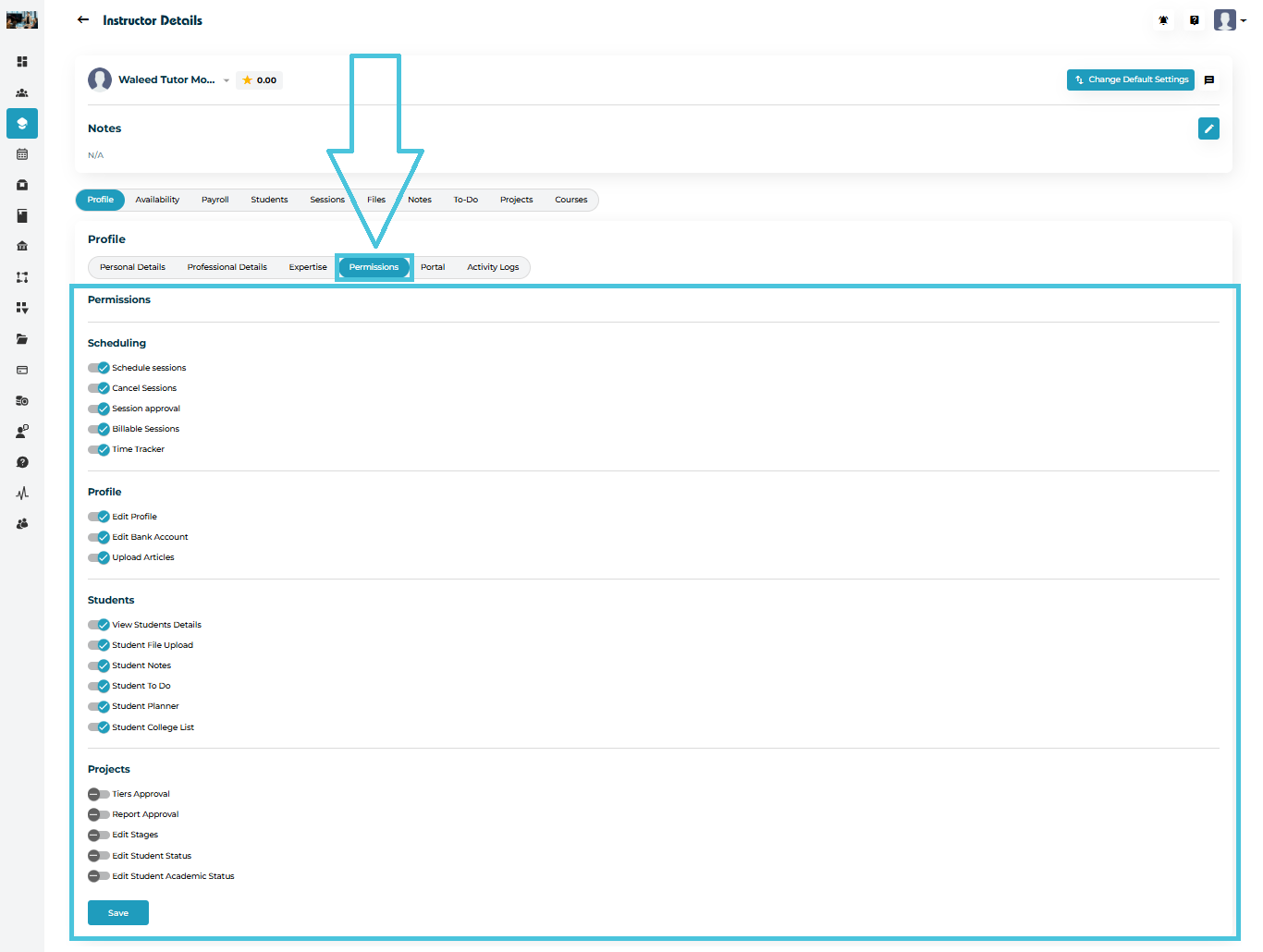
Profile → Permissions
Permissions define what the instructor can do within their portal.
Permissions include:
Scheduling
Schedule Sessions
Cancel Sessions
Session Approval
Billable Sessions
Time Tracker
Profile
Edit Profile
Edit Bank Account
Upload Articles
Students
View Student Details
Student File Upload
Student Notes
Student To-Do
Student Planner
Student College List
Projects
Tiers Approval
Report Approval
Edit Stages
Edit Student Status
Edit Student Academic Status
Use toggles to enable/disable permissions → Click Save.
Navigate to:
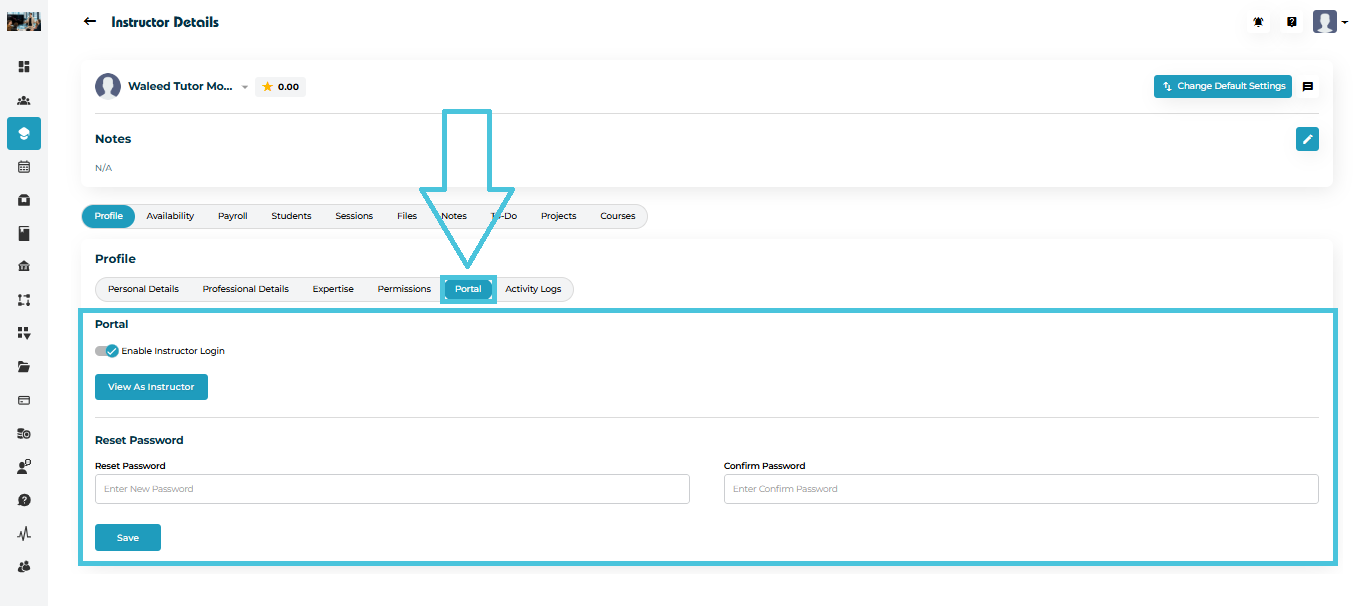
Profile → Portal
You can manage:
Enable/Disable Instructor Login
Allows revoking an instructor’s access without deleting their profile.
View As Instructor
Lets administrators preview the instructor’s portal.
Reset Password
You can set a new password manually if needed.
Click Save after applying changes.
Navigate to:
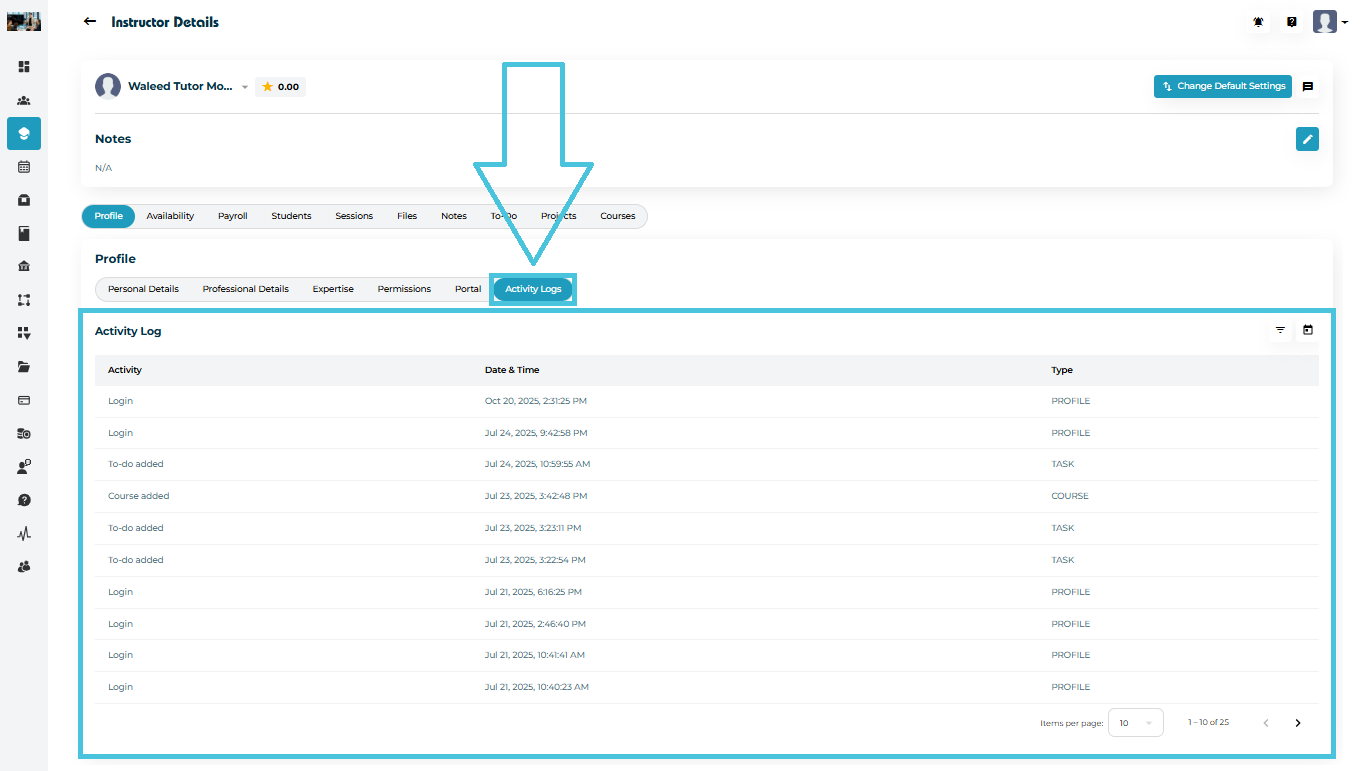
Profile → Activity Logs
Activity Logs provide a complete audit trail of instructor activity, including:
Login times
To-Do added
Course added
Profile updates
Permission changes
Session updates
Each entry shows:
Activity
Timestamp
Activity Type (Profile, Task, Course, etc.)