Open Student → Projects
Click View on any project
Scroll to the Tasks section
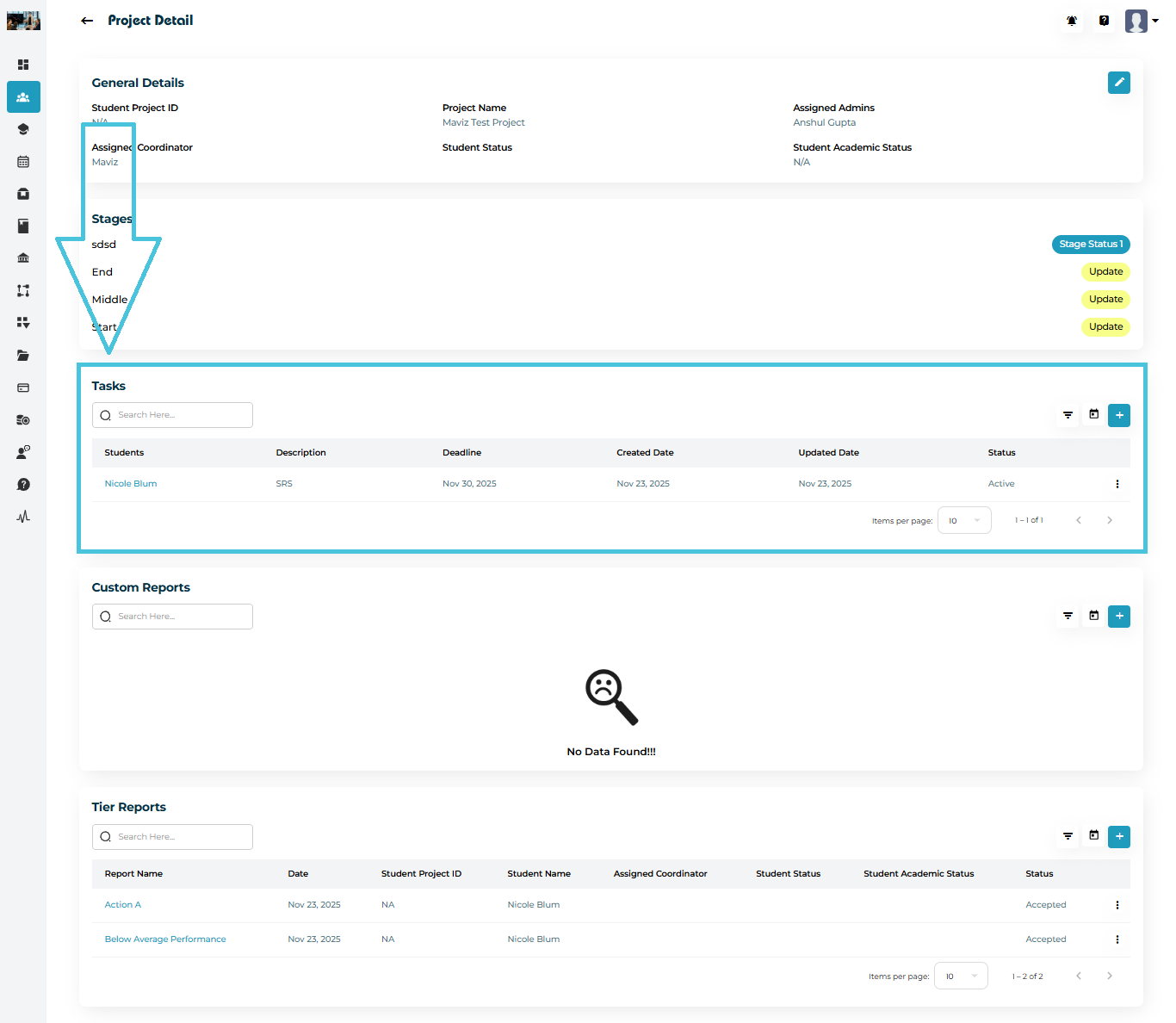
If no tasks are assigned, you will see a No Data Found message.
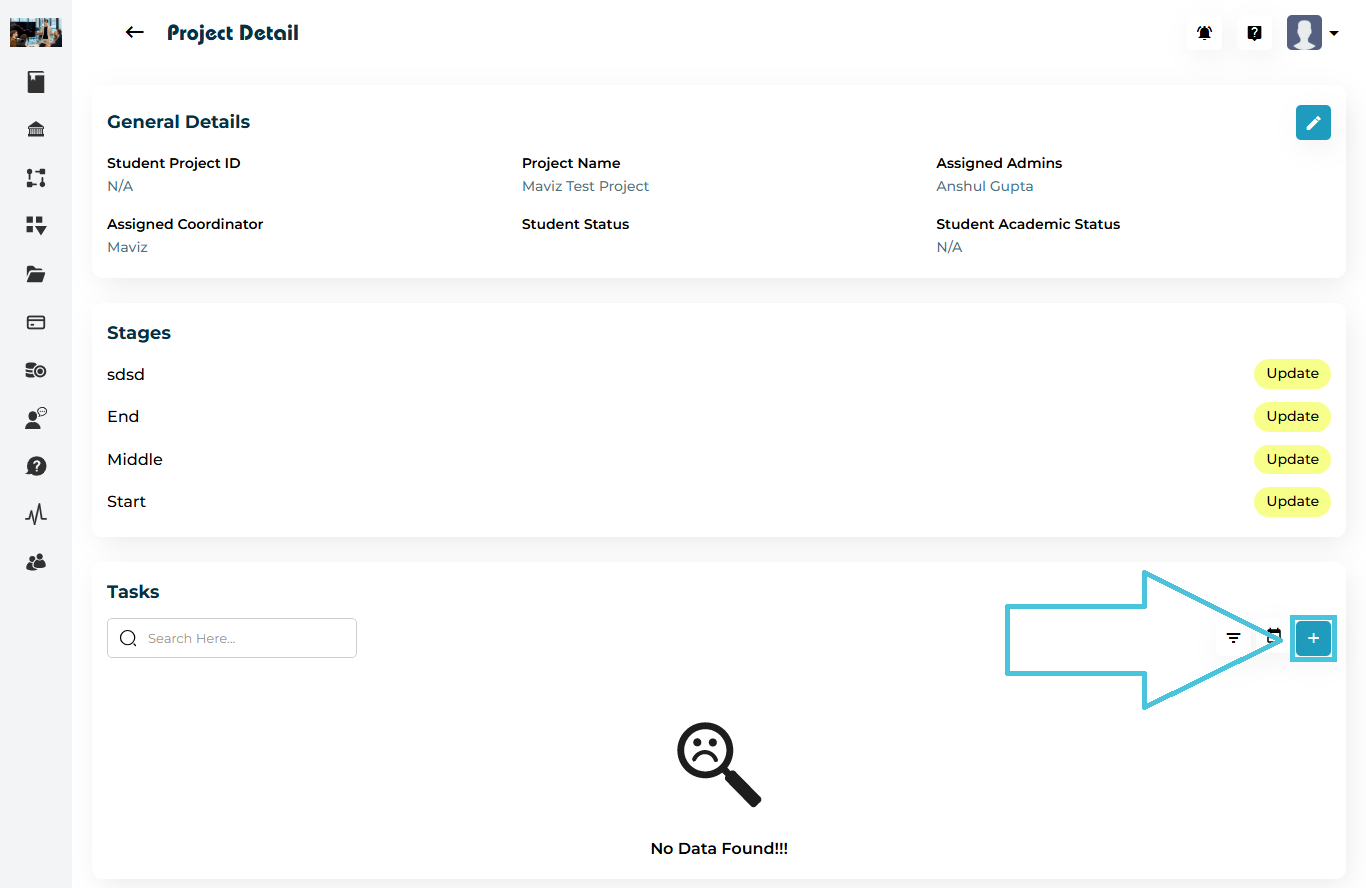
Click the + Add Task button in the Tasks section.
The Add Project – Tasks pop-up opens.
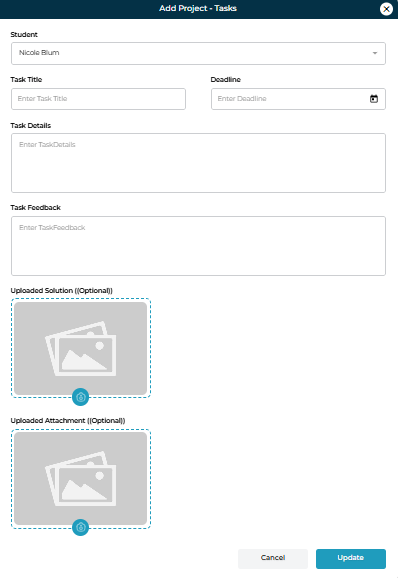
Fields Explained
| Field | Description |
|---|---|
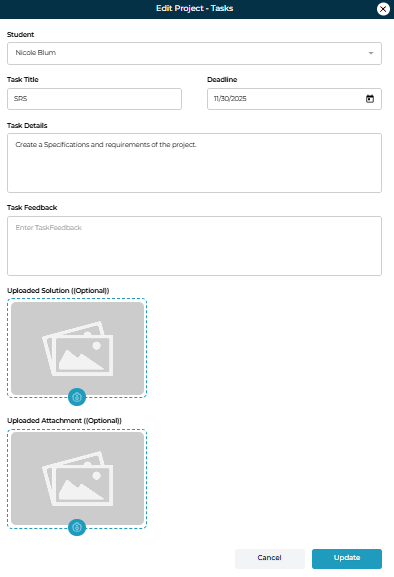
| Task Title | Short name of the student’s task. |
| Deadline | Date by which the task must be completed. |
| Task Details | Complete instructions or requirements. |
| Task Feedback | Space for instructors to give feedback after submission. |
| Uploaded Solution (Optional) | File submitted by student. |
| Uploaded Attachment (Optional) | Additional documents from admin/instructor. |
To update an existing task:
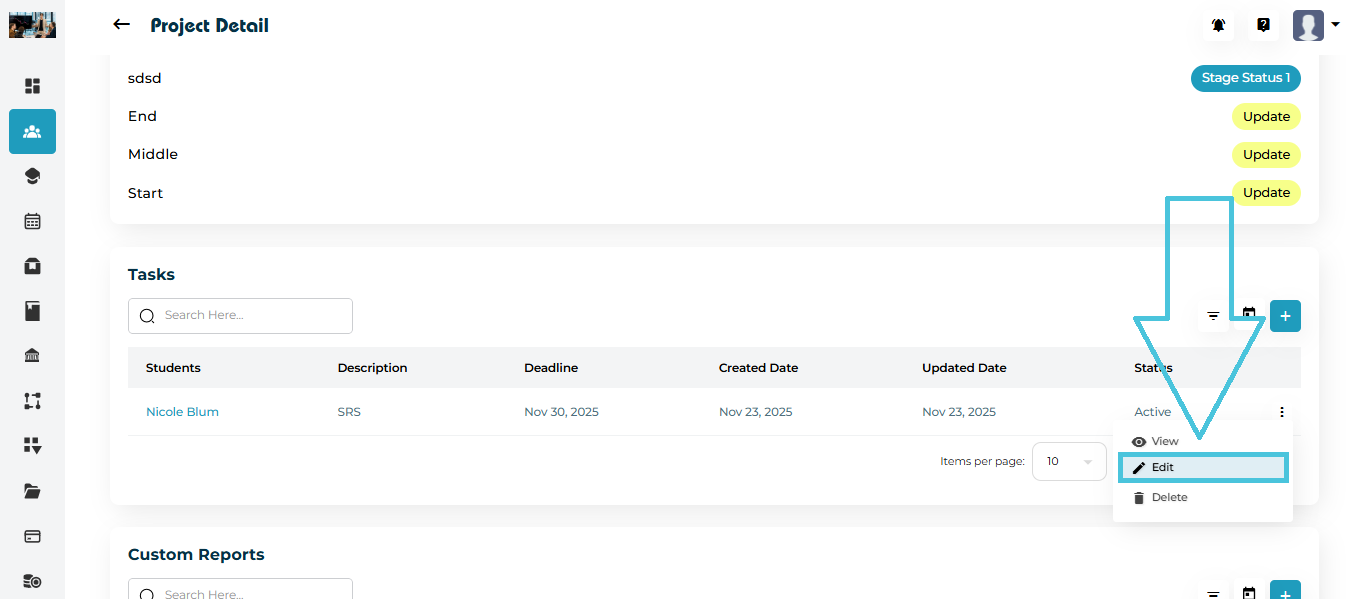
Click the three-dot menu (⋮)
Select Edit
Adjust task title, details, feedback, attachments
Click Update
To delete a task:
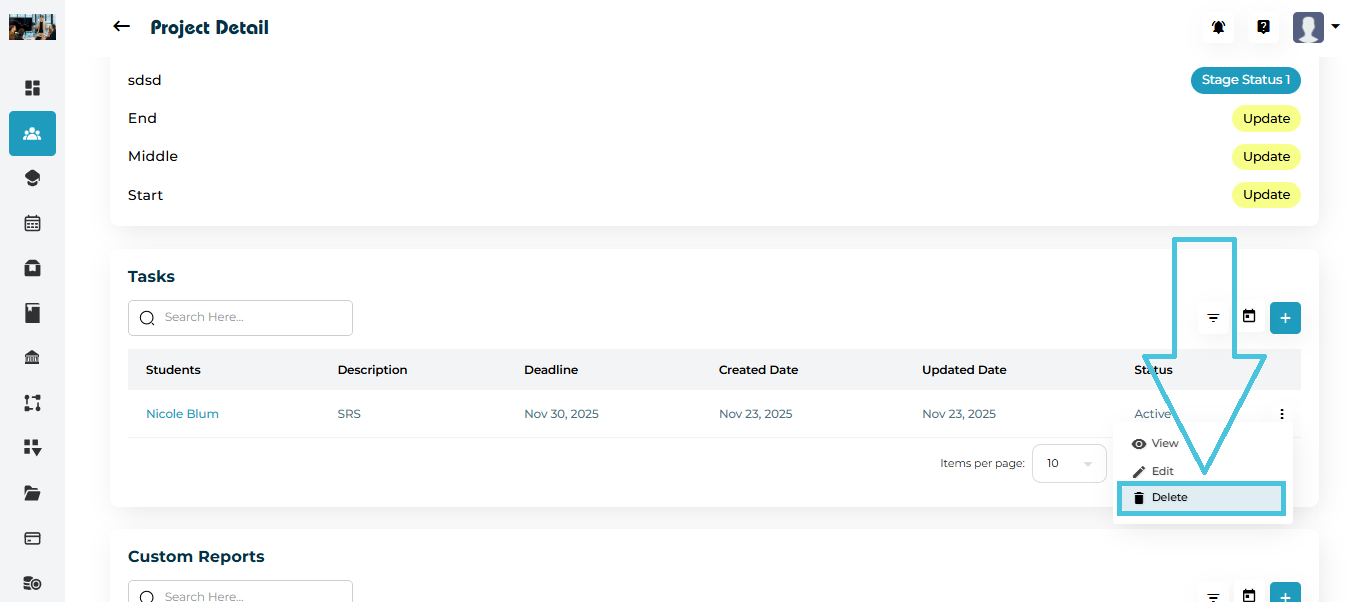
Open the three-dot menu (⋮)
Select Delete
Confirm deletion
You can preview full details by clicking:
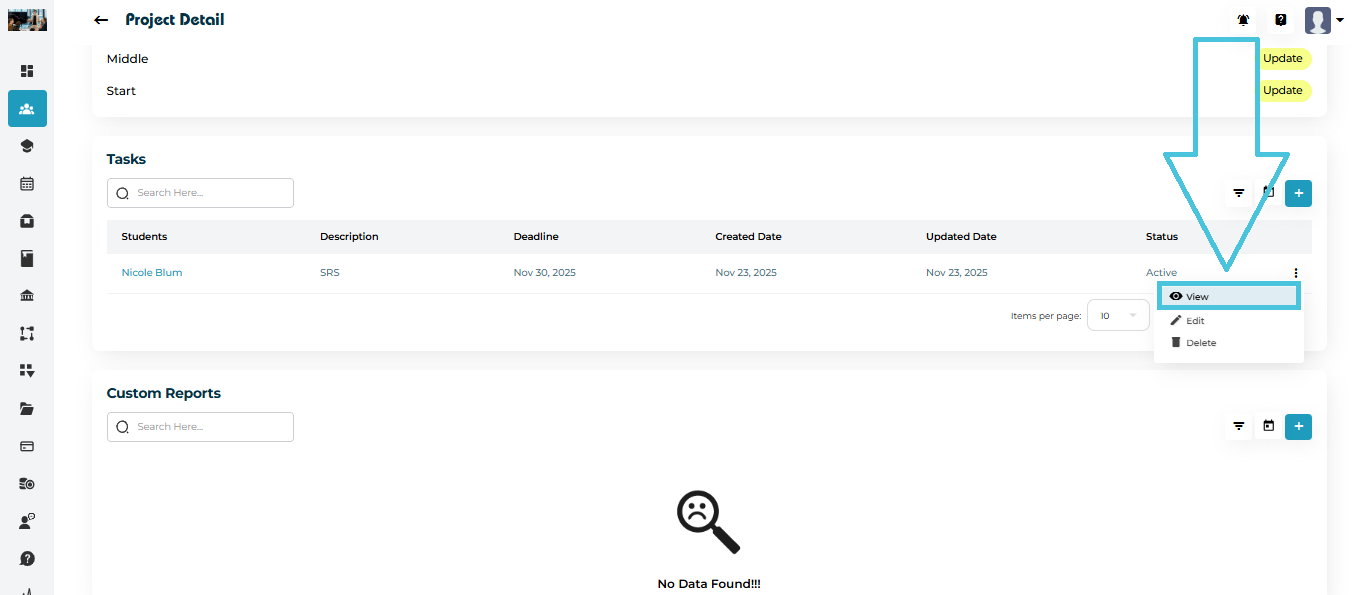
The View option in the action menu or
- The Task title
This displays:
Task description
Deadline
Attachments
Feedback
The Tasks section includes filtering tools to help manage multiple deliverables.
You can filter by Status:
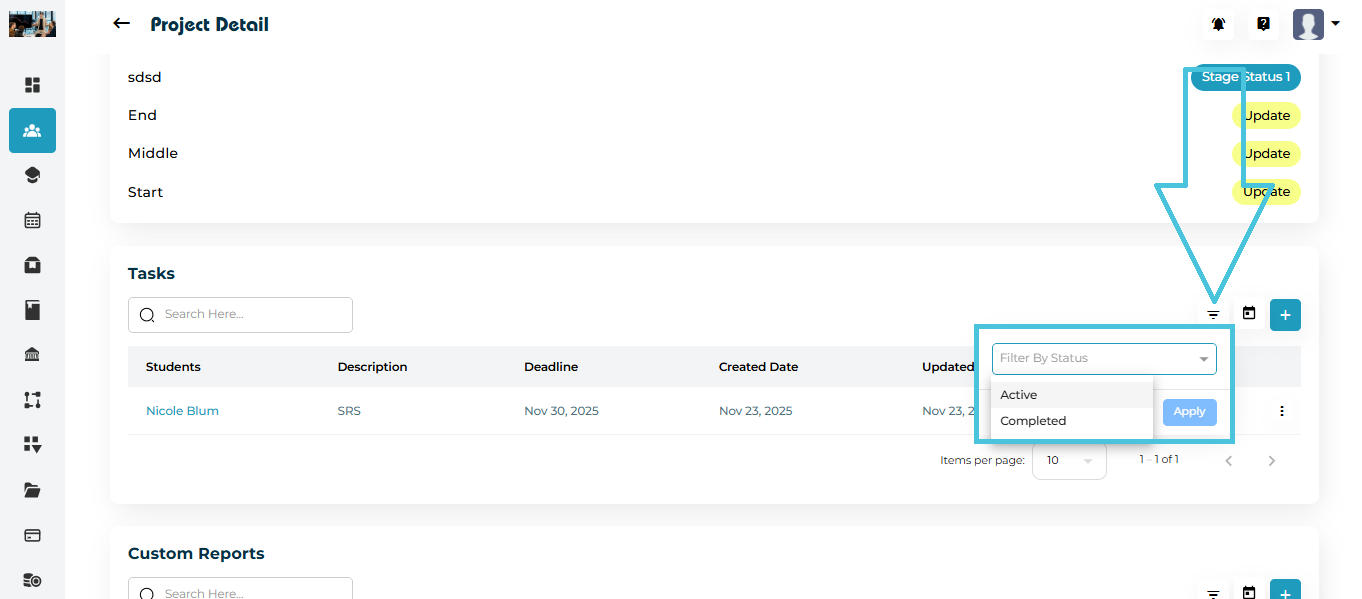
Active
Completed
This makes it easy to track high-priority or overdue items.