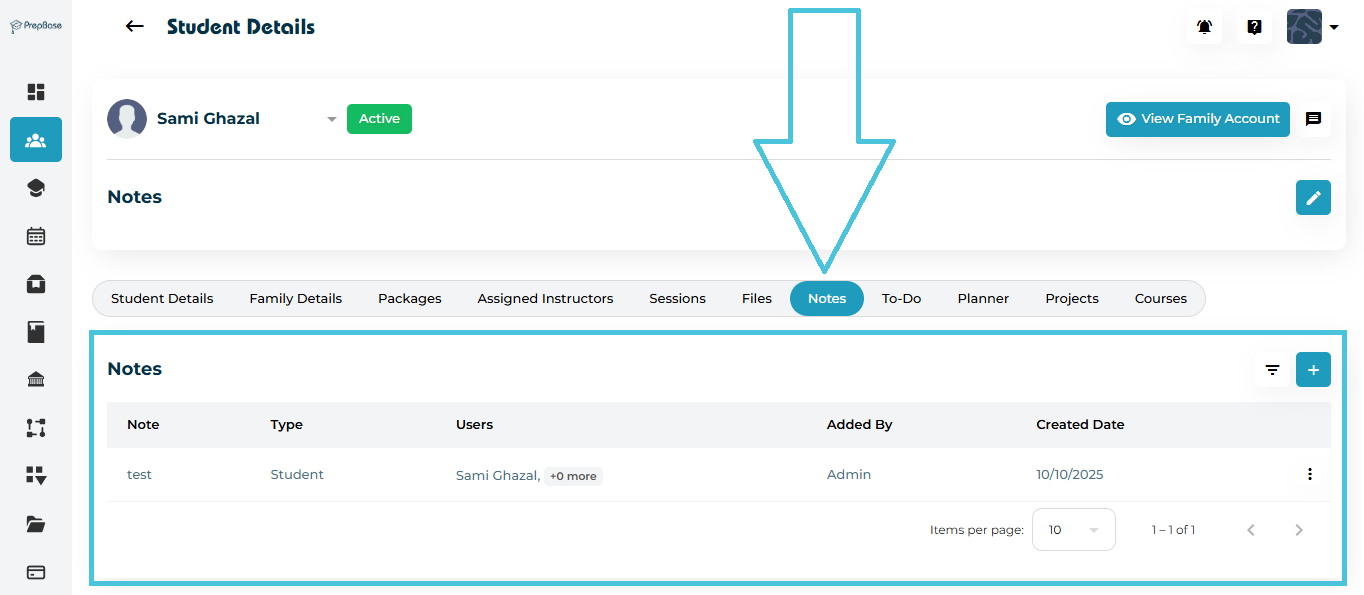
Navigate to Students → Student Profiles.
Select the student whose notes you want to manage.
Click the Notes tab in the top navigation.
You will see a table showing:
Note Title
Type (Visibility)
Users
Added By
Created Date
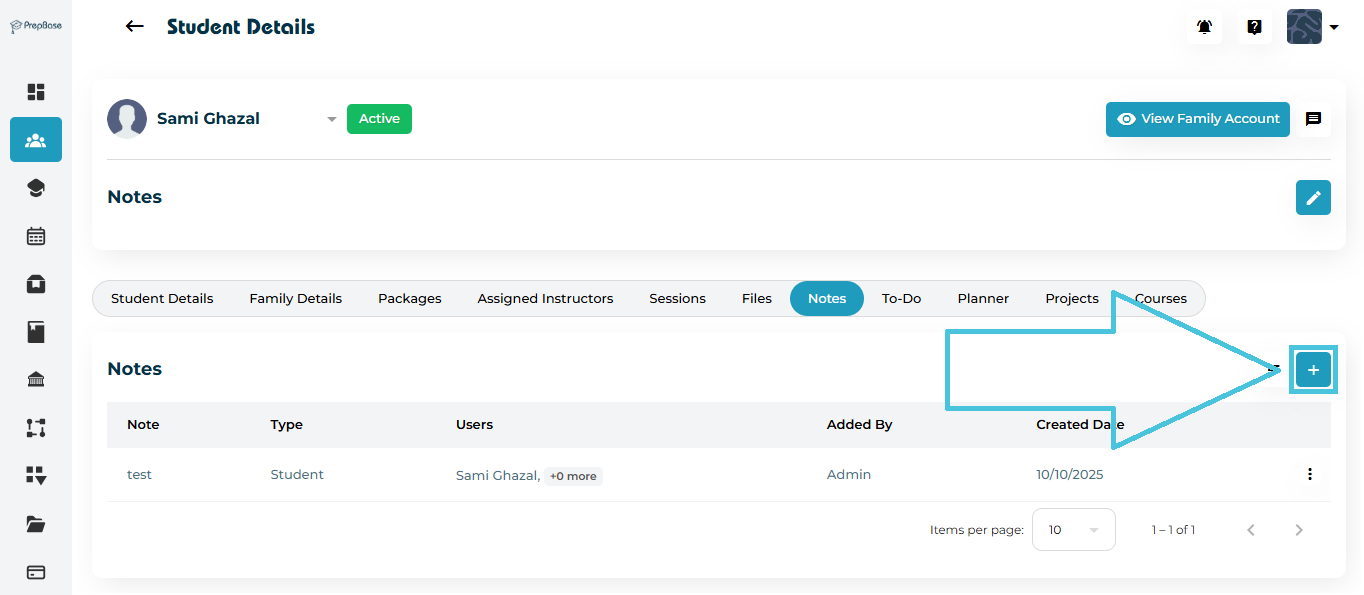
Click the ➕ Add button on the top-right side of the Notes section.
A Note form will open.
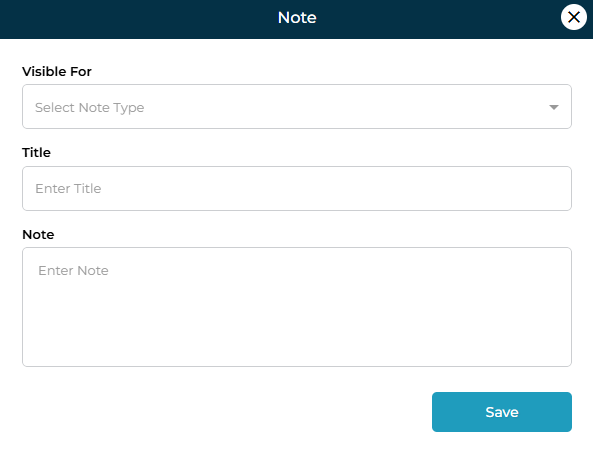
Fields in the Add Note Form
| Field | Description |
|---|---|
| Visible For | Select who can see the note: Admin, Student, Parent, Both (Student & Parent), or Instructor. |
| Title | A short label identifying the note. |
| Note | Detailed explanation, update, or message you want to record. |
After filling in all details, click Save.
If a note needs correction or an update:
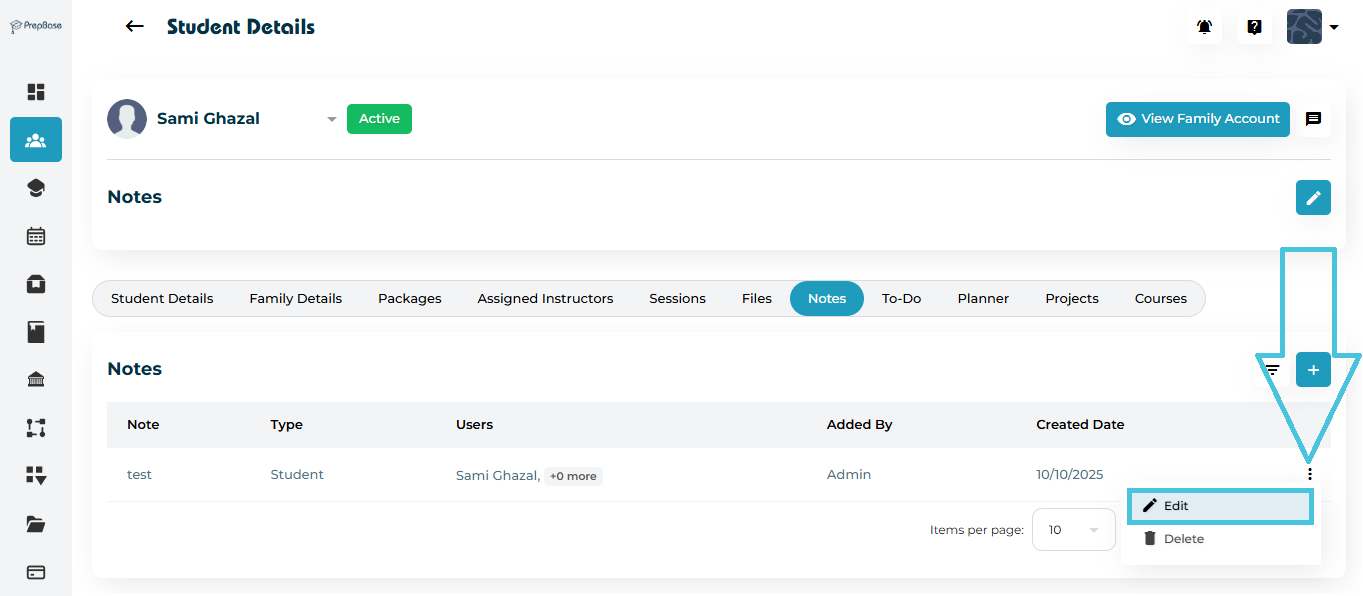
Click the three-dot menu (⋮) next to the note.
Click Edit.
Update the fields inside the form.
Click Save to apply changes.
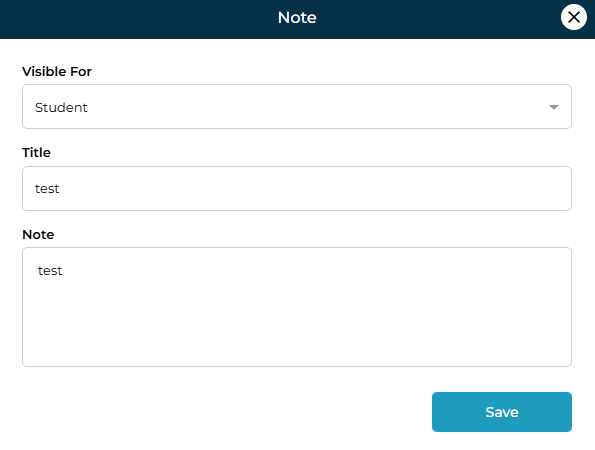
You can modify:
Visibility
Title
Note text
To remove a note:
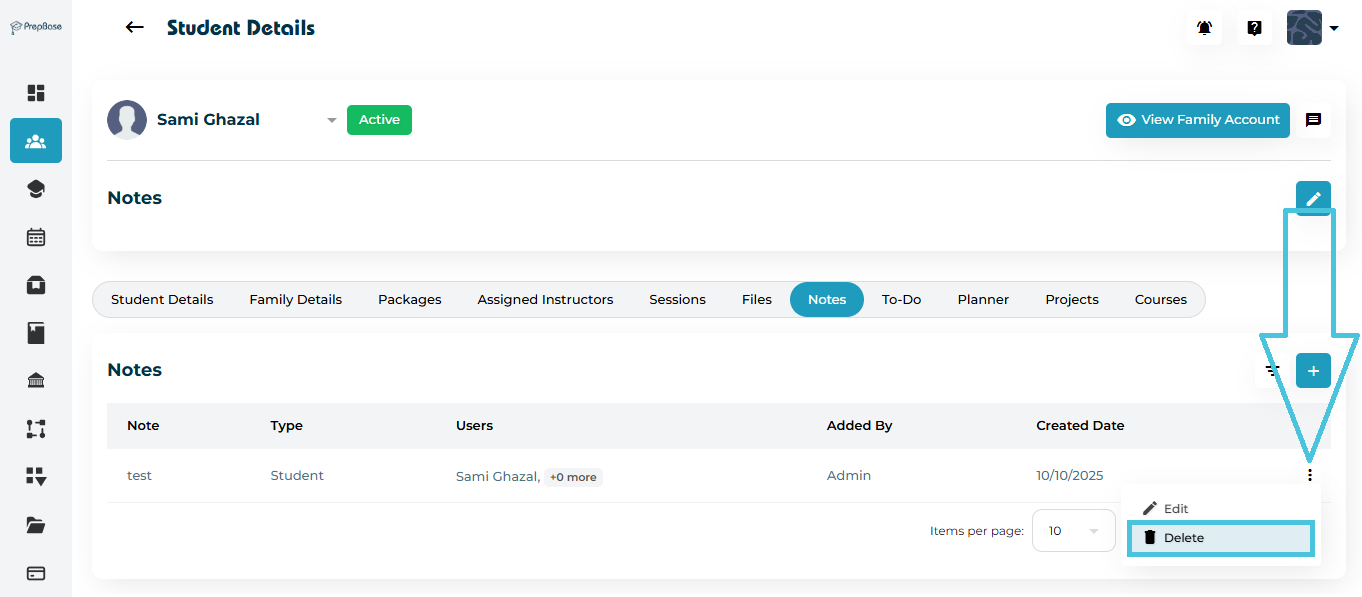
Click the three-dot menu (⋮) beside the note.
Select Delete.
Confirm your action in the pop-up.
To quickly find specific notes:
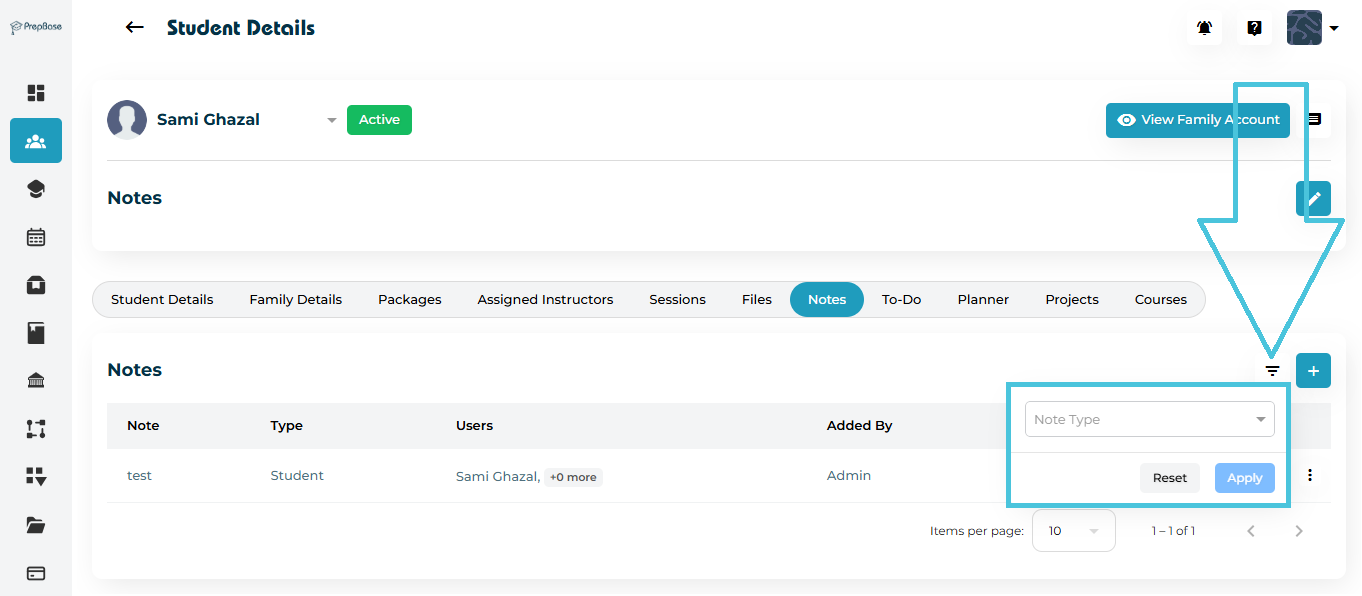
Click the Filter icon next to the Add button.
Use the filter options:
Note Type (Visibility) – Admin, Student, Parent, Both, or Instructor.
Click Apply to show filtered results.
Click Reset to clear all filters.
This helps when managing a large number of notes for long-term students.