Editing Session Details

Editing Session Details

Within the Sessions tab under a student’s profile, admin can easily update or modify details of any scheduled session.
This includes editing session time, duration, assigned tutor, location, or subject — without needing to recreate the session.

1. Accessing the Edit Session Page

  1. Go to Students → Student Profiles.

  2. Select a student to open their detailed record.

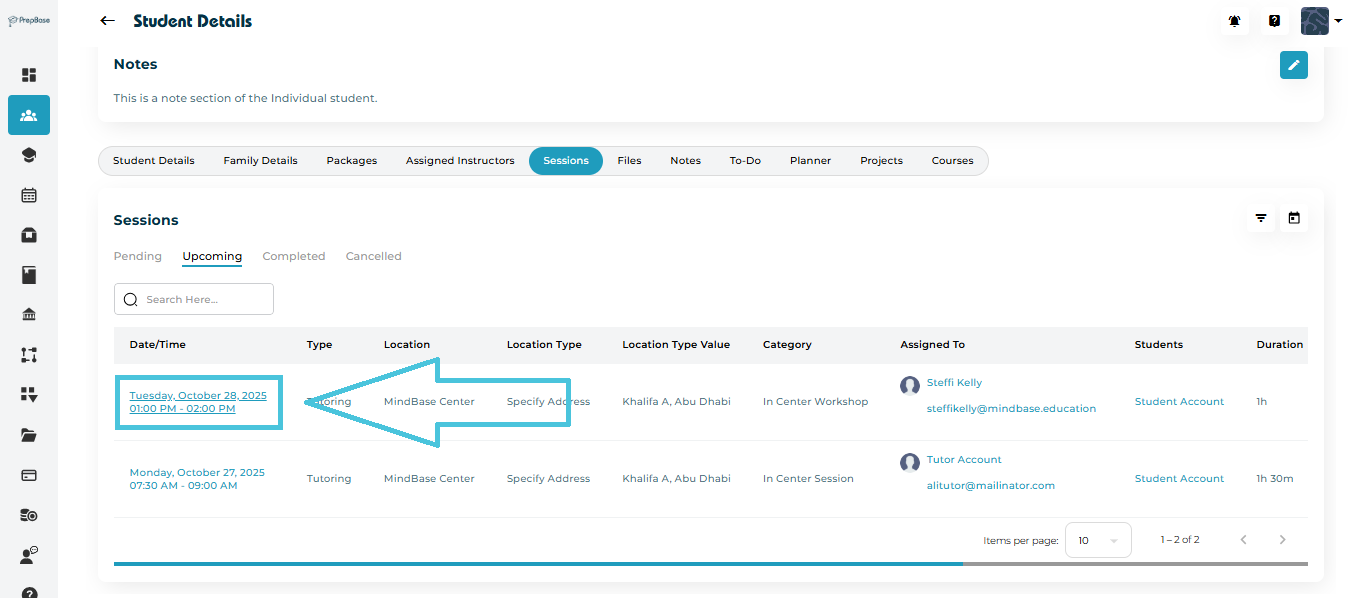
  3. Click on the Sessions tab.

  4. Under the list of Upcoming, Completed, or Pending sessions, click on the Session Date & Time to open the full session view.

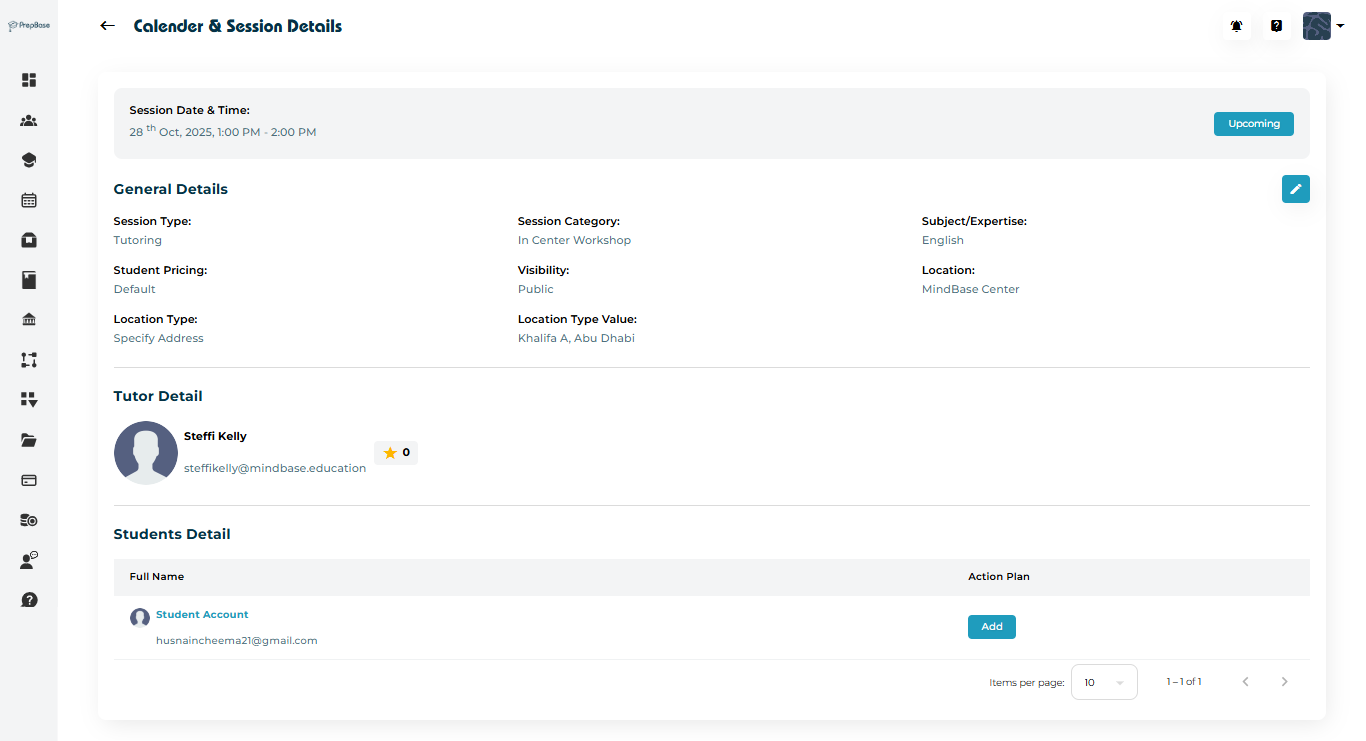
This will open the Calendar & Session Details page.
2. Viewing Session Information

On the Session Details page, you can review:

  • Session Date & Time

  • Session Type (Tutoring or Counseling)

  • Session Category (Online Session, In Center Workshop, etc.)

  • Subject / Expertise Area

  • Tutor Details

  • Student Details

  • Location Type and Address

  • Visibility (Public or Private)

This summary provides a complete overview before making any edits.

3. Editing a Session

To modify an existing session:

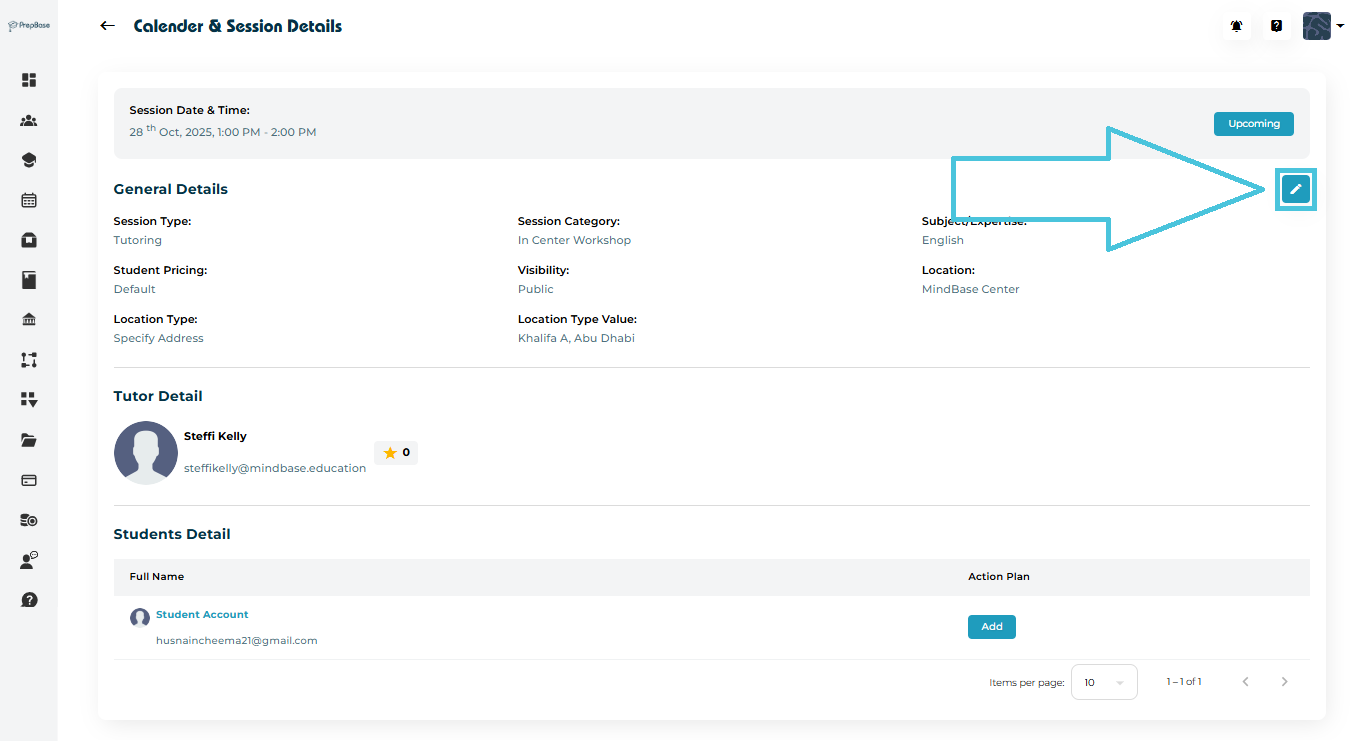
  1. Click the ✏️ Edit button on the top-right of the session details page.

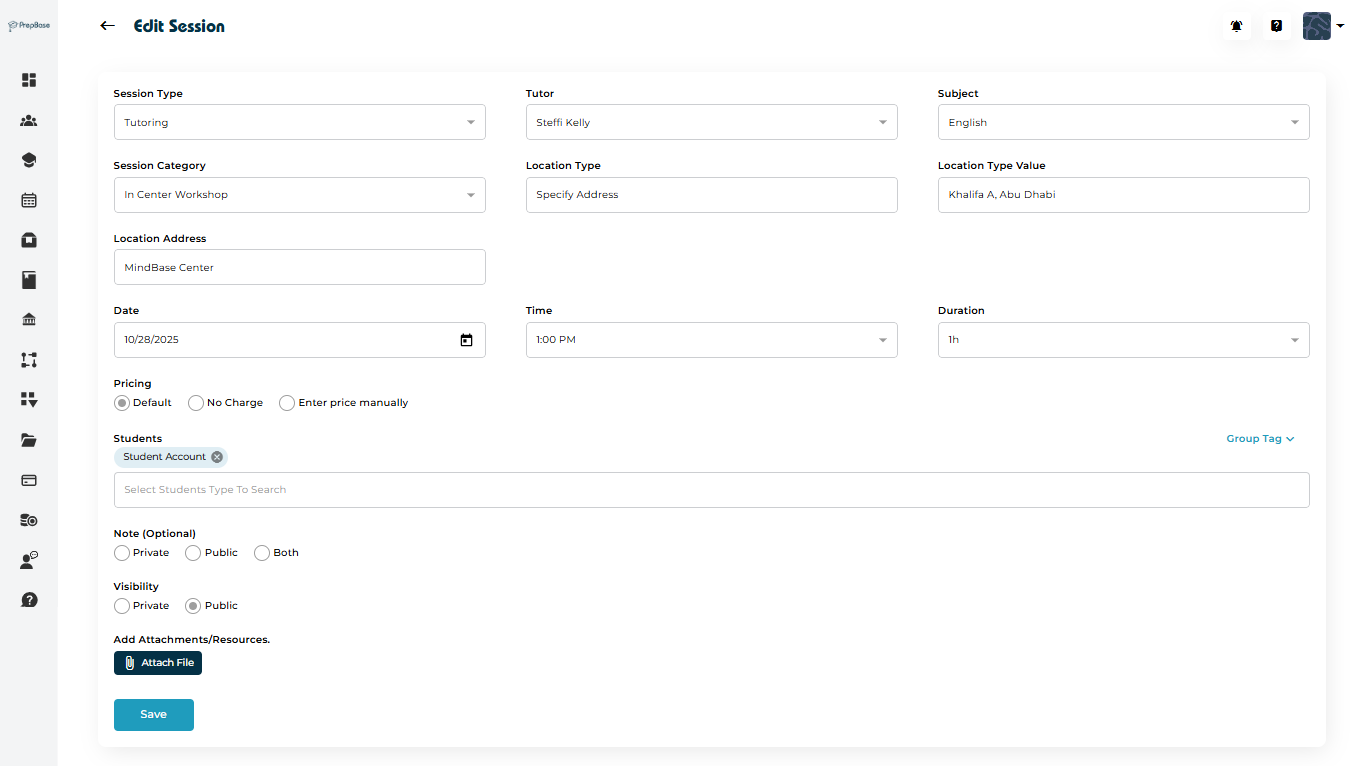
  2. The Edit Session form will open.

4. Editing Session Fields

In the Edit Session form, you can modify the following details:
FieldDescription
Session TypeChoose whether it’s a Tutoring or Counseling session.
TutorSelect or change the assigned tutor.
SubjectUpdate the session’s subject or topic.
Session CategoryDefine how the session will take place (e.g., In Center Workshop, Online Session).
Location Type & AddressSpecify the session location (center, home, or online).
Date & TimeChange session date and start time.
DurationSet the updated session duration (e.g., 1h, 1h 30m).
PricingChoose from Default, No Charge, or Enter price manually.
StudentsAdd or remove students participating in the session.
Note (Optional)Add internal notes (Private, Public, or Both).
VisibilityDecide whether the session should be visible to students or private to staff.
AttachmentsUpload relevant files or study materials.

Once all changes are made, click Save to confirm updates.
The session record will refresh with the new details immediately.

5. Example Update Scenario

For instance, if a session was originally set as an Online English Tutoring session and the student requested an In-Center Workshop, you can:

  • Change the Session Category to In Center Workshop

  • Update Location Type Value to the desired center address

  • Adjust the Date/Time and Duration if necessary

  • Click Save to apply changes

6. When to Edit a Session

  • The tutor or counselor changes.

  • The session date/time or duration needs adjustment.

  • The location changes from online to in-person.

  • The pricing or billing method is updated.

  • Additional notes or materials need to be added post-scheduling.

IN THIS ARTICLE