To view all current instructors linked to a student:
Go to Students Accounts → Student Profiles.
Select the desired student.
Click the Assigned Instructors tab.
You’ll see two subtabs:
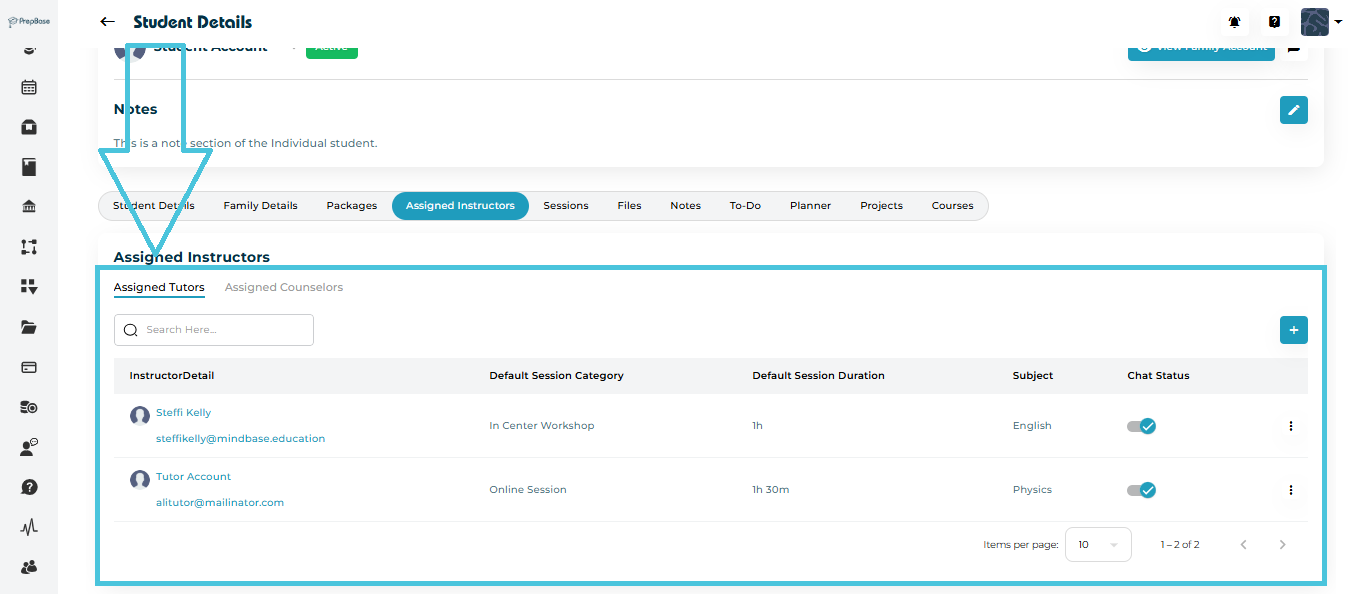
Assigned Tutors
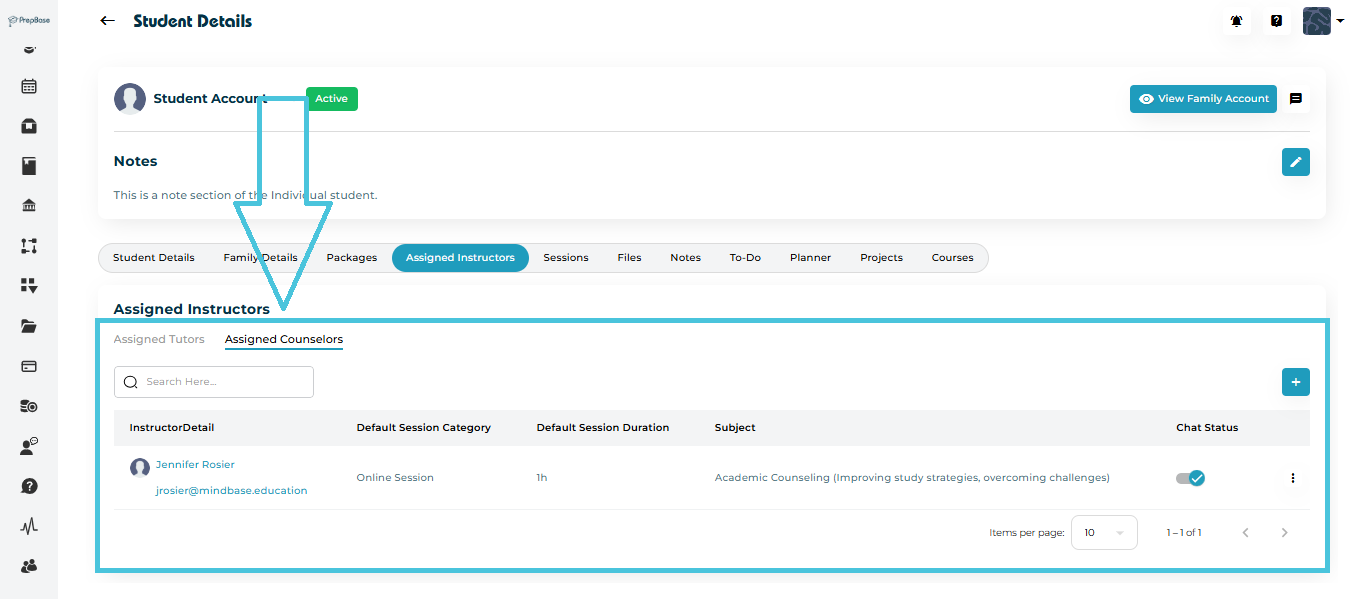
Assigned Counselors
Each tab lists the instructor’s name, contact info, default session duration, and category.
Instructor Detail – Who the instructor is (name, email, avatar).
Default Session Category – Which session category they use by default (e.g., Online Session, In Center Workshop).
Default Session Duration – The standard length of their sessions (e.g., 1h, 1h 30m).
Subject – The subject this instructor is teaching for this specific student (e.g., English, Physics).
Chat Status – Whether chat between the student and this instructor is On or Off.
NOTE: these default settings will only help in prepopulating the details whenever a session is being scheduled between this tutor and the student and can be changed manually while shceduling the session.
If a tutor or counselor changes, you can update the relationship easily:
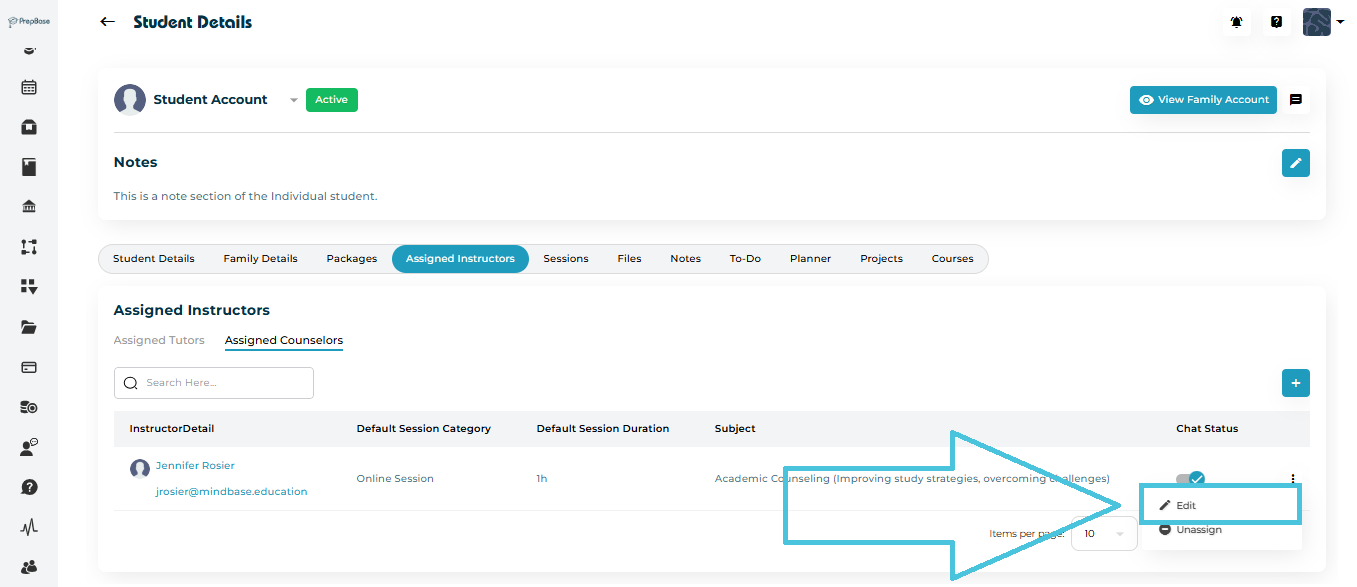
Open the Assigned Instructors tab.
Click the ⋮ (three-dot menu) beside the instructor’s name.
Choose Edit to change the instructor, session duration, or category.
Click Save to apply changes instantly.