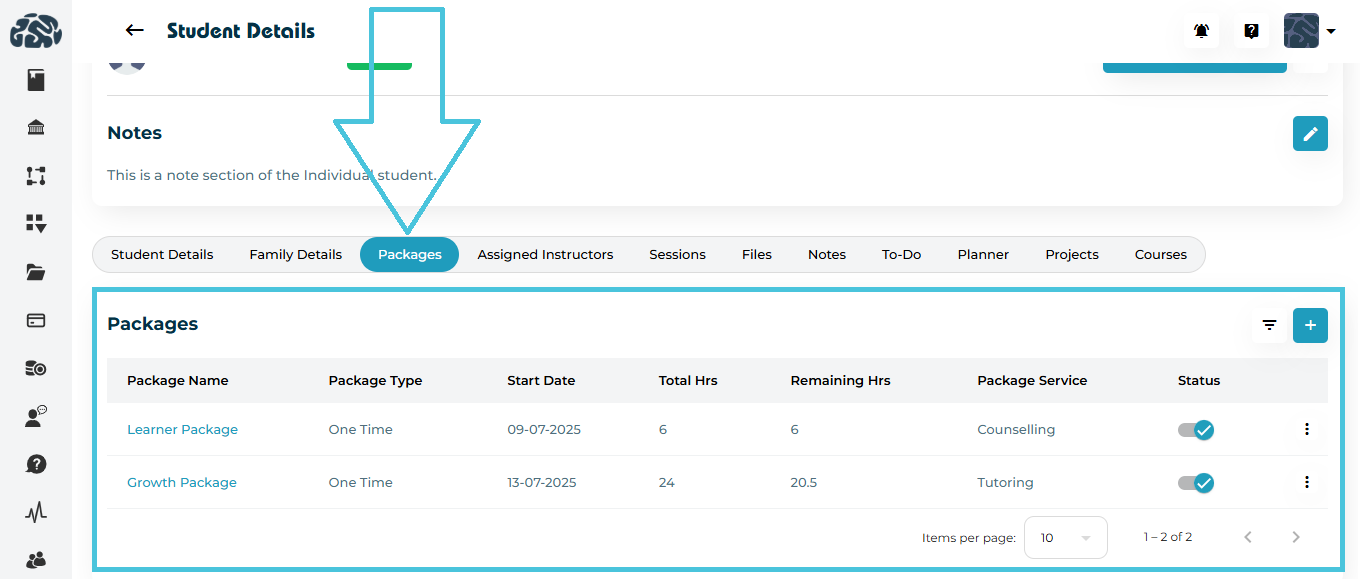
Go to Students → Student Profiles.
Click the student’s name to open their full profile.
Select the Packages tab from the top navigation.
Here, you’ll see all packages currently assigned to that student, along with details such as:
Package Name
Package Type (One-Time / Recurring)
Start Date
Total Hours
Remaining Hours
Package Service (Tutoring / Counseling)
Status
PrepBase intelligently tracks package hours based on session activity.
- When a new session is scheduled by student or parent: it appears under “Upcoming Sessions,” and the hours are deducted from the package automatically for any scheduled or upcoming sessions.
- When a new session is scheduled by tutor or counselor: it appears under “Pending Sessions,” and the hours are only deducted from the package once the student or parent accepts the session.
- When a session is cancelled: no hours are deducted from the student’s package and any deducted hours for upcoming sessions will be added back to the relevant package.
When a session is completed: the package hours will not be affected since they were already deducted upon schedling the session and the system will lock the ability to cancel the session if it is marked completed. A session is marked complete once the action plan is submitted by the tutor or counselor and attendance is taken.
Example:
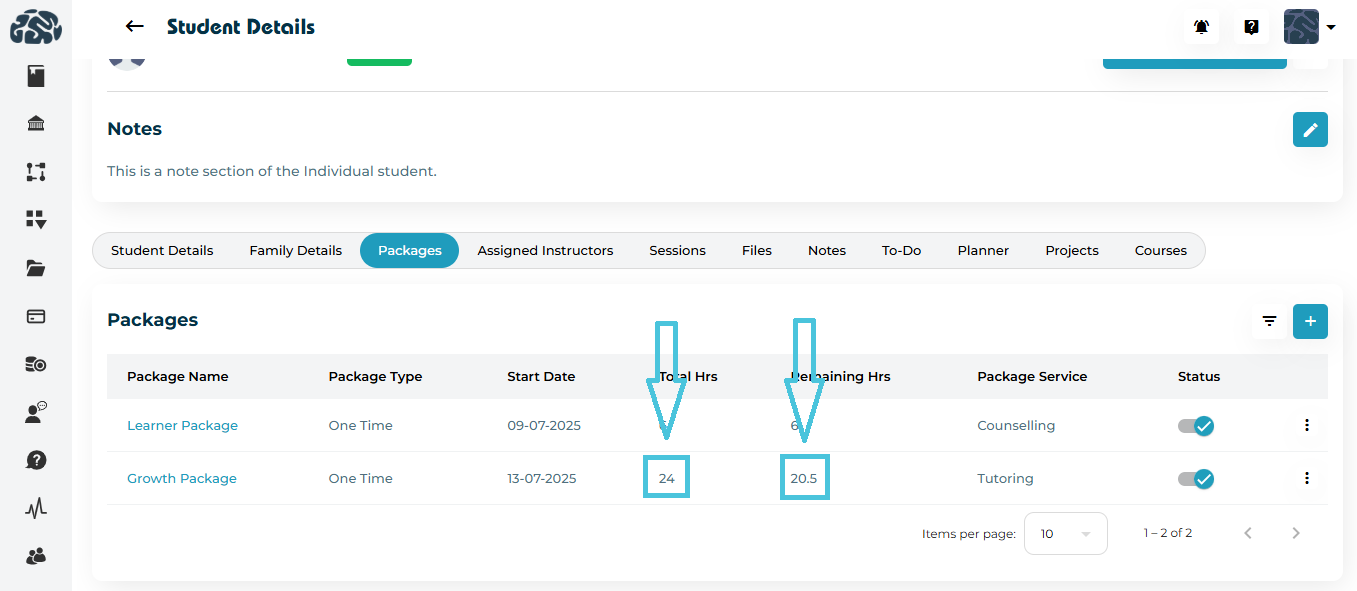
If a student has a 24-hour Growth Package and completes a 3.5-hour tutoring session, the Remaining Hours will update to 20.5 hours.
You can easily check which packages are currently active:
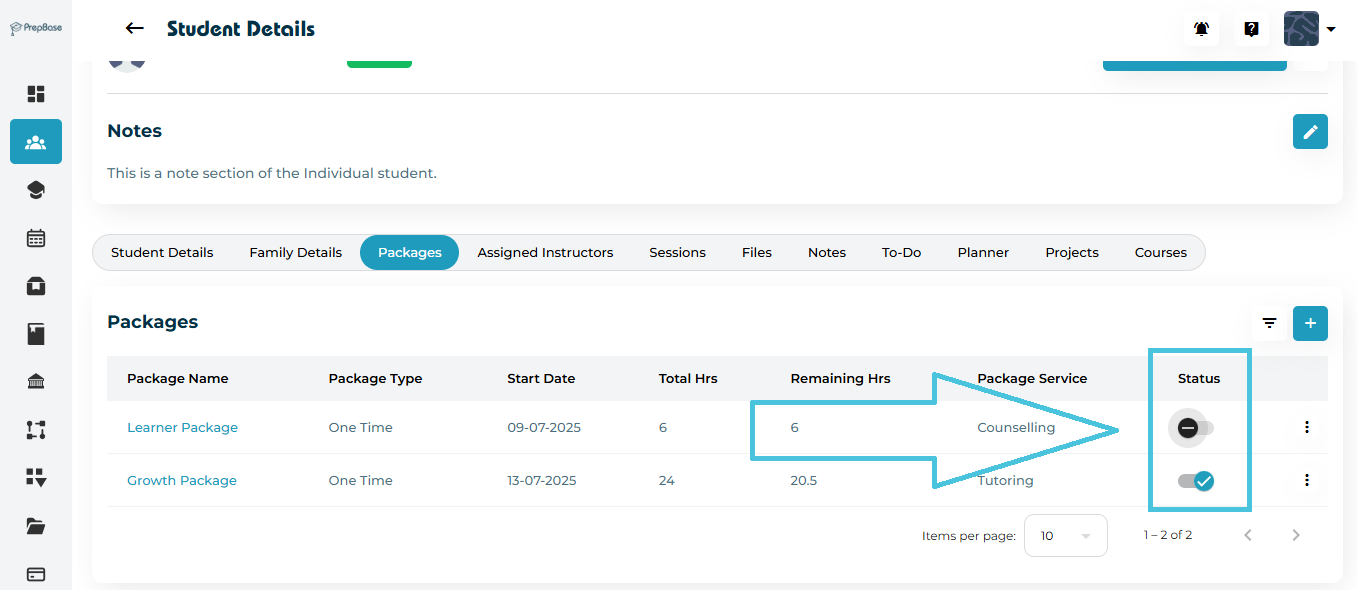
Each package has a toggle switch that reflects whether it’s Active or Inactive.
Active: Package is currently in use and hours are being consumed.
Inactive: Package has expired, been unassigned, or paused and will not appear to the students or parents on their dashboard.
If a student’s Remaining Hours reach zero or near depletion:
Notify the family or student. They will be able to purchase new packages from their dashboard if you have activated your online payments under the Setting tab.
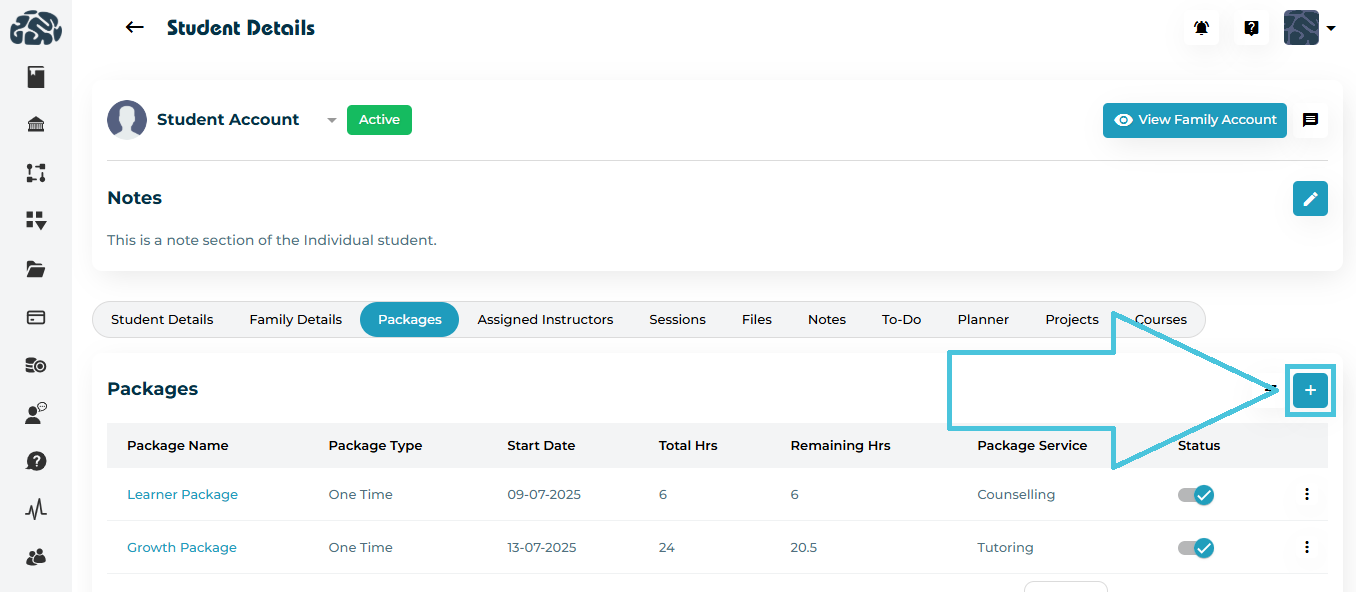
Assign a new package manually using the ➕ Add Package button if needed.
Set the appropriate Package Type to continue tracking seamlessly.