-
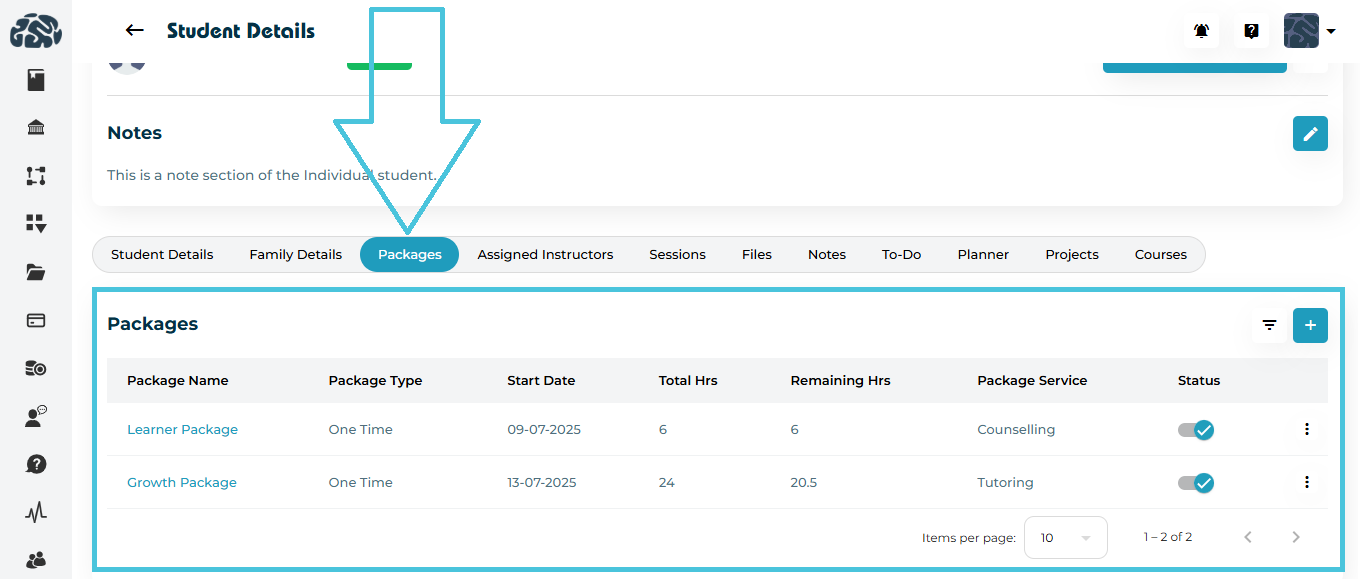
Navigate to Students → Student Profiles.
-
Select the student whose packages you want to manage.
-
Open the Packages tab within the student’s profile.
Here, you’ll find a table listing all assigned packages, including:
-
Package Name
-
Package Type (e.g., One-Time, Monthly)
-
Start Date
-
Total Hours
-
Remaining Hours
-
Package Service (Tutoring or Counseling)
-
Status
To assign a new tutoring or counseling package:
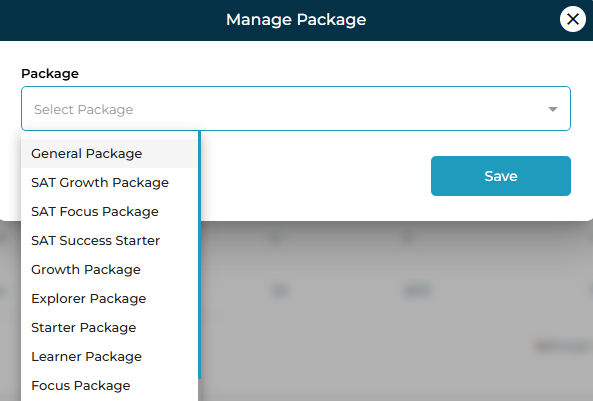
Click the
 Add button at the top-right corner of the Packages section.
A Manage Package popup window will appear.
Select the appropriate package from the Packages & Promos section of your organization’s admin panel as you can view example package names below and in screenshot above.
The list includes all available packages that you have created such as:General Package
Learner Package
Growth Package
Focus Package
SAT Growth / Focus Packages
Explorer / Starter Packages
Click Save to assign the package to the selected student.
You can easily filter packages to view only Tutoring or Counseling types.
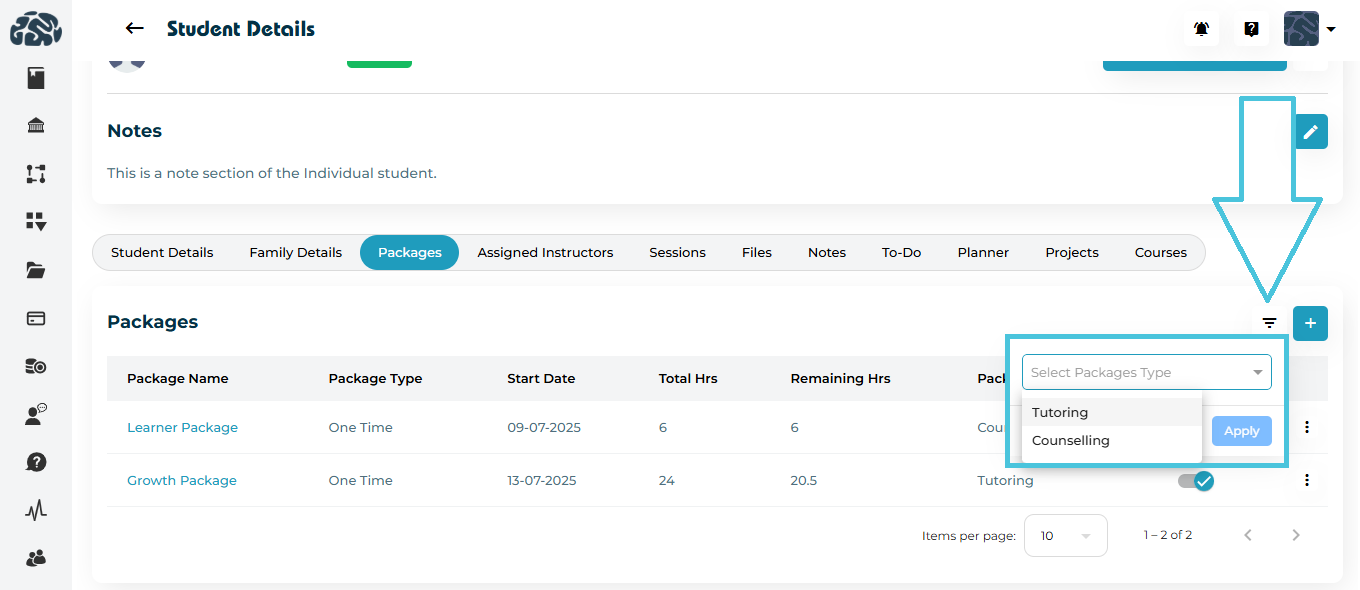
To focus on a specific service type:
Click the Filter icon beside the Add (+) button.
Choose the package type — Tutoring or Counseling.
Click Apply to filter the list.
If a package is no longer relevant or was added by mistake, you can unassign it.
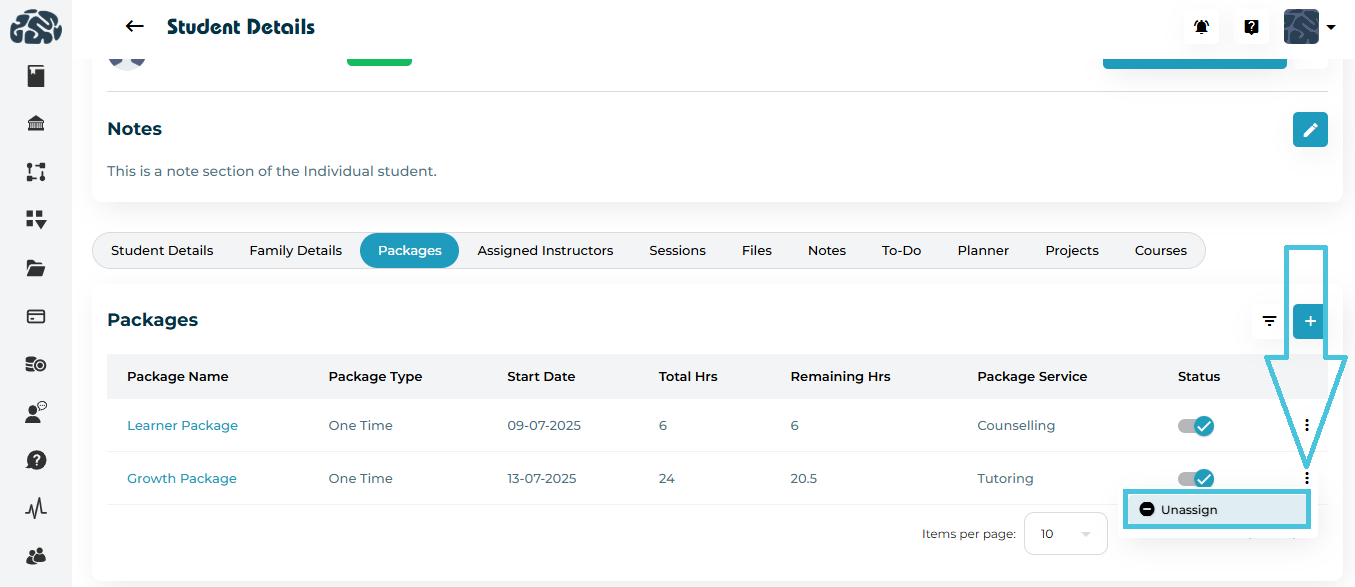
Click the three-dot menu (⋮) next to the package.
Select Unassign to remove it from the student’s profile.
Once unassigned, the package will no longer appear in the student’s active list, but session history associated with it remains for record purposes.