-
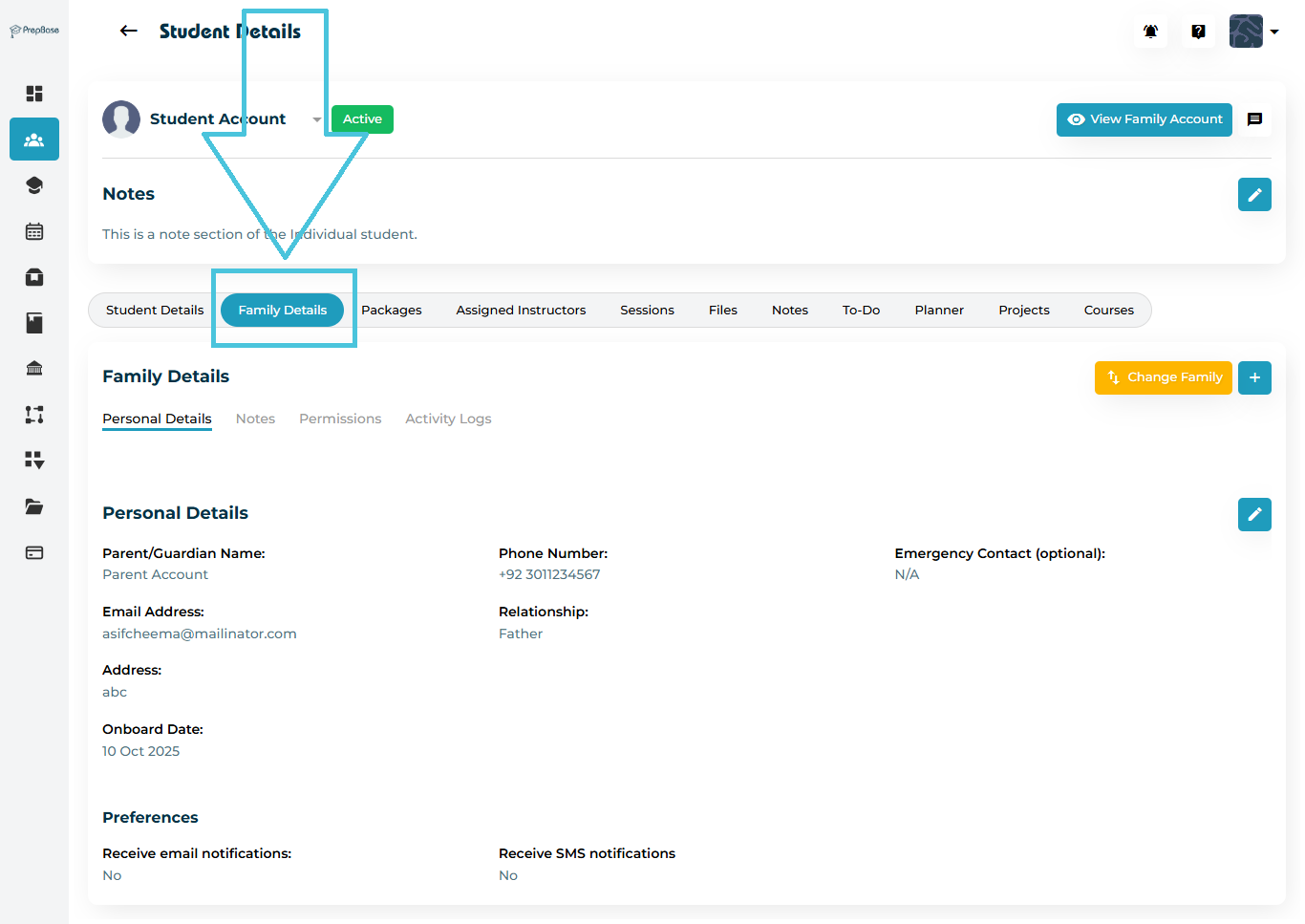
Navigate to Students → Student Profiles.
-
Select a student to open their Student Details view.
-
Click on the Family Details tab.
Here, you can view or update:
-
Parent/Guardian Contact Information
-
Notification Preferences (Email & SMS)
-
Communication Notes
-
Access Permissions
-
Activity Logs
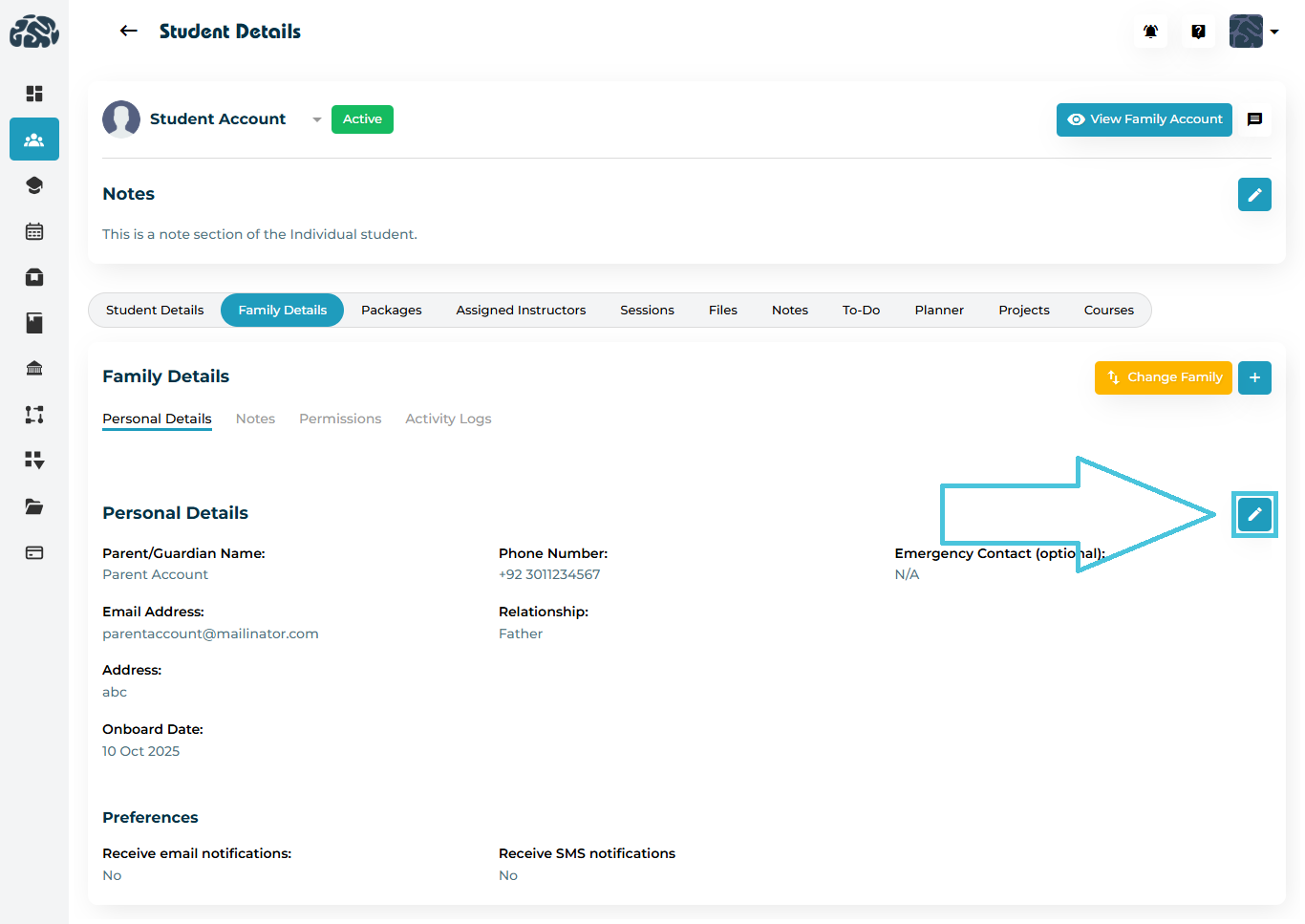
The Personal Details sub-tab displays key contact information for parents or guardians.
Each family record includes:
Parent/Guardian Name
Phone Number & Email Address
Relationship to Student
Address
Emergency Contact (Optional)
Notification Preferences
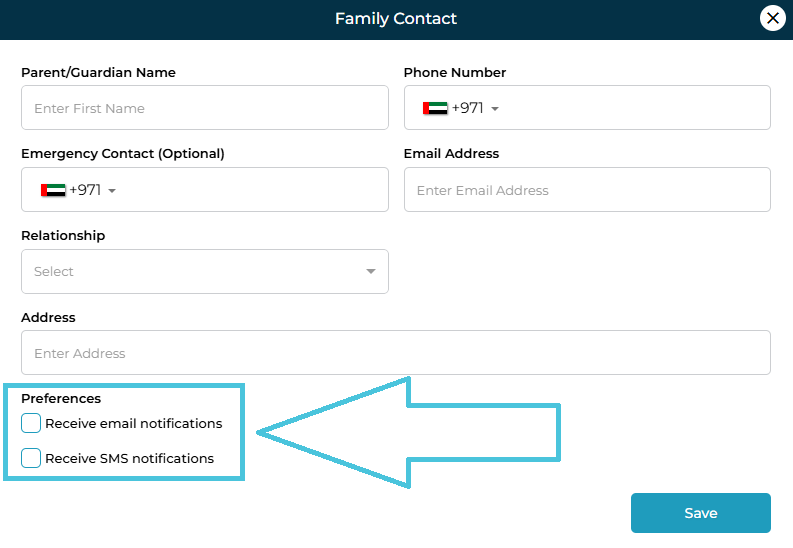
Admins can control how parents receive updates directly from the system.
Notification settings are managed from the Family Contact Form when adding or editing a guardian.
Available Options:
| Preference | Description |
|---|---|
| Receive Email Notifications | Sends automatic updates such as schedule confirmations, invoices, and progress summaries to the parent’s registered email. |
| Receive SMS Notifications | Sends short alerts for session reminders, cancellations, or important notices via SMS. |
Best Practice: Enable email notifications for academic updates and use SMS notifications for urgent or time-sensitive communication.
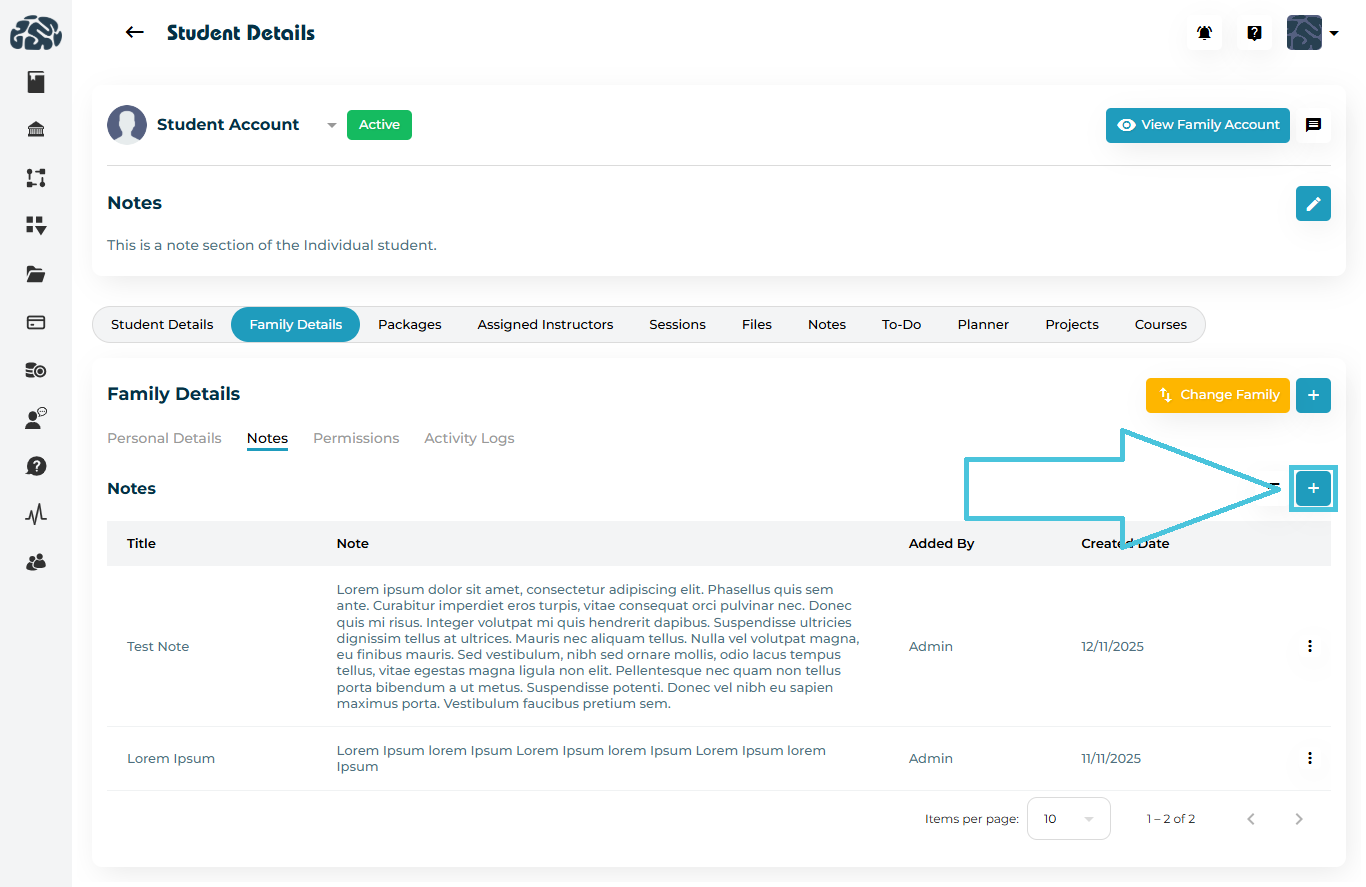
The Notes sub-tab is designed for internal use by Admins to document communication with parents — such as feedback, meeting outcomes, or follow-up reminders.
How to Add a Note:
-
Go to Family Details → Notes.
-
Click the ➕ Add button.
-
Enter a Title and the Note Description.
-
Click Save to log it.
Each note shows:
-
Title & Message
-
Added By (Admin)
-
Created Date
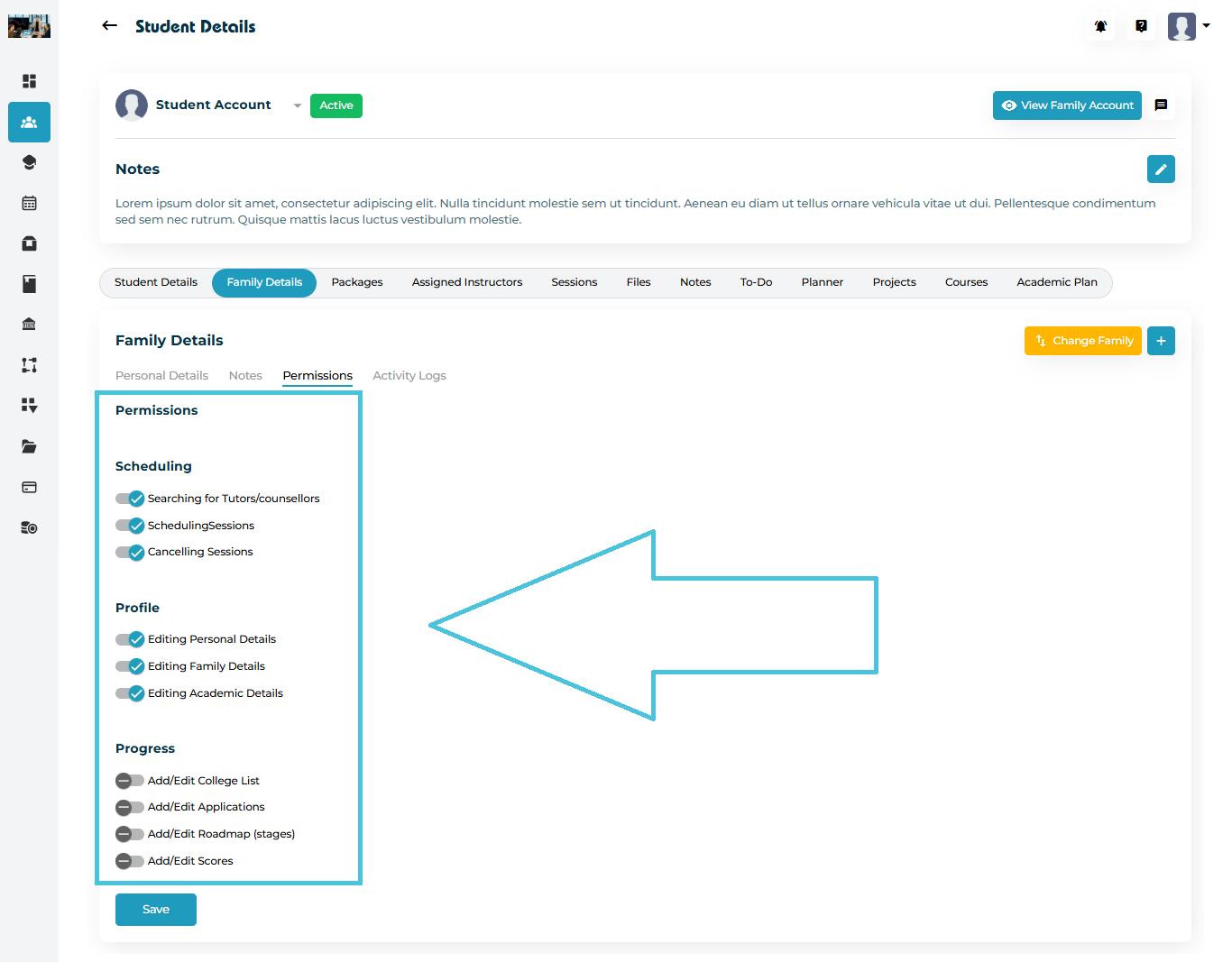
From the Permissions sub-tab, you can define what actions a parent can perform in their linked account.
| Permission Group | Description |
|---|---|
| Scheduling | Allows parents to search for tutors and counselors, schedule or cancel sessions on behalf of the student. |
| Profile | Enables parents to edit family or student information. |
| Progress | Lets parents update student progress details, applications, or scores. |