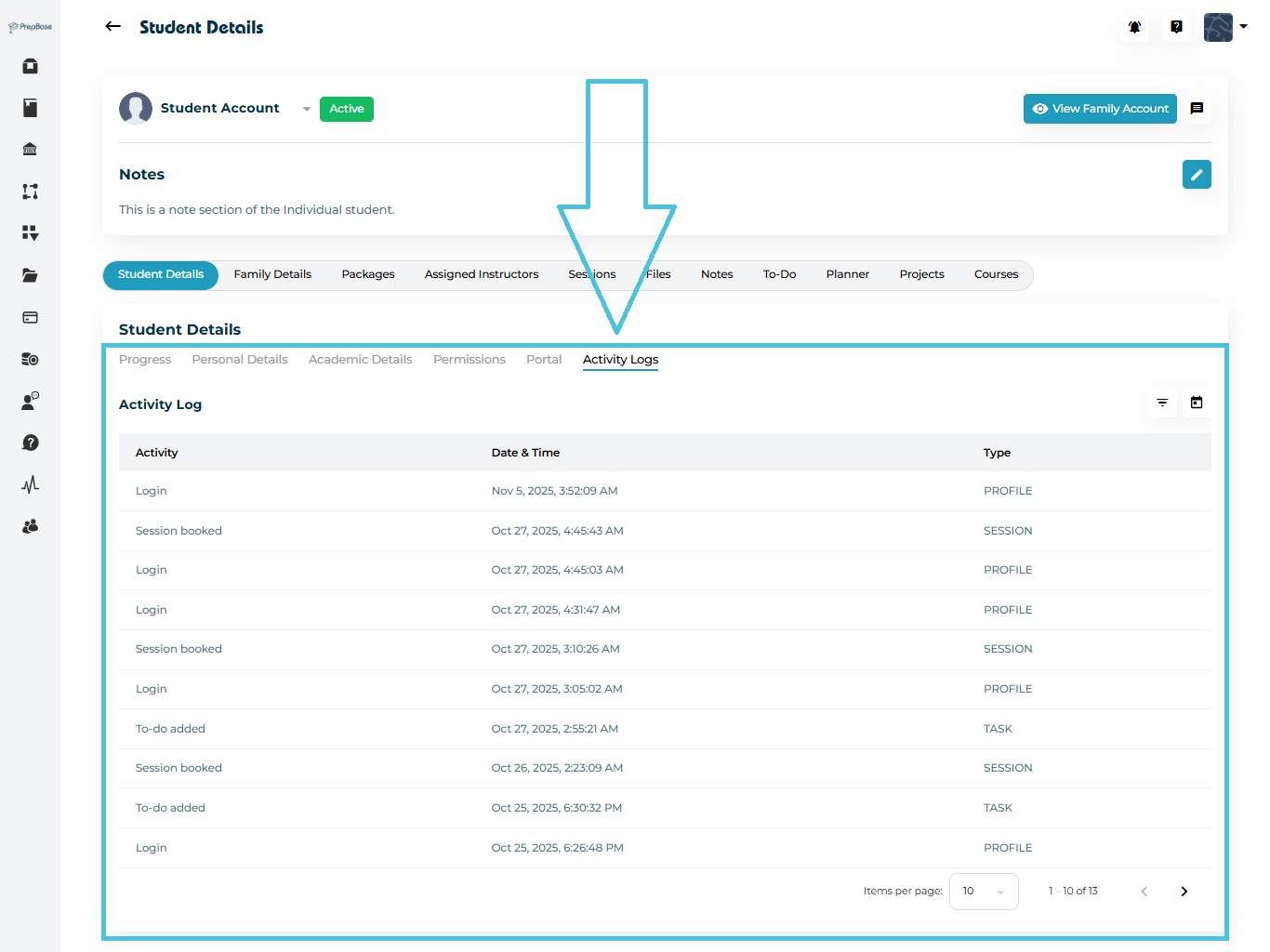
Checking Student Activity Logs
Monitoring a student’s activity history helps you stay informed about everything happening in their account — from booked sessions to progress updates.
The Activity Logs tab in PrepBase gives a transparent record of each student’s interactions within the platform.
1. Accessing Activity Logs

To view the full history of a student’s actions:
Navigate to Students Accounts → Student Profiles.
Select the desired student from the list.
Open the Student Details page.
Click the Activity Logs tab at the top of the profile.
You’ll now see a detailed list of every action associated with that student — such as booked sessions, completed activities, and changes made to their profile.
2. Understanding the Activity Log Table
The Activity Log is organized into three main columns for easy tracking:
| Column | Description |
|---|---|
| Activity | Describes the action taken (e.g., Session booked, Profile updated). |
| Date & Time | Shows when the action occurred, including timestamp. |
| Type | Specifies the category of activity (e.g., Session, Profile, Note). |
3. Using Filters and Date Range
PrepBase makes it easy to filter logs and focus on what matters most:
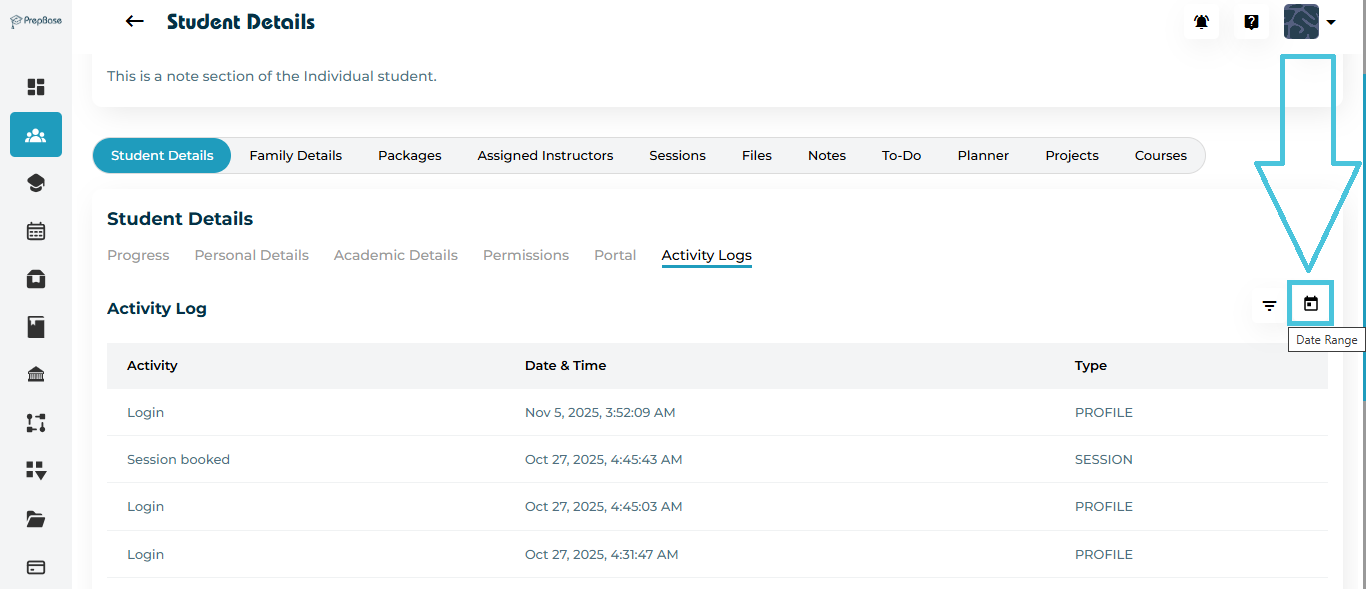
By Date Range
Click the calendar icon in the top right corner of the Activity Logs table.
Select a specific start and end date to view logs for that time period.
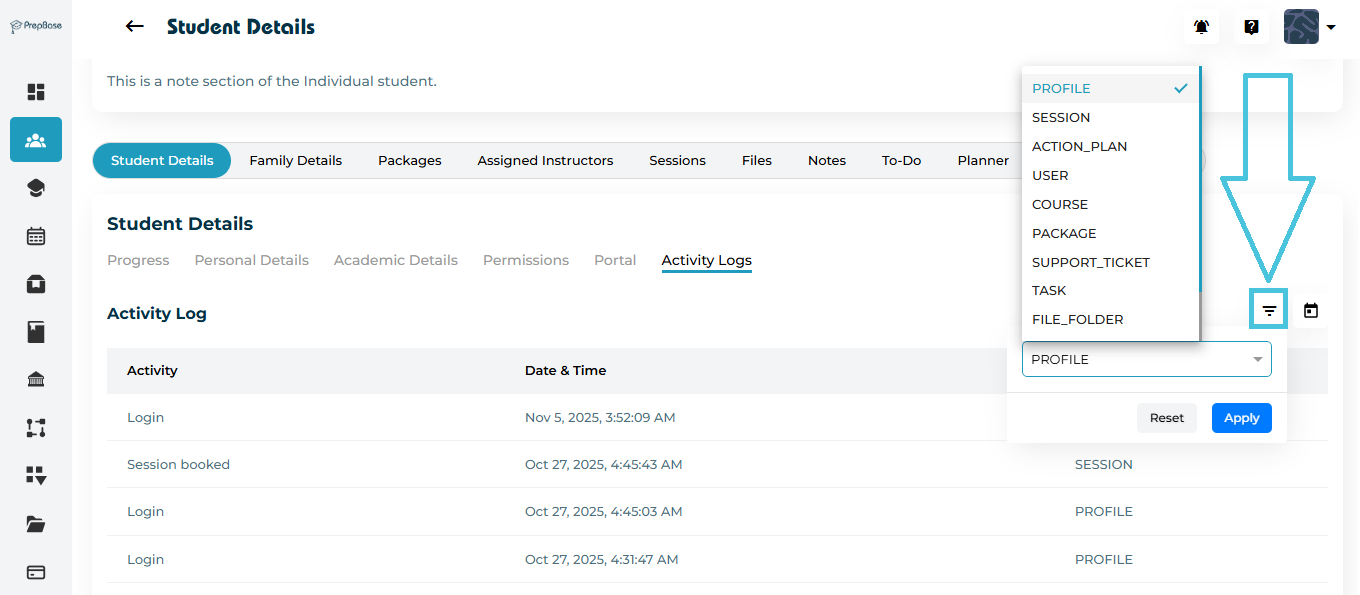
By Activity Type
Use the filter icon next to the date selector.
Filter results by Profile, Session, Action_Plan, User, Course, Package, Support ticket, task and File_Folder.
Note: Filters are especially useful when tracking large datasets for active students.
4. Interpreting Log Entries
Each log entry provides valuable insight into student actions:
Common Activity Types Include:
Session Booked: The student (or instructor) scheduled a new session.
Session Completed: The student attended and completed a session.
Profile Updated: Personal or academic details were modified.
File Uploaded: A new document or assignment was added.
Project Submission: The student submitted a project milestone.
Reviewing these logs helps tutors and counselors identify recent interactions and ensure accountability across the platform.