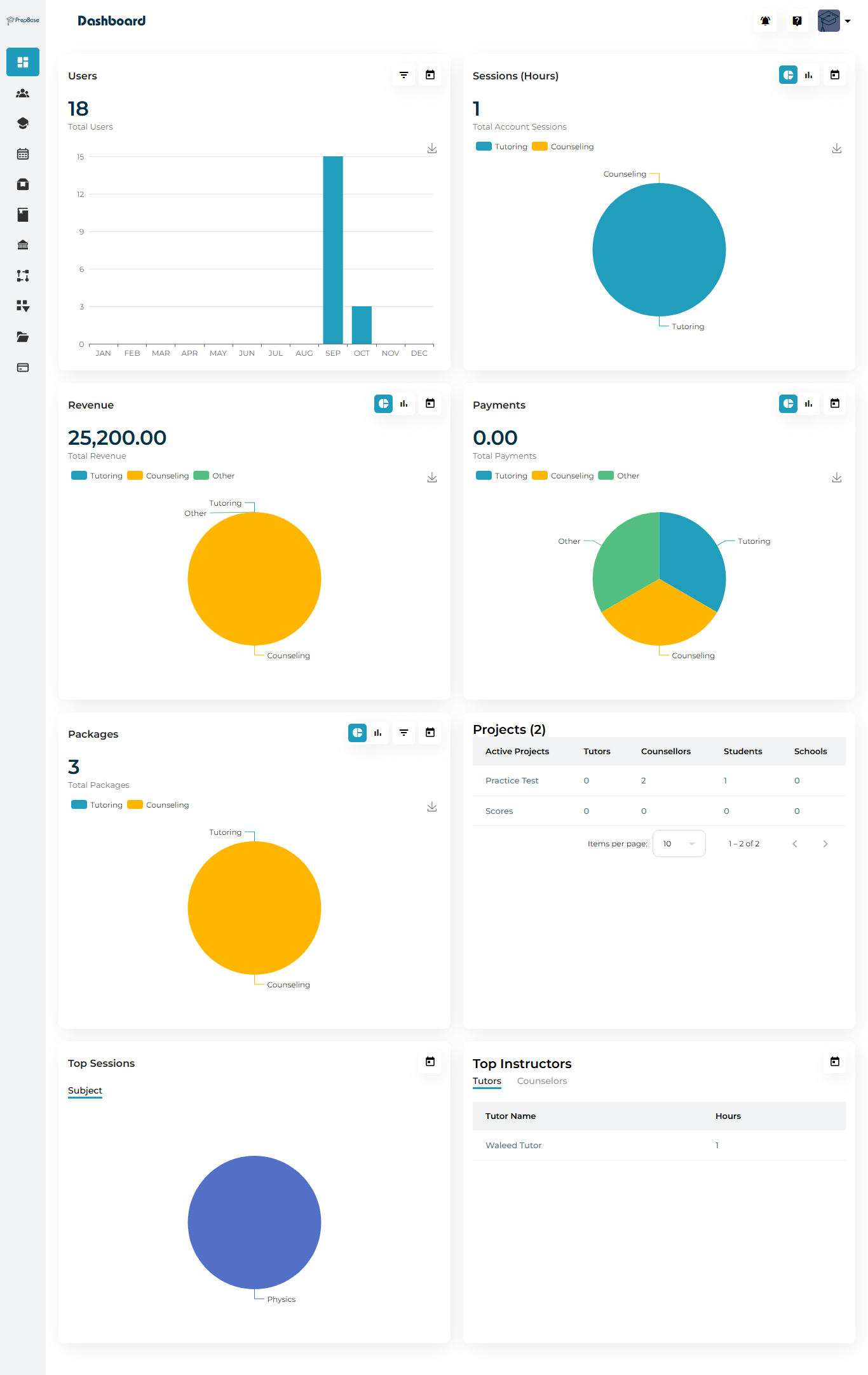
The Admin Dashboard provides a complete overview of your organization’s operations — including user activity, session performance, revenue, and instructor analytics.
Dashboard Overview
The dashboard is divided into multiple data-driven widgets:
| Section | Description |
|---|---|
| Users | Displays total number of active users, categorized by role (Students, Tutors & Counselors, Parents). |
| Sessions (Hours) | Shows total tutoring and counseling hours logged across your organization. |
| Revenue | Summarizes total income from tutoring and counseling packages. |
| Payments | Displays processed payments and category breakdowns. |
| Packages | Tracks the total number of assigned learning or counseling packages. |
| Projects | Lists active projects with details about assigned tutors & counselors, and students. |
| Top Sessions | Highlights most popular subjects or session types. |
| Top Instructors | Shows top-performing tutors & counselors based on completed hours. |
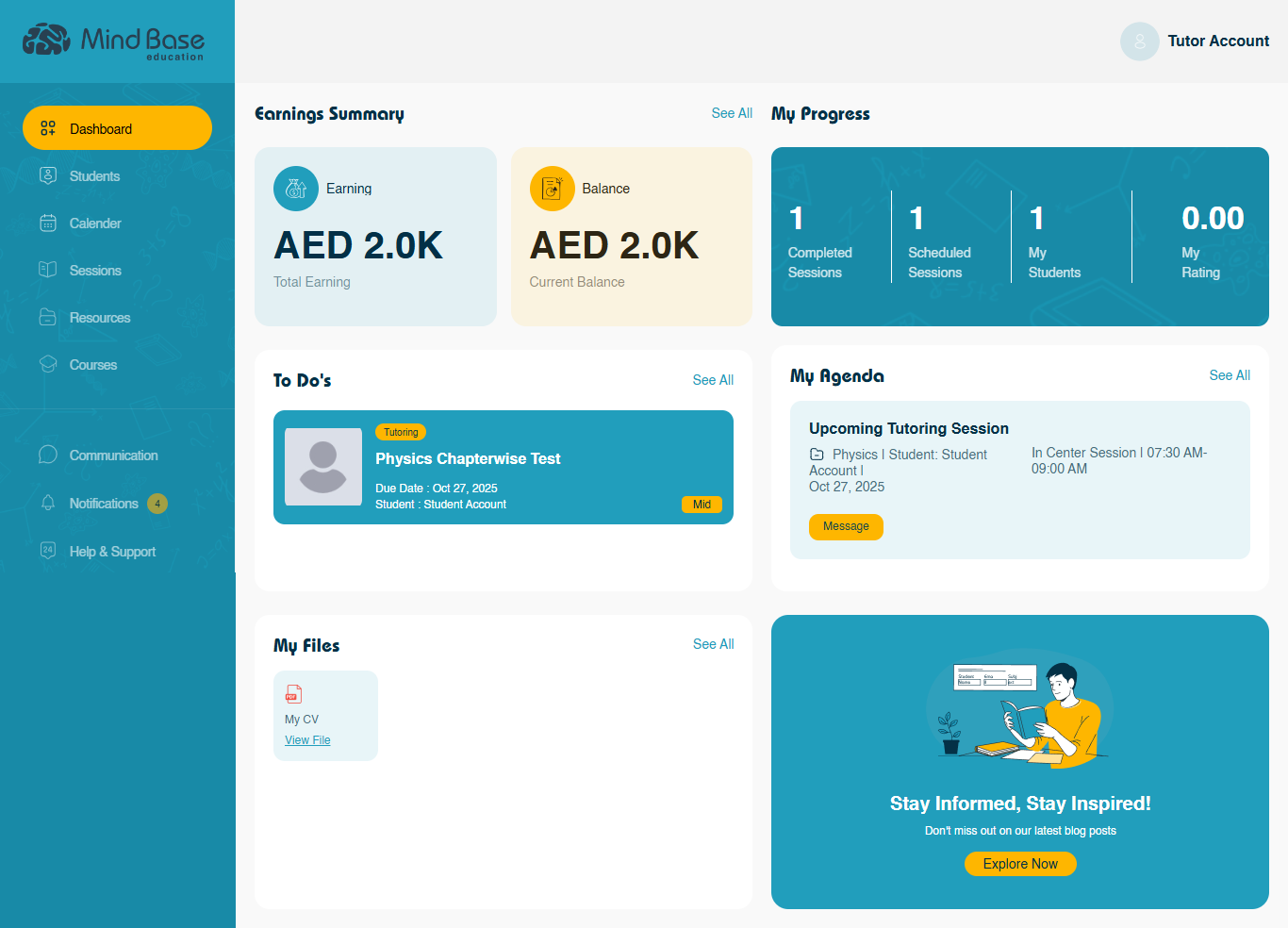
The Tutor & Counselor Dashboard is designed to help instructors manage their sessions, students, and notes efficiently.
Dashboard Overview
| Section | Description |
|---|---|
| Earnings Summary | Displays total tutoring earnings and current account balance. Tutor & counselors can track their payout eligibility and total billed hours here. |
| My Progress | Provides performance insights, including total completed sessions, scheduled sessions, active students, and tutor rating (if applicable). |
| To-Do’s | Lists pending tasks or student follow-ups created by the tutor & counselors (e.g., grading assignments, preparing materials). |
| My Agenda | Shows upcoming sessions with details like subject, student name, and session timing. Tutors & counselors can Reschedule, Cancel, or Message directly from this section. |
| My Files | Displays uploaded teaching materials or shared resources. Files are visible to assigned students if marked public. |
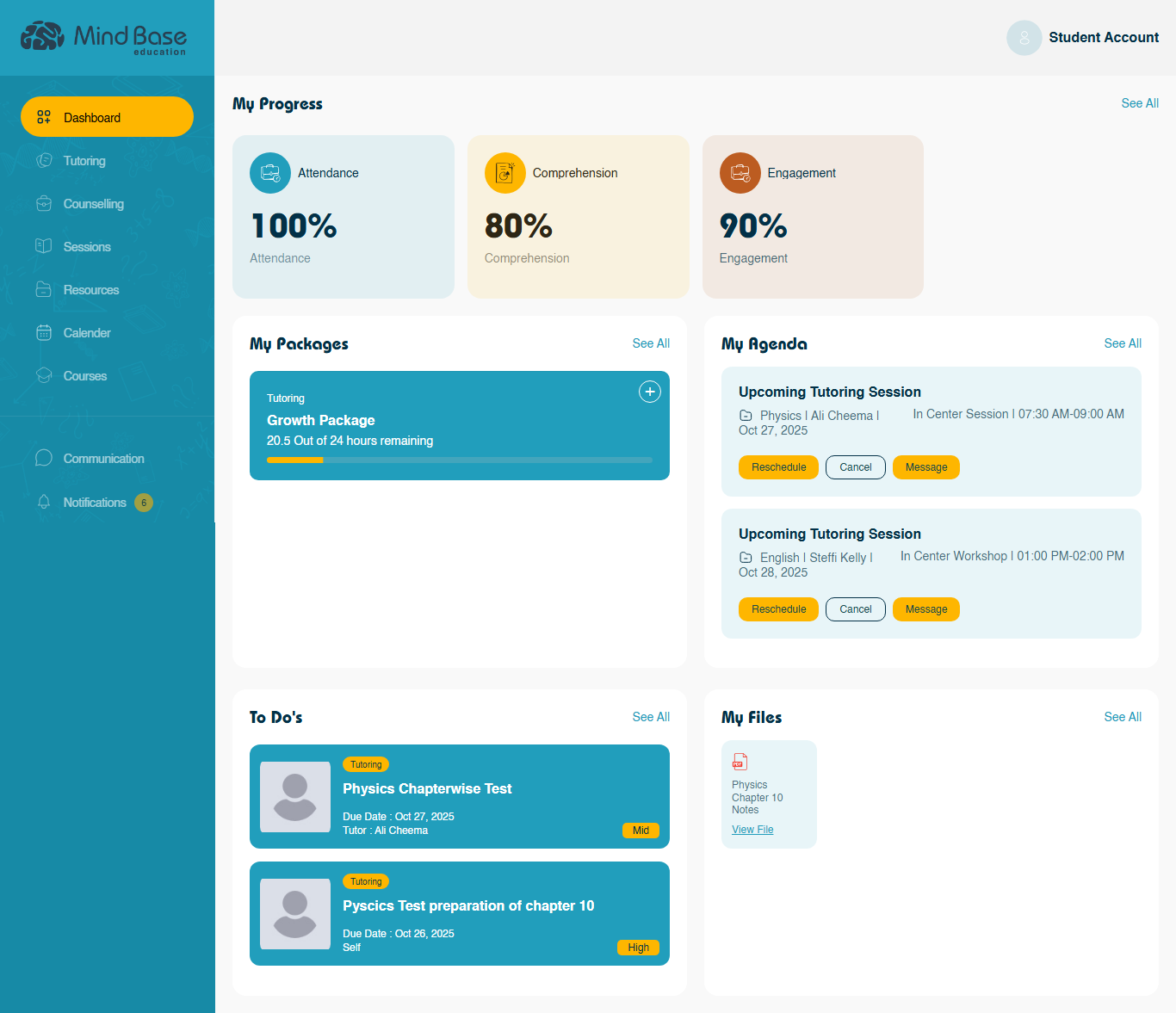
The Student Dashboard is designed for easy learning management and progress tracking.
Dashboard Overview
| Section | Description |
|---|---|
| My Progress | Summarizes Attendance and performance scores recorded by tutors & counselors when submitting an Action Plan after each completed session. Depending on the session type, the scoring fields may vary — for example, general categories such as Comprehension and Engagement, or other custom metrics defined for that particular session. The system then calculates and displays an aggregate total of all attendance and performance scores for the student. |
| My Packages | Displays assigned or purchased tutoring and counseling packages with total and remaining hours. Students can see progress bars showing usage percentage. |
| My Agenda | Lists upcoming tutoring or counseling sessions with session type, instructor name, and timing. Students can Reschedule, Cancel, or Message their instructor directly. |
| To-Do’s | Displays assigned tasks, such as homework or test preparation. Each task includes a due date, tutor & counselor name, and priority tag (High, Mid, Low). |
| My Files | Shows uploaded study materials or notes shared by tutors & counselors. Files are downloadable if access is granted. |
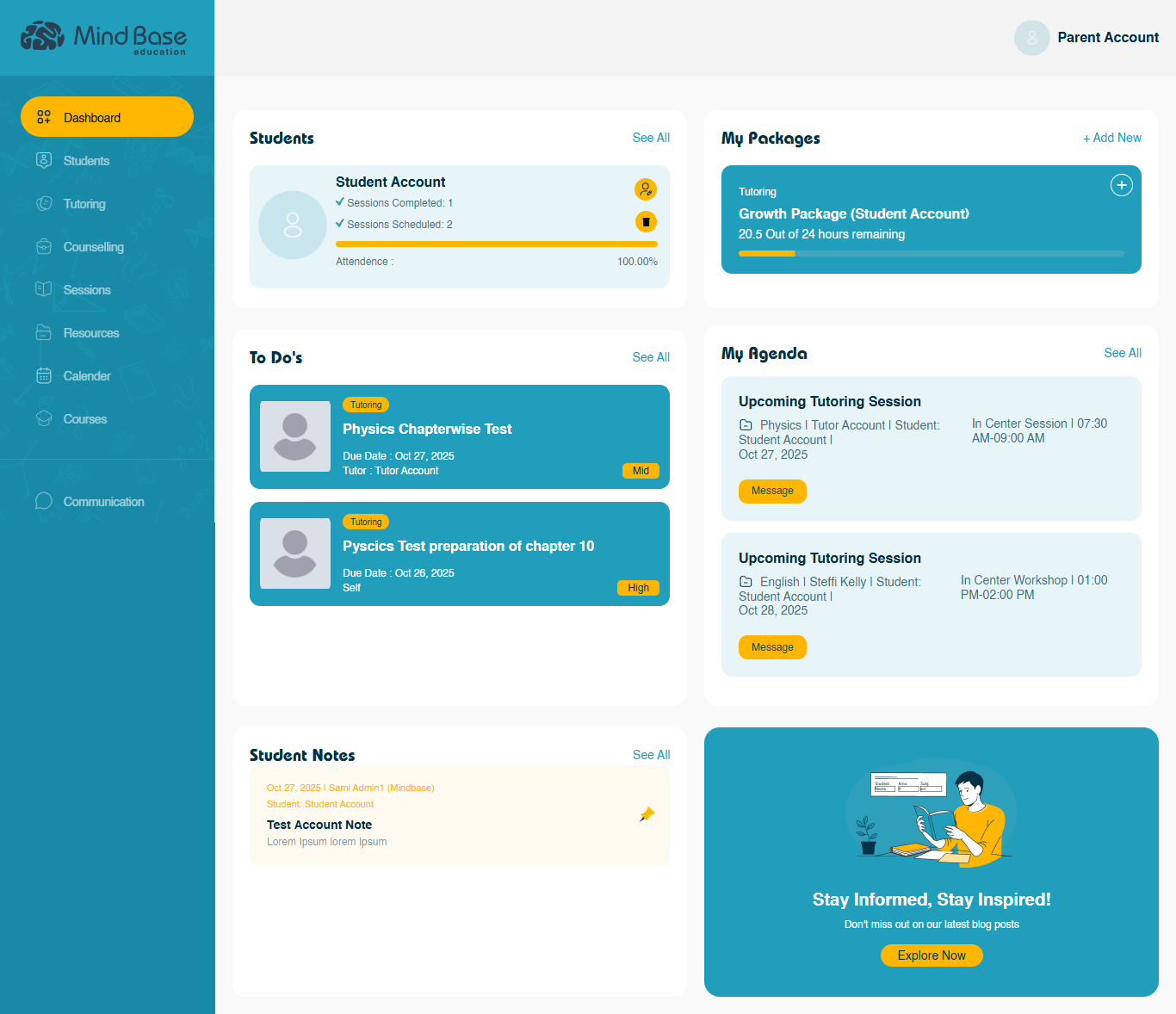
The Parent Dashboard provides families with real-time visibility into their child’s academic progress, packages, and session activity.
Dashboard Overview
| Section | Description |
|---|---|
| Students | Displays the children total completed and scheduled tutoring and counseling hours along with attendance percentage. |
| My Packages | Shows active packages assigned to the student, remaining hours, and subjects included. |
| My Agenda | Lists upcoming sessions with the tutor’s & counselor’s name, subject, and date/time. Parents can message the tutor directly if needed. |
| To-Do’s | Reflects ongoing or upcoming student tasks (e.g., assignments, assessments) with due dates. Parents can view task details but cannot modify them. |
| Student Notes | Displays any learning updates, remarks, or feedback shared by tutors & counselors. Helps parents stay informed about the student’s academic or behavioral progress during ongoing sessions or assessments. |
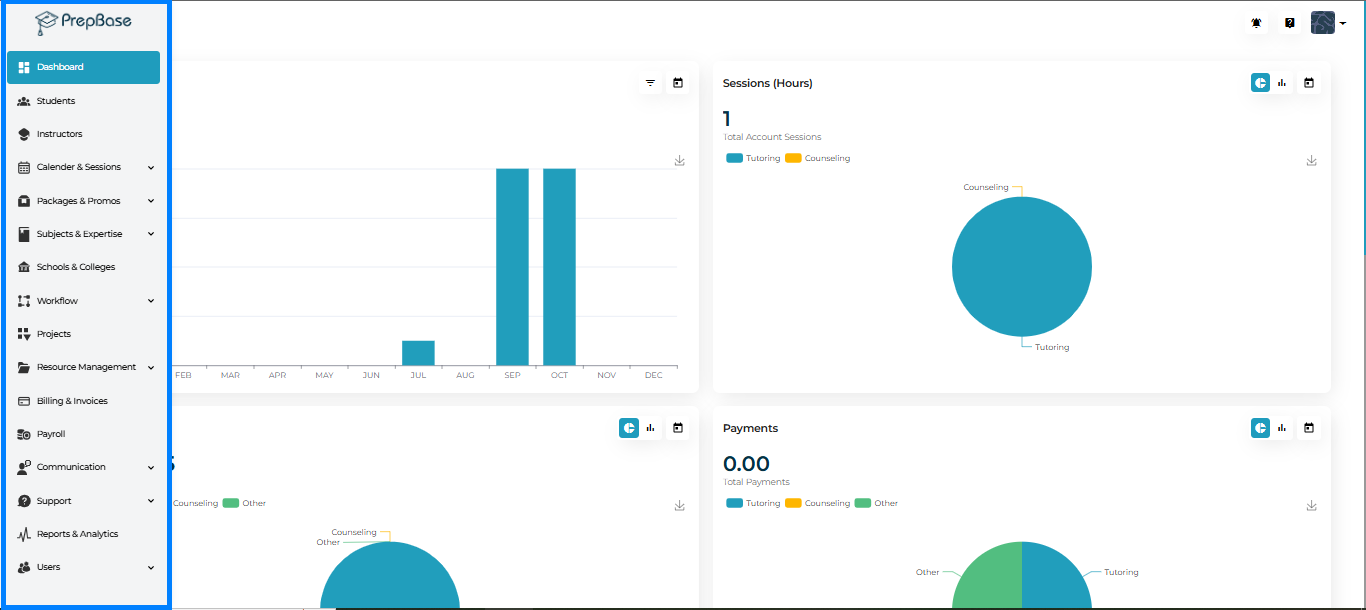
The Admin Dashboard features a left sidebar that provides quick access to all organizational management tools.
Each menu item allows admins to oversee students, instructors, sessions, billing, reporting, and more — ensuring a streamlined workflow across every module.
| Menu Item | Description |
|---|---|
| Dashboard | View your organization’s overall statistics, including users, sessions, revenue, packages, and performance analytics. |
| Students | Manage student records, academic progress, family details, packages, and linked instructors. |
| Instructors | Manage tutor and counselor profiles, assign students, and monitor instructor activity. |
| Calendar & Sessions | Schedule, view, and manage tutoring or counseling sessions; access session categories, scores, and locations. |
| Packages & Promotions | Create, assign, or track active learning and counseling packages; manage promotional discounts and offers. |
| Subjects & Expertise | Define subjects, study levels, curricula, and academic interests for students and instructors. |
| Schools & Colleges | Add, edit, and manage institutions for student admission or reporting purposes. |
| Workflow | Configure academic workflows such as application stages, admission steps, and project pipelines. |
| Projects | Manage student and instructor projects; track progress, deadlines, and related documentation. |
| Resource Management | Oversee educational files, articles, and courses shared among users and teams. |
| Billing & Invoices | Manage invoices, payments, and family account transactions. |
| Payroll | Calculate and process instructor or counselor payouts automatically. |
| Communication | Manage internal messages, notifications, and system-wide announcements. |
| Support | Access support tickets and categorize user-submitted issues for quick resolution. |
| Reports & Analytics | Generate, view, and export detailed reports on performance, sessions, revenue, and user engagement. |
| Users | Manage administrative users, assign roles, and set access permissions. |
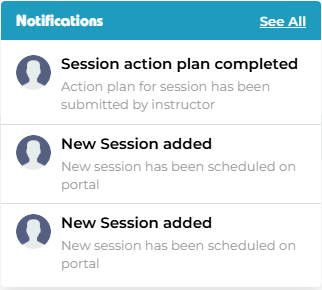
Each dashboard includes a notification center (top-right bell icon) that keeps users informed of updates such as:
Session confirmations or cancellations.
Package activations or expirations.
Shared files, notes, or tasks.
Project milestones or deadlines.