Logging In & User Access

Logging In & User Access

Welcome to PrepBase Admin!
This guide will walk you through how to log in to your PrepBase Admin Dashboard, access your settings, and understand how different users (admins, students, tutors & counselors, and parents) log in from their respective URLs.

⚠️ Note: This article applies specifically to PrepBase Admin access. Logging in as students, parents, or tutors & counselors is done from separate dashboards with different URLs (explained below).

1. Logging in to the Admin Panel

All administrators access PrepBase through a dedicated organization admin URL:

🔗 Example:
yourorganizationname.admin.prep-base.com

Here’s how to log in:

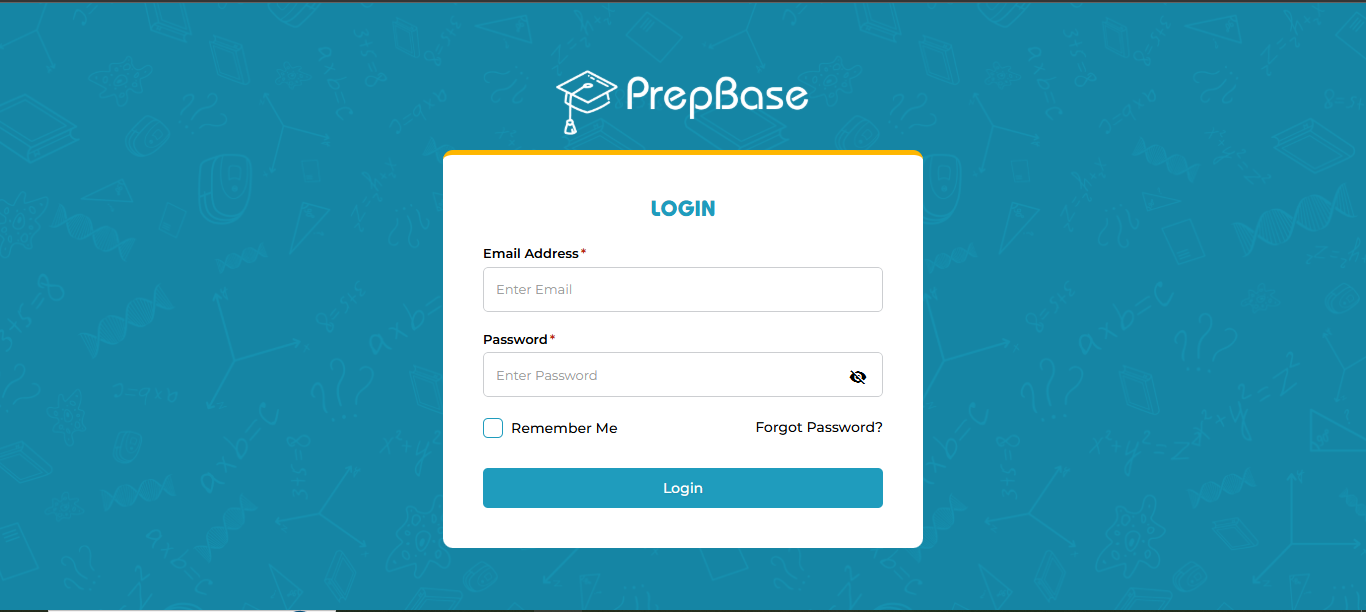
  1. Open your admin login page (as shown above).

  2. Enter your registered email address and password.

  3. Click Login to access your organization’s PrepBase Admin Dashboard.
2. Resetting Your Password

If you forget your password:

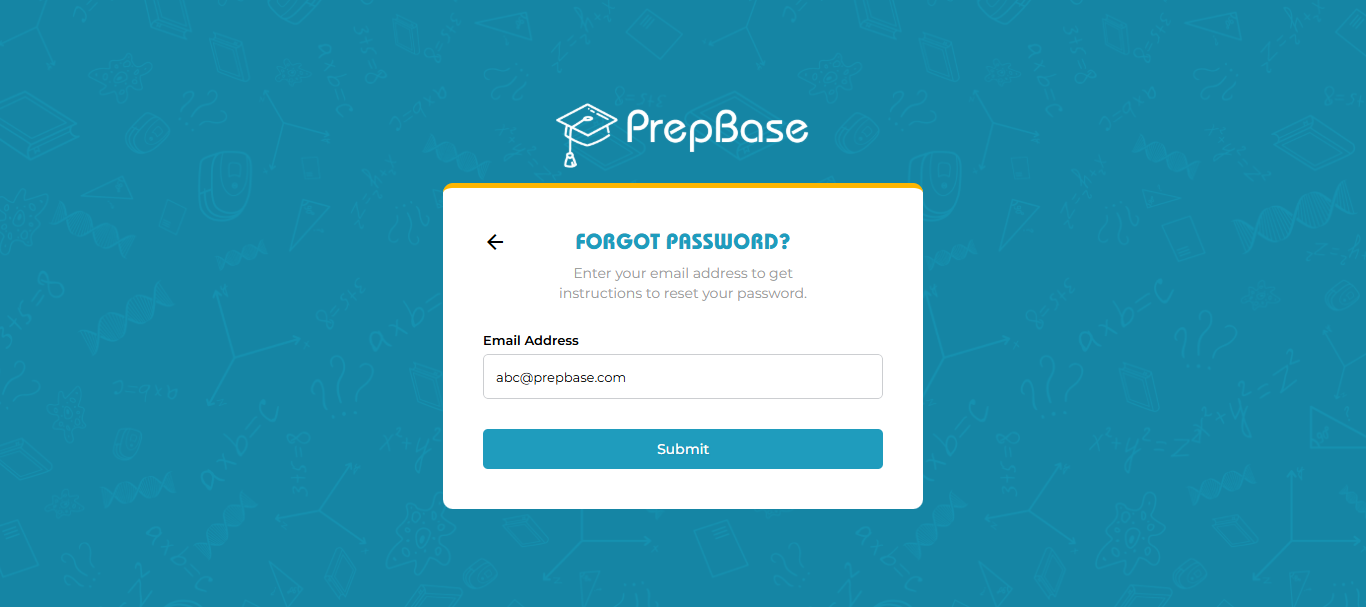
  1. Click on “Forgot Password?” from the login screen.

  2. Enter your registered admin email address.

  3. Follow the link sent to your email to reset your password.
3. Accessing Your Admin Dashboard

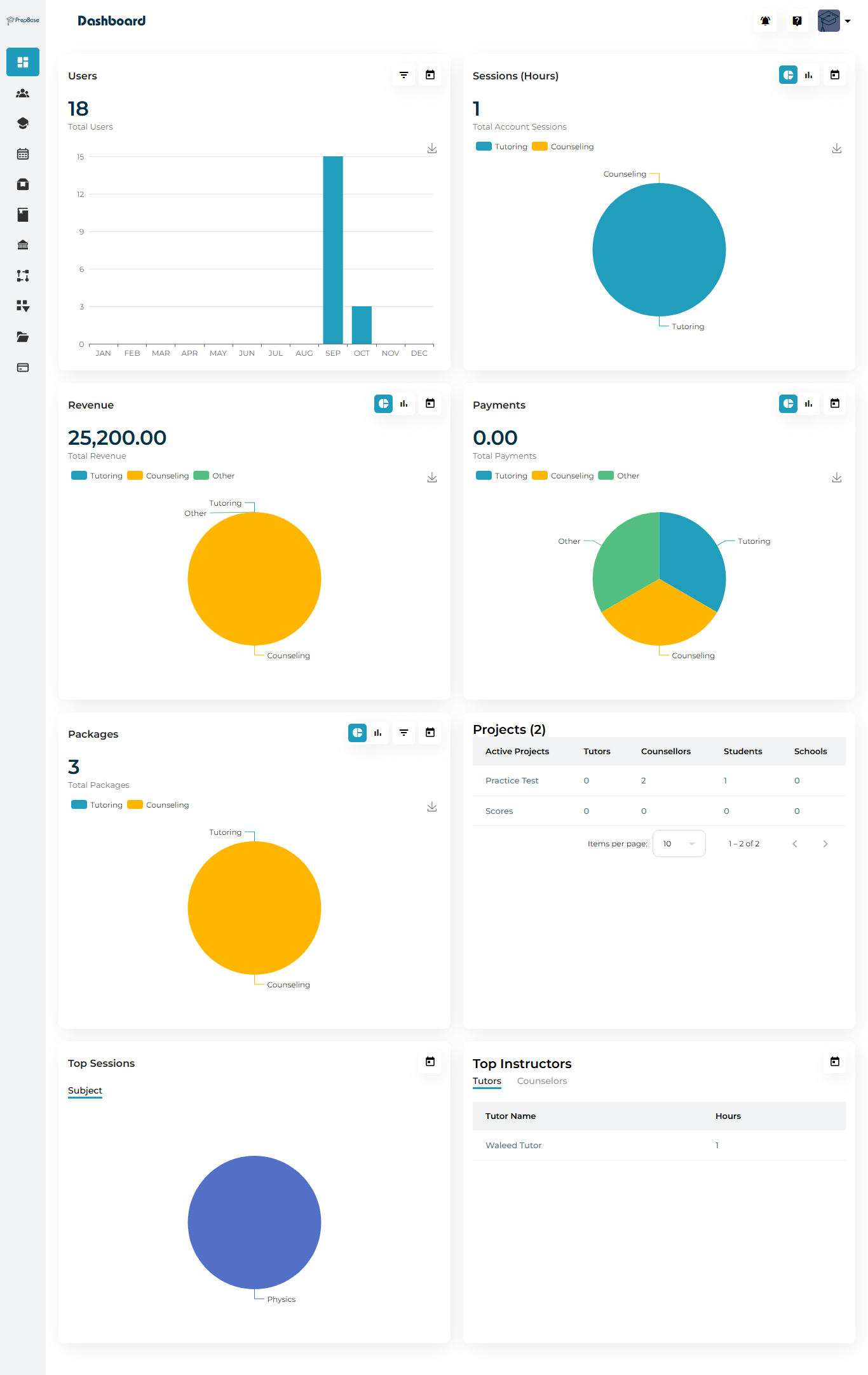
After logging in successfully, you’ll be directed to your PrepBase Admin Dashboard, which gives you a clear, data-driven overview of your organization’s activities.

The dashboard provides real-time insights into:

SectionDescription
UsersDisplays the total number of registered users — including students, tutors & counselors, and parents — with monthly growth visualization.
Sessions (Hours)Shows the total tutoring and counseling hours completed within the platform, divided by session type.
RevenueTracks the total earnings generated through active tutoring and counseling packages.
PaymentsDisplays all recorded payments, categorized by type (Tutoring, Counseling, Other).
PackagesIndicates how many learning and counseling packages are currently active or assigned to students.
ProjectsLists all active or recent projects — including participating tutors & counselors, students, and linked schools.
Top SessionsHighlights the most frequently conducted subjects or session types (e.g., Physics, Math).
Top InstructorsDisplays your highest-performing tutors & counselors based on total session hours delivered.

4. User Dashboard Access (Students, Parents, Tutors & counselors)

Once the Admin has set up roles and permissions, users can log in through their dedicated PrepBase dashboards.
Each dashboard provides a tailored experience designed specifically for that user type — giving access only to the tools, data, and features relevant to their role.

 Dashboard URLs

Every user type in PrepBase has a unique web address (URL) for login.
Admins should share these URLs directly with their users to ensure they access the correct portal.

User TypeExample Login URLDescription
Tutor & Counselor (Instructors)https://yourorganizationname.user.prep-base.comUsed by tutors & counselors to manage their assigned students, scheduled sessions, notes, and performance reports.
Studenthttps://yourorganizationname.user.prep-base.comProvides students access to their learning dashboard — where they can view upcoming sessions, assigned instructors, tasks, uploaded files, and academic progress.
Parenthttps://yourorganizationname.user.prep-base.comAllows parents to monitor their child’s progress, packages, invoices, and overall academic performance.

IN THIS ARTICLE