Navigate to:
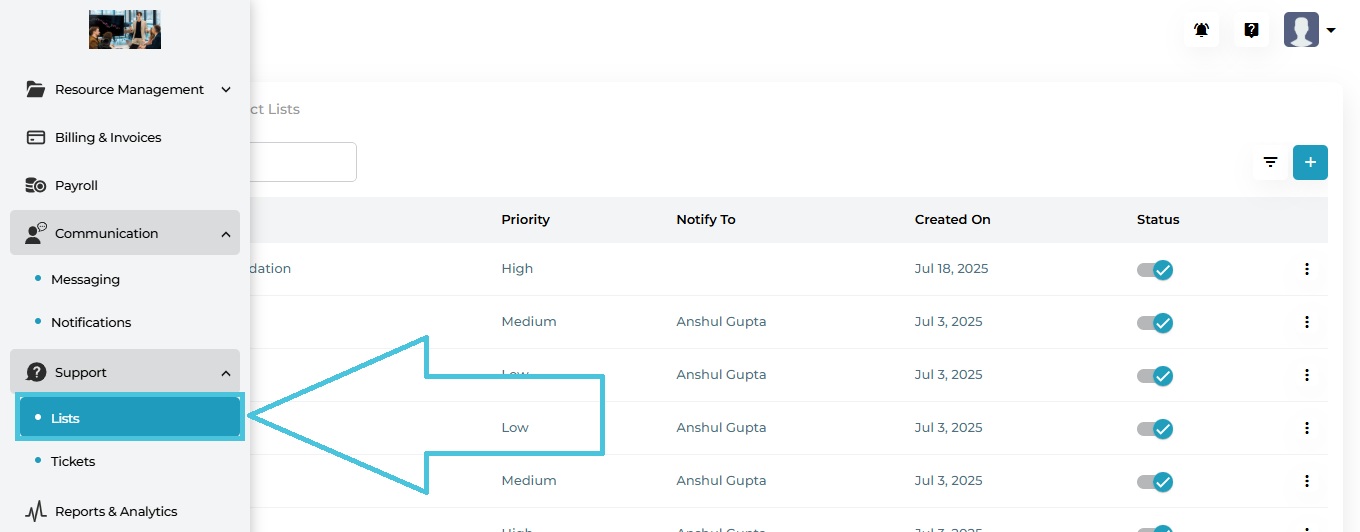
Support → Lists
This opens the Lists management screen, where all support categories are created, edited, enabled/disabled, and deleted.
The Default List tab is used to create global support categories that are available across the entire platform.
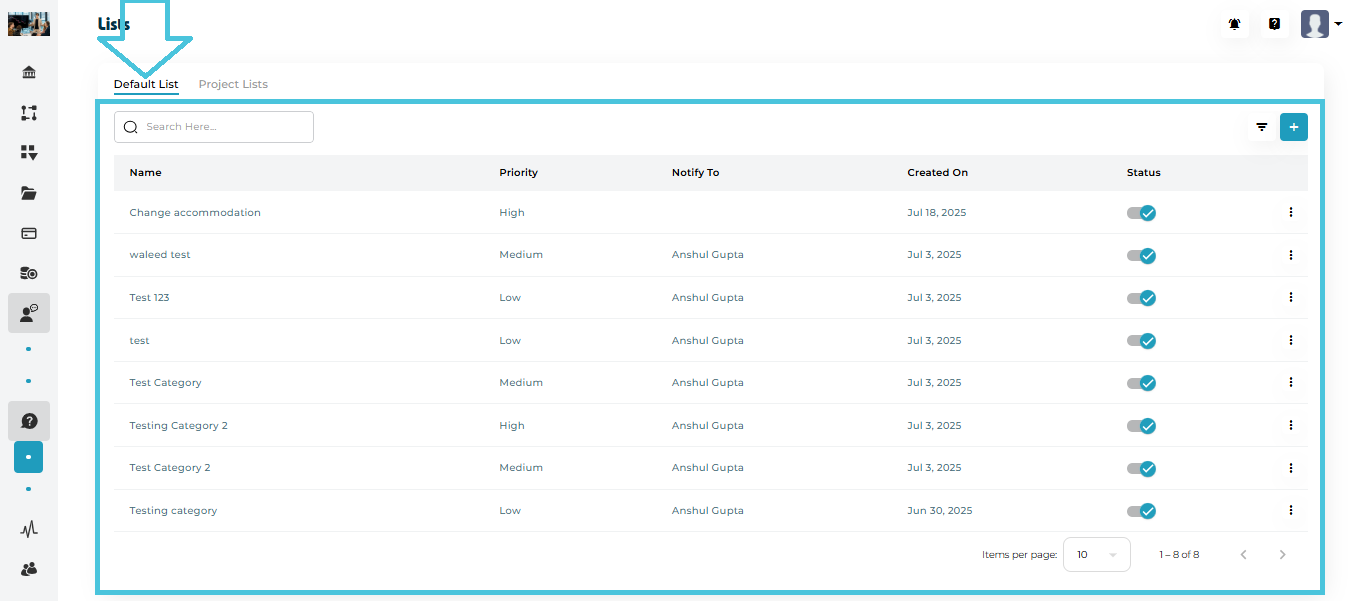
Default List Table Columns
| Column | Description |
|---|---|
| Name | Support category name (e.g., Change Accommodation). |
| Priority | Priority level: Low, Medium, or High. |
| Notify To | Users who will be notified when tickets are created under this category. |
| Created On | Date the category was created. |
| Status | Active / Inactive toggle. |
| Actions | Edit or Delete options. |
Creating a New Default Support Category
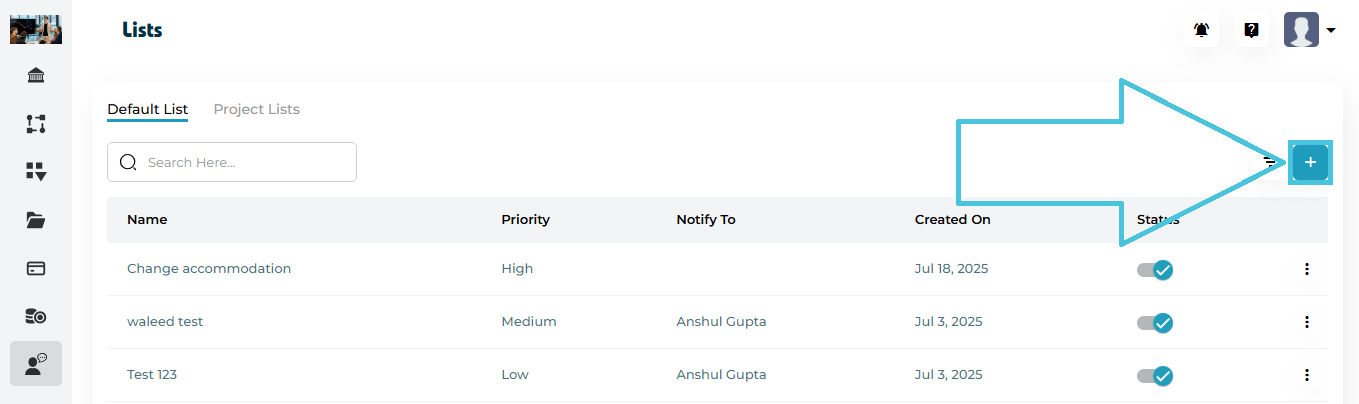
Steps
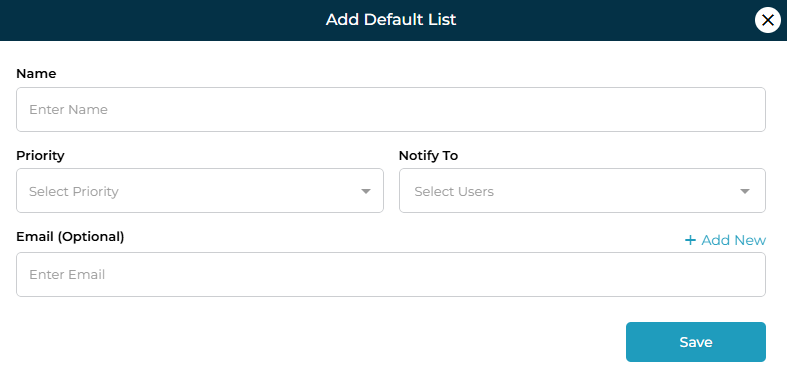
Open the Default List tab
Click the ➕ Add button
Enter the Name of the support category
Select a Priority
Low
Medium
High
Choose Notify To users (admins or sub-admins)
(Optional) Add an Email
Click Add New to include external email recipients
Click Save
The category is immediately available for use in Support tickets.
Editing a Default Support Category
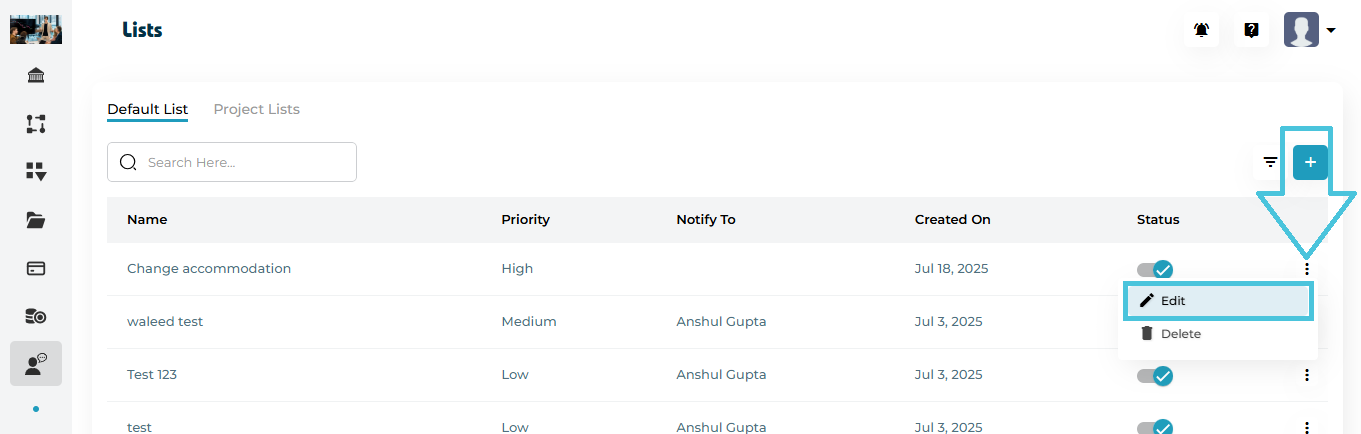
Steps:
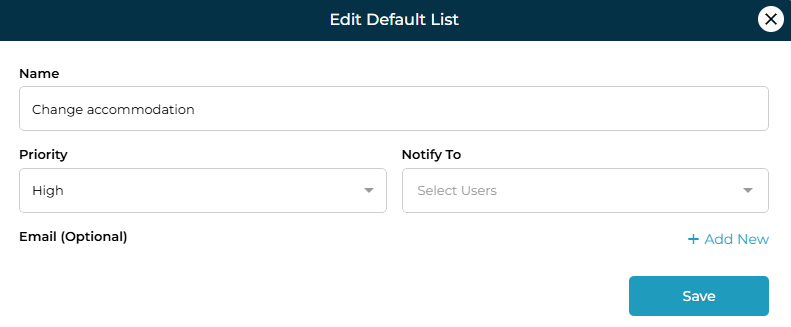
Click the three-dot menu next to a category
Select Edit
Update:
Name
Priority
Notify To users
Email (Optional)
Click Save
Changes apply instantly to future tickets.
Deleting a Default Support Category
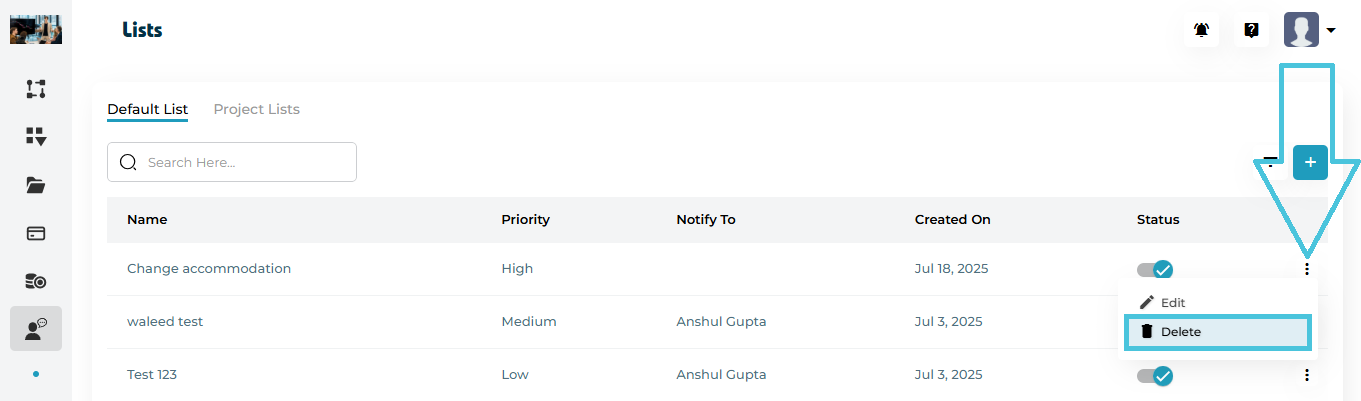
Open the three-dot menu
Click Delete
Confirm the action
⚠️ Deleting a category permanently removes it and may affect ticket categorization.
The Project Lists tab is used to create support categories limited to specific projects or workflows.
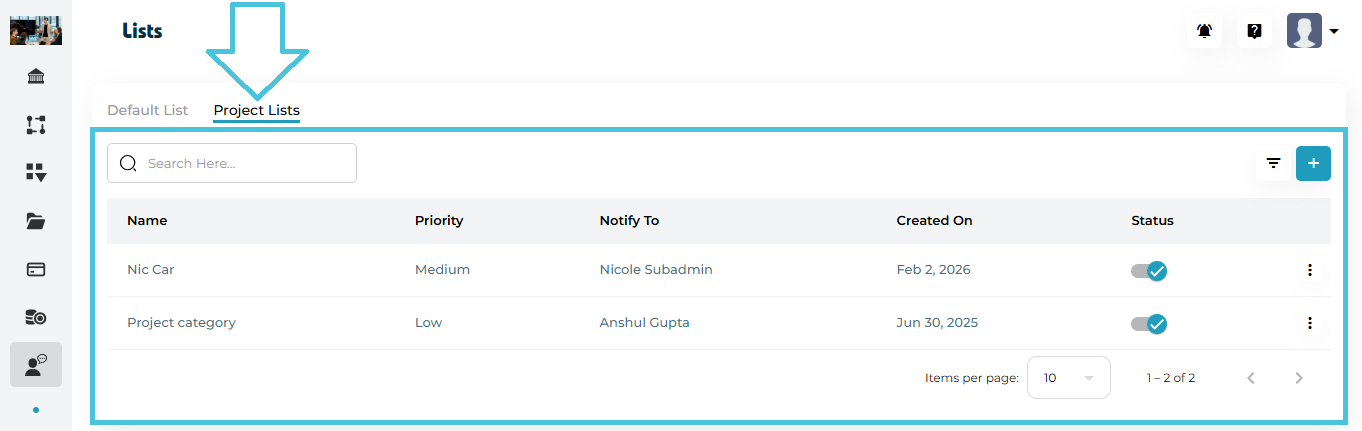
Project Lists Table Columns
| Column | Description |
|---|---|
| Name | Project-specific support category name. |
| Priority | Low, Medium, or High. |
| Notify To | Assigned user for notifications. |
| Created On | Creation date. |
| Status | Active / Inactive toggle. |
| Actions | Edit or Delete options. |
Creating a Project-Specific Support Category
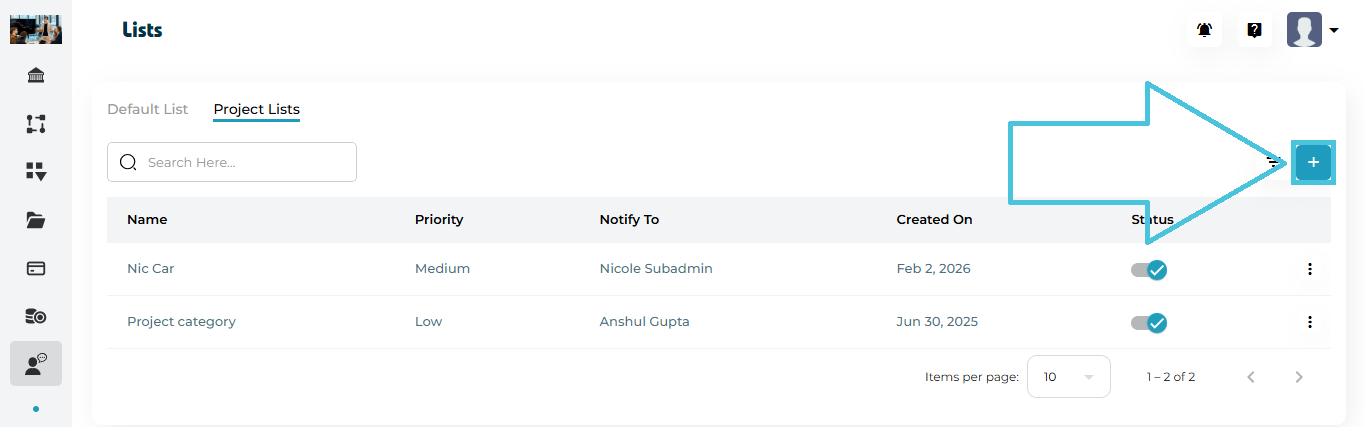
Steps
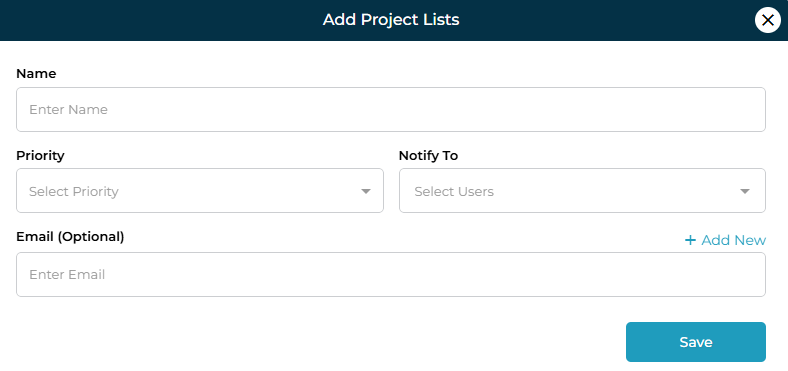
Switch to the Project Lists tab
Click ➕ Add
Enter the Category Name
Select Priority
Choose Notify To user(s)
(Optional) Add an Email
Click Save
This category will be available only in the relevant project context.
Editing a Project-Specific Support Category
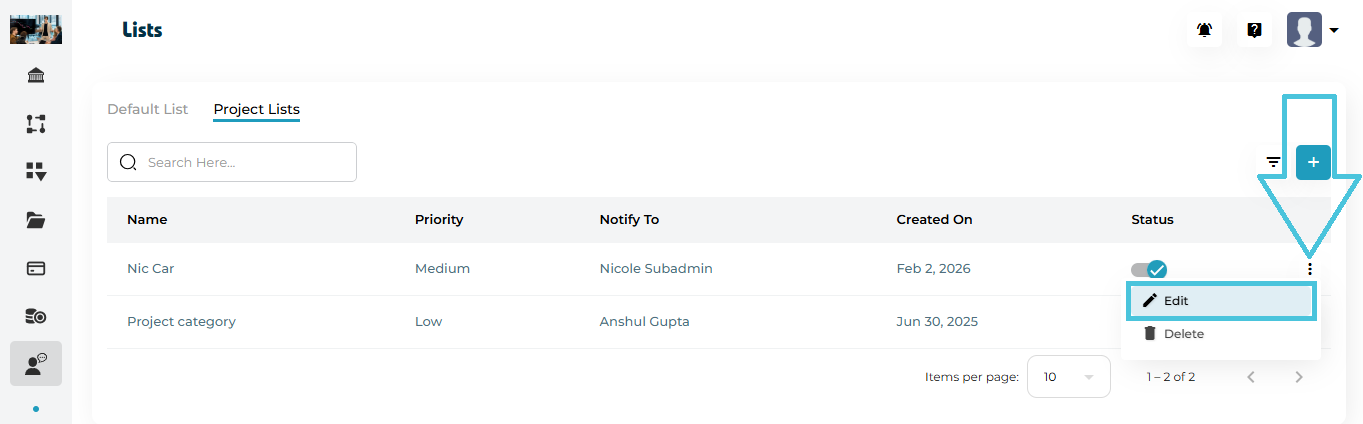
Steps:
Click the three-dot menu next to a category
Select Edit
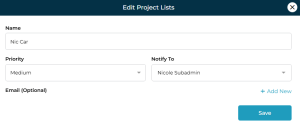
Update:
Name
Priority
Notify To users
Email (Optional)
Click Save
Changes apply instantly to future tickets.
Deleting a Project-Specific Support Category
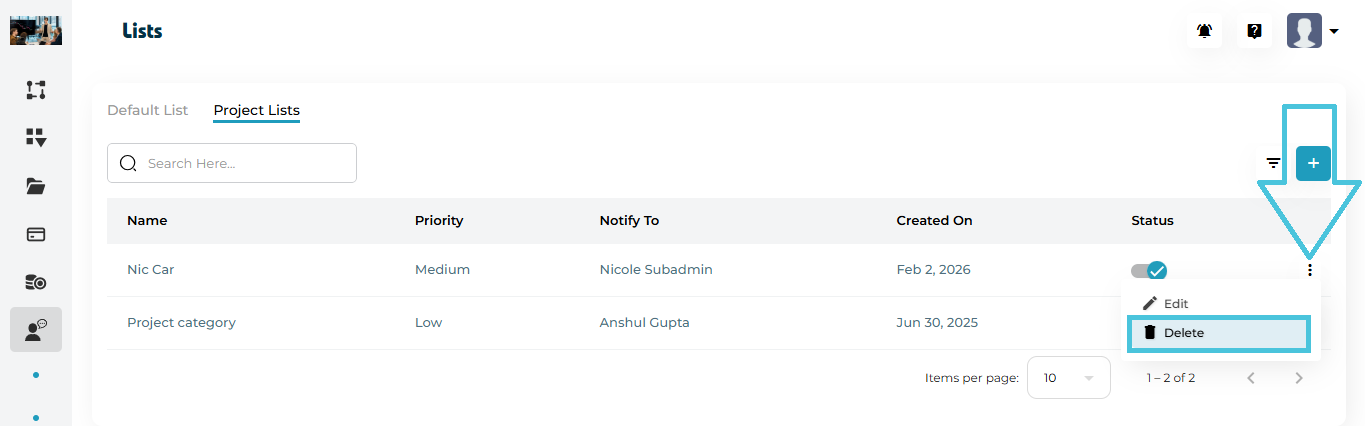
Open the three-dot menu
Click Delete
Confirm the action
⚠️ Deleting a category permanently removes it and may affect ticket categorization.
Available Controls
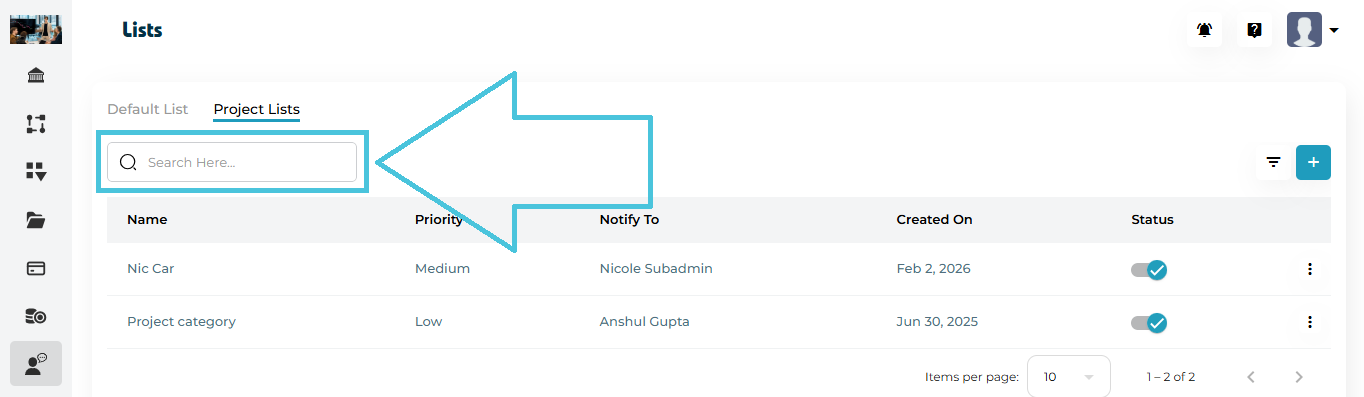
Search Bar
Search categories by name
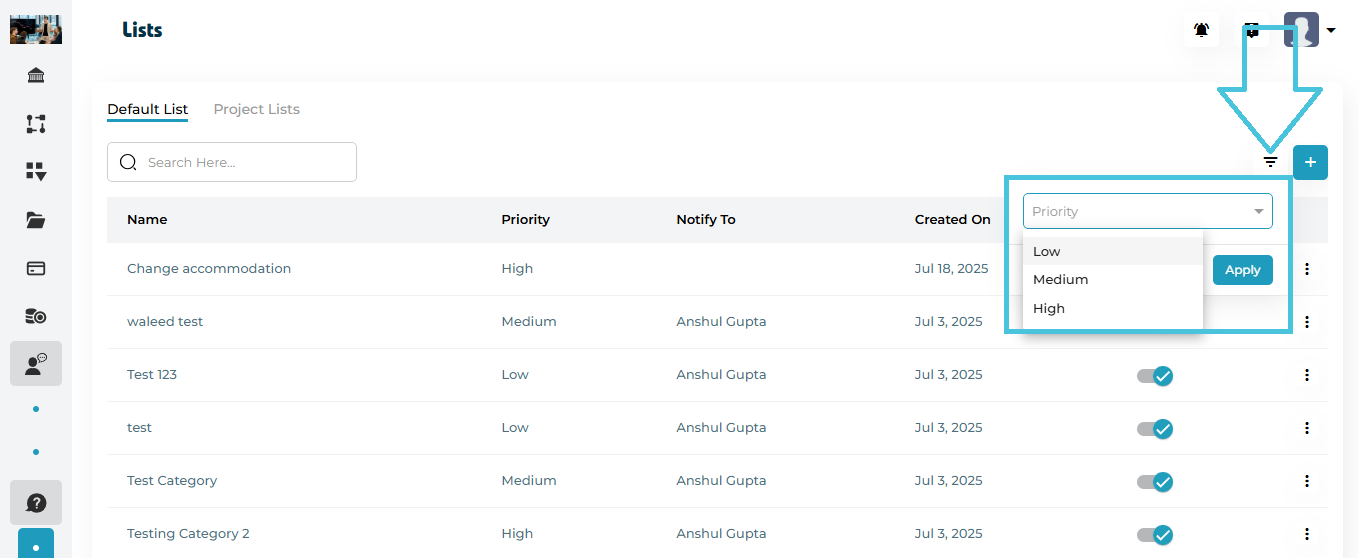
Priority Filter
Filter by Low / Medium / High
Apply / Reset
Quickly adjust list visibility
Filters work independently in Default List and Project Lists tabs.
Each category includes a Status toggle:
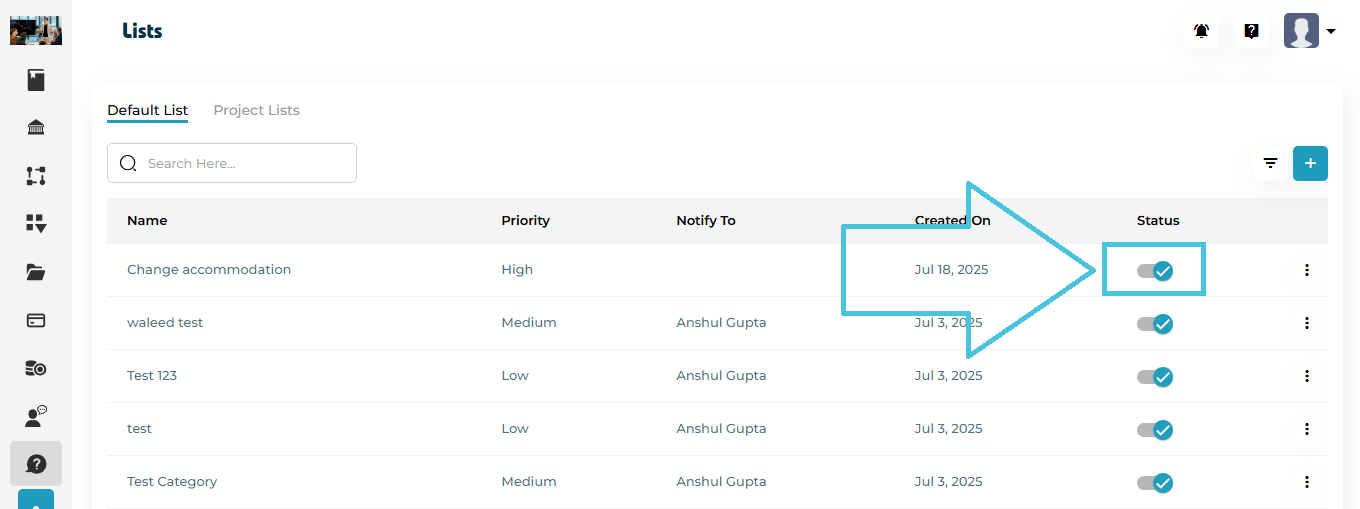
Enabled – Category is available for ticket creation
Disabled – Category is hidden and cannot be selected
This is useful for:
Temporarily retiring categories
Seasonal or project-based workflows