To open the Majors management area:
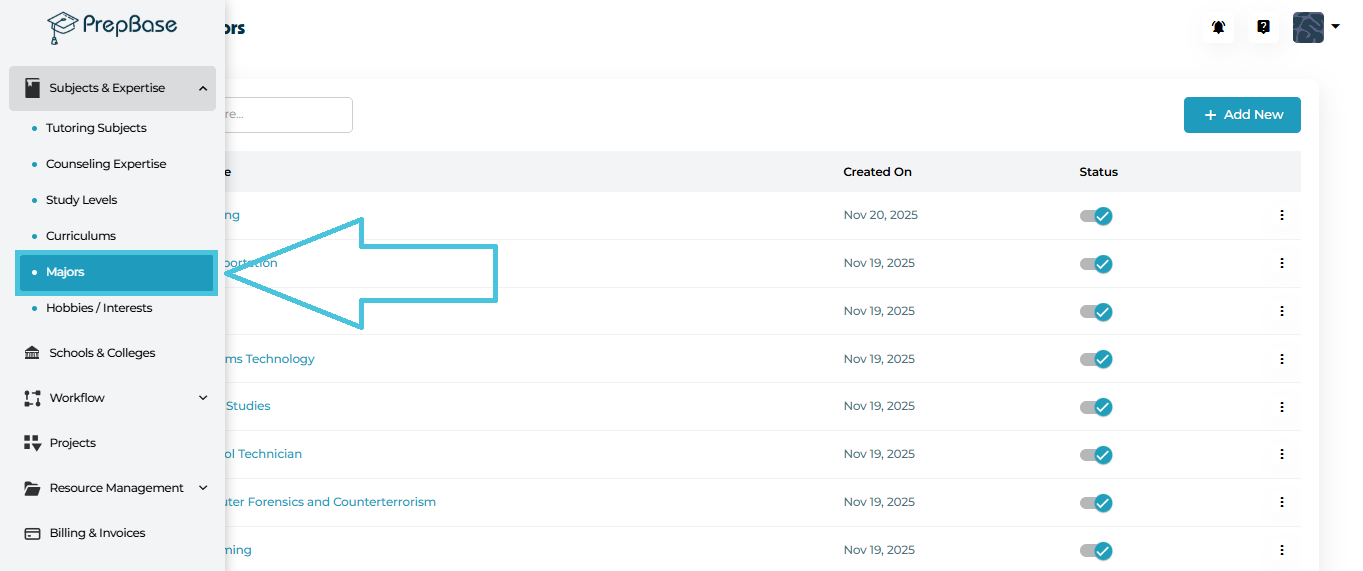
Go to the left navigation menu.
Open Subjects & Expertise.
Select Majors.
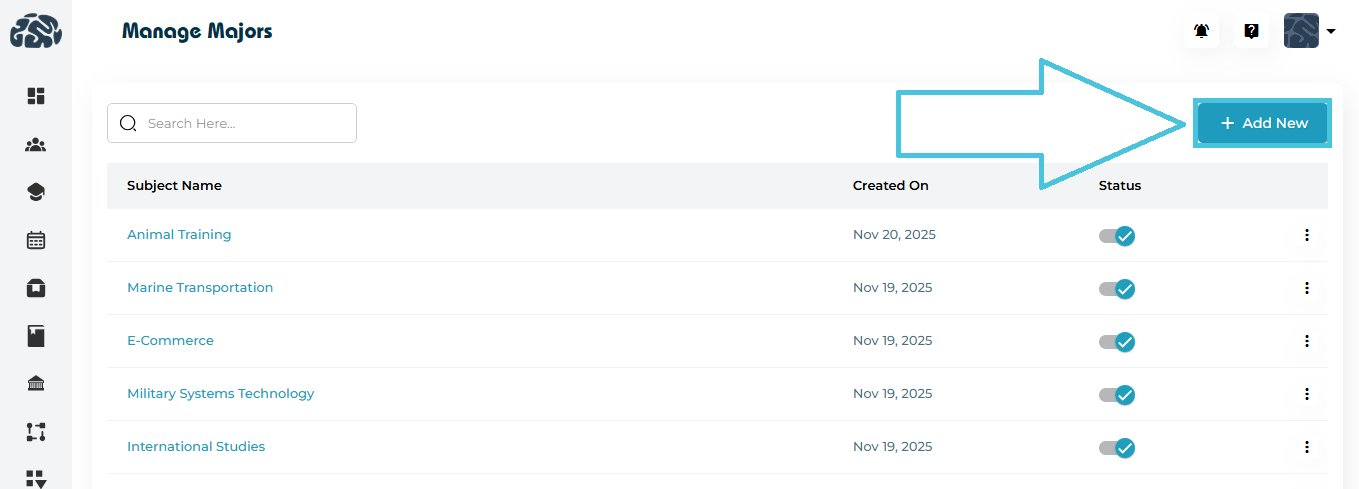
To create a major:
-
Click the Add New button at the top right of the Majors page.
-
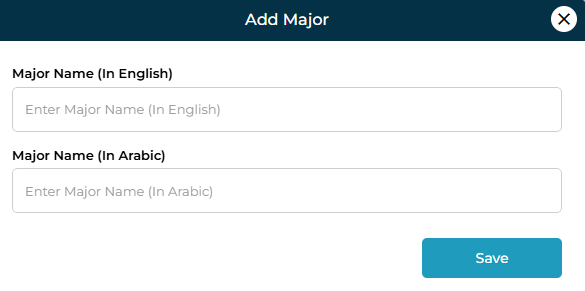
A pop-up form will appear (as shown below).
-
Enter:
-
Major Name (In English)
-
Major Name (In Arabic) — optional but recommended for bilingual environments
-
-
Click Save.
Admins can view major details in two different ways, depending on their workflow preference:
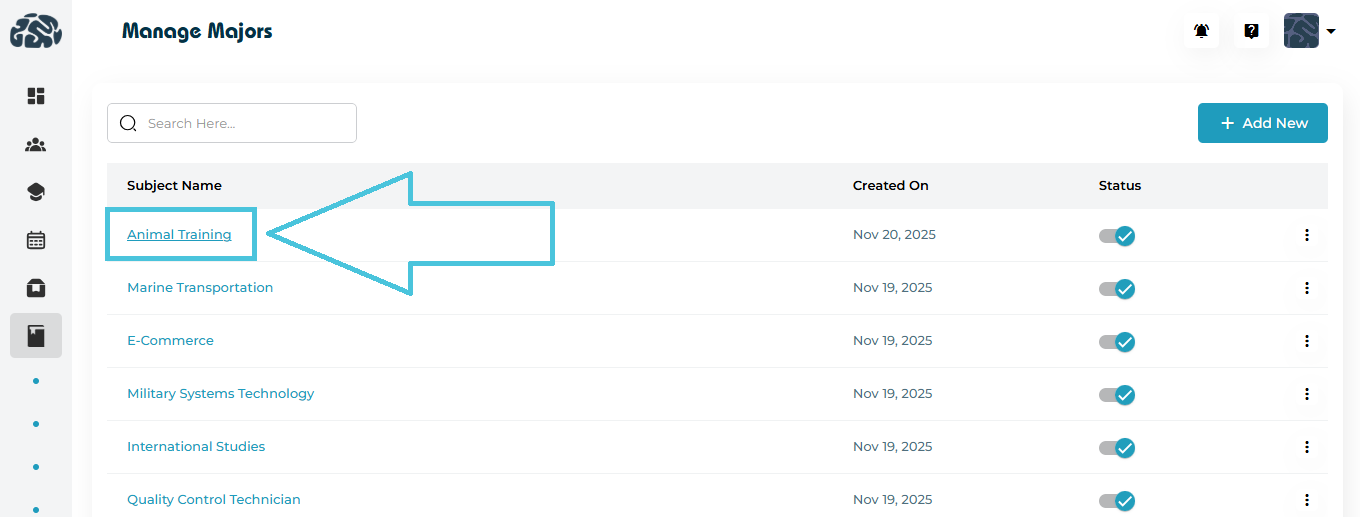
1. Click the Major Name Directly
-
Simply click the Subject Name (major name) in the list.
-
The same view window will open.
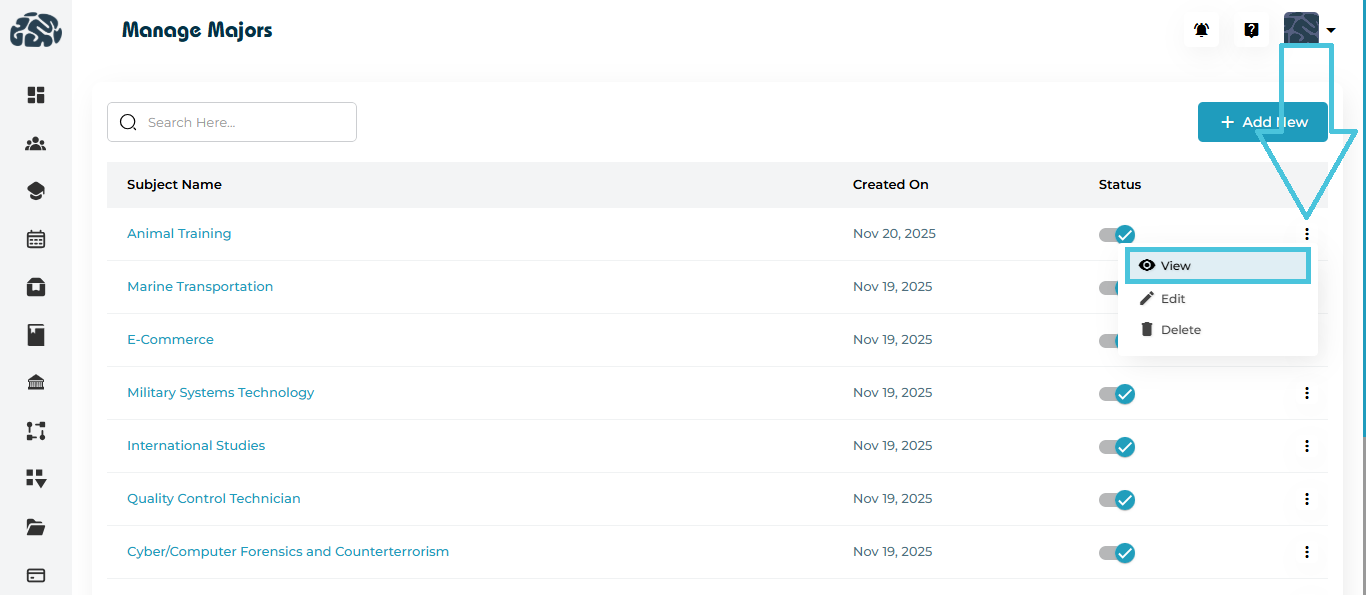
2. From the Three-Dot Menu
-
Click the three-dot menu next to any major.
-
Select View.
Both methods open the View Major window where administrators can review:
-
English name
-
Arabic name
(No editing is allowed in viewing mode.)
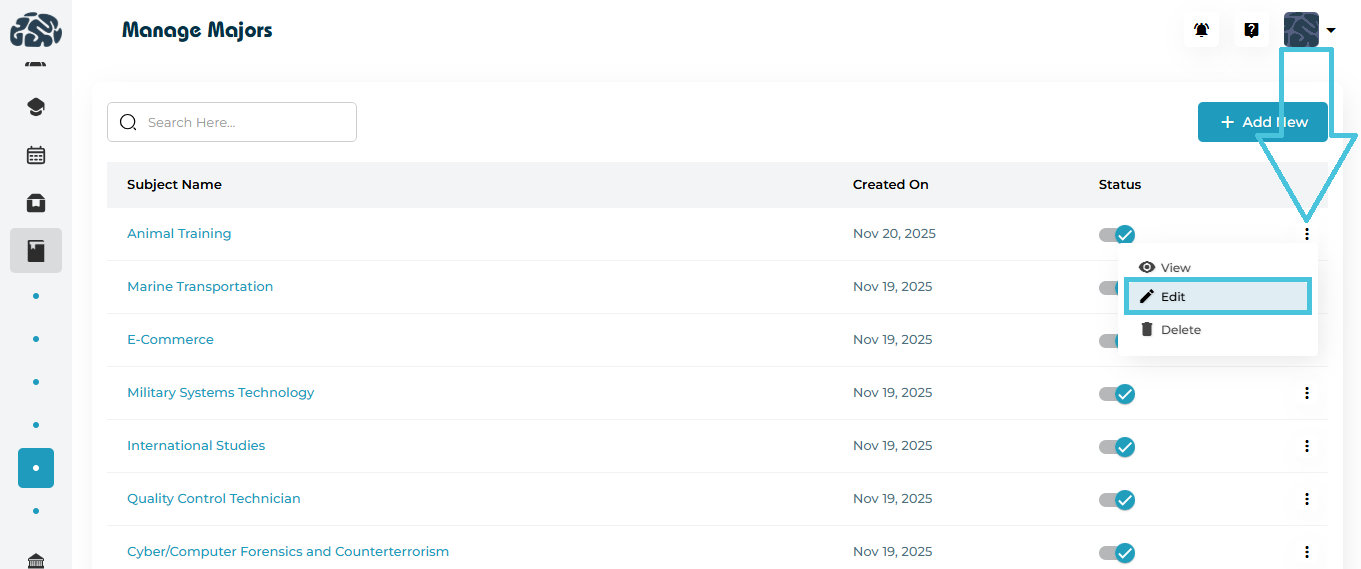
To modify a major:
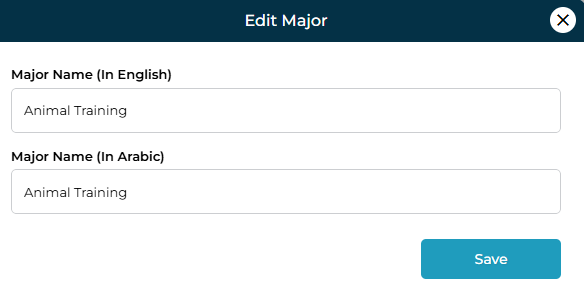
Click the three-dot menu beside the major.
Select Edit.
Update the English or Arabic name as needed.
Click Save.
Editing is useful when standardizing naming conventions or correcting mistakes.
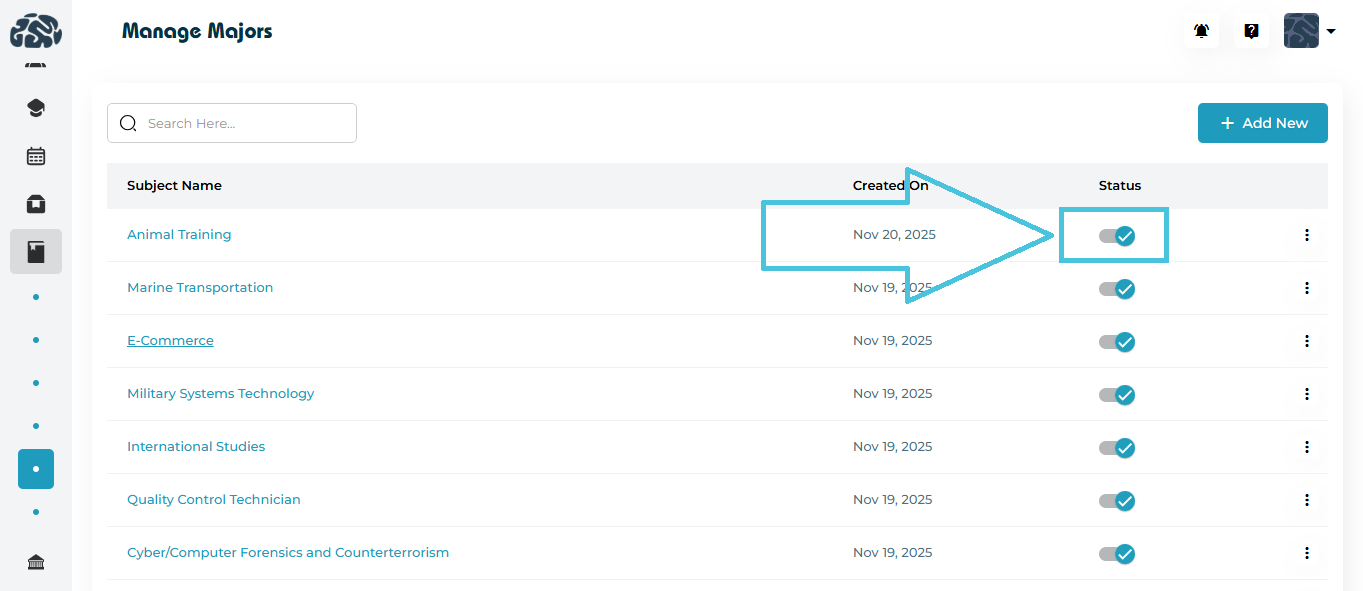
Every major has a status toggle that allows admins to activate or deactivate it without deleting.
-
Active (blue checkmark) → Can be assigned across the platform
-
Inactive (grey state) → Hidden from dropdowns but remains in the database
To remove a major entirely:
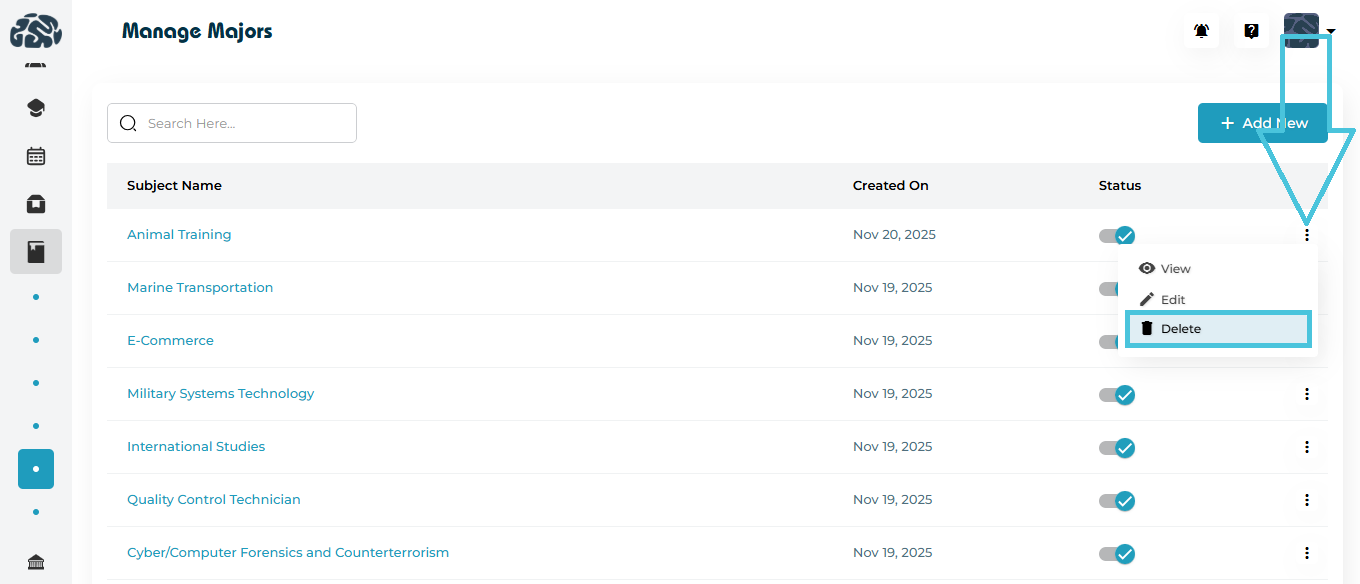
Click the three-dot menu on the desired major.
Select Delete.
Confirm the deletion in the prompt that appears.
⚠️ Important:
Deleting a major may affect student profiles or other sections where the major was used. Proceed carefully.