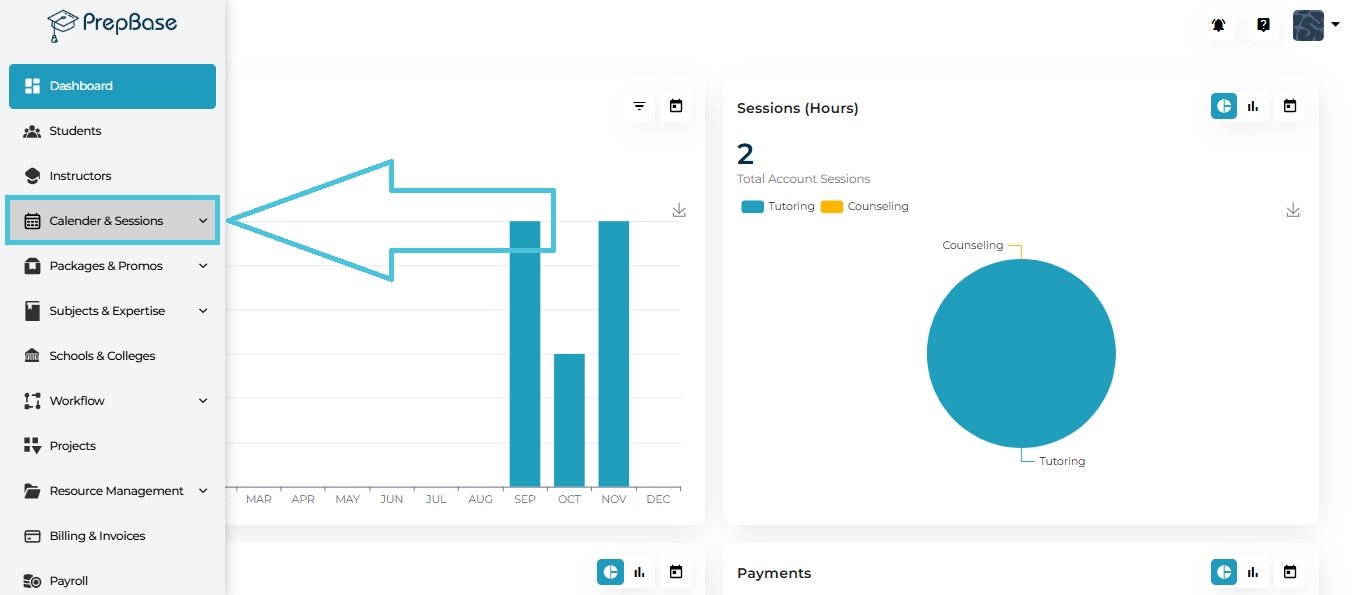
To open the schedule:
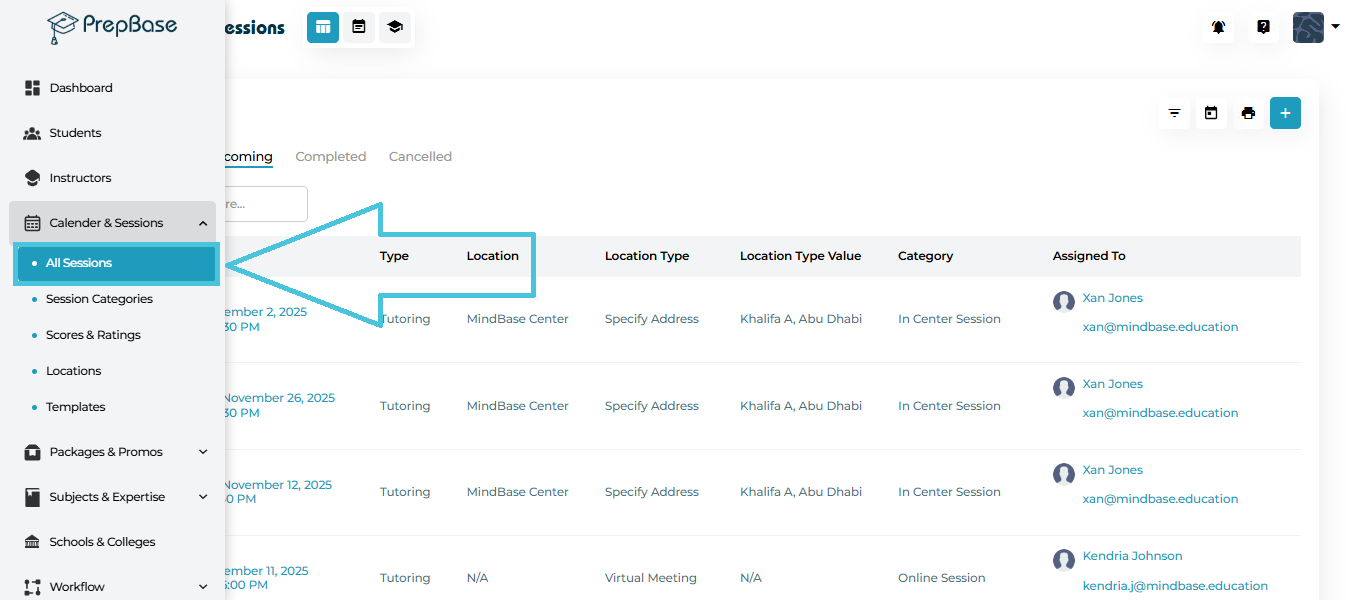
Left Menu → Calendar & Sessions → All Sessions
You will land on the sessions list view, which displays all sessions in a table format.
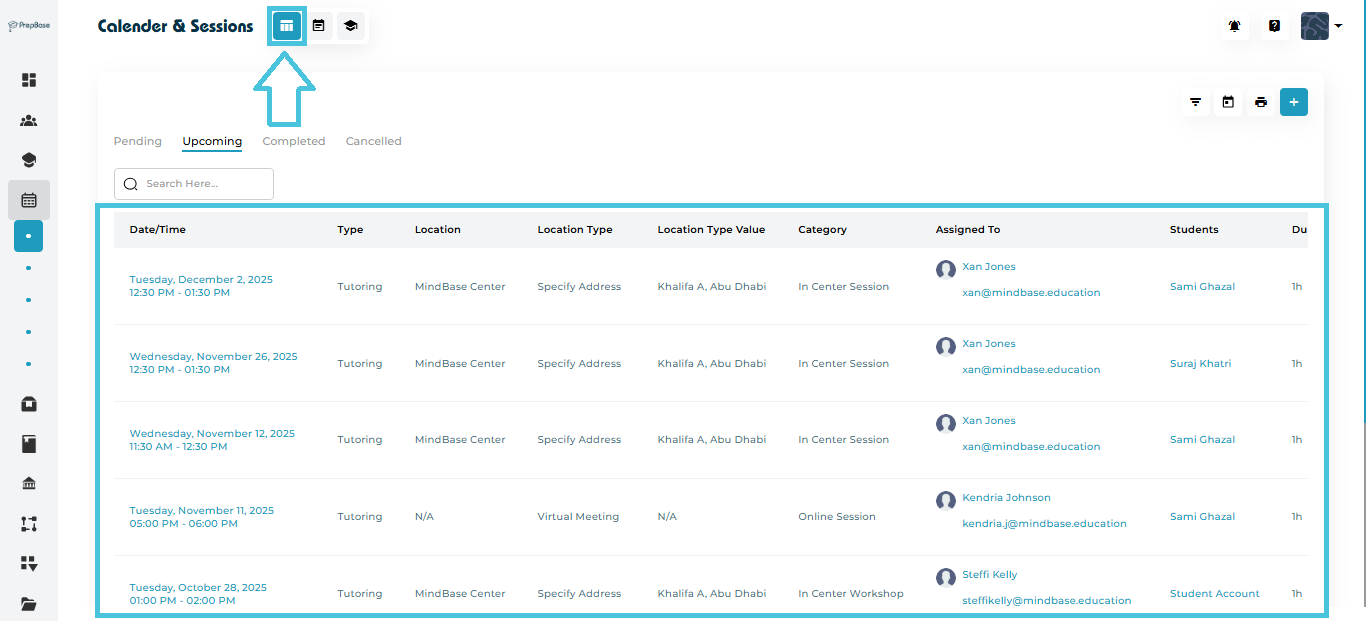
The top tabs let you switch between the different sessions statuses:
Pending – sessions scheduled by admin or instructors and not yet accepted by students/parents
Upcoming – sessions scheduled or accepted by students/parents
Completed – sessions with action plans/attendance already submitted by the instructors
Cancelled – sessions cancelled by students/parents, admin, or instructors
Admins can create new sessions or events directly from the Calendar & Sessions module. Sessions can be added from both Calendar View and Table View, ensuring flexibility in scheduling.
Admins can add a new session using either of the following methods:
Option 1: From Calendar View
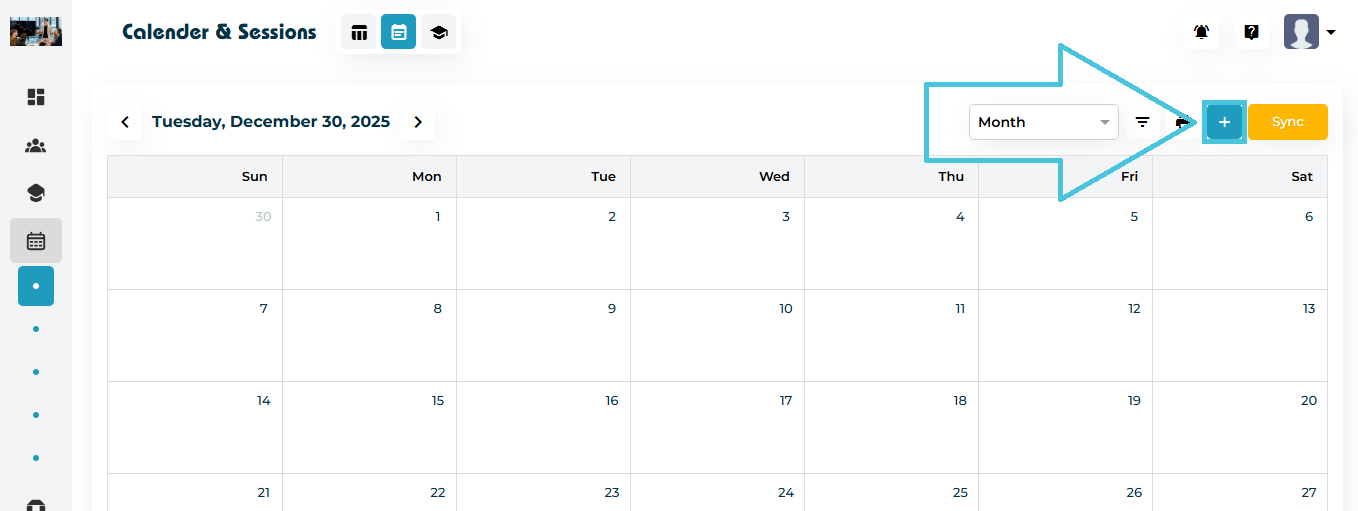
Navigate to Calendar & Sessions
Use the calendar navigation (Month / Week / Day)
Click the Add (+) button in the top-right corner
Option 2: From Sessions Table View
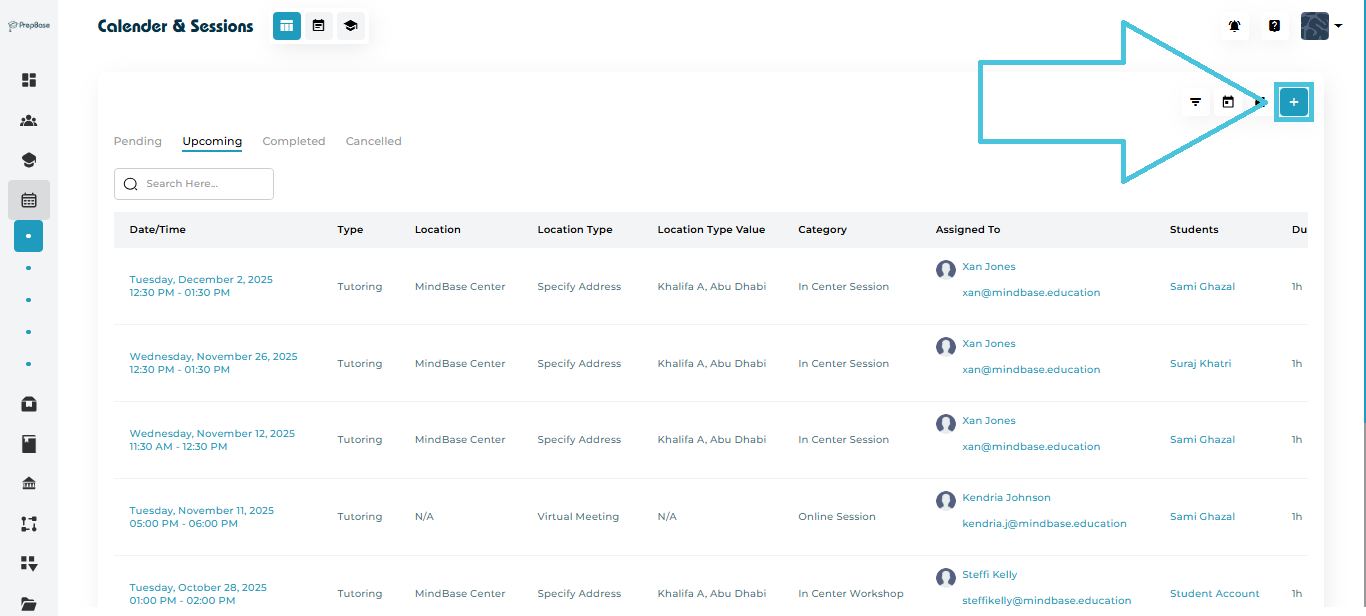
Switch to the Table view
Click the Add (+) button in the top-right corner
Both options open the Add Session form.
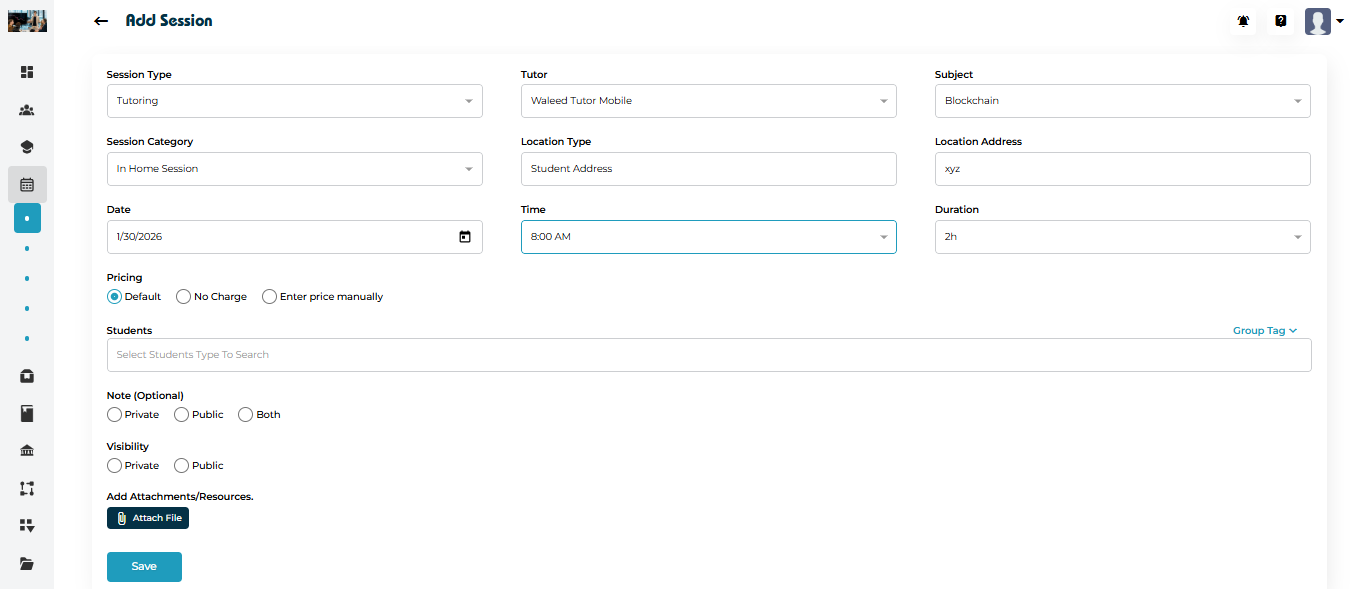
The Add Session form captures all essential details required to schedule a session or event.
Add Session – Field Description
| Field | Description |
|---|---|
| Session Type | Selects the type of session being scheduled, such as Tutoring or Counseling. |
| Tutor or Counselor | Assigns the tutor or counselor who will conduct the session based on the selected session type. |
| Subject or Expertise | Displays the subject (for tutors) or expertise (for counselors) linked to the selected instructor. |
| Session Category | These are defined by admin from the Session Categories subtab under the main Calendar & Sessions main tab in the admin panel. An example would be In Home Session or Online Session. |
| Location Type and Location Type Value | Specifies how the session location is determined and displays the value (e.g., Student Address or Virtual Link) as defined by admin when creating a Session Category. |
| Location Address | Displays any location that is defined under the Session Category by admin or allows manual entry of the session location address. |
| Date | Sets the session date using the date picker. |
| Time | Defines the start time of the session. |
| Duration | Sets the total length of the session. |
| Pricing | Determines how the session is billed:
|
| Students | Selects the student or students who will attend the session. Group tags if created can be used to add all the students under that tag to the session. |
| Note (Optional) | Allows adding a note on the scheduled session for admin or attendees to see. Notes can be marked as Private (viewable to admin only), Public (viewable to all), or Both (to add Public and Private notes). |
| Visibility | Controls whether the session is visible publicly (to all users on the platform) or kept private (visible to instrcutor and attendees only). |
| Add Attachments / Resources | Uploads supporting files or resources related to the session. |
Saving the Session
After completing the required fields:
Click Save
A confirmation message is displayed
The session appears immediately in:
Calendar View on the selected date and time
Table View under the appropriate tab (Pending or Upcoming)
To view complete information about a scheduled session, admins can open the session details directly from the sessions list. This allows you to review key information such as the student, instructor, session type, timing, and status before making any updates or changes.
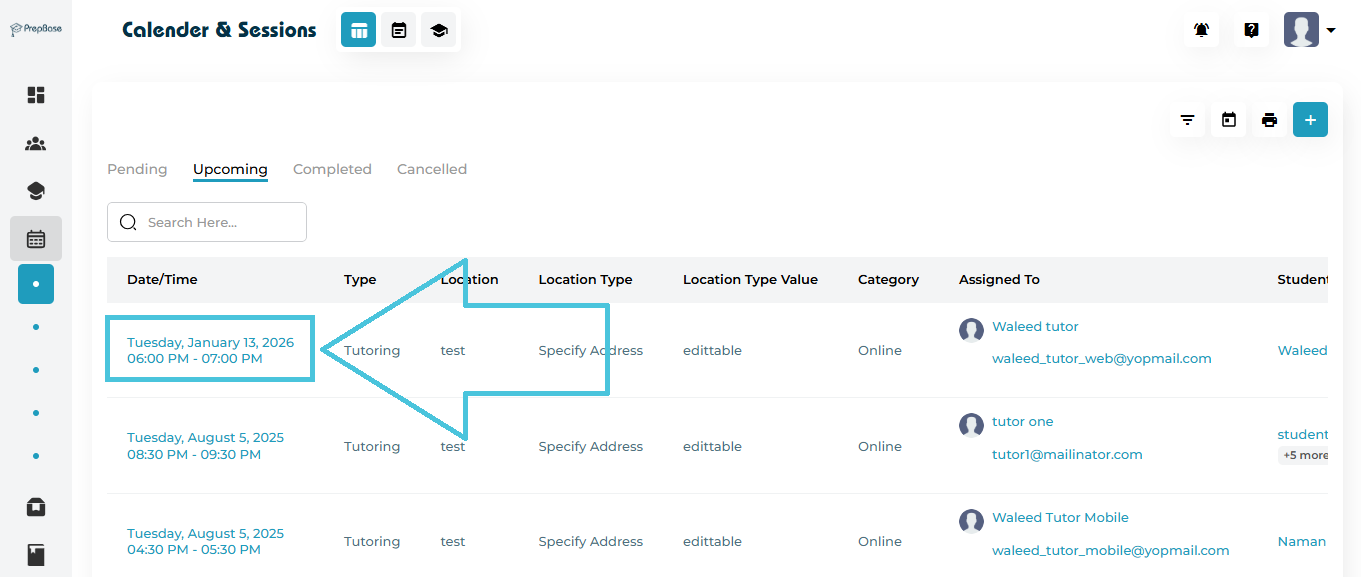
Regardless of which view you are in (list, month, week, day), clicking a session opens the Session Detail Page, which includes:
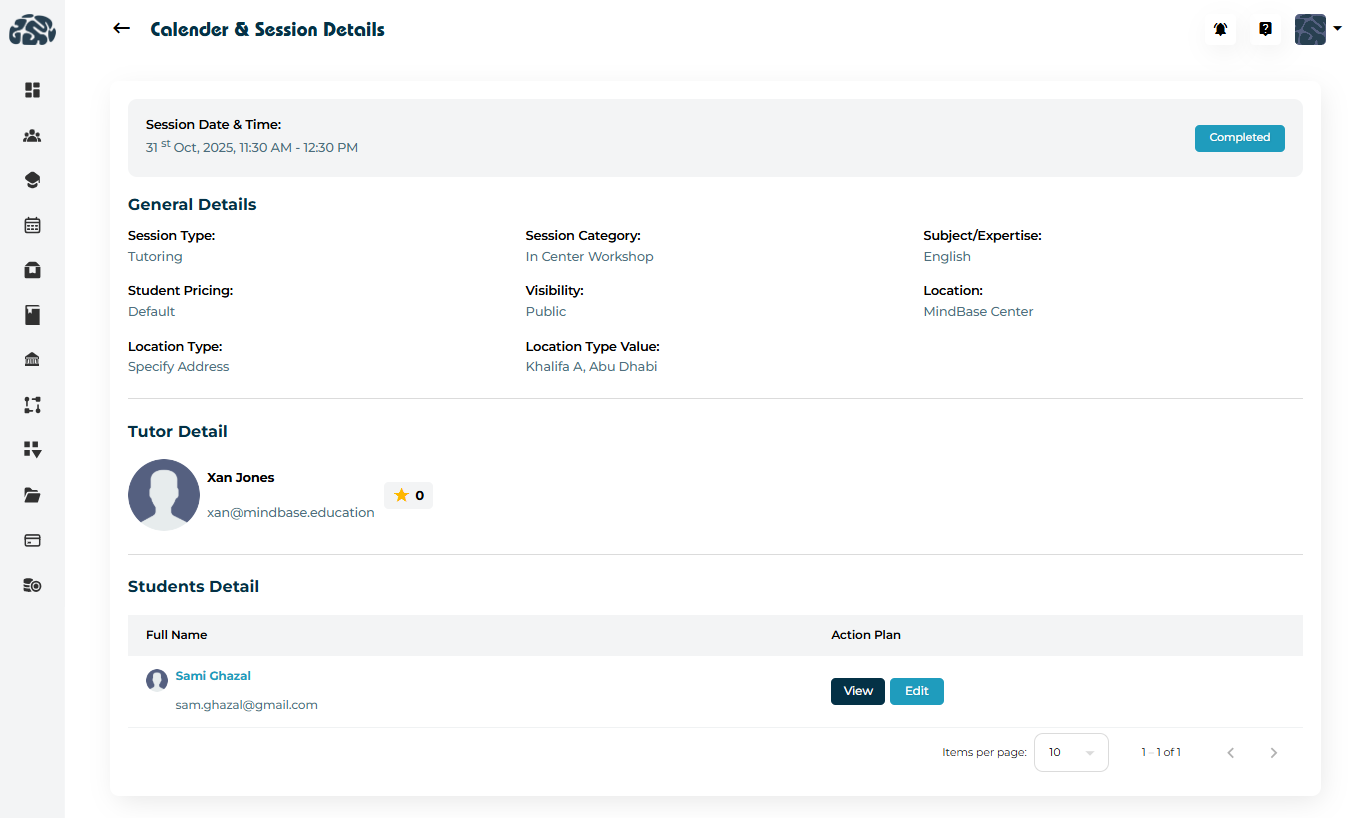
General Details
-
Session type
-
Session category
-
Subject/expertise
-
Student Pricing
-
Visibility
-
Location
-
Location type & value
-
Session Date & time
Instructor Details
-
Tutor/Counselor avatar
-
Name
-
Rating
-
Contact email
Student Details
-
Student name
-
Student email
-
Action Plan (View / Edit depending on session status)
Action Plan in Session Details
The Action Plan is considered a session report that allows admins and instructors to record:
1- Attendance per student
2- Performance per student by scoring the session based on the scores defined by admin and attached to this session catefory 3- Post-session notes and topics covered for all attendees.Action Plan for Pending & Upcoming Sessions
For Pending and Upcoming sessions, the session details page displays an Add button under the Action Plan column.
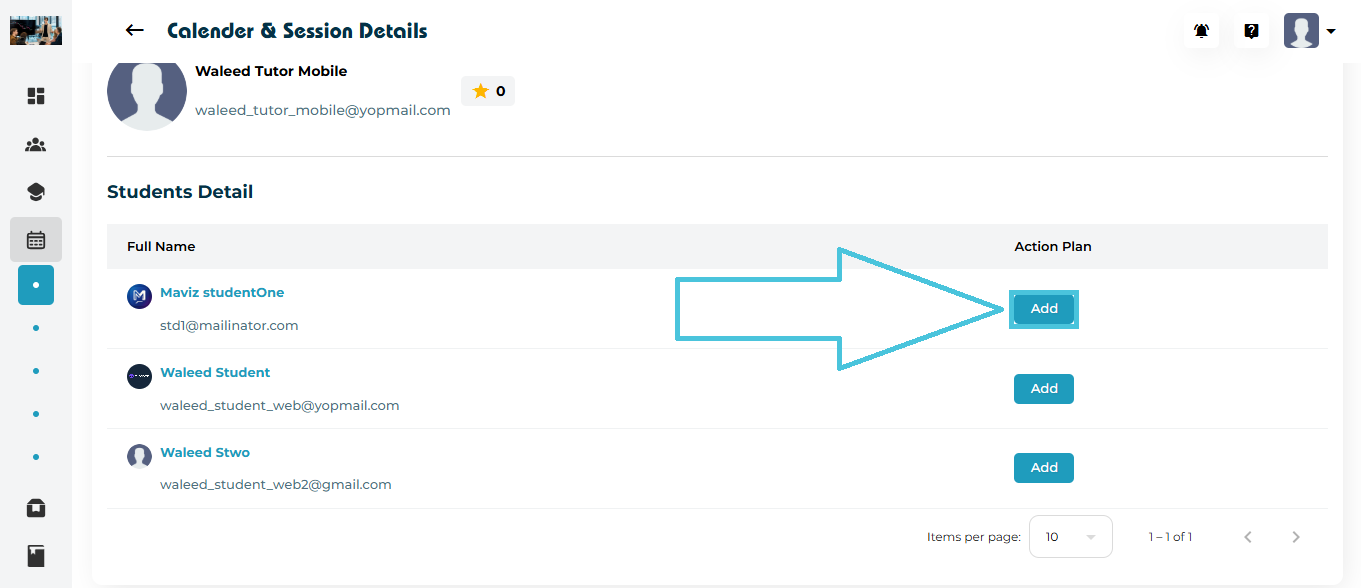
Clicking Add opens the Add Action Plan form, allowing admins or instructors to prepare or record session-related information.
Add Action Plan Form
The Add Action Plan form captures structured feedback and session outcomes.
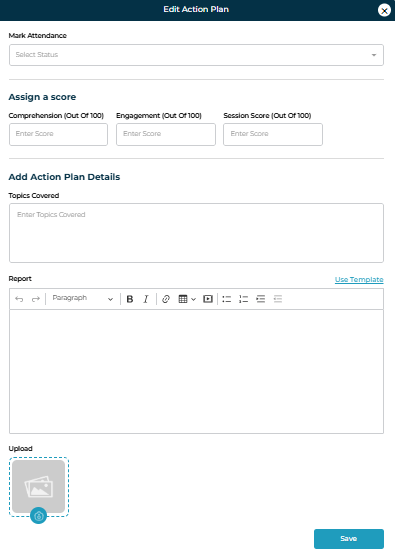
Action Plan Fields
| Field | Description |
|---|---|
| Attendance | Marks the student as Present or Absent for the session. |
| Scoring Fields | Rates the student’s based on the criteria attached to the session category defined by admin in the Scores & Ratings subtab under the main Calendar & Sessions main tab in the admin panel. |
| Topics Covered | Records the key topics discussed during the session. |
| Report | A rich-text editor for detailed session notes, observations, and feedback. |
| Upload | Allows uploading supporting files or resources related to the session. |
After entering the required information, click Save to store the action plan.
Action Plan for Completed Sessions
Once a session is marked as Completed, the Action Plan section changes to provide View and Edit options instead of Add.
Screenshot: View & Edit Action Plan Buttons (Completed Session)
This ensures that completed session records remain accessible for review while still allowing updates if required.
View Action Plan
Clicking View opens the Action Plan in a read-only format.
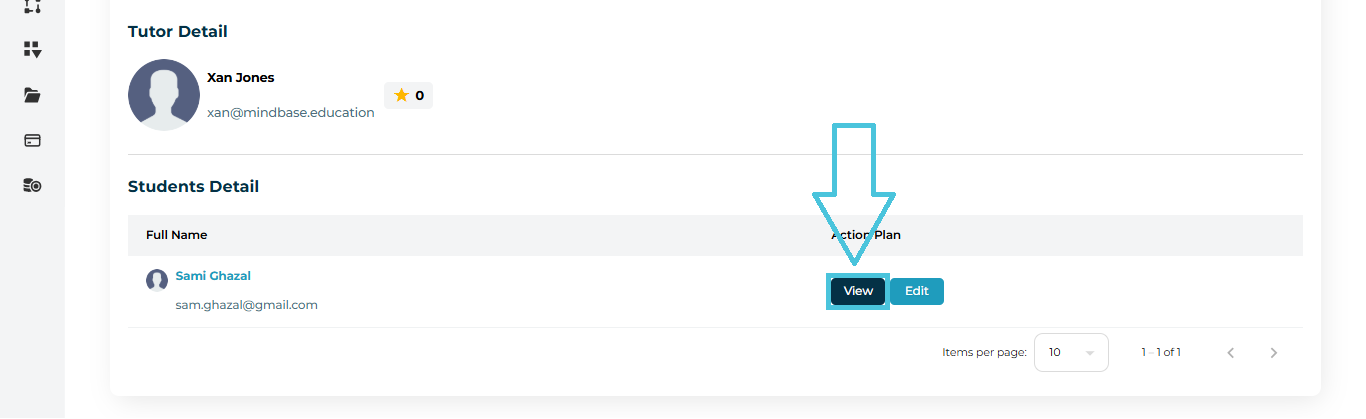
View Action Plan Details
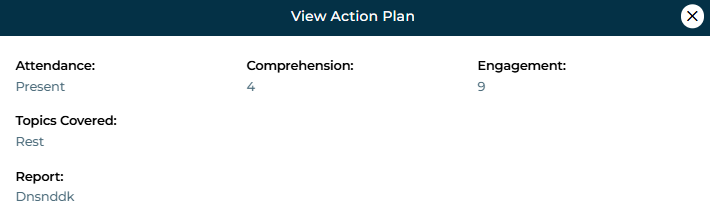
| Field | Description |
|---|---|
| Attendance | Displays whether the student was marked Present or Absent. |
| Scoring Metrics | Shows the recorded scores for the session. |
| Topics Covered | Lists the topics that were covered in the session. |
| Report | Displays the instructor’s session report and observations. |
This view is commonly used for academic reviews, quality checks, and performance tracking.
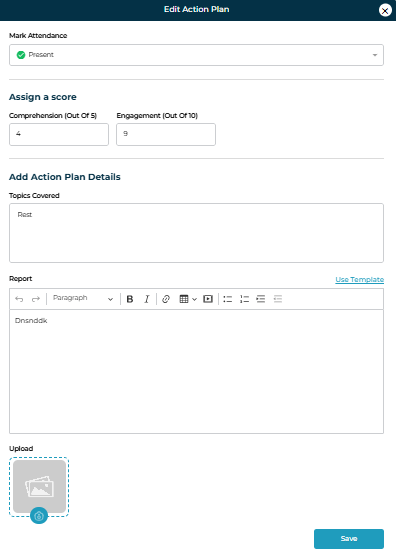
Edit Action Plan
Clicking Edit opens the Edit Action Plan form, pre-filled with existing data.
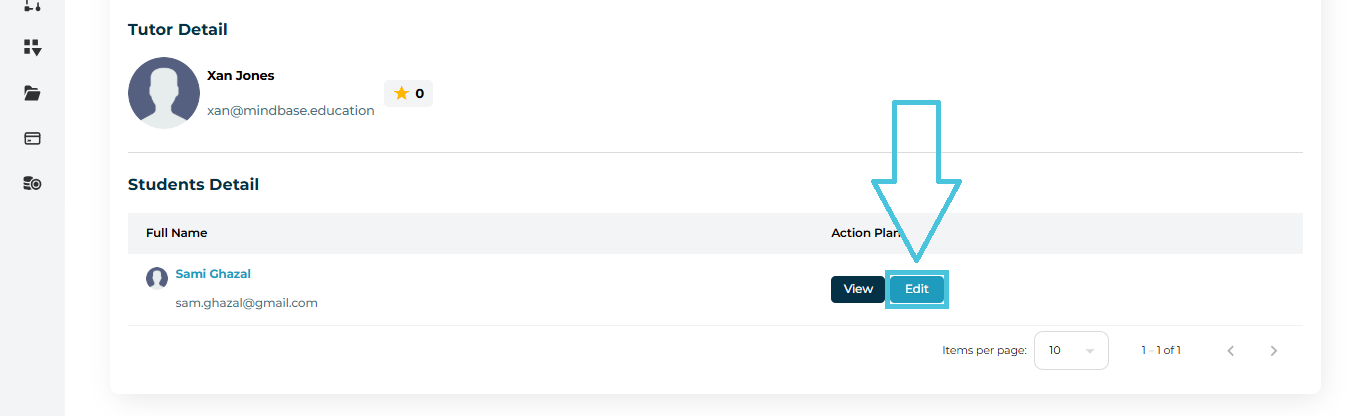
Edit Action Plan Fields
Summary of Action Plan Behavior by Session Status
| Session Status | Action Plan Options |
|---|---|
| Pending | Add Action Plan |
| Upcoming | Add Action Plan |
| Completed | View & Edit Action Plan |
| Cancelled | Action Plan not available |
The Table View displays all scheduled sessions in a structured, list-based format, making it easy to review, sort, and manage sessions at scale. This view is ideal for admins who need quick access to session details, statuses, and actions without switching between dates. It supports filtering and scanning multiple sessions efficiently in one place.
Table View Tabs
The table view of sessions displays 4 subtabs:
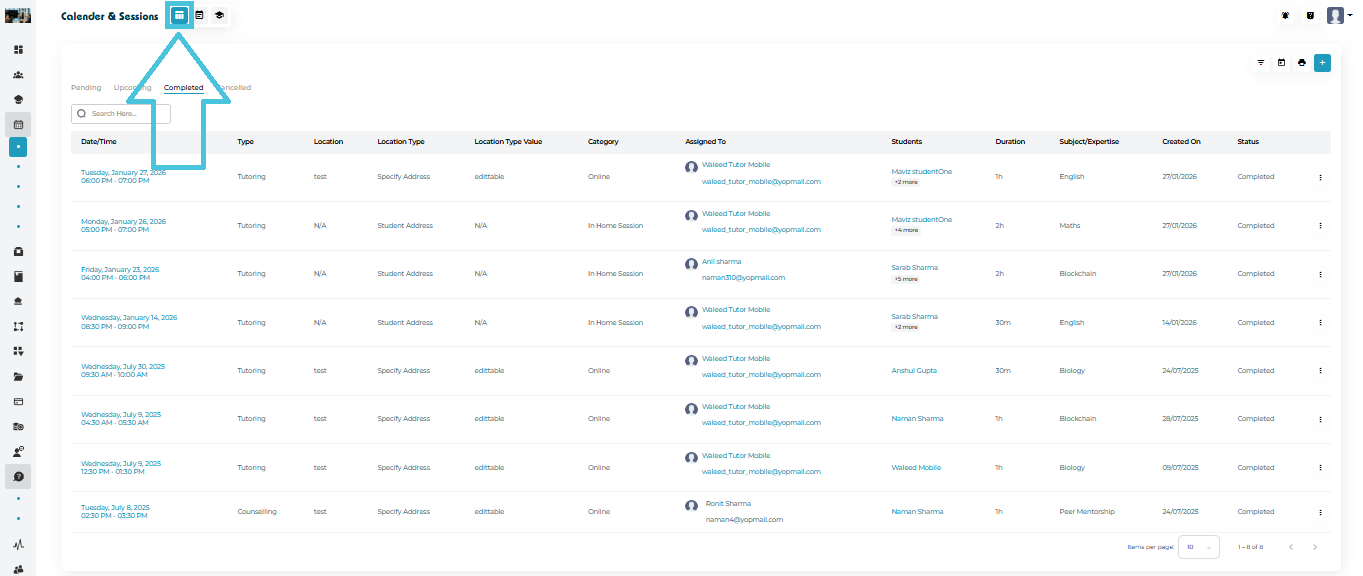
Pending – Sessions scheduled by admin or instructor and not yet accepted by students or parents.
Upcoming – Confirmed sessions scheduled or accepted by students or parents.
Completed – Sessions that have already taken place and the Action Plan is already completed.
Cancelled – Sessions that were cancelled.
Each tab displays sessions relevant to its state, while the table structure and actions remain consistent.
Table Columns Explained (Applies to All Subtabs)
| Column | Description |
|---|---|
| Date / Time | Displays the scheduled date and time of the session, including start and end time and by clicking it opens session details page. |
| Type | Indicates the session type, such as Tutoring or Counseling. |
| Location | Displays any location that is defined under the Session Category by admin or allows manual entry of the session location address. |
| Location Type | Specifies how the session location is determined (e.g., Student Address or Virtual Link) as defined by admin when creating a Session Category. |
| Location Type Value | Displays the actual location type value when applicable as defined by admin. |
| Category | These are defined by admin from the Session Categories subtab under the main Calendar & Sessions main tab in the admin panel. An example would be In Home Session or Online Session. |
| Assigned To | Displays the assigned instructor, including name and email. |
| Students | Lists the primary student and indicates if additional students are included. |
| Duration | Shows the total duration of the session. |
| Subject / Expertise | Displays the subject or expertise associated with the session. |
| Created On | Shows the date the session was created in the system. |
| Status | Indicates the current session status (Pending, Upcoming, Completed, or Cancelled). |
| Actions | Provides quick access to View, Edit and Delete session actions. |
This unified approach reduces repetition and allows admins to manage all session states from one consistent interface.
Filtering Sessions
At the top right of All Sessions, click the Filter icon to open advanced filtering options.
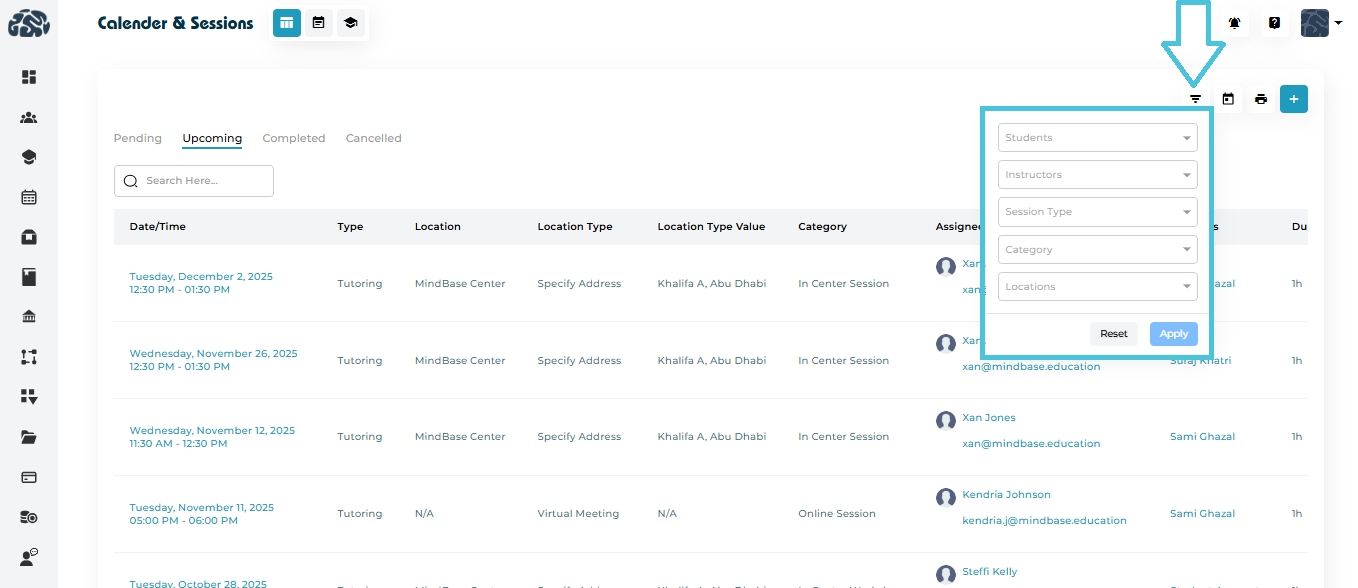
You can filter sessions by:
Students
Instructors
Session Type
Category
Location
Click Apply to refine the displayed list.
Click Reset to return to all sessions.
Filters help teams quickly locate sessions for a specific instructor, day, subject, or group of students.
Searching for Sessions
Use the search bar available in list view and all tab views to search for:
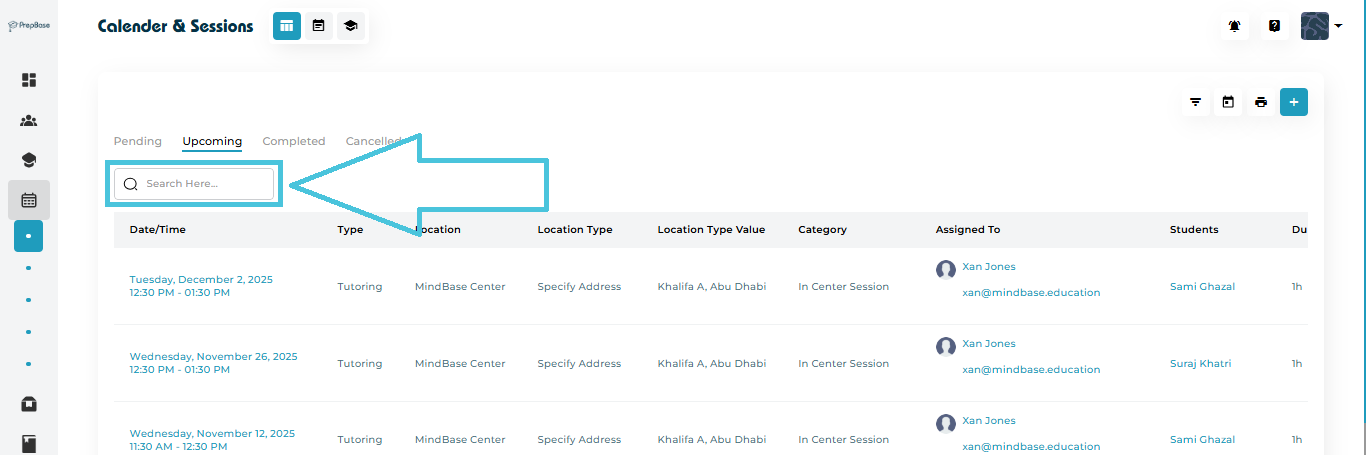
Student names
Instructor names
Session types
Dates
The module instantly filters the displayed sessions.
Print Table (Export Schedule)
The Print button (printer icon) lets admins generate a print-friendly copy of the currently visible Table schedule. This is useful when you need a hard copy for coordination, meetings, or offline review.
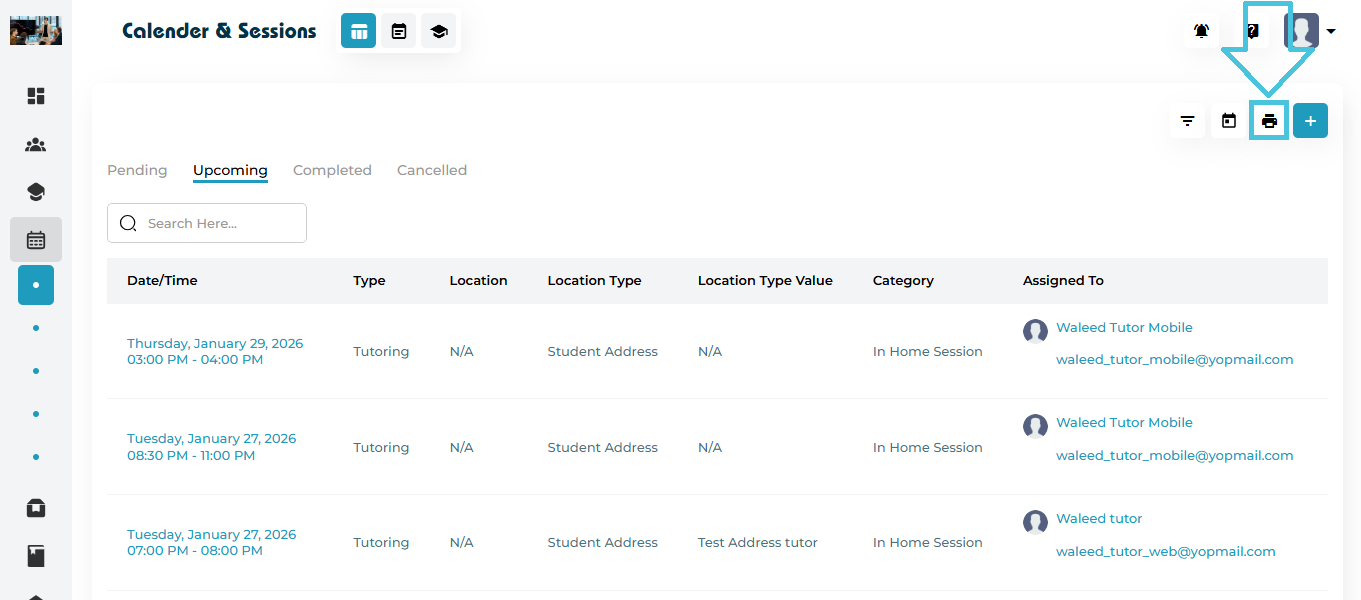
What this action does
Opens the Sessions table in a print preview format
Captures the whole list
Prints the schedule based on the filters currently applied (so you only print what you’re viewing)
Note: For best results, apply filters before printing so only relevant sessions appear.
The Calendar View provides a visual, interactive overview of all scheduled sessions and events across students, instructors, and counselors. It allows admins to quickly understand availability, manage schedules efficiently, and make real-time adjustments without leaving the calendar interface.
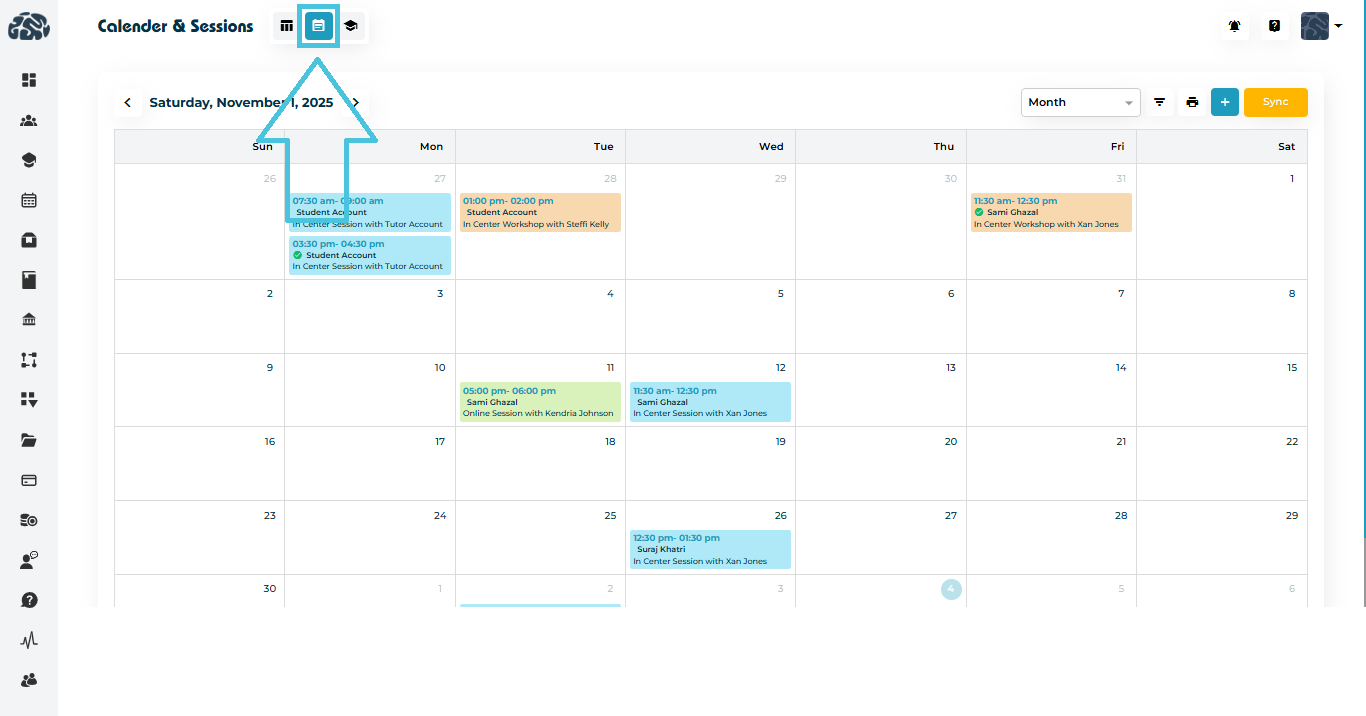
This view is designed for day-to-day operational control, especially when managing a high volume of sessions.
Available Calendar Views
Admins can switch between multiple calendar layouts depending on their scheduling needs:
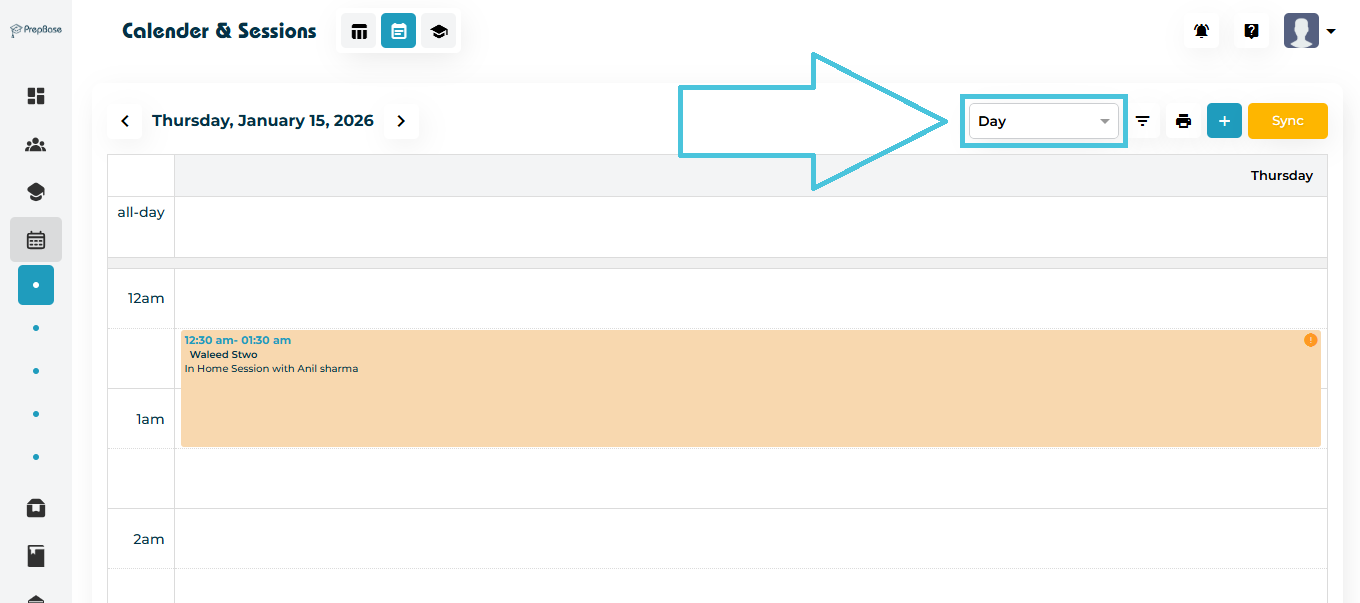
Day View – Focuses on sessions scheduled for a single day, ideal for detailed daily planning
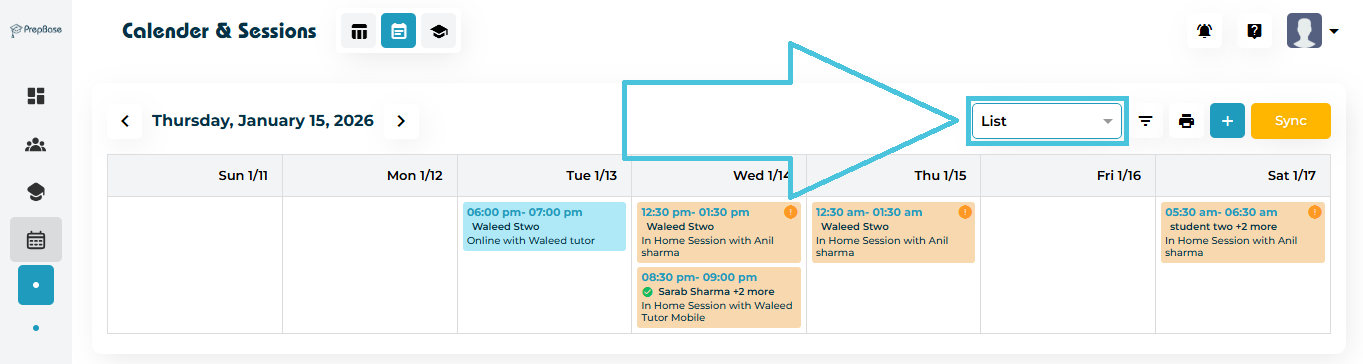
Week View – Displays all sessions across a full week for broader workload visibility
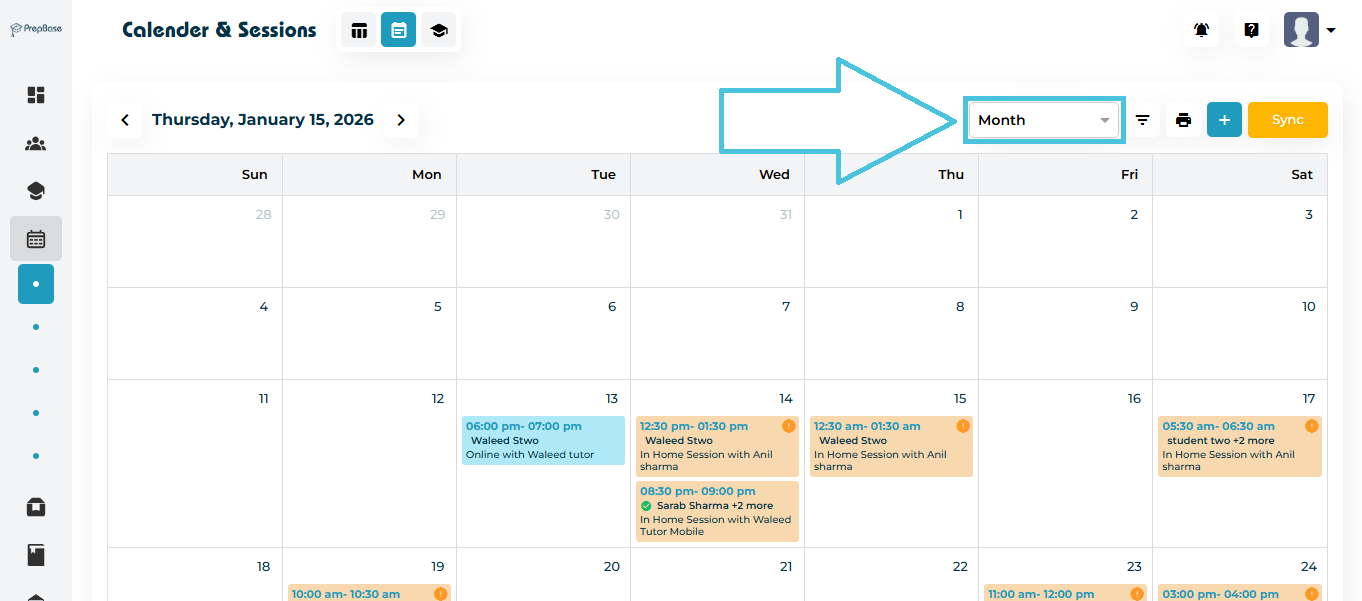
Month View – Provides a high-level overview of scheduled sessions and upcoming events
Each view updates dynamically based on applied filters.
Session Cards in Calendar View
Each session displayed on the calendar appears as a session card, which includes:
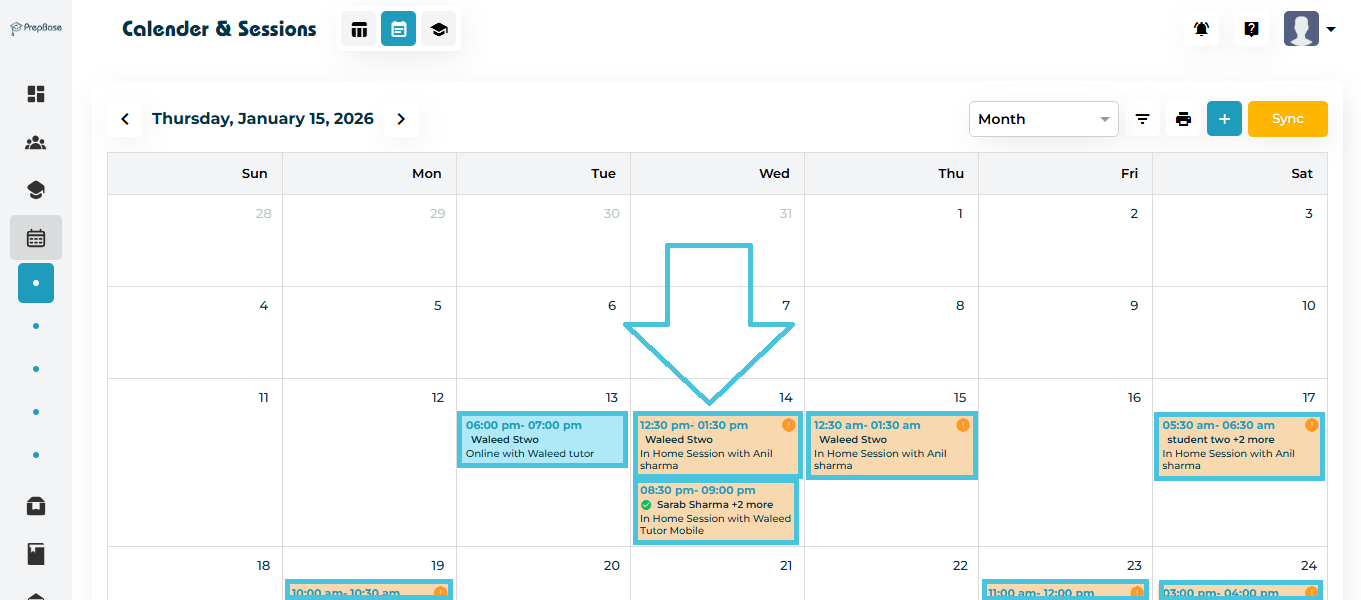
Student name
Assigned instructor
Session category
Start and end time
IMPORTANT NOTES:
1- Color-coding is based on the admin selection while creating the Session Category.
2- The ORANGE EXCLAMATION MARK icon represents Pending Sessions.
3- Once attendance is taken the name of the student will display a green checkmark if present and a red X if absent.
4- Cancelled sessions are greyed out on the calendar view.
5- Dragging the session card to another date wil automatically reschedule the session at the same time for the new date.
Session Card Details
When an admin clicks on any session card in the Calendar View, a detailed session panel opens. This panel provides a quick overview of the session along with multiple action buttons for managing the session without leaving the calendar.
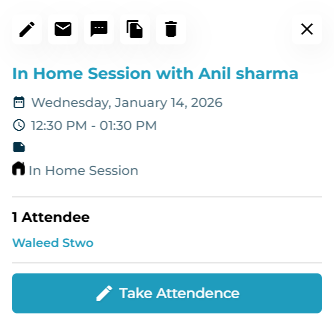
Session Information Displayed
The session card details panel displays the following information:
Session title (Session category and instructor name)
Scheduled date
Session time (start and end)
- Location type value and location address if applicable
Session category
- Public or private notes
Number of attendees
List of assigned students
This allows admins to quickly review session details before taking any action.
Session Card Action Buttons
At the top of the session card details panel, multiple action icons are available. Each button performs a specific function.
Action Buttons Explained
| Button | Description |
|---|---|
| Edit Session | Opens the Edit Session form, allowing admins to modify session details such as date, time, tduration, or students. |
| Sends an email related to the session to the assigned student(s). | |
| SMS | Sends an SMS notification related to the session. |
| Duplicate Session | Creates a copy of the session with the same details by specifying the target date and time, allowing quick replication of similar sessions. |
| Delete Session | Permanently deletes the session from the system after confirmation. |
| Close | Closes the session card details panel and returns to the calendar view. |
These actions allow admins to manage sessions efficiently without navigating away from the calendar.
Taking Attendance from Calendar View
Admins can take attendance directly from the session card details panel. 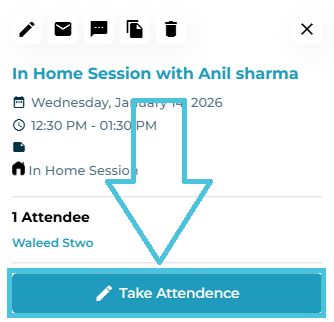
Student Attendance List
When the Take Attendance button is clicked from a session card in the Calendar View, the Student Attendance List panel opens. This screen allows admins to mark attendance and manage action plans for each student associated with the session.
Attendance Screen Overview
The Student Attendance List displays all students linked to the session in a tabular format. Each row represents one student and provides controls to record attendance and manage the student’s action plan.
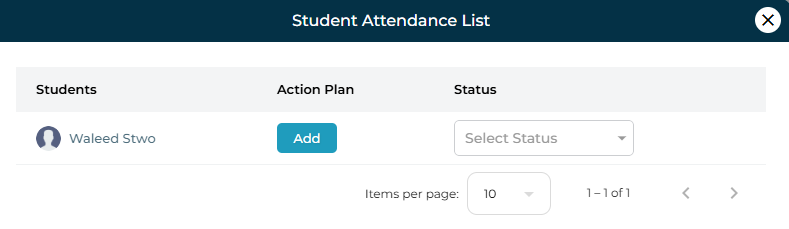
Attendance Table Columns Explained
| Column | Description |
|---|---|
| Students | Displays the student’s name associated with the session. |
| Action Plan | Allows admins to add or manage the action plan for the student. |
| Status | Used to mark the attendance status of the student for the session. |
Marking Attendance
To mark attendance for a student:
Locate the student in the list
Open the Status dropdown
Select the appropriate attendance status (e.g., Present or Absent)
Attendance is saved instantly once selected.
Adding an Action Plan from Attendance Screen
The Add button under the Action Plan column allows admins to create an action plan directly while marking attendance.
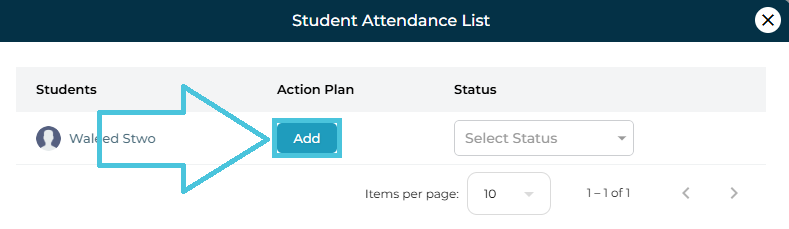
Clicking Add opens the Add Action Plan form
Admins can record:
Attendance confirmation
Performance scores
Topics covered
Session report
This ensures session outcomes are captured immediately after attendance is recorded.
Duplicate Session
The Duplicate Session action allows admins to quickly create a copy of an existing session without re-entering all session details. This is especially useful for scheduling recurring or similar sessions.
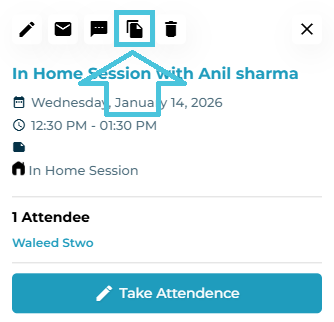
How to Duplicate a Session
Open Calendar View
Click on the session card you want to duplicate
Click the Duplicate Session (copy) icon from the session card actions
This opens the Duplicate Session confirmation window.
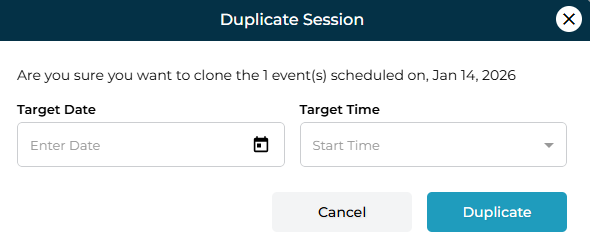
Duplicate Session Confirmation
The confirmation window displays a message confirming the session being cloned and allows admins to define the new schedule.
Duplicate Session Fields
| Field | Description |
|---|---|
| Target Date | Select the date on which the duplicated session should be scheduled. |
| Target Time | Select the start time for the duplicated session. |
Completing the Duplication
Click Duplicate to create the new session
Click Cancel to exit without duplicating
Once duplicated:
The new session retains the same:
Session type
Tutor or counselor
Subject or expertise
Duration
Location settings
Students
Only the date and time are changed based on the selected target values
The duplicated session immediately appears in:
Calendar View on the selected date and time
Table View under the appropriate tab (Pending or Upcoming)
Drag & Drop Scheduling
The calendar supports drag-and-drop functionality for faster schedule adjustments:
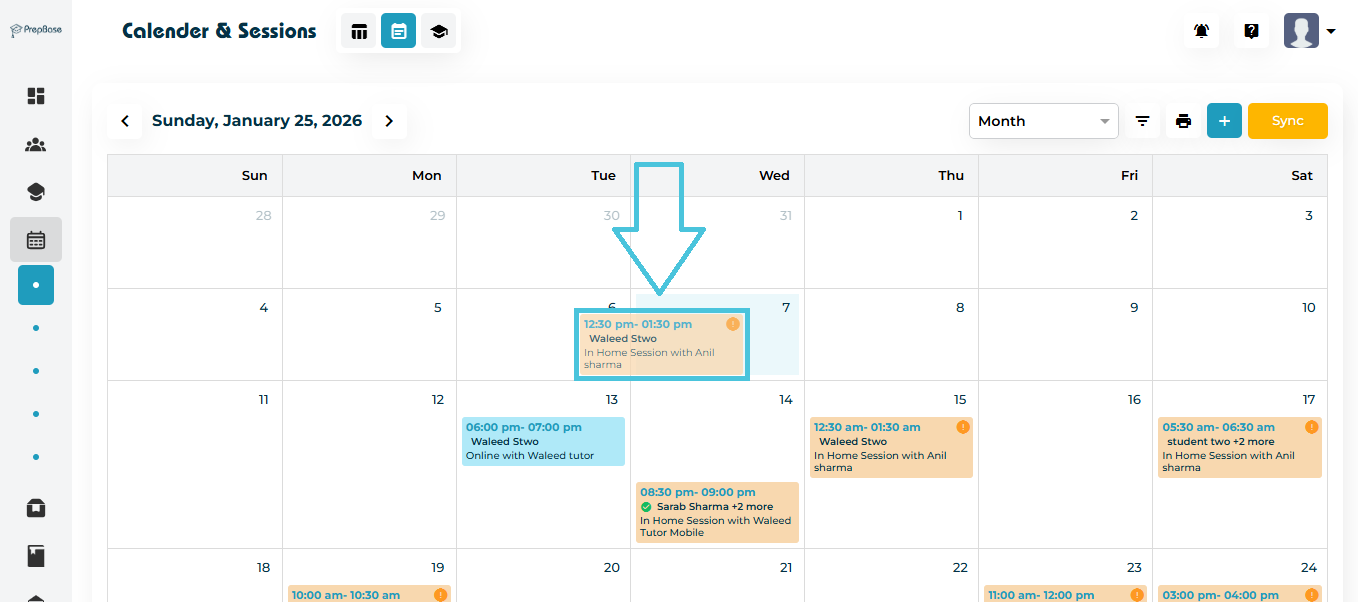
Move a session to another day directly from the calendar
Changes are saved instantly and reflected across all related profiles
This eliminates the need to open the session edit form for minor scheduling changes.
⚠️ Drag & drop respects instructor availability and conflict rules where applicable.
Calendar Filters
The filter panel allows admins to narrow down visible sessions based on specific criteria, such as:
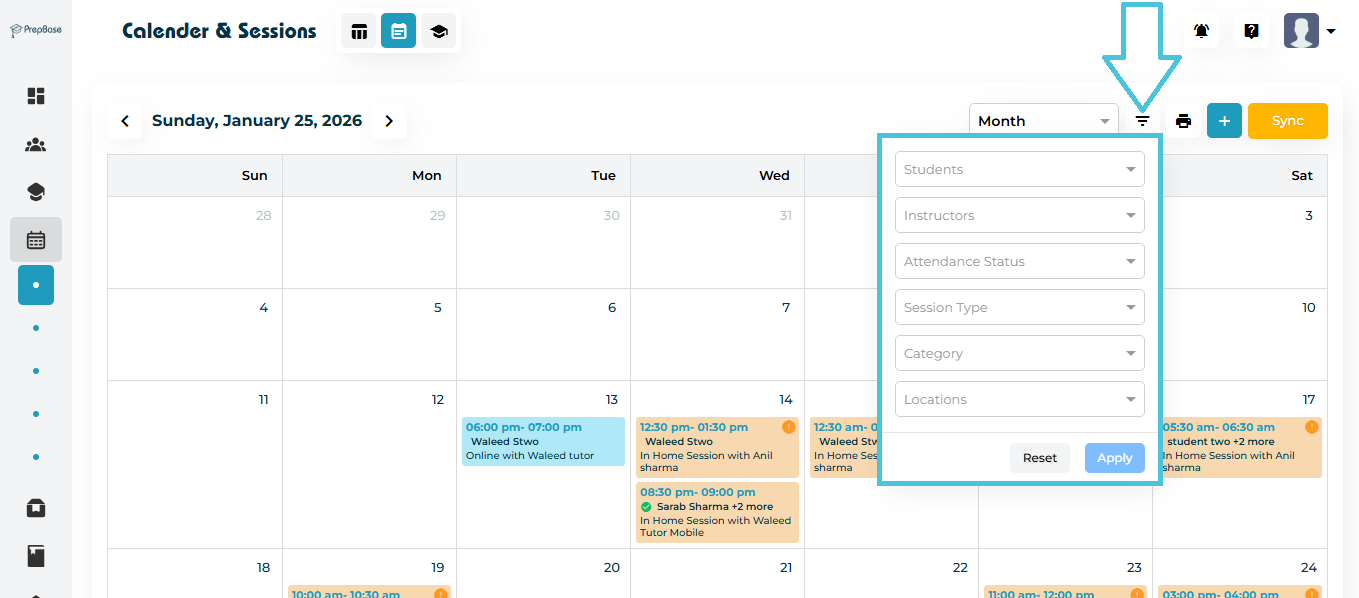
Student
Instructor
- Attendance status
Session type
Session category
Session location
Filters can be applied individually or in combination, helping admins focus on exactly what they need to manage.
Filters apply instantly and update the calendar view in real time.
Print Calendar (Export Schedule)
The Print button (printer icon) lets admins generate a print-friendly copy of the currently visible calendar schedule. This is useful when you need a hard copy for coordination, meetings, or offline review.
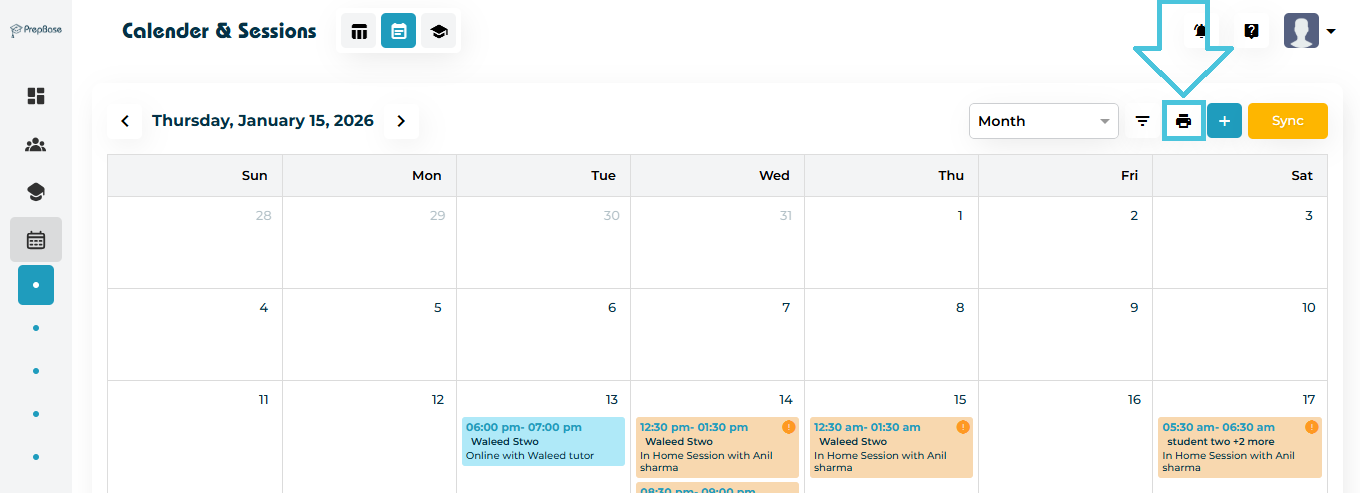
What this action does
Opens the calendar in a print preview format
Captures the same date range and view you are currently using (e.g., Month / Week / Day)
Prints the schedule based on the filters currently applied (so you only print what you’re viewing)
Note: For best results, apply filters before printing so only relevant sessions appear
Quick Actions from Calendar
From the calendar itself, admins can perform several actions without navigating away:
Open session details
Edit session information
Cancel or update session status
Duplicate sessions
Review session assignments
This ensures accurate scheduling data at all times.
Sync Sessions With Your Own Calendar
In the Month/Week/Day views, a Sync button appears on the top right.
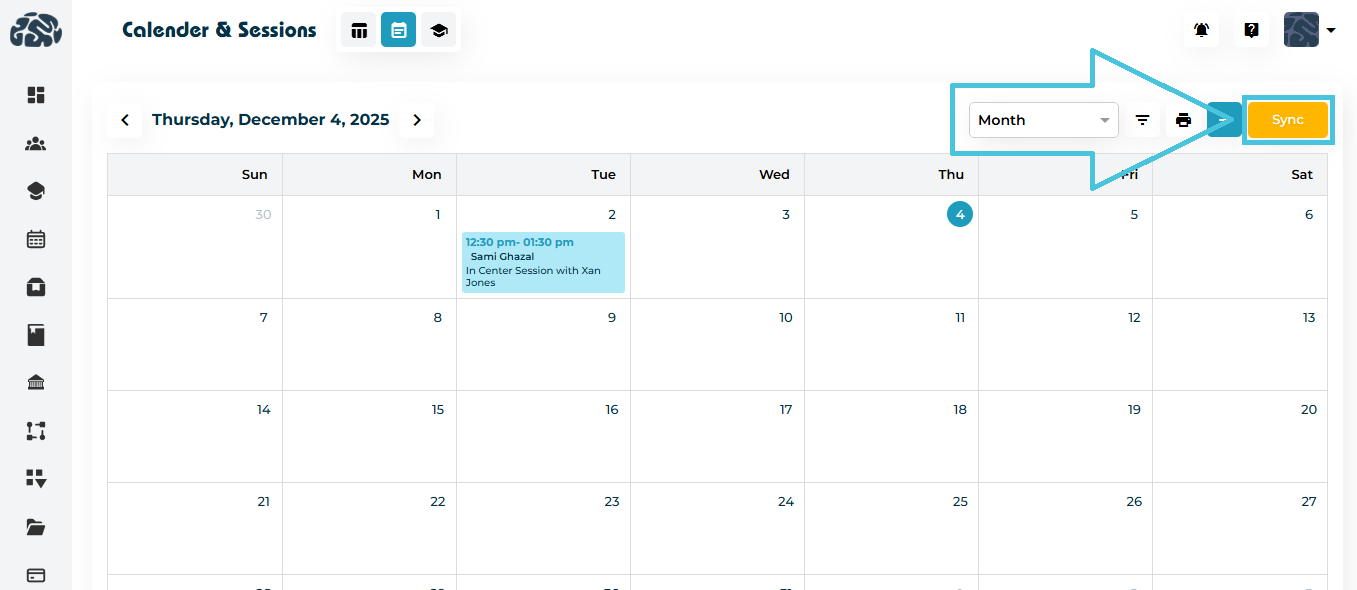
This allows administrators or instructors to sync their sessions with an external calendar (Google Calendar, Outlook, Apple Calendar, etc.), ensuring seamless personal schedule management.
Shows two subtabs to quickly view Tutors and Counselors availability on the calendar in a daily view
:
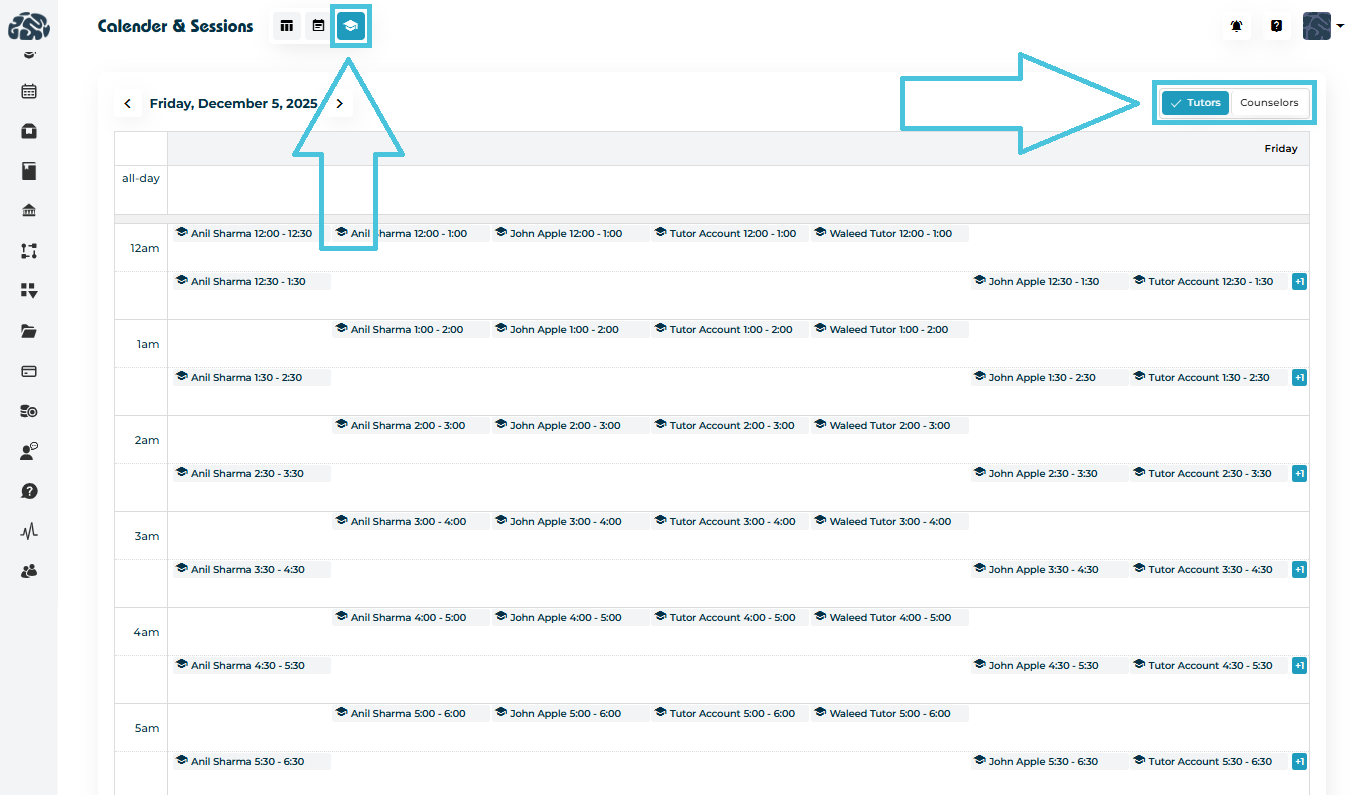
Perfect for front-desk teams scheduling facilities or for coordinators managing instructor availability.