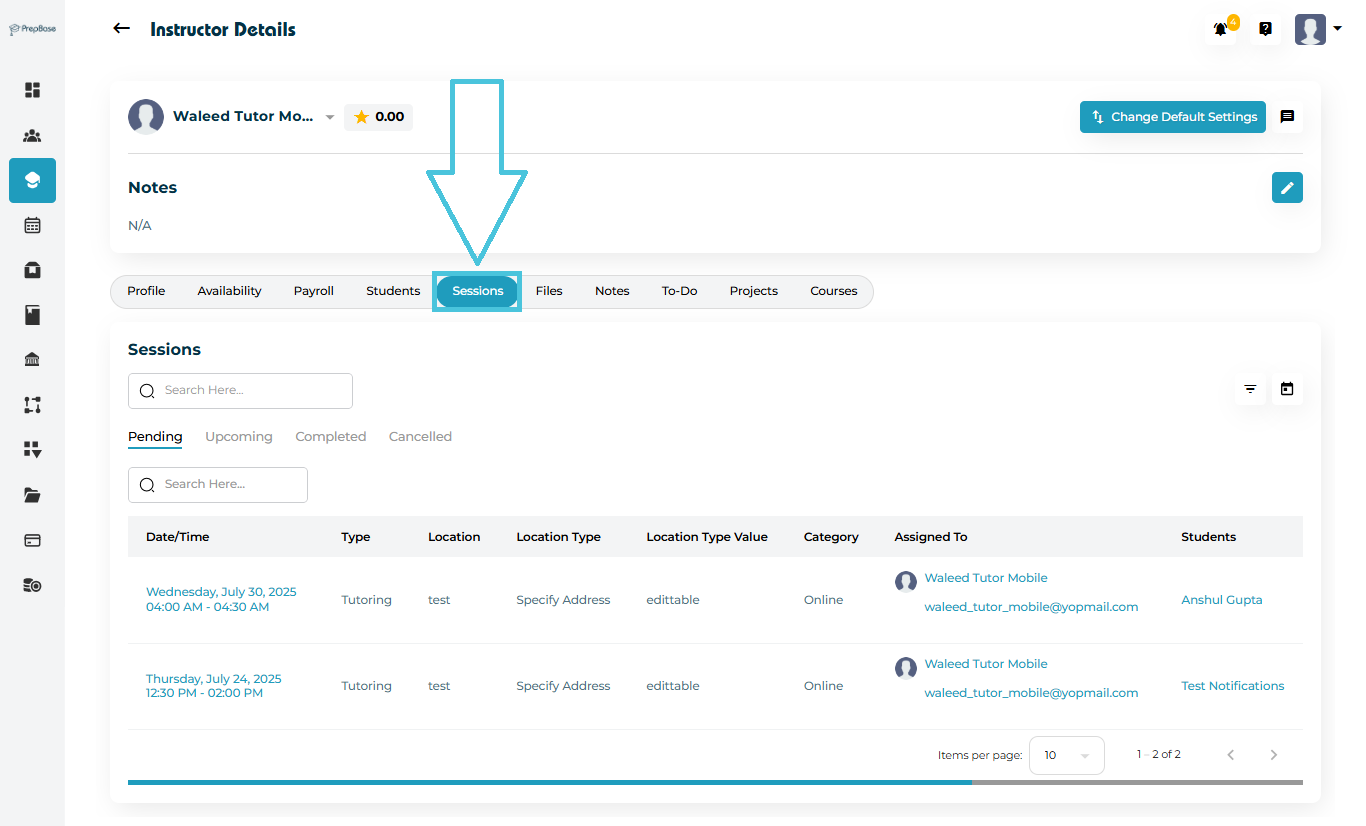
Navigate to Instructors in the left-hand menu.
Open any instructor’s profile.
Click the Sessions tab in the top navigation bar.
You will see four main categories:
Pending (Sessions scheduled by instructors or admins and not yet accepted by the students or parents)
Upcoming (Scheduled by the students/parents or scheduled by instructors/admins and accepted by the student/parent)
Completed (Conducted successfully; Action plan completed by the tutor or counselor and attendance is taken)
Cancelled (Session was cancelled by the student/parent, tutor/counselor, or admin)
Each category presents a structured table showing all relevant sessions.
The Pending tab displays all sessions that are scheduled but not yet accepted by the student or parent.
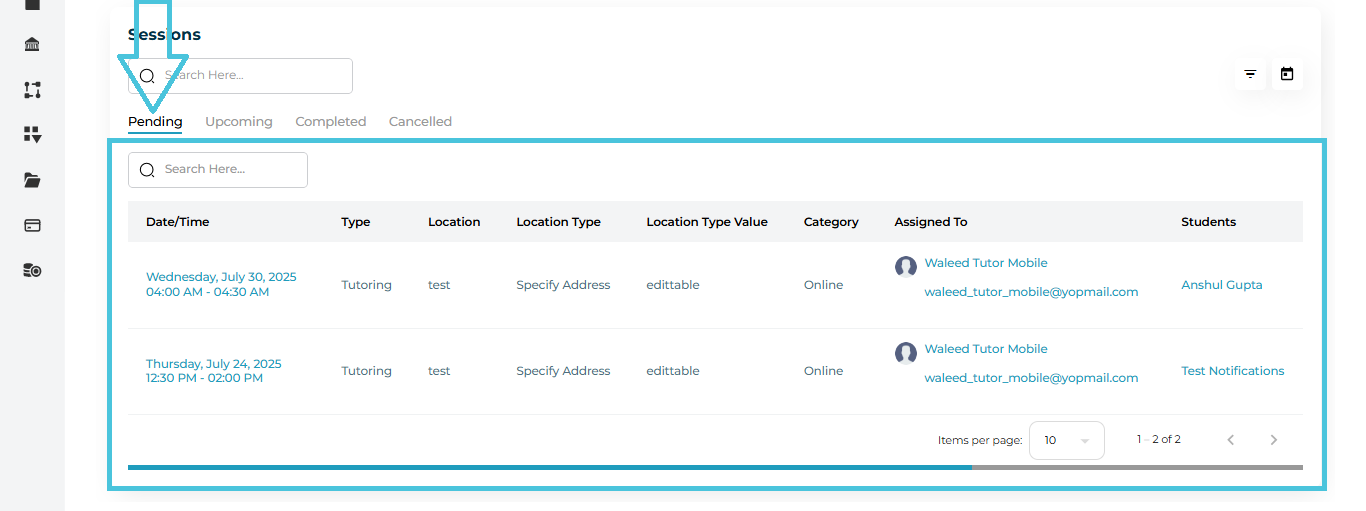
Information displayed in the Pending list
Each row shows:
Date & Time
Session Type (Tutoring or Counseling)
Location
Location Type (Specify Address, Online, etc.)
Location Value
Category (as defined by admin in the Sessions Cateogries subtab within the Calendar & Sessions main tab in the admin panel)
Assigned Instructor
Student(s)
To learn more about session types, categories, locations, and location types, please visit the Calendar & Sessions section
Search & Filter Tools
You can narrow results using:
Search bar to find sessions by time, student name, or category.
Filter panel with:
Attendance Status (only for completed sessions)
Session Category
Date Range
 Click Apply to filter results Click Reset to clear filters
The Upcoming tab shows all future confirmed sessions for the instructor.
This area is useful for understanding the instructor’s current teaching schedule and planning workload.
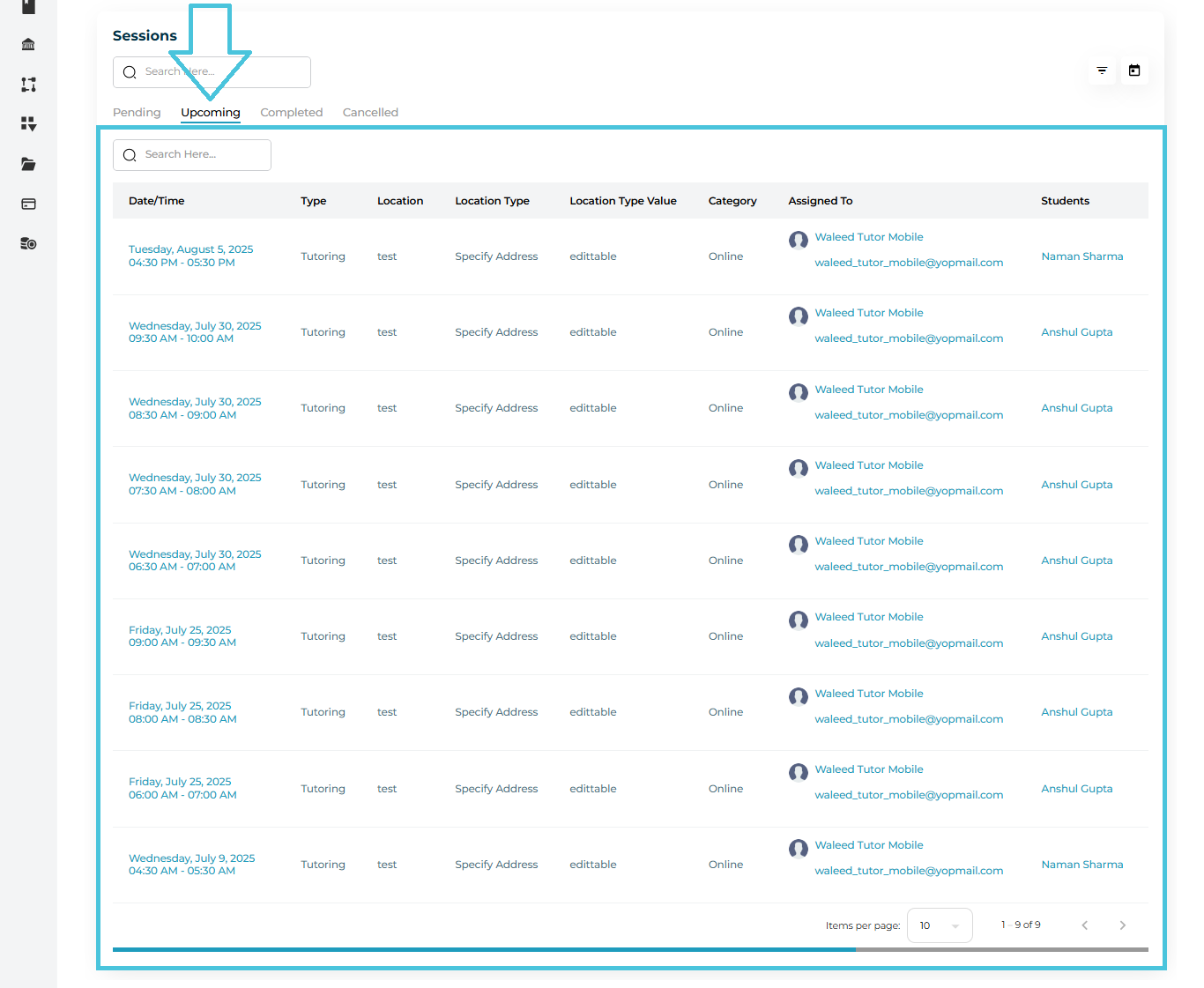
What you see in Upcoming sessions
Full list of future dates
Session type, location, location type, and category
Student name(s)
Exact time range
Assigned instructor details
Sessions appear in chronological order for quick planning and supervision.
The Completed tab displays all sessions the instructor has successfully delivered.
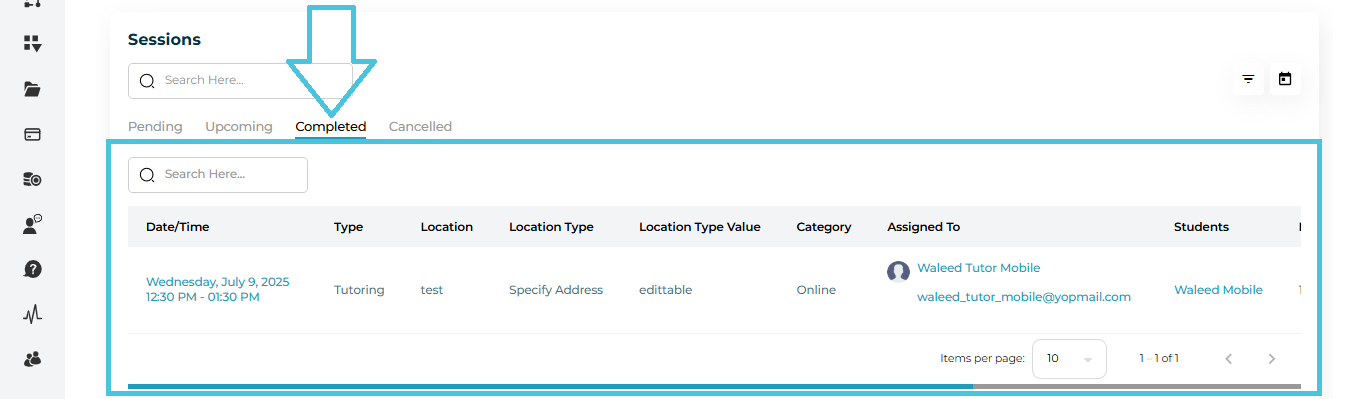
This table includes:
Date & Time
- Session Type
Location and Location Type
Category
Instructor assigned
Students who attended
Completed sessions are useful for:
Performance reviews
Session count validation
Payroll verification
Attendance tracking
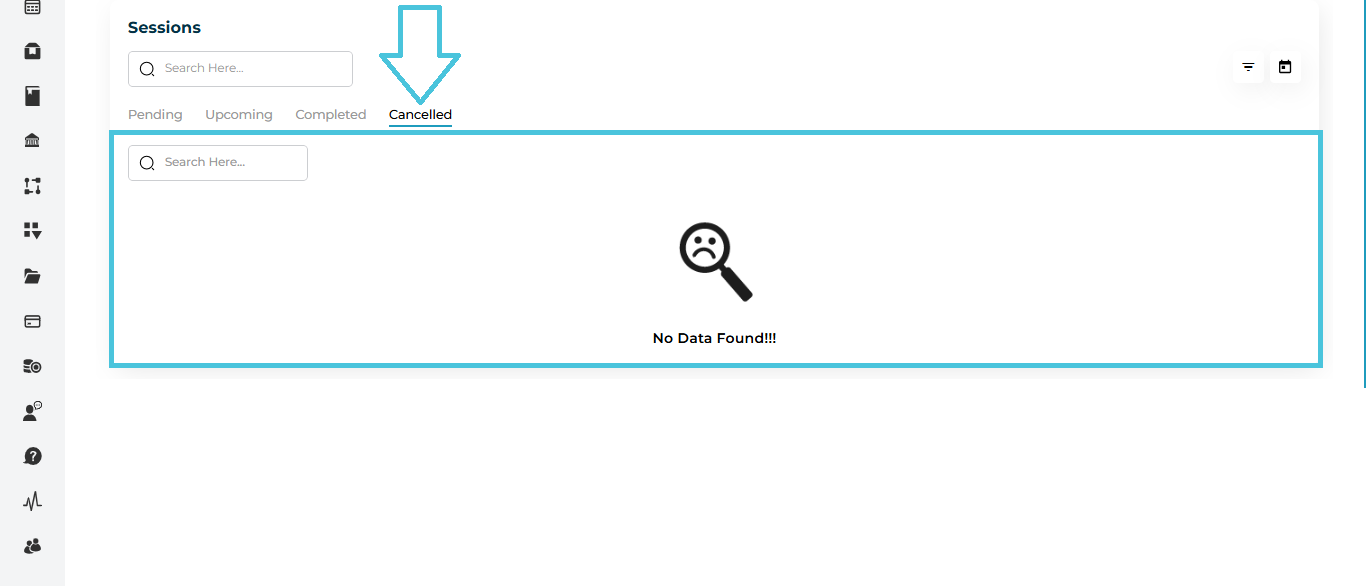
The Cancelled tab lists all sessions that were cancelled, regardless of reason.
This table includes:
Date & Time
- Session Category
Location and Location Type
Category
Instructor assigned
Student name(s)
If no sessions are cancelled, you will see:
“No Data Found”
Cancelled sessions help administrators track patterns such as:
Last-minute cancellations
Student no-shows
Instructor schedule conflicts
Across each tab, PrepBase provides robust filtering tools:
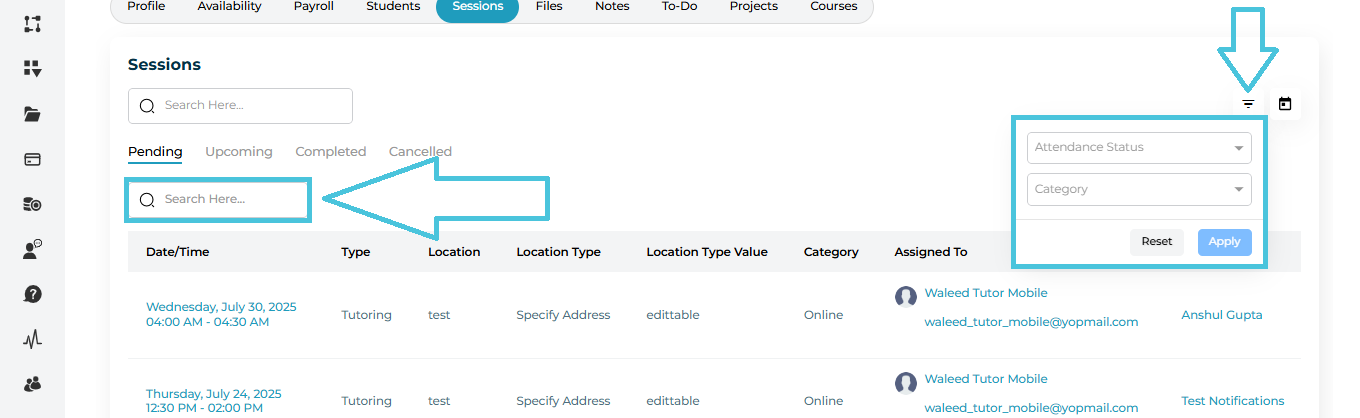
Search Bar
Search by:
Student name
Session type
Date
Category
Location
Filter Panel
Open the filter icon to sort sessions by:
Attendance status (for completed sessions only)
Session Category
These tools make it easy to quickly locate specific sessions or review activity within specific timeframes.