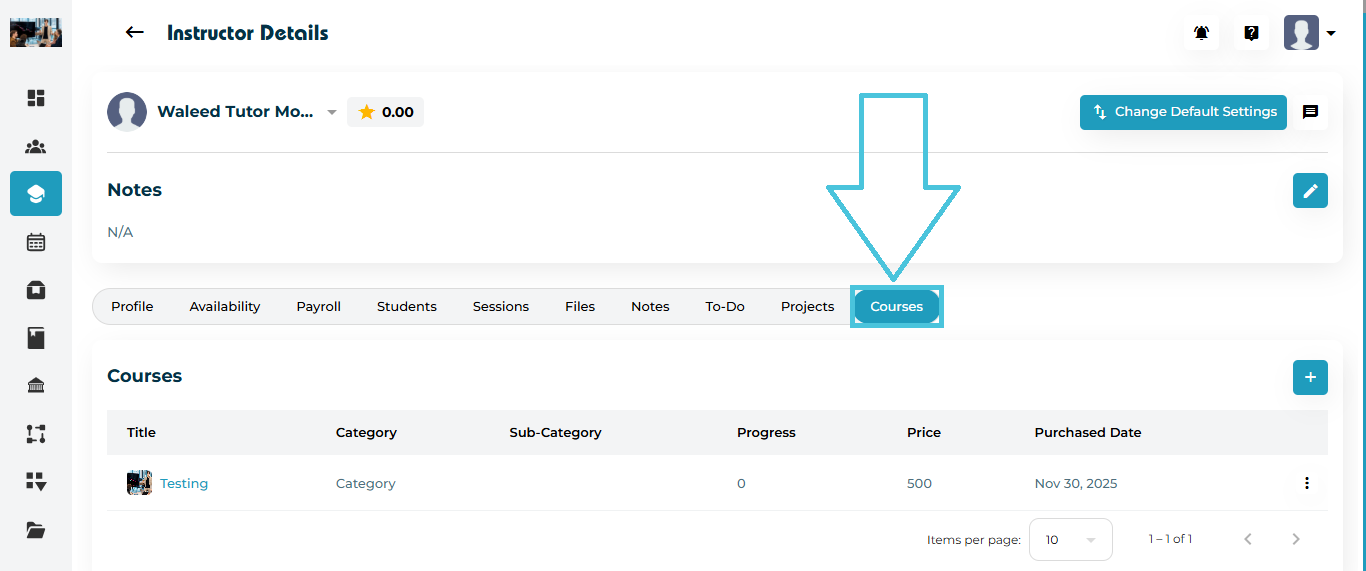
Go to Instructors from the left sidebar.
Open any instructor profile.
Navigate to the Courses tab.
Here, you will see a complete list of all courses associated with the instructor, including:
Course Title
Category & Sub-Category (defined by Admin from the Categories subtab within the Resource Management main tab in the admin panel)
Progress %
Price
Purchased Date
Three-dot menu (View / Delete)
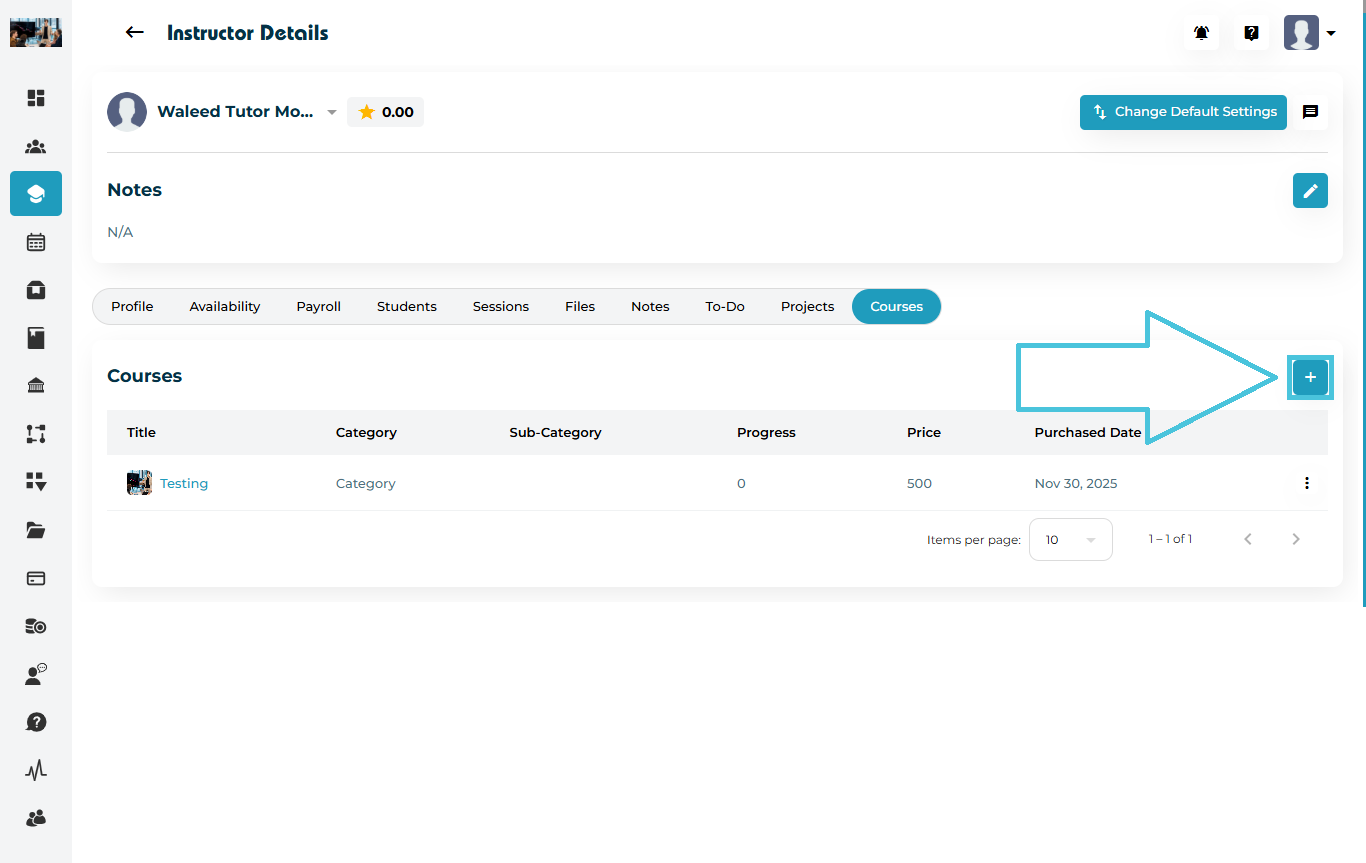
To enroll an instructor in a new course:
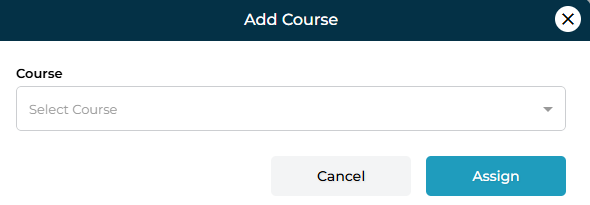
Click the ➕ Add Course button on the top-right.
A form titled Add Course will appear.
Select the desired course from the dropdown.
Click Assign to complete enrollment.
Once assigned, the newly added course appears instantly in the list with all relevant information.
To see the instructor’s progress within a course:
Click the three-dot menu (⋮) next to any course.
Select View.
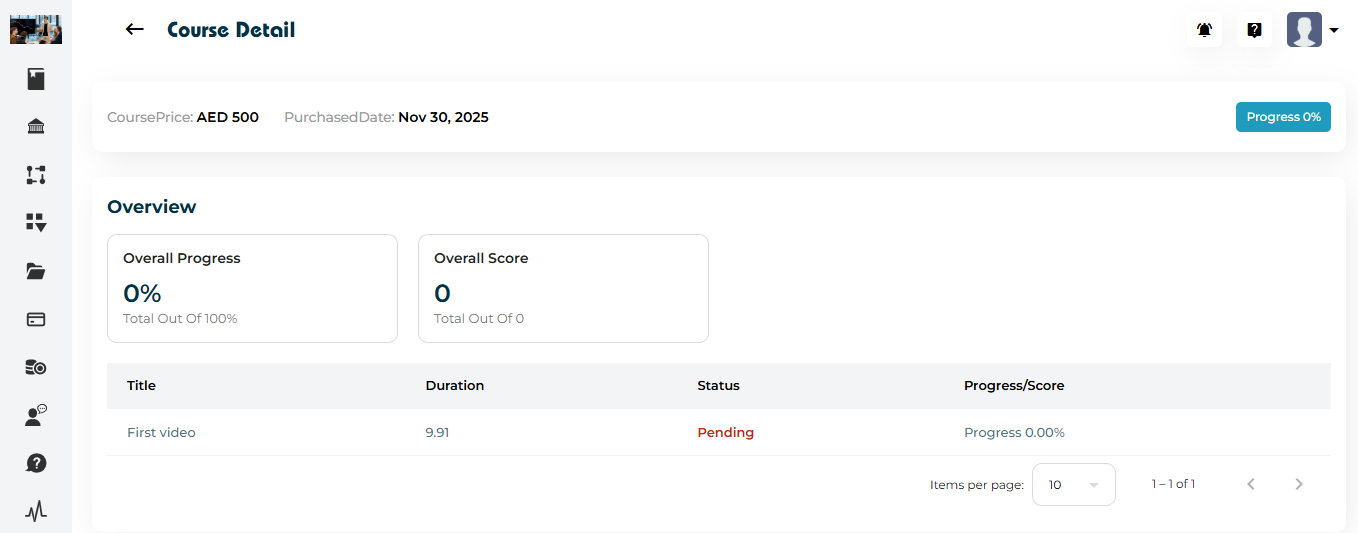
The Course Detail page displays:
Course Overview
Overall Progress (0–100%)
Overall Score (if quizzes are added)
Course Price
Purchase Date
Module-Level Information
Each module or lesson shows:
Title
Duration
Status (Pending / Completed)
Progress score
This helps you understand how far along the instructor is within the course.
If a course was assigned by mistake or the instructor should no longer be associated with it:
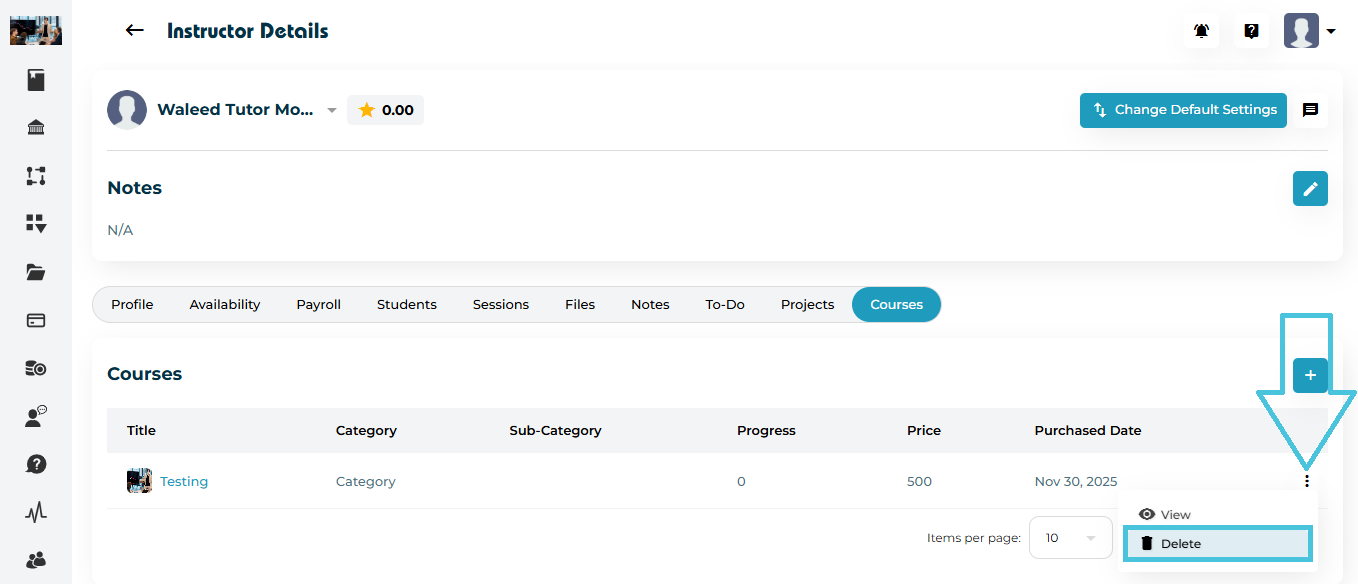
Click the three-dot menu (⋮) on the course row.
Choose Delete.