To manage projects for any instructor:
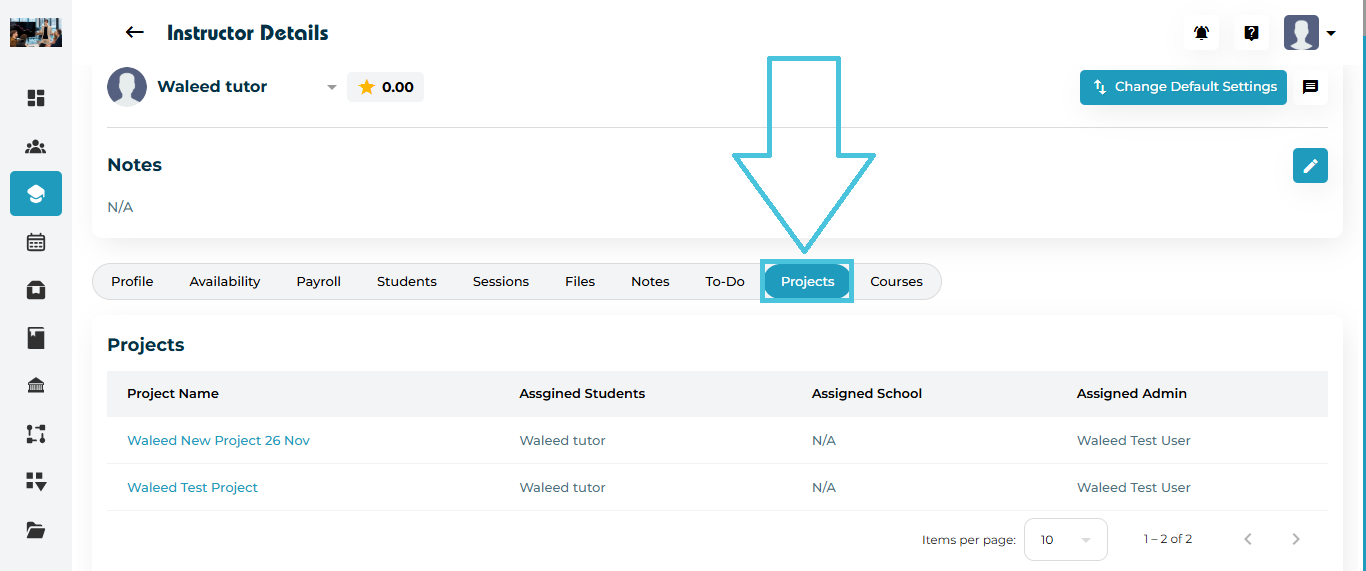
Go to Instructors from the left sidebar.
Select the instructor whose projects you want to manage.
Click the Projects tab on the top navigation bar.
The page will display a list of all projects linked to the selected instructor. Admin users can link instrcutors to a project from the main Projects tab in the admin panel.
The project table includes:
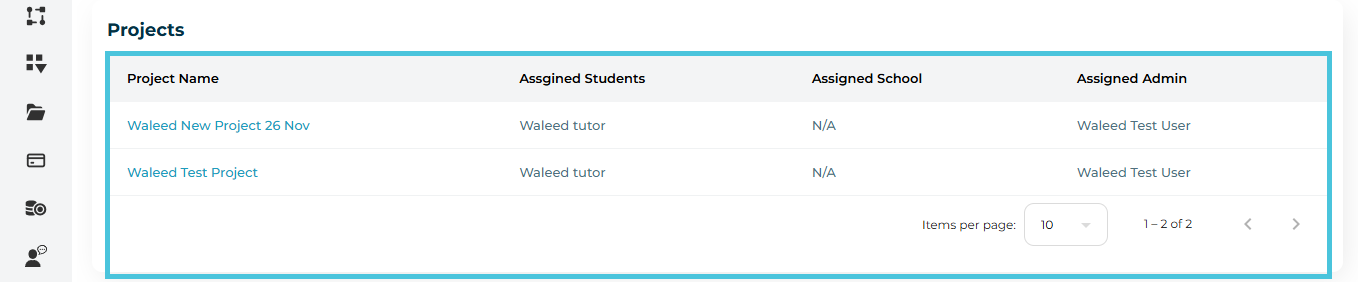
Project Name
Assigned Students
Assigned School
Assigned Admin
Clicking any project name (e.g., Waleed Test Project) opens the Project Detail Page, where additional project components appear such as:
Tasks
Custom Reports
Tier Reports
If no data exists, you will see placeholders indicating No Data Found.
To learn more about setting up Projects, please visit the Projects section of the guide.
Once assigned, click any project from the list to open its detail page.
Here you can view:
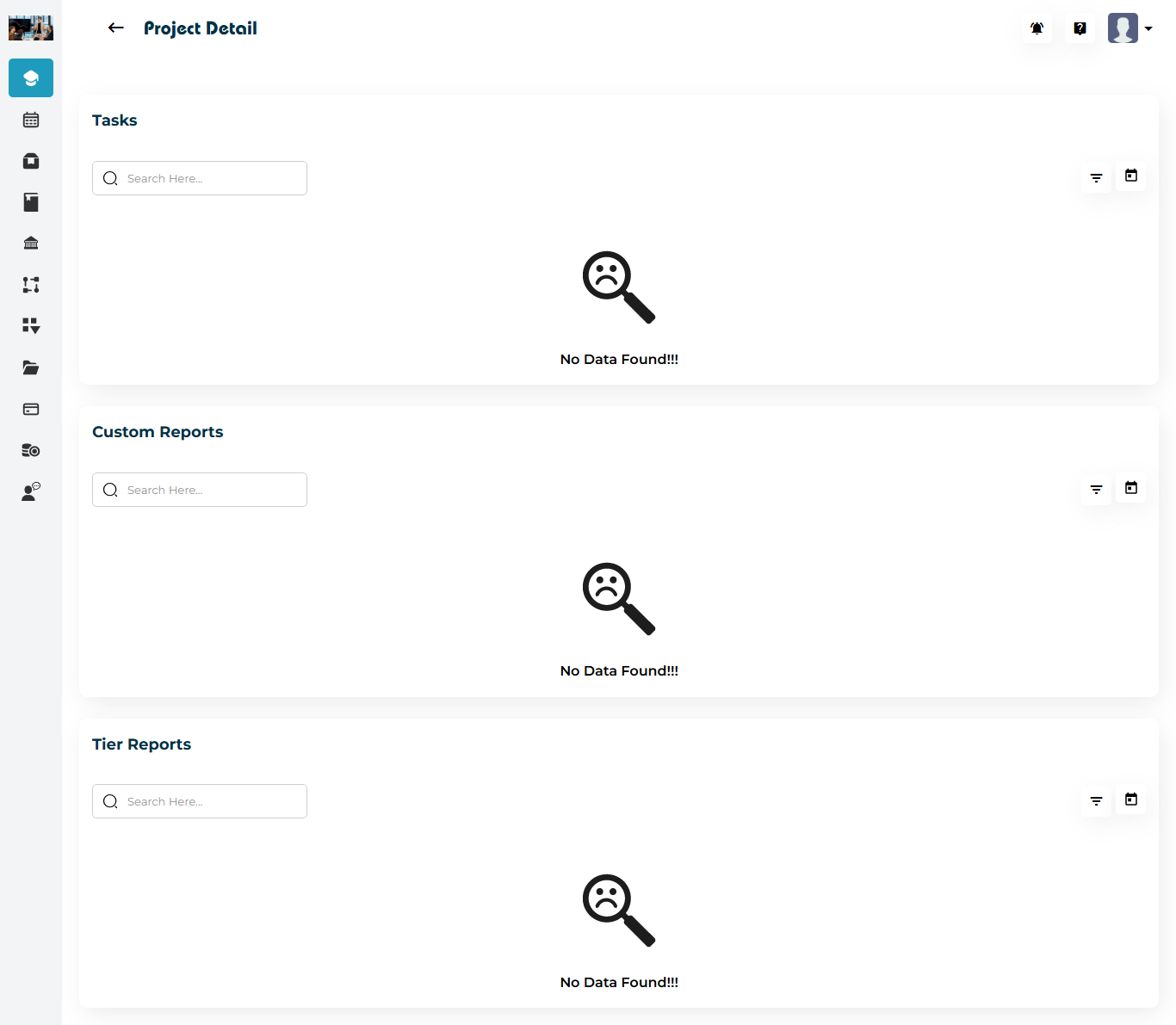
4.1 Instructor Project Tasks
Project tasks associated with the project that are assigned by the instructor for the their students.
If empty, it shows No Data Found.
The Admin can add tasks from the Projects main tab in the admin panel and the instructors can also do so from their project dashboard.
4.2 Custom Reports
Custom reports defined by Admin for the project and submitted by this instructor will appear here.
Any submitted reports will be highlighted and pending the Admin review to accept or reject the submission.
Admin can also filter by the status of the report or date range.
4.3 Tier Reports
Custom reports defined by Admin for the project and submitted by this instructor will appear here.
- Any submitted reports will be highlighted and pending the Admin review to accept or reject the submission.
- Admin can also filter by the status of the report or date range.
To learn more about adding project tasks and creating project reports, please visit the Projects part of the guide.