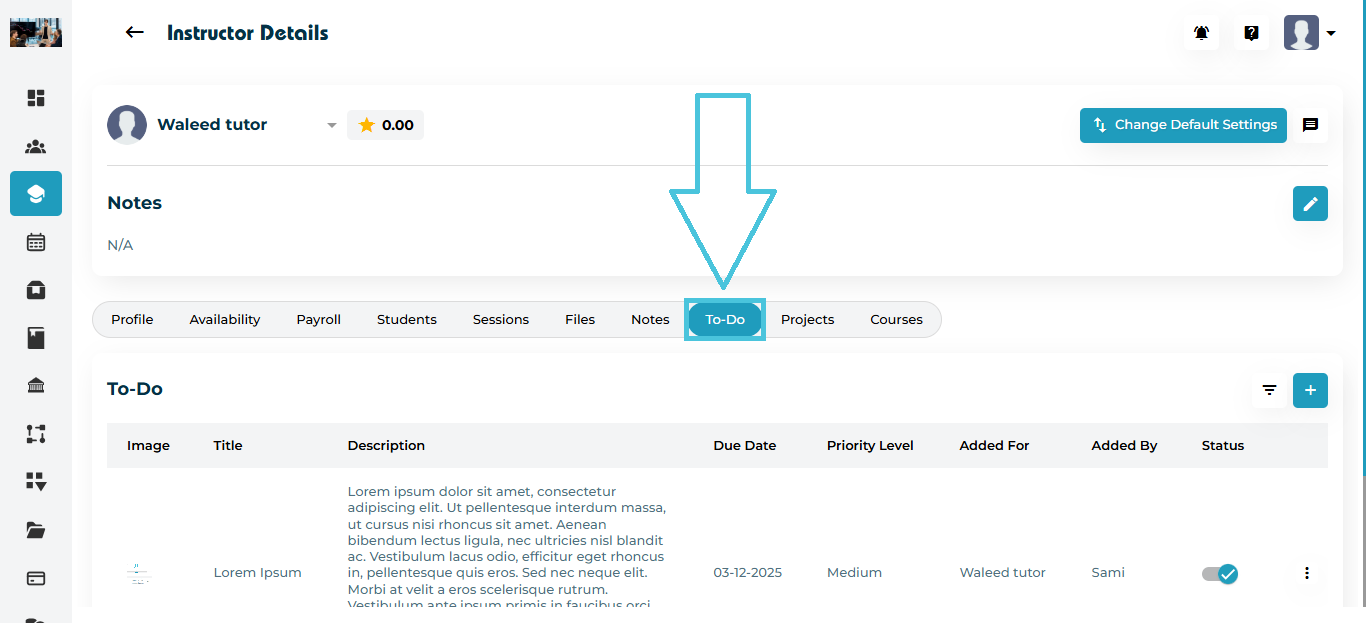
Go to Instructors from the left navigation menu.
Open any instructor’s profile.
Click the To-Do tab in the top submenu.
Here, you will see the complete list of tasks assigned to that instructor, including:
- Image (if added)
Title
Description
Due Date
Priority Level (low/medium/high)
Added For (admin, self, student)
Added By (instructor or admin)
To D0 Status (pending or completed)
- Status (enabled or disabled)
Action Menu (Edit/Delete)
To add a new To-Do item:
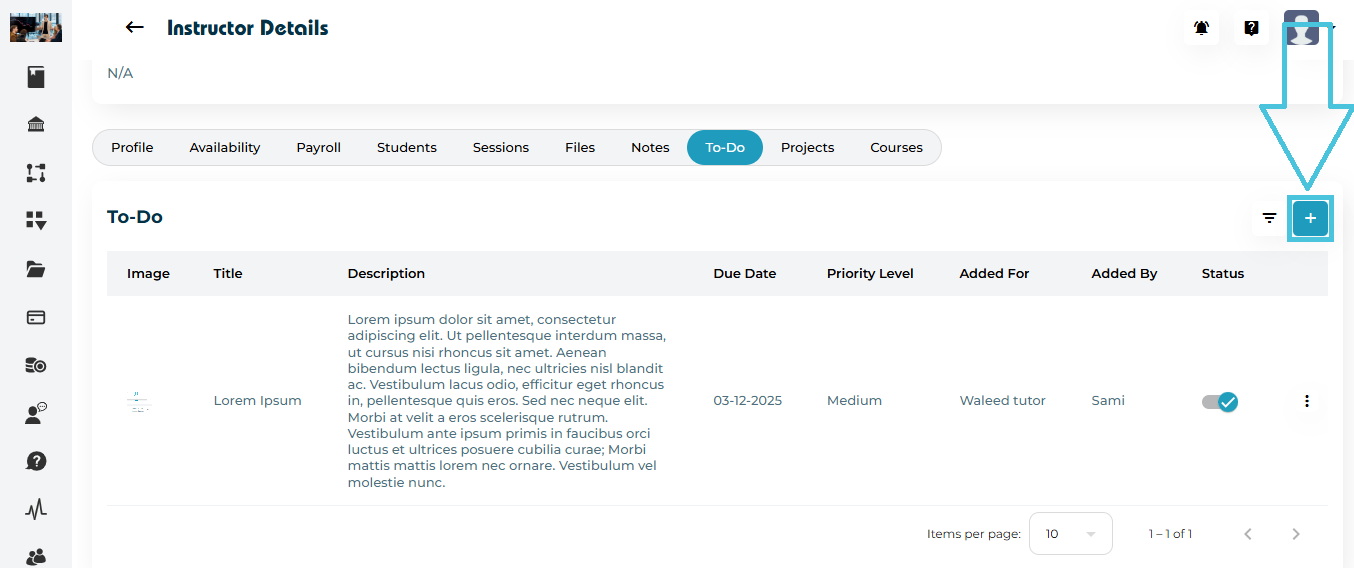
Click the ➕ Add button located at the top-right of the To-Do list.
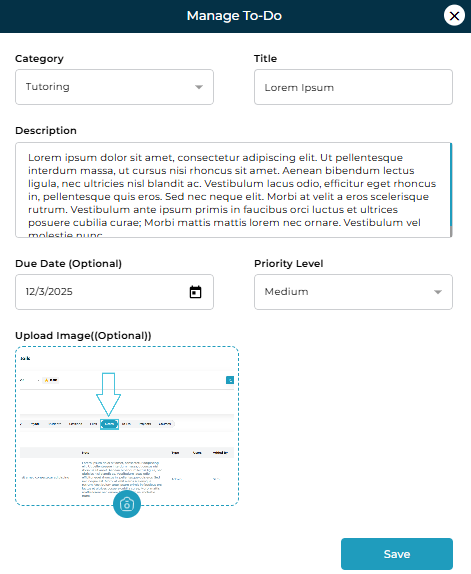
The Manage To-Do form will open.
Fields in the Add Task Form
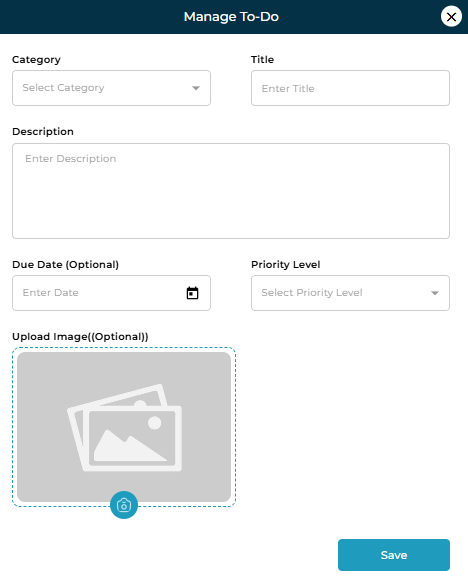
| Field | Description |
|---|---|
| Category | Choose the task category (e.g., Tutoring, Counselling). |
| Title | A short title summarizing the task. |
| Description | Provide task instructions or important details. |
| Due Date (Optional) | Specify a deadline when applicable. |
| Priority Level | Choose Low, Medium, or High. |
| Upload Image (Optional) | Attach a reference image, material, or screenshot. |
After filling in the form, click Save.
The task will now appear in the instructor’s To-Do list instantly.
To update task details:
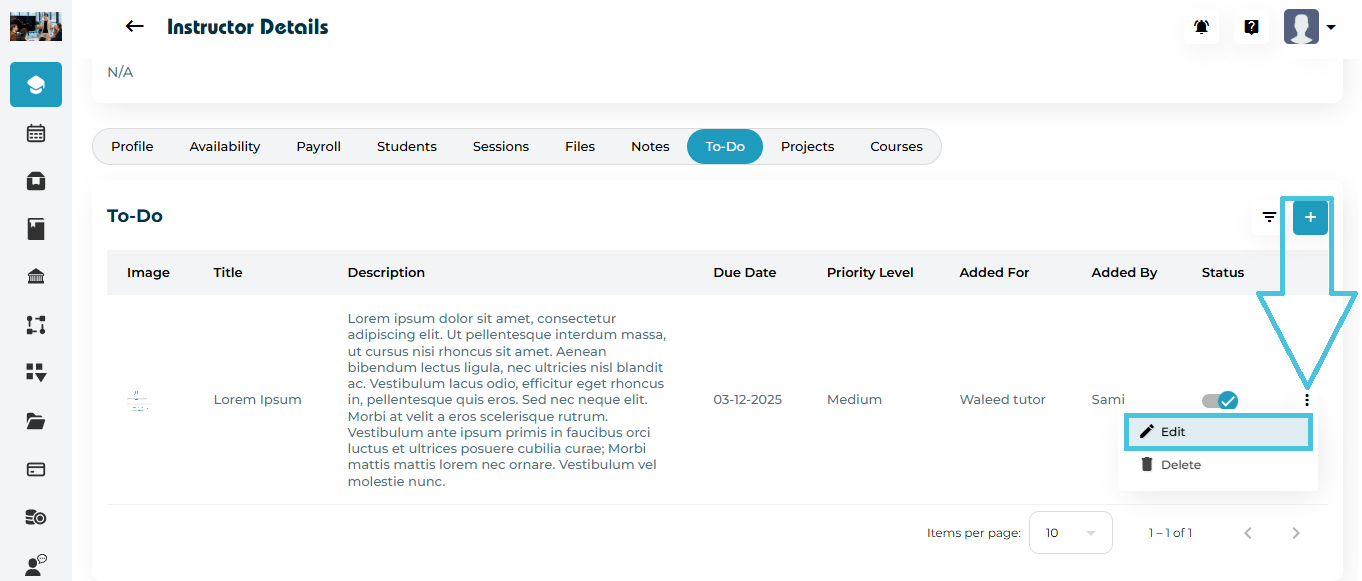
Click the three-dots menu (⋮) beside any task.
Select Edit.
Update any field such as:
Title
Description
Category
Due Date
Priority
Uploaded Image
Click Save to apply changes.
If you need to remove a task:
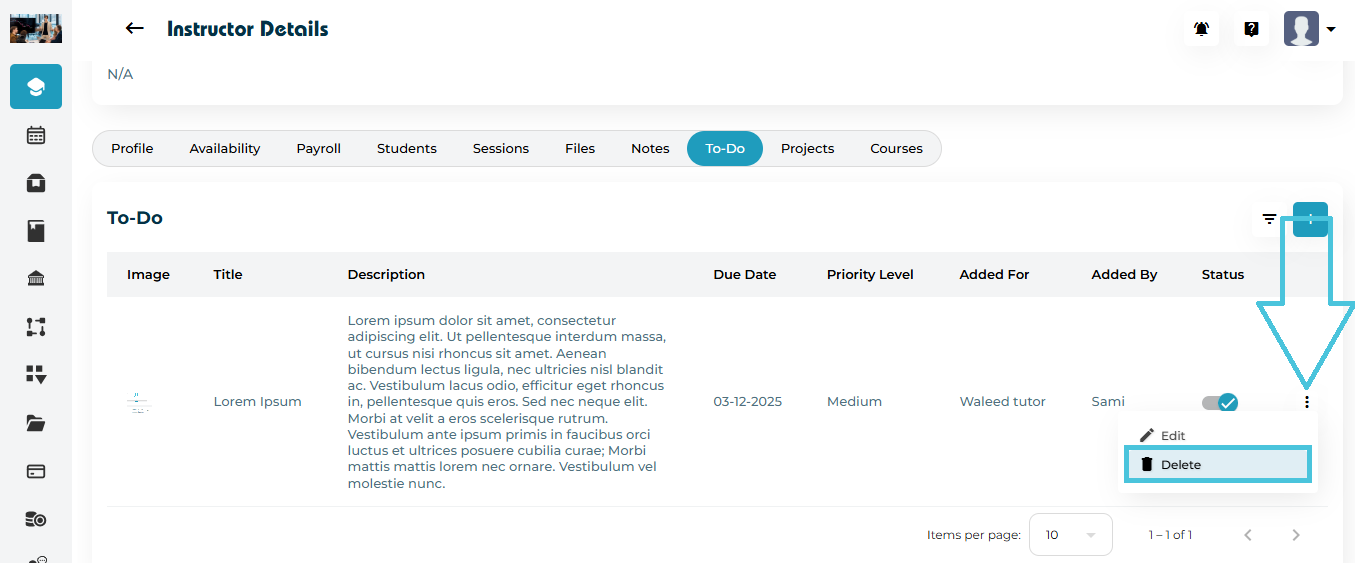
Open the three-dots menu (⋮) next to the task.
Click Delete.
Confirm the action.
The task will be permanently removed from the instructor’s To-Do list.
Each task has a status toggle beside it:
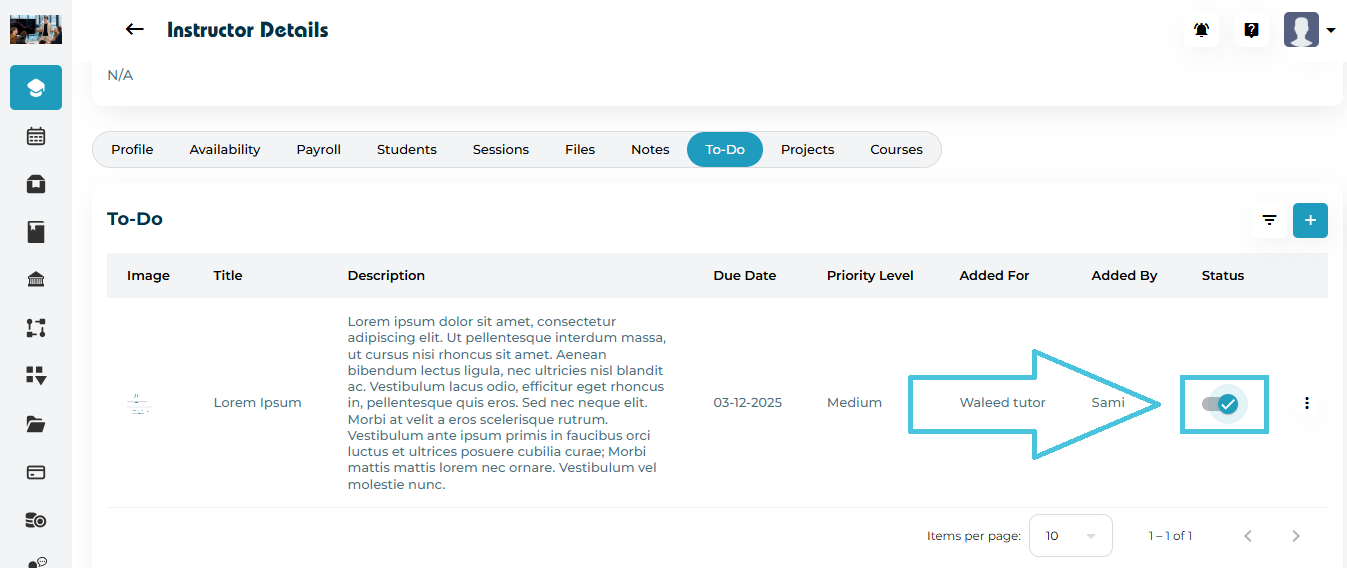
Checked (blue) = Task completed
Unchecked (grey) = Task pending
Instructors may mark tasks as complete from their portal, or Admins may update the status manually.
This helps track progress at a glance.
To quickly locate or review tasks:
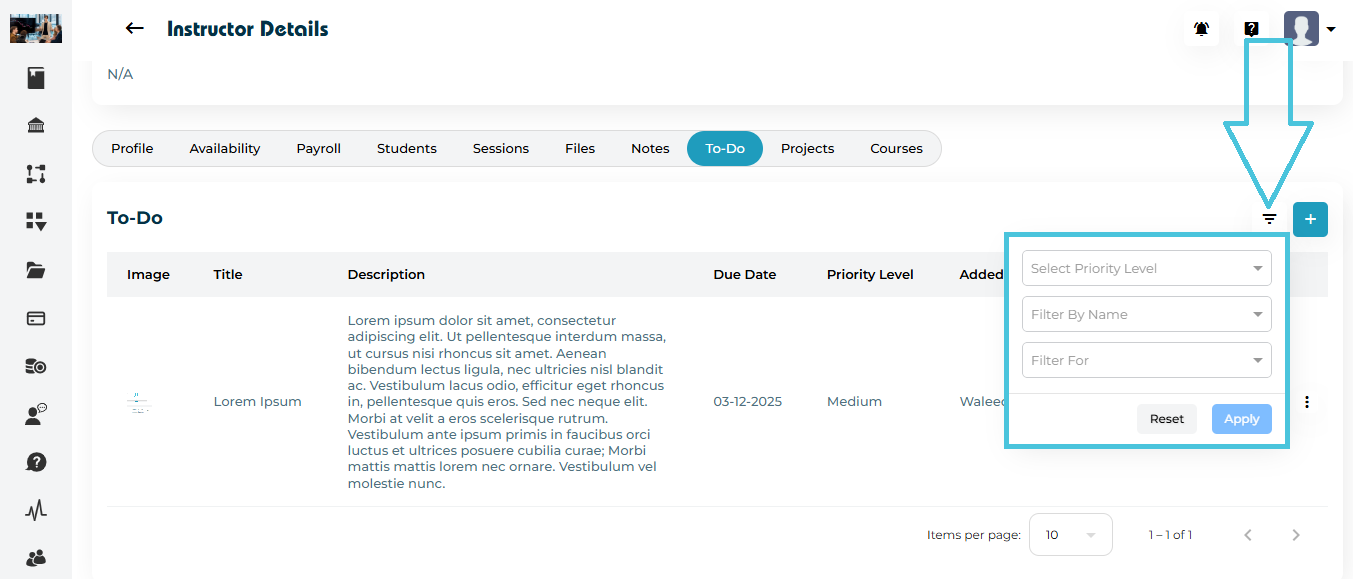
Click the Filter icon next to the Add button.
A filter panel will appear.
Available Filters
Filter Purpose Priority Level View tasks by urgency (Low/Medium/High). Filter by Name Task added for Self, for Student ,or by Admin. Filter For Task added for Tutoring or Counseling. Click Apply to run the filter.
Click Reset to restore the full task list.